08 December 2019

Snapchat Cameo edits your face into videos


Snapchat is preparing to launch a big new feature that uses your selfies to replace the faces of people in videos you can then share. It’s essentially a simplified way to Deepfake you into GIFs. Cameos are an alternative to Bitmoji for quickly conveying an emotion, reaction, or silly situation in Snapchat messages.

Some French users received a test version of the feature today, as spotted by Snap enthusiast @Mtatsis.

Snapchat Cameo makes you the star of videos

TechCrunch reached out to Snap, which confirmed Cameo’s existence, and that it’s currently testing in limited availability in some international markets. The company provided this statement: “Cameos aren’t ready to take the stage yet, but stay tuned for their global debut soon!”

With Cameo, you’ll take a selfie to teach Snapchat what you look like. Then you choose if you want a vaguely male or female body type (no purposefully androgenous option).

Cameo then lives inside the Bitmoji button in the Snapchat messaging keyboard. Snapchat has made a bunch of short looping video clips with sound that you can choose from. Snapchat will then stretch and move your selfie to create different facial reactions that Cameo can apply to actors’ heads in the videos. You just pick one of these videos that now star you and send it to the chat.

Cameo could help Snapchat keep messaging interesting, which is critical since that remains its most popular and differentiated feature. With Instagram and WhatsApp having copied its Stories to great success, it must stay ahead in chat. Though in this case, Snap could be accused of copying Chinese social app Zao which let users more realistically Deepfake their faces into videos. Then again, JibJab popularized this kind of effect many years ago to stick your face on dancing Christmas elves.

Snap is only starting to monetize the messaging wing of its app with ads inside social games. Snap might potentially sell sponsored, branded Cameo clips to advertisers similar to how the company offers sponsored augmented reality lenses.

Cameo could put a more fun spin on technology for grafting faces into videos. Deepfakes can be used as powerful weapons of misinformation or abuse. But by offering only innocuous clips rather than statements from politicians or pornography, Snapchat could turn the tech into a comedic medium.

[Image Credit: Jeff Higgins]


Read Full Article

Snapchat Cameo edits your face into videos


Snapchat is preparing to launch a big new feature that uses your selfies to replace the faces of people in videos you can then share. It’s essentially a simplified way to Deepfake you into GIFs. Cameos are an alternative to Bitmoji for quickly conveying an emotion, reaction, or silly situation in Snapchat messages.

Some French users received a test version of the feature today, as spotted by Snap enthusiast @Mtatsis.

Snapchat Cameo makes you the star of videos

TechCrunch reached out to Snap, which confirmed Cameo’s existence, and that it’s currently testing in limited availability in some international markets. The company provided this statement: “Cameos aren’t ready to take the stage yet, but stay tuned for their global debut soon!”

With Cameo, you’ll take a selfie to teach Snapchat what you look like. Then you choose if you want a vaguely male or female body type (no purposefully androgenous option).

Cameo then lives inside the Bitmoji button in the Snapchat messaging keyboard. Snapchat has made a bunch of short looping video clips with sound that you can choose from. Snapchat will then stretch and move your selfie to create different facial reactions that Cameo can apply to actors’ heads in the videos. You just pick one of these videos that now star you and send it to the chat.

Cameo could help Snapchat keep messaging interesting, which is critical since that remains its most popular and differentiated feature. With Instagram and WhatsApp having copied its Stories to great success, it must stay ahead in chat. Though in this case, Snap could be accused of copying Chinese social app Zao which let users more realistically Deepfake their faces into videos. Then again, JibJab popularized this kind of effect many years ago to stick your face on dancing Christmas elves.

Snap is only starting to monetize the messaging wing of its app with ads inside social games. Snap might potentially sell sponsored, branded Cameo clips to advertisers similar to how the company offers sponsored augmented reality lenses.

Cameo could put a more fun spin on technology for grafting faces into videos. Deepfakes can be used as powerful weapons of misinformation or abuse. But by offering only innocuous clips rather than statements from politicians or pornography, Snapchat could turn the tech into a comedic medium.

[Image Credit: Jeff Higgins]


Read Full Article

In wake of Shutterstock’s Chinese censorship, American companies need to relearn American values


It’s among the most iconic images of the last few decades — a picture of an unknown man standing before a line of tanks during the protests in 1989 in Beijing’s Tiananmen Square. In just one shot, the photographer, Jeff Widener, managed to convey a society struggling between the freedoms of individual citizens and the heavy hand of the Chinese militarized state.

It’s also an image that few within China’s “great firewall” have access to, let alone see. For those who have read 1984, it can almost seem as if “Tank Man” was dropped into a memory hole, erased from the collective memory of more than a billion people.

By now, it’s well-known that China’s search engines like Baidu censor such political photography. Regardless of the individual morality of their decisions, it’s at least understandable that Chinese companies with mostly Chinese revenues would carefully hew to the law as set forth by the Chinese Communist Party. It’s a closed system after all.

What we are learning though is that it isn’t just Chinese companies that are aiding and abetting this censorship. It’s Western companies too. And Western workers aren’t pleased that they are working to enforce the anti-freedom policies in the Middle Kingdom.

Take Shutterstock, which has come under great fire for complying with China’s great firewall. As Sam Biddle described in The Intercept last month, the company has been riven internally between workers looking to protect democratic values, and a business desperate to expand further in one of the world’s most dynamic countries. From Biddle:

Shutterstock’s censorship feature appears to have been immediately controversial within the company, prompting more than 180 Shutterstock workers to sign a petition against the search blacklist and accuse the company of trading its values for access to the lucrative Chinese market.

Those petitions have allegedly gone nowhere internally, and that has led employees like Stefan Hayden, who describes nearly ten years of experience at the company as a frontend developer on his LinkedIn profile, to resign:

The challenge of these political risks is hardly unknown to Shutterstock. The company’s most recent annual financial filing with the SEC lists market access and censorship as a key risk for the company (emphasis mine):

For example, domestic internet service providers have blocked and continue to block access to Shutterstock in China and other countries, such as Turkey, have intermittently restricted access to Shutterstock. There are substantial uncertainties regarding interpretation of foreign laws and regulations that censor content available through our products and services and we may be forced to significantly change or discontinue our operations in such markets if we were to be found in violation of any new or existing law or regulation. If access to our products and services is restricted, in whole or in part, in one or more countries or our competitors can successfully penetrate geographic markets that we cannot access, our ability to retain or increase our contributor and customer base may be adversely affected, we may not be able to maintain or grow our revenue as anticipated, and our financial results could be adversely affected.

Thus the rub: market access means compromising the very values that a content purveyor like Shutterstock relies on to operate as a business. The stock image company is hardly unique to find itself in this position; it’s a situation that the NBA has certainly had to confront in the last few weeks:

It’s great to see Shutterstock’s employees standing up for freedom and democracy, and if not finding purchase internally with their values, at least walking with their feet to other companies who value freedom more reliably.

Unfortunately, far too many companies — and far too many tech companies — blindly chase the dollars and yuans, without considering the erosion in the values at the heart of their own business. That erosion ultimately adds up — without guiding principles to handle business challenges, decisions get made ad hoc with an eye to revenues, intensifying the risk of crises like the one facing Shutterstock.

The complexity of the Chinese market has only expanded with the country’s prodigious growth. The sharpness, intensity, and self-reflection of values required for Western companies to operate on the mainland has reached new highs. And yet, executives have vastly under-communicated the values and constraints they face, both to their own employees but also to their shareholders as well.

As I wrote earlier this year when the Google China search controversy broke out, it’s not enough to just be militant about values. Values have to be cultivated, and everyone from software engineers to CEOs need to understand a company’s objectives and the values that constrain them.

As I wrote at the time:

The internet as independence movement is 100% dead.

That makes the ethical terrain for Silicon Valley workers much more challenging to navigate. Everything is a compromise, in one way or another. Even the very act of creating value — arguably the most important feature of Silicon Valley’s startup ecosystem — has driven mass inequality, as we explored on Extra Crunch this weekend in an in-depth interview.

I ultimately was in favor of Google’s engagement with China, if only because I felt that the company does understand its values better than most (after all, it abandoned the China market in the first place, and one would hope the company would make the same choice again if it needed to). Google has certainly not been perfect on a whole host of fronts, but it seems to have had far more self-reflection about the values it intends to purvey than most tech companies.

It’s well past time for all American companies though to double down on the American values that underly their business. Ultimately, if you compromise on everything, you stand for nothing — and what sort of business would anyone want to join or back like that?

China can’t be ignored, but neither should companies ignore their own duties to commit to open, democratic values. If Tank Man can stand in front of a line of tanks, American execs can stand before a line of their colleagues and find an ethical framework and a set of values that can work.


Read Full Article

Use Android’s Focus Mode to Avoid Distractions


Google has officially launched Focus Mode on Android. This feature, which is part of Google’s suite of Digital Wellbeing tools, was previously available in beta. Now, most people running Android 10, and some running Android 9, can use Focus Mode.

In a nutshell, Focus Mode makes it easier to focus on the task at hand. Hence the name. It does this by helping you avoid distractions from your smartphone. And you do this by using Focus Mode to temporarily pause the apps you find distracting.

How to Use Focus Mode on Android

Google launched Focus Mode out of beta in a post on The Keyword. The company describes Focus Mode as a tool that “helps you get things done by temporarily pausing apps so you can focus on the task at hand.” Essentially putting you back in control.

Focus Mode lets you temporarily pause the apps you find distracting. Whether that’s games that keep sucking you back in or social media platforms which notify you of new things to see. Either way, Focus Mode lets you silence these apps to avoid distractions.

To access Focus Mode on your Android smartphone (if it’s available), open the Settings and scroll down to Digital Wellbeing & Parental Controls. Click this then find Focus Mode hidden within a submenu titled Ways to Disconnect.

All you do is select the apps you personally find distracting. Then, you can either schedule a time for Focus Mode to switch on and off, or turn it on and off manually. You can also take a break from Focus Mode if and when you need some downtime.

Other Digital Wellbeing Experiments

Focus Mode has been available in beta on Android 10 for a while, so you may already be using it. However, it’s now available to everyone who has access to the Digital Wellbeing app. This applies to all handsets running Android 10, plus some running Android 9.

Google is getting serious about Digital Wellbeing. So, to complement the tools built into Android, Google launched Digital Wellbeing Experiments. These are experimental apps designed to reduce your smartphone use, and are well worth checking out.

Read the full article: Use Android’s Focus Mode to Avoid Distractions


Read Full Article

The Safari Shortcuts Cheat Sheet for Mac


safari-features

Safari is one of the best browsers for Mac users and beats Chrome on many counts.

Have you decided to stick with this native macOS app for browsing? Then it’s time to take your Safari experience a notch or two higher by adding a few choice shortcuts to your workflow. Take your pick from the shortcuts we’ve compiled in the cheat sheet below. (Using them all is even better!)

The cheat sheet contains several keyboard shortcuts as well as link-based shortcuts for handling tabs, bookmarks, webpage content, and more. These shortcuts can save you loads of time as you surf the web.

FREE DOWNLOAD: This cheat sheet is available as a downloadable PDF from our distribution partner, TradePub. You will have to complete a short form to access it for the first time only. Download The Safari Shortcuts Cheat Sheet for Mac.

The Safari Shortcuts Cheat Sheet for Mac

Shortcut Action
Tab and Window Management
Cmd + N Open new window
Shift + Cmd + N Open new private window
Cmd + T Open new tab
Option + Cmd + T Open new tab at end of tab bar
¹Cmd + L Select address bar content
¹Cmd + Return Open address bar URL in new background tab
Shift + Cmd + Return Open address bar URL in new foreground tab
²Cmd + click Open link in new background tab
²Option + Cmd + click Open link in new background window
²Shift + Cmd + click Open link in new foreground tab
²Option + Shift + Cmd + click Open link in new foreground window
³Cmd + M Minimize current window
Cmd + W Close current tab
Option + Cmd + W Close all tabs except current tab
Shift + Cmd + W Close current window
Option + Shift + Cmd + W Close all windows
⁴Cmd + Shift + T Reopen last closed tab/window
Control + Tab OR
Shift + Cmd + ]
Switch to next tab
Shift + Control + Tab OR
Shift + Cmd + [
Switch to previous tab
⁵Cmd + 1/2/… Switch to first tab/second tab/…
Cmd + 9 Switch to last tab i.e. tab at end of tab bar
⁶Option + Cmd + 1,2..9 Open first/second/… bookmark listed under Favorites
Shift + Cmd + \ Toggle Tab Overview
Option + click Close button Close all tabs except tab whose close button you clicked
Cmd + Q Quit Safari
Webpage Content
Up Arrow Scroll up
Down Arrow Scroll down
Left Arrow Scroll left
Right Arrow Scroll right
Option + Arrow key Scroll in larger increments
Spacebar OR
Page Down
Scroll down a screen
Shift + Spacebar OR
Page Up
Scroll up a screen
Cmd + Up Arrow OR
Fn + Left Arrow OR
Home
Scroll to top of webpage
Cmd + Down Arrow OR
Fn + Right Arrow OR
End
Scroll to bottom of webpage
Cmd + + Zoom in on webpage content
Cmd + - Zoom out of webpage content
Option + Cmd + + Make webpage text bigger
Option + Cmd + - Make webpage text smaller
Cmd + 0 Restore webpage content to default size
Cmd + R Reload webpage
Option + Cmd + R Reload webpage from origin i.e. without using browser cache
Cmd + . Stop webpage from loading
Cmd + ] OR
Cmd + Right Arrow
Go to next page in history
Cmd + [ OR
Cmd + Left Arrow
Go to previous page in history
Hold Back/Forward toolbar button View history of current tab in a list
Shift + Cmd + H Go to homepage
Option + Cmd + S Search results SnapBack
Cmd + F Find text on page
Cmd + F
Cmd + E
Find selected text on page
Cmd + G OR
Return
Move forward through matching text results
Shift + Cmd + G OR
Shift + Return
Move backward through matching text results
Reading and Bookmarks - I
Shift + Cmd + R Toggle Reader view for current webpage
Cmd + D Save current webpage as bookmark
Shift + Cmd + D Add current webpage to Reading List
⁷Option + Cmd + Down Arrow Load next Reading List item
⁷Option + Cmd + Up Arrow Load previous Reading List item
Click bookmark in sidebar or double-click in Bookmarks Editor Open bookmark
Shift + click Add linked page to Reading List
Cmd + click folder in Favorites bar Open all bookmarks from folder
Drag bookmark to left/right in Favorites bar Move bookmark
Drag bookmark off Favorites bar Remove bookmark
⁸Reading and Bookmarks - II
⁹Cmd + click Select/deselect bookmark/folder
¹⁰Shift + click Select multiple bookmarks/folders
Cmd + double-click Open bookmark in new background tab
Option + Cmd + double-click Open bookmark in new background window
Shift + Cmd + double-click Open bookmark in new foreground tab
Option + Shift + Cmd + double-click Open bookmark in new foreground window
Spacebar Open selected bookmark OR
Toggle contents of selected bookmark folder
Right Arrow Open selected folder
Left Arrow Close selected folder
Return Highlight name of selected bookmark/folder for editing OR
Finish editing name of bookmark/folder
Delete Deleted selected bookmark/folder
Browser Layout and Views
³Cmd + , Open Preferences
Shift + Cmd + B Toggle Favorites bar
Cmd + / Toggle status bar
Shift + Cmd + L Toggle sidebar
Control + Cmd + 1 Toggle Bookmarks sidebar
Control + Cmd + 2 Toggle Reading List sidebar
Shift + Cmd + \ Toggle Tab Overview
¹¹Option + Cmd + L Toggle Downloads
Option + Cmd + B Show Bookmarks Editor
Control + Cmd + F Toggle Full Screen view
Cmd + Y Show browser history
Esc Quit Full Screen mode OR
Quit Reader View
Development
Option + Cmd + R Toggle Responsive Design mode
Option + Cmd + I Show Web Inspector
Option + Shift + Cmd + I Connect Web Inspector
Option + Cmd + C Show JavaScript Console
Option + Cmd + U Show Page Source
Option + Cmd + A Show Page Resources
Option +Shift + Cmd + T Start/stop timeline recording
Shift + Cmd + C Start/stop element selection
Option + Cmd + E Empty browser caches
Other Shortcuts
Cmd + O Open file
Option + click file link Download linked file
Double-click file in Downloads list Open downloaded file
Cmd + I Email link to current page

¹Use Cmd + L and Cmd + Return in that order to duplicate current tab quickly.

²Shortcut works with bookmarks in Favorites bar also.

³Shortcut works in other macOS apps also.

⁴The Undo shortcut Cmd + Z also works as long as the Close Tab action was the most recent one. Neither shortcut can reopen private browsing tabs and windows.

⁵Shortcut works only for first eight tabs from left.


⁶Shortcut works only for first nine tabs from left. Folders and bookmarks within them don’t count.

⁷Shortcut works only when Reading List sidebar is open.

⁸Shortcuts work in Bookmarks Sidebar and Bookmarks Editor.

⁹Shortcut also lets you select multiple, non-contiguous bookmarks/folders.

¹⁰Shortcut works with contiguous bookmarks only.

¹¹Shortcut does not work when Downloads list is empty.

Personalize Safari for a Better Workflow

Despite being less versatile than popular browsers like Chrome, Firefox, and Opera, Safari remains the top choice for Mac users thanks to its seamless integration with macOS.

To make the best of Safari, personalize it with our Safari customization guide, keep it in top shape with our tips for boosting browser speed and performance and of course, use the shortcuts we’ve listed above.

Read the full article: The Safari Shortcuts Cheat Sheet for Mac


Read Full Article

Get Started in Cybersecurity With This FREE Ebook (Worth $30)


Almost every day there’s breaking news about a new hack or data leak, yet the cybersecurity industry remains chronically understaffed, with the talent gap estimated in the millions.

This makes it a tempting and potentially lucrative career to enter. Yet there are so many beginner’s resources out there it’s difficult to know where to start. That’s where Cybersecurity, The Beginner’s Guide comes in.

This free ebook (usually $30) explores deep technical cybersecurity content, along with practical guidance on how to become a cybersecurity expert.

Download This Ebook For Free

Free cybersecurity ebook

Inside, you will learn everything including:

  • The importance and evolution of cybersecurity
  • Skills needed for a cybersecurity career
  • Attacker mindset
  • Understanding reactive, proactive, and operational security
  • Networking, mentoring, and shadowing
  • Building your own cybersecurity practice lab
  • Choosing the right certifications
  • Security intelligence resources
  • Expert opinions on entering the field
  • How to get hired in cybersecurity

This book is aimed at beginners looking to get into the cybersecurity field, as well as career switchers who want to enter this industry.

Want in? Simply click here to download this free ebook from TradePub. You will have to complete a short form to access the ebook, but it’s well worth it!

This free offer is only available until 17 Dec 2019.

Read the full article: Get Started in Cybersecurity With This FREE Ebook (Worth $30)


Read Full Article

07 December 2019

This Week in Apps: Black Friday’s boost, security news and the year’s biggest apps


Welcome back to This Week in Apps, the Extra Crunch series that recaps the latest OS news, the applications they support and the money that flows through it all. What are developers talking about? What do app publishers and marketers need to know? How are politics impacting the App Store and app businesses? And which apps are everyone using?

This week we look at how the Black Friday weekend played out on mobile (including which non-shopping category that saw a boost in revenue!), as well as a few security-related stories, TikTok’s latest bad press, plus Apple and Google’s best and most downloaded apps of 2019, and more.

Headlines

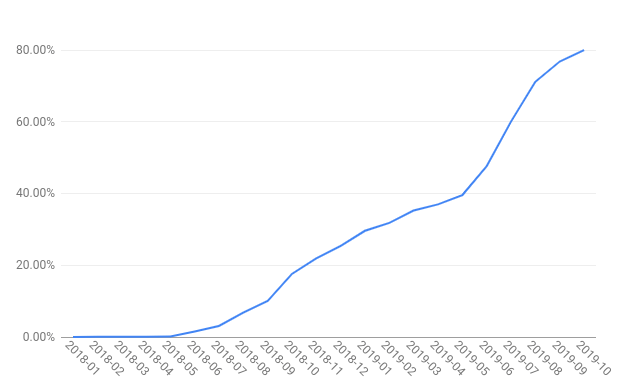
80% of Android apps are encrypting traffic by default

Google gave an update on Android security this week, noting that 80% of Android applications were encrypting traffic by default, and that percentage was higher for apps targeting Android 9 or higher, with 90% of them encrypting traffic by default. Android protects the traffic entering or leaving the devices with TLS (Transport Layer Security). Its new statistics are related to Android 7’s introduction of the Network Security Configuration in 2016, which allows app developers to configure the network security policy for their app through a declarative configuration file. Apps targeting Android 9 (API level 28) or higher automatically have a policy set by default that prevents unencrypted traffic for every domain. And since Nov. 1, 2019, all apps (including app updates) must target at least Android 9, Google says. That means the percentages will improve as more apps roll out their next updates.

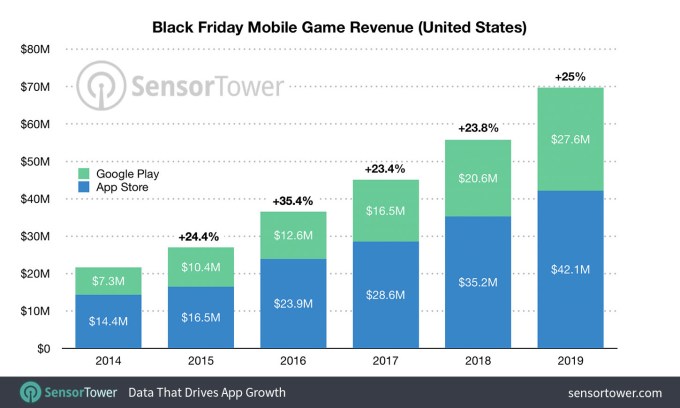
Black Friday boosted mobile game revenue to a record $70M

U.S. sales holiday Black Friday wasn’t just good for online shoppers, who spent a record $7.4 billion in sales, $2.9 billion from smartphones. It also boosted iOS and Android mobile game revenue to a single-day record of $69.7 million in the U.S., according to Sensor Tower. This was the most revenue ever generated in a single day for the category, and it represents a 25% increase over 2018. Marvel Contest of Champions from Kabam led the day with approximately $2.7 million in player spending. Two titles from Playrix — Gardenscapes and Homescapes — also won big, with $1 million and $969,000 in revenue, respectively.

These increases indicate that consumers are looking for all kinds of deals on Black Friday, not just those related to holiday gift-giving. They’re also happy to spend on themselves in games. Mobile publishers caught on to this trend and offered special in-game deals on Black Friday which really paid off.

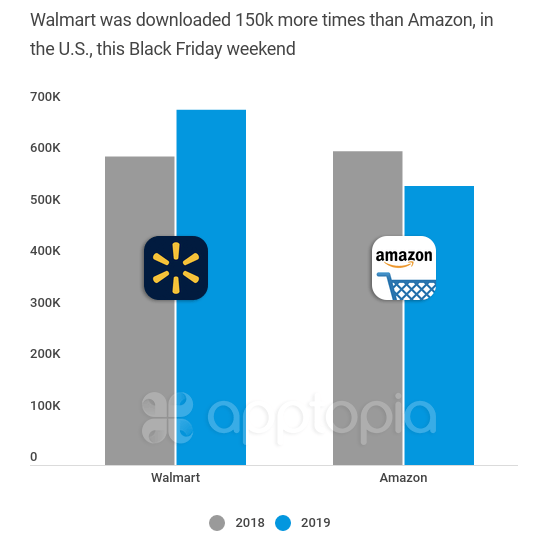
Did Walmart beat Amazon’s app on Black Friday?

Sensor Tower and Apptopia said it did. App Annie also said it did, but then later took it back (see update). In any event, it must have been a close race. According to Sensor Tower, Walmart’s app reached No.1 on the U.S. App Store on Black Friday with 113,000 new downloads, a year-over-year increase of 23%. Amazon had 102,000 downloads, making it No. 2.

Arguably, many Amazon shoppers already have the app installed, so this is more about Walmart’s e-commerce growth more so than some ding on Amazon.

In fact, Apptopia said that Amazon still had 162% more mobile sessions over the full holiday weekend — meaning Amazon was more shopped than Walmart.

More broadly, mobile shopping is still huge on Black Friday. The top 10 shopping apps grew their new installs by 11% over last year on Black Friday, to reach a combined 527,000 installs.

Report: Android Advanced Protection Program could prevent sideloading

Google’s Advanced Protection Program protects the accounts of those at risks of targeted attacks — like journalists, activists, business leaders, and political campaign teams. This week, 9to5Google found the program may get a new protection feature with the ability to block sideloading of apps, according to an APK breakdown. What’s not yet clear is if program members will have the option to disable the protection, but there are some indications that may be the case. Another feature the report uncovered appears to show that Play Protect will automatically scan all apps, including those from outside the Play Store. This won’t affect the majority of Android users, of course, but it is an indication of where Google believes security risks may be found: sideloaded apps.

Bug hunter suggests Security.plist standard for apps

Reddit links UK-US trade talk leak to Russian influence campaign


Reddit has linked account activity involving the leak and amplification of sensitive UK-US trade talks on its platform during the ongoing UK election campaign to a suspected Russian political influence operation.

Or, to put it more plainly, the social network suspects that Russian operatives are behind the leak of sensitive trade data — likely with the intention of impacting the UK’s General Election campaign.

The country goes to the polls next week, on December 12.

The UK has been politically deadlocked since mid 2016 over how to implement the result of the referendum to leave the European Union. The minority Conservative government has struggled to negotiate a brexit deal that parliament backs. Another hung parliament or minority government would likely result in continued uncertainty.

In a post discussing the “Suspected campaign from Russia”, Reddit writes:

We were recently made aware of a post on Reddit that included leaked documents from the UK. We investigated this account and the accounts connected to it, and today we believe this was part of a campaign that has been reported as originating from Russia.

Earlier this year Facebook discovered a Russian campaign on its platform, which was further analyzed by the Atlantic Council and dubbed “Secondary Infektion.” Suspect accounts on Reddit were recently reported to us, along with indicators from law enforcement, and we were able to confirm that they did indeed show a pattern of coordination. We were then able to use these accounts to identify additional suspect accounts that were part of the campaign on Reddit. This group provides us with important attribution for the recent posting of the leaked UK documents, as well as insights into how adversaries are adapting their tactics.

Reddit says that an account, called gregoratior, originally posted the leaked trade talks document. Later a second account, ostermaxnn, reposted it. The platform also found a “pocket of accounts” that worked together to manipulate votes on the original post in an attempt to amplify it. Though fairly fruitlessly, as it turned out; the leak gained little attention on Reddit, per the company.

As a result of the investigation Reddit says it has banned 1 subreddit and 61 accounts — under policies against vote manipulation and misuse of its platform.

The story doesn’t end there, though, because whoever was behind the trade talk leak appears to have resorted to additional tactics to draw attention to it — including emailing campaign groups and political activists directly.

This activity did bear fruit this month when the opposition Labour party got hold of the leak and made it into a major campaign issue, claiming the 451-page document shows the Conservative party, led by Boris Johnson, is plotting to sell off the country’s free-at-the-point-of-use National Health Service (NHS) to US private health insurance firms and drug companies.

Labour party leader, Jeremy Corbyn, showed a heavily redacted version of the document during a TV leaders debate earlier this month, later calling a press conference to reveal a fully un-redacted version of the data — arguing the document proves the NHS is in grave danger if the Conservatives are re-elected.

Johnson has denied Labour’s accusation that the NHS will be carved up as the price of a Trump trade deal. But the leaked document itself is genuine.

It details preliminary meetings between UK and US trade negotiators, which took place between July 2017 and July 2019, in which discussion of the NHS does take place, in addition to other issues such as food standards.

Although the document does not confirm what position the UK might seek to adopt in any future trade talks with the US.

The source of the heavily redacted version of the document appears to be a Freedom of Information (FOI) request by campaigning organisation, Global Justice Now — which told Vice it made an FOI request to the UK’s Department for International Trade around 18 months ago.

The group said it was subsequently emailed a fully unredacted version of the document by an unknown source which also appears to have sent the data directly to the Labour party. So while the influence operation looks to have originated on Reddit, the agents behind it seem to have resorted to more direct means of data dissemination in order for the leak to gain the required attention to become an election-influencing issue.

Experts in online influence operations had already suggested similarities between the trade talks leak and an earlier Russian operation, dubbed Secondary Infektion, which involved the leak of fake documents on multiple online platforms. Facebook identified and took down that operation in May.

In a report analysing the most recent leak, social network mapping and analysis firm Graphika says the key question is how the trade document came to be disseminated online a few weeks before the election.

“The mysterious [Reddit] user seemingly originated the leak of a diplomatic document by posting it around online, just six weeks before the UK elections. This raises the question of how the user got hold of the document in the first place,” it writes. “This is the single most pressing question that arises from this report.”

Graphika’s analysis concludes that the manner of leaking and amplifying the trade talks data “closely resembles” the known Russian information operation, Secondary Infektion.

“The similarities to Secondary Infektion are not enough to provide conclusive attribution but are too close to be simply a coincidence. They could indicate a return of the actors behind Secondary Infektion or a sophisticated attempt by unknown actors to mimic it,” it adds.

Internet-enabled Russian influence operations that feature hacking and strategically timed data dumps of confidential/sensitive information, as well as the seeding and amplification of political disinformation which is intended to polarize, confuse and/or disengage voters, have become a regular feature of Western elections in recent years.

The most high profile example of Russian election interference remains the 2016 hack of documents and emails from Hillary Clinton’s presidential campaign and Democratic National Committee — which went on to be confirmed by US investigators as an operation by Russia’s GRU intelligence agency.

In 2017 emails were also leaked from French president Emmanuel Macron’s campaign shortly before his election — although with apparently minimal impact in that case. (Attribution is also less clear-cut.)

Russian activity targeting UK elections and referendums remains a matter of intense interest and investigation — and had been raised publicly as a concern by former prime minister, Theresa May, in 2017.

Although her government failed to act on recommendations to strengthen UK election and data laws to respond to the risks posed by Internet-enabled interference. She also did nothing to investigate questions over the extent of foreign interference in the 2016 brexit referendum.

May was finally unseated by the ongoing political turmoil around brexit this summer, when Johnson took over as prime minister. But he has also turned a wilfully blind eye to the risks around foreign election interference — while fully availing himself of data-fuelled digital campaign methods whose ethics have been questioned by multiple UK oversight bodies.

A report into Russian interference in UK politics which was compiled by the UK’s intelligence and security parliamentary committee — and had been due to be published ahead of the general election — was also personally blocked from publication by the prime minister.

Voters won’t now get to see that information until after the election. Or, well, barring another strategic leak…


Read Full Article

6 Free Printables and Ebooks to Track or Change Habits


track-habits

Whether you’re breaking a bad habit or trying to form a good one, a little nudge in the right direction can go a long way. These free printables and ebooks promise to help you track or change habits easily.

As the year draws to a close, we often succumb to the pressure of setting resolutions. But if you’re serious about changing habits, you need the right advice and tools to get you going. You can use habit apps to reach your goals or go old-school with a pen and paper. There is just something more satisfying about the tactile feel of crossing or ticking a box.

1. Habit Print: Create a Printable Seinfeld-Like Chain

Create a custom printable chart for any habit streak at Habit Print

Comedian Jerry Seinfeld famously shared his productivity habit. He wrote a joke every single day and crossed it out on the calendar. The visual chain of his successful habit kept him going every day. Several people now swear by this trick.

Habit Print is a free web app to create such a visual habit tracker and print it. Just write whatever task you want to accomplish (maximum 35 characters), and the app will create a printable page for it. The page includes the seven days of the week in a grid of circles, with 10 rows of these circles.

There’s a productivity principle that if you want to form a new habit, you need to do that task for 66 days. Habit Print will take you to a chain of 70 days, ensuring you meet your goal and are better off for it.

2. Flowcharts for Changing Habits: Charles Duhigg’s Science-Backed Method

Charles Duhigg offers scientific flowcharts to change a bad habit or form a new habit

Charles Duhigg, author of The Power of Habit, has spent a long time researching the science behind habits. He has studied people’s behavior to figure out what makes them stick to a habit or change it.

Duhigg believes the key to changing habits is the “habit loop.” Habitual behavior activates based on a cue, like a time or when you’re at a certain place. Our brain then seeks a reward, which we indulge through some destructive behavior. In the end, this forms a routine.

But if you change the reward, you’ll break the habit loop. Find a reward that is healthy, without altering the cue, and you’ll end up making a new routine that is good for you. Over time, this will become your new habit.

Duhigg has converted his theory into two easy-to-follow flowcharts while you try to form a new habit loop:

Register for the newsletter and you can download high-resolution versions of both flowcharts, which you can then print.

3. Clementine Creative’s Habit Tracker: Month-Long Tracker for Multiple Habits

Free printable month long template to track habits from Clementine Creative

Habit Print is a single page to focus on a single new routine. If you want a more comprehensive habit plan with several tasks and practices, try Clementine Creative’s habit tracker.

You get 31 columns for the dates of the month, along with a space to write the day. And there are 15 rows to list all the habits you want to form. Every time you complete a habit, check, fill, or draw a pattern in that column.

You can print it in Letter, A4, or A5 size. The writer recommends using different colors for different tasks to add a little oomph to the calendar and to also make it easy to distinguish how well you’re doing on different habits.

The website also has an editable version of the habit tracker, where you can first add the different tasks and print after that. But this needs a small payment.

4. Habit Tracker Templates: Weekly, 10-Day, 15-Day, and More

Download and print the 10-day habit tracker template from Teal Notes

Like the month-long habit tracker from Clementine Creative, there are several others. Teal Notes has compiled the best of them into well-designed free downloads that you can print.

There are weekly, 10-day, 15-day, and monthly habit tracking templates, available in both vertical and horizontal formats. The vertical monthly tracker even has a color version.

The 10-day and 15-day trackers stand out because of their columns for notes. The 15-day version even looks different, presented like a hand-fan. The first day is the smallest to fill, but as your streak continues, you get to fill larger boxes, making you reflect longer about your accomplishments.

5. Hipster Habit App: Printable Mini-Book to Fold Into Your Wallet

The hipster habit app is a foldable habit guide and tracker that fits in your wallet

The best habit app is not an app at all. In fact, it’s a little guide that sits in your pocket. Download the Hipster Habit App PDF and print it out. Then fold it as shown in the instructions and stick it in your wallet.

Follow the instructions of the Hipster Habit App page by page. This habit-changing guide follows all the basics that will set you up for actually making a lasting change. It encourages you to figure out the purpose, breaks the task into easy steps day-by-day, and gives you things to do through your journey.

The Hipster Habit App also includes habit streak calendars, and even a little bit of gamification to encourage you to achieve new titles. All you need is a pen to fill the blanks. It’s super cool and will be a talking point wherever you go.

6. All About Habits: Crash Course in Habit Science

Mark Manson's All About Habits is a crash course in habit science

Mark Manson, the author of The Subtle Art of Not Giving a F*ck, wanted to understand the science behind habits, and different studies conducted about it. After much research, he compiled all the data into an easy-to-understand article, also available as a 21-page ebook. The ebook is worth it for this longread.

Manson’s focus is on willpower since that seems to be what drives whether you can successfully change a habit or not. From the famous marshmallow test to real-life examples of people, the ebook traces different data about how we undertake habit-changing behavior.

If you are serious about forming a new habit, it’s important to understand how your mind and body will react to behavioral changes. The more you know, the easier it is to set plans to tackle pitfalls. Habit change isn’t overnight, as the ebook will tell you. But you can change your life in small steps.

Try Micro-Challenges for Habit Changes

With these downloads and printables, you’ll have an easier time in effecting meaningful change in your life. But we all know it won’t happen overnight. A neat trick is to try mini-challenge apps for life-altering habits. A lot of people are having some success this way.

Read the full article: 6 Free Printables and Ebooks to Track or Change Habits


Read Full Article

Flu Shot


Flu Shot

6 Shocking Video Websites to See News They Won’t Show You on TV


There’s an urgent need for discretion on national television, but shouldn’t it be okay to see the raw, unedited footage of a graphic or gruesome event? The public should have open access to any and all information. This should include uncensored video footage of any news event (if that footage exists).

If you’re tired of seeing blurred-out footage on the evening news, you should know that all the websites on the following list have completely uncensored news footage. These shock websites show you more footage than you’ll ever see on TV. While you won’t find outright gore or nudity on these sites, the videos are still bound to astound you.

1. Xfinity Video

Xfinity Video Shocking Video Website

You know Xfinity as a popular cable and internet provider, but did you know it also has its fair share of intriguing videos? Xfinity Video is only worth mentioning as a warmup for what’s to come. The videos here are only “shocking” to ultra-conservative types, but it’s where you go if you want to see things like funny fail videos, the latest on celebrity drama, the aftermath of natural disasters, violent protests, and even explosions.

You’ll notice that Xfinity Video compiles their footage from a variety of different sources. Although every single video isn’t left unedited, you can still find some raw footage buried among the rest.

2. Leaked Reality

Leak Reality Shocking Video Websites

If you’re looking for sites like LiveLeak (which we’ll get to later), check out Leaked Reality. On Leaked Reality, you’ll find everything from graphic news videos, violent military footage, street fights, transportation accidents, and much more. Each video comes with a tag that displays its rating, as well as the country the video was shot in.

Leaked Reality’s video rating system works much like the MPAA ratings. A video labeled “GA” is much milder than one with the “MA” label. The more “low-key” videos feature things like protests, while the more intense ones have crazy shootouts and other shocking events.

The site has six main video categories at the main menu bar: FeaturedNewsMilitaryCopsWTF, and Accidents. This can help you filter out the type of raw video you want to watch. Plus, you can use the videos’ view counter and user rating to help you determine if a video’s worth clicking on.

3. Daily Mail

Daily Mail Shocking Video Website

The DailyMail is a British world news site that covers political events, celebrity news, sports, and scientific breakthroughs. You might think that Daily Mail censors itself, but the opposite is true. You’ll soon realize that the Videos section of its site doesn’t disappoint.

As you browse through videos, you’ll come across some that are shocking and graphic. If you’re watching at work, keep in mind that the site labels any videos with graphic content. That way, you’ll always know what’s appropriate to watch.

Otherwise, you can watch the Daily Mail’s shocking videos to your heart’s content. Bar fights, abductions, massive pimple-popping, and car accidents are just some of the insane videos you’ll see.

4. WorldStarHipHop

Worldstarhiphop Shocking Video Site

If you ever see a crazy fight happen in public, you might hear someone yell out “WorldStar!” That’s what WorldStarHipHop is famous for, as the site is a hub for brutal public fights. At the top of the screen, under Trending Now, you’ll find the current most popular videos. Scroll down a little further, and you’ll see some music videos.

As you can see, the site has a satisfying collection of fight videos, as well as videos related to hip hop, hilarious pranks, instant karma, and fails. You’ll find new videos every day—most will make you shock you and make you laugh.

5. LiveLeak

Liveleak Shocking Video Website

One of the most well-known sites for accessing news leaks is LiveLeak. Here, you’ll find the gruesome aftermath of accidents, out-of-hand road rage incidents, and other shocking news videos you can’t find anywhere else. If you tend to follow the most violent news stories, like bombings, international conflicts and other news events that involve violence and gore, this is definitely one of the sites you’ll want to bookmark.

In the News & Politics, you’ll see the latest in noteworthy events, while the Law Enforcement section shows violent clashes with police from around the world. Head to the Recent Items tab on the top of the screen to see some of the newer LiveLeak gore videos and other shocking content.

The Must-See page is where you’ll find the most shocking videos on the site—it’s where you’ll find some Liveleak shootings videos, uncensored plane crashes, building collapses, dramatic falls, fights, and so much more.

6. Ebaum’s World

Ebaum's World Shocking Video Website

If you like a wide variety of shocking video content, then head to Ebaum’s world. The video section includes everything from news events or more random viral and shocking videos. On one page, you can find videos of traffic accidents, public disputes, stupid criminals, and amazing feats.

To look at more specific videos, head to the More tab on the top menu bar. Categories like FacepalmCreepyWTFOuch, and more can help you find the type of videos you’re in the mood to watch.

You really never know what to expect when you visit the video area at Ebaum’s World, and that’s what makes it so fun. For unpredictably funny, shocking, or scary videos, you’ll never go wrong visiting this crazy video website.

Access These Shocking Video Websites With Caution

Are you prepared to view graphic and shocking videos? Before you head to these sites, make sure you’re ready to see things that might leave you feeling bewildered. You should also keep in in mind that each site on this list varies in terms of “shock factor.”

While Xfinity Video has the least graphic videos, Leaked Reality and LiveLeak videos fall on the complete opposite end of the spectrum. As you can probably tell, the rest of the sites fall somewhere in between.

Now that you’ve found the sites that will satisfy your craving for the shocking, don’t you want to look at something a little more lighthearted? Cleanse your palette, and check out these places to read or hear positive news.

Read the full article: 6 Shocking Video Websites to See News They Won’t Show You on TV


Read Full Article

How to Annotate Screenshots and Images on Android Like a Pro


screenshots-images-android

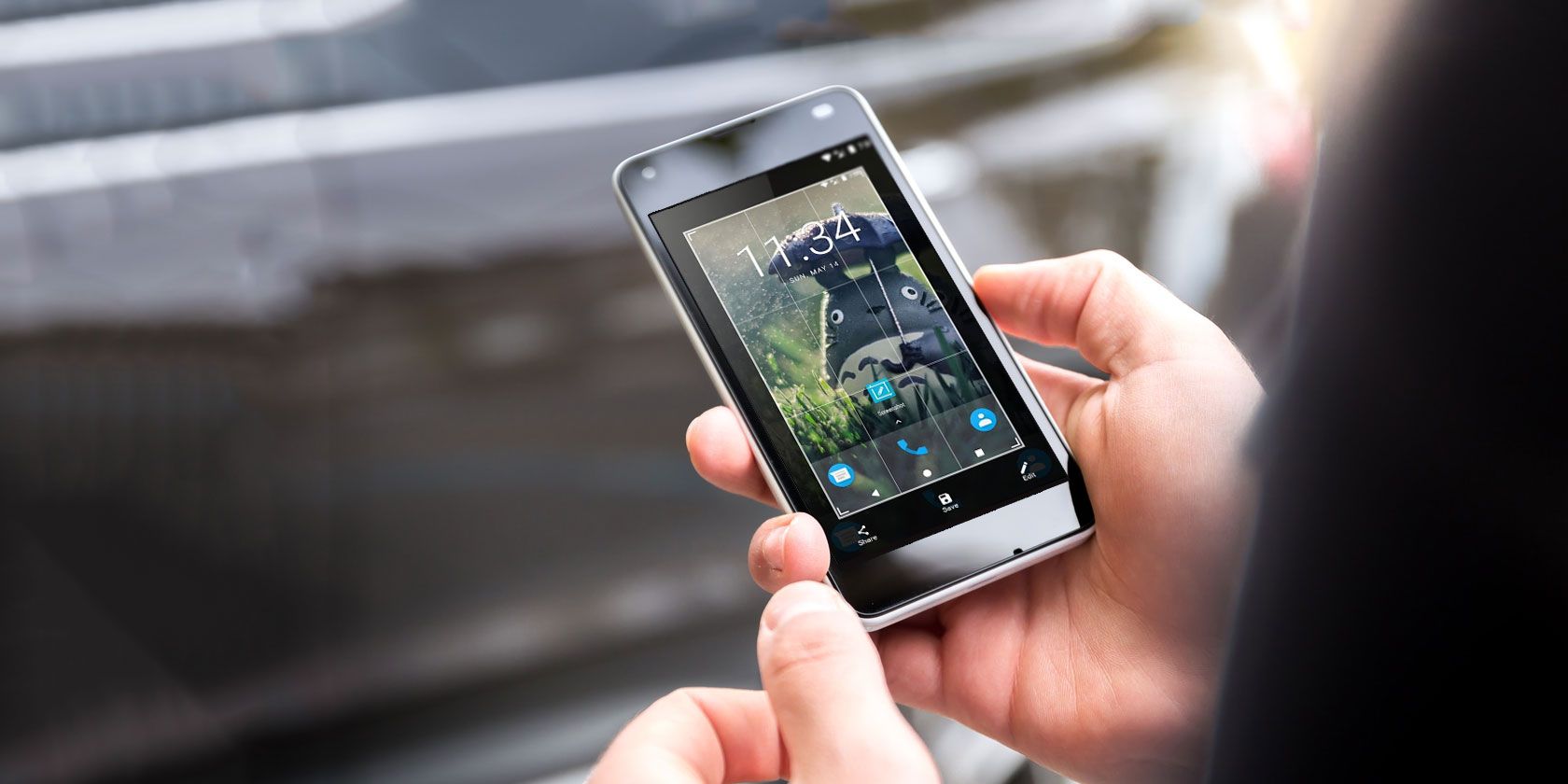
If you want to annotate mobile screenshots on Android, your phone may already have built-in screenshot marking features. While not all phones have this useful functionality, you can easily add it by using third-party apps.

Let’s talk about how to mark on photos on Android, and the apps that can help you do that. Many of these procedures rely on an app called Screen Master, so download that before diving in.

Download: Screen Master (Free, premium version available)

1. How to Highlight a Portion of an Image on Android

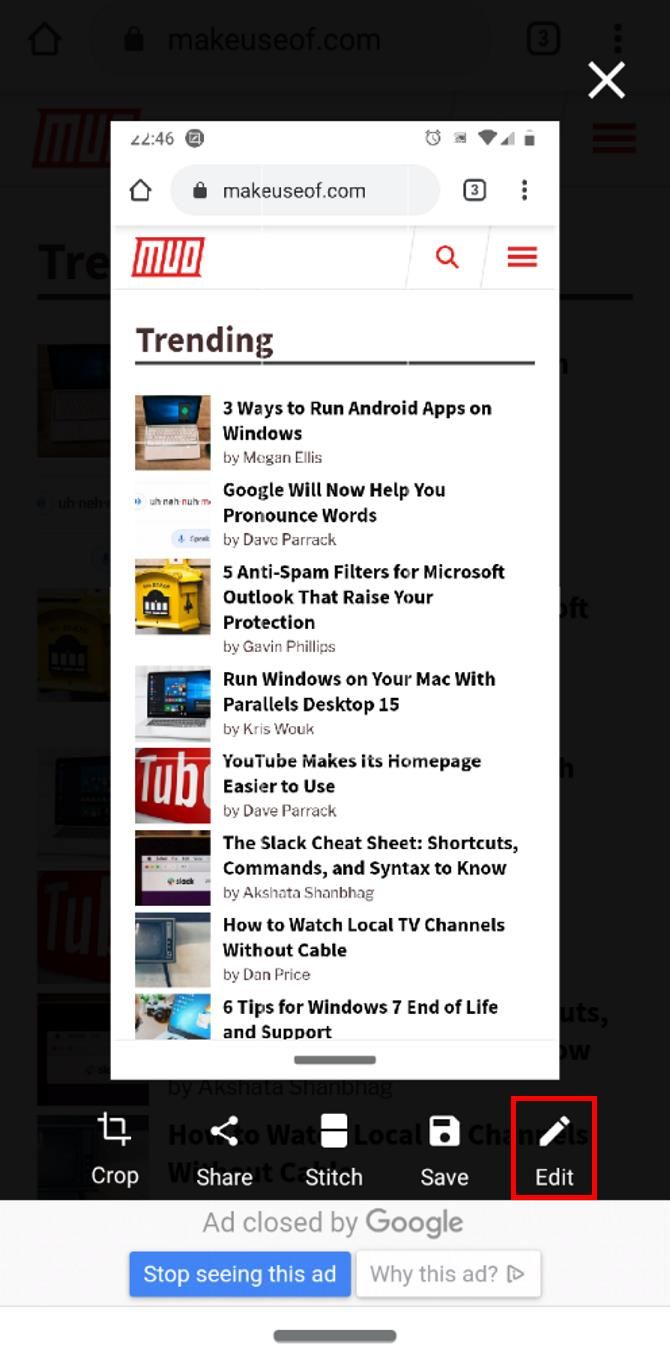
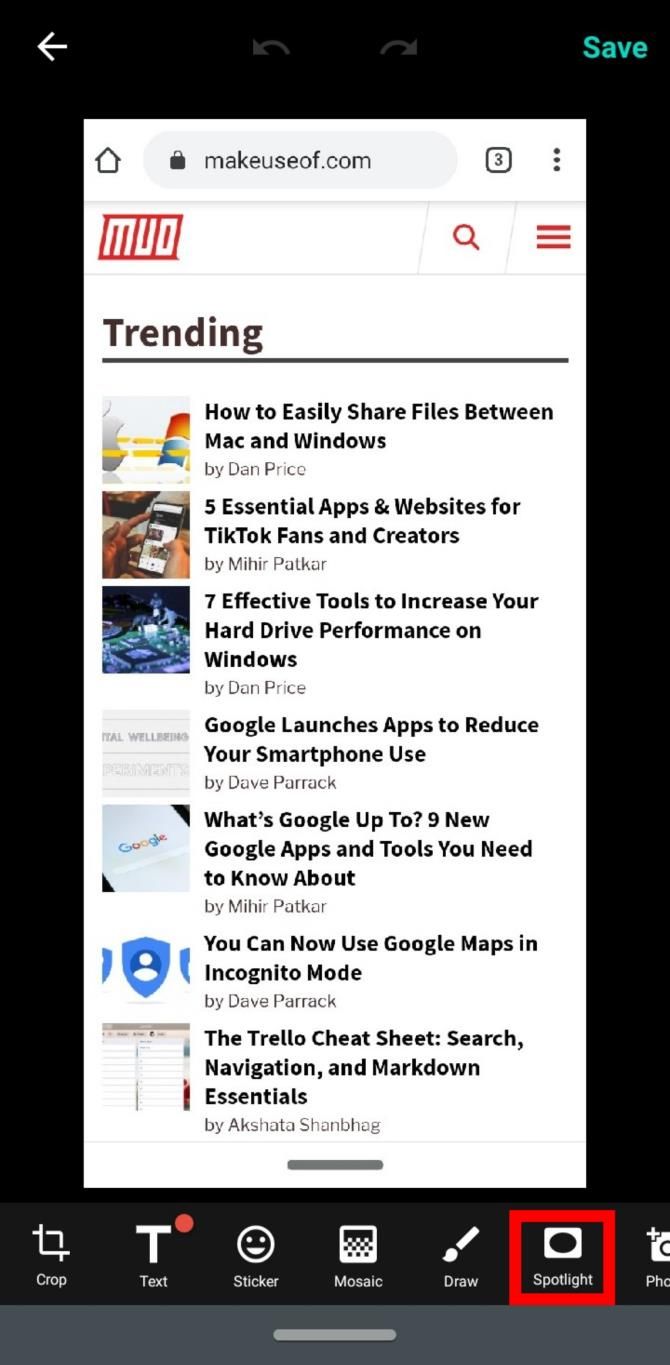
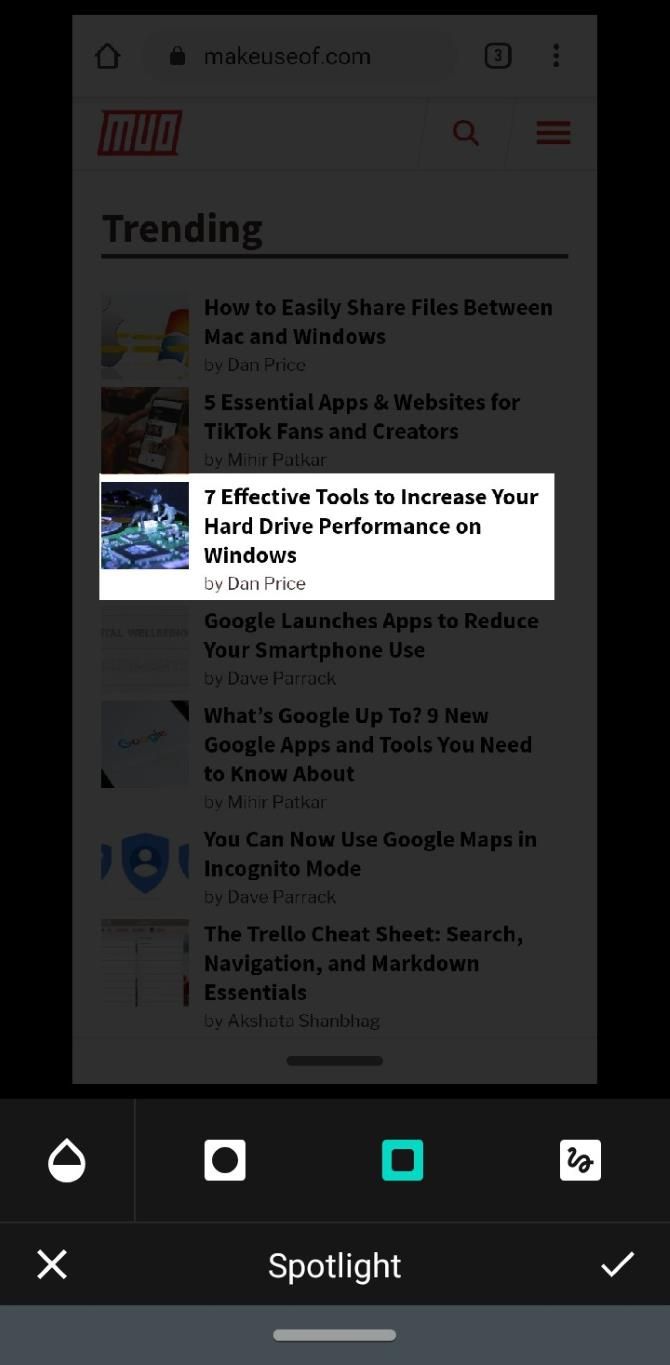
Screen Master makes it easy to annotate photos on Android. Take an Android screenshot of what you want to highlight, then tap Edit. Along the bottom, scroll to the right until you find Spotlight, then tap on it.

Find a shape that you’d like to use for highlighting at the bottom and tap it. Then, drag your finger around what you want to highlight to draw that shape. This is one of the easiest ways to highlight text in a screenshot on Android; draw a box over what requires attention, and the app will make it stand out.

2. How to Draw on a Screenshot on Android

If you’re next wondering how to draw on screenshots in Android, it’s best to stick with Screen Master. We think it’s one of the best Android apps for annotating photos due to its simplicity.

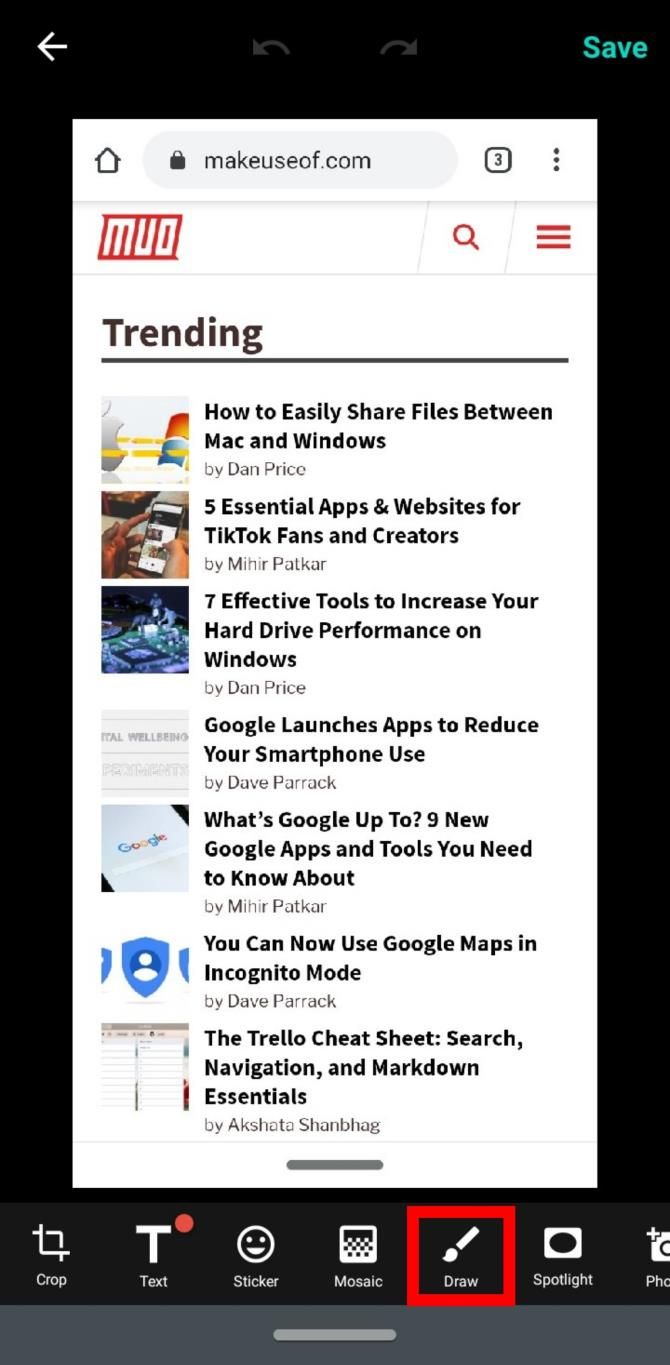
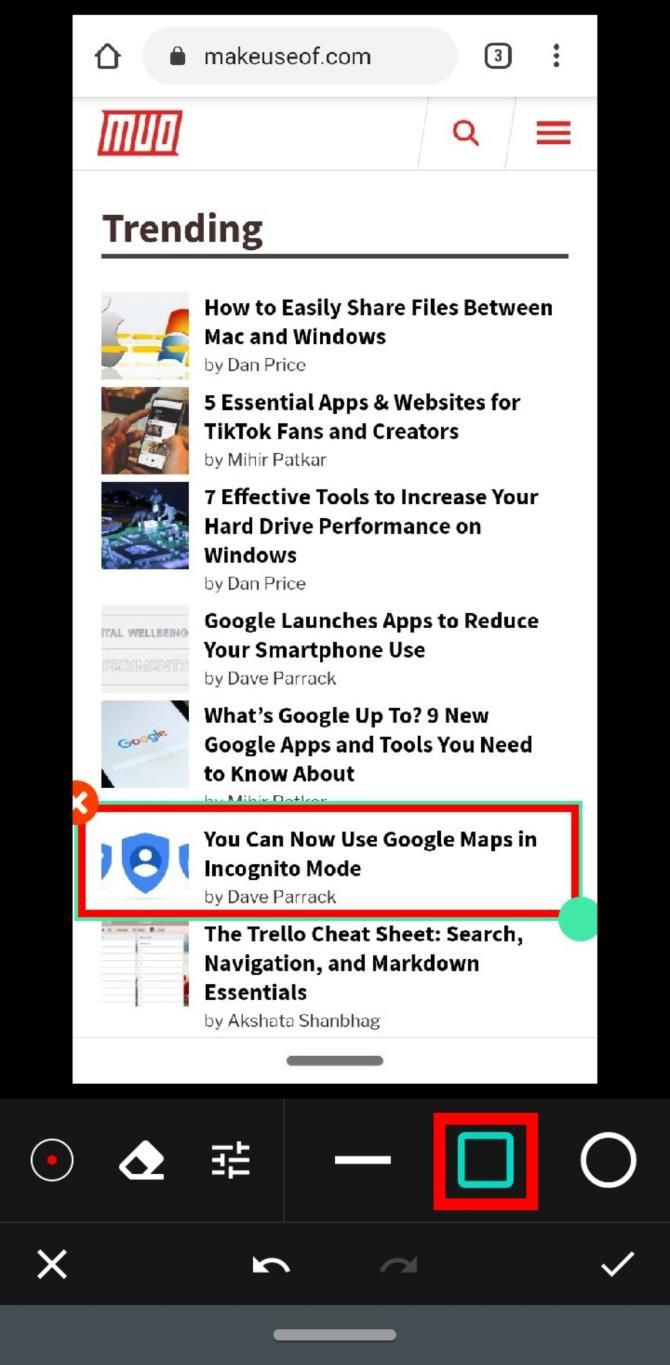
After you’ve taken a photo, tap on Edit, then Draw. Then select the shape you want to use. If you’re going to circle something on a picture, select either the square or the circle shape and drag it around your focus area. You can also use freehand drawings and arrows to make your point.

3. How to Pixelate an Image on Android

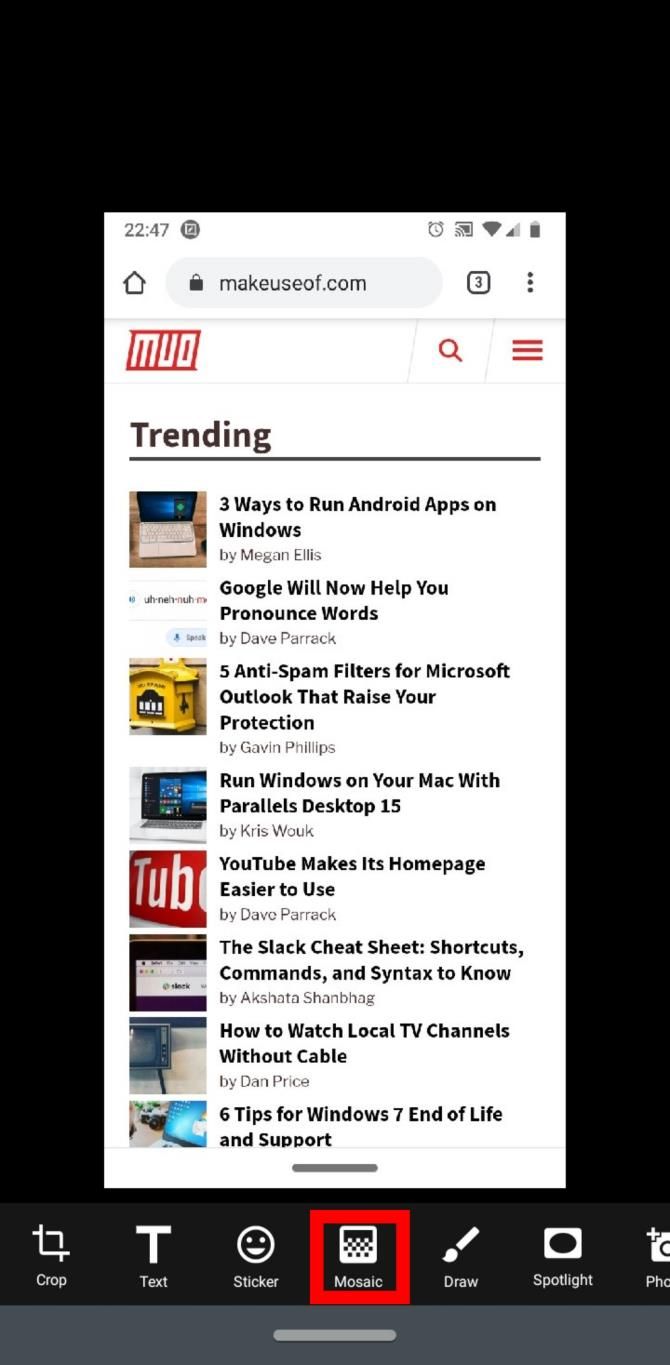
Screen Master can also obfuscate elements of an image before sharing it. Take your screenshot, then tap on Edit. Next, select Mosaic.

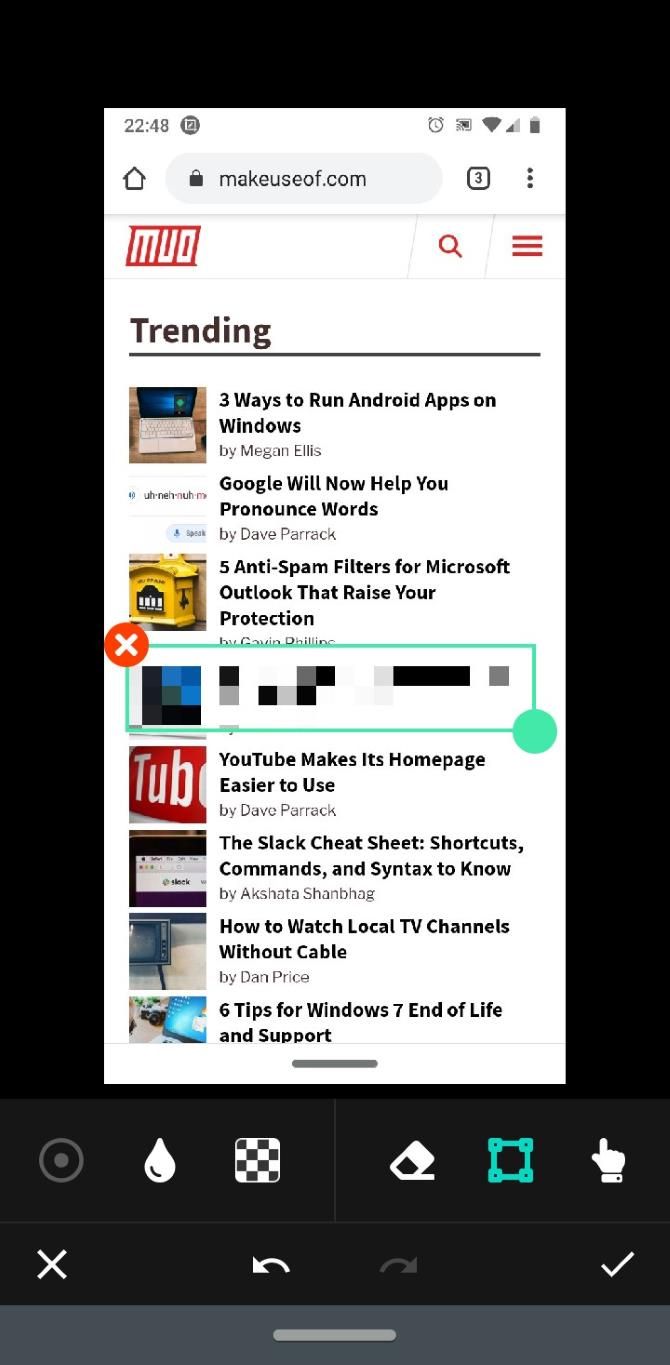
Here, you’ll find a few settings to customize your pixelation. The dot on the left changes the brush side for the freeform option, while the water droplet changes the blur intensity. Use the box you to change the censoring method: the checkerboard is pixelation, the smeared image is blurring, and the jagged image is triangles.

Finally, the box with four corners lets you draw out a block to pixelate something, and the pointing finger lets you freeform draw. If you make a mistake, you can select the eraser to get rid of the censoring.

4. How to Write on a Screenshot on Android

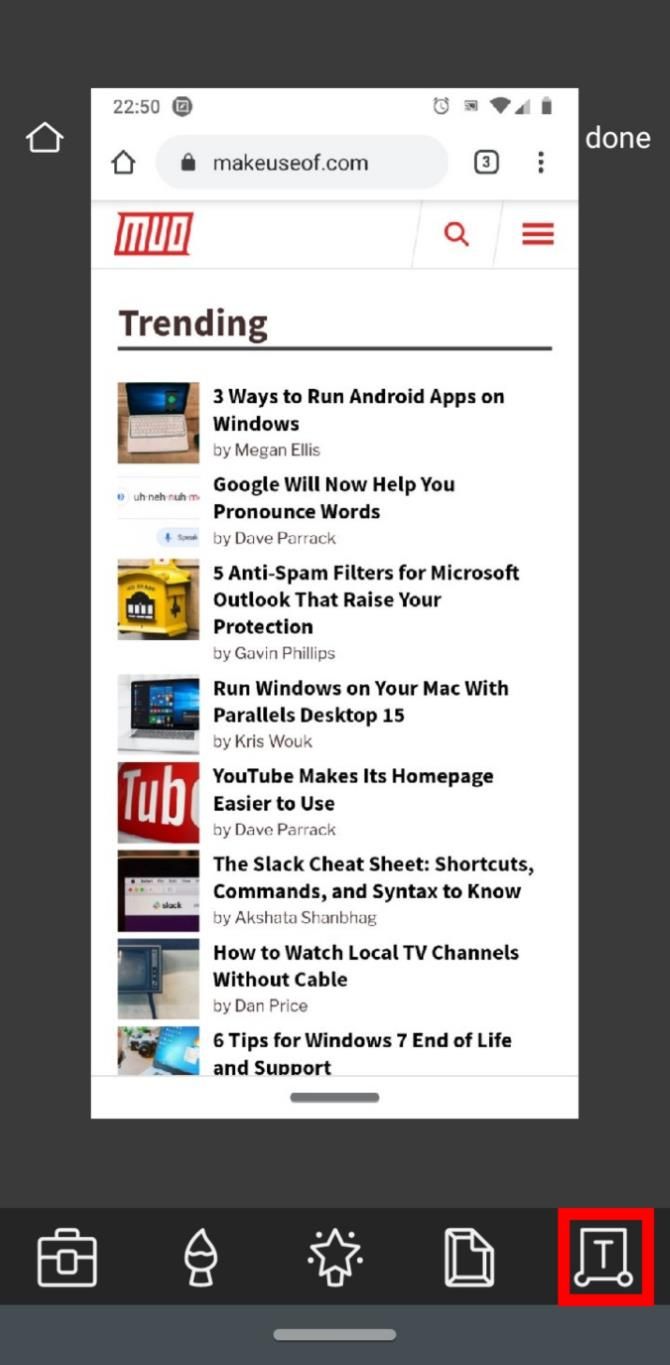
Need to add text to your images? This too is possible with Screen Master. Just capture the image, tap Edit, then choose Text. However, you’ll quickly find that the text options are a little rudimentary; there’s very little on offer for adding some flare to your photos!

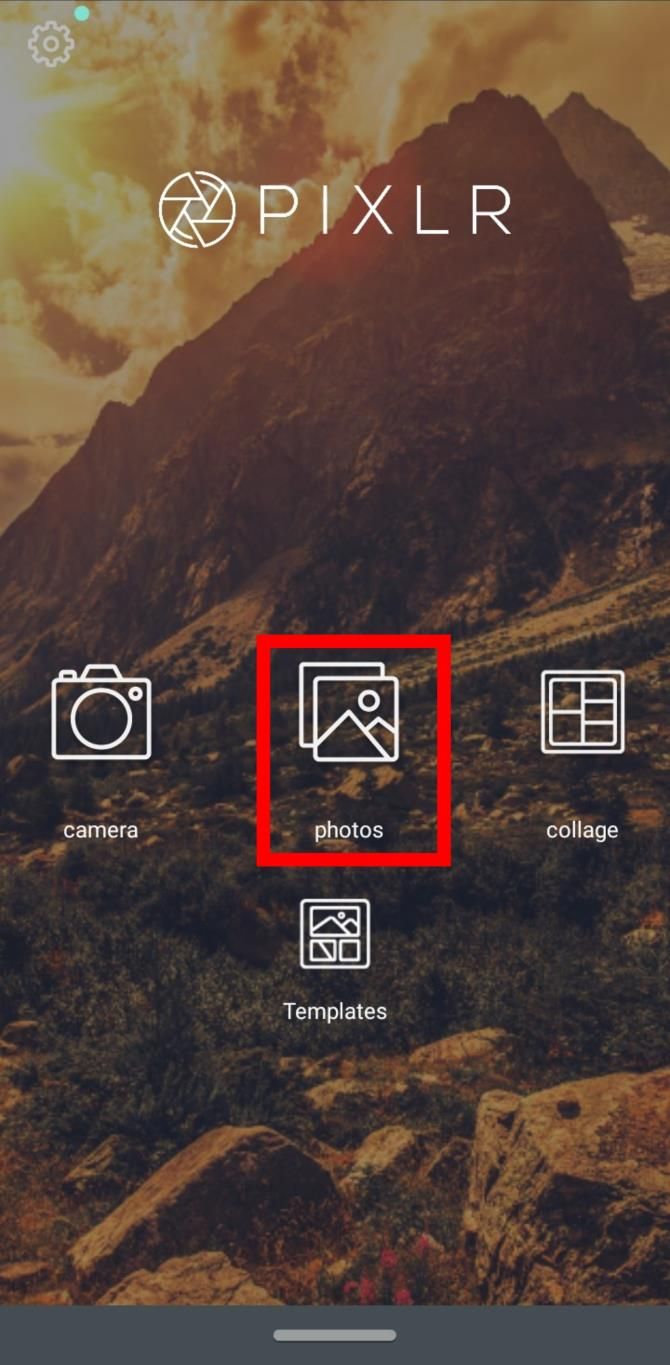
Thus, we recommend another app, Pixlr, for annotating images with text. You can’t take screenshots with it, so feel free to use Screen Master to make the initial screenshot. Then boot up Pixlr, tap on Photos, and select the image that needs text. Tap the T icon with a box around it.

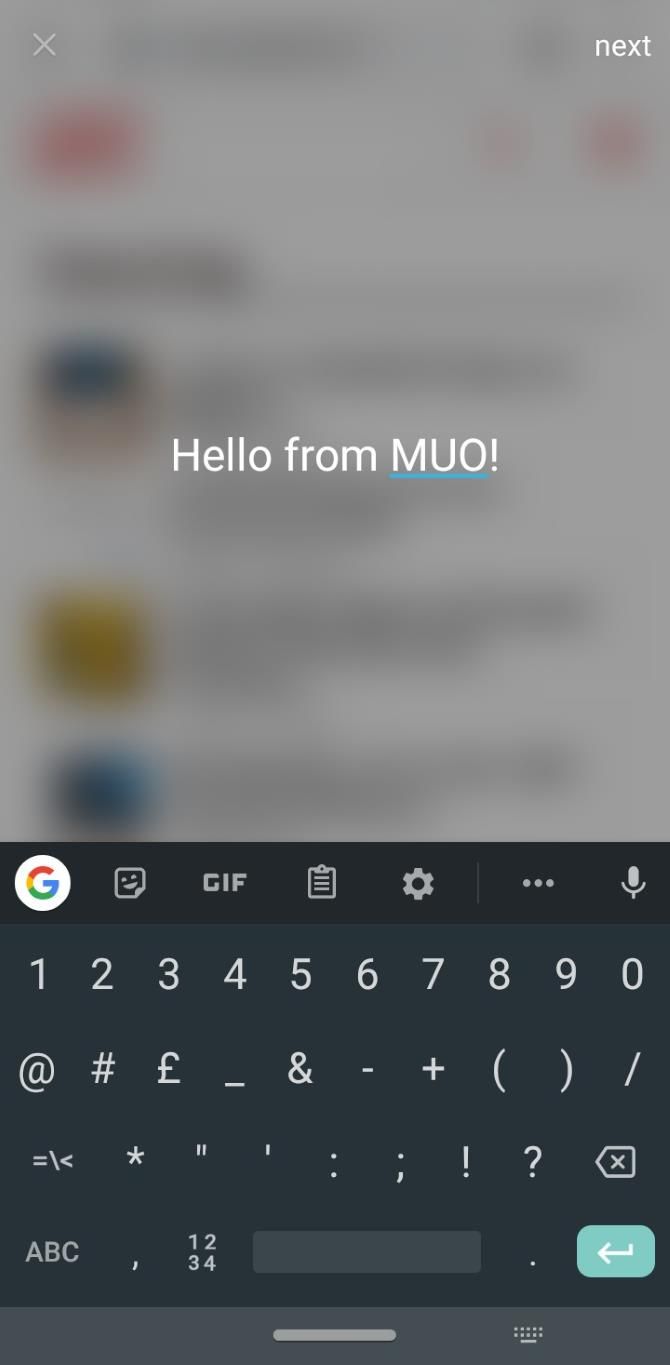
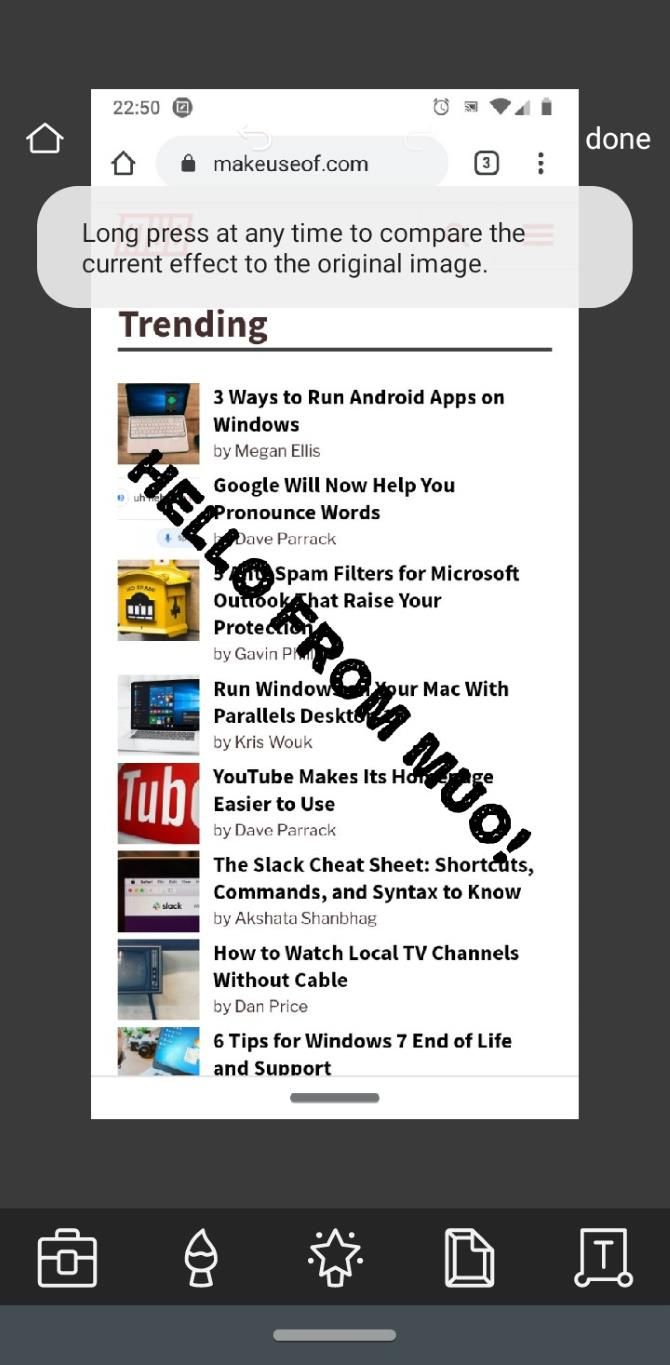
The app will ask you to type your message. Enter your choice and tap Next at the top-right. You can now customize the text by changing the font, color, and shading. You can rotate the text by swiping one finger or change the font size by pinching or expanding with two fingers.

Download: Pixlr (Free, in-app purchases available)

5. How to Make a Collage on Android

Pixlr is also fantastic at stitching multiple images into a single frame. This is something that Screen Master can’t do, even with the premium option.

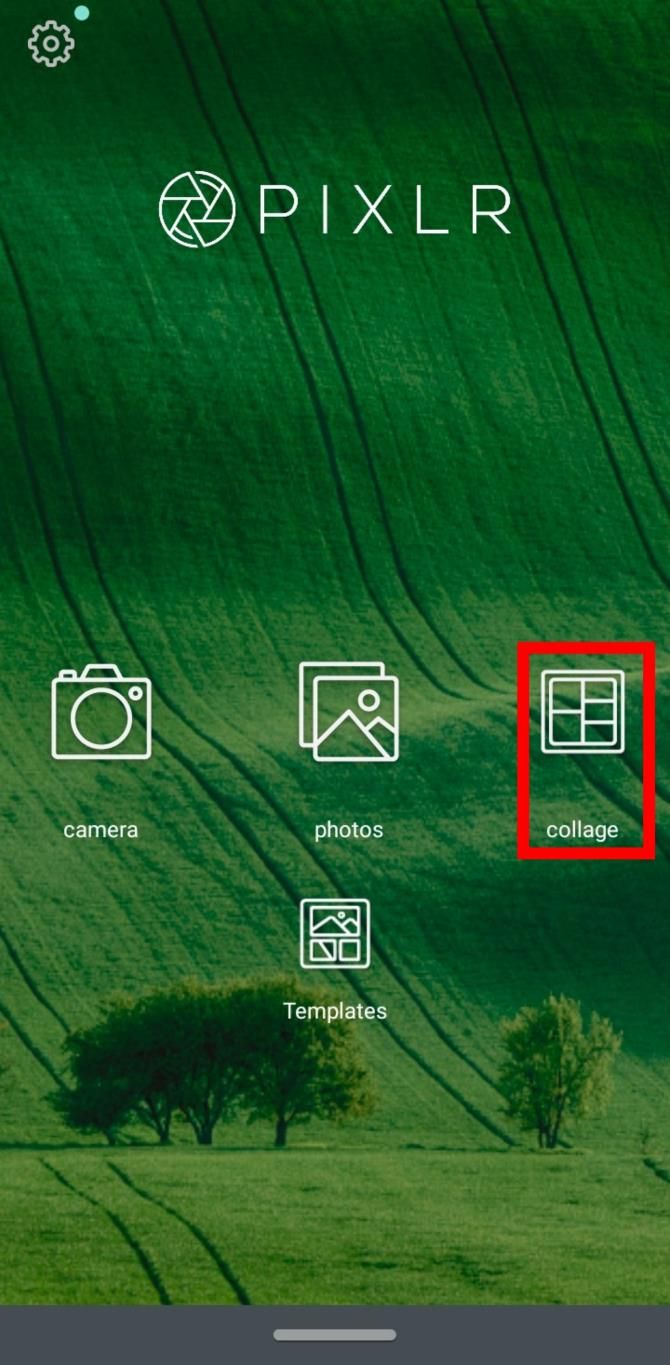
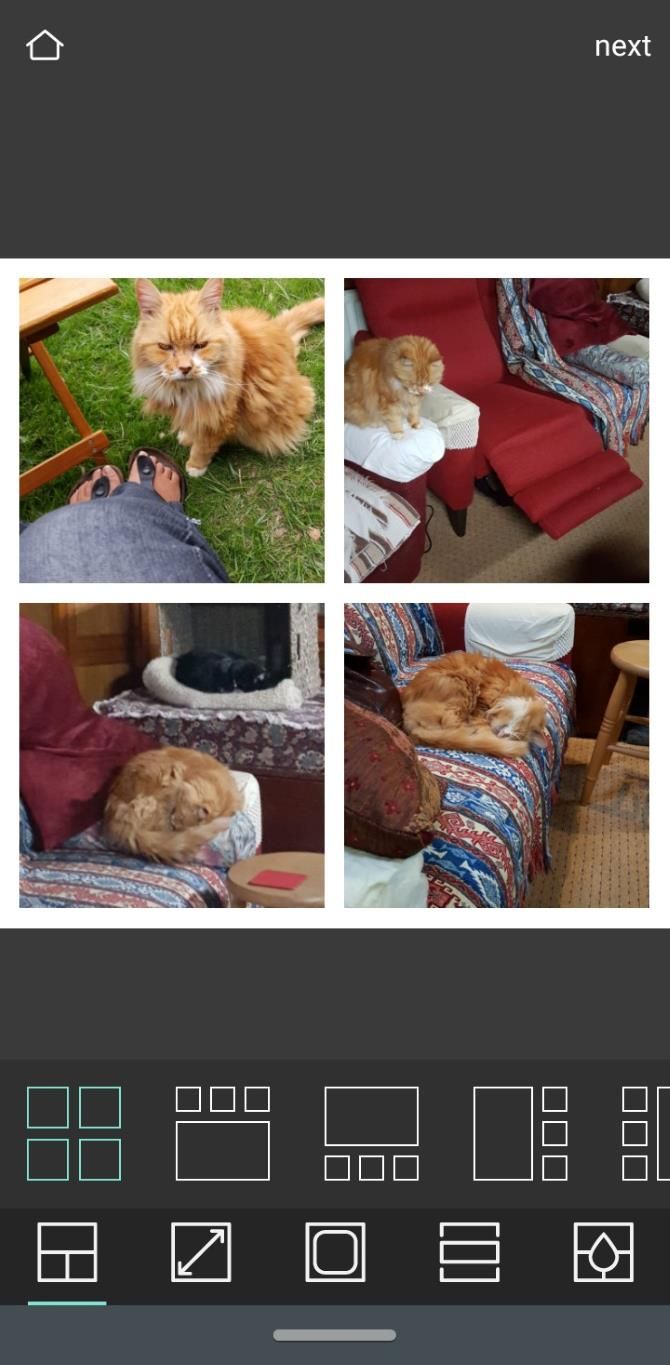
To do this, open the app and choose Collage. Here, choose up to four images from the image library and click Done. Now choose from the variety of collage designs you want to put those images in, such as side-by-side, top-and-bottom, or picture-in-picture. The tools at the bottom let you tweak the overall appearance of the collage.

6. How to Create Long Screenshots on Android

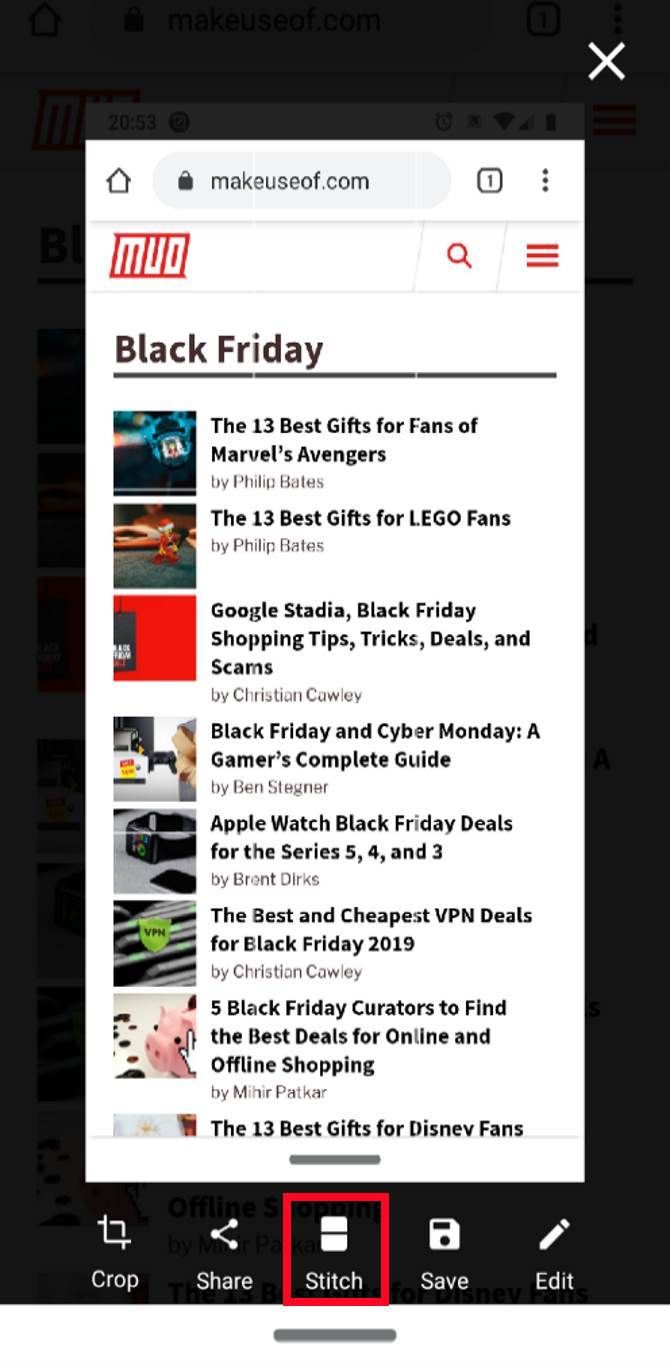
Long screenshots are available in Screen Master. This used to be premium-only, but is available to free users at the time of writing. To take a long screenshot, take a picture like you usually do. Make sure you take the first photo where you want to have the start of the long screenshot. Then, tap the Stitch button.

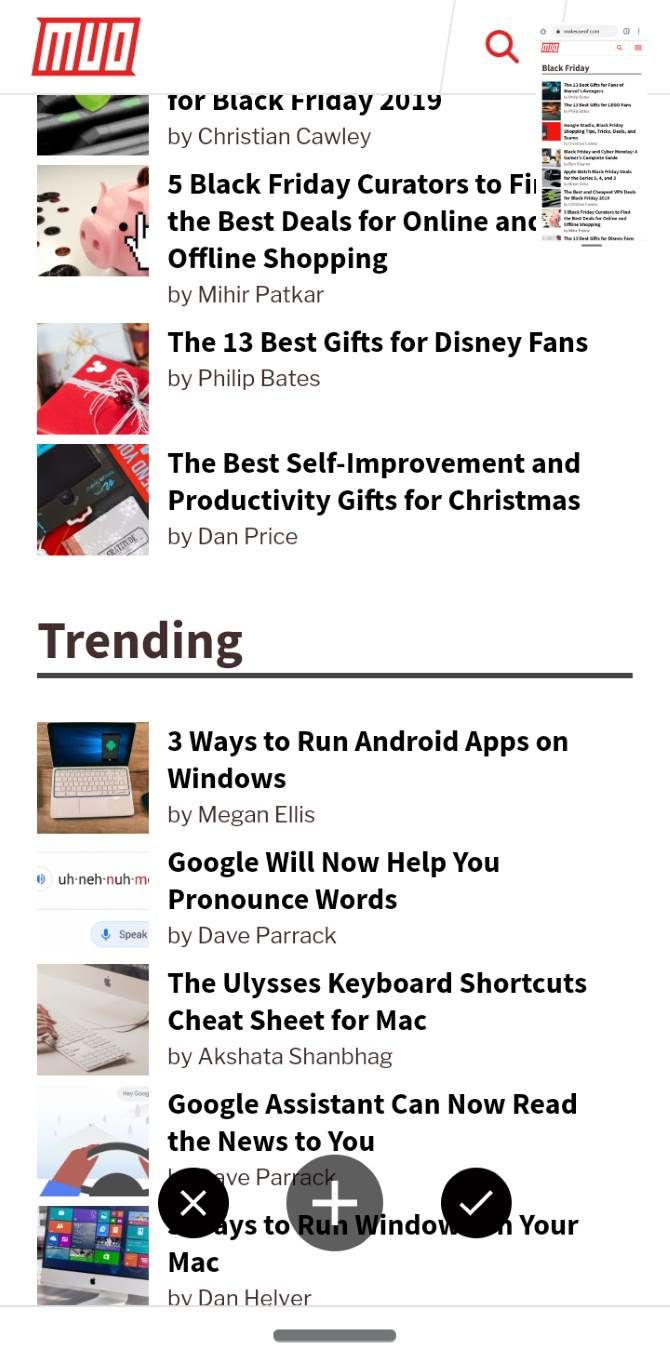
The app will launch the stitched screenshot creator. At the top-right, you’ll see the screenshot you just took, minimized. Meanwhile, the main screen will show the page you took a screenshot of.

To create a long screenshot, scroll down the main page until the top of the page looks like the bottom of the top-right screenshot. Then tap the Plus icon to add it to the chain. Continue down the page until you finish, then tap the Check to confirm your selection.

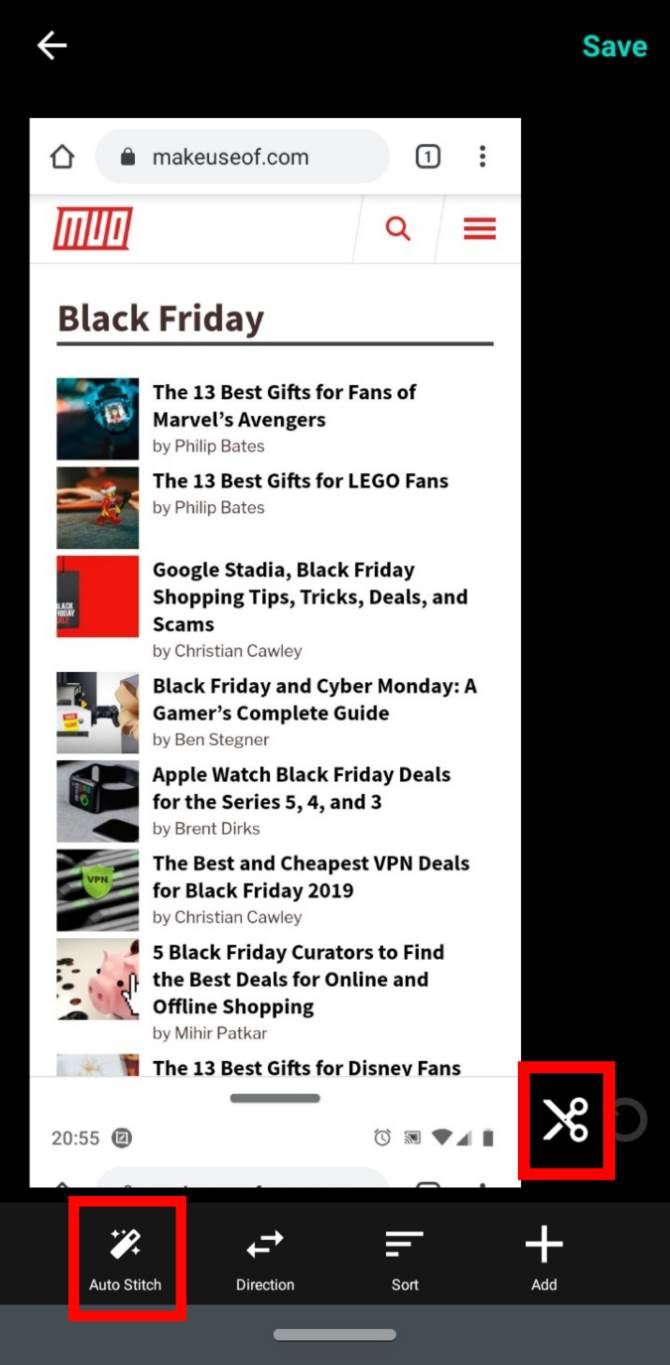
You’ll then see all the images you took, stacked on top of one another. Here, you can tap the scissors icon next to each division to stitch the photos yourself, or tap the Auto Stitch button to have the app do it for you.

Once you finish, you’ll have an extra-long screenshot that looks a lot cleaner than posting multiple screenshots. If you like this screenshot style, it’s worth also trying out the best mobile apps for scrolling screenshots. One of those apps may fit your needs better than Screen Master.

Taking Better Pictures on Android

You don’t need to upload screenshots and images to your computer to edit them; Android apps can do it for you. Now you know how to mark on, blur, and stitch together images on Android, and the two apps that make doing so simple.

Did you know you can also work on videos using a mobile device? Take a look at the best Android video editors for the job.

Read the full article: How to Annotate Screenshots and Images on Android Like a Pro


Read Full Article