16 April 2020

100% Disk Usage in Windows 10 Fixed With 15 Tricks


fix-disk-usage-windows

Got 100% disk usage in Windows 10? So your computer is hanging and freezing. Same old Windows, right? Except you’re using a brand-new Windows 10 device; you’ve only had it a few days. So just what is going on?

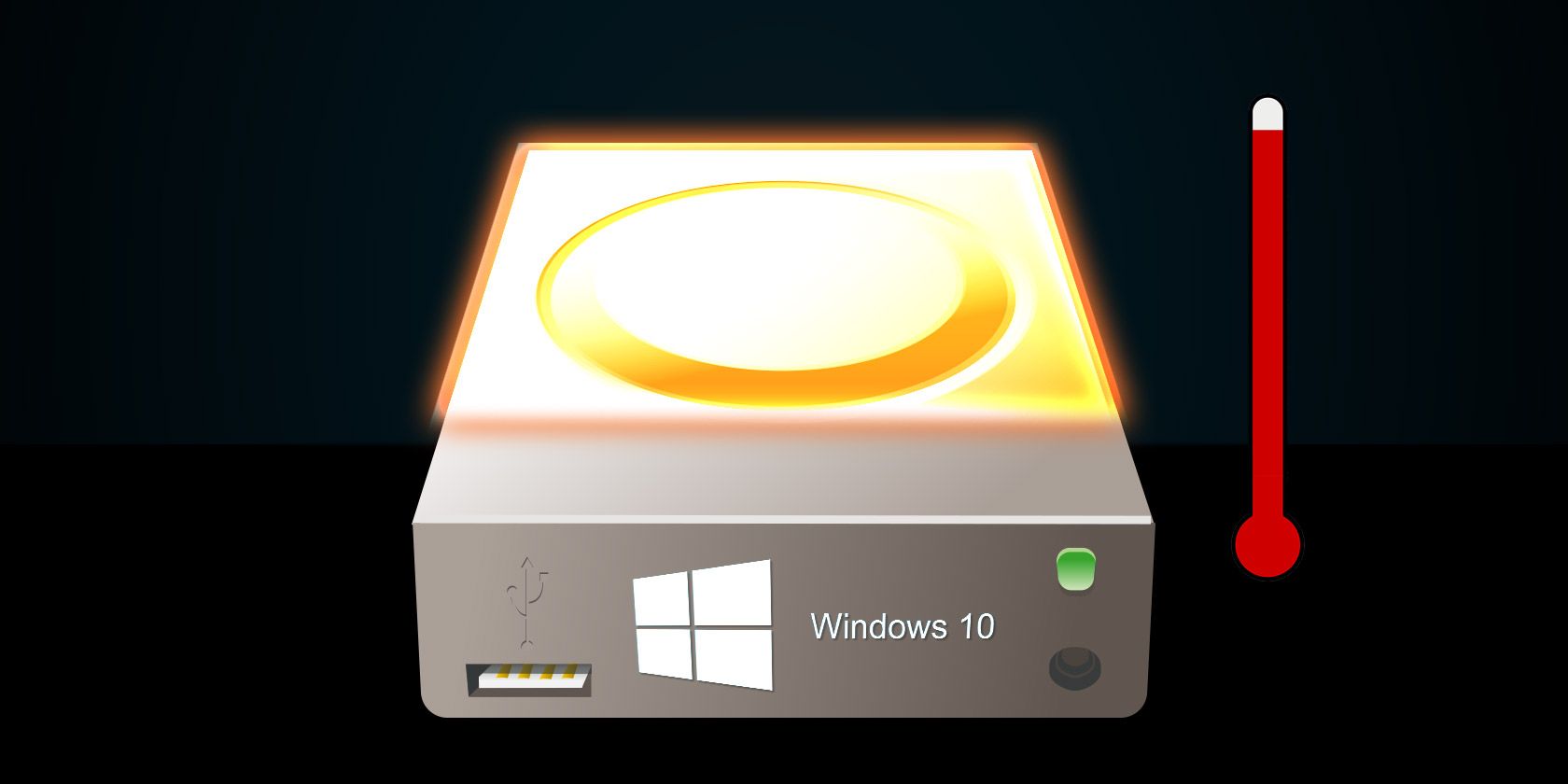
Investigating, you discover that your system drive is running at 100%. Surely this can’t be, right? Sadly, it is. The latest versions of Windows have a problem with the drives being overworked, which slows down the operating system. This issue affects both hard disk drives (HDDs) and solid-state drives (SSDs).

Unlock the "Windows Keyboard Shortcuts 101" cheat sheet now!

This will sign you up to our newsletter

Enter your Email

Several fixes are available for this. But first, you need to trace the problem.

100% Disk Usage in Windows 10: Fixed!

When the error was first discovered, only a few culprits were found. But as time passes, despite the 100% disk usage error being reported to Microsoft, more causes of this bug are discovered, not fewer.

  1. Check disk performance with chkdisk
  2. Check your anti-virus software
  3. Disable Windows search
  4. Disable SysMain service
  5. Time to disable Flash
  6. Change web browser
  7. Check Skype impact on disk usage
  8. Fix the PCI-Express firmware bug
  9. Stop Steam maxing out your PC
  10. Check diagnostic tracking
  11. Is Windows Update causing 100% disk usage?
  12. Reset your Virtual Memory
  13. Enable High Performance mode
  14. Install the latest SATA drivers
  15. Replace your PC’s power supply

Click the link above for each possible cause of the bug to see how to fix it.

Once you’ve established that there is a problem, you have several options available. Check the following steps one at a time, checking the disk usage in the Task Manager after each.

Note that even if you find a solution, a Windows Update could reset the changes you’ve made. Bookmarking this page will help you find it in the future and run through the fixes again.

1. Slow Performance? Run Disk Check

This performance issue is most obvious when attempting to use Windows Search to find a file or program, and anything else that requires the drive to do some work (perhaps copying and pasting a group of files).

To establish whether it is a problem that is affecting you, when your computer next slows down press Ctrl+Alt+Del and select Task Manager.

(Alternatively, right-click the Taskbar and select Task Manager.) Note that this may take some time to open with the drive being under strain.

How the Windows 100% disk usage issue looks in Task Manager

On the first tab, Processes, look for the Disk column. If you’re having problems with drive performance, this should be at 100%, and shaded red to indicate whether you have a problem or not.

Problematic sectors on your HDD can cause the 100% disk usage issue in Windows 10. However, using Windows’ built-in disk check can fix this.

Open Windows Explorer and select This PC, then identify your hard drive. Right-click on C: and select Properties. Here, find the Tools tab, and under Error checking click on Check.

In the resulting window, click Scan drive. Wait while the system scans the drive; a reboot may be required for a full disk repair. This should deal with the error.

2. Update Your Anti-Virus if Windows 10 Disk Is Running at 100%

As with any such performance issue, the first thing to do is confirm that your computer hasn’t been infected with malware. Your security software should be able to deal with this, whether it’s a free app or a paid suite.

At the very least, tools such as Malwarebytes Anti-Malware should be able to scan your system drive and detect any problems, although with a heavy load on your drive already this may take a while.

If threats are found, use the software’s recommendations to discard them and reboot. Next, check your drive’s performance further. Hopefully, you’ve resolved the issue; if not, then malware wasn’t to blame, so read on.

3. Disable Windows Search for Improved Disk Performance

The next thing to check is whether the 100% disk usage error has anything to do with Windows Search.

A bug in Windows 10 results in a “search loop” that causes an increased load on the system drive.

To stop this and prevent it from happening during your current session (until Windows is rebooted) open Windows PowerShell (Admin). You’ll find this by right clicking the Windows 10 Start menu.

Enter:

net.exe stop "Windows search"

To permanently disable Windows Search or Indexing, press WIN+R, enter services.msc, and hit Enter. In the Services window that opens find the Windows Search entry and double-click it to open the Windows Search Properties window.

Fix 100% Windows disk usage by tweaking search

Under Startup type, select Disabled. Here you can click Stop to abort the service. Click OK to save your changes.

A few moments after disabling Windows Search, your Windows 10 performance should improve considerably. If not, move on…

4. Disable SysMain to Fix 100% Disk Usage in Windows 10

Another Windows 10 feature identified as a potential cause of the 100% disk usage issue is the superfetch service. Since Windows 10 1809 (the 2018 Windows 10 October Update) this has been renamed to “SysMain.”

To prevent this service from causing the disk usage issue, open another Windows PowerShell (Admin) and enter:

net.exe stop sysmain

Disable SysMain to fix 100% disk usage in Windows 10

Again, wait a few moments to check whether this has had any effect on your computer’s performance. You should also run Check Disk:

chkdsk.exe /f /r

You’ll be informed that your PC must be rebooted for Check Disk to complete, so make sure you have closed all your applications first.

If this doesn’t work, it is likely that you’re experiencing a frustrating iteration of this issue that is simple to resolve.

5. Is Flash Causing the 100% Disk Usage Bug?

Flash remains one of the most vulnerable aspects of modern computing and should be disabled. Adobe plans to kill off its multimedia plugin in 2020, so there’s little reason to keep using it.

Flash also seems to be one of the most common culprits for the 100% hard disk usage in Windows 10 if you’re using the Google Chrome browser.

Open Menu > Settings > Privacy and security and click the section marked Site Settings. Here, find Flash and set the toggle to Block sites from running Flash, then click Back.

Disable Flash to fix Windows 10 disk usage 100% issues

Restart the browser and check your HDD performance.

6. Disk Usage at 100%? Switch Web Browsers

It may not be Flash that is impacting on your browser performance.

Another cause could be the browser itself, particularly if you’re using Google Chrome.

The obvious option is to choose a different browser. Windows 10 already has two browsers built in. You probably don’t want to use Internet Explorer, but Microsoft Edge is an adequate replacement for Chrome.

Several browsers are available, some better than others. See our guide to the best web browsers for Windows to find an alternative.

7. Is Skype Eating Disk Resources?

Another widely-used application could also be causing your 100% HDD usage: Skype.

To find out—and disable its OTT resource requirement, begin by checking that the software is not running. You can do this by looking in the Task Manager, or checking the System Tray, the area on your desktop around the clock. If Skype is running here, right-click the icon and select Quit.

Next, press WIN+R and paste this address into the box:

C:\Program Files (x86)\Skype\Phone\

Click OK to find the Skype.exe file and right-click this and select Properties. In the Security tab click Edit, then select ALL APPLICATION PACKAGES.
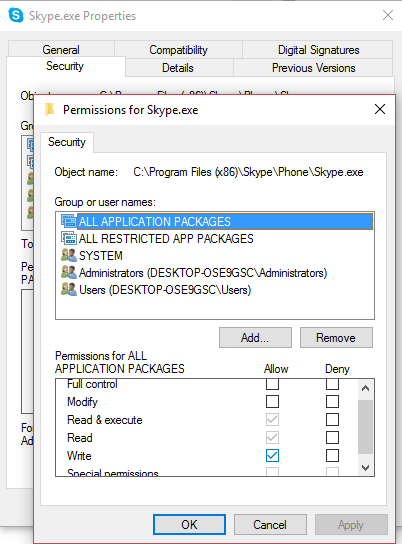
Is Skype causing 100% disk usage problems in Windows 10

Put a check next to Write in the Allow column and finish off by clicking Apply, then OK. Head back to the Task Manager to see the change. You may also consider finding a Skype alternative.

No difference? Keep reading…

8. Resolve PCI-Express Firmware Bug

Some drivers don’t run quite as they should in Windows 10. One that has been discovered to be causing 100% HDD use is the StorAHCI.sys driver, which has a firmware bug. StorAHCI.sys intended for storage devices connected to the PC or laptop motherboard via Advanced Host Controller Interface PCI-Express.

If you’ve made it this far with no success, this could be the problem.

Open the Device Manager (use Windows 10 search, or right-click This PC in Windows Explorer, then Properties > Device Manager) and expand IDE ATA/ATAPI Controllers. If an AHCI Controller entry is listed, double-click, then open the Driver tab and select Driver Details.

Is the driver listed as C:\Windows\system32\DRIVERS\storahci.sys? If so, you could be affected by this bug.

Close the driver details box and switch to the Details tab, selecting Device instance path from the drop-down menu. Where the Value is listed, right-click, and select Copy. Launch your text editor (like Notepad) and Paste the contents in.

Next, press WIN+R and type regedit, followed by the OK button. Navigate to this address: HKEY_LOCAL_MACHINE\System\CurrentControlSet\Enum\PCI\ and use the pasted string above to open the correct AHCI Controller, followed by the random number.

Here, expand Device Parameters\Interrupt Management\MessageSignaledInterruptProperties and you should see MSISupported listed in the right-hand pane. Double-click this, then change the Value data: to 0. Click OK to confirm and follow the instructions to restart Windows.

9. Is Steam Maxing Out Your HDD?

Enjoy gaming and have Steam installed? There’s a good chance this digital delivery system is causing 100% disk usage.

Usually this is due to update delivery, causing the background downloader to get caught in a loop. Clear the Steam cache to fix this.

First, make sure you have exited Steam. Where Steam is a likely cause of the 100% disk usage error, it may hang when you try to exit. In this case, use the Windows 10 Task Manager to close the software.

Next, open the WIN+R run box and enter

steam://flushconfig

You’ll see a dialogue box, informing you that content will be deleted.

Stop Steam causing disk issues in Windows 10

Click OK to proceed.

Note that games and saves will be retained, so there is no risk of them being deleted.

10. Disable Diagnostic Tracking in Windows 10

Finally, it’s worth considering the impact of diagnostic tracking in Windows 10. A feature that you might have otherwise disabled for privacy reasons, it has been blamed for 100% HDD use on many PCs.

When it comes to reducing your hard disk drive usage, it’s quicker to simply disable the DiagTrack service. If this is the source of the 100% disk usage error in Windows 10, you can stop the service launching.

However, to do this you’ll need to access Command Prompt in administrator mode.

Do this by clicking Start and typing cmd in the search box. Wait for the results and right-click Command Prompt, selecting Run as administrator.

Input these commands to disable and stop DiagTrack:

sc config "DiagTrack" start= disabled

sc stop "DiagTrack"
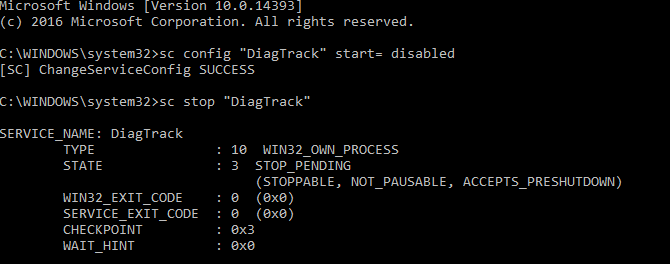
Use command prompt to fix Windows 10 disk usage problems

In addition, you might also head to Settings > System > Notification & actions and disable Get tips, tricks and suggestions as you use Windows. Doing so has been shown to improve things.

11. Windows Update Can Cause 100% Disk Usage

As well as affecting changes you make to your PC when fixing the 100% disk use problem, Windows Update can also be a cause.

This usually only happens when Windows Update has a problem (which is typically due to a file refusing to download). You have two options here:

  1. Leave your computer alone—shut all your open applications and wait. Eventually, the files will download, but depending on how Windows Update is scheduled on your computer, it may require a reboot.
  2. Shutdown your computer—once you’ve done that, restart and wait for Windows Update to resolve the problem.

Once the update has finished downloading, it’s wise to run it as soon as possible. Remember to check any previous fixes for 100% disk usage before proceeding; as noted above, Windows Update can reverse these fixes.

12. Reset Your Virtual Memory

Virtual memory is a combination of RAM and hard disk space and can be responsible for overuse of your HDD. If there isn’t enough RAM to perform a task, the HDD is used to supplement the RAM. Data moved to the HDD is then returned to RAM when required.

If you’ve made it this far and you’ve yet to solve the 100% disk usage issue, it could be worth resetting your virtual memory.

Open the System screen with Windows+Break/Pause, then Advanced System Settings on the left. In the resulting box, select the Advanced tab, then under Performance click Settings.

Here you’ll find another Advanced tab, which has a section labeled Virtual memory. Click Change and clear the checkbox for Automatically manage paging file size for all drives.

Tweak virtual memory settings to stop Windows 10 100% disk usage

Staying on this screen, select your Windows drive (usually C:) and then Custom size. Here, add an Initial size and a Maximum size; note both are measured in MB rather than GB.

These numbers can be confusing, so with the first value, rely on the recommended option. For the maximum value, aim for a figure no more than 1.5 times your system RAM.

For instance, a computer with 4GB of RAM should have no more than 6.5GB (6144MB).

With the values input, click Set, then OK to continue. You now need to clear the temporary files that have been used in the previous virtual memory allocation.

Do this by opening the Run box (WIN+R) then entering “temp”. When the temp directory opens, select all files (Ctrl+A) and tap Delete on your keyboard.

13. Activate High Performance Mode

One final thing to try is altering your Windows power settings. Standard power modes are more prone to the 100% disk usage bug but switching to high performance often overcomes the problem.

The downside, of course, is that your computer will use more power. Thanks to modern processor design this shouldn’t be a massive issue. However, notebooks and desktop replacement laptops may take a hit on battery life.

To change to high performance, open the Power & sleep screen with WIN+X > Power Options.

Here, click Additional power settings, select High performance, then OK.
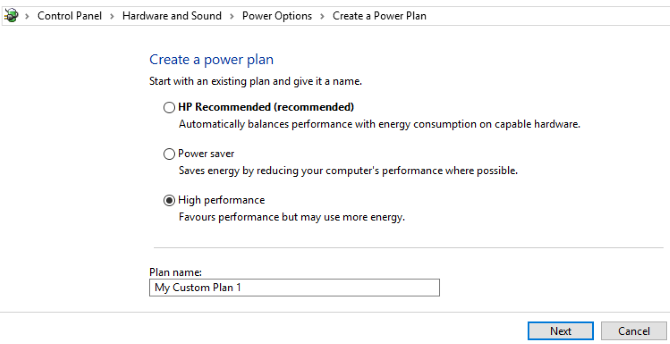
Configure power settings to fix the 100% disk usage in Windows 10

If this isn’t a displayed option, you’ll need to create your own custom power plan. Click Create a power plan, then choose High performance. Give the plan a name, tweak any personal settings you need then select it as a power plan to use.

In a moment or two, the 100% disk usage issue should drop down to less than 10%.

14. Install the Latest SATA Drivers

Could a storage device driver be resulting in the 100% disk usage error?

Your Windows 10 computer almost certainly uses SATA connections for hard drives, SSDs, and optical drives. If the drivers aren’t up to date, the disk usage error can occur.

Avoid this by upgrading to the latest SATA drivers.

Open the Power User menu with WIN+X and select Device Manager. From here, expand Storage controllers, then identify the correct controller for your SATA devices. If you can’t do this, don’t worry—simply update both.

To update, right-click on each controller and select Update driver.

Update your device drivers to fix Windows problems

Select the Browse my computer for driver software option, then Let me pick from a list of available drivers on my computer. Here, choose Standard AHCI Controller and see how this impacts performance.

You may need to reboot Windows for this to take effect. Note that if it doesn’t work, you can still try this by checking the manufacturer’s website for a new driver. This can be installed using the instructions that accompany it.

15. Replace Your PC’s Power Supply (PSU)

A PC power supply unit (PSU)

There is a chance that your computer’s hardware is causing the 100% disk usage issue in Windows: specifically, the PSU.

If disk usage issues can be attributed to excessive disk activity, then it follows there might be a power-related cause.

100% disk usage has been spotted on Windows 10 laptops running on the battery. Once plugged into the power adaptor, the issue resolves. Similarly, the problem has been shown to alleviate once a new PSU is installed in a desktop PC.

Check our guide to new PC power supply units to help you choose a replacement.

Disk Usage Should Rarely Be 100%

Put simply, there is little reason for your disk load to be anything close to 100%, certainly not under normal usage. A slow computer is one with a problem, and if you cannot fix it by disabling a browser plugin, stopping services, or running your antivirus software, then the problem may well be hardware related.

Perhaps your drive is getting old; it may be defective, or the cables may need replacing. Alternatively, there is a chance that the problem is connected to the Windows defrag tool.

If your computer is attempting to defrag your drive, but your HDD is actually an SSD, then serious problems can occur. Deal with this by opening the Task Scheduler (WIN+Q, enter “task scheduler”) and disable any scheduled disk defrag tasks.

Try these fixes the next time your Windows computer slows down. Be sure to check your Windows Experience Index periodically to identify performance issues in need of immediate resolution. And add these fixes to your skillset for solving annoying Windows issues.

Read the full article: 100% Disk Usage in Windows 10 Fixed With 15 Tricks


Read Full Article

The Pros and Cons of Two-Factor Authentication Types and Methods


two-step-authentication

You’ve hopefully heard about the benefits of two-factor authentication. Requiring something beyond just a password to unlock your online accounts makes them much harder to break into.

However, two-factor authentication comes in several forms, with some faring better than others. When you have an option, which should you choose? Let’s look at the pros and cons of two-factor authentication methods to find out.

Two-Factor Authentication vs. Two-Step Authentication

Before diving in, let’s take a quick moment to clear up the differences between two-factor authentication and two-step authentication. They’re similar, but not identical.

Two-factor authentication is when you protect an account with two different types of authorization methods. A factor can be one of the following:

  • Something you know: This includes a piece of information, like a password or security question.
  • Something you have: For example, your smartphone or another physical device.
  • Something you are: A factor unique to your body, such as your fingerprint or iris.

True two-factor authentication means you must unlock two checks from different factors before you can log in. If your account is protected by two locks of the same factor, this is called two-step authentication.

For example, a password and security question are both something you know, making this kind of authentication two-step but not two-factor. This still provides better protection than a password alone, but proper two-factor authentication is preferable.

Two-factor authentication is a type of two-step authentication, but it’s not true the other way around.

Method 1: Security Questions

Security Questions

You’re probably familiar with this method: when creating an account, you choose one or more security questions and set answers for each one. When logging into that account in the future, you have to provide the right answer to each question to validate your access.

Pros of Security Questions

Security questions are extremely easy to set up. Most of the time, the service provides a dropdown menu of questions—all you have to do is pick a few and give the answer. You don’t need any other equipment or devices; the answer is stored in your head.

Cons of Security Questions

Many security question answers are easy to dig up. People can find information like your father’s middle name or the street you grew up on in public records or on social media. It’s also easy to accidentally divulge this sensitive info through social engineering, like phishing emails or phone calls.

To get around the weaknesses of security questions, you can enter a gibberish answer to effectively make it a second password. But you must be careful that you don’t lose or forget that—storing it in your password manager is a good idea.

Method 2: SMS or Email Messages

Email Security Code

For this type of two-factor authentication, you provide your mobile phone number when creating an account. When you want to log in, the service sends you a text message via SMS (or email, alternatively).

This has a temporary verification code that expires before long. You have to input the string to finish logging in.

Advantages of SMS Two-Step Authentication

SMS messages (and email) are convenient because nearly everyone has access to them. Usually the messages arrive instantly, or at most in a few minutes. If you ever lose your device, you can usually transfer your phone number to avoid getting permanently locked out.

Disadvantages of SMS Two-Step Authentication

You have to trust the service enough to share your phone number, as some disreputable services may use your number for advertising purposes. Another issue is that you can’t receive the text containing your login code if you don’t have cellular service.

Additionally, SMS and email are not secure communication methods. Hackers can intercept SMS texts without ever touching your phone, though it isn’t easy.

Method 3: Time-Based One-Time Passwords (OTP)

Authy Code Generator

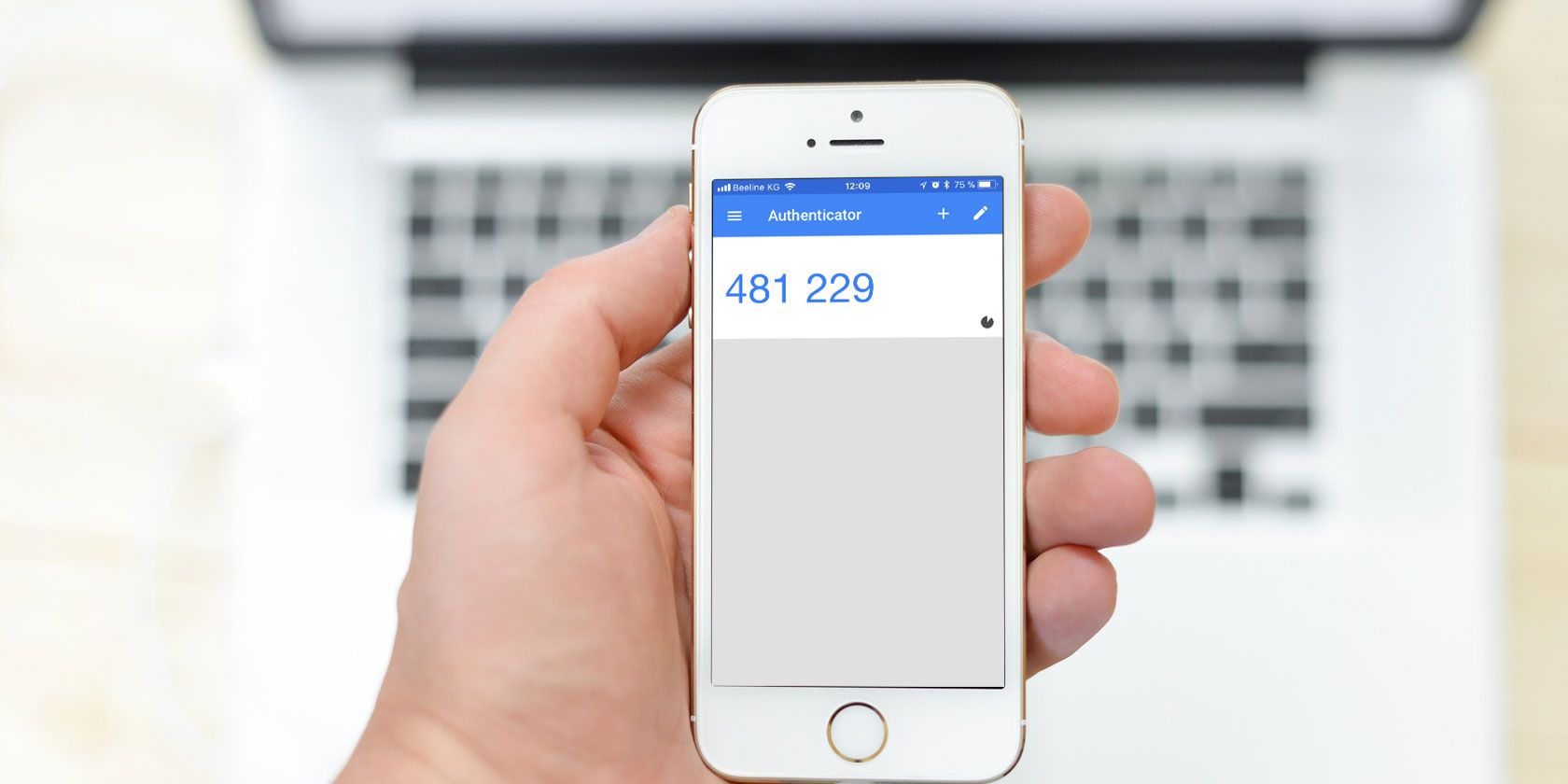
With this authentication method, you use an authenticator app to scan a QR code that contains a secret key. Doing so loads the secret key into the app and generates temporary passwords that change regularly. After entering your password, you’ll need to enter the code from your authenticator app to finish signing in.

Benefits of One-Time Passwords

Once you’ve added the account to your authenticator app, you don’t need to have mobile service to access them. Since the secret key is stored on your device itself, it can’t get intercepted like SMS can. And if you use certain authenticator apps, like Authy, you can sync your codes between multiple devices to avoid getting locked out.

Drawbacks of One-Time Passwords

If your phone runs out of battery, you won’t be able to access your codes (though this is also true of SMS). Because the codes use the time to generate, there’s potential for clocks to desync between your device and the service, which results in invalid codes. This is why you should always print the backup codes that services provide as an emergency login method.

While unlikely, if a hacker somehow cloned your secret key, they could generate their own valid codes at will. And if the service doesn’t limit login attempts, hackers may still be able to compromise your account through sheer brute force.

Method 4: U2F Keys

U2F Key

Universal 2nd Factor (U2F) is an open standard that’s used with USB devices, NFC devices, and smart cards. In order to authenticate, you simply plug in a USB key, bump an NFC device, or swipe a smart card.

Pros of U2F

A U2F key is a true physical factor. As long as you keep them physically secure, they can’t be digitally intercepted or redirected. And unlike most two-factor methods, U2F keys are phishing-proof because they only work once you’ve registered them with a site. They are thus one of the most secure 2FA methods currently available.

Cons of U2F

U2F is a relatively new technology, so it isn’t as widely supported as other choices. The other major drawback is inconvenience due to differing USB ports on your devices. For example, if you have a U2F key with a USB-A connector, it won’t work on your Android device, iPhone, or newer MacBook without an adapter.

Higher-end U2F keys have built-in NFC so you can use them with mobile devices, but they’re more expensive. While U2F keys start around $20, getting one that’s rugged or includes NFC will cost more.

Method 5: Push Notification

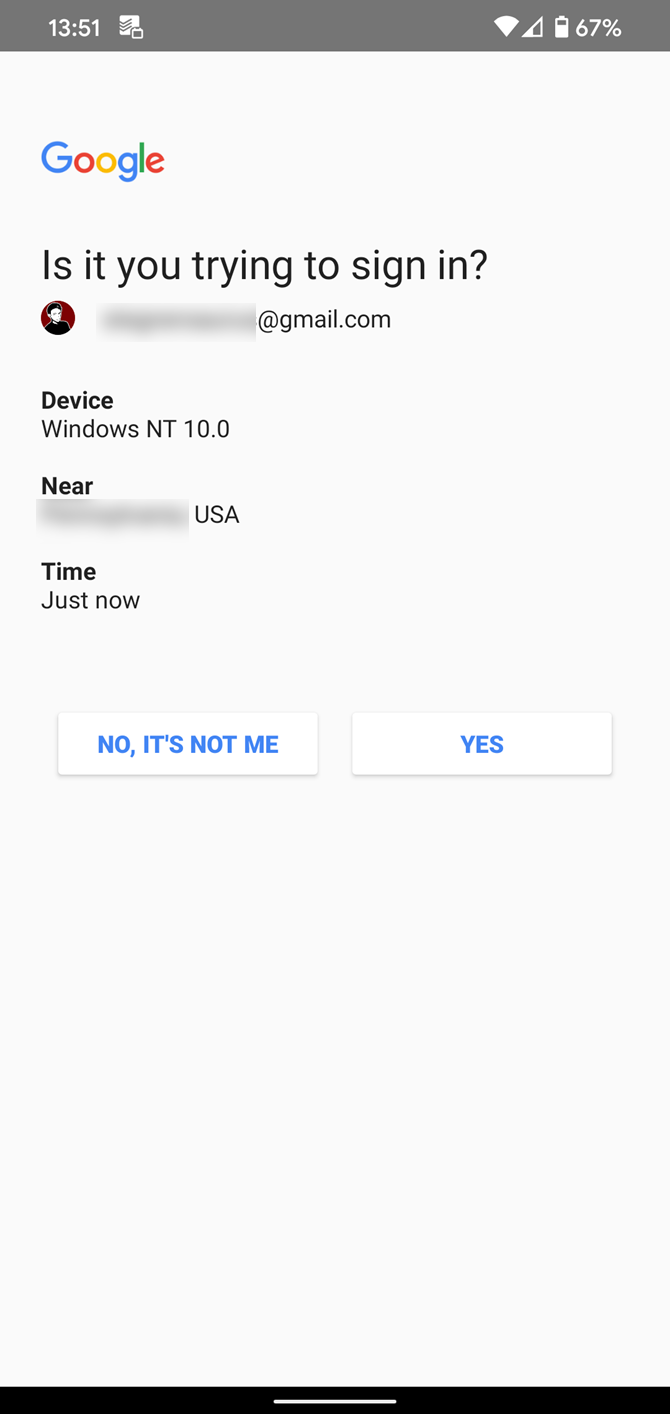
Some two-factor authentication platforms provide an alternative method that’s worth looking into. With this, after you enter your password, you receive a push notification on your device with some information about the login attempt. Simply tap Approve or Decline to respond to the request.

Benefits of Push Notifications

Push notifications are much more convenient than opening your authenticator app and copying down a code. They also contain information about who’s trying to log in, such as the device type, IP address, and general location. This alerts you to any malicious login attempts as they happen.

Additionally, because the push notification is tied to your phone, there’s no risk of a hacker copying down your secret code or stealing an SMS. This method requires you to physically have your device with you to log in.

Drawbacks of Push Notifications

Push notification authentication requires your phone to be connected to the internet. Thus, if you don’t have a data connection and aren’t connected to Wi-Fi, you won’t get the login prompt.

Additionally, there’s a risk of ignoring the information in the push and simply approving it without thinking. If you’re not careful, this could lead to you granting access to someone who shouldn’t have it.

Method 6: Biometrics (Face, Voice, or Fingerprint)

Fingerprint key on keyboard

Facial recognition, voice recognition, and fingerprint scans all fall under the category of biometrics. Systems use biometric authentication when it’s imperative that you really are who you say you are, often in areas that require security clearance (like government).

Advantages of Biometrics

Biometrics are extremely difficult to hack. Even a fingerprint, which is probably the easiest to copy, requires some kind of physical interaction.

Voice recognition would need some kind of statement said in your voice, and facial recognition would need something as drastic as plastic surgery. It isn’t unbreakable, but it’s pretty close.

Disadvantages of Biometrics

The biggest downside, which is the reason why biometrics are rarely used as a two-factor method, is that a compromised biometric is compromised for life. You can’t change your fingerprint or face like you can a phone number.

Plus, most people aren’t comfortable giving up their face, voice, or fingerprints to companies. Even if you did, the technology to use these factors properly would be too difficult to implement for everyday apps and services.

The Pros and Cons of Multi-Factor Authentication

Now that we’ve looked at the advantages and disadvantages of two-factor authentication methods, which one is the best? It depends on what you value most.

In general, these are our recommendations:

  • For a balance, time-based one-time passwords using an authenticator app are the best. You must be careful about keeping backup codes in case you lose or break your device, though. Using Authy and signing in on multiple devices can help with this.
  • For maximum security and privacy, U2F keys are the best. They can’t be used to track you and you don’t have to give up any personal information to use them. But U2F keys cost money and are often inconvenient.
  • For convenience, SMS messages are the best. They have the potential to get intercepted and don’t work when you have poor reception. However, they’re quick, easy, and better than single-step authentication.
  • If you have the option to use push notifications, they’re worth trying. Just make sure you have a stable internet connection when using them, and always check the info in the prompt.

If you have a choice, don’t ever rely on security questions as a two-factor method. When a site requires them, treat them like a second password and store your answers in a password manager. It’s unwise to answer the questions directly.

Now that you know what method to use, follow our guide to enabling two-factor authentication on many popular websites.

Read the full article: The Pros and Cons of Two-Factor Authentication Types and Methods


Read Full Article

Houseparty reports 50M sign-ups in past month amid COVID-19 lockdowns


Houseparty, the popular video chat application acquired by Fortnite maker Epic Games in 2019, has seen massive growth due to the COVID-19 pandemic. With government lockdowns keeping people from being able to visit friends and other loved ones in person, consumer demand for video chat apps has skyrocketed. This has resulted in the video conferencing category of apps hitting record numbers in March, app store intelligence firm App Annie recently reported. Until now, however, Houseparty had remained quiet about its own metrics.

Today, that changed, as Houseparty revealed that in the past month, its app has seen 50 million sign-ups — a figure that’s around 70 times above normal.

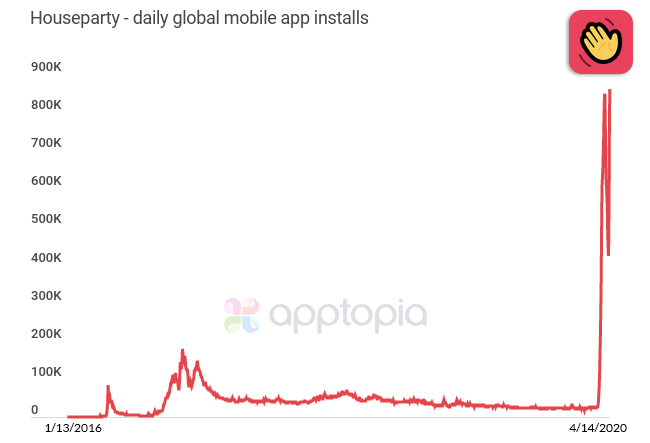
According to data from Apptopia, Houseparty has seen record mobile downloads, as well, with installs spiking in recent weeks. During the past 30 days, Houseparty has seen 17.2 million new installs across iOS and Android, by its estimates.

But the app is also available for Mac and Chrome, which aren’t included in that figure.

The increased consumer demand has also seen the app topping the mobile app stores’ charts in a number of markets, the company said.

Houseparty became the No. 1 Social app in 82 countries, including the U.S. App Store. It was also the No. 3 Social app on the U.S. Google Play store.

The app grew to become the No. 1 Overall app in 16 countries, as well. And in the U.S. App Store, it got as high as the No. 3 Overall app. On Google Play, it reached as high as No. 10.

The company said users have engaged with the app for long session times, with the average time in conversation per user remaining at more than 60 minutes. During the COVID-19 pandemic, these average times were sometimes even as high as 80+ minutes.

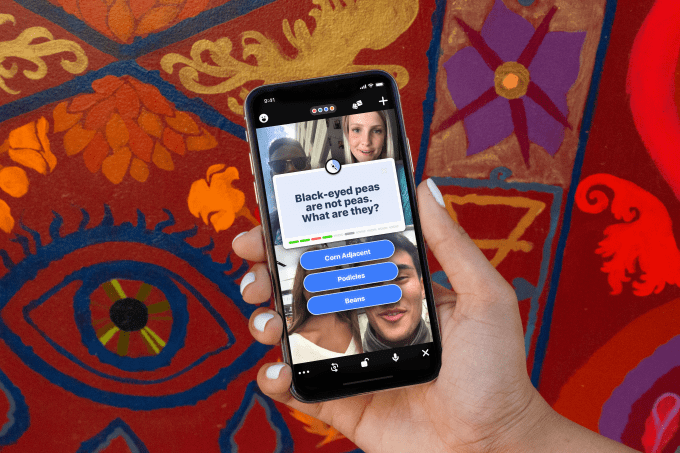
Houseparty has typically appealed to younger users than those on other video chat apps, as it’s designed for social hangouts. For starters, the app integrates with Snapchat. And like Snapchat, it also heavily relies on gesture-based navigation that older users tend to struggle with. Plus, it offers in-app games to play, like trivia or Ellen’s popular “Heads Up,” among others.

Meanwhile, video chat rivals — like Zoom, Skype and Google Hangouts — are often used by remote workers and in a corporate setting, in addition to their emerging consumer use cases. This tends to have the apps skew a bit older and distances them from the idea of being “fun.”

That being said, with the increases in usage tied to COVID-19, Houseparty claims people of all ages and backgrounds are now joining the app.

In addition, Houseparty’s users are connected to an average of 23 friends and nearly half of users having conversations are playing games — a figure the company had not previously revealed. (The company recently made all its games free to play, which has likely impacted usage.)

While the U.S. has always been Houseparty’s largest market, App Annie last month reported on Houseparty’s growth, noting it had seen particular demand in Europe. This included countries like Italy and Spain, where installs during the week of March 21 surged at 423x and 2360x, respectively, the average weekly number of installs in Q4 2019. What’s remarkable about the growth is that some of the countries, like Spain, were markets where Houseparty never had wide-scale penetration before the COVID-19 crisis.

Though Houseparty tends to keep its core metrics under wraps — like total users or revenue, for example — it likely released its new numbers today for a variety of reasons.

For one, Houseparty may just want to redirect focus from an odd situation where it was recently accused of a data breach by way of social media posts from users. Through tweets, users claimed their Houseparty user data was being used to access other accounts, like Netflix and Spotify. But Houseparty denied the breach and even suggested that the social media posts were a part of a “paid commercial campaign” aimed at harming its business. It offered a $1 million reward for any evidence that proved this theory. Nothing yet has come of that and some of the posts have since disappeared.

In addition, Houseparty rival Zoom was recently criticized for a variety of security and privacy issues, which the CEO Eric Yuan has since apologized for and promised to fix. But in the meantime, Houseparty may hope to boost its install base further by appealing to those who are now looking for a Zoom alternative. (Although Houseparty has its own privacy issues, it’s not been as widely reported.)

Finally, there’s the fact that there aren’t that many times in a company’s life where it can detail its outsized growth like this. It’s unprecedented for there to be some 158 million Americans being told to stay at home, plus millions more worldwide, which creates an ideal climate for video chat apps to thrive.


Read Full Article

FDA authorizes production of a new ventilator that costs up to 25x less than existing devices


The U.S. Food and Drug Administration (FDA) has authorized the manufacture of the Coventor ventilator, a new hardware design first developed by the University of Minnesota. The project sought to create a ventilator that could provide the same level of life-saving care as existing ventilator models, but with a much lower cost to help ramp production quickly and make them affordable to the health institutions that need them.

The Coventor becomes the first of these types of novel ventilator designs to earn an Emergency Use Authorization (EUA) from the FDA. Just like it sounds, an EUA isn’t a full traditional medical device approval like the drug and device regulator would ordinarily issue, but an emergency, temporary grant in the interest of helping provide access to resources in short supply, or without the usual full chain of approvals, in times of crisis.

The coronavirus pandemic is potentially the best example of such a crisis in modern memory, and the respiratory illness caused by COVID-19 requires treatment including intubation and ventilator breathing support for the most severe cases. Ventilator hardware has been in short supply given the volume of cases, both in the U.S. and abroad, and a number of solutions have been proposed including new hardware designs and modifications to other types of medical breathing apparatus to account for the gap.

U of M’s Coventor, developed with a team including engineering and medical school faculty, is a desktop-sized device that costs around $1,000 to produce, making it a much more viable alternative if sold at cost to medical facilities when compared to the $20,000 to $25,000 retail price of your average existing hospital-grade ventilator hardware.

Both medical device maker Medtronic (the company that’s also working with Tesla on its ventilator manufacturing plans) and Boston Scientific (which will be producing the Coventor for distribution following this approval) contributed to the development of the design. The University also announced today that it would be making the Coventor’s specs open-source so that it can be manufactured globally, provided other companies seek and secure similar approvals from the FDA and relevant international health authorities.


Read Full Article
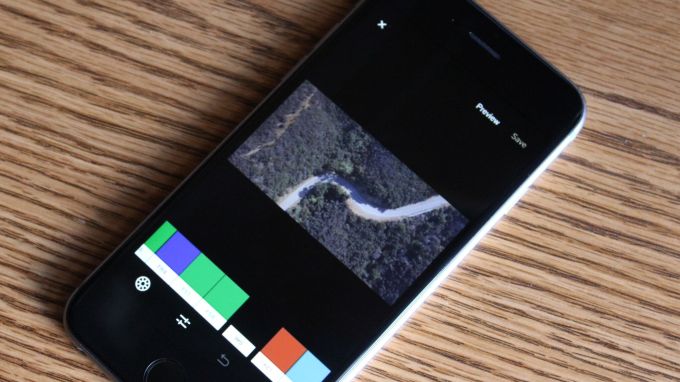
Google Play adds a ‘Teacher Approved’ section to its app store


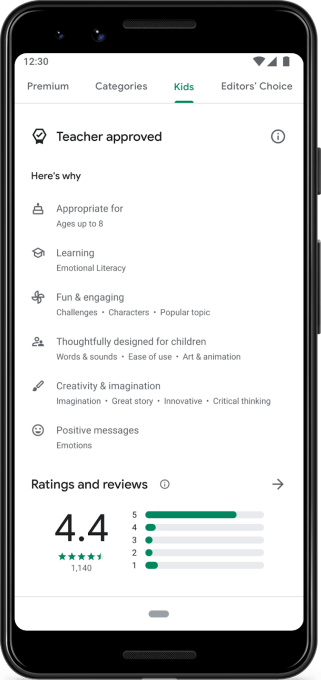
Google today is making it easier for families to find quality educational apps with the addition of a new “Teacher Approved” section to Google Play. All apps found in this section are vetted by a panel of reviewers, including more than 200 teachers across the U.S., and meet Google’s existing requirements for its “Designed for Families” program.

That program requires apps to meet government regulations around data collection and ad targeting, and also limits the types of ads that can be displayed to children, if apps are ad-supported.

The apps chosen for the “Teacher Approved” section, however, don’t just meet the program’s minimum requirements — they’re also reviewed and rated highly by teachers. These may be apps teachers use in the classroom or those they suggest for supplemental learning at home.

The launch arrives at a time when most U.S. children are now out of school due to the COVID-19 pandemic and the subsequent school closures. To date, at least 55.1 million students are no longer attending their public or private school in-person, according to data from the National Center for Education Statistics. This change has left parents scrambling to fill their child’s time with educational activities. And even if distance learning is available in their school district, it isn’t typically enough to keep the child engaged throughout the day.

Google says it heard from parents that it was difficult to find kid-friendly apps they felt good about letting their children use, which is why it chose to launch the new “Teacher Approved” section on Google Play.

The company worked with academic experts, including lead advisors Joe Blatt (Harvard Graduate School of Education) and Dr. Sandra Calvert (Georgetown University) to create the framework for rating apps for kids. But the apps themselves are chosen by a panel with teacher involvement. The panel rates apps on various aspects like age-appropriateness, quality of experience, enrichment and whether kids enjoy using the app.

To access the new section, you can either visit the “Kids” tab on Google Play or you can look for the “Teacher Approved” badge on any given app to see if it met with teachers’ approval. In addition, Google Play Pass will offer subscribers a selection of “Teacher Approved” content under the “Apps and games for kids” section.

The apps will be grouped by age: 5 & under, ages 6-8 and ages 9-12. Google will also include information in the app’s listing about why it was rated highly.

At launch, Google tells us there will be around 1,000 Teacher Approved apps live in the Play Store and around 60 also included in Google Play Pass. The company says it’s working with its Play Pass partners to increase this number over time.

“I think it’s terrific that Google is taking this unprecedented stand – creating a unique space for apps that teachers have rated high in quality and value for kids and their families,” said Joe Blatt, senior lecturer and faculty director of the Technology, Innovation, and Education Program, in a statement about the launch. “Over the past three years, together with faculty colleagues and students, I have worked to pinpoint criteria for developmental appropriateness, learning impact, and appeal. Then we helped Google build a rating system that enables teachers to apply these criteria reliably. I’m really impressed with the dedication and professionalism that the Google team has invested in this project,” he added.

The new Kids tab with “Teacher approved” apps will roll out in the U.S. on Google Play over the next few days. Google says it will expand the experience internationally in the months to come.


Read Full Article

15 April 2020

Pileus helps businesses cut their cloud spend


Israel-based Pileus, which is officially launching today, aims to help businesses keep their cloud spend under control. The company also today announced that it has raised a $1 million seed round from a private angel investor.

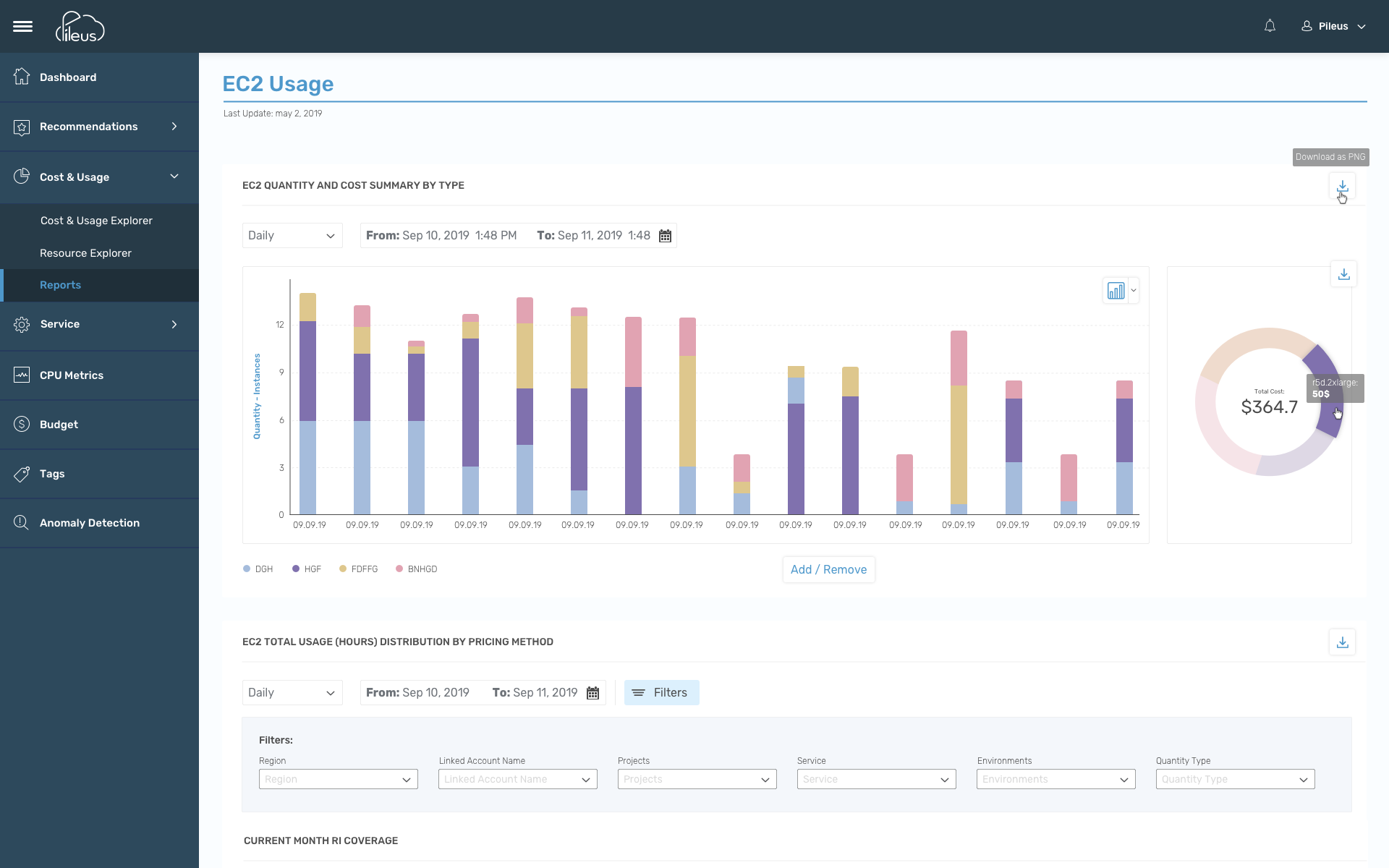
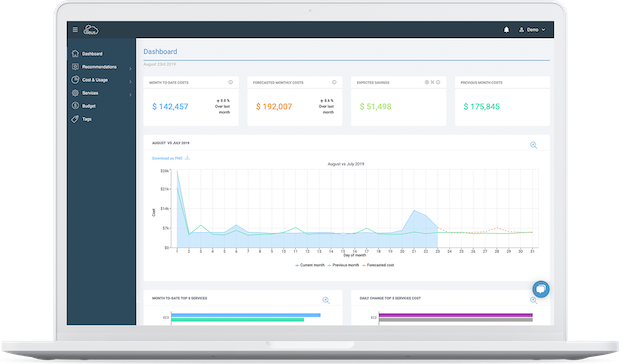
Using machine learning, the company’s platform continuously learns about how a user typically uses a given cloud and then provides forecasts and daily personalized recommendations to help them stay within a budget.

Pileus currently supports AWS, with support for Google Cloud and Microsoft Azure coming soon.

With all of the information it gathers about your cloud usage, the service can also monitor usage for any anomalies. Because, at its core, Pileus keeps a detailed log of all your cloud spend, it also can provide detailed reports and dashboards of what a user is spending on each project and resource.

If you’ve ever worked on a project like this, you know that these reports are only as good as the tags you use to identify each project and resource, so Pileus makes that a priority on its platform, with a tagging tool that helps enforce tagging policies.

“My team and I spent many sleepless nights working on this solution,” says Pileus CEO Roni Karp. “We’re thrilled to finally be able to unleash Pileus to the masses and help everyone gain more efficiency of their cloud experience while helping them understand their usage and costs better than ever before.”

Pileus currently offers a free 30-day trial. After that, users can either opt to pay $180/month or $800 per year. At those prices, the service isn’t exactly useful until your cloud spend is significantly more than that, of course.

The company isn’t just focused on individual businesses, though. It’s also targeting managed service providers that can use the platform to create reports and manage their own customer billing. Karp believes this will become a significant source of revenue for Pileus because “there are not many good tools in the field today, especially for Azure.”

It’s no secret that Pileus is launching into a crowded market, where well-known incumbents like Cloudability already share mindshare with a growing number of startups. Karp, however, believes that Pileus can stand out, largely because of its machine learning platform and its ability to provide users with immediate value, whereas, he argues, it often takes several weeks for other platforms to deliver results.


Read Full Article

EfficientDet: Towards Scalable and Efficient Object Detection


As one of the core applications in computer vision, object detection has become increasingly important in scenarios that demand high accuracy, but have limited computational resources, such as robotics and driverless cars. Unfortunately, many current high-accuracy detectors do not fit these constraints. More importantly, real-world applications of object detection are run on a variety of platforms, which often demand different resources. A natural question, then, is how to design accurate and efficient object detectors that can also adapt to a wide range of resource constraints?

In “EfficientDet: Scalable and Efficient Object Detection”, accepted at CVPR 2020, we introduce a new family of scalable and efficient object detectors. Building upon our previous work on scaling neural networks (EfficientNet), and incorporating a novel bi-directional feature network (BiFPN) and new scaling rules, EfficientDet achieves state-of-the-art accuracy while being up to 9x smaller and using significantly less computation compared to prior state-of-the-art detectors. The following figure shows the overall network architecture of our models.
EfficientDet architecture. EfficientDet uses EfficientNet as the backbone network and a newly proposed BiFPN feature network.
Model Architecture Optimizations
The idea behind EfficientDet arose from our effort to find solutions to improve computational efficiency by conducting a systematic study of prior state-of-the-art detection models. In general, object detectors have three main components: a backbone that extracts features from the given image; a feature network that takes multiple levels of features from the backbone as input and outputs a list of fused features that represent salient characteristics of the image; and the final class/box network that uses the fused features to predict the class and location of each object. By examining the design choices for these components, we identified several key optimizations to improve performance and efficiency:

Previous detectors mainly rely on ResNets, ResNeXt, or AmoebaNet as backbone networks, which are all either less powerful or have lower efficiency than EfficientNets. By first implementing an EfficientNet backbone, it is possible to achieve much better efficiency. For example, starting from a RetinaNet baseline that employs ResNet-50 backbone, our ablation study shows that simply replacing ResNet-50 with EfficientNet-B3 can improve accuracy by 3% while reducing computation by 20%.

Another optimization is to improve the efficiency of the feature networks. While most previous detectors simply employ a top-down feature pyramid network (FPN), we find top-down FPN is inherently limited by the one-way information flow. Alternative FPNs, such as PANet, add an additional bottom-up flow at the cost of more computation. Recent efforts to leverage neural architecture search (NAS) discovered the more complex NAS-FPN architecture. However, while this network structure is effective, it is also irregular and highly optimized for a specific task, which makes it difficult to adapt to other tasks.

To address these issues, we propose a new bi-directional feature network, BiFPN, which incorporates the multi-level feature fusion idea from FPN/PANet/NAS-FPN that enables information to flow in both the top-down and bottom-up directions, while using regular and efficient connections.
A comparison between our BiFPN and previous feature networks. Our BiFPN allows features (from the low resolution P3 levels to high-resolution P7 levels) to repeatedly flow in both top-down and bottom-up ways.
To improve the efficiency even more, we propose a new fast normalized fusion technique. Traditional approaches usually treat all features input to the FPN equally, even those with different resolutions. However, we observe that input features at different resolutions often have unequal contributions to the output features. Thus, we add an additional weight for each input feature and allow the network to learn the importance of each. We also replace all regular convolutions with less expensive depthwise separable convolutions. With these optimizations, our BiFPN further improves the accuracy by 4%, while reducing the computation cost by 50%.

A third optimization involves achieving better accuracy and efficiency trade-offs under different resource constraints. Our previous work has shown that jointly scaling the depth, width and resolution of a network can significantly improve efficiency for image recognition. Inspired by this idea, we propose a new compound scaling method for object detectors, which jointly scales up the resolution/depth/width. Each network component, i.e., backbone, feature, and box/class prediction network, will have a single compound scaling factor that controls all scaling dimensions using heuristic-based rules. This approach enables one to easily determine how to scale the model by computing the scaling factor for the given target resource constraints.

Combining the new backbone and BiFPN, we first develop a small-size EfficientDet-D0 baseline, and then apply a compound scaling to obtain EfficientDet-D1 to D7. Each consecutive model has a higher compute cost, covering a wide range of resource constraints from 3 billion FLOPs to 300 billion FLOPS, and provides higher accuracy.

Model Performance
We evaluate EfficientDet on the COCO dataset, a widely used benchmark dataset for object detection. EfficientDet-D7 achieves a mean average precision (mAP) of 52.2, exceeding the prior state-of-the-art model by 1.5 points, while using 4x fewer parameters and 9.4x less computation.
EfficientDet achieves state-of-the-art 52.2 mAP, up 1.5 points from the prior state of the art (not shown since it is at 3045B FLOPs) on COCO test-dev under the same setting. Under the same accuracy constraint, EfficientDet models are 4x-9x smaller and use 13x-42x less computation than previous detectors.
We have also compared the parameter size and CPU/GPU latency between EfficientDet and previous models. Under similar accuracy constraints, EfficientDet models are 2x-4x faster on GPU, and 5x-11x faster on CPU than other detectors.

While the EfficientDet models are mainly designed for object detection, we also examine their performance on other tasks, such as semantic segmentation. To perform segmentation tasks, we slightly modify EfficientDet-D4 by replacing the detection head and loss function with a segmentation head and loss, while keeping the same scaled backbone and BiFPN. We compare this model with prior state-of-the-art segmentation models for Pascal VOC 2012, a widely used dataset for segmentation benchmark.
EfficientDet achieves better quality on Pascal VOC 2012 val than DeepLabV3+ with 9.8x less computation, under the same setting without COCO pre-training.
Open Source
Given their exceptional performance, we expect EfficientDet could serve as a new foundation of future object detection related research, and potentially make high-accuracy object detection models practically useful for many real-world applications. Therefore, we have open sourced all the code and pretrained model checkpoints on this github link.

Acknowledgements
Thanks to the paper co-authors Ruoming Pang and Quoc V. Le. We thank Daiyi Peng, Golnaz Ghiasi, Tianjian Meng for their help on infrastructure and discussion. We also thank Adam Kraft, Barret Zoph, Ekin D. Cubuk, Hongkun Yu, Jeff Dean, Pengchong Jin, Samy Bengio, Tsung-Yi Lin, Xianzhi Du, Xiaodan Song, and the Google Brain team.

WorldGaze uses smartphone cameras to help voice AIs cut to the chase


If you find voice assistants frustratingly dumb, you’re hardly alone. The much-hyped promise of AI-driven vocal convenience very quickly falls through the cracks of robotic pedantry.

A smart AI that has to come back again (and sometimes again) to ask for extra input to execute your request can seem especially dumb — when, for example, it doesn’t get that the most likely repair shop you’re asking about is not any one of them but the one you’re parked outside of right now.

Researchers at the Human-Computer Interaction Institute at Carnegie Mellon University, working with Gierad Laput, a machine learning engineer at Apple, have devised a demo software add-on for voice assistants that lets smartphone users boost the savvy of an on-device AI by giving it a helping hand — or rather a helping head.

The prototype system makes simultaneous use of a smartphone’s front and rear cameras to be able to locate the user’s head in physical space, and more specifically within the immediate surroundings — which are parsed to identify objects in the vicinity using computer vision technology.

The user is then able to use their head as a pointer to direct their gaze at whatever they’re talking about — i.e. “that garage” — wordlessly filling in contextual gaps in the AI’s understanding in a way the researchers contend is more natural.

So, instead of needing to talk like a robot in order to tap the utility of a voice AI, you can sound a bit more, well, human. Asking stuff like “‘Siri, when does that Starbucks close?” Or — in a retail setting — “are there other color options for that sofa?” Or asking for an instant price comparison between “this chair and that one.” Or for a lamp to be added to your wish-list.

In a home/office scenario, the system could also let the user remotely control a variety of devices within their field of vision — without needing to be hyper-specific about it. Instead they could just look toward the smart TV or thermostat and speak the required volume/temperature adjustment.

The team has put together a demo video (below) showing the prototype — which they’ve called WorldGaze — in action. “We use the iPhone’s front-facing camera to track the head in 3D, including its direction vector. Because the geometry of the front and back cameras are known, we can raycast the head vector into the world as seen by the rear-facing camera,” they explain in the video.

“This allows the user to intuitively define an object or region of interest using the head gaze. Voice assistants can then use this contextual information to make enquiries that are more precise and natural.”

In a research paper presenting the prototype they also suggest it could be used to “help to socialize mobile AR experiences, currently typified by people walking down the street looking down at their devices.”

Asked to expand on this, CMU researcher Chris Harrison told TechCrunch: “People are always walking and looking down at their phones, which isn’t very social. They aren’t engaging with other people, or even looking at the beautiful world around them. With something like WorldGaze, people can look out into the world, but still ask questions to their smartphone. If I’m walking down the street, I can inquire and listen about restaurant reviews or add things to my shopping list without having to look down at my phone. But the phone still has all the smarts. I don’t have to buy something extra or special.”

In the paper they note there is a long body of research related to tracking users’ gaze for interactive purposes — but a key aim of their work here was to develop “a functional, real-time prototype, constraining ourselves to hardware found on commodity smartphones.” (Although the rear camera’s field of view is one potential limitation they discuss, including suggesting a partial workaround for any hardware that falls short.)

“Although WorldGaze could be launched as a standalone application, we believe it is more likely for WorldGaze to be integrated as a background service that wakes upon a voice assistant trigger (e.g., ‘Hey Siri’),” they also write. “Although opening both cameras and performing computer vision processing is energy consumptive, the duty cycle would be so low as to not significantly impact battery life of today’s smartphones. It may even be that only a single frame is needed from both cameras, after which they can turn back off (WorldGaze startup time is 7 sec). Using bench equipment, we estimated power consumption at ~0.1 mWh per inquiry.”

Of course there’s still something a bit awkward about a human holding a screen up in front of their face and talking to it — but Harrison confirms the software could work just as easily hands-free on a pair of smart spectacles.

“Both are possible,” he told us. “We choose to focus on smartphones simply because everyone has one (and WorldGaze could literally be a software update), while almost no one has AR glasses (yet). But the premise of using where you are looking to supercharge voice assistants applies to both.”

“Increasingly, AR glasses include sensors to track gaze location (e.g., Magic Leap, which uses it for focusing reasons), so in that case, one only needs outwards facing cameras,” he added.

Taking a further leap it’s possible to imagine such a system being combined with facial recognition technology — to allow a smart spec-wearer to quietly tip their head and ask “who’s that?” — assuming the necessary facial data was legally available in the AI’s memory banks.

Features such as “add to contacts” or “when did we last meet” could then be unlocked to augment a networking or socializing experience. Although, at this point, the privacy implications of unleashing such a system into the real world look rather more challenging than stitching together the engineering. (See, for example, Apple banning Clearview AI’s app for violating its rules.)

“There would have to be a level of security and permissions to go along with this, and it’s not something we are contemplating right now, but it’s an interesting (and potentially scary idea),” agrees Harrison when we ask about such a possibility.

The team was due to present the research at ACM CHI — but the conference was canceled due to the coronavirus.


Read Full Article

Instagram rival VSCO lays off 30% of staff to reduce reliance on outside capital


VSCO, the popular photo editing app and Instagram rival, is the latest company to undergo layoffs attributed to the COVID-19 crisis, which has put a strain on venture-backed startups. According to a report from NPR, which was then confirmed by VSCO co-founder and CEO Joel Flory on LinkedIn, the company is laying off around 30% of staff, or 45 of its employees.

Though Flory didn’t reference the COVID-19 outbreak by name, his post described the rapid change to the economy which necessitated the layoffs.

“2020 was staged to be a year where we would continue to forward invest into our business,” Flory wrote. “Overnight our environment changed. We realized that we would need to shift towards running a self-sustaining business.”

In other words, VSCO is anticipating a future where venture capital is less readily available and is making the shift toward running a business that’s no longer reliant on outside capital or funding in order to operate. By laying off a portion of staff, VSCO believes it will be able to sustain its business for many years.

To date, VSCO has raised $90 million in outside funding, and sees its app used by more than 20 million active users per week. However, a smaller portion of those users are customers who pay for a VSCO Membership that offers an expanded array of features, tools, presets and other content. VSCO confirmed to TechCrunch in February 2020 that it had around 2+ million paid subscribers.

Late last year, VSCO had said it was on pace to surpass 4 million paid subscribers by 2020 and was approaching $80 million in annual revenue.

PitchBook data valued the business at $550 million, NPR also reported — a number that’s made the rounds before, as well.

In 2020, VSCO has rolled out several features designed to better support video editing. It gave creators the ability to publish their video edits to the VSCO feed, and last month, for example, launched a more powerful and feature-rich video editing tool called Montage. The latter was meant to grow VSCO’s paid subscriber base, as it requires users to pay in order to save and publish their finished videos.

VSCO’s profile has also been raised beyond its core user base in recent months, after it became associated with a Gen Z meme that circulated on sites like TikTok.

Though perhaps not the marketing the company would have desired, the VSCO girl meme became a way to mock a certain type of girl — one who sports a messy bun, baggy shirts and scrunchies and carries around eco-conscious items like Hydro Flasks or metal straws. VSCO’s app for making your photos look good became associated with this persona, as it’s often used to filter and edit images in order to give them an aesthetic that teenage girls (VSCO girls) supposedly desired.

As for the layoffs, VSCO says its former employees will receive a minimum of seven weeks of severance pay, and a minimum of two months of COBRA health coverage. In terms of equity, VSCO is pro-rating stock option vesting and extending equity exercise periods post-term, it also notes.

Flory’s LinkedIn post additionally offered a way for those interested in hiring the laid-off VSCO employees to reach the company. He said the jobs@vsco.co email address could be used to make inquires about hiring its talent. The company will also be working to provide other job placement resources and support, it says.

“I am deeply saddened to let some incredible people go and am so grateful for everything they’ve done for VSCO and our community,” Flory wrote. “Our mission and vision remain unchanged. Our ability to provide a place for creative expression, inspiration and connection is even more important than ever right now,” he added.


Read Full Article

How to spark your curiosity, scientifically | Nadya Mason

How to spark your curiosity, scientifically | Nadya Mason

Curious how stuff works? Do a hands-on experiment at home, says physicist Nadya Mason. She shows how you can demystify the world around you by tapping into your scientific curiosity -- and performs a few onstage experiments of her own using magnets, dollar bills, dry ice and more.

Click the above link to download the TED talk.