09 April 2020

The Top 10 Sites for Video Game Deals and Bargains


Although video games provide some of the best value-per-dollar for entertainment, gaming can be an expensive hobby. Those purchases add up, and it’s easy to spend upwards of $1,000 in a year.

Fortunately, if your budget is tight, you have ways to cut back. First and foremost, stop pre-ordering games. You could even take it one step further and avoid buying new games altogether.

However, the best idea of all is to wait for deals! You’ll need some patience, and you won’t always get to play the games you want right away, but video game deals can save you lots of money.

With that in mind, here are the best sites to buy video games.

1. Is There Any Deal

Is There Any Deal

Is There Any Deal is a deal comparison site for video games. It not only aggregates pretty much every video game deal currently available, but lists them all side-by-side and ranks them by how much you can save. Just search for the game you want, then view all of the deals on its page.

Other nifty features include:

  • Wait for a better price: Set a price point and get alerted when the price drops below it.
  • Price history: See if the game’s current price really is a deal or not.
  • Trends: See how quickly the game has sold.

If price is your only criterion, then this site is what you need. But Is There Any Deal also lists stores selling the game without deals. This allows you to use the site as a “where can I buy this game?” tool, regardless of deals.

2. CheapShark

CheapShark

CheapShark only aggregates video game prices from a dozen or so online retailers, but lets you search for any game and gives you a quick comparison of what it costs at each one.

Two features you’ll find useful: “Cheapest ever” shows a game’s lowest price ever and when that price occurred. “Price notifications” lets you set a price point and receive an alert when the game drops below it at any of the tracked retailers.

CheapShark’s deals listing page has an interesting sorting measure called “Deal Rating.” It considers various factors (e.g. absolute price, percent off, Metascore, release date) to determine how good the deal is. Very nifty at a glance!

3. Humble Bundle

Humble Bundle

The Humble Bundle started in 2010 as a discounted collection of video games with some proceeds donated to charity. Its first few bundles consisted of mainly indie games, but it has since evolved to include AAA titles and other more desirable games.

Humble Bundles are known for the “pay what you want” approach, which means you can grab lots of games for very cheap. However, in every Bundle, some of the most desirable titles are only available if you spend a minimum amount.

You can also browse the Humble Store for regular sales. Either way, these two options comprise some of the best ways to save money when gaming.

4. Fanatical

Fanatical

Fanatical is an online games store that always has deep discounts on the latest and greatest games. It not only sells PC games for Steam, but also Switch and 3DS games—which is rather unique, since Nintendo games are rarely discounted.

While the prices on Fanatical are usually great anyway, the site often holds sales or flash deals where you can get even cheaper prices than usual. You should also check out its bundles, where similar games are packaged together for a discount rate.

5. Slickdeals

Slickdeals

Slickdeals is one of the best sites for daily deals, period. Users post deals whenever they spot them around the web, receive them in emails, etc. And since deals are available across many other departments (e.g. home, tech, travel), Slickdeals is a great choice if you want an all-in-one deals site.

After using Slickdeals for a while, you’ll see why it’s one of the best bargain sites cheaper than eBay. Lots of people use it, which means any deal is likely to pop up there.

6. Daily Game Deals

Daily Game Deals

Daily Game Deals may not have the easy browsability other deal sites, but it functions perfectly as a “check once per day” kind of site. It’s a blog that publishes once per day, with each post covering a massive roundup of new gaming-related deals around the web.

Most of the deals come from the same retailers, including Amazon, Newegg, Gamefly, Gamestop, Walmart, etc. For truly effortless notifications, just sign up for the daily newsletter and get the deals sent straight to your inbox.

7. Reddit’s /r/GameDeals and /r/ConsoleDeals

Reddit game deals

These two communities on Reddit are fantastic for catching deals fast and early. While /r/GameDeals is technically for all game deals, it does have a heavy slant towards PC gamers. That’s why /r/ConsoleDeals was born.

While PC games are usually cheaper than console games, the beauty is that you can play whichever you want and still benefit from the deals subreddit that applies to you. These deals aggregators are two of the best you’ll find.

And while you’re on Reddit, you may as well check out /r/patientgamers. It’s a community of gamers who wait at least six months after a game is released before buying it, which often results in super savings thanks to things like Black Friday sales.

8. Cheap Ass Gamer

Cheap Ass Gamer

Cheap Ass Gamer is run by a small team who constantly post the latest game deals they find on the internet. The site covers all platforms and you can filter to specific ones you want to see.

It also has a handy price tracker, so you can see the historical price of a game and know whether the current deal really is that great. If you don’t want to check the site, you can also subscribe to its Twitter feed instead.

9. Gocdkeys

Gocdkeys

Gocdkeys compares the cost of keys for games on PC, PS4, and Xbox One. It not only scans the usual retailers like Amazon and GoG, but also lots of lesser-known sites too—across many regions too.

The site also displays reviews for all of its retailers, so you can compare price and trustworthiness side by side. As such, you can be confident knowing that you’re getting a great deal on the game you want to buy.

Be careful to only buy from legit and safe key sites. To help you stay safe, here’s what to know before buying discounted game keys.

10. DLCompare

DLCompare

You might be willing to play a game on multiple platforms, especially if you own a gaming PC and a console. If so, DLCompare is the site for you, because it compares a game’s price across all the platforms.

This means that you can easily see whether it would be cheaper to buy the game on PS4 rather than Xbox One, for example. Of course, you can also filter if needs be, either by platform, store, or type of game (like “standard edition” or “season pass”).

How to Decide What Game to Buy

These sites are sure to net you a great bargain on the next game that you want to play. Many of them let you sign up for email alerts and newsletters, so be sure to do that so you don’t miss out on a bargain.

If you can’t decide what titles you want to play, check out our advice listing ways to decide what game to buy next.

Image Credit: SergPoznanskiy/Depositphotos

Read the full article: The Top 10 Sites for Video Game Deals and Bargains


Read Full Article

Retroflag GPi is the Ultimate Portable Retro Gaming Console


retroflag gpi case featured
Our verdict of the Retroflag GPi Case:
This straightforward retro-style portable gaming case for the Raspberry Pi is easy to assemble, with a collection of retro gaming platforms and extra buttons on the back, useful power switching avoids unplanned shutdowns. It's the best Gameboy-like Raspberry Pi gaming project around.
910

With the explosion of retro gaming, many gamers looking for a shot of nostalgia have turned to the Raspberry Pi. Compatible with most emulation systems, it is as ideal for playing Nintendo 64 games as it is with Atari 2600 titles.

But it lacks portability, which is where the Raspberry Pi Zero comes in. Half the size of the standard Raspberry Pi boards, the Zero is the hub of many portable retro kits, mostly based on the Nintendo Gameboy.

We’re looking at one such kit, the Retroflag GPi Case from AKNES. How does it improve over similar kits and 3D printed DIY builds?

What You Get in the Retroflag GPi Case

Cracking open the box, you’ll find a GPi Case, the Gameboy-like handheld console with a built-in display.

There’s also a tote bag, heatsink, USB power cable, a screwdriver with reversible heads, and two sets of four screws. A larger case is also included for carrying the GPi Case and any additional bits and pieces. Oh, and there’s a free GPi Case-keyring, and detailed instructions.

Note that this kit ships without a Raspberry Pi Zero. You’ll need to provide your own.

Raspberry Pi Zero and Zero W Case, Retroflag GPi CASE with Retro Handheld Game Console and Safe Shutdown - with Carring Bag, a Keychain Piece, Heatsink Raspberry Pi Zero and Zero W Case, Retroflag GPi CASE with Retro Handheld Game Console and Safe Shutdown - with Carring Bag, a Keychain Piece, Heatsink Buy Now On Amazon $69.99

The GPi Case itself features a D-pad, ABXY buttons, and Select and Start. Two additional buttons have been added to the back of the case. A headphone port is found at the bottom of the console, while an Off/On switch is at the top. A volume wheel is on the right side; the power jack plugs in on the left, alongside the brightness wheel.

GPi Case cartridge port

Around the back, the GPi Case has a battery hatch, supporting 3xAA batteries. Hidden in here is a Safe Shutdown switch; above this, a micro-USB port for firmware upgrades.

Finally, you’ll find a removable “cartridge” on the back of the GPi Case. Not quite as big as a Gameboy cartridge, this device holds your Pi Zero. An operating system can be installed on a microSD card. A small door covers the card slot on your Raspberry Pi Zero, devised to prevent the card getting lost.

While powered by a Raspberry Pi Zero, the GPi Case has its own hardware inside. Weighing 183g and measuring 135x81x32mm, the GPi Case also includes a 2.8-inch color IPS display.

Assembly is solderless, and supposedly simple—all you need to do is insert a Raspberry Pi Zero.

You’ll Need Your Own Raspberry Pi Zero—But Which One?

Several versions of the Raspberry Pi Zero have been released. The Zero is a slimline Raspberry Pi, half the size of the main version, with a 32-bit 1Ghz CPU and 512MB of memory. Along with a micro-USB power input, the card features a micro-USB port and microSD slot for booting an operating system.

Raspberry Pi Zero is at the heart of the GPi Case

The original version launched for just $5, although later versions are twice this much. Since first launching in November 2015, three main iterations have been issued:

  • Raspberry Pi Zero 1.2: the basic model, with only USB connectivity. A 1.3 revision appeared in May 2016.
  • Raspberry Pi Zero W: released February 2017 with an MPI camera interface, Bluetooth 4.1 BLE, and b/g/n single band 2.4GHz Wi-Fi.
  • Raspberry Pi Zero WH: another wireless version, this time with GPIO pins.

Sadly, the Raspberry Pi Zero WH isn’t compatible with the GPi Case. However, the original Pi Zero models and the main W board will all fit.

A Choice of Retro Gaming Platforms

The build starts by flashing your preferred retro gaming platform to the Pi Zero’s microSD card. Four systems have been prepared for the GPi Case:

  • Recalbox: perhaps the most popular retro gaming platform for Raspberry Pi.
  • Lakka: basic retro gaming front end that can be customized with themes.
  • Batocera: popular Linux retro gaming platform.
  • Supreme Retro Gaming: a vast bundle of front ends (EmulationStation, AttractMode, Pegasus), support for 101 systems, 96 game collections, 42 system tweaks, and 27 display themes. Use this if you just want a quick start with games already provided.

These are dedicated builds available from download.retroflag.com/.

Some customization scripts are also available from the same source.

  • GPi Case Patch: routes display output through GPIO for Recalbox
  • Safe Shutdown and Safe Reset: this script can be used in conjunction with the Safe Shutdown switch

Assembling the GPi Case With a Raspberry Pi Zero

Putting the GPi together is stunningly straightforward and quick. Everything is perfectly designed so that you can effectively slot in a Pi Zero, boot up, and play.

Most of the GPi case comes ready-assembled. However, you’ll need to insert your Raspberry Pi Zero. This is housed in the removable “cartridge” which is fitted with an adaptor board. A micro-USB power connector is attached to the adaptor, along with a row of 40 GPIO pogo pins. These contact the Pi Zero’s GPIO array, for full power and integration with the main GPi Case.

Raspberry Pi Zero in GPi case

Installing the Pi Zero requires first opening the cartridge section, flipping the adaptor board out of the way, and plugging the micro-USB power connector into the PCB. After placing the heatsink on the Pi’s SoC, place the Pi in the cartridge. As a guide, the microSD slot lines up with the door in the side of the cartridge.

Four screws secure the Pi Zero. Once fastened, flip the adaptor board over, lining up the holes with the mounting points. The back of the cartridge can then be attached—this snaps into place with some well-situated catches.

Finish by screwing the back onto the cartridge, then insert it into the GPi Case. You’re ready to power up and start gaming. Note that when the power is switched to “On”, the cartridge is locked in place. This precaution prevents the Pi Zero being removed while the GPi is powered up, protecting the PCB and microSD card.

Powering the GPi

With the case assembled, it’s a good idea to stick some batteries in. You can use the DC power input, although the USB-to-DC cable is short so motion is restricted. Note that the DC in is not connected to the battery compartment; rechargeable batteries won’t be charged in this device, although you can still use them.

GPi Case Power Button

Just be sure to stick to batteries with lower voltages as per standard shop bought R6 AA batteries. The device requires 5V so don’t exceed this.

Retro Gaming With the GPi Case

Most of our testing was with Lakka. While it offers a more basic, menu-driven experience, Lakka is tried and tested, and gives good results with this setup.

We also tried the Supreme Retro Gaming bundle, which perhaps offered too much choice. Presentation is slick, however, offering a modern console-like experience—quite a contrast to Lakka, While SRG is easier to use, it’s a large download requiring at least a 16GB microSD card to be usable.

With games up and running, you’re reliant on the D-pad and ABXY controls. R and L trigger buttons are also provided for extra control.

Regardless of which platform you choose, there is a more satisfying experience with console games than those intended for computers. Nintendo Gameboy and Gameboy Advance (GBA) titles in particular play really well—hardly a surprise.

GPi Case cartridge houses Raspberry Pi Zero

There is some advantage to using the Pi Zero W, namely in easily copying new game ROMs to the device. Just make sure it’s connected to your wireless network and there’s no need to remove the SD card.

Setting up a secure SSH FTP connection (SFTP) in a tool like FileZilla lets you easily add and remote ROMs. You just need to be sure you’re using the right username and password for the retro platform of choice. SSH can be enabled within the software settings.

Unless you’re reinstalling or installing a different OS, you shouldn’t need to eject the microSD card.

The GPi Is Moddable, Too

Since its release several cool modifications have been released for the GPi.

GPi Case D-pad

For example, you can find hacks online that add built-in battery charging to the GPi. Meanwhile, a particularly impressive addition to the GPi is the GPiMate. Rather than use a Raspberry Pi Zero for your GPi, this module is designed to house a Raspberry Pi Compute 3+. Slightly larger than a Pi Zero (the cartridge is correspondingly large), this brings quad-core processing to the console.

The Best Gameboy-Like Raspberry Pi Case Available

We’ve seen a few portable retro gaming systems based on or inspired by the Raspberry Pi. The Retroflag GPi Case stands out in the way it relies on the popular board. Plenty of devices start off with a Pi as proof off concept, then move onto dedicated boards.

Take Raspberry Pi retro gaming anywhere with the Retroflag GPi Case

The GPi Case retains the Pi Zero as an integral part of the design and build. Meanwhile, the assembly is simple enough that anyone from around 11 and above could build it.

Raspberry Pi Zero and Zero W Case, Retroflag GPi CASE with Retro Handheld Game Console and Safe Shutdown - with Carring Bag, a Keychain Piece, Heatsink Raspberry Pi Zero and Zero W Case, Retroflag GPi CASE with Retro Handheld Game Console and Safe Shutdown - with Carring Bag, a Keychain Piece, Heatsink Buy Now On Amazon $69.99

While there is an argument for a better power solution, the same could be said of the original Gameboy. Fortunately, the power scripts and hidden switch make power issues manageable, avoiding the data loss and corruption seen with other portable Raspberry Pi projects.

The display is surprisingly clear and crisp for its size, the buttons responsive, and the select of retro gaming platforms encouraging. If you’re looking for a Raspberry Pi-based retro gaming kit you can take anywhere, start with the Retroflag GPi Case.

Enter the Competition!

Retroflag GPi Case for Raspberry Pi Zero

Read the full article: Retroflag GPi is the Ultimate Portable Retro Gaming Console


Read Full Article

The 5 Best Tools for Microsoft Outlook


best-outlook-tools

Microsoft Outlook is a feature-rich email client. But have you ever wanted a feature it doesn’t have? There are many third-party tools for your Outlook inbox that help you manage your emails better.

Today we’ll cover five tools for the Microsoft Outlook desktop app for Windows that add extra functionality or give you quick access to Outlook’s many settings and features.

1. OutlookTools

OutlookTools is a free toolkit for Outlook on Windows that provides quick and easy access to Outlook settings and data folders. You can also access some Windows tools in OutlookTools, like the Registry Editor and Event Viewer.

The OutlookTools window includes a menu on the left where you can access the various tools available.

OutlookTools

The General screen displays information about your Outlook installation and some Quick Access buttons providing access to Outlook and Windows tools.

If you’re having problems with a PST or an OST Outlook data file, use the Run ScanPst button to scan the file. The Run ScanOst is obsolete now because it is not supported by Outlook.

But, the Run ScanPst tool will work for OST files also. If the tool doesn’t work, check out our guide to repairing Outlook inbox files.

You can also Start Outlook in Safe Mode directly from the General screen, which is handy if you’re having trouble with Outlook.

OutlookTools

The Folder Paths screen provides quick access to folders Outlook uses to store data and settings. Most of these are just for reference, but you can open the folders directly from the Folder Paths screen.

There is a temporary folder used when opening attachments, listed at the bottom of the window. You can empty this folder using the Empty Folder button.

HowTo-Outlook, the company that makes OutlookTools, also makes a separate tool for managing the temporary attachments folder, which we’ll cover next.

OutlookTools

The Startup Switches screen lists all available command-line switches you can use to launch Outlook in specific ways. Hover your mouse over each switch to learn what it does.

For example, you can remove all the names and email addresses from the AutoComplete list when starting Outlook.

Once you select a switch, you can click Start Outlook to open Outlook using that switch. If you’d rather use the switch directly on the command line, click Copy Command.

Then, open a Command Prompt window, paste the command at the prompt, and press Enter.

Note: Unsure how to use the Command Prompt? Here’s how you can master the Command Prompt in Windows 10.

OutlookTools

Outlook maintains several Most Recently Used (MRU) lists. On the Clear MRU screen, select your mail profile at the top. Then, click a button to clear that MRU list in the selected mail profile.

OutlookTools

Outlook includes a security feature that blocks attachments that might damage your computer with viruses or other threats.

Certain types of files, like EXE files, sent as attachments are automatically blocked. A blocked attachment remains in the email message, but you cannot access it.

The Blocked Attachments screen lists the file types that are blocked by Outlook. You can find out what each extension is in Microsoft’s support article about blocked attachments.

To unblock a file type, check the box for the desired type in the list.

Be careful what you unblock. Outlook blocks these file types because they can pose a risk to your computer. When unblocking file types, be sure you trust the sender when you receive attachments of those types.

OutlookTools

The Support Guides screen provides links to various Outlook support articles on the HowTo-Outlook web site. The More Tools screen contains links to free and paid Outlook add-ins and tools.

OutlookTools is a free tool, but you can Donate to help the developer keep it up-to-date.

Download: OutlookTools for Windows (Free)

OutlookTempCleaner

When you send an attachment or open an attachment in an email message, Windows stores temporary files. All these files hang around in the temporary folder, taking up space. Your files are also accessible to anyone who gains access to your computer and the temporary folder.

Windows stores these temporary files in a subdirectory in the temporary internet files directory on your PC.

There are many ways to delete temporary internet files, but HowTo-Outlook makes a free, small tool, called OutlookTempCleaner, just for deleting the temporary attachment files stored by Outlook.

OutlookTempCleaner does the same thing as the Outlook uses the following temporary folder to open attachments feature under Folder Paths in OutlookTools, except it also allows you to see the size of the Outlook temporary folder for attachments.

Click the Folder Size button.

OutlookTempCleaner

An information dialog box displays telling you how much space will be freed up by emptying the temporary folder for attachment files.

outlook secutemp folder size delete 1

Between Outlook Tools and OutlookTempCleaner for Windows, HowTo-Outlook make some of the best tools for Outlook users.

Download: OutlookTempCleaner for Windows (Free)

2. Email Insights

Email Insights is a lightweight search client for Outlook and Gmail. It provides a fast autocomplete feature and a fuzzy name search, and it automatically corrects spelling.

Email Insight allows you to perform searches faster and presents relevance-based and time-ordered search results, making it easier to find the email you’re looking for.

Of course, if your Outlook search isn’t working, you’ll need to fix it first.

When you run Email Insights, the Account Selection screen displays. Click Outlook.

Then, on the next dialog box, select the account you want to search.

outlook email insights 2

Enter your search term in the search box. As you type, suggestions are listed below the search box. If you see your search term in the list, select it with the mouse or use the arrow keys on your keyboard to select the term you want.

email insights search box

Press Enter or click the Search icon to perform the search.

You can also open additional tabs to do multiple searches in the same window. Each tab is labeled with the search term for that tab.

outlook email insights button 3

The integrated Outlook search tool is handy but doesn’t always find what you want. Thankfully, the alternative option of Email Insights makes it easier to find the email you need.

Download: Email Insights for Windows (Free)

3. Outlook-Google Calendar Sync

Do you use both Google and Outlook calendars? If so, are you looking for a way to keep the two calendars in sync? You can add your Google Calendar to Outlook, but we have a solution for you that allows you to sync your Google calendar with your Outlook calendar, so you don’t have to maintain separate calendars.

Outlook Google Calendar Sync is a free tool that provides one- and two-way sync between your Google and Outlook calendars. You can sync from Google to Outlook, Outlook to Google, or sync both directions, merging the two calendars.

Event attributes like subject, description, location, attendees, reminder events, availability, and privacy are synced. Only new attributes or attributes that have changed are updated.

When you open Outlook Google Calendar Sync, you must choose the Outlook mailbox and Google calendar you want to sync.

On the Outlook tab, select Default mailbox or Alternative mailbox and then select the mailbox you want to use. If you have more than one calendar for the selected mailbox, select the calendar you want to sync from the Select calendar dropdown list.

outlook google calendar sync 1

Then, click the Google tab, click Retrieve Calendars, and select the email account containing the calendar you want to sync from the Select calendar dropdown list.

You’ll be asked to sign in to your Gmail account in your default browser. Click Allow in your browser when prompted to give Outlook Google Calendar Sync permission to access your calendar.

Then, you’ll be presented a code that will allow Outlook Google Calendar Sync access to your Google calendar. Select the code, copy it, paste it into the Authorisation Code box on the Authorise Google Access dialog box, and click OK.

outlook google calendar sync 2

Click the Sync Options tab and select a Direction in the How section. Select whether you want to copy Google entries to Outlook or Outlook entries to Google. Or, you can sync the entries in both directions, if you’ve entered items on both calendars separately.

Select the Date range under When, and Attributes to include under What. You can also change the way the application operates on the Application Behaviour tab.

Once you’ve chosen your settings, click Save.

To sync your calendars, click the Sync tab and then click Start Sync. The progress and the result displays on the Sync tab.

The next time you want to sync the same calendars, open Outlook Google Calendar Sync and click Start Sync. Your settings remain the same if you saved them.

Download: Outlook-Google Calendar Sync for Windows (Free)

4. Stellar PST Viewer

Stellar PST Viewer is a free tool that scans a corrupt Outlook PST file and allows you to view all items (emails, contacts, journals, calendars, tasks) in the file and save individual items, or all items, in different formats.

When you run Stellar PST Viewer, select a PST file using the Select Outlook File button. You can also use the Find Outlook File to search for a PST file. By default, PST files are in the C:\Users\%username%\Documents\Outlook Files\ folder.

stellar pst viewer 1

All your emails, contacts, journals, calendars, tasks are listed in a tree structure on the left side of the main window. You can select an item, right-click on it, and select a format to save the item as.

Download: Stellar PST Viewer for Windows (Free)

5. Grammarly for Microsoft Office

Grammarly allows you to communicate more effectively by making your email messages, documents, social media posts, and more clear, effective, and free of mistakes.

Grammarly flags possible issues in your text and suggests corrections for spelling, grammar, wordiness, style, punctuation. Grammarly explains the reasoning for each suggested correction, allowing you to decide whether, and how, you want to correct each issue.

Download the Office add-in from the Grammarly site. You’ll have to sign in to your account first. Then, install the add-in into Outlook, and Word, if you choose to.

As you type a new email or a reply to an email, Grammarly checks your message for various issues. Suggestions for corrections display in a pane on the right side of the message window.

outlook grammarly check

Grammarly is a freemium app. You can use the free app, although it does have limitations. A Grammarly Pro subscription comes in at $11.66 per month for a yearly subscription or $29.95 per month for a rolling monthly subscription.

Download: Grammarly for Microsoft Office for Windows (Free)

Improve Your Productivity in Outlook

These are just some of the tools available that’ll help you boost your Outlook productivity. You might also want to look at the best anti-spam tools for Outlook.

We also offer some tips to help you get better at using Outlook.

The Outlook desktop app is part of Office 365, which is not free. If you’d rather use a free email client, we’ve explored the best free alternatives to Outlook.

Read the full article: The 5 Best Tools for Microsoft Outlook


Read Full Article

The 6 Best Free Online Meeting Tools to Collaborate With Your Team


Thanks to free online meeting tools, you can collaborate with team members no matter where they are. Next time you need to have a quick meeting or collaborate with team members, there’s no need to pay for expensive solutions.

Let’s look at the best free online meeting apps all teams can take advantage of.

1. Google Tools: Docs, Drive, and More

Google Docs OneLook Thesaurus

With the Google Docs suite, your team can work together on spreadsheets, presentations, forms, and more. Using comments, you can leave a note on someone else’s work to request a change or leave yourselves a note for later. Google’s suite of office apps also includes a chat function for ad-hoc discussions.

It doesn’t stop there, though. Google Drive, which is Google’s cloud storage platform, lets your team set up its own file storage system. Each person gets 15GB of free space with a personal plan, which should be enough to keep everything in one central location.

Bringing in more Google tools allows for even stronger collaboration. You might set up a shared Google Calendar for your team to keep track of events and meetings, or use Google Duo for easy group video calling. If your team doesn’t already use Apple or Microsoft tools for collaboration, Google’s offerings are a great starting point.

2. Jitsi Meet

Jitsi Meet Video Tool

Chances are that your team can’t all be in the same place all the time. For those times when you need to discuss matters over a video call, it doesn’t get much easier than Jitsi. It’s one of our favorite conference call apps and lets you create a meeting room in your browser with a large number of participants.

The service doesn’t require any downloads or plugins, and nobody has to create an account. Simply enter a meeting room name and everyone can connect via audio, video, and a text chat. It even supports dial-in numbers for those who aren’t at a computer.

Jitsi supports extra features like sharing your screen and recording the session. If you don’t want to pay for a premium offering, this is an excellent free meeting app for most teams.

3. Slack

Slack is an all-in-one team communication tool that provides a place for friendly banter, important discussions, file sharing, and more. By dividing communication topics into channels, members of your team can stay involved with the information they need and ignore items that don’t pertain to them.

You can directly message any team member or create private groups for side conversations. Slack provides easy text markup tools, powerful search, a team directory, and all kinds of useful integrations with other apps.

Using Slack for communication is superior to emailing back and forth all the time or using a group chat in something like WhatsApp. Both of those are hard to follow and don’t scale well as you add team members. With threaded conversations, @mentions for different groups, the ability to make calls from within the app, and a lot more, Slack is the communication app every modern team needs.

The free plan allows for an unlimited amount of members but limits you to 10 app integrations and the most recent 10,000 messages. It also restricts your team to one-on-one video calls, as group chats are locked behind the premium plans. However, you can always use another solution for this.

If Slack feels too busy for you, find out how Slack compares to Twist, an interesting alternative to Slack.

4. Microsoft Teams

Speaking of Slack not working for your team, Microsoft Teams is also worth a look. It’s a similar service, offering chats organized into channels and direct messages. Like Slack, its free plan allows for unlimited users.

However, Teams offers more for free than Slack. You get 2GB of file storage per user, which is a huge increase from Slack’s 5GB overall. Notably, Teams also gives you unlimited chat history, so you won’t lose access to conversations that happened long ago. It also has no restrictions on group video calling.

Microsoft Teams might not be as well-known as Slack, but offers a lot for no cost.

5. Taskade

Taskade is a relative newcomer to the team collaboration scene. It aims to provide a “unified workspace” where your team can keep track of tasks and work together with ease. After adding your task list, choose to display them in various forms like a list, board, or mindmap.

With Taskade’s free plan, you’ll have everything you need to get started, including due dates and video calls. You can upgrade to remove a few limitations, but it’s not necessary for small teams. Taskade is a great choice if you need a team meeting tool mainly to focus on organizing and completing tasks.

6. Miro

If you need an interactive meeting tool with a whiteboard, Miro can help. It’s a powerful collaboration service for brainstorming, designing workflows, drawing maps, and much more.

Miro offers multiple ways to work with your team on a virtual whiteboard, mimicking in-person brainstorming sessions that can bring about great results. Like most collaboration apps, it hooks in with tools like Dropbox and Slack to offer valuable integrations.

The free plan offers you three boards, basic collaboration tools, and allows for anonymous viewing. You’ll need to upgrade for more, but you should give this online whiteboard a try to foster teamwork without any markers or running out of board space.

Scheduling Tools for Better Meetings

Hopefully, you’ve found a free meeting app that works for your team. However, just because you have a suitable service doesn’t mean that everything will always go smoothly. Many other factors go into a successful meeting, including proper planning.

For help with this, check out the best meeting scheduling tools so you don’t waste time planning your next session.

Free Meeting Tools for Easy Collaboration

With these tools, any small team can manage their data, work together to create documents, and stay in constant communication. While free tools can’t match the features of enterprise software, these apps will certainly suffice for teams of just a few people. No matter how you work, you’ll find value in them.

For more like this, check out the best free collaboration tools for working from home.

Image Credit: nd3000/Shutterstock

Read the full article: The 6 Best Free Online Meeting Tools to Collaborate With Your Team


Read Full Article

LinkedIn has no plans to make COVID-19 related layoffs from now until end of fiscal year


LinkedIn has no plans to make COVID-related layoffs until at least the end of June 2020, the professional network has confirmed to TechCrunch. This announcements comes after Salesforce CEO Marc Benioff’s pledge last month to have no significant layoffs for the next 90 days.

Other business leaders such as Bank of America’s CEO Brian Moynihan and Morgan Stanley’s CEO James Gorman have also agreed to pause any potential layoffs until the end of 2020.

Layoffs are trickling down to all industries, starting in the hospitality and travel industry and moving to recruitment startups and scooter companies. Microsoft-owned LinkedIn, which serves as a social media platform for professionals and recruiters alike, is thus poised to be a critical connector for those laid off.

So as job security remains on everyone’s mind, LinkedIn’s promise to not have any layoffs will quell some of that fear within the organization, at least in the near future. LinkedIn has approximately 16,000 full-time employees across 30 cities in the world.

Regardless of how healthy LinkedIn may appear from this news, it’s not immune from making specific cost-saving measures as the economy struggles. The company, reports The Information, has “paused most of its hiring as it figures out business planning.” It had more the 1 million job applicants last year, according to the piece.

Update: LinkedIn has clarified that it has no plans to lay off staff for COVID-19 related businesses. It has not pledged or promised this. The story has been updated to reflect this.


Read Full Article

A global hackathon to take on the coronavirus pandemic | Marko Russiver

A global hackathon to take on the coronavirus pandemic | Marko Russiver

Looking to put your skills to use to fight the pandemic? Consider joining The Global Hack, a virtual hackathon designed to rapidly develop solutions to the coronavirus crisis. Designer and technologist Marko Russiver shares the motivation behind a movement looking to help people build post-pandemic resilience. (This virtual conversation is part of the TED Connects series, hosted by head of curation Helen Walters. Recorded April 8, 2020)

Click the above link to download the TED talk.

How understanding divorce can help your marriage | Jeannie Suk Gersen

How understanding divorce can help your marriage | Jeannie Suk Gersen

To understand what makes marriages work, we need to talk about why they sometimes end, says family law professor Jeannie Suk Gersen. Follow along as she lays out three ways that thinking about marital decisions through the lens of divorce can help you better navigate togetherness from the beginning.

Click the above link to download the TED talk.

08 April 2020

Lacking eyeballs, Facebook’s ad review system fails to spot coronavirus harm


Facebook’s ad review system is failing to prevent coronavirus misinformation from being targeted at its users, according to an investigation by Consumer Reports.

The not-for-profit consumer advocacy organization set out to test Facebook’s system by setting up a page for a made-up organization, called the Self Preservation Society, and creating ads that contained false or deliberately misleading information about the coronavirus — including messaging that claimed (incorrectly) that people under 30 are “safe”, or that coronavirus is a “HOAX”.

Another of the bogus ads urged people to “stay healthy with SMALL daily doses” of bleach, per the report.

The upshot of the experiment? Facebook’s system waived all the ads through, apparently failing to spot any problems or potential harms. “Facebook approved them all,” writes Consumer Reports. “The advertisements remained scheduled for publication for more than a week without being flagged by Facebook.”

Of course the organization pulled the ads before they were published, saying it made certain no Facebook users were exposed to the false or misleading claims. But the test appears to expose how few barriers there are within Facebook’s current ad review system for picking up and preventing harmful ads targeting the coronavirus pandemic.

The only ad in the experiment Facebook rejected was flagged because of its image, per Consumer Reports — which says it had used a stock shot of a respirator-style face mask. After swapping the image for a “similar alternative” it says Facebook approved that too.

Last month, as part of its own business response to the threat posed by COVID-19, Facebook announced it was sending home all global content reviewers “until further notice” — saying it would be relying on more automated review as a consequence of this decision.

“As we rely more on our automated systems, we may make mistakes,” it wrote then.

Consumer Reports’ investigation highlights how serious those mistakes can be, as a result of Facebook’s decision to lean so heavily on AI moderation — given the company is waiving through clearly harmful messages that urge users to ignore public health advice to stay home and socially distance themselves, or even drink a harmful substance to stay “safe”.

In response to the Consumer Reports investigation Facebook defended itself — saying it has removed “millions” of listings for policy violations related to the coronavirus. Though it also conceded its enforcement around COVID-19 misinformation is far from perfect.

“While we’ve removed millions of ads and commerce listings for violating our policies related to COVID-19, we’re always working to improve our enforcement systems to prevent harmful misinformation related to this emergency from spreading on our services,” a Facebook spokesperson, Devon Kearns, told Consumer Reports.

A Facebook spokeswoman declined to specify how many humans it has working on ad review during the coronavirus crisis when we asked. Though the company told Consumer Reports it has a “few thousand” reviewers now able to work from home.

Back in 2018 Facebook reported having some 15,000 people employed doing content review.

It’s never been clear what proportion of those are focused on (user) content review vs ad review. But a “few thousand” vs 15k suggests there has likely been a very considerable drop in the number of eyeballs checking ads. (Pre-COVID, Facebook also liked to refer to having a safety and security team of over 35,000 people globally — with the 15k reviewers sitting within that.)

Facebook’s content review team has clearly shrunk considerably as a result of coronavirus-related disruption to its business. Though the company is refusing to come clean on exactly how many (few) people it has doing content review right now.

It’s also clear that the risk of harm from tools like Facebook’s ad platform — that can be used to easily and cheaply amplify damaging online disinformation — could hardly be higher than during a pandemic, when there is a pressing need for governments and health authorities to be able to communicate facts, official guidance and best practice to their populations to keep them safe.

Facebook’s platform becoming a conduit for false and/or maliciously misleading messaging risks undermining public health at a critical time.

Last month the company was also revealed to have blocked links to legitimate news and other websites that were sharing coronavirus-related content — following its switch to AI-led moderation.

While, in recent weeks, the company has faced criticism for failing to live up to a pledge to take down ads for coronavirus masks.

At the same time, Facebook’s platform remains a hotbed of user generated coronavirus-related misinformation — with individuals widely reported sharing posts that claim bogus home remedies such as gargling with salt water to kill the virus (it doesn’t) or playing down the seriousness of the COVID-19 pandemic by claiming it’s ‘just the flu’ (it’s not).


Read Full Article

Google makes Stadia Pro free for two months


Google’s game-streaming service Stadia will be free to access for the next two months, the company announced today. Assuming you’ve got a compatible device and controller — and good internet in one of the 14 supported countries — you can sign up right now and get the “Pro” edition with a handful of built-in games for no cost.

Until today, Stadia was only available via a $129 “Premiere Edition.” In a blog post, the company explained that the intense pressures of the pandemic led them to open up the service.

“We’re facing some of the most challenging times in recent memory. Video games can be a valuable way to socialize with friends and family when you’re stuck at home, so we’re giving gamers in 14 countries free access to Stadia for two months,” writes Stadia VP and GM Phil Harrison.

Not mentioned is the fact that a free version of Stadia has been promised for some months and has failed to appear. It seems that this two month Pro membership is being offered in lieu of a permanent free option for now, and I’ve asked Google for more information on this.

Existing subscribers, who have been vocally critical of the barebones offering they paid a premium to access, will not be charged for the next two months. Also, in order to cope with what will no doubt be a flood of demand, Stadia will be defaulting everyone’s streams to 1080p, though you’ll be able to change that in your preferences. That’s interesting considering YouTube just downgraded its quality worldwide to lower overall bandwidth usage.

For now, though, it won’t do to look a gift horse in the mouth. Stadia is a solid way to play games on a PC, or TV that would normally not be able to do so — an underpowered laptop, for instance. Streaming to your phone or tablet is also an option.

On supported iOS and Android devices, you’ll need to download the app; on computers, you’ll need Chrome; and for a TV you need a Chromecast Ultra — the regular one won’t cut it.

You have to provide your own controller; a list of compatible ones is available here, and while Google’s own Stadia controller is the only one that works with Chromecast, the controllers for the other major consoles generally work for Chrome and Android phones.

As for games, well, that’s a bit confusing. You’ll be getting access to the Stadia Pro tier of membership, which gets a free game every month to keep, like Xbox Game Pass and PlayStation Plus. Right now, though, that only amounts to 9 games, though some are pretty great — Destiny 2, SteamWorld Dig 2, Metro Exodus, GRID, and a few more.

If you want to play something like Borderlands 3 or Rise of the Tomb Raider, you’ll have to buy the games on the Stadia marketplace. But the games are then only available to stream through Stadia, and if you ever left the service you would lose access to them.

The fact is Stadia hasn’t yet proven itself to be worth the money for everyone, but a free trial will help potential subscribers decide if the service is for them. You can sign up for your free trial via the main Stadia site here.


Read Full Article

Twine aims to end social isolation with its video chat app for deep conversations


A new startup called twine wants to help people feel less isolated and alone. Though the project has been in the works for around six months, it’s launching at a time when people are struggling with being cut off from family, friends, neighbors, co-workers and others due to the COVID-19 outbreak and the resulting government lockdowns and self-quarantines. Described simply as a “Zoom for meeting new people,” twine is a group video chat experience where people are encouraged to have meaningful discussions that spark new friendships.

In twine, users are matched with four other partners who they’ll then have 1-to-1 conversations with for 8 minutes apiece. The full gathering lasts for a total of 40 minutes, including the virtual guide portion where the ground rules are set.

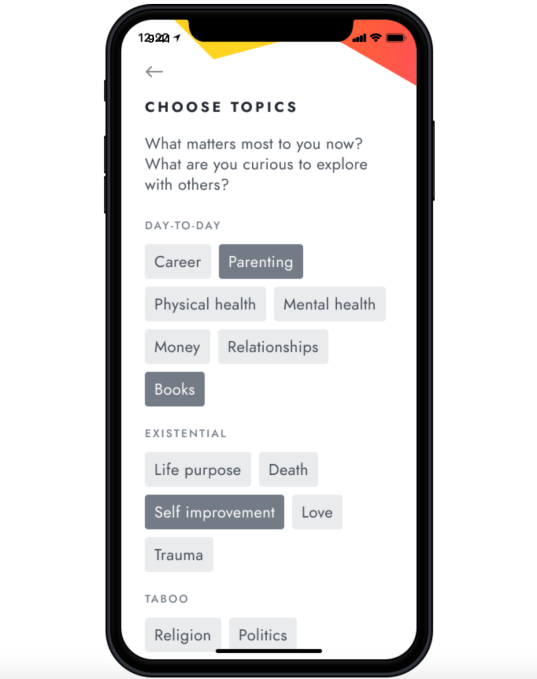
Participants choose from a library of over 250 “deep” questions, then get matched with partners who want to explore the same topics. They then RSVP for twine’s digital gatherings in their time zone and check in when it’s time to start.

The overall experience is meant to help people find connections by skipping the small talk and going straight to what matters. But the focus is on friendships, not dating. Afterward, users are encouraged to set reminders to get back in touch and meet again in future gatherings.

There’s a hint of Chatroulette to this idea, given that users could be matched to people who are only there to disrupt the experience, in theory at least. But the company aims to reduce the potential for this sort of shock trolling by permanently banning members who are flagged for making others uncomfortable in any sort of way. We also noticed the app asks for your email, phone and zip code during its onboarding process, so it’s not entirely an anonymous experience.

In addition, twine requires users rate each conversation when it ends and members have to pre-approved before joining a chat. The company says it’s looking to move towards “real ID only” in the future to further reduce the potential for trolling.

That said, there’s still a bit of a risk in chatting openly with strangers about highly personal topics. Twine’s guidelines say that conversations are not to be discussed with others, but this is not a doctor-patient relationship with legal protections for confidentiality. It’s just a group chat app with people who may or may not be there to follow the rules.

That said, the internet is currently experiencing a rebirth of sorts, due to COVID-19. People are coming online to look for connections. Social media is actually becoming social. This is an ideal environment to test something as optimistic as twine, which at its core believes people are largely good and will use the technology appropriately.

The idea for twine comes from serial entrepreneurs Lawrence Coburn and Diane Rau. Coburn previously spent the last nine years as founder and CEO of mobile events technology provider DoubleDutch, which was acquired by Cvent in 2019. Rau, meanwhile, was co-founder at CEO of Veterati, a digital mentoring platform for Veterans that had also leveraged 1-to-1 conversations as part of its community-building experience.

The founders already knew each other from the Georgetown entrepreneurship ecosystem. And Coburn was an advisor to Veterati, and Rau had worked at DoubeDutch, as well.

Coburn describes his vision for twine as something in between a new social network and a substitute for those who are spiritual, but not religious, in terms helping people who want to “be better humans.” Rau says she wanted to work on twine to help end loneliness by giving people a place to explore humanity on a one-on-one basis.

The app was originally intended to connect people who would meet up in real-life gatherings, but the coronavirus outbreak shifted those plans and accelerated launch plans.

“Launching a new company during the best of times is really, really hard. During a global pandemic? Yikes!,” wrote Coburn, in a blog post about the launch. “But as the new reality settles in, it has become clear to me that the world needs twine or something like it more than ever. The macro forces that inspired Diana and I to start twine – loneliness, polarization, isolation – will only be exacerbated by social distancing. A societal loneliness that was already classified as an epidemic pre coronavirus, is about to get way, way worse,” he added.

The startup is backed by $1.4 million in seed funding, closed on March 12, led by DoubleDutch investor, Hinge Capital. Other investors from DoubleDutch have also returned to fund twine, including FJ Labs, Brand Foundry, and Bragiel Brothers. Angels in the round include April Underwood (Slack), Jay Hoffmann (Rocketmiles), Scott Heiferman (Meetup), and Vishal Kapur (Screenhero).

In the future, twine aims to be subscription-based and launch real-life gatherings, as originally planned, when it’s safe to do so.

The app is currently in private beta on iOS and web. Currently, it has a waitlist of around 1,000 users mainly from New York City and San Francisco, but twine will be available worldwide.


Read Full Article

How health workers are responding to the COVID-19 pandemic | Esther Choo

How health workers are responding to the COVID-19 pandemic | Esther Choo

The coronavirus pandemic is unlike anything we've ever seen in health care, says emergency physician Esther Choo. Sharing insights into how health workers are responding to the outbreak, she explains what makes this public health emergency different from others -- and provides a few simple things you can do to help. Watch to the end to hear about Choo's work deploying mobile ICUs across the United States as hospitals start to reach capacity. (This virtual conversation is part of the TED Connects series, hosted by current affairs curator Whitney Pennington Rodgers and head of curation Helen Walters. Recorded April 7, 2020)

Click the above link to download the TED talk.

Do More With Your iPhone: 70+ Tips and Tricks You Should Know


delete-multiple-contacts-iphone

Whether you’re a new convert or a veteran user, whether you have the latest iPhone or one that’s much older, you’ll want to check out our tips and tricks for iPhone users!

iPhones are super straightforward to use. That is, after all, one of the main selling points of an iPhone over Android alternatives—at least that’s what iPhone fans like to say.

But we bet there’s a lot more your iPhone could be doing that you may not be aware of. And when you run into iPhone issues, troubleshooting a problem isn’t always as clear-cut as using the device itself. Well, we can help!

Before we dive in: don’t have an iPhone but looking to get one? Read these first:

Understanding Your iPhone

useful-iphone-control-center-widgets

Confused about a certain iPhone feature? You aren’t alone! Here are our explanations of the various iPhone features and how you can make the best use of them:

Basic iPhone Tips and Tricks

Apple EarPods plugged into Lightning port on iPhone

If you want to do more than just check emails, take photos, and send messages, you may want to check out these foundational tips and tricks for iPhone users:

For settings and maintenance tweaks:

For learning how to do useful things:

Advanced iPhone Tips and Tricks

transfer-contacts-iphone

Want to distinguish yourself from other iPhone users? Learn how to take the best care of your device and do all kinds of cool stuff that many people aren’t even aware are possible:

More useful maintenance tips you should know:

More cool stuff you can do with an iPhone:

Useful Apps for iPhone Users

screen-sharing-android-iphone

We’ve scoured the iOS App Store and found all the coolest and most useful apps—because who has the time to do that? Here are our favorites and recommendations for whatever you want to do:

Practical Apps

Entertainment Apps

Troubleshooting iPhone Issues

sync-iphone-contacts

Is your iPhone acting up? Something broke and you don’t know why? Or how to fix it? Here are our most useful articles on how to resolve errors and issues on a faulty iPhone:

Check here first, in case your issue is a common one:

If the problem is with the actual iPhone device:

If the problem is related to operating the iPhone:

Read the full article: Do More With Your iPhone: 70+ Tips and Tricks You Should Know


Read Full Article