06 March 2020

GIMP vs. Photoshop: Which One Is Right for You?


photoshop-vs-gimp

Photoshop is the most popular image-editing app on the market, and GIMP is the best free alternative. However, deciding between the two can be difficult.

Both Photoshop and GIMP have their pros and cons, so which is right for you? Essentially, which image editor you choose to use depends on what you need it for.

In this article, we pit GIMP versus Photoshop, and help you figure out which of these two image editors is best.

If You Love Linux, Use GIMP

GIMP for Linux

While not everyone will need to contend with this system requirement, there is one situation where GIMP is still the undisputed champion: on Linux.

You can find workarounds to use Adobe Photoshop on Linux, but it’s a hassle. If you’ve gone to the effort of setting up your own Linux system, you’ve also demonstrated that you know how to handle the complexities of open source software.

You’ve proven that you know how to use forums to troubleshoot these programs, too.

Additionally, if you’re using Linux, there’s a good chance that you’re against the idea of paying for software when there is a decent, open source alternative. In all three of these instances, GIMP is definitely the best app for you.

If You Love Your Phone, Use Photoshop

Photoshop Apps Adobe Photoshop Mix

Over the last few years, Adobe has adapted its advanced photo-editing tools for smartphones. The first iterations of these apps weren’t that great, largely because the processing power of smartphones wasn’t strong enough.

Adobe’s latest attempts, however, have seen big improvements:

  • As part of this collection of apps, Lightroom Mobile brings the best features of Lightroom to your smartphone. It’s available for iOS and Android.
  • Photoshop Fix and Photoshop Mix add some of Photoshop’s most useful features to your phone, so you can edit your work on the go.
  • Even better, the work that you do on your phone syncs back to all your devices through Adobe Cloud.

If you take a lot of pictures with your phone, or you want the ability to work while you’re away from your home or the office, then Photoshop is the best choice for you.

If You’re on a Budget, Use GIMP

GIMP vs Photoshop Is GIMP Free

Photoshop is an expensive app, and there’s no getting around this.

With the special Lightroom and Photoshop bundle, the price is currently $9.99/month. If you want to use Photoshop as a single-app monthly subscription, however, it jumps to $20.99/month.

Even worse, the entire Adobe Creative Cloud suite is $52.99/month. That’s a lot of money, even for a professional designer. And the price keeps going up every year.

If you don’t need what Photoshop offers, or you only use it occasionally, it can be very hard to justify this expense. In cases like these—where you’re trying to weigh Adobe Photoshop versus GIMP—GIMP is the better app.

After all, when it comes to price you can’t beat free.

If You’re a Professional, Use Photoshop

Photoshop vs GIMP PSD Files

If you can write Photoshop off as a business expense—or even better, get your work to pay for it—then Photoshop is the obvious tool to use.

Photoshop is also considered an industry standard app for many design-related businesses. Because of this, it’s the main tool of choice for professionals.

If you’re working with someone else, especially if you’re working remotely, they might send you a PSD file or another proprietary Adobe file format. If you don’t have the tools to handle this file, it’ll create issues for you at work.

As such, there’s very little reason to use GIMP if you’re a professional designer. Here’s a breakdown of what Photoshop can do that GIMP can’t.

If You Don’t Need It All the Time, Use GIMP

GIMP Selection Tools

GIMP, despite its limitations in comparison to Photoshop, is a very powerful tool that is better than many other free photo-editing apps.

For some, mobile apps like Apple’s Photos or Instagram’s filter features will be enough for your photo-editing needs. However, very few of these apps allow you to do in-depth edits, such as selections, masks, and composite editing. GIMP does.

If you occasionally need a powerful photo-editing tool, and you don’t require PSD files to do your work, then GIMP is probably the best app for you.

If You’re a Designer, Use Photoshop

Adobe Photoshop Versus GIMP CMYK Support

If you’re a professional designer then GIMP isn’t really an option. While the open-source app is good for quick logo mockups, unfortunately it doesn’t hold a candle to the full force of Adobe Creative Cloud.

Additionally, GIMP’s lack of CMYK support is an absolute deal breaker when you’re designing for print. Being able to design images using a CMYK color profile is a necessity for a designer. Without it, you’re hamstrung.

If You Dislike Adobe, Use GIMP

Adobe Flash Phase Out

While this particular point might seem a little niche, there are people who don’t like Adobe as a company. One of the reasons for this upset is the Adobe Flash Player, and its proliferation on the web.

While Adobe is retiring the product, Flash will still be around until everyone collectively stops using it. As such, it’s vulnerable to exploits. There’s also the ever-increasing price of a Creative Cloud subscription, which is definitely not cheap.

If you hate Photoshop because of Adobe’s other products, or its subscription-based decisions, then GIMP is the better option for you.

If You’re a Photographer, Use Photoshop

Adobe Photoshop and Lightroom

Editing is just one part of post-processing for photographers. You also have to sort through the hundreds of photos that you’ve taken.

On a good day during a few hours of shooting, you can easily capture 500 images or more. A large chunk of these photos will be sketches or failed shots, but there will be at least five to 10 images that are worthy of further inspection. You just have to find them within that cluster.

With Adobe Creative Cloud:

  • You can bundle Photoshop with a subscription to Lightroom.
  • Both of these apps are good for sorting through lots of images and pulling out keepers.
  • You also get a powerful RAW processor in Photoshop that simply doesn’t come with GIMP.

Even when you compare GIMP to Photoshop Elements—another imaging app—Adobe still comes out on top.

For editing an image here or there, GIMP is great. However, if you’re a serious photographer, you need to invest in Photoshop.

GIMP vs. Photoshop: Which Is Right for You?

Choosing between Adobe Photoshop and GIMP gets a lot easier when you consider what you need to use the app for.

If you’re a professional designer or photographer, then Photoshop is the obvious tool. However, if you use Linux, are on a budget, or only need to use the app occasionally, then GIMP is your best bet.

If you do choose GIMP over Photoshop, we’ve detailed how to install the best GIMP brushes and how to install the best GIMP plugins.

Read the full article: GIMP vs. Photoshop: Which One Is Right for You?


Read Full Article

Mobile banking app Empower Finance just closed a $20 million Series A round


Another afternoon, another round of funding for a mobile banking app. This time, it’s Empower Finance, a San Francisco-based company that’s headed up by former Sequoia Capital partner Warren Hogarth and which just closed on $20 million in Series A funding from Icon Ventures and Defy Ventures.

David Velez, who is the founder and CEO of Nubank, the largest fintech in Latin America, also joined the round.

We’d first written about the company in 2017, when Hogarth was just getting the business off the ground. Fast-forward a bit and Empower now employs 35 people and has attracted more than 600,000 active users to its platform, says Hogarth. What has drawn them in: the company’s promise of combining AI and actual human financial planners to help millennials in particular accrue some wealth, including, more newly, through its own checking account product and through a savings account that’s currently promising 1.60% in annual percentage yield with no minimums, no overdraft fees and unlimited withdrawals.

It’s all part of an overall offering that crunches through account holders’ bank and credit card accounts, and recommends how much they save into which account, how much they should spend given their overall picture, various ways they can cut costs and where and when they’ve surpassed their pre-configured budgets.

Of course, the company has so much competition it’s dizzying, but like the various upstarts against which it’s battling for mindshare, the opportunity that Empower is chasing is enormous, too. Though companies like Chime can seem overpriced given how fast investors have marked up their rounds — Chime’s newest financing, announced in December, was done at a $5.8 billion post-money valuation, which was four times more than the company was worth at the outset of 2019 — digital banks are still tiny fish in an ocean of institutional financial services, representing something like 3% of the market.

They’re gaining more market share by the day, too, including by charging far lower fees for much more.

In Empower’s case, users pay $6 a month, but Hogarth says they also save $300 a year in additional fees they would pay a brick-and-mortar bank. He insists that on average, it also helps them save $1,300 more annually, too.

As for all those other companies — Mint, Acorns, the list goes on — Hogarth sounds surprisingly sanguine. “If you look at it from the outside, it looks crowded. But the consumer financial services in the U.S. is a $2 trillion business, and we haven’t had a fundamental shift since maybe Schwab came along 30 years ago.”

Indeed, says Hogarth, because Empower and its rivals are mobile and branchless and don’t have legacy software to contend with, they’re able to take 60 to 70% of the cost structure out of the business.

What that means on an individual company level is that even if each upstart can attract 2 to 3 million customers, they can get to a multibillion-dollar market cap. At least, that kind of math is “why there’s so much interest in this space,” says Hogarth.

It’s also why people like Nubank’s Velez, who have seen this story play out in Europe and Latin America and who are seeing the early phases of it in the U.S., are apparently keeping the money spigot open for now.

Empower had earlier raised an undisclosed amount of seed funding from Sequoia, followed by a $4.5 million round led by Initialized Capital.


Read Full Article

Pex buys Dubset to build YouTube ContentID for TikTok & more


Social networks are in for a rude copyright awakening. A new European Union law called Article 17 essentially eradicates safe harbor and requires that they’ve made their “best effort” to get licenses from rights holders for all content on their platform. If a user uploads a video with a popular song in the background, tech platforms can’t just take it down if requested. They’ll be liable if they didn’t already try to get permission.

That’s good news for musicians and film producers who are more likely to get paid. But it could hurt influencers and creators whose clips and remixes might be blocked or have their revenue diverted. It will certainly be a huge headache for content sharing sites.

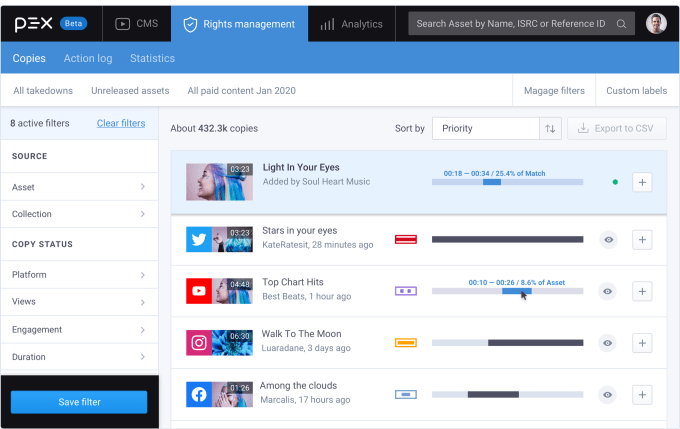
That’s where Pex comes in. The profitable royalty attribution startup founded in 2014 scans social networks and other user generated content sites for rightsholders’ content. Pex then lets them negotiate licensing with the platforms, request a take down, demand attribution, and/or track the consumption statistics. It’s collected a database of over 20 billion audio and video tracks found on YouTube, Facebook, Instagram, TikTok, Twitch, Twitter and more. It’s like an independent YouTube ContentID.

Today that business gets a big boost as Pex is acquiring Dubset, which has spent 10 years tackling the problem of getting remixes and multi-song DJ sets legalized for streaming on services like Spotify to some success. The $11.3 million-funded Dubset does fingerprinting of 45 million tracks from over 50,000 rights holders down to the second so the artists behind the source material get paid.

Pex has come a long way from when CEO Rasty Turek tried build a Shazam for video. “It took me years to figure out how to do it technically, but there was no market for it” he tells me. Turns out that the technology was perfect for spotting illegal usage of copyrighted songs.

Now Pex will gain Dubset’s connections to tons record labels and other rightsholders in what two sources close to the deal says is an acquisition priced between $25 million and $50 million. “There are very few companies in the music business that have successfully licensed as much catalog as Dubset, and the music rights database they’ve built is massive and rare” Pex CEO Rasty Turek tells TechCrunch exclusively before the deal’s formal announcement tomorrow.

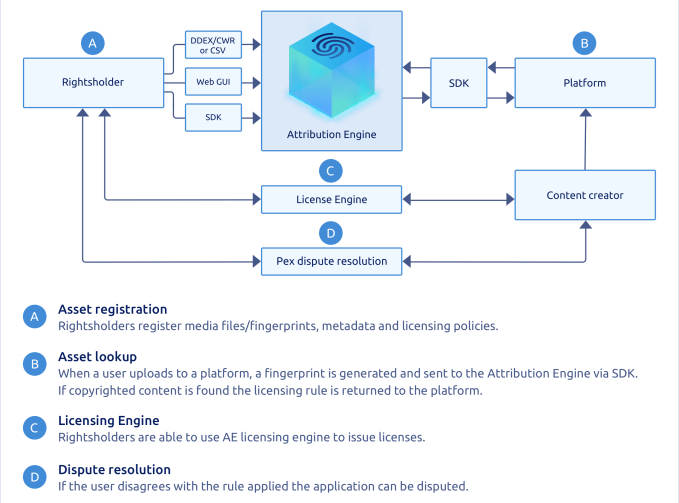
Together, they’ll be pushing Pex’s new Attribution Engine that establishes a three-sided marketplace for content. Instead of just working with rightsholders, the fresh tech can plug directly into big platforms and instantly identify copyrighted audio and visual files as short as one second. It can even suss out cover versions of songs via melody matching, as well as compressed, cropped, and modified variations. Creators can also use it to ensure the source material they’re remixing or turning into memes is given proper attribution or a cut of revenue.

The Attribution Engine earns money by facilitating the licenses and payments between platforms, rightsholders, and creators. It’s free to register content with the service as well as for platforms to perform

The Attribution Engine is free for rightsholders to register their content and free for platforms to run identification scans on what’s uploaded to them. using our asset lookup service. The hope is that by creating a simpler path to cooperation and revenue sharing, more rightsholders will make their content accessible for use on social networks or in remixes. It could also grant platforms protection from Article 17 liability since they’ll be able to say that Pex made it best effort to get content usage approval from rights holders.

“Basically every platform in the world that operates in the EU will have to identify all copyrighted content on their platform as it comes in or go back and identify all of it” says Dubset chief strategy office Bob Barbiere. “Dubset was really built to serve at the DJ or content creator level . . . doing it purely for the purposes of mix and remix content. Pex does it in a much bigger way for the platforms.”

For up-and-coming platforms like TikTok competitors Dubsmash or Triller, Pex’s business model is a gift. They don’t have to pay for the ID service until they’re ready to cut licensing deals with rightsholders when Pex adds a fee on top. Trying to build this stuff from scratch could be slow and hugely expensive, given YouTube’s still perfecting its ContentID system eight years in.

Pex will have to manage the careful balance of staying ahead of regulation but not so far that it’s building technology people won’t need for a long time. European Union states have until June 21st 2021 to implement Article 17 with local laws. “We don’t want others to out-innovate us, but we also don’t want to out-innovate ourselves out of existence by being too early and then waiting for the market to catch up to us” Rasty explains.

Image via HelpCloud

The internet needs this kind of infrastructure because we’re still at the beginning of the age of the remix. TikTok has proven how recontextualizing a song or vocal track with new visuals can create chains of jokes and content that go massively viral. The app productizes the Harlem Shake phenomenon, whereby people promote their own takes on a piece of content, drawing attention to the original and all the other versions. But these webs of remixes could be severed if platforms and rightsholders can’t forge licensing agreements.

“I hope that thanks to Pex, 20 years from now people will not have to think about copyright” Turek concludes. “Any content they produce and distribute on the open internet will be automatically attributed to them and generate revenue if they so choose.” That could allow more people to turn their passion for creation into their profession, whether they’re building an app, writing a song, or remixing a song into a meme for an app.


Read Full Article

Twitter CEO’s weak argument why investors shouldn’t fire him


Twitter CEO Jack Dorsey might not spend six months a year in Africa, claims the real product development is under the hood, and gives an excuse for deleting Vine before it could become TikTok. Today he tweeted, via Twitter’s investor relations account, a multi-pronged defense of his leadership and the company’s progress.

The proclamations come as notorious activist investor Elliott Management prepares to pressure Twitter into a slew of reforms, potentially including replacing Dorsey with a new CEO, Bloomberg reported last week. Sources confirmed to TechCrunch that Elliott has taken a 4% to 5% stake in Twitter. Elliott has previously bullied eBay, AT&T, and other major corporations into making changes and triggered CEO departures.

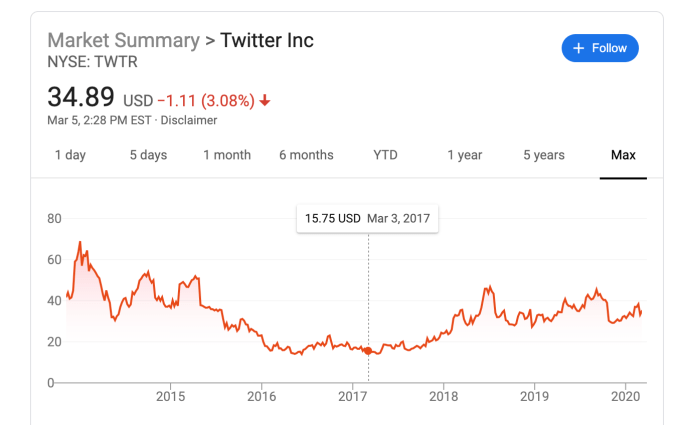
Specifically, Elliott is seeking change because of Twitter’s weak market performance, which as of last month had fallen 6.2% since July 2015 while Facebook had grown 121%. The corporate raider reportedly takes issue with Dorsey also running fintech giant Square, and having planned to spend up to six months a year in Africa. Dorsey tweeted that “Africa will define the future (especially the bitcoin one!)”, despite cryptocurrency having little to do with Twitter.

Rapid executive turnover is another sore spot. Finally, Twitter is seen as moving glacially slow on product development, with little about its core service changing in the past five years beyond a move from 140 to 280 characters per tweet. Competing social apps like Facebook and Snapchat have made landmark acquisitions and launched significant new products like Marketplace, Stories, and Discover.

Dorsey spoke today at the Morgan Stanley investor conference, though apparently didn’t field questions about Elliott’s incursion. The CEO did take to his platform to lay out an argument for why Twitter is doing better than it looks, though without mentioning the activist investor directly. That type of response without mentioning to whom it’s directed, is popularly known as a subtweet. Here’s what he outlined:

On democracy: Twitter has prioritized healthy conversation and now “the #1 initiative is the integrity of the conversation around the elections” around the world, which it’s learning from. It’s now using humans and machine learning to weed out misinformation, yet Twitter still hasn’t rolled out labels on false news despite Facebook launching them in late 2016.

On revenue: Twitter expects to complete a rebuild of its core ad server in the first half of 2020, and it’s improving the experience of mobile app install ads so it can court more performance ad dollars. This comes seven years late to Facebook’s big push around app install ads.

On shutting down products: Dorsey claims that “5 years ago we had to do a really hard reset and that takes time to build from… we had been a company that was trying to do too many things…” But was it? Other than Moments, which largely flopped, and the move to the algorithmic feed ranking, Twitter sure didn’t seem to be doing too much and was already being criticized for slow product evolution as it tried to avoid disturbing its most hardcore users.

On stagnation: “Some people talk about the slow pace of development at Twitter. The expectation is to see surface level changes, but the most impactful changes are happening below the surface” Dorsey claims, citing using machine learning to improve feed  and notification relevance

Yet it seems telling that Twitter suddenly announced yesterday that it was testing Instagram Stories-esque feature Fleets in Brazil. No launch event. No US beta. No indication of when it might roll out elsewhere. It seems like hasty and suspiciously convenient timing for a reveal that might convince investors it is actually building new things.

On talent: Twitter is apparently hiring top engineers “that maybe we couldn’t get 3 years ago”. 2017 was also Twitter’s share price low point of $14 compared to $34 today, so it’s not much of an accomplishment that hiring is easier now. Dorsey claims that “Engineering is my main focus. Everything else follows from that.” Yet it’s been years since fail whales were prevalent, and the core concern now is that there’s not enough to do on Twitter, rather than what it does offer doesn’t function well.

On Jack himself: Dorsey says he should have added more context “about my intention to spend a few months in Africa this year”, including its growing population that’s still getting online. Yet the “Huge opportunity especially for young people to join Twitter” seemed far from his mind as he focused on how crypto trading was driving adoption of Square’s Cash App

“I need to reevaluate” the plan to work from Africa “in light of COVID-19 and everything else going on”. That makes coronavirus a nice scapegoat for the decision while the phrase “everything else” is doing some very heavy lifting in the face of Elliott’s activist investing.

Photographer: Cole Burston/Bloomberg via Getty Images

On fighting harassment: Nothing. The fact that Twitter’s most severe ongoing problem doesn’t even get a mention should clue you in to how many troubles have stacked up in front of Dorsey

Running Twitter is a big job. So big it’s seen a slew of leaders ranging from founders like Ev Williams to hired guns like Dick Costolo peel off after mediocre performance. If Dorsey wants to stay CEO, that should be his full-time, work-from-headquarters gig.

This isn’t just another business. Twitter is a crucial communications utility for the world. Its absence of innovation, failure to defend vulnerable users, and an inability to deliver financially has massive repercussions for society. It means Twitter hasn’t had the products or kept the users to earn the profits to be able to invest in solving its problems. Making Twitter live up to its potential is no sidehustle.


Read Full Article

Twitter CEO’s weak argument why investors shouldn’t fire him


Twitter CEO Jack Dorsey might not spend six months a year in Africa, claims the real product development is under the hood, and gives an excuse for deleting Vine before it could become TikTok. Today he tweeted, via Twitter’s investor relations account, a multi-pronged defense of his leadership and the company’s progress.

The proclamations come as notorious activist investor Elliott Management prepares to pressure Twitter into a slew of reforms, potentially including replacing Dorsey with a new CEO, Bloomberg reported last week. Sources confirmed to TechCrunch that Elliott has taken a 4% to 5% stake in Twitter. Elliott has previously bullied eBay, AT&T, and othe major corporations into making changes and triggered CEO departures.

Specifically, Elliott is seeking change because of Twitter’s weak market performance, which as of last month had fallen 6.2% since July 2015 while Facebook had grown 121%. The corporate raider reportedly takes issue with Dorsey also running fintech giant Square, and having planned to spend up to six months a year in Africa. Dorsey tweeted that “Africa will define the future (especially the bitcoin one!)”, despite cryptocurrency having little to do with Twitter.

Rapid executive turnover is another sore spot. Finally, Twitter is seen as moving glacially slow on product development, with little about its core service changing in the past five years beyond a move from 140 to 280 characters per tweet. Competing social apps like Facebook and Snapchat have made landmark acquisitions and launched significant new products like Marketplace, Stories, and Discover.

Dorsey spoke today at the Morgan Stanley investor conference, though apparently didn’t field questions about Elliott’s incursion. The CEO did take to his platform to lay out an argument for why Twitter is doing better than it looks, though without mentioning the activist investor directly. That type of response without mentioning to whom it’s directed, is popularly known as a subtweet. Here’s what he outlined:

On democracy: Twitter has prioritized healthy conversation and now “the #1 initiative is the integrity of the conversation around the elections” around the world, which it’s learning from. It’s now using humans and machine learning to weed out misinformation, yet Twitter still hasn’t rolled out labels on false news despite Facebook launching them in late 2016.

On revenue: Twitter expects to complete a rebuild of its core ad server in the first half of 2020, and it’s improving the experience of mobile app install ads so it can court more performance ad dollars. This comes seven years late to Facebook’s big push around app install ads.

On shutting down products: Dorsey claims that “5 years ago we had to do a really hard reset and that takes time to build from… we had been a company that was trying to do too many things…” But was it? Other than Moments, which largely flopped, and the move to the algorithmic feed ranking, Twitter sure didn’t seem to be doing too much and was already being criticized for slow product evolution as it tried to avoid disturbing its most hardcore users.

On stagnanation: “Some people talk about the slow pace of development at Twitter. The expectation is to see surface level changes, but the most impactful changes are happening below the surface” Dorsey claims, citing using machine learning to improve feed  and notification relevance

Yet it seems telling that Twitter suddenly announced yesterday that it was testing Instagram Stories-esque feature Fleets in Brazil. No launch event. No US beta. No indication of when it might roll out elsewhere. It seems like hasty and suspiciously convenient timing for a reveal that might convince investors it is actually building new things.

On talent: Twitter is apparently hiring top engineers “that maybe we couldn’t get 3 years ago”. 2017 was also Twitter’s share price low point of $14 compared to $34 today, so it’s not much of an accomplishment that hiring is easier now. Dorsey claims that “Engineering is my main focus. Everything else follows from that.” Yet it’s been years since fail whales were prevalent, and the core concern now is that there’s not enough to do on Twitter, rather than what it does offer doesn’t function well.

On Jack himself: Dorsey says he should have added more context “about my intention to spend a few months in Africa this year”, including its growing population that’s still getting online. Yet the “Huge opportunity especially for young people to join Twitter” seemed far from his mind as he focused on how crypto trading was driving adoption of Square’s Cash App

“I need to reevaluate” the plan to work from Africa “in light of COVID-19 and everything else going on”. That makes coronavirus a nice scapegoat for the decision while the phrase “everything else” is doing some very heavy lifting in the face of Elliott’s activist investing.

Photographer: Cole Burston/Bloomberg via Getty Images

On fighting harassment: Nothing. The fact that Twitter’s most severe ongoing problem doesn’t even get a mention should clue you in to how many troubles have stacked up in front of Dorsey

Running Twitter is a big job. So big it’s seen a slew of leaders ranging from founders like Ev Williams to hired guns like Dick Costolo peel off after mediocre performance. If Dorsey wants to stay CEO, that should be his full-time, work-from-headquarters gig.

This isn’t just another business. Twitter is a crucial communications utility for the world. Its absence of innovation, failure to defend vulnerable users, and an inability to deliver financially has massive repercussions for society. It means Twitter hasn’t had the products or kept the users to earn the profits to be able to invest in solving its problems. Making Twitter live up to its potential is no sidehustle.


Read Full Article

05 March 2020

Google Search will make mobile-first indexing the default by September


For a while now, Google has been working on making mobile-first indexing the default behavior of its search engine. With mobile-first indexing, Google Search primarily uses a page’s mobile content for creating its search index and ranking. Google announced this initiative in 2016 and as it announced today, by September 2020, it’ll become the default behavior for all sites.

After a few small tests, the company started going all-in last year and by December, it used mobile-first indexing for over half of the web pages it showed in its search results. Today, that number is 70 percent already.

Google says most sites are now ready for its new system, but it will still occasionally crawl the desktop site with its traditional Googlebot. That means site owners may see increased crawling by Google in the coming months, too, as the company will now use two different crawlers: one that identifies itself with the mobile smartphone user-agent and one that will look like the Chromium version it uses to render the desktop site. For the most part, though, website owners will see the mobile agent.

For most sites, this switch should be seamless, but if you only expose structured data on your desktop site and not on mobile, it’s now time to switch it on for both. Google also notes that it recommends that sites don’t use separate mobile URLs “because of issues and confusion we’ve seen over the years, both from search engines and users.”

Webmasters who want to make sure their sites are ready can head to Google’s Search Console and check the status of their pages.


Read Full Article

The 8 Cheapest Phone Plans With Unlimited Everything


unlimited-phone-plans

Picking an affordable phone plan with unlimited calling, texting, and data can be pretty overwhelming. Each mobile carrier—whether prepaid or postpaid—offers additional perks from Netflix subscriptions to mobile hotspots.

While unlimited calls and texts really are unlimited, data is more complicated. Most carriers throttle your data after you pass a certain threshold. Let’s take a look at different unlimited phone plans and how they compare.

Prepaid Unlimited Plans for Phones

Prepaid carriers—also known as mobile virtual network operators (MVNO)—rely on major carriers for their networks. But they allow you to get many of the same perks, often at a lower price and without a contract. Here are some of the cheapest phone plans with unlimited everything.

1. Boost

Boost Mobile Cheap Phone Plans

Boost offers an unlimited plan in three tiers, the cheapest of which comes with standard definition streaming, a 12GB hotspot, and a six-month Tidal music subscription. Bumping up to one of the more expensive tiers gets you HD streaming and a 30 or 50GB hotspot, respectively.

For the cheapest unlimited phone plan, the price drops the more lines you add:

  • One line: $50 per month.
  • Two lines: $80 per month.
  • Three lines: $110 per month.
  • Four lines: $140 per month.
  • Five lines: $170 per month.

Boost’s data deprioritization applies during congestion regardless of how much data you use.

2. Metro by T-Mobile

Metro Unlimited Cheap Cell Phone Plan

Metro by T-Mobile (formerly MetroPCS) has two unlimited data plans. With the lower tier, you get a 5GB hotspot, but just keep in mind that the hotspot isn’t included. You also get Google One, a service that automatically backs up and stores your phone’s data.

For the cheapest tier, the price will drop as you add lines:

  • One line: $50 per month.
  • Two lines: $80 per month.
  • Three lines: $110 per month.
  • Four lines: $140 per month.
  • Five lines: $170 per month.

On Metro, exceeding 35GB per month could see your speed throttled during “congestion.”

3. TextNow

TextNow Unlimited Cheap Phone Plans

TextNow is a great calling app that allows users to get an ad-free unlimited data plan at $40 per month for one line. But there’s a catch. Unlimited on TextNow translates to 23GB, after which you’ll experience 2G speeds. Even then, you could run into further restrictions.

If you do any of the following, you could lose access to unlimited 2G data:

  • Use over 170MB of data per day while using unlimited 2G data (after exceeding your plan’s 3G/4G data allowance), for two or more consecutive days
  • Use more than 1GB of data in a five-day period while using unlimited 2G data
  • Use unlimited 2G data as a substitute for home internet

That is, until you take “corrective action.” This includes connecting to home Wi-Fi, minimizing the streaming of video and audio without Wi-Fi, and restricting background data usage on your phone.

To get started with TextNow, you have to have a Sprint-compatible phone, order a SIM activation kit for $10, and download the TextNow app. Otherwise, you can purchase a phone on the TextNow shop that comes preloaded with TextNow’s SIM card.

4. Cricket Wireless

Cricket Wireless Unlimited Cheap Cell Phone Plan

Cricket Wireless has two unlimited plans: one that includes a 15GB hotspot and one that doesn’t. The plan with the hotspot has the highest 4G LTE speeds, while the cheaper plan has standard high-speed data.

On the cheapest unlimited data plan, the price gets lower as you add more lines:

  • One line: $55 per month.
  • Two lines: $80 per month.
  • Three lines: $90 per month.
  • Four lines: $100 per month.
  • Five lines: $125 per month.

Like the other prepaid phone plans on this list, there are some limitations in terms of data. Cricket might cap your data speeds when the network is busy, but you may be able to get around this If you know how to bypass data caps.

The Best Prepaid Plan for Phones

Looking purely at the cheapest tier, both Metro and Boost give you the best value for money. Plus, both services have decent perks—Boost boasts a hotspot and a six-month trial of Tidal, while Metro offers a helpful Google One subscription.

Postpaid Unlimited Plans for Phones

With a postpaid plan, no matter which popular mobile carrier you choose, enrolling in autopay and paperless billing ensures the lowest bill possible. You’ll also find that the more lines you add to your plan, the cheaper each line becomes.

5. AT&T

AT&T Unlimited Cheap Phone Plan

AT&T offers three unlimited plans: AT&T Unlimited Elite, AT&T Unlimited Extra, and AT&T Unlimited Starter. The lower-tier package comes with standard-definition streaming, automatic fraud blocking, as well as unlimited calls and roaming in the US, Mexico, and Canada.

The cost depends on how many lines you add to your plan. These prices are based on a discount for enrolling in autopay and paperless billing.

  • One line: $65 per month.
  • Two lines: $120 per month.
  • Three lines: $135 per month.
  • Four lines: $140 per month.

For the Unlimited Starter plan, AT&T may temporarily slow data speeds when the network is congested.

6. T-Mobile

T-Mobile Cheap Cell Phone Plans Unlimited

As you’d expect, T-Mobile also has a range of unlimited plans. .If you add two or more lines to the Magenta or Magenta Plus plan, you’ll get a free subscription of Netflix. For each plan, you’ll still get unlimited talk, text, and data in Mexico and Canada.

Both plans also offer unlimited data in over 210 countries, in-flight texting, as well as in-flight Wi-Fi.

For the standard Magenta package, the cost also depends on how many lines you add. Right now, T-Mobile has a promotion that gives you the third line for free:

  • One line: $70 per month.
  • Two lines: $120 per month.
  • Three lines: $120 per month.
  • Four lines: $140 per month.
  • Five lines: $160 per month.

If you don’t want all the extra perks, you can get T-Mobile Essentials. This provides unlimited talk, text, and data for $60 per month for one line or $120 for four lines.

If you cross the 50GB threshold, T-Mobile may temporarily slow data speeds when the network is congested.

7. Sprint

Sprint Unlimited Cheap Cell Phone Plan

Sprint offers three unlimited packages: Basic, Plus, and Premium.

Each plan includes a hotspot and access to Hulu. You’ll only get 480p video streaming quality with the Basic plan, but this goes up 1080p with Unlimited Plus. Some other perks that come with Unlimited Basic include unlimited talk, text, and 5GB 4G LTE in Mexico and Canada, as well as roaming in 200 countries.

The pricing for the Unlimited Basic plan is currently one of the best cell phone deals around:

  • One line: $60 per month.
  • Two lines: $100 per month.
  • Three lines: $100 per month.
  • Four lines: $100 per month.
  • Five lines: $100 per month.

The prices above are based on discounts for enrolling in autopay, and for new accounts only. After one year, Sprint will increase your rates—one line will cost you $60, a second line will be $40, and any other lines beyond that will be priced at $20 each.

Sprint may temporarily slow data speeds when the network is congested after you cross the 50GB threshold.

8. Verizon

Verizon Unlimited Cheap Phone Plans

Verizon offers a diverse set of unlimited plans: Start Unlimited, Play More Unlimited, Do More Unlimited, and Get More Unlimited.

The basic Verizon plan, Start Limited, is comparable to basic plans on other lines, but with more limited features. You get DVD quality streaming, international texting to over 200 countries, as well as a subscription to Apple Music for six months.

While the pricier tiers give you a threshold ranging from 25GB to 75GB before your speeds are throttled, the lowest tier will be throttled during congestion.

  • One line: $70 per month.
  • Two lines: $120 per month.
  • Three lines: $135 per month.
  • Four lines: $140 per month.

The prices above are based on a $10 discount for enrolling in autopay and paperless billing.

The Best Postpaid Plan for Phones

Looking purely at the cheap phone plans offered by each carrier, there are a couple of winners. T-Mobile and Sprint both offer unlimited data, along with several added bonuses.

If you’re a frequent traveler, T-Mobile will save you money in the long run with its roaming and in-flight perks. The carrier’s no-frills $140/month unlimited data plan for four lines is also quite reasonable.

Sprint gives T-Mobile a run for its money with added value, including a Hulu subscription and a 500MB hotspot. While it won’t last forever, Sprint’s special offer also lets you start out at a significantly reduced price.

The Best Cheap Unlimited Phone Plans

In addition to unlimited data and perks, there are other considerations to keep in mind when choosing one of the major carriers, including coverage, travel features, and budget-friendly plans. You’ll need to weigh the pros and cons of each service before you commit to a prepaid or postpaid plan.

Even with unlimited data, you might find your cell service slowing down. If that happens, you should take a look at how to speed up a slow mobile data connection.

Read the full article: The 8 Cheapest Phone Plans With Unlimited Everything


Read Full Article

VirtualBox’s Guest Additions: What They Are and How to Install Them


virtualbox-guest-additions

When working in VirtualBox, you may have seen a prompt or noticed a reference to Guest Additions. But what are Guest Additions, and should you use them?

Let’s take a look at what VirtualBox’s Guest Additions do, why you should install them, and how to activate them.

What Are Guest Additions in VirtualBox?

The VirtualBox Guest Additions are extra pieces of software, included with your copy of VirtualBox, that enable better performance and functionality in virtual machines. You install Guest Additions inside the virtual machine to activate this functionality.

VirtualBox Guest Additions Install

As you probably know, VirtualBox is a hypervisor, which allows you to create and use virtual machines. This means that you can install Windows and other operating systems inside VirtualBox and have them think that they’re running on actual hardware.

Read our full guide to using VirtualBox to get up to speed if you’re not familiar.

However, just because you get a working virtual machine running in VirtualBox doesn’t mean the experience is perfect from the start. There are certain elements of running an OS in an app window that are frustrating.

For example, on your main computer, Windows knows what resolutions it can display using the drivers from your graphics card. A virtual machine can’t do this, though, so it displays in a low resolution (such as 800×600) by default.

The Guest Additions of VirtualBox contain display drivers and other useful tools that make your virtual machine much more usable.

What Do the Guest Additions Do?

Now that we know what Guest Additions are, let’s look at what the VirtualBox Guest Additions actually do for you.

1. Shared Clipboard/Drag and Drop

Chances are that you’ll eventually want to move some content between your virtual machine (the guest) and your actual computer (the host). With the Guest Additions installed, VirtualBox packs a few features to make this easy.

First is the shared clipboard/drag and drop support. This allows you to copy items on one platform and paste them on the other, as well as dragging files between them. To adjust this, select your VM on the VirtualBox home page and choose Settings.

In the General section, switch to Advanced tab and you can choose options for Shared Clipboard and Drag’n’Drop. You can choose Disabled, Host to Guest, Guest to Host, or Bidirectional for both of them.

Unless you have a specific reason to choose something else, Bidirectional is the most convenient.

VirtualBox Clipboard Sharing

Once you have this enabled, both copy/paste and dragging will work across systems.

2. Shared Folders

If you’d rather make folders on your host system accessible in the VM, you can utilize shared folders. This Guest Additions feature lets you mount host folders as “network resources” in the guest OS without actually using a network.

To use it, click Settings on a VM and jump to the Shared Folders section. Select the Add Share button on the right side, then choose a folder on your computer to share with the guest.

Give it a name, choose Auto-mount if you want it to connect automatically, and hit OK.

VirtualBox Shared Folders

Now, that folder will appear as a network drive in the guest OS.

3. Improved Graphics Support

As mentioned earlier, virtual machines don’t support high-resolution graphics from the start. Once you install the Guest Additions, though, you’ll have full control over the resolution options in the guest OS’s settings menu. For instance, if you have a 1920×1080 monitor, you can display the VM in full-screen at 1080p.

VirtualBox Full Resolution

That’s not the only graphical enhancement that the Guest Additions add. Using them, the guest OS’s resolution will dynamically resize as you adjust the VirtualBox window on your computer. This lets you use the VM at any size you like without playing with resolution options.

Finally, with Guest Additions, the guest OS can take advantage of your computer’s graphics hardware. If you’re playing games or using other graphically intensive software in a WM, this makes a huge difference.

4. Seamless App Windows

Another neat benefit of the Guest Additions is a seamless mode. This lets you run app windows from the guest alongside apps from your host OS, so it feels like they’re all part of one system. It’s a lot like how Parallels runs Windows apps on a Mac.

To use this mode, press the Host key + L when your virtual machine is in focus. If you haven’t changed it, the default Host key in VirtualBox is the right Ctrl key.

VirtualBox Seamless Mode

Once you’ve done this, the VM will go full-screen and VirtualBox will remove its background. You’re then free to use its windows with your regular desktop software. Hit Host + L again to turn this off—if it doesn’t seem to work, make sure you select the VirtualBox VM first.

5. Other Benefits of VirtualBox Guest Additions

The above functions are the main features of VirtualBox’s Guest Additions. There are a few other useful perks to installing them, though these are not as generally useful.

One that may affect you, depending on the guest OS, is seamless mouse integration. With most modern OSes, VirtualBox allows you to seamlessly move your mouse between your host and guest system. However, some older OSes require exclusive control of your keyboard and mouse.

If this is the case, your mouse pointer will become “trapped” inside the VirtualBox window after you click inside it. This means that you must hit the Host key (right Ctrl by default) to bring the mouse control back to the host OS.

Otherwise, the Guest Additions bring time synchronization with your host machine, the option for automated logins, and can monitor communications between the guest and host. None of this has much use for the average user.

How to Install VirtualBox’s Guest Additions

It’s easy to install the Guest Additions on your VirtualBox system. In fact, every time VirtualBox receives an update, it includes a new version of the Guest Additions too. You don’t necessarily need to update the Guest Additions every time you update VirtualBox, but Oracle recommends it for best performance.

Keep in mind that the Guest Additions are available for Windows and Linux, but not macOS. You’ll need other workarounds if you’re running macOS in a virtual machine.

Install Guest Additions on Windows VMs

To install the Guest Additions for VirtualBox in a Windows VM, boot into your guest OS as normal. On the toolbar at the top, select Devices > Insert Guest Additions CD Image. This mounts a virtual disc to the VM.

VirtualBox Install Guest Additions

When you do this, Windows will respond as if you’ve just inserted a physical disc. If it doesn’t prompt you to run it, open a File Explorer window and go to This PC. You should see a device in the CD Drive named something like VBox_GAs_x.

VirtualBox Guest Additions CD Drive

Double-click this to open the disc’s contents. Inside, run the VBxWindowsAdditions file (or VBxWindowsAdditions-x86 on a 32-bit VM).

VirtualBox Guest Additions File Windows

From there, simply walk through the steps to install the Guest Additions like you would any other software. After it completes, you’ll be prompted to reboot the VM, which you should do as soon as possible.

Once you’re done, you can go to Devices > Optical Drives > Remove disk from virtual drive to “eject” the virtual Guest Additions disc.

Install Guest Additions on Linux VMs

The process to install VirtualBox’s Guest Additions into a Linux VM is quite similar. Once you’ve booted up, select Devices > Insert Guest Additions CD Image from VirtualBox’s menu bar. Depending on your flavor of Linux, you may see a message to automatically run the CD’s contents.

You can accept this, but if you don’t, you’ll find the CD available on the taskbar in many Linux distros. If it doesn’t appear there, open the file browser and look for VBox_GAs_x on the left sidebar.

VirtualBox Guest Additions Install Linux

On Ubuntu, a Run Software button appears at the top-right of the window. Click this to start the install process, then provide your admin password to continue. A Terminal window will open to keep you updated with its progress.

Once it’s done, reboot the VM and you’re all set. You can then eject the disk using the Devices > Optical Drives > Remove disk from virtual drive option, or by right-clicking it in your OS and choosing Eject.

VirtualBox Remove Guest Additions Disc

Guest Additions Make VirtualBox Even Better

As we’ve seen, the Guest Additions make running virtual machines with VirtualBox much smoother. You should always take a few moments to install the Guest Additions when setting up a new VM, as there’s no drawback to doing so.

If VirtualBox isn’t working for you, check out how VirtualBox compares to other virtualization tools.

Read the full article: VirtualBox’s Guest Additions: What They Are and How to Install Them


Read Full Article

Use This Trick to Convert Any Image to PDF on Windows 10


compress-pdf

Converting images to PDFs on Windows 10 machines couldn’t be easier. You don’t have to download any additional software or rely on resource-hogging programs like Adobe Reader.

Unlock the FREE "Ultimate Windows Keyboard Shortcuts" cheat sheet now!

This will sign you up to our newsletter

Enter your Email

You can use the following method to convert image formats like JPG, PNG, TIFF, and more to PDF.

However, it’s not just limited to image files. This is because the method uses a feature called Microsoft Print to PDF. If the program has a print function, you can convert it to PDF. This includes web pages and Microsoft Word documents.

How to Convert an Image to PDF

To convert an image to a PDF on Windows 10, do the following:

  1. Open up the photo in your default image viewer—that could be the Windows 10 Photo app or an editing program like Paint.
  2. Once the image has opened, press Ctrl + P to open the Print dialog box.
  3. Select Microsoft Print to PDF as the printer and click Print. (If you don’t see this option, refer to the section below.)
  4. Another dialog box will pop up where you can enter the File name and select the file location. Once done, click Save.

Windows Photos Print to PDF

This method will work with any image file and with any program that supports printing.

How to Enable Microsoft Print to PDF

If you don’t see Microsoft Print to PDF listed as a printer, you might need to enable the feature.

Do a system search for turn windows feature on or off and select the match. This will open Windows Features.

Windows Featues Print to PDF

Scroll down the list and tick Microsoft Print to PDF and click OK. You shouldn’t need to restart your computer for the changes to take effect.

You Can Convert on Mobile Too

Remember, this is a great method for converting images to PDF, but it also works with other formats on any program that supports printing.

If you want to convert an image to PDF or vice versa on your Android phone, try one of these file conversion apps for Android.

Read the full article: Use This Trick to Convert Any Image to PDF on Windows 10


Read Full Article

How to Get Incoming Call Alerts on Windows 10 With Android


Sometimes when you’re working on your PC, you don’t want to be distracted by your phone. But you still want to know when someone is calling you.

Unlock the FREE "Ultimate Windows Keyboard Shortcuts" cheat sheet now!

This will sign you up to our newsletter

Enter your Email

You can use one of these three methods to get phone call notifications from an Android device on your PC.

Get Call Notifications on PC Using Cortana

If you use an Android phone and a Windows 10 computer, you can get phone alerts on your computer whenever you receive or miss calls. All you need to do is set up Cortana on your Android phone.

After you install the official Cortana app, you’ll want to log in with the same Microsoft account you’re using on your computer. Then it’s just a matter of going into the Cortana app settings and turning on notifications.

Go to Settings > Sync Notifications and toggle on Missed Call Notification and Call Notification.

You can also toggle on Low battery notifications to find out when you’re running out of juice, and you can also get additional App notifications on your computer.

What’s really great about this last feature is that you can choose which apps to receive notifications for, so you’re not bombarded with notifications from all your apps.

Incoming call alerts - Cortana settings

On your computer, make sure that notifications are turned on by going to Settings > System > Notifications & actions.

Your phone should be listed as one of the senders you receive notifications from. You can adjust the settings of these notifications as you would with any other sender.

These settings include showing or hiding notification banners, keeping notifications private on the lock screen, showing notifications in the action center, and playing a sound.

Incoming call alerts - Notification settings

When you receive a call or missed call, you should see an alert with the contact name or number. While you can’t respond to the call from your computer, you can respond with a text message. This feature is particularly useful if you’re in a meeting or if your phone is out of reach.

Incoming call alerts - Cortana notifications

Get Call Notifications on PC Using Pushbullet

Another option for getting call notifications on a laptop or desktop is to use a tool called Pushbullet. This service syncs notifications between multiple devices, including phone calls if you use Android.

To use Pushbullet, first install the app for Android onto your phone.

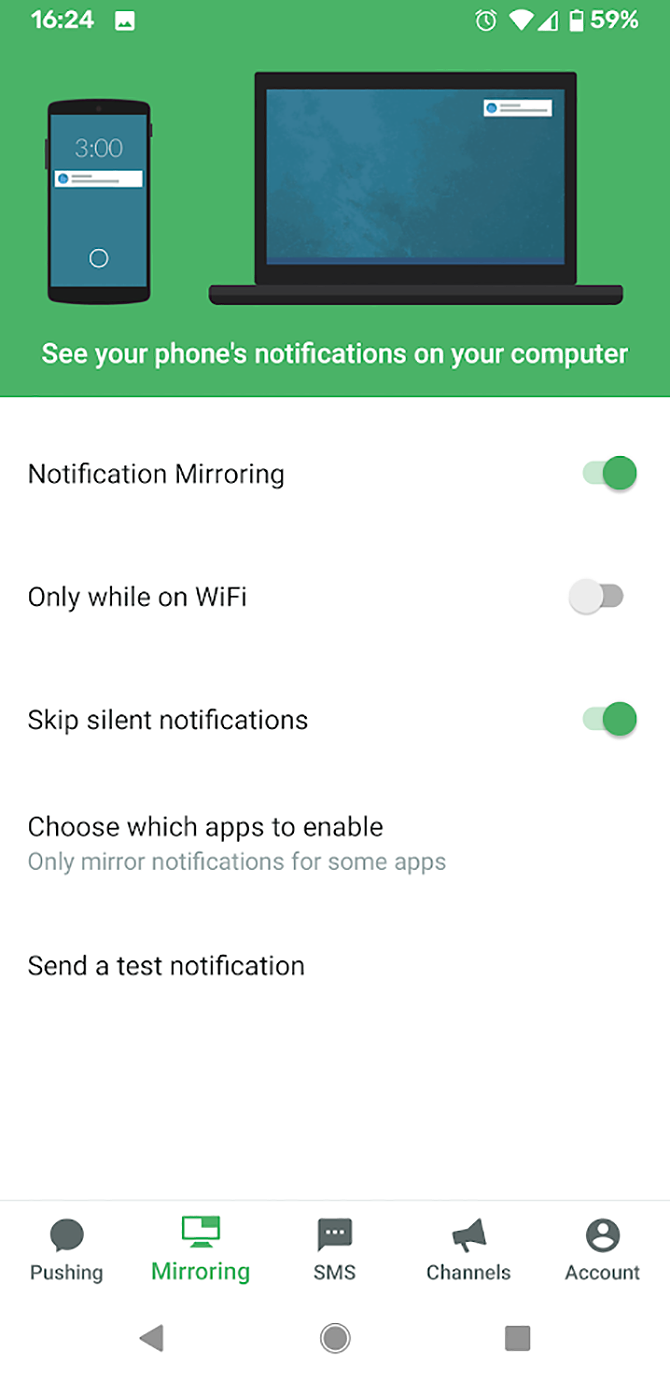
Sign into the app using your Google or Facebook account. Go to the Mirroring section using the menu at the bottom of the app. From here, enable notification mirroring by sliding the toggle into the on position.

Now install Pushbullet on your PC to get phone notifications. You can either install Pushbullet in your browser or install the Windows software.

  • To use the desktop software, install the Windows app.
  • To install on your browser, download the extension for Chrome or for Firefox.

Once the software has been installed onto your PC, you should sign into Pushbullet using the same account you used for your phone.

Now, when you get an alert on your phone, such as a notification for an SMS message or phone call, a notification will appear on your PC as well.

To test that everything is working, open up the Android app. Go to the Mirroring section once more and tap Send test notification.

A notification should be visible on both your phone and your PC. If you dismiss the notification from your PC, it should be dismissed from your phone too.

Enable End-To-End Encryption on Pushbullet

If you’re going to use Pushbullet, you should enable end-to-end encryption to make sure your notifications stay secure and private.

Using encryption means that even if someone is able to intercept your notifications, they won’t be able to read them. The content of the notifications will be hidden to anyone who doesn’t have your password.

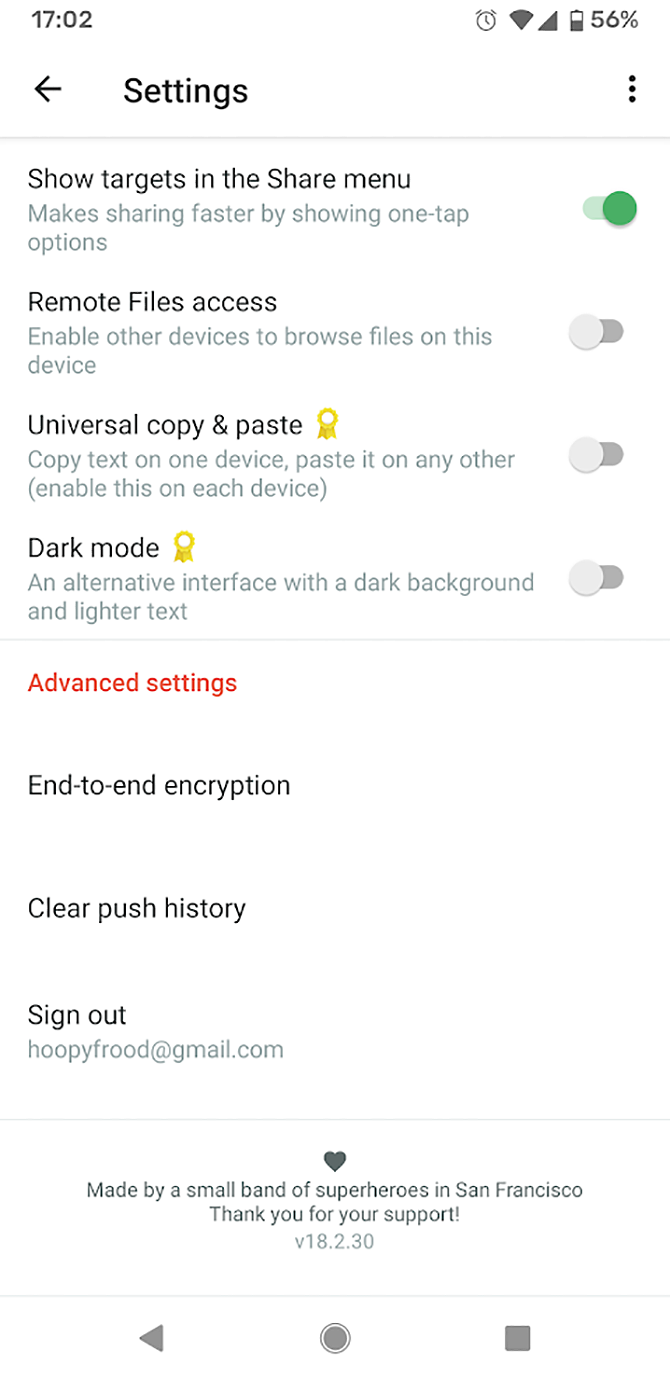
To enable end-to-end encryption, follow these steps:

  1. Open the Android app.
  2. Go to Account and then to Settings.
  3. Scroll down to the Advanced settings section.
  4. Tap on End-to-end encryption.
  5. You’ll see a popup saying Enable encryption? It will inform you that you must enable this on every device. Tap Enable.
  6. Now you need to enter a password. This should be something easily memorable. Type your password and tap OK.
  7. Now encryption is enabled on your phone. Next, you need to enable it on your PC too.
  8. Open up the Windows or browser app on your PC. Go to Account and then to Settings.
  9. Find the End-to-end encryption heading and slide the toggle to enable it.
  10. Now enter your password. This should be the same password you use for your Android app. Then click Save.

This activates end-to-end encryption so your notifications are kept safe and private.

Get Call Notifications on PC Using IFTTT

Incoming call alerts - IFTTT

Another option for receiving call notifications on your PC is to use IFTTT. The extremely useful service work across multiple apps and platforms.

When a trigger event occurs (“if this”), then an action automatically happens (“then that”). To learn more about the many ways to use this service, check out our ultimate IFTTT guide.

To use the service to get phone call notifications, start by installing the IFTTT app for Android. Make sure that the Notifications and Android Phone Call services are enabled.

Now, you can select what you want to happen when you receive a phone call on your Android device. Here are some of the IFTTT applets you can use to pair Windows 10 with the Android phone:

  1. Get an email when you miss a phone call.
  2. Get a Pushbullet notification is you receive a phone call.
  3. Get a notification on your Android Wear device if you miss a phone call.
  4. Get a roundup email of all your missed calls after you finish work.

To enable any of these options, open the page and then toggle the Connect option. Once connected, your chosen action will be triggered whenever you get a phone call on your Android device.

Make Android and Windows 10 Work Together

Using these three methods, you’ll be able to see phone call notifications from your Android device on your Windows PC. However, that’s not all you can do. You can also see other Android notifications on your PC as well. For example, incoming emails or software updates.

Apart from Windows, you can also see Android notifications on other operating systems such as Mac or Linux. To learn more, see our guide on how to sync Android notifications with Windows, Mac, and Linux.

Read the full article: How to Get Incoming Call Alerts on Windows 10 With Android


Read Full Article