22 November 2019

Camp Grounded Digital Detox returns after founder’s death


Summer camp for adults and beloved tech-free weekend getaway Camp Grounded ground to a halt in 2017. Its big-hearted founder Levi Felix who’d espoused the joys of trading screens for nature walks was tragically killed by brain cancer at just age 32. Left in his wake was mourning community who’d lost their digital detox rally just as everyone was realizing the importance of looking up from their phones.

As an attendee, I’d been impressed by how the founder (known as Professor Fidget Wigglesworth at camp) used playfulness and presence to transport us back to childhood, before we got hooked on the Internet. But he also broke people’s addiction to shame, mandating that anyone who screwed up in a sports game or talent show announce “I’m awesome”, and be met with a cheer from the crowd, “your awesome!”

Luckily, one of Felix’s elementary school friends Forest Bronzan wants to write a happier ending to this story. Almost three years after it went into hibernation follow its creator’s death, Bronzan has acquired Camp Grounded and its parent company Digital Detox.

Camp Grounded will relaunch in May 2020 as two back-to-back weekend retreats at Northern California’s gorgeous Camp Mendocino. Attendees will again leave their devices in Tech Check lockers run by hazmat-suit wearing staffers, assume nicknames, and stop the work talk. They’ll get to play in the woods like technology never existed, indulging in Camp Grounded favorites from archery to arts & crafts to bonfire singalongs about enthusiastic consent. However, to simplify logistics, Camp Grounded won’t hold sessions in New York, North Carolina, or Texas any more.

The company will also organize more four-hour Unplugged Nights in cities around the country where partiers can switch off their phones and make new friends. The idea is to give a broader range of people a taste of the Grounded lifestyle in smaller doses. Those interested in early access to tickets for all of Digital Detox’s events can sign up here.
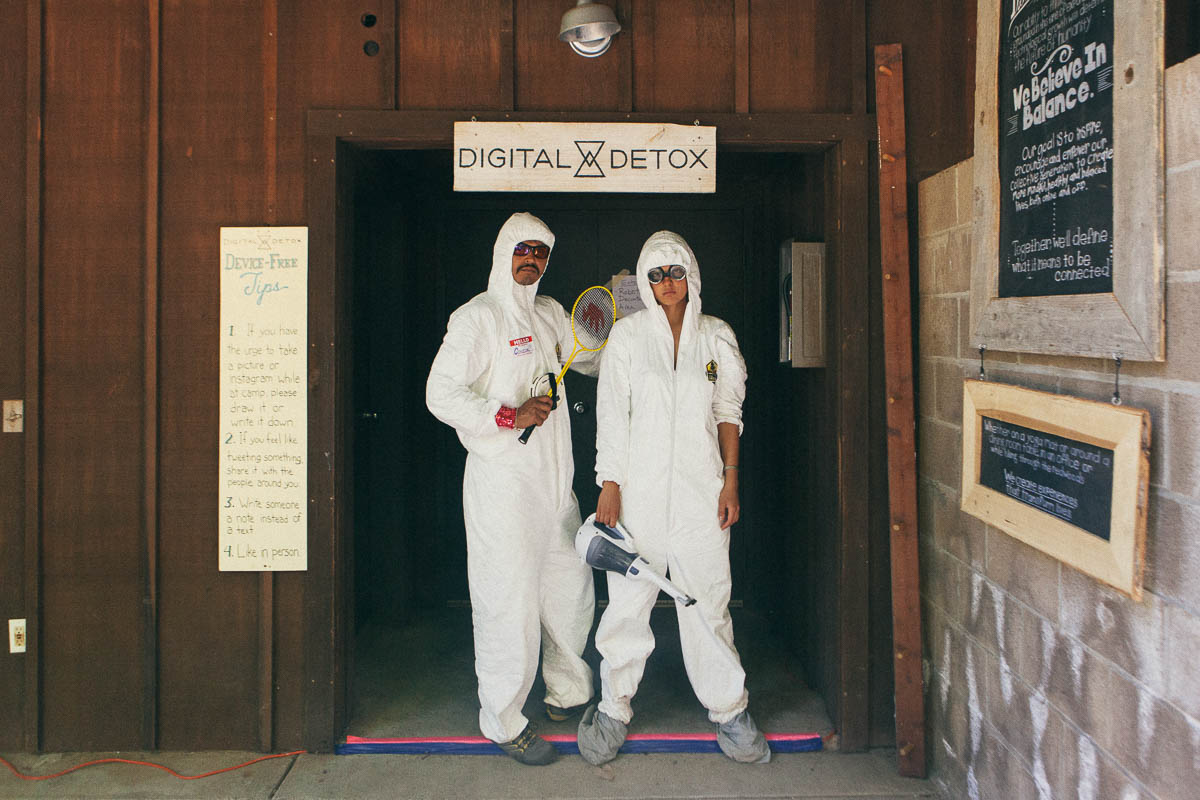
Camp Grounded’s Tech Check staffers confiscate attendees’ devices upon their arrival. Image Credit: Daniel N. Johnson

Meanwhile, Digital Detox will start a new business of education and certifications for K-12 schools, coaching teachers and parents on how to gently reduce students’ screentime. Schools will pay per student like a Software-As-A-Service model. Through research by a few PhDs, the company will recommend proper rules for using tech in and out of the classroom to minimize distraction, and empathetic penalties for violations.

The obvious question to ask, though, is if Bronzan is just some business guy coming to coin off the anti-tech trend and Felix’s legacy. “I’m not Apple coming in and buying the company. This isn’t a tech acquisition” Bronzan insists at a coffee shop in San Francisco. “I knew Levi before anyone else knew Levi. We went trick-or-treating and played in school band together. I want to the first Digital Detox summit, and brought my company year after year. I’ve been involved from the begginning, seeing Levi’s passion and inspiration.”

Levi Felix and Forest Bronzan (from left) in 1996

Fidget had an innately soothing camp counselor vibe to him that Bronzan doesn’t quite capture. He’d previously built and sold Email Aptitude, a CRM and email agency, not an event or education business. But he truly seems to mean well, and he’s earned the support of Digital Detox’s team.

“My mission was to find someone that was as excited and ferocious as Levi and I were when we started Digital Detox to further it as a movement” says Brooke Dean, Felix’s wife and co-founder. “It was imperative that the person running DD and CG had actually experienced the magic. This person had to be more than a lover of camp and nature, they also needed the hard skills and successful track record of running a company. Forest is stable, business-minded and also finds value in that very unique magic.”

Bronzan tells me the acquisition includes a cash component (“We’re not talking eight figures”) and a capital investment in the business, both funded by his email company’s exit. Two other individuals and one company had also expressed interest. Dean and Felix’s brother Zev will retain equity in the company, and she’ll stay on the board of directors. The trio are launching the Levi Felix Foundation that will donate money to brain cancer research.

While moving into education might seem like a left turn for Digital Detox after throwing events since 2012, Dean says “Levi was planning on going back to school and was deeply interested in being an academic in this field. We always believed that there needed to be evidence in order to convince the masses that being outside and connecting with other human beings ‘IRL’ is critical to our health and longevity.”

Some alarming stats the organization has already uncovered include:

  • 77% of people check or pretend to check their phone to avoid talking to others
  • 38% feel less connected to their partner or close friend due to cell phone use
  • Nearly 20% check their phone while having sex

“We want to eventually be the central source of tools on how tech is affecting lives and relationships at all age levels” Bronzan tells me. It’s zeroing in on how compulsive behaviors like endless scrolling increase anxiety and depression, and how parents glued to their devices train children to not be present. The father of two kids under age five, Bronzan knows a weekend at camp in your 20s or 30s is too little too late to seriously address the crisis of fractured attention.

Digital Detox’s new CEO says he’s heartened by the progression of some of Felix’s ideals, as with the Time Well Spent movement. The screentime dashboards launched by tech companies don’t do enough to actually change people’s actions, he says, though “They’re at least making some effort.” Digital Detox plans to launch a comprehensive quiz to determine how addicted you are to your phone, and Bronzan says he’d happily work with tech giants to integrate his company’s research.


On the camp for adults front, we’ve seen Burning Man go mainstream but lose some of what made it special including a lack of cell phone reception. It’s now common to see people on the playa staring at their phones, talking about work, and stressed about the clock — all of which are prohibited at Camp Grounded. Festivals like Coachella seem to get more corporate and less mindful each year. That leaves plenty of open space for Digital Detox to fill with purposeful breaks from the default world.

Bronzan also wants to introduce more surprise and serendipity to the event calendar. Camp Grounded will experiment with a “Mystery Trip” where eight to ten people sign up to be whisked away, only receiving a confidential briefing package the day before they show up. The point is to extract people from their routines where unhealthy habits manifest. Without connectivity, Camp Grounded hopes people will forge new connections in their minds, and with each other.


Read Full Article

The top 1% of app store publishers drive 80% of new downloads


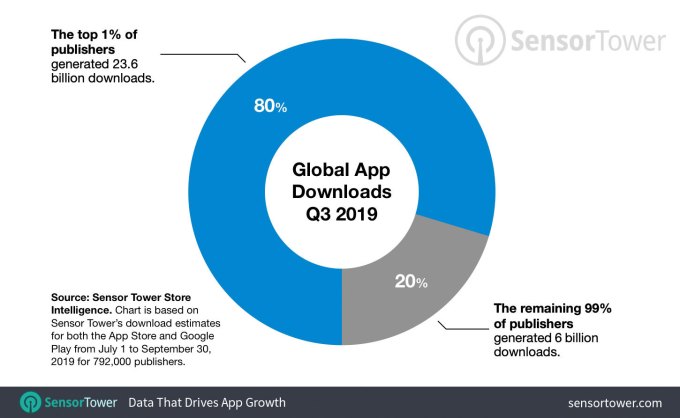
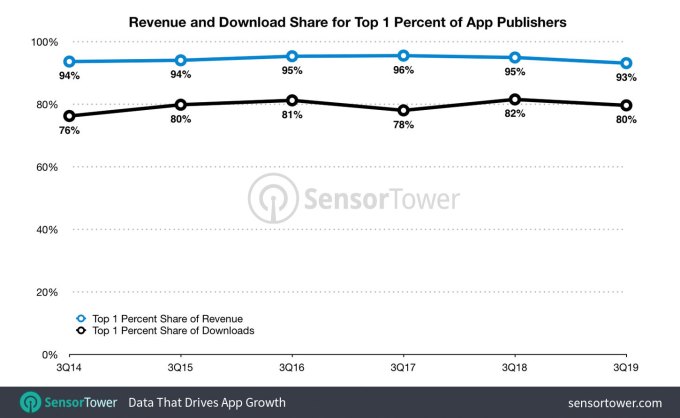
The current app store ecosystem doesn’t favor the indie developer. According to new data from Sensor Tower, the top 1% of publishers globally accounted for a whopping 80% of the total 29.6 billion app downloads in the third quarter of 2019. That means just 20%, or 6 billion, downloads are left for the rest of the publishers.

This bottom 99%, which equates to roughly 784,080 publishers, averaged approximately 7,650 downloads each during the quarter. To put that in context, that’s less than one-thousandth of a percent of the downloads Facebook generated in the quarter (682M).

The data should not be all that surprising, given that larger, social platforms like Facebook and YouTube already serve audiences of over a billion. But it is concerning how uneven the market for new apps remains, especially considering that the number of available apps continues to expand, which makes the competition even more difficult.

The report notes there were over 3.4 million apps available across the App Store and Google Play in 2018, up 65% from the 2.2 million apps available in 2014. But the number of apps that were able to achieve at least 1,000 installs has been declining over that same period — from 30% to 26%.

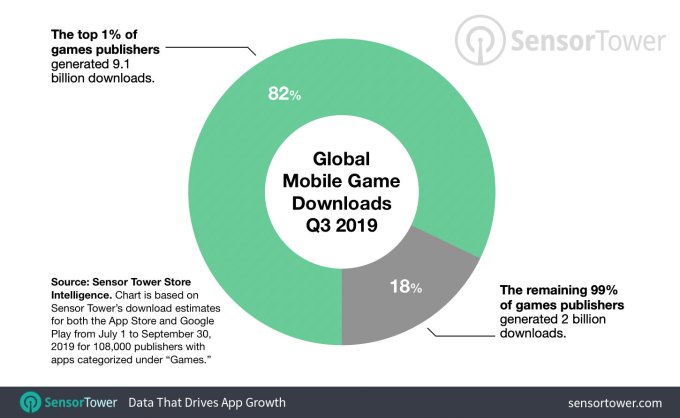
Focusing only on games, the top 1% of publishers — or 1,080 out of a total 108,000 publishers — saw 9.1 billion downloads out of the total 11.1 billion, or 82%. This averages out to more than 8.4 million installs each. The remaining 18% of downloads, or 2 billion, were shared among the remaining 106,920 publishers. That averages out to around 18,000 downloads each.

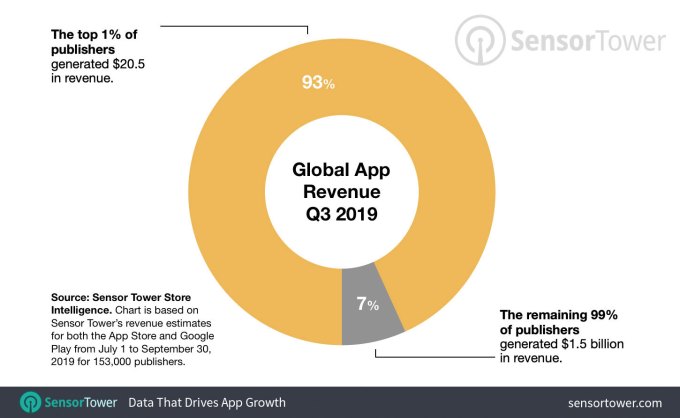
When apps were analyzed by revenue, the gap was wider. Just 1,526 publishers generated $20.5 billion out of the total $22 billion in revenue in the quarter. Meanwhile, the remaining $1.5 billion was split among 151,056 publishers, averaging out around $9,990 each.

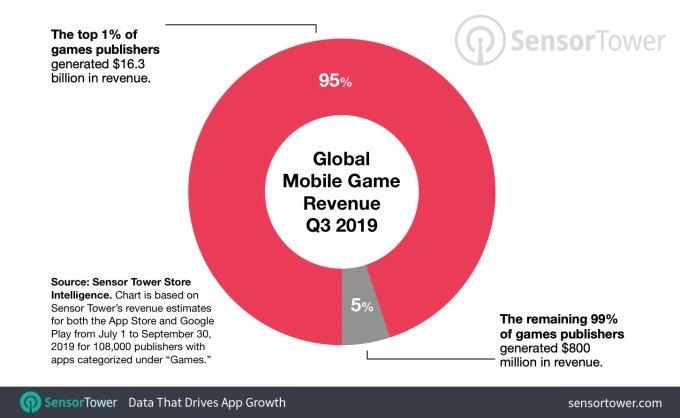
In terms of games revenue alone, the 445 publishers that make up the top 1 percent generated $15.5 billion in revenue, or 95% of all revenue, with the remaining $800 million split between the 44,029 publishers in the bottom 99%. This averages out to around $18,100 each.

None of these are new trends, Sensor Tower also notes. There hasn’t been much fluctuation in the top 1% share of installs or revenue for years. That means the large majority of publishers will compete for a minority of new users and installs.

Image credits: Sensor Tower


Read Full Article

21 November 2019

Facebook Dating now integrates with Instagram and Facebook Stories


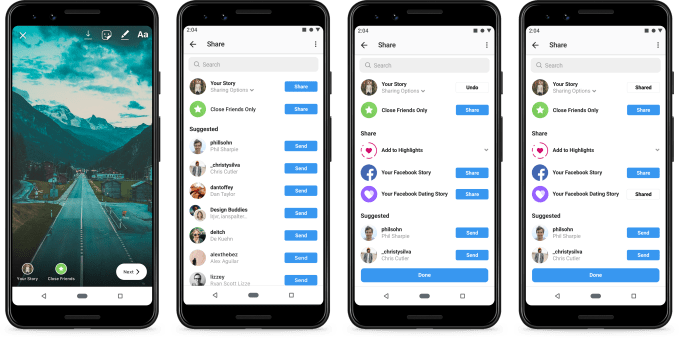
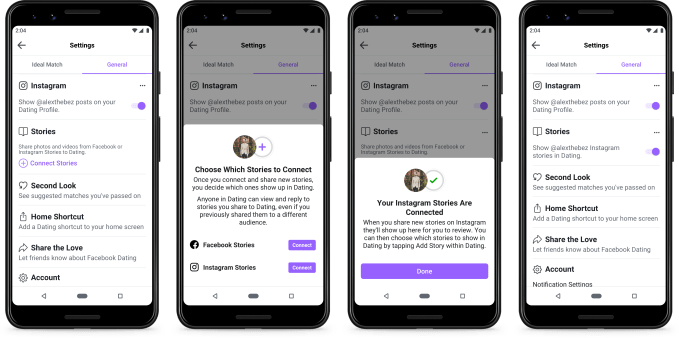
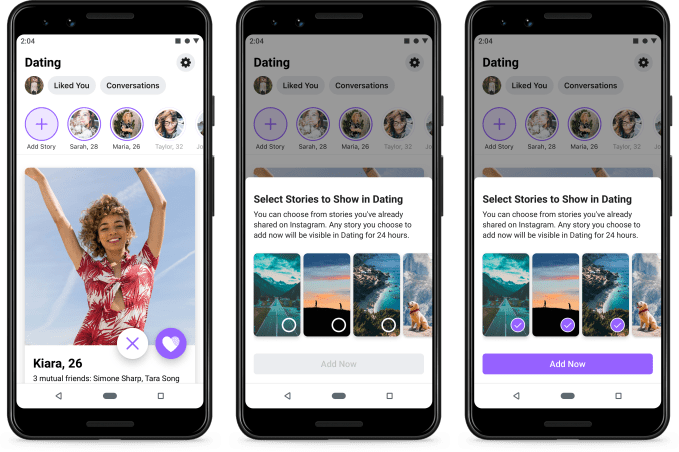
Facebook Dating, an opt-in feature of the main Facebook app, will begin to tap into the content users are already creating across both Facebook and Instagram to enhance its service. Today, Facebook Dating users will be able to add their Facebook or Instagram Stories to Facebook Dating, in order to share their everyday moments with daters.

As opposed to more polished profile photos, Stories can give someone better insight into what a person is like by showcasing what activities they like to engage in, their hobbies, their interests, their personality, and their humor, among other things. And if the daters themselves appear in a Story, it lets others see what they really look like, even if their online photos are out-of-date.

The way the feature is being implemented on Facebook Dating puts the user in control of what’s being shared. That is, your Facebook or Instagram Stories are not automatically copied over to Facebook Dating by default. Instead, users can select which of their Stories are shared and which are not.

In addition, people daters have blocked or passed on Facebook Dating won’t be able to see them.

If a Story is inappropriate, you can also block the user and report it, like you can with other content elsewhere on Facebook.

One thing to be aware of is that this feature is a way to share a Story to Facebook Dating, but the Story isn’t exclusively designed for Facebook Dating. That means, if you decide to use the Story feature as some sort of video dating intro, your Facebook and Instagram friends could see this, as well.

When browsing Facebook Dating, you’ll be able to view other people’s Stories along with their profiles. And if you match with someone, you can continue to view their Stories and then even use that to spark a conversation, which takes place in the app. This is similar to how you can respond to someone’s Facebook or Instagram Story today, which then appears in Messenger or Instagram’s Messages section, respectively.

The new Stories feature could be a potential competitive advantage for Facebook Dating, because it allows users a new way to express themselves without requiring them to create new content just for the dating service itself. Even if a rival dating app like Tinder or Bumble introduced their own version of Stories, many wouldn’t think to launch a dating app to capture their everyday moments.

Stories integration is rolling out starting today to Facebook Dating.

Dating, as a Facebook feature, is currently available in 20 countries, including Argentina, Bolivia, Brazil, Canada, Chile, Colombia, Ecuador, Guyana, Laos, Malaysia, Mexico, Paraguay, Peru, the Philippines, Singapore, Suriname, Thailand, United States, Uruguay, and Vietnam. It will be in Europe by early 2020, Facebook says.

The company has not disclosed how many people are using Facebook Dating at this time.


Read Full Article

Twitter rolls out its ‘Hide Replies’ feature to all users worldwide


Twitter’s radical “Hide Replies” feature, one of the biggest changes to how Twitter works since the invention of the Retweet, is now available to Twitter’s global user base. The company says the feature will roll out to all Twitter users across platforms by today, with only one slight tweak since earlier tests.

Designed to balance the conversation on Twitter by putting the original poster back in control of which replies to their tweets remain visible, Hide Replies has been one of Twitter’s more controversial features to date. While no replies are actually deleted from Twitter when a user chooses to hide them, they are placed behind an extra click. That means the trolling, irrelevant, insulting, or otherwise disagreeable comments don’t get to dominate the conversation.

Twitter’s thinking is that if people know that hateful remarks and inappropriate behavior could be hidden from view, it will encourage more online civility.

However, the flip side is that people could use the “Hide Replies” feature to silence their critics or stifle dissent, even when warranted — like someone offering a fact check, for example.

The feature was first tested in Canada in July, then in the U.S. and Japan this September, across both web and mobile platforms.

Since its launch, Twitter found that most people hide the replies they find irrelevant, off-topic, or annoying. It also found people were using this instead of harsher noise reduction controls, like block or mute. In Canada, 27% of surveyed users who had their tweets hidden said they would reconsider how they interacted with others in the future, which is a somewhat promising metric.

The feature is, however, getting a slight change with its global debut. Twitter says some people wanted to take further action after hiding a reply, so now it will check to see if they want to block the replier, too. It also heard from some users that they were afraid of retaliation because the icon remains visible. It’s not making a change on that front at this time, but is still considering how to address this.

Another concern that was often mentioned on Twitter as the new feature first rolled out was the large pop-up notification that appears when users encountered a tweet with hidden replies.

Some people found the notification was so large and disruptive that it actually encouraged people to pay more attention to the hidden replies than they would otherwise.

Twitter says this screen only displays the first time a Twitter user encounters a tweet with hidden replies, however. Afterward, an icon will show people replies are hidden — and those are hidden on another page, not below the tweet.

But even though that’s a one-time notification, the attention it demands from the user outweighs the information it’s trying to convey — essentially, that twitter has launched a new feature and here’s where to find it. And if someone is engaged in trolling, being told that this particular Twitter user is hiding replies could enrage them even more.

In addition to the global rollout, Twitter also says it will soon be launching a new hide replies endpoint in its API so developers can build additional conversation management tools.

And Twitter notes it will be testing other changes to conversations, including more options around who can reply or even see specific conversations, as well as engagement changes designed to encourage healthier conversations.

“Everyone should feel safe and comfortable while talking on Twitter,” writes Suzanne Xie, Twitter’s Director of Product Management, who recently joined by way of an acquisition. “To make this happen, we need to change how conversations work on our service,” she says.

Twitter’s development in this area is interesting because it’s actively experimenting with ways to encourage civility on a platform that’s known for hot takes, sarcasm, snark, and outrage. It’s willing to change and evolve its features over time as it learns what works and scrap changes that don’t. It’s even been running a beta product (twttr) in parallel with Twitter, to try new ideas. If Twitter is ever able to turn things around by way of its feature set, it would be a marvel of product management.

The option to hide replies is rolling out globally on iOS, Android, Twitter Lite, and twitter.com, starting today.


Read Full Article

How to save a language from extinction | Daniel Bögre Udell

How to save a language from extinction | Daniel Bögre Udell

As many as 3,000 languages could disappear within the next 80 years, all but silencing entire cultures. In this quick talk, language preserver Daniel Bögre Udell shows how people around the world are finding new ways to revive ancestral languages and rebuild their traditions -- and encourages us all to investigate the tongues of our ancestors. "Reclaiming your language and embracing your culture is a powerful way to be yourself," he says.

Click the above link to download the TED talk.

Amazon launches a Dash Smart Shelf for businesses that automatically restocks supplies


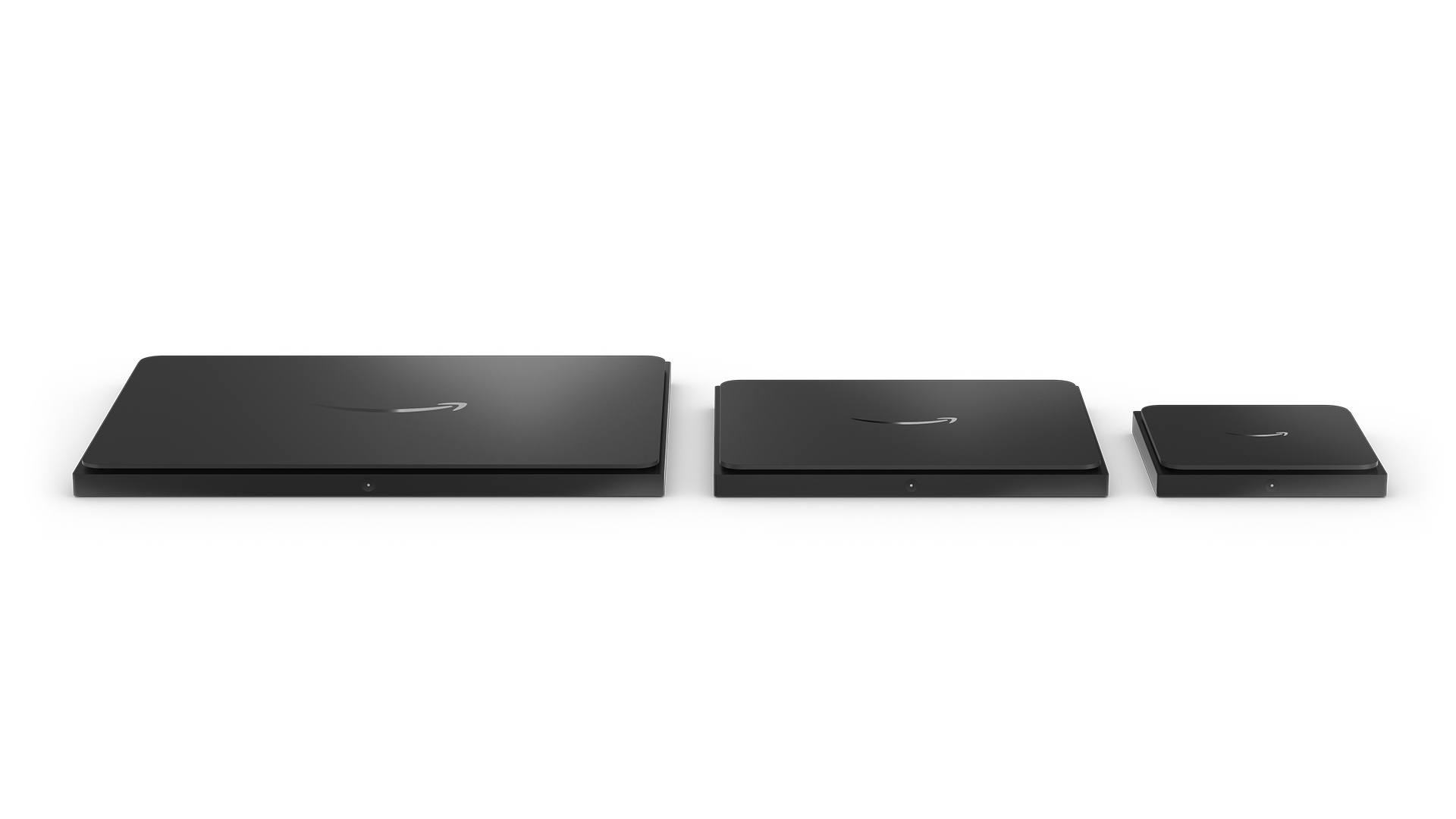
Amazon may have stopped selling its Dash buttons for consumers, but it’s not done with dedicated Dash hardware: The company is launching its new Amazon Dash Smart Shelf today. Aimed at small businesses rather than individuals, the Dash Smart Shelf is also even more automated than the Dash buttons, as it uses a built-in scale to automatically place an order for re-stocking supplies based on weight.

Available in three different sizes (7″x7″, 12″x10″ and 18″x13″), the Dash Smart Shelf is just 1″ tall and can basically be placed under a pile of whatever stock of supplies you commonly run through while operating a business. That could mean printer paper, coffee cups, pens, paper clips, toilet paper, coffee or just about anything, really – and Amazon’s replenishment system can either be set to automatically place an order when it detects that on-hand supply has fallen below a certain weight, or you can just have it send someone in your organization a notification if you’d rather not have the order happen automatically.

The Dash Smart Shelf connects via built-in Wi-Fi, and can be powered either connected by cable to a power outlet, or via four AAA batteries, providing flexibility as to where you want to put it. Using the web or the Amazon app, you then sign in with your Amazon Business account and just pick what product you’re using on the scale that you want to top up. And if you find that your staff doesn’t like the coffee selection, for instance, you can easily change up the brand or product your’e re-ordering from your account, too.

Dash Smart Shelf isn’t available immediately for anyone to purchase directly, but instead Amazon is going to be working with select small businesses in a trial pilot this month, with the plan being to open up general availability to any Amazon Business customers that have a registered U.S. business license beginning next year. If people are keen on getting Smart Shelf into their business, they can sign up directly with Amazon to be noticed about availability.


Read Full Article

Selpic S1: Print Anything, Anywhere


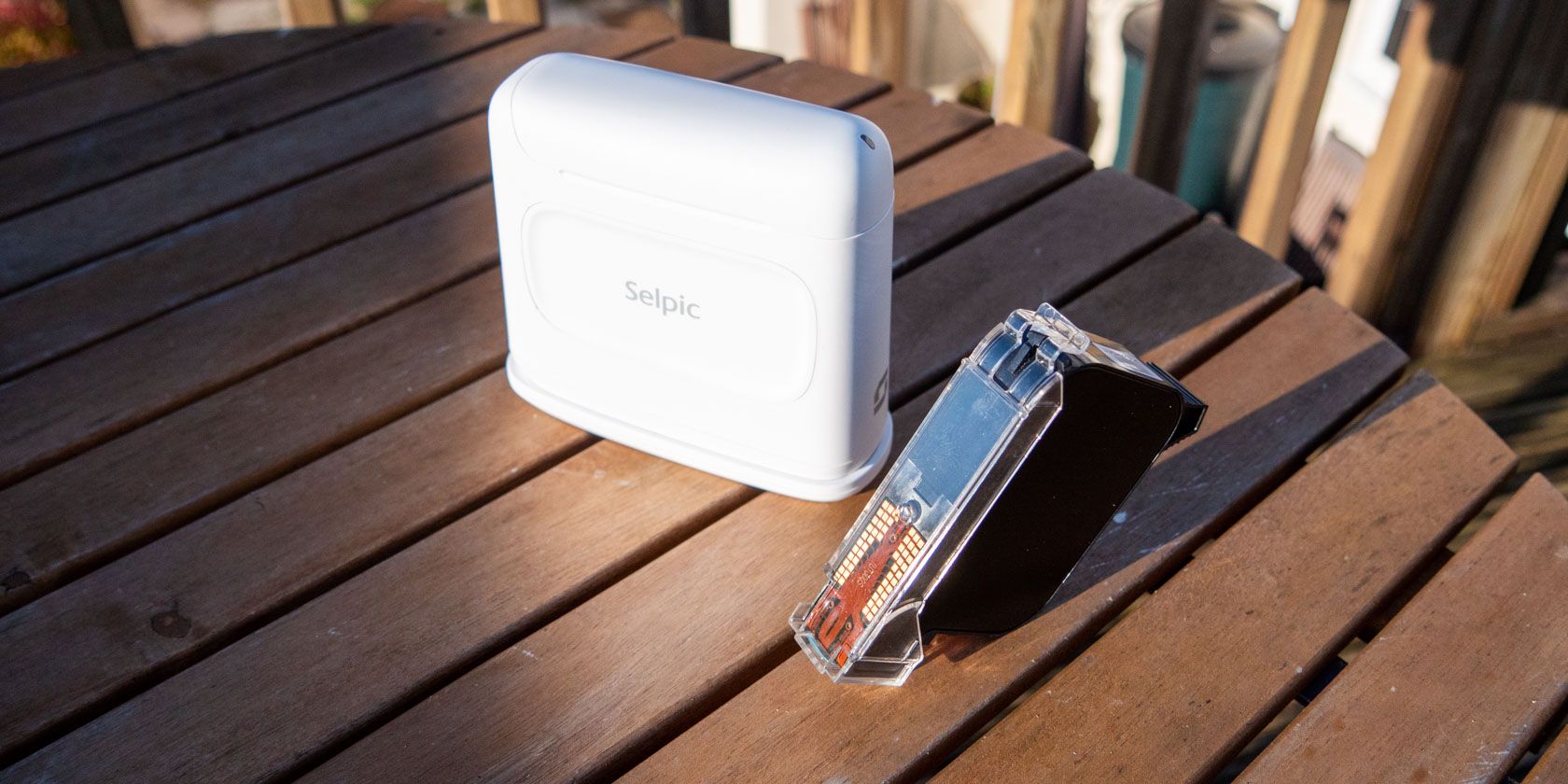
Selpic S1 portable printer and spare print cartridge
Our verdict of the Selpic S1 Portable Printer:
A handy printer that can really work on almost any surface and at any angle. It's a little pricey, but if you're quick, you can get the upgraded S1+ model with larger print head for $150 on the new Kickstarter.
810

Selpic S1 is a portable quick-drying printer that can print on pretty much surface, even if it’s not flat. It’s great for craft projects, small businesses, or just labeling all the things.

The Selpic S1 is available to preorder now for $250 and shipping soon, but Selpic are also Kickstarting the larger S1+ model with shipping due by the end of the year, with early bird pricing from $149 (if you’re quick).

Design and Specs

The Selpic S1 measures 1.5 x 4.3 x 4.7 inches (4 x 11 x 12cm), and weighs a minuscule 13.6 ounces (386g), making it just about pocket-sized.

The S1 model squirts out ink from a half-inch print head, while the S1+ can print twice as high.

selpic s1 print head

Inside the box you’ll find the Selpic S1 main body, a magnetic cover that attaches to the base to protect the print head, a starter ink cartridge, and a micro-USB charging cable. The internal battery should give you around 6 hours of printing, with 72 hours standby time.

To print whatever is currently loaded, you just press the P button on the side. The LED on top turns green to indicate it’s ready. Then swipe the printer across your surface. An optical sensor ensures the print comes out correctly, and can operate at up to 30mm/s, which is much faster than you can reasonably run it along a surface.

selpic s1 charging port and power button

Like all printers, the real sting is in the price of the cartridges, at $80 each. Six colors are available, but you can only print in a single color at a time. Selpic claims the 40ml cartridges can print up to 900 A4 pages at 5% coverage, though this is a curious measurement since it can only print a half-inch line. Still, if you’re looking to compare like for like, 900 pages is the number you’ll want. As a small manufacturer, no official recycling program is available, though your local recycling center may accept them as generic inkjet cartridges.

selpic s1 cartirdge insertion view

Selpic App

Creating and uploading your prints is done using the Selpic app. You’ll need to connect over Wi-Fi to the ad-hoc network broadcast by the Selpic device (and initially use the password 12345678). This is annoying to do every time you turn it on, and we can’t help but feel Bluetooth would have been a better solution. That said, once connected it worked reliably, albeit somewhat slow to upload.

multilingual text entry on the selpic s1
The ability to enter multilingual text is unique.

The app allows you to design a print using a number of key components:

  • Multilingual text. As long as you have the right input method and fonts on your phone, you can print any language you like.
  • Time and date stamp.
  • Weight display, designed to be used with industry-standard USB and Bluetooth scales, which act as input devices.
  • Auto-incrementing numerical counter, which adds one each time the label is printed (or any other increment you want).
  • Code128 numeric barcode.
  • QR code.
  • Custom image.

All design elements can be mirrored, for printing on the reverse of a clear object, or color inverted. Any number of the same element can be added, resized, or rotated.

selpic labelling software

Note: at the time of review, the iOS app was unable to upload custom images. We’ve been promised this should be fixed by next week with a new firmware update. 

It’s clear from that feature list that the software has been designed with small businesses in mind, despite the Kickstarter being marketed with a more crafty angle.

The app is relatively easy to use but suffers a little on a small mobile screen, especially because it’s locked to landscape view. In order to accommodate all the design tools needed, a small toggle switch sits at the bottom of the screen. This toggle changes between component-specific settings, like font and font size, to the generic component controls like rotate and delete. And of course, tapping on a text entry form brings up the keyboard, which then obscures more than half of the total screen real estate. Hopefully, the app will improve in time. Switching to a vertical view to make use of a smaller keyboard would be a great start, even if it meant having to scale down the print preview.

selpic app and landscape keyboard

Having said all that, it’s still infinitely more functional than your basic label printers.

The only thing you might expect it to be good for, but actually isn’t, is printing addresses. There’s no import or mail merge functionality, and even if there were, the print head is too small to print a full address at once.

While we have yet to hit a maximum printing width, we should note that longer labels take a long time to upload from the app as the file is rasterized. If you try to write a really long label, it can feel like the app has crashed.

What Can The Selpic S1 Print On?

We tried on a variety of surfaces, with overall great success.

Obviously, flat card and paper was easy. No issues there, and the QR code was successfully read by my phone.

On skin, we couldn’t get anything useable, just a large smudge.

On a wine glass, we managed a perfect print, despite the curved surface and optical difficulty. The quick-drying ink didn’t wash off under running water, and needed to be scrubbed off.

selpic s1 successfully printed on a wine glass

A bigger print on a mostly clear plastic box didn’t go as well but was still acceptable. Keeping the printer straight at this sort of angle was difficult, and some sort of optical sensor error left one of the letters skipping.

selpic s1 printing sample on clear plastic box

Printing inverted text on the inside of our polytunnel door was also mired by a small smudge, but still legible.

selpic s1 inverted printing on the inside of a plastic greenhouse

On rough but otherwise flat wood, the print was perfect. I can see gardeners making great use of this for plant labels.

selpic s1 printing on wood
One often forgets what one has planted in raised beds.

Overall, I’m really impressed with the “print anywhere” claim. Most of the printing hiccups we did experience would likely be perfected with repeated use. There’s a knack to printing well that you’ll learn.

Should You Buy the Selpic S1 (or Back the S1+)?

The Selpic S1 is the sort of gadget that you’re bound to find a use for around the home, but at around $250 for a starter pack plus $80 for additional cartridges, I expect you’ll want to know beforehand precisely what your use cases will be to justify the cost. If you find yourself writing the same message repeatedly on something that otherwise can’t be fed into a traditional printer, then this may be the perfect gadget for you.

If you’re a home user that just wants to put text labels on all the things–storage boxes, personal possessions and such–you might want to stick with traditional tape-based label printers (or a pen!). Changing the text often and uploading it to the Selpic each time gets tedious after a while. For English text anyway, the ease of typing on a physical keyboard and hitting the print button is faster. The results aren’t nearly as impressive, but those sorts of labels tend to be functional rather than attractive. The real power of the Selpic is repetitive printing and otherwise awkward surfaces.

There are also obvious benefits for small businesses and craft sellers, that need to print serial numbers, tickets, or barcodes onto packaging. It’s a handy little device.

We’d recommend backing the Kickstarter now to get early bird pricing on the S1+ model with one quick-drying cartridge for just $149 (but be quick, there’s a limited number available at that price!). As with all Kickstarters, there’s always a risk involved, but in this case we think it’s minimal. The technology works, it’s just question of whether Selpic can meet their shipping targets.

Thanks to Selpic, we have an S1 model to giveaway to one lucky reader. Just enter your details in the widget below to be in with a chance of winning. Good luck!

Enter the Competition!

Selpic S1 Giveaway

Read the full article: Selpic S1: Print Anything, Anywhere


Read Full Article

Google Buys Fitbit: What Does This Mean for Your Privacy?


google-fitbit

Google’s parent company, Alphabet Inc., has acquired fitness tracker giant, Fitbit, for $2.1 billion. Add this to a vast number of subsidiaries including YouTube, Android, and Nest. It’s led many to question whether Alphabet Inc. needs regulation.

But there’s another major concern: what happens now to Fitbit users’ private information? Can you trust Google with all that personal data? And exactly what does Fitbit know about you anyway?

Why Has Google Bought Fitbit?

Let’s tackle this first because it’s what will determine how personal details are used. Why exactly did Google want to purchase Fitbit?

Google, after all, already offers something similar. Google Fit is the firm’s answer to Apple Health, software intended to act as a fitness tracker for devices running Android using the Wear OS. Anyone using both Google Fit and a Fitbit will notice similarities between the two interfaces, with dashboards displaying active minutes, heart rate, calories burned, sleep patterns, and more.

However, while Google has an operating system, it didn’t have wearable technology. Until now.

That’s why this purchase was so important: Google assures users that it’s a chance to invest more in Wear OS, and push for wearable tech innovation. It says its principles—“to enhance [your] knowledge, success, health and happiness”—are aligned with the Fitbit brand.

Fitbit is the major rival to the Apple Watch. It makes sense for Google, Apple’s major rival, to acquire Fitbit.

But that doesn’t stop people worrying that Google only bought it because it wants to learn more about users. Google knows a lot about its audience already, including your interests, location, and when you’re online. The company’s revenue largely comes from selling information on, notably for advertising.

The more it knows about your everyday activities, the more valuable you are to Google.

Ironically, while researching this article, an ad about support socks appeared, a product I’d bought as a consequence of an exercise regime. It ably demonstrates how personal information can influence what’s displayed online.

What Does Fitbit Know About You?

If Google knows so much already, what other data does your Fitbit account contain?

You’ve surrendered a lot of private information to Fitbit; partly in setting up the smartwatch and app, and partly due to its functionality. Fitbit claims this is all to further the service, i.e. make it more personal and useful, while maintaining security. Every company says something similar.

Fitbit knows the name, email address, password, date of birth, gender, height, and weight of all its users. Those are necessary to sign up. Many of us also add in profile information to build up a more accurate picture of you, like your food and water intakes, sleep cycles, messages on discussion boards, and female health.

In addition to this, Fitbit also collects:

  • Number of steps
  • Active minutes
  • Calories
  • Heart rate
  • Operating system
  • IP address
  • Credit card information (for those paying for add-ons)
  • Distance travelled
  • Location

Fitbit may receive personal details if you connect to Facebook, your smartphone’s own Health app, or—get this—Google. This means a more well-rounded profile of you can be inferred. This is without considering a change of policy which could potentially allow Google to collate more information from Fitbit users (though this hasn’t been announced).

They also collect anything related to life coaching, like messages sent between the two parties, events in your calendar, and any notes your coach makes about you.

Wait, Does Fitbit Know Where I Live?

Many don’t realize this, but yes, Fitbit knows your location. That is, if you grant it permission and you’ve a device with the capability. And even if you don’t, the service can infer where you live by your IP address.

fitness tracker location services

Android OS 6.0 (owned by Google) made it necessary to turn on location services to sync your Fitbit device with its apps. Fortunately, this data isn’t always collected: it’s only when you’re recording an activity with GPS. Your whereabouts can be ascertained from this signal, plus proximity to cell phone towers and Wi-Fi access ports.

To check if the service can access your location, go on Settings > Apps > Fitbit > Permissions (Android) or Settings > Privacy > Location Services (iOS).

That all sounds worrying, doesn’t it? And yet it’s what you’d expect from wearable fitness trackers.

Should You Be Worried About Google’s Acquisition?

Whenever a business holding a lot of data about its users is sold on, questions will naturally arise over privacy. This could be why Facebook pulled out of negotiations to buy Fitbit before Google’s bid; as it is, Facebook’s been plagued by too many scandals recently.

Who would be interested in information collected from Fitbit? Insurers would surely like to know how fit you are. Shops could advertise exercise equipment if you’re on a health drive. As physical fitness can affect mental well-being, your employer might be interested in your daily activities.

Fitbit nonetheless assures consumers that their intentions remain the same:

“Consumer trust is paramount to Fitbit. Strong privacy and security guidelines have been part of Fitbit’s DNA since day one, and this will not change. Fitbit will continue to put users in control of their data and will remain transparent about the data it collects and why. The company never sells personal information, and Fitbit health and wellness data will not be used for Google ads.”

How realistic is this? Google’s business revolves around selling private data. The affirmation that Fitbit doesn’t do that is reassuring (for now) and will come back to haunt them if this policy changes.

Fitbit carries a lot of private data, but Google already has more. This acquisition is a concern—and certainly something users need to keep an eye on—but these assurances should tide us over for a while.

Right now, the best thing you can do is limit what data Fitbit has about you. Don’t limit its functionality, but question which details are actually needed. To review who can see what information, sign into the app, then click Profile > Privacy and Manage Data.

Does This Dissuade You from Buying a Fitbit?

Fitbit has over 28 million active users. That’s a lot of data. The number of consumers normally rises around Black Friday and the festive period, when an influx of presents and deals means a lot of new users. People normally go on a health drive after Christmas too.

Will Fitbit remain one of the most popular health tracker brands after Google’s acquisition? The service has its problems, but still has a lot going for it—so we’ll just have to wait and see…

Read the full article: Google Buys Fitbit: What Does This Mean for Your Privacy?


Read Full Article
8 Simple and (Mostly) Free Ways to Improve Your Security


simple-ways-security

We often think of security as something we can buy. While some code and computers are more secure than others, staying safe has more to do with our behavior.

Here are some ways you can change the way you use your computer to reduce risk to your data, privacy, and personal life.

1. Encrypt Your Computer

An open and exposed hard drive
Image Credit: Vincent Botta/Unsplash

A password prevents other people from logging into your computer when you’re away, but this doesn’t offer as much protection as it seems. Someone who knows how to take your hard drive out of your computer can access all of the data that you’ve created. That’s why you also want to encrypt your drive, so that others can’t access your data in this way.

Device encryption is usually a built-in option now, including on Windows 10. There are also free tools available that can do the job for you. VeraCrypt is one option that’s available for Windows, macOS, and Linux alike. But if you find this too complicated a job, many newer computers already come encrypted.

Your easiest option might be buying ones that does.

Download: VeraCrypt for Windows | macOS | Linux (Free)

2. Encrypt Your External Storage, Too

A USB stick
Image Credit: Sara Kurfeß/Unsplash

Encrypting the data on your computer is important, but you almost defeat the purpose of the entire exercise if you backup your machine to an unencrypted portable hard drive or carry files around on an unencrypted flash drive. You want to encrypt these forms of external storage too, that way gaining access to these drives take as much effort as breaking into your encrypted PC.

You can sometimes encrypt external storage using the same method you use for your computer. Linux users can do this by reformatting their drives into the encrypted LUKS format, which you can usually do without having to install any additional software.

On Windows and macOS, you can again turn to programs like VeraCrypt. There are also some external drives that come with software to handle the encryption for you.

3. Power Off Encrypted Devices

A powered off MacBook
Image Credit: Unsplash

Encrypting our data provides us with more security, but this is easier to circumvent while our machines are on and running. There are ways to acquire or bypass your password and gain access to decrypted data while your laptop is asleep.

To maximize your defenses when you’re not at your computer, power it all the way down. When your machine is fully powered down, someone must go through the effort of breaking encryption or attempting to guess your (hopefully longer) encryption password. These things are possible, but they take more effort or resources than many people are willing to put in.

4. Keep Your Data Offline

At the rate data breaches occur, we have much to be anxious about today. Purchasing an electronic device often means facing pressure to create another account for another service, where we will give someone else our personal contact information, maybe share our credit card, and generate a lot of revealing data.

One way to reduce this anxiety is to actively choose to keep your data offline. Popular wisdom right now may be to backup all of your files online, but you have other options. Portable hard drives and USB flash drives are more affordable than ever (and it’s easier now to encrypt them).

You can also choose not to purchase devices that require online accounts. You don’t need to buy a smart thermostat when a programmable one and knowledge of your own behavior can achieve a similar end result.

You don’t have to avoid all online services, but you reduce your risk if you don’t allow yourself to fall into the habit of signing up for every account you’re prompted to.

5. Turn Off Wi-Fi and Bluetooth

Librem 13 kill switch

We live in what is in what is increasingly called an always-connected world. But just because you can live your life with an ever-present connection to the internet already established, that doesn’t mean you have to. You have the option to turn off your Wi-Fi connection. Better yet, tell your computer or phone not to auto-connect.

Manually connect to the internet whenever you’re ready to get online.

By only going online when you want to be online, and disabling your connection otherwise, you reduce a company’s ability to monitor what you do on your device and make it more difficult for someone to remotely gain access to your computer (while also cutting down on distractions).

If you purchase a model with privacy switches, you can physically sever the networking component, preventing remote access until you flip the switch again.

Treat Bluetooth the same way you do Wi-Fi. If you don’t have any devices currently connected, then turn it off. In both cases, you may improve your battery life in the process.

6. Disable Your Webcam and Microphone

Now that our devices come with webcams and microphones, there are more ways to compromise our privacy. People can not only view what we’ve saved to our computers or the websites we visit, they can see our faces and the rooms we’re in. They can hear our voices and those of our loved ones.

By default, your webcam and mic aren’t always on, but they’re lying dormant waiting for an app or command that triggers them to wake up. If you disable them, they won’t wake up even if a command comes in.

You can disable these devices at the software level. If your computer has privacy switches (or you use a desktop where the camera and mic have to be plugged in), you can do so at the hardware level. If nothing else, you can put a sticker over the webcam

7. Use Fewer Apps

The macOS dock on a MacBook
Image Credit: Mikaela Shannon/Unsplash

The more complicated a piece of software is, the more likely someone will find an exploit. That’s because there are so many components and lines of code for developers to write in a secure way. A single flaw in any aspect of the system is all it takes to break in.

Many times, the vulnerability someone exploits isn’t in the operating system itself but in a separate program that we chose to install. Think your web browser, office suite, or email client. Sometimes the risk comes via supposedly innocent apps like PDF readers.

If you install fewer apps, you not only reduce your likelihood of downloading malicious software, but you reduce your chances of being vulnerable to an exploit found in an otherwise legitimate app. You also protect yourself from being dependent on software that could go away once a developer or company loses interest.

8. Download Free and Open Source Apps

Everything that’s on your computer exists somewhere as a line of code. Whether we’re writing a document, watching video, or playing a game, we’re interacting with language. With most commercial software, we can’t view the code behind what we’re doing and we don’t have the freedom (or permission) to try.

We have to trust that nothing shady is going on.

Fortunately there are alternatives available in the form of free and open source apps like Mozilla Firefox, LibreOffice, and VLC. You can even purchase computers that come with open source operating systems from companies like System76, Purism, and ZaReason. Or you can replace the OS on a computer you already own.

Free software doesn’t restrict what we can see. You can keep this code on your computer, have it audited, modify your copy however you wish, and share it with others. This mitigates your risk of software going away overnight, as often happens with cloud services.

I’m not saying that free software is inherently more secure than proprietary software (there’s a lot to that debate). But using free software on your desktop is the only way I’m aware of to have true control over what’s on your computer, trust that a company isn’t monitoring what you do, and maintain access to the programs that you rely on.

What Steps Have You Taken?

Remember, absolute security is a myth. We put locks on our doors not to make our homes impenetrable but to make the job difficult enough to dissuade others from making the effort.

Often, improving your security isn’t about adding more, it’s about using less. Less time connected means fewer times your computer is accessible remotely. Using fewer online services means fewer sites that can leak your data. Creating less data means you have less information to safeguard in the first place.

Some companies will collect and leak your data without your control, but there’s still a lot of power that’s in your hands. And there are steps you can take to counter data breaches when they happen.

Read the full article: 8 Simple and (Mostly) Free Ways to Improve Your Security


Read Full Article

How to Cancel Your LinkedIn Premium Subscription


unsubscribe-linkedin-premium

Whether you already have a LinkedIn Premium subscription or are considering signing up for a subscription, it’s important to know how to cancel LinkedIn Premium.

This is because while LinkedIn Premium is an useful tool, you may find it’s not for you. Especially if you have settled into a job and have no intention of changing companies.

So, in this article, we’ll show you how to cancel LinkedIn Premium.

What Is LinkedIn Premium?

What Is LinkedIn Premium

LinkedIn Premium is a tiered subscription service that allows you to access different levels of networking depending on which subscription tier you sign up for.

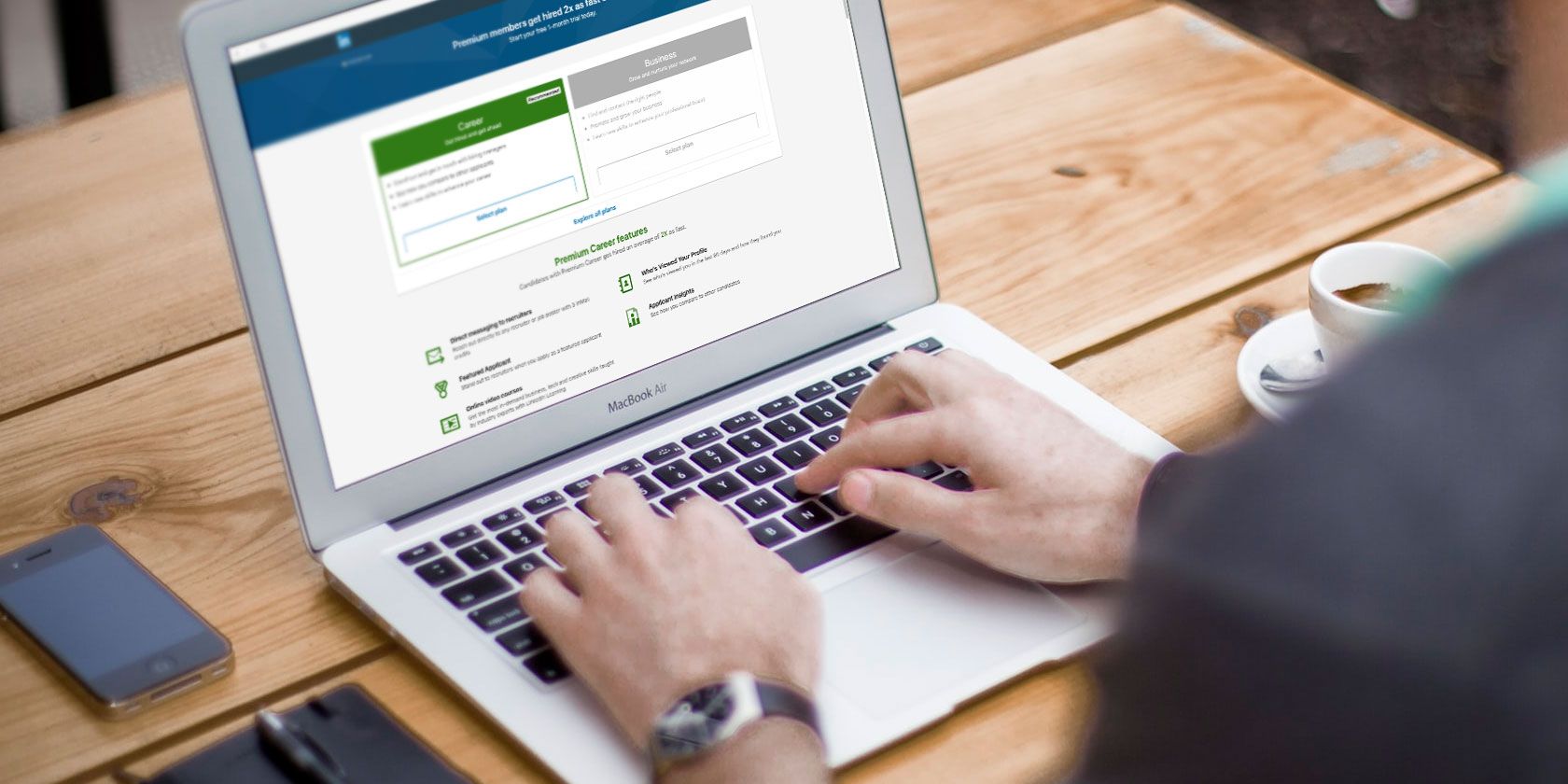
The most commonly known tier—Career—allows you to use LinkedIn Learning exclusives and advanced employment metrics to see how you perform against other candidates. LinkedIn Premium Career also gives you a monthly allowance of InMail credits, which you can use to contact hiring managers.

At the other end of the subscription tier, LinkedIn Premium Business gives you company insights and unlimited browsing.

As someone who’s tried out the “Career” tier more than once, I can definitively say that all of these features are very useful when searching for a job. If you’ve got the cash to pay for it, there are plenty of reasons to try LinkedIn Premium.

Unfortunately, LinkedIn Premium is expensive. And if you’re working full-time, the chances of you being able to make full use of the LinkedIn Learning catalogue are also pretty slim.

In which case, you may decide you want to cancel your LinkedIn Premium subscription. So here’s how to cancel LinkedIn Premium.

Note: We used a Premium Career account for this tutorial. However, cancelling a Recruiter Lite or a Sales Navigator account is done in a slightly different manner. As these account types are not the same thing as Premium Career or Premium Business, they will not be covered here.

How to Cancel LinkedIn Premium

How to Cancel My LinkedIn Premium Account

While cancelling LinkedIn Premium is simple, it’s important to note that Premium can only be cancelled through a web browser. The only exception to this rule is if you signed up for LinkedIn Premium directly through one of Apple’s subscription services.

1. Access Your LinkedIn Premium Account

To cancel your LinkedIn Premium account through a browser, log into your LinkedIn homepage:

  • On the top bar where it says Me, click on the white arrow.
  • After you click on the arrow, press Access My Premium.
  • Once you’re on your Premium page, you’ll see two tabs: My Premium and Explore Premium.
  • Under My Premium, there will be a main section with your personalized insights. You’ll also see a list of dropdown menus on the right-hand side, where you can look at different areas of information associated with your account.
  • Click on the Manage Premium account tab, to expand it.
  • Then click on Cancel subscription.

My LinkedIn Premium Account Controls

2. Confirm That You Want to Cancel LinkedIn Premium

LinkedIn makes it very easy for you to cancel your subscription, but the company doesn’t want you to leave for obvious reasons.

When you press Cancel subscription, the site will take you to another page where it will show you what you’ll lose if you cancel LinkedIn Premium. The company will also show you a list of additional options that you can consider, such as switching to a different plan that is more suited to your needs.

If you weren’t dead-set on cancelling your LinkedIn Premium account, this is the time to back out.

However, if you’re sure you want to leave, click Continue to cancel.

Switch LinkedIn Premium Plan or Cancel LinkedIn Premium

Once you click Continue to cancel, you’ll see a page where LinkedIn requires you to give feedback on your reason for cancelling. The options here are pretty straightforward, and you can pick only one.

If you don’t see an option that fits your needs, click on Other, and fill out the details.

After you’ve chosen your reason for leaving, click on Confirm cancellation.

Reasons You Should Cancel LinkedIn Premium

LinkedIn will then take you to one last page where it tells you that your cancellation was successful. From here, press Done. And that’s it. You has successfully canceled LinkedIn Premium through your browser.

As mentioned earlier, however, you can also cancel LinkedIn Premium through an Apple subscription service. Here’s how…

How to Cancel LinkedIn Premium Through Apple

How to Cancel LinkedIn Premium on iTunes

Now, it should be noted that according to LinkedIn’s help page, there is currently no way to cancel LinkedIn Premium through the LinkedIn mobile app on either iOS or Android.

The only exception to this rule is if you buy LinkedIn Premium directly through an Apple subscription service, such as iTunes or the App Store.

The reason for this is because Apple has very strict user privacy policies: the company keeps the purchasing history of its users centralized. You can read about Apple’s full instructions for cancelling any of your subscriptions on Apple’s help pages.

If you want to cancel your LinkedIn Premium subscription through the App Store on your Mac:

  • Open up the App Store.
  • Sign in with your Apple ID.
  • At the bottom of your left-hand sidebar, you’ll see your account name. Click on it, or sign in.
  • Once you’re signed in, click View Information at the top of the App Store. If prompted (for security reasons), sign in again.
  • Once you’re on your information page, scroll down until you see Subscriptions.
  • Click Manage.
  • Click Edit on your LinkedIn Premium subscription.
  • After you click Edit—and you’re taken to the details on your subscription—click Cancel Subscription.

To cancel your LinkedIn Premium subscription through your iOS device:

  • Go to the Settings app.
  • Tap on your name at the very top of the app.
  • Tap on Subscriptions next.
  • Once you’re in Subscriptions, tap on your subscription for LinkedIn. Please note, if you have not bought LinkedIn Premium through Apple directly, it will not show up.
  • Once you tap on your subscription for LinkedIn, choose Cancel Subscription.

What Happens After You Cancel LinkedIn Premium?

What Happens After I Cancel LinkedIn Premium

After you cancel LinkedIn Premium, there’s not much more that you need to do. At the end of your billing cycle, your account will revert back to a basic one and you’ll lose access to your Premium features.

The one major thing that I’ve noted—as someone who has cancelled LinkedIn Premium more than once—is that for the first few months after you unsubscribe, LinkedIn will send you lots of emails asking you to resubscribe to Premium.

These emails are frequent enough to get annoying, but if you ignore them they will eventually stop.

Quit LinkedIn Premium If It’s Not Right for You

While LinkedIn Premium is a great service with a lot of amazing features, there’s nothing wrong with cancelling the service if you don’t feel like it’s a right match for your needs. It’s just another tool that you can use to find a job, and not actually a necessity.

One thing you can do without a LinkedIn Premium subscription is follow companies you’re interested in? And here are the companies you should follow on LinkedIn.

Read the full article: How to Cancel Your LinkedIn Premium Subscription


Read Full Article