25 September 2018

Razer Wolverine Ultimate Review: Not Quite Elite


Our verdict of the Razer Wolverine Ultimate:
The Razer Wolverine Ultimate is a solid wired controller for Xbox One and PC, but it has some problems. It falls just short of the Elite controller is almost every aspect.
610

When it comes to video game peripherals, few names grab your attention quite like Razer. Whether you’re looking at mice, keyboards, headsets, or controllers, Razer makes them all and then some.

For Xbox One and PC gamers, Razer has the Wolverine Ultimate, which is its attempt to compete with Microsoft’s Elite controller. Both controllers come with hefty price tags–the Elite retails for $150 and the Wolverine Ultimate goes for an even more expensive $160. But does Razer justify its higher cost than the Elite? Is it the controller to own for your Xbox One? Let’s dig in and take a look, and at the end of this review, we’re giving one away to one lucky reader!

Razer Wolverine Specs and Features

Before I give you any of my opinions on the actual controller, let’s just run down the core specifications and features of the Ultimate so you can see where your hard-earned money is actually going.

  • Wired controller
  • 2 extra buttons & 4 triggers
  • Razer Chroma colored lighting
  • Trigger stops for short trigger throw
  • Swappable D-Pad and joysticks
  • Quick control panel for on-the-fly mode switching and mic control
  • Rubber grip (comes already installed unlike the Wildcat)
  • Switch-feel face buttons
  • Razer Synapse app on Xbox One for customization
  • 5mm audio port for standard headphones
  • 10-foot USB cable
  • Carrying case

Getting Started

You wouldn’t think we’d need to have a section dedicated to setting up a controller, but the Wolverine isn’t your run-of-the-mill controller. Its extra features and options means you’ll have to spend a few minutes getting things up and running (thankfully, the process isn’t as painful as Razer’s previous high-end controller which required manually sticking grips on).

To really take advantage of what this controller can do, you’ll want to download the Razer Synapse for Xbox One application. You’ll use this to customize the functionality of the additional buttons, adjust the 16.8 million color pallete featured within the Chroma settings, and tweak the controller functions. It’s a fairly robust application, and it’s where a lot of the customization for the device comes from.

In the box you’ll find the controller, extra buttons, carrying case, instructions, annoyingly-shaped USB cable (the shape prevents you from using most other cables you have kicking around) and all the other goodies you’ll need to get things up and running.

Extra Buttons and Features

When it comes to a controller like the Wolverine Ultimate, it’s all about the extra features and buttons. You’re spending money on a premium controller because you want extra performance, and Wolverine Ultimate is packed with extra stuff that you won’t find on a standard Xbox One controller (and even some you won’t find on the Elite).

For extra buttons, there are four on the back of the controller and two extra shoulder buttons on top, bringing the count up to six.

The extra buttons are all attached to the controller, so if you don’t like the way they feel, you’re stuck with them. The Wildcat offered rear triggers that could fold inside of the controller, and the Elite lets you remove them completely. This feels like a step backward, as the other thing that really makes these premium controllers stand out is customization.

There’s also switches that allow you to enable a shorter throw for the triggers, which is fantastic in shooters where the faster speed is optimal. It’s a standard feature on most of these sorts of devices, but it’s still nice to see here.

The face buttons are actually different than a standard controller, and they offer a more mechanical, clicky feel. It’s a change from the squishier face buttons on other Xbox One controllers, and it’s something you’ll know immediately whether you love or hate it.

Wait, There Are How Many Sticks?

The Wolverine Ultimate comes with two additional joysticks and one additional d-pad. The joysticks are a real letdown, as there’s only one long stick, one convex stick, and two standard concave sticks. If you want to use two long sticks or two convex sticks (something you can have with the Elite), you’re going to be disappointed.

The options for d-pads are better than the joysticks, as the two types you’d want are both included. While both directional-pad options are okay, neither feels amazing, but we’ll get to that in a bit.

But It Feels Nice in Your Hand

Another feature you find with most premium controllers is the grip, and the Wolverine Ultimate is no exception. It offers a more subtle grip texture than most other controllers on the market, but it still has more grip than a standard controller that’s coated only in plastic.

This is one place where I prefer the Ultimate over the Elite. The slightly less textured grip feels fantastic.

Chatting With Friends

One place where the Wolverine Ultimate does shine is down by the headphone port. There are four buttons there, two of which are used for customizing the extra buttons on the fly. The others are used for voice chat — one controls volume and the other lets you quickly mute your mic without digging into the Xbox Settings app. These offer a nice convenience that you won’t find elsewhere.

It seems like Razer packed as many extra features as it could into this controller to make it worth the money, but sometimes less is more and it really comes down to…

The Feel

You can throw as many extra features as you want on a controller, but if it doesn’t feel good, none of that matters. To put it simply: the Wolverine Ultimate doesn’t feel bad, but it isn’t amazing either.

Let’s start with the additional buttons, as that’s a big part of why you’re spending the $160 on this controller. As I said before, these buttons aren’t removable, and for me, that’s a deal breaker.

I love the Elite controller, but I only use one of the rear buttons on mine and I remove the rest. I just don’t need them for the way I play. Being stuck with them on forces me to change the way I hold the controller, and that’s never pleasant.

If you like leaving the rear buttons attached, they do feel pretty good, and I actually like their position better than the Elite controller. They’re more like buttons than the paddles on the Elite controller, and like most things with these two devices, which you prefer will largely come down to preference.

My complaints don’t apply to the extra buttons on top of the controller, as they don’t get in the way. These are perfectly positioned to grant access without changing anything about the way you use the controller. They’re setup so that you can just reach a little past the trigger and press them comfortably. It seems like such a no-brainer and it’s surprising that these buttons haven’t been used in other controllers.

I’m not in love with the way to d-pad functions, regardless of which of the two are installed. First of all, if you push too hard on either of the d-pads, they lift up from their hole. Even without pressing too hard, neither d-pad feels great for games where you’ll need to use them regularly (like fighting games).

The Size

One thing I love about the Elite controller is weight — it’s a beefy controller. The Wolverine Ultimate is actually lighter than a standard Xbox One controller. If you’re looking for a lightweight controller, it’s the one to go with.

Here are the weights of the three controllers:

  • Razer Wolverine Ultimate: 260g
  • Xbox One controller: 280g
  • Xbox One Elite: 348g

This is all a matter of preference. Some people prefer a lighter device in their hands and some prefer the extra weight. There’s no right or wrong, but I like the heavier option.

Moving onto the grip, I actually quite like the feel of the Ultimate. It’s less textured than the Elite, but it offers enough that it feels stable in your hand. The grip on the back is definitely my favorite thing about the controller, and while I wasn’t able to use it for months to test it, it feels durable (my Elite controller’s grips are starting to come unglued).

The Good and The Bad

I see you out there: person who doesn’t want to read my in-depth thoughts on the Razer Wolverine Ultimate controller. Here’s a quick breakdown of what’s good and bad with this high-end gaming accessory.

The Good Stuff

  • Controller is comfortable to hold
  • Rubber grips feel amazing
  • Feels extremely well built
  • Easy to remap and customize buttons
  • Extra shoulder buttons
  • Lighter than the Elite (could be a negative, depending on your preferences)
  • Nice carrying case

The Bad Stuff

  • Doesn’t support wireless play
  • Shape of USB port on controller won’t fit most standard cables
  • Only comes with two additional joysticks and they’re different sizes
  • D-pad pops up when pushed too hard
  • Can’t remove rear triggers
  • Cost more than the Elite controller

Should You Buy The Razer Wolverine Ultimate?

In a vacuum, I could easily recommend the Wolverine Ultimate, as it’s actually a pretty solid controller in spite of not being wireless.

However, we live in a world where the Elite controller exists, and it’s just a little bit better in just about every way. It’s wireless, it feels better, and it’s cheaper. It remains the best controller currently available, and Razer doesn’t offer enough to knock it off the top of the mountain.

If you’re in the market for a premium controller, you should really snag an Elite, as you’ll end up getting more controller for less money and you won’t have to deal with wires.

Enter the Competition!

Razer Wolverine Ultimate Giveaway

Read the full article: Razer Wolverine Ultimate Review: Not Quite Elite


Read Full Article

How to Win HQ Trivia: 7 Tips and Tricks

5 Quick Ways to Play Audio on Mac Without Installing Anything


If you want to play a single audio file without installing anything new on your Mac, there are several ways to do so using default apps that come with your Mac.

Maybe someone sent you an audio file or you downloaded a podcast you want to listen to on your Mac. Today we’ll show you the options you have for playing an audio file without installing any extra or third-party software.

1. Play Audio Using iTunes

Whether you use iTunes or not to manage your music, you can use it to quickly play an audio file without adding the file to the iTunes media library.

Launch iTunes and then open a Finder window and navigate to the audio file you want to play.

Hold down the Alt/Option key while dragging the audio file onto the iTunes window. The audio file is added to iTunes, but not copied to the media library folder on your Mac (~/Music/iTunes/iTunes\ Media/), even if the Copy files to iTunes Media folder when adding to library option is on in iTunes > Preferences > Advanced.

Press Alt/Option and drag an audio file into iTunes on Mac

You can minimize the iTunes window while your audio file plays, so you can do other things on your Mac.

If you don’t want to leave the audio file in iTunes after listening to it, you can delete it when you’re done. If you leave the file in iTunes, it will be backed up if you manually back up your iTunes library, even though the file is not in your media library.

Delete an audio file in iTunes on Mac

2. Play Audio Using Get Info in Finder

An easy way to play an audio file is to use Get Info in Finder.

Select the file you want to play and press Command + I. In the Preview section on the Get Info pane, move your mouse over the album cover and click the Play button.

The audio file plays while the Get Info window is open, and it continues to play when you minimize the Get Info window. When you close the Get Info window, the audio file stops playing.

Play an audio file using the Get Info window in Finder on Mac

3. Play Audio Using Quick Look in Finder

Quick Look in Finder provides an even quicker way to play an audio file.

Select the audio file you want to play in Finder and then press the space bar. The Quick Look dialog box displays, and the audio file starts playing automatically.

The disadvantage of this method is that the Quick Look window needs to stay open and in focus for the audio to keep playing. If you minimize or close the window, the audio file will not keep playing in the background.

Play an audio file using Quick Look in Finder on Mac

4. Play Audio Using QuickTime

If you want to play an audio file in the background, but you don’t want to use iTunes at all, QuickTime is a quick and easy solution.

In Finder, right-click on the audio file you want to play and go to Open With > QuickTime Player.app.

Open an audio file using QuickTime on Mac

The QuickTime window opens, but the audio file does not play automatically. Click the Play button to begin playing the audio file. You can minimize the window and the audio file continues to play while you do other things on your Mac.

You can also drag and drop an audio file onto the QuickTime window to play it.

Click Play in the QuickTime Player app on Mac

5. Play Audio Using the Command Line

If you like using the command line, you can use the afplay command to play an audio file, including playing it in the background. We’re going to play an MP3 file in our example, but you can play many other audio formats using afplay.

Open Terminal from Applications > Utilities. Then, run the following command, replacing audiofile.mp3 with the full path to the audio file you want to play:

afplay audiofile.mp3

For example, our command looks like the following:

afplay /Users/lorikaufman/Music/MyMusic/Doctorin\ The\ Tardis\ -\ Timelords\ -\ The\ KLF.mp3

If there are spaces in your path or file name, put a backslash in front of each space.

To play an audio file from your iTunes library, use the following folder path in the afplay command:

~/Music/iTunes/iTunes\ Media/Music/.

If the Keep iTunes Media folder organized option is enabled in iTunes > Preferences > Advanced, you can use tab completion to navigate to the artist, album, and then song. Songs start with the track number when this option is on.

Play an audio file using afplay on the command line on Mac

To use the afplay command to play an audio file in the background, add a space and then an ampersand (&) to the end of the command. For example, our command to play an audio file in the background looks like the following:

afplay /Users/lorikaufman/Music/MyMusic/Doctorin\ The\ Tardis\ -\ Timelords\ -\ The\ KLF.mp3 &

You do not have to leave the Terminal window in focus or even leave the window open. You can close the Terminal window and the audio file keeps playing.

When you close the Terminal window, you’ll be asked if you want to terminate the afplay process. It may seem strange but click Terminate. Your audio file continues to play.

Click Terminate for a process in a Terminal window on Mac

To stop an audio file you’re playing in the background using the afplay command, open a Terminal window again and type the following command:

killall afplay

The audio file stops playing instantly.

Run the killall command for afplay on Mac

Other Ways to Play Audio Files on Mac

The options we discussed here are all available using tools included in the Mac system. But there are other music player apps out there that can play audio files (and other types of media files) if you want an app to play your music but don’t want to use iTunes.

Also, if you have an old iPod that has music you want to get off of it, you can transfer those audio files to your computer.

Read the full article: 5 Quick Ways to Play Audio on Mac Without Installing Anything


Read Full Article

How to Remove a Single URL From Google Chrome’s Autofill Suggestions


chrome-extensions-security

Like many people, I rely on Chrome’s autofill feature every day. You can start typing an URL in the address bar, and Chrome will show you a list of entries that match your entry. The more you type, the more refined Chrome’s suggestions become.

But what if Chrome keeps suggesting an address that’s not relevant? For example, if you made a typo? Or what about if you use a shared computer and you don’t want the other users to discover what you have been looking at. Autofill can be a privacy risk. Clearly, you need to remove the entry.

But how do you remove a single URL from Chrome’s autofill suggestions? It’s actually straightforward, even though there are absolutely no pointers within the Chrome app itself that explain how to accomplish it, or even suggest that it’s possible.

How to Remove a Single URL From Chrome Autofill

To remove a single URL from Chrome’s autofill suggestions, follow the simple step-by-step instructions below:

  1. Open the Chrome app.
  2. Start typing a URL until the entry you want to erase appears.
  3. Use the Down arrow key to highlight the entry.
  4. Press Shift + Delete.
  5. The item will vanish from the autofill suggestions.

Of course, if there are lots of entries you want to delete, you might need to take a more nuclear option and erase all of Chrome’s browsing data. Doing so will reset the app to a fresh state.

To delete Chrome’s browsing data, open the More menu (three vertical dots) and go to Settings > Advanced > Privacy and Security > Clear Browsing Data > Advanced. Tick all the appropriate checkboxes and hit Clear data to complete the process.

To learn more about security on the web, check out our list of steps that can improve your online privacy right now.

Read the full article: How to Remove a Single URL From Google Chrome’s Autofill Suggestions


Read Full Article

Facebook sends Sphero robots so classrooms can apply coding education


Program a robotic toy to move and you could be hooked on coding for life. That’s the idea behind Facebook’s newest educational initiative called CodeFWD. It provides online coding tutorials for teachers and students powered by Code.org, and if classrooms finish those, they can apply to be sent a free Bolt robot from Sphero, makers of the popular animatronic R2D2 Star Wars toy. Students can then learn how to use block-based JavaScript to make Bolts roll if different directions, light up, and interact with each other.

CodeFWD’s launch comes alongside the debut of the social network’s new Facebook For Education website that could help Facebook repair its public image by touting its positive contributions to society. After a year of Cambridge Analytica, election interference, and digital well-being worries, Facebook’s brand needs all the help it can get.

Education.fb.com compiles Facebook programs including TechPrep for easing students into computer science, Oculus Next Gen and TechStart for getting VR headsets into classroom and college programs, Oculus For Good and LaunchPad for supporting philanthropic VR content and diverse creators, and Facebook’s own tools like Workplace and Groups for teachers.

One more new program launching this month called Engineer For The Week teaches teens applied computer science after school. Students build chatbots and games to support a local cause while learning the fundamentals of computational thinking over a three-week regimen of collaborating with Facebook’s own engineers. Engineer For The Week runs four times per year with the next cycle starting October 1st that culminates in a two-day hackathon at Facebook HQ.

Beyond bolstering Facebook’s brand, the coding education programs could supply Facebook’s engineering needs a decade later. “We know that it’s important to make sure we’re supporting the next generation of diverse talent. It can really widen the pipeline” says Facebook Education’s director Lauryn Hale Ogbechie. “I think it’s of benefit to any tech company and the industry more broadly. If we’re able to support students staying computer science . . . that will benefit everyone down the road.”

Right now, Facebook’s US staff is just 4.9 percent Latinx and 3.5 percent black. Looking at technical roles it’s even worse, with just 3.1 percent Latinx and 1.3 percent black. It’s only managed to nudge those numbers up slightly over the past five years.

To drive inclusivity in engineering from a younger age, Facebook has piloted the CodeFWD program at the Harlem Children’s Zone, and Austin’s  Latinitas. The company tells me it will continue to target underserved students, and the program is open to fourth grade to eight grade classrooms with credentialed teachers as well as registered non-profits that have Internet access and computers for students.

Facebook will pay for the $150 Sphero Bolt robot kits which are free for teachers (who need no prior programming experience), though it won’t say how many it plans to distribute. Once they and their classes complete the teacher-only I Do, teacher-student We Do, and student practice You Do coding tutorials and their quizzes, they can apply for a robot. Facebook will prioritize applications that expand computer science education to the underserved. And the company notes that “Facebook will have access to aggregate, anonymous usage data from Sphero”. It’s always ready to seize on new types of data.

Facebook’s philanthropic efforts like this are often overshadowed by its privacy and political scandals. The company’s heart is usually in the right place, even when it’s naive, clumsy, or ruthless in its execution. If anything, Facebook would benefit from a broader range of perspectives on which is the right path forward. Hopefully these education programs will see the wealth it’s accumulated today contribute to a more diverse set of leaders for tomorrow.


Read Full Article

How to Use the Color Picker and Paint Bucket in Procreate


Most drawing and design apps have an eyedropper tool that makes it easy to select a color that’s already on your screen. iPad drawing app Procreate has a similar tool, but it’s not that obvious at first glance.

If you want to pull a color from a photo you’re using as a reference or want to reuse a color that you’ve already used in your image, it’s actually very easy to pick out that color.

To select the color on the screen, tap and hold with your finger on the section of the picture with the color until it shows up in the color selection tool in the top right corner of the screen.

If you want to use that color to fill in a shape or drawing in your image, Procreate also has the equivalent of a paint bucket tool but it’s also somewhat hidden.

To fill in your shape or drawing, tap and hold your Apple Pencil, stylus, or finger to the same color tool in the top right corner and drag it to the shape you want to fill and then let go.

If you’re filling a particularly small shape, it helps to zoom in or to use the Apple Pencil for more precision.

Also note that when using Procreate’s “paint bucket tool,” make sure that you’re using it to fill in closed shapes. If your lines aren’t completely joined, you will find that the color fills the entire canvas.

While Procreate really shines on the iPad Pro, now that you can use the Apple Pencil with the sixth generation 2018 iPad, it makes the use of the app far more accessible and affordable to people who don’t want to shell out over $600 for a tablet.

Read the full article: How to Use the Color Picker and Paint Bucket in Procreate


Read Full Article
How to Customize the Google Chrome New Tab Page Without Extensions


cool-chrome-flags

Is your new tab page looking a little bland? Chrome’s default new tab page is essentially a copy of Google’s homepage, reskinned with whatever Chrome theme you’ve selected.

Aside from a search bar and links to your most-visited sites, this page doesn’t offer much functionality. With the latest release of Chrome, Google now allows you to customize this.

Customizing Google Chrome’s New Tab Page

Open a new tab in Chrome by clicking the Plus button at the top, or using the shortcut Ctrl + T.

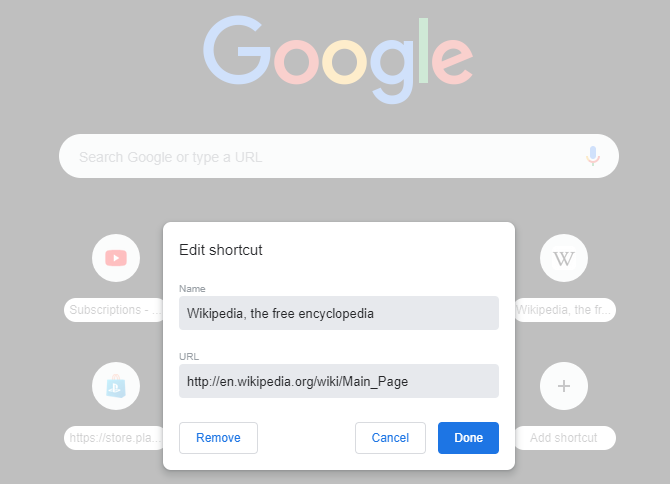
In the middle of the page, you’ll see icons representing your most-visited pages. Click the three-dot button that appears over one to edit its name or URL. You can also choose Remove if you don’t need it.

Click the Plus button to add a new shortcut. Just like when adding a new bookmark, provide a name and URL for it.

Chrome-New-Tab-Page-Links

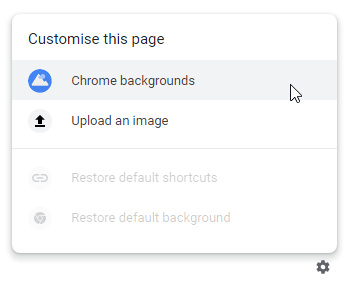
In the bottom-right corner, you’ll see a small gear icon. Click this, and you can change the page’s background. Select Chrome backgrounds to choose from a variety of images from Google, or you can Upload an image of your own.

Chrome-New-Tab-Background-Options

If you choose Google’s backgrounds, you can browse through a variety of categories and select the image you like best. Once you pick one, it will instantly become the background for all new tabs.

Chrome-New-Tab-Google-Backgrounds

You might wonder what the point of this is when you can install a variety of extensions to change the new tab page. As it turns out, this is much better for security. Browser extensions are notorious for leaking your private information. Even trustworthy extensions are often sold to spammers, who cram them full of shady behavior.

You’re best off sticking to Google’s customizations here instead of using another extension that you shouldn’t have installed anyway. For the little amount of time you spend on this page, this should be all you need.

Read the full article: How to Customize the Google Chrome New Tab Page Without Extensions


Read Full Article

How to Enable or Disable Text Suggestions in Windows 10


We are used to text suggestions thanks to smartphone keyboards. Those little popups that display what we want to type next are time-savers. But they can also be annoying if you’re mixing languages.

Fortunately, the text suggestions in Windows 10 can be enabled or disabled with ease, for both hardware and software keyboards.

How to Toggle Text Suggestions in Windows 10

Text suggestions are a handy aid for poor spellers. They can also speed up your text input with both hardware and software keyboards on Windows 10. Text suggestions work on all Windows 10 apps and on Edge too.

  1. Open Windows 10 Settings.
  2. Click on Devices > Typing.
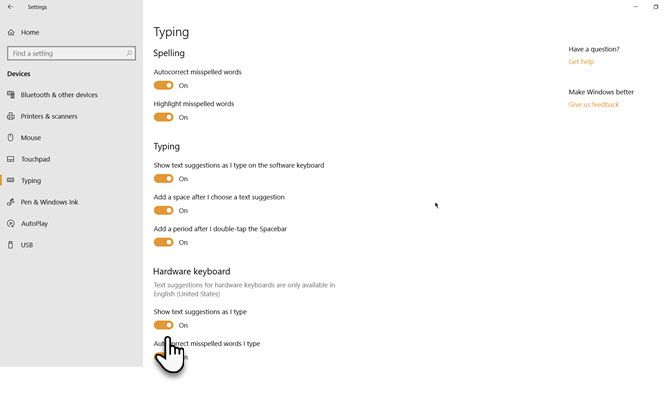
  3. Go the Hardware keyboard section. Toggle the Show text suggestions as I type to the On position.
    Windows 10 Text Prediction
  4. You can also choose to enable Autocorrect misspelled words I type on the hardware keyboard and the other options like Add a space after I choose a text suggestion for the hardware keyboard to make your typing smoother.
  5. To enable text suggestions on the Software keyboard, enable the Show text suggestions as I type on the software keyboard as well.

Text suggestions are only supported by Microsoft on the English (US) language keyboard now. Go to Settings > Time & Languages > Region & languages and check the setting.

Take some time to know the different keyboard options in Windows 10. For instance, the Windows 10 touch keyboard (which is different from the On-Screen Keyboard) has a cute emoji panel that can help you be more expressive in your casual conversations online.

Image Credit: realinemedia/Depositphotos

Read the full article: How to Enable or Disable Text Suggestions in Windows 10


Read Full Article
Become an iOS App Developer with 100 Hours of Video Training for $29


It’s a great time to be an app developer. With more iPhones in the world than ever before and the Apple Watch taking off, the App Store is hot right now. If you want to start a career in code or launch your own app, the Essential iOS 12 Development Bundle offers 100 hours of learning. You can get the training now for just $29 at MakeUseOf Deals.

iOS, macOS, watchOS, and more

With iOS 12 just around the corner, Apple is about to unleash loads of cool new features. If you want to get ahead of the curve or just take your first steps, this bundle offers the perfect education.

Through six in-depth courses, you learn how to build apps for every Apple platform. The videos help you get started with Apple’s core dev tools, including Swift 4 and Xcode 10. You also learn about the latest features of iOS and watchOS, along with basic Mac development.

The training starts from scratch, with step-by-step tutorials from veteran developers. The courses provide loads of fun projects to try, from cloning Tinder to creating your own exercise app. This means you gain real-world experience, while also building a portfolio.

Along with the code, you learn about app design. The courses on UI and UX design help you to create perfect mockups in Sketch, and understand your users.

100 Hours for $29

Order now for $29 to get lifetime access to all 100 hours of training, worth $975.

Read the full article: Become an iOS App Developer with 100 Hours of Video Training for $29


Read Full Article

5 Cruel but Effective Apps for Dealing With Annoying Coworkers

Google CEO Sundar Pichai will reportedly meet with Republican lawmakers this week


Google CEO Sundar Pichai will meet in private with Republican lawmakers on Friday to discuss issues including its work in China and alleged political bias, reports the Wall Street Journal. The meeting was organized by House Majority leader Kevin McCarthy, who has accused Google of “controlling the internet” by boosting negative news stories about conservatives in its search results, despite the company’s denials.

The WSJ reports that Pichai also plans to appear at a House Judiciary Committee hearing scheduled to take place in November after the mid-term elections.

Pichai told the newspaper that “I look forward to meeting with members on both sides of the aisle, answering a wide range of questions, and explaining our approach. These meetings will continue Google’s long history of engaging with Congress, including testifying seven times to Congress this year.”

A vocal opponent of net neutrality, McCarthy tweeted earlier this month that “an invite will be on its way” to Google, which he accused in the same tweet of making a “silent donation” to an unnamed left-wing group to stop Trump; working with Russia and China to censor the Internet even though it cancelled a U.S. military contract and ignoring a Senate hearing.

McCarthy told the WSJ that “Google has a lot of questions to answer about reports of bias in its search results, violations of user privacy, anticompetitive behavior and business dealings with repressive regimes like China.”

As an example of what he claims to be Google’s anti-conservative bias, McCarthy previously cited search results that listed “Nazism” under the California Republican Party’s ideologies. Google blamed vandalism on Wikipedia for the descriptor, which appeared in an information box, and quickly removed it.

Though McCarthy did not specify what contract he was referring to in his tweet, it may have been Project Maven, an aerial drone imaging program that provided artificial intelligence to the Department of Defense. Google reportedly decided not to renew the contract when it expires because of ethical concerns and employee backlash.

In August, however, sources told the Intercept that Google is working on a version of its search engine for China, code-named Project Dragonfly, that would adhere to the government’s censorship regulations. This prompted bipartisan outcry and more employee backlash, including the resignation of senior research scientist Jack Poulson. Poulson told the Intercept that about five of Google’s employees have resigned over Project Dragonfly, which he says represents “the forfeiture of our public human rights commitments.”

As part of the Republican Party’s onslaught against what it perceives to be political bias on social media, Attorney General Jeff Sessions will also meet with state attorneys general to discuss social media’s alleged suppression of conservative users.

TechCrunch has contacted Google for comment.


Read Full Article

Instagram’s founders are reportedly resigning from Facebook


Eight years after launching Instagram and six years after selling it to Facebook, Instagram co-founders CEO Kevin Systrom and CTO Mike Krieger are leaving the company, according to The New York Times. The founders apparently did not give a reason for their departure when they informed the company today that they’re resigning and that they’ll depart in the next few weeks. But after growing the app to 1 billion users, conquering its archrival Snapchat, turning it into a massive advertising business, they may feel they’ve done their duty and are ready to tackle different challenges.

The departure follows fellow Facebook acquisition WhatsApp’s founders leaving under much more grim circumstances. Brian Acton cited Facebook privacy concerns amongst reasons for his departure, tweeting “Delete Facebook” amidst one of its recent scandals. Over the coming days, we’ll investigate whether any similar concerns contributed to the exit of the Instagram founders. Instagram spokespeople did not respond to several requests for comment.

CEO Kevin Systrom still gives final approval of all ads on Instagram

The pair, former Stanford classmates, originally built a social location app Burbn but discovered its photo filters were by far the most popular part of the app. By combining tools to make grainy photos from early smartphone look good with a social feed for sharing them, Instagram became perhaps the world’s most succesful mobile app. Deemed such a threat, Facebook spent $715 million to acquire the startup and its less-than 50 million monthly users.

Supercharged by Facebook’s engineering team, Krieger could finally rest a little after spending years fighting server fires in attempts to manage Instagram’s meteoric growth. Sales, internationalization, anti-spam, and other resources from Facebook let Instagram fuel its growth and sprout an advertising business.

The moment of truth for Instagram came in late 2016 with the launch of Stories, a clone of Snapchat’s trendy ephemeral sharing feature. At the time, Systrom admitted “they deserve all the credit”. But by jamming Stories atop the already-thriving Instagram feed, sorting them to show your best friends first unlike Snapchat, and focusing on performance in developing countries Snap neglected, the copycat soon surpassed the original. Instagram Stories now has 400 million daily users compared to 188 million on Snapchat’s whole app.

During those six years, Instagram also had its share of troubles. Cyberbully became rampant, leading the company to eventually invest heavily in artificial intelligence and human moderators to keep the app clean. Russian military operatives spread misinformation and propaganda on Instagram that reached 20 million Americans, implicating the company in an election interference scandal that will continue through the upcoming mid-term elections.

Facebook had largely allowed Instagram to run independently. Systrom and Zuckerberg worked closely, yet Instagram wasn’t forced to drown its users in cross-promotion for other Facebook products or make worrying privacy decisions.

But in May, Instagram’s beloved VP of Product Kevin Weil moved to Facebook’s new blockchain team and was replaced by former VP of Facebook News Feed Adam Mosseri — a member of Zuckerberg’s inner circle. Chris Daniels, head of Internet.org, was meanwhile moved to oversee WhatsApp. Together, the moves seemed to endanger the independence of the conglomerate’s top acquisitions by appointing Facebook loyalists at the top. Without Systrom and Krieger, Instagram could see its autonomy dwindle. That might in turn endanger its ability to recruity retain talent.

Perhaps the strongest legacy of Systrom and Krieger will be how Instagram changed global culture. It made non-artists feel creative, and let people give friends a window into their world, engendering empathy and friendship.

At the same time, a desperate lust for Likes led many people to manicure their online image while hiding their sorrows and vulnerabilities. Instagram became the premier venue for success theater, where people engender health-harming envy in others by showing off just their most glamorous moments. And when Instagram launched Stories to try to get users to share more than just their life highlights, it ended up normalizing the behavior of interrupting every special moment with their smartphone camera.

Systrom took a stand on the digital well-being issue, saying “We’re building tools that will help the IG community know more about the time they spend on Instagram – any time should be positive and intentional . . . Understanding how time online impacts people is important, and it’s the responsibility of all companies to be honest about this. We want to be part of the solution. I take that responsibility seriously.”

Perhaps Systrom and Krieger’s next project will seek to offset some of the distortions to society caused by their creation.


Read Full Article

You Can Now Search Amazon Using Snapchat


Snap is rolling out a new tool for Snapchat. Called Visual Search, this lets you search Amazon by pointing your Snapchat camera at products in the real world. Which is good news for Amazon, and bad news for your bank balance.

Just Point Your Snapchat Camera at a Barcode

Snapchat’s Visual Search does exactly what its name suggests. As explained on the Snap Blog, you simply “point your Snapchat camera at a physical product or barcode, and press and hold on the camera screen to get started.”

When the app recognizes that product or barcode, it will display an Amazon card on your screen. This will show a link to the product you just snapped or a list of similar ones available to buy on Amazon. Tap on a product and you’ll be directed to Amazon.com.

Snap is currently only testing Visual Search with selected users in the U.S. However, based on the fact the company has officially announced the feature, this isn’t a test that could lead nowhere. Instead, it’s just the start of a (potentially) slow rollout.

If you’re in the U.S. you’ll likely get to use Visual Search within the next few months. Then, depending on its popularity, and the deal Snap has in place with Amazon, Visual Search should be rolled out to users in other countries as well.

Snapchat Must Be Making Money From Visual Search

Snap is refusing to say whether it’s making any money from Visual Search. However, we would assume Amazon is willing to pay Snap every time Snapchat sends someone its way. If that’s not the case then Amazon has secured a very sweet deal indeed.

If you don’t currently use Snapchat but are now tempted to do so, check out our complete beginner’s guide to using Snapchat. And if you want to try similar tools we recommend giving Google Lens or Microsoft’s Visual Search a try.

Read the full article: You Can Now Search Amazon Using Snapchat


Read Full Article

10 Real-World Blockchain Applications and Use Cases Beyond Cryptocurrency


blockchain-real-world

Cryptocurrency might be stealing all the headlines, but there are many more uses for blockchain technology beyond investing in digital coins. Indeed, blockchain has the potential to be just as ground-breaking as the internet was back in the 1990s.

But what exactly is blockchain technology used for, aside from cryptocurrency? Here are several real-world examples to wrap your mind around.

1. Protecting Endangered Species

A combination of global warming and habitat loss means the world has seen its vertebrate population more than half in the last four decades. It’s the first mass extinction since the loss of the dinosaurs 65 million years ago.

Blockchain technology could be invaluable to people who are trying to protect endangered species. A Uganda-based NGO, Care for the Uncared, is working with blockchain specialists in London to create a new way to track and record species’ health, geographic location, and migration patterns.

2. Changing the Oil Markets

Perhaps ironically, given that many people blame the petroleum industry for the decline of biodiversity in the world, a blockchain is also working to help oil companies in the United Arab Emirates to become more efficient.

In February 2018, S&P Global Platts (a global provider of commodities information) announced it would launch a blockchain-based oil storage reporting system in the UAE’s Fujairah Oil Industry Zone.

Thanks to its data validation capabilities, the blockchain will significantly reduce the need for regulatory oversight of data and will help to eliminate human error.

3. Electronic Voting

Due to inherent issues with security and voting fraud, very few countries have made the switch to electronic voting machines (EVMs).

And that’s a shame. It’s hard to deny that EVMs make voting more accessible and thus have the potential to increase democratic participation. However, most countries have decided that the risks outweigh the positives.

Blockchain could offer a solution. A blockchain’s immutability means that issues such as double voting, vote altering, and vote deleting would be eradicated overnight. The blockchain would also remove the need for vote counting and lead to almost instantaneous results after the polls close.

4. Healthcare

One of the sectors in which blockchain technology is proving to be most transformative is the healthcare industry. Experts suggest it will improve everything from patient record-keeping to supply chain tracking.

In September 2018, IBM’s blockchain division even announced plans for a new app that uses a private blockchain to allow users to retain complete control over their healthcare data. The app possibly paves the way for them to sell it at their own discretion in the future.

For more information on how blockchain is changing the healthcare landscape, check out Gavin’s article on blockchain in healthcare.

5. Gaming

With the rise of in-game purchases and microtransactions, many gamers now have vast repositories of “stuff” connected to their various accounts. Clearly, this creates security issues. What happens if a hacker steals it? What happens if the parent’s company’s servers go offline? And so on.

By deploying a blockchain, gamers will finally be able to own these items outright and enjoy complete control over their status. Transferring in-game items to other people will become easier and more secure, and no one can maliciously replicate them.

Here’s how Ubisoft’s Lidwine Sauer told IGN about the security benefits of the upcoming gaming revolution:

“Thanks to the blockchain, we can now have the equivalent of a digital Picasso, with the advantage that it’s a lot more difficult to steal something on the blockchain than to steal a Picasso.”

6. Smart Contracts

Smart contracts allow companies and individuals to create secure digital relationships. For example, a blockchain smart contract could underpin a complex legal transaction or an insurance agreement.

The hope is that a blockchain can reduce the need for intermediaries and consequently make such processes both more secure and cheaper.

I’m not going to dwell on the technical inner workings of these things, but if you’d like to learn more, read our article on how smart contracts work.

7. Fighting Fine Art Forgery

Art forgery has existed for almost as long as art itself. But could blockchain technology finally help to beat the criminals definitively?

US company Verisart certainly thinks so. By using a blockchain, it has allowed both artists and owners to create museum-standard verifications online from their own home. At the moment, the app is invite-only. It should soon become available to everyone.

8. Tax Collection

Look, we can’t have it both ways. While blockchains provide individuals with greater transparency and control of their data, they can do also do the same thing for governments. And that can only mean one thing—tax collection!

In China, authorities are now using a blockchain for both taxation and issuing electronic invoices. The project was put in place in 2017, with the first blockchain-based invoice on the system being created in August 2018 by a local restaurant.

9. Food Safety

There is a litany of cases whereby a bad batch of food produce shut down an entire sector of the industry. The UK’s BSE crisis of the 1990s, China’s infant milk scandal in 2008, and the 2006 E. coli outbreak in North America all spring to mind.

Blockchain technology can help to reduce these types of instances by creating a massive database of the provenance of food, always with all the associated details. The transparency will improve food safety, cut costs, and reduce waste.

10. Computer Security

Barely a week goes by without a news story about a data breach at a large organization. Hackers can react to exploits faster than companies, leading to an endless game of cat and mouse.

Blockchains might finally make the cat victorious. The technology has three key traits that lend themselves to cybersecurity: data that cannot be tampered with, decentralization, and cryptographic security.

One example of blockchain-based cybersecurity can be found at Guardtime.

The company, which is headquartered in Amsterdam, provides a keyless signature infrastructure via a blockchain. It decentralizes all the cryptographic keys, thus making them unhackable. Most companies use a public key infrastructure system. The keys are maintained by a central body where they are considerably more vulnerable to theft.

The Ongoing Revolution of the Blockchain

These examples of companies using blockchain technology and other real-world blockchain applications only scratch the surface of a sector that’s ready to explode. Millions of dollars of research money are being invested—it’s only a matter of time until blockchains play a role in every aspect of our daily lives.

To learn more, check out our articles on how a blockchain works.

Read the full article: 10 Real-World Blockchain Applications and Use Cases Beyond Cryptocurrency


Read Full Article

MetroPCS is now Metro by T-Mobile


It’s been five years since T-Mobile picked up MetroPCS, and now the prepaid service is finally getting a fresh coat of paint. The “PCS” bit is getting the old heave ho, while the brand’s owners are letting you know who’s boss with the new Metro by T-Mobile brand name.

The new name involves some new plans, along with a couple of perks from key partners. There are two new (pricier) tiers, in addition to the standard ones. The new unlimited plans run $50 and $60 a month, and both include storage via Google One.

That makes the newly rebranded service the first to offer up access to Google’s new storage plan. The cloud deal also offers access to Google Experts, who can help you troubleshoot issues with any Google service.

The $60 a month plan, meanwhile, tosses in Amazon Prime for Google measure. That’s not exactly a solid reason to upgrade in an of itself, given that an Amazon Prime plan currently runs $119 a year, but the more premium plan offers 15GB of LTE data for its mobile hotspot versus 5GB.


Read Full Article

You can play Alto’s Adventure on your Mac now


Everyone’s favorite endless, serene snowboarding game just made the leap from mobile to the Mac App Store. Available now for $9.99, Alto’s Adventure for Mac is a desktop port of the side-scrolling snowscape game that’s won hearts and accolades since it first hit iOS in 2015.

Earlier this year, the team behind Alto’s Adventure introduced a second game, Alto’s Odyssey, which trades the first game’s snowy terrain for sand and sun while maintaining its charm. If you’ve already spent some time with Alto’s Odyssey, the Mac version of the classic is a good reason to circle back.

The game’s serene setting and blissed out music make Alto’s Adventure eminently replayable, even if you’ve already sunk tens of hours into lengthening your scarf in an infinite procedurally generated snowy world dotted with charming villages, dramatic slopes and many, many things to trip over.

If you’ve yet to dive into Alto’s Adventure, and we really recommend that you do, the Mac version is probably a good starting place. For everyone else, progress in the game syncs across devices through iCloud, so it’s a good excuse to push a little further into one of the most thoughtful, pleasant mobile game experiences to date.

And while you’re hanging out in the Mac App Store, don’t forget to update to Mojave — Apple’s latest desktop operating system is available now.


Read Full Article

No Sound in Windows 10? 7 Tips to Fix Audio Issues


nosound-windows-10

Windows is well known for its dazzling array of odd errors and malfunctions appearing out of seemingly nowhere designed to drive you up-the-wall and around-the-bend. The best part of all? You never know when something is going to happen. In many cases, you’ll have no idea what introduced the problem to your system.

Windows 10 has a plethora of well-documented issues, and has pushed many users to the brink of insanity. Luckily, those people who manage to step back into the real world come clutching their fixes, and we’ll share some of those golden-nuggets with you.

1. Check Your Sound Settings

Windows 10 All Sounds Muted

Now, before you say “But Gavin, I’ve done that,” have you really done that? It can be the most obvious things we overlook. Without insulting your computing ability, make sure to check you haven’t accidentally muted Windows 10—it’s easily done.

At the same time, check your:

  • Cables
  • Plugs
  • Speaker connections
  • Headphone connections
  • Any other audio connections

If Windows 10 still has no sound, read on.

2. Roll Back or Reinstall Audio Drivers

Drivers have always had an unhappy knack of creating issues. Windows 10 is no different. As Windows 10 takes control of driver updates, sometimes your system ends up with the wrong driver configuration.

In the early days of Windows 10 (especially following the upgrade cycle from Windows 7, 8, and 8.1) driver updates made a lot of users unhappy. Microsoft has vastly improved the driver update process since that time and manufacturers are now deep into the Windows 10 ecosystem.

As such, new drivers are configured for Windows 10, rather than trying to make an old Windows 7, 8, or 8.1 driver fit.

Windows 10 gives us a few options to fight an irksome driver. First, we can try to simply roll it back to the last good configuration. Right-click the Start button, select Device Manager, and right-click your sound driver, select Properties, and browse to the Driver tab. Press the Roll Back Driver option if available, and Windows 10 will begin the process.

Windows 10 HD Audio Driver

If like the above image you have no option to roll the driver back, you’ll need to either Update or Reinstall the driver. As we’re dealing with audio driver issues, go for a reinstall. This will remove the offending driver during the process, and give your system a nice clean one instead.

Before proceeding with the uninstall, ensure you have the new manufacturer version of the driver. You’ll be able to download them directly from the hardware issuer’s website, or in some cases, via a third-party supplier.

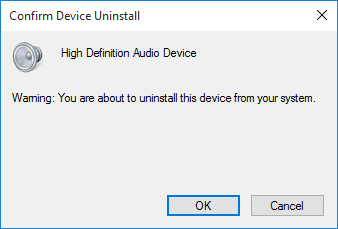
In the same Properties tab you should note the final option: Uninstall. Click this, and you’ll meet the Confirm Device Uninstall window. Depending on the driver issuer, this window may also contain an option to Delete the driver software for this device. If this is the case, check the box and press OK.

Windows 10 Confirm Driver Uninstall

Once you wipe the drivers, restart your system, and install the new driver.

We have previously written about how you can better manage Windows 10 updates and generally run the rule over the at times unruly Windows 10 automatic update system.

3. Update IDT High Definition Audio CODEC

Some systems may encounter issues with their IDT High Definition Audio CODEC. This can be fixed with a manual driver update which allows us to choose the sound driver we wish to use.

Right-click the Start menu and select Device Manager. Expand the Sound, video games and controllers section. If you spot IDT High Definition Audio CODEC, right-click and select Update Driver Software. In the next panel, select Browse my computer for driver software, followed by Let me pick from a list of device drivers on my computer. This allows us to select from any drivers pre-installed on our system.

Windows 10 Manual Driver Update

Under Model, select High Definition Audio Device, followed by Next, followed by Yes. You may need to restart your system for the changes to take effect.

4. Fix Realtek Audio

Realtek drives pop-up all-to frequently in forum posts discussing audio issue. I’ve not experienced issues with Realtek drivers personally, but it does seem to be a common Windows 10 audio issue. There are a couple of fixes for Realtek audio problems below.

Refresh Wi-Fi Drivers

One fix focused on disabling Realtek WLAN drivers, uninstalling, and reinstalling the latest version—even if you already have the latest version installed.

First, head over to the Realtek website and download the latest applicable version for your system. Right-click the Start menu and select Device Manager, and browse to your Realtek Wireless LAN drivers. Right-click and Uninstall. Now head to the file you downloaded, extract the folder, browse to setup.exe, and follow the instructions. You’ll need to reboot your system following the installation.

Disable Front Panel Jack

This fix could be very system specific, but it certainly fixed one system, and it could fix yours, too.

Reddit user Tiflotin fixed a persistent Realtek audio issue by disabling front jack detection from within the Realtek HD Audio Manager itself. The linked thread includes screenshots, in case you need further guidance. If you’re already pulling your hair out, this could be worth a try!

5. Disable Audio Enhancements

Next up are Windows 10 Audio Enhancements. Audio Enhancements are inbuilt Microsoft and third-party packages designed to make sure your systems specific audio hardware works perfectly. Except for when it doesn’t. These very “enhancements” could be causing your Windows 10 audio issue. Luckily, they’re simple to turn off.

In the Start menu search box type Sound, and click on the Sound Control Panel option. In the new box that opens, right-click the default device, and select Properties. Click the Enhancements tab, and make sure to check the box labeled Disable all enhancements, and Apply. (This is how you switch between default audio devices.) Issue with multiple devices? Repeat the process for each listed.

6. Restart Audio Services

Windows doesn’t always play ball, and sometimes it’s all behind the scenes. Audio services can sometimes miraculously disable themselves, but we can use them to give your audio a jump start.

In the Start menu search box, type Services and press Enter. Scroll down to Windows Audio. If the service has been stopped for any reason, your system audio will not function correctly. Restart it by double-clicking and selecting Start. While you are here, double-check the service start-up type. Audio services should be set to Automatic by default. If it is anything different—Automatic (delayed start), Manual or Disabled—change it back.

Here are three more ways you can put the Windows Services menu to good use.

7. Try the Audio Troubleshooter

You can also use the built-in audio troubleshooter, allowing Windows 10 to identify and fix its own issues. If you’ve used the inbuilt Microsoft troubleshooters before, you know they don’t always catch everything, but it can be worth a shot.

Head to Control Panel > Troubleshooting > Troubleshoot audio playback, and follow the instructions.

Can You Hear Me Now?

We’ve covered some of the most common Windows 10 audio afflictions, and hopefully you can hear the wonderful world in stereo once again.

While not a definitive fix for every issue, Windows 10 seems to really like you using the inbuilt High Definition Audio Drivers, and huge amount of fixes I’ve read through involve updating, uninstalling, reinstalling, and rolling this driver back, so this should form a focus for your fix.

Read the full article: No Sound in Windows 10? 7 Tips to Fix Audio Issues


Read Full Article

Technology doesn’t have to be disposable


Dust off your old Bose 501 speakers. New devices are coming that will give traditional audio equipment a voice.

Amazon recently announced a mess of new Echo devices and among the lot are several small, diminutive add-ons. These models did not have a smart speaker built into the devices but rather turned other speakers into smart speakers.

Sonos has a similar device. Called the Sonos Amp, the device connects the Sonos service to audio receivers and can drive traditional speakers. There’s a new version coming out in 2019 that adds Alexa and AirPlay 2.

This movement back towards traditional speaker systems could be a boon for audio companies reeling from the explosion of smart speakers. Suddenly, consumers do not have to choose between the ease of use in an inexpensive smart speaker and the vastly superior audio quality of a pair of high-end speakers. Consumers can have voice services and listen to Cake, too.

Echo devices are everywhere in my house. They’re in three bedrooms, my office, our living room, my workshop and outside on the deck. But besides the Tap in the workshop and Echo in the kitchen, every Echo is connected to an amp and speakers. For instance, in my office, I have an Onkyo receiver and standalone Onkyo amp that powers a pair of Definitive Technology bookshelf speakers. The bedrooms have various speakers connected to older A/V receivers. Outside there’s a pair of Yamaha speakers powered by cheap mini-amp. Each system sounds dramatically better than any smart speaker available.

There’s a quiet comfort in building an audio system: To pick out each piece and connect everything; to solder banana clips to speaker wire and ensure the proper power is flowing to each speaker.

Amazon and Google built one of the best interfaces for audio in Alexa and Google Assistant. But that could change in the future. In the end, Alexa and Google Assistant are just another component in an audio stack, and to some consumers, it makes sense to treat them as a turntable or equalizer — a part that can be swapped out in the future.

The world of consumer electronics survives because of the disposable nature of gadgets. There’s always something better coming soon. Cell phones last a couple of years and TVs last a few years longer. But bookshelf speakers purchased today will still sound great in 20 years.

There’s a thriving secondary market for vintage audio equipment, and unlike old computer equipment, buyers want this gear actually to use it.

If you see a pair of giant Bose speakers at a garage sale, buy them and use them. Look at the prices for used Bose 901 speakers: they’re the cost of three Apple HomePods. Look at ShopGoodwill.com — Goodwill’s fantastic auction site. It’s filled with vintage audio equipment with some pieces going for multiple thousands of dollars. Last year’s smart speakers are on there, too, available for pennies on the dollar.

For the most part, audio equipment will last generations. Speakers can blow and wear out. Amps can get hit by surges and components can randomly fail. It happens, but most of the time, speakers survive.

This is where Amazon and Sonos come in. Besides selling standalone speakers, both companies have products available that adds services to independent speaker systems. A person doesn’t have to ditch their Pioneer stack to gain access to Alexa. They have to plug in a new component, and in the future, if something better is available, that component can be swapped out for something else.

Amazon first introduced this ability in the little Echo Dot. The $50 speaker has a 3.5mm output that makes it easy to add to a speaker system. A $35 version is coming soon that lacks the speaker found in the Dot and features a 3.5mm output. It’s set to be the easiest and cheapest way to add voice services to speakers.

Amazon and Sonos also have higher-end components nearing release. The Amazon Echo Link features digital and discrete audio outputs that should result in improved audio. The Amazon Echo Amp adds an amplifier to power a set of passive speakers directly. Sonos offers something similar in the upcoming Sonos Amp with 125 watts per channel and HDMI to allow it to be connected to a TV.

These add-on products give consumers dramatically more options than a handful of plastic smart speakers.

There are several ways to take advantage of these components. The easiest is to look at powered speakers. These speakers have built-in amplifiers and unlike traditional speakers, plug into an outlet for power. Look at models from Edifier, Klipsch or Yamaha. Buyers just need to connect a few cables to have superior sound to most smart speakers.

Another option is to piece together a component system. Pick any A/V receiver and add a couple of speakers and a subwoofer. This doesn’t have to be expensive. Small $30 amps like from Lepy or Pyle can drive a set of speakers — that’s what I use to drive outdoor speakers. Or, look at Onkyo or Denon A/V surround sound receivers and build a home theater system and throw in an Amazon Echo Link on top. As for speakers Polk, Klipsch, Definitive Technology, KEF, B&W, and many more produce fantastic speakers that will still work years after Amazon stops making Echo devices.

Best of all, both options are modular and allows owners to modify the system overtime. Want to add a turntable? Just plug it in. That’s not possible with a Google Home.

Technology doesn’t have to be disposable.

These add-on products offer the same solution as Roku or Fire TV devices — just plug in this device to add new tricks to old gear. When it gets old, don’t throw out the TV (or in this case speakers), just plug in the latest dongle.

Sure, it’s easy to buy a Google Home Max, and the speaker sounds great, too. For some people, it’s the perfect way to get Spotify in their living space. It’s never been easier to listen to music or NPR.

There are a few great options for smart speakers. The $350 Apple HomePod sounds glorious though Siri lacks a lot of smarts of Alexa or Google Assistant. I love the Echo Dot for its utility and price point, and in a small space, it sounds okay. For my money, the best smart speaker is the Sonos One. It sounds great, is priced right, and Sonos has the best ecosystem available.

I’m excited about Amazon’s Echo and Sub bundle. For $249, buyers get two Echos and the new Echo Sub. The software forces the two Echos to work in stereo while the new subwoofer supplements the low-end. I haven’t heard the system yet, but I expect it to sound as good as the Google Home Max or Apple HomePod and the separate component operation should help the audio fill larger spaces.

Sonos has similar systems available. The fantastic Sonos One speaker can be used as a standalone speaker, part of a multiroom system, or as a surround speaker with other Sonos One speakers and the Sonos Beam audio bar. To me, Sonos is compelling because of their ecosystem and tendency to have a longer product refresh cycle. In the past, Sonos has been much slower to roll out new products but instead added services to existing products. The company seems to respect the owners of its products rather than forcing them to buy new products to gain new abilities.

In the end, though, smart speakers from Apple, Sonos, Google or Amazon will stop working. Eventually, the company will stop supporting the services powering the speakers and owners will throw the speakers in the trash. It’s depressing in the same way Spotify is depressing. Your grandkids are not going to dig through your digital Spotify milk crate. When the service is gone, the playlists are gone.

That’s the draw of component audio equipment. A turntable purchased in the ’70s could still work today. Speakers bought during the first dot-com boom will still pound when the cryptocurrency bubble pops. As for Amazon Alexa and Google Assistant, to me, it makes sense to treat it as another component in a larger system and enjoy it while it lasts.


Read Full Article