03 January 2014

The World At Large: 7 Photography Websites To Feed Your Wanderlust


travel-photography

Travel and photography are so closely linked that we probably don’t wonder at it anymore. It is so commonplace thanks to high-resolution wallpapers and travel websites. Oh yes, we do wonder with awe at the sight of our beautiful landscapes and panoramic vistas; but that takes up just a couple of our senses. True travel photography is something that goes beyond travel brochures and wallpapers. The Photographic Society of America defines a travel photo as an image that expresses the feeling of a time and place, portrays a land, its people, or a culture in its natural state, and has...


Read the full article: The World At Large: 7 Photography Websites To Feed Your Wanderlust


A Better Way to Share Web Pages by Email


When you include an hyperlink in your email message, the recipients will have no idea where that link is pointing to unless they actually click on it.


Clip Better offers a better approach that your email recipients will appreciate as well since it removes the guess work.


Use the Clip button to create a visual preview of the current page.

Use the Clip button to create a visual preview of the current page.


This is how the link will appear in the recipient's inbox.

This is how the link will appear in the recipient’s inbox.


Stop Emailing URLs, Embed Link Previews


Instead of putting raw URLs in your email messages that don’t convey anything, you can use Clip Better to effortlessly create a visual snippet of the page and send it through Gmail or any other mail client that supports HTML Mail.


The tool, possibly using Open Graph tags, will extract the page title, meta description and a thumbnail image and then puts everything into the clipboard as a neatly-formatting block which you can paste into your mail program or even your word processor.


Clip Better is available as a Google Chrome extension, as a bookmarklet and also an iPhone app. Alternatively, if you are on an unsupported platform, you can email one or more links to clipme@clipbetter.com and the service will send you the corresponding previews in rich text.


The tool is useful though it does insert some of its own branding in the link previews. You can however select and delete the branding easily if you wish to.


Available at clipbetter.com. See my other favorite Google Chrome extensions.


This story, A Better Way to Share Web Pages by Email, was originally published at Digital Inspiration on 02/01/2014 under GMail, Google Chrome, Software

02 January 2014

How to Play YouTube Videos In The Background, And Even With The Screen Off


youtube

It is not often a third-party developer gets to beat Google at its own game. And yet, the official YouTube video app contains some glaring annoyances that just cry out to be fixed. Despite its unfortunate name, Viral Floating YouTube Popup is a high-quality player that fixes all of those flaws, and then some. I hate popups (who likes them?) and I don’t really like viral videos either, but I’m glad that didn’t stop me from checking out what turned out to be one of the very best YouTube apps out there today. Plays Videos In The Background, Rotates Like...


Read the full article: How to Play YouTube Videos In The Background, And Even With The Screen Off


How to Style Google Custom Search on your Website


Google Custom Search makes your website searchable using the same technology that powers the main Google.com search engine. You just have to add a JavaScript snippet to your template and visitors will be able to easily find content they are looking for on your website.


Google Custom Search, by default, uses the classic Google layout – blue titles, green links and black snippets – for styling search results on your site. You do have an option to choose a different color scheme and font family for your search results* but that’s pretty much it.


Google Custom Search


Google Custom Search with Custom CSS Styles


If you have ever used the site search function on labnol.org, you may noticed that the search results are styled slightly different – there’s no URL displayed beneath the titles, the matching keywords aren’t highlighted in bold and the pagination numbers are displayed as square buttons.


You cannot add these custom styles though the Custom Search editor but you can write simple CSS rules that will bring the same effect. The idea is simple. As annotated in the above screenshot, every element in the search results page has a class associated with it. You can use set the style for a class as display:none to hide a particular element or use the regular font, color, border properties to stylize that element.


For instance, lets target the info box in search results that displays the result count (class=gsc-result-info). If you would like to hide that particular block, you can add a rule in your stylesheet that says .gsc-result-info { display:none; } and the count won’t show up anymore. Similarly, you can say .gs-snippet {display:none} to only display titles and not snippets.


The Custom Search editor won’t let you change the font size the title and results but with CSS, you can do that easily.


Here are some more CSS rules that you may use to style your Custom Search engine.


<style type='text/css'>

/* Use a different font family for search results */
.gs-title, .gs-snippet {
font-family: courier;
}

/* Add a border between individual search results */
.gs-webResult {
border: 1px solid #eee;
padding: 1em;
}

/* Do no display the count of search results */
.gsc-result-info {
display: none;
}

/* Hide the Google branding in search results */
.gcsc-branding {
display: none;
}

/* Hide the thumbnail images in search results */
.gsc-thumbnail {
display: none;
}

/* Hide the snippets in Google search results */
.gs-snippet {
display: none;
}

/* Change the font size of the title of search results */
.gs-title a {
font-size: 16px;
}

/* Change the font size of snippets inside search results */
.gs-snippet {
font-size: 14px;
}

/* Google Custom Search highlights matching words in bold, toggle that */
.gs-title b, .gs-snippet b {
font-weight: normal;
}

/* Do no display the URL of web pages in search results */
.gsc-url-top, .gsc-url-bottom {
display: none;
}

/* Highlight the pagination buttons at the bottom of search results */
.gsc-cursor-page {
font-size: 1.5em;
padding: 4px 8px;
border: 2px solid #ccc;
}

</style>

These rules will also come handy when you don’t have the permission to change the default look and feel from the Custom Search editor.


[*] If you would like to use a custom color scheme for your custom search engine, go to google.com/cse, choose your search engine and then switch to the Look and Feel tab. Here you can choose different colors for the titles, URLs and snippets, switch to a different font family (default is Arial) and also choose a different color for the background.


This story, How to Style Google Custom Search on your Website, was originally published at Digital Inspiration on 02/01/2014 under Google, Internet

Turn Twitter Into A Custom Reading List With Tweetbits


tweetbits

Is there a way to use Twitter like an RSS reader and stay updated on what really matters? There are several. You can use Twitter lists to create your very own reading lists, you can use Twitter’s new custom timelines on TweetDeck, or you can opt for an interesting third option: Tweetbits. For Frequent Favoriters Twitter’s timeline can get cluttered, especially if you’re interested in many things. Filtering your timeline is one way to go, but you still may not have time to read every tweet you’re really interested in. This is were the “favorite” option can come in handy....


Read the full article: Turn Twitter Into A Custom Reading List With Tweetbits


Can My PC Run Windows 8.1? Test It Using Windows 8.1 Upgrade Assistant


CLICK HERE TO SEE FULL POST


It’s been about two and half months since Microsoft released the final (RTM) version of Windows 8.1 to the public. Windows 8.1 update is absolutely free for existing Windows 8 users but users who’re running Windows 7 and previous versions need to buy Windows 8.1. Users who are currently running Windows 8 or previous versions […]

Create Direct Links to your Files on Google Drive


You can upload files of virtually all types to your Google Drive – from documents to movies to zip archives – and people with whom you have shared the file can easily view them in the browser itself. The Google Docs web viewer is pretty capable and can render all the popular formats including Photoshop files and AutoCAD drawings.


That’s a useful feature but sometimes you may want to bypass the built-in Google Docs viewer and force the browser to download the file instead of opening it. Thus if a user has Photoshop on their computer, the PSD file that you have shared through Google Drive will open in Photoshop and not in their web browser.


Google Drive will mostly render shared links in the browser but you can change that.

Google Drive will mostly render shared links in the browser but you can change that.


Create Direct Links and Skip the Web Viewer


Google Drive doesn’t offer a simple option for creating these “direct download” link but you can easily create them by slightly modifying the generated URLs. Here’s the trick.


A file hosted on Google Drive has a shared link that looks like this:


https://drive.google.com/file/d/FILE_ID/edit?usp=sharing

When you access this link, it will render the file in the browser but if you can rewrite this URL slightly, the link, when clicked, will download the corresponding file in the user’s browser instead of opening it in the browser. The modified URL would be:


https://drive.google.com/uc?export=download&id=FILE_ID

All you have to do is make note of the FILE_ID in the original URL and use it in the modified URL. For example, here’s an image file hosted on Google Drive that will open in the browser and here’s the modified URL that forces the browser to download the file.


Direct Download Links for Google Documents


The trick works for native Google Documents too though the URL format is a little different.


Google Docs: When you share a Google document, the URL would be:


https://docs.google.com/document/d/FILE_ID/edit?usp=sharing

Replace /edit with /export and add the file format that the document should be saved as and your download link is ready.


https://docs.google.com/document/d/FILE_ID/export?format=doc https://docs.google.com/document/d/FILE_ID/export?format=pdf

The above links will now download the same Google document in Word (.docx) and PDF formats. You can also use “txt”, “html” and “odt” for the download format.


Google Presentations: Google Docs offer an even simpler URL scheme for creating direct links to Google Presentations. The original shared links are of the following format:


https://docs.google.com/presentation/d/FILE_ID/edit?usp=sharing

The direct links for downloading the same presentation deck in PowerPoint (.pptx) and PDF formats are below:


https://docs.google.com/presentation/d/FILE_ID/export/pptx https://docs.google.com/presentation/d/FILE_ID/export/pdf

Google Spreadsheets: Open your Google Spreadsheet in the browser, make the sheet Public (or Anyone with a link) and make a note of the shared URL. It should be something like this:


https://docs.google.com/spreadsheets/d/FILE_ID/edit?usp=sharing

The direct download links use a similar format as Google Documents and will read like:


https://docs.google.com/spreadsheets/d/FILE_ID/export?format=xlsx https://docs.google.com/spreadsheets/d/FILE_ID/export?format=pdf

Bonus Trick – Make a Copy


Google Spreadsheets offers an additional feature that is not available in Documents and Presentations (at least yet). You can create links to Google Sheets that will automatically create a copy of your Google Sheet in the Google Drive of the person with whom you have shared the sheet.


Before: https://docs.google.com/spreadsheets/d/FILE_ID/edit?usp=sharing After: https://docs.google.com/spreadsheet/ccc?key=FILE_ID&newcopy=true

The newcopy=true parameter did the trick.


This story, Create Direct Links to your Files on Google Drive, was originally published at Digital Inspiration on 02/01/2014 under Google Drive, Internet

12 Productivity Habits To Finally Hack Your Life In The New Year


A common resolution for most working people is to be more productive. In this article, we'll explore twelve bad habits that you can change -- one per month -- to drastically improve your workload productivity.

Read the full article: 12 Productivity Habits To Finally Hack Your Life In The New Year


This Is How Microsoft Has Been Trying To Change The Game In 2013


microsoft store

Microsoft has been behind. As Apple released the iPad and the tablet market grew, Microsoft seemed to sit around and twiddle their thumbs for a few years. The great sleeping giant has now been fully awakened and Microsoft is frantically trying not just to catch up, but to get ahead of everyone else. The PC market continues to decline, with 2013 seeing the steepest decline of the PC market ever. Even Apple took a hit on their own PCs, as the iPad and other tablets cannibalized their sales. This is the world Microsoft awoke to find itself in. Windows 8.1...


Read the full article: This Is How Microsoft Has Been Trying To Change The Game In 2013


01 January 2014

7 Photography Projects That Could Change The Way You Look At Selfies


selfie

The “selfie” really came into its own in 2013 with word mavens finally giving it a place in the dictionary. The year probably saw the best of such self-expression which my friend Dave duly recorded in his curation of the best, worst, & funniest selfies of 2013. The Kim Kardashians of the world can get away with non-artsy but “arse-y” selfies, but the rest of the world has to put some thought into self-portrait shots and make sure there’s something more than a mirror involved for the sake of creativity. Yes, there is a right way to take self-shots; but...


Read the full article: 7 Photography Projects That Could Change The Way You Look At Selfies


Wikipedia Introduces A Draft Feature For New Articles


wikipedia

Wikipedia seems to be determined to raise their accuracy standards, because they are now introducing the ability to write a page in “draft” mode. Similar to WordPress (which MakeUseOf and millions of other sites are published on), you can work on an article and save it in draft mode, not publishing it until it is truly ready for prime-time. For those of you who have published on Wikipedia in the past (especially those of you who have started new pages), you know getting it right is absolutely essential. Accuracy is extremely important, and the Wikipedia editors are always monitoring new...


Read the full article: Wikipedia Introduces A Draft Feature For New Articles


Best Modern PDF Reader: Windows 8 Default Or Adobe Reader Touch?


Reader-Vs-Adober-Reader-Touch

The default PDF reader that comes pre-loaded with Windows 8/8.1 isn’t bad, but it has some stiff competition coming from Adobe with their Windows 8 version of Adobe Reader. Both of these apps have their advantages and disadvantages, but which should you use on your Windows 8 device? Reader By default, opening up a PDF in Windows 8/8.1 opens up the aptly-named Reader app. It’s a pretty basic PDF reader, but I’ve actually grown to like it; it’s perfect for sketching notes in the corner. As seen below, page numbers will appear in the upper left as you scroll onto...


Read the full article: Best Modern PDF Reader: Windows 8 Default Or Adobe Reader Touch?


Create Windows To Go USB Drive Without Enterprise Edition


CLICK HERE TO SEE FULL POST


As you would know, Windows To Go feature is available only in the Enterprise edition of Windows 8 and Windows 8.1. That is, in order to install Windows 8/8.1 on a USB drive and run Windows 8/8.1 from a USB drive, you need to have installed the Enterprise edition of Windows 8/8.1. In other words, […]

10 Technology Predictions For 2014 [We Ask You Results]


Technology is always evolving, always improving, always changing to suit the needs of the world and its inhabitants. Just 20 years ago the Internet was fledgling technology, and it was only five years ago that smartphones were beginning their long ascent to (near-) ubiquity. As 2013 draws to a close and 2014 opens with expensive fireworks displays in major cities around the world, we here at MakeUseOf are looking to the future. We recently asked you to stare into your crystal balls and mystically gaze into the swirling clouds until a vision of the future became clear. Your Best Predictions...


Read the full article: 10 Technology Predictions For 2014 [We Ask You Results]


Happy New Year From Google!


Mr. Jingles, the Google+ mascot, has some special yellow glasses for the New Year's party. It's a joyful way to wish everyone a Happy New Year.


"I'll be up late tonight looking forward to 2014. Have fun and stay safe tonight," says Mr. Jingles.


Click the icon and you should see some fireworks. Here's the animation:


And here's the disco doodle from the Google homepage:


Happy New Year!

Mount and Use .IMG Files With These Free Tools


Mount-Image-Files

Don’t let the terminology mislead or turn you off! .IMG files are useful for everyone who uses software or game CDs / DVDs on a regular basis. Let’s take a look at what an .IMG file is, what you can do with .IMG files, and some tools to help you make the most of them. What is an .IMG File? You may have guessed that an .IMG file type is an image file of some sort. However it’s not about photographs or pictures. No, the kind of image we are talking about is a copy of a disk, whether it...


Read the full article: Mount and Use .IMG Files With These Free Tools


31 December 2013

Netflix Showdown: Windows 8 Modern App Vs. Desktop Version


Netflix-Featured

Netflix is a fantastic service, but users on Windows 8 have multiple options for enjoying it. Should you go with the modern-styled Windows 8 app, or the desktop version accessible in the browser? Well, both have their pros and cons. For the most part, the Windows 8 app will be a simpler, dumbed down version of Netflix on the desktop, with larger buttons that are better for a touchscreen. The Web version, on the other hand, has more features and options, but isn’t as aesthetically pleasing and is difficult to navigate with a touchscreen. If you’re running Windows 8, there’s...


Read the full article: Netflix Showdown: Windows 8 Modern App Vs. Desktop Version


Windows Defender Uninstaller: Completely Uninstall Or Remove Windows Defender From Windows 7


CLICK HERE TO SEE FULL POST


Windows Defender, the free security software that ships with Windows operating system, provides basic protection against malware and spyware. The enhanced version of Windows Defender in Windows 8 and Windows 8.1 includes almost all features of Microsoft Security Essentials and offers protection from viruses, malware and spyware. Users who prefer using third-party security solution like […]

Should Parents Spy On Their Kids? [MUO Debates]


Do you spy on your kids? If so, why? If not, why not? This is the question at hand today. These are the questions that we're going to explore in this debate.

Read the full article: Should Parents Spy On Their Kids? [MUO Debates]


30 December 2013

How to Delete Auto Backup Photos


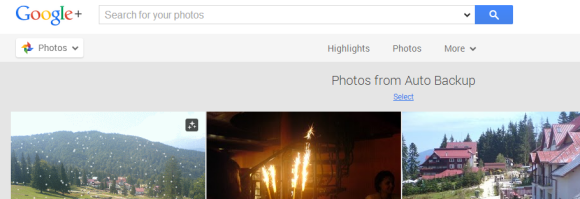
If you've tried the Auto Backup tool and you want to delete your photos, it won't be easy. You can go to the Auto Backup section of Google+ Photos, mouse over a photo, click the "tick" icon, select photos one by one and click "Delete". That's great if you only have a few photos, but not if you have thousands of photos.


Fortunately, there's a better way:


1. go to Google+ Photos, click "More" and pick "Albums"


2. add /camerasync to the URL in the address bar and press Enter. You should get something like:


https://plus.google.com/photos/+YourName/albums/camerasync


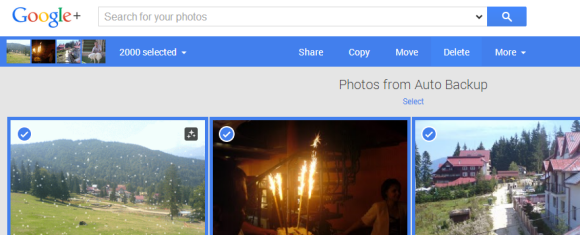
3. click "Select" below "Photos from Auto Backup". After a few seconds, Google will select the last 2000 photos uploaded to Auto Backup. If you have less than 2000 photos, all of them will be selected.


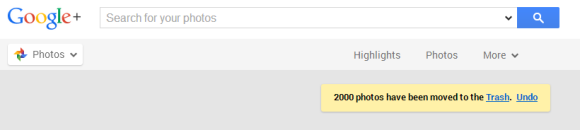
4. click "Delete" at the top of the page. This only moves the photos to Trash, so they're not permanently deleted. If you change your mind, click "undo" after they're moved to Trash.


5. you may need to manually refresh the page (press F5) to see the remaining photos. You'll have to go back to step 3 and select the next 2000 photos and then go to the step 4.


6. to permanently delete your photos, go to the Trash, click "Empty trash now" and confirm this action.