Google has recently added a feature that lets you decide what happens when you no longer use your account. It's called Inactive Account Manager and the goal was to offer a feature that tells Google "what you want done with your digital assets when you die or can no longer use your account".
You need to set a timeout period (3/6/9/12 months), add your phone number and contact details for up to 10 trusted friends or family members (email addresses and phone numbers), then decide if you want to share Google Takeout for services like Blogger, Picasa Web Albums, YouTube with those people and delete your account once it's inactive. Google will alert you one month before the timeout period expires.
It's a feature that seems to be useful if you want Google to automatically delete your account when you're no longer alive and share some data with the people you trust. Unfortunately, not all the Google Takeout data is easy to use. YouTube videos, Picasa photos, Drive files and Gmail's contact files are easy to open, but the data from Google+, Blogger, Reader is more difficult to read. When you set up this feature, you can pick the services you want.
You can also use the Inactive Account Manager just to notify friends and family members that you no longer use that account or to send an automated response to all incoming Gmail messages once your account becomes inactive.
Google's mobile search site experiments with a different interface for sitelinks. The updated version hides the snippets for sitelinks and lets you expand lists of sub-sitelinks. Instead of only listing the most important sections of a site, Google's new features also shows some popular subsections.
"The links shown below some of Google's search results, called sitelinks, are meant to help users navigate your site. Our systems analyze the link structure of your site to find shortcuts that will save users time and allow them to quickly find the information they're looking for," explains Google.
Here's the new interface:
... and here's what happens when you expand a sitelink:
This is the regular mobile UI:
Google mentioned a similar feature for the desktop site last year: "this improvement digs deeper into megasitelinks by showing sub-sitelinks instead of the normal snippet." I haven't noticed this feature and it doesn't seem to be available in the desktop interface.
Keep up with your favorites sports team, however you like. The new ESPN channel for If This Then That (ifttt) means you can easily set up SMS, email and even phone notifications for your favorite teams. You could even automate Twitter to send up updates every time your favorite teams scores, if you want – the only limit is your own imagination.
You remember If This Then That, which allows you to combine any two web apps by designing simple rules. All you need is a trigger – in this case, sports scores and events – and an Action – that is, where you’d like that sports score or event to go. Dozens of triggers mean you can use ifttt’s ESPN trigger to get sports updates just about anywhere. You can set up whatever notifications you like : every time a game involving your favorite team begins or ends, or even when news breaks about that team. You can set up as many notifications as you want, too – just keep creating rules.
This is the natural extension of an experiment ESPN and IFTTT offered during the Olympics last year, expect now the Disney-owned TV sports station is offering online updates from a variety of different leagues – from North America’s NFL (American football), MLB (baseball), NBA (basketball) and NHL (hockey) to the top European soccer (football) leagues, the ESPN trigger for ifttt allows you to stay up-to-date however you like.
Creating The Ultimate Sports Recipe
If you’re reading this you’re probably already familiar with ifttt, but if not simply head to ifttt.com and sign up for an account. Register as many “channels” as you can, because the more channels you have the more possible combinations you can complete.
Let’s focus on ESPN, though. This channel can only be used as a “trigger” – that is, as the event that causes an action to happen. Create a new recipe and you’ll be presented with the standard ifttt formula:
Click “this”, then click the ESPN channel. You may need to agree to terms first, but once you do you’ll be presented with potential triggers:
Your choices are:
Breaking top news
Breaking news for sport
Breaking news for team
New game start
New in-game update
New final score
Pick whatever sort of news you’re interested in getting updates for, and then – depending on which trigger you choose – you’ll be able to choose a league and (possibly) a team. The sports/leagues offered are:
NFL
MLB
NBA
WNBA
NHL
College Football
Men’s College Basketball
Women’s College Basketball
MLS
Barclays Premier League
Spanish Primera Division
German Bundesliga
Italia Serie A
Your trigger created, you now must set up an Action (the “that” part of “if this then that”).
You’ll be presented with a wide variety, but some will work better than others. If all you really want is to be notified when something critical happens in one of your sports, simply select email or SMS and you’ll be able to set up a custom text message. Here’s how that looks for final score, via SMS:
By default you’ll see the “Alert Body”, which is the news ESPN is sending you, alongside the “Alert URL”, which presumably links back to ESPN. Remove whatever you don’t want, and know that you can add the name of the team and the time of publication for the information you were sent.
The process is basically the same for other Actions, and you can get really creative with this if you want. For example: you could set up a document in your Dropbox to always include the latest scores:
What could you do with a text file like that? You tell me. You could set it up to display on your desktop using Conky or Geektool, or simply have a text document you can check anytime you want to know the score. It’s totally up to you.
You get the idea: be creative and there’s no end of places you could conceivably see sports scores. Heck,
Questions
This does raise a few questions. Would ESPN shut down a Twitter account that does nothing but tweet up-to-the-moment scores using IFTTT? I suppose not, so long as the links to ESPN are maintained, but only time will tell for sure. Let us know your predictions in the comments below – personally, I hope this service simply keeps working as is.
And while you’re commenting, please: let us know what kind of crazy brilliant recipes you’ve created using the new ESPN trigger. Links are much appreciated.
And of course, if you’d rather not roll your own notifications like this, you could just install ESPN’s Sportscenter or Yahoo’s Sportacular on your Android or iOS device for instant sports updates. But if you’re looking for something more universal – not to mention more customizable – ifttt is the way to go.
The Bing vs. Google race has just become tighter with the launch of Bing’s new Pinterest integration. The new feature adds a handy “Pin it” button to every image result on Bing, making it possible to pin it to your Pinterest boards without needing to go to the actual website, or even open the full-size version of the image.
With this new feature, Microsoft aims to make Pinterest pinning as effortless as possible: not bookmarklets, no extra clicks. Simply find the image you want, pin it directly from the search results, and Bing will automatically include the right links and attributions to the original, high-resolution source, without you needing to look for it yourself.
“Last fall, we hosted a group of lifestyle and design bloggers at the Bing headquarters to better understand their search and social media habits“, says Microsoft about the birth of Pinterest integration, “What we discovered is a community that does more than its fair share of image searches, with much of it tied to Pinterest.”
To take advantage of the new Pinterest integration, Bing search has to be set to United States. This is easy to do through the cog icon on the top right corner. After clicking the cog, scroll down to “Location”, and click on “change your country/region”. Choose “United States” from the list, and you’re all set. Next time you search for images on Bing, you’ll find the “Pin it” button below the image for quick pinning.
Bing’s Image search has been playing catch-up to Google for quite a while, and now offers a slick interface that’s rather similar to Google’s new Image Search interface. You can filter your image search by color, type of image, layout, and people (how people appear in the images), but not by size or even time – a feature which was only recently added to Bing search and is only available in regular search at this time.
Is this a useful integration? Will it be enough to make you switch to Bing?
Majority of computer users have installed one or other version of Microsoft Office productivity suite on their computers. While there are plenty of alternatives around to Office, none of them come close to Office when it comes to ease of use, let alone the features. Users who purchased Office CD/DVD from Microsoft or an authorized [...]
The latest release of Chrome Beta for Android added an interface for the data compression proxy. You no longer have to enable a flag, just open Chrome's menu, go to the settings, select "Bandwidth management", "Reduce data usage" and enable the feature.
You can start visiting your favorite sites and check back the "Bandwidth management" to see some stats. For more detailed stats, type chrome://net-internals in the omnibox and select the "Bandwidth" section in the left sidebar.
My total savings percentage is 33.5%, so the compression rate is 100%-33.5%=66.5%. Some people complained that it's too low compared to Opera Mini's 90% compression rate, but Opera Mini is not a browser. It's just a thin client app and all the rendering and JavaScript processing is performed on Opera's servers, so Opera Mini only needs a simplified OBML file. You should compare Chrome's data compression proxy to Opera Turbo, a feature available in the Opera Mobile browser. "In November 2009, the average compression rate for Opera Turbo was 63.6%," according to an Opera report [PDF], while in February 2010 the average compression rate was 59%. It's worth pointing out that Opera shows the compression rate (highpercentage%), not the savings percentage (100% -highpercentage%=lowpercentage%).
* d - open a compose window in a new tab (Shift+c opens it in a new window)
* , - moves the cursor to the first button in your Gmail toolbar
* { - archives the current conversation and moves to the older one
* } - archives the current conversation and moves to the next one.
There are some subtle differences between [ ("Removes the current view's label from your conversation and moves to the older one") and { ("Archives the current conversation and moves to the older one") or between ] and }. Their effect is identical when you read conversations from your inbox. If you open a conversation from any other label, [ will remove that label from the conversation, while { will remove the conversation from the inbox.
The Gmail shortcuts page has been recently changed and these are the new shortcuts I've noticed.
Google tests a new interface for the homepage's footer. It includes a cookie disclaimer required by a European Union directive and a settings menu similar to one that's available on Google's search results pages.
"Cookies help us deliver our services. By using our services, you agree to our use of cookies," informs Google and links to this page. Many sites have annoying cookie warnings and I'm sure that most people ignore them, so the EU directive was a bad idea.
Google has recently sent an email which informed me that "Blogger has been notified, according to the terms of the Digital Millennium Copyright Act (DMCA), that certain content in your blog is alleged to infringe upon the copyrights of others. As a result, we have reset the post(s) to 'draft' status."
Apparently, this is the infringing post: http://googlesystem.blogspot.com/2008/02/lyrics-for-youtube-music-videos.html (Google Cache). It's a post about a Greasemonkey script that allowed you to show music lyrics in the YouTube interface.
I was curios to read the DMCA complaint, but Google doesn't send it. Instead, it uploads the document to ChillingEffects and suggests to use this page to find it. Unfortunately, the ChillingEffects search feature doesn't work, so you have to use Google's site operator to search for [site:chillingeffects.org domainname.com].
I've managed to find the DMCA notice: "The URL listed below is one of nearly 20 song lyrics sites who have attempted to post lyrics for the song titled 'Alden Howell' by the artist Inspection 12. The lyrics posted on this and other sites are not accurate and the artist has not given them permission to post lyrical content. Inspection 12 has been making efforts to contact these websites directly in order to have the content removed. We are attempting to have this URL and others like it to be excluded from google search results for the name 'Alden Howell'."
Unfortunately for Inspection 12, that blog post doesn't include their lyrics. In fact, it only includes a screenshot with lyrics from a much more popular punk band.
Gmail is the only Google service that disables keyboard shortcuts by default. They're for power users and some people could accidentally trigger them, especially when you consider that most Gmail shortcuts don't use modifiers.
Google has recently added some new shortcuts that are enabled by default. The old shortcuts are still disabled by default, but you can quickly enable them by pressing ? in Gmail and clicking "Enable" next to "The following keyboard shortcuts are currently disabled".
Here are are the shortcuts that are enabled by default (you can't disable them):
- arrow keys: you can use the up/down arrows to navigate in a list of conversations and press Enter to select one of them. Gmail automatically loads the previous/next page of conversations. Use the left arrow key and then the up/down arrow keys to move your cursor to a different label or the compose button.
- n/p: if you open a conversation with multiple messages, use the n/p keys to go to the next or previous message. Press Enter to load that message if it's collapsed.
- Ctrl+Enter: use this shortcut in the compose window to send a message.
- Shift+Esc: focus the main window.
- Esc: focus the latest chat or compose window.
- Ctrl+. or Ctrl+,: move the cursor to the next/previous chat or compose window, or to the main window.
- Ctrl+Shift+c: add Cc recipients in the compose window.
- Ctrl+Shift+b: add Bcc recipients in the compose window.
- Ctrl+Shift+f: change the From email address in the compose window.
- A long list of shortcuts for formatting text when you compose a message. Some of them were already available in the old compose interface.
Out of 233 votes, the results were as follows: 11% think laptops are the best option for schools, 13% think it should be tablets, 17% voted for desktop computers, 19% voted for networked clients, and 33% voted for some combination of these options. 6% think schools shouldn’t offer any of these options.
Full results and this week’s poll after the jump.
Don’t forget to check out last week’s best comment by Lisa Santika Onggrid. It was a very hard choice this week, but Lisa managed to pull forward and win 150 points yet again. Keep the awesome comments coming!
This week’s poll question is: Which Is The Best Note-Taking App Out There?
Want to make some extra MakeUseOf reward points? The most useful comment on the poll will be awarded 150 points!
Taking notes used to be a simple task: you get a piece of paper and a pen, write a note, and then carry the crumpled thing in your bag for a month before you throw it away. Things are different today; we now have note-taking apps we can use no matter where we are, and access our notes on all our devices, be it a computer, a tablet, or a phone. There are hundreds of note-taking apps available, but several big ones stand out from the crowd. Do you use one of the best known ones, or do you opt for a small one we’ve probably never heard of? Or maybe you still prefer pen and paper over all apps?
What makes your favorite app the best? Is there an app that should have been included but wasn’t? Are none of the apps as good as a piece of paper? Discuss it all in the comments.
Computer and mobile users have a handful of options when it comes to viewing and editing Microsoft Office files online. Users who have a Microsoft account can use the Office Web Apps in SkyDrive to create, edit, and save Office docs, including Word, Excel, PowerPoint, and OneNote documents. A number of free alternatives also around [...]
Ever heard that quote about trying to explain how a television works to an ant? I’m not calling you an ant, even though you are hard-working and enjoy the occasional sip of aphid milk. What I am saying is that I’m going to explain how Windows BitLocker works, without you having to have a degree in computer science and cryptography experience.
BitLocker is a feature of Windows 7 and 8 that is extremely useful, included in the operating system, and not nearly as many people know about it as they should. If you’re curious about what other cool stuff your Windows operating system might have, check out Christian Cawley’s, “The Top 5 Cool Hidden Features In Windows 8” and Yaara Lancet’s article, “8 Hidden Tools In Windows 7 You Still Might Not Know About“. Here, though, I’ll be focusing on Windows’ military-grade privacy tool called BitLocker.
What Is BitLocker?
Not all Windows’ operating systems have BitLocker bundled with them. At this point, it is just in the Ultimate and Enterprise editions of Vista, and Windows 7, and with Pro and Enterprise editions of Windows 8. You can also find it in Windows Server 2008, Windows Server 2008 R2, and Windows Server 2012. What BitLocker is, it’s a drive encryption tool. A drive encryption tool is something that takes all your data on any particular drive and make it completely unreadable to anyone but you. If you don’t have one of these operating systems, I suggest you take a look at TrueCrypt and our TrueCrypt User’s Guide: Secure Your Private Files.
There are two meanings for ‘drive’ in this case. One is any volume or partition on a single hard drive. You need at least two volumes on the drive to use BitLocker – a main volume that you probably will do your day to day work in, and another volume that is at least 100MB in size that will be your system’s volume. Your computer will boot from this volume. This volume can NOT be encrypted. That would make booting your computer very difficult.
The other ‘drive’ is any removable drive like your USB drive. This type of drive does NOT require a boot volume. Which is really cool, because if you encrypt your USB flash drive and you have sensitive information on it, you don’t really have to worry about anyone getting that information if you lose the drive.
How Does It Encrypt My Drive?
BitLocker takes all the data on your drive and applies a bunch of fancy math to that data. Remember, all data can be boiled down to just numbers so it can be manipulated with math. Officially, this math comes in the form of algorithms, or sets of instructions, such as AES – 128-bit or 256-bit encryption, and Diffuser.
Let’s go through a very simplified process of encrypting the word ‘USE’.
Diffuser takes those three letters and scrambles them. It could come out as ESU, SUE, SEU and so on. Then BitLocker creates the key, which is the way to unscramble that word, and holds on to it for you.
Now BitLocker applies AES. AES is the Advanced Encryption Standard adopted by the US Government as a standard in 2001 – hence the military-grade designation in the title. 128-bit or 256-bit encryption defines how many bits a single bit of your original data may be represented by. Now, a bit is just one piece of data, like a letter or a number. Then, the math makes that particular bit into a ‘combination’ or key that is either 128 or 256 bits long. It’s like slapping a combination lock with a 256-numbers-long combination on a locker holding the letter ‘U’. Think about that.
Let’s go back to encrypting the word ‘USE’. You have to open three different lockers with three different combination locks, each with a combination that is 256 numbers long. Now, you can see how this would be a pain to anybody but the most dedicated cracker.
This is where it gets military-grade, I mean tank tough! Remember AES? Well that application puts each combination lock through the math 14 times for 256-bit encryption! Now, you have to know 14 different 256-bit-long combinations to get at your letter ‘U’. Forget it. Go home, cracker. Of course, BitLocker creates a key that will unlock, or decrypt that word for you.
At the end of it, there are two keys now needed to start the process of decrypting your data. If someone doesn’t have access to both of those keys, they are going to have to be very patient, very smart, and very dedicated to get at your information.
These keys aren’t physical keys of course, and they don’t resemble passwords either. By themselves, they would look like gobledy-gook to ordinary folk like you and me. But what Windows does is allow BitLocker to use those two keys to get at your data, as long as you can prove to the computer that you are who you say you are. These keys are held by the Trusted Platform Module.
What is a Trusted Platform Module?
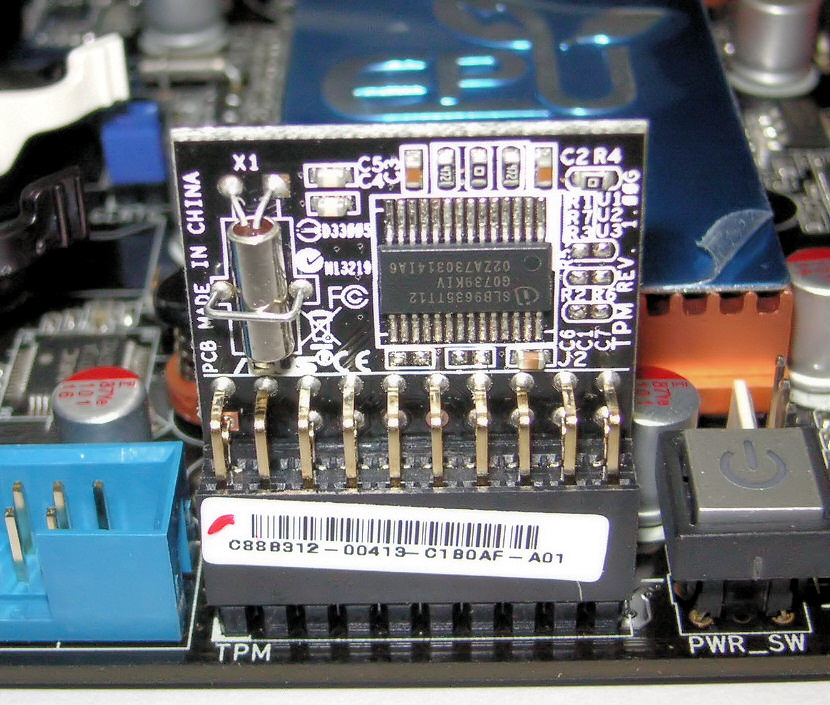
The Trusted Platform Module is another key piece in the BitLocker set of tools to protect you. This is a bit of hardware that can be found on most computers.
What it does is check out your computer each time it boots to make sure no one has been trying to mess with the start-up procedures to get around your encryption. What it also does is prevent someone from just slipping the hard drive out of your computer and popping it into their computer to get at the files.
Depending how you set up your BitLocker, your TPM may just let you log on to your computer. Or, you might set it up so that it requires a PIN number to continue to logging in. Or, you can create a USB key that has to be plugged into your computer when you boot, to get you to the login stage. Or you can go hardcore and set it up to require that you have a PIN AND a USB key. The TPM applies only to volumes that are physically on your computer. USB drives don’t need a TPM, but they may need a PIN or USB key for verification.
There are computers without TPM’s, but for most computers manufactured after 2006, the TPM module is already on the motherboard.
Is BitLocker Totally Safe?
Well, no, nothing really is. But it’s as safe as you’re going to get without having the budget of the CIA or MI-5. Speaking of government spying, the UK’s Home Office has asked Microsoft to put a backdoor in BitLocker to allow them to have easy access to your data. Microsoft has flat out refused to do so. Score one for Microsoft.
So, How Do I Use BitLocker?
It’s surprisingly easy to use if you are just going to encrypt your main volume on the hard drive in your computer. Check out this short video on how easy it is.
If you want to get into the guts of BitLocker and use it on external drives or set up the different TPM validation methods, it can get a bit more complicated. Microsoft does have a Step-By-Step Guide for BitLocker on Windows 7. I haven’t seen any real documentation on Windows 8 yet. If you have, let us know in the comments, please.
Should I Use BitLocker?
BitLocker is the best protection for your data that you are going to get just by buying a Windows computer. If you are concerned about data theft and the security of your information, why wouldn’t you make this military-grade tool a part of your computer security arsenal? It just makes sense. BitLocker is a serious tool developed for you by a company so many people think of as being evil at different times. I think this application is a redeeming quality for Microsoft and makes me feel less disgruntled about the cost of getting Windows.
What do you think? Do you currently use BitLocker? I’d like to hear about your experiences with it. Do you feel safer knowing BitLocker is out there and may be a part of your Windows computer? Let’s hear about it in the comments. No encrypting please.


 Keep up with your favorites sports team, however you like. The new ESPN channel for If This Then That (ifttt) means you can easily set up SMS, email and even phone notifications for your favorite teams. You could even automate Twitter to send up updates every time your favorite teams scores, if you want – the only limit is your own imagination.


 The Bing vs. Google race has just become tighter with the launch of Bing’s new Pinterest integration. The new feature adds a handy “Pin it” button to every image result on Bing, making it possible to pin it to your Pinterest boards without needing to go to the actual website, or even open the full-size version of the image.


 Last week we asked you
 Ever heard that quote about trying to explain how a television works to an ant? I’m not calling you an ant, even though you are hard-working and enjoy the occasional sip of aphid milk. What I am saying is that I’m going to explain how Windows BitLocker works, without you having to have a degree in computer science and cryptography experience.