30 December 2019

The 4 Worst Arguments for Teaching Cursive in Schools


cursive

American schools are slowly phasing out cursive handwriting, which is an unambiguously good move. Cursive is an archaic form of communication—one best left to history.

Let’s take a look at some common arguments for teaching cursive in schools, and why they don’t hold up.

Note: In February 2015, former author Justin Pot wrote an opinion article titled Cursive Writing Is Obsolete; Schools Should Teach Programming Instead. Then, in August 2015, he wrote this follow-up article to respond to some of the most common arguments.

The article needed an update, so we’ve brought it up to modern standards. While the author performing the update agrees with the sentiment that cursive writing is not worth teaching in schools today, we’ve preserved as much of the content and tone of Justin’s original article as possible.

Defining Cursive Writing

To be clear, when we talk about “cursive handwriting” we speak mostly of the Palmer Method, a simplified form of script popularized in the early 20th century. It was designed specifically with speed in mind (in part to better compete with typewriters).

Palmer_Method_alphabet

This kind of writing is, in our humble opinion:

  • Slower than typing.
  • Harder to learn and read than print handwriting.
  • Ugly when compared to more stylized scripts.

There’s literally no reason for schools to teach the Palmer Method, outside of nostalgia. While we feel that cursive should not be taught in schools, we want to respond to the other side who thinks cursive is far from pointless.

Many Made Good Arguments in the Comments

Plenty of educators agreed with some of the original premise and critiqued the finer points. We welcome these conversations.

Educator comment on cursive writing

We can concede some of the arguments for why teaching cursive writing makes sense. For example:

  • There is a sense of accomplishment that comes with learning cursive.
    • While this is true, we think teaching a beautiful, pre-Palmer script in art class is a better way for kids to get that feeling. Let’s stop pretending this is a practical skill.
  • Being able to read old letters from relatives is extremely valuable.
    • Of course, but you can learn to read documents like this without spending dozens of hours learning to write an obsolete script yourself. It’s still English, even if it takes a little longer to decipher.

Feel free to disagree with us on these or other reasoned points—we invite the conversation. But what we won’t invite is any variation of the following arguments, which are pretty much complete gibberish.

1. Kids Will Be Cut Off From History!

A number of people claimed that not teaching cursive cuts people off from their history. The typical comment goes like this:

Cursive writing argument about original documents

Some went a little bit further, submitting speculative fiction for our consideration:

Speculative fiction comments on cursive

Ridiculous as this might seem, there is a certain logic here. Learning to write cursive means you can also read it, meaning you can better understand documents like this:

Cursive copy of the Declaration of Independence

You probably know this as the original version of the Declaration of Independence, right? Surprise: that’s not what most people read at the time. Most historians agree that this engrossed copy of the declaration was signed in August of 1776, a month after the document was famously ratified on July 4th, 1776.

The first published copies of the document, known as the Dunlap broadsides, looked like this:

Dunlap broadsides Declaration of Independence

That’s right: in July of 1776, Congress approved the original Declaration and people immediately started reading it in print. This shouldn’t be surprising; the Declaration of Independence was signed in 1776, over three hundred years after Gutenberg’s printing press.

Kids not taught cursive would have no trouble reading this. If you want to argue that Americans in July of 1776 were less connected to history than someone who read a cursive version later on, we don’t know what to say to you. The fact is that printed copies of America’s founding documents are widely available today, just as they were in the 1700s—in many cases before the handwritten “originals” we know today.

In addition, none of these documents were written using the hideous Palmer Method, which wasn’t popularized until the early 20th century. Go ahead and dig through some old newspapers, and you’ll see the difference.

One does not need to learn cursive in order to read America’s founding documents. It wasn’t the case in the 1700s and certainly is not now. Consider that most people alive today cannot read religious texts or other historical documents in their original languages, either.

2. When the Apocalypse Comes, We’ll Need It!

Some of the silliest comments revolved around what would happen if someone took out the electrical grid, such as this one:

Post apocalyptic handwriting

The obvious counters for this argument are as follows:

  • Print handwriting works just fine without electricity.
  • Assuming we’re going to make surviving post-apocalyptic scenarios part of the curriculum, we should probably prioritize trapping, fishing, farming, and log cabin construction over letters with loops.

3. Kids Need to Have a Signature!

One subject came up again and again: everyone in today’s society needs to have a signature.

signature argument

This seems like a good point, but we don’t think it holds up. Here are some of the reasons why:

  • As any clerk will tell you, most people’s signatures are entirely illegible squiggles at this point. Most places also don’t bother to check your signature anyway.
  • Spending hundreds of hours of classroom time on an archaic form of written communication specifically so we can continue to verify transactions seems weird, considering most signatures aren’t legible.
    • Even someone who doesn’t know how to write in cursive could come up with a solid signature in a reasonable amount of time. Failing that, your legal signature could literally be a squiggly horizontal line.
  • Signing documents electronically is increasingly common, and might well become the norm. The US ESIGN Act was passed all the way back in 2000 and lays out guidelines for digital signatures.
  • Printing works perfectly fine for signatures, as a few comments pointed out.

print signature comment

4. Technology Is Destroying Something Real

A number of comments made nostalgic arguments, saying that something real is being lost in this transition. This one, left under an article on Justin Pot’s personal website, represents this argument best:

nostalgia-cursive-real-life

We respect what this person has said, but think these arguments miss a key point. Comments like this imply that cursive handwriting is some innate part of being human, but it isn’t. It’s an invention.

Cursive writing is a technology.

There’s nothing natural about handwriting: it’s a tool that we used for a particular period of time to communicate. Today people are using it less and less because they’ve deemed the alternatives as better.

In a sense, that’s too bad—something is lost every time a technology is replaced. The compass meant fewer people learned how to navigate using the stars, while GPS has resulted in fewer people knowing how to use a compass.

But this doesn’t mean we should give up on the GPS, or teach everyone how to navigate by the stars. Some people will pursue this knowledge for fun, or because it’s been passed down by their family, but mandating everyone learns it just isn’t realistic.

The fact that people use cursive writing less often today isn’t because schools have stopped teaching it. The opposite is true: schools aren’t teaching cursive because students don’t use that skill later in life. Many haven’t been for decades.

Ours isn’t the activist argument. The other side wants to keep something irrelevant in the school systems out of nostalgia, while that time could be used for teaching something productive. We’re not the one who needs to leave well enough alone.

But hey, maybe we’re just lazy and uncoordinated.

Cursive Lazy Argument

Better Uses of Time Than Teaching Cursive Writing

We close with a few ideas on what students could learn that’s a more productive use of time than antiquated cursive writing. While some schools may teach the following, they’re not as ingrained in the schooling system as cursive writing has been:

  • Computer programming. The ubiquitous nature of computers today means that learning a bit about how to program them is extremely useful. Learning to code also teaches logical thinking.
  • Civics. A 2019 study from the Annenberg Public Policy Center found that 22% of sampled Americans cannot name a single branch of the government. This is, frankly, pathetic—any country would do well to educate its citizens on how the government actually works.
  • Personal finance. Many kids graduate from school not understanding basic financial principles, like how interest rates work or how to save for retirement. WalletHub found that some 10 percent of people think it’s worth going into debt for a new iPhone. Surely learning to manage money, which is something you use every day, is more important than writing letters in a certain style.

Should Cursive Still Be Taught in Schools?

Progress takes place over centuries, meaning something that seems like part of the natural order when you’re a kid was alien to prior generations.

The Palmer Method was harshly criticized and resisted in its early days, but its speed meant it ultimately won out over better-looking scripts. Over one hundred years later, this method is on the way out, because the alternatives are better.

Making predictions about technology is impossible, but so is trying to prevent an obsolete technology from sticking around. And that’s exactly what anyone trying to keep cursive handwriting in the school curriculum is trying to do. Why dedicate so much time to something most people barely use anymore? You’d be hard-pressed to find a job interviewer who finds handwriting at all relevant.

But this, of course, is our opinion. We’d like to hear yours too. And if this has inspired a drive to return to cursive for you, check out the best resources to improve your handwriting.

Read the full article: The 4 Worst Arguments for Teaching Cursive in Schools


Read Full Article

How to Find and Remove Duplicates in Numbers on Mac


mac-numbers-tips

When you’re working with data in Apple Numbers on your Mac, you may run into a situation where you have duplicates. This could be names, email addresses, products, colors, or something else. And if you have a lot of data in your spreadsheet, finding and removing those duplicates can be a challenge.

We’re going to show you a few different methods you can use to find duplicates and then either mark them or eliminate them if you like.

Find Duplicates in Numbers With Sorting

If you don’t have a lot of data in your spreadsheet, you can sort it and check for duplicates manually. This method might actually save you time in the long run, but again, only if you don’t have thousands of rows in your sheet.

Sort by One Column

  1. Select the table of data by clicking anywhere in the table and then clicking the circle on the top left. This is to the left of column A.
  2. Move your cursor over the column you want to sort by.
  3. Click the arrow that displays next to the column letter and choose either Sort Ascending or Sort Descending.

Sort Ascending to Find Numbers Duplicates

Sort by Multiple Columns

  1. Follow the same steps as above, but instead of selecting a Sort option in the shortcut menu, click Show Sort Options.
  2. The right-hand sidebar should open to the Sort
  3. Make sure that Sort Entire Table is selected in the first dropdown box.
  4. In the Sort by dropdown, choose the column and below that, pick Ascending or Descending.
  5. Another dropdown box should appear beneath where you can choose another column and its sort order.
  6. The data should sort automatically, but if not, click the Sort Now button at the top of the sidebar.

Sort Multiple Columns to Find Numbers Duplicates

Once you sort your data you should more easily be able to spot the duplicates and then mark or remove them as you need to.

Find Duplicates in Numbers With Functions

There are two built-in functions in Numbers that you can use to find duplicates. These are the IF and COUNTIF functions. IF can display duplicates as True or False, or a word that you assign. COUNTIF will display how many times an item appears to indicate duplicates.

Find Duplicates With the IF Function

To illustrate how the function will work, our example data will be product names in column A and our table has column headers in row 1.

  1. Add another column or move to an empty column in your sheet where you want the duplicate indicator.
  2. Click the cell in the second row, below the header, and open the Functions Editor by entering the Equal sign (=).
  3. Enter IF(A2)=(A1),”Duplicate”,” “ in the editor. This will compare the cell with the one above it and enter the word Duplicate if it’s a duplicate and enter a space if it’s not.
  4. Click the checkmark to apply the formula.
  5. Copy the formula to the subsequent cells by clicking the cell it’s in and dragging it down the column when you see the yellow circle on the border.

IF Function to Find Duplicates in Numbers

If you prefer not to use a word of your own and just display True for duplicates and False for non-duplicates, you can simply enter (A2)=(A1) in the editor. This works without adding IF before it.

True False to Find Duplicates in Numbers

Find Duplicates With the COUNTIF Function

We’ll use the same example data as above using column A and our table has column headers.

  1. Add another column or move to an empty column in your sheet where you want the duplicate indicator.
  2. Click the cell in the second row, below the header, and open the Functions Editor by entering the Equal sign (=).
  3. Enter COUNTIF(A,A2) in the editor. A is the column and A2 represents the row.
  4. Click the checkmark to apply the formula.
  5. Copy the formula to the subsequent cells the same way as Step 5 above.

COUNTIF Function to Find Duplicates in Numbers

You should now see numbers in that new column showing how many times the item in your duplicate column appears. For our example in the screenshot above, you can see that Cap appears three times, Coat once, and Gloves twice.

Remove Duplicates from Numbers

If you use one of the above functions to identify your duplicates because you have a lot of data, then you likely want to remove them without searching manually, right? If so, you can simply jump to the top of our tutorial and use one of the sorting methods.

You can sort by the word Duplicate using the IF function, True, or False, or by numbers, if you use the COUNTIF function. Once you sort, you can simply delete the duplicate rows.

Merge and Delete Duplicates from Numbers

Maybe you do want to remove the duplicates, but you also don’t want to lose any data. For instance, you might have inventory data for products like in our example. So you want to total those amounts before you delete the duplicates. To do this, you’ll need to merge the data first and for this task, you’ll use both a formula and a function in Numbers.

Product Inventory In Numbers

Merge the Data

For our example, we’re going to leave the Duplicate indicator column we used with the IF function because we’ll need it later. Then, we’re going to add another column to the right for our Totals.

  1. Click the cell in the second row, below the header, and open the Functions Editor by entering the Equal sign (=).
  2. Enter (B2)+IF(A2)=(A3),(H3),0 in the editor. (You can see a breakdown of these formula elements below.)
  3. Click the checkmark to apply the formula.
  4. Copy the formula to the subsequent cells.

Formula to Merge Data in Numbers

Formula Breakdown

(B2) is the cell containing our first quantity.

+ will add that quantity to what follows.

IF(A2)=(A3) checks for a duplicate between the two cells.

(H3) is where the result of the quantity total will display.

0 will be added if there’s no duplicate.

Once you finish merging the data, it’s important that you double-check to be sure everything adds up correctly.

Delete the Duplicates

To remove the duplicates after you merge data, you’ll use the sort action again. But first, you need to create new columns to copy and paste the data results as values so they are no longer formulas.

Using our same example, we’ll copy and paste the Duplicate and Total columns.

  1. Select both columns and then click Edit > Copy from the menu bar.
  2. Select the new columns where you want to paste them and click Edit > Paste Formula Results from the menu bar.
  3. Delete the columns with the formulas by selecting them again and right-clicking or clicking the column header arrow and choosing Delete Selected Columns.

Delete Selected Columns in Numbers

Now you can sort by the Duplicate indicator column that you keep using the sorting instructions at the beginning of this tutorial. You should see all of your duplicates grouped together so you can delete those rows.

Delete Numbers Duplicates

You can next also remove the original Quantity and Duplicate columns you used for the functions and formulas. This will leave you with no duplicates and merged data.

Merged Data in Numbers No Duplicates

Note: Again, before you delete columns, rows, or other data from your spreadsheet, be sure that everything is correct and that you no longer need it.

Duplicates in Numbers

It’s bound to happen at one time or another, duplicates showing up in your Numbers spreadsheets. But with this tutorial, hopefully you can easily identify those duplicates, merge their data if needed, and then remove the duplicates for a cleaner sheet.

For more help with your spreadsheets, check out how to use conditional formatting in Numbers or add checkboxes, sliders, and popup menus in Numbers on Mac.

Read the full article: How to Find and Remove Duplicates in Numbers on Mac


Read Full Article

How Android Accessibility Services Can Be Used to Hack Your Phone


android-accessibility-security

The Android Accessibility Service is a key part of helping the elderly and disabled use their smartphones. However, it also opens up the door for malware developers to create sneaky malware ruins people’s day.

Let’s explore the Android Accessibility Service, and how it can be used for malicious intent.

What Is the Android Accessibility Service?

The Android Accessibility Suite allows apps to take control of the phone to perform special tasks. The main goal is to aid people with disabilities to use their phone.

For example, if the developer is concerned that people with bad vision couldn’t read some text, they can use the service to read the text out to the user.

The service can also perform actions for the user and overlay content over other apps. These are all intended to help people use their phones and allow users with a wide range of different disabilities to use their devices.

Note that this is different from the Android Accessibility Suite. While the Accessibility Service is for developers who want to enhance their apps, the Android Accessibility Suite is used for providing apps to help the disabled.

How Can the Android Accessibility Service Be Misused?

Unfortunately, giving developers more control over a phone always has malicious potential. For example, the same feature that reads text out to the user can also scan the text and send it to the developer.

Controlling user actions and displaying overlay content are both key elements for a clickjacking attack. Malware can use this service to click buttons for itself, such as granting itself administration privileges. It can also overlay content over the screen and trick the user into clicking on it.

Examples of Malicious Use of the Android Accessibility Service

We could talk about the potential of malware using the Android Accessibility Service, but what better way to learn than using real-world examples? Android’s malware history has plenty of attacks that use the Android Accessibility Service for its own gain, so let’s explore some of the heavy hitters.

Cloak and Dagger

Cloak and Dagger was one of the scarier examples of this kind of malware. It combined the Accessibility Service with an overlay drawing service to read everything on a user’s phone.

The main headache with fighting Cloak and Dagger was in its execution. It used legitimate Android services to carry out the attack, which allowed it to sneak past antiviruses and detection. It also made it easy for the developers to upload infected apps to the Google Play store, as the security check wouldn’t pick up on it.

Anubis

Anubis is a banking Trojan that operates by stealing banking credentials from users and sending them back to the developer. Banking Trojans are one of the popular methods hackers use to break into bank accounts.

Anubis utilized the Accessibility Services to read what people were typing. Banking Trojans typically get the financial details by showing a fake overlay that looks like the banking app. This fools the user into entering their details into the fake bank overlay instead of the official app.

Anubis skipped this step by reading what is entered on the keyboard. Even if the user took the care to enter their details into the real banking app, Anubis would still get their details.

Ginp

Let’s explore something a little more recent. Ginp is an Android Trojan that takes inspiration from Anubis. While it contained code from Anubis, the program wasn’t a modded version of the source malware. The developer built it from scratch, then later stole code from Anubis to perform specific functions.

Ginp would pretend to be Adobe Flash Player, then ask the user if they wanted to install it. It would then ask for several permissions, including Accessibility Services.

If the user granted the fake Flash Player permission, Ginp would then use the service to grant itself administration privileges. With these privileges, it could then set itself as the phone’s default phone and SMS app. From here, it could harvest SMS messages, send messages of its own, glean the contacts list, and forward calls.

To make things worse, Ginp also took a page from Anubis’ book and moved into bank scams. It uses the Accessibility Services to overlay a bank login page over the official app’s page, which then harvests the user’s login details and credit card information.

What Is Google Doing to Defend Users?

When the Accessibility Service fell into the hands of malware developers, Google tried to stop misuse. Back in 2017, they sent an email to developers stating that any apps that don’t use the service for aiding the disabled will have their app immediately deleted.

Unfortunately, this hadn’t put a stop to people uploading infected apps. In fact, due to its nature of using official services, it’s quite hard to notice accessibility misuse.

Apps on third-party stores don’t fare well, either. Google scans the Google Play service for hacking apps and deletes anything it finds. Third-party stores, however, don’t have this luxury. This means that apps on third-party stores can misuse Accessibility Services as much as they like without detection.

How to Avoid Android Accessibility Services Malware

When you install an app on Android, you sometimes see a list of permissions the app wants to use. There are obvious red flags to spot for, such as a note-taking app asking for full control over your SMS messages.

When an app asks for access to the accessibility services, however, it doesn’t seem too suspicious. After all, what if the app has additional features to help the disabled? It’s a permission that users feel safe saying yes to, which can cause problems if the app has malicious intent.

As such, be careful with accessibility service permissions. If a viral and highly-rated app asks for them, it’s safe to assume it’s to help the disabled. However, if a relatively new app with minimal reviews asks for them out of the blue, it may be best to exercise caution and not go ahead with the install.

Also, use the official app store as often as possible. While accessibility attacks are hard to spot, Google will delete any apps that are caught red-handed. Third-party stores, however, may let these apps linger on their store as it infects more and more users.

Keeping Your Phone Safe From Permission Abuse

It may seem innocent enough to give an app access to disability services, but the results can be anything but. Malicious apps can use Android’s Accessibility Services to monitor what you’re typing, display overlays to fool people, and even grant themselves higher access.

If you want to learn more about malware permission abuse, check the smartphone app permissions you need to check today.

Read the full article: How Android Accessibility Services Can Be Used to Hack Your Phone


Read Full Article

Why Do Data Caps Exist and How Can You Bypass Them?


data-caps-speed

It’s common knowledge that mobile providers like AT&T and T-Mobile throttle user connections after they use a certain amount of data in a month—but did you know that your Internet Service Provider (ISP) might be doing the same thing?

Why do companies impose data caps, and what can you do about it?

The Reason Behind Data Caps

Internet data caps

Before answering this question, let’s define what data caps are. Both ISPs and mobile providers put a limit on how much data you can use in a month. For example, there’s a Comcast data cap in many states across the US. And even though unlimited mobile plans are more prevalent than a few years ago, most plans still have data capping in some form.

What happens once you use that amount of data? It depends on the provider. Sometimes your connection is slowed down, also known as throttled. Or companies charge you for the data you use above the cap. In some cases, you simply lose internet access altogether.

So why do data caps exist? Mobile providers have repeatedly stated that data caps allow for lower prices and help ease congestion. Verizon has told the US federal government that data caps exist to relieve the need to throttle their customers. Cable ISPs also use data caps to manage “congestion” but there are several reasons why many people are skeptical.

First of all, the amount of data available on cell phone plans has skyrocketed faster than the speed at which additional infrastructure has been built. You might have expected to get several gigabytes of data on your plan a few years ago, but now it’s easy to get dozens of gigabytes for the same price.

And yet, even with so many people streaming mobile video, the providers aren’t saying that congestion has increased significantly.

Second, and more importantly, is that cable companies and their lobbyists are starting to admit that their data caps are more about making money than relieving congestion. The lead lobbyist of the cable industry put it simply as, “Our principal purpose is how to fairly monetize a high fixed cost.”

Many people are getting fed up with data caps, especially when companies put caps in place and then charge more money to get the same service that customers previously had. Remember that Comcast data cap? You can remove that for an extra $50 a month.

What You Can Do About Throttling and Data Caps

Stop the Cap website

Before looking at how to bypass your data caps, you may want to first register your support with groups who are lobbying against the price gouging practice that’s taking place in the name of (non-existent) congestion relief.

StopTheCap.com has a great page on how to take action against ISP data caps, and many of the suggestions apply against mobile providers as well.

Many people believe that usage-based pricing and data caps violate the central tenets of a free and fair internet, and that the time has come for customers to speak up against these unfair practices. Sign petitions, share information, and get in touch with your representatives to make your preference known.

How to Bypass Data Caps

Now that you’ve taken a moment to address the root of the problem, let’s explore how you can get past data caps on your own internet and mobile plans.

Technically, you can’t bypass your data cap. Once you’ve been throttled, you’re stuck until the end of the month—unless you resort to questionable practices, like deleting the throttle-service file mentioned in our article on avoiding mobile data throttling.

How to Avoid Mobile Data Caps

But if you find that you’re hitting your data limit on a regular basis, you can use data compression to your advantage. We’ll start with mobile options, as there are more of them:

  1. Enable data compression. Some web browsers can compress the data you download to your device. Google Chrome offers data compression on both Android and iOS, which will lower your monthly consumption of bandwidth. Opera’s Turbo function does the same thing.
  2. Use a VPN with compression. Some mobile VPNs, like Hotspot Shield, offer data compression to further limit the amount of data you consume.
  3. Install data-saving apps. Because of the irritating prevalence of data caps, developers have started creating apps that help you consume less data in various ways. Samsung provides an app for its Android devices called Samsung Max.

These are just a few of the steps you can take to reduce your mobile internet usage.

How to Avoid ISP Data Caps

Unfortunately, there are fewer tried and tested strategies for avoiding throttling from your ISP. The deployment of data caps by ISPs is more recent and not as widespread (at least in the US) so counter-tactics are still being developed. Here’s what we know so far, but as we come across more, we’ll keep you updated!

  1. Tweak your browser settings for maximum data savings. The best thing you can do here is to make all plug-ins click-to-play (we have tutorials on this for Chrome and Firefox). This is a good idea for all sorts of reasons, but it will definitely save on data. You can even disable images if you really need to cut down on your bandwidth.
  2. Use Opera’s Turbo function. The desktop version of Opera offers data compression with Turbo.

As of right now, that’s the best way to go. You might be able to find a desktop VPN that offers data compression, but they seem to be rare, possibly because of the massive amount of data they’d be asked to compress.

It’s Time For Change

Data caps are a blatant money grab and they don’t do customers any good. There’s ample reason to take a stand and voice your displeasure to ISPs and mobile providers.

But until enough people form a unified front, we’ll have to resort to finding ways around them. Unfortunately, internet issues are hard to mobilize around, as we see with the debate over net neutrality.

Read the full article: Why Do Data Caps Exist and How Can You Bypass Them?


Read Full Article

While other tech giants fund housing initiatives, Amazon is opening a homeless shelter — inside its HQ


As big tech gets bigger, industry leaders have begun making more noise about helping homeless populations, particularly in those regions where high salaries have driven up the cost of living to heights not seen before. Last January, for example, Facebook and Chan Zuckerberg Initiative, among other participants, formed a group called the Partnership for the Bay’s Future that said it was going to commit hundreds of millions of dollars to expand affordable housing and strengthen “low-income tenant protections” in the five main counties in and around San Francisco. Microsoft meanwhile made a similar pledge in January of last year, promising $500 million to increase housing options in Seattle where low- and middle-income workers are being priced out of Seattle and its surrounding suburbs.

Amazon has made similar pledges in the past,with CEO Jeff Bezos pledging $2 billion to combat homelessness and to fund a network of “Montessori-inspired preschools in underserved communities,” as he said in a statement posted on Twitter at the time, in September 2018.

Now, however, Amazon is taking an approach that immediately raises the bar for its rivals in tech: it’s opening up a space in its Seattle headquarters to a homeless shelter, one that’s expected to become the largest family shelter in the state of Washington.

Business Insider reported the news earlier today, and it says the space will be able to accommodate 275 people each night and that it will offer individual, private rooms for families who are allowed to bring pets. It will also feature an industrial kitchen that’s expected to produce 600,000 meals per year.

The space is scheduled to open in the first quarter of the new year, and is part of a partnership Amazon has enjoyed for years with a nonprofit called St. Mary’s Place that has been operating a shelter out of a Travelodge hotel on Amazon’s campus since 2016. The new space, which BI says will have enough beds and blankets for 400 families each year, isn’t just owned by Amazon but the company has offered to pay for its utilities, maintenance, and security for the next 10 years or as long as Mary’s Place needs it.

BI notes that the shelter will make a mere dent in Seattle’s homeless population, which includes 12,500 people in King County, where Seattle is located, but it’s still notable, not least because of the company’s willingness to house the shelter in its own headquarters.

It’s a move that no other tech company of which we’re aware has taken. The decision also underscores cities’ equivocation elsewhere, including in San Francisco, over where their own, growing homeless populations should receive support. In just one memorable instance, after San Francisco Mayor London Breed last March floated an idea of turning a parking lot along the city’s Embarcadero into a center that would provide health and housing services and stays for up to 200 of the city’s 7,000-plus homeless residents, neighboring residents launched a campaign to squash the proposal. It was later passed anyway.

Vox noted in report about Microsoft’s $500 million pledge last year that many of these kinds of corporate efforts tend to elicit two types of reactions: admiration for the companies’ efforts — or frustration over the publicity these initiatives receive. After all, it’s hard to forget that Amazon paid no federal tax in the U.S. in 2018 on more than $11 billion in profit before taxes. The company also threatened in 2018 to stop construction in Seattle if the city passed a tax on major businesses that would have raised money for affordable housing.

Whether Amazon — one of the most valuable companies in the world, with a current $915 billion market cap — is doing its fair share is certainly worthy of exploring.

Still, a homeless shelter at the heart of the company is worth acknowledging — and perhaps emulating — too.

“It’s not one entity that’s going to solve this,” Marty Hartman, the executive director of Mary’s Place, tells BI. “It’s not on corporations. It’s not on congregations. It’s not on government. It’s not on foundations. It’s all of us working together.”

Pictured above: A view of the new Mary’s Place Family Center from the street, courtesy of Amazon.


Read Full Article

Google Pixel 4A renders include a headphone jack and hole-punch display


It’s the slowest week of the year for gadget news. Christmas is in the rearview, and it’s a few days until the new year. After that, it’s a straight shot to CES and then MWC. Meantime, best we’ve got going for us are a handful of rumors, including a peek at what Google’s next budget might could potentially possibly conceivably look like.

Per renders from OnLeaks and 91Mobiles, a vision of the Pixel  4A has appeared — or, a render, rather. The handset will no doubt be an important one for Google. After all, the 3A (pictured at top) helped the company recover from some lackluster sales last year. A couple of pieces jump out at first glance. The display appears to finally buck the company’s longtime notch dependency, in favor of a hole punch camera on the front.

Perhaps even more compelling, the device seems to hold the torch for the headphone jack. In 2020, that could well be a standout feature even among mid-range handsets. As the company eloquently put it around the time of the 3A’s release, “a lot of people have headphones.”

Other notable features on the forthcoming devices include the addition of the squircle phone bump on the rear, a design element borrowed from the Pixel 4. Likely the handset will stick to a single camera, instead of adopting the flagship’s truly excellent dual-camera set up. Even so, Google’s been able to accomplish some solid imaging technology with just the one sensor, courtesy of clever ML software.

The display, too, will be slightly larger than its predecessor, bumping up one or two tenths of an inch. The handset is reportedly dropping around May, probably just in time for I/O 2020.


Read Full Article

Google Pixel 4A renders include a headphone jack and hole-punch display


It’s the slowest week of the year for gadget news. Christmas is in the rearview, and it’s a few days until the new year. After that, it’s a straight shot to CES and then MWC. Meantime, best we’ve got going for us are a handful of rumors, including a peek at what Google’s next budget might could potentially possibly conceivably look like.

Per renders from OnLeaks and 91Mobiles, a vision of the Pixel  4A has appeared — or, a render, rather. The handset will no doubt be an important one for Google. After all, the 3A (pictured at top) helped the company recover from some lackluster sales last year. A couple of pieces jump out at first glance. The display appears to finally buck the company’s longtime notch dependency, in favor of a hole punch camera on the front.

Perhaps even more compelling, the device seems to hold the torch for the headphone jack. In 2020, that could well be a standout feature even among mid-range handsets. As the company eloquently put it around the time of the 3A’s release, “a lot of people have headphones.”

Other notable features on the forthcoming devices include the addition of the squircle phone bump on the rear, a design element borrowed from the Pixel 4. Likely the handset will stick to a single camera, instead of adopting the flagship’s truly excellent dual-camera set up. Even so, Google’s been able to accomplish some solid imaging technology with just the one sensor, courtesy of clever ML software.

The display, too, will be slightly larger than its predecessor, bumping up one or two tenths of an inch. The handset is reportedly dropping around May, probably just in time for I/O 2020.


Read Full Article

New Year's Eve


New Year's Eve

29 December 2019

Snapchat will launch Bitmoji TV, a personalized cartoon show


Snapchat’s most popular yet under-exploited feature is finally getting the spotlight in 2020. Starting in February with a global release, your customizable Bitmoji avatar will become the star of a full-motion cartoon series called Bitmoji TV. It’s a massive evolution for Bitmoji beyond the chat stickers and comic strip-style Stories where they were being squandered to date.

Creating original in-house shows for its Discover section that can’t be copied could help Snapchat differentiate from the plethora of short-form video platforms out there ranging from YouTube to Facebook Watch to TikTok. Bitmoji TV could also up the quality of Discover, which still feels like a tabloid magazine rack full of scantly clad women, gross-out imagery, and other shocking content merely meant to catch the eye and draw a click.

With Bitmoji TV, your avatar and those of your friends will appear in regularly-scheduled adventures ranging from playing the crew of Star Treky spaceship to being secret agents to falling in love with robots or becoming zombies. The trailer Snapchat released previews an animation style reminiscent of Netflix’s Big Mouth.

TechCrunch asked Snap for more details, including how long episodes will be, how often they’ll be released, whether they’ll include ads, and if the company acquired anyone or brought on famous talent to produce the series. A Snap spokesperson declined to provide more details, but sent over this statement: “Bitmoji TV isn’t available in your network yet, but stay tuned for the global premiere soon!”

The Snapchat Show page for Bitmoji TV notes it is coming in February 2020. Users can visit here on mobile to subscribe to Bitmoji TV so it shows up prominently on their Discover page, or turn on notifications about its new content.

Snap realizes Bitmoji’s value

Snap has had a tough few years as many of its core features have been ruthlessly copied by the Facebook family of apps. Instagram Stories killed Snap’s growth for years and effectively stole the broadcast medium from its inventor. Facebook also ramped up it augmented reality selfie filters, added more ephemeral messaging features, and launched Watch as a competitor to Snapchat Discover.

Two years ago I wrote that Facebook was crazy not to be competing with Bitmoji too. Six months later we were first to report Facebook Avatars was in the works, and this year they launched as Messenger chat stickers in Australia with plans for a global release in 2019 or early 2020. But Facebook’s slow movement here, Google’s half-assed entry, and Twitter’s lack of an attempt have given Snapchat’s Bitmoji a massive headstart. And now Snap is finally leveraging it.

“TV” is actually a return to Bitmoji’s roots. The startup Bitstrips originally offered an app for customizing the face, hair, clothes, and more of your avatar and then creating comic strips for them to appear in. Snap acquired Bitstrips back in 2016 for just $64.2 million — a steal not far off from Facebook snatching Instagram for under a billion. The standalone Bitmoji app blew up as soon as Snapchat began offering the avatars as chat stickers. It had over 330 million downloads as of April according to Sensor Tower despite Snapchat now letting you create your avatar in its main app.

Eventually, Snap began expanding Bitmoji’s uses. In 2017 Bitmoji went 3D and you could start overlaying them as augmented reality characters on your Snaps. The next year Snap improved their graphics, then launched the Snap Kit developer platform and Bitmoji Kit. This allows apps to build atop Snapchat login and use your Bitmoji as a profile pic. Soon they were appearing as Fitbit smart watch faces, alongside your Venmo transaction, and on Snapchat-sold merchandise from t-shirts to mugs. It’s part of a wise strategy to beat copycats by allowing allies to use real thing rather than building their own knock-off. That’s fueled the “Snapback” comeback which has seen Snap’s share price climb out of the gutter at $5.79 at the start of 2019 to $16.09 now.

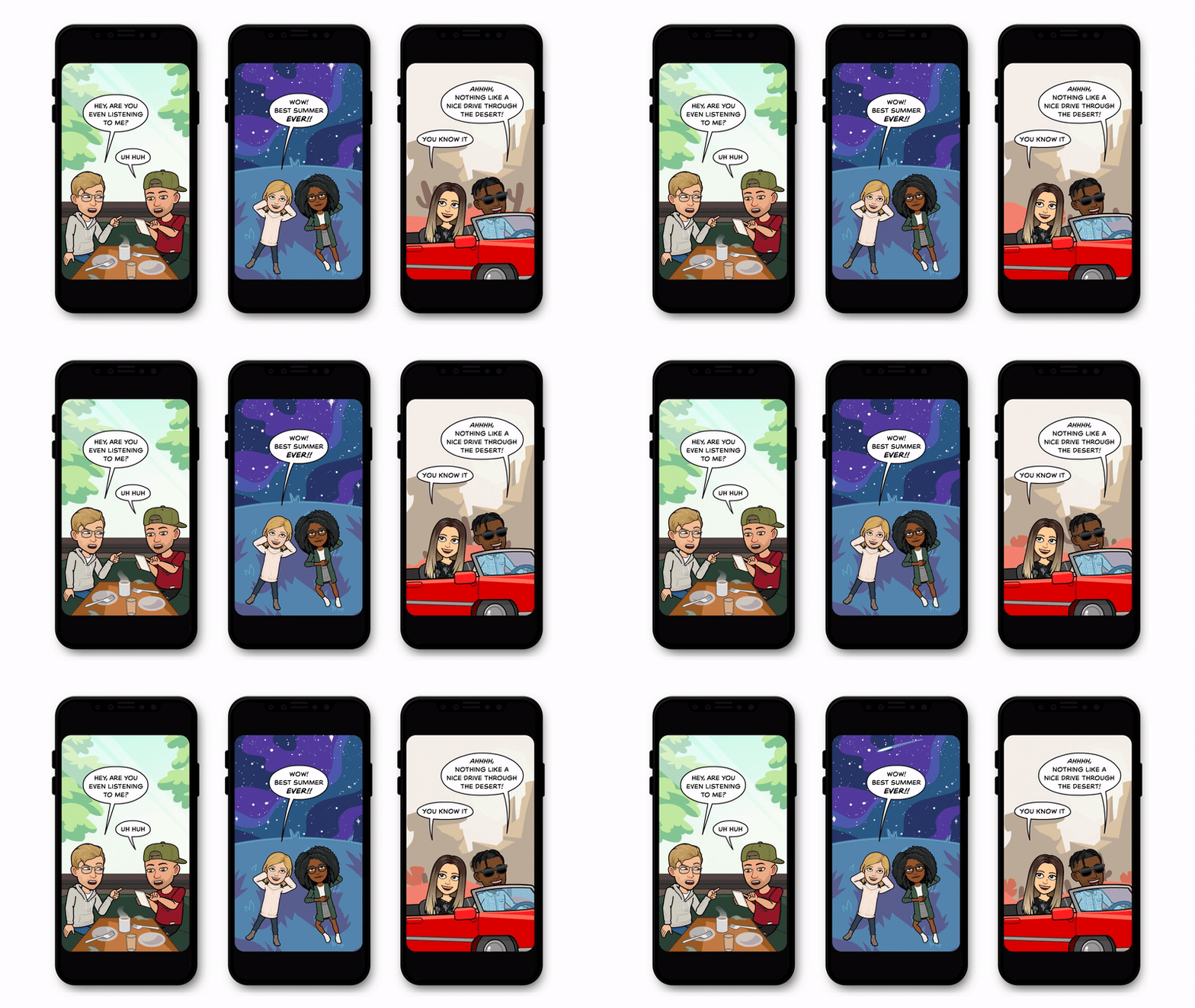
One of Snap smartest innovations was Bitmoji Stories — the ancestor to Bitmoji TV. These daily Stories let you tap frame-by-frame through short comic strip-style interactions starring your avatar. Occasionally Bitmoji Stories would include rudimentary animation, but most frames were still images with text bubbles. Bitmoji could once again drive a narrative, rather than just being a communication tool. Still, they seem underutilized.

In 2019, Snapchat wised up. Bitmoji have become nearly ubiquitous amongst teens and Snapchat’s 210 million daily users. They’re the Google or Kleenex of cartoonish personalized avatars. Their goofy nature is also a perfect fit for Snapchat, and a reason they’re tough for stiffer and older tech giants to convincingly copy.

In April, Snap announced its new games platform inside its messaging feature that let you play as your Bitmoji against friends’ avatars in games ranging from Mario Party ripoff Bitmoji Party to tennis, shoot-em ups, and cooking competitions. Snap injects ads into the games, making Bitmoji key to its efforts to monetize its central messaging use case. Last month it launched custom and branded clothing for Bitmoji, which could open opportunities to earn money selling premium outfits or showing off brand sponsorships.

To truly take advantage of Bitmoji’s unique popularity, though, Snap needed to build longer-form experiences with the avatars at the center that . Stickers and Stories and games were fun, but none felt like must-see content. With Bitmoji TV, Snap may have found a way to get users to drag their friends into the app. Since everyone sees their own Bitmoji as the star, the cartoons could be more compelling then ones with impersonal characters you might find elsewhere around the web.

But Bitmoji TV’s success will depend largely on the quality of the writing. If your avatar is constantly getting into funny, meme-worthy situations, you’ll keep coming back to watch. But Snap’s teen audience has a keen nose for inauthentic bullsh*t. If the Shows feel forced, too childish, or boring, Bitmoji TV will flop. Snap would be savvy to invest in great Hollywood talent to produce the episodes.

High quality Bitmoji TV shorts could rescue Snapchat Discover from its own mediocrity. There are a few strong brands like ESPN SportsCenter on the platform, and Snap has several original Shows with over 25 million unique viewers. It’s also greenlit additional seasons of Shows like Dead Girls Detective Agency and new biopic clips from Serena Williams and Arnold Schwarzenegger. Still, a scroll through the Discover and Shows sections reveals plenty of trashy clickbait that surely scares away premium advertisers.

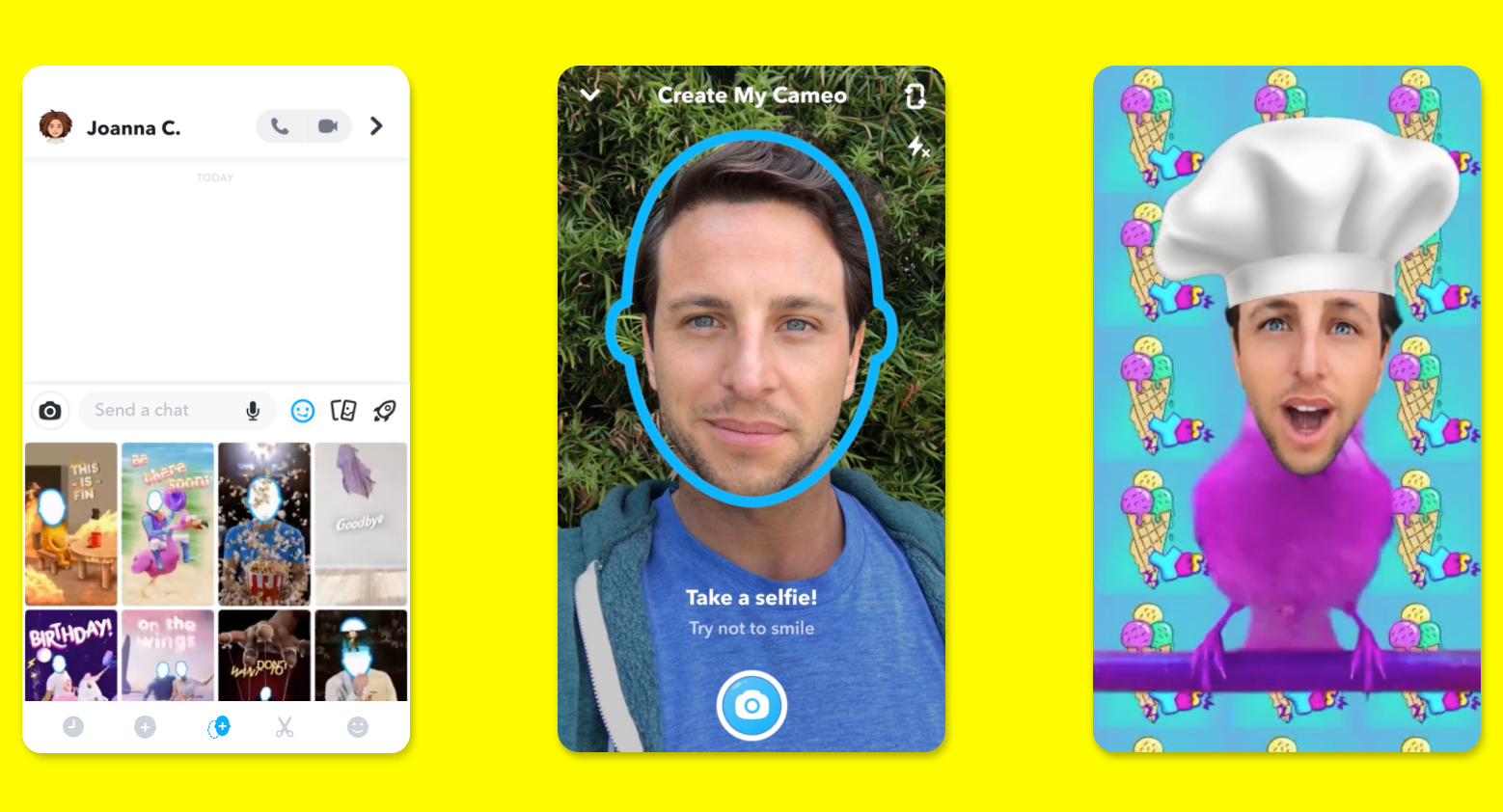
Bitmoji TV could offer video that’s not only fun and snackable, but out of reach for competitors who don’t have a scaled avatar platform of their own. As with the recent launch of Snapchat Cameos, the company has realized that the most addictive experiences center on its users’ own faces. Snapchat turned the selfie into the future of communication. Bitmoji TV could make an animated recreation of your selfie into the future of content.


Read Full Article

Snapchat will launch Bitmoji TV, a personalized cartoon show


Snapchat’s most popular yet under-exploited feature is finally getting the spotlight in 2020. Starting in February with a global release, your customizable Bitmoji avatar will become the star of a full-motion cartoon series called Bitmoji TV. It’s a massive evolution for Bitmoji beyond the chat stickers and comic strip-style Stories where they were being squandered to date.

Creating original in-house shows for its Discover section that can’t be copied could help Snapchat differentiate from the plethora of short-form video platforms out there ranging from YouTube to Facebook Watch to TikTok. Bitmoji TV could also up the quality of Discover, which still feels like a tabloid magazine rack full of scantly clad women, gross-out imagery, and other shocking content merely meant to catch the eye and draw a click.

With Bitmoji TV, your avatar and those of your friends will appear in regularly-scheduled adventures ranging from playing the crew of Star Treky spaceship to being secret agents to falling in love with robots or becoming zombies. The trailer Snapchat released previews an animation style reminiscent of Netflix’s Big Mouth.

TechCrunch asked Snap for more details, including how long episodes will be, how often they’ll be released, whether they’ll include ads, and if the company acquired anyone or brought on famous talent to produce the series. A Snap spokesperson declined to provide more details, but sent over this statement: “Bitmoji TV isn’t available in your network yet, but stay tuned for the global premiere soon!”

The Snapchat Show page for Bitmoji TV notes it is coming in February 2020. Users can visit here on mobile to subscribe to Bitmoji TV so it shows up prominently on their Discover page, or turn on notifications about its new content.

Snap realizes Bitmoji’s value

Snap has had a tough few years as many of its core features have been ruthlessly copied by the Facebook family of apps. Instagram Stories killed Snap’s growth for years and effectively stole the broadcast medium from its inventor. Facebook also ramped up it augmented reality selfie filters, added more ephemeral messaging features, and launched Watch as a competitor to Snapchat Discover.

Two years ago I wrote that Facebook was crazy not to be competing with Bitmoji too. Six months later we were first to report Facebook Avatars was in the works, and this year they launched as Messenger chat stickers in Australia with plans for a global release in 2019 or early 2020. But Facebook’s slow movement here, Google’s half-assed entry, and Twitter’s lack of an attempt have given Snapchat’s Bitmoji a massive headstart. And now Snap is finally leveraging it.

“TV” is actually a return to Bitmoji’s roots. The startup Bitstrips originally offered an app for customizing the face, hair, clothes, and more of your avatar and then creating comic strips for them to appear in. Snap acquired Bitstrips back in 2016 for just $64.2 million — a steal not far off from Facebook snatching Instagram for under a billion. The standalone Bitmoji app blew up as soon as Snapchat began offering the avatars as chat stickers. It had over 330 million downloads as of April according to Sensor Tower despite Snapchat now letting you create your avatar in its main app.

Eventually, Snap began expanding Bitmoji’s uses. In 2017 Bitmoji went 3D and you could start overlaying them as augmented reality characters on your Snaps. The next year Snap improved their graphics, then launched the Snap Kit developer platform and Bitmoji Kit. This allows apps to build atop Snapchat login and use your Bitmoji as a profile pic. Soon they were appearing as Fitbit smart watch faces, alongside your Venmo transaction, and on Snapchat-sold merchandise from t-shirts to mugs. It’s part of a wise strategy to beat copycats by allowing allies to use real thing rather than building their own knock-off. That’s fueled the “Snapback” comeback which has seen Snap’s share price climb out of the gutter at $5.79 at the start of 2019 to $16.09 now.

One of Snap smartest innovations was Bitmoji Stories — the ancestor to Bitmoji TV. These daily Stories let you tap frame-by-frame through short comic strip-style interactions starring your avatar. Occasionally Bitmoji Stories would include rudimentary animation, but most frames were still images with text bubbles. Bitmoji could once again drive a narrative, rather than just being a communication tool. Still, they seem underutilized.

In 2019, Snapchat wised up. Bitmoji have become nearly ubiquitous amongst teens and Snapchat’s 210 million daily users. They’re the Google or Kleenex of cartoonish personalized avatars. Their goofy nature is also a perfect fit for Snapchat, and a reason they’re tough for stiffer and older tech giants to convincingly copy.

In April, Snap announced its new games platform inside its messaging feature that let you play as your Bitmoji against friends’ avatars in games ranging from Mario Party ripoff Bitmoji Party to tennis, shoot-em ups, and cooking competitions. Snap injects ads into the games, making Bitmoji key to its efforts to monetize its central messaging use case. Last month it launched custom and branded clothing for Bitmoji, which could open opportunities to earn money selling premium outfits or showing off brand sponsorships.

To truly take advantage of Bitmoji’s unique popularity, though, Snap needed to build longer-form experiences with the avatars at the center that . Stickers and Stories and games were fun, but none felt like must-see content. With Bitmoji TV, Snap may have found a way to get users to drag their friends into the app. Since everyone sees their own Bitmoji as the star, the cartoons could be more compelling then ones with impersonal characters you might find elsewhere around the web.

But Bitmoji TV’s success will depend largely on the quality of the writing. If your avatar is constantly getting into funny, meme-worthy situations, you’ll keep coming back to watch. But Snap’s teen audience has a keen nose for inauthentic bullsh*t. If the Shows feel forced, too childish, or boring, Bitmoji TV will flop. Snap would be savvy to invest in great Hollywood talent to produce the episodes.

High quality Bitmoji TV shorts could rescue Snapchat Discover from its own mediocrity. There are a few strong brands like ESPN SportsCenter on the platform, and Snap has several original Shows with over 25 million unique viewers. It’s also greenlit additional seasons of Shows like Dead Girls Detective Agency and new biopic clips from Serena Williams and Arnold Schwarzenegger. Still, a scroll through the Discover and Shows sections reveals plenty of trashy clickbait that surely scares away premium advertisers.

Bitmoji TV could offer video that’s not only fun and snackable, but out of reach for competitors who don’t have a scaled avatar platform of their own. As with the recent launch of Snapchat Cameos, the company has realized that the most addictive experiences center on its users’ own faces. Snapchat turned the selfie into the future of communication. Bitmoji TV could make an animated recreation of your selfie into the future of content.


Read Full Article

28 December 2019

The Blender 2.8 Keyboard Shortcuts Cheat Sheet for Windows


3D render of an Audi

Blender is one of the best free 3D modeling programs available for anyone who wants to create computer graphics. It’s polished and powerful, going so far as to outshine quite a few paid alternatives.

If you use this highly recommended piece of open-source software for 3D modeling, texturing, animation, and more on your Windows PC, why not give your workflow a leg-up by becoming familiar with the most useful Blender keyboard shortcuts? You can discover them in our cheat sheet below.

We have grouped the shortcuts into logical sections like Navigation, Modeling, Rigging, Animation, Rendering, and so on to make it easy to find specific shortcuts.

Keep in mind that keyboard shortcuts vary from one Blender version to another. The ones below are applicable to version 2.8 of Blender on Windows.

FREE DOWNLOAD: This cheat sheet is available as a downloadable PDF from our distribution partner, TradePub. You will have to complete a short form to access it for the first time only. Download Blender 2.8 Keyboard Shortcuts Cheat Sheet for Windows.

Blender 2.8 Keyboard Shortcuts Cheat Sheet for Windows

Shortcut Action
Basics
Shift + A Add object/node
X OR Delete Delete
F3 Search for function
G Move
S Scale
R Rotate
R + X/Y/Z Rotate along global axis
R + XX/YY/ZZ Rotate along local axis
Double press R Free rotate with trackball
Shift (hold) Precise movement
Ctrl (hold) Incremental movement
Shift + D Duplicate
Alt + D Duplicate linked
H Hide
Alt + H Unhide all
Shift + H Hide all except selected
D (hold) + ¹LMB (drag) Annotate
D (hold) + ¹RMB (drag) Erase annotation
Q Quick favorites
Window Shortcuts
T Toolbar
N Properties bar
Ctrl + Space Maximize area (but keep toolbar)
Ctrl + Alt + Space Fullscreen area
Ctrl + Alt + Q Quad view
Alt + Z Toggle X-Ray view
NumPad 7 Top view
NumPad 1 Front view
NumPad 3 Right view
Ctrl + NumPad 3 Left view
NumPad , Center selected
Shift + ^ Walk navigation
Change Windows
Shift + F2 Movie Clip
Shift + F3 Nodes
Shift + F4 Python Console
Shift + F5 3D Viewport
Shift + F6 Graph
Shift + F7 Properties
Shift + F8 Video Sequencer
Shift + F9 Outliner
Shift + F10 UV/Image
Shift + F11 Text
Shift + F12 Dope Sheet
General Selections
¹LMB Select
A Select all
Alt + A OR Double press A Deselect all
B OR ¹LMB (drag) Marquee box select
C Circle select
Ctrl + ¹RMB Lasso select
Ctrl + i Invert selection
Shift + L Select linked
Shift + G Select similar
Alt + ¹LMB Select from many
Navigation
¹MMB Orbit
Shift + ¹MMB Pan
Scroll OR Ctrl + ¹MMB Zoom in/out
Shift + ~ Fly
Object Mode
Ctrl + Tab Open pie menu
Tab Edit OR Object mode toggle
Ctrl + M then X/Y/Z (OR ¹MMB(drag) Mirror
Ctrl + P Set parent (last selected)
Alt + P Clear parent
Shift + Tab Toggle snapping
Alt + G Reset position
Alt + R Reset rotation
Alt + S Reset scale
Ctrl + A Apply location / scale / rotation
Ctrl + J Join selected objects
Ctrl + L Copy attributes to new objects
Ctrl + 0/1/2/3/4/5 Add subdivision level
Alt + B Mask view to region OR Clear mask
Shift + C Center 3D cursor
M Move active object to collection
Ctrl + Alt + NumPad 0 Move active camera to view
Ctrl + NumPad 0 Set as active camera
Selection in Edit Mode
Ctrl + L Select connected mesh
L Select connected mesh under cursor
Alt + ¹LMB Select edge loop
Ctrl + Alt + ¹RMB Select edge ring
1 Vertex select mode
2 Edge select mode
3 Face select mode
Ctrl + Shift + M Mirror current selection
Ctrl +/- Grow/Shrink image
Ctrl + E Edge crease
Curve Editing
E OR Ctrl + ¹RMB Add new handle
V Change handle type
Ctrl + X Delete but maintain connection
Alt + C Close curve
Ctrl + T Tilt
Alt + T Clear tilt
Modeling
E Extrude
i Inset
Ctrl + B Bevel
Ctrl + Shift + B Bevel vertices
Ctrl + R Loopcut
G,G Vertex/Edge Slide
K Knife
F Fill face
Ctrl + Shift + Alt + S Shear
Shift + W Bend
Y Split
V Rip
Alt + V Rip fill
Alt + M Merge
Shift + N Recalculate normals
Ctrl + Shift + N Invert normals
O Proportional editing on/off
Shift + O Proportional falloff type
P Separate to new object
Texturing
U Unwrap
Ctrl + E Mark seam
UV Editor
L (under cursor) OR Ctrl + L Select island
V Stitch
Shift + W Weld
P Pin
Alt + P Unpin
Shift + P Select pinned
Image Editor
N Properties, Scopes, Slots and Metadata
1 (NumPad) View at 100%
Shift + Home View to fit
J Next render slot
Alt + J Previous render slot
1-8 Select render slot
Alt + S Save image
Shift + S Save image as
Image Editor (Paint)
Alt + N Create new blank image
Alt + O Open image
N Brush properties
F Brush size
Shift + F Brush strength
S Sample color
X Flip brush colors
Nodes
Ctrl + ¹RMB (drag) Cut connection
F Connect selected
N Properties
Ctrl + X Delete selected but maintain connection
Ctrl + Shift + D Duplicate selected and maintain connection
M Mute selected
Ctrl + G Group selected
Ctrl + Alt + G Ungroup selected
Tab Enter/Exit group (Toggle)
Ctrl + J Frame selected nodes
Ctrl + H Show/Hide inactive nodes
Compositor
Alt + ¹MMB Move backdrop
V / Alt + V Zoom backdrop
N Properties and performance
Sculpting
Shift + Space Brush image
F Brush size
Shift + F Brush strength
Ctrl + F Brush angle
R Angle control
E Stroke control
B Mask (box)
M Mask (brush)
Alt + M Clear mask
Ctrl + i Invert mask
H Hide (box)
Rendering
F12 Render
Ctrl + F12 Render animation
Ctrl + F11 Playback rendered animation
Ctrl + B Set render region
Ctrl + Alt + B Reset render region
Animation (General)
Space Play/Pause playback
Ctrl + Shift + Space Reverse play
Alt + Scroll Scroll through frames
Left/Right Arrow Next/Previous frame
Shift + Left/Right Arrow First/Last frame
Up/Down Arrow Jump to keyframe
I Add keyframe
Alt + i Delete keyframe
Animation (Dopesheet)
Ctrl + Tab Toggle Dopesheet
Ctrl + T Toggle frames/seconds
Home OR NumPad . Zoom to fit active keyframes
T Set keyframe interpolation
V Set keyframe handle type
Shift + E Set keyframe extrapolation
Ctrl + M Mirror keyframes
P then ¹LMB (drag) Set preview range
Ctrl + Alt + P Auto set preview range
Alt + P Clear preview
M Marker
Ctrl + M Rename marker
Ctrl + B Bind selected camera to selected marker
[ / ] Select keyframes before/after current frame
Ctrl + K Select all keyframes on current frame
Graph Editor
Ctrl + ¹RMB Add keyframe at cursor
N Properties and modifiers
Tab Lock selected channel
Rigging (Armatures)
E Add new bone
Shift + D Duplicate bone
Shift + W Bone settings
Ctrl + R Roll
Alt + R Clear roll
Shift + N Recalculate roll
Ctrl + Alt + A Align bone
Alt + F Switch bone direction
Alt + M Merge bones
Ctrl + X Dissolve bones
Y Split
P Separate
] and [ Scroll hierarchy
Posing Mode
i Add keyframe
Alt + G Clear location
Alt + R Clear rotation
Alt + S Clear scale
Ctrl + A Apply pose
Alt + P Propagate pose
Ctrl + E Push pose from breakdown
Alt + E Relax pose to breakdown
Shift + E Pose Breakdowner tool
Ctrl + C Copy pose
¹LMB = Left Mouse Button

MMB = Middle Mouse Button


RMB = Right Mouse Button

Beyond 3D Modeling

Blender is used to create animated films, computer games, interactive apps, and more. With a combination of models created Blender and 3D printing techniques, you can even create exciting new objects right at home!

And did you know that Blender also doubles up as a video editor?

Read the full article: The Blender 2.8 Keyboard Shortcuts Cheat Sheet for Windows


Read Full Article