28 November 2018

Google Fi now officially supports most Android devices and iPhones


Google is making a major move to expand the availability of its Fi wireless service.

It’s been a few years since Google launched Project Fi with the promise of doing things a bit differently than the large carriers. Because it could switch between the cell networks of multiple providers to give you the best signal, the service only ever officially supported a select number of handsets. You could always trick it by activating the service on a supported phone and then moving your SIM card to another (including an iPhone), but that was never supported.
That’s changing today, though. The company is opening up Fi — and renaming it to Google Fi — and officially expanding device support to most popular Android phones, as well as iPhones. Supported Android phones include devices from Samsung, LG, Motorola and OnePlus. iPhone support is currently in beta, and there are a few extra steps to set it up, but the Fi iOS app should now be available in the App Store.

One thing you might not get with many of the now-supported phones is the full Fi experience, with network switching and access to Google’s enhanced network features, including Google’s VPN network. For that, you’ll still need a Pixel phone, the Moto G6 or any other device that you can buy directly in the Fi store.

Fi on all phones comes with the usual features, like bill protection, free high-speed international roaming and support for group plans.

To sweeten the deal, Google is also launching a somewhat extraordinary promotion today: If you open a new Fi account — or if are an existing user — you can buy any phone in the Fi shop today and get your money back in the form of a travel gift card that you can use for a flight with Delta or Southwest, or lodging with Airbnb and Hotels.com. There’s some fine print, of course (you need to keep your account active for a few months, etc.), but if you were looking at getting Fi anyway, like to travel and want to get a Pixel 3 XL, that’s not a bad deal at all.

The fine print is below:

Travel on Fi with Any Device Purchase Promotion Terms (Google Fi)

Limited time, 24-hour offer applies to any qualifying device purchased from fi.google.com from 11/28/18 12:00 AM PT through 11/28/18 11:59 PM PT, or while supplies last. When you purchase a qualifying device on fi.google.com, you can redeem a travel gift card in the amount you paid for the device, excluding taxes (details below).

To qualify for this promotion, a device must be activated within 15 days of device shipment and remain active for 60 consecutive days within 75 days of device shipment. The device must be activated within the same plan that was used to purchase the device. Activation must be for full service (i.e., activation does not apply to a data-only SIM).

This offer is available for new Google Fi customers as of 11/28/18 12:00 AM PT and existing, active Google Fi customers. If the customer is new to Google Fi, the customer must transfer (port-in) their current personal number over to Google Fi during sign up. The number being transferred must be currently active and have been active with the previous carrier and the customer since 8/28/18 12:00 AM PT.

After the terms have been satisfied, the customer will receive an email from Google Fi (around 75 – 90 days after device activation) with instructions on how to obtain a gift card from Tango subject to Tango’s terms and conditions. The user can redeem gift card amounts with select travel partners: Airbnb, Delta Airlines, Hotels.com, and Southwest Airlines. Gift cards may also be subject to the terms of the travel partners.

If Fi service is paused for more than 7 days or cancelled within 120 days of activation, the value of the gift card will be charged to your Google Payments account to match the purchased price of the device. Limit one per person. This offer is only available for U.S. residents ages 18 and older, and requires Google Payments and Google Fi accounts. Unless otherwise stated, this offer cannot be combined with other offers. Offer and gift card redemption are not transferable, and are not valid for cash or cash equivalent. Void where prohibited.


Read Full Article

YouBionic adds creepy hands to SpotMini, the creepy robot dog


If you’ve ever wanted to add creepy, 3D-printed hands to your creepy robot dog, YouBionic has you covered. This odd company is offering an entirely 3D-printed arm solution for the Boston Dynamics SpotMini, the doglike robot that already has an arm of its own. YouBionic is selling the $179 3D models for the product that you can print and assemble yourself.

This solution is very skimpy on the details but as you can see it essentially turns the SpotMini into a robotic centaur, regal and majestic as those mythical creatures are. There isn’t much description of how the system will work in practice – the STLs include the structural parts but not the electronics. That said, it’s a fascinating concept and could mean the beginning of a truly component-based robotics solution.


Read Full Article
Popper


Popper

It turns out some Google staff do believe in controversial plan to re-enter China


Google’s controversial plan to launch products custom made for China has been panned by politicians, free speech advocates, ex-staff and many others, but there appears to be some support within Google from employees who actually favor the strategy.

Under a project code-named “Dragonfly,” Google is reportedly planning to introduce a censored search product and a news app in what would mark a remarkable return to China after the firm left in 2010.

The services have triggered a wave of controversy since word of them was first reported in August. Just this week, a public memo written by current Google staff urged that Dragonfly should be dropped because it “aids the powerful in oppressing the vulnerable.” The internal backlash has been fairly well covered, but there is also support inside the search giant. A pro-Dragonfly letter that has been in circulation for a number of weeks has picked up 500 signatures in an effort to stop the project from being dropped.

The letter — which was provided to TechCrunch by a source within Google — principally argues that China is part of Google’s wider mission of connecting people with information.

Here’s a core excerpt:

Dragonfly is well aligned with Google’s mission. China has the largest number of Internet users of all countries in the world, and yet, most of Google’s services are unavailable in China. This situation heavily contradicts our mission, “to organize the world’s information and make it universally accessible and useful”. While there are some prior success, Google should keep the effort in finding out how to bring more of our products and services, including Search, to the Chinese users.

That’s a pretty simplistic take on the situation but, in fairness, the letter does concede that Dragonfly is a “challenging product” that could “end up doing more harm than good.” Simply dumping it, the employees argue, would miss out on a chance to “learn how different approaches may work out in China.”

The letter is unsigned — unlike yesterday’s anti-Dragonfly memo, which is on Medium — and it is tempting to cast it as some artificial, management-led response to the situation; particularly since Google CEO Sundar Pichai is due to face Congress next week. However, TechCrunch understands that it was submitted anonymously by an employee using an internal system.

It is not surprising to see some at Google argue in favor of entering China — there are over 85,000 people working for Google, that’s a lot of opinions and viewpoints as we’ve seen before — but it is difficult to present a credible argument that the move is anything but financially-driven. And again, Google is an absolutely massive company. Somewhere else, 500 people might be a statistically significant number but at Google the letter represents barely half of one percent of the company. The same criticism can be leveraged at other letters of this kind that collect signatures and attract attention to issues — it’s important to remember that they don’t necessarily represent prevailing sentiment.

Search still makes up the bulk of Google’s revenues and, with China’s the largest market in the world for smartphone users, app spending and more, the company is leaving money off the table by opting out of the country.

Unlike many hot button issues in Silicon Valley, controversy over Google’s Dragonfly project doesn’t break down along domestic political party lines. It’s rare to find an issue that Vice President Mike Pence and left-leaning free speech advocates agree on — a fact that makes the apparent internal support for Dragonfly even more puzzling.

For better or worse, it’s usually easier to understand positions motivated specifically by partisan animus. We’re likely to hear American politicians on both sides of the aisle take a swing at Google on the issue next week when Google CEO Sundar Pichai appears before the House Judiciary Committee.

There may be a legion of principled engineers with good intentions who live and work far from China, but the real question is what the strategy of those leading Dragonfly and other initiatives is. And, on that question, there is a lot of uncertainty.

Former Googlers in Asia have told TechCrunch that they don’t believe Google’s management grasps the significance of re-entry into China. It’s a tough question and this memo, despite gaining some popularity, doesn’t really offer a particularly compelling or different answer. It does show, however, that some people in Google still believe that the company is focused on doing good. That’s something — both with respect to Google’s peers in the tech industry (Yes, that’s you, Facebook), and in light of Google’s own assorted recent ethical crises.

Here’s the pro-Dragonfly letter in full:

Dragonfly is Google’s Mission, Too

Dear Googlers,

Project Dragonfly, which aims at bringing Search back to China, has been a source of controversy since revealed. Some expect Dragonfly to bring benefits to the Chinese users and support it; others have concerns of adhering to censorship and surveillance requirements by the Chinese government and oppose it. Some are comparing it to Maven and have even resigned to call for cancellation.

We understand that Googlers are diverse: Googlers vary in their backgrounds and values, and hence, may focus on different aspects of Dragonfly and have different expectations. Nonetheless, we believe that continuing work on Dragonfly is needed, and will be helpful to all Googlers regardless of their backgrounds and expectations.

Dragonfly is well aligned with Google’s mission. China has the largest number of Internet users of all countries in the world, and yet, most of Google’s services are unavailable in China. This situation heavily contradicts our mission, “to organize the world’s information and make it universally accessible and useful”. While there are some prior success, Google should keep the effort in finding out how to bring more of our products and services, including Search, to the Chinese users.

Dragonfly still faces many difficulties and uncertainties, which can only be resolved by continuing efforts. The regulation requirements set by the Chinese government (like censorship) makes Dragonfly a challenging project. If we are not careful enough, the project can end up doing more harm than good. In any case, only with continuing efforts on Dragonfly can we learn how different approaches may work out in China, and find out if there is a way that is good for both the Chinese users and Google. Even if we fail, the findings can still be useful for bringing other services to China.

Given the good motivation and the challenging nature of the project, we believe that Google should continue on Dragonfly, which benefits both Google and the massive user base in China.

We hereby request you to sign and support Project Dragonfly to be continued and fully explored.

Signed


Read Full Article
The Alexa-enabled Big Mouth Billy Bass is real and now for sale


In September, Amazon launched its Alexa Gadgets Toolkit into beta, allowing hardware makers to build accessories that pair with Amazon Echo over Bluetooth. Today, one of the most memorable (and quite ridiculous) examples of that technology is going live. Yes, I’m talking about the Alexa-enabled Big Mouth Billy Bass, of course. You know, the talking fish that hangs on the wall, and has now been updated to respond to Alexa voice commands?

Amazon first showed off this technology over a year ago at an event at its Seattle headquarters, then this fall confirmed the talking fish would be among the debut products to use its new Alexa Gadgets Toolkit.

The toolkit lets developers build Alexa-connected devices that use things like lights, sound chips or even motors, in order to work with Alexa interfaces like notifications, timers, reminders, text-to-speech, and wake word detection.

The talking fish can actually do much of that.

According to the company’s announcement, Big Mouth Billy Bass can react to timers, notifications, and alarms, and can play Amazon Music. It can also lip sync to Alexa spoken responses when asked for information about the weather, news, or random facts.

And it will sing an original song, “Fishin’ Time.”

When the gadget is plugged in and turned on, it responds: “Woo-hoo, that feels good!”

(Oh my god, who is getting this for me for Christmas?)

“This is not your father’s Big Mouth Billy Bass,” said Vice President of Product Development at Gemmy Industries, Steven Harris, in a statement about the product’s launch. “Our new high-tech version uses the latest technology from Amazon to deliver a hilarious and interactive gadget that takes everyday activities to a fun new level.”

The fish can be wall-mounted on displayed using an included tabletop easel, the company also says.

The pop culture gag gift was first sold back in 1999, and is now updating is brand for the Alexa era.

Obviously, Big Mouth Billy Bass is not a product that was ever designed to be taken seriously – but it should be interesting to see if the updated, “high-tech version” has any impact on this item’s sales.

The idea to integrate Alexa into the talking fish actually began in 2016, when an enterprising developer hacked the fish to work with Alexa much to the internet’s delight. His Facebook post showcasing his work attracted 1.8 million views.

The Alexa-connected fish is $39.99 on Amazon.com.

(h/t Business Insider)


Read Full Article

Google’s Sundar Pichai will reportedly face Congress next week


Google may have dodged a raised right hand moment on the Hill this year as top executives from Twitter and Facebook faced Congress, but the company will now have its own time in the hot seat.

According to the Washington Post, Google CEO Sundar Pichai will appear before the House Judiciary Committee on December 5, just one week from today. While there are any number of reasons that Congress might want to hear from Google, Pichai’s appearance will reportedly serve as a response to unsubstantiated claims that Google has an anti-conservative bias.

Pichai agreed to testify some time this year back in September at the request of House Majority Leader Kevin McCarthy, one vocal critic who has accused the company of algorithmic bias. While that issue might still be at the forefront for some committee Republicans, getting the company’s chief executive on the stand will open the entire can of worms on Google’s recent controversies.

For Google, a lot has happened since September. For one, the company is still dealing with internal and external criticism about its plans to build a search engine tailored to meet China’s censorship specifications. In October Google also revealed that it was aware of a bug in Google+ that exposed user data dating all the way back to 2015. As recently as this month, Google has been dealing with walkouts and a widespread backlash against its handling of sexual harassment cases within the company. And that’s just to name a few.

Needless to say, Pichai will have plenty to answer for in his time on the witness stand. Assuming the plan goes forward as reported, we can expect House Republicans and Democrats alike to come out swinging on their pet issues in a likely lengthy and wide-ranging testimony.


Read Full Article
LG replaces the head of its struggling mobile business after just one year


Mission impossible: a new executive at LG is charged with fixing the company’s long-time loss-making smartphone division following a leadership change.

Hwang Jeong-hwan took the job as president of LG Mobile Communications last October, and this week he LG announced that he will be replaced by Brian Kwon, who is head of LG’s hugely profitable home entertainment business, from December 1.

“Mr. Kwon played a critical role in transforming LG’s TV, audio and PC business into category leaders and his knowledge and experience in the global marketplace will be instrumental in continuing LG’s mobile operations turnaround,” LG wrote in an announcement.

The company said Jeong-hwan had “successfully bolstered the operation’s quality assurance and product development efficiency.”

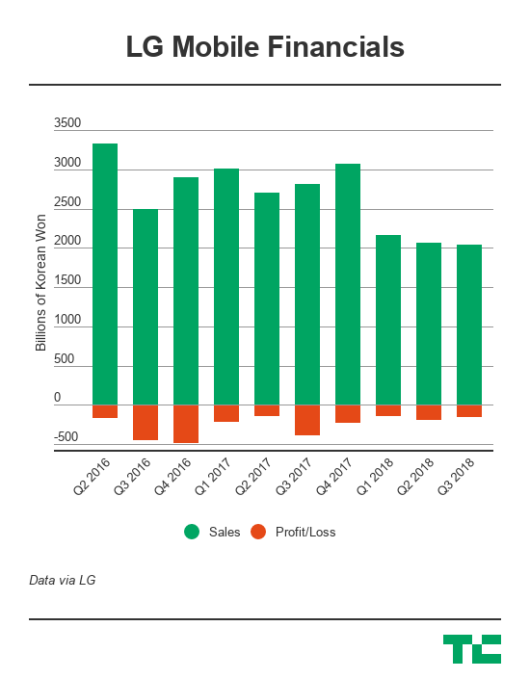
Those are interesting words, none of them mention the crisis that has seen LG’s mobile business continue to post big losses. This year to date, it lost the wider company some $410 million, including a $130.5 million net loss in the last quarter. In contrast, Kwon’s unit was the standout performer of the quarter, generating total sales of 3.71 trillion RKW ($3.31 billion) and a 325.1 billion KRW ($289.9 million) profit

That burn rate was cut during Hwang Jeong-hwan’s tenure, but it seems like there’s still much work to be done. Kwon — who LG describes as a “turnaround expert” — will combine his new role at the mobile business with his existing position as president of LG’s Home Entertainment Company. Hwang Jeong-hwan will move on to lead the company’s “Convergence Business Development Office.”

LG has also shuffled at the top of the tree. CEO Jo Seong-jin will “focus more on strategy and planning for the future” with president and CFO David Jung taking over a number of day-to-day responsibilities. LG has also restructured its vehicle component and business services divisions.


Read Full Article
How to Cancel Audible in 6 Easy Steps


cancel-audible

Where can you ask Jeremy Irons, Jake Gyllenhaal,  Bryan Cranston, and Kate Winslet to whisper in your ear? Amazon’s Audible is the world’s largest seller of audiobooks. Is that making you think twice about cancelling your Audible subscription? Even then, let’s see how to cancel an Audible subscription in a few easy steps.

If you are an audiobook lover, then”Is Audible worth it?” is a legitimate question. You also might have your own genuine reason to cancel your Audible account. Is it any of the ones below?

Reasons for Cancelling an Audible Subscription

Audible has a lot of pros for audiobook lovers. But there could be a few personal negatives for you too. One of them might be your main reason.

  • The Audible monthly subscription is too high for the single monthly credit.
  • You dislike Audible’s recommendation system as it does not surface the titles you need.
  • The reason for using the app has changed: For instance, you drove a lot earlier and now you don’t.
  • You comprehend more when you read rather than listen.
  • There are cheaper alternatives to Audible audiobooks.

Your reason might not be on the above shortlist, but Audible makes it easy to cancel a subscription in a few clicks.

How to Cancel an Audible Subscription

With your reason decided, you can set out to cancel your Audible subscription. We will look at the simple step-by-step process first and then get into a few more guidelines that you should be aware of.

  1. Log into the Audible desktop site. You cannot cancel a subscription from the  Audible phone or tablet app.
  2. Click on the dropdown arrow next to your name and select Account Details.
    Log into the Audible desktop site.
  3. Click Cancel membership at the bottom of the “View membership details” section.
    Click Cancel membership
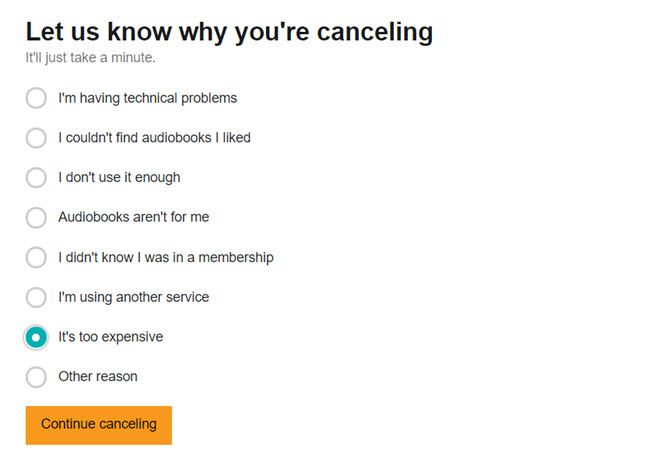
  4. In the next screen, Audible asks you for a feedback on the reasons for the cancellation. Explain your reasons and click the Cancel Membership button.
    Audible Cancellation Feedback
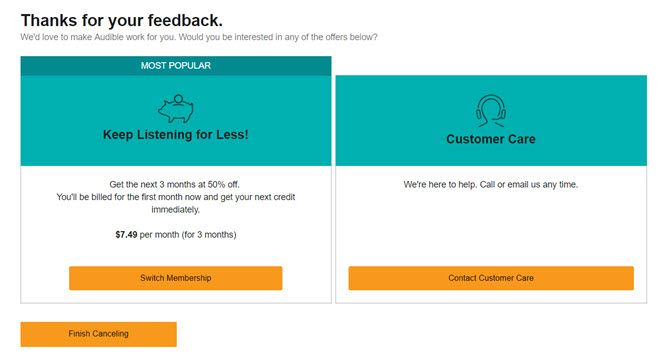
  5. Depending on your location and reasons for cancellation, Amazon might offer you an alternative. For instance, it might suggest a pre-paid membership plan instead of a recurring plan. It can also offer you a “special” plan in an effort to indude you to stay on. Continue the cancellation steps if you are not interested in the service.
    Audible offer
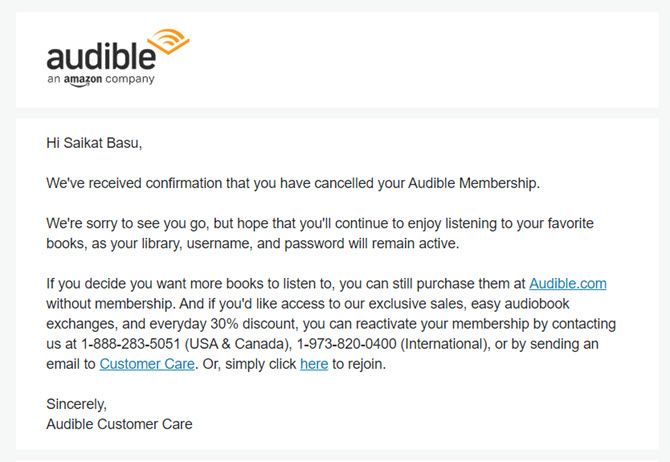
  6. Sign again into Amazon Audible to confirm your cancellation. After you cancel, an automated email will be sent to you as proof of your cancellation.

Any problems? Head to the Customer Service page and contact the support desk.

Before You Cancel Your Audible Subscription

Before you hit the orange cancel button, read through these points. Amazon also highlights them on its Help page.

  • You can cancel the monthly recurring plan only. Prepaid plans cannot be cancelled as they will just expire.
  • Cancel your membership from the desktop site. Audible does not allow you to cancel any plans from the mobile apps. But you can use the desktop versions in Chrome and Safari to access the site and go through the process.
  • Unused credits are also cancelled with the subscription. Make sure to use them before you cancel. You cannot transfer them to anyone else.
  • Keep listening to your audiobook collection. You retain the use of your old audiobook library and can download them again.
  • Cancel before the next billing cycle. Manage all your online subscriptions and cancel it before the next payment cycle starts. Also, cancel your subscription if you are in the trial period if you do not want to be billed when the trial ends.
  • You can still purchase Audible books. But you won’t be able to take advantage of special discounts, deals, and special Audible features like an audiobook exchange or returns.

5 Alternatives to Canceling Your Audible Account

The one-month Audible trial period with your choice of books is the ideal first step to see if it’s for you. But let’s say you have waded in and now are unsure about your commitment to the service. One of the most common reasons is lack of time.

You can give it one more shot before you take the nuclear option with a few suggested steps.

  1. Switchover to a lower priced plan. Tailor your subscription to your listening habits. Audible offers several membership plans and the option to switch plans anytime. Click the Switch Membership button located below “Your Membership” section.
    Audible Membership Plans
  2. Take a hiatus. Some marketplaces (like U.S and U.K) will allow you to put your membership on hold. But only if you have a monthly recurring plan. Also, an account can be on hold only once every 12 months. This hold can be anywhere between one to three months. You won’t be charged a membership fee, but you will also not receive any new credits or free access to audio shows.
  3. Try it with a special offer. As I explained before, Audible can sometimes offer you a special package when you go through the cancellation steps. It can be an incentive to build an audiobook listening habit for another three months at a good discount. After all, a good motivational audiobook can even change your life in little ways.
  4. Use an Audible Promotional Code. Promotional codes can help you to reduce the membership fees and help extend your association with the service. Search for Amazon promotional codes.
  5. Tune others into Family Library Sharing. You can set up an Amazon Household Library and share your audiobooks.

Saying Goodbye to Audible

Audible Cancellation Mail

Maybe, it’s time to cut the cord. Maybe, you haven’t had the good luck to cobble together a few hours for an audiobook. But sometimes the cancellation process itself is so daunting with that difficult to find button. The good news is that Amazon makes it easy to let go. Though, it does make a last-ditch attempt to hold on to you. And it does use a simple blue “text” button instead of a flaring red one!

If it’s not the issue of membership cost with you, then look into some of these Audible insider tips. They might help you maximize the credits you have lying around before you jump out.

Read the full article: How to Cancel Audible in 6 Easy Steps


Read Full Article

Google Maps biz reviews can now include hashtags


Google Maps has quietly rolled out a new feature aimed at helping users discover places others have recommended: it now supports hashtags in reviews. For example, if you’re reviewing a restaurant that would make an excellent #datenight spot, you can simply add the appropriate hashtag. Or if the business is #familyfriendly or #wheelchairaccessible, you can note those sorts of things, too.

Google suggests that users add up to five hashtags per review, and place them at the end of the review to make the text easier to read.

The company confirmed to TechCrunch support for hashtags rolled out globally just over a week ago on Android devices. So far, it had only been announced to members of Google Maps’ Local Guides program — the program that rewards its members for sharing their reviews, photos and knowledge about businesses and other places they visit.

Guides were told they can go back and add hashtags to their old reviews, as well as include them on new ones.

In addition to helping people find restaurants by cuisine or dietary needs (e.g. #vegetarian), hashtags can also highlight local attractions as #goodforselfies or a great place for #sunsetviews, Google suggested. The tags can note the accessibility features offered, too — like if there’s a wheelchair ramp or an audio menu available.

But unlike on Instagram and other social apps, the hashtags in reviews need to be specific to be useful. Google says that general terms like #love or #food won’t be helpful. 

The feature on its own may seem like a minor, if handy, addition to Google Maps. However, it arrives at a time when Google Maps has been getting upgraded to better challenge Facebook’s Pages platform.

For example, Maps in October added a new “follow” feature, which allows users to track businesses in order to hear about their news, sales, deals, events and more. This month, Google rolled out a revamped My Business app so business owners could easily update their Maps profile page with new content — including the news they wanted to share with followers. They also can use the app to view and respond to reviews and messages.

With the addition of hashtags in reviews, Google Maps could become a better discovery platform for businesses and other places, and possibly even a social recommendations platform. Google Guides were told to use the hashtag #LetsGuide to point users to their own personal recommendations of favorite places. To what extent they’ll adopt that tag, of course, still remains to be seen.

To use the new hashtags feature, you just tap the blue link when you see one listed in a review to be taken to a list of the other nearby places that have the same tag, Google says. The company didn’t say when the feature would make its way to iOS or the web.


Read Full Article

The Word of the Year Is… Misinformation


It’s that time of year when various publications decide their “…” of the year. And in the case of dictionaries it’s the word of the year. Dictionary.com has decided that its word of the year for 2018 is “misinformation”. Which, ironically, isn’t misinformation.

When Disinformation Becomes Misinformation

Misinformation is a word that, according to Dictionary.com, has been around since the 1500s. However, its use has spread in recent years thanks to the spread of misinformation being disseminated via biased news sources and social media users.

Dictionary.com defines misinformation as “false information that is spread, regardless of whether there is intent to mislead.” Which separates it from disinformation, which is described as “deliberately misleading or biased information”.

While disinformation is the source of a lot of issues we’re now seeing in society, misinformation is making things worse. And this is mainly because social media users share things without checking the veracity of the information first.

This blind spreading of misinformation has had some real-life consequences. Elections have been influenced by people believing what they read. People’s health has been affected by scare stories. And individuals have been targeted over rumors started online.

This is why Dictionary.com has chosen misinformation as its word of the year. And why we all, each and every one of us, needs to do better in this area. It doesn’t take long to check facts before reposting, retweeting, or sharing something you want to be true.

How to Stop the Spread of Misinformation

Dictionary.com’s runners-up include “representation,” as in the representation of ethnic minorities, “self-made,” as in Kendal Jenner being a self-made billionaire, and “backlash,” as in the celebrity of the day experiencing a backlash over something they said.

In terms of misinformation it’s up to us to plot its downfall. Which unfortunately requires a little homework. First, teach yourself how to spot fake news. Next, bookmark these unbiased fact-checking websites. And finally, learn to trust your instincts!

Image Credit: John Davey/Flickr

Read the full article: The Word of the Year Is… Misinformation


Read Full Article
You’ll Soon Use DSLRs and GoPros as Webcams With Elgato’s Cam Link 4K

You Can Now Add Hashtags to Google Maps


Google Maps is rapidly evolving into a bigger and (potentially) better platform than it has been previously. And the latest feature Google is adding to the Maps mix is hashtags. Yes, Google Maps will soon be awash with hashtags, for better or worse.

Hashtags Finally Arrive on Google Maps

You can now add hashtags to your reviews of businesses. So, for example, if you’re reviewing a restaurant you can add #datenight or #familyfriendly. You could also add #wheelchairaccessible to help make Google Maps more wheelchair friendly.

Google Maps’ Local Guides are already actively using hashtags in their reviews. Google suggests people use up to five hashtags per review, and place them at the end of the review rather than make a review harder to read by placing them throughout.

Google rolled out hashtags to Maps quietly. According to TechCrunch, the ability to add or view hashtags is only currently available on Android devices. There’s no word yet when it will be added to the iOS version of Google Maps.

Hashtags provide an at-a-glance shorthand for what to expect from a business. So this should make it easier to search for the perfect restaurant, bar, club, attraction, etc. However, this is reliant on people using hashtags responsibly. Which isn’t guaranteed.

Google Maps Is Becoming a Social Network

In recent months Google has added a slew of new features to Maps. To the point which Google Maps is starting to feel a little bloated. The days when Google Maps was primarily used to help us all get from A-to-B are over, and I’m not sure that’s a good thing.

Many of Google’s recent changes to Maps makes it feel more like a social network. This includes Google Maps helping you plan group events, Google Maps helping you explore your local area, and Google Maps letting you message businesses.

Image Credit: Mosieur J./Flickr

Read the full article: You Can Now Add Hashtags to Google Maps


Read Full Article

5 Ways to Fix a Stuck Pixel on Your Screen


A dead or stuck pixel on a TFT, OLED, or LCD screen is incredibly annoying. You can’t help but stare at it for days on end, wondering how long a repair or exchange might take. All that grieve over something as unimportant, yet highly irritating as a “dead” pixel that might be easy to fix.

Before you run the item back to the store though, try whether you can fix the dead pixel yourself! This, if done carefully, will not hamper your warranty and might save you a lot of time and worries. So let’s see how you can possibly fix that dead pixel your screen.

Test New Screens for Stuck or Dead Pixels

Yes, you should test any new LCD, OLED, or TFT screen for dead or stuck pixels. You can simply run your monitor through a palette of basic colors, as well as black and white in full-screen mode. We’ll show you tools to do that below.

Is It a Stuck or Dead Pixel?

So what if you spot an odd pixel? Is what you’re seeing just a stuck pixel or is it, in fact, a dead pixel?

A stuck pixel will appear in any of the colors that its three sub-pixels can form, i.e. red, green, or blue. In a dead pixel, all sub-pixels are permanently off, which will make the pixel appear black. The cause could be a broken transistor. In rare cases, however, even a black pixel may just be stuck.

So if you’re seeing a colored or white pixel, you might be able to fix it. And if you see a black pixel, chances are low, but there is still hope.

Let’s turn to the methods to fix a stuck pixel.

How to Fix Stuck or Dead Pixels

Unfortunately, you can’t fix a dead pixel. You can, however, fix a stuck pixel. And as I explained above, it’s hard to tell the two apart. Either way, these are the methods you can try:

  1. First, identify dead or stuck pixels by viewing your monitor in different color palettes.
  2. To fix a stuck or dead-looking pixel, use a third-party tool to flash the pixel with multiple colors. We recommend UDPixel (Windows) or LCD (online).
  3. Finally, you can try a manual method that involves rubbing the stuck pixel with a damp cloth or a pointy, but soft item, like the rubber/eraser at the end of a pencil.

Let’s look at these methods and tools in detail.

1. UDPixel

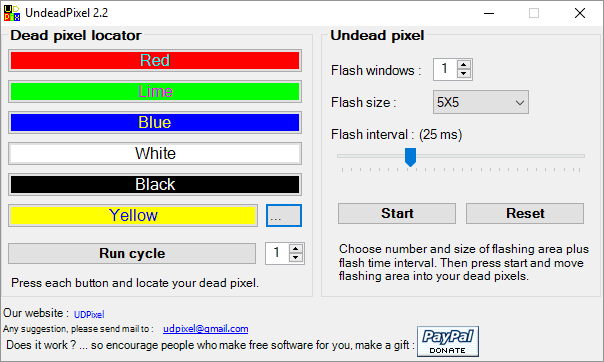
UDPixel, also known as UndeadPixel, is a Windows tool. It can help you identify and fix pixels using a single tool. The program requires the Microsoft .NET Framework. If you’re not on Windows or don’t want to install any software, scroll down for the online tools below.

With the Dead pixel locator on the left, you can easily detect any screen irregularity that may have escaped your vision until now.
Dead Pixel Test and Fix Tool
Should you spot a suspicious pixel, switch to the Undead pixel side of things, create sufficient amounts of flash windows (one per stuck pixel) and hit Start. You can drag the tiny flashing windows to where you found odd pixels. Let them run for a while and eventually change the Flash interval.

2. LCD

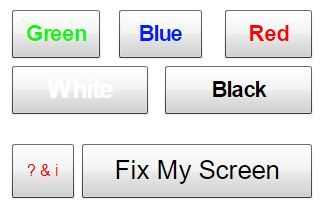
LCD is an online tool that lets you find and eventually fix stuck pixels. It packs many options into a single tiny window, but once you have an overview it’s easy to use.

Note: This website requires Flash. If you’re on Chrome, click the Get Adobe Flash Player button and when Chrome asks you to Run Flash, click Allow.

To test your screen, go through all of the colors—green, blue, and red — and check our screen. Additionally, you should check white and black. Press the ? & i button for background information.

Stuck Pixel and Screen Fixer Tool

Should you discover a stuck pixel, click the Fix My Screen button and let the color flashing graphic run for a minute or two.

LCD Online Tool

By triggering each pixel’s different sub-pixels, the graphic may massage a stuck pixel back into life.

3. Dead Pixel Buddy

The online tool Dead Pixel Buddy can help you run a quick dead pixel test, but it can’t fix an affected pixel.

Dead Pixel Buddy offers 12 colorful tiles to test for dead or stuck pixels. Click one of the tiles to fill the entire browser window with the respective color. Press F11 to go full screen, then cycle through the colors using the left and right arrow keys. When you’ve tested all 12 colors, press F11 again to leave full-screen mode.

Dead Pixel Buddy

If you do find a stuck or dead pixel, use UDPixel (above) or JScreenFix (below); those are tools that can fix a stuck pixel.

4. Online Monitor Test

This is a very thorough test not only meant to identify bad pixels but also powerful enough to test the quality of your monitor.

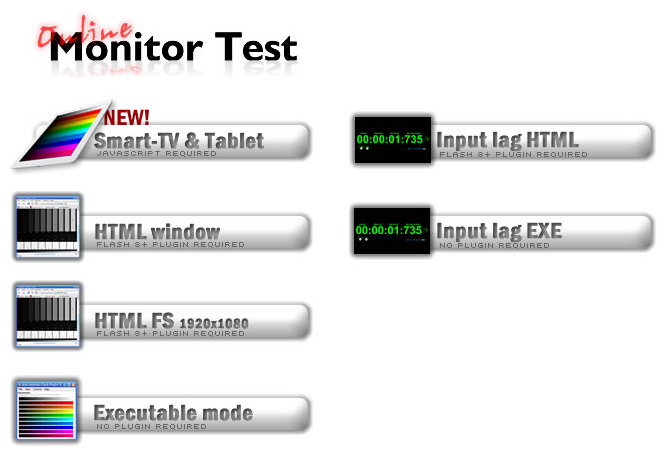
You can choose between three different modes to test your screen. This tool either requires flash (online version) or you can install it in the executable mode.
fix dead pixels laptop
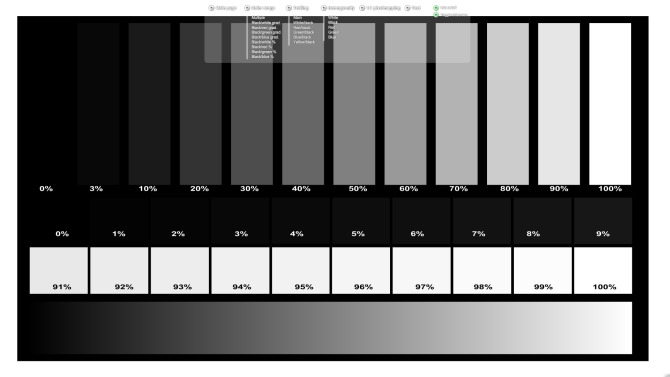
What you will need to just test for stuck pixels is the HTML window. Again, you’ll need to allow Chrome to run Flash. Toggle full-screen by hitting F11. Here is what you should see:
fix dead pixel
Move the mouse to the top of the test window and a menu will appear. There is an info window that you can turn off with a button in the top right corner of the menu. Then click on the Homogenuity test point and move through the three colors as well as black and white.

Fingers crossed you won’t discover anything out of the ordinary. In the unfortunate case that you do, you may find the following online tool helpful.

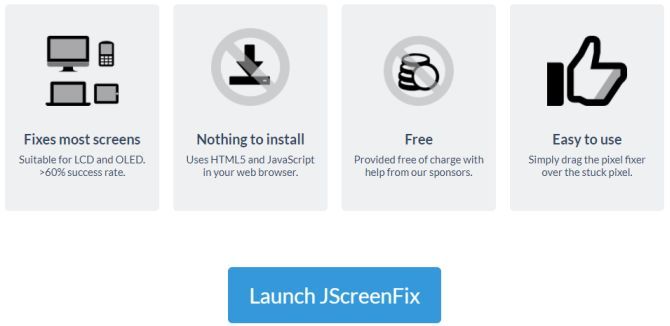
5. JScreenFix

JScreenFix won’t help you find a stuck pixel, but it can help you fix it. Just press the Launch JScreenFix button at the bottom of the page.

Stuck Pixel Screen Fixer Tool

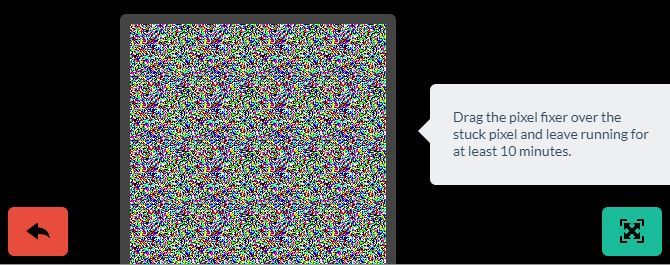
The tool will load a black browser window with a square of flashing pixels. Press the green button in the bottom right to go full-screen. Drag the flashing square to where you found the stuck pixel and leave it there for at least 10 minutes.

Stick Pixel Fixer JScreenFix

Manually Fix Stuck Pixels

Should none of these tools resolve your stuck or dead pixel issue, here is one last chance. You can combine any of the tools and the magic power of your own hands. There is a very good description of all available techniques on wikiHow. Another great step by step guide can be found on Instructables.

But let’s go through one technique real quick:

  1. Turn off your monitor.
  2. Get yourself a damp cloth, so that you won’t scratch the screen.
  3. Apply pressure to the area where the stuck pixel is. Try not to put pressure anywhere else, as this may trigger the creation of more stuck pixels.
  4. While applying pressure, turn on your computer and screen.
  5. Remove pressure and the stuck pixel should be gone.

This works because, in a stuck pixel, the liquid in one or more of its sub-pixels has not spread equally. When the backlight of your screen turns on, different amounts of the liquid pass through the pixel, to create the different colors.

All Pixels Report to the Screen

Should all of these approaches fail to fix your dead pixel warrior, at least you’ll now know it’s not simple to fix and the screen may indeed need to be replaced.

Don’t know what to do with your old monitor now? We have some ideas for you!

Read the full article: 5 Ways to Fix a Stuck Pixel on Your Screen


Read Full Article
The 8 Best Nordic Dramas to Watch on Netflix and Amazon Prime


nordic-dramas-amazon-netflix

Nordic dramas have a unique feel about them. The dark settings and stories, slow-building plots, and shocking conclusions are chilling in more ways that one. The cold of the austere landscapes seeps into your bones as deeply held secrets come to light. The veneer of normalcy is torn away to reveal sinister truths hiding beneath everyday life.

For fans of Nordic noir, nothing else will do.

Which is why we have collected the best Nordic dramas, both foreign language hits and those inspired by them, that you can stream on Netflix and Amazon Prime right now. So grab a blanket, turn off the lights, and settle down with one of these great movies or TV shows.

1. The Dragon Tattoo Trilogy

The Girl with the Dragon Tattoo introduced much of the world to Nordic noir. The books and movies in the series chilled audiences with their dark sets, moody characters, and shocking violence. The first series of movies, filmed in Swedish, is considered by many to be the best by far.

If you aren’t already familiar with the story, here’s the short version: a journalist hires a young hacker to help him solve an old murder. The murder (as is always the case in Nordic crime dramas) is much more complicated than he expects, and he’s soon drawn into multiple webs of deceit. And the hacker, Lisbeth Salander, has her own disturbing world to navigate.

Watch The Dragon Tattoo Trilogy on Netflix

2. Mammon

Set over a period of six days, this Norwegian thriller follows an uncompromising journalist who uncovers some dark evidence about his own brother. He goes to print with it, but soon finds himself entangled in a mystery that takes over his life.

Mammon goes into the world of politics and banking, exposing the corruption that bubbles on the surface, which is all suitably cliche. However, there’s plenty of surprises along the way to keep things engaging. Everyone here seems to have dark secrets and it’s only a matter of time before they’re exposed.

Bouncing between scenic locales like Oslo and Bergen, and supported by some outstanding performances, Mammon shows that the Norwegians are more than capable of producing gripping drama.

Watch Mammon on Amazon Prime

3. Fortitude

British TV has produced a slew of great Nordic-style shows over the past few years, and Fortitude is one of them. A murder shocks a small, remote Norwegian town near the Arctic Circle, and, of course, everything starts unraveling after that.

Stanley Tucci, Michael Gambon, Christopher Eccleston, Richard Dormer, Sofie Gråbøl, and Dennis Quaid provide all-star backing to this show, but even the minor characters are well-crafted.

If you’re looking for a slow-burning, suspenseful trip into the deep Arctic snows, you can’t go wrong with Fortitude. There are two seasons available on Amazon Prime, and there are rumors of a potential third season in the works.

Watch Fortitude on Amazon Prime

4. The Lava Field

This mini-series is only four episodes long, making it immensely easy to wolf down. Iceland is a wonderful country, and its landscapes can make for the perfect stark backdrops. The Lava Field uses them to great effect.

Helgi Marvin is a detective, played excellently by Björn Hlynur Haraldsson, who comes to investigate a suicide of a wealthy man in the Snæfellsnes Peninsula. Of course, things aren’t going to be exactly as they seem. This suicide may actually be murder.

As Marvin investigates the case, his own personal life begins to overshadow the investigation. Secrets best kept that way begin to escape and our troubled lead must decide whether to overlook the crime in order to protect his family.

Watch The Lava Field on Netflix

5. Tin Star

In Tin Star, Tim Roth plays a police detective called Jim Worth who has moved, with his wife and children, from London to a small Canadian town to try and escape his violent past. However, it isn’t long before everything he’s trying to flee comes catching up: murder, deceit and twists are all around the corner and ready to make their mark.

The remote, desolate locations bring that wonderful Nordic vibe, as do the mysteries that untangle through the episodes. While Jim is battling his own demons, an oil company has invaded the town and his daughter falls for a troublesome youth. Try as he might, Jim can’t escape the bloodshed.

Watch Tin Star on Amazon Prime

6. Bordertown

When Bordertown first aired in its native Finland, over a fifth of the country’s population watched it. It’s no surprise: the story is captivating, it’s beautifully shot, and it’s very skillfully led by Ville Virtanen as quirky, Sherlock-like detective Kari Sorjonen.

Sorjonen is working for the National Bureau of Investigation in Finland when his wife only just survives cancer. Hoping for a more peaceful life, the family uproot to near the Russian border. However, things don’t go according to plan, as he uncovers sex trafficking, drug trading, and more shadiness.

The murders uncovered are all connected to one another, but also to Sorjonen’s family. So much for the quiet he wanted. But it’s all the better for the creepy, claustrophobic thrills that we get to enjoy.

Watch Bordertown on Netflix

7. Trapped

Iceland may be known for its remarkably low murder rate (less than two per year, on average), but it’s a perfect setting for a Nordic noir murder mystery. A limbless, headless corpse appears in the harbor, and a storm ensures that no one can leave the small Icelandic town. It’s up to the three-person police department to solve the crime.

Trapped was made especially poignant because it paralleled one of the few real murder mysteries in Icelandic history, as recounted by The New York Times. If you like hearing about real-life crimes, check out these true crime podcasts.

The conflicted and jaded detective, bleak backdrops, and horrible secrets held by seemingly mundane people make this a shining example of Nordic drama. The first season is available now on Amazon Prime.

Watch Trapped on Amazon Prime

8. Broadchurch

Another example of the best of British crime dramas, Broadchurch is an exquisitely paced, intricately plotted exploration of a small-town murder. David Tennant is, as usual, on cracking form, and both Olivia Colman and Jodie Whittaker contribute phenomenal performances.

While the murder of a boy is the primary plot driver, there’s much more to this show. Viewers will see what suspicion, attention, grief, and rebuilding do to the town and its residents.

The show is highly awarded, with Colman receiving Best Actress at the 2014 BAFTA awards. The dreary British backdrop—punctuated with gorgeous architecture and seaside vistas—are a perfect setting for this gripping story.

Watch Broadchurch on Netflix

Embrace the Darkness and Start Streaming

Scandinavian noir is full of the darkness hiding behind the façade of everyday life. But there are glimpses of light, too. You just have to dig through the bodies to find them.

These movies and TV shows are great examples of Nordic drama, and all can be streamed on Netflix or Amazon Prime as soon as you finish reading this article.

If this list of nordic dramas has whetted your appetite for streaming media, check out the best movies on Amazon Prime Video.

Image Credit: photocosma/Depositphotos

Read the full article: The 8 Best Nordic Dramas to Watch on Netflix and Amazon Prime


Read Full Article
How to Take Screenshots on Mac: Tips, Tools, and Tricks to Know


mac-screenshot

When you want to take a screenshot on your Mac, you have both native and third-party tools to choose from. Let’s see how to make the best of those and explore some useful tricks along the way.

How to Take Screenshots on Mac With Keyboard Shortcuts

macOS has a few default keyboard shortcuts to help you capture the screen instantly. We’ll go through them one by one, as which one to use depends on what exactly you want to take a screenshot of.

(Having trouble? Ensure that you haven’t disabled these shortcuts under System Preferences > Keyboard > Shortcuts > Screenshots.)

Capture the Entire Screen

For this, you need the shortcut Cmd + Shift + 3. It takes a snapshot of the entire screen and saves it to the desktop as a PNG image.

Want to copy the screenshot to the clipboard instead of saving it automatically? Add the Control key to the keyboard shortcut—hit Control + Cmd + Shift + 3.

Capture a Part of the Screen

capture-screen-portion-with-keyboard-shortcut-on-mac

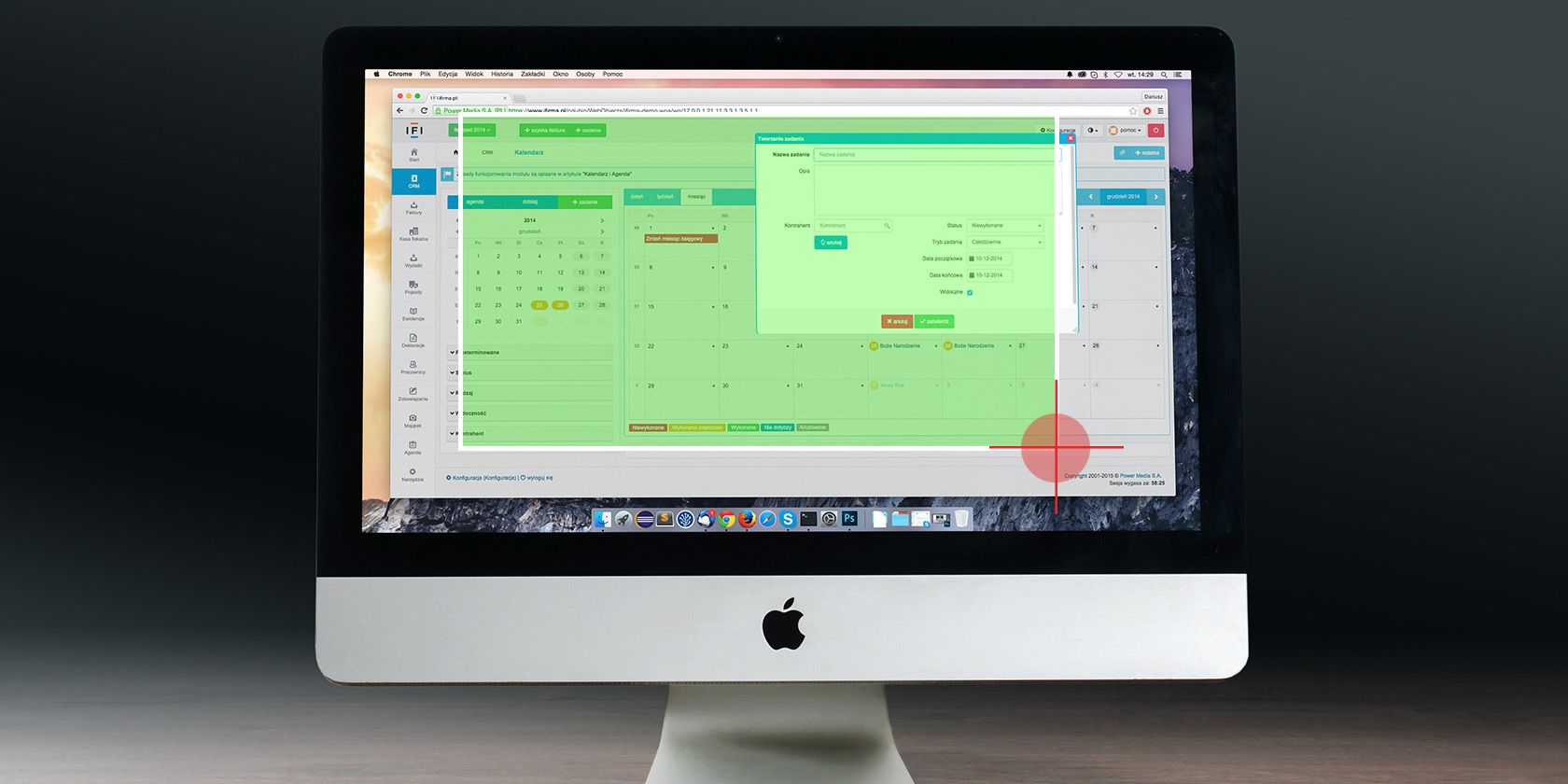
You’ll need to hit Cmd + Shift + 4 if you want to snap a specific portion of the screen. This shortcut turns the cursor into a crosshair; you can then click and drag it across the part of the screen you want to capture.

While making the selection, hold down the Shift key if you want to limit your adjustments to either the X or Y axis. If you’d like to resize your selection proportionally from the center, hold down the Option key. If you want to move the selection, hold down Space instead.

(Changed your mind about taking the screenshot? No problem. Hit the Escape key to cancel the action.)

Once you’re satisfied with the selection, release the mouse. The screenshot then saves to the desktop as a PNG file. As above, if you want to copy the captured image to the clipboard instead of saving it, you’ll need to tweak the shortcut a bit. Modify the shortcut to Control + Cmd + Shift + 4 to copy.

Capture an Application Window

capture-application-window-with-keyboard-shortcut-on-mac

Want to take a screenshot of the active window? First hit Cmd + Shift + 4. Then hit Space, and you’ll see the crosshair turn into a camera.

The active window appears highlighted, and if you click the camera, you get a screenshot of the window. Before clicking, you can also choose to move the focus of the camera to a different window.

If you want to take a timed screenshot, you’ll need to open your Mac’s built-in screenshot utility. We’ll discuss it in the next section.

How to Take Screenshots on Mac With the Screenshot App

screenshot-app-on-mac

Under Applications > Utilities, you’ll find your Mac’s stock screen capture app, aptly named Screenshot. You can also bring up this app with the shortcut Cmd + Shift + 5.

(If you’re on a pre-Mojave Mac, look for the Grab app instead of Screenshot in the Utilities folder.)

With Screenshot, Apple has simplified the whole screen capture process. The app is useful if you prefer a more point-and-click approach over keyboard shortcuts.

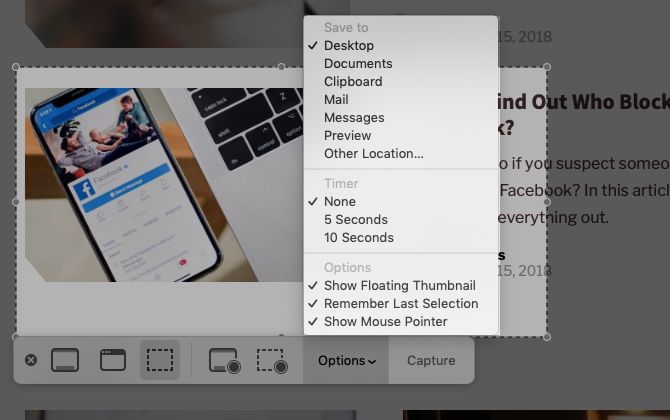
Screenshot’s toolbar has three buttons that make screen capture quick and painless: Capture Entire Screen, Capture Selected Window, and Capture Selected Portion. (The app also has a couple of buttons for screen recording.)

For timed selections, click on the Options button in the toolbar. You’ll find the timer options in the menu that shows up.

After you take a screenshot, you’ll see a tiny thumbnail of it at the bottom-right of the screen. It leads to a special window with tools for editing and annotating your screenshots. They let you add text, sketches, shapes, and even your signature to a screenshot. This Markup utility is one of the best new features of macOS Mojave.

If you want to turn off the thumbnail feature, uncheck the Show Floating Thumbnail item in the Options menu from the screenshot toolbar.

options-menu-in-screenshot-app-on-mac

Configuring Screenshot Settings on Mac

You might want to, say, change the default screenshot format or change where screenshots get saved. In such cases, you’ll need to execute a command from the Terminal app. Let’s take a look at three of the most handy commands.

We have appended each command with a second one that’s needed to cement the changes. It reads:

killall SystemUIServer

To Change the Default Screenshot Format

You can save screenshots to other formats like JPG, BMP, and PDF. You’ll need to replace [file type] in the command below with the relevant three-letter format name.

defaults write com.apple.screencapture type [file type] && killall SystemUIServer

To Change Where Screenshots Get Saved

In macOS Mojave, you can change the default destination folder directly from the Screenshot app. To do this, click on the Options button in the screenshot toolbar and select a folder of your choice under the Save To section of the consequent menu.

On a non-Mojave Mac, you’ll have to rely on this Terminal command:

defaults write com.apple.screencapture location [path] && killall SystemUIServer

Replace [path] with the new Finder save location that reads something like this:

/Users/[Username]/Pictures/Screenshots

You can either type the pathname into Terminal, or drag and drop the relevant folder into Terminal to paste its pathname. Alternatively, you can also copy the pathname and then paste it into Terminal.

You’ll find the Copy as Pathname command in the destination folder’s right-click context menu. However, the command appears only when you hold down the Option key while right-clicking.

To Change the Default File Name for Screenshots

If you want to replace the default prefix (Screen Shot) in screenshot names with a different keyword, try this command:

defaults write com.apple.screencapture name [file name] && killall SystemUIServer

Be sure to replace [file name] in the command with the new keyword before execution.

If you’d rather not fiddle with the Terminal, install a utility that lets you tweak macOS settings without Terminal commands.

How to Take Screenshots on Mac With Preview

The Preview app on your Mac also allows you to take screenshots. It’s just one of the essential macOS Preview tricks you’ll want to know about.

The advantage of using Preview for screenshots is that you can specify a different file format and save location with each new capture. Of course, you can also instantly edit the screenshot in Preview before saving it.

You’ll find the screenshot tools in Preview under File > Take Screenshot. Unfortunately, a timed screenshot option is missing here.

The Best Screenshot Apps for macOS

monosnap-app-for-mac

Want advanced features that aren’t included in one of the native screen capture tools? Try one of the three third-party tools below.

1. Monosnap

This app sits in your Mac’s menu bar and you can access it with a keyboard shortcut. Monosnap lets you edit screenshots and add arrows, boxes, and text to them. You can also blur elements, highlight specific areas, and upload screenshots to the cloud. Monosnap made it to our list of the top Mac menu bar apps.

Download: Monosnap (Free)

2. Skitch

This app lets you capture various onscreen elements and edit/annotate them without having to open another app. Skitch also supports timed screenshots.

Download: Skitch (Free)

3. Snappy

Get Snappy if your work involves collaborating on screenshots or “snaps” often. You can not only edit and annotate screenshots as usual, but also share them with ease. The sharing options include a password-protection feature and a self-destruct timer.

Download: Snappy (Free)

Get Familiar With Screen Capture on Mac

Now you have all the information you need to take and edit screenshots on your Mac quickly and efficiently. How about mastering the basics of iPhone screenshots next? Better yet, learn how to add borders to your screenshots to brighten them up!

Read the full article: How to Take Screenshots on Mac: Tips, Tools, and Tricks to Know


Read Full Article

Social music app Playlist lets you listen to music with others in real time


A new app called Playlist aims to make music a more social experience than what’s offered today by the major music platforms like Apple Music, Pandora or Spotify, for example. In Playlist, you can find others who share your musical tastes and join group chats where you listen to playlists together in real time. You can collaborate on playlists, too.

The app, backed by investment from Stanford’s StartX fund, was founded by Karen Katz and Steve Petersen, both Stanford engineers and serial entrepreneurs. Katz previously co-founded AdSpace Networks and another social music platform, Jam Music. She also was a founding executive team member at Photobucket, and founded a company called Project Playlist, which was like a Google search for music back in the Myspace era.

Peterson, meanwhile, has 35 patents and more than a decade of experience in digital music. In the early 2000s he created the software architecture and ran the team at PortalPlayer Inc., which powered the iPod’s music player and was later sold to Nvidia for $357 million. Afterwards, he was CTO at Concert Technology, a technology incubator and intellectual property company with a focus on mobile, social and digital music services.

“The world has gone social, but music has been largely left behind. That’s a real gap,” explains Katz, as to why the founders wanted to build Playlist in the first place.

“Ever since we started listening to music from our mobile phones, it’s become an isolated experience. And music is the number one thing we do on our phones,” she says.

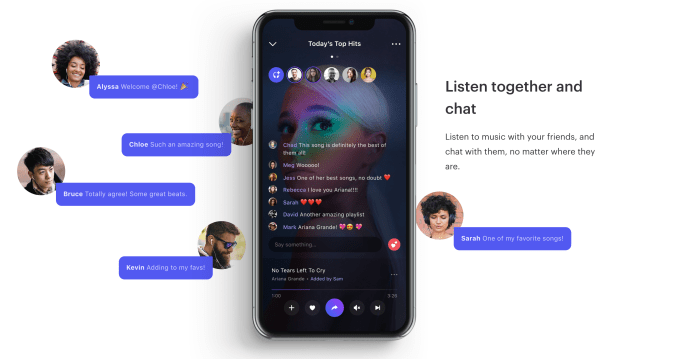
The idea they came up with was to unite music and messaging by synchronizing streams, so people could listen to songs together at the same time and chat while they do so.

During last year’s beta testing period, Playlist (which was listed under a different name on the App Store), saw a huge number of engagements as a result of its real-time nature.

“Out of the gate, we saw 10 times the engagement of Pandora. People have, on average, 60 interactions per hour — like chats, likes, follows, joins, adds and creates,” Katz says. 

Under the hood, the app uses a lot of technology beyond just its synchronized streaming. It also leverages machine learning for its social recommendations, as well as collaborative playlists, large-scale group chat, and behavior-based music programming, and has “Music Match” algorithms to help you find people who listen to the same sort of things you do.

The social aspects of the app involves a following/follower model, and presents playlists from the people you follow in your home feed, much like a music-focused version of Instagram. A separate Discover section lets you find more people to follow or join in other popular listening and chat sessions.

At launch, the app has a catalog of more than 45 million songs and has a music license for the U.S. It plans to monetize through advertising.

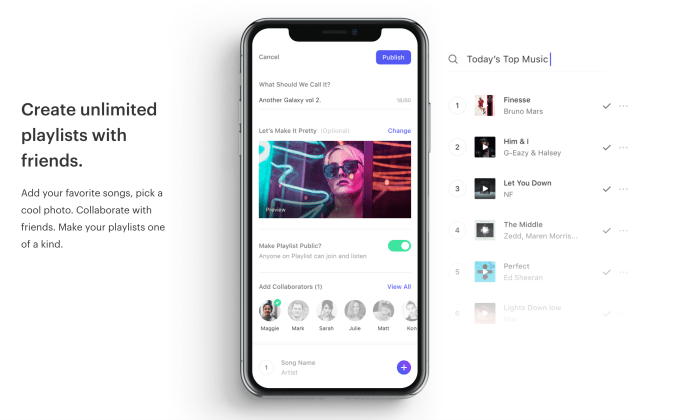
The core idea here — real-time music listening and chat — is interesting. It’s like a Turntable.fm for the Instagram age. But the app sometimes overcomplicates things, it seems. For example, importing a playlist from another music app involves switching over to that app, finding the playlist and copying its sharing URL, then switching back to Playlist to paste it in a pop-up box. It then offers a way for you to add your own custom photo to the playlist, which feels a little unnecessary as the default is album art.

Another odd choice is that it’s difficult to figure out how to leave a group chat once you’ve joined. You can mute the playlist that’s streaming or you can minimize the player, but the option to “leave” is tucked away under another menu, making it harder to find.

The player interface also offers a heart, a plus (+), a share button, a mute button and a skip button all on the bottom row. It’s… well… it’s a lot.

But Katz says that the design choices they’ve made here are based on extensive user testing and feedback. Plus, the app’s younger users — often high schoolers, and not much older than 21 — are the ones demanding all the buttons and options.

It’s hard to argue with the results. The beta app acquired more than 500,000 users during last year’s test period, and those users are being switched over to the now publicly available Playlist app, which has some 80K installs as of last week, according to Sensor Tower data.

The company also plans to leverage the assets it acquired from the old Project Playlist, which includes some 30 million emails, 21 million Facebook IDs and 14 million Twitter IDs. A “Throwback Thursday” marketing campaign will reach out to those users to offer them a way to listen to their old playlists.

The startup has raised $5 million in funding (convertible notes) from Stanford StartX Fund, Garage Technology Ventures, Miramar Ventures, IT-Farm, Dixon Doll (DCM founder), Stanford Farmers & Angels, Zapis Capital and Amino Capital.

The Palo Alto-based company is a team of six full-time.

Playlist is a free download for iOS. An Android version is in the works.


Read Full Article

Khosla GP launches Bling Capital to help seed-stage startups build products


At Facebook, where he was the first-ever director of platform, they called him Bling. At YouTube the following year, they still called him Bling. At Google in 2010, they continued to call him Bling. Even at Khosla Ventures, where Ben Ling has been a general partner for the past five years, the nickname stuck.

It was only natural that Bling Capital would be the name of his debut venture capital fund, a $60 million seed-stage vehicle backed by Marissa Mayer, Nellie and Max Levchin, Yelp CEO Jeremy Stoppelman and Quora CEO Adam D’Angelo.

We first spotted Bling Capital’s $60 million filing two months back; this week, TechCrunch sat down with Ling, who will officially depart from Khosla next month, to learn more about his investment strategy and why he’s venturing off on his own.

Bling Capital founder Ben Ling

Ling joined Khosla in 2013 to invest in consumer technology, internet, mobile, marketplace, SaaS and consumer health. In his tenure as a general partner and angel investor, he deployed capital to nine “unicorns,” including Lyft, Palantir, Square, Instacart and Zenefits. But he wanted the freedom to invest at a more rapid clip.

“Going out on my own allows me to be more agile; a sole GP can act a lot more quickly and speed matters a lot in seed,” Ling said. “And I love early-stage and product because I think there is a void in the marketplace — there’s a lot of money in seed but there’s not a lot of product builders in seed.”

Ling will invest between $750,000 and $1 million in one to two U.S. companies per month in exchange for 10 percent equity.

The firm is in the process of closing two funds: a $60 million flagship vehicle that will invest in consumer tech, internet and mobile, marketplace, data, fintech, SaaS and automation startups, and a $30 million opportunities fund, per an SEC filing, reserved for follow-on investments.

“It’s pretty much the things that a Google, a Facebook or an Amazon would be interested in,” Ling said, referring to where the fund will invest. “What’s it’s not is crypto, or rockets or enterprise, but it’s pretty much everything else when we think about the world of the internet.”

Given Ling’s experience, the fund will have a particular focus on product. Ling is the sole general partner of Bling, but he’s recruited a team of roughly 60 experts to work with his portfolio company executives as part of what Ling has dubbed his Product CouncilThat includes the heads of product at Square, Instagram, Twitter, YouTube, Google, Nextdoor and Uber, who also are all investors in the fund.

Members of the Product Council will be available to consult with founders and may become advisors, investors or board members, if it’s a good match.


Read Full Article