30 October 2018

YC-backed Observant uses the iPhone’s infrared depth sensors to analyze user emotions


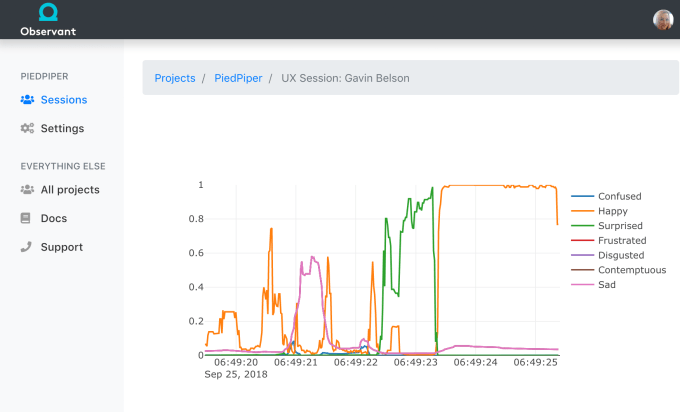
Observant has found a new way to use the fancy infrared depth sensors included on the iPhone X, XS and XR: analyzing people’s facial expression in order to understand how they’re responding to a product or a piece of content.

Observant was part of the winter batch of startups at accelerator Y Combinator, but was still in stealth mode on Demo Day. It was created by the same company behind bug reporting product Buglife, and CEO Dave Schukin said his team created it because they to find better ways to capture user reactions.

We’ve written about other startups that try to do something similar using webcams and eye tracking, but Schukin (who co-founded the company with CTO Daniel DeCovnick) argued that those approaches are less accurate than Observant’s — in particular, he argued that they don’t capture subtler “microexpressions,” and they don’t do as well in low-light settings.

In contrast, he said the infrared depth sensors can map your face in high levels of detail regardless of lighting, and Observant has also created deep learning technology to translate the facial data into emotions in real-time.

Observant has created an SDK that can be installed in any iOS app, and it can provide either a full, real-time stream of emotional analysis, or individual snapshots of user responses tied specific in-app events. The product is currently invite-only, but Schukin said it’s already live in some retail and ecommerce apps, and it’s also being used in focus group testing.

Observant

Of course, the idea of your iPhone capturing all your facial expressions might sound a little creepy, so he emphasized that as Observant brings on new customers, it’s working with them to ensure that when the data is collected, “users are crystal clear how it’s being used.” Plus, all the analysis actually happens on the users’ device, so no facial footage or biometric data gets uploaded.

Eventually, Schukin suggested that the technology could be applied more broadly, whether that’s by helping companies to provide better recommendations, introduce more “emotional intelligence” to their chatbots or even detect sleepy driving.

As for whether Observant can achieve those goals when it’s only working on three phones, Schukin said, “When we started working on this almost a year go, the iPhone X was the only iPhone [with these depth sensors]. Our thinking at the time was, we know how Apple works, we know how this technology propagates over time, so we’re going to place a bet that eventually these depth sensors will be on every iPhone and every iPad, and they’ll be emulated and replicated on Android.”

So while it’s too early to say whether Observant’s bet will pay off, Schukin pointed to the fact that these sensors have expanded from one to three iPhone models as a sign that things are moving in the right direction.


Read Full Article

At long last, pet portraits with background blur are possible on the iPhone XR


The new iPhones have some great new photography features, but the XR lacks a couple, for instance portrait mode for non-people subjects, owing to its sadly having only the one camera. So last year! Fortunately third party camera app Halide is here to help you get that professional-looking bokeh in your doggo shots.

There’s more to this than simply the lack of a second camera. As you know, since you read my article, the future of photography is code — and the present too, really. What’s great about this is that features that might otherwise rely on specific hardware, a chip or sensor, can often be added in software. Not always, but sometimes.

In the case of the iPhone XR, the lack of a second camera means depth data is very limited, meaning the slack has to be taken up with code. The problem was that Apple’s machine learning systems on there are only trained to recognize and create high quality depth maps of people. Not dogs, cats, plants, or toy robots.

People would be frustrated if the artificial background blur inexplicably got way worse when it was pointed at something that wasn’t a person, so the effect just doesn’t trigger unless someone’s in the shot.

The Halide team, not bound by Apple’s qualms, added the capability back in by essentially taking the raw depth data produced by the XR’s “focus pixels,” and applying their own processing and blur effect to make sure it doesn’t do weird things. It works on anything that can realistically be separated from the background — pets, toy robots, etc — because it isn’t a system specific to human faces.

As they write in a blog post explaining some of this at length, the effect isn’t perfect and because of how depth data is sent from the camera to the OS, you can’t preview the function. But it’s better than nothing at all, and maybe people on Instagram will think you shelled out for the XS instead of the XR (though you probably made the right choice).

The update (1.11) is awaiting Apple approval and should be available soon. If you don’t already own Halide, it costs $6. Small price to pay for a velvety background blur in your chinchilla pics.


Read Full Article

At long last, pet portraits with background blur are possible on the iPhone XR


The new iPhones have some great new photography features, but the XR lacks a couple, for instance portrait mode for non-people subjects, owing to its sadly having only the one camera. So last year! Fortunately third party camera app Halide is here to help you get that professional-looking bokeh in your doggo shots.

There’s more to this than simply the lack of a second camera. As you know, since you read my article, the future of photography is code — and the present too, really. What’s great about this is that features that might otherwise rely on specific hardware, a chip or sensor, can often be added in software. Not always, but sometimes.

In the case of the iPhone XR, the lack of a second camera means depth data is very limited, meaning the slack has to be taken up with code. The problem was that Apple’s machine learning systems on there are only trained to recognize and create high quality depth maps of people. Not dogs, cats, plants, or toy robots.

People would be frustrated if the artificial background blur inexplicably got way worse when it was pointed at something that wasn’t a person, so the effect just doesn’t trigger unless someone’s in the shot.

The Halide team, not bound by Apple’s qualms, added the capability back in by essentially taking the raw depth data produced by the XR’s “focus pixels,” and applying their own processing and blur effect to make sure it doesn’t do weird things. It works on anything that can realistically be separated from the background — pets, toy robots, etc — because it isn’t a system specific to human faces.

As they write in a blog post explaining some of this at length, the effect isn’t perfect and because of how depth data is sent from the camera to the OS, you can’t preview the function. But it’s better than nothing at all, and maybe people on Instagram will think you shelled out for the XS instead of the XR (though you probably made the right choice).

The update (1.11) is awaiting Apple approval and should be available soon. If you don’t already own Halide, it costs $6. Small price to pay for a velvety background blur in your chinchilla pics.


Read Full Article

Google employees will walk out on Thursday to protest company’s handling of sexual misconduct


Days after a New York Times investigation revealed Google gave Android creator Andy Rubin a $90 million exit package despite multiple relationships with other Google staffers and accusations of sexual misconduct, some 200 employees at the search giant are planning a walkout, per BuzzFeed News.

We’ve reached out to Google for comment.

The walkout, or “women’s walk,” as it’s been referred to in internal company forums, is planned for Thursday.

Following the NYT report, Google chief executive officer Sundar Pichai and its vice president of people operations Eileen Naughton co-signed a company memo admitting that 48 people had been terminated at the company for sexual harassment in the past two years, 13 of which held a senior management position or higher. None of them, according to the memo, received an exit package.

“Today’s story in the New York Times was difficult to read,” they wrote. “We are dead serious about making sure we provide a safe and inclusive workplace. We want to assure you that we review every single complaint about sexual harassment or inappropriate conduct, we investigate and we take action.”

Rubin left Google in 2014 after an internal investigation found accusations of sexual misconduct against him to be credible. The details of his exit, however, were never disclosed. It wasn’t until The Information published its own bombshell report on Rubin’s wrongdoings last fall that details of his history of sexual harassment began to emerge. In the wake of The Information’s story, Rubin took a leave of absence from Essential to “deal with personal matters.”

After leaving Google, Rubin went on to found Essential Products, a smartphone company that raised heaps of venture capital funding only to cancel development of its next phone, lay off 30 percent of its staff and reportedly put itself up for sale.

In a tweet last week, Rubin claimed NYT’s story contained “numerous inaccuracies.”

“Specifically, I never coerced a woman to have sex in a hotel room. These false allegations are part of a smear campaign to disparage me during a divorce and custody battle. Also, I am deeply troubled that anonymous Google executives are commenting about my personnel file and misrepresenting the facts,” he wrote.


Read Full Article

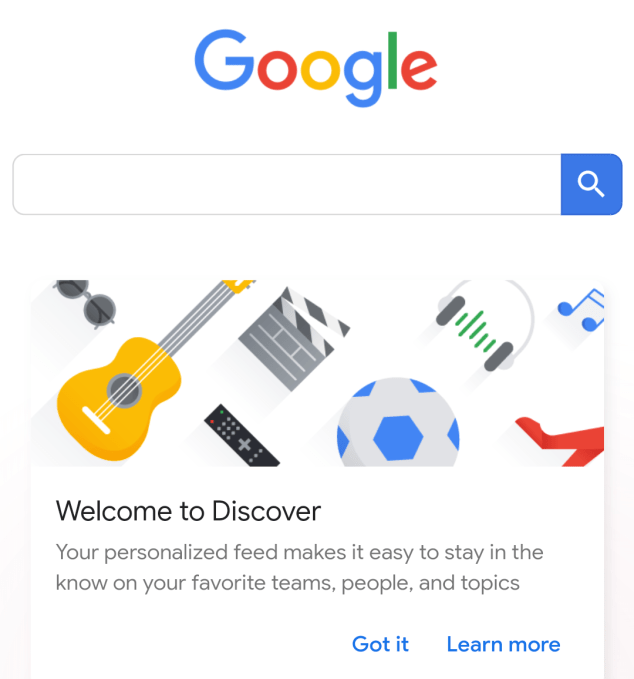
Google Launches Discover to Clutter Up Its Homepage


Google is rolling out the new Discover feed on mobile. This will allow you to discover more information—and find more relevant information—right from the Google homepage before you’ve even searched for anything. Or at least that’s the plan.

Historically, the Google homepage has mostly been free of clutter. It’s comprised mostly of white space, with the Google logo front and center, and the all-important Search box at its core. But Google is now changing things up, at least on mobile.

Google Launches Discover on Mobile

In September, Google announced Discover. This is the new name for the Google feed, which hundreds of millions of people already use. Discover is a step up from the Google feed, with more topics and types of content, and new ways to personalize the experience.

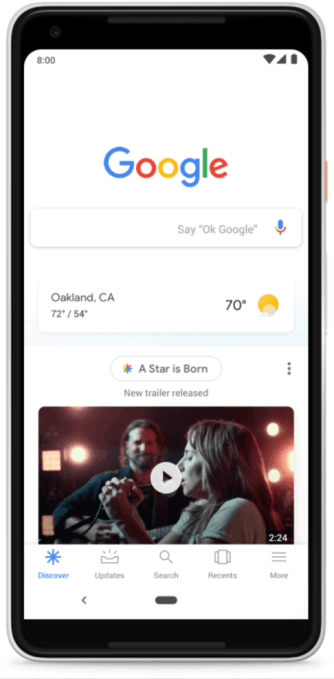
In a nutshell, the Google homepage will now be populated with cards containing information Google thinks will interest you. This will be based on your search history and preferences, so Discover will evolve over time as you search for more things.

You’ll see news articles, sports results, YouTube videos, photo galleries, and more. You can finetune your Discover feed by clicking on the menu for each card. You can then indicate you’re not interested in the topic, block the site being mentioned, and more besides.

As well as the option to customize your Discover feed, you can also disable it altogether. Just click on Settings, then Discover, and choose either “Don’t show on homepage” or “Turn off Discover” either using the app or a web browser.

Google Takes a Risk on Information

This is a risky move by Google. People are used to the homepage being clean and clutter-free, so populating it with cards could prove to be overwhelming, or, dare I say it, annoying. So it’s a good job you can customize Discover or even turn it off altogether.

Discover is currently only available on mobile in the United States. So if you visit Google.com using Chrome or Safari you should see your feed taking shape. Which makes this the perfect time to read our definitive guide to Google Search.

Image Credit: Caccamo/Flickr

Read the full article: Google Launches Discover to Clutter Up Its Homepage


Read Full Article

How to Install Ubuntu on Windows 10: 3 Simple Methods to Try


ubuntu-windows

You want to install Ubuntu on your Windows computer, don’t you? But maybe you aren’t 100 percent certain that you want to commit just yet. What if something goes wrong?

Fortunately, there are many ways in which you can try Ubuntu Linux and see whether you really like it, from running a Live CD to installing the OS in a virtual machine, before going all the way and installing it alongside Windows in a dual boot setup.

You might end up abandoning Windows altogether, but it’s good to get a taste before you dive all the way. Here are the best ways to install Ubuntu on your Windows 10 device.

Are You Ready to Switch?

The first thing to do is work out whether or not you’re ready to switch to Linux. That you’re reading this is a good sign that you have strong inclination to try out Linux, and the ideal place to start is with Ubuntu.

While Linux isn’t identical to Windows, Ubuntu is the most accessible Linux distribution, offering both an intuitive user interface and a solid package manager.

If you’re feeling particularly brave, you might have spent some time thinking about how to use Ubuntu as your new, main operating system, replacing Windows entirely. For this, you will need to understand how you can migrate your data from Windows to Ubuntu, assuming that is the version you’re going to be switching to.

Which Linux Version Should You Choose?

As you’re probably aware, several flavors of Linux are available. Some are intended for hardcore enthusiasts, while others come with a Windows-esque user interface, designed to help newcomers to the platform ease their way in.

Ubuntu is a happy medium between the two types of Linux distribution, and while the remainder of this guide applies specifically to Ubuntu, there is no reason why you shouldn’t take a look at our list of the best Linux distributions and try some alternatives.

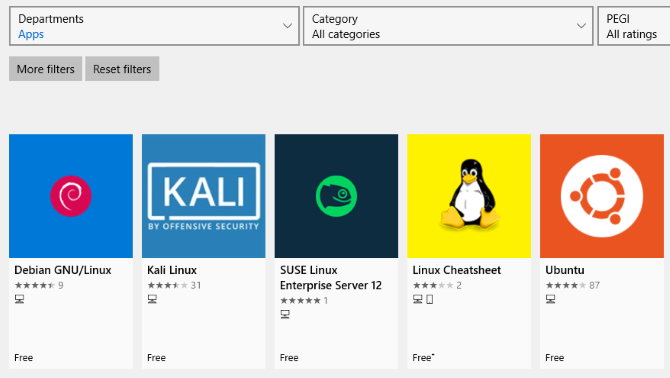
With the arrival of Windows Subsystem for Linux, you can run Linux on your Windows 10 computer with little effort. Several Linux distros are available as apps in the Microsoft Store, such as Ubuntu, Debian, SUSE Linux, and even the Kali Linux penetration testing OS.

Install Ubuntu Linux From the Microsoft Store

To install any version of Linux on Windows, you’ll first need to install the Windows Subsystem for Linux.

Enable Windows Subsystem for Linux

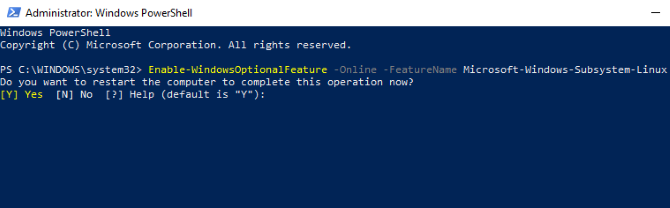
Right-click Start and open Windows PowerShell (Admin), then enter this command:

Enable-WindowsOptionalFeature -Online -FeatureName Microsoft-Windows-Subsystem-Linux

Wait while the process completes, then when prompted, enter Y to restart your computer.

Linux distro apps in the Windows Store

With Windows running again, download and install your preferred distro from the Windows Store. (This works with Windows build 16215 and later. For the best results, upgrade Windows to the latest version.)

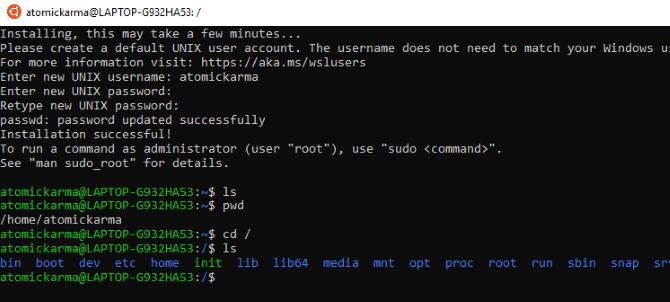
This will take a few moments. Once done, launch the Linux app and wait while it finalizes the installation.

Explore the Linux environment in Windows

Once this is done, you’ll be prompted to create a UNIX account by inputting a new username and password. These don’t need to be the same as your computer’s account.

The installation will then complete, and you’ll have a wide selection of bash commands at your disposal. Time to play with Linux from within Windows!

Install Ubuntu Linux With a Live CD or Virtual Machine

If you want a Linux desktop environment, the Windows Subsystem for Linux isn’t going to cut it. Instead, you’ll need to think about using a live CD, a virtual machine, or even dual-booting Linux with Windows.

After downloading Ubuntu, write it to CD or USB. Before installing the OS on your computer, spend time with Ubuntu in its live mode, which enables you to load the OS from the optical disc into your computer’s memory.

Do this by inserting the CD or USB stick, rebooting your PC and selecting Try Ubuntu without any change to your computer from the boot menu. Soon Ubuntu will appear, giving you the chance to try out the apps and become more familiar with everything before making the decision to install.

While some functionality may be missing here, this is the best way to take your first steps towards Ubuntu.

Not all Linux distributions have a live mode, so check the documentation if you’re looking at an option other than Ubuntu.

If you’re happy with what you see, you can proceed with the installation. Our guide to installing Ubuntu from USB explains further.

For ease of switching between Windows and Ubuntu, meanwhile, as well as testing the OS at your convenience without the somewhat inflexible presence of the Live CD (you can’t switch to Windows easily when running a Linux distro from the drive), you may instead consider using a virtual machine.

Using a virtual machine is an easy way to try Ubuntu Linux. If you’d like to go with that option, have a look at our detailed VirtualBox guide.

Dual Booting Windows and Ubuntu Linux

After discovering that you quite like Ubuntu, you may still have reservations about switching completely.

The answer here is to dual boot Ubuntu with Windows, which is essentially done by creating a new partition on your computer’s hard disk drive and installing the Linux OS into it. By doing this, you install Ubuntu alongside Windows, on the same machine.

Following installation, you’ll see a boot menu each time you boot or restart your computer, with your preferred operating system selected using the arrow buttons on the keyboard.

I Don’t Like It: How to Uninstall Ubuntu

In the unlikely event that you realize that Ubuntu Linux doesn’t cut the mustard for you and your productivity takes a terrible nosedive, the best thing that you can do is switch back to Windows.

If you have been using a Live CD or virtual machine so far, this shouldn’t be an issue.

However, if you installed Ubuntu to dual boot alongside Windows, then you might be happier switching back to the primary operating system and deleting Ubuntu from your HDD. Fortunately, this is relatively straightforward and can be done safely, without any loss of data.

The process involves backing up your Linux data to an external device, then switching to Windows to delete the partition and restore the MBR.

Meanwhile, if you decide that actually, yes you do quite like this new OS, you can install Ubuntu as your computer’s sole operating system, ideal for bringing an old computer back to life or enjoying new functionality on a modern device.

Once you’ve got Ubuntu up and running, it’s time to get to grips with the new operating system. See our beginner’s guide to Ubuntu if you need any help.

Read the full article: How to Install Ubuntu on Windows 10: 3 Simple Methods to Try


Read Full Article

Understanding USB Cable Types and Which One to Use

Convert Everything With WonderFox HD Video Converter Factory Pro


If you often work with video, it’s important to keep a good converter program around. Changing video formats is important to make video files as compatible across devices as possible.

Thankfully, WonderFox HD Video Converter Factory Pro has all your conversion needs covered. Let’s take a look at what this software can do.

Getting Started

Head to the WonderFox Video Converter homepage and click Free Download to download a free version of this utility. It’s a standard installer and should complete in just a few moments.

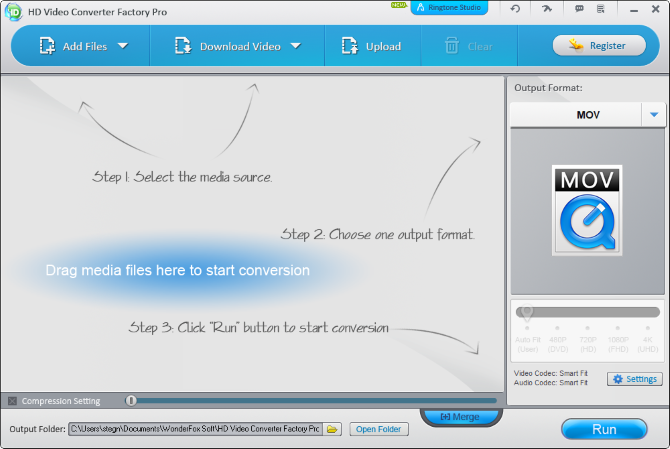
Once it’s done, you’ll see the main Video Converter screen:

Video-Converter-Unregistered-Home

Converting Video

HD Video Converter Factory Pro lets you convert video or audio from either a local file or one you download from the web.

To begin, click Add Files to find the video file on your PC you’d like to convert. You can also click the arrow and choose Add Audios to convert audio only. If you prefer, just drag-and-drop the files you’d like to convert instead.

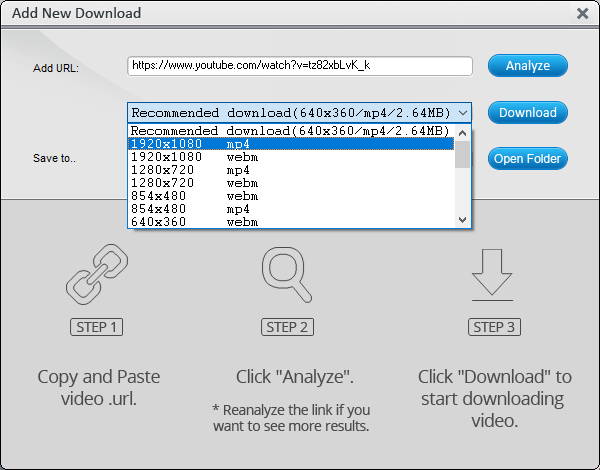
This utility also allows you to download videos from YouTube, Vimeo, and other sites at every quality level. Just click Download Video, paste the video’s URL, and choose Analyze. Once you’ve confirmed, just choose Download to get the video. Then you can convert it.

WonderFox-Video-Download

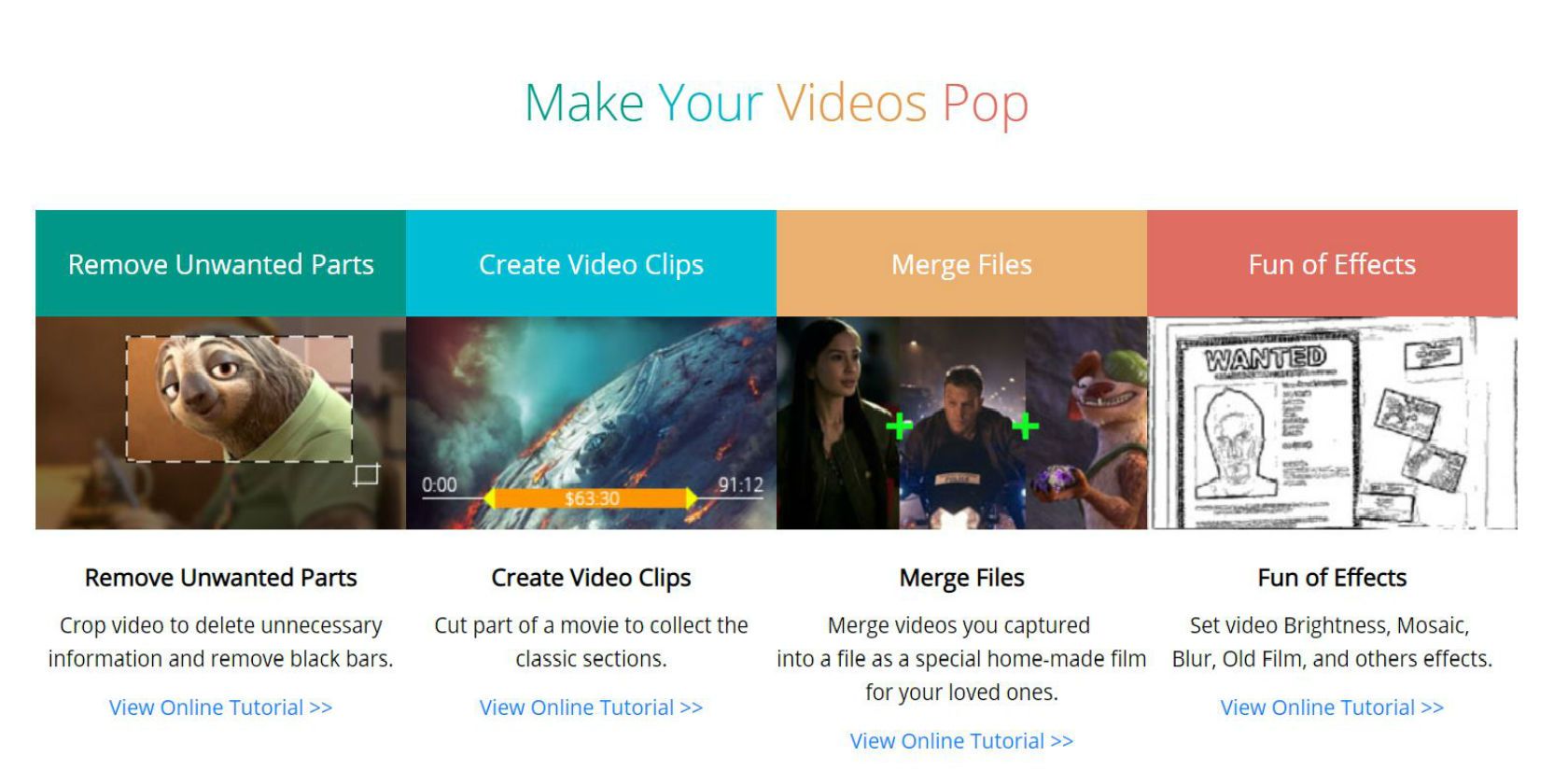
Once you’ve added a video to the conversion list, you’ll find editing options below it to Clip, Crop, and add Effects. There’s also a Merge button at the bottom of the window for combining video files.

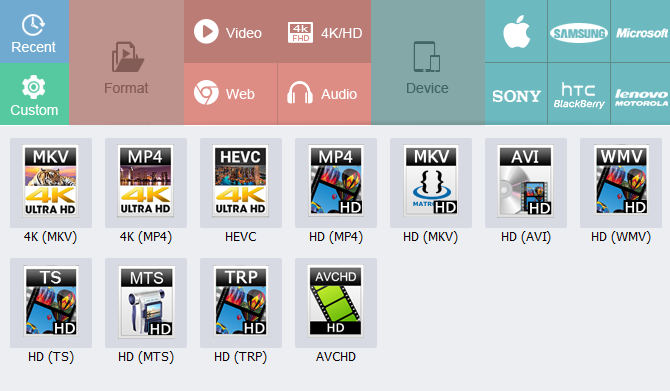
After you’ve got this all set, choose an Output Format on the right side. You’ll see dozens of choices; some are for specific formats (like Web video), while others are for specific devices. After you’ve chosen a preset, you can drag the slider below to adjust the quality and click Settings for even more options.

WonderFox-Quality-Selector

Check the Compression Setting box and drag the slider if you want to compress the video further. After you’ve reviewed everything, click Run and video conversion will begin.

Other HD Video Converter Factory Pro Features

We’ve covered the main uses for WonderFox HD Video Converter Factory Pro, but it has other tricks up its sleeve.

In this version, WonderFox boasts conversion times up to 30x faster than the prior one. This is due to support for hardware encoding, so you can use your AMD or Nvidia graphics cards to handle the heavy lifting.

Due to the large number of supported formats, you can use the tool to convert HD video to SD without a huge drop in quality. You can also upgrade old SD video to a smoother 60FPS.

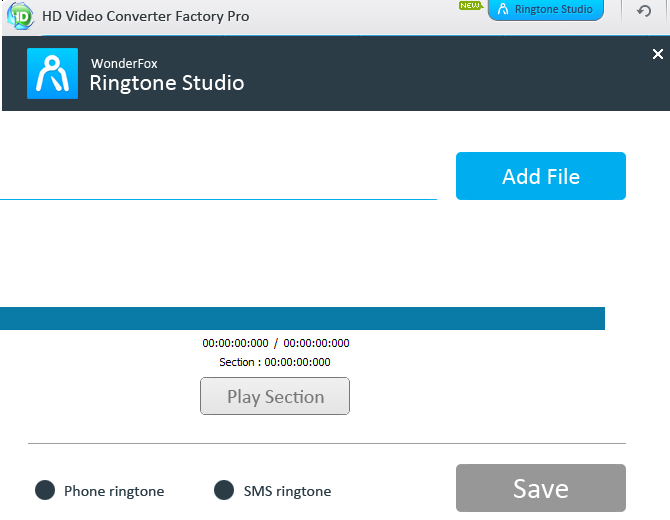
And for even more usefulness, you can try out the new Ringtone Studio feature at the top of the window. This lets you easily create ringtones for your iPhone or Android device.

WonderFox-Ringtone-Maker

Upgrade to the Full Version

You can use the unregistered version of this tool to try it out. This limits you to five minute conversions and five video downloads. But for the full experience, you’ll need to upgrade with a license key. This unlocks all features, including the blazing-fast conversion speed.

Thanks to a special offer, MakeUseOf readers can purchase the software for a special price of $24.95.

Time to Get Converting

Clearly, WonderFox’s HD Video Converter Factory Pro offers a lot of value. If you’re someone who often converts video and needs access to quick downloads and lots of conversion options, this is the tool for you.

Read the full article: Convert Everything With WonderFox HD Video Converter Factory Pro


Read Full Article

BritBox vs. Acorn TV: Which Is Better for Streaming British TV?


The major TV channels in the UK frequently produce high-quality dramas, comedies, and thrillers, of which only a small minority ever make it to American shores. This is a crying shame, as there’s a mountain of content out there.

However, thanks to two services—BritBox and Acorn TV—you can now get your hands on (almost) all of it.

Subscribing to both services might be overkill, so you need to know which is right for you. Which is the easiest to use? Which has the best selection of content? And, perhaps most importantly, which has the most content? Keep reading to find out.

BritBox vs. Acorn TV: Background and History

BritBox is a joint venture between the two largest networks in the UK: BBC and ITV. BritBox went live in March 2017, just three months after the two networks announced the project.

As Soumya Sriraman, BritBox president, told Fortune at the time:

“BBC and ITV are known for a vast array of diverse and award-winning programming that fans in the US love and want to watch. BritBox offers a single point of access to an extensive collection of outstanding British programming to discover and enjoy.”

Acorn TV has been around for longer, going live in 2013. RLJ Entertainment Inc. owns and operates the service. Interestingly, one of RLJ’s subsidiaries (Acorn Media Group) has been responsible for distributing UK content in the United States since the mid-1990s. It means the developers behind Acorn TV have a solid understanding of what American audiences enjoy watching.

BritBox vs. Acorn TV: Content Quality

Acorn TV
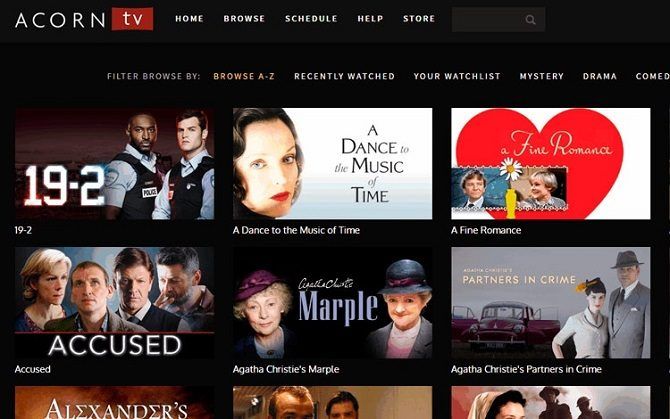
acorn tv series listings

Interestingly, Acorn TV doesn’t only specialize in UK shows. It also carries programming from Ireland, Canada, Australia, and New Zealand. The company has deals in place with some of the largest producers in those countries, including ITV, Channel 4, BBC Worldwide, All3Media, DRG, ZDF, and Content Media Corp.

The content offered can be broadly divided into six areas: mysteries, dramas, comedies, documentaries, feature films, and foreign language shows. Some of the most famous shows from recent years are available, including Doc Martin, Black Books, QI, and Hinterland.

Away from well-known network shows, Acorn TV also makes some original content. Its most successful original show was an adaptation of Agatha Christie’s Poirot in summer 2014. The show remains the only production by a niche streaming service to be nominated for an Emmy. Other original series include Agatha Raisin, Close to the Enemy, The Level, and Striking Out. Acorn TV also owns the rights to popular drama series, Foyle’s War.

Naturally, there’s also a bit of “padding”. We can’t imagine too many people tune into shows like The Yorkshire Vet or The World’s Most Famous Train.

Lastly, Acorn TV also holds the rights to the US premieres of a number of shows, including The Detectorists, Vera, Inspector George Gently, and Midsomer Murders. If you want to be at the front of the queue for new episodes of these shows, Acorn TV is the answer.

BritBox
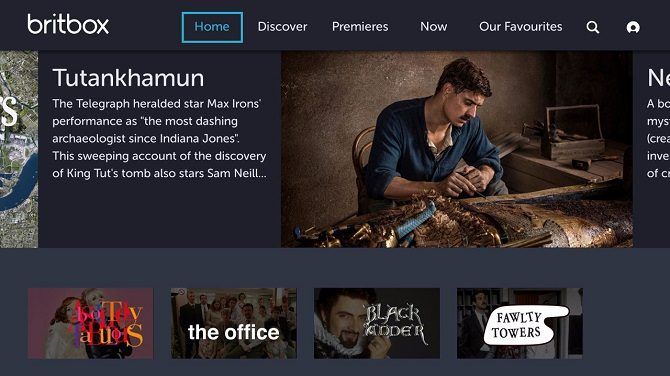
In one sense, BritBox has a narrower focus: it only carries content from BBC and ITV. On the other hand, those two networks are responsible for the majority of quality programming in the UK, so you’re going to get the best of the best rather than a mix of quality output and unwatchable trash.

There are renowned soaps like EastEnders, crime thrillers like Silent Witness and Waking the Dead, long-running family series such as Casualty, and a whole range of famous comedies like The Office (the British version, naturally) and The Vicar of Dibley.

BritBox also excels in its selection of classic British comedies. It carries shows like Porridge, Are You Being Served?, and Fawlty Towers, as well as more recent hits like Absolutely Fabulous and Keeping Up Appearances. The service does not provide any content from BBC America.

BritBox vs. Acorn TV: Content Quantity

Quality and quantity are arguably the two most important metrics when you’re thinking about a streaming service. We’ve covered quality, so what about quantity? After all, you don’t want to run out of things to watch a few months after signing up.

At the time of writing, Acorn TV carries more than 250 different shows and movies. About a quarter of them are movies and there’s also a handful of foreign-language content, so you’ll have around 200 TV series to get stuck into.

Many older shows are represented in full. For example, the seven series of Men Behaving Badly are available, as are the nine series of Foyle’s War, and all 19 series of Midsomer Murders.

BritBox has a similar number of shows. The bulk of them fall under either the Drama or Comedy categories.

In short, both services will keep you fulfilled for a long time. It’s hard to accurately determine the number of hours of programming available, but they both run into several thousand.

Note: The number of shows on both services fluctuates slightly from month-to-month as new shows are added and old ones are removed.

BritBox vs. Acorn TV: User Interface and Experience

The last one of the three big deal-breakers when choosing which of these services are for you is the user interface. There’s no point in having thousands of hours of shows if you can’t quickly find what you want to watch when you want to watch it.

Of these two services, BritBox has the better UI. Acorn TV takes a “no frills” approach. You’ll see all the shows available in a grid. Clicking on a show will give you a brief snippet of information about the series and a link to a trailer (where appropriate). You will find all the seasons and individual episodes further down the page. They use an identical grid to the homepage. There is no further subdivision of the content.

BritBox feels more refined. Although it looks nothing like Netflix, it’s clearly taken pointers from the streaming behemoth. When browsing a particular category, you’ll find shows broken down into subcategories.

Some users have complained about unreliable search results on Britbox, but it doesn’t appear to be a universal issue.

BritBox vs. Acorn TV: Device Support

Acorn TV is available in your browser, and there are standalone apps for both iOS and Android. It also works on three set-top boxes: Roku, Amazon Fire TV, and Apple TV. It’s also one of the many apps that lets you watch TV on a Chromecast.

BritBox is also available in your browser, on iOS and Android, and on Roku, Chromecast, and Apple TV.

BritBox vs. Acorn TV: Other Features

There are a couple of other features (or lack thereof) worth discussing.

Firstly, neither service lets you download videos for offline watching. As such, you can’t rely on either service for long plane journeys or extended periods of time in other countries.

Secondly, neither service supports multiple user profiles. If you have lots of members in your household, you’ll all have to watch through the same portal.

On the plus side, both apps offer closed caption subtitles on all their shows.

BritBox vs. Acorn TV: Pricing and Cost
acorn tv price

While reading this article, you might have started to realize there is very little between the two services. Neither is overly weak in any one area, and both boast several strong points.

As such, your decision may solely boil down to price. And in this arena, we have a clear winner.

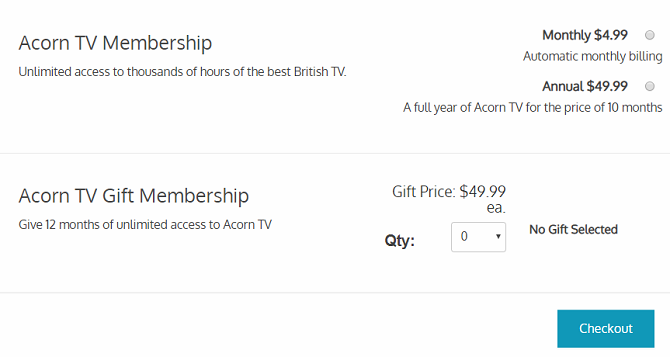
BritBox will set you back $6.99/month, while Acorn TV only costs $4.99/month. Additionally, Acorn TV offers an annual subscription for $49.99/year, saving you 17 percent over 12 months. BritBox offers no annual plan.

BritBox vs. Acorn TV: Regional Availability

Acorn TV and BritBox are available in the United States. Britbox is also available in Canada, though the show line-up is not the same in each territory.

Additionally, Acorn TV is available in much of Latin America, including Argentina, Chile, Colombia, Costa Rica, Ecuador, El Salvador, Guatemala, Honduras, Mexico, Nicaragua, Panama, and Peru.

If you don’t live in a supported country, don’t panic. Neither company blocks traffic originating from VPNs, so if you have a subscription to a VPN provider, you will be able to circumnavigate the geo-blocking. A smart DNS provider will also work.

BritBox vs. Acorn TV: Which Should You Use?

In our opinion, BritBox is slightly better. Yes, there are fewer shows and it costs slightly more, but the quality of the shows is higher and the website is much more enjoyable to use.

However, your personal TV preferences will determine much of your decision. If the shows you want to watch are only available on one of the two platforms, clearly it makes sense to subscribe to that service. If you’re not sure, sign up for a free trial. Both services will give you seven days with no obligation to continue beyond that.

For more great BBC shows, check out our articles revealing the best BBC documentaries on Netflix and the best BBC shows on Netflix.

Image Credit: Adwo/Shutterstock

Read the full article: BritBox vs. Acorn TV: Which Is Better for Streaming British TV?


Read Full Article
How to Master Siri Shortcuts and the Shortcuts App in iOS 12

Take Full Advantage of Google Docs With These 11 Add-Ons


google-docs-extensions

Simplicity has always remained one of the key factors behind Google Docs’ popularity. Today, it is a genuine alternative to Microsoft Word. However, there are times when you want your word processor to go that extra mile. That’s where external add-ons come in. Like these eleven extensions that supercharge your Google Docs experience.

1. Translate

Google Docs Translate Add-On

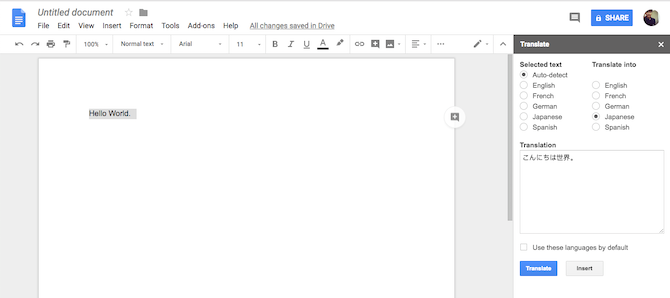
Launching a new tab every time you’d like to translate a piece of text the person you’re collaborating has written can get cumbersome. Instead, we recommend installing a straightforward add-on called Translate.

Translate can interpret five major languages including English, French, German, Japanese, and Spanish. All you need to do is select the sentence and hit the Translate button after choosing the source as well as destination languages. When you need more help with the translation, you could always fall back on the more comprehensive translators available online.

Download: Translate (Free)

2. Kaizena

Google Docs Kaizena Add-On

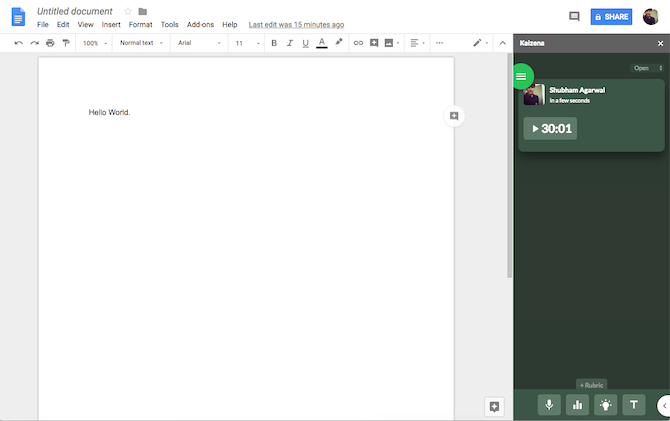
Kaizena is an extension primarily for schools with Google Classroom integration. It lets teachers leave voice comments for students and even attach lessons or skills to specific excerpts. Although anyone can use it for similar purposes. The extension shows a handy timeline of all the previously left voice comments so that you can revisit and resolve them once you’re done.

Download: Kaizena (Free)

3. ezNotifications

Google Docs ezNotifications Add-On

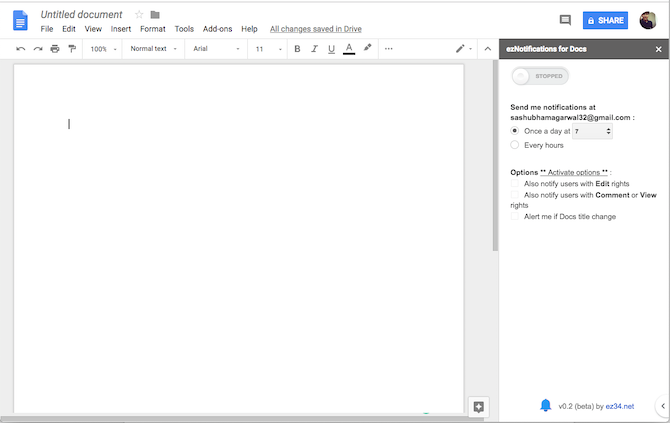
ezNotifications is another free Google Docs extension that mends a critical shortcoming. It lets you configure periodic alerts for every edit made on your document. You can set notifications to arrive every day at a specific time or once every few hours. ezNotifications can send a list of all the alterations that were executed including the name of the person who did it.

Download: ezNotifications (Free, premium version available)

4. HelloSign

Google Docs HelloSign Add-On

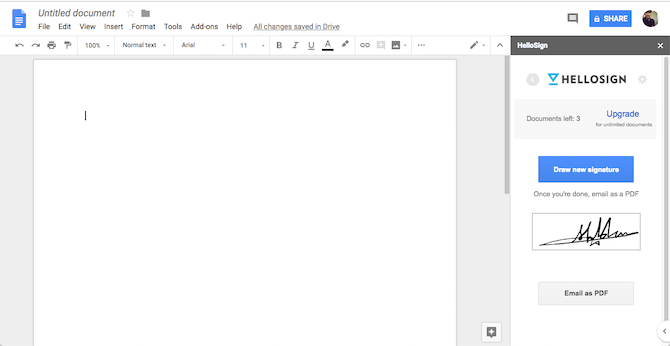
HelloSign, as the name suggests, is for users who sign way too many documents on Google Docs. You can quickly add a signature and have it appended in a document with a click of a button. The imported signatures are resizable as well. The free version only allows signs on three documents and for more, you will have to pay.

HelloSign couldn’t get the job done? Try one of these tools to electronically sign a PDF.

Download: HelloSign (Free, premium version available)

5. Doc Tools

Google Docs Doc Tools Add-On

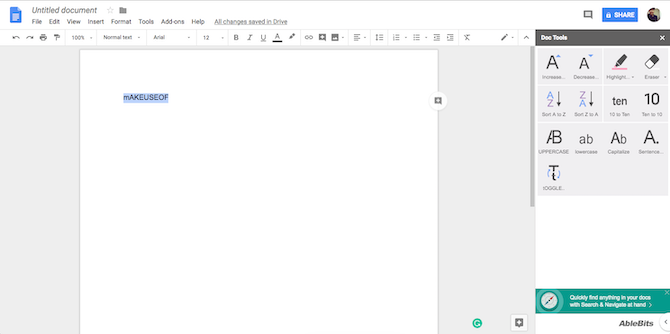
Doc Tools brings a quick set of handy options at your fingerprints. This includes actions such as turning the selected text to upper or lower case, change the font size, highlight, words to digits, and more. The extension has a total of thirteen shortcuts, all of which you can access for free.

Download: Doc Tools (Free)

6. Better Word Count

Google Docs Better Word Count Add-On

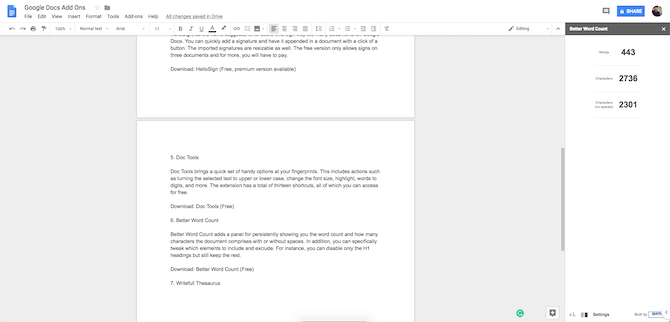
Better Word Count adds a panel for persistently showing you the word count and how many characters the document comprises with or without spaces. In addition, you can specifically tweak which elements to include and exclude. For instance, you can disable only the H1 headings but still keep the rest.

Download: Better Word Count (Free)

7. Writefull Thesaurus

Google Docs Writefull Thesaurus Add-On

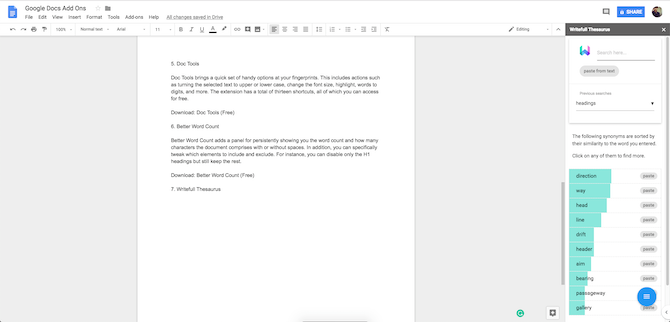
As you’d guess, Writefull Thesaurus allows you to look up synonyms for a particular word. However, unlike other similar extensions, this one also takes into account where the word has been written and its context to suggest more relevant results. Once you have found the right synonym, you can simply click paste and have it replace the original search term.

Download: Writefull Thesaurus (Free)

8. WordPress

If you’re someone who blogs regularly and writes the posts on Google Docs before migrating them to the CMS, this one’s for you. The WordPress extension for Google Docs lets you seamlessly create drafts out of documents directly from a pane on the right. You can add tags, categorize it, and even configure the post type right while editing the document. Plus, you can also set up more than one blog and select which one to link to the current document.

Download: WordPress (Free)

9. Lucidchart

If you’re a designer whose life largely revolves around Lucidchart for diagrams, mockups, wireframes, and more, Google Docs has an extension for you too. The Lucidchart add-on plugs into your account and enables you to easily import files. What’s more, you can launch a particular diagram directly into the edit mode from Google Docs if you’d like.

Download: Lucidchart (Free)

10. Highlight Tool

Google Docs Highlight Tool Add-On

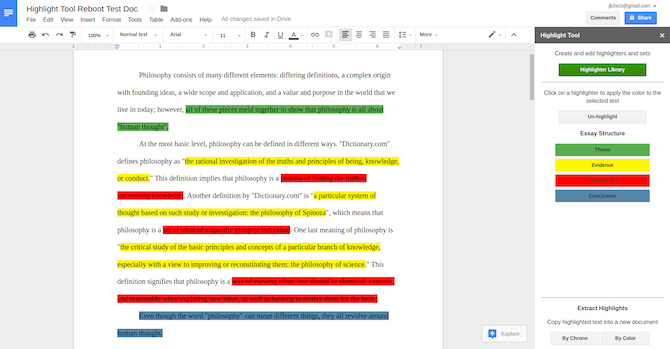
Highlight Tool is designed for students who have to go through tens of papers and research material on Google Docs. The extension comes with the ability to log whatever you highlight and export it in another document. Therefore, you can highlight several sentences in different colors and have them appear in a separate file for other purposes later. The add-on lets you create as many new highlighting classes as you want in case you’re working on a big project.

Download: Highlight Tool (Free)

11. Reader

Google Docs Reader Add-On

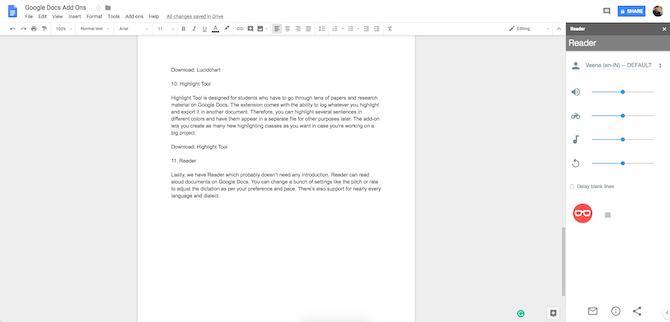
Lastly, we have Reader which probably doesn’t need any introduction. Reader can read aloud documents on Google Docs. You can change a bunch of settings like the pitch or rate to adjust the dictation as per your preference and pace. There’s also support for nearly every language and dialect including regional ones like Hindi.

Download: Reader (Free)

Moving Beyond Google Docs

While Google Docs itself is a splendid and collaborative word processor, it has its flaws. Google has been updating it and bringing it closer to competitors such as Microsoft Word. But thankfully, the Internet now offers a lot of competent alternatives. Therefore, here are five great alternatives to Google Docs you should consider.

Read the full article: Take Full Advantage of Google Docs With These 11 Add-Ons


Read Full Article
The 6 Best Websites to Find Used Laptops for Sale


used-laptops-sale

If you’re on a tight budget, you could land a bargain by buying a used laptop instead of a brand new one. This is especially true for high-end models. MacBooks and ultrabooks are known to hold value, but a second-hand model can help you avoid the eye-watering premiums you’ll pay at retail.

The best place to find your laptop may depend on where you live. Ideally, you’ll want to inspect before you buy. But if you can’t do that buy with confidence from a website that boasts buyer protection.

Here are the best websites to find yourself a used laptop bargain.

1. eBay

eBay Used Laptop and Notebooks

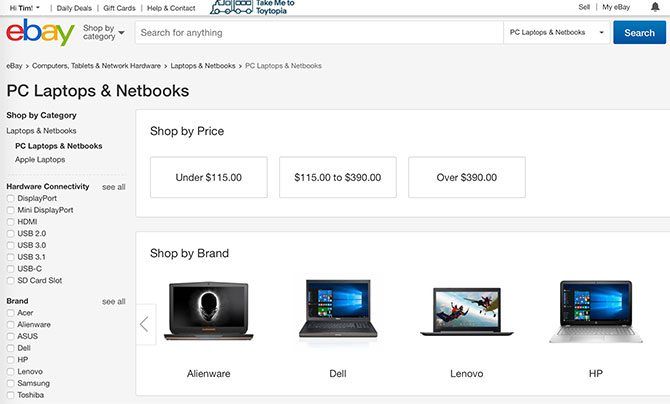
Predictable, but incredibly popular. The internet’s premium online auction site has a huge volume of used laptops at any one time, which makes it easy to find exactly what you want. You can search by brand, narrow things down by price, and pick the year of manufacture.

You can also pick from just about every computer-related metric: processors, storage capacity, RAM, screen size, and more. Choose to search both manufacturer and seller refurbished models, or stick to the used market for the cheapest prices.

Looking at a MacBook? Check out eBay’s MacBook store. Want a Windows laptop? eBay has a PC notebook store too. Sort every laptop auction by ending soonest to spot any bargains that haven’t received any bids yet. You can try your luck at the auctions (sniper tools may come in handy), or take your time with buy it now listings.

eBay also makes past auctions available for perusal. This allows you to use eBay advanced search to find listings that have already finished. You can then use this information to gauge whether you’re getting a bargain or not.

Finally, most auctions are covered by eBay’s Money Back Guarantee. This means you’re covered against sellers that don’t ship your item, items that do not match the listing or faulty items that don’t work as advertised. This makes eBay the best choice for buyers who are unable to inspect items in person.

2. Facebook Marketplace

Facebook Marketplace Used Laptops

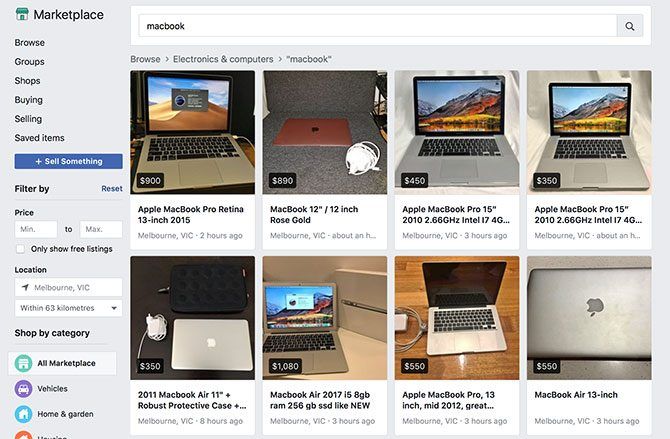
Facebook is no longer just a social network, it’s a rapidly growing peer-to-peer marketplace too. Leveraging the ever growing user base, Marketplace makes it easy to list or find items for sale in your immediate area.

Simply search what you’re looking for, or browse by “Electronics” to see everything computer-related. You can then filter by price or adjust your location, widening the search area if you’re happy to travel a little further to find what you’re looking for.

Unlike eBay, Facebook Marketplace does not take care of the transaction. If you find an item you’re interested in you’ll need to contact the seller to arrange an inspection. For this reason, Facebook Marketplace is not suitable for long-distance transactions, since you’ll have no buyer protection.

Make sure you look any potential product over before you buy. If a bargain looks too good to be true, it probably is. Don’t fall for items that may be stolen that lack essential cables, or are listed at very low price points. Consider joining a few local “buy/sell” groups, where the items for sale are up for discussion.

3. Gumtree

GumTree Used Laptop

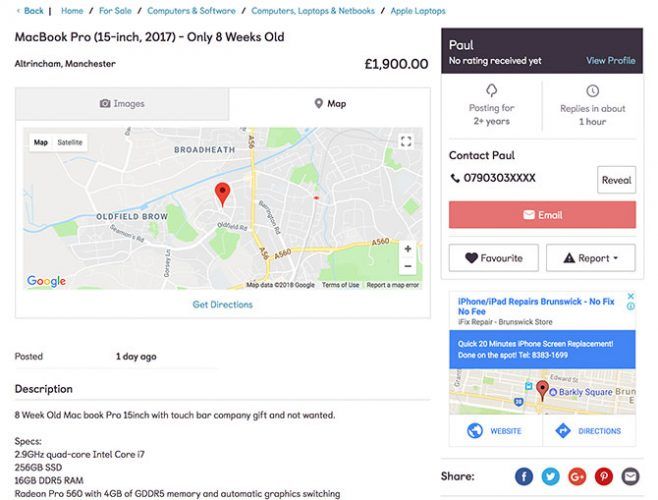
Gumtree is the another classifieds site in the same vein as Facebook Marketplace. The difference here is that you don’t need a Facebook account in order to use it, and you can inquire about any item for sale with a good old email address.

Despite expanding into the US market in 2007, Gumtree is most popular in its home country of the UK. It also enjoys success in Australia, Singapore, and South Africa. You can choose to browse by category (Apple Laptops and PC Laptops & Netbooks are both options) or use the search bar instead.

Once you’ve supplied a location in which to search, you can modify the search area to widen or narrow down your search. When you’ve found an item you like the look of you can either send an email to the seller or reveal their phone number in order to give them a call. Just like Facebook Marketplace, Gumtree sales take place between you and the seller only.

If you’re thinking of buying through Gumtree, take a look at the company’s advice regarding staying safe. It is recommended you avoid sales that don’t take place face to face, and always be suspicious of adverts that look too good to be true.

4. Swappa

Swappa Used Laptops

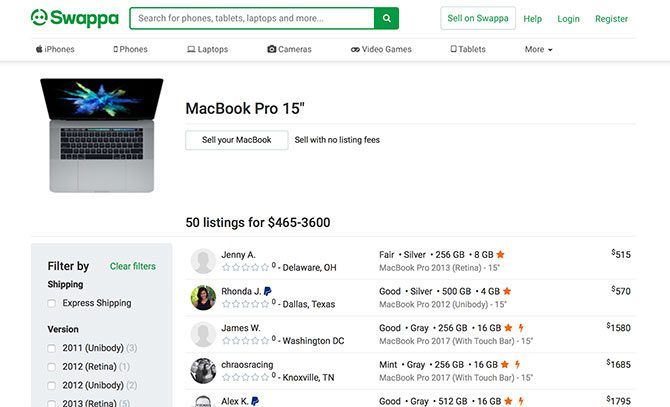
Swappa is a marketplace for used technology products including laptops, but also smartphones, cameras, and video games. Sellers don’t pay for the service, but buyers pay a small fee that’s included in the final sale price.

The service does a few things differently to other services like eBay. Only working products are allowed on the service, which means no broken or “for parts” listings. Each listing that goes live on the website has been reviewed and approved by a member of Swappa’s support team. Serial numbers are checked to help verify items, adding further peace of mind.

All shipping costs are included in the final price and for buyer protection the service uses PayPal. This protects buyers against items not showing up in the post, items that differ significantly from the description, and faulty items. You’ll have to recoup your money through PayPal, not Swappa, though.

If you’re thinking of buying a laptop through Swappa there are dedicated sections for specific models including MacBooks, Chromebooks, and Microsoft Surface Books. Filter by price, year of manufacture, and metrics like RAM, storage, and even color.

5. Best Buy Refurbished Laptops

Best Buy Refurbished

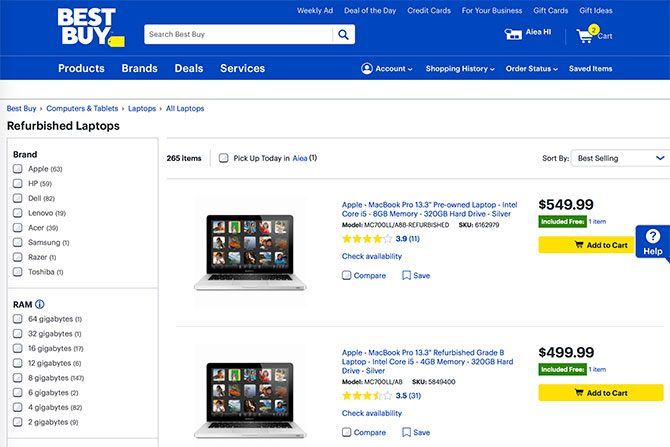
If you’re willing to spend a bit more than what you’d normally pay for a used laptop, you can get a refurbished laptop instead. These machines have been inspected, graded, and often come with some sort of warranty. While they’re not flawless, the price will reflect the laptop’s overall condition.

If you don’t need the latest and greatest, Best Buy carry a lot of refurbished older machines that are still serviceable. These include the chunky old optical drive MacBook Pro models, which lack solid state drives (SSDs). You can also find 14″ Dell machines with small SSDs for around $250, and old Chromebooks for about $170.

Some laptops come with a warranty, while others may not. All laptops purchased through Best Buy come with the company’s Return & Exchange Promise as per the company’s Best Buy Outlet Guide. The company states that “most products offer a minimum 90 day warranty unless otherwise noted” but it’s best to query each individual item before you buy.

6. Apple Certified Refurbished

Apple Certified Refurbished

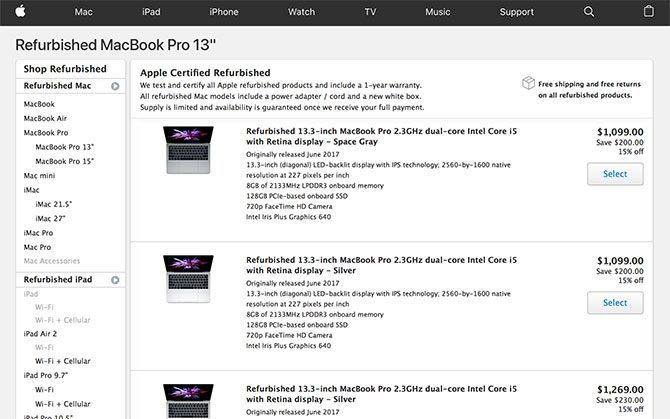
If you’re looking for a Mac and you want the absolute best condition you can buy, Apple’s refurbished store is the best place to buy. Everything you buy under the Apple Certified Refurbished program includes a one year warranty, power adapter, and required power cords.

Apple’s refurbished store is also the most expensive place to buy a used Mac. But it offers the best warranty and range of products. The price you pay will depend largely on the product and the year of manufacture, as well as how powerful the laptop is.

You can grab a refurbished 13-inch MacBook Air from 2007 for around $850, while a high-end MacBook Pro of the same age will run you nearly $2,400. These products still represent a decent saving over the cost of the latest brand new products. And you can purchase with confidence knowing they have been serviced by Apple before being sold.

In addition to a proper warranty, you can also buy AppleCare to extend the coverage of your refurbished products. Purchases are also eligible for a 14-day returns policy. If you spot something, be quick since supplies are generally limited.

Occasionally you’ll find some older models of MacBook surfacing. Though, most Mac models sold through the program are no older than one or two years old.

Getting a Good Deal on Cheap Laptops

You don’t have to buy a used laptop to save some money. Many manufacturers now produce cheap laptops that won’t break the bank. Check our top cheap laptop picks and find out if they’re right for you.

Read the full article: The 6 Best Websites to Find Used Laptops for Sale


Read Full Article
5 Amazing Things Google’s DeepMind AI Can Already Do

Google Discover begins to replace the iconic search box on mobile


It’s not broke, but Google is fixing it. As it announced last month, Google is rebranding Google Feed, its news landing page on Android and in the Google app, to be called Google Discover. Throwing minimalism out the window, Google Discover will replace the iconically spartan Google.com homepage on mobile.

Discover is rolling out now on Google.com across both iOS and Android devices. For Android users, Discover is already baked into the interface, accessible by swiping right from the home screen. Anyone using the Google app on iOS or Android will also be met with the Discover homepage, which should be familiar at this point. We’ve reached out to Google for more details on who will see Discover when.

For a company that at times struggles with filtering disinformation out of its search results, making Discover so prominent might not be a well timed choice. The Discover results generally resurface stuff that a user has already expressed interest in, but those results are culled from a broad enough pool of sources that they don’t always feel relevant. Hopefully Google has enough sentient humans on its teams to avert future algorithmic catastrophy, though we’re not holding our breath for Google or any social platform on that count.

If you’re using Discover through the Google app, you can customize your feed further, adding topics to subscribe to, weather, commute info and more. If you’re a sports fan, the “teams” feature is genuinely useful. If Google’s vast collective knowledge of your predilections creeps you out (and it should) but you still like the Google app, you can disable “Web & App Activity” for a bit more peace of mind by following these instructions — just do them backward.


Read Full Article
Google looks to AI interactions and cats to power its latest AR feature


Of all the features and hardware that dropped at Google’s event earlier this month, one that felt particularly glossed over was Playground, the new augmented reality mode that’s arrived on the Pixel 3 camera. For a company that has been investing in phone-based AR for quite a while, it launched rather quietly and in a fairly hidden spot amongst other photo modes in the Pixel 3 camera app.

I got to venture over to the company’s offices to take a closer look at the cute little stickers and 3D character “Playmojis” and hear how Google is aiming to ensure that the AR world has a deeper understanding of your environment than just its geometry.

Google has long flirted with letting users capture moments that bring virtual characters into their daily life. Since the days of Project Tango, Google has been working to create characters that can live in the virtual space at appropriate scale, responding to boundaries of the room and different lighting conditions. With this release, the company challenged themselves on interactivity, trying to get the 3D characters to not only react to what was happening with other Playground objects in the space, but with elements of the real world, as well, so when you smile, the virtual character posed behind you can toss up a grin as well.

“We thought, let’s think deeper into it and start making these stickers smarter and see if we can actually use AR and machine learning to help users be more creative,” Joe Bose, a product manager at Google working on AR, told TechCrunch.

Interactivity is ultimately what makes Playground different from the one-off AR sticker packs Google has dropped with past partnerships with Star Wars or Stranger Things. Playground also showcases a wider swath of Google’s AR efforts than just placing objects into environments. There’s some clear work being done by the live image recognition engine that powers Google Lens, bringing about a cool feature that suggests stickers and playmojis for you to drop into the world. If your camera is focused on a sunny meadow, Playground suggests some more nature-centric AR stickers; when a dog jumped into view while I was demoing, some pooch recommendations popped up.

For now there’s a hefty amount of stickers and some Marvel superheroes and dogs. As part of National Cat Day today, Google is bringing some AR kitties into the action, I’m told, which by all accounts should more than ensure the feature’s success — or at least boost sharability — among lovers of cats real and virtual.

For now Playground is just available on the Pixel 3, but the team is looking to bring the feature to past Pixel phones in the near future.

In the end, Playground is a hilarious amount of sophisticated tech just to add some added pizzazz to your photos, but that’s augmented reality tech in a snapshot. The bullish folks may say it represents a new computing platform, but in 2018 it’s ensuring that your cat has a virtual pal in your photos and videos.


Read Full Article
Say “Hi” to Nybble, an open-source robotic kitten


If you’ve ever wanted to own your own open source cat, this cute Indiegogo project might be for you. The project, based on something called the Open Cat, is a laser cut cat that walks and “learns” and can even connect to a Raspberry Pi. Out of the box a complex motion controller allows the kitten to perform lifelike behaviors like balancing, walking, and nuzzling.

“Nybble’s motion is driven by an Arduino compatible micro-controller. It stores instinctive ‘muscle memory’ to move around,” wrote its creator, Rongzhong Li. “An optional AI chip, such as Raspberry Pi can be mounted on top of Nybble’s back, to help Nybble with perception and decision. You can program in your favorite language, and direct Nybble walk around simply by sending short commands, such as ‘walk’ or ‘turn left.”

The cat is surprisingly cute and the life-like movements makes it look far more sophisticated than your average toy. You can get a single Nybble for $200 and the team aims to ship in April 2019. You can also just build your own cat for free if you have access to a laser cutter and a few other tools but the kit itself includes a motion board and complete instructions which makes the case for paying for a new Nybble pretty compelling. I, for one, welcome our robotic feline overlords.


Read Full Article
What the newly revised copyright law lets (and doesn’t let) you do with your gadgets


You think you own your phone, but you don’t. Copyright law prohibits you from modifying its software in certain ways, opening you up to a voided warranty, cancelled service or even a lawsuit — but that’s slowly changing as the government acknowledges the need (and arguably right) to repair our own devices. A favorable decision from the Copyright Office gives you considerably more freedom with your gadgets, but it’s far from an ideal solution.

As a brief bit of background, the law that prevents you from, say, installing third-party software on your car or sideloading apps onto your Amazon Echo is Section 1201 of the Digital Millennium Copyright Act. It’s meant to make it illegal to circumvent digital copyright protections on software and media, but it’s been used for much more than that.

Companies started stashing all kinds of things behind digital locks and therefore controlling the only means that consumers had to repair or modify them. Digital rights advocates such as Kyle Wiens at iFixit have been pushing back against this practice for years — and recently have made some headway.

Every three years a board of Copyright Office wonks convenes and codifies exemptions to Section 1201: devices or situations that the board is convinced justifiably shouldn’t be covered by the law. What if, for instance, hospitals couldn’t reboot or patch critical medical hardware because the company was unresponsive? Exemptions are added based on merit, but aren’t permanent and must be renewed (and likely re-argued) regularly.

2015’s exemptions were nice, but 2018’s are choice. Here are some things you can do now that you couldn’t last week:

  • Unlock new phones. Believe it or not this was not allowed. Used phones, sure. But new-in-box phones could still sport software locking it to, say, Verizon (our parent company’s parent company, which likely is not happy with this decision) even though its hardware would let it work on AT&T. Now you should be able to unlock at will.
  • Jailbreak Amazon Echoes, Google Homes and Apple HomePods. This class of “voice assistant devices” wasn’t really a thing in 2015, but sure is now. Doubtless there are plenty of people who would love to poke around inside an old Echo and load it up with open-source software — and now they can do so in compliance with the law.
  • Repair smart home components and devices. Ever wonder what happens to a smart home device when its maker goes out of business or you stop paying for their subscription service? It turns into a smart paperweight. But now you should be able to get root access and fix or reactivate devices (like smart bulbs or security cameras) that have been abandoned or bricked.
  • Access and modify land vehicle software. Previously cars (and infamously, tractors) were protected by a thick moat of DRM that prevented users and even repair shops from getting at their digital guts. Not a good thing when cars are basically rolling computers. The law now exempts reading and modifying this software for the purposes of repair — you just can’t tweak it in any way that impairs its roadworthiness.

  • Hire someone to do those repairs for you. Many of these exemptions are restricted to the owner of the device or vehicle, reasonably enough. But not everyone is clued in on this stuff, so it’s important to make sure it’s also legal for consumers to delegate that right to a third party.

These new freedoms will hopefully result in a more flourishing used-device market and allow phones, cars and smart home devices to live longer and happier lives. But don’t forget that these exemptions must be refreshed in three years. Fortunately that gives advocates an opportunity to expand the list as well, as they did here.

That’s good, because there are still plenty of things to add; for instance game consoles, which didn’t make the list. Perhaps the board thought the risk of piracy was too high. Boats and planes are still protected the way cars once were, which is perhaps understandable.

Strangely, the tools you would require to do most of these things — bootloaders, jailbreaking kits and so on — are still illegal to distribute. It’s weird, but not the first time for this sort of paradox — marijuana, for instance, is still in many places legal to own and use but illegal to sell or grow.

This all goes to show that there is much room for improvement, and not just in a series of temporary exemptions. The law itself must be modified permanently to ensure that we actually own the things we own. That’s going to take a lot of time and work, but from this and previous victories it’s clear that the stars are aligning.


Read Full Article