30 March 2020

Video conferencing apps saw a record 62M downloads during one week in March


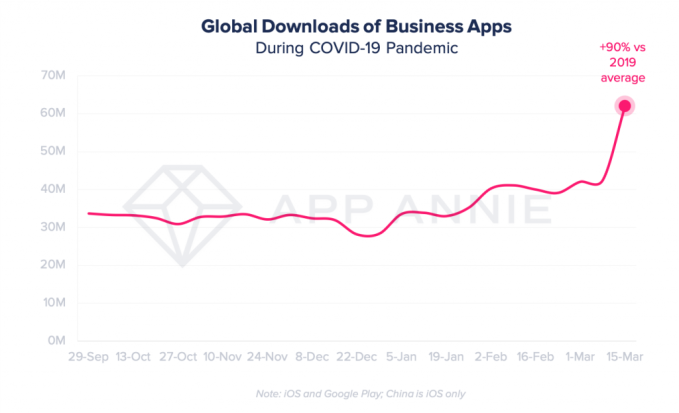
Work-from-home policies, social distancing, and government lockdowns have increased the demand for video conferencing apps, for both business and personal use. According to a new report from App Annie, out on Monday, business conferencing apps have been experiencing record growth, as a result, and just hit their biggest week ever in March, when they topped 62 million downloads during the week of March 14-21. Meanwhile, social networking video app Houseparty has also seen phenomenal growth in Europe during lockdowns and home quarantines.

While such growth was to be expected, App Annie’s report provides real-world context about just how many new customers these apps are gaining during this time.

For example, the jump in business app downloads to 62 million across iOS and Google Play earlier in March, was up 45% from just the prior week. It was also the highest growth among any category across the app stores that week, the report said. And it was up 90% from the weekly average of business app downloads in 2019.

Much of the growth in the category is due to the increased adoption of apps like Google’s Hangouts Meet, Microsoft Teams, and Zoom Cloud Meetings.

Zoom topped the charts worldwide in February and March, and continues to see high numbers of downloads in the U.S., U.K., and elsewhere in Europe.

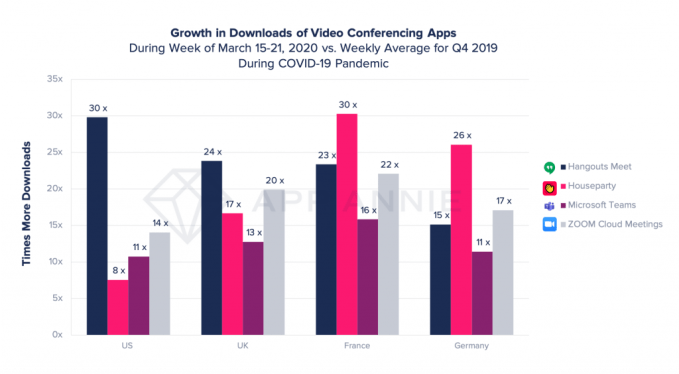
During the record week of downloads, Zoom was downloaded 14 times more than the weekly average during the fourth quarter of 2019 in the U.S. It was also downloaded more than 20 times Q4’s weekly average in the U.K., 22 times more in France, 17 times more in Germany, 27 times more in Spain, and an even larger 55 times more in Italy.

A related report from the app store intelligence firm Sensor Tower saw Zoom’s U.S. downloads somewhat higher in mid-March, but noted that the term “Zoom” wasn’t a top 100 search term in the U.S. App Store before the week of March 9. That meant many new users were being sent the app’s installation page directly — such as via a link shared in a work email, calendar invite, or an intranet site, perhaps.

At the same time in March, Google’s Hangouts Meet was seeing strong downloads in the U.K., U.S., Spain, and Italy, in particular, with 24x, 30x, 64x, and 140x the average weekly downloads in Q4, respectively.

Microsoft Teams saw significant — though not quite as strong — growth in Spain, France, and Italy, at 15x, 16x, and 30x the weekly levels of downloads in Q4, respectively.

In terms of consumer apps, social video conferencing app Houseparty, popular among Gen Z, has been rapidly growing in Europe and elsewhere. The app benefits from network effects — meaning as more friends and family join Houseparty, the app becomes more useful. It then gets launched and used more often, too. In Italy, the week ending on March 21 saw Houseparty downloads surge at 423 times the average weekly number of downloads in Q4 2019.

In Spain, Houseparty skyrocketed with 2360 times the number of downloads in the week ending March 21, compared with Q4. Also notable is that Spain was a market where, before, Houseparty didn’t have any wide-scale penetration. Because of the COVID-19 outbreak, it now has a base in a region where it otherwise may have never reached.

Unlike the business conferencing apps, Houseparty aims to make video chat a more personal and social experience. When you launch the app, it shows you’re free to talk and whose else is online — similar to other messaging apps. But there are also live parties to join and in-app games to play, which signals the app is not meant for your virtual office meetings.

Business apps aren’t the only ones booming at this time, of course.

Educational apps, including Google Classroom and ABCmouse, have also spiked in March as have grocery delivery apps, like Instacart.

“As people face uncertain timelines for the length of social isolation, video conferencing apps have the potential to vastly influence our daily habits — breaking down geological barriers and fostering the ability to work and socialize relatively seamlessly,” noted App Annie, in its report. “It is an unprecedented time for the world and an incredibly dynamic time for mobile — we are seeing shifts in consumer behavior surface daily across virtually every sector,” the firm concluded.


Read Full Article

Microsoft Teams is coming to consumers — but Skype is here to stay


Microsoft today announced that later this year, it will launch what is essentially a consumer version of Teams, its Slack-like text, audio and video chat application. Teams for your personal life, as Microsoft likes to call it, will feature a number of tools that will make it easier for families and small groups to organize events, share information and get on video calls, too.

As Google has long demonstrated, there can never be enough messaging applications, but it’s interesting to see Microsoft preview this direction for Teams when it has long solely focused on Skype as its personal chat, audio and video call app. But as Yusuf Mehdi, Microsoft’s corporate VP for Modern Life, Search and Devices, told me, Skype isn’t going away. Indeed, he noted that over half a billion people are using tools like Skype today.

“Skype continues,” he said when I asked him about the future of that service. “We remain committed to Skype. Skype today is used by a hundred million people on a monthly basis. The way I think about it is that Skype is a great solution today for personal use. A lot of broadcast companies use it as well. Teams is really the more robust offering, as you will, where in addition to doing video and chat calling, we also bring in rich communications and templates […], we have things like dashboard and it also helps you pull in a richer set of tools.”

With the more personal Teams only launching later this year, Skype remains Microsoft’s main consumer chat service for the time being. Indeed, about 40 million people current use it daily, in part because of the COVID-19 pandemic, and the company is seeing a 220 percent increase in Skype-to-Skype call minutes.

While Microsoft thought about giving this new personal take on Teams a different brand, the company decided that Teams had pretty broad brand awareness already. In addition, the focus of today’s updates was very much on bridging the gap between work life and home life, so it makes sense for the company to try to combine both enterprise and personal features into the same application.


Read Full Article

How to create meaningful connections while apart | Priya Parker

How to create meaningful connections while apart | Priya Parker

Author Priya Parker shares tools for creating meaningful connections with friends, family and coworkers during the coronavirus pandemic -- and shows how we can take advantage of gatherings that are unique to this moment of social distancing. "We don't necessarily need to gather more," she says. "We need to gather better." (This virtual conversation is part of the TED Connects series, hosted by head of TED Chris Anderson and current affairs curator Whitney Pennington Rodgers. Recorded March 27, 2020)

Click the above link to download the TED talk.

Microsoft Edge is getting smart copy and paste, a password monitor and vertical tabs


Microsoft announced a ton of new features for its productivity apps today, but it also used today’s release to highlight a few new features that are coming to its Chromium-based Edge browser in the near future.

Most of these are pretty straightforward and expected, like its Collections bookmarking feature coming to mobile later this year, but some are quite a surprise. Edge is getting vertical tabs, for example. A lot of browsers have experimented with this in the past but it has often been seen as a niche feature for advanced users. Microsoft clearly doesn’t think of it that way. But you’ll have to wait a bit to try this out, as it’s currently scheduled to roll out to the preview channels in the next few months (or to get a taste of it today, you could try an alternative browser like Vivaldi, which has a number of other advanced tab management features, too).

Also coming to an Edge browser near you in the next few months is Smart Copy. If you’ve ever tried to copy and paste a table from a website in the past, you know that the result is always messy. With Smart Copy, Edge can preserve the formatting when you paste the table into a document. It’ll launch in the Edge Insider channels in the next month.

Also coming in the next few months is a new Password Monitor in Edge, which Microsoft built from the ground up. Like similar features in other browsers and extensions like Google’s Password Checkup, Password Monitor constantly scans the web to make sure your credentials haven’t been stolen. One nifty feature here is that you don’t just get a notification but that this notification will also take you right to the respective service’s site for changing your password.

It’s no secret that Microsoft is very excited about collections in Edge. You can think of them as a tool for bookmarking related sites, images and even text snippets. That’s a useful feature for when you are planning a trip, organizing a dinner or researching anything online. It’s a bit more ephemeral than bookmarks yet more durable than simply keeping a bunch of tabs open. As Microsoft today announced, Collections are coming to the mobile version of Edge, too, and users will be able to sync their Collections between devices.


Read Full Article

Microsoft brings Teams to consumers and launches Microsoft 365 personal and family plans


Microsoft today announced a slew of new products, but at the core of the release is a major change to how the company is marketing its tools and services to consumers.

Office 365, which has long been the brand for the company’s subscription service for its productivity tools like Word, Excel and Outlook, is going away. On April 21, it’ll be replaced by new Microsoft 365 plans, including new personal and family plans (for up to six people), at $6.99 and $9.99 respectively. That’s the same price as the existing Office 365 Personal and Home plans.

“We are basically evolving our subscription from — in our minds — a set of tools to solutions that help you manage across your work and life,” Yusuf Mehdi, Microsoft’s CVP of Modern Life, Search and Devices, told me ahead of today’s announcement.

Microsoft is making similar branding changes to its business plans for Office 365. For the most part. There, they are a bit more convoluted, with Office 365 Business Premium now called Microsoft 365 Business Standard and Microsoft 365 Business now becoming Microsoft 365 Business Premium, but for the most part, this is about branding while prices stay the same.

These new Microsoft 365 Personal and Family plans will include access to Outlook and the Office desktop apps for Windows and macOS, 1TB of OneDrive storage per person (including unlimited access to the more secure OneDrive Personal Vault service) and 50G of Outlook.com email storage, Skype call recording and 60 minutes of Skype landline and mobile phone calls.

And since this is now Microsoft 365 and not Office 365, you can also get Windows 10 technical support with the subscription, as well as additional security features to protect you from phishing and malware attacks.

More than 37 million people currently have personal Office 365 subscriptions and chances are these lower prices will bring more users to the platform in the long run. As Mehdi stressed, Microsoft’s free offerings aren’t going away.

But with today’s release, Microsoft isn’t just changing the branding and launching these new plans, it’s also highlighting quite a few new capabilities in its various applications that are either launching today or in the coming months.

Microsoft Teams gets a personal edition

The highlight of this launch, especially given the current situation around COVID-19, is likely the announcement of Teams for consumers. Teams is already one of Microsoft’s fastest-growing products for businesses, with 44 million people using it. But in its efforts to help people bridge their work and personal lives, it will now launch a new Teams edition for consumers, as well.

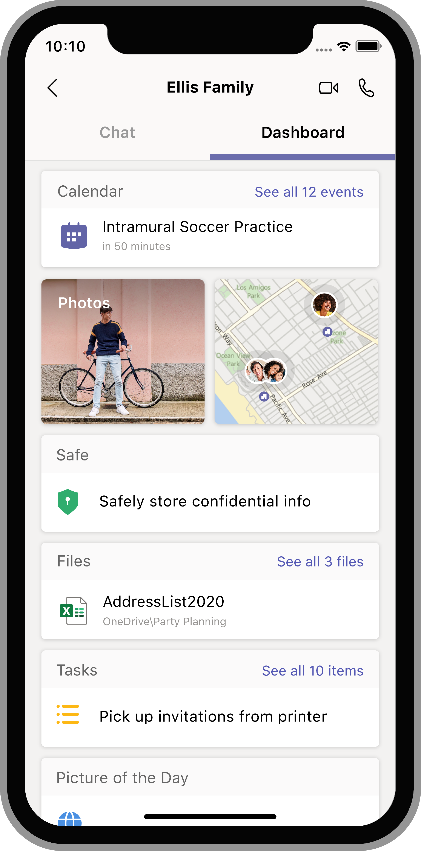
Just like you can switch between work and personal accounts in Outlook, you will soon be able to do the same in Teams. The personal teams view will look a little bit different, with shared calendars for the family, access to OneDrive vaults, photo sharing, etc., but it sits on the same codebase as the business version. You’ll also be able to do video calls and shared to-do lists.
Better writing through AI

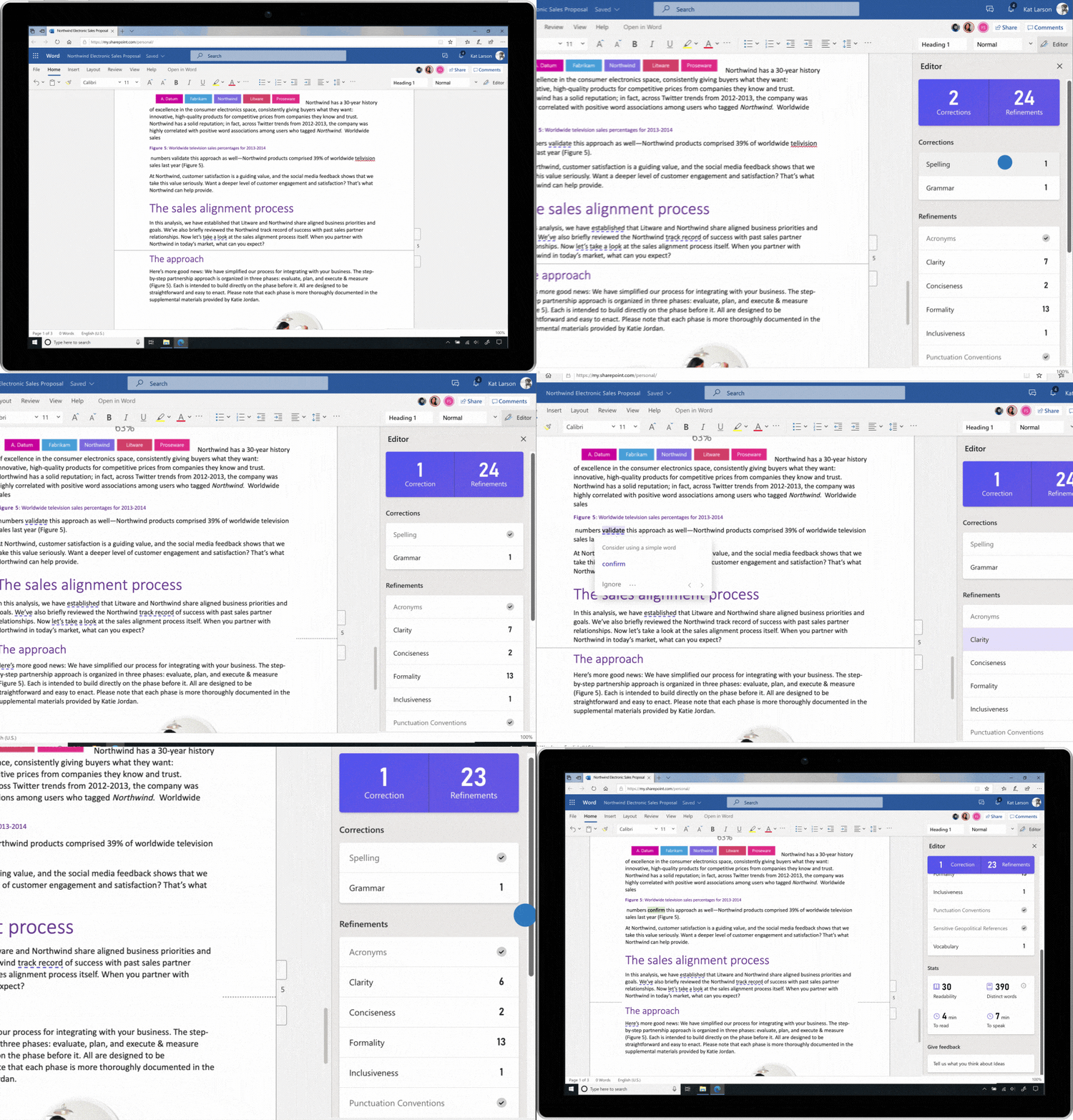
About a year ago, Microsoft announced that Word Online would get a new AI-powered editor that would help you write better. You can think of it as a smarter grammar checker that can fix all of your standard grammar mistakes but can also help you avoid overly complex sentences and bias in your word choices.

This editor is now the Microsoft Editor, and the company is expanding it well beyond Word. The new AI-powered service is now available in 20 languages in Word and Outlook.com — and maybe most importantly, it’ll be available as a Microsoft Edge and Google Chrome plug-in, too.

Free users will get basic spelling and grammar features, while Microsoft 365 subscribers will get a number of more advanced features like the ability to ask the editor to suggest a rewrite of a mangled sentence, a plagiarism checker, style analysis to see if your writing is unclear or too formal, and access to an inclusive language critique to help you avoid unintentional bias.

If you’ve used Grammarly in the past, then a lot of this will sound familiar. Both services now offer a similar set of capabilities, but Microsoft may have an edge with its ability to rewrite sentences.
Better presentations through technology

In a similar vein, Microsoft also launched a presentation coach for PowerPoint as a limited test last September. This AI-driven feature helps you avoid filler words and other presentation no-nos.

This feature first launched in the online version of PowerPoint, with a basic set of features. Now, Microsoft 365 subscribers will get two new advanced features, too, that can help you avoid a monotone pitch that puts your audience to sleep and avoid grammar mistakes in your spoken sentences.

Currently, these are still available as a free preview to all but will become Microsoft 365-only features soon.
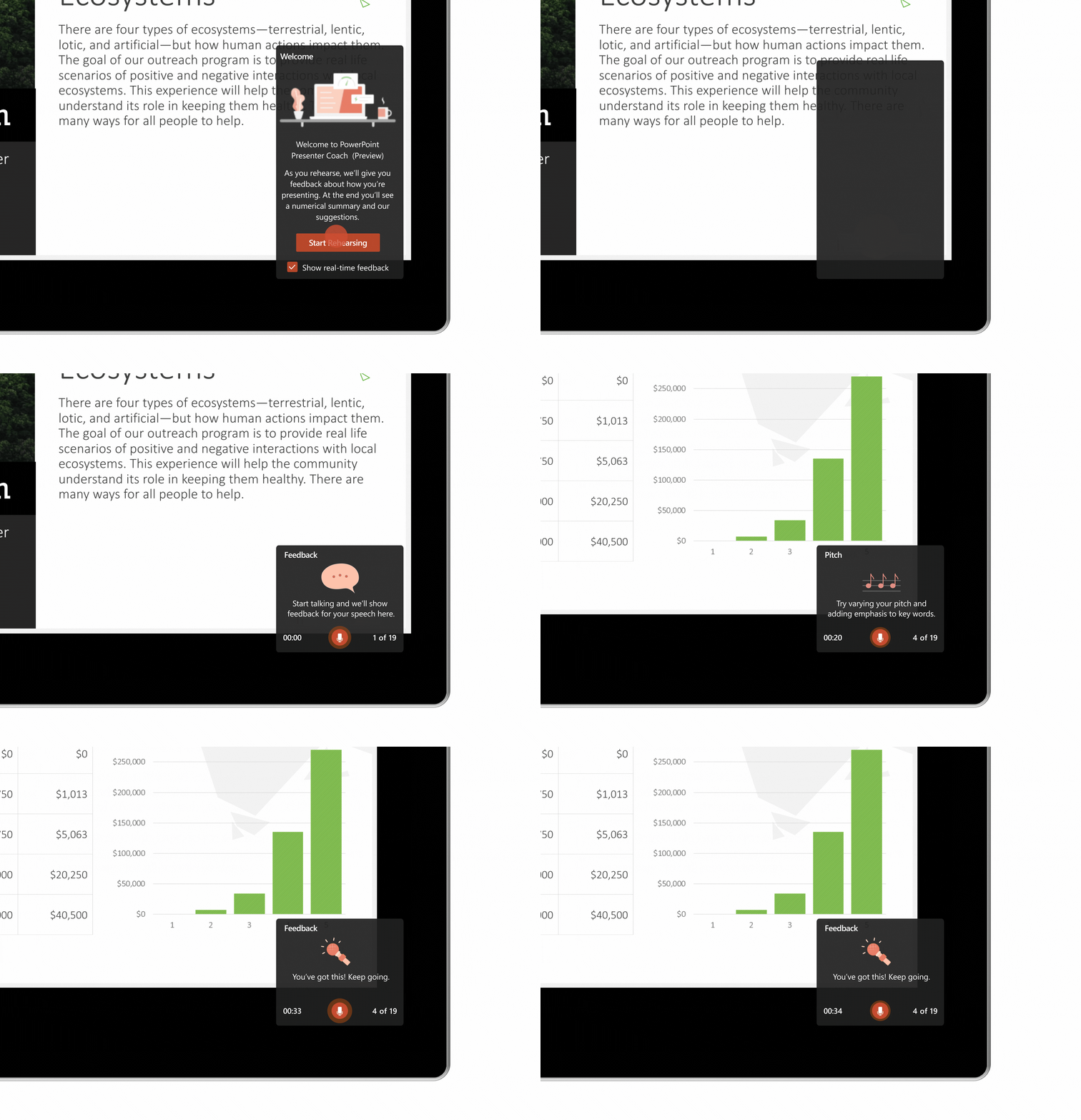
PowerPoint is also getting an updated Designer to help you create better presentations. It can now easily turn text into a timeline, for example, and when you add an image, it can present you with a set of potential slide layouts.

Microsoft 365 subscribers now also get access to over 8,000 images and 175 looping videos from Getty Images, as well as 300 new fonts and 2,800 new icons.

Excel + Plaid

For you spreadsheet jockeys out there, Microsoft also has some good news, especially if you want to use Excel to manage your personal budgets.

In partnership with Plaid, you can now link your bank accounts to Excel and import all of your expenses into your spreadsheets. With that, you can then categorize your spend and build your own personal Mint. This feature, dubbed “Money in Excel,” will launch in the U.S. in the coming months.
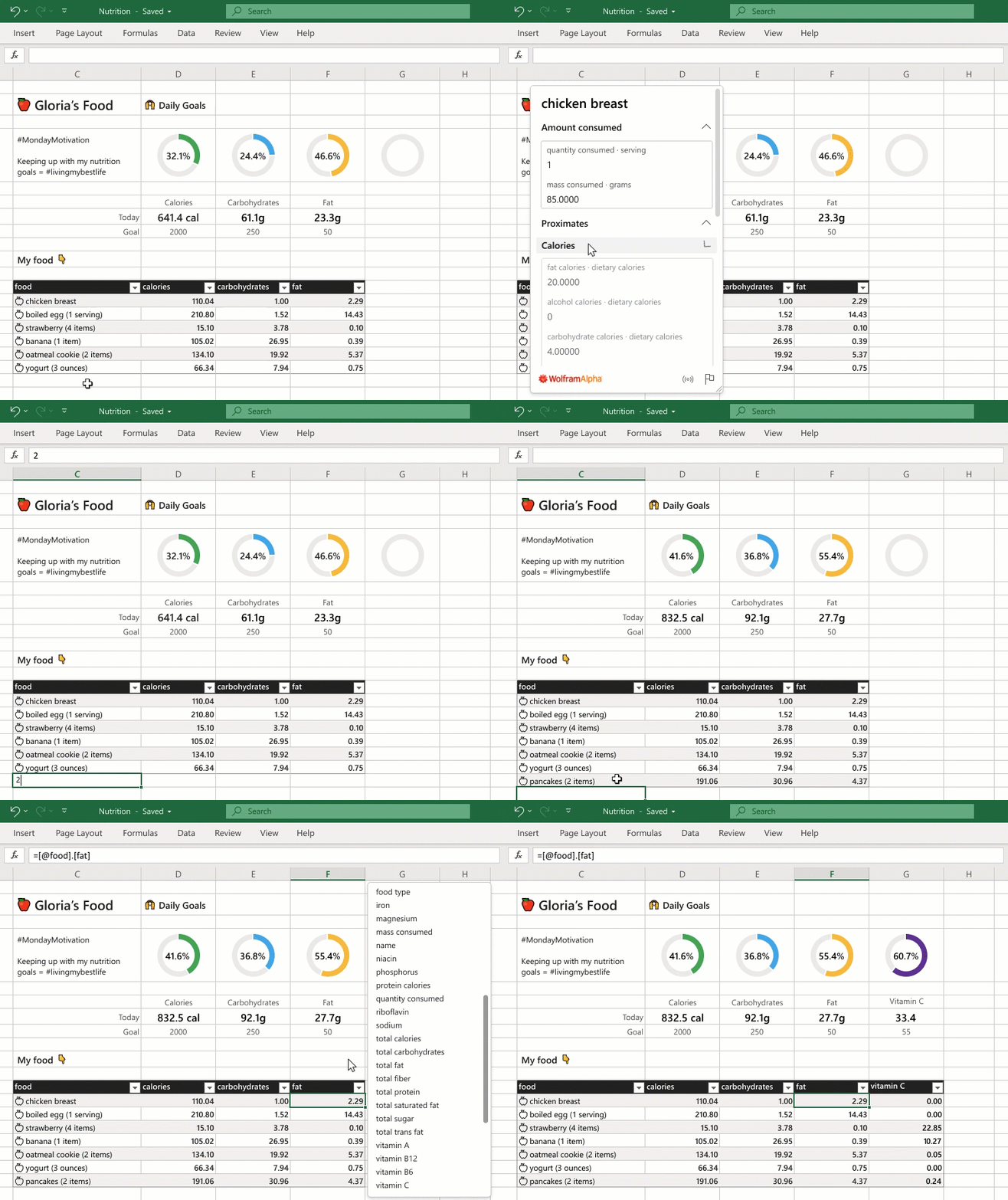
In addition, Excel is getting a lot more cloud- and AI-driven data types that now cover over 100 topics, including nutrition, movies, places, chemistry and — because why not — Pokémon. Like some of the previous features, this is an extension of the work Microsoft did on Excel in the last few years, starting with the ability to pull in stock market and geographical data.

And just like with the previous set of features, you’ll need a Microsoft 365 subscription to get access to these additional data types. Otherwise, you’ll remain restricted to the stock market and geography data types, which will become available to Office Insiders in the spring and then Personal and Family subscribers in the U.S. in the coming months.

Outlook gets more personal

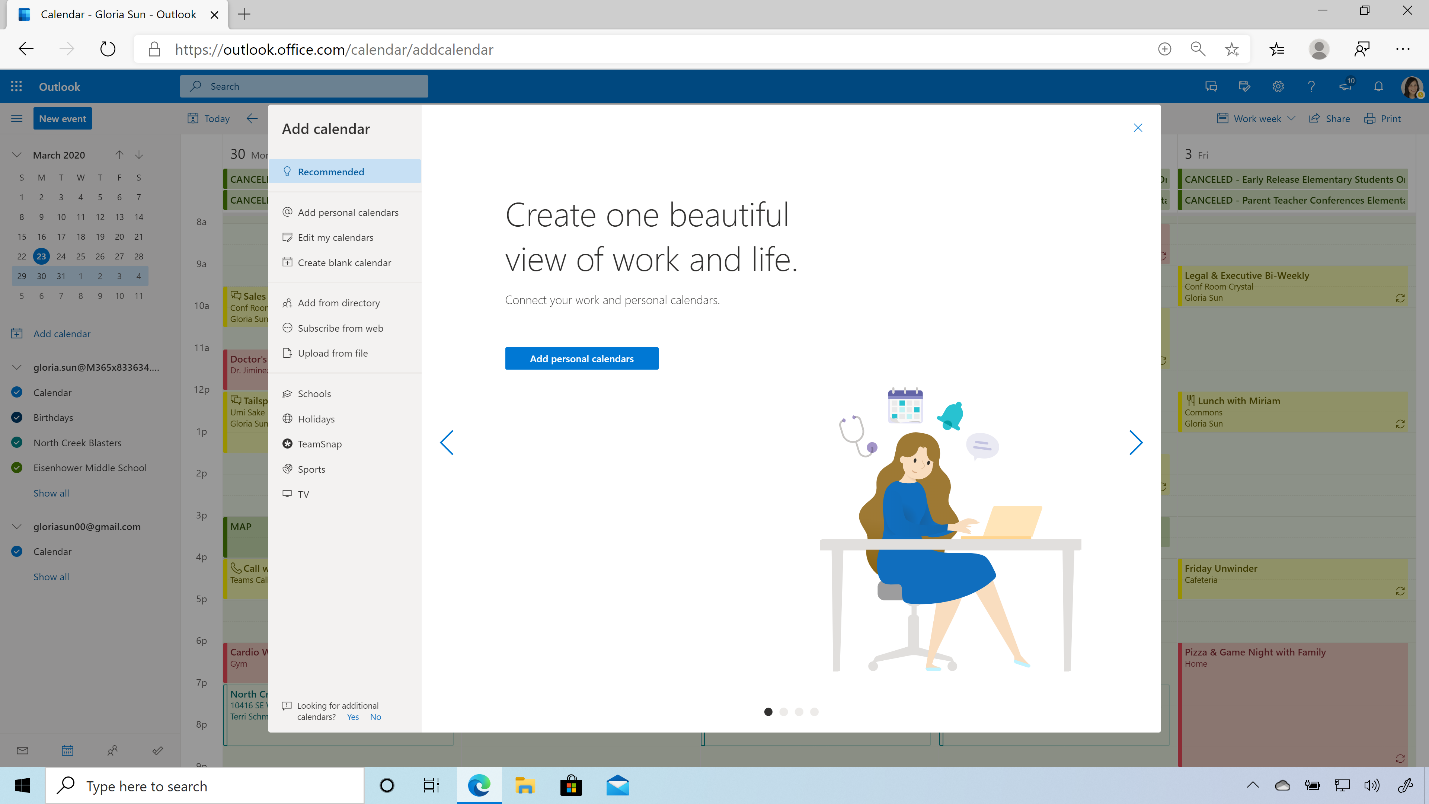
Even though you may want to forget about Outlook and ignore your inbox for a while, Microsoft doesn’t. In Outlook on the web, you can now link your personal and work calendars to ensure you don’t end up with a work meeting in the middle of a personal appointment, because Chris from marketing really needs another sync meeting during your gym time even though a short email would suffice.

Outlook for Android can now summarize and read your emails aloud for you, too. This feature will roll out in the coming months.
Family Safety

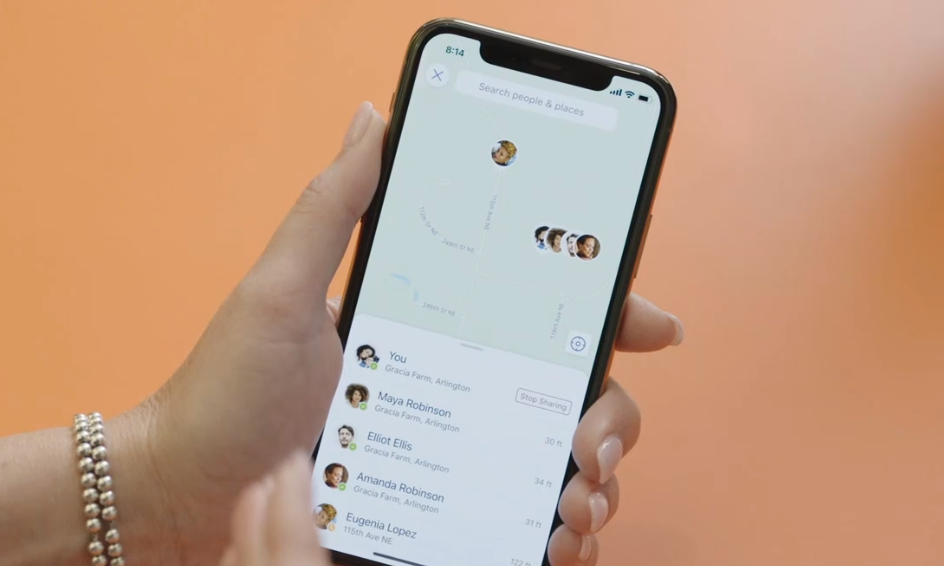
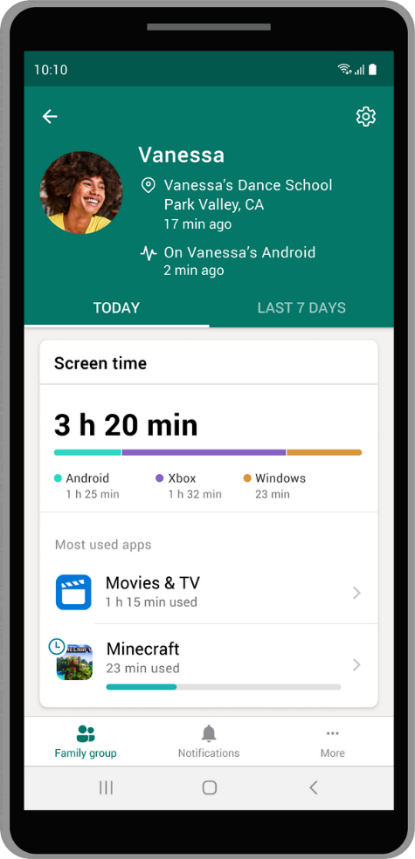
While most of the new features here focus on existing applications, Microsoft is also launching one completely new app: Microsoft Family Safety. This app is coming to Microsoft 365 subscribers on iOS and Android and will bring together a set of tools that can help families manage their online activities and track the location of family members.

The app lets families manage the screen time of their kids (and maybe parents, too) across Windows, Android and Xbox, for example. Parents can also set content filters that only allow kids to download age-appropriate apps. But it also allows parents to track their kids in the real world through location tracking and even driving reports. This, as Mehdi stressed, is a feature that kids can turn off, but they’ll probably have to explain themselves to their parents then. Indeed, he stressed that a lot of what the app does is give parents a chance to have a dialog with their kids. What makes the service unique is that it works across platforms, with iOS support coming in the future.

This app is launching as a limited preview now and will be available in the coming months (I think you can spot a trend here).
Partner benefits

Mehdi noted that Microsoft is also partnering with companies like Adobe, Bark, Blinkist, Creative Live, Experian, Headspace and TeamSnap to provide Microsoft 365 subscribers with additional benefits like limited-time access to their products and services. Subscribers will get three free months of access to Adobe’s Creative Cloud Photography plan, for example.

At the core of today’s updates, though, is a mission to bring a lot of the productivity tools that people know from their work life to their personal life, too, with the personal edition of Teams being the core example.

“We’re very much excited to bring this type of value — not increase the price of Office 365 — take a big step forward, and then move to this,” Mehdi said. “We think now more than ever, it is valuable for people to have the subscription service for their life that helps them make the most of their time, protects their family, lets them develop and grow. And our goal or aspiration is: Can we give you the most valuable subscription for your life? I know people value their video subscriptions and music subscriptions. Our aspiration is to provide the most valuable subscription for your life via Microsoft 365 Personal and Family.”


Read Full Article

Turbo Systems hires former Looker CMO Jen Grant as CEO


Turbo Systems, a three-year old, no-code mobile app startup, announced today it has brought on industry veteran Jen Grant to be CEO.

Grant, who was previously vice president of marketing at Box and chief marketing officer at Elastic and Looker, brings more than 15 years of tech company experience to the young startup.

She says that when Looker got acquired by Google last June for $2.6 billion, she began looking for her next opportunity. She had done a stint with Google as a product manager earlier in her career and was looking for something new.

She saw Looker as a model for the kind of company she wanted to join, one that had a founder focused on product and engineering, who hired an outside CEO early on to run the business, as Looker had done. She found that in Turbo where founder Hari Subramanian was taking on that type of role. Subramanian was also a successful entrepreneur, having previously founded ServiceMax before selling it to GE in 2016.

“The first thing that really drew me to Turbo was this partnership with Hari,” Grant told TechCrunch. While that relationship was a key component for her, she says even with that, before she decided to join, she spoke to customers and she saw an enthusiasm there that drew her to the company.

“I love products that actually help people. And so Box is helping people collaborate and share files and work together. Looker is about getting data to everyone in the organization so that everyone could be making great decisions, and at Turbo we’re making it easy for anyone to create a mobile app that helps run their business,” she said.

Grant has been on the job for just 30 days, joining the company in the middle of a global pandemic. So it’s even more challenging than the typical early days for any new CEO, but she is looking forward and trying to help her 36 employees navigate this situation.

“You know, I didn’t know that this is what would happen in my first 30 days, but what inspires me, what’s a big part of it is that I can help by growing this company, by being successful and by being able to hire more and more people, and contribute to getting our economy back on track,” Grant said.

She also recognizes that there is a lack of diversity in her new CEO role, and she hopes to be a role model. “I have been fortunate to get to a position where I know I can do this job and do it well. And it’s my responsibility to do this work, my responsibility to show it can be done and shouldn’t be an anomaly.”

Turbo Systems was founded in 2017 and has raised $8 million, according to Crunchbase. It helps companies build mobile apps without coding, connecting to 140 different data sources such as Salesforce, SAP and Oracle.


Read Full Article

29 March 2020

Elizabeth Warren for President open-sources its 2020 campaign tech


Democratic senator Elizabeth Warren may have ended her 2020 presidential run, but the tech used to drive her campaign will live on.

Members of her staff announced they would make public the top apps and digital tools developed in Warren’s bid to become the Democratic nominee for president.

“In our work, we leaned heavily on open source technology — and want to contribute back to that community…[by] open-sourcing some of the most important projects of the Elizabeth Warren campaign for anyone to use,” the Warren for President Tech Team said.

In a Medium post, members of the team — including chief technology strategist Mike Conlow and chief technology officer Nikki Sutton — previewed what would be available and why.

“Our hope is that other Democratic candidates and progressive causes will use the ideas and code we developed to run stronger campaigns and help Democrats win,” the post said.

Warren’s tech team listed several of the tools they’ve turned over to the open source universe via GitHub.

One of those tools, Spoke, is a peer to peer texting app, originally developed by MoveOn, which offered the Warren Campaign high volume messaging at a fraction of the costs of other vendor options. The team used it to send four million SMS messages on Super Tuesday alone.

Pollaris is a location lookup tool with an API developed to interface directly with Warren’s official campaign website and quickly direct supporters to their correct polling stations.

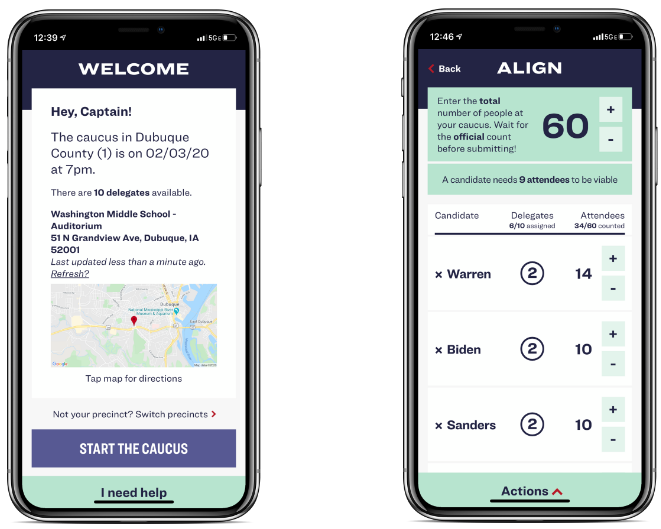
One of Elizabeth Warren’s presidential campaign app, Caucus, designed for calculating delegates. (Image: supplied)

Warren’s tech team will also open-source Switchboard (FE and BE) — which recruited and connected volunteers in primary states — and Caucus App, a delegate calculating and reporting tool.

The campaign’s Redhook tool took in web hook data in real time and experienced zero downtime.

“Our intention in open sourcing it is to demonstrate that some problems campaigns face do not require vendor tools and are solved…efficiently with a tiny bit of code,” said the Tech Team.

Elizabeth Warren ended her 2020 presidential bid on March 4 after failing to win a primary. Among her many policy proposals, the Massachusetts senator had proposed breaking up big tech companies, such as Google, Facebook and Amazon.

Her campaign will continue to share the tech tools they used on open source channels.

“We’ll have more to say in the coming weeks on all that we did with technology on our campaign,” the team said.


Read Full Article

Essential Tips for a Winning Resume


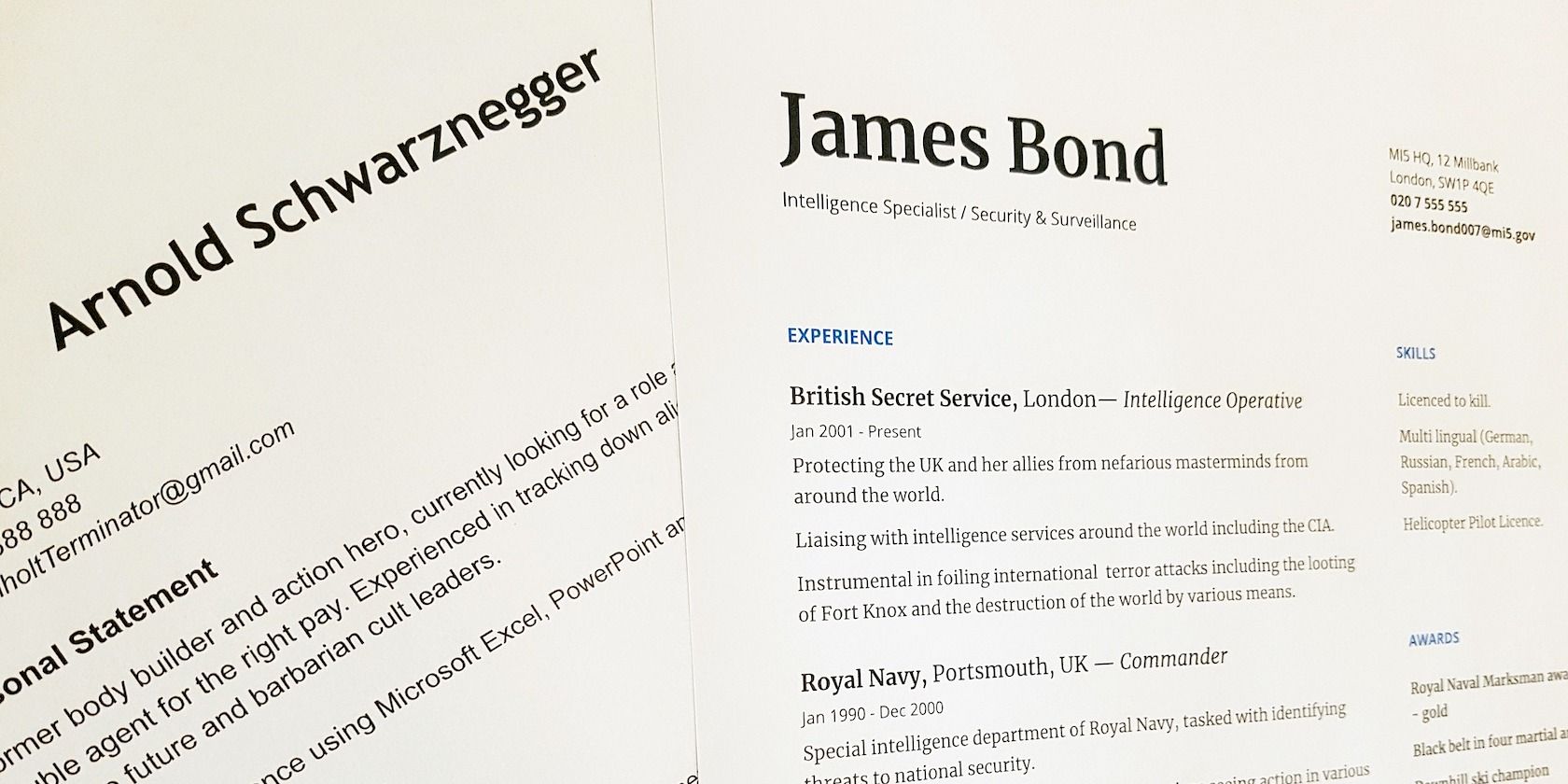
A couple of resume samples

A resume is a marketing document that gets only six seconds of attention from recruiters. So, it isn’t only a chronological record of your accomplishments but also a statement of your uniqueness and how important you can be for an organization. You already have a record of your personal data. Now, showcase that in the best possible light using the cheat sheet below.

The cheat sheet covers various sections that need to go on your CV. It also gives you content- and design-related tips to help you build a resume that brings results.

Plus, you’ll find a special section on tailoring your resume for ATS compatibility. (ATS or Applicant Tracking Systems are essentially bots used by companies to shortlist applicants.) This section includes pointers for ensuring that your resume passes through ATS without a glitch.

FREE DOWNLOAD: This cheat sheet is available as a downloadable PDF from our distribution partner, TradePub. You will have to complete a short form to access it for the first time only. Download Essential Tips for a Winning Resume.

Essential Tips for a Winning Resume

Tips
¹General Information
◼︎ Read the job ad carefully.
◼︎ Always tailor your resume to the job in question.
◼︎ Use an online resume builder instead of a text editor, or start out with a resume template.
◼︎ Use verifiable metrics wherever possible because hard numbers catch the eye of recruiters.
◼︎ Focus only on the most important content. Try to fit everything on two pages or fewer.
◼︎ Pick the right resume format: A Functional resume, a Chronological resume, or a Combination resume (if you have experience across different industries).
◼︎ The reverse-chronological resume, where the latest work experience is listed first, is the most popular format.
Design and Layout
◼︎ To make a good first impression, ensure that the layout is pleasing and the content is scannable and easy to read.
◼︎ Balance text with whitespace.
◼︎ Use classic fonts such as Times New Roman, Arial, Verdana, Calibri, Cambria, Helvetica, and Georgia.
◼︎ Don't choose anything less than 10.5 for the font size. A font size of 12 is ideal.
◼︎ Use font sizes 14-16 for section headers.
◼︎ Pick a font that reads well on all screens. Legibility and cleanliness are important.
◼︎ If you can, choose sans serif fonts like Arial over serif fonts like Times New Roman. The former are more legible on screens.
◼︎ Avoid big blocks of text and excessive bullet points.
◼︎ Ensure that sections flow from the most significant to the less important.
Contact Information
◼︎ Place your name and contact information at the top of the document.
◼︎ The font for the name should be larger than the font used in the body, but not so large as to overpower the other elements on the page.
◼︎ Don’t place contact information in the header/footer.
◼︎ Use a home address rather than a PO box or an office address.
◼︎ List one phone number. A mobile phone number is ideal.
◼︎ Use an email address that sounds professional.
◼︎ Place social media icons and URL links to relevant social media pages.
◼︎ Include a link to your LinkedIn profile (if you have one) and ensure that the profile is up to date.
◼︎ Include the URL of a personal website that highlights your expertise.
◼︎ To avoid possible age discrimination at the onset of hiring, avoid mentioning your date of birth unless that information is mandatory.
◼︎ Don't include a profile photo.
Job Summary
◼︎ This section is ideal if you have years of relevant job experience. Skip this section if you have less experience or applying for a job in another field.
◼︎ Highlight your current professional title with a larger font at the top of the section.
◼︎ Write an objective statement that describes a future goal. This is not mandatory.
◼︎ Outline your skills and accomplishments to demonstrate what:
1. Distinguishes you from other applicants
2. Makes you the ideal candidate for the role
◼︎ Highlight skills that are relevant to the role offered.
◼︎ Use the Adjective + Skill + Value formula to frame achievements in bulleted sentences.
Core Skills
◼︎ This section focuses on the skills you’ve gained based on the job roles you’ve performed in the past.
◼︎ Some job roles like programming demand hard technical skills while some like teaching ask for a mix of both hard and soft skills.
◼︎ Exploit the keywords in the target job descriptions and correlate them to your skillsets.
◼︎ Use topical nouns instead of vague verbs to highlight skills and boost recognition by ²ATS.
◼︎ Cover both hard skills and soft skills. For example, a Project Manager can list "Conflict resolution" as a soft skill.
◼︎ List hard skills with experience levels (Beginner, Intermediate, Advanced, Expert.)
Work Experience
◼︎ If you’re going by the most common resume format, arrange entries by date, with the latest job at the top.
◼︎ For each entry, mention the relevant job title, employer name, location, and job tenure (with start and end dates.)
◼︎ Use the mm/yyyy format while listing dates. It’s the standard format expected by recruiters and applicant tracking systems.
◼︎ Expand on the most critical jobs with a bulleted list of roles and accomplishments.
◼︎ Mention key metrics for every experience.
Example 1: Generated over $25,000 in sales in one month (instead of Managed sales through self-generated leads.)

Example 2: Developed and executed marketing strategy for three new national projects. Increased market penetration by an average of 35%.
◼︎ Some roles may not be quantifiable. In such cases, it’s okay to mention only responsibilities.
◼︎ Don’t duplicate the information from the Summary and Core Skills sections. Use unique phrasing.
Education
◼︎ This section can follow the Summary section for new graduates or for jobs with highly relevant educational requirements.
◼︎ Include educational qualifications, complete with the school/university name, location, degree earned, and the course dates.
◼︎ Mention extra qualifications, certifications, and training under relevant sub-sections if necessary.
◼︎ Include GPA/Class Rank if among the top-half of the class. This information is not mandatory.
Other Details
◼︎ Awards
List awards in the Education section under a sub-heading.
◼︎ Hobbies
These are not necessary in most applications, but they’re also not a dealbreaker. Include them if other details are sparse.
Don’t include inappropriate and commonplace hobbies like reading.
◼︎ References
Don’t mention these unless specifically asked for.
Tips for Compatibility With ²ATS
◼︎ Keep the resume structure simple.
◼︎ Avoid fancy/creatively designed resumes and resume templates.
◼︎ Use an ATS-friendly resume template when you don't want to design from scratch.
◼︎ Use simple headers and consistent formatting across all sections.
◼︎ For entries with dates, preface dates with descriptions, such as work experience or academic qualifications.
◼︎ The ATS is programmed to read specific keywords, so scan the job ad for potential keywords you can use.
◼︎ Use concise bullet points instead of full paragraphs.
◼︎ Spell out any abbreviations so the ATS can understand them.
◼︎ Submit the file in the format specified. (ATS reads Word formats better than PDF.)
◼︎ Use Jobscan to enhance your resume for ATS.
Final Round of Editing
◼︎ Always proofread for spellings and other errors.
◼︎ Double-check your contact information.
◼︎ Remove all fluff and keep the resume concise.
◼︎ Print the resume and check for design issues.
◼︎ Save a copy of the resume as a PDF for future use. (Word can mess up the formatting across different computer systems.)
◼︎ Back up a copy of the resume to the cloud so you can access it from anywhere.
¹This covers tips that apply to all kinds of resumes.

²ATS refers to Applicant Tracking System. Many companies use this software as the first screen to filter the flood of resumes.

Save Time With Resume Templates and Apps

Your resume is situational to the job, your experience, and the process the resume goes through before you land an interview. So, there’s no “best resume layout” you can count on. For effectiveness, it’s ideal to stick to the basics and include only the most important information. And yes, always keep your resume updated because you never know when you might have to send it off in a flash.

Don’t want to start your CV-building efforts from scratch? Use one of these Google Docs resume templates or any of these free resume apps to create a striking resume.

Image Credit: Oli Lynch on Pixabay

Read the full article: Essential Tips for a Winning Resume


Read Full Article