20 December 2019

Why winning doesn't always equal success | Valorie Kondos Field

Why winning doesn't always equal success | Valorie Kondos Field

Valorie Kondos Field knows a lot about winning. As the longtime coach of the UCLA women's gymnastics team, she won championship after championship and has been widely acclaimed for her leadership. In this inspiring, brutally honest and, at times, gut-wrenching talk, she shares the secret to her success. Hint: it has nothing to do with "winning."

Click the above link to download the TED talk.

Thumbtacks And String


Thumbtacks And String

The sorry state of AR startups in 2019


Even when Apple telegraphs its hardware strategy, it’s proving to be nearly impossible for startups to beat them.

The company’s executives have been motioning interest in following their runaway success on mobile with hefty investments in augmented reality, something that has led to the rise of dozens of venture-backed startups hoping to beat Apple to the punch by creating their own AR headsets.

In 2019, this vision collapsed for some of the most recognizable AR startups as reality proved less predictable than executives at these startups had imagined. A trio of shutdowns this year painted the root cause — overreach, framed by high burn rates and an overly optimistic attitude toward respective software ecosystems taking off.

ODG

At the beginning of the year, I reported on the collapse of Osterhout Design Group. The augmented reality startup was an early pioneer in the AR space that capitalized on industry excitement to raise a $58 million Series A in 2016. Following that raise, the company overreached, expanding its product lines even as it failed to squash manufacturing bugs in its current generation products.

“That’s a little bit the story of ODG and Ralph, in general: everything is a prototype, nothing is finished, and before one thing is 60 percent done, you’re already onto the next one,” a former employee told TechCrunch at the time. “I think the heart of ODG’s downfall was its lack of focus.”

The company laid off employees as acquisition talks with Facebook and Magic Leap fell through, sources told TechCrunch, before it was forced to sell off assets to an undisclosed buyer earlier this year.

Meta CTO Kari Pulli wearing the company’s latest headset.

Meta

One of the more bizarre stories in the AR headset space was the folding and reincorporated unfolding of Meta, a Y Combinator-backed AR headset company that was also an early entrant which decided to ramp up its spending as Apple and others began to invest in the technology.


Read Full Article

Apple reportedly working on satellite technology for direct wireless iPhone data transmission


Apple is said to be working on satellite technology, having hired a number of aerospace engineers to form team along with satellite and antenna designers, according to a new report from Bloomberg. The report notes that this is an early-stage secret project that could still be scrapped, but that the purpose of the team and its work is to potentially develop communications satellite technology that can send and receive data directly to user devices, including the iPhone, in a bid to make it possible to connect Apple devices without the need of a third-party network.

Bloomberg says that Apple won’t necessarily be building its own satellite hardware – it could instead be developing just th re transmission devices or ground-based equipment to make use of data transmissions for orbital communications equipment. The tech could be used for actually delivering data directly to Apple devices, or it could just connect them to each other independent of a cellphone carrier data network. It could also be used to provide more accurate location services for better maps and guidance, the report says.

Apple is said to have hired both executives and engineers from the aerospace and satellite industry, including Skybox Imaging alumni Michael Trela and John Fenwick who are leading the team. These two formerly headed up Google’s satellite and spacecraft divines. New hired include former Aerospace Corporation executive Ashley Moore Williams, as well as key personnel from the wireless networking and content delivery network industries.

The idea of providing a data network from space direct to devices seems preposterous on its face – most data communications satellites require communication with ground stations that then relay information with end-point devices. But it’s not an unheard of concept, and in fact we wrote earlier this year about Ubiquitlink, a company that’s focused on building a new kinds of low-Earth orbit communications satellite constellation that can communicate directly with phones.

Ubiquitlink’s initial goals spell out what a supplemental direct satellite communication network could provide on top of regular iPhone carrier service: The startup company hopes to essentially provide global roaming with a connection level that probably isn’t anywhere near as fast as you’d get from a ground-based network, but is usable for communication at least – and not dependent on local infrastructure. It could also act as a redundant fallback that ensures no matter what your main network status, you’ll always be able to do less data-intensive operations, like texting and calling.

While there’s obviously a lot of unknowns remaining in what Apple is working on or what it will eventually amount to, if anything, it’s very interesting to consider the possibility that it could offer a level of always-on connectivity that’s bundled with iPhones and available even when your primary network is not, that offers persistent access to features like iMessage, voice calls and navigation – leaving streaming and other data-intensive applications to your standard carrier rate plan.


Read Full Article

Apple reportedly working on satellite technology for direct wireless iPhone data transmission


Apple is said to be working on satellite technology, having hired a number of aerospace engineers to form team along with satellite and antenna designers, according to a new report from Bloomberg. The report notes that this is an early-stage secret project that could still be scrapped, but that the purpose of the team and its work is to potentially develop communications satellite technology that can send and receive data directly to user devices, including the iPhone, in a bid to make it possible to connect Apple devices without the need of a third-party network.

Bloomberg says that Apple won’t necessarily be building its own satellite hardware – it could instead be developing just th re transmission devices or ground-based equipment to make use of data transmissions for orbital communications equipment. The tech could be used for actually delivering data directly to Apple devices, or it could just connect them to each other independent of a cellphone carrier data network. It could also be used to provide more accurate location services for better maps and guidance, the report says.

Apple is said to have hired both executives and engineers from the aerospace and satellite industry, including Skybox Imaging alumni Michael Trela and John Fenwick who are leading the team. These two formerly headed up Google’s satellite and spacecraft divines. New hired include former Aerospace Corporation executive Ashley Moore Williams, as well as key personnel from the wireless networking and content delivery network industries.

The idea of providing a data network from space direct to devices seems preposterous on its face – most data communications satellites require communication with ground stations that then relay information with end-point devices. But it’s not an unheard of concept, and in fact we wrote earlier this year about Ubiquitlink, a company that’s focused on building a new kinds of low-Earth orbit communications satellite constellation that can communicate directly with phones.

Ubiquitlink’s initial goals spell out what a supplemental direct satellite communication network could provide on top of regular iPhone carrier service: The startup company hopes to essentially provide global roaming with a connection level that probably isn’t anywhere near as fast as you’d get from a ground-based network, but is usable for communication at least – and not dependent on local infrastructure. It could also act as a redundant fallback that ensures no matter what your main network status, you’ll always be able to do less data-intensive operations, like texting and calling.

While there’s obviously a lot of unknowns remaining in what Apple is working on or what it will eventually amount to, if anything, it’s very interesting to consider the possibility that it could offer a level of always-on connectivity that’s bundled with iPhones and available even when your primary network is not, that offers persistent access to features like iMessage, voice calls and navigation – leaving streaming and other data-intensive applications to your standard carrier rate plan.


Read Full Article

France slaps Google with $166M antitrust fine for opaque and inconsistent ad rules


France’s competition watchdog has slapped Google with a €150 million (~$166M) fine after finding the tech giant abused its dominant position in the online search advertising market.

In a decision announced today — following a lengthy investigation into the online ad sector — the competition authority sanctions Google for adopting what it describes as “opaque and difficult to understand” operating rules for its ad platform, Google Ads, and for applying them in “an unfair and random manner”.

The watchdog has ordered Google to clarify how it draws up rules for the operation of Google Ads and its procedures for suspending accounts. The tech giant will also have to put in place measures to prevent, detect and deal with violations of Google Ads rules.

A Google spokesman told TechCrunch the company will appeal the decision.

The decision — which comes hard on the heels of a market study report by the UK’s competition watchdog asking for views on whether Google should be broken up — relates to search ads which appear when a user of Google’s search engine searches for something and ads are served alongside organic search results.

More specifically it relates to the rules Google applies to its Ads platform which set conditions under which advertisers can broadcast ads — rules the watchdog found to be confusing and inconsistently applied.

It also found Google had changed its position on the interpretation of the rules over time, which it said generated instability for some advertisers who were kept in a situation of legal and economic insecurity.

In France, Google holds a dominant position in the online search market, with its search engine responsible for more than 90% of searches carried out and holds more than 80% of the online ad market linked to searches, per the watchdog which notes that that dominance puts requirements on it to define operating rules of its ad platform in an objective, transparent and non-discriminatory manner.

However it found Google’s wording of ad rules failed to live up to that standard — saying it is “not based on any precise and stable definition, which gives Google full latitude to interpret them according to situations”.

Explaining its decision in a press release the Autorité de la Concurrence writes [translated by Google Translate]:

[T]he French Competition Authority considers that the Google Ads operating rules imposed by Google on advertisers are established and applied under non-objective, non-transparent and discriminatory conditions. The opacity and lack of objectivity of these rules make it very difficult for advertisers to apply them, while Google has all the discretion to modify its interpretation of the rules in a way that is difficult to predict, and decide accordingly whether the sites comply with them or not. This allows Google to apply them in a discriminatory or inconsistent manner. This leads to damage both for advertisers and for search engine users.

The watchdog’s multi-year investigation of the online ad sector was instigated after a complaint by a company called Gibmedia — which raised an objection more than four years ago after Google closed its Google Ads account without notice.

At the time, Gibmedia requested provisional measures be taken. The watchdog rejected that request in a 2015 decision but elected to continue investigating “the merits of the case”. Today’s decision marks the culmination of the investigation.

In a response statement on the decision, a Google spokesperson said: “People expect to be protected from exploitative and abusive ads and this is what our advertising policies are for.”

Its statement also claims Gibmedia was “running ads for websites that deceived people into paying for services on unclear billing terms”. “We do not want these kinds of ads on our systems, so we suspended Gibmedia and gave up advertising revenue to protect consumers from harm,” the Google spokesperson added.

However the watchdog’s press release anticipates and unpicks this argument — pointing out that while having an objective of consumer protection is “perfectly legitimate” it does not justify Google treating advertisers in “a differentiated and random manner in comparable situations”.

“Google cannot suspend the account of an advertiser on the grounds that it would offer services that it considers contrary to the interests of the consumer, while agreeing to reference and accompany on its advertising platform sites that sell similar services,” it writes. 

While the watchdog does not state that it found evidence Google used ambiguous and inconsistently applied ad rules in a deliberate attempt to block competitors, it asserts the behavior displays “at best negligence, at worst opportunism”.

It also suggests that another element of Google ad rules could lead sites to favor a content policy aligned with its own ad-funded services — thereby pushing online publishers to adopt an economic model that feeds and benefits its own. 

During Google’s implementation of the now sanctioned practices the watchdog points out that the company has received regular warnings around EU competition rules — noting the string of European Commission antitrust decisions against Google products in recent years. (Most recently, in March, Google was fined ~$1.7BN for antitrust violations related to its search ad brokering business, AdSense.)

While, since 2010, it says it has issued a number of decisions related to the drafting and application of rules on the ad market which Google could also have taken note of.

In addition to being fined, being required to clarify its procedures and to set up a system of alerts to help advertisers avoid account suspensions, the decision requires Google to organize mandatory annual training for Google Ads support staff.

It must also submit an annual report to the watchdog specifying the number of complaints filed against it by French Internet users; the number of sites and accounts suspended; the nature of the Rules violated and the terms of the suspension.

Within two months of today’s decision Google must also present the watchdog with a report detailing the measures and procedures it will take to take to comply with the orders. A further report is due within six months detailing all the measures and procedures Google has actually put in place.

At the start of this year Google was also fined $57M by France’s data protection watchdog for violations of Europe’s General Data Protection Regulation.


Read Full Article

9 Common iCloud Problems (And How to Fix Them on Your iPhone or iPad)


icloud-issues

Anyone who has an Apple device probably uses iCloud as well. This cloud storage service makes it easy to sync photos, calendars, documents, and more across all your Apple products. But if iCloud isn’t working, you might lose access to all that data!

We’ve put together a list of the most common iCloud problems from across the web, explaining everything you can do to fix them. So whether you’ve got iCloud sync issues or you can’t sign in from your iPhone, you can find the solution below.

1. Cannot Connect to iCloud

Cannot connect to iCloud iPhone alert

Connection issues are the most common problem with iCloud. They often crop up when you’re trying to sign in or sync data, but can even happen when you’re using unrelated apps on your iPhone or iPad.

The first step to take when your device cannot connect to iCloud is to check that Apple’s systems are all online. Go to Apple’s System Status website and make sure every iCloud-related service has a green circle next to it.

Differently shaped symbols in yellow or red mean Apple is experiencing problems with that service. When that happens, there’s nothing you can do but wait for Apple to fix it.

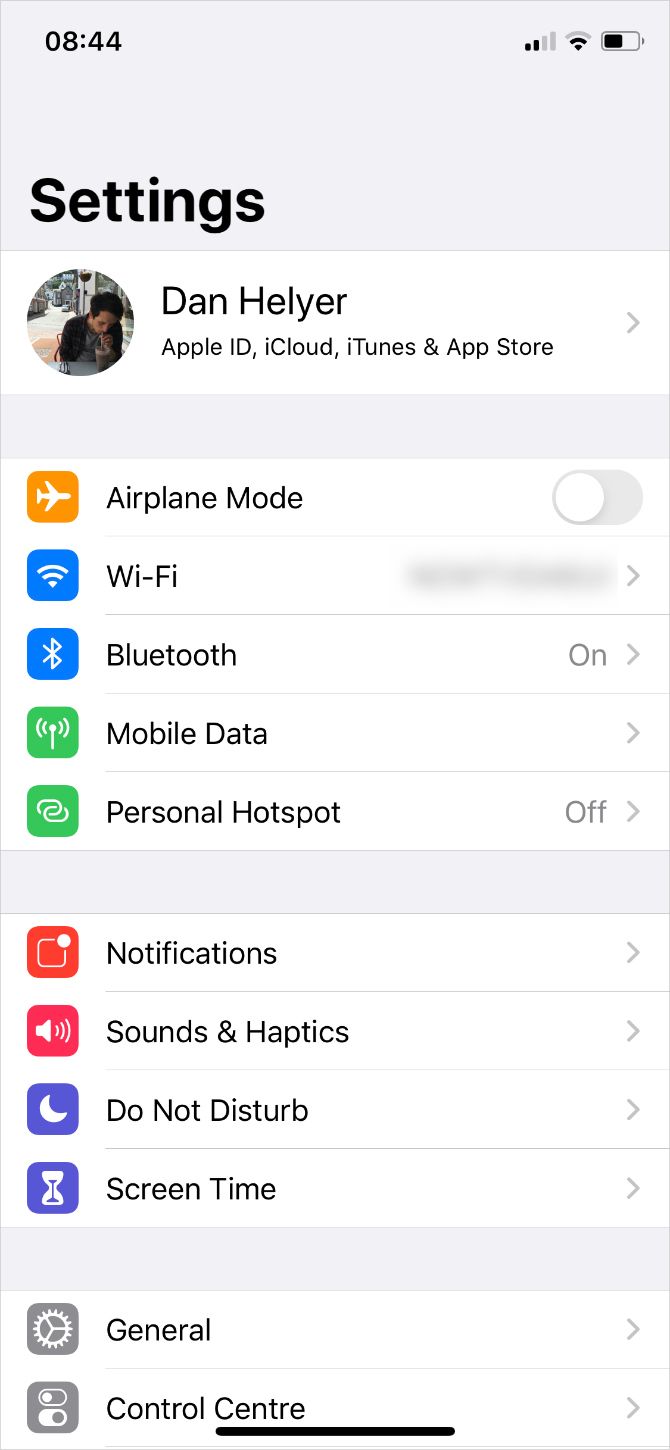
If iCloud is up and running, there may be new terms and conditions for you to agree to before connecting. Open the Settings app on your iPhone or iPad and tap [Your Name] at the top of the screen. A popup prompts you to agree to new terms and conditions if there are any.

Failing that, you should sign out of iCloud on your iPhone or iPad, then sign in again. To do this:

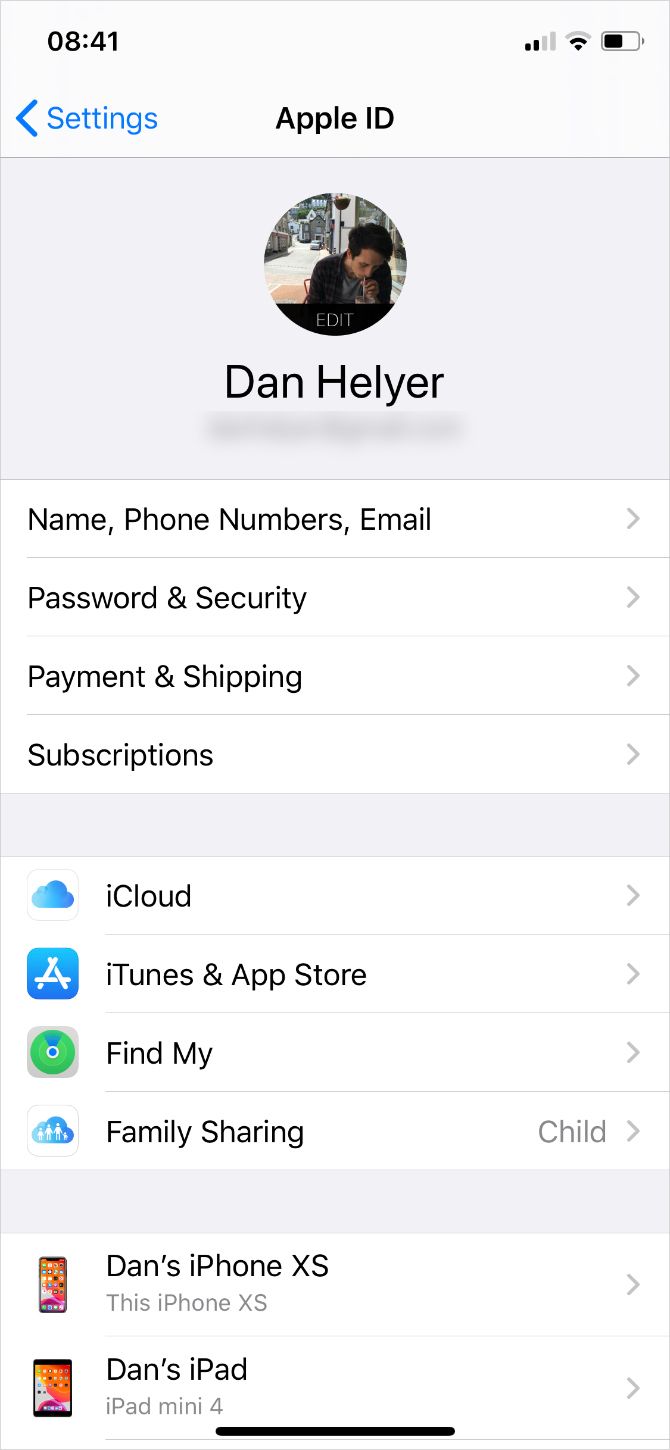
  1. Go to Settings > [Your Name].
  2. Scroll down and tap Sign Out.
  3. If prompted, enter your Apple ID password to Turn Off Find My Device.
  4. Choose what data to keep on your device—anything you don’t keep is still saved to iCloud—then tap Sign Out.
  5. Return toSettings to sign in again using your Apple ID details.

2. iCloud Doesn’t Sync Data Across Devices

When iCloud works, everything syncs automatically without any extra effort from you. That means you can take a photo or edit a document on one device, and those changes instantly sync to your other devices as well.

Unfortunately, iCloud doesn’t always work seamlessly. When that’s the case, try these tips to fix it:

  1. Hold the Sleep/Wake button, then slide to power off your device. Wait a minute or so before you press the button again to restart.
  2. Try streaming a video over the web to test your Wi-Fi connection. If it’s slow, restart your router to see if that fixes it.
  3. Go to Settings > [Your Name] on each device and make sure you’re using the exact same Apple ID account. If not, Sign Out and then sign in again with the correct details.
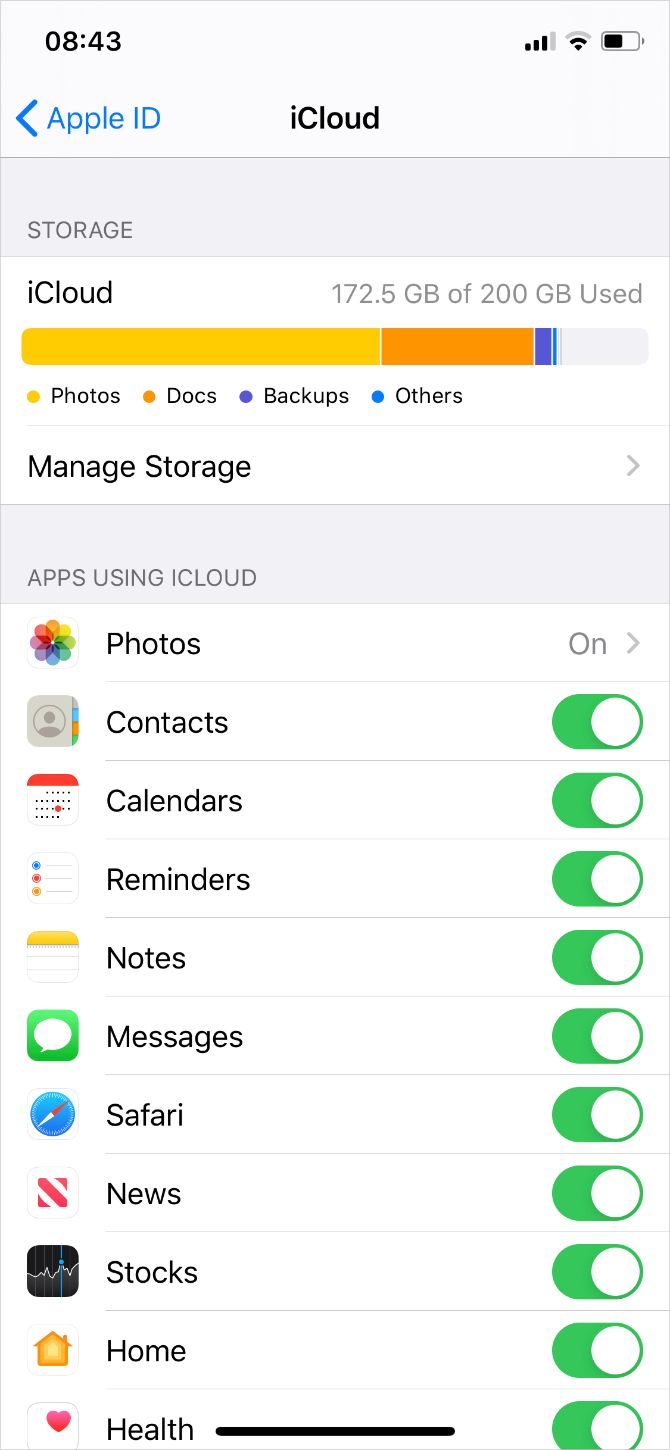
  4. Visit Settings > [Your Name] > iCloud and turn on each of the services you want to sync.

3. Third-Party Apps Don’t Save to iCloud

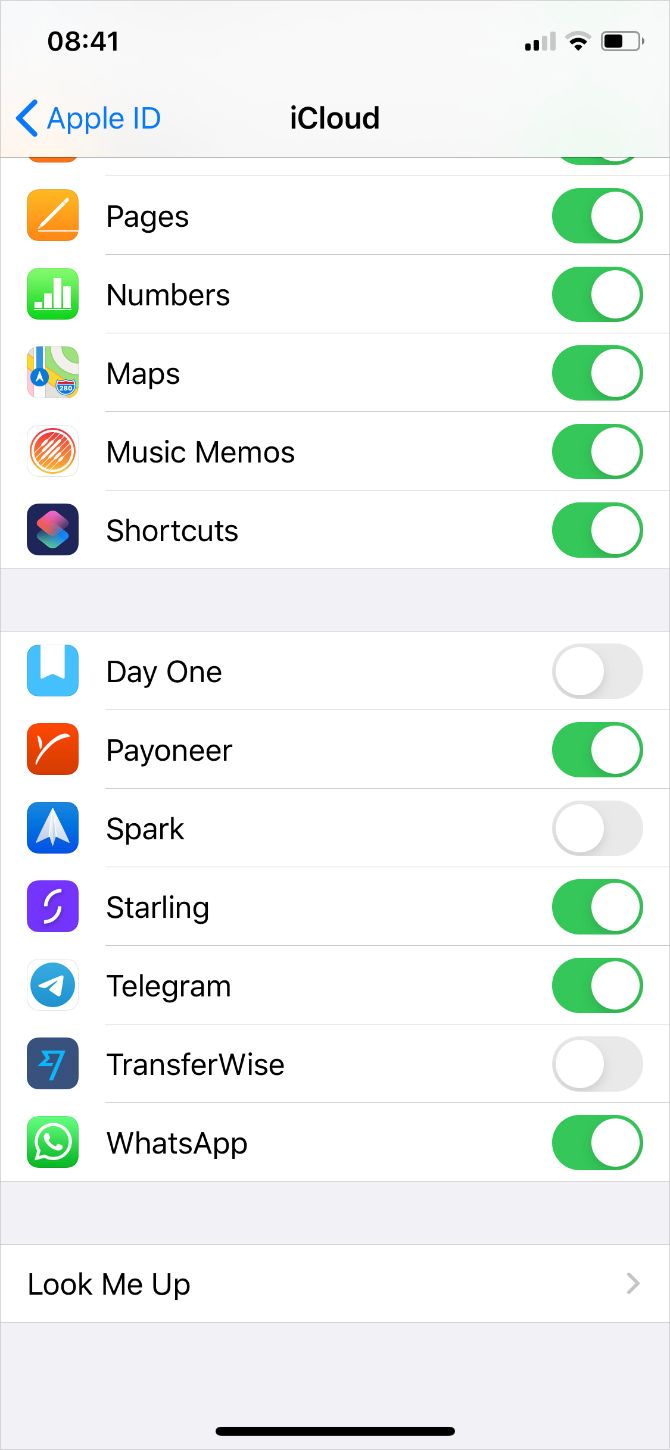
Some third-party apps save data to iCloud, allowing them to sync across all your Apple devices. Usually, they do this automatically. But if your apps aren’t syncing the way you expect them to, you might need to tweak the settings yourself.

Check the iCloud sync settings on each of your Apple devices by performing these steps:

  1. Go to Settings > [Your Name] > iCloud.
  2. Scroll through the list and turn on the apps you want to sync over iCloud.
  3. If your app is missing from the list, contact the developer to ask if this feature is supposed to work in the app.

4. Your iCloud Settings Never Stop Updating

Updating iCloud Settings screen

This persistent loading screen usually appears after signing in to iCloud on your device, sometimes during the initial setup. Wait at least five minutes before trying to fix it; sometimes iCloud is still working, but is quite slow.

If you’re still stuck on the updating iCloud settings screen after some time, try the following tips to fix it:

  1. Hold the Sleep/Wake button, then slide to power off your device. Wait a minute or so before you press the button again to restart it.
  2. If it’s unresponsive, follow these steps to force restart your iPhone or iPad.
  3. After restarting your device, open Settings and sign into iCloud again.

5. iCloud Authentication Error Appears When You Sign In

Authentication Error iPhone alert

Most of the time, when you can’t sign into iCloud, it’s because you entered the wrong username or password. But sometimes an Authentication Error appears even when you use the right credentials.

If you get this message or similar failed authentication messages, try these steps to fix it:

  1. Go to the Apple ID website.
  2. Use your Apple ID username and password to sign in.
  3. If you still can’t sign in, click Forgot your Apple ID or password? to reset your login details.

6. iCloud Says You Have an Unsupported Apple ID

iCloud Apple Support website

You may have created an Apple ID under non-standard circumstances, which can cause problems with iCloud. Typically, if an Apple ID works with Apple’s other services—like the App Store or iTunes—it shouldn’t have any issues with iCloud either.

If your Apple ID doesn’t work with any of Apple’s services, contact Apple Support directly. They can offer you individual assistance to resolve this iCloud issue.

7. You Ran Out of iCloud Storage

Not Enough Storage alert from iPhone

Apple gives everyone 5 GB of iCloud storage for free, but that’s usually not enough to last long. After all, you can use iCloud to store all kinds of data: iPhone backups, high-quality photos, emails, and iCloud Drive files.

When you run out of iCloud storage, there are two ways to fix it: clear some space in your iCloud account, or buy more iCloud storage. If you want to create more free space, find out how to manage your iCloud storage and delete some of the content on there.

Otherwise, follow these instructions to buy more iCloud storage:

  1. Go to Settings > [Your Name] > iCloud > Manage Storage.
  2. Select Change Storage Plan.
  3. Select your storage upgrade option from the list, and enter your Apple ID password to confirm the monthly subscription.
  4. Apple charges you immediately, and the storage is available right away.

8. Verification Fails When You Sign In or Out of iCloud

Verification Failed iPhone alert

You might find you can’t sign in to iCloud on your iPhone or iPad because Verification Failed. Sometimes, you can’t sign out of iCloud either for the same reason. This is often an issue with your internet connection or Apple ID login details.

There are a few ways to fix it:

  1. Hold the Sleep/Wake button, then slide to power off your device. Wait a minute or so before you press the button again to restart it.
  2. If it’s unresponsive, follow the steps to force restart your iPhone or iPad as linked in section 4 above.
  3. Try streaming a video over the web to test your internet connection. If it’s slow, restart your router to see if that fixes it.
  4. Make sure your device’s date and time are correct by going to Settings > General > Date & Time. Turn on the option to Set Automatically if it’s not already.
  5. If you have another device using the same Apple ID, go to Settings > [Your Name] > Password & Security > Get Verification Code. You need to use this six-digit code to sign in if you use two-factor authentication with iCloud.

9. Your Device Keeps Asking for an iCloud Password

Sign In to iCloud iPhone Alert

This is an old iCloud problem that keeps popping up from time to time.

You’re in the middle of using your iPhone or iPad when a prompt appears asking you to enter your iCloud credentials. You do that, but a few moments later it appears again, then again, and so on.

Here’s how to fix it:

  1. Restart your device using the instructions we gave earlier, or force restart your device using the link in step 4 above if it’s unresponsive.
  2. Go to Settings > [Your Name] > Sign Out, then choose not to keep any data on your device. After signing out, return to Settings and Sign In again.
  3. Visit Apple’s System Status website to make sure iCloud is working properly.
  4. Visit Apple’s iForgot website to reset your Apple ID password, then sign in to iCloud on your iPhone and/or iPad using the new password.
  5. Finally, back up and restore your iPhone. This process can be time-consuming, so save it for the last resort after everything else.

Fix iCloud Problems so You Can Back Up Your Device

No matter the circumstances, it’s always annoying when iCloud isn’t working. But if your iPhone or iPad also can’t back up to iCloud, you might find yourself at serious risk of data loss.

iCloud backups are the most valuable aspect of Apple’s cloud service, since they protect all the data on your devices. Whenever you come across problems, do what you can to troubleshoot issues with your device backing up to iCloud.

Read the full article: 9 Common iCloud Problems (And How to Fix Them on Your iPhone or iPad)


Read Full Article

The 8 Best Thunderbolt 3 Docks for Your MacBook Pro


thunderbolt-deck-macbook-pro

While the modern MacBook Pro is powerful and portable, there may be times where you want more of a desktop setup, with a larger monitor and tons of peripherals.

Unlock the free "Most Useful Mac Keyboard Shortcuts" cheat sheet now!

This will sign you up to our newsletter

Enter your Email

Thanks to Thunderbolt 3 technology, you can have the best of both worlds. While the ports look identical to USB-C, there are some significant differences between Thunderbolt 3 and USB-C.

Thunderbolt 3 docks plug into a compatible port and can solve the dongle dilemma by offering USB, HDMI, and many other connections. We’re highlighting some of the best Thunderbolt 3 docks to transform your MacBook Pro into a desktop workstation.

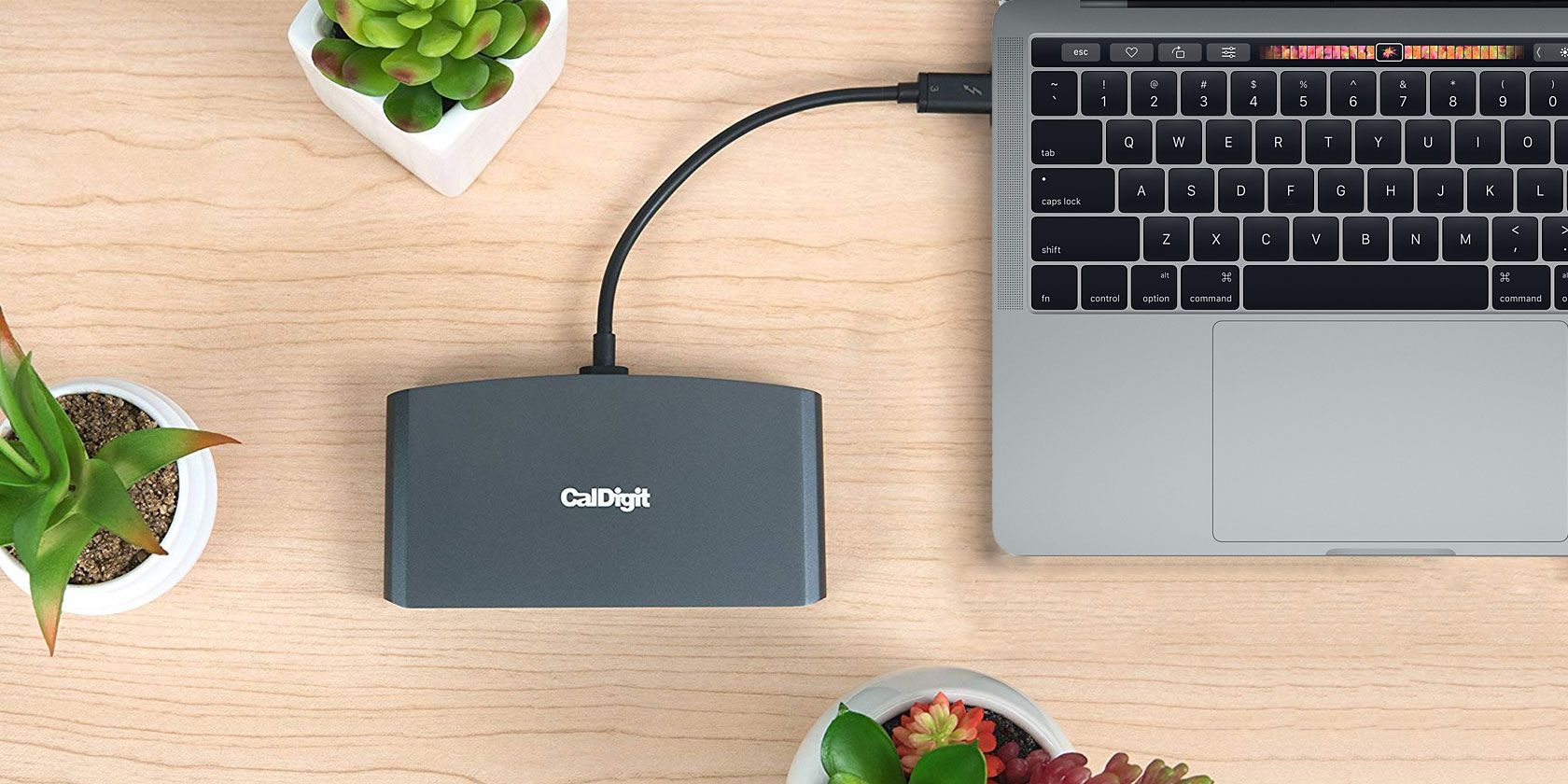
1. CalDigit TS3 Plus Thunderbolt 3 Dock

CalDigit TS3 Plus Thunderbolt 3 Dock CalDigit TS3 Plus Thunderbolt 3 Dock Buy Now On Amazon $279.99

There’s no need to worry about a power brick and cable when using the CalDigit TS3 Plus Thunderbolt 3 Dock. The dock provides up to 85 watts of power, more than enough for most MacBook Pro models at full power. An additional Thunderbolt 3 port offers up to 15 watts of power for downstream devices.

In total, there are 15 ports on the dock, including five USB-A 3.1 ports and two USB-C 3.1 ports. Thanks to a DisplayPort 1.2 port, you can attach dual 4K monitors at 60HZ or a single 5K 60Hz display. A digital optical audio port allows you to connect directly to an amplifier, speakers, or a home theater receiver.

There is also an SD card reader to transfer photos and videos. Other ports include audio in/out and Gigabit Ethernet. As a nice touch, with two sets of feet, you can place the dock in a horizontal or vertical orientation on a desk.

2. OWC Thunderbolt 3 Pro Dock

OWC Thunderbolt 3 Pro Dock OWC Thunderbolt 3 Pro Dock Buy Now On Amazon $328.99

Living up to its name, the OWC Thunderbolt 3 Pro Dock features a number of ports hard to find on other docks. An eSATA port provides access to multi-bay external drives. Another great feature is a CFast 2.0 Card Reader that can import media at up to 370MB/s on the front of the dock.

The device provides 60 watts of power, which is the maximum amount for a 13-inch MacBook Pro. The DisplayPort 2.1 port allows you to connect two 4K monitors or one 5K display. Other ports include three USB-A 3.1 ports, an SD card slot, a 10GB Ethernet port, a security slot, and two Thunderbolt 3 ports.

A fan switch allows you to work temporarily with no noise from the dock. The dock’s power connection is designed to be secure, so there won’t be any unexpected disconnections.

3. Plugable Thunderbolt 3 Dock

Plugable Thunderbolt 3 Dock Plugable Thunderbolt 3 Dock Buy Now On Amazon $229.00

One Thunderbolt 3 port on Plugable’s Thunderbolt 3 Dock provides up to 60 watts of power, which is the maximum for many 13-inch MacBook models. You can still use it to power up a 15-inch version. However, it won’t charge as quickly compared to using the Apple-provided 87-watt power adapter. It helps save space on your desk as the dock is available for use in either a horizontal or vertical orientation.

Along with a DisplayPort on the rear, there’s an additional Thunderbolt 3 port to daisy chain another dock or connect another device. A Gigabit Ethernet connection lives next to four USB-A 3.0 ports for other peripherals. On the front of the dock is a single USB-A 3.0 port and a headphone jack.

4. Belkin Thunderbolt 3 Express Dock HD

Belkin Thunderbolt 3 Express Dock HD Belkin Thunderbolt 3 Express Dock HD Buy Now On Amazon $248.80

Belkin’s Thunderbolt 3 Express Dock HD provides a full 85 watts of power. Even a 15-inch MacBook Pro will charge at the maximum possible speed. With the additional Thunderbolt 3 plug and DisplayPort, you can connect two 4K displays at 60Hz or a single 5K monitor at 60Hz.

The dock features two audio-out ports; one on the rear and another on the front of the dock next to a single USB-A 3.0 port. On the back, you’ll find two additional USB-A 3.0 ports, a Gigabit Ethernet port, and two Thunderbolt 3 ports.

5. Promise Technology Thunderbolt 3 Dock

Promise Technology Thunderbolt 3 Dock Promise Technology Thunderbolt 3 Dock Buy Now On Amazon $227.99

Photographers will enjoy the Promise Technology Thunderbolt 3 Dock, as it offers a built-in SD card reader. Along with that nice perk, you’ll find two USB-A 3.0 ports and an audio in/out jack on the front.

Instead of DisplayPort, the dock offers a single HDMI 2.0 port on the rear. You’ll also find three additional USB-A 3.0 ports, a Gigabit Ethernet port, and two Thunderbolt 3 ports. One of those supports power delivery of up to 60 watts to your MacBook Pro.

6. Kensington SD5000T Thunderbolt 3 Docking Station

Kensington SD5000T Thunderbolt 3 Docking Station Kensington SD5000T Thunderbolt 3 Docking Station Buy Now On Amazon $242.98

Offering 85 watts of power, the Kensington SD5000T Thunderbolt 3 Docking Station is a great option for any MacBook Pro. There’s a unique option here to help control clutter if you’re low on desk space—you can purchase an optional mounting plate that will place the dock on the back of any VESA-compatible monitor. There’s also a Kensington lock slot on the rear to help prevent the dock from being stolen.

The front of the SD5000T features a USB-C port and USB-A 3.0 port. The USB-C port offers up to 15 watts of power, while the USB-A 3.0 port is a fast-charging 2.1A version. On the back, you’ll find a Gigabit Ethernet port, a USB-A 3.0 port, audio in and out ports, two Thunderbolt 3 ports, and a DisplayPort plug.

7. StarTech.com Thunderbolt 3 Dock

StarTech.com Thunderbolt 3 Docking Station StarTech.com Thunderbolt 3 Docking Station Buy Now On Amazon $186.88

If you’re looking to save some money compared to other options, take a look at the StarTech.com Thunderbolt 3 Dock. The only major feature missing is the ability to quickly charge a MacBook Pro without a charging brick and additional cable, as it only offers a slow 15 watts of power.

On the front of the dock, you’ll find a USB-C and USB-A 3.0 port. The rear sports a number of ports, including Gigabit Ethernet, one USB-A 3.0, audio in and out, two Thunderbolt 3, and a DisplayPort.

8. CalDigit Thunderbolt 3 Mini Dock

CalDigit Thunderbolt 3 Mini Dock CalDigit Thunderbolt 3 Mini Dock Buy Now On Amazon $129.99

Docking stations aren’t just for home use. The CalDigit Thunderbolt 3 Mini Dock is perfect for traveling. Just insert the built-in Thunderbolt 3 cable into your MacBook Pro, and you’ll be ready to go. There’s no need for an additional power plug. And instead of having to battle dodgy or non-existent hotel Wi-Fi, the dock has Gigabit Ethernet connectivity.

With its dual HDMI connections, you can easily connect up to two 4K displays simultaneously running at 60Hz. There is also a USB-A 3.0 and USB-A 2.0 port for additional legacy devices. A version of the dock with dual DisplayPorts, a single USB 3.0 port, and Gigabit Ethernet is also available. Both types are made with aluminum to help the dock withstand the rigors of travel.

The Best Thunderbolt 3 Docks for Your MacBook Pro

Using one of these Thunderbolt 3 docks, you can easily turn a MacBook Pro into a desktop powerhouse. That said, Thunderbolt 3 technology can do much more than just power docking stations. It also provides a speedy way to integrate a RAID external storage system to store important data.

If you want to enjoy the benefits of fast external storage, check out these best external hard drives for Mac, as well.

Read the full article: The 8 Best Thunderbolt 3 Docks for Your MacBook Pro


Read Full Article

How to Make Windows 10 Look Like Windows 7 or XP


turn-windows10-xp-7-8

Maybe you’re happy with Windows 10 overall, but wish it looked more like an older version of Windows. Whether you’re nostalgic for the past or prefer the navigation system of a previous version, you’ll be happy to know you can change the look of Windows 10.

Unlock the FREE "Ultimate Windows Keyboard Shortcuts" cheat sheet now!

This will sign you up to our newsletter

Enter your Email

We’ll show you how to make Windows 10 look like Windows 7, Windows XP, or even Windows 8. Here’s how.

First, Install Open Shell

Open Shell Settings Menu

Classic Shell was a longtime favorite Start menu replacement app for Windows. Because of its customization options, it was also a great way to make your version of Windows look like an older one. However, as of late 2017, the app is no longer in active development.

Thankfully, a group of volunteers maintains a successor, called Open Shell. Most of the tweaks we’ll discuss below rely on Open Shell, so make sure you’ve installed it before proceeding.

To open its options, search your Start menu for “open shell” and select Open-Shell Menu Settings. You should check the Show all settings box at the top so you can see all available preferences.

Download: Open Shell for Windows (Free)

How to Make Windows 10 Look Like Windows 7

As of January 2020, Microsoft will no longer support Windows 7. This marks the end of life for a beloved version of Windows. Here’s how to revive it with a Windows 7 look on your Windows 10 system.

How to Restore the Windows 7 Start Menu

Windows 7 Start Menu Open Shell

On the Start Menu Style tab of Open Shell, select the Windows 7 style option. Below this, click the Select skin text that appears. In the Skin box, choose Windows Aero.

Now you’ll have a recreation of the way Windows 7’s Start menu looked and felt. Feel free to edit the Skin options per your preferences.

Get a Windows 7-Style Taskbar

classic shell 7 taskbar

Head to the Taskbar tab of Open Shell and check the Customize taskbar box so you can change options. While Open Shell doesn’t have a direct Windows 7 theme clone for your taskbar, the Glass option closely resembles it. Below in the options, you can adjust the opacity and color as you see fit.

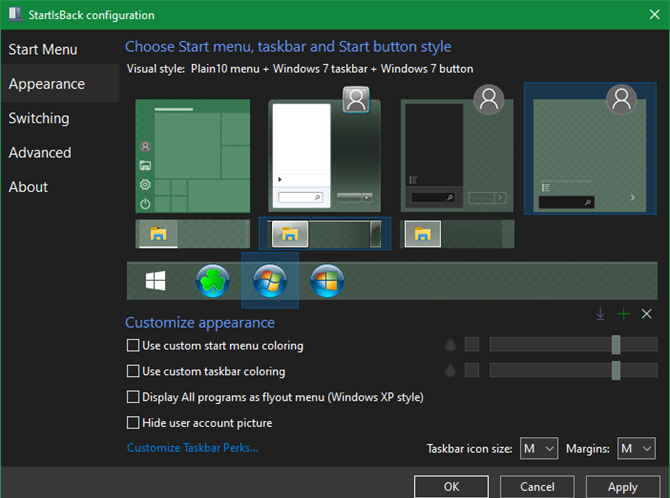
Windows 7 fanatics may notice that this theme doesn’t perfectly recreate the Windows 7 taskbar. In particular, it doesn’t show the “glass pane” on all open apps. If you’re unsatisfied with this, take a look at StartIsBack instead. It’s a Start menu replacement like Open Shell that offers a Windows 7 taskbar style, as well as a built-in Windows 7 Start button.

StartIsBack Windows 7 Style

You can try StartIsBack for free, but it costs $3.99 for the full version. This is well worth it if you want to recreate Windows 7 as closely as possible on Windows 10.

Download: StartIsBack ($3.99, free trial available)

Add the Windows 7 Start Button

classic shell Windows 7 Start button

If you’re not using StartIsBack as mentioned above, head to this Classic Shell forum post to download images of the Windows 7 Start button for Open Shell. Extract the ZIP file and you’ll see several sizes inside, which are useful depending on the size of your taskbar.

Now, on the Start Menu Style page of Open Shell, enable the Replace Start button box and pick Custom. Click the Pick image button and browse to the location where you just extracted those images. Pick the right size for your taskbar and click OK on the options page.

If you need to make adjustments, go to the Start Button tab in Open Shell. Here you can adjust the size, alignment, and other options.

Windows Aero Glass in Windows 10

aero on windows 10

Windows Aero Glass was a large aspect of Windows 7’s allure, but it’s no longer part of Windows 10. However, we’ve shown how to get the Aero Glass theme back on Windows 10. Follow those instructions to get the familiar feel of Windows 7 back.

Finally, Set a Fresh Windows 7 Wallpaper

You can’t feel like you’re using Windows 7 without the right wallpaper, right? Go ahead and download the default Windows 7 wallpaper from Imgur and set it as your desktop wallpaper for the final decoration.

You can go further with making Windows 10 look like Windows 7, such as restoring the old File Explorer layout or setting internet Explorer as the default browser instead of Edge. However, these are the advancements that make Windows 10 worth using, so we don’t recommend them in most cases.

The visual changes above should be more than enough to restore your love for Windows 7.

How to Make Windows 10 Look Like Windows XP

Next, let’s jump back to the beloved Windows XP. The operating system has been out of support since 2014, so you’re much safer using a Windows XP theme in Windows 10 than using the ancient and dangerous OS.

Before you continue, you’ll want to download and extract the Classic Shell XP suite from Winaero. This contains a few files that help you get a Windows XP theme on Windows 10. Remember where you extracted the file contents to, as you’ll need them shortly.

Create a Windows XP Start Menu

Windows XP Start Menu Windows 10

First, head to the Start Menu Style tab. Select the button labeled Classic with two columns, then click the Select skin link that appears below it. In the dropdown menu beside Skin, select Windows XP Luna.

This will give your Start menu a familiar look and feel. In the Skin options box, you can change a few additional options, such as changing the color, showing your user picture and name, and whether to show icons in the right column.

Configure the settings however you’d like and click OK when you’re done.

Use a Windows XP-Style Taskbar

Open Shell Windows XP Taskbar

Next, head to the Taskbar tab and check the Customize taskbar box. Click on Taskbar texture, then on the ellipsis () button next to it. You’ll then need to select a file. Head to where you saved the XP suite earlier and select the xp_bg file, which appears as a thin image.

After this, click on the Horizontal stretching option to activate the skin. We had the best results when we chose Stretch for both the Horizontal and Vertical stretching options. Click OK when you’re done, and Open Shell will use this template to re-skin your taskbar with the familiar blue hue.

To continue with the authentic Windows XP look, head to Settings > Personalization > Taskbar. Here, set the Combine taskbar buttons box to Never. This will replace Windows 10’s single-icon taskbar entries with full descriptions, just like Windows XP.

Finally, Grab the Windows XP Start Button

classic shell xp button

Now there’s just one element we’re missing: the Windows XP Start button. Luckily, Open Shell allows you to change this option as well. Head to the Start Button tab and click Replace Start button. Then click Custom button, followed by Button image and the ellipsis () button next to it.

From the files you exported earlier, select the image labeled XPButton (it looks like three buttons stacked up). Finally, you may need to use the Button size field to make sure it fits your taskbar properly.

Use the Timeless Windows XP Wallpaper

That’s everything you need to recreate the look of Windows XP on your Windows 10 system. As a finishing touch, grab a high-quality copy of the classic Bliss wallpaper to enjoy that calming green hill once more.

How to Make Windows 10 Look Like Windows 8.1

Most people don’t have fond memories of Windows 8. However, if you’re looking to revisit the look and feel of Windows 8 for some reason, the built-in options below can help.

Restore the Full-Screen Start Screen

Windows 10 brought back the familiar Start menu that only takes up a corner of the screen. If you want to go back to the full-screen setup that Windows 8 used, go to Settings > Personalization.

Select Start on the left sidebar. Here, enable the Use Start full screen option.

Windows 10 Full Screen Start Option

Now, when you open the Start menu, you’ll see an interface that takes up the entire screen. It’s not exactly the way Windows 8 worked, but is nice if you want more room for your app tiles.

Windows 10 Start menu full screen

If you like, you can also use Windows 10’s tablet mode to make apps always open in full-screen and enable the Start screen. To turn it on, press Win + A to open the Action Center, then select the Tablet mode tile to enable it. If you’re using a device without touch input, this might not work.

tablet mode Windows 10

Set a Windows 8 Wallpaper

As with Windows 7 and Windows XP, a wallpaper can help you feel like you’re using an older Windows version. Grab the default Windows 8 wallpaper or the stock Windows 8.1 wallpaper to revisit the past.

Go Deeper With Omnimo and Rainmeter

Most of Windows 8’s distinct visual features, such as the Charms bar, can’t be recreated in Windows 10. However, if you want to go further than what we covered above, third-party options can provide a closer look and feel to Windows 8.

Omnimo is a complete Rainmeter package devoted to simulating the Windows 8 desktop. Simply install it and you can configure it as you see fit. If you’re not familiar with Rainmeter, have no fear. Our Rainmeter guide will help you get started.

While this package is limited to Rainmeter, you’d be hard-pressed to find an alternative as smooth and natural as Omnimo. Best of all, it’s completely free.

Download: Rainmeter (Free)
Download: Omnimo (Free)

Going Back to Past Windows Loves

Now you know how to make Windows 10 look like Windows 7, Windows XP, or Windows 8. Whether to enjoy a stroll through memory lane, or to combine the familiarity of a past OS with the security of a modern one, you can tweak your desktop to match a prior version in no time.

For more like this, check out how to change the look and feel of your Windows desktop. You might consider changing Windows sounds to match an older version.

Read the full article: How to Make Windows 10 Look Like Windows 7 or XP


Read Full Article

20 Online Shopping Sites With Free International Shipping


free-shipping-sites

The rise of online shopping has made international shipping the conveyor belt of the world. You can order a didgeridoo from Australia and it’ll turn up on your doorstep in Iceland within the week. But, because international shipping doesn’t come cheap it’ll probably cost you a fortune.

Thankfully, there are online shopping sites that offer free international shipping. All of the retailers we’re about to introduce you to offer some form of free international shipping. We’ve even organized them into categories to make it easier to browse…

Note: Depending on your location, you may still have to pay import tax.

Technology Shopping Sites

Are you looking to buy a new speaker or upgrade your laptop? These stores will help.

1. DHGate

dhgate international shipping

DHGate is an international shopping site that specializes in selling no-name products from China. The site is mainly aimed at wholesale buyers rather than regular consumers. Free shipping is available around the world.

2. Newegg

newegg international shipping

American company Newegg is a well-established name in the world of online tech shopping. The site offers many top-of-the-line products at a lower price than you’ll find elsewhere. The company offers free shipping on many products. More than 50 countries are supported, including Canada, Mexico, and most of Europe.

3. YesAsia

yesasia free shipping

YesAsia is an online store for video games. It offers multiple games, consoles, and accessories. The PlayStation 4, Nintendo Switch, Xbox One, Wii U, and Nintendo DS are the most widely supported platforms. There is also some content for PC gamers.

All items on the site are eligible for free international shipping (except posters). However, you’ll need to spend a minimum of $40.

Fashion Shopping Sites

Here are six online shops where you can get your fashion fix.

4. Dorothy Perkins

dorothy perkins free shipping

Dorothy Perkins is a UK-based retailer. It specializes in women’s clothing, but also has an extensive line of childrenswear for both girls and boys.

International shipping to select countries (mainly Europe and the US) is free if you spend more than £50. The company has launched a range of new international sites. If you live in France, the United States, Germany, Ireland, Singapore, Malaysia, or Thailand, you won’t be able to order from the UK site.

5. ASOS

asos shipping

ASOS stocks menswear and womenswear. The clothes are primarily aimed at people between 20 and 35 years old. It offers more than 80,000 individual items. International shipping is free if you spend more than $30.

6. Shopbop

shopbop international shopping site

Shopbop has been owned by Amazon since 2006. It offers luxury brands aimed at people of all ages. If you spend more than $100, the company will ship your order anywhere in the world for free.

7. Strawberrynet

strawberrynet international shipping free

If you’re looking for beauty products, Strawberrynet is the site for you. It specializes in perfumes, makeup, skincare creams, and haircare. If you spend more than $75, Strawberrynet will send your international shipment for free.

8. Feel Unique

feelunique shipping

Feel Unique sells makeup, skincare products, creams and lotions for traveling and beach vacations, perfumes, and some electrical beauty products. Free international delivery is available on orders above $50-$100, depending on where you live.

9. Fy

fy free worldwide shipping

Fy offers unique products from new and emerging designers. You will struggle to find the items available here anywhere else on the web. Expect to see clothes, bags, accessories, handbags, jewelry, and even wall art. Free worldwide shipping is available on all orders.

Entertainment Shopping Sites

Books, CDs, DVDs… it’s possible to get free international shipping on all kinds of entertainment if you know where to look.

10. BetterWorldBooks

betterworldbooks free shipping

BetterWorldBooks sells both new and second-hand books. It also stocks textbooks for college students. The company is based in the UK but offers free shipping around the world. Orders fulfilled by BetterWorldBooks will take 10-21 days. Orders fulfilled by a third-party seller might take up to five weeks.

11. Book Depository

bookdepository shipping

Book Depository is one of the largest online booksellers. It provides more than 17 million titles to choose from. It also offers a few board games. The company’s fulfillment centers are in the UK and Australia. Free shipping is available if you anywhere in Europe, North America, and South America. Some countries in Asia and Africa are also on the list.

12. Deep Discount

deepdiscount worldwide shipping

Most of Deep Discount’s products fall into the entertainment category. The site offers a vast collection of CDs, DVDs, books, video games, and vinyl records (why everyone should start collecting vinyl). You can also find some clothing and fitness gear. Global free shipping is available on orders above $25.

House and Home

Is it time to make your house look like a home? Have a look at these sites.

13. Animi Causa

Animi causa shipping

Animi Causa is arguably the unique site on this list. It specializes in wall decals, tabletop furnishings, furniture, lighting, and kitchenware. The products are typically quite quirky. Free international shipping is available worldwide on orders of $25 or more. Deliveries can take six weeks to arrive.

14. Fishpond

fishpond free shipping internationally

Fishpond is a New Zealand-based company. Its website stocks more than 12 million items. You’ll be able to find everything from arts and crafts to stationery and sunglasses. It offers free worldwide shipping on all orders.

15. Art.com

artcom shipping

As the name suggests, Art.com is a one-stop-shop for paintings, canvases, picture frames, and other home décor. The site offers free international shipping to some countries, include most of North America and Europe. Free shipping is only available on tapestries, laminated items, prints, frames, canvas items, mirrors, and rugs.

Department Stores

Department stores offer products in hundreds of different categories.

16. Marks and Spencer

mands international free shipping

If you live in the US, the UK, Australia, New Zealand, Canada, China, or most of Western Europe, you can enjoy free shipping on Marks and Spencer’s products. Just navigate to your country’s localized Marks and Spencer website. The massive retailer specializes in food, furniture, clothing, and homewares.

17. The Hut

the hut shipping

The Hut is a luxury online department store. Product categories include home accessories, cooking and dining, sports equipment, and toys. Depending on where you live, The Hut offers free shipping worldwide on orders above $20 to $50.

Online Retailers

Still haven’t found the product you’re looking for? These three online behemoths will definitely have you covered.

18. AliExpress

aliexpress free shipping

AliExpress is similar to eBay; it allows third-party sellers to pedal their wares. Unlike Amazon, it does not manufacture its own branded products.

Some items offer free international shipping, but it depends on the seller. Make sure you tick the appropriate box in the filters before starting your search.

If you follow our advice, shopping on AliExpress is perfectly safe.

19. eBay

ebay free shipping

EBay has been at the forefront of online retailing for almost 20 years; it is one of the best international online shopping sites. Thousands of items offer free international shipping, but it varies from seller-to-seller. Just make sure you check before you commit to a purchase.

20. Amazon Prime

amazon prime free shipping

No list of free shipping would be complete without mentioning Amazon Prime. If you pay for a membership, many products on the site will be eligible for free international shipping.

Amazon Prime is not available everywhere, and the price of the subscription varies between countries.

What Other Shopping Sites Offer Free Shipping?

In this article we’ve introduced you to online retailers that offer free international shipping, but there are others out there. Now we want you to add to this list. Which sites do you recommend? How is their customer support?

Before you shop online, make sure you know about the best cashback websites to save money. And for focused stores, check out the best online shopping sites for cheap electronics.

Read the full article: 20 Online Shopping Sites With Free International Shipping


Read Full Article