Majority of computer users have installed one or other version of Microsoft Office productivity suite on their computers. While there are plenty of alternatives around to Office, none of them come close to Office when it comes to ease of use, let alone the features. Users who purchased Office CD/DVD from Microsoft or an authorized [...]
The latest release of Chrome Beta for Android added an interface for the data compression proxy. You no longer have to enable a flag, just open Chrome's menu, go to the settings, select "Bandwidth management", "Reduce data usage" and enable the feature.
You can start visiting your favorite sites and check back the "Bandwidth management" to see some stats. For more detailed stats, type chrome://net-internals in the omnibox and select the "Bandwidth" section in the left sidebar.
My total savings percentage is 33.5%, so the compression rate is 100%-33.5%=66.5%. Some people complained that it's too low compared to Opera Mini's 90% compression rate, but Opera Mini is not a browser. It's just a thin client app and all the rendering and JavaScript processing is performed on Opera's servers, so Opera Mini only needs a simplified OBML file. You should compare Chrome's data compression proxy to Opera Turbo, a feature available in the Opera Mobile browser. "In November 2009, the average compression rate for Opera Turbo was 63.6%," according to an Opera report [PDF], while in February 2010 the average compression rate was 59%. It's worth pointing out that Opera shows the compression rate (highpercentage%), not the savings percentage (100% -highpercentage%=lowpercentage%).
* d - open a compose window in a new tab (Shift+c opens it in a new window)
* , - moves the cursor to the first button in your Gmail toolbar
* { - archives the current conversation and moves to the older one
* } - archives the current conversation and moves to the next one.
There are some subtle differences between [ ("Removes the current view's label from your conversation and moves to the older one") and { ("Archives the current conversation and moves to the older one") or between ] and }. Their effect is identical when you read conversations from your inbox. If you open a conversation from any other label, [ will remove that label from the conversation, while { will remove the conversation from the inbox.
The Gmail shortcuts page has been recently changed and these are the new shortcuts I've noticed.
Google tests a new interface for the homepage's footer. It includes a cookie disclaimer required by a European Union directive and a settings menu similar to one that's available on Google's search results pages.
"Cookies help us deliver our services. By using our services, you agree to our use of cookies," informs Google and links to this page. Many sites have annoying cookie warnings and I'm sure that most people ignore them, so the EU directive was a bad idea.
Google has recently sent an email which informed me that "Blogger has been notified, according to the terms of the Digital Millennium Copyright Act (DMCA), that certain content in your blog is alleged to infringe upon the copyrights of others. As a result, we have reset the post(s) to 'draft' status."
Apparently, this is the infringing post: http://googlesystem.blogspot.com/2008/02/lyrics-for-youtube-music-videos.html (Google Cache). It's a post about a Greasemonkey script that allowed you to show music lyrics in the YouTube interface.
I was curios to read the DMCA complaint, but Google doesn't send it. Instead, it uploads the document to ChillingEffects and suggests to use this page to find it. Unfortunately, the ChillingEffects search feature doesn't work, so you have to use Google's site operator to search for [site:chillingeffects.org domainname.com].
I've managed to find the DMCA notice: "The URL listed below is one of nearly 20 song lyrics sites who have attempted to post lyrics for the song titled 'Alden Howell' by the artist Inspection 12. The lyrics posted on this and other sites are not accurate and the artist has not given them permission to post lyrical content. Inspection 12 has been making efforts to contact these websites directly in order to have the content removed. We are attempting to have this URL and others like it to be excluded from google search results for the name 'Alden Howell'."
Unfortunately for Inspection 12, that blog post doesn't include their lyrics. In fact, it only includes a screenshot with lyrics from a much more popular punk band.
Gmail is the only Google service that disables keyboard shortcuts by default. They're for power users and some people could accidentally trigger them, especially when you consider that most Gmail shortcuts don't use modifiers.
Google has recently added some new shortcuts that are enabled by default. The old shortcuts are still disabled by default, but you can quickly enable them by pressing ? in Gmail and clicking "Enable" next to "The following keyboard shortcuts are currently disabled".
Here are are the shortcuts that are enabled by default (you can't disable them):
- arrow keys: you can use the up/down arrows to navigate in a list of conversations and press Enter to select one of them. Gmail automatically loads the previous/next page of conversations. Use the left arrow key and then the up/down arrow keys to move your cursor to a different label or the compose button.
- n/p: if you open a conversation with multiple messages, use the n/p keys to go to the next or previous message. Press Enter to load that message if it's collapsed.
- Ctrl+Enter: use this shortcut in the compose window to send a message.
- Shift+Esc: focus the main window.
- Esc: focus the latest chat or compose window.
- Ctrl+. or Ctrl+,: move the cursor to the next/previous chat or compose window, or to the main window.
- Ctrl+Shift+c: add Cc recipients in the compose window.
- Ctrl+Shift+b: add Bcc recipients in the compose window.
- Ctrl+Shift+f: change the From email address in the compose window.
- A long list of shortcuts for formatting text when you compose a message. Some of them were already available in the old compose interface.
Out of 233 votes, the results were as follows: 11% think laptops are the best option for schools, 13% think it should be tablets, 17% voted for desktop computers, 19% voted for networked clients, and 33% voted for some combination of these options. 6% think schools shouldn’t offer any of these options.
Full results and this week’s poll after the jump.
Don’t forget to check out last week’s best comment by Lisa Santika Onggrid. It was a very hard choice this week, but Lisa managed to pull forward and win 150 points yet again. Keep the awesome comments coming!
This week’s poll question is: Which Is The Best Note-Taking App Out There?
Want to make some extra MakeUseOf reward points? The most useful comment on the poll will be awarded 150 points!
Taking notes used to be a simple task: you get a piece of paper and a pen, write a note, and then carry the crumpled thing in your bag for a month before you throw it away. Things are different today; we now have note-taking apps we can use no matter where we are, and access our notes on all our devices, be it a computer, a tablet, or a phone. There are hundreds of note-taking apps available, but several big ones stand out from the crowd. Do you use one of the best known ones, or do you opt for a small one we’ve probably never heard of? Or maybe you still prefer pen and paper over all apps?
What makes your favorite app the best? Is there an app that should have been included but wasn’t? Are none of the apps as good as a piece of paper? Discuss it all in the comments.
Computer and mobile users have a handful of options when it comes to viewing and editing Microsoft Office files online. Users who have a Microsoft account can use the Office Web Apps in SkyDrive to create, edit, and save Office docs, including Word, Excel, PowerPoint, and OneNote documents. A number of free alternatives also around [...]
Ever heard that quote about trying to explain how a television works to an ant? I’m not calling you an ant, even though you are hard-working and enjoy the occasional sip of aphid milk. What I am saying is that I’m going to explain how Windows BitLocker works, without you having to have a degree in computer science and cryptography experience.
BitLocker is a feature of Windows 7 and 8 that is extremely useful, included in the operating system, and not nearly as many people know about it as they should. If you’re curious about what other cool stuff your Windows operating system might have, check out Christian Cawley’s, “The Top 5 Cool Hidden Features In Windows 8” and Yaara Lancet’s article, “8 Hidden Tools In Windows 7 You Still Might Not Know About“. Here, though, I’ll be focusing on Windows’ military-grade privacy tool called BitLocker.
What Is BitLocker?
Not all Windows’ operating systems have BitLocker bundled with them. At this point, it is just in the Ultimate and Enterprise editions of Vista, and Windows 7, and with Pro and Enterprise editions of Windows 8. You can also find it in Windows Server 2008, Windows Server 2008 R2, and Windows Server 2012. What BitLocker is, it’s a drive encryption tool. A drive encryption tool is something that takes all your data on any particular drive and make it completely unreadable to anyone but you. If you don’t have one of these operating systems, I suggest you take a look at TrueCrypt and our TrueCrypt User’s Guide: Secure Your Private Files.
There are two meanings for ‘drive’ in this case. One is any volume or partition on a single hard drive. You need at least two volumes on the drive to use BitLocker – a main volume that you probably will do your day to day work in, and another volume that is at least 100MB in size that will be your system’s volume. Your computer will boot from this volume. This volume can NOT be encrypted. That would make booting your computer very difficult.
The other ‘drive’ is any removable drive like your USB drive. This type of drive does NOT require a boot volume. Which is really cool, because if you encrypt your USB flash drive and you have sensitive information on it, you don’t really have to worry about anyone getting that information if you lose the drive.
How Does It Encrypt My Drive?
BitLocker takes all the data on your drive and applies a bunch of fancy math to that data. Remember, all data can be boiled down to just numbers so it can be manipulated with math. Officially, this math comes in the form of algorithms, or sets of instructions, such as AES – 128-bit or 256-bit encryption, and Diffuser.
Let’s go through a very simplified process of encrypting the word ‘USE’.
Diffuser takes those three letters and scrambles them. It could come out as ESU, SUE, SEU and so on. Then BitLocker creates the key, which is the way to unscramble that word, and holds on to it for you.
Now BitLocker applies AES. AES is the Advanced Encryption Standard adopted by the US Government as a standard in 2001 – hence the military-grade designation in the title. 128-bit or 256-bit encryption defines how many bits a single bit of your original data may be represented by. Now, a bit is just one piece of data, like a letter or a number. Then, the math makes that particular bit into a ‘combination’ or key that is either 128 or 256 bits long. It’s like slapping a combination lock with a 256-numbers-long combination on a locker holding the letter ‘U’. Think about that.
Let’s go back to encrypting the word ‘USE’. You have to open three different lockers with three different combination locks, each with a combination that is 256 numbers long. Now, you can see how this would be a pain to anybody but the most dedicated cracker.
This is where it gets military-grade, I mean tank tough! Remember AES? Well that application puts each combination lock through the math 14 times for 256-bit encryption! Now, you have to know 14 different 256-bit-long combinations to get at your letter ‘U’. Forget it. Go home, cracker. Of course, BitLocker creates a key that will unlock, or decrypt that word for you.
At the end of it, there are two keys now needed to start the process of decrypting your data. If someone doesn’t have access to both of those keys, they are going to have to be very patient, very smart, and very dedicated to get at your information.
These keys aren’t physical keys of course, and they don’t resemble passwords either. By themselves, they would look like gobledy-gook to ordinary folk like you and me. But what Windows does is allow BitLocker to use those two keys to get at your data, as long as you can prove to the computer that you are who you say you are. These keys are held by the Trusted Platform Module.
What is a Trusted Platform Module?
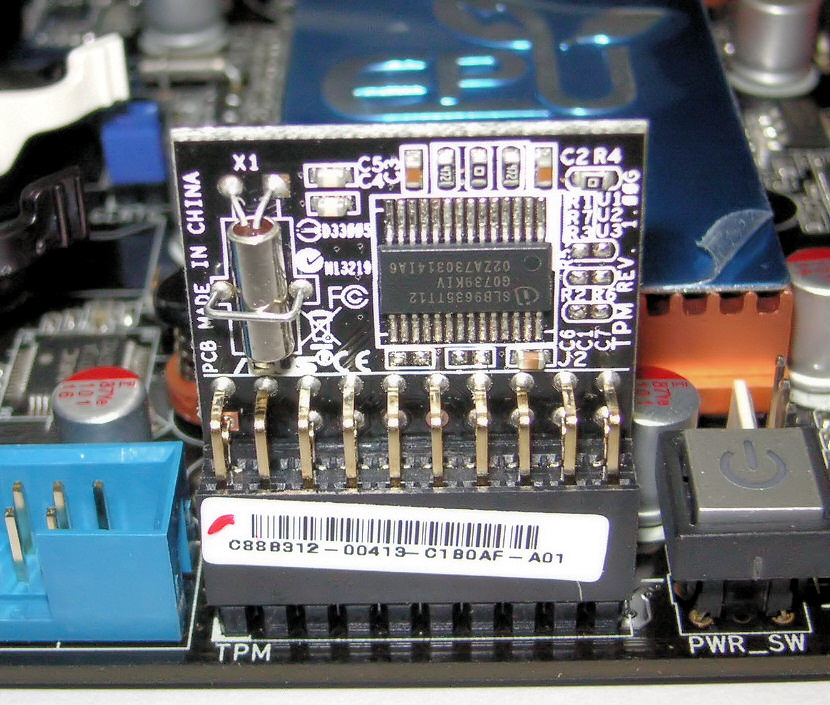
The Trusted Platform Module is another key piece in the BitLocker set of tools to protect you. This is a bit of hardware that can be found on most computers.
What it does is check out your computer each time it boots to make sure no one has been trying to mess with the start-up procedures to get around your encryption. What it also does is prevent someone from just slipping the hard drive out of your computer and popping it into their computer to get at the files.
Depending how you set up your BitLocker, your TPM may just let you log on to your computer. Or, you might set it up so that it requires a PIN number to continue to logging in. Or, you can create a USB key that has to be plugged into your computer when you boot, to get you to the login stage. Or you can go hardcore and set it up to require that you have a PIN AND a USB key. The TPM applies only to volumes that are physically on your computer. USB drives don’t need a TPM, but they may need a PIN or USB key for verification.
There are computers without TPM’s, but for most computers manufactured after 2006, the TPM module is already on the motherboard.
Is BitLocker Totally Safe?
Well, no, nothing really is. But it’s as safe as you’re going to get without having the budget of the CIA or MI-5. Speaking of government spying, the UK’s Home Office has asked Microsoft to put a backdoor in BitLocker to allow them to have easy access to your data. Microsoft has flat out refused to do so. Score one for Microsoft.
So, How Do I Use BitLocker?
It’s surprisingly easy to use if you are just going to encrypt your main volume on the hard drive in your computer. Check out this short video on how easy it is.
If you want to get into the guts of BitLocker and use it on external drives or set up the different TPM validation methods, it can get a bit more complicated. Microsoft does have a Step-By-Step Guide for BitLocker on Windows 7. I haven’t seen any real documentation on Windows 8 yet. If you have, let us know in the comments, please.
Should I Use BitLocker?
BitLocker is the best protection for your data that you are going to get just by buying a Windows computer. If you are concerned about data theft and the security of your information, why wouldn’t you make this military-grade tool a part of your computer security arsenal? It just makes sense. BitLocker is a serious tool developed for you by a company so many people think of as being evil at different times. I think this application is a redeeming quality for Microsoft and makes me feel less disgruntled about the cost of getting Windows.
What do you think? Do you currently use BitLocker? I’d like to hear about your experiences with it. Do you feel safer knowing BitLocker is out there and may be a part of your Windows computer? Let’s hear about it in the comments. No encrypting please.
If you’ve already read my earlier review of ilomilo for Windows Phone, you’ll be aware of my antipathy towards “cutesy, ditzy, cynically-designed characters with hack-written backstories that are supposed to make me ‘care’.”
Ahem.
Perhaps a little harsh, but anyone who has been gaming since the mid-1980s will probably sympathise, if not agree.
So imagine my surprise when I downloaded a copy of the Xbox Live title for Windows Phone, Little Acorns, only to discover that as platform games go, it isn’t half bad. Now, I don’t expect you to rush out and buy a $0.99/£0.79 game purely on this recommendation (although at that price it is easily one of the cheapest Xbox Live games available for Windows Phone), especially as you know nothing as yet about Mr Nibbles.
Yes, he’s cute, he’s loveable and he has a name that inspires dread.
But you’re still looking for that recommendation, so let’s move on…
What Is It?
As aims of games go, this one is pretty noble – guide Mr Nibbles through 80 different levels to collect nuts and fruit to put away for winter, thereby providing the family of squirrels with enough food. Spread across four years – with four seasons in each – this is a particularly long game for a mobile platform. Note the price too – this is value for money, based on price per minute of gameplay.
Different surfaces come into play at different times of year; for instance, Mr Nibbles becomes tough to control in the winter when he slides around on ice.
Hooks to swing on, rising and falling platforms and temporary floors that fall away are among the landscape items that can help and hinder your progress.
The real problem, however, are the other creatures in the woods who are out to stop Mr Nibbles…
Playability
Basic left, right and jump controls enable you to negotiate Mr Nibbles through the various challenges that are presented in Little Acorns, and thanks to the hooks (which can be latched onto using the jump button) there are many ways to get the squirrel through a level before the clock runs out, including some time bonuses.
Spiders and grey squirrels block Mr Nibbles’ way, but these can be overcome with speed boosts, jump powerups and a special helmet that makes the character impervious to damage for a few moments.
As platform games go, Little Acorns is extremely playable and a lot of fun. If you’re fortunate enough to complete a level before the clock runs down, there is also the opportunity to collect fruit for bonus points before you head to the level exit.
Twenty achievements can be unlocked in Little Acorns, each at 10G, resulting in an additional 200 for your Xbox Live Gamerscore – a great reason to have a Windows Phone.
Graphics and Sound
As mentioned earlier, Mr Nibbles is one of those “cute” platform characters, and this look extends to the entire game. Blending a 1950s cartoon art style with a modern smartphone results in a visually attractive game that is complemented by a suitably jazzy soundtrack.
Befitting a platform game, the actual in-game sound effects aren’t particularly impressive, but the soundtrack makes up for this – a particular bonus is you like a nice, slow jazz track with some added funky fuzz guitar.
Watch Your Little Acorns Grow!
This is the type of platform game that you really cannot go wrong with. The low price (check the game in the Windows Phone Marketplace to confirm this – prices can change!) and the cute design hide a game that can prove fiendishly difficult to complete. Some levels can be particularly tough, but the satisfaction in watching the acorns tumble into the squirrel’s tree after a level is completed is particularly warm.
Yes, I know they’re not real squirrels, but for all of his cuteness and hack back-story, I’ve grown quite fond of Mr Nibbles (so much so that Little Acorns is on MakeUseOf’s Best Windows Phone Apps list), and look forward to helping him through many more months of acorn collecting – at least until I’ve got all achievements unlocked and my 200G!
Reddit is emerging as a true force on the Internet, which explains its inclusion in our list of wonders of the Web. It’s a source for news and interesting factoids, the instigator of many memes, the popularizing force of many viral videos, and an all-round entertaining place to hang out online. I thoroughly recommend it to everyone, though there will inevitably be some people who decide it isn’t for them.
I’ve been a lurker at Reddit for a long time, mainly using Scroll Reddit to keep the content manageable. But I recently took the plunge and actually created a user account in order to vote content up and down, post comments, and perhaps even submit my own content for perusal.
The first day as a new Redditor is kind of like your first day at a new school or in a new job. There are a lot of people all eyeing you up suspiciously, and you’re not sure what you’re supposed to be doing. In other words, there’s a distinct learning curve. What follows are five key pieces of wisdom that should help all new Reddit users find their feet.
Edit Your Experience
Reddit is highly customizable, so everyone’s Reddit experience is unique to that individual. You’re presented with an account sporting the default settings and subreddits, but a little tinkering can transform your usage of the site in a major way. This is the first thing you should do, and something you should return to every so often.
Start by clicking on ‘Preferences’ and adjusting all of the various options to suit your own personal needs and wants. Then click on ‘Edit’ in the top right-hand corner in order to adjust which subreddits make up your front page. For now just unsubscribe from those that don’t interest you… finding subreddits that do will happen over time.
TL;DR: Make Reddit your own in order to gain more from the site.
Take Your Time
Patience has long been seen as an important virtue to possess, and that’s just as true online as it is in the real world. In terms of Reddit it’s the key to not making an epic mistake which will put you off returning to the site, or, at the very least, see you wanting to create an alternate account.
Most people will want to make their mark on Reddit as soon as possible, either by commenting on an existing post or creating their own. While there is nothing wrong with this approach it may lead to you reposting content that has already appeared on the site or otherwise blotting your copybook.
Before you do anything of note, acclimatize yourself with Reddit and the way it works. Visit the wiki, read the FAQs, and take note of the Reddiquette. Also make sure you know what the various acronyms mean and understand what the current memes represent. Then and only then should you dive right in to the action.
TL;DR: Understand what you’re doing before you do it.
Considerate Commenting
Commenting is the lifeblood of Reddit. If no one commented the site would be a dry, dull place with random content being thrown around for no good reason. The comments are where most of the action happens; where news events are discussed, images dissected, and new tangential conversations are started and finished on a whim.
Most comments on Reddit have a purpose. They will add something to the conversation, be witty enough to make someone reading it laugh, or make a serious point worth noting. Follow that lead, thinking about what you’re writing and why you’re writing it. Don’t be rude, ignorant, or otherwise trollish.
TL;DR: Don’t be that person, you know the one.
Disheartened By Downvotes
Voting is the other key component of Reddit, sitting alongside comments as the oil that keeps the wheels turning. You can hand out upvotes and downvotes to posts and comments as you see fit, and in return everything you do on the site will be subject to the same judgments.
Downvotes should be used sparingly, only being applied to posts, links, and comments you really don’t appreciate for whatever reason. In the same way that (in real life) praising people when they do well gets better results than criticizing every little thing they do wrong, upvotes are a better use of your time than downvotes.
TL;DR: Be positive rather than negative with your votes.
Ignore The Idiots
Like any online community, Reddit has its idiots. They may not think they’re idiots but they are. These are the people who insult and ridicule people they take a disliking to, who cast more downvotes than upvotes, who spend their time bitching from the sidelines rather than playing the game fairly.
The same rule applies to these people on Reddit as it does everywhere else across the InterWebs. Ignore them. They want attention, they want you to react, they want to cause arguments and aggravation. Don’t help them on their way by rising to the bait. Instead just rise above it all.
TL;DR: Trolls and troublemakers only triumph when you feed their egos.
Are you on Reddit already? If not, what is preventing you from creating an account and immersing yourself in this world of cute cats and memorable memes? If you create an account after reading this article and find the information contained within useful, please let us know in the comments section below.
Apple iTunes is a convenient music management software available for both Windows and Mac. While iPhone or iPad users with the newest version of the mobile operating system are less dependent on iTunes, a large number of computer users use iTunes to create playlists and mange iOS devices. Computer users who’re on Windows 8 probably [...]
You can now use the Google Chrome on your iPad and iPhone to save web pages as high-fidelity PDF documents. The PDFs can also be remotely delivered to your other mobile devices.
NOOK Media, a subsidiary of Barnes & Noble, Inc., announced yesterday the launch of NOOK Press, a new and free self-publishing platform in which authors can write, edit, collaborate, and publish high-quality e-books and distribute them to millions of readers via NOOK Books and Nook e-readers.
In their press release, Barnes & Noble says that NOOK Press builds off of the company’s original self-publishing platform, PubIt!, and indeed if you go to PubIt’s website, you’ll receive a notice that “PubIt! is now NOOK Press”.
NOOK Press allows independent publishers and authors to use its online services to write, edit and format new and existing manuscripts, collaborate with colleagues, and monitor the sales of their self-published e-books. E-books published through the platform are sold through NOOK Bookstores, and are made available on BN.com, NOOK.co.uk, NOOK devices, and the free NOOK e-reading software for Android, iPad, iPhone, Windows 8, Mac, and PC.
Similar to Apple’s iBooks Author e-book creation software, NOOK Press’s online software and services can be used free of charge. You can upload an existing manuscript file in Word, HTML, text, or ePub format, or use NOOK’s online editor to get started writing your book. The authoring site also includes free email and live chat support to provide personalized answers to questions pertaining to every stage of the publishing process.
As usual in these cases, NOOK retains a percentage of the List Price of NOOK Books sales, based on their Pricing and Payment Terms.
What do you think of such self-publishing platforms? Are they they the future of book publishing?


 Last week we asked you
 Ever heard that quote about trying to explain how a television works to an ant? I’m not calling you an ant, even though you are hard-working and enjoy the occasional sip of aphid milk. What I am saying is that I’m going to explain how Windows BitLocker works, without you having to have a degree in computer science and cryptography experience.


 If you’ve already read my earlier review of


 Reddit is emerging as a true force on the Internet, which explains its inclusion in our list of


 NOOK Media, a subsidiary of Barnes & Noble, Inc., announced yesterday the launch of