04 March 2013

Gmail's Account Activity Reveals More Information


Gmail's account activity is a very useful security feature that offers information about the clients that connected to your email account recently, including the IP addresses and the date.


Until now, Google only displayed generic information about the access type (browser, mobile, POP3). A recent updated added some new details: the browser's name and the user agent. If you click "show details", you can find more information from the user agent: the browser's version and the operating system. Obviously, the browser's user agent can be easily spoofed.


{ Thanks, Herin. }


Change the Default Country Code in Gmail


Gmail has a new setting that lets you change the default country code for phone numbers. Google already detected the country, but you can now manually change it.


The default country code is used by Gmail's contact manager. If a phone number doesn't include a country code, Gmail uses the code you've selected.


{ Thanks, Scott and Herin. }


Recover My Password: Free Software To Reset Windows Password


CLICK HERE TO SEE FULL POST


Windows lets you create a password reset disk so that you can access your PC and user account even if you forget the password. But the problem is that many Windows users don’t create a password reset disk after setting up a complex password. Users who don’t have a password reset disk and want to [...]

Easy App Toolbox complete backup tool for Android Apps


Easy Backup Tool is simple, ad-free and powerful backup tool for your installed android apps. Easy Backup Tool have a lot of premium features like cloud/backup restore, backup to PC etc.


Using EBT you can share an app with a friend that doesn’t have the Play Store on his device? No problem with Easy App Toolbox – simply send it to him via Gmail, etc


Best of all is Easy App Toolbox doesn’t requires rooted device Where other backup tools like Carbon backup or titanium requires this.


Easy Backup Toolbox also offers cloud Backup/Restore on Dropbox, Google Drive and Box.


easy app toolbox Easy App Toolbox complete backup tool for Android Apps


Easy App Toolbox features:

* Send your installed apps (APK files) to your friends (via Gmail, etc…)

* Backup and Restore your apps to/from Dropbox

* Backup and Restore your apps to/from Google Drive

* Backup and Restore your apps to/from Box.net

* Backup and restore your apps to/from SD card

* Backup your apps to your PC

* View many detailed information about your installed apps (permissions, activities, services, files and folders, etc…)

* Easy uninstaller – gives you batch uninstalls.


Install Easy App Toolbox from Google Play


The post Easy App Toolbox complete backup tool for Android Apps appeared first on Hack Illusion.


"Try These Too" in Google Image Search


Google Image Search has a new feature that shows a list of 7 related images when you select a result. The section is called "try these too" and is a clever way to integrate the similar images feature. Click one of the related images and it will replace the original result. The first image from the list is always the original search result, so you can always go back to that image.


If you want to find a more comprehensive list of similar images, click "more sizes", then click the "More sizes" dropdown and select "Visually similar".


03 March 2013

A Complete Guide To Laptop Operating Systems


When you buy a laptop these days you are not just buying a machine. You are buying the software that runs the machine. Years ago, there weren't many choices. Almost all consumers went with a Windows laptop. Some loyalists would choose Mac, while hardcore computer users might choose Linux. Through the years that has changed drastically.


More people than ever are buying Mac laptops. Windows comes in many forms, including the new Windows 8. There are tons of different Linux builds. Then there are the specialty operating systems. Google has released the Chrome OS for its Chromebook line. Android, too, powers many laptop-like devices. The choices are no longer straight forward.


If you're looking to buy a laptop, or just want to become more familiar with the options available, this guide will show you the way.

List of all Major Laptop OS with their PROS and CONS:


Mac OSX


While it runs on less than 10 percent of all personal computers, Mac OSX has grown drastically in the last ten years. Fed up with Windows, many people have turned their attentions to Mac OSX on both desktops and laptops.


Pros:


  • Ease of use. Everything in OSX is relatively straight forward, making it easy to understand even for novice computer users.

  • Efficiency. OSX is designed to correct itself, reallocating memory in order to run in the most efficient manner.

  • Security. While there have been more malicious attacks on Macs in the last year than ever before, the incidents are still very rare compared to Windows PCs.

  • Media. Macs were made to work with high-resolution video and audio media.


Cons:


  • Software availability. Since about 90 percent of computer users run Windows machines, developers create more software for them. While Mac software availability has improved in the last ten years, there is still a lot more software for Windows.

  • Closed environment. PC users switching to Mac will notice that they have a lot less control over the computing experience. Macs are known for their uniform user experiences.

  • Price. Apple prices its Mac computers considerably higher than Windows laptops. Even their low-end devices cost $1,000US. Decent Windows laptops can be had for half that price.


Windows 8


The newest release from Microsoft, Windows 8 is all about cross-platform compatibility. It is meant to run not only on laptops and desktops, but also smartphones and tablets. The results have yet to be seen, but Windows 8 could be the OS that unites all of our gadgets.


Pros:


  • User interface. The user interface of Windows 8 is one of the best Microsoft has ever created. For touchscreen laptops, there is the tile view. For traditional laptops there is the classic Windows view.

  • Improvements. Since Windows 8 was just released, it will undergo many changes in the near future. Bugs will be fixed, and problems will be solved.

  • Security. Windows 8 is the most secure version of Windows yet, which will increase its appeal.

  • Range of devices. Windows 8 runs on all kinds of devices, including standard laptops, laptop-tablet hybrids, and the sleek new ultrabooks.


Cons:


  • Buggy. While improvements are coming, Windows 8 still contains many bugs that hinder the user experience.

  • Compatibility. There is some software not yet designed to run on Windows 8.

  • Gaming. While most software runs well on Windows 8, games are not quite up to speed yet.

  • Pricing. Microsoft ran a sale in late 2012, but Windows 8 pricing is back to its normal levels. You can, however, get a 90-day trial of Windows 8.


The good news is that many of the cons will go away as Windows 8 develops. It should be the best Windows by a long shot by the end of 2013.

Windows 7


After many failed releases, Microsoft finally won over the market with its Windows 7 operating system. Even though it has recently released Windows 8, Windows 7 remains a functional operating system that many users perfer.


Pros:


  • Universality. More users run Windows 7 than any other computer platform. That allows users to share tips and tricks, as well as software.

  • Gaming. While Windows 8 isn't quite up to speed yet, gamers love Windows 7. Many will not upgrade because of gaming issues.

  • Customization. Windows 7 is the most customizable version of Windows.

  • Efficiency. While not as efficient as Mac OSX, Windows 7 is an efficient operating system.


Cons:


  • Support. Since there is a new version of Windows to support, Windows 7 won't receive the same level of support from Microsoft that it has in the past.

  • Development. With more and more people installing Windows 8, developers will start focusing on that OS.

  • Upgrading. Again, it will cost a lot to upgrade to Windows 8. Buying a Windows 7 laptop now means paying that upgrade cost in the future.


Chrome OS


In 2009 Google announced a new OS, called Chrome OS. It is based on their Chrome web browser, and it runs web apps instead of traditional apps. While Chromebooks got off to a slow start, they made progress in 2012. Google recently released the Chromebook Pixel, its most advanced model yet.


Pros


  • Speed. Because Chrome OS contains few bells and whistles, it runs web apps faster than traditional laptops.

  • Simplicity. Everything in Chrome OS is straight forward and easy to use, even for novice PC users.

  • Essentials. Chrome OS contains essentials for web browsing and web use, even for heavy and pro web users.


Cons


  • Power. Chromebooks are underpowered by design, since they require few resources. But they are sometimes underpowered, leading to issues.

  • Limited capabilities. If you want to do anything that doesn't involve direct web use, you're out of luck. Chrome OS is severely limited in what it can perform.

  • Clunky interface. Some Chromebooks feature touchscreens, but the OS doesn't seem to be designed for a touchscreen interface in the same way Android is.

  • Price. Even the low-end Chromebooks are priced too highly for what they bring to the table. The new Pixel costs $1,300US, which is more than the MacBook Air.


About Author:Joe Pawlikowski writes, edits, and consults for several tech blogs across the web. He writes about mobile gadgets and technology at his site, MobileMoo.


How to Accept Social Payments on your Website


Web publishers and content creators are experimenting with a “cash-less” payment model where people can use social networks to pay for premium products like ebooks, songs, discount coupons, research reports, etc.


Say you have written a short ebook on a particular topic. Now instead of asking 99¢ for a copy, you can let anyone download your ebook either in exchange of a tweet, a like on Facebook or a +1 on Google Plus. The buyer makes a public recommendation of your product on a social network and you reward them with a free copy.


Pay with Tweet or Facebook Like

Tweet this Share on Facebook


Digital Inspiration @labnol This story, How to Accept Social Payments on your Website, was originally published at Digital Inspiration on 02/03/2013 under Facebook, Google Plus, Twitter, Internet.


Chrome for Android Travels in Time


Speaking of Chrome for Android, there's a milestone that needs to be mentioned: it's the first time when the latest stable version of Chrome for Android matches the desktop Chrome.


You've probably noticed that Chrome for Android has always been a few months behind the desktop Chrome and the delay has continually increased. Chrome 18, the previous stable version, corresponds to the desktop version released in March 2012. That's one year of performance improvements, bug fixes, new HTML5 features, new WebKit and V8 releases. It's like using a completely new browser or travelling in time and skipping 6 Chrome versions.


Chrome for Android has a great interface and cutting-edge syncing features, but it was slower than the stock browser, buggy and used a lot of resources. Google addressed some of these issues, so let's hope that Chrome for Android will start to push the boundaries when it comes to speed, without neglecting the constraints of the mobile devices.


"Chrome for Android has been developed in a separate repository as a fork, which means that most of the code will have to be upstreamed," mentioned Peter Beverloo last year, when Chrome for Android was launched. "Of course, bringing a browser to a different - much more limited - platform goes further than simply re-using code. Mobile devices have a lot of limitations compared to desktop and laptop machines. Besides the lower amount of available memory and CPU power, other constraints lie in less memory bandwidth and VRAM on the device's GPU. Google Chrome has a complicated architecture which imposed some interesting challenges here: separating the browser from the renderers through its multiple process architecture, to name an example. Decreased rendering and scrolling performance were also an issue."


{ Image licensed as Creative Commons Attribution by CityGypsy11. }


Chrome for Android to Add Web Accelerator


I've always wondered when the Google Web Accelerator project will be resurrected. Now that Google has both a mobile operating system and a browser, it makes sense to find better ways to speed up browsing. A fast browser is not very useful if you have a slow Internet connection or you're limited to a few hundred megabytes a month. That's why browsers like Opera Mini and Opera Mobile are popular. Amazon Silk for Kindle Fire even uses Google's SPDY to make browsing faster.


Chrome for Android will add an experimental feature that uses Google's servers to compress pages. The purpose is to "reduce data consumption by loading optimized web pages via Google proxy servers." For the moment, it's just another option added to the chrome://flags page. You'll probably find it in the next releases of Chrome Beta for Android.


{ via François }


02 March 2013

Google's Mobile Image Search Adds Infinite Scrolling


I'm not sure if this is an experiment or a feature that's currently rolled out. Google Image Search for mobile has a new interface that replaces pagination with infinite scrolling, just like the desktop interface. You can see a lot more images without having to swipe and it's much easier to find great search results.


Google also added an option to "scroll to top", but this is more useful if you use Android. iOS has a built-in feature that scrolls to the top of the page (or the current view) when you tap the status bar.


When you select an image result, you'll probably see a new interface that focuses on the image and makes it more obvious that you can swipe right/left to check to other results.


Unfortunately, just like the new desktop image search, the redesigned mobile interface replaces snippets with page titles and removes the file size (in bytes, not pixels).


Open YouTube Links in iPhone's Browser


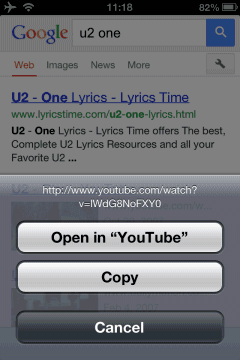
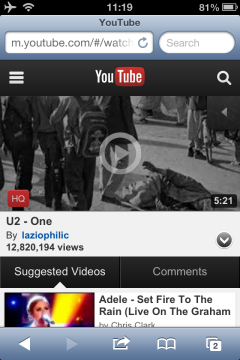
If you install YouTube's app on an iPhone or iPad, all the YouTube links from Safari will open in the YouTube app. What if you want to open an YouTube video in Safari? Maybe you want to bookmark it or maybe you get a message like "YouTube video not available on mobile" and you need to switch to the desktop interface to watch it. Here's what you need to do:


1. long press the link (tap and hold)


2. select "copy"


3. open a new tab


4. paste the link


5. replace "www" with "m", so that "http://www.youtube.com/watch?v=" becomes "http://m.youtube.com/watch?v=" and tap "go".


The explanation is that the links to the mobile YouTube site (m.youtube.com) aren't intercepted by the app.


Another option is to install a different browser like Chrome, which doesn't open the YouTube app when you click on a link to a YouTube video. You can also uninstall the official YouTube app and install a third-party app like McTube.


If you're using Android, this trick worked for me in both Chrome and the stock browser: long press the YouTube link and select "open in [new] incognito tab".


Google Trusted Testers: From Betas to Campaigns


Google has a site for "trusted testers", but you need to be invited by a Google employee to test new Google services and new features before they're publicly available. "The Trusted Tester Program gives trusted Google users, friends and family members of Google employees a chance to test and share feedback on Google products or features that have yet to be released," explains Google.


It's interesting to compare the answers from a FAQ leaked in 2006 with the answers from a similar FAQ, which is available in the source code of the Trusted Tester site. For example, Google replaced "betas" with "campaigns".


2006: "You can then log on to the Trusted Tester website with a Google Account in order to access and test out betas of new Google products as they become available."


2013: "After joining, testers may be invited to Trusted Tester campaigns as they become available."


Who can participate?


2006: "the friends and family members of Google employees"


2013: "trusted Google users, friends and family members of Google employees"


When will you know if there is a new Google campaign to test?


2006: "Whenever a new Google beta is ready for testing, you'll receive an email letting you know. Then you can just log on to the Trusted Tester website with your Google Account and you'll see a link to that beta."


2013: "Whenever a new Google campaign that matches your profile is ready for testing, and you have been selected as a tester, you'll receive an email inviting you to participate. To increase your chances of being added to new campaigns, make sure your profile is complete and up-to-date!"


Google now uses profiles to determine the best trusted testers. Google even suggests to "make sure your profile is up to date so we can match you with tests for new Google products and services". There's more: "We select testers based on various demographics. The more information you provide in your profile, the better we can match you with appropriate products and services. Adding your mobile devices makes you eligible to participate in mobile tests, as well!"


How long is each Google campaign available for testing?


2006: "Google betas are usually only available for testing for around two weeks. After the testing period ends, we'll remove the link to the beta on the Trusted Tester website."


2013: "The length of the testing period will vary depending on the campaign."


{ Thanks, Florian. }