28 January 2013

Compare Nokia Lumia 920 with HTC 8X


The new Windows Phone 8 devices – Nokia Lumia 920 and HTC 8X – hit the retail shelves earlier this month and if you want your next phone to stand out from the crowd, these devices may well be an option worth considering.

Nokia Lumia 920 vs HTC 8X


Camera Comparison


Tweet this Share on Facebook


Digital Inspiration @labnol This story, Compare Nokia Lumia 920 with HTC 8X, was originally published at Digital Inspiration on 28/01/2013 under Windows Phone, Gadgets.


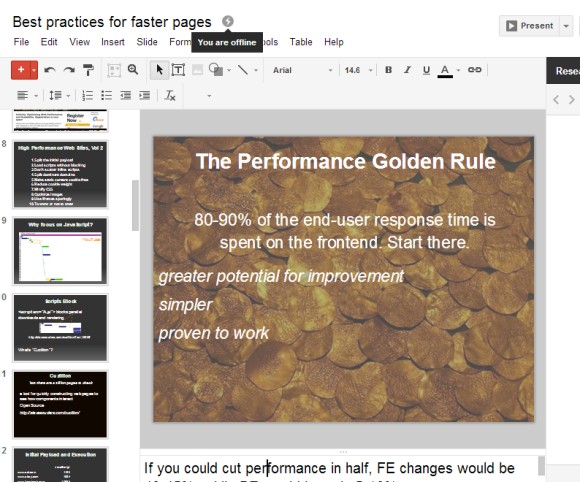
Offline Google Slides


Google Slides is just another name for Google Presentations, but that's not actually new. The big news is that you can now use Google Slides offline to create, edit and run presentations. "Any new presentations or changes you make will be automatically updated when you get back online. So you can continue polishing slides on your next flight, and head to your upcoming presentation without worrying about whether there's going to be wifi."


The offline functionality is still limited to Chrome and requires the Google Drive app from the Chrome Web Store. If you've already enabled the offline support and use it for documents and spreadsheets, you don't need to do anything.


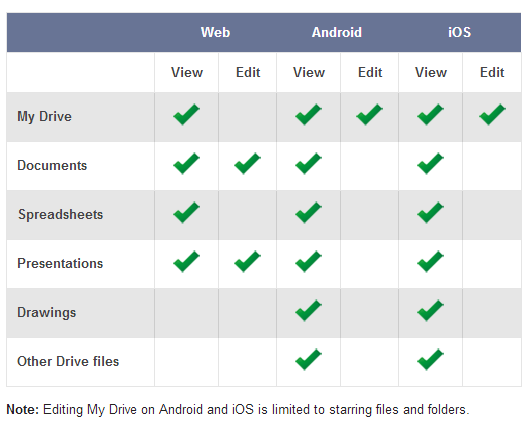
This table shows which Google Drive features are available when you're offline and you use Chrome for desktop or the mobile apps for iOS and Android. You can sync any file when you use the mobile apps, but the editing support is better in the desktop Chrome. You can also install the Google Drive app for Windows and Mac to sync the files that can't be edited online using Google Docs, Sheets, Slides and Drawings.


Quickly Switch to the Basic Google Image Search


If you don't like the new Google Image Search interface, you can't go back to the previous interface. Fortunately, Google still includes a link to a much older interface without infinite scrolling, but with useful information like the file size and a page snippet.


Infinite scrolling makes it difficult to get to the bottom of the page because Google continuously loads new image results as you scroll down. The best way to find the link that switches to the old interface is to press "End" on your keyboard (Fn + Right Arrow if you have a Mac) and click "switch to basic version". Google doesn't remember your setting, so the switch is not persistent.


New Google Image Search Interface


Long time, no see. After a long vacation, it's time to get back to the latest news from the Google world. Last month, Google tested a new image search interface and now it's been rolled out. It's the first desktop interface that drops the landing page and no longer loads the web pages that included the image results. The previous interfaces loaded these pages using iframes more like a courtesy to the third-party websites than to improve the user experience.


Google started to make the iframes less important when it moved them to the background. Then the mobile interfaces for smartphones and tablets came out and they didn't even load the original web pages. The new desktop interface is closer to the tablet interface: click an image result and use the left/right keyboard arrows to check the other results.


Here's the old interface (you may still see it):


"Instead of sending you over to a whole new page to preview an image, you'll see a preview of the image in your search results. Once you click on a image, you can quickly flip through the whole set of image previews using your keyboard. Your search results stay in the panel so you don't lose track of what you were doing; if you want to go back to looking at other search results, you can just scroll down and pick up right where you left off. If you want to check out the website where the image is hosted, you can click on the photo or use the tools available," explains Google.


Obviously, the traffic from Google Image Search will drop dramatically and webmasters will complain that Google uses their images and doesn't give anything in return. Google only hosts image thumbnails and loads the original images when you click the thumbnails, so it's now an image leecher that hotlinks to other people's images, using their bandwidth without generating page views or ad revenue. It's better for users, but expect to see many sites that stop displaying images when loaded from Google Image Search or use other anti-leech tricks. Finding the right balance between user experience and webmasters' interests is a hard thing to do.


27 January 2013

WindowsAndroid: Run Android On Windows


CLICK HERE TO SEE FULL POST


Android is probably the most powerful and highly customizable mobile operating system out there. Android, since it’s launch by Google back in 2007, has been powering millions low to mid to high end smart phones, including the famous Samsung Galaxy series. Users who would like to run Android on Windows have limited options. Users need [...]

SoundControl Beta Offers Easy Pandora Control In The Browser [Chrome]


sound control beta pandoraIf you’re not yet using Pandora, I don’t think you’re getting the most out of music. Pandora is by far the easiest and the best way to stream music online. Take it to the desktop, on your phone, or in your car. Pandora has helped me stumble across artists I’d have never heard of before and has turned the task of listening to music that I want to hear into something as simple as clicking the play button.


For those of us who aren’t yet paying for Pandora One, we’re stuck with listening along through the browser player. Having a dedicated tab up is a small price to pay for all the greatness that Pandora offers, but subscribers probably get a real kick out of that free tab space when their using their Pandora One desktop application. In this article, I’d like to walk you through a Chrome browser extension that can help take away so much attention from that pesky Pandora tab.


Click here to visit the official SoundControl Beta extension page!


SoundControl Beta isn’t an extension that is easy to get lost in. I’ve seen many confusing add-ons and extensions for Pandora on Firefox and Chrome, but this is not one of them. The function of SoundControl is simple: take the most important elements of the Pandora browser player and embed it into an extension bar icon.


sound control beta pandora


Like every extension featured in the Chrome Web Store, Sound Control is a one-click install. As it completes, you’ll see a shiny new icon hit your extension bar. It’ll be a Pandora-themed play button. Click it once and, if Pandora is not yet active in a tab for you, it will be. If you don’t see it, look a little closer to notice it’s a pinned tab (meaning it should dock to the left of standard, unpinned tabs). Music will immediately begin to play from the last station you were listening to. Click the icon once again to pause streaming.


Now click the icon twice. A mini player should pop out beneath the extension bar.


pandora control


This small window honestly gives you every single feature that the entire Pandora tab does, except in a much more compact interface. From here you can adjust your volume, like or dislike a song, control the basic playback features, and change stations. It also shows the track that is currently being played.


Now let’s click on Options.


sound control beta pandora


The main functionality here is being able to change what happens with the extension when you click the icon multiple times. You can set multiple clicks to skip a track, thumbs up or down, or activate the browser tab (aside from the options already selected).


You’re also able to change what type of tab is automatically opened, and if you click that dropdown box then you’ll notice a Hidden option! We finally have our tab space back (although the tab and process assigned to it still remains active but invisible to the eye). Song notifications will show what song is being played as a small browser popup. Ad volume allows you to reduce the sound when ads are being played or just completely mute them altogether.


While it’s not hotkeys or a standalone client, SoundControl definitely makes using Pandora easier for the average (free) user. Clicking into that tap every few minutes can get very frustrating, and this extension sits as a pretty solid remedy. What do you think of SoundControl? Let me know in the comments!


The post SoundControl Beta Offers Easy Pandora Control In The Browser [Chrome] appeared first on MakeUseOf.


26 January 2013

6 Great Sources for Cheap and Beautiful Business Cards You Can Print


cheap business cardsIf you’re a freelancer or you run a small business, you know that having a great business card is a valuable asset. However, when you’re just starting out, printing business cards can seem a little out of reach pricewise. It doesn’t have to be like that though. These days, there are dozens of low-cost printers who will do a print run of a modest amount of cards for you. All you need to do is choose your card style, add your details and put in your order.


There are even places who offer a free trial for your first batch of cards, online business cards to give you a stylish virtual presence and a great deal of variety for printed cards if you’re willing to pay a little. Check out these great options for cheap business cards that we found!


1. VistaPrint


VistaPrint have patented a way to do small runs of business cards cost effectively, thus allowing them to offer cards at a very cheap rate (normally £17.99 for 250 cards). In order to let you try them out, they also offer a 250-card print run for free if you are a new customer (but you pay for shipping). You can’t beat that!


cheap business cards


If you’re taking up their free trial, they offer a decent range of designs to choose from and allow some personalisation. If you’re paying for a premium run, you can choose from thousands of designs, plus it’s possible to upload your logo and photos.


2. Moo


Moo has made quite a name for itself as a way of creating business cards from social media services like Facebook and Flickr. Moo specialise in creating unique cards for each customer, allowing everyone to design their own cards with their own photography and artwork or to work with templates. Moo also let you use different images on different cards, meaning that in a pack of 50 cards you can have different images on each one!


custom business cards


We’ve previously reviewed Moo’s quality, so we know it to be excellent. Business cards can be purchased for £10.99 for a pack of 50 and are offered in a variety of order sizes up to 600 cards for £101.97. If you want to check out Moo’s quality yourself, order a 10-card sample pack for free. It will be exactly like the premium product, but with a Moo logo printed on it as well.


3. Business Card Star


Using Business Card Star is more about the design process than anything. They allow users to design cards for printing at home, which is a real money-saver as you design and print your cards for free. Of course, they also offer a printing service with high quality cards, which will probably look more professional than the homemade variety.


custom business cards


There are plenty of designs to choose from, plus it’s possible to add your own photos and logos. If you’re printing at home, they charge a fee of US$10 to save a PDF of cards with your own photos and logos on them. If you are having your cards printed by them there is no extra fee for using your own images. Print runs start at US$22.95 + shipping and can be shipped to the US or Canada.


4. Business Card Land


Business Card Land works in much the same way as Business Card Star, as you can download free PDFs of your business cards for home printing or order professional printing via Business Card Star. The design process and the choice of templates are different though, so it’s worth checking out if you want a little variety.


custom business cards


5. Biz Card Creator


Biz Card Creator is yet another free online business card design company, but it has a more limited selection of card styles available. However, if simplicity is your thing, it may be worth trying. They do not offer printing services – in fact, they send you back to VistaPrint if you’re looking to print your cards.


cheap business cards


6. Virtual Business Cards


If virtual business cards sound perfect for you, take a look at these previous posts on easy ways to create virtual business cards, Cardflick, how to create business cards 2.0, and ways to send digital business cards on iPhones. They’re free and they look great. Why not give them a go?


Where do you recommend getting cheap business cards printed?


Image Credit: Shutterstock


The post 6 Great Sources for Cheap and Beautiful Business Cards You Can Print appeared first on MakeUseOf.


25 January 2013

Twitter Launches Vine – A Service For Sharing Short Videos [Updates]


Over the last couple of weeks, we’ve heard rumblings of Twitter launching some kind of video sharing service, and it looks like those rumors have come to be in the form of a cool new service called Vine. For the time being, using Vine to create videos is only available with the Vine iOS app, but Twitter has made it clear that Vine will be coming to other platforms soon.


In keeping with Twitter’s theme, videos created on Vine are very short. In fact, videos can only be six seconds or less. This will keep long-winded videos off the service, and just like tweets themselves, everything needs to get to the point. Between the short video clips, and the fact that the app is able to record sound, it should be easy enough for Vine users to get their point across in the time allotment.


Creating videos is as simple as holding a finger on the screen to record, and letting go to stop. You can stop as few or as many times as you want, so you can record one continuous six second video or a bunch of short clips. It only records while touching, so you can change the shot and tell a brief story though the videos without actually having to do any editing.


The videos are embedded directly in Tweets, just like a photo shared on a supported image service. Videos can be played on the Twitter website or on the Twitter mobile app. However, on the mobile application, the videos do not loop as they do on the desktop version of Twitter.


Here’s an example of a Tweet made with Vine:


https://twitter.com/sideox/status/294511424808550400


One thing Twitter neglects to mention in its official announcement of Vine is that users can also share videos on Facebook. However, my Vine posts were not showing up on my Facebook Timeline. The app comes with its own social network, so users can share videos within the Vine network even if they don’t have a Twitter or Facebook account.


Source: Twitter


The post Twitter Launches Vine – A Service For Sharing Short Videos [Updates] appeared first on MakeUseOf.


7 Vital Google Image Search Hacks


Where do you go when you need to search for something? Probably Google. Where do you go when you need to find images? I’m guessing the same again. Google’s image search has been around for over 12 years, and in that time, it’s advanced from being a cute novelty feature to a powerful search tool, with billions and billions of indexed images.


With all these images right at your fingertips, how do you go about finding the one image you’re really looking for? Over the years, Google has added many useful features to its image search, some more advertised than others. In addition, many features which are not yet available natively can be found on third-part websites. With these vital Google image search hacks, there’s no way in the world you won’t find what you’re looking for.


Note: Yes, I know Google Images is about to change, it’s just been announced today. However, it will take a while before the change rolls out to everyone, and many of these tips will stay helpful even with the new design.


Use Search Tools & Advanced Search


This is pretty obvious, but I want to mention these tools before we go further just in case you’re not using them yet. Google Image Search has seen some significant upgrades in the past several years, and you can now fine-tune your search with just a few clicks.


google-image-tips-1


Click on the “Search tools” button after entering your keywords, and create some quick filters for your search. For example, you can arrange your results by subject, add image-size indicators, look for images in certain colors or sizes, and focus your search on photos, sketches, clip arts and more.


As with any Google search, you can use the advanced search syntax to narrow down your search. For example, look for “chocolate –cake” to avoid any cakes in your results, “chocolate OR cocoa OR cacao” to find images containing any of these words, etc. To access even further options, choose “Advanced search” from the cogwheel menu.


Search For Specific File Types


Although available in advanced search, the file type filter is absent from the more accessible search tools, which is a shame. If you often need to look for specific image file types, you might not want to use the advanced search every single time. Luckily, you don’t have to. Want to find only PNG files? Enter “filetype:png” after your query.


google-image-search-tips-2


By doing this, not only will you get only the file type you need, a new option will also be added to the Search tools, which you can use to switch the filter to other file types such as JPG, GIF, BMP and more.


google-image-search-tips-3


You can use the filetype operator to look for any supported image file type.


Get The Old Google Image Search Back


google-image-search-tips-4


Remember this? If for some reason you really miss this old layout, getting it back is surprisingly easy. All you have to do is enter a search as you normally would, then scroll the page all the way to the bottom. Once there, find the “Switch to basic version” link, and voila. You have the good old image search back.


google-image-search-tips-5


While not as slick as the current layout, some people may still find the old layout easier to use, and it’s also not as heavy on resources if you’re using an old machine. As simple as it is to do this, Google’s done a pretty good job at hiding it, so most users aren’t even aware it exists.


Find Similar Images


This is another very simple trick, which many users (including me) still manage to miss. There are many add-ons and apps out there that help you find similar images, but this feature is actually built into Google’s image search, albeit somewhat obscurely. If you’re looking for a specific kind of image, and you find one that fits the bill, hovering over it will reveal two new options: More sizes and Similar.


google-image-search-tips-9


By clicking “Similar” you can find dozens of similar images, which can go to great lengths to helping you find the right image. You can also look for the same image in different sizes.


Search Using Your Own Image


So you can look for similar images to those you found on Google, but what if you want to find similar images to ones you have on your own computer? This too is possible. While in image search, click the small camera icon on the search bar.


google-image-search-tips-7


In the dialogue that opens, you can either paste an image URL, or upload your own image. Once uploaded, Google will search for any and all images that resemble your image, and will come up with some results.


google-image-search-tips-8


While it’s very good at finding color resemblances, Google will not always do a good job deciphering the actual subject of the image. For this reason, you might get very accurate results at times, and at other times get images that are similar only in color. Try it out with several images to see for yourself.


Skip Source Website


Sources are important, but when you’re looking at dozens of images one after another, it gets pretty tiresome to have to go through the source website every single time you click an image. Instead of seeing an interesting image and getting to view it immediately, have to first see floating on the source website, and only when you click on “Full-size image” can you get to the actual image. This annoyance be overridden with a simple user script.


google-image-search-tips-10


The script is called “Google Images direct links”, and you can install it here . All the script does is skip the source website part, bringing you straight to the image once you click it in search results. Some browsers require a script manager in order to install user scripts. For Firefox, download Greasemonkey. For Chrome, you might need Tampermonkey.


Use An Alternative Interface


google-image-ripper


Can’t stand the Google Images interface no matter how you tweak it? Try alternative layouts, such as Google Image Ripper . While not as feature-rich as the native Google image search, Google Image Ripper makes it easy to download images with one click, and also includes a slick slideshow view to browse through results.


google-image-ripper-2


If all you want to do is perform some simple queries, browse photos and download, you might find Google Image Ripper quicker and easier to use.


Bottom Line


Google’s image search is a powerful tool, and with the right tools and know-how, can be used to find pretty much any image you set your mind to. Know of more tips and tricks that help you find the right images? Share them in the comments!


The post 7 Vital Google Image Search Hacks appeared first on MakeUseOf.


8 LinkedIn Hacks You Should Use To Further Your Career


linkedin hacksIf you’re a jobseeker or just keen to move up in the world, you’ve probably set up a LinkedIn profile and started building a network there. You may have put a little thought into your profile at some point and then probably let it stagnate somewhat between moments of enthusiasm for career-building behaviour.


However, this need not be the case. There are a number of great hacks you can use with LinkedIn, some of which will help to keep your profile looking fresh for longer, and all of which will help to further your career in some way. It’s well worth taking a quick look at a few of them to see what you can incorporate into your regular activities.


Learn How To Create A Great LinkedIn Profile


To begin with, you will need to have set up a LinkedIn profile with as much care and attention as possible. If you haven’t already read our manual Learn LinkedIn: How To Build Your Living Resume, then download your free copy now and use that to start yourself off.


linkedin hacks


1. Update LinkedIn With Unique Content Via Apps


To encourage yourself to use LinkedIn more frequently, get a LinkedIn app for your smartphone or tablet. In particular, check out the new iPad app and Windows Phone app. Use tools such as Hootsuite or Buffer to schedule updates to your LinkedIn Network. Please note, it’s not always advisable to link Facebook and Twitter accounts to LinkedIn as you are talking to a completely different audience.


By using multi-network scheduling tools instead, you are more likely to create unique content just for LinkedIn. Note that scheduling updates doesn’t have to be difficult as you can simply forward a link to a great article. Try to avoid blatant “hire me” posts unless it’s really necessary.


2. See Who’s Been Viewing Your LinkedIn Profile


While viewing your home page on LinkedIn, take a look on the right just under the “People you may know” section. You’ll see a section for “Who’s Viewed Your Profile“. As a free LinkedIn user, clicking on this link will show you a selection of people who have viewed your profile in the last three months. Paid users will see the full list of people who have viewed a profile, although sometimes they will be anonymised somewhat with a message like “One of these 10 people viewed your profile”.


If you can’t afford to pay for a paid account, or you want to narrow down which of those 10 people actually viewed your account, you can always take a screenshot of the list each day until you build up a better picture.


linkedin profile hack


3. Answer Questions Using Answers & LinkedIn Groups


An overlooked tool of LinkedIn is the Answers section, which you can access from the home page by visiting More > Answers. Here you can ask or answer questions, meaning that you can prove your expertise in certain areas. If you are one of the week’s top experts you will be featured on the home page.


linkedin profile hack


LinkedIn have thoughtfully provided access to professional groups via the site. If you want to make the best of your networking efforts, it does pay to give a little of your time to these groups. Focus your attention on a handful of the most relevant groups for your industry and see if you can answer a few questions a day. With any luck, people will notice you and want you to join their professional network, perhaps even recommending you for a new job.


4. Pay Close Attention To Your Network


Take a close look at the people you are connected to via LinkedIn. Pay close attention to the industries people are in, companies which are represented and who you are indirectly connected to. If there are people working in your dream company then make contact early on. Don’t wait until you’re unemployed and desperate for work.


linkedin profile hack


5. Follow Updates From Your Network Using Signal & BottleNose


One great way to see what your network is up to is to use Signal, which is the full LinkedIn feed of things your network has done. Signal is a little like what you see on the home screen, but you can filter it by company, location, seniority, industry or more. You can also expand it to show updates from 2nd and 3rd connections, which makes it really easy to find movers and shakers that meet your criteria.


linkedin hacks


Another idea for following your network is to combine LinkedIn updates from your network with news from other social sources and news with tools like BottleNose or HootSuite. It doesn’t matter what you use, rather that you see what people in your network are saying and are in a position to respond in a timely matter if relevant to you.


6. Build Up Your Recommendations


The best way to build up a collection of great recommendations is to give recommendations yourself. Every now and then, write a great recommendation for someone in your network. This may prompt them to return the favour at some point. If you do this regularly, then over time you will get a wide collection of recommendations from a variety of people in your network. Whatever you do, don’t wait until you need a job. This is a task that can only be done over time.


7. Frequently Update Your LinkedIn Profile


It goes without saying that you should always try to ensure your profile has current information about work roles and positions. Some things which may encourage you to frequently update your resume on LinkedIn are the vast number of resume-creating tools that you can use, which create beautiful resumes using data from LinkedIn. Some of the resume tools are quite visually appealing, so give them a go!


Don’t forget, there are always more LinkedIn tools and tips to check out. Some of these are really fun and will make you more likely to network on LinkedIn.


8. Back Up Your Network Contacts


Many people don’t realise it, but it’s possible to lose access to your LinkedIn account. LinkedIn will sometimes block accounts that are too active. There has also been at least one case where an employer deemed that the account was their property and demanded that it was handed over when the employee left the company. It only takes a few seconds to back up your network. Go to Contacts > Connections, then follow the link in the bottom-right to Export Connections. Easy!


What are your best tips for using LinkedIn?


The post 8 LinkedIn Hacks You Should Use To Further Your Career appeared first on MakeUseOf.