21 July 2020

3 Free Ways to Download HD Movie Trailers Online


video-downloader

Movie trailers are a great way to get a taste for the latest flick, from the big Hollywood trailers to the smaller indie trailers. Some trailers are so impressive in their own right that you might want to download them.

If so, we’ve got you covered. We’re going to show you how to download movie trailers for free directly to your computer.

How to Download Free Movie Trailers

There are different ways to download free movie trailers online to your computer. Here are the best methods.

Download Free Movie Trailers From HD-Trailers

HD-Trailers

One of the best places to download free movie trailers from is HD-Trailers.net.

This site sources trailers from iTunes Movie Trailers and Yahoo Movies Trailers. Both of these are great sites for high-definition trailers, especially iTunes as it has a clean interface and offers multiple resolutions. However, it isn’t as simple to download trailers from these sites as it is from HD-Trailers.

The front page of HD-Trailers lists the newest trailers, the top box office movies, and movies opening this week (this category doesn’t appear to be updated though, so you can ignore it).

If you don’t immediately see the movie that you want to download the trailer for, use the search box at the top.

Each movie page displays the poster and a brief description. You will see the trailer’s links beneath this. Some movies get multiple full-length trailers, alongside other trailer formats like “sneak peek” and “teaser”.

HD-Trailers lists these trailers in date order and in multiple resolutions (which determines the image quality). 480p is the lowest resolution and 1080p is the highest. The higher the resolution, the larger the file size.

Click the resolution you want and the trailer will play. Under the trailer is a Download link. You might be able to click this to initiate the download. However, your browser might just open the trailer in a new tab.

If this happens, right click the Download link and click Save Link As… Choose where you store the trailer, then click Save to begin the download.

Download Free Movie Trailers From YouTube

YouTube movie trailers

Chances are whatever movie trailer you want, whether it’s for a new or old release, will be available on YouTube. There are lots of channels on YouTube dedicated to uploading movie trailers, such as:

Individual studios will also upload trailers to their channels. That includes the likes of Netflix, Warner Bros. Pictures, and 20th Century Studios.

Of course, rather than going to specific channels, you can also just search for the trailers you need.

YouTube doesn’t offer an inbuilt way to download videos. As such, you will need to use a third-party tool. Handily, there are lots of great YouTube downloaders.

One of the best is 4K Video Downloader, which is free and available on Windows, Mac, and Linux. You simply plug the YouTube video URL into the program and it downloads it to your computer. It even supports playlists and subtitles.

While other programs might download at a low resolution or be riddled with adverts, 4K Video Downloader is simple and efficient. There’s no better way to download movie trailers from YouTube.

Download Free Movie Trailers from Internet Archive

Internet Archive movie trailers

If you are looking to download some more obscure movie trailers, you might find what you need at Internet Archive. Thousands of trailers are stored here, most from the 20th century.

The pane on the left helps you sort the trailers through categories like Year, Topics & Subjects, and Collection. You can also use the search at the top, though note that sometimes the trailers are unhelpfully named as they are user uploaded.

When you find a trailer you want, click the tile to visit its respective page. The trailer can be played at the top of the page. Beneath that, look for the Download options box. Here you can download the trailer, often in multiple formats like MOV or WMV.

How to Play Downloaded Movie Trailers

Once you download the movie trailer, you’ll want to play it. Your computer has a video player by default. Windows uses the Films & TV app, while for Mac it’s QuickTime Player.

However, there are alternative media players for Windows and better media players for Mac.

The best for both operating systems is VLC Media Player. This is a free, open-source, cross-platform media player that supports a huge variety of video formats. Also, VLC is packed full of handy features.

Since the movie trailers you download might be in different file formats, VLC is so useful because it will play most things you chuck at it. You won’t need to mess around with codec downloads too.

How to Convert Downloaded Movie Trailers to Different File Formats

The movie trailers you download will come in different video formats. Examples include MP4, WMV, FLV, and AVI.

As mentioned above, VLC will handle most video formats. However, you might want to convert the trailers into a different file format. This is vital if you want to transfer the trailer to a device that doesn’t support the video’s format natively (this is likely to happen on a Smart TV, for example).

If this is the case, don’t worry. It’s easy to convert your downloaded movie trailer into a different file format. All you need is a video conversion tool.

In fact, you can also use VLC to convert the media file.

Open VLC and go to Media > Convert/Save. Click Add to select the trailer, then click Convert/Save. Specify the Profile (the output format) and the Destination file. When ready, click Start.

Another great choice is WinFF. This is a simple and free tool that can convert videos in bulk into many formats.

With the program open, click Add to select the trailer, choose your Convert to and Preset formats, then specify the Output Folder. When ready, click Convert.

Find a Movie Worth Watching

Now you know how easy it is to download movie trailers for free, you can build your own collection of your favorite trailers.

Trailers also make for a good way to decide what movie to see next. If you need a bit more help, here are some other great ways to find a movie to watch.

Read the full article: 3 Free Ways to Download HD Movie Trailers Online


The 5 Best Chrome Extensions to Improve Facebook


chrome-extensions-facebook

Facebook continues to be a leading social media platform, but it could use some improvements. Thankfully, a variety of tweaks can smooth out and improve your experience on both the Classic and the New Facebook. For this article, we’ll look at ways to customize Google Chrome with Facebook extensions.

Ready to improve your Facebook experience in every way? Then start using these Chrome extensions for Facebook.

1. VLC Video Downloader

vlc video downloader detected video

VLC Video Downloader makes it easy to create video playlists and download videos from both the classic and the new Facebook. To start saving and downloading videos, follow these steps:

  1. Find a video that you want to save.
  2. Click on the video to enlarge it.
  3. The VLC Video Downloader extension icon will now show a number indicating a video has been detected.
  4. Click the icon to bring up a listing of all videos detected. Each time you open a video, it automatically appears on this list.
  5. You can choose to play the video, download it, or add it to your playlist. However, if you close your tab before adding the video to your playlist, it’ll disappear.
  6. Once you add the video to your playlist, you can rename it, play it, and download it from anywhere.

Download: VLC Video Downloader for Chrome (Free)

2. Hover Zoom+

hover zoom facebook feed

Hover Zoom+ lets you automatically enlarge images on Facebook. Simply hover your cursor over an image, and you’ll increase its size.

In addition to making photos larger, you’ll also be able to see entire images that are normally cut-off. This makes Hover Zoom+ a great option for previewing images on multi-photo posts. The extension’s options also allow you to modify settings such as zoom delay, positioning, frame color, and more.

For more control, Hover Zoom+ comes with some useful hotkeys. While hovering over the zoomed image, you can automatically open the image in a new window, new tab, or even download it with a single keystroke.

Sadly, the extension doesn’t work with New Facebook, so you’ll want to swap to Facebook Classic.

Download: Hover Zoom+ for Chrome (Free)

3. Timely

Timely offers a simple accountability measure for those concerned about their productivity. If you want an easy way to chart how long you spend on either version of Facebook, look no farther.

When you open Facebook in a new tab, Timely starts two stopwatches. The right stopwatch displays how long it has been since you opened Facebook in a tab. The left stopwatch displays the total spent time on Facebook per day. Both stopwatches change color as you spend more time until both timers turn red.

If Timely alone doesn’t help stop overindulgence, you should consider learning how to do a social media detox.

Download: Timely for Chrome (Free)

4. FriendFilter for Facebook

friend filter layout detection

FriendFilter for Facebook makes it easy to manage your entire list of friends and track their interaction with your profile. Once you’ve installed the extension, simply follow the prompts to clarify which version of Facebook you’re using, confirm your username, and sync your friend list. After that, you’re free to swap Facebook layouts.

Once FriendFilter has access, there are two powerful data tools to work with. The Friends section breaks down friends into active and inactive based on their engagement with your profile. When you look at your friends, you’ll see their full name and their engagement with your profile broken down into likes, comments, and shares.

You can go to their profiles from their name, whitelist them to prevent accidental removal, or unfriend them. With the ability to search, select all, or select none, you can quickly sort and select anyone.

Under the Dashboard section, you can view an activity chart that details likes, comments, and shares. There’s also a friends chart that gives you data on active, inactive, whitelisted, and unfriended users. Additional data comes in the form of a top 10 friends list and a small statistics summary.

The only downside is that a FriendFilter Pro subscription is required to go past the default parameters for time, activities, comments, and shares.

Download: FriendFilter for Facebook for Chrome (Free, Subscription available)

5. Social Book Post Manager

social post manager filters

Social Book Post Manager helps you manage your posts from your Facebook Activity Log. While it presently only works with Classic Facebook, the ability to batch delete, hide, unhide, and unlike posts makes it crucial for privacy.

Once on Classic Facebook, navigate to your Activity Log or auto-navigate there by clicking the extension and pressing OK. Next, click on the extension again to bring up all your filters. By default, it’ll automatically select the current year and month.

To get the best results, you’ll want to be as specific as you can be with the filters. Once you add a text filter, you’ll see any results highlighted for added clarity. Once you select the delete, hide/unhide, or unlike button, it’ll attempt to make changes to your posts.

If no results appear, the extension will let you know. If so, prescanning the page or lowering the speed can help increase the chances of finding your post. Before making any changes, do note that the backup button doesn’t work and just takes you to your general account settings.

While this extension helps with privacy, don’t depend on it to get off Facebook. You should instead look at how to permanently delete your Facebook account.

Download: Social Book Post Manager for Chrome (Free)

Enjoy Facebook With These Chrome Extensions

With these five extensions, you’ll be able to control how Facebook operates on Chrome. These Facebook browser tools are completely optional and easy to disable when unnecessary.

If you’d still like to explore more enhancements, try these Chrome extensions to vastly improve your browsing experience.

Read the full article: The 5 Best Chrome Extensions to Improve Facebook


Photo Deposit


Photo Deposit

New ways to understand life in a pandemic | Aaron Maniam

New ways to understand life in a pandemic | Aaron Maniam

Poet and policymaker Aaron Maniam describes how the language we use to explain COVID-19 shapes the way we think about it -- whether it's as a "war," a "journey" or, as he suggests, an "ecology." He encourages us to explore a range of imaginative, interlocking metaphors to gain a deeper understanding of the pandemic -- and shows how this can help us to envision a better, more inclusive future. (This virtual conversation, hosted by TED's head of curation Helen Walters and arts and design curator Chee Pearlman, was recorded June 10, 2020.)

https://ift.tt/3hnCGbJ

Click this link to view the TED Talk

20 July 2020

The fight for civil rights and freedom | John Lewis and Bryan Stevenson

The fight for civil rights and freedom | John Lewis and Bryan Stevenson

Civil rights leader and longtime US congressman John Lewis spent his life fighting for freedom and justice for everyone. In this illuminating conversation with lawyer and activist Bryan Stevenson, Lewis discusses the essential importance of voting, shares encouraging words of wisdom for the generation of young people currently organizing in the struggle for racial justice and tells moving stories from his decades of making "good trouble" -- at the Freedom Rides, March on Washington and in the halls of Congress. "When you see something that's not right or fair or just, you have to say something," Lewis says. "You have to do something." (This conversation is part of the TED Legacy Project. Recorded November 19, 2019)

https://ift.tt/3eKUXxT

Click this link to view the TED Talk

Roblox launches Party Place, a private venue for virtual birthday parties and other meetups


The coronavirus pandemic and related government lockdowns have led to a surge in online gaming — particularly on social platforms where people can connect with real-life friends in a virtual venue. We’re already heard of Fortnite birthday parties, Roblox playdates, and Animal Crossing meetups taking place online amid the pandemic. Now, Roblox is launching a new feature called “Party Place” to directly cater to the growing demand among users for a dedicated, private place to host virtual events.

The company’s new “Party Place” venue is based on the technology the gaming company built to accommodate its own virtual events, including its 7th Annual Bloxy Awards and the One World: Together At Home concert, hosted in April in collaboration with Lady Gaga.

The venue itself doesn’t offer any activities or games itself, but rather serves as a private place for Roblox users to gather — for example, for a virtual birthday party, a remote learning activity with classmates, for virtual playdates, or anything else. From Party Place, the group can chat and hang out as they decide what Roblox game they plan to play next.

The product is in beta testing, according to the Roblox website, and has seen only around 45.3K visits since its launch last week. Likely, many of these visits were just from curious kids poking around in public area as you can today join the Party Place venue without a private server, if you want to just see venue. Roblox, however, says it’s making private servers available for free in Party Place, so parents and kids can create a place where only those friends they directly invite can join and play.

Roblox has been doing particularly well as the pandemic has forced children to stay at home under lockdown. The entertainment platform now has over 120 million active monthly players and, as of June, surpassed a milestone of $1.5 billion in lifetime player spending, according to a report from Sensor Tower. It hit the new record only 7 months after reaching its $1 billion milestone — a surge in consumer spend attributed directly to the global COVID-19 pandemic and the related growth in entertainment platforms and social gaming.

In March, Roblox revenue grew 28% month-over-month to $69.8 million, the report found. In April, revenue grew 34% to $93.2 million. And by May, sales hit close to $103 million.

Roblox had already begun catering to players’ interest in social gaming with its launch of its “Play Together” game sort in April, which made it easier for players to find those games where you socialize with others — like visiting a virtual shopping mall, going camping, or riding virtual water slides, for example. These games also offer an option for private servers VIP servers, often for a small fee paid in Roblox’s virtual currency, Robux, which renewed on a subscription basis until you canceled.

Of course, the company isn’t the only one developing products in response to user demand for online “hangout” spots in virtual worlds. Fortnite, for instance, introduced “Party Royale,” a game mode offering a weapons-free party island featuring mini-games and, sometimes, even live concerts. Its Travis Scott concert was hosted in the game, attracting 12.3 million concurrent players at its peak.

For today’s younger players — the COVID kids, so to speak — platforms like Fortnite and Roblox are becoming their own version of a social network. The kids don’t just go online to play. They socialize, chat, and hang out with a mix of real-life friends and virtual ones, blurring the lines between online and offline in ways that traditional social networks, like Facebook, do not.


Read Full Article

Stop making mass shooters famous | Tom Teves

Stop making mass shooters famous | Tom Teves

On July 20, 2012, a mass shooting in a movie theater of Aurora, Colorado left the town, and the nation, reeling. To many -- including Tom Teves, who lost his son in the tragedy -- the news coverage that followed focused on all the wrong things. Why did the reporting overwhelmingly fixate on the shooter rather than the lives of the victims or the heroic efforts of first responders? With urgency and measure, Teves calls for media attention that acts in the interest of the public (instead of profit) by revoking what shooters want most: infamy.

https://ift.tt/2OKyINK

Click this link to view the TED Talk

Samsung will introduce five new devices at its upcoming Galaxy Note event


August 5 is Samsung’s turn to enter the uncanny valley of live virtual product launches. As the company prepares to take the stage in its native South Korea to launch the Galaxy Note S20. The company’s new smartphone chief TM Roh addressed in a new blog post what a strange time it is to be setting up for a massive product launch, noting, “As leaders of the tech industry, we have a special responsibility – and now a true sense of urgency – to help society continue to move forward. So many people are counting on us to give them new ways to communicate, new ways to work, and new ways to connect.”

Roh’s tenure in the company’s top mobile spot has been defined by the presence of COVID-19, having started the position back in January. It’s understandable that such an address is peppered by references to the pandemic. Next month, Samsung will have the opportunity to define its own virtual presence, following in the footsteps of Microsoft and Apple, who pulled of their respective developer events with varying success.

Samsung is apparently going big for its moment in the spotlight. The executive is promising the launch of five new “power” devices.

“These devices deliver on our vision to be the innovator of new mobile experiences that flow seamlessly and continuously wherever we go,” Roh writes. “They combine power with seamless functionality, whether you’re at work or play, at home or away. In the Next Normal, you will be empowered to live life to the fullest with these devices in your hand (and in your ears, and on your wrist).”

That last parenthetical offers some insight into what we’ll be seeing besides the expected phablet launch, likely pointing to new versions of the Galaxy Buds and a new entry into Samsung’s Galaxy Watch line. For the former, at least, I’m hoping for a new premium tier designed to compete directly with Apple’s AirPods Pro and Sony’s fine fully wireless buds. Another smart guess is the Galaxy Z Fold 2. Roh makes multiple references to foldables in the message, along with 5G, which likely points to more insight into what’s coming August 5.


Read Full Article

Snap turns on Minis, bite-sized third-party apps in Snapchat


A set of mini apps has gone live on Snapchat platform, marking the beginning of a new chapter for Los Angeles-headquartered firm as it aims to emulate aspects of the popular Chinese “super-app” model.

Unveiled last month, Snap Minis are lightweight, simplified versions of apps that live within Snap’s Chat section. These apps — built with HTML — are designed to improve engagement among users by enabling them to perform a range of additional tasks without leaving Snap app.

Four of the seven “Minis” that Snap unveiled last month are now available across the platform. These mini apps that are going live today are: Meditation service Headspace, studying collaboration tool Flashcards, an “interactive messaging experience” service called Prediction Master, and Let’s Do It, a mini app developed by Snap itself that allows users to make decision with their friends.

Mini apps unveiled by Coachella that would allow users to plan festival trip, Atom’s movie ticketing, and Saturn, which is aimed at helping students share and compare their class schedules are yet to go live.

The rollout on Monday is nonetheless an important shift in Snap’s strategy to boost engagement on its ephemeral messaging app, which has amassed over 229 million daily users.

Though a relatively new concept in the U.S. and UK, mini apps model is quite popular in Asian markets. Tencent’s WeChat has attracted over a million miniature apps that allow users to perform a range of tasks.

In India, mobile payments services PhonePe and Paytm have rolled out several such in-apps, too, that allow users to book flight and movie tickets and order food and cabs.

Snapchat has previously said that its relationship with Tencent, an investor in the Los Angeles firm, has been influential in its decision to replicate the super-app offering.

The strategy looks promising — at least on paper. It’s a win-win scenario for both Snap and the developers who make these mini-apps. By gaining access to these mini-apps, Snap can potentially see a boost in user engagement, and developers are able to cater to a whole set of new audience.

But whether this model finds home with users in the U.S. and the UK and other markets where Snap has made inroads — and regions that unlike China are open — remains a mystery. As my colleague Lucas pointed out last month, Facebook has attempted to replicate the WeChat model through chatbots on Messenger over the years to little success.


Read Full Article

6 Benefits Of Barcoding


Barcoding has grown very popular to the point of being second-nature to consumers. Businesses can get many advantages from using barcode technology. Generally speaking, there are five main benefits of using technology in your business. It’s worth knowing what they are so that you can get an edge up on your competition. Better Accuracy Barcode […]

The post 6 Benefits Of Barcoding appeared first on ALL TECH BUZZ.


How to Share Your Wi-Fi Passwords From iPhone to iPhone


share-wifi-iphone

Typing long passwords to join a Wi-Fi network is always an annoying hassle. Thankfully, iOS has a handy little feature that allows you to share your Wi-Fi router’s password from the connected iPhone to another iPhone.

You don’t have to type a long string or even attempt to recall a complex password. Tap a key on the iPhone that’s connected to the network and friends or family members can join the same Wi-Fi network without having to enter the password themselves. How does it happen? Let’s look at it step-by-step.

A Checklist to Share a Wi-Fi Password Between iPhones

There are five conditions you should remember to check before you share the Wi-Fi password from your iPhone:

  1. Unlock both iPhones and keep them close to each other.
  2. Switch on Wi-Fi and Bluetooth for both iPhones from Settings or Control Center (one phone should already be connected to the Wi-Fi).
  3. See if the email addresses used with their respective Apple IDs are saved in each other’s contacts.
  4. Ensure that both iPhones have the latest version of iOS.
  5. Both devices should be signed into iCloud.

Go through the above checklist and if everything is okay, then both phones are ready to share the password between them.

How to Share Wi-Fi Password From iPhone to iPhone

Connect one of the iPhones (let’s call it the donor) to your Wi-Fi. The other iPhone (let’s call it the receiver) has Wi-Fi switched on but is waiting for the password to connect. Keep both phones close by within the Bluetooth range, then:

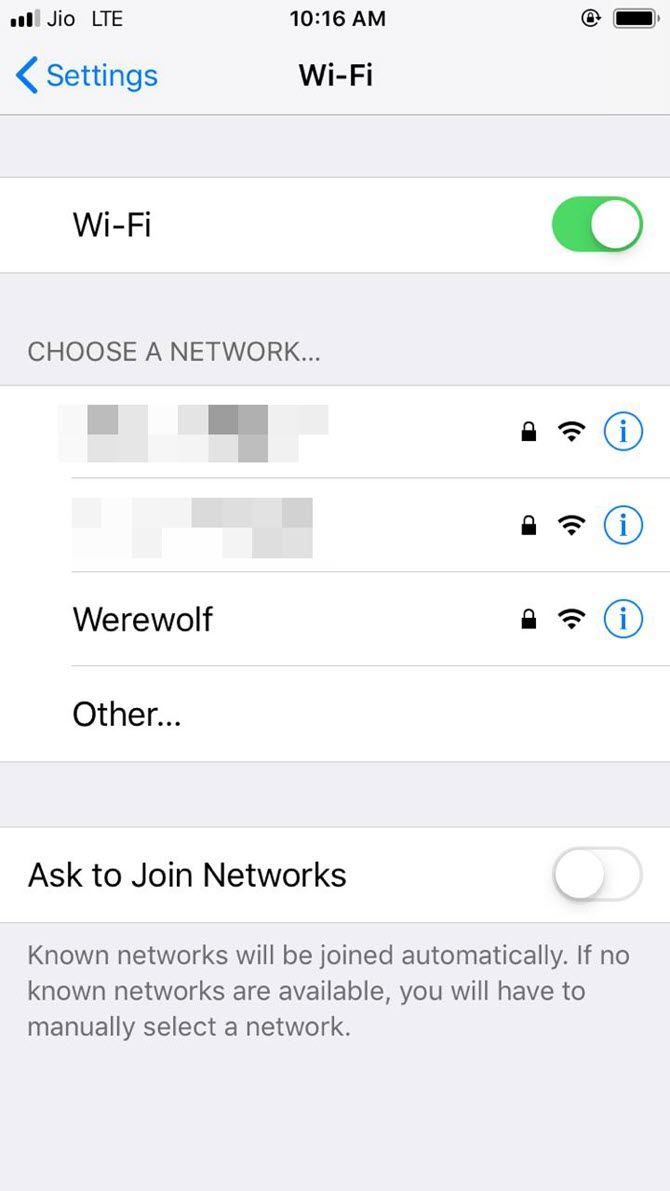
  1. On the receiver phone, go to Settings > Wi-Fi.
  2. Tap the name of the network you would like to join under the names on the Choose a Network list.
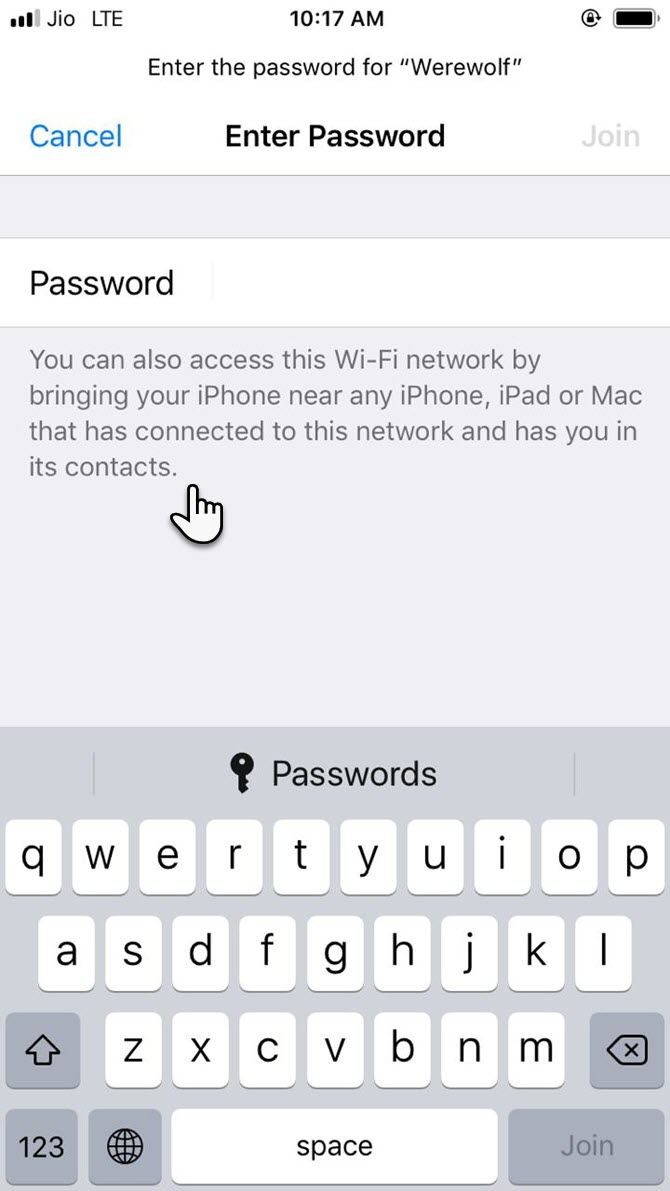
  3. The password field shows up on the screen, with a description below it to suggest how you can share a Wi-Fi password between iOS devices.
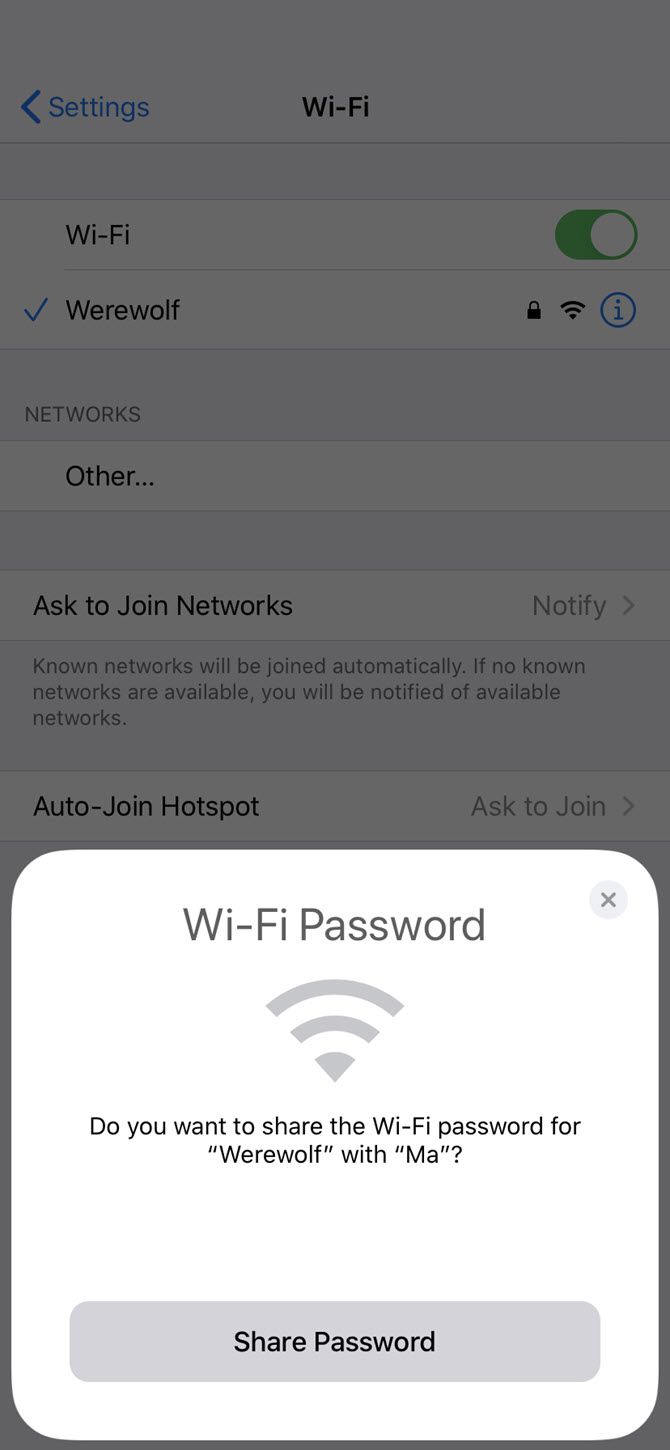
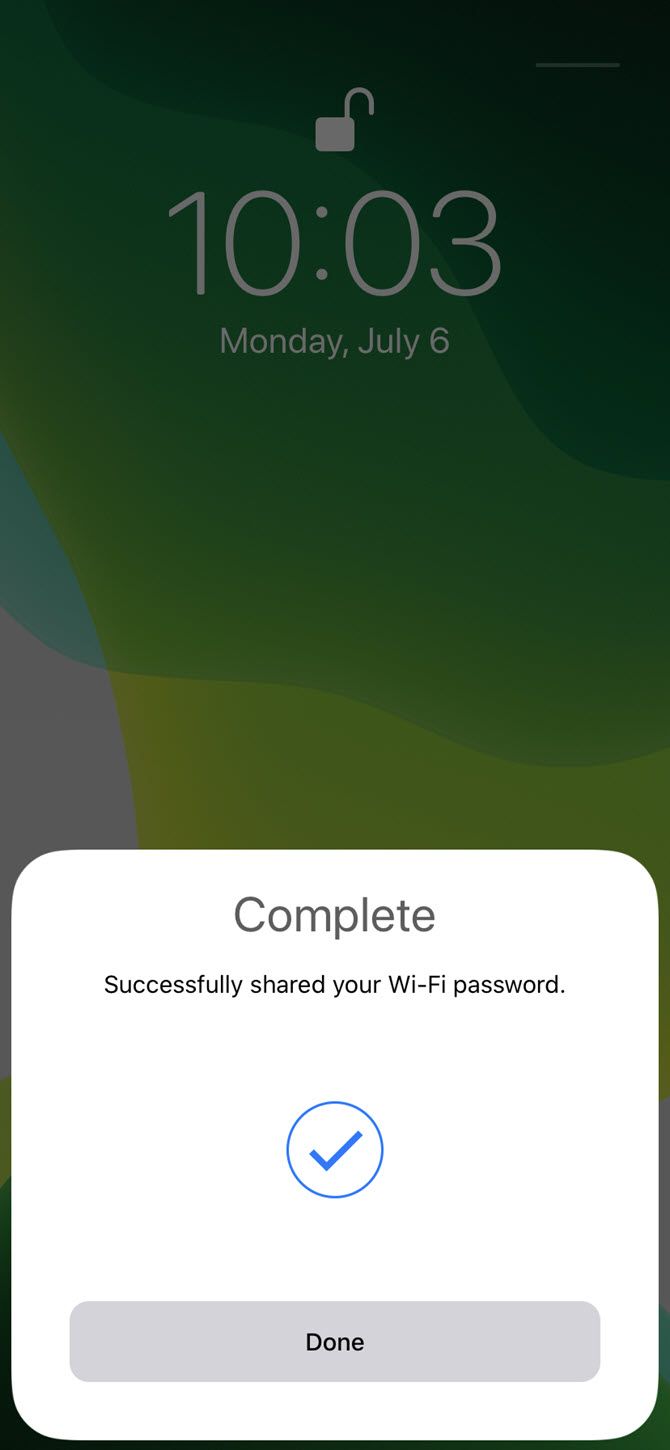
  4. Unlock the donor iPhone and bring it near the receiver iPhone. The donor device will display a prompt on the home screen asking for permission to share the Wi-Fi password with the receiver device. Tap Share Password and the receiver device will take the password and connect to the same Wi-Fi.
  5. Missed the Share Password popup on the donor’s screen? Just turn off the iPhone display and bring it back on to make the share prompt appear again.

That’s it! You just saved valuable seconds to avoid typing your way through a complicated password.

How Does Password Sharing Between Two iPhones Work?

This seamless password sharing was introduced by Apple in iOS 11. Password sharing works via Bluetooth, which is why you shouldn’t forget to switch on Bluetooth for both devices and keep them close.

All passwords are stored in your Keychain on the device. It’s a relatively secure way to share, as there is no way to read the Wi-Fi password directly from your iPhone unless you jailbreak the device.

You can continue to share the Wi-Fi password without looking it up elsewhere. However, if you forget the password of a router, you can recover the Wi-Fi password on Windows 10 or a Mac, log into your router, or hard reset the router if everything else fails.

If Wi-Fi Password Sharing Doesn’t Work

There may be instances when Wi-Fi password sharing between two iPhones doesn’t work. It could be one of the five factors in the above checklist. If not, try these steps:

  1. Restarting either or both the phones can fix minor glitches.
  2. Make sure both of your iPhones are in range of each other and also not in a Wi-Fi dead zone.
  3. See if the router is working. If not, try switching it off and on or go through Wi-Fi router troubleshooting steps to resolve the problem.
  4. One of the phones might have a different version of iOS. To check the version of your iPhone software, go to Settings > General > Software Update. If iOS is current, you’ll see a message that says Your software is up to date. If the screen suggests an update, go ahead and install it.
  5. The receiver device may have used the wireless signal in the past. In that case, try using the Forget This Network option next to the connection name in Settings and try again.
  6. You can reset your network settings if connectivity issues are a continued issue. Go to Settings > General > Reset > Reset Network Settings. This will wipe out all Wi-Fi networks and passwords, cellular settings, VPN, and APN settings that were on the phone. Because of all the hassle, it’s better to avoid this nuclear option and manually enter the password on the receiver phone.

How Often Do You Share Your Wi-Fi Password?

There are many reasons for not sharing your router passwords. But it’s also difficult to say no to friends and family. Sharing your Wi-Fi password without revealing it is the best of both worlds.

Typing those crazy alphanumeric combinations given by password managers is another chore. Also, suggest this method to someone else if you want to use their Wi-Fi network. This method should also help to lessen the risk of giving away your carefully constructed secure password to others.

Even then, keep tabs on your Wi-Fi and take active steps to secure your wireless router and check for unwanted guests.

Read the full article: How to Share Your Wi-Fi Passwords From iPhone to iPhone


Read Full Article

OnePlus Confirms OnePlus Nord Specs: RAM, Camera, Display


One of the worst kept secrets in the Android space is the OnePlus Nord. It seems like there has been another leak about this phone every day.

Perhaps sick of the speculation (and because we’re getting close to the release date), OnePlus has finally taken to its community forums to confirm some of the specs of the OnePlus Nord. Quite simply, these are some incredibly solid specs for a phone with such a low price tag.

Confirmed OnePlus Nord Specs

The first thing the company confirmed about the OnePlus Nord is that it will boast a 90Hz display. The company used this same refresh rate on the far more expensive OnePlus 7 Pro last year, and it should make using the OnePlus Nord a fast and smooth experience.

To go along with that fast refresh rate, the company confirmed that the device features a 180Hz sampling rate, which is vital for playing mobile games on your phone (and not a feature you typically see on a mid-range phone).

Also announced for the OnePlus Nord is 12GB of RAM and a Snapdragon 765G processor. That’s a lot of horsepower for a phone with a confirmed price tag of under $500. It’s important to note that the company hasn’t confirmed whether the base model will come with 12GB of RAM or if that will be a higher-price variant of the phone.

In another post by a OnePlus rep, we also learned about the camera for the device. The Nord will come with a 48MP Sony IMX586 sensor as its primary lens, an 8MP wide-angle camera, a macro camera, and a 5MP depth sensor. OnePlus is using the company’s first dual-selfie setup. The OnePlus Nord will also boast a 32MP selfie camera with an ultra-wide-angle camera.

OnePlus Nord Release Date

OnePlus is slated to release the OnePlus Nord on July 21 with a retail price “below $500.” Of course, below $500 could mean $499.99, or it could mean $400 (it’s probably the former).

Either way, based on the information we have so far, the Nord looks like a phone that could easily sell for more, and we’re excited to get our hands on one to see how it stacks up against other budget smartphones.

Read the full article: OnePlus Confirms OnePlus Nord Specs: RAM, Camera, Display


Read Full Article

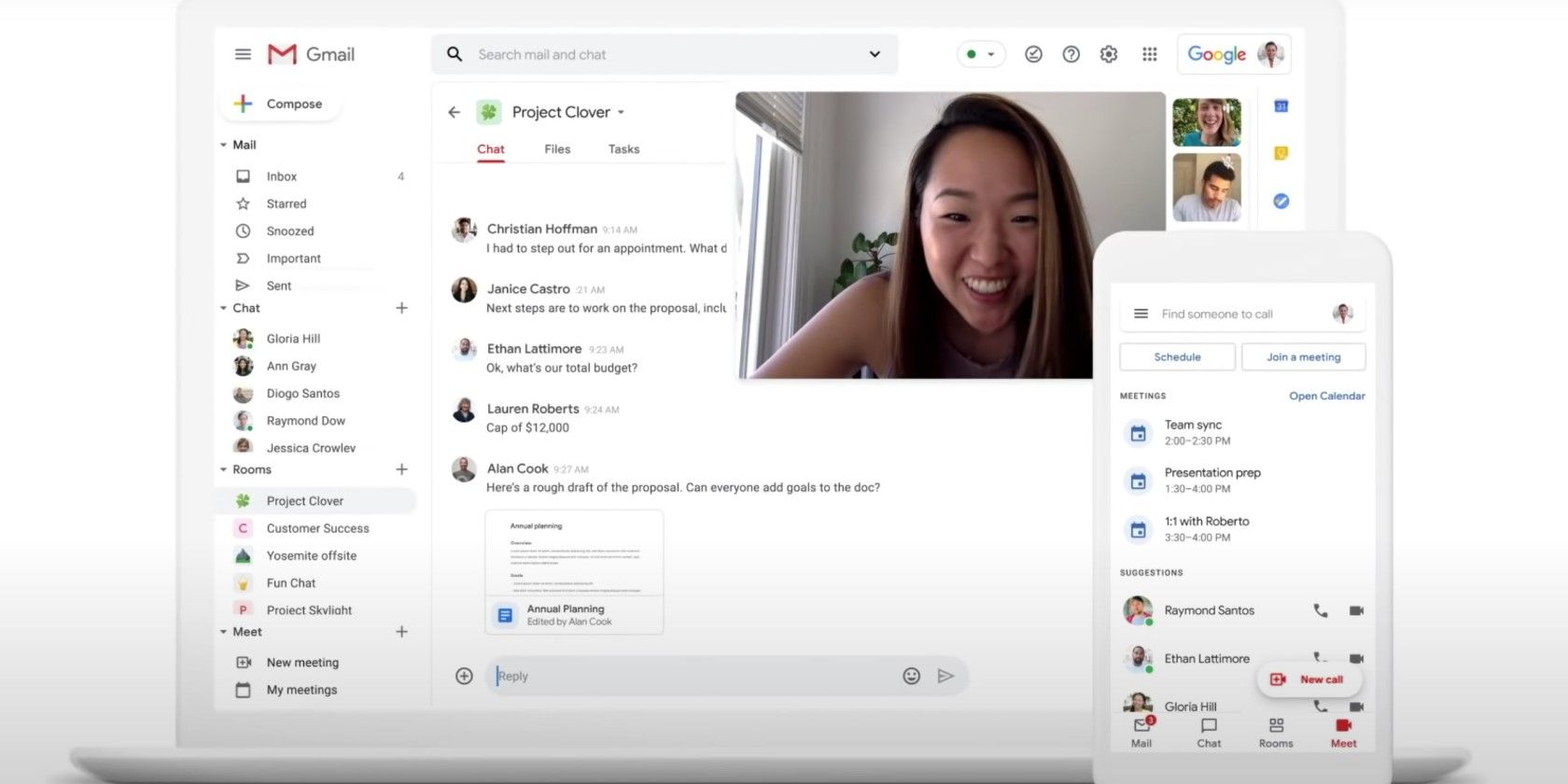
The New Gmail Integrates Google Meet, Chat, and Rooms


Google has a lot of different apps and services. And sometimes it can be a little challenging to get them all to play nicely with each other. Fortunately, the company is rolling out an extensive redesign to Gmail that better integrates Chat, Rooms, and Meet with its incredibly popular Gmail client.

As many of us now work from home, communication is more critical than ever. With this in mind, Google is redesigning Gmail to make using its various communication tools feel like one unified platform rather than a bunch of separate apps. However, this update isn’t currently meant for regular Gmail users. Instead, it’s targeted at companies that use G Suite.

Gmail’s New Look for Work

The new update for Gmail and G Suite looks very useful. And it seems that Google might have finally nailed the chat experience with this all-in-one update.

Essentially, the update brings Mail, Chat, Rooms, Meet, and other Google services into one streamlined interface. The new integrations will apply to both the mobile and desktop versions of Gmail. Each platform features an easy-to-access row of buttons that make switching between Google’s communication services quick and painless.

Google Docs is also going to be a big part of the update, as Google will make it easy to open documents right in the app without needing to open a completely separate service. This alone could speed up workflows for many companies.

Google is also leaning a little harder into its nudging and elevating features, as it won’t just surface emails that need your attention. Now, it will also push essential rooms and chats that may require a follow-up to the front.

Because so many companies use G Suite for email, integrating the other services into one clean UI could convince quite a few companies to use Google’s other services instead of apps like Slack and Zoom.

How to Get the New Gmail

Unfortunately, Google isn’t rolling out the new change to everyone just yet. However, you can sign up to be notified when it’s available by heading to this page. You’ll just need to provide some information about yourself and your company. From there, Google will send an email telling you when and how you can try out the new experience.

Google hasn’t yet announced an exact time frame for when this would roll out to all G Suite users or when it would become part of the regular Gmail experience. In the meantime, make sure you’re using Gmail’s keyboard shortcuts to navigate the app efficiently, as they will save you tons of time.

Read the full article: The New Gmail Integrates Google Meet, Chat, and Rooms


Read Full Article

7 Ways to Record Audio on Your Chromebook


record-audio-chromebook

Recording audio on your Chromebook is really handy. You can record an audio message for a friend and send it at a later date. You can record your million-dollar idea before it disappears into the ether. There are countless other reasons you might want to record audio on your Chromebook.

But how? What is the best way to use your Chromebook to record audio?

Well, wonder no more. Here are the best ways to record audio on your Chromebook.

1. Vocaroo

vocaroo chromebook audio recording

Vocaroo is a basic but handy voice recording option for your Chromebook. Head to the Vocaroo website, press the record button, and begin speaking.

Press the record button again to finish the recording. From there, you can choose to download the file, share the URL for the recording, create a QR code for the recording, or hit the delete button.

2. Reverb Record

record reverb chromebook audio record

Reverb Record is another handy basic online recording option you can use with your Chromebook. The Reverb Record interface follows a similar system to Vocaroo. You head to the site, hit the record button, and begin speaking. When you’re done, hit the record button again to finish. After recording, there are options for sharing or embedding your recording.

If you create an account with Record Reverb, you can manage your existing recordings.

There’s also the option of using the Reverb Record extension for Google Chrome, which adds an audio recording option to your browser. Once installed, Reverb Record is available at the click of a button from your Chrome extension tray, alongside the address bar.

Download: Reverb Record for Google Chrome (Free)

3. Record Command via Crosh

Did you know the Chrome OS Developer Shell (known as Crosh) has an audio recording command?

You can only use Crosh commands after enabling Developer Mode. If you don’t know how to access Developer Mode, check out how to put your Chromebook into Developer Mode. Just be aware that there are several pros and cons to enabling Developer Mode, so check before committing.

If you can use Developer Mode, you can use the Record command in Crosh.

Press CTRL + ATL + T to open Crosh, the Chrome OS Developer Shell. To record audio, use the following command:

sound record [seconds]

Replace the [seconds] with the number of seconds you wish to activate your microphone. The output audio file saves to Files. You can play the audio file using sound play [file location], or select the file manually.

Record is far from the only Crosh command. Check out our list of the best Chromebook Terminal commands to get you started.

4. Beautiful Audio Editor

Audio Editor Comprehensive Desktop Replacement

Beautiful Audio Editor is more advanced than the previous audio recording options. Although the project hasn’t received an update since 2016, you can still use it to record multi-track audio from your Chromebook for free.

There are some caveats to Beautiful Audio Editor. The app is “experimental” and “may crash,” especially if your project is over 45-minutes long or uses over 300MB of memory. Still, it is a quick and easy to use audio tool with filters, dynamic compression, track management, audio mastering, and more.

Download: Beautiful Audio Editor for Google Chrome (Free)

5. Anchor

anchor record chromebook audio

Anchor is a popular podcasting platform you can use to record audio from your Chromebook browser. You can use Anchor to record your audio, then publish to several platforms, including Spotify, Apple Podcasts, Google Podcasts, and other podcast platforms.

Using Anchor to record audio on your Chromebook is simple. First, you need an Anchor account. After signing-up, head to Create Your Podcast > Record, and select your microphone. The default Anchor setting should detect your Chromebook’s onboard microphone. When you’re ready, press the record button.

After recording, you can download the file for later use or upload it to the podcast platforms.

Anchor Record With Friends 2.0

As an aside, at the start of the COVID-19 pandemic, Anchor updated their Record With Friends tool, which allows you to create a podcast using a huge range of devices. Only one person needs an Anchor account (the host). The host sends a link to other participants, and everyone can start podcasting.

Record With Friends 2.0 is a really quick method for recording remote group audio on your Chromebook.

6. Mic Note

mic note chromebook audio recording

Mic Note is a cloud-based audio recording and note-taking tool for Chrome OS. You can use Mic Note to sync your recordings and notes between devices, meaning you never lose your work and always have it handy.

The Mic Note web app is easy to use. There are audio recording options at the top, allowing you to capture your device microphone. Beneath the audio recording options is a notepad with formatting options.

Mic Note includes some handy extra features, too. If you’re recording your Chromebook audio to take notes, you can try the Mic Note Transcription Tool. Alternatively, you can clip audio and written notes together, or add images or PDFs.

The version of Mic Note allows you to record 10-minutes of audio per note, though you can create an unlimited number of notes. If you require more audio recording time, Mic Note Pro allows four hours of audio recording per note for a single payment of $14.99. Pro also allows the insertion of up to 100 images per note, and additional audio recording features (trimming, deletion, extraction, and more).

You can upgrade to Mic Note Pro within the Mic Note web app.

Download: Mic Note for Google Chrome (Free)

7. Screencastify

screencastify chromebook recording audio tool

The final option isn’t strictly an audio recording tool. You can use Screencastify to record your Chromebook desktop, too. The combination makes Screencastify perfect for creating short Chromebook videos with an audio overlay.

Added to the mix are integrated drawing tools, the option to record a single-tab or your entire desktop, and a choice of microphone and camera inputs. In short, it’s a great Chromebook audio (and video) recording tool.

The free version of Screencastify allows the creation of five-minute videos with audio. You can upgrade to Screencastify Unlimited for $49 per person per year, unlocking unlimited recording, additional recording features, and additional video and audio export options.

Download: Screencastify for Google Chrome (Free)

What Is Your Favorite Chromebook Audio Recording Tool?

There are lots of Chromebook audio recording options available to you, most of which are free. You might find a combination of tools works best for your audio recordings, depending on your requirements.

If you have more advanced audio production in mind, check out the best online audio editors for Chromebook users.

Read the full article: 7 Ways to Record Audio on Your Chromebook


Best Residential Proxies for 2020


With technological advancements and digitalization, the world is moving towards the next generation of the technology revolution. Subsequently, tech-savvies are conscious about security, privacy, and data accessibility in 2020, especially when collecting data from the Internet. As most of the world data is generated by users (in social media, classified ads, etc.), in these a […]

The post Best Residential Proxies for 2020 appeared first on ALL TECH BUZZ.


5 Simple Ways to Get Rid of Blogging Stress


Many people wish they could be their own boss, set their own schedule, and write about topics they love through blogging. And while these are all perks of the job, the reality is that running a blog isn’t always as dreamy as you might imagine it to be. Once you start a blog and begin […]

The post 5 Simple Ways to Get Rid of Blogging Stress appeared first on ALL TECH BUZZ.


Search Engine Optimization Guide for a Site on WordPress


Choosing a site management engine, SEO specialists most often give preference to the WordPress CMS because it is the most convenient, popular, and comes with a big pack of plugins and extra tools. In this post, we will take look at how to promote a website on this CMS in the most effective way. Since […]

The post Search Engine Optimization Guide for a Site on WordPress appeared first on ALL TECH BUZZ.


The Ten Best Weapons From Every Category in Pixel Gun 3D


There are a lot of games out there that offer a different take on the first-person shooting genre. Some of them rely on flashy graphics and a unique kind of gameplay to draw people in. Others are simpler but rely on a different statistic to draw their audience in – not through graphics or gameplay, […]

The post The Ten Best Weapons From Every Category in Pixel Gun 3D appeared first on ALL TECH BUZZ.


18 July 2020

Business card scanners – how can they help you?


In today’s world of advancement and technology, there are some tools available that you can use to increase efficiency and save time. If you are a business professional, you must deal with business cards regularly and you know how frustrating it can be to lose one or to have to look for a specific one […]

The post Business card scanners – how can they help you? appeared first on ALL TECH BUZZ.


6 Kid-Friendly Websites for Free Arts and Crafts Activities for Children


Children arts and crafts

Children need to learn, play, and stay active for well-rounded growth. These free websites for activities, crafts, and arts for kids will ensure they stay occupied while growing their skills and knowledge.

This article focuses more on non-screen activities, although some of the websites include those. But there’s always a happy go-between. these free interactive art games for kids will develop color and art skills, and are child-appropriate. It’s no substitute for paints and palettes, but it is a launching point for digital design.

1. Origami Way and Proud Paper (YouTube): Learn Origami and Paper Crafts

Origami Way offers simple and easy origami projects for beginners and children

Oh, the creations you can make out of a simple piece of paper! Origami Way and Proud Paper teach both adults and children basic papercrafts with a focus on origami, the Japanese art of paper folding. From cranes to planes to Wolverine claws, you’ll learn it all.

Origami Way is a website with step-by-step instructions for each project. Each step has images, so you can take your time and do it at your own pace. It also specifies the kind of paper you need for any creation, with instructions on how to make a square paper sheet which several origami projects need.

YouTube channel Proud Paper hosts origami and papercraft projects for all skill levels. The videos have no instructions or voice notes, it captures the process of any creation. Kids should start with the basics like paper boats and butterflies, before moving on to more complex creations.

Given that origami has no tools involved, it’s a great activity to keep kids occupied with a large sheet of paper. Just ensure you gently encourage them to keep trying even if they aren’t getting it right the first time.

2. DIY Slime (Web): The Ultimate Guide to Make Slime at Home

Make five different types of Slime at home with The Craft Patch's ultimate guide to DIY Slime

Which kid doesn’t love playing with Slime? The good news is that you and your child can make slime at home with regular store-bought safe ingredients. And once it’s ready, your child can go wild with it.

The Craft Patch made the best guide on how to make DIY slime at home. You’ll find all the ingredients, step-by-step instructions, and different recipes for different types of slime. Yup, you can make slime without borax, make slime without glue, make fluffy slime, clear slime, or butter slime.

The website also includes a few suggestions of things to add to the slime to make it your own, like glitter, foam balls, confetti, etc. All the recipes are free to download and print, and there’s a helpful video of everything too.

And don’t throw away the slime just yet when they are done playing with it. You can use DIY slime to clean gadgets and other hard-to-clean things.

3. Kids Activities (Web): Stuck-at-Home Survival Guide

Kids Activities blog offers a variety of children's activities, including a stay-at-home survival guide during lockdown or quarantine

The Kids Activities Blog hosts a variety of projects across age groups. You can quickly filter the site by activities for baby, toddler, preschool, kindergarten, elementary, and middle school. As a parent, you can browse and choose the things you want for your children. It’s not meant for your child to browse it.

Mother-of-three Holly Holmer has all types of activities, wisely combining both screen-time activities and non-screen-time activities. There is a paid printables library. But browse the website and you’ll find more than your fair share of free printables and activities.

It also has a quarantine special “Stuck At Home Survival Guide” for things to do while your kids are stuck at home. It suggests a full day’s schedule that mixes play, rest, learning, exercise, eating, and cleaning. The guide has kid-friendly things to watch for free, and a special pack of Quarantine Printables for non-screen fun too.

4. Happy Hooligans (Web): Arts, Crafts, and Good Old Fashioned Play

A Daycare Veteran shares his best tips and activities for kids at Happy Hooligans

Jackie Currie has run a daycare for 25 years, and she’s sharing her secrets on the internet for free. Happy Hooligans has a mission to help children grow through easy and inexpensive arts and crafts, and good old fashioned play.

The website features sections for arts, crafts, activities, recipes, and parenting. Currie offers a mix of items that cater to kids of different ages, including both supervised and unsupervised projects. Among the recipes and parenting, you’ll find simple, fuss-free ways to keep your child happy and nourished.

5. The Best Ideas for Kids (Web): Repository for Activities and Free Printables

The Best Ideas for Kids is a simple repository of arts, crafts, and activities

The Best Ideas for Kids is as simple as it gets to quickly find activities and printables for children. The three main sections are crafts, activities, and slime, with plenty of free articles in each. No signups, no payments, it’s all right there.

There’s an entire section for free printables worth checking out. The “holidays” section gives you activities for different American holidays like Halloween, Thanksgiving, Christmas, Mother’s Day, Father’s Day, etc. Keep checking for new items on the website.

6. DIY Projects for Teens (Web): Lists of Activities for Older Kids

DIY Projects for Teens curates the best crafts and activities for teenagers and tweens

If your children are bored teenagers and you want to reduce their screen time, DIY Projects for Teens suggests several different activities. Even though it’s not actively updated now, the website has projects for food, fashion, arts, gadgets, crafts, and other DIY things.

The four main self-explanatory categories are DIY & How-to, Creative Crafts, Style & Fashion, and Cool Videos. The website is a mix of original projects and collections of activities suggested by the internet. You’ll find long curated lists of topics like the best room decor ideas for teens, drawing tutorials to refine your skills, and so on.

The Butlers (the makers behind the site) try out the best ideas and post their own detailed instructions and experiences. These are the best posts to look for, as they actually try out something from a popular DIY video and explain what went right and wrong in recreating it.

Lockdown Entertainment for Families

Self-isolation or lockdowns are tough on families with children. Hopefully, the above resources will help keep your kid entertained and learning at the same time, making it a tad easier to manage things.

For more ideas, please listen to the MakeUseOf podcast episode on lockdown entertainment for families. From free resources to innovative ideas, you’ll have an easier time handling your kids after this.

Read the full article: 6 Kid-Friendly Websites for Free Arts and Crafts Activities for Children


Read Full Article