21 April 2020

5 DIY Resources to Repair Appliances and Fix Common Problems at Home


DIY Resources to Repair Appliances and Fix Common Problems at Home

You don’t always need a professional to repair a malfunctioning appliance or product. These internet experts will teach you DIY fixes for any common problems in the household.

You are stuck at home and isolating yourself. But what do you do if your refrigerator breaks down, or your car won’t start, or there’s a big plumbing problem at home? Even though such services are available, relying on repairmen seems like it should be the last resort.

Experts on the internet can help you fix many small issues. You’ll find simple DIY guides with tools you already have at home, detailed YouTube videos, and appliance manuals that you may have misplaced. If you still can’t figure it out, there are safe communities to ask questions.

1. ManualsLib and Manual Agent (Web): Find Digital Copy of Lost Manuals

Find lost manuals of appliances and gadgets at ManualsLib and Manual Agent

Not every problem requires you to break out the toolkit and get some grease on your hands. Before you dive in, first check the manual. Much like the famed “turn it off and on again” solution, the appliance manual often has ways to troubleshoot common malfunctions.

If you lost your manual, check two websites to find it. ManualsLib has been around for a long time and is one of the most useful websites you don’t know about. It hosts a catalog of 2.8 million product manuals. Manual Agent is comparatively new, with 700,000 manuals. But in both places, you will find it easy to search or browse to find a manual for your product.

The difficult part is when you don’t know your appliance’s model name or number. These manual libraries can’t help then.

If you purchased it online, there’s a chance you might have the receipt in your inbox archives. You could also try going to the manufacturer’s website, as some manufacturers let you search for products based on the year of purchase. It’s a long shot, but it might just work out.

2. Family Handyman (Web): Repair Appliances and Fix Common Problems

Learn how to fix problems at home with guides from Family Handyman

Part of the Reader’s Digest family, Family Handyman boasts of an extensive catalog of guides. Mainly, you need to check the How To & Repair section, which breaks down issues into appliance repair, automotive, household, pest control, plumbing, woodworking, and so on. You can also browse based on rooms, making it easier to find correlated projects that you can perhaps accomplish together.

The step-by-step guides feature simple language that’s easy to understand for a complete novice. In most cases, you don’t need any background knowledge of DIY tools.

The clearly labeled photos make a big difference in ensuring you won’t make mistakes. Usually, the guides include both text as well as a short video, depending on what you prefer.

If you’ve got some extra time, try out the Family Handyman DIY University. Professionals teach online classes on a variety of projects and skills. It even has a few limited-time free classes for things like wood finishing or adding kitchen storage.

3. Repair Clinic (Web): Best for Beginners to Diagnose and Fix Appliance Problems

Repair Clinic has step-by-step guides to fix common appliance problems and to buy spare parts

Let’s say your refrigerator or washing machine isn’t working. But “not working” is such a generic term that a Google search doesn’t help you get any closer to solving the problem.

Repair Clinic is an excellent place for the layperson to figure out what the actual issue is, and how to fix it.

Start at “Repair Help” and key in the malfunctioning appliance’s model number or choose from a list of products. You will see a list of several common problems with that type of product, in plain English, so you can figure out what is and isn’t your problem. This is where Repair Clinic is better than a random Google search.

Once you’ve found your problem, go through the recommended solutions one by one. Repair Clinic lists them by severity, so make sure you have ruled out the first cause before moving on the next one.

The website claims it has over 4,500 videos by technicians, over 7,000 diagrams and manuals, and over 700 articles to solve common problems.

Apart from suggesting fixes, Repair Clinic also sells parts and shows you how to remove, replace, or install items. If they still ship to you, you might save money with a DIY repair job.

4. Remove and Replace (Web): Super Simple Repairs and Household Hacks

Remove and Replace has simple instructions to fix common household problems and repair appliances

Is the washing machine not filling with water? Is the hose leaking? Is the stove oven knob broken or missing? Is the refrigerator not cold enough? Remove and Replace will solve all of these everyday problems in a house, often offering ingenious tips and hacks.

The articles follow a simple pattern. It talks about the possible causes of the problem from least to most difficult to fix. These will include commonsense solutions as well as some advanced ideas, and even videos from experts.

The website often adds photos and illustrations that make it much easier for non-engineers to visualize the issue. After all, understanding the problem is a key step to solving it.

The only gripe with Remove and Replace is how difficult it is to browse the website. You’ll have to use the search bar to find your issue, or scroll through the giant list of articles in the right sidebar.

5. DIY Chatroom (Web): Active Community to Ask Questions

DIY Chatroom has a community full of people ready to help with questions regarding home repair and applianaces

While all of the above websites make it their mission to simplify DIY repairs, you might still be stuck. That’s okay. It can still be confusing, it can feel like too much information, or you might simply need a human to explain it to you.

If that’s you, go to DIY Chatroom, one of the best online forums for DIY repairs and fixes.

The community is extremely active always. Find the right section (home improvement, appliances, windows and doors, automotive, PC repair, etc.) and search for your issue.

If no one has had a similar issue in the past, create a new thread to ask your query. Be as clear as you can be about your problem, and provide photos if you can. The folks at DIY Chatroom are generally quite helpful, but being civil and detailed will get answers more quickly.

The website also has general articles worth checking out. You’ll find advice on home repair, home improvement, painting, remodeling, landscaping, and interior decorating. If you’re new to using tools, do check the Equipment and Safety section before you start.

Repair Your Own Gadgets

Much like home improvement and appliances, you can fix your own laptop, smartphone, speakers, or other gadgets. While the websites in this article focus on DIY repairs and fixes for the household, there are specialist portals where you can learn to fix your own gadgets. Try it out, it’s easier than you think.

Read the full article: 5 DIY Resources to Repair Appliances and Fix Common Problems at Home


Read Full Article

Samsung’s Galaxy Watch blood pressure monitoring app approved by South Korean regulators


Samsung Electronics announced today that its blood pressure monitoring app for Galaxy Watches has been approved by South Korean regulators. Called the Samsung Health Monitor, the app will be available for the Galaxy Watch Active2 during the third quarter, at least in South Korea, and added to upcoming Galaxy Watch devices.

TechCrunch has contacted Samsung for more information on when the app, which uses the Galaxy Watch Active2’s advanced sensor technology, will be available in other markets.

It was cleared by South Korea’s Ministry of Food and Drug Safety for use as an over-the-counter, cuffless blood pressure monitoring app. The app first has to be calibrated with a traditional blood pressure cuff, then it monitors blood pressure through pulse wave analysis. Users need to recalibrate the app at least once every four weeks.

According to a recent report by IDC, in the last quarter of 2019, Samsung wearables ranked third in terms of shipments, behind Apple and Xiaomi, with volume driven by its Galaxy Active watches. Samsung has sought to differentiate its smartwatches with a focus on health and fitness monitoring, including sleep trackers.


Read Full Article

The Best (Free) Speech-to-Text Software for Windows


speech-to-text-windows

Looking for the best free speech to text software on Windows?

The best speech-to-text software is Dragon Naturally Speaking (DNS) but it comes at a price. But how does it compare to the best of the free programs, like Google Docs Voice Typing (GDVT) and Windows Speech Recognition (WSR)?

Dragon Home 15.0, Dictate Documents and Control your PC – all by Voice, [PC Download] Dragon Home 15.0, Dictate Documents and Control your PC – all by Voice, [PC Download] Buy Now On Amazon $119.99

This article compares Dragon against Google Docs Voice Typing and Windows Speech Recognition for three typical uses:

  • Writing novels.
  •  Academic transcription.
  • Writing business documents like memos.

Comparing Speech Recognition Software: Dragon Vs. Google Vs Microsoft

We will look at the nuances between the three below, but here’s an overview on their pros and cons which will help you quickly make a decision.

1. Dragon Speech Recognition

Dragon Naturally Speaking beats Microsoft’s and Google’s software in voice recognition.

DNS scores 10% better on average compared to both programs. But is Dragon Naturally Speaking worth the money?

It depends on what you’re using it for. For seamless, high-accuracy writing that will require little proof-reading, DNS is the best speech-to-text software around.

2. Windows Speech Recognition

If you don’t mind proofreading your documents, WSR is a great free speech-recognition software.

On the downside, it requires that you use a Windows computer. It’s also only about 90% accurate, making it the least accurate out of all the voice recognition software tested in this article.

However, it’s integrated into the Windows operating system, which means it can also control the computer itself, such as shutdown and sleep.

3. Google Docs Voice Typing

Google Docs Voice Typing is highly limited in how and where you use it. It only works in Google Docs, in the Chrome Browser, and with an internet connection.

But it offers several options on mobile devices. Android smartphones have the ability to transcribe your voice to text using the same speech-to-text engine that also works with Google Keep or Live Transcribe.

And while Dragon Naturally Speaking offers a mobile app, it’s treated as a separate purchase from the desktop client.

Dragon and Microsoft work in any place you can enter text. However, WSR can execute control functions whereas Dragon is mostly limited to text input.

Download: Live Transcribe for Android (Free)

Speech-to-Text Testing Methods

In order to test the accuracy of the dictation with the tools, I read aloud three texts:

  • Charles Darwin’s “On the Tendency of Species to Form Varieties”
  • H.P. Lovecraft’s “Call of Cthulhu”
  • California Governor Jerry Brown’s 2017 State of the State speech

When a speech-to-text software miscapitalized a word, I marked the text as blue in the right-column (see graphic below). When one of the software got a word wrong, the misspelled word was marked in red. I did not consider wrong capitalizations to be errors.

I used a Blue Yeti microphone which is the best microphone for podcasting and a relatively fast computer. However, you don’t need any special hardware. Any laptop or smartphone transcribes speech as well as a more expensive machine.

Test 1: Dragon Naturally Speaking Speech-to-Text Accuracy

dragon naturally speaking speech to text test sample

Dragon scored 100% on accuracy on all three sample texts. While it failed to capitalize the first letter on every text, it otherwise performed beyond my expectations.

While all three transcription suites do a great job of accurately turning spoken words into written text, DNS comes out way ahead of its competitors. It even successfully understood complicated words such as “hitherto” and “therein”.

Test 2: Google Docs Voice Typing Speech-to-Text Accuracy

google docs voice typing text to speech sample

Google Docs Voice Typing had many errors compared to Dragon. GDVT got 93.5% right on Lovecraft, 96.5% correct for Brown, and 96.5% for Darwin. Its average accuracy came out to around 95.2% for all three texts.

On the downside, it automatically capitalized a lot of words that didn’t need capitalization. It seems the engine also hasn’t improved in accuracy since I last tested GDVT three years ago.

Test 3: Microsoft Windows Speech Recognition Text-to-Speech Accuracy

Microsoft’s Windows Speech Recognition came in last. Its accuracy on Lovecraft was 84.3%, although it did not miscapitalize any words like GDVT. For Brown’s speech, it got its highest accuracy rating of around 94.8%, making it equivalent to GDVT.

For Darwin’s book, it managed to get a similarly high score of 93.1%. Its average accuracy across all texts came out to 89%.

Are Free Transcription Services Worth Using?

  • Dragon Naturally Speaking got a perfect 100% accuracy for voice transcription.
  • Microsoft’s free voice-to-text service, Windows Speech Recognition scored an 89% accuracy.
  • Google Docs Voice Typing got a total score of 95.2% accuracy.

However, there are some major limitations to free text-to-speech options you should always keep in mind.

GDVT only works in the Chrome browser. On top of that, it only works for Google Docs. If you need to enter something in a spreadsheet or in a word processor other than Google Docs, you are out of luck.

Our test results indicate it is more accurate than WSR, but you have to keep in mind that it only works in Chrome for Google Docs. And you will always need an internet connection.

WSR can make you more productive with its hands-off computer automation features. Plus, it can enter text. Its accuracy is the weakest out of the services that I tested.

That said, you can live with its misses if you are not a heavy transcriber. It’s on par with Google Docs Voice Typing but limited to Windows.

For most users, the free options should be good enough. However, for all those who need high levels of transcription accuracy, Dragon Naturally Speaking is the best option around. As an occasional user, if you need a free service, Google Docs Voice Typing is a viable alternative.

These tools prove that your voice can make you more productive. Now, try out Google Voice Assistant which is the best voice-control assistant you can use right now to manage everyday tasks.

Read the full article: The Best (Free) Speech-to-Text Software for Windows


Read Full Article

5 Sites Where You Can Download Old PC Games for Free


Modern gamers have an unrivaled bounty of free games. Many of the most popular online games use the free-to-play model to entice users. There are free games on Steam, in your browser, and on your smartphone.

However, you don’t always want the latest AAA title or free battle royale. You want to scratch the nostalgia itch. Luckily, there are a host of websites dedicated to precisely this. Here are the best sites where you can download old PC games for free.

1. Abandonia

abandonia download page quarantine game

Abandonia is an index of abandonware “dedicated to classic DOS games.” Abandonware titles are games (or software) with expired copyright, or games which are no longer supported by the publisher. (What is abandonware, anyway?)

Abandonia was founded in 1999 when the concept of abandonware was merely two years old. After a few inactive years, Abandonia blossomed into one of the leading sites where you can download your favorite old games. At the time of writing, Abandonia features over 1,100 downloadable games with over 800,000 members.

Abandonia gives each game a thorough review, screenshots, and an editor and user rating. You can browse and download old PC games by name, year, rating and category. As the site is focused on DOS games, you won’t find any of the “newer” abandonware games here, but the vast DOS archive should satisfy most of your old gaming needs.

2. Abandonware Dos

abandonware dos magic the gathering download

Abandonware Dos is another abandonware site focusing on—you guessed it—DOS games. It also features a reasonable repertoire of Windows titles, though nothing too recent. (It cuts off at 2002, meaning you can grab all-time greats Sid Meier’s SimGolf and Star Wars: Galactic Battlegrounds!)

Abandonware Dos is a very active site, too. Each title comes with a site rating, title specification (e.g. abandonware, protected status, freeware), release date, screenshots, as well as a recent(ish) video play-through and snippets of game-related facts.

You’ll also find handy articles and lists to aid your search for the best old games to download.

What I like about Abandonware Dos is its open approach to its abandonware site status. The site owner clearly states their compliance with take-down notices. Furthermore, the site features direct links to GOG.com. These are found on the direct game page, as well as featured titles on the site homepage.

Once you start building your abandonware library, it is sometimes difficult to keep track of each title you have. If that sounds like you, check out these video game launchers that let you add the titles you want to play.

3. RGB Classic Games

RGB Classic Games find a game

RGB Classic Games features a wide range of classic DOS games, previously unreleased titles, and even some “modern” DOS titles. The entire site is “dedicated to preserving classic games for defunct PC operating systems” such as DOS, CP/M-86, OS/2, Win16, and Win9x, as well as making them easier to play on modern systems.

You can search for games using genre and operating system, as well as the company name, legal status, year released, and interestingly, video mode. Furthermore, testament to the mission of RGB Classic Games, you can play a significant number of titles on a site-hosted emulator, including Keen Dreams, Hexen, and one of my all-time favorites, Transport Tycoon.

Of course, some of the best old games are not abandonware. Check out the best old games still worth playing for another trip down nostalgia avenue.

4. My Abandonware

my abandonware old game downloads

My Abandonware is a great place to download old PC games, plus some of the more recent additions to the abandonware list, too.

You’ll find listings for over 15,000 titles, including “some very rare titles found in the deep web,” as well as “some sent by our awesome visitors.” The small team running My Abandonware actively maintains the site, making updates and improvements, plus adding new content.

One of the best My Abandonware features is the range of search options. You can work through the massive catalog of games using names, year of publication, the game platform, genre, the theme of the game, publisher, and even a specific developer. The developer option is great because if you find a game you like, you can also explore other titles from the same development team.

5. Games Nostalgia

games nostalgia grand prix 2 download page

Our trip through your childhood ends with Games Nostalgia. Games Nostalgia features hundreds of amazing games that hit the market between 1985 and 1995. The Games Nostalgia site is easy to use, allowing you to peruse games by genres, tags, new arrivals, popularity, and more.

Games Nostalgia also goes the extra mile by packaging each game in its own emulator, available for both Windows (and in many cases, macOS, too). In that, Games Nostalgia removes any additional steps to playing your favorite old games. Just download, unzip, and start playing!

Honorable Mention: The Internet Archive

The Internet Archive is a non-profit organization dedicated to preserving one of the core tenets of the internet: universal access to all knowledge. Old video games certainly require protection, and The Internet Archive agrees.

In 2014, The Internet Archive brought 900 classic arcade games to our browsers, preserving and promoting some of the best. A year later in 2015, The Internet Archive announced it would preserve over 2,300 classic DOS games.

Unfortunately, you cannot actually download the classic titles. However, The Internet Archive has an integrated version of DOSBox, meaning you can play each game within your browser. Found a title you love? Bookmark it! Alternatively, add the page to your desktop where it will be available with a single click.

What Are the Best Old PC Games?

There are a lot of fantastic old PC games. The problem is finding time to play them all. Retro gaming and abandonware titles keep the old gems alive and kicking. Part of the resurgence is the ease with which you can play and download old PC games.

Why not take a look at how you can play classic PC games on your Raspberry Pi using DOSBox or other ways to play retro games on your PC legally.

Read the full article: 5 Sites Where You Can Download Old PC Games for Free


Read Full Article

You Can Now Watch Netflix Documentaries for Free on YouTube


Netflix has uploaded some of its best documentaries to YouTube. This means they’re available for anyone to watch for free, with or without a Netflix subscription. The documentaries on offer include Our Planet, as narrated by David Attenborough.

For several years, Netflix has allowed teachers to screen its documentaries in their classrooms. However, with schools around the world closed due to COVID-19, Netflix has uploaded a selection of documentaries for children (and adults) to watch at home instead.

How to Watch Netflix Documentaries on YouTube

The documentaries are all available on the Netflix YouTube channel. The streaming media giant has even put them all in a playlist to ensure they’re easily accessible. They’re all available in English, with subtitles in other languages being added later this week.

To watch some of the best Netflix documentaries on YouTube, just open the playlist, and scroll down until you find one you want to watch. A couple of the free documentaries are feature-length, while the others are episodic. In all, there are 34 videos to watch.

The highlight is probably the aforementioned Our Planet, as narrated by renowned naturalist, David Attenborough. Our Planet offers some fascinating insights into the natural world, as revealed across a beautifully filmed eight-part series.

Also available are Explained, a short-form series explaining various issues, 13th, a film all about the 13th Amendment to the Constitution, Abstract, which looks at the art of design, and Period. End of Sentence., which details the fight against the stigma of menstruation.

Where to Watch Even More Free Documentaries

Not only has Netflix made these documentaries available for free on YouTube, the company has also supplied educational resources for each one. These provide extra talking points and additional resources for anyone homeschooling their children.

There are certainly worse ways to educate your children than showing them a documentary. And if you have already watched all of these documentaries on Netflix and want even more to watch, here are the best places to watch free documentaries online.

Read the full article: You Can Now Watch Netflix Documentaries for Free on YouTube


Read Full Article

10 Windows Task Manager Tricks You Probably Didn’t Know


windows-10-task-manager

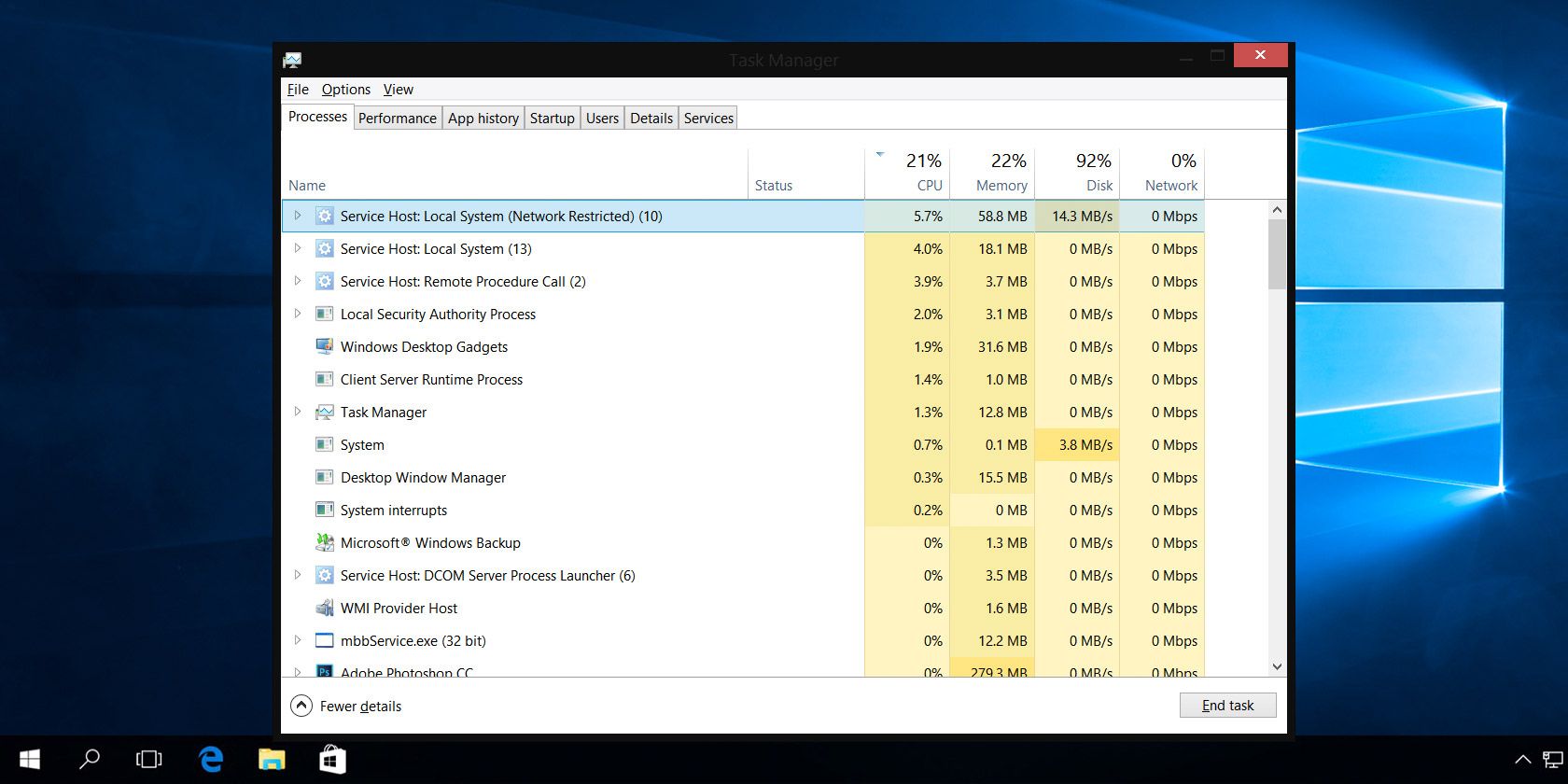
Most Windows users only pull up the Task Manager when a program is frozen and they need to kill it. While it’s perfectly fine to use the Task Manager this way, you’re also overlooking some handy features if you never look deeper.

The Task Manager has seen some serious improvements since the days of Windows 7. Let’s look at the best Task Manager tricks for Windows 10 that you should know.

1. How to Bring Up the Task Manager Quickly

Even if you know how to get to the Task Manager, you might not be aware of the different methods for doing so. While you can press Ctrl + Alt + Del to open the security screen and launch the Task Manager that way, this is a slow method.

Here’s how to pull up the Task Manager quickly: use the Ctrl + Shift + Esc shortcut. This will instantly launch the app with no additional clicks needed. This is also how you bring the Task Manager to the front when it’s minimized.

If you want to use the mouse instead, you can right-click on an empty spot of your Taskbar and choose Task Manager.

Finally, you’ll find a shortcut to the Task Manager on the Power User menu. Right-click on the Start button or hit Win + X to open this. It’s a handy Windows Task Manager shortcut because it works well whether your hands are on the mouse or keyboard.

Once you’ve opened the Task Manager, be sure to click More details to show the full interface, if it’s not already active.

2. Find Out Why Apps Are Frozen

Task Manager Analyze Wait Chain

As mentioned before, the most common reason to open the Task Manager is to kill a frozen program (though you can force-close apps without the Task Manager). But the next time you’re in that situation, you can do more analysis first. It’s possible that the program isn’t frozen, but just taking a while to process a task.

Prematurely killing an active application could result in lost data, so it makes sense to wait and see if a frozen process resolves itself. This is where the Analyze Wait Chain feature in the Task Manager comes in handy. It can tell you when a process is stuck waiting on another process, which can help you identify why an app isn’t responding.

To see which process is the real culprit, switch to the Details tab and find the process you want to look into. Right-click on it and choose Analyze wait chain to see the details. If that app is waiting on any other processes, you’ll see them in the resulting window.

3. Restart Windows Explorer

Task Manager Restart File Explorer

The Windows Explorer process is responsible for many of the UI elements of Windows, such as the Taskbar, File Explorer, Start menu, and similar. If you have an issue with these elements, your first thought may be to restart your PC. While this will solve the issue, it’s more convenient to restart Windows Explorer instead.

To do this, find Windows Explorer on the Processes tab of the Task Manager. Right-click it and choose Restart to kill the task and run it again. You’ll see your Taskbar and other elements disappear for a moment, which is normal. After they come back, everything should be back to normal.

4. Monitor Performance and Resources

Task Manager Performance Tab

While the Task Manager provides an overview of all running processes and apps, it also has several tools for effectively monitoring the performance of your system and resource allocation.

Jump to the Performance tab to see these. Once you’re there, have a look at the following tips.

Viewing Graphs

Along the left sidebar, you’ll see fields for CPU, Memory, Disk, and other resources in your computer. Click one to view a real-time graph of its usage.

If you want to keep an eye on this information without keeping the full Task Manager open, right-click anywhere in the left sidebar and choose Summary View to display only that sidebar. You can instead right-click anywhere in the right panel and select Graph Summary View to display just the current graph.

Copy Diagnostic Info

Task Manager Copy Memory Info

With any resource type selected on the left, right-click anywhere and select Copy to place a diagnostic snapshot on your clipboard. You can then paste this into Notepad to save as a baseline or share it on a forum online to get troubleshooting help.

Access Useful Details

Each resource type has some interesting details that might come in handy. Under CPU, you’ll find Up time, which shows how long it’s been since the computer restarted.

In Memory, you can check the number of Slots used to figure out if you have room to add more. The Read speed and Write speed under Disk give you an idea of how fast your storage media performs, too.

Open Resource Monitor

If you want even more details that the Task Manager doesn’t show you, click Open Resource Monitor at the bottom of the window. This utility is an advanced way to view real-time data about your system, including threads used, disk response times, exact breakdowns of RAM used by processes, and more.

5. Search Online for Suspicious Processes

Task Manager Search Online

Sometimes, you might find suspicious-looking process names in Task Manager. Most of the time they’re legitimate, but it’s always wise to double-check on ones you’ve never seen or heard of before.

Windows can help with this: just right-click on any process and select the Search online action. This will launch a Bing search in your browser with the process and app names. The results should help you determine whether it’s safe or not. For more help, see our list of important processes you should never kill.

6. Add Extra Columns for More Details

By default, the Task Manager only shows a few columns in the Processes tab. While these cover the most important details, you can actually add several more columns just by right-clicking the header area.

These include:

  • Type, which tells you if the process is an App, Background process, or Windows process.
  • Publisher, which shows the developer of the program.
  • Process name, which is often the executable file. These will look familiar if you’ve used the Task Manager in Windows 7 or earlier.

Task Manager Add Columns

While you may find some or all of them useful at times, Process Name is particularly handy. It’s easier to spot suspicious applications by their process name than their application name, and they’re often easier to research too.

Note that you can also add extra columns on the Startup tab. Use these for troubleshooting purposes (like CPU at Startup to measure impact) or just to see which startup processes are still running (with the Running Now column).

7. Toggle Between Values and Percentages

Task Manager Change Values

When browsing the Processes list, the CPU column only shows in percentages. However, you can change the other three default columns between absolute values and percentages.

Percentages are better when you need a sense of how resource usage compares to the total amount available. It’s nice to know an app is using 50MB of RAM, but seeing this is only two percent of all the RAM in your system puts it into perspective.

To toggle these, just right-click on any process, navigate to the Resource values submenu, pick the resource type you want to change, and select either Values or Percents.

8. Manage App Windows

Task Manager Switch To

Task Manager is far from the best window management tool available, but it does have a few actions that you might find useful. To access them, you must click the arrow next to an item you want to manage in order to show all its processes. This only works for items listed under the Apps section of the Processes tab, and it didn’t work for all apps in our testing.

Once you’ve expanded an item to show all processes, right-click the indented entry and you’ll see these window actions for that app:

  • Switch to: Brings the app into focus and minimizes the Task Manager.
  • Bring to front: Puts the app in focus, but doesn’t minimize the Task Manager.
  • Minimize: Minimizes the program.
  • Maximize: Maximizes the application.
  • End Task: Kills the process.

9. Open App File Locations

Task Manager Open File Location

Do you often find yourself needing to navigate to the installed location of a certain program? Maybe you want to tweak some configuration files, or need to copy its file path for some reason.

Crawling through File Explorer is one way to do that, but it requires a lot of clicking. If the program is already running, Task Manager can help you get there a lot faster.

Just right-click on any process and select Open File Location. This will take you directly to the folder that contains the process’s executable file. It’s quite convenient, especially since software can live all across your file system.

This works for Apps, Background Processes, and Windows Processes, allowing you to quickly access pretty much anything that shows up under the Processes tab.

10. Adjust Task Manager Options

Task Manager Options

The Task Manager has a few preferences you can adjust to make the experience smoother. Under Options, you can enable Always on top to keep the Task Manager above other windows unless you manually minimize it. Also on this menu, select Set default tab to choose what the Task Manager should show when you open it.

Look under the View menu to make the Update speed faster or slower. You can even pause it if you need to examine a snapshot in time.

The Task Manager Is a Valuable Resource

For the average user, the Task Manager is more than enough to provide you with the system information you need to keep everything in check. Whether you want to keep an eye on resource usage or easily track down process locations, the Task Manager has you covered.

If you’re a power user, check out some Task Manager alternatives for something with more options.

Read the full article: 10 Windows Task Manager Tricks You Probably Didn’t Know


Read Full Article

The Top 8 Sites to Find Song Lyrics Online


Have you ever had the experience of hearing a new song on the radio, only to find that the radio host never states the name of the song? While this has become less of a problem thanks to music streaming services, it’s still an issue for those of us who still like to tune into the radio every once in a while.

When you hear an unidentified song on the radio or in a store, the only way to find the song’s name is to memorize a snippet of the lyrics and look it up online. Here are some of the top lyrics websites that can help you finally find the songs you’ve been searching for.

1. Lyrics

Lyrics.com Best Lyrics Websites

If you’re looking for a trustworthy lyrics site, Lyrics is a good choice. The homepage displays popular artists and lyrics on the left sidebar, while a handy search bar resides on the top of the page, allowing you to search by lyric, song, or artist.

As you type your search, relevant results appear under the bar, making it easy to hop directly to a song or artist page. When you find the song you’re looking for, Lyrics will present you with song lyrics, a music video, as well as some brief trivia about the song and the artist.

2. MetroLyrics

MetroLyrics lyric search

Upon visiting MetroLyrics, you’ll see the latest news in the world of music, and that includes the latest songs and music videos. On the top menu bar, you can browse through the top 100 lyrics, watch a variety of videos, find out more music news in Features, and check out popular artists.

The search bar on MetroLyrics doesn’t work all that great—typing the name of a song or artist in the bar will yield irrelevant Google results. However, you can get around that by using the search bar’s built-in alphabetical search feature, which isn’t very convenient.

3. LyricsMode

LyricsMode homepage

On LyricsMode’s homepage, you’ll find a feed of the hottest lyrics and newly-added song meanings. You can even check out the most popular lyrics in different languages.

Better yet, LyricsMode’s search feature is highly accurate, and won’t flood the page with unrelated results—you can opt to type an artist, song, or album into the search bar, or simply search by letter.

LyricsMode lets its community correct lyrics, as well as ascribe meanings to certain lyrics. Clicking on a highlighted lyric will show you the community’s interpretation of that line. These meanings aren’t always the most accurate, but some are pretty insightful.

4. AZLyrics

Search for lyrics on AZLyrics

Out of all the lyric sites on this list, AZLyrics is the most simple, but that’s not necessarily a bad thing. It’s been one of the best websites for song lyrics since 2000, and it still stays up-to-date.

The homepage greets you with a search bar, as well as links to the lyrics of the hottest songs. Scroll down the page, and you’ll see a list of newly-released albums.

When you perform a search, the site automatically displays any artists, songs, or albums related to your search. There are no distracting ads on AZLyrics. Instead of plastering ads all over your screen, they’re limited to the top and bottom banners of each page.

5. Genius

Genius Best Lyrics Sites

Genius offers a modern, clean-looking site filled with lyrics. Upon opening the homepage, you’ll see music news, trending songs, and videos from Genius’ own series.

Fortunately, Genius makes searching for a specific term very easy—type in your query, and Genius will display results categorized by artist, album, song, and lyric. You can even find related articles and videos in the search results as well.

Genius really shines when it comes to its lyric pages, and that’s what makes it one of the best lyrics websites around. Although the site lets you listen to the song while you read, you’ll have to sign in to Apple Music to listen to the full song. If you have an Apple Music account, you should learn how to get started with Apple Music playlists. Genius will introduce you to plenty of awesome songs.

Also, Genius provides you with a thorough analysis of a lyric’s meaning or reference. Simply clicking a highlighted chunk of text can provide you with newfound knowledge about the song’s meaning.

6. LetsSingIt

LetsSingIt Best Lyrics Sites

LetsSingIt helps you keep up with the latest trends while finding specific song lyrics. You can discover new music and artists on the homepage, as it displays a variety of trending songs, artists, and albums. When you search for a song or artist, you can sort the results by song, album, or artist, making it easier to find what you’re looking for.

Not only do song pages feature accurate lyrics, but some have embedded videos. At the bottom of the page, you can find even more songs under the “Songs you may also like” heading.

7. Lyrics Mania

Lyrics Mania Best Lyrics Sites

Lyrics Mania is jam-packed with lyrics. The site constantly gets updates, which you can tell by the list of popular artists and newly-added lyrics on the homepage. As for the song lyrics, you’ll find that they’re neatly presented on the page, without any intrusive ads in your way.

Searching for songs is also quite easy on Lyrics Mania—whether you search by lyric or artist, you’ll find organized and relevant results. If you’re still stumped on a song, you might want to try finding a song by humming its tune instead.

8. Musixmatch

Musixmatch Best Lyrics Sites

Need a translation of a song? Musixmatch has your back. Each song on the site has at least one translation, and that includes translations to English, Spanish, Italian, French, German, Korean, and much more.

This makes it possible to understand and listen to the same music as your far-away friends in different countries. Keep in mind that the number of translations varies by song—the more popular the song, the more translations it has.

Besides the helpful translation feature, Musixmatch has a solid library of lyrics. Like most other lyrics websites, the homepage has lists of the most popular lyrics, newest songs, and any recently-added lyrics. You can also find any new and trendy songs that have just been translated into English.

Lyrics Websites Enhance Your Listening Experience

These lyrics sites come in handy when you can’t figure out the name of a song. They’re also useful for deciphering the words you hear within a song. Reading written lyrics can help you confidently sing along to songs without awkwardly mumbling any lyrics you don’t know.

Don’t forget to take advantage of your smartphone when you hear an unknown song. These music recognition apps can help you find songs by their tune.

Read the full article: The Top 8 Sites to Find Song Lyrics Online


Read Full Article

The 10 Best Word Processing Apps for Your iPad


textilus-ipad

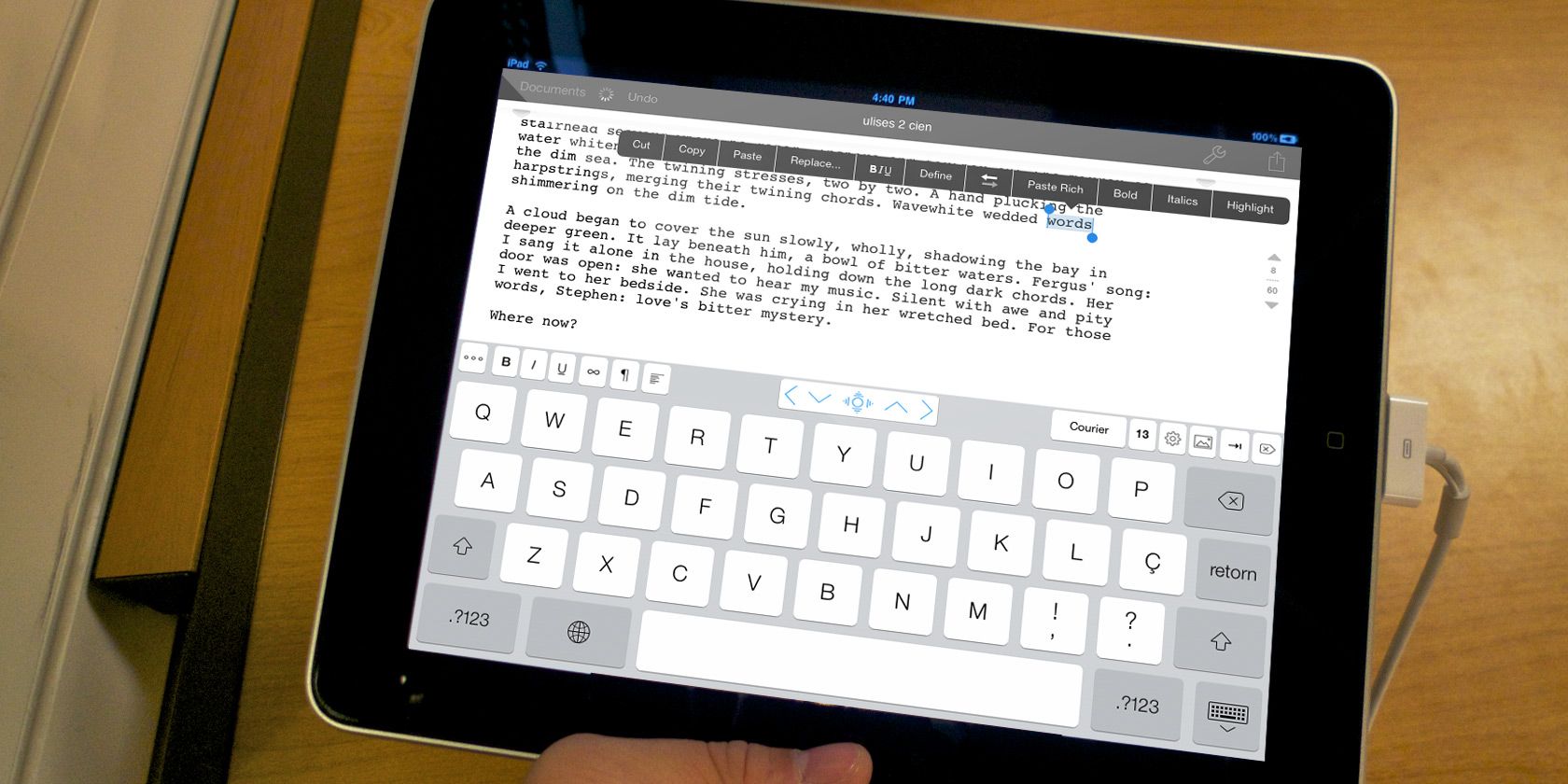
If you plan to use your iPad to replace a computer, you will want to use the best word processing app on it. There are plenty of options available, including both free and premium apps. We’ve compared all the worthy choices below.

You can use any of these iPad word processors to edit documents, compile notes, or even crack out a novel. Many of them offer wide file compatibility so you can keep working with other people no matter what device or app they use.

1. Pages

Pages app on iPhone, iPad, and Mac

Available for free from the App Store, Pages is Apple’s very own word processor for iPhone, Mac, and iPad. In case you didn’t know, you can also download Numbers and Keynote for free and use the entire Apple iWork suite.

With full iCloud support, Pages syncs documents across all your Apple devices. You can even sign in to iCloud.com to work on documents through a web browser.

Pages makes it easy to create beautiful documents. It gives you full control over the layout of text boxes, images, and shapes. You can even use free templates to create digital books, newsletters, reports, and more.

The range of word processing tools you can use from your iPad is powerful: footnotes, lists, word count, charts, images, and other formatting tools. It also supports collaboration. So you can work with other people on the same document, tracking whatever changes they make.

Pages might be the best free word processor to use on your iPad, but it is let down by a lack of third-party cloud storage support for collaborative work. You can only collaborate via iCloud from your iPad, but not on Dropbox, Google Drive or other cloud storage services.

Download: Pages for iPadOS (Free)

2. Microsoft Word

Microsoft Word app on iPad with template document

Microsoft Word is the default word processor for many people, and there’s nothing to stop you using it with your iPad. It’s free to use on any iPad with a 10.1-inch screen or smaller. Unfortunately, for larger iPads you need an Office 365 subscription.

As you’d expect, Microsoft Word for the iPad is a mobile-friendly version of the desktop app. It supports images, tables, charts, footnotes, equations, and more.

You can access documents through OneDrive, iCloud Drive, Google Drive, Dropbox, and other cloud storage services as well.

You can also collaborate with others, and track the changes they make, just like Pages lets you do. A big difference is that more of your colleagues are likely to use Microsoft Word than Pages. So you have a larger pool of people to collaborate with.

If you have a smaller iPad or you already have an Office 365 subscription, Microsoft Word is one of the best word processing apps to use. Since it is the go-to app for so many people, Microsoft Word is the best option for sharing work with others.

Download: Microsoft Word for iPadOS (Free, premium subscription available)

3. Google Docs

Google Docs word processor template on iPad

Google Docs makes it easy to write, edit, share, and collaborate on important documents. Use it wherever you are, on any device. Like other Google products, it’s completely free—if you don’t mind sharing your data.

Download Google Docs on your iPad, iPhone, Mac, PC, or Android device so you can use this word processor wherever you are.

Work with in-line images and a range of formatting options to create your resume, report, letter, or other important documents. You can even take advantage of Google’s range of stylish templates to speed up the process.

Collaboration is at the heart of Google Docs. As your collaborators make changes to a shared document, their names appear onscreen. Choose to make documents public to everyone or private to a select group, and even choose editing privileges for your team members.

Google Docs is compatible with DOC and DOCX files so you can open Word files or export Word files for other people to use. This makes Google Docs one of the better free word processors for your iPad when not everyone uses Word.

Download: Google Docs for iPadOS (Free)

4. WPS Office

WPS Office word processor on iPad showing format and color options

WPS Office includes a suite of free business-oriented apps for iPhone or iPad. According to the app description, millions of users voted WPS Office as the “best office app for mobile” and the “easiest word processor for iPhone.”

The package lets you create documents, presentations, spreadsheets, memos, and PDFs. You can share documents in a variety of formats, including DOC and DOCX, so other people can open your reports in whatever app they choose to use.

WPS Office values simplicity across everything from the design to the user interface. This makes it a snappy word processor that’s a breeze to start using on your iPad.

A premium subscription is available for $3.99 per month. This removes ads and unlocks the ability to convert PDFs, add signatures to images, merge files, and more.

Download: WPS Office for iPadOS (Free, premium subscription available)

5. Notes Writer

Notes Writer on iPad showing formatting window

As you may have guessed from the name, Notes Writer is primarily aimed at taking notes, rather than producing polished documents. It’s perfect for capturing your thoughts during a lecture, meeting, or brainstorming session. You can type out your ideas, or use an Apple Pencil to write them by hand instead.

Notes Writer gives you the ability to draw pictures, annotate PDFs, fill in forms, sign documents, insert clipart, and more. Once you complete your notes, you can share them across a range of cloud storage services.

There are plenty of other bells and whistles as well. These include distraction-free mode, live counters for tracking document length, find and replace, and dark mode.

You can download and use Notes Writer for free, but a Pro word processing app is also available for the iPad, which removes adverts, gives you an unlimited number of notebooks, and adds password protection.

Despite designed for notes, this app still lets you format text and export a range of files. However, there’s no support for DOC or DOCX files. But at least you can sync to a wide range of cloud storage services.

Download: Notes Writer for iPadOS (Free)
Download: Notes Writer Pro for iPadOS ($8.99)

6. Bear

Bear Welcome notes on iPad

Much like Notes Writer, Bear is designed around keeping organized notes. But its simplistic design and easy organization make it one of the best word processors to use on your iPad as well.

Bear is ideal for everything from short notes to long essays. It offers a variety of formatting tools, in-line image support, links, checklists, and more. Keep your writing organized using the folders in the sidebar, which you can customize with different icons for quick navigation.

Best of all, Bear is completely free to use on your iPhone, iPad, and Mac. However, to sync your notes across other devices you need to sign up to Bear Pro for $1.49 per month. This premium subscription also unlocks beautiful themes and powerful exporting options.

If you’re looking for the best looking word processor to use for notetaking on your iPad, Bear is probably it.

Download: Bear for iPadOS (Free, premium subscription available)

7. Werdsmith

Werdsmith app on iPad showing clean interface

To fit its description as a “portable writing studio,” Werdsmith is a word processing app for your iPad, iPhone, and even your Apple Watch. The app is almost free, but there’s a limit on how many documents you can work on at the same time. To bypass this restriction, you need to pay $4.99 per month.

Aimed at fiction writers, Werdsmith comes with templates for writing stories, blogs, poems, and screenplays. It’s a great place to keep notes, organize ideas, or work towards your final draft of a big project.

Werdsmith lacks the rich editing features of other apps on this list, such as image or table support. Instead, it opts for motivation-based features like writing rituals and word goals to help keep you working on your stories every day.

If you want a customizable word processor that focuses on content above all else, give Werdsmith a shot. You can even use the dedicated cloud service to back up your work and protect everything with Face or Touch ID.

Download: Werdsmith for iPadOS (Free, premium subscription available)

8. iA Writer

Apple featured iA Writer as one of the best apps in the App Store four years running, and it’s easy to see why. Behind the modest entry fee is a powerful word processor with an elegant environment in which to get serious work done.

This app uses markdown language to format text, which is worth learning for any serious writer. It also places your document library a swipe away to the right, with a document preview tucked away to the left.

Rearrange the keyboard to personalize your writing experience, then use Focus Mode to keep your concentration on the words. When you’re finished, back everything up to Dropbox or iCloud for safekeeping. You can even publish straight to WordPress.

iA Writer is a word processor for iPad that focuses on the words above all else. But it still offers a shedload of features with full-on markdown support.

Download: iA Writer for iPadOS ($8.99)

9. Ulysses

Ulysses banner from website showing iPhone and iPad app

Ulysses is another mainstay of the word processing world, and can easily slot into your workflow with apps for iPad, Mac, and iPhone. This app is for students, novelists, bloggers, and every other writing fanatic. It’s not cheap, but it’s rammed with features.

At the heart of Ulysses is a simple, yet powerful, markup-based text editor with a wide toolset. Enable distraction-free mode and the user interface melts away, allowing you to focus on just the words.

Store all your writing within the library, which syncs via iCloud to your other Apple devices.

Drop into typewriter mode to focus on one line at a time. Add attachments for research notes, images, keywords, and PDFs. You can export to PDF, WEB, EPUB, DOC, RTF, and plain text files. You can even publish your work straight to WordPress and Medium.

Try out Ulysses for free with a 14-day free trial or get a premium subscription for $4.99 per month. It might be one of the most expensive iPad word processing apps available, but it’s also one of the best.

Download: Ulysses for iPadOS (Premium subscription required, free trial available)

10. Scrivener

Scrivener is a writing tool for larger writing projects. If you’re working on a screenplay, film, or stage production, then Scrivener is one of the best iPad word processors for the job.

Scrivener puts an emphasis on organization, letting you group documents together, store images and PDFs as research material, rearrange your content with ease and search across the entire project. All of this makes it a must-have app for those undertaking larger writing projects.

A huge range of features is on offer with this premium app. Export a variety of formats for Word, PDF, Final Draft, or plain text apps. Convert your work to markdown. Zip your project into a compressed folder.

Take snapshots to save previous versions of your draft. And write anywhere with iOS, macOS, and Windows apps.

Scrivener isn’t cheap, but it’s the best iPad word processor for any budding novelist.

Download: Scrivener for iPadOS ($19.99)

Pick the Right Writing App for the Job

These are all the best word processor apps to use on your iPad. They all offer something different, which makes it important to pick the right tool for you. Whether you’re looking for a powerful scratchpad like iA Writer or a capable editor like Ulysses, you should find what you need above.

Of course, you won’t always have your iPad on you when you need to work on new documents. If you want to prepare yourself for that situation, look into the best online word processors to start using as well.

Read the full article: The 10 Best Word Processing Apps for Your iPad


Read Full Article