24 March 2020

The Hardest Online Games to Play in Your Browser


Do you like playing a hard game every now and again? There’s a thrill in tackling a challenging game and beating it.

So, to help you get your fix, we’ve rounded up the hardest online games that you can play in your web browser.

These games all run in native tools like WebGL, meaning you don’t need to install any outdated plugins like Adobe Flash.

1. Exit84

Exit84 is a platformer with a difference. Instead of using directional keys to move your character, you instead have to type specific sequences that appear on the screen. Once you type it, your character transports there.

The game quickly ramps up in difficulty, with increasing number of enemies firing all sorts of obstacles at you. Get stretching those fingers.

2. Wave Run

Wave Run game

Wave Run is a fast-paced platformer that is all about completing the 33 trials in the fastest time possible.

The controls take some time to get used to, but that’s part of the challenge. Soon you’ll be flying over spike pits and bouncing off the walls. However, you’ll need good reaction times to avoid repeated death.

3. Singled Out

Singled Out game

Galactic super criminals are at large in Singled Out and it’s up to you to take them down amongst a crowd of innocents.

You get given three identifiable features and have a short space of time to locate and shoot the criminal. The game soon gets hard as the number of faces increase and all start looking similar. Shoot the wrong person and it’s game over.

4. Color Filler

Color Filler game

Color Filler is a grid-based puzzle game where you need to push all of the different colored boxes into their respective slots. One wrong move and you might need to start the level all over.

Color Filler starts off simple, but the difficulty quickly increases. You’ll need to fully engage your logic to get to the end of this one.

5. Pix Hop

Pix Hop game

Pix Hop may look simple, but it’s anything but. You control a bouncy white square in this endless platformer. The more you move and the more coins you collect, the higher your score.

Of course, there’s lots of enemies flying at you, plus the floor keeps dropping away randomly. Keep on bouncing!

6. Pogo Postman

Pogo Postman game

Delivering the post is tough in the wind and rain, but how about on a pogo stick? Pogo Postman puts you in that exact situation and you must contend with tricky terrain as you bounce to deliver letters.

In a nice touch, you can select a user-submitted wish to deliver before you begin, and you can submit your own too.

7. Zig Zag

Zig Zag game

Zig Zag would be calming if it wasn’t so difficult. It’s unlikely that you’re going to be able to last more than a minute or two in this game.

You control a colored line within a zigzag shape. The screen constantly rotates and you need to use the arrow keys to push the line in the right direction. However, with the orientation constantly changing, that’s no easy feat.

8. Rocketpult

Rocketpult game

Normally, rockets aren’t fired from catapults, but Rocketpult isn’t worried about logic. You must spin the catapult and then launch your rocket, using the boosters to control its trajectory.

You can enable slow motion to get more refined control, but be careful not to land in the water or run out of fuel. Bonus points are awarded for skill and style.

9. Dodge

Dodge game

Dodge is a reflex game where you control a circle with your cursor. Enemies are constantly flying at you that you must avoid, and an additional challenge comes from the constantly morphing landscape.

If you want to make Dodge even harder, hop into the settings and rack up the difficulty. You can also change the color palette; each style has its own leaderboard to keep you busy for a long time.

10. Insane

Insane game

In Insane, you control a rolling square that you must guide towards the end of the course. You can slow the square down, but be careful to avoid the traps or fall off the edge.

Insane spans 50 levels and increases in difficulty as you progress. It also has a witty sense of humor, ensuring you’ll be laughing as your square rolls off the edge for the 100th time.

11. You Have to Win the Game

You Have to Win the Game is both the name and the aim of this difficult browser platformer. This is an exploration platformer designed to look like it’s being played on a 1980s computer monitor.

The game is hard enough by default, but you can ramp it up by choosing the Extra Spicy campaign and enabling YOLO Mode which disables checkpoints and enables no respawning.

12. Streamline

Streamline game

The aim of Streamline is to grow the line so it reaches the purple square. You can control the direction, but not the distance. As such, you have to bump into other blocks and power-ups so that you don’t get trapped.

The game starts off easy, but soon gets devilishly difficult. If you manage to finish all the levels, there’s an infinite mode with procedurally generated puzzles.

13. Divine Trials

Hop into your chariot and battle some formidable opponents of the Greek civilization in Divine Trials. This is a bullet hell game, where your screen is constantly littered with bullets that you need to dodge.

You only have three lives, so you’ll need to nimbly control your chariot. Amusingly, after each boss you need to choose which gift you want to give to the gods in exchange for power.

14. He Almost Killed Me

He Almost Killed Me game

He Almost Killed me is a game that represents the difficulties creative people face when making something. Suitably, it’s also very, very hard.

It’s a 2D platformer where you control a bouncy character jumping through a stylish world. All you need to do is move and jump. Sounds easy, right? Just avoid all those spikes.

More Online Browser Games to Play

These hard online browser games are sure to keep you busy—and perhaps frustrated—for a long time. So we wish you good luck and Godspeed.

If you want to play some other browser games that are more laid back, check out the best free browser games perfect for killing time.

Read the full article: The Hardest Online Games to Play in Your Browser


Read Full Article

How to Crop Images Using Shapes in Photoshop


Have you wondered how a photo is cut up into a specific shape? Or how a shape is filled with a photo instead of a color in Adobe Photoshop? This common effect is easy to achieve with a Clipping Mask.

The final image looks like a cutout, but you don’t have to crop the picture irreversibly. Instead, you just have to manipulate the layers to get the effect.

How to Crop to a Shape With a Clipping Mask

One of Photoshop’s handiest tools is the Clipping Mask. Buried in the complicated program’s layers, you can use this tool to create a frame for an image, revealing only the part of the image you want to display.

Here’s an example of the final image:

An example of a clipping mask in Photoshop with Shapes

This can be a great way to focus on an image with a shape in Photoshop without cropping the actual image. Follow these simple steps with a new transparent image or one with a background color.

1. Select the shape of your choice. Go to Photoshop’s Shapes tool located in the Tools bar on the left. You can choose from a rectangle, ellipse, rounded rectangle, or polygon, or create a custom shape.

For the purposes of this tutorial, we’ll be using an ellipse. After selecting the shape, you can draw the shape one of two ways. You can either drag the cursor across the canvas to create the ellipse.

Adobe Photoshop Shapes tool

2. Holding down the Shift key will allow you to create a perfect circle when using the ellipse, or a perfect square when using the rectangle. Alternatively, you could just click anywhere on the canvas and type in the exact dimensions of the shape you want to create.

3. For the purpose of this tutorial, let’s create a black circle so it’s easy to see on the canvas. The color is only important for you to see the shape as whatever color you choose will be completely covered by the image.

Drawing the circle shape in Adobe Photoshop

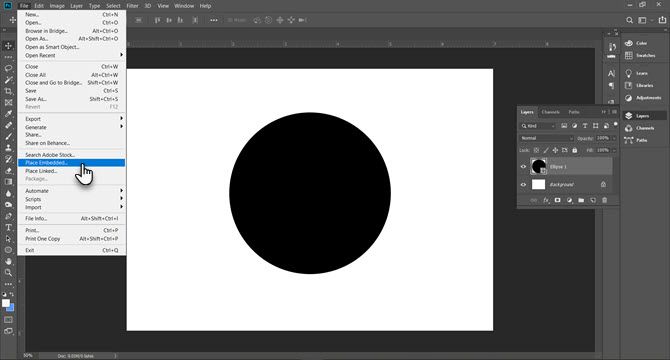
4. Next, insert the image you want to be framed by that shape. To do so go to File > Place Embedded, and navigate to where the image file is saved on your computer.

Doing it this way, rather than copying and pasting, allows you to manipulate the image in Photoshop without making irreversible changes to the original file.

Selecting Place Embedded in the Photoshop menu

5. Browse to the image on your computer and upload it. Hit Enter and it will create a new layer on your canvas.

You’ll notice that Photoshop will restrict the size of the image to the boundaries of your canvas even if it’s a larger image. You can adjust the size of the image in the active layer with Free Transform. Go to Edit > Free Transform or press the shortcut Ctrl+T.

6. Then use the corner handles to adjust the size of the image. Press Shift and drag the handles to preserve the aspect ratio of the image.

Using Free Transform in Photoshop to adjust the size of an image

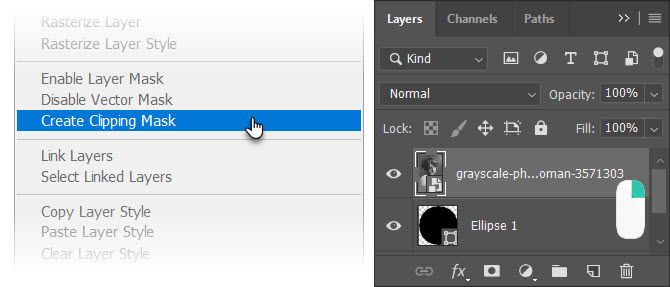
7. Go to the Layers panel. Right-click on the image layer of the vintage photo and click Create clipping mask.

Right click and click on Create Clipping Mask in Photoshop

8. You will see the borders of the image restricted to the circle shape. Now, move your shape around, make it bigger or smaller with the Free Transform tool, and show only the precise part of the image you want to show.

You can use Clipping Masks and a similar method to fill any text with an image too.

How to Crop Images With Custom Shapes

The Custom Shapes palette in Photoshop gives you more options to experiment and place a photo within any shape. For instance, you can use a three-dimensional shape like a box and make a photo “wrap” around it.

Read our other article to learn more about how to use the Custom Shape tool in Photoshop.

Read the full article: How to Crop Images Using Shapes in Photoshop


Read Full Article

The 5 Best Alternatives to Google Authenticator


google-authenticator-alternatives

Google Authenticator is a useful app for keeping track of your two-factor authentication (2FA) keys, but it’s by no means the only one. If you feel it lacks a few key features, or you want something more open-source, there are other authenticators available to suit your needs.

Let’s take a look at some Google Authenticator alternatives, and why you might want one to begin with.

Why Replace Google Authenticator?

Google has tried to dip a toe into niches such as social media and gaming, with the latter getting a less-than-stellar score in our Google Stadia review. Google Authenticator, on the other hand, has over 10 million downloads to date, making it one of the most popular 2FA authenticators for Android.

While it is popular, it’s not perfect. Google Authenticator doesn’t ask you to verify your identity when you open the app. It also doesn’t hide the codes away when you open the app: every code is visible from the get-go. This makes it dangerous if someone gets a hold of your unlocked phone, as they can mess with your codes without issue.

Google Authenticator also doesn’t have any backup or phone transfer features. You can tell this is a problem by looking through some of the negative reviews for the app.

Some people have lost their phones and were locked out of their accounts. Others want to transfer the authenticator over to a new phone, only to find that Google Authenticator doesn’t support this.

As you can see, there’s plenty of reason to look for a Google Authenticator alternative. So, let’s break down five of the best, and how they improve upon Google’s formula.

1. Authy

Authy has positioned itself as a top rival to Google Authenticator. Right off the bat, it offers to back up all of your saved accounts, in case you have to wipe the phone or change phones. It does this by encrypting the information and storing it in the cloud.

Authy also distinguishes itself by offering a desktop app, as well as the smartphone version. This means you don’t need to be continuously tied to your phone for codes; instead, you can get your codes directly from your desktop. This is even more useful if you don’t have a smartphone or tablet.

It offers passcode protection, so no-one can just casually access your codes. As such, if someone gets hold of your unlocked phone, they still have the app’s passcode protection to break into before they can see your 2FA codes.

Blacking out any screenshots taken means Authy can stop malicious agents from snapping images of your codes. This may seem like overkill, but as we covered in our ways to protect yourself against keyloggers, malware can take snapshots of your screen to read your data.

Authy describes its aim as finding a solution to “a complex problem—killing passwords.” Whether that will happen or not, nobody knows. As for the case of Authy vs. Google Authenticator, however, Authy is a clear winner.

Download: Authy for Android | iOS (Free)

2. HENNGE OTP

The HENNGE OTP website

HENNGE OTP also offers its users passcode protection to prevent casual snooping The app is compatible with all of the popular services—Google, Facebook, Amazon Web Services, Dropbox, Evernote, and WordPress, to name a few.

The only limitation to this app though is that it is only available for iOS, so Android users are out of luck. If you are an iOS user and want something simple without many bells and whistles, it’s worth trying this app for yourself.

Download: HENNGE OTP for iOS (Free)

3. Sound Login Authenticator

If you want to try something a little more unique, why not log in through sound? No more typing in those pesky codes; just have your phone make a noise, and you’re all signed in.

As is evident by the name of the app, this app relies on sound to generate the one-time codes. It takes a bit of initial setup; you need the app on your phone and the browser extension (Chrome, Firefox, or Opera). Your PC should also have a microphone (we’re dealing with audio, remember?).

When you want to log in, you point your phone to the PC microphone and tap the account on the smartphone screen that you want to access. The app will give off a short ringtone, which transmits the temporary code to the browser extension. This pre-fills the code into the website you’re trying to log into.

As such, this removes the need to quickly type in a 2FA code under a time limit. If you’re a slow typist and need something more comfortable than entering a six-digit code, you may find reprieve with Sound Login.

Download: Sound Login Authenticator for Android | iOS (Free)

4. FreeOTP

The FreeOTP website

If you’re a privacy advocate, you won’t want to touch any 2FA token generator that isn’t open-source. Fortunately, there are apps out there that respect your privacy and use an open-source base, so you can feel confident that companies aren’t harvesting your data.

FreeOTP is developed by Red Hat, an open-source developer that appeared in 1993. You can quickly add a generator with the QR code scanner, or enter your details manually. The app is very lightweight and straightforward, making FreeOTP a fantastic choice if you want a token generator you can trust and nothing more.

Download: FreeOTP for Android | iOS (Free)

5. andOTP

The andOTP logo

If you like the idea of an open-source token generator, but you don’t like FreeOTP’s lack of features, try andOTP instead. It keeps the trustworthy open-source base but adds a heap of useful features on top.

For instance, andOTP can backup your code generators on a server, with different levels of encryption available. You can change the theme if you’re a fan of dark mode. You can lock andOTP behind a password or a PIN code, meaning someone who picks up your phone doesn’t have access to all your codes without being challenged.

Finally, the app has the aptly-named “panic trigger.” If you think your phone is compromised, you can send the app a panic trigger. You can choose what the app does with this trigger; it can either wipe every account, reset the app to default settings, or both.

Unfortunately, at the time of writing, andOTP is only available for Android. As such, iOS users who want an open-source solution can stick with FreeOTP for the time being.

Dowload: andOTP for Android (Free)

Choosing Powerful Alternatives to Google

Google Authenticator has a huge number of downloads, but it’s by no means the best. If you’re looking for password-secured app access, backups, and open-source code, you’ll have better luck with the best Google Authenticator alternatives available.

If you’re ready to cut the cord completely, be sure to check out the alternatives to Google Search, News, Docs, and more.

Read the full article: The 5 Best Alternatives to Google Authenticator


Read Full Article
Oura partners with UCSF to determine if its smart ring can help detect COVID-19 early


Startups continue to find new ways to contribute to ongoing efforts to fight the global spread of COVID-19 during the current global coronavirus pandemic, and personal health hardware-maker Oura is no exception. The smart ring startup is working with the University of California, San Francisco (UCSF) on a new study to see if its device can help detect early physiological sings that might indicate the onset of COVID-19.

This study will include two parts: Around 2,000 frontline healthcare professionals will get Our rings to wear during the study. The rings track a users’s body temperature continuously, as well as their sleep patterns, heart rate and activity levels. Fever is a common and early symptom that could indicate COVID-19, and a continuously updated body temperature reading could detect fever very early. That’s not enough to confirm a case of COVID-19, of course, but the purpose of the study is to determine whether the range of readings Oura’s ring tracks might, taken together and with other signals, be useful in some kind of early detection effort.

There’s good reason why researches believe that Oura could be used in early detection: An Oura user in Finland alerted him to the fact that he was ill before he was displaying any overt symptoms of the virus, prompting him to get tested (relatively easy in that country). Test results confirmed that while asymptomatic, he had indeed contracted COVID-19. As a result, UCSF researcher Dr. Ashley Mason hypothesizes that the Oura ring could anticipate COVID-19 onset by as many as two to three days before the onset of more obvious symptoms, like coughing.

Being able to detect the presence of the virus in an individual early is key to global containment efforts, but even more important when it comes to frontline healthcare workers. The earlier a frontline responder is diagnosed, the less chance that they expose their colleagues or others they’re working around in close quarters.

In addition to the Oura rings being provided to study participants, the plan is to expand it to include Oura’s general user population, meaning its over 150,000 global users can opt in to participate and add to the overall poor of available information with their ring’s readings and daily symptom surveys. For existing Oura users, it’s a relatively low-lift way to contribute to the global effort to combat the pandemic – without even leaving the house.


Read Full Article
The best video chat apps to turn social distancing into distant socializing


The vicissitudes of social distancing have taken many people by surprise, making video calls a new necessity for distant socializing. But which of the two dozen apps out there should you and your (perhaps not as tech-savvy) friends and family use? Here are our recommendations, whether it’s for a coffee meeting, a family get-together, or a late night gaming hangout.

This list is for individuals looking for a free solution to easily connect with others, not for small businesses or enterprises. The focus here is on ease of use and features that make it attractive to ordinary people. Every app is free and cross-platform, meaning iOS and Android at least, with many supporting Macs and Windows machines as well.

For big groups

Skype (iOS, Android, Mac, Windows, Linux, web)

Pros: Many simultaneous callers

Cons: Tries too hard to do other things

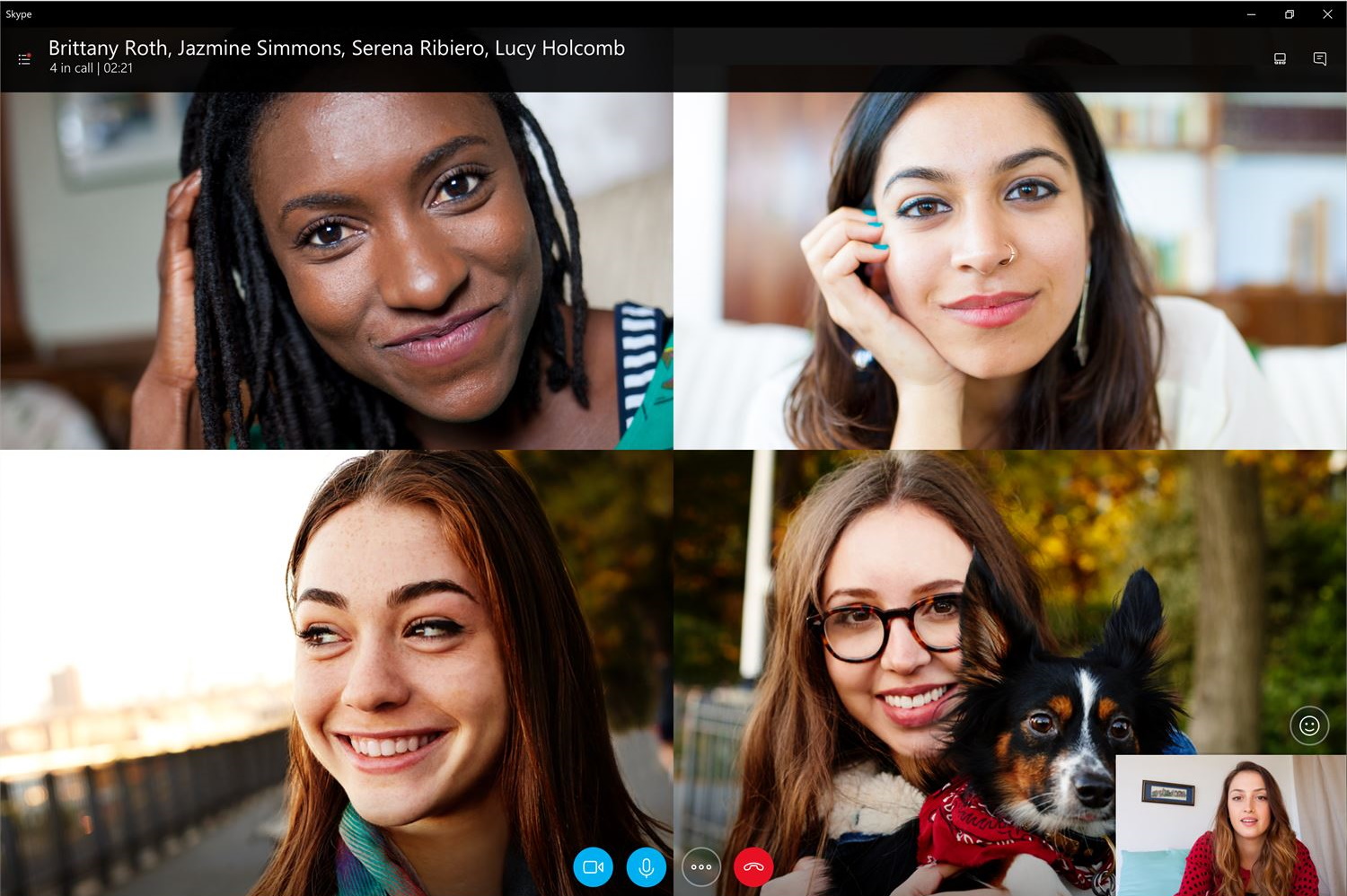
Skype has been around for a long time, and while its desktop app is pretty weak, the mobile version is solid and it supports big groups with no real time limit (4 hours per call, 100 hours per month), for free. As long as you focus on just the video calls, it’s great, but Skype’s emoji reactions, status updates, and other cruft are best avoided.


Zoom (iOS, Android, Mac, Windows)

Pros: Many simultaneous callers, strong admin controls

Cons: Sketchy background data policies, 40 minute limit

Zoom is one of the most popular business video conference apps out there due to its reliability, solid web integration, and other features. It’s not really made for personal calls — there are way more bells and whistles than you need — but its free plan works just fine for them. Unfortunately, there’s a 40 minute limit for group calls, which you’ll hit faster than you think, and everyone will have to hang up and start again. Zoom has also been criticized for its considerable behind-the-scenes data collection. If you really want to just chill with your friends, there are better options.

For friends and family

FB Messenger (iOS, Android, Mac, Windows)

Pros: Easy to use, many people already on it, some handy group features

Cons: Facebook account required

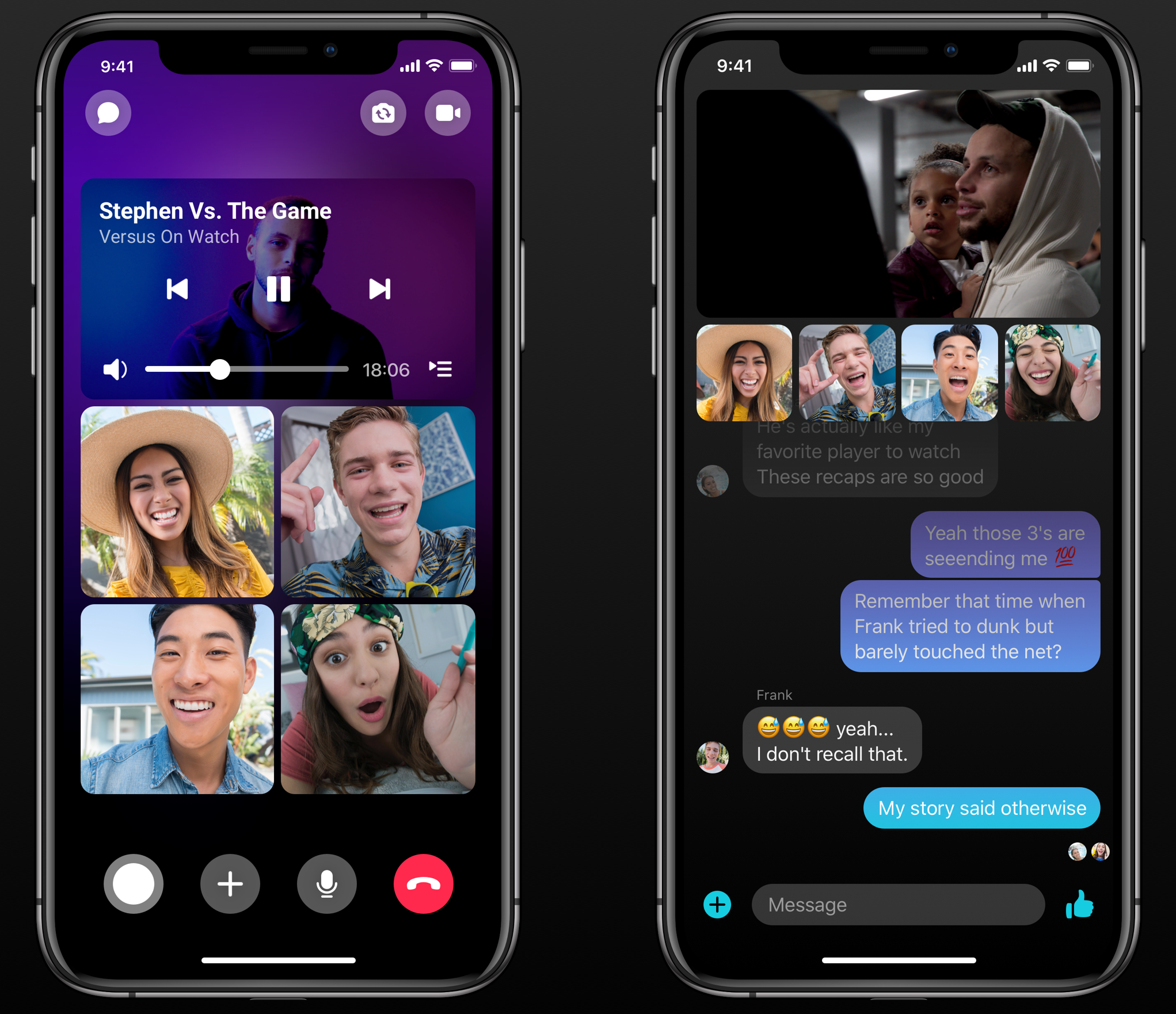
Messenger is a popular app for good reason — it works well for pretty much every kind of digital communication you might want to do with your friends. It supports up to 8 people in free video calls with no duration limit, and when you are doing a two-person call it switches to a peer-to-peer structure, skipping servers and potentially avoiding congestion. Of course, it’s also a Facebook product, meaning you’ll need an account there — not something everyone is into. But Messenger use is considerably better protected from Facebook snooping than posts and images on the main site.


WhatsApp Messenger (iOS, Android, Mac, Windows, web)

Pros: Secure, popular

Cons: Only 4 people per video call

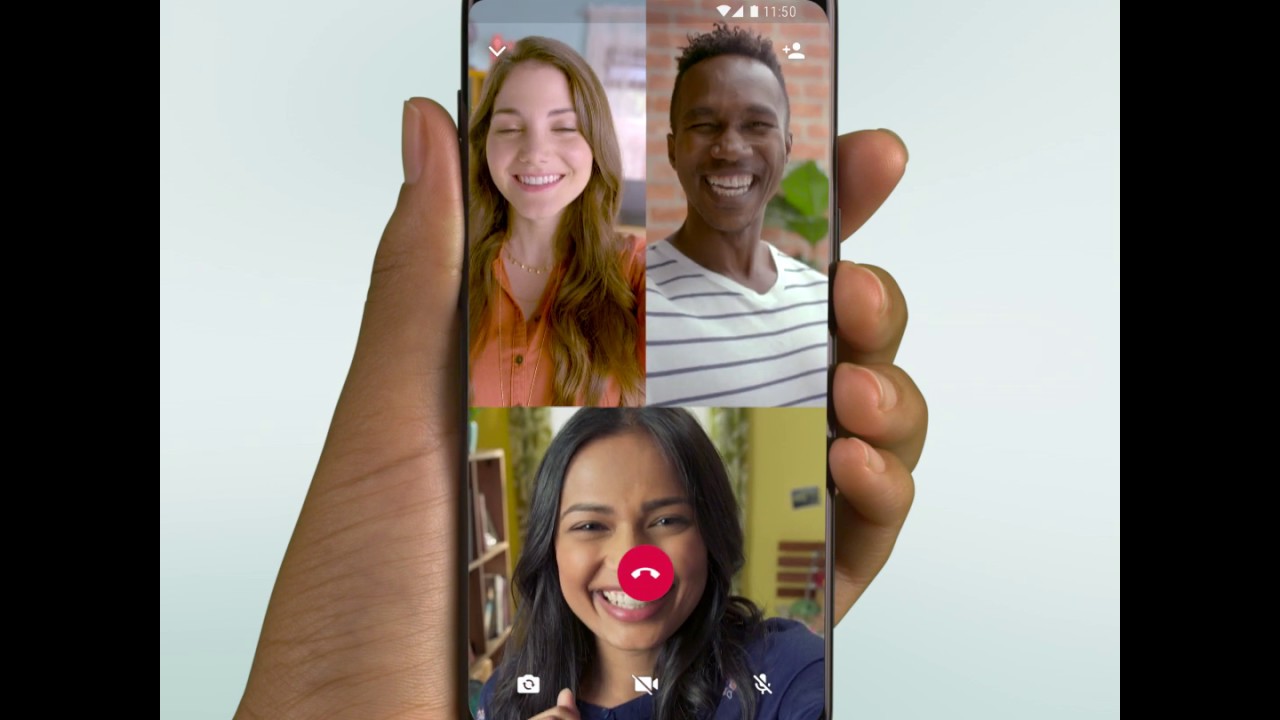
Think of WhatsApp as FB Messenger’s nerdier, less good-looking sibling. With a focus on privacy, WhatsApp is popular around the world despite being super ugly, and while video calls aren’t its main feature, they are possible if you don’t mind a 4-person limit. To activate it, start a group chat and then hit the call button the top right and select the participants, then hit the camera.


Google Duo or Hangouts (iOS, Android, web)

Pros: Simple interface, uses existing Google account

Cons: Confusing platform issues, Duo may not be long for this world

Duo is one of Google’s later messaging products, started as a complement to Allo and meant to be sort of the consumer version of Hangouts, which is being split into Chat and Meet, but still exists on its own. Confused? So is Google. But the apps work pretty well for now, plugging into your existing Google contacts and accounts and letting you do straightforward, unlimited video calls. If your friends don’t want to sign up for a new account anywhere, this is a good option — just don’t get attached, as unpopular Google products don’t tend to live for long.


Marco Polo (iOS, Android)

Pros: Video messaging is a fun alternative to live chats

Cons: No live chat option

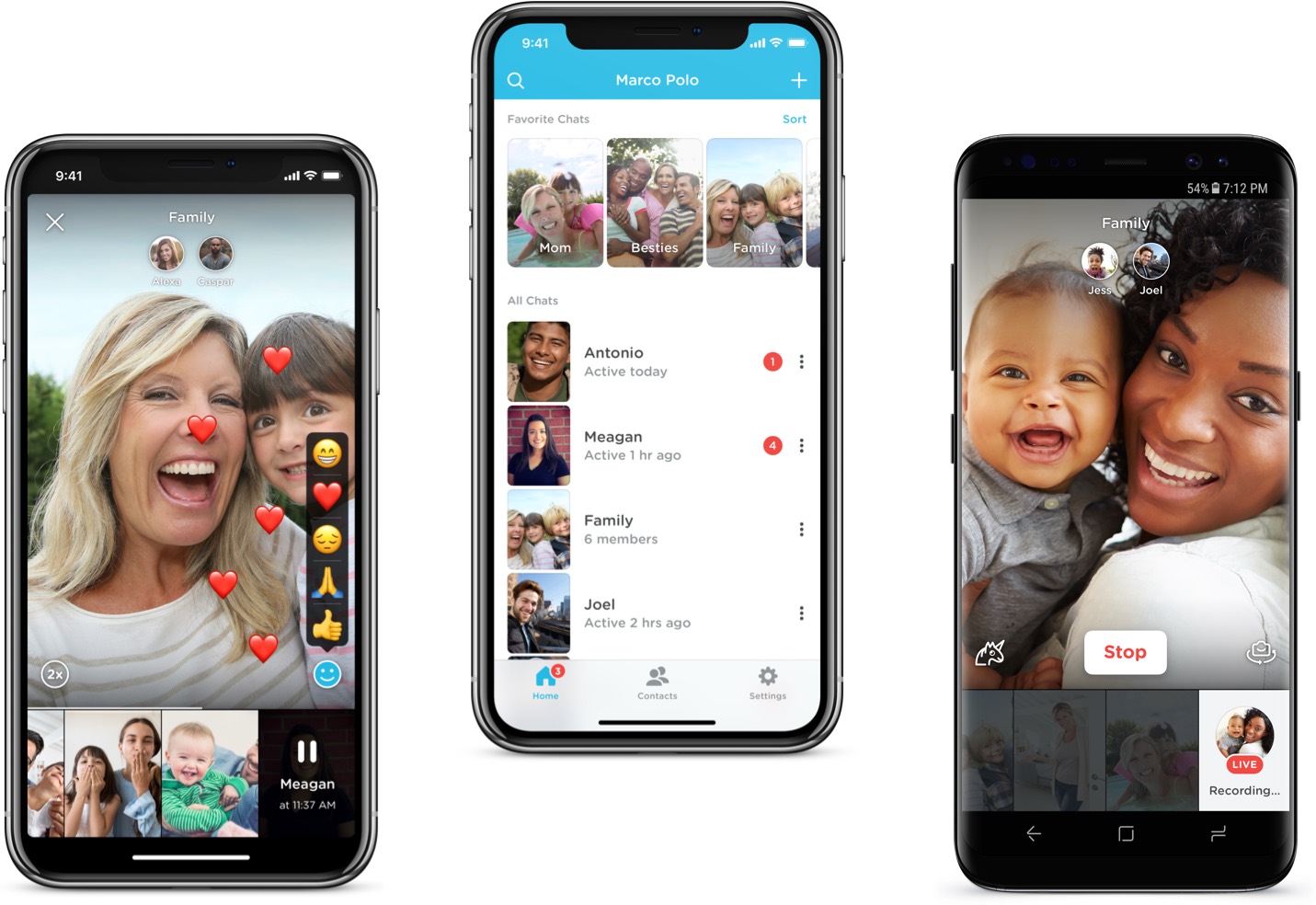
This isn’t a video chat app per se, but the fact is not everyone really wants to do a full-on live face-to-face video all the time. Marco Polo is like a streamlined Snapchat, sending short videos to friends or groups with the option to add doodles, filters and so on. If you and your friends are finding it hard to set aside half an hour to talk live, this can be a good alternative.


Honorable mentions: FaceTime, Instagram

FaceTime is great, but it’s not cross-platform, considerably limiting its usefulness. But if your friends do happen to have Apple products, it’s a great, simple option. Instagram has video calling built into direct messages, which is nice for quick calls with people you aren’t sure you want to bring into a smaller circle of connectivity.

For having fun together

Houseparty (iOS, Android, web)

Pros: Simple drop-in, drop-out group chat, built-in games

Cons: Basically a trojan horse for Heads Up

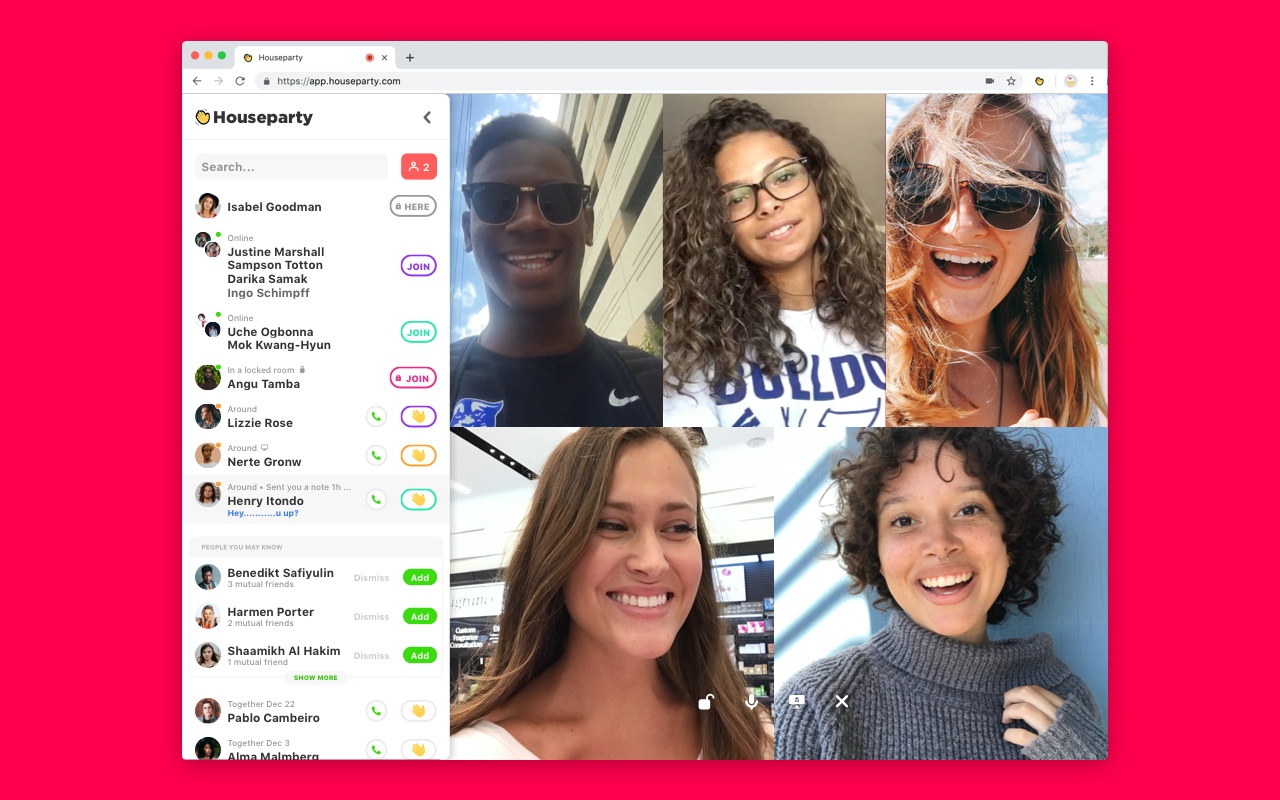
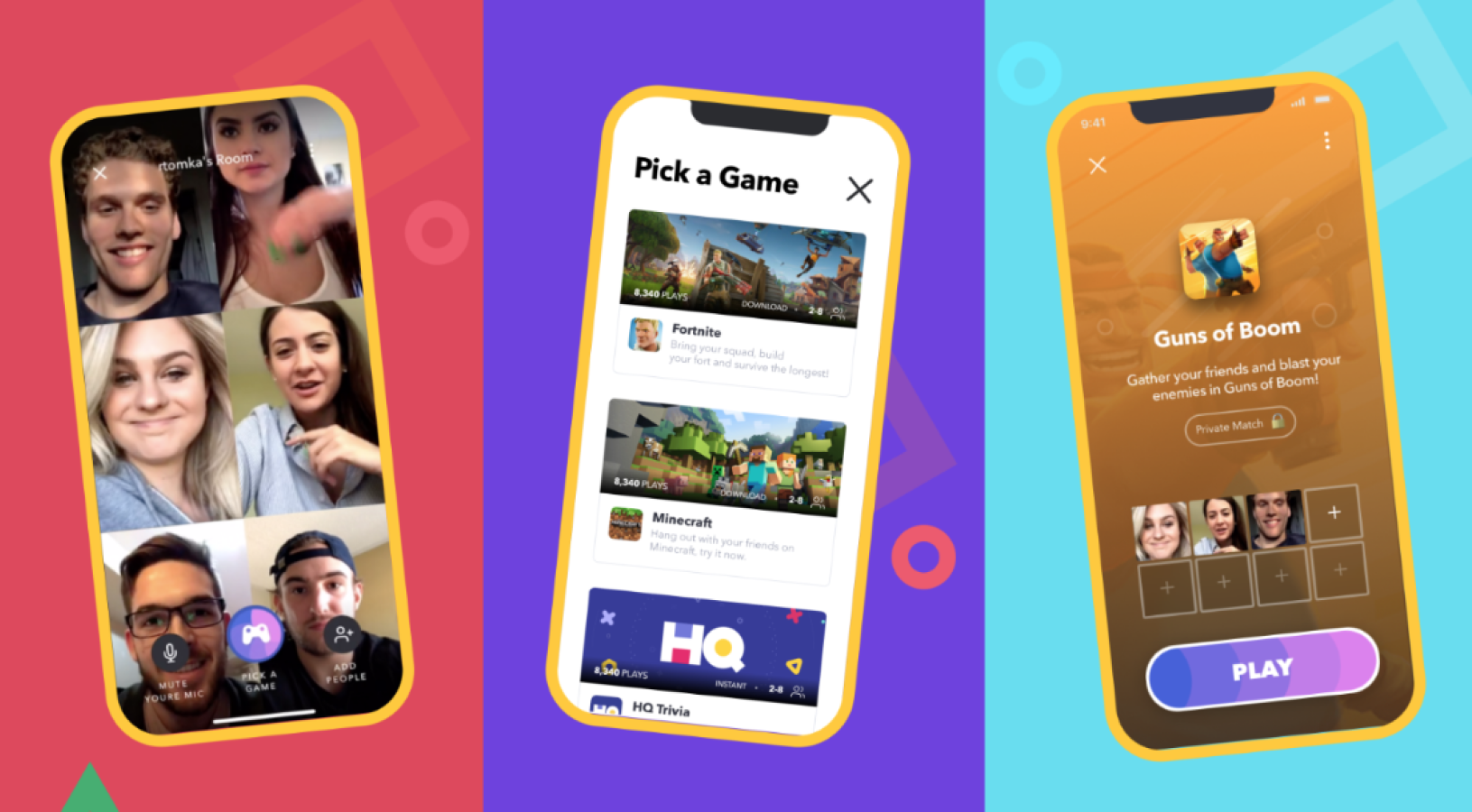
Houseparty established its brand as the app teens were using to chat with groups of friends without leaving the house. Pundits disapproved, but as usual, the kids get the last laugh. Houseparty is nice for a group of close friends, alerting you when someone’s available and letting people easily join in the chat with minimal fuss. The built in games are also fun, but you’ll have to pony up for Heads Up decks. The Pictionary clone is fun but desperately needs more words.


Discord (iOS, Android, Mac, Windows, Linux, web)

Pros: Great for voice chat while gaming or simple occasional video chat

Cons: Occasionally confusing interface, not video-focused

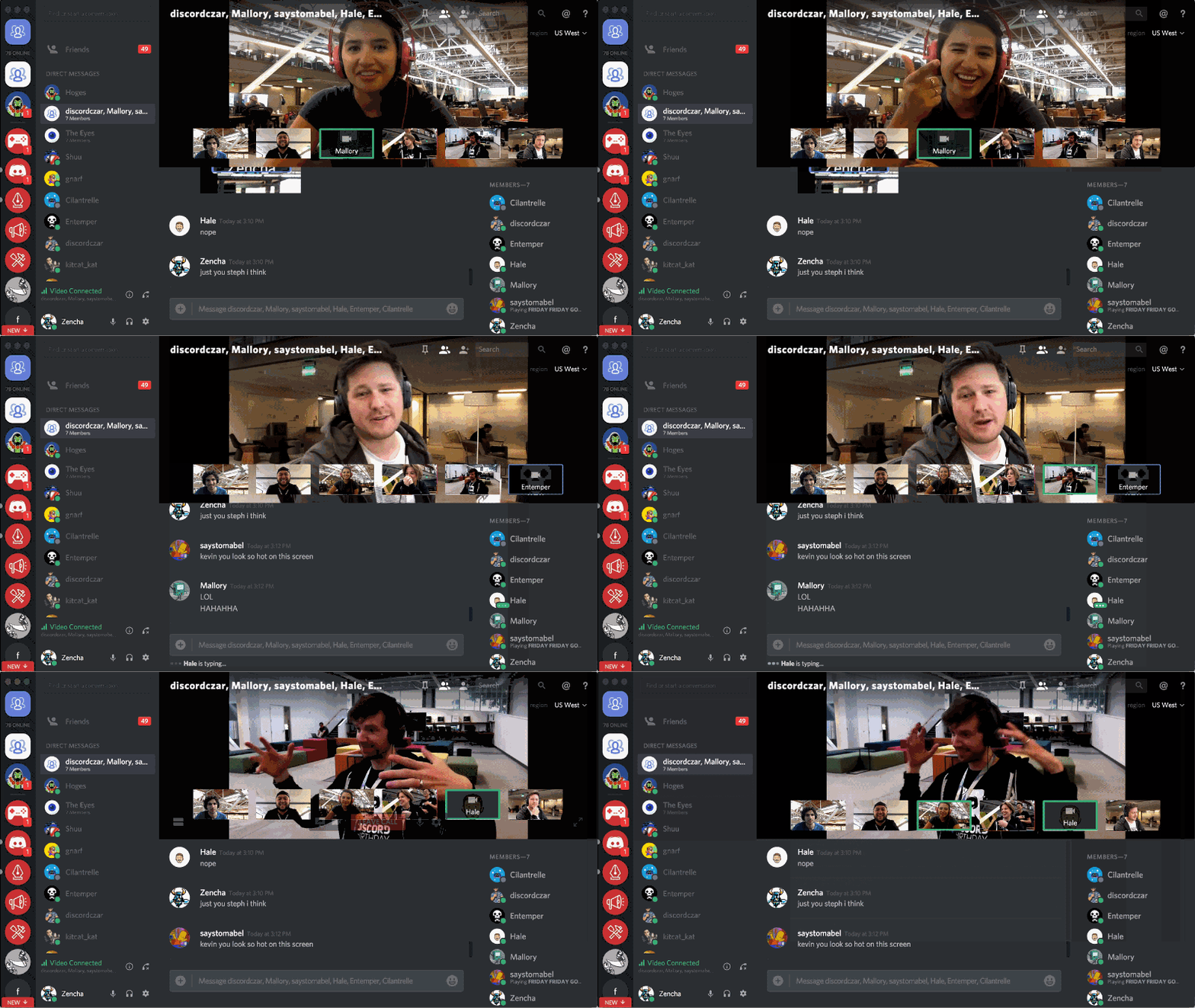
Discord is the de facto champion for gaming-related communications, taking the place of many in-game chat interfaces and even schooling industry heavyweights like Steam. While it’s mainly focused on audio and does that well, video is an option too. Less savvy users may also find its interface confusing, with multiple tabs, groups, and channels.


Honorable mention: Bunch, Squad

A newer app, Bunch, is focused on group games while in video chat. This can be hit or miss and you can expect in-app purchases, and startups like this don’t always live forever. But Bunch is probably getting a lot of engagement right now and can use that to extend its credit long enough to power through the summer at least. I can’t think of a better opportunity to give it a shot.

Squad is focused on sharing what you’re doing on your phone while chatting — so you can Tinder together, watch videos, etc. Like Bunch it’s still new so you’ll have to get your friends to sign up, but it’s a nice way to share what you’re scrolling (or swiping) through.


Read Full Article

The best video chat apps to turn social distancing into distant socializing


The vicissitudes of social distancing have taken many people by surprise, making video calls a new necessity for distant socializing. But which of the two dozen apps out there should you and your (perhaps not as tech-savvy) friends and family use? Here are our recommendations, whether it’s for a coffee meeting, a family get-together, or a late night gaming hangout.

This list is for individuals looking for a free solution to easily connect with others, not for small businesses or enterprises. The focus here is on ease of use and features that make it attractive to ordinary people. Every app is free and cross-platform, meaning iOS and Android at least, with many supporting Macs and Windows machines as well.

For big groups

Skype (iOS, Android, Mac, Windows, Linux, web)

Pros: Many simultaneous callers

Cons: Tries too hard to do other things

Skype has been around for a long time, and while its desktop app is pretty weak, the mobile version is solid and it supports big groups with no real time limit (4 hours per call, 100 hours per month), for free. As long as you focus on just the video calls, it’s great, but Skype’s emoji reactions, status updates, and other cruft are best avoided.


Zoom (iOS, Android, Mac, Windows)

Pros: Many simultaneous callers, strong admin controls

Cons: Sketchy background data policies, 40 minute limit

Zoom is one of the most popular business video conference apps out there due to its reliability, solid web integration, and other features. It’s not really made for personal calls — there are way more bells and whistles than you need — but its free plan works just fine for them. Unfortunately, there’s a 40 minute limit for group calls, which you’ll hit faster than you think, and everyone will have to hang up and start again. Zoom has also been criticized for its considerable behind-the-scenes data collection. If you really want to just chill with your friends, there are better options.

For friends and family

FB Messenger (iOS, Android, Mac, Windows)

Pros: Easy to use, many people already on it, some handy group features

Cons: Facebook account required

Messenger is a popular app for good reason — it works well for pretty much every kind of digital communication you might want to do with your friends. It supports up to 8 people in free video calls with no duration limit, and when you are doing a two-person call it switches to a peer-to-peer structure, skipping servers and potentially avoiding congestion. Of course, it’s also a Facebook product, meaning you’ll need an account there — not something everyone is into. But Messenger use is considerably better protected from Facebook snooping than posts and images on the main site.


WhatsApp Messenger (iOS, Android, Mac, Windows, web)

Pros: Secure, popular

Cons: Only 4 people per video call

Think of WhatsApp as FB Messenger’s nerdier, less good-looking sibling. With a focus on privacy, WhatsApp is popular around the world despite being super ugly, and while video calls aren’t its main feature, they are possible if you don’t mind a 4-person limit. To activate it, start a group chat and then hit the call button the top right and select the participants, then hit the camera.


Google Duo or Hangouts (iOS, Android, web)

Pros: Simple interface, uses existing Google account

Cons: Confusing platform issues, Duo may not be long for this world

Duo is one of Google’s later messaging products, started as a complement to Allo and meant to be sort of the consumer version of Hangouts, which is being split into Chat and Meet, but still exists on its own. Confused? So is Google. But the apps work pretty well for now, plugging into your existing Google contacts and accounts and letting you do straightforward, unlimited video calls. If your friends don’t want to sign up for a new account anywhere, this is a good option — just don’t get attached, as unpopular Google products don’t tend to live for long.


Marco Polo (iOS, Android)

Pros: Video messaging is a fun alternative to live chats

Cons: No live chat option

This isn’t a video chat app per se, but the fact is not everyone really wants to do a full-on live face-to-face video all the time. Marco Polo is like a streamlined Snapchat, sending short videos to friends or groups with the option to add doodles, filters and so on. If you and your friends are finding it hard to set aside half an hour to talk live, this can be a good alternative.


Honorable mentions: FaceTime, Instagram

FaceTime is great, but it’s not cross-platform, considerably limiting its usefulness. But if your friends do happen to have Apple products, it’s a great, simple option. Instagram has video calling built into direct messages, which is nice for quick calls with people you aren’t sure you want to bring into a smaller circle of connectivity.

For having fun together

Houseparty (iOS, Android, web)

Pros: Simple drop-in, drop-out group chat, built-in games

Cons: Basically a trojan horse for Heads Up

Houseparty established its brand as the app teens were using to chat with groups of friends without leaving the house. Pundits disapproved, but as usual, the kids get the last laugh. Houseparty is nice for a group of close friends, alerting you when someone’s available and letting people easily join in the chat with minimal fuss. The built in games are also fun, but you’ll have to pony up for Heads Up decks. The Pictionary clone is fun but desperately needs more words.


Discord (iOS, Android, Mac, Windows, Linux, web)

Pros: Great for voice chat while gaming or simple occasional video chat

Cons: Occasionally confusing interface, not video-focused

Discord is the de facto champion for gaming-related communications, taking the place of many in-game chat interfaces and even schooling industry heavyweights like Steam. While it’s mainly focused on audio and does that well, video is an option too. Less savvy users may also find its interface confusing, with multiple tabs, groups, and channels.


Honorable mention: Bunch, Squad

A newer app, Bunch, is focused on group games while in video chat. This can be hit or miss and you can expect in-app purchases, and startups like this don’t always live forever. But Bunch is probably getting a lot of engagement right now and can use that to extend its credit long enough to power through the summer at least. I can’t think of a better opportunity to give it a shot.

Squad is focused on sharing what you’re doing on your phone while chatting — so you can Tinder together, watch videos, etc. Like Bunch it’s still new so you’ll have to get your friends to sign up, but it’s a nice way to share what you’re scrolling (or swiping) through.


Read Full Article

Kinsa’s fever map could show just how crucial it is to stay home to stop COVID-19 spread


Smart thermometer maker Kinsa has been working on building, accurate, predictive models of how seasonal illnesses like the flu travel in and among communities – and its fever map is finding new utility as the novel coronavirus pandemic grows globally. While Kinsa’s US Health Weather Map has no way of tracking spread of COVID-19 specifically, since it looks only at fevers tied to geographic data, it could provide easy-to-grasp early indicators of the positive effects of social distancing and isolation measures at the community level.

At the time that Kinsa’s health weather map was covered in the New York Times in February, the company had around a million thermometers in market in the U.S., but it had experienced a significant increase in order volume of as man as 10,000 units per day in the week prior to its publication. That means that the company’s analytics are based on a very large data set relative to the total U.S. population, which Kinsa founder and CEO Inder Singh told me allowed them to achieve an unprecedented level of accuracy and granularity in flu forecasting down to the community level, working in partnership with Oregon State University Assistant Professor Ben Dalziel.

“We showed that the core hypothesis for why I started the company is real – and the core hypothesis was you need real-time, medically accurate, geolocated data that’s taken from people who’ve just fallen ill to detect outbreaks and predict the spread of illness,” Singh said. “What we did with our data is we punched it into Ben’s existing, first-principal models on infectious disease spread. And we were able to show that on September 15, we could predict the entire rest of cold and flu season with hyper-accuracy in terms of the peaks and the valleys – all the way out to the rest of flu season, i.e., 20 weeks out on a hyperlocal basis.”

Prior to this, there have been efforts to track and predict flu transmission, but the “state-of-the-art” to date has been predictions at the national or multi-state level – even trends in individual states, let alone within communities, was out of reach. And in terms of lead time, the best achievable was essentially three weeks out, rather than multiple months, as is possible with Kinsa and Dalziel’s model.

Even without the extraordinary circumstances presented by the global COVID-19 pandemic, what Singh, Dalziel and Kinsa have been able to accomplish is a major step forward in tech-enabled seasonal illness tracking and mitigation. But Kinsa also turned on a feature of their health weather map called ‘atypical illness levels’ a month ago, and that could prove an important leading indicator in shedding more light on the transmission of COVID-19 across the U.S. – and the impact of key mitigation strategies like social distancing.

“We’re taking our real-time illness signal, and we’re subtracting out the expectation,” Singh says, explaining how the new view works. “So what you’re left with is atypical illness. In other words, a cluster of fevers that you would not expect from normal cold and flu time. So, presumably, that is COVID-19; I cannot definitively say it’s COVID-19, but what I can say is that it’s an unusual outbreak. It could be an anomalous flu, a strain that’s totally unexpected. It could be something else, but at least a portion of that is almost certainly going to be COVID-19.”

[gallery ids="1964196,1964197"]

In the example above, Singh says that the spike in fevers coincides with reports of Miami residents and tourists ignoring guidance around recommended distancing. The steep drop-off, however, follows after more extreme measures including beach closures and other isolation tactics were adopted in the area. Singh says that they’re regularly seeing that areas where residents are ignoring social distancing best practices are seeing spikes, and that as soon as those are implemented, via lock-downs and other measures, within five days of those aggressive actions you begin to see downward dips in the curve.

Kinsa’s data has the advantage of being real-time, and continually updated by its users. That provides it a time advantage over other indicators, like the results of increased testing programs for COVID-19, in terms of providing some indication of the more immediate effects of social distancing and isolation strategies. One of the criticisms that has appeared relative to these tactics is that the numbers continue to grow for confirmed cases – but experts expect those cases to grow as we expand the availability of testing and identify new cases of community transmission, even though social distancing is having a positive impact.

As Singh pointed out, Kinsa’s data is strictly about fever-range temperatures, not confirmed COVID-19 cases. But fever is a key and early symptom of COVID-19 in those who are symptomatic, and Kinsa’s existing work on predicting the prevalence of fevers related to cold and flu strongly indicate that what we’re looking at is in fact, at least to a significant degree, COVID-19 spread.

While some have balked at other discussions around using location data to track the spread of the outbreak, Singh says that they’re only interested in two things: geographic coordinates, and temperature. They don’t want any personal identification details that they can tie to either of those signals, so it truly an anonymous aggregation project.

“There is no possible way to reverse engineer a geographic signal to an individual – it’s not possible to do it,” he told me. “This is the right equation to both protect people’s privacy and expose the data that society and communities need.”

For the purposes of tracking atypical illness, Kinsa isn’t currently able to get quite as granular as it is with its standard observed illness map, because it requires a higher degree of sophistication. But the company is eager to expand its dataset with additional thermometers in the market. The Kinsa hardware is already out of stock everywhere, as are most health-related devices, but Singh says they’re pressing ahead with suppliers on sourcing more despite increased component costs across the board. Singh is also eager to work with other smart thermometer makers, either by inputting their data into his model, or by making the Kinsa app compatible with any Bluetooth thermometer that uses the standard connection interface for wireless thermometer hardware.

Currently, Kinsa is working on evolving the atypical illness view to include things like a visual indicator of how fast illness levels are dropping, and how fast they should be dropping in order to effectively break the chain of transmission, as a way to further help inform the public on the impact of their own choices and actions. Despite the widespread agreement by health agencies, researchers and medical professionals, advice to stay home and separated from others definitely presents a challenge for everyone – especially when the official numbers released daily are so dire. Kinsa’s tracker should provide a ray of hope, and a clear sign that each invidious contribution matters.


Read Full Article

Carriers introduce plans to keep consumers connected during COVID-19 pandemic


Earlier this month, the FCC issued a new measure aimed at easing some of the burdens on consumers as COVID-19 continues to have an increasingly profound impact on nearly every aspect of life.

Most or all major internet and wireless providers in the U.S. signed up for the pledge, agreeing to take actions like waiving late fees and not terminating service. Now specific plans are starting to emerge from carriers, aimed at helping cash-strapped consumers until this pandemic blows over.

T-Mobile this morning announced the launch of a $15/month Metro plan — at half the cost of its current lowest-price plan. The pricing will be in place for the next 60 days, including unlimited talk and 2GB of data. The company is also tossing in a free eight-inch tablet (with rebate, plus fine print) and will be adjusting other data plans for the next two months.

At the same time, Verizon (TC’s parent company) announced that it will be adding 15GB of 4G data to current consumer and small business plans, in an effort to help customers use their handsets as mobile hotspots as needed. The company will also be taking $20 off select FiOS plans and waving router rental fees for 60 days.

Like the other carriers, AT&T noted in a message to TechCrunch that it will not terminate service over inability to pay. It will also be waiving late fees, along with domestic overcharges for data, voice and text, retroactive to March 13.

Sprint, meanwhile, will provide for 60 days unlimited data to customers with metered plans, starting March 18, along with 20GB of free mobile hotspot data.


Read Full Article