16 October 2018

The 8 Best GIMP Plugins and How to Install Them


gimp-plugins-install

Plugins help turn GIMP from a good program into a great one. They add new features, improve your workflow, and help make GIMP one of the best free alternatives to Photoshop.

But it’s complicated. The whole GIMP plugin experience is not very user friendly. They can be hard to find, tricky to install, and there are lots of compatibility issues.

But that’s where we come in. In this guide we’ll walk you through where to get the best GIMP plugins and how to install them. So let’s get started…

Where to Find GIMP Plugins

The GIMP plugin scene is a bit of a mess. Plugins used to be collected together in the GIMP Registry, but that no longer exists. Which means they’re now scattered around the internet.

Some are also very old. In many cases they haven’t been updated in a decade or more. There’s no guarantee that plugins will play nicely with the newest versions of GIMP. Indeed, popular ones like the GIMP DDS plugin or BIMP are now abandoned and no longer work.

How to Install GIMP Plugins

Inevitably, the installation process is also complicated. There are two main ways to install GIMP plugins.

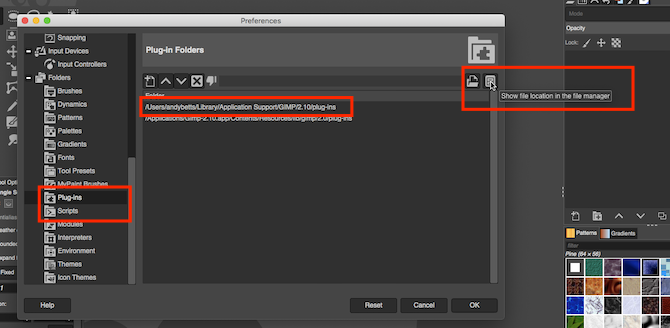
install gimp plugins folder

First is the manual way. If your plugin is in a ZIP file then you need to copy the contents to GIMP’s plugins and scripts folders.

  1. Unzip the download.
  2. In GIMP, go to Preferences > Folders. Locate the Plug-ins and Scripts sections.
  3. There are two folders in each section. One is a system folder, the other a user folder. Select the latter then click Show file location in the file manager to open it.
  4. If your downloads are in the PY format move them into the Plug-ins folder.
  5. If they’re in the SCM format move them into the Scripts folder.
  6. Now restart GIMP.

The second way is the automatic method. Some plugins come packaged with their own installer. Just double-click this and install it as you would any other application.

Installers are platform-specific, so you might find plugins that are only available for Windows, but not Linux or Mac. Also, remember that opening random installers off the internet is a risky business, so make sure your antivirus software is up-to-date and running properly.

partha gimp mcgimp

There is a third option, which is to install a customized version of the entire GIMP application. A popular build found at partha.com comes with several plugins pre-installed, including Resynthesizer and G’MIC.

These are among the best GIMP plugins, as we’ll see next.

1. DarkTable

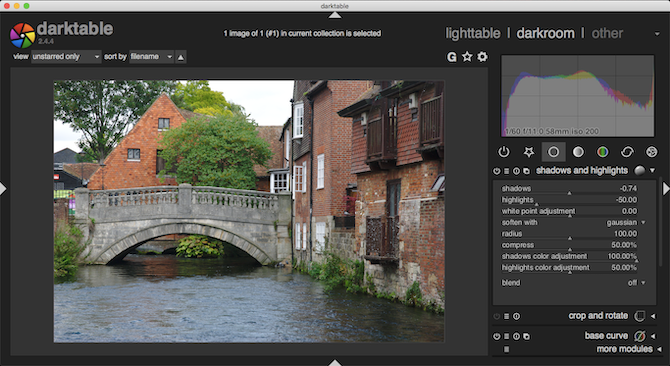
darktable gimp raw editor

GIMP 2.10 (how to get started using GIMP) is one of the best free photo editing apps you can get. You can even use it with your RAW photos, but you need to add your own RAW editor first. There are two main options, DarkTable and RawTherapee.

Both are worth testing, but we prefer DarkTable due to its more accessible interface, shallower learning curve, and some advanced features including masking tools.

Once installed you can drag your RAW images into GIMP and it will launch DarkTable, wherein you can begin editing. The effect is the same as what you get with the famous Photoshop and Adobe Camera RAW combination, and just as good.

2. G’MIC

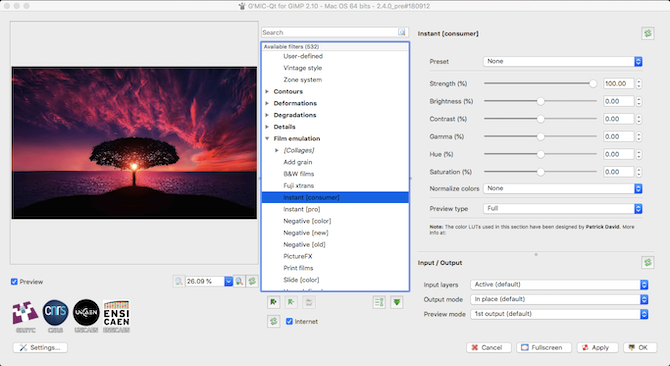
gmic gimp plugin

Another plugin for photo editors, G’MIC offers over 500 filters and effects that you can use to jazz up your shots.

The range is astounding. There are basics like film stock emulations and frames, more advanced things like noise reduction and other repair tools, and even some 3D effects. You can use each one with its default settings with a single click. But if you prefer, you can use the series of sliders for each filter to customize the look, and get the exact result you want.

3. Resynthesizer

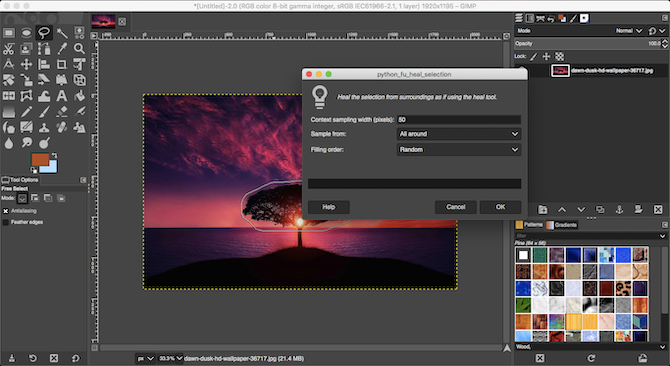
resynthesizer gimp heal selection

Resynthesizer is one of GIMP’s oldest plugins, and one of its most essential. It provides a series of tools based around working with textures. You’ll find the key part under the Enhance menu: Heal Selection.

This is GIMP’s equivalent to Photoshop’s Content Aware Fill tool, one of the things Photoshop can do that GIMP can’t. It enables you to remove unwanted objects from a photo completely seamlessly.

Heal Selection magically replaces the intrusion with surrounding content from the background of your image, and it blends perfectly. So, if you remove something from the sky, the space will be filled with more sky. You’d normally have to use the Clone tool for that. It’s a much more laborious process.

4. Hugin

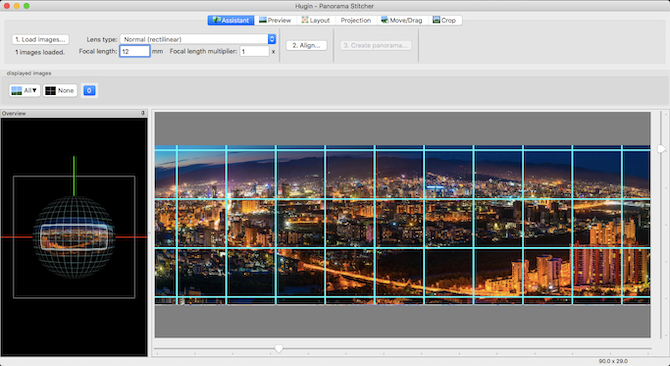
hugin panorama gimp

When you need to stitch together a series of images to create a panorama, Hugin is the best tool to use for GIMP. It’s simple to get started. Just load up your images, specify a few common points on each, and the app will merge them together. It’ll also correct for mismatching angles and exposures.

Hugin functions as a standalone app, and is available for Windows, Mac, and Linux.

5. Wavelet Decompose

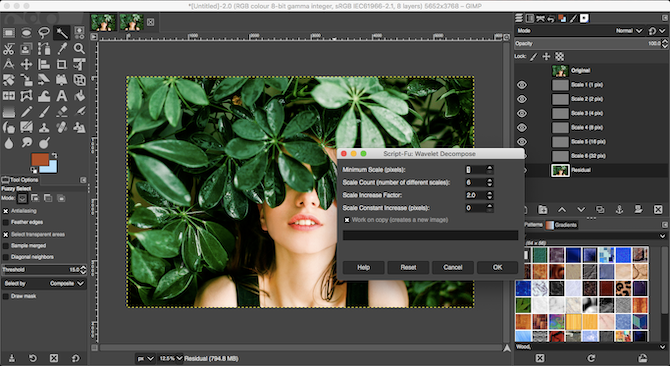
wavelet decompose gimp plugin

Skin retouching is an integral part of portrait photography. Wavelet Decompose is the best plugin for that on GIMP.

The plugin uses an advanced form of frequency separation. It splits the image into multiple layers, each containing different sets of details. This gives you very fine tuned control over which details you want to smooth, and which to keep.

Sound complicated? Well, the concept is, but the practice isn’t. Just load up the plugin and use the blur and smooth tools to make your skin shine.

6. Duplicate to Another Image

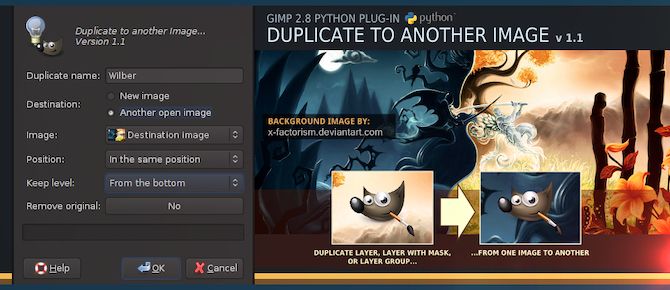
duplicate to another image gimp plugin

This simple script is a real time saver. Its name describes exactly what it does: it duplicates a selection to another image file.

Can’t GIMP already do this? Yes, but not as well. The Duplicate to Another Image plugin has a whole lot more features. You can copy a selection onto a new image the same size as your original one, with the object in the same place, making it easy to change the background of an image.

Or, you can copy to a new image, and crop it to size, when you want to isolate individual objects. And you can copy the object to another image you’ve already got open.

7. Scripts Bundle

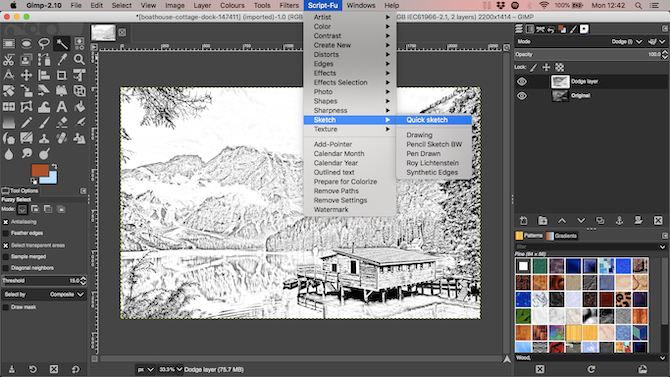
scripts bundle sketch plugin gimp

GIMP plugins come in lots of sizes and complexities, but often it’s the single-function ones that you end up using most.

This collection of over 100 scripts gives you a host of shortcuts for common image editing and graphic design tasks. You get a GIMP sketch plugin, a few scripts for sharpening photos or adding frames, and some for generating effects or emulating film stock. There’s a lot here to play with. They’re all tested and fully compatible with GIMP 2.10.

8. Nik Collection

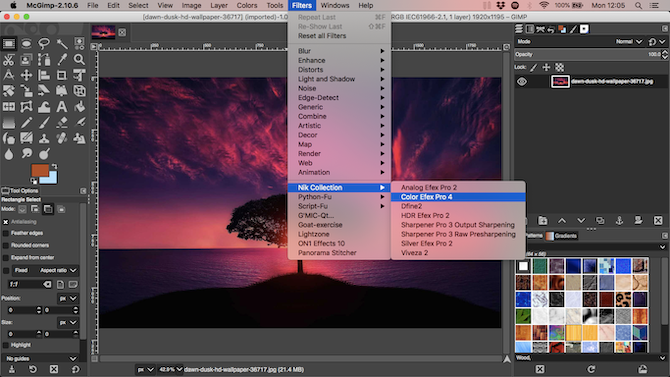
nik collection gimp plugin

Finally, the Nik Collection, the professional-class suite of photo editing programs. It gives you access to pro-level sharpening and noise reduction, color filters, HDR effects, and lots more. It truly takes GIMP to a new level.

So if it’s so good why have we kept it to the end? Two reasons.

First, the free version of the Nik Collection is no longer officially available. You can still download it from The Internet Archive, and you can set it up if you’ve already got it installed on your PC. Second, you have to jump through a few hoops to get it working. Fortunately, we’ve got a guide to using Google’s free Nik plugins with GIMP that shows you what to do. Rest assured that it’s worth the effort.

How to Use GIMP Plugins

Once you’ve installed your GIMP plugin it will show up in one of several locations. It may appear under the Filters menu, or one of the submenus there. It may be under Image or Layers, or you may get a whole new menu called Script-Fu. Sometimes, plugins (like a RAW editor) run as a separate app, triggered to launch whenever they’re needed.

When you find a plugin you like, make sure you keep a copy of the downloaded file. You never know when it might disappear. That, unfortunately, is the reality of working with GIMP plugins.

Plugins aren’t the only way to power up GIMP. If you’re looking for a GIMP watercolor plugin, for instance, you might be better off with a brush instead. And for that you need our guide to the the best GIMP brushes.

Read the full article: The 8 Best GIMP Plugins and How to Install Them


Read Full Article

The 7 Best Noise-Canceling Headphones for Kids

Google CEO Sundar Pichai speaks publicly for the first time about its censored China search engine


Commenting publicly for the first time about Google’s censored search engine for China, CEO Sundar Pichai said onstage at the WIRED 25 summit in San Francisco that the company is taking “a longer-term view” about the country. Codenamed Project Dragonfly, the controversial development has been public knowledge since a report in August by the Intercept, generating significant backlash, with several employees resigning in protest.

Google did not confirm Project Dragonfly’s existence until its chief privacy officer, Keith Enright, spoke at a Senate hearing last month. Even then, Enright did not provide much information about the project, so this means Pichai’s comments at WIRED 25 are the most detailed ones made officially by Google’s leadership so far.

Even before Project Dragonfly was revealed by The Intercept, Google had already been quietly working on a strategy to re-enter China, including launching (or re-launching) apps through third-party Android stores (Google Play is not available in China) and working with partners like Xiaomi and Huawei to introduce its ARCore technology for augmented and virtual reality there. Pichai said Google has not decided if it will actually launch Project Dragonfly in China, but if it does, the search engine’s biggest competition would be Baidu.

Pichai said that Chinese tech innovations means it’s time for Google to get an understanding of the market from the inside out. “It’s a wonderful, innovative market. We wanted to learn what it would look like if we were in China, so that’s what we built internally,” adding that “given how important the market is and how many users there are, we feel obliged to think hard about this problem and take a longer-term view.”

Even though it follows China’s strict censorship laws, Pichai claimed that Project Dragonfly will still be able to answer “well over 99% of the queries” put to it and that “there are many, many areas where we would provide information better than what’s available.”

Google once operated a censored search engine in China at Google.cn, but pulled out of the country in 2010. At the time, Google said its decision was prompted by a “sophisticated cyber attack originating from China” that targeted human rights activists, and the country’s efforts to “further limit free speech on the web in China” by blocking websites like Googe Docs, Blogger, Facebook, Twitter and YouTube.

For its critics, Project Dragonfly’s existence means Google has reneged on the values it avowed nine years ago. While onstage at WIRED 25, however, Pichai said working on a search engine is in line with the company’s mission to “provide information to everyone,” noting that China contains about 20% of the world’s population.

Google only embarked on Project Dragonfly after much deliberation, he said. “People don’t understand fully, but you’re always balancing a set of values” when entering new countries,” adding “but we also follow the rule of law in every country.”


Read Full Article

The 5 Best Email Signature Generators to Make Your Mails Pop


email-signatures

You must have seen some impressive email signatures by now, complete with the sender’s picture, company details, contact details, and little icons for social media. Want to make your own? It’s easier than you think, especially if you use these great email signature apps.

An email signature is important. It makes your messages seem more professional and often saves you the trouble of back-and-forth emails. If someone you’ve emailed needs your office address or phone number, they can find it by checking past messages.

There are a few basic things you need to create the perfect email signature. It helps to know HTML, or how to format in rich text. But you don’t need any of that if you use the right app. You can get minute customizations, plenty of templates, and even email tracking through these free websites and extensions to make your own email signature.

Signature Maker (Web): Simplest Way to Create Email Signatures

signature maker is easiest online app to create email signature for any client

Signature Maker is the easiest way to create an email signature that you can use in any email client of your choice. It looks quite basic, but if this is the first time you’re making a signature, it’s good for beginners.

The Basic tab has a few empty boxes to fill the details you need: name, job title, company name, company website, postal address, email address, phone number, and a link to your photo or avatar.

Switch to the Social tab to add links to your social profiles. You’ll need to put the full link, not just your handle. For example, I would write “https://twitter.com/mihirpatkar” (without the quotes) not just @mihirpatkar. To make it easier, go to your social profile, copy the link, and paste it in the appropriate field.

As you update Signature Maker, it will update details in the preview. Once you’re done, click “Highlight and Select” and paste it in your email app’s signature settings. If you don’t know how, check our guides for Gmail and Outlook:

Si.gnatu.re (Web): Add a Footnote, and Customize Colors, Fonts, and Layout

si.gnatu.re is easy app for signatures that customizes layout

Signature Maker is the basic level of making an email signature. The next step is to level up with Si.gnatu.re, which lets you customize several aspects of how the signature would look. And it lets you add a footnote.

You start with your contact details, most of which also have the option of adding an icon or a text label. Si.gnatu.re also adds a Google Maps link to your address. The social tab only needs your handle this time, not your full web link. You can also add a logo, a profile photo, and a banner image too.

Footnotes are generally functional to add disclaimers to your emails. But they are also a cool way to add more to your signature than contact details. You can throw in witty jokes, motivational quotes, or a simple message that changes from time to time.

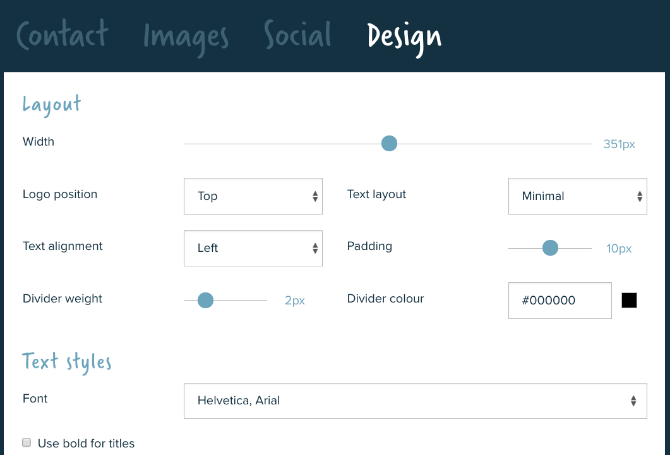
Finally, you can customize how the signature looks. Si.gnatu.re gives you minute control over the width, placement of items, fonts, colors, and icons, so that you can get everything to match your company’s colors too.

Mail Signatures (Web): Lots of Free Email Signature Templates

Create a free customizable email signature with Mail Signatures

If you don’t have much design sense, you shouldn’t really be changing the layout you get in these apps. The better way is to use a template. Mail Signatures hosts a range of signature templates, so you can pick the one that’s best for your needs.

You can filter the signatures by columns (one, two, or three) as well as the content you need (banners, disclaimers, graphics, logos, photos, and social icons). Once you find something you like, click “Edit Signature” to start turning it into your own pro email signature.

Mail Signatures also lets you choose your favorite email platform in advance, so you know that it can customize each bit of the signature accordingly. Choices include Outlook, Outlook 365, Exchange Server, Exchange Online, Gmail, and Thunderbird.

It’s easy, it’s free, and it’s perhaps the best way for most people to create a professional signature without any HTML or design chops.

Email Signature Rescue’s Examples (Web): Inspirations for Custom Signatures

Beautiful email signature examples

We have apps that let you customize each part of your signature, and we have apps that come with templates. But if you want to stand out, you should create your own signature.

For a bit of inspiration as to what you can do with email signatures, turn to this page from Email Signature Rescue. It collects over 200 different examples of different types of beautiful signatures. Some have buttons with direct links to download an app, while others feature minimalistic design. There is something different for each type of job, much like how you can have business cards for every type of profession.

As for the app itself, Email Signature Rescue is excellent, but it’s better for companies and businesses with a large number of employees. This paid app has a few tricks to apply a signature to every employee’s email and keep it updated when the firm changes its address, web page, social links, or banners.

Mailcastr (Web, Chrome, Android): Signatures With Email Tracking

Mailcastr is more than a simple signature maker. Let’s say you’ve sent an important email. But how do you know when the person has actually opened and read it? Email tracking apps can tell you this information. And Mailcastr does that as part of the signature itself.

Making the signature is actually simple and easy. Once you’re done, get the Chrome extension. When you send an email, Mailcastr will automatically track it. The free version of the app tracks up to five emails a day or 150 emails per month.

If you want more than that, go for the paid version that costs $3 per month. It has unlimited email tracking, and it lets you create multiple signatures. Before every email, you can choose which signature to add. This is terrific if you run multiple businesses, or want different signatures for personal and professional messages while using the same email address.

Mailcastr also has an Android app that can add signatures and track read receipts. You’ll need to send emails from that app though, you can’t use Gmail or Outlook on Android.

Download: Mailcastr for Chrome | Android (Free)

Aim to Get a Reply to Emails

With one of these tools, you’ll make a great email signature. But that is only one part of the puzzle when it comes to writing a professional email. If your goal is to get your email read and maybe seek further action, then you can’t stop at the signature, you need to do more.

It matters how you write your email. It matters how you format it. It matters whether you are too long or too short. And for all of these tips and tricks to compose messages, there are apps to get a reply on your email.

Read the full article: The 5 Best Email Signature Generators to Make Your Mails Pop


Read Full Article

A former Google+ UI designer suggests inept management played a role in the network’s demise (beyond Facebook’s impact)


A lot of people leave their jobs because of bosses they can’t stand. Yet it’s seldom the case that a former employee publicly badmouths management after the fact. The obvious risk in doing so: future employers might not want to gamble on this person badmouthing them at a later date.

That isn’t stopping Morgan Knutson, a UI designer who seven years ago, spent eight months at Google working on its recently shuttered social networking product Google+ and who, in light of the shutdown, decided to share on Twitter his personal experience with how “awful the project and exec team was.”

It’s a fairly long read, but among his most notable complaints is that former Google SVP Vic Gundotra, who oversaw Google+, ruled by fear and never bothered to talk with Knutson, whose desk was “directly next to Vic’s glass-walled office. He would walk by my desk dozens of times during the day. He could see my screen from his desk. During the 8 months I was there, culminating in me leading the redesign of his product, Vic didn’t say a word to me. No hello. No goodbye, or thanks for staying late. No handshake. No eye contact.”

He also says Gundotra essentially bribed other teams within Google to incorporate Google+’s features into their products by promising them handsome financial rewards for doing so atop their yearly bonuses. “You read that correctly, “tweeted Knutson. “A f*ck ton of money to ruin the product you were building with bloated garbage that no one wanted.”

Gundotra is today the cofounder and CEO of AliveCor, maker of a device that captures a “medical grade” E.K.G. within 30 seconds; AliveCor has gone on to raise $30 million from investors, including the Mayo Clinic.

Asked about Knutson’s characterization of him, Gundotra suggested the rant was “absurd” but otherwise declined to comment.

Knutson disparages even more strongly a former manager that he calls “Greg” and he portrays a fellow designer, Jim, as paranoid and vindictive. Indeed, in describing how his unit was organized, Knutson paints a picture of a political, haphazard, wasteful and ultimately disappointing division where it was never quite clear who should be working on what or why. In fact, though he says he thought he was “joining the big leagues” when recruited by Google, Knutson wound up taking a job with Dropbox shortly afterward in order to escape from the corporate leviathan.

It also sounds from his own telling like Knutson might have been canned eventually.

No matter what you think of the tweets, it’s an interesting narrative and it’s instructive as one insider’s view onto what — other than Facebook’s stranglehold on users — may have ultimately doomed Google+, which was shut down last week due to lack of user and developer adoption (even while a business version of the network lives on for the foreseeable future).

The biggest takeaway: like many other gigantic companies, Google has its fair share of flaws.

You can check out the full tweetstorm here.

Thread Reader has also published them in a more palatable format here.


Read Full Article

Google Pixel 3 XL review


The smartphone arms race isn’t always pretty. The knock-down, drag-out fight between Apple and Samsung in particular has given rise to some nasty lawsuits and wincing commercials year in and out as the two companies invest millions in outdoing one another.

But Google is playing another game entirely. The company has never really been concerned with battling it out over flashy designs and specs. It’s really exactly the sort of approach you’d expect from a software-first company. I won’t go so far as to suggest that the Pixel 3 is a utilitarian phone, but it’s safe to say that the hardware exists in service of the company’s software innovations.

If it were like other companies, last week’s hardware event would have been an opportunity for Google to bask in processor speed and pixel density. Instead, it blew through such things. It was a strange spectacle to behold, really, as someone who’s been through a million of these things. The company more or less announced all of the products at once and moved onto more important topics like algorithms and machine learning.
For many intents and purposes, Google’s approach to smartphones is a breath of fresh air. From a more practical standpoint, the company’s path often means less radical hardware upgrades, year over year. If you’re wondering whether to upgrade from the Pixel 2, the simple answer is: no, what are you, made out of money? But here’s Taylor’s slightly more nuanced approach to the question, if that’s your thing.

The fact is that Google has always been less interested than Apple or Samsung in keeping you beholden to the constant upgrade cycle. In fact, a number of the new photo features introduced this round will also be making their way onto older models, when possible. That’s not a promise all of the competition is willing to make.

The bottom line for products like the Pixel 3, Pixel Slate and Home Hub is that Google is intent on delivering the best hardware showcase for what it’s been working on over on the software side. That we happen to get one of the best Android smartphones out of the deal is a happy side effect.
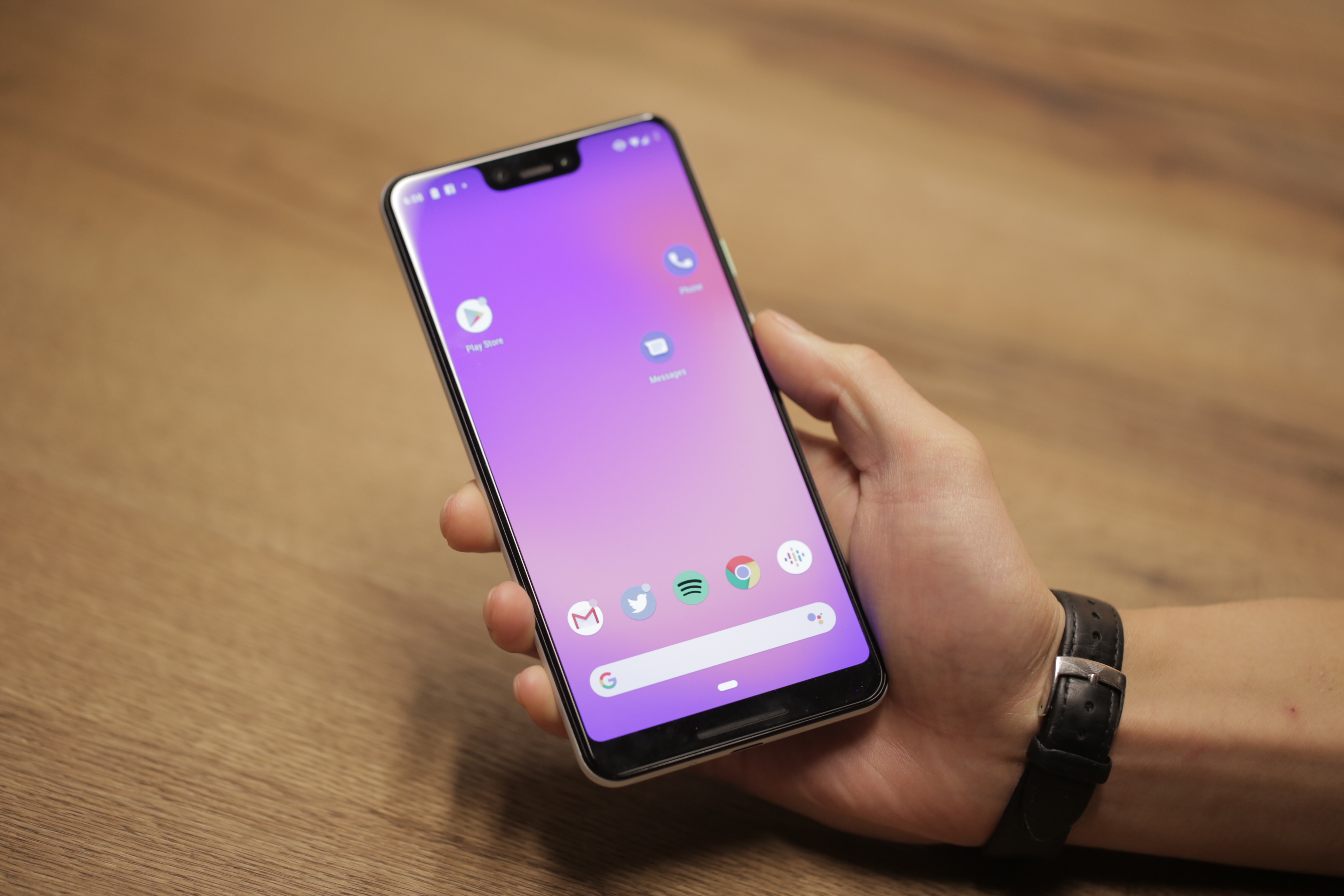
Top level, here are the key hardware changes from the last version:

  • Bigger screen: This the single largest hardware change, so to speak. The Pixel 3 bumps up from five inches to 5.5 inches, while the XL moves up in the world from six to 6.3. Both a pretty sizable upgrade, all told.
  • Dual front-facing cameras: Seemingly a bit of a head scratcher, given that the back of the device sticks to one. More on that below.
  • Wireless charging: Better late than never, right?

We walked away from the Google event with both handsets in a branded tote bag that also included the new Pixel Stand. It’s clear that the company was looking to outfit reviewers with the best experience possible. As someone who cycles through a lot of phones for work, I’ve found myself gravitating toward larger phones.
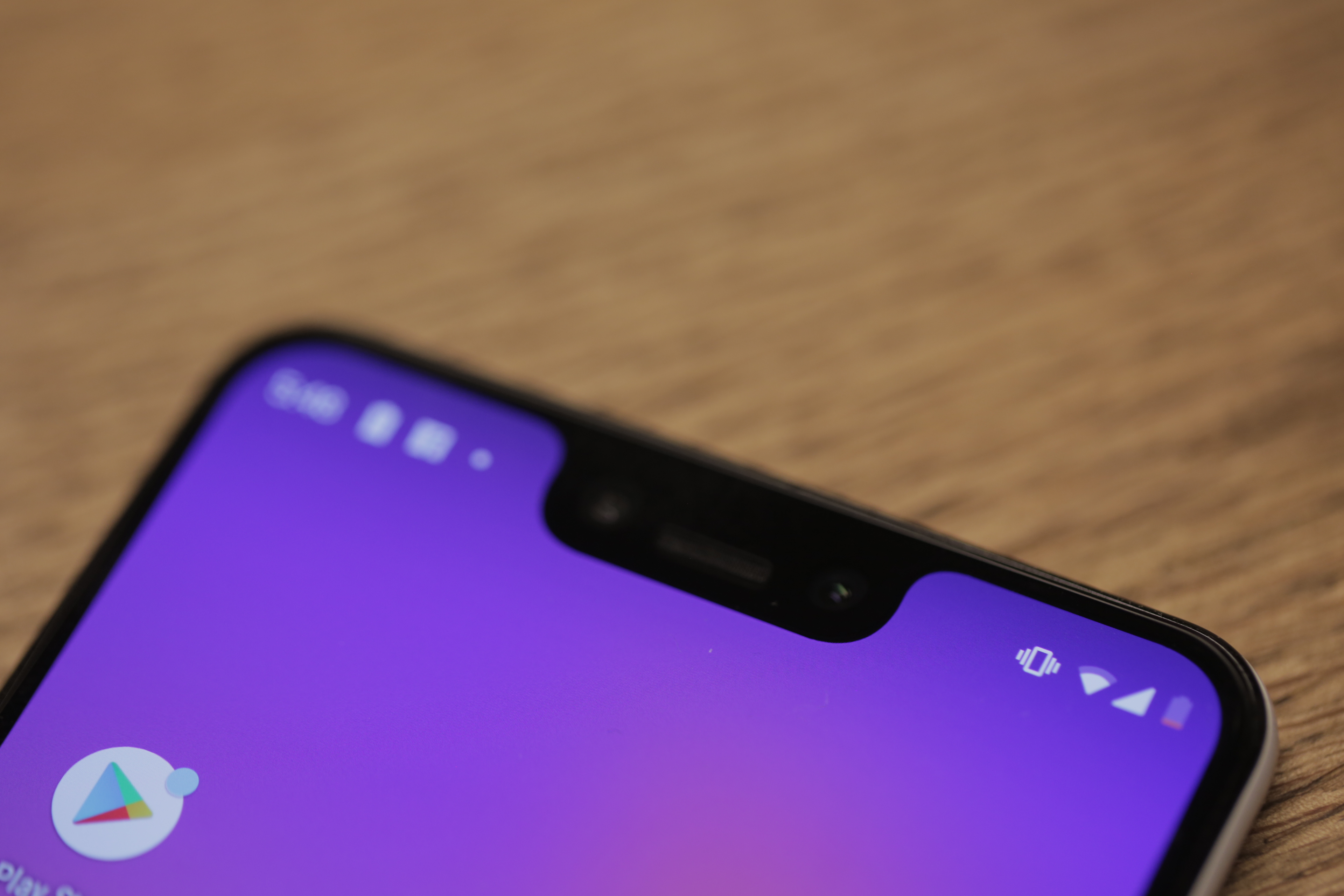
With that in mind, most of the rest of this piece pertains to my experiences with the Pixel 3 XL. That said, Anthony kindly agreed to take the Pixel 3 out on the town for a photo safari, so the imaging samples in this review are taken from both handsets. Spec-wise, the two products are quite similar, beyond the standard array of things that come with a larger phone: screen, battery, et al.

There’s a sentiment you’ll read a lot when it comes to large flagships — that the company has done a good job keeping the footprint small, in spite of the massive screen size. Indeed, a lot of progress has been made on this front in recent generations, between thinner bodies and the rapid extinction of the bezel. That said, the Pixel 3 XL is a big phone by just about any measure.

Sure, Apple came from behind, only to rocket to the top of display sizes with the 6.5-inch XS Max. But the 6.3-inch XL isn’t far behind. It’s also a few fractions of a millimeter thicker than Apple’s massive handset at 7.9mm — though it still has nothing on the Note 9’s 8.8mm. Either way, the thing isn’t for the small of hand or limited in pocket space — and one-handed use probably isn’t in the cards if you’re not a professional basketball player.

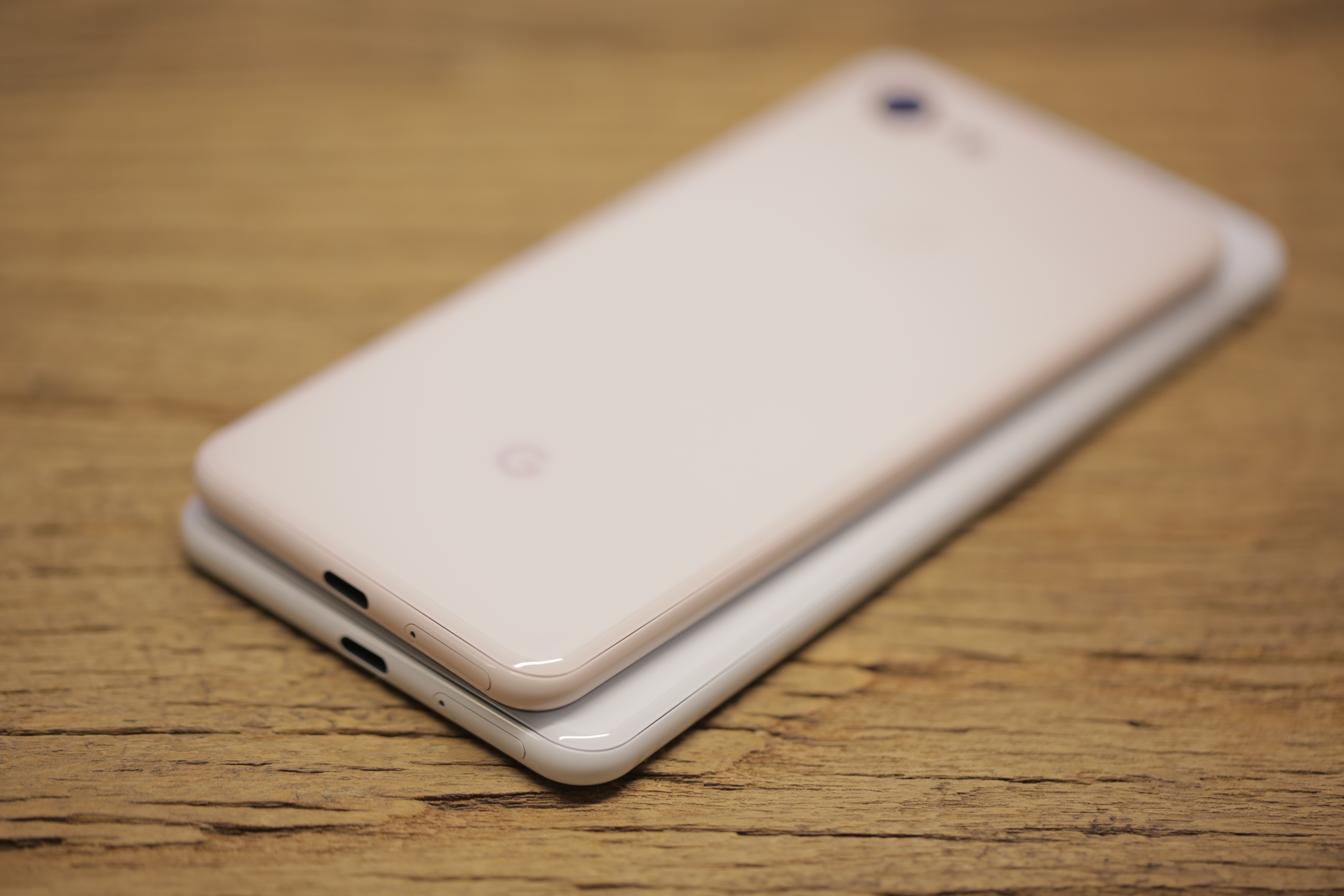
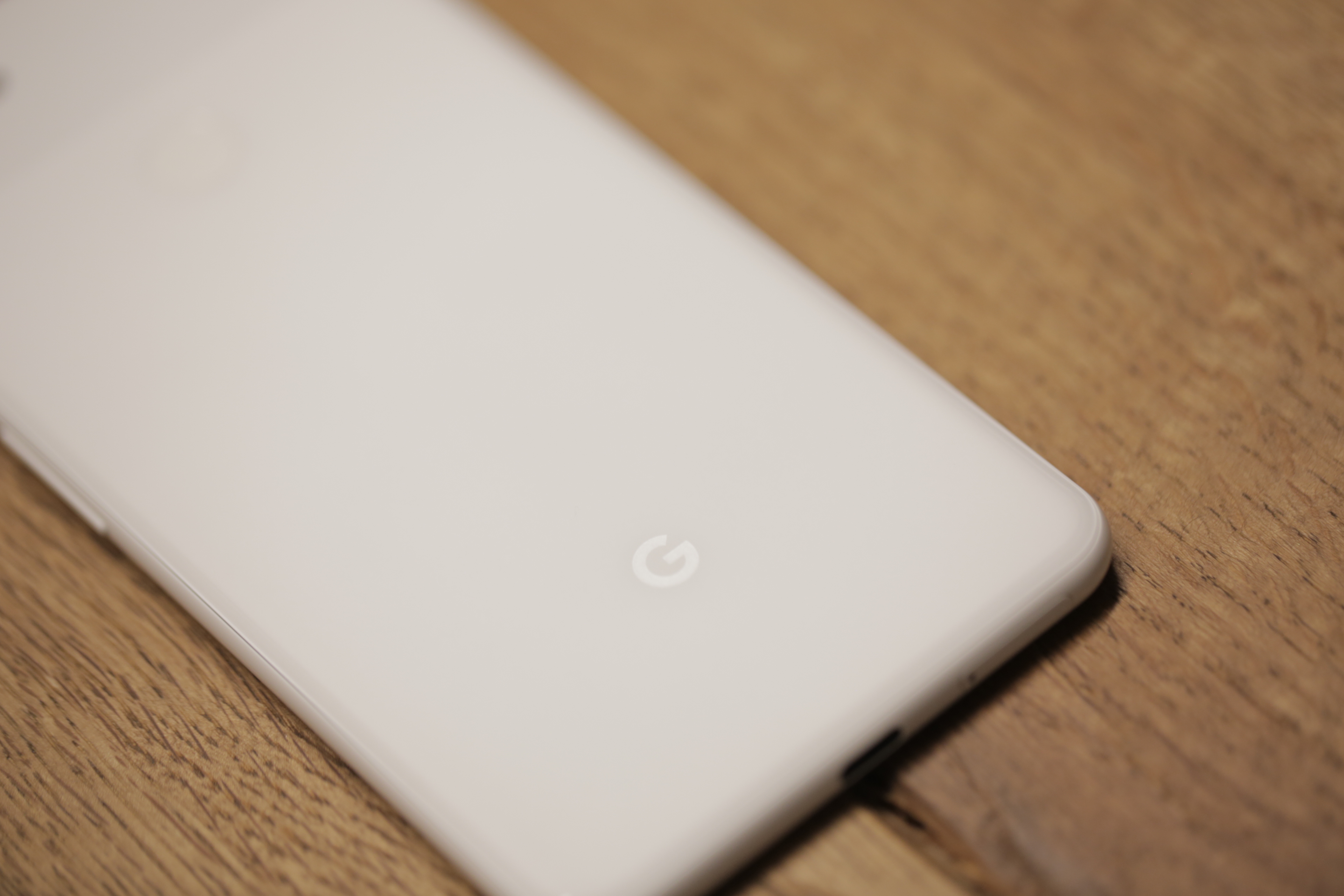
Not much has changed aesthetically changed since the 2. And, indeed, the Pixel’s design language has become iconic in its own way, from the brightly colored power button to the dual-surface rear. The plasticky version found on prior generations has been replaced with a double glass surface — shiny up top and matte on the bottom.
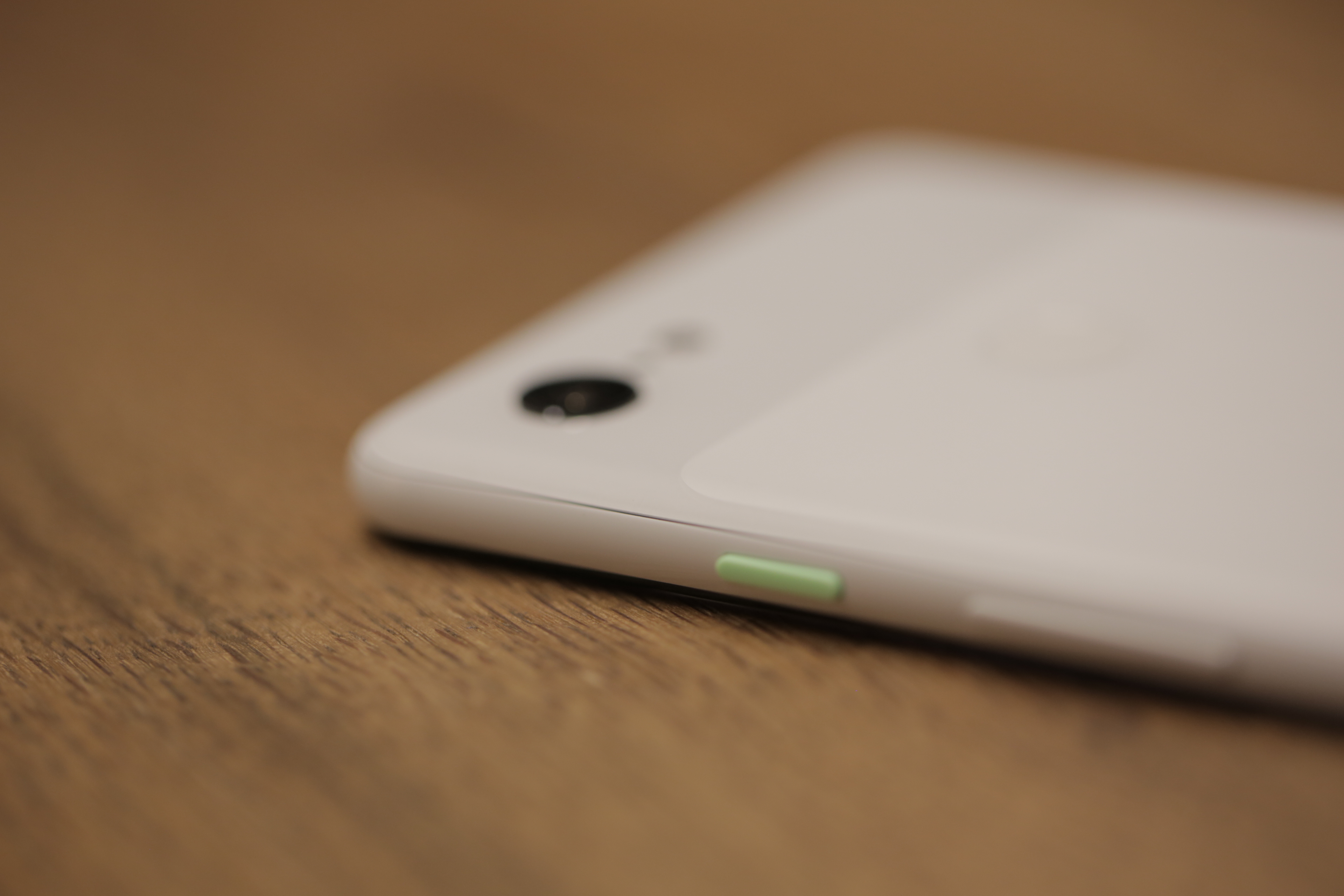
It’s a subtle contrast and should help avoid slippage for those souls brave enough to go without a case. This last bit is a very real issue I’ve run into switching between the iPhone XS and Note 9, of late. Those shiny backs will slip right out of your hand if you’re not paying attention.

Up front, you’ll find that word of the Pixel 3 XL’s notch was, in fact, not exaggerated. It’s the stuff of legend. Turns out this is because of those dual front-facing cameras. Google is really committed to helping users up their selfie game here. At least that’s the immediate impact of that decision.

Dual cameras could have other benefits down the road, including depth sensing for things like augmented reality and, perhaps, face unlock. For now, however, it means taking pictures of yourself and friends at a semi-pro level.
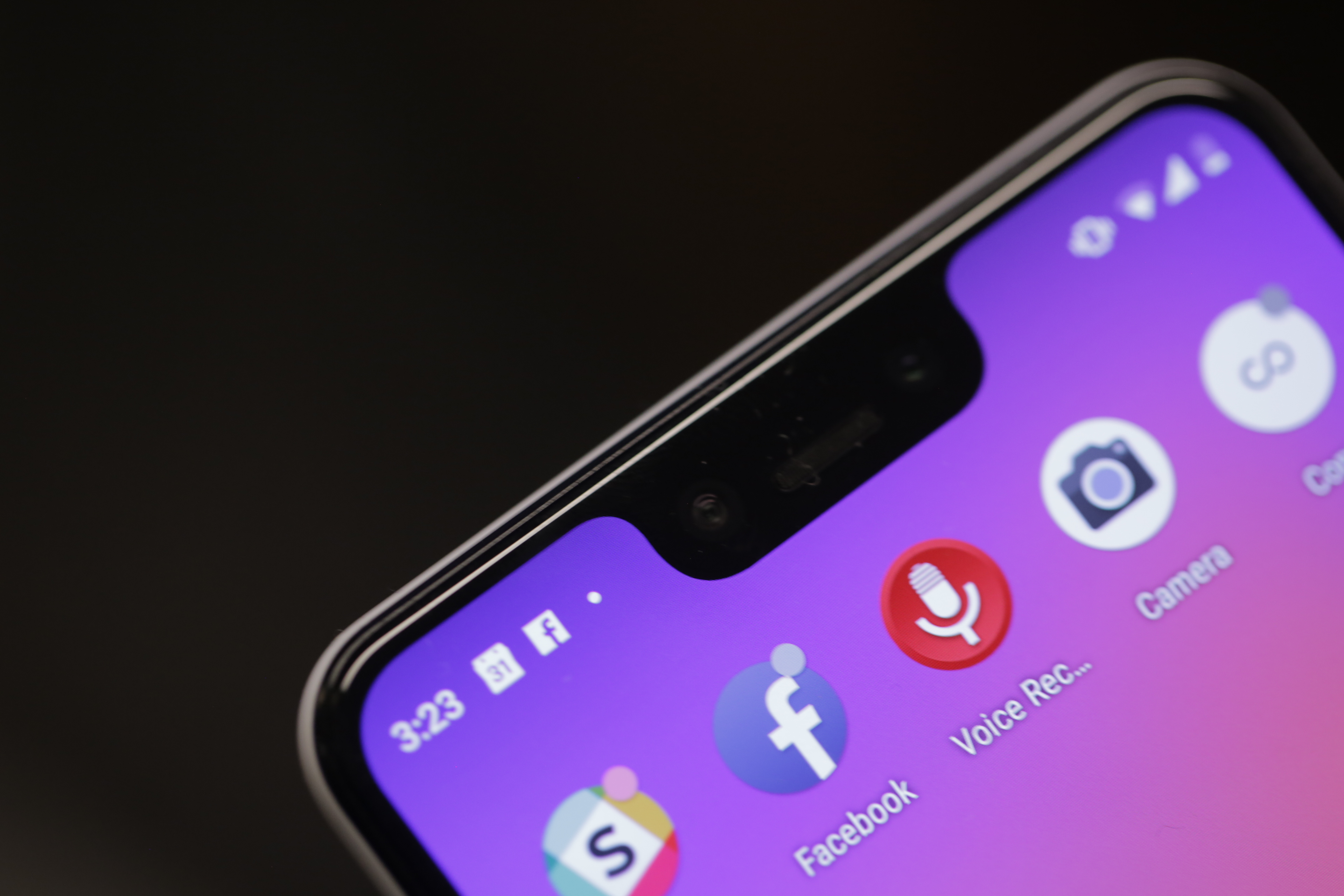
The notch, it turns out, is a key design distinction between the 3 and 3 XL. The reasoning is — as with the rest of what Google’s hardware team did here — a pragmatic one. “With the small one,” VP of Product Management Brian Rakowski told me in an interview last week, “it turns out the space is just too small when you put the wide-angle lens in. It’s a narrower phone, so you have room for an icon or two, whereas on the bigger phone everything you need for the status icons is up there, and it’s a very good use of the space.”

In spite of its software embrace with Android Pie, Google is neither definitively pro or anti-notch. The company is, simply put, notch agnostic. If, however, you have a problem with that admittedly unsightly cutout, there’s a fix for thatActive Edge is back. It’s a feature that’s grown on me a bit since HTC introduced it as Edge Sense back on the U11 in May of last year. With a pinch of the phone’s frame, you can fire up Assistant. It’s one of several ways to invoke Google’s AI, but it definitely beats Samsung’s longtime insistence on including a devoted Bixby button. And besides, Google Assistant is actually, you know, useful.

Google’s generally done a good job listening to user feedback with its software features, and nowhere is that better represented than with the Adaptive mode for its screen color profiles. Last year’s Natural mode was met with some fairly widespread negative feedback for the effect in had in “muddying” the colors — most notably the reds, which ended up somewhere between blood-red and brown.

It was one of those things the company insisted was good for you, but ultimately user irritation won the day. Adaptive splits the difference, saturating colors for things like your Gmail icon, while keeping it in check for things like skin tone. It’s a pretty happy medium, all told, but if you’re not into it, you can always adjust things in settings.

The headphone jack is, of course, still gone. Google drew a line in the sand last year, after making a show keeping it on-board with the first generation. There’s a bit of a mea culpa here, however, in the form of souped up earbuds included in-box. The headphones are very clearly inspired by last year’s Pixel Buds.

That, much like the accessories themselves, is a bit of a mixed bag. The biggest upshot here is that the things plug directly into the USB-C port at the bottom. Sure the box still includes a headphone jack to USB adapter, but including headphones with a standard jack with a phone that doesn’t natively support the tech is downright bizarre.

The looping up top is a nice way to keep the buds in your ears without those bizarrely sharp fins that so many headphone makers rely on. I took the headphones for a run this morning and they didn’t fall out once.

The headphones also offer a number of the Pixel Buds’ software features free of charge, including easy access to Google Assistant and real-time translations through the Google Translate app.

The downside, on the other hand, is a major one. Even as far as free in-box headphones go, the Pixel USB-C earbuds are uncomfortable. This, I will be the first to admit, is a wholly subjective thing and highly dependent on the size and shape of our earholes. But man, the thing hurt to put in and take out, outdoing Apple’s last generation free buds for discomfort levels.
This is a space where companies can learn a lot from Samsung. The earbuds that ship with the Galaxy S9 and Note 9 are fantastic. I’m actually using them right now, plugged into my MacBook, in spite of not having a Samsung device anywhere near my person.

That said, the on-board sound has been improved, courtesy of the addition of front-facing speakers.

Interestingly, battery capacity has been increased for the Pixel 3 (from 2,700 to 2,915mAh), but not the Pixel 3 XL — in fact, it’s actually gone down slightly (from 3,520 to 3,430). That’s no doubt part of why the company was a bit cagey about this particular spec, only really mentioning battery as it pertains to the new charging tech.

As the company told me at the event, the ultimate goal is making sure battery life either stays constant or improves, courtesy of a combination of hardware and software. Battery was a focus for Android Pie, which should help offset some of the mAh loss on the XL. In my own testing, I was able to get just over a full day with standard usage — around 27 hours, all told. Not immaculate, but not bad.
Running the battery down did, however, give me occasion to appreciate the estimates that kick in when you’re critically low on juice. Android estimates when it thinks you’ll be completely SOL, shifting expectations as you change your usage. It’s either a lifesaver or source of anxiety depending on how you absorb such information.

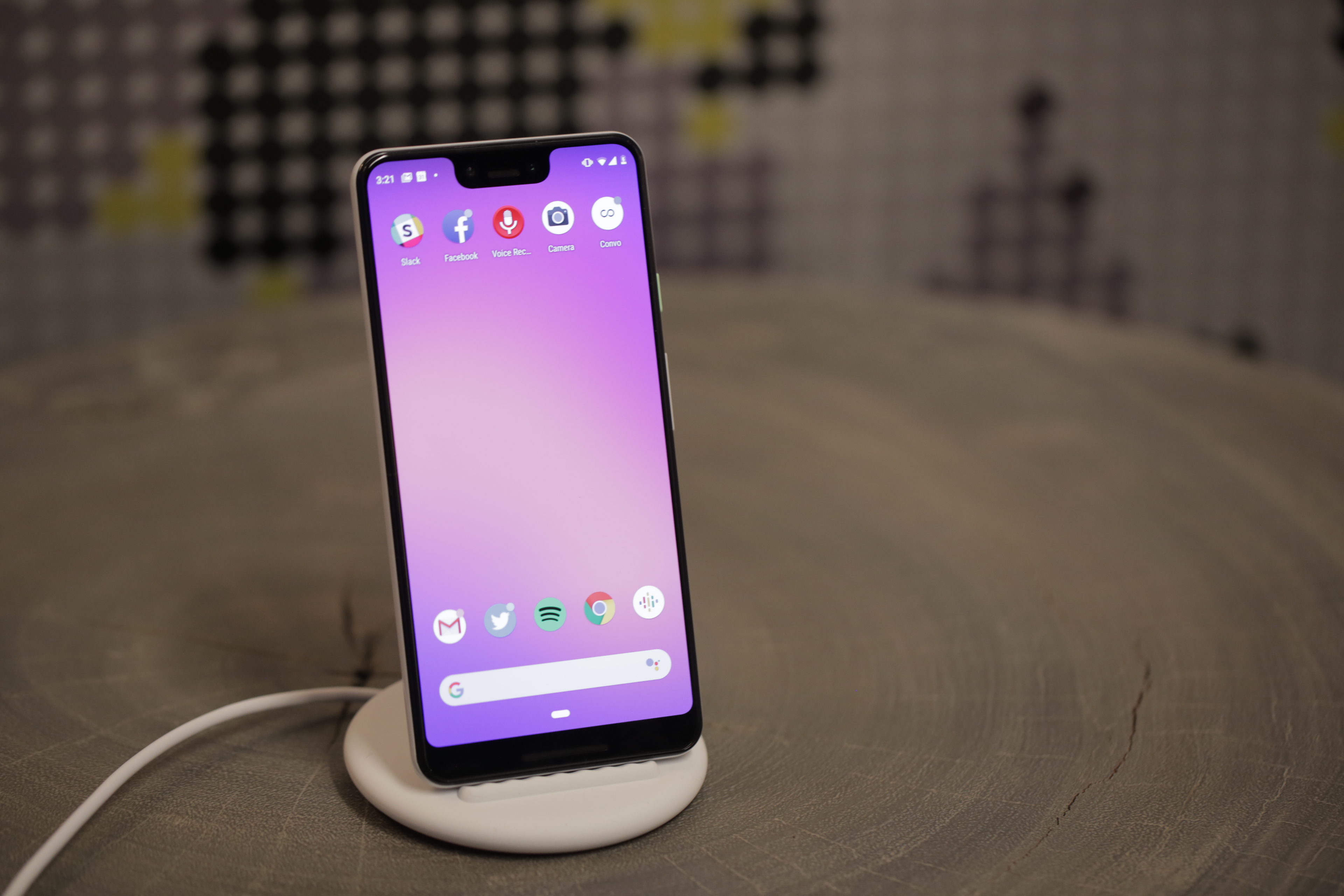
The Pixel Stand, meanwhile, is a smart little accessory. At $79, it’s one I’d consider strongly if picking up the handset. Granted, it lacks the ambition of Apple’s three-product-charging AirPower, but among its other clear advantages is the fact I’ve held it in my hand and can confirm it’s a real thing that actually exists. The accessory takes advantage of that glass back to charge wirelessly via the Qi standard.

The stand is soft and silicon and fairly minimalist, designed to go unseen when not in use. When it is, however, it transforms the Pixel into a makeshift Home Hub, serving up Google Photos and bringing a visual component to Assistant. It’s a clever take of the charging stand — and hopefully a good enough excuse to stop you from falling asleep with your phone every night.
Okay, okay — it’s time to talk about the camera. We’ve got one of our reviewers doing a really in-depth testing on the Pixel camera, which you’ll be able to read as a standalone in the near future. For now, a couple of quick things to note.

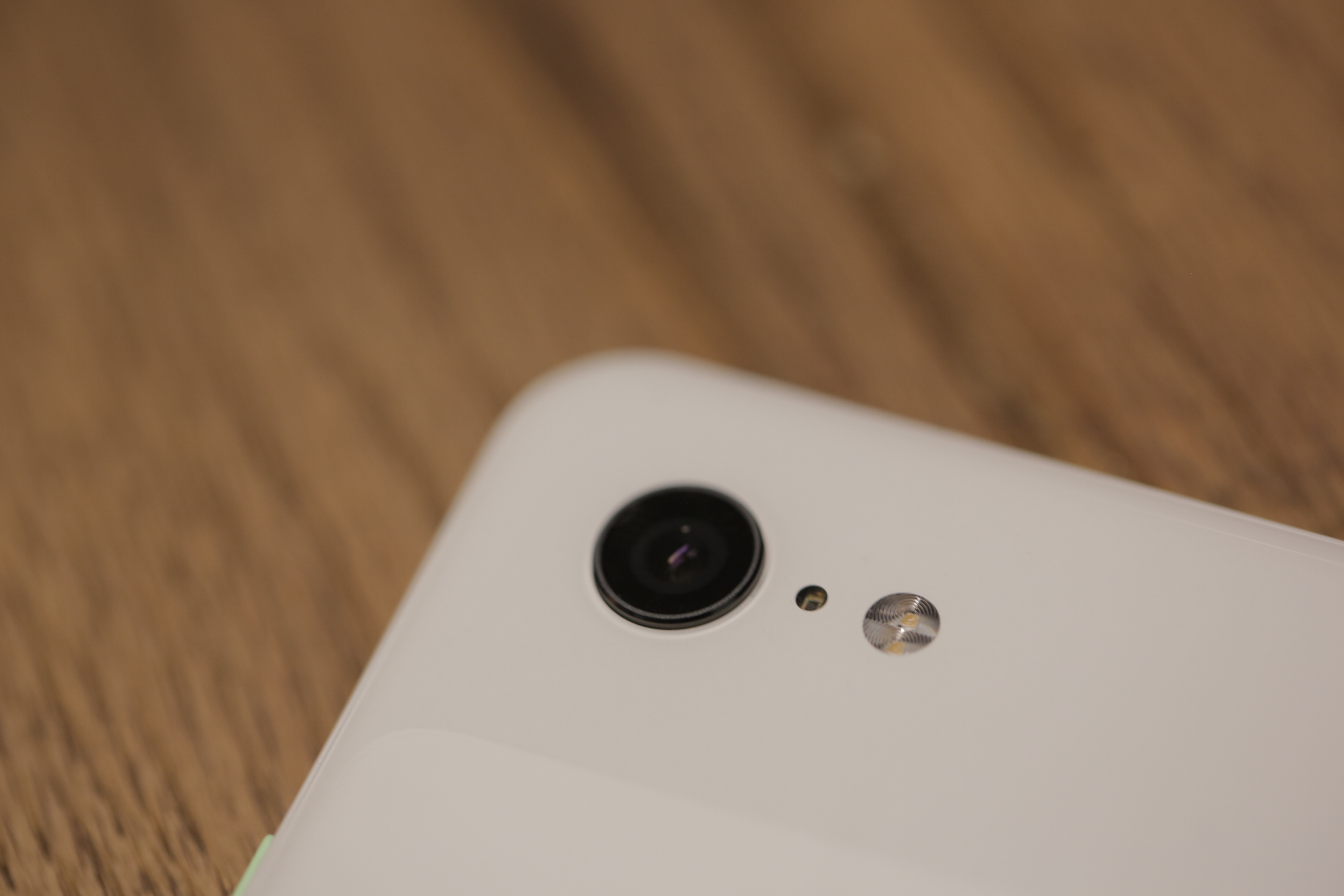
The camera situation is a bit counterintuitive. There’s a second front-facing camera, while the back of the device bucks the industry standard of moving to two — or even three — lenses.

Rakowski again, “We look at all of the different configurations we can get. If we would have added another lens, it would have given us no benefit over what we get with one really good lens.”

That means, like the latest iPhone, the upgrades here are more software than hardware. If anyone gets the benefit of the doubt on that front, it’s Google. The company’s been making great strides in imaging, courtesy of silicon and machine learning, all of which were well demonstrated on the Pixel 2.

The Pixel 3 continues that grand tradition with some really impressive strides. Best of all, unlike many of the camera software tricks introduced by competitors in recent years, many of these additions are majorly useful day-to-day applications.

The camera software has HDR+ on by default — a smart move on Google’s part. While many users will buy the new Pixel based on photo performance, an even larger percentage of owners are unfamiliar with photog terms like HDR. I speak from experience, having personally enabled the feature on many friends’ phones.
In Google’s application, the feature snaps eight frames more or less instantly, digitally stitching them together in a matter than impressively captures uneven light settings in a single frame. In fact, this kind of burst shooting is the key to many of the Pixel 3’s best features.

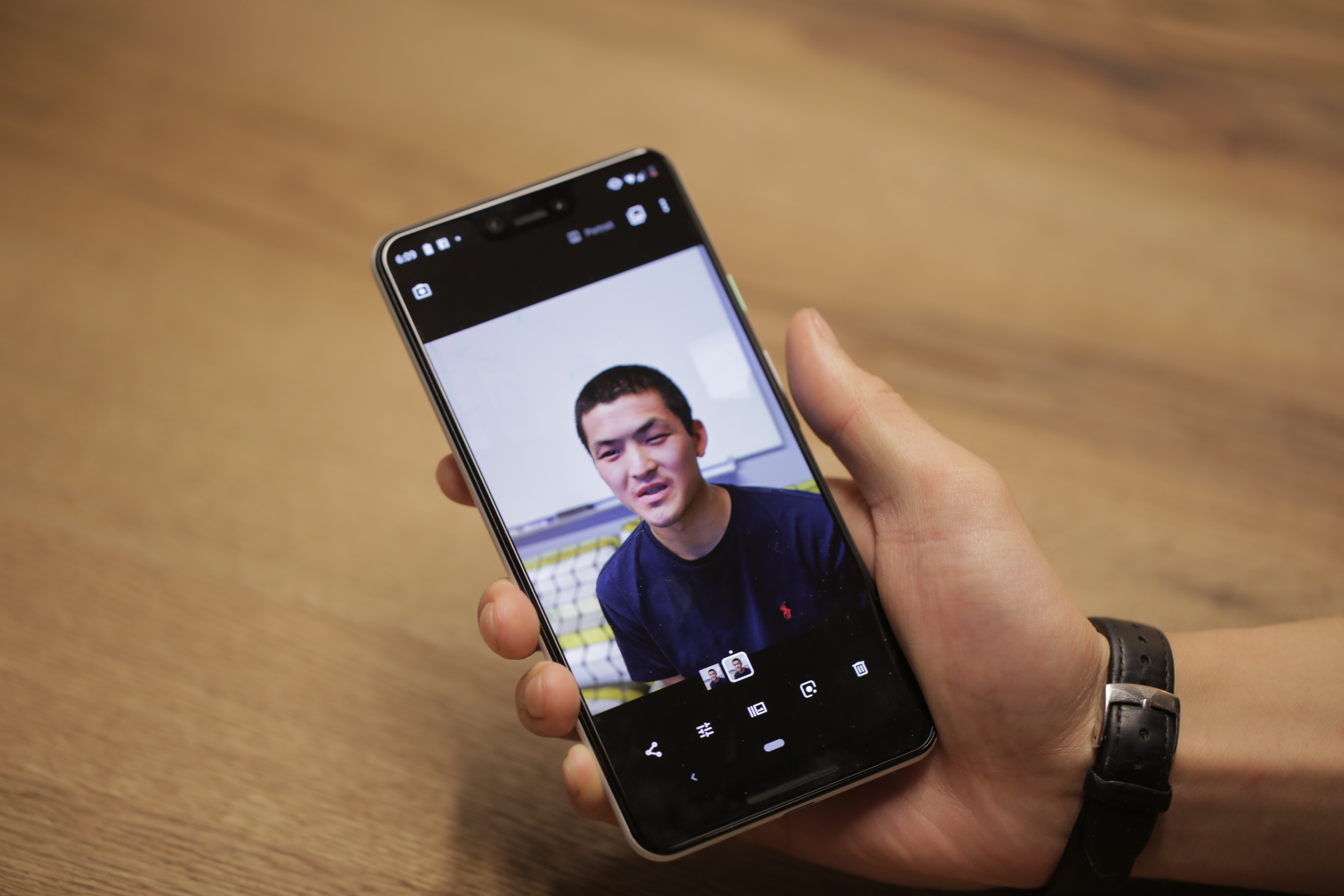
Take Top Shot. The feature utilizes the many frames taken when making a Motion Photo. Once the shot is taken, swipe up and you can scroll through the images on a timeline to pick the frame you want. Generally, the AI does a solid job picking the ideal image, but the ability to customize (assuming users can locate the feature) is certainly welcome.

That customization carries over into features like Portrait Mode. The Pixel has long done a solid job with the feature in spite of not having a full two cameras for depth sensing. Instead, the phone uses a dual lens to approximate a depth map. And while camera suppliers would no doubt argue the benefit of including a full second or third camera, it’s hard to quibble with the results here. Once a shot is taken, you can manually adjust the blurred-out bokeh effect behind the subject.

[Standard v Super Res Zoom]

Super Res Zoom also stitches together pieces of a photo to offer up a zoomed-in version. Here the tech actually builds upon your own shaky hands, using algorithmic tech to fill in the holes. It’s still no match for the optical zoom of telephotos like the one found on the new iPhone, but it definitely improves upon stand zoom.

[Left: iPhone XS, Right, Google Pixel 3 XL]

Night Sight, meanwhile, uses multiple shots to improve the color on low-light shots. It’s a clever workaround for a lack of dual-apertures, doing a fine job of brightening up photos. That said, there’s still noticeable noise on photos shot in dark settings. 
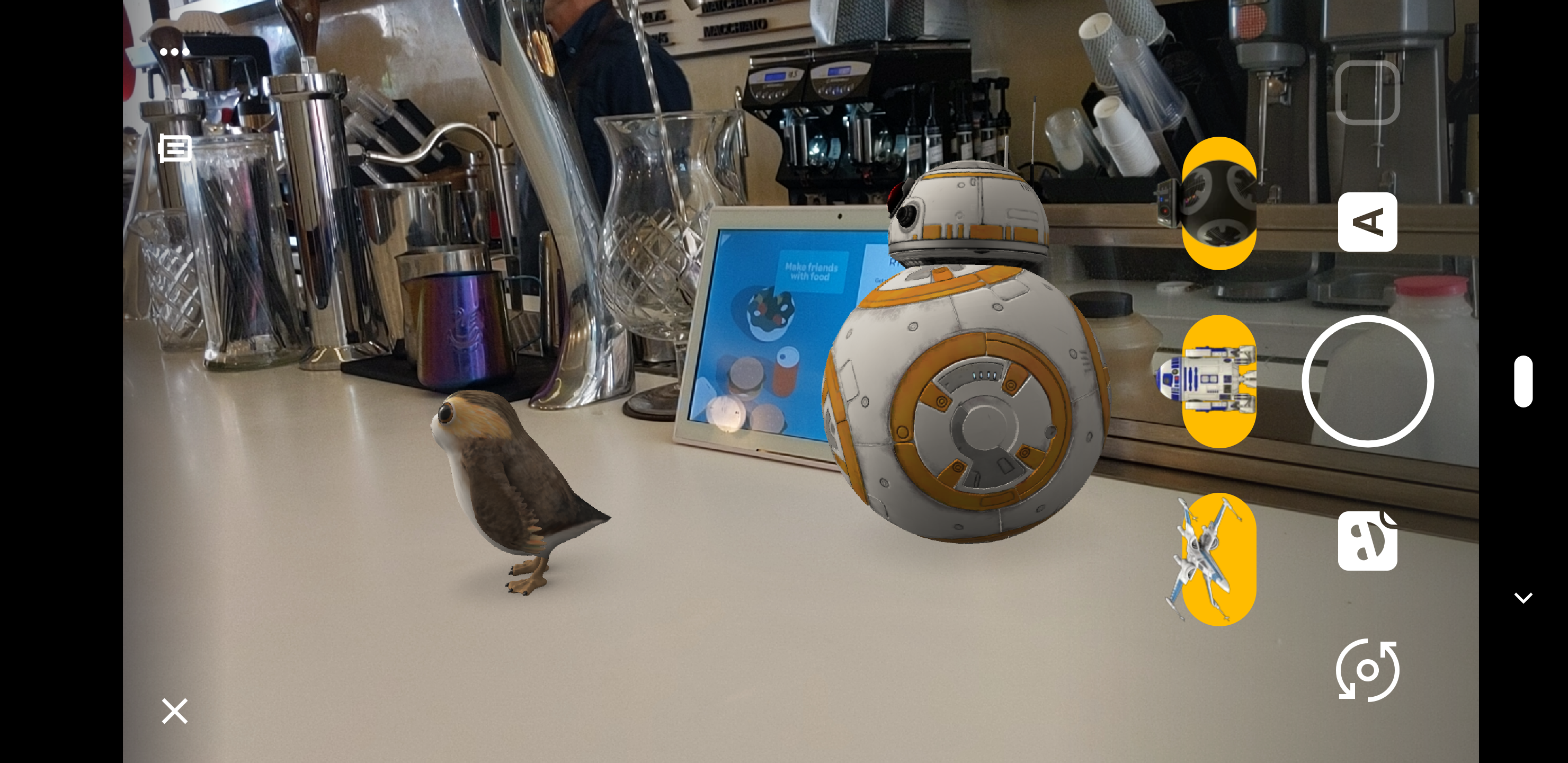
More camera features worth noting:

  • Playground is a fun one-stop shop for augmented reality stickers. There are Star Wars and Avengers in there, among others. This is Google’s fun addition to the camera software. There are no Animojis or AR Emojis here, thanks to the lack of face detection, but it’s a fun glimpse at the future of in-camera AR.
  • Lots of additional selfie options. The dual front-facing cameras means wide-angle selfies, for cramming in a larger group. The camera software, meanwhile, corrects the standard fish-eye lens distortion.
  • Photobooth mode, meanwhile, will snap a shot when you smile.
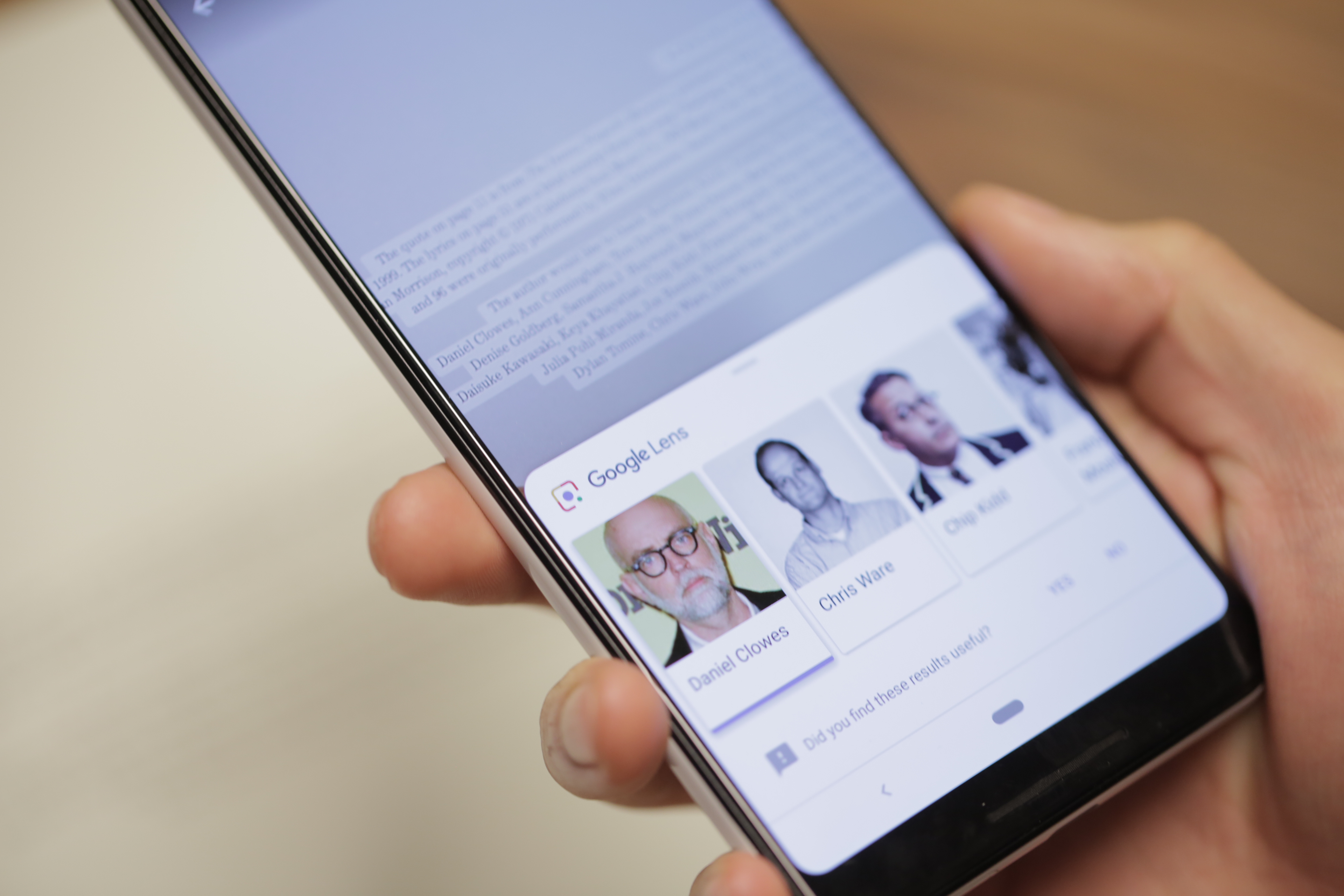
  • Lens continues to impress. Check out the above shot of the thank you page from Adrian Tomine’s Killing and Day, which pops up faces and bios for those fellow authors mentioned.
[gallery ids="1732467,1732468,1732469,1732470,1732471,1732472,1732473,1732474,1732475,1732459,1732476,1732477,1732478,1732479,1732480"]

A Google exec recently told me that price wasn’t really a factor when building hardware. In all things, however, the company is pragmatic. Google’s move away from the ongoing spec wars means the company isn’t chasing premium hardware for the sake of itself. That ultimately benefits the user from a pricing perspective.
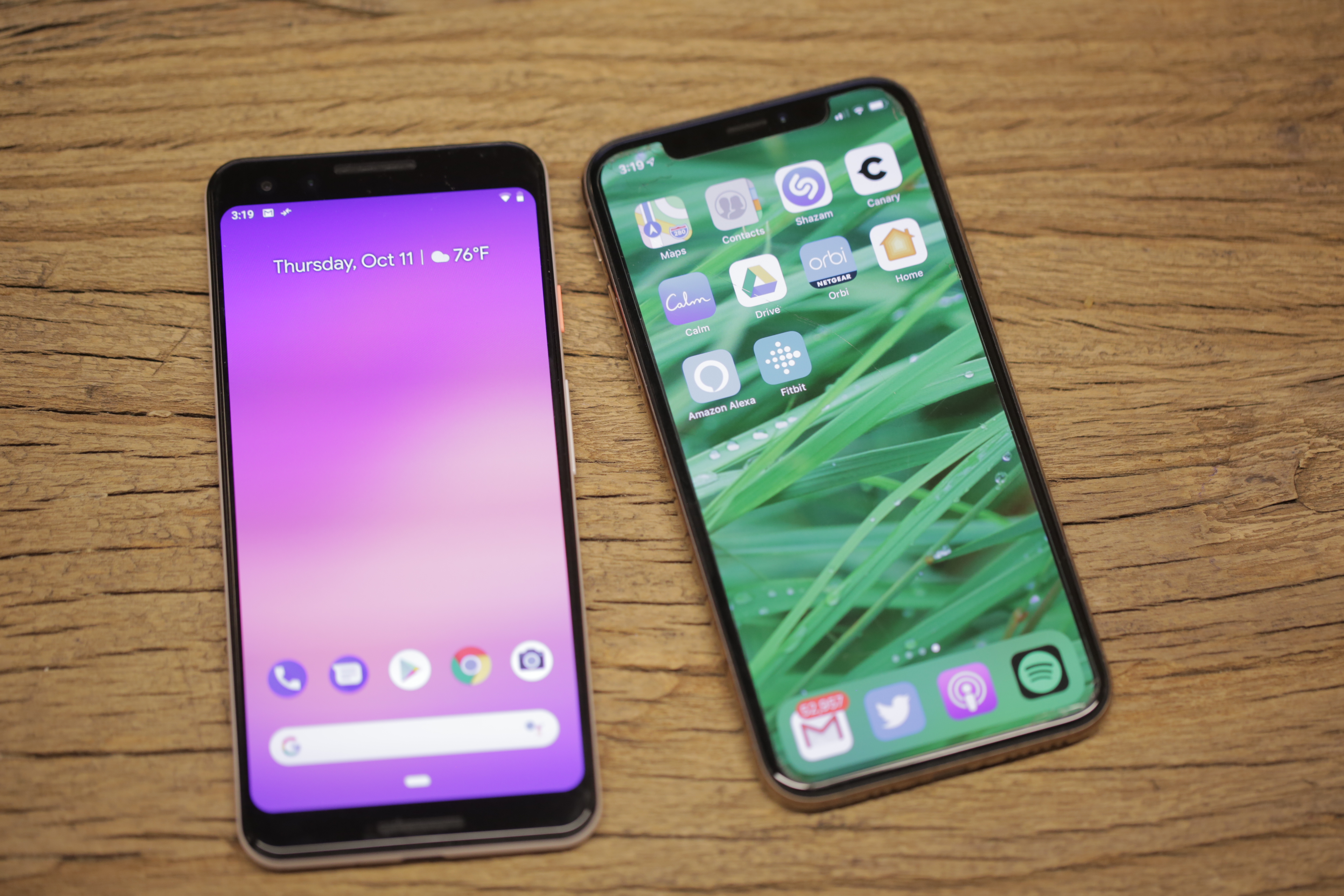
Google doesn’t lead with the fact that the Pixel 3 starts at $799, but in a world full of flagships that start at $200 more, maybe it should. Sure, it’s not exactly cheap, but these days, it feels like a downright steal for a top-tier flagship.

Like its predecessor, the Pixel 3 isn’t about flash. It is, however, another solid showcase for Google’s impressive innovations.


Read Full Article

This robot uses lasers to “listen” to its environment


A new technology from researchers at Carnegie Mellon University will add sound and vibration awareness to create truly context-aware computing. The system, called Ubicoustics, adds additional bits of context to smart device interaction, allowing a smart speaker to know its in a kitchen or a smart sensor to know you’re in a tunnel versus on the open road.

“A smart speaker sitting on a kitchen countertop cannot figure out if it is in a kitchen, let alone know what a person is doing in a kitchen,” said Chris Harrison a researcher at CMU’s Human-Computer Interaction Institute. “But if these devices understood what was happening around them, they could be much more helpful.”

The first implementation of the system uses built-in speakers to create “a sound-based activity recognition.” How they are doing this is quite fascinating.

“The main idea here is to leverage the professional sound-effect libraries typically used in the entertainment industry,” said Gierad Laput, a Ph.D. student. “They are clean, properly labeled, well-segmented and diverse. Plus, we can transform and project them into hundreds of different variations, creating volumes of data perfect for training deep-learning models.”

From the release:

Laput said recognizing sounds and placing them in the correct context is challenging, in part because multiple sounds are often present and can interfere with each other. In their tests, Ubicoustics had an accuracy of about 80 percent — competitive with human accuracy, but not yet good enough to support user applications. Better microphones, higher sampling rates and different model architectures all might increase accuracy with further research.

In a separate paper, HCII Ph.D. student Yang Zhang, along with Laput and Harrison, describe what they call Vibrosight, which can detect vibrations in specific locations in a room using laser vibrometry. It is similar to the light-based devices the KGB once used to detect vibrations on reflective surfaces such as windows, allowing them to listen in on the conversations that generated the vibrations.

This system uses a low-power laser and reflectors to sense whether an object is on or off or whether a chair or table has moved. The sensor can monitor multiple objects at once and the tags attached to the objects use no electricity. This would let a single laser monitor multiple objects around a room or even in different rooms, assuming there is line of sight.

The research is still in its early stages but expect to see robots that can hear when you’re doing the dishes and, depending on their skills, hide or offer to help.


Read Full Article

See Better and Further with Super Res Zoom on the Pixel 3


Digital zoom using algorithms (rather than lenses) has long been the “ugly duckling” of mobile device cameras. As compared to the optical zoom capabilities of DSLR cameras, the quality of digitally zoomed images has not been competitive, and conventional wisdom is that the complex optics and mechanisms of larger cameras can't be replaced with much more compact mobile device cameras and clever algorithms.

With the new Super Res Zoom feature on the Pixel 3, we are challenging that notion.

The Super Res Zoom technology in Pixel 3 is different and better than any previous digital zoom technique based on upscaling a crop of a single image, because we merge many frames directly onto a higher resolution picture. This results in greatly improved detail that is roughly competitive with the 2x optical zoom lenses on many other smartphones. Super Res Zoom means that if you pinch-zoom before pressing the shutter, you’ll get a lot more details in your picture than if you crop afterwards.
Crops of 2x Zoom: Pixel 2, 2017 vs. Super Res Zoom (Pixel 3, 2018)
The Challenges of Digital Zoom
Digital zoom is tough because a good algorithm is expected to start with a lower resolution image and "reconstruct" missing details reliably — with typical digital zoom a small crop of a single image is scaled up to produce a much larger image. Traditionally, this is done by linear interpolation methods, which attempt to recreate information that is not available in the original image, but introduce a blurry- or “plasticy” look that lacks texture and details. In contrast, most modern single-image upscalers use machine learning (including our own earlier work, RAISR). These magnify some specific image features such as straight edges and can even synthesize certain textures, but they cannot recover natural high-resolution details. While we still use RAISR to enhance the visual quality of images, most of the improved resolution provided by Super Res Zoom (at least for modest zoom factors like 2-3x) comes from our multi-frame approach.

Color Filter Arrays and Demosaicing
Reconstructing fine details is especially difficult because digital photographs are already incomplete — they’ve been reconstructed from partial color information through a process called demosaicing. In typical consumer cameras, the camera sensor elements are meant to measure only the intensity of the light, not directly its color. To capture real colors present in the scene, cameras use a color filter array placed in front of the sensor so that each pixel measures only a single color (red, green, or blue). These are arranged in a Bayer pattern as shown in the diagram below.
A Bayer mosaic color filter. Every 2x2 group of pixels captures light filtered by a specific color — two green pixels (because our eyes are more sensitive to green), one red, and one blue. This pattern is repeated across the whole image.
A camera processing pipeline then has to reconstruct the real colors and all the details at all pixels, given this partial information.* Demosaicing starts by making a best guess at the missing color information, typically by interpolating from the colors in nearby pixels, meaning that two-thirds of an RGB digital picture is actually a reconstruction!
Demosaicing reconstructs missing color information by using neighboring neighboring pixels.
In its simplest form, this could be achieved by averaging from neighboring values. Most real demosaicing algorithms are more complicated than this, but they still lead to imperfect results and artifacts - as we are limited to only partial information. While this situation exists even for large-format DSLR cameras, their bigger sensors and larger lenses allow for more detail to be captured than is typical in a mobile camera.

The situation gets worse if you pinch-zoom on a mobile device; then algorithms are forced to make up even more information, again by interpolation from the nearby pixels. However, not all is lost. This is where burst photography and the fusion of multiple images can be used to allow for super-resolution, even when limited by mobile device optics.

From Burst Photography to Multi-frame Super-resolution

While a single frame doesn't provide enough information to fill in the missing colors , we can get some of this missing information from multiple images taken successively. The process of capturing and combining multiple sequential photographs is known as burst photography. Google’s HDR+ algorithm, successfully used in Nexus and Pixel phones, already uses information from multiple frames to make photos from mobile phones reach the level of quality expected from a much larger sensor; could a similar approach be used to increase image resolution?

It has been known for more than a decade, including in astronomy where the basic concept is known as “drizzle”, that capturing and combining multiple images taken from slightly different positions can yield resolution equivalent to optical zoom, at least at low magnifications like 2x or 3x and in good lighting conditions. In this process, called muti-frame super-resolution, the general idea is to align and merge low-resolution bursts directly onto a grid of the desired (higher) resolution. Here's an example of how an idealized multi-frame super-resolution algorithm might work:
As compared to the standard demosaicing pipeline that needs to interpolate the missing colors (top), ideally, one could fill some holes from multiple images, each shifted by one pixel horizontally or vertically.
In the example above, we capture 4 frames, three of them shifted by exactly one pixel: in the horizontal, vertical, and both horizontal and vertical directions. All the holes would get filled, and there would be no need for any demosaicing at all! Indeed, some DSLR cameras support this operation, but only if the camera is on a tripod, and the sensor/optics are actively moved to different positions. This is sometimes called "microstepping".

Over the years, the practical usage of this “super-res” approach to higher resolution imaging remained confined largely to the laboratory, or otherwise controlled settings where the sensor and the subject were aligned and the movement between them was either deliberately controlled or tightly constrained. For instance, in astronomical imaging, a stationary telescope sees a predictably moving sky. But in widely used imaging devices like the modern-day smartphone, the practical usage of super-res for zoom in applications like mobile device cameras has remained mostly out of reach.

This is in part due to the fact that in order for this to work properly, certain conditions need to be satisfied. First, and most important, is that the lens needs to resolve detail better than the sensor used (in contrast, you can imagine a case where the lens is so poorly-designed that adding a better sensor provides no benefit). This property is often observed as an unwanted artifact of digital cameras called aliasing.

Image Aliasing
Aliasing occurs when a camera sensor is unable to faithfully represent all patterns and details present in a scene. A good example of aliasing are Moiré patterns, sometimes seen on TV as a result of an unfortunate choice of wardrobe. Furthermore, the aliasing effect on a physical feature (such as an edge of a table) changes when things move in a scene. You can observe this in the following burst sequence, where slight motions of the camera during the burst sequence create time-varying alias effects:
Left: High-resolution, single image of a table edge against a high frequency patterned background, Right: Different frames from a burst. Aliasing and Moiré effects are visible between different frames — pixels seem to jump around and produce different colored patterns.
However, this behavior is a blessing in disguise: if one analyzes the patterns produced, it gives us the variety of color and brightness values, as discussed in the previous section, to achieve super-resolution. That said, many challenges remain, as practical super-resolution needs to work with a handheld mobile phone and on any burst sequence.

Practical Super-resolution Using Hand Motion

As noted earlier, some DSLR cameras offer special tripod super-resolution modes that work in a way similar to what we described so far. These approaches rely on the physical movement of the sensors and optics inside the camera, but require a complete stabilization of the camera otherwise, which is impractical in mobile devices, since they are nearly always handheld. This would seem to create a catch-22 for super-resolution imaging on mobile platforms.

However, we turn this difficulty on its head, by using the hand-motion to our advantage. When we capture a burst of photos with a handheld camera or phone, there is always some movement present between the frames. Optical Image Stabilization (OIS) systems compensate for large camera motions - typically 5-20 pixels between successive frames spaced 1/30 second apart - but are unable to completely eliminate faster, lower magnitude, natural hand tremor, which occurs for everyone (even those with “steady hands”). When taking photos using mobile phones with a high resolution sensor, this hand tremor has a magnitude of just a few pixels.
Effect of hand tremor as seen in a cropped burst, after global alignment.
To take advantage of hand tremor, we first need to align the pictures in a burst together. We choose a single image in the burst as the “base” or reference frame, and align every other frame relative to it. After alignment, the images are combined together roughly as in the diagram shown earlier in this post. Of course, handshake is unlikely to move the image by exactly single pixels, so we need to interpolate between adjacent pixels in each newly captured frame before injecting the colors into the pixel grid of our base frame.

When hand motion is not present because the device is completely stabilized (e.g. placed on a tripod), we can still achieve our goal of simulating natural hand motion by intentionally “jiggling” the camera, by forcing the OIS module to move slightly between the shots. This movement is extremely small and chosen such that it doesn’t interfere with normal photos - but you can observe it yourself on Pixel 3 by holding the phone perfectly still, such as by pressing it against a window, and maximally pinch-zooming the viewfinder. Look for a tiny but continuous elliptical motion in distant objects, like that shown below.
Overcoming the Challenges of Super-resolution
The description of the ideal process we gave above sounds simple, but super-resolution is not that easy — there are many reasons why it hasn’t widely been used in consumer products like mobile phones, and requires the development of significant algorithmic innovations. Challenges can include:
  • A single image from a burst is noisy, even in good lighting. A practical super-resolution algorithm needs to be aware of this noise and work correctly despite it. We don’t want to get just a higher resolution noisy image - our goal is to both increase the resolution but also produce a much less noisy result.
    Left: Single frame frame from a burst taken in good light conditions can still contain a substantial amount of noise due to underexposure. Right: Result of merging multiple frames after burst processing.
  • Motion between images in a burst is not limited to just the movement of the camera. There can be complex motions in the scene such as wind-blown leaves, ripples moving across the surface of water, cars, people moving or changing their facial expressions, or the flicker of a flame — even some movements that cannot be assigned a single, unique motion estimate because they are transparent or multi-layered, such as smoke or glass. Completely reliable and localized alignment is generally not possible, and therefore a good super-resolution algorithm needs to work even if motion estimation is imperfect.
  • Because much of motion is random, even if there is good alignment, the data may be dense in some areas of the image and sparse in others. The crux of super-resolution is a complex interpolation problem, so the irregular spread of data makes it challenging to produce a higher-resolution image in all parts of the grid.
All the above challenges would seem to make real-world super-resolution either infeasible in practice, or at best limited to only static scenes and a camera placed on a tripod. With Super Res Zoom on Pixel 3, we’ve developed a stable and accurate burst resolution enhancement method that uses natural hand motion, and is robust and efficient enough to deploy on a mobile phone.

Here’s how we’ve addressed some of these challenges:
  • To effectively merge frames in a burst, and to produce a red, green, and blue value for every pixel without the need for demosaicing, we developed a method of integrating information across the frames that takes into account the edges of the image, and adapts accordingly. Specifically, we analyze the input frames and adjust how we combine them together, trading off increase in detail and resolution vs. noise suppression and smoothing. We accomplish this by merging pixels along the direction of apparent edges, rather than across them. The net effect is that our multi-frame method provides the best practical balance between noise reduction and enhancement of details.
    Left: Merged image with sub-optimal tradeoff of noise reduction and enhanced resolution. Right: The same merged image with a better tradeoff.
  • To make the algorithm handle scenes with complex local motion (people, cars, water or tree leaves moving) reliably, we developed a robustness model that detects and mitigates alignment errors. We select one frame as a “reference image”, and merge information from other frames into it only if we’re sure that we have found the correct corresponding feature. In this way, we can avoid artifacts like “ghosting” or motion blur, and wrongly merged parts of the image.
    A fast moving bus in a burst of images. Left: Merge without robustness model. Right: Merge with robustness model.
Pushing the State of the Art in Mobile Photography
The Portrait mode last year, and the HDR+ pipeline before it, showed how good mobile photography can be. This year, we set out to do the same for zoom. That’s another step in advancing the state of the art in computational photography, while shrinking the quality gap between mobile photography and DSLRs. Here is an album containing full FOV images, followed by Super Res Zoom images. Note that the Super Res Zoom images in this album are not cropped — they are captured directly on-device using pinch-zoom.
Left: Crop of 7x zoomed image on Pixel 2. Right: Same crop from Super Res Zoom on Pixel 3.
The idea of super-resolution predates the advent of smart-phones by at least a decade. For nearly as long, it has also lived in the public imagination through films and television. It’s been the subject of thousands of papers in academic journals and conferences. Now, it is real — in the palm of your hands, in Pixel 3.
An illustrative animation of Super Res Zoom. When the user takes a zoomed photo, the Pixel 3 takes advantage of the user’s natural hand motion and captures a burst of images at subtly different positions. These are then merged together to add detail to the final image.
Acknowledgements
Super Res Zoom is the result of a collaboration across several teams at Google. The project would not have been possible without the joint efforts of teams managed by Peyman Milanfar, Marc Levoy, and Bill Freeman. The authors would like to thank Marc Levoy and Isaac Reynolds in particular for their assistance in the writing of this blog.

The authors wish to especially acknowledge the following key contributors to the Super Res Zoom project: Ignacio Garcia-Dorado, Haomiao Jiang, Manfred Ernst, Michael Krainin, Daniel Vlasic, Jiawen Chen, Pascal Getreuer, and Chia-Kai Liang. The project also benefited greatly from contributions and feedback by Ce Liu, Damien Kelly, and Dillon Sharlet.


How to get the most out of Super Res Zoom?
Here are some tips on getting the best of Super Res Zoom on a Pixel 3 phone:
  • Pinch and zoom, or use the + button to increase zoom by discrete steps.
  • Double-tap the preview to quickly toggle between zoomed in and zoomed out.
  • Super Res works well at all zoom factors, though for performance reasons, it activates only above 1.2x. That’s about half way between no zoom and the first “click” in the zoom UI.
  • There are fundamental limits to the optical resolution of a wide-angle camera. So to get the most out of (any) zoom, keep the magnification factor modest.
  • Avoid fast moving objects. Super Res zoom will capture them correctly, but you will not likely get increased resolution.


* It’s worth noting that the situation is similar in some ways to how we see — in human (and other mammalian) eyes, different eye cone cells are sensitive to some specific colors, with the brain filling in the details to reconstruct the full image.

The 11 Best Scary Movies on Netflix Full of Frights


best-scary-movies-netflix

While Halloween is the perfect time to watch horror films, scary movies can be enjoyed at any time of the year. With that in mind, we have compiled a list of the best scary movies to watch on Netflix.

Whether it’s spooky ghosts, masked killers, or evil creatures that frighten you the most, this list is for you. So why not close the curtains, dim the lights, and grab a pillow to squeeze when things get tense?

1. The Conjuring (2013)

Horror, Mystery, Thriller | IMDb: 7.5 | RT: 86%

What’s spookier than a ghostly campfire story? The answer is one that is based on actual events. The Conjuring is an extremely scary and suspenseful tale of a family whose home is invaded by something evil. The family seeks the help of a paranormal investigation team played by Patrick Wilson and Vera Farmiga. And what happens next will give you chills.

2. Hush (2016)

Horror, Thriller | IMDb: 6.6 | RT: 94%

When you live alone, there is one thing that can put a scare into you like no other; a masked killer standing outside your window. Hush, starring Kate Siegel, takes you into the life of a deaf writer who lives in solitude. When she discovers she has become prey for a killer, she must fight for her life. If you’re in the mood for a frightening film, watch Hush when you’re home alone.

3. The Babadook (2014)

Drama, Horror | IMDb: 6.8 | RT: 98%

A single mother whose husband died a violent death soon has even more danger to confront. The Babadook rolls the mysterious appearance of a children’s book and an evil presence at every turn into one gripping, terrifying tale. With mystery and monsters, this psychological thriller is one bedtime story that might just give you nightmares.

If that interests you, here are some truly nightmarish movies full of jump scares to check out.

4. Stephen King’s Children of the Corn (1984)

Horror, Thriller | IMDb: 5.6 | RT: 36%

From the master of horror stories, Stephen King, comes Children of the Corn. While the movie may be older than the others on the list, the creep factor hasn’t diminished over time. A young couple ends up in a small town after becoming lost on their travels across country roads. They soon discover that the children have taken over the town and the corn fields hold all the secrets.

If you’re a fan of Stephen King here are some other movies based on Stephen King novels you can stream online.

5. Seven (1995)

Crime, Drama, Mystery | IMDb: 8.6 | RT: 80%

Starring Morgan Freeman and Brad Pitt, Seven is a crime mystery that’s scary in its own way. A serial killer is on the loose and they are the detectives on the case. The killer they hunt is on a disturbing mission to teach lessons to others about the seven deadly sins. What makes this movie frightening isn’t just the horrific scenes left by the killer, but the entire film concept as well. And of course, there is a twist in the tale.

6. The Sixth Sense (1999)

Drama, Mystery, Thriller | IMDb: 8.1 | RT: 85%

In The Sixth Sense, you follow a small child, played by Haley Joel Osment, who can communicate with spirits. His psychologist, played by Bruce Willis, does his best to help the young boy while he tries to uncover the truth behind it all. With ghosts showing up around every corner that only the child can see, this spooky story has a surprise that got it nominated for six Academy Awards. Directed by M. Night Shyamalan, The Sixth Sense is a must-see scary film.

7. Hellraiser (1987)

Horror, Thriller | IMDb: 7.0 | RT: 68%

Demons, dimensions, and the dead are what you will find in the original Hellraiser movie. When a man leaves earth and enters the underworld of an undead dimension, who better to direct that story than horror novelist Clive Barker? Open the puzzle box and prepare to meet the most frightening creatures imaginable, if you dare. And if you survive, check out Hellbound: Hellraiser II on Netflix as well.

8. The Shining (1980)

Classic Movie, Classic Thriller, Cult Movie | IMDb: 8.4 | RT: 88%

Starring Jack Nicholson and Shelley Duvall, The Shining is based on the 1977 Stephen King novel of the same name. When Jack takes a job as a caretaker at the secluded Overlook Hotel in Colorado, it becomes anything but a relaxing winter in the mountains for him and his family. As the hotel’s spirited past and cabin fever set in for the author-turned-caretaker, Jack soon turns homicidal. The Shining is a classic thriller that is sure to give you goosebumps.

9. The Witch (2015)

Horror, Supernatural Horror, Teen Screams | IMDb: 6.7 | RT: 91%

Travel back in time to 1630s New England where witchcraft turns a family paranoid in The Witch. It begins when a young farm boy goes missing and the family places the blame on the oldest daughter who was caring for the boy. The film not only brings a test of love and faith for a family, but chills to the rest of us watching their story unfold.

10. Deep Blue Sea (1999)

Action & Adventure, Action Thriller, Sci-Fi Thriller | IMDb: 5.8 | RT: 57%

It’s not always movies with killers, hauntings, or ghosts that scare people the most. Deep Blue Sea offers up its own type of frights when a group of scientists fight for their lives against hungry sharks. While working as researchers on a remote island, something goes terribly wrong and the sharks begin their attack on the group. starring Samuel L. Jackson, Saffron Burrows, Thomas Jane, and LL Cool J, Deep Blue Sea is one of the best shark movies to watch online.

11. Would You Rather (2012)

Horror | IMDb: 5.7 | RT:57%

How far would you go for enough money to help your fatally ill brother? In Would You Rather, a seemingly innocent dinner party full of strangers soon turns into an insane game of choices. A merciless millionaire is willing to help those who need it, but at costs that are higher than the group can afford. Starring Brittany Snow, this movie is more disturbing than spooky, but still scary to watch.

Netflix Knows What Scares You

While this article is all about the best scary movies on Netflix there are plenty of sites to watch horror movies online for free.

Netflix may not offer streaming for popular slashers like Friday the 13th, extra-terrestrial terrors like Alien, demented flicks like Saw, or demonic classics like The Exorcist. But this list does give you some scary options to explore that might just satisfy your craving for horror and suspense.

And once you have exhausted this list of scary movies, you can then add these scary TV shows perfect for binge-watching to your lineup too.

Read the full article: The 11 Best Scary Movies on Netflix Full of Frights


Read Full Article

Worries linger as Facebook withholds stolen searches & checkins


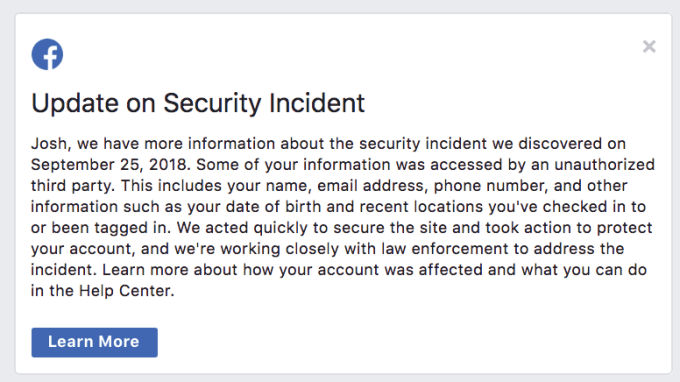
Hacked Facebook users still don’t know which 15 recent searches and 10 latest checkins were exposed in company’s massive breach it detailed last week. The company merely noted that those were amongst the data sets stolen by the attackers. That creates uncertainty about how sensitive or embarrassing the scraped data is, and whether it could possibly by used to blackmail and stalk them.

Much of the scraped data from the 14 million most-impacted users out of 30 million total people hit by the breach was biographical and therefore relatively static, such as their birth date, religion, or hometown. While still problematic because it could be used for unconsented ad targeting, scams, hacking attempts, or social engineering attacks, at least users likely know what was illicitly grabbed.

Thankfully, some of the most sensitive data fields such as sexual orientation were not accessed, Facebook confirms to me. But the exposure of recent searches and checkins could threaten users in different ways.

Given the attack was so broad and impacted a wide variety of users, unlike say a targeted attack on the Democratic National Convention, there’s no evidence that blackmailing or stalking individual users was the purpose of the hack. For the average user hit by the breach, the likelihood of this kind of follow-up attack may be low.

But given that public figures including Facebook CEO Mark Zuckerberg and COO Sheryl Sandberg were victims of the attack, as well as many reporters (myself included), there remains a risk that the perpetrators paw through the data seeking high-profile people to exploit.

Stolen data on “the 15 most recent searches you’ve entered into the Facebook search bar” could contain embarrassing or controversial topics, competitive business research, or potential infidelity. Many users might be mortified if their searches for racy content, niche political viewpoints, or their ex-lovers were published in association with their real name. Hackers could potentially target victims with blackmail scams threatening to reveal this info to the world, especially since the hack included user contact info including phone numbers and email addresses.

Scraped checkins could power real-world stalking or attacks. Users’ exact GPS coordinates were not accessible to the hackers, but they did grab 14 million people’s “10 most recent locations you’ve checked in to or been tagged in. These locations are determined by the places named in the posts, such as a landmark or restaurant, not location data from a device” Facebook writes. If users checked in to nearby coffee shops, their place of work, or even their home if they’ve given it a cheeky name as some urban millennials do, their history of visiting those locations is now in dangerous hands.

If users at least knew what searches or checkins of theirs were stolen, they could choose if or how they should modify their behavior or better protect themselves. That’s why amongst Facebook’s warnings to users about whether they were hacked and what types of data were accessed, it should also consider giving those users the option to see the specific searches or checkins that were snatched.

When asked by TechCrunch, a Facebook spokesperson declined to comment on its plans here. It understandable that the company might be concerned that disclosing the particular searches and checkins could unnecessarily increase fear and doubt. But as Facebook tries to recover from the breach and regain the trust of its audience of 2.2 billion, it should err on the side of transparency. If hackers know this information, shouldn’t the hacked users too?


Read Full Article