06 October 2019

An interview with Dr. Stuart Russell, author of “Human Compatible, Artificial Intelligence and the Problem of Control”


(UC Berkeley’s Dr. Stuart Russell’s new book, “Human Compatible: Artificial Intelligence and the Problem of Control, goes on sale Oct. 8. I’ve written a review, Human Compatible” is a provocative prescription to re-think AI before it’s too late,” and the following in an interview I conducted with Dr. Russell in his UC Berkeley office on September 3, 2019.)

Stuart Russell HUMAN COMPATIBLE Credit Peg Skorpinski

Dean’s Society – October 23, 2006; Stuart Russell

Ned Desmond: Why did you write Human Compatible?

Dr. Russell: I’ve been thinking about this problem – what if we succeed with AI? – on and off since the early 90s. The more I thought about it, the more I saw that the path we were on doesn’t end well.

(AI Researchers) had mostly just doing toy stuff in the lab, or games, none of which represented any threat to anyone. It’s a little like a physicist playing tiny bits of uranium. Nothing happens, right? So we’ll just make more of it, and everything will be fine. But it just doesn’t work that way.  When you start crossing over to systems that are more intelligent, operating on a global scale, and having real-world impact, like trading algorithms, for example, or social media content selection, then all of a sudden, you are having a big impact on real-world, and it’s hard to control. It’s hard to undo. And that’s just going to get worse and worse and worse.

Desmond: Who should read Human Compatible?

Dr. Russell: I think everyone, because everyone is going to be affected by this.  As progress occurs towards human level (AI), each big step is going to magnify the impact by another factor of 10, or another factor of 100. Everyone’s life is going to be radically affected by this. People need to understand it. More specifically, it would be policymakers, the people who run the large companies like Google and Amazon, and people in AI, related disciplines, like control theory, cognitive science and so on.

My basic view was so much of this debate is going on without any understanding of what AI is.  It’s just this magic potion that will make things intelligent. And in these debates, people don’t understand the building blocks, how it fits together, how it works, how you make an intelligent system. So chapter two (of Human Compatible was) sort of mammoth and some people said, “Oh, this is too much to get through and others said, “No, you absolutely have to keep it.”  So I compromised and put the pedagogical stuff in the appendices.

Desmond: Why did computer scientists tend to overlook the issue of uncertainty in the objective function for AI systems?

Dr. Russell: Funnily enough, in AI, we took uncertainty (in the decision-making function) to heart starting in the 80s. Before that, most AI people said let’s just work on cases where we have definite knowledge, and we can come up with guaranteed plans.


Read Full Article

HTC stopped innovating on smartphones, new CEO admits


Several months back, we invited HTC cofounder and CEO Cher Wang to appear on stage at TechCrunch Disrupt. Sometimes, however, life happens. Two weeks ago, the company announced that Wang would be stepping down from the role, which would immediately be filled by longtime telecom vet, Yves Maitres. Thankfully, the former Orange exec also agreed to appear on stage at this week’s event.

Maitres took the stage immediately following a one on one with OnePlus cofounder, Carl Pei. The contrast of the two companies couldn’t be more stark. In six short years of existence, OnePlus has managed to buck a number of industry trends with a controlled growth that flies in the face of wider industry smartphone trends.

HTC, meanwhile, has been struggling for years. In Q2, the Taiwanese hardware maker posted its fifth consecutive quarterly loss. Last July, it laid off around a quarter of its staff. It’s been a precipitous fall. In 2011, the company comprised around 11 percent of global smartphone sales, per analyst figures. Now its figures are routinely classified among the “Others” in those reports.

Speaking to Maitres at an event such as this offers a rare opportunity for insight from a newly minted exec who has spent years watching his new company from the outside. As such, he addressed HTC’s struggles with a refreshing candidness.

“HTC has stopped innovating in the hardware of the smartphone,” he told the audience. “And people like Apple, like Samsung and, most recently, Huawei, have done an incredible job investing in their hardware. We didn’t, because we have been investing in innovation on virtual reality. When I was young, somebody told me, ‘to be be right at the wrong time is to be wrong and to be wrong at the right time is right.’ I think we’ve been right at the wrong time and now we have to catch up. We made a timing mistake. It is very difficult to anticipate the time. HTC made a mistake in terms of timing. It is a difficult mistake and we are paying for that, but we still have so many assets in terms of innovation, team and balance sheets that I feel we are recovering from the timing mistake.”

‘Timing,’ here, is primarily a reference to the company’s decision to move much of its R&D money into XR (primarily VR through its Vive wing). Maitres said he anticipates that HTC’s XR offerings will overtake the mobile side in about five years.

“We’ll do our best to make it shorter, but customer adoption is key,” he explained. “How people are adopting your technology. And we all know know it is absolutely critical. And the end of the day, we have human beings in front of us, and they’re dealing with something total new and totally unusual, which is virtual.”

On the mobile side, Maitres sees 5G as the primary bottleneck to growth. Contrary to suggestions that the company’s best play is in developing nations, he says HTC’s play going forward will be more premium handset focused on “countries with higher GDP.”

“The competition is changing,” he says. “We’re all having a situation where worldwide marketshare is going down and the customer is disappointed in not being to have the latest Huawei phone anymore. How to give our customers the ability to come back to what they wish, in terms of best in class hardware and photography that HTC to will to solve in the next few months.”

While figures will largely be dependent on decisions Brough to HTC’s board, Maitres maintains optimistic projections when it comes to returning the company profitability.

“I truly believe that it is going to depend on the way carriers deploy 5G,” he says. “And you know that 2020 will bee the starting point for 5G. Usually it takes two years to deploy a network. So 2023 will have significant coverage. That’s why I believe that 2025, probably even earlier will be the turning point. We are dependent on carrier deployment speed.”


Read Full Article

The Finder Keyboard Shortcuts Cheat Sheet for Mac


person typing on a MacBook keyboard

Your Mac desktop’s Finder app is a hub of constant activity. You use the app, for starters, to install and launch apps, preview files, organize, back up and share your data.

Given that Finder comes in handy in so many ways, learning how to navigate it faster is sure to boost your productivity. And that’s where this cheat sheet comes in. It shows you how to take care of various Finder tasks mostly without taking your hands of the keyboard.

If you’re new to Finder, take a detour through our Finder tips for macOS newbies and top tips for using Finder efficiently before you explore the shortcuts below.

FREE DOWNLOAD: This cheat sheet is available as a downloadable PDF from our distribution partner, TradePub. You will have to complete a short form to access it for the first time only. Download Finder Keyboard Shortcuts Cheat Sheet for Mac.

The Finder Keyboard Shortcuts Cheat Sheet for Mac

Shortcut Action
Basic Finder Actions
Cmd + N Open new window
Cmd + T Open new tab
Cmd + W Close active window
OR
¹Close active tab
Shift + Cmd + W ¹Close active window
Option + Cmd + W Close all windows
OR
¹Close all tabs except the active tab
Option + Shift + Cmd + W ¹Close all windows
Cmd + O Open selected item(s)
Option + Cmd + O Open selected item(s) and close active window or ¹active tab
Shift + Cmd + N Create new folder
Control + Cmd + N Create new folder and move selected item to it
Cmd + I Show Get Info pane for selected item(s)
Option + Cmd + I Show Inspector pane for selected item(s)
Cmd + P Open selected file for printing
Enter Rename selected item
Cmd + C Copy selected item(s) to clipboard
Option + Cmd + C ²Copy pathname of selected item to clipboard
Cmd V Paste item(s) from clipboard
Option + Cmd + V Move selected item(s) to active location i.e. cut-paste item(s)
Cmd + Z Undo last action
Shift + Cmd + Z Reverse “Undo action”
Cmd + D Duplicated selected item(s)
Control + Cmd + A Create alias for selected item(s)
Option+ Control + Cmd + A Locate original item for selected alias(es)
³Space Open Quick Look preview of selected item(s)
³Cmd + Y Open Quick Look preview of selected item(s)
³Option + Cmd + Y Open slideshow or fullscreen Quick Look preview of selected item(s)
Control + Cmd + T Add sidebar shortcuts for selected item(s)
Control + Shift + Cmd + T Add selected item(s) to Dock
Cmd + Delete Move selected item(s) to Trash
Option + Cmd + Delete Delete selected item(s) immediately
Shift + Cmd + Delete Empty Trash
Option + Shift + Cmd + Delete Empty Trash immediately i.e. without warning dialog
Cmd + E Eject the selected disk or volume
Cmd + F Open a Finder search window (search bar is activated automatically)
Option + Cmd + Space Open a Finder search window even when Finder is not active
View and Sort Options
Cmd + 1 Switch to Icon view
Cmd + 2 Switch to List view
Cmd + 3 Switch to Column view
Cmd + 4 Switch to Gallery view
Control + Cmd + 0 ⁴Sort items into Groups
Control + Option + Cmd + 0 Sort items by None
Control + Option + Cmd + 1 Sort items by Name
Control + Option + Cmd + 2 Sort items by Kind
Control + Option + Cmd + 3 Sort items by Date Last Opened
Control + Option + Cmd + 4 Sort items by Date Added
Control + Option + Cmd + 5 Sort items by Modified
Control + Option + Cmd + 6 Sort items by Size
Control + Option + Cmd + 7 Sort items by Tags
Option + Cmd + 1 Clean up items by Name
Option + Cmd + 2 Clean up items by Kind
Option + Cmd + 5 Clean up items by Date Modified
Option + Cmd + 6 Clean up items by Size
Option + Cmd + 7 Clean up items by Tags
Option + Cmd + S Toggle sidebar
Option + Cmd + T Toggle toolbar and sidebar
Shift + Cmd + T Toggle tab bar
Option + Cmd + P Toggle path bar
Shift + Cmd + P Toggle Preview sidebar
Cmd + / (Forward slash) Toggle status bar
Cmd + J Show View options for active folder
Shift + Cmd + . (Period) Toggle visibility of hidden files
Up Arrow Icon View, Gallery View: Select last item
List View: Select item above
Column View: Select last item if no item selected, otherwise select item above
Down Arrow Icon View, Gallery View: Select first item
List View: Select item below
Column View: Select first item if no item selected, otherwise select item below
Left Arrow Icon View: Select item on the left
List View: Collapse folder
Column View: Select parent folder
Gallery View: Select last item if no item selected, otherwise select first item on the left
Right Arrow Icon View: Select item on the right
List View: Expand folder
Column View: Select child item
Gallery View: Select first item if no item selected, otherwise select first item on the right
Tab Icon, List, and Gallery View: Cycle through items in the forward direction
Shift + Tab Icon, List, and Gallery View: Cycle through items in the backward direction
Cmd + Up Arrow Open enclosing (parent) folder
Cmd + Down Arrow Select first item or open selected item(s)
⁵Cmd + [ Go one step backward
⁵Cmd + ] Go one step forward
Accessing Standard Finder Locations
Shift + Cmd + F Open Recents window
Shift + Cmd + O Open Documents folder
Shift + Cmd + D Open Desktop folder
Option + Cmd + L Open Downloads folder
Shift + Cmd + H Open Home folder of current user account
Shift + Cmd + C Open Computer window
Shift + Cmd + R Open AirDrop window
Shift + Cmd + K Open Network window
Shift + Cmd + I Open iCloud Drive
Shift + Cmd + A Open Applications folder
Shift + Cmd + U Open Utilities folder
Shift + Cmd + G Open dialog to jump to folder using pathname
Cmd + K Open Connect to Server utility
Cmd + , (Comma) Open Finder preferences
Window Management
Cmd + M Minimize active window
Option + Cmd + M Minimize all windows
Cmd + ` (Backquote) Cycle through (unminimized) windows
Cmd + H Hide Finder
Option + Cmd + H Hide all apps except Finder
Cmd + Q Quit Finder
Mouse-Based Shortcuts
Cmd-Click Open sidebar item in new tab or window
Cmd-Drag Toolbar/Sidebar Item Add item to or move/remove item from toolbar/sidebar
Cmd-Drag File/Folder To toolbar/sidebar: Add a shortcut
To any location on disk: Move item there
Esc Cancel drag-and-drop action midway
Double-click divider in Column View Resize corresponding column to fit item with longest name
Option + Double-Click divider in Column View Resize all columns to fit items with the longest name in each
Option-Drag divider in Column View Resize columns equally
Option-Click Go Menu Reveal link to Library folder
¹When window has multiple tabs
²If multiple items are selected, pathname of first item will be copied.
³If no item selected, preview parent folder with Quick Look.
⁴Does not work in Gallery View.
⁵Based on tab/window history

There’s a Lot More to Discover in Finder!

Our Finder tips don’t end here. We can also help you find your files quicker with tags, complete various macOS tasks with Finder’s Quick Actions, and discover hidden features.

Speaking of hidden features, did you notice that many of the keyboard shortcuts above are secret Option key shortcuts?

Image Credit: Kaitlyn Baker on Unsplash

Read the full article: The Finder Keyboard Shortcuts Cheat Sheet for Mac


Read Full Article

Claim Your FREE Copy of Hacking for Dummies (Worth $30)


Here’s your chance to learn, in plain English, the computer hacking tricks and techniques you can use to assess the security of your information systems, find their vulnerabilities, and fix the weaknesses before criminal hackers and malicious insiders take advantage of them.

The kind of hacking this ebook covers is the professional, legal type of security testing, otherwise known as “ethical hacking”, or “penetration testing”.

The skills that you will learn in Hacking for Dummies are necessary to find security flaws and to validate that your information systems are truly secure on an ongoing basis.

By the end of this free ebook, you will be able to successfully implement a security assessment program, perform proper security checks, and put the proper countermeasures in place to keep external hackers and malicious users in check.

Download This Ebook For FreeHacking for Dummies Free Ebook

Inside this free copy of Hacking for Dummies, among other things you will:

  • Get up to speed on Windows 10 hacks
  • Learn about the latest mobile computing hacks
  • Get free testing tools
  • Find out about new system updates and improvements
  • And much more.

Want in? Simply click here to download Hacking for Dummies from TradePub. You will have to complete a short form to access the ebook, but it’s well worth it!

This free offer expires on 15 October 2019.

Read the full article: Claim Your FREE Copy of Hacking for Dummies (Worth $30)


Read Full Article

05 October 2019

6 Free Web Apps to Break Instagram Restrictions and Fix Annoyances 


instagram-web-tools

There is so much more to Instagram than posting a picture and getting some likes. These free web apps show how to make the best use of the social network by doing things that Instagram won’t let you.

Instagram often feels unnecessarily restrictive in how one can use it. Thankfully, a few developers are bypassing these annoyances with simple apps. So here are a few ways to write well-formatted captions, browse someone’s top posts, or download any post or story.

1. Instaloadgram (Web): AI-Generate Hashtags, Data Export, and Downloads

Instaloadgram is an Instagram tools to download posts, generate hashtags with AI, and export data

Instaloadgram is a combination of three tools for Instagram users. It lets you download any content from a profile, it can export data to a spreadsheet, and it can auto-generate smart hashtags.

  1. Downloading: Instaloadgram is the best download tool for Instagram stories, videos, or photos. Load any public profile to see the latest Stories that are still active, as well as all their posts. Everything has a quick link to download and save it to your hard drive.
  2. Exporting: You can export data (comments, likes, followers, posts from an account, posts from a hashtag) about any account easily into a spreadsheet to open in Excel. The first 100 entries are free, but you’ll have to pay for more data points.
  3. AI Hashtags: Upload an image from your hard drive to Instaloadgram, and its smart AI will “see” the image to generate hashtags. Hashtags are based on current trends so that you don’t have to do the hard yards. You can copy all hashtags to the clipboard in one click.

Instaloadgram is a virtual Swiss Army knife of useful apps for Instagram users. It’s also cool that it isn’t a subscription-based program because Instagram often bans such apps. You’re only paying for data export, and that too as per the use case.

2. dgram.xyz (Web): All-in-One Instagram Photo, Video, IGTV Downloader

dgram.xyz is an easy way to download Instagram photos, videos, display pictures, and IGTV

If Instaloadgram is overkill for your needs, bookmark dgram.xyz to save or download individual Instagram media. This web app downloads any photo, video, IGTV clip, or a user’s full-size display picture. It doesn’t work with Stories on Instagram.

Just copy the link (on any photo or video, tap the Three-dot menu icon > Copy link) and paste it into the box at dgram. You’ll see a preview, and an option to download the HD file.

Of course, dgram is best for downloading other people’s Instagram content. If you’re only concerned about the things you uploaded on the social network, then there are other ways to download and save all your Instagram images easily.

3. Zine (Web): Free Way to Turn Instagram Feed Into a Website

Zine is the simplest way to turn your Instagram feed into a website

If you’re a photographer or an influencer who primarily uses Instagram for your portfolio, check out Zine. It’s the easiest way to turn any Instagram feed into a website, without any coding, and it’s completely free.

Sign in with your Instagram login, and Zine will fetch the pictures and videos from your account. Customize how you want your website to look by choosing a layout, a font, and the color. You can preview them before making it final.

Once you’re done, you’ll get a free account at the URL “<yourusername>.zine.press” (without the quotes), which even non-Instagram users can check out. The app also lets you upgrade to use your own custom domain name for $7 per month.

Currently, Zine does not import Instagram Stories, so this will be a portfolio of pictures and videos only.

4. Caption Writer (Web): Write Beautifully Formatted Captions

Igor Samokhovets' Caption Writer

It’s strange that Instagram is such a great app, but it won’t let you compose well-formatted captions. Till the social network fixes it, here’s an easy workaround from developer Igor Samohovets.

The web-based Caption Writer works on both desktop and mobile. Write a caption with whitespaces. emojis, and numbered lists. The character count at the top ensures you don’t exceed the 2200 character limit. Similarly, a hashtag limiter counts down from the maximum 30 hashtags.

Once you’ve composed your caption, tap the Copy button, head to Instagram, and paste it there. Next time you want to use Caption Writer again, tap Clear to restart. There’s no need to sign in or download anything, it’s a free and awesome nifty tool.

Note: In case Samohovets takes down Caption Writer, try Pretty Captions to write formatted Instagram captions. It doesn’t have the character or hashtag countdowns, but it works well.

5. Top 100 Posts (Web): Browse Any Account’s Top 100 Posts

Top 100 Posts shows any Instagram account's top posts by engangement, likes, or comments

Instagram doesn’t make it easy to browse. When you discover a new user on Instagram, you can check their feed only chronologically. There’s no quick way to see their most popular or most viewed posts. That’s where Top 100 Posts comes in.

Key in the username of any Instagram public profile, or browse through the suggestions for sports brands, tech brands, top users, etc. In a few seconds, Top 100 Posts will show that account’s best photos and videos (excluding Stories).

You can sort those top posts by engagement, the number of likes it got, or the number of comments on that post. The app also has a quick-link to download and save the image.

This is one of the coolest ways to browse Instagram accounts, especially those of influencers or popular brands. You’re also more likely to see personal pictures this way, rather than an endorsement.

6. Linkfru (Web): Create Cool Links for Instagram Bio

Linkfru lets you add multiple links to Instagram bio

Instagram users can only add one link in their bio. With Linkfru, you can use that one link to lead a user to more cool links.

The free Linkfru account creates a custom page for you, with three links that look like buttons. You can customize the text and the URL, as well as the look of your page. Apart from these three links, you can create custom Pages.

Each Linkfru Page has a lot more information than a button. You can add a banner image or a YouTube video that can be played in the page, as well as a headline, a description, and a link. Your users are likely to stay longer in your Linkfru bio if you use videos smartly.

The free account restricts you to three links and three Pages. The premium accounts (starting at $14 per month) include unlimited links and Pages, as well as analytics and insights into user behavior.

Linkfru is only one of several services that offer cool ways to add links to Instagram posts. Others offer more links in the free package, but the Pages feature makes Linkfru worth checking out.

The Hidden Features of Instagram

The apps in this article are all about circumventing Instagram’s restrictions. But there are also some cool features in Instagram that you probably aren’t aware of. Check out these 15 things you didn’t know you could do on Instagram.

Read the full article: 6 Free Web Apps to Break Instagram Restrictions and Fix Annoyances 


Read Full Article

15 Scary TV Shows to Binge-Watch Over Halloween


tv-shows-halloween

The Halloween season is best known for nightmare-inducing horror films, but there are frightening TV shows worth watching too. With the TV horror genre on the rise, you can now either scare yourself on a weekly basis or binge-watch a whole series over a weekend.

Keep in mind that most scary series are still limited by the restrictions of television, so don’t expect the next Texas Chainsaw Massacre or Hereditary. But TV can be disturbing in other ways, so sit tight and enjoy hours of dread with these horror-themed TV shows.

1. American Horror Story

horror-tv-show-american-horror-story

With a name like American Horror Story, this is clearly a show made for Halloween. Every season of American Horror Story explores a self-contained story, so you can view each season as a kind of miniseries.

This works great for the horror format because it can be difficult to stretch out horror for dozens of episodes. Some shows manage it well (see Hannibal below) but American Horror Story makes good use of its self-contained design to maximize thrills.

You can stream American Horror Story on: Netflix, Hulu, Amazon Prime Video

2. Hannibal

horror-tv-show-hannibal

Be warned: This show is INCREDIBLY graphic and gruesome. Flayed skin, lots of blood, piles of corpses, psychological and physical torture, and other forms of disturbing imagery abound in this horrific show.

The characters, direction, and narrative of Hannibal are all top-notch and award-worthy. However, there’s a reason why Hannibal had such a small viewership during its run: it’s often difficult to watch. I viewed most of this series peering through my fingers—and had to take frequent breaks because of how dark it could get.

Not much else needs to be said. Everyone knows Hannibal. This series is basically a re-imagined crime drama that’s loosely based on the source material.

You can stream Hannibal on: Amazon Prime Video

3. The X-Files

horror-tv-show-x-files

The X-Files is a long-running series beloved by fans and critics alike. It was one of the first shows to successfully mix standalone episodes with serial storylines, allowing it to deliver deep character developments while satisfyingly wrapping up each episode as a self-contained story.

Some of the episodes can be a bit hit-or-miss, but it’s still a thoroughly entertaining ride throughout. Especially if you love mystery.

You can stream The X-Files on: Hulu, Amazon Prime Video

4. The Walking Dead

horror-tv-show-walking-dead

A Halloween without zombies would not be Halloween at all, and we’d be remiss if we left out one of the best zombie shows in the history of television. Season one nabbed five million viewers. By season five, 17 million viewers were tuning in. It’s a must-watch for zombie lovers.

However, do note one thing: even though The Walking Dead is packed with violence and zombie gore, this isn’t a zombie survival story. It’s a drama that happens to take place in a zombie apocalypse. If that sounds fine to you, then you’ll enjoy the show—especially if you speed through the slower parts.

You can stream The Walking Dead on: Netflix

5. Fear the Walking Dead

horror-tv-show-fear-walking-dead

Fear the Walking Dead is a spin-off from The Walking Dead, and even though it doesn’t bring anything new to the genre, it’s definitely noteworthy for its artistic and atmospheric merits. It’s also perfect for getting into the Halloween spirit.

You can stream Fear the Walking Dead on: Hulu

6. Stranger Things

horror-tv-show-stranger-things

I fell in love with Stranger Things in the first 15 minutes of the first episode. Few shows have managed to do what it does, which is to take a cast of children and adults on an epic adventure.

There is a monster in this show, and it can get quite moody and dark at times. It might even scare you if you watch it alone at night with the lights off. But there’s a touching human story at its core that resonates, plus an abundance of 1980s nostalgia!

You can stream Stranger Things on: Netflix

7. Carnivale

horror-tv-show-carnivale

Carnivale is an underappreciated gem, and one of the many shows that make an HBO Now subscription worthwhile. It’s only two short seasons, making it the perfect show to binge-watch for Halloween.

Carnivale is a dark fantasy tale about a traveling carnival, and things aren’t what they seem on the surface. It’s an older show that feels dated at times, but if you can look past it, the story will suck you right in.

You can stream Carnivale on: Amazon Prime Video, HBO Now

8. Penny Dreadful

horror-tv-show-penny-dreadful

The name of this stylized horror show refers to the “penny dreadful” stories produced back in 19th century England; printed tales that involved a lot of sensational, supernatural, and pulpy content matter. Penny Dreadful follows suit, but in much more intelligent ways.

It draws on many public domain characters, including Dracula, Frankenstein, Dr. Jekyll, and more. But the stories therein are unique, engrossing, and macabre. The end result is compelling, to say the least.

As a Showtime series, be warned that you’ll find a lot of mature content in many scenes. Naked cadavers and grotesque imagery are par for the course.

You can stream Penny Dreadful on: NetflixShowtime

9. Outcast

horror-tv-show-outcast

From the original creator of The Walking Dead comes another horror series with much more character development than its more famous counterpart. It’s dark, creepy, but rooted in human relationships and community. All told, it’s a thrilling ride that actually gets better with each episode.

You can stream Outcast on: Cinemax

10. The Exorcist

horror-tv-show-exorcist

The Exorcist is a TV series based on the nightmarish film of the same name. And while it isn’t nearly as terrifying as the source material, even the first episode will leave a lasting impression on you. It’s much scarier than primetime television should be, so viewers better beware.

You can stream The Exorcist on: Hulu

11. Wayward Pines

horror-tv-show-wayward-pines

Wayward Pines is based on the eponymous trilogy of books and faithfully adapts the material into a slow-burning mystery that gets more compelling with each twist. (Skip the second season, which involves a messy genre shift and a significant drop in writing quality.)

You can stream Wayward Pines on: Hulu

12. Supernatural

horror-tv-show-supernatural

Not many shows come close to the number of episodes in Supernatural, and we’re talking about hour-long episodes here. True, there are some real stinkers along the way, but Supernatural is impressive because it managed to stay generally consistent and on course for most of its run.

To cut a long story short, this fantasy/horror series focuses on two brothers who investigate paranormal events and end up having all kinds of run-ins with ghosts, vampires, witches, angels, and demons. The massive mythology of Supernatural is its strongest aspect, so if you’re into that kind of storytelling, you’ll love this show.

You can stream Supernatural on: Netflix

13. Bates Motel

horror-tv-show-bates-motel

Like Hannibal, Bates Motel is a movie-reimagined-for-television that tells the prequel story of Norman Bates, the famous serial killer from Psycho. While the show doesn’t reach the same award-winning heights as Hannibal, the overall experience is a solid one.

Leaning more towards thriller than outright horror, Bates Motel can still produce a ton of suspense and make you feel extremely uncomfortable when it’s firing on all cylinders. Worth a watch? Definitely.

You can stream Bates Motel on: Netflix

14. Hemlock Grove

horror-tv-show-hemlock-grove

Hemlock Grove centers on the fictional town of Hemlock Grove, which gets upended when strange happenings—including a string of brutal murders—start to occur. Though it debuted to mixed reviews, Netflix gave it a full three seasons to bring its story to a somewhat satisfying conclusion.

You can stream Hemlock Grove on: Netflix

15. Attack on Titan

horror-tv-show-attack-on-titan

Don’t be put off by the fact that Attack on Titan is an anime. This show is very adult, particularly in the themes it tackles. Attack on Titan tells the horrific tale of a city that’s attacked by cataclysmic titans, all bolstered by a beautiful art style and stylish animations.

You’ll wince the first time you watch one of these massive titans grab an innocent human and chomp them in half. Dark and gruesome, yet driven by strong characters, Attack on Titan delivers the trifecta of great horror. Not to mention all of the great plot twists along the way. A fun but depressing ride, for sure.

You can stream Attack on Titan on: Hulu, Netflix, Crunchyroll, Funimation

Which Scary TV Shows Will You Watch?

We don’t recommend binge-watching every single one of these shows. Instead, pick one or two that appeal to you the most and set aside a few nights to take in the full experience.

My personal must-watch recommendations are Hannibal (for adults who want truly dreadful horror) and Stranger Things (for something slightly more family-friendly).

If you want to supplement these shows with something more traditional, check out these classic horror films to watch on Netflix.

Read the full article: 15 Scary TV Shows to Binge-Watch Over Halloween


Read Full Article

10 Sites to Watch Old Classic Cartoon TV Shows Online


Are you wondering where to watch old cartoons on the web? Thankfully, there are plenty of sites that can come to your rescue.

If you want to watch classic cartoons, keep reading. We’re going to explain how to watch old cartoons online.

1. Boomerang

boomerang where to watch old cartoons

Boomerang is US television network that’s owned by Warner Bros. It offers a paid streaming plan that provides access to dozens of old cartoons.

You’ll find timeless shows such as Scooby-Doo, The Jetsons, Looney Tunes, Tom and Jerry, Bugs Bunny, Yogi Bear, Popeye, Garfield, and many more. In total, there are in excess of 4,000 episodes for you to dig into.

A subscription costs either $5 per month or $40 for a full year. The Boomerang app is available on all major streaming devices and operating systems, including Android, iOS, Apple TV, Roku, and Amazon Fire TV. The mobile apps are Chromecast-compatible.

The plan is only available in the US.

2. WB Kids

wb kids old cartoons online free

WB Kids lets you watch old cartoons online for free.

Because the site is free, the choice of shows is much more limited. Just four cartoon series are available. They are Scooby-Doo, Looney Tunes, Tom and Jerry, and The Flintstones. The series on offer do sometimes change. In the past, The Jetsons, ThunderCats, and The Smurfs have been available to watch.

The site also includes cartoon-themed games, comics, and downloads.

3. DC Kids

dc kids watch classic cartoons

DC Kids is WB Kids’ sister-site. It provides access to the cartoon spinoffs of DC Comics’ repository of content.

Again, just four shows are available. At the time of writing, they are Batman, Teen Titans, Superhero Girls, and Justice League. The shows occasionally change, so make sure you keep checking back for new cartoons to watch.

As with WB Kids, there are also some games, comics, and downloads for you to check out.

4. Toonami Aftermath

toonami 80s cartoons online free

It’s not easy to find a place where you can watch old Cartoon Network shows.

Series like Dexter’s Laboratory, Ed, Edd n Eddy, The Powerpuff Girls, Johnny Bravo, and Courage the Cowardly Dog have cemented their place in cartoon folklore. There’s now an entire generation of adults who are desperate to relive their youth and introduce their kids to the classic cartoons they grew up with.

One place where you can catch the old Cartoon Network shows is Toonami Aftermath. The site broadcasts the shows exactly as they used to be, with no modern overhauls.

Sadly, the site runs on a schedule like traditional TV—you cannot pick and choose which cartoons you watch to watch.

Non-Cartoon Network shows on the platform include Dragon Ball Z, ThunderCats, X-Men, and Pokémon.

5. DisneyNow

disneynow cartoons

Some old cartoons on DisneyNow are available for free; some require you to enter your cable TV credentials and log in. Cable plans from AT&T, Spectrum, Cox, DirecTV, Dish, Optimum, Verizon, and Xfinity are supported.

The classic cartoons on the platform include Mickey Mouse, Marvel Superhero Adventures, Ant-Man, Duck Tales, Marvel Rising, Black Panther, Spiderman, Pokémon, and Star Wars Galaxy of Adventures.

You’ll also find a healthy dose of more recent Disney content. With series like Hannah Montana, Pup Academy, Zombies, and Fancy Nancy, there’s something to suit all children of all ages.

DisneyNow is only available in the United States.

6. TopCartoons.tv

TopCartoons tv old cartoons

TopCartoons.tv lets you watch old cartoons in your browser.

Some of the cartoon series on offer include Merrie Melodies, Top Cat, Batman, Scooby-Doo, The Pink Panther, and The Jetsons.

The site does not offer mobile apps or streaming TV apps.

7. Internet Archive

internet archive watch old cartoons online free

Whenever you’re looking for old content on the web, the Internet Archive is always worth checking out. It offers a vast collection of classic videos across a huge range of categories. Cartoons and kids’ shows are one of those categories.

Some of the old cartoons you can watch for free on the site include Popeye, The Big Bad Wolf, Betty Boop, Woody Woodpecker, Mighty Mouse, Little Miss Muffet, Superman, and Felix the Cat.

If you’re keen to watch cartoons from the earliest days of animation, you should pay a visit.

8. Netflix

netflix cartoons duck tales

Finally, let’s look at some of the more traditional streaming apps. They are underrated services and are often not considered by people wondering where to watch old cartoons.

Netflix, for example, has a surprisingly impressive collection of old cartoons. In the US, the current list includes Danger Mouse, Transformers, Sonic the Hedgehog, Inspector Gadget, Hotel Transylvania, Noddy, Duck Tales, and Super Mario Bros.

Remember, the content on Netflix changes frequently and will differ considerably from country to country.

9. Amazon Prime Video

amazon prime cartoons catalog

Similarly, Amazon Prime Video lets you watch old cartoons online. Classics such as Popeye, SpongeBob SquarePants, Dora the Explorer, and Thomas the Tank Engine are all on offer.

To enjoy access to Amazon Prime Video, you will need to sign up for a full Amazon Prime account. In the US, a subscription to Amazon Prime costs $120/year or $13/month. Prices vary in other locations.

10. YouTube

Finally, don’t forget that you can watch old cartoons online for free on YouTube. There are dozens of official channels. They broadcast full episodes, “best of” clip roundups, re-released and enhanced content, and everything in between.

Some classic cartoons legally available on YouTube that are worth checking out include Looney Tunes, Bugs Bunny, Donald Duck, Mickey Mouse, Woody Woodpecker, and Superman. Indeed, with its vast library, YouTube is one of the best ways to watch 80s cartoons online for free.

With a bit of searching, you can even watch Cartoon Network shows in Hindi from the 90s.

More Places to Watch Classic Cartoons

These sites aren’t the only places where you can watch cartoons on the web! If you’d like to learn more, read our articles on the best animated shows for adults to watch on Netflix and the best cartoon games that you can download on your phone.

Read the full article: 10 Sites to Watch Old Classic Cartoon TV Shows Online


Read Full Article

How to Connect a Game Controller to Your iPad or iPhone


hookup-joystick-iphone

So many games are available in the App Store, but playing them can be tough. Although some were designed with the limits of a touchscreen in mind, many were not. For example, you’ll need a standard game controller to make the most of games like Fortnite, PUBG, and Minecraft.

But how do you connect a game controller to your iPhone? We’ll show you.

3 Types of Controllers You Can Hook Up to an iPhone

Pile of video games controllers

There are three types of game controller available for iOS devices:

  1. Bluetooth game console controllers, such as the Xbox One controller, PS4 controller, etc.
  2. Third-party MFi controllers, designed specifically for use with iPhone and iPad.
  3. Stick-on capacitive thumb controllers, which are smaller devices that attach to the display using suction.

We’re going to look at all three methods of controlling a game on iPhone.

Can You Connect Game Controllers With Jailbreak?

At one point, the only way to hook up a game controller to an iPhone was by jailbreaking the device. This isn’t really a practical solution, however. Jailbreaking has fallen out of favor, and we’ve looked at why jailbreaking your device is a big security issue.

Most of the desirable features it delivered are now baked into iOS, rendering it mostly pointless. As such, we’re only looking at ways to connect a game controller to iPhones without jailbreak.

Hook Up a Game Console Controller to Your iPhone

The most popular game controllers available ship with their corresponding consoles, the Microsoft Xbox One and Sony PlayStation 4.

But how can you connect a console game controller to your iPhone or iPad? iOS 13 introduces enhanced support for Bluetooth game controllers, like those available with the Xbox One and PS4.

All you need to do is put your phone in pairing mode, then ensure the game console your controller is paired with is turned off. You may also wish to unplug your console so you don’t accidentally turn it on and connect your controller during the process.

Next, put the controller in pairing mode, then use the iOS Bluetooth menu to pair the devices. We dive into more details below.

How to Connect PS4 Controller to iPhone

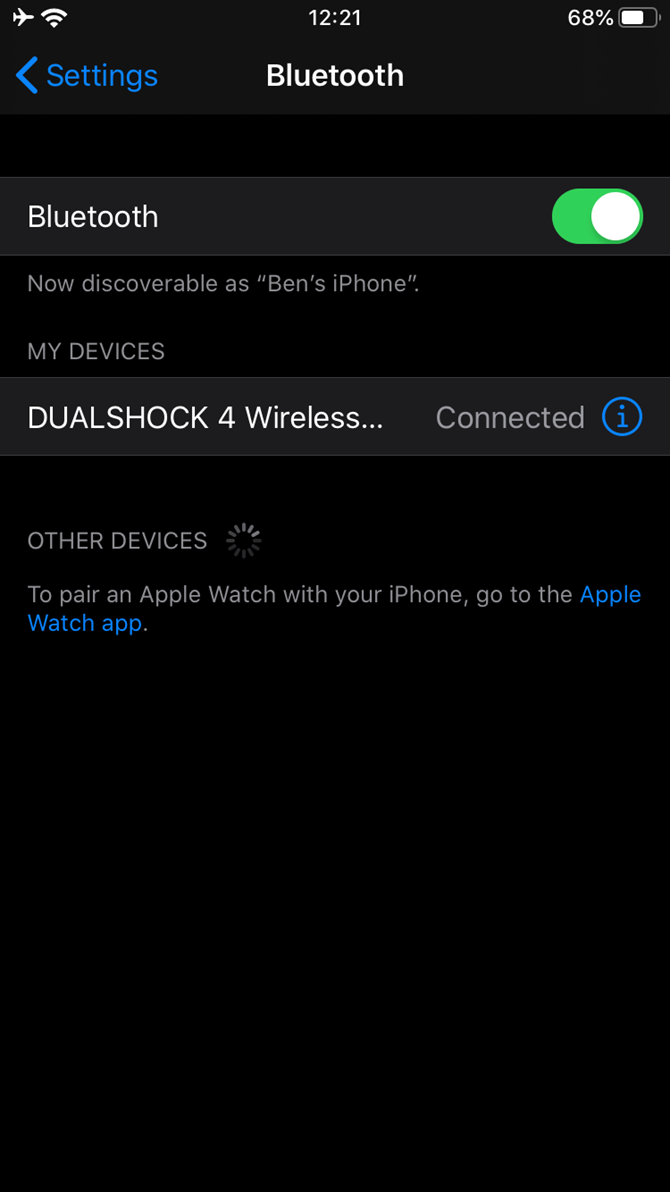
Want to connect your PS4 controller to your iPad or iPhone? Open Settings > Bluetooth on your Apple device, then make sure your PS4 system is turned off. Put the PS4 controller into pairing mode (hold the PlayStation and Share buttons together).

When the light flashes white the controller is discoverable, and under Other Devices you should see the device listed. Tap Dualshock 4 Controller to pair the device.

To disconnect the device, open the Bluetooth screen on your iPhone, find the device, then tap the i button. Select Unpair if you’d like to disconnect it for now, or Forget this device to remove it entirely. Alternatively, power off the controller by holding the PlayStation button for 10 seconds.

Use the same steps to connect a PS4 controller to an iPad.

How to Connect Xbox One Controller to iPhone

Microsoft has released a few revisions of the Xbox One controller, and the earlier models don’t support Bluetooth connections. You can tell if yours has Bluetooth if it looks like the bottom controller in the below illustration:

Xbox One Controller Comparison

If your controller has plastic around the Xbox button like the top part of the image, it unfortunately doesn’t support Bluetooth. This also applies to the original Xbox One Elite controller, though the Elite 2 does support Bluetooth.

To start pairing your compatible Xbox One controller, ensure your Xbox One is switched off. Next, open Settings > Bluetooth on your iPhone or iPad. Press the Xbox button on your controller, then hold the small Connect button on top of the controller for around three seconds.

Xbox Wireless Controller Xbox Wireless Controller Buy Now On Amazon

iOS should detect it and list the controller under Other Devices as Xbox Wireless Controller. Tap this to pair. Afterward, you can then play games that support controllers with the device.

To unpair the device, visit the Bluetooth screen again when you’re done playing. Scroll to your controller name, tap the i, then choose Unpair to disconnect it or Forget this device to remove it from your device entirely. Powering off the controller by holding the Xbox button for 10 seconds also works.

The process to connect a Xbox One controller to your iPad is the same.

Connect a Third-Party Controller to Your iOS Device

Steam-Link-Controller-Phone

Console game controllers are expensive. If you don’t own a console already, it makes more sense to spend money on a dedicated smartphone controller.

These are easy to hook up to your phone and are often compatible with Android too. This means you can share the controller with friends or relatives. And if you switch from iPhone to Android, you won’t need a new mobile game controller.

Controllers will only work over Bluetooth, but they must also be MFi-certified. Apple’s standard ensures that both hardware and software are compatible, so it’s easy for developers to add gamepad support to games.

To connect these controllers, use the Bluetooth steps explained above. The only difference is that a non-console controller will have a different button for Bluetooth discovery. Check the device’s documentation to find this.

Which Smartphone Game Controllers Are Best?

These devices are more affordable than console controllers and created for mobile gaming. You’ll find them in gaming stores and on Amazon.

Nimbus Bluetooth Mobile Controller

Nimbus Bluetooth Mobile Controller Nimbus Bluetooth Mobile Controller Buy Now On Amazon $37.74

With over 40 hours of battery life, this Fortnite-ready controller connects via Bluetooth 4.1 and is compatible with MFi-ready titles on all iOS devices.

The controller features a D-pad, two thumbsticks, standard A/B/X/Y buttons, and shoulder and trigger buttons.

Stratus Wireless Gaming Controller

Stratus Wireless Gaming Controller Stratus Wireless Gaming Controller Buy Now On Amazon $29.00

A more compact solution, this Bluetooth 2.1 controller offers a 10-hour battery life. With a D-pad, thumbsticks, A/B/X/Y, and four shoulder/trigger buttons, you’ll find yourself in complete control.

This lightweight controller is pocket-sized and weighs just 2.72 ounces.

STOGA Mobile Game Controller

STOGA Mobile Game Controller STOGA Mobile Game Controller Buy Now On Amazon $34.99

This wireless game controller features the obligatory D-pad, thumbsticks, A/B/X/Y, and four shoulder buttons, but its standout feature is the positional clamp to mount your phone.

10 hours of battery will keep you gaming on the go. Meanwhile, the controller connects directly to games without additional software.

Capacitive “Stick On” Controllers

Despite the prevalence of third-party controllers, developers still design games with the primary touchscreen-using audience in mind. On-screen controls remain the standard control method, but they’re far from accurate or pleasant to use.

One compromise is the use of a stick-on controller, such as this model from Vakili. The controller attaches to your iPad using a suction cup, and uses the capacitive touchscreen to add a more tactile element of control to your games.

Vakili Mobile Phone Game Joystick Vakili Mobile Phone Game Joystick Buy Now On Amazon $7.99

Unfortunately, such devices have become increasingly hard to find. A smart compromise is the GameSir F1 Grip Game Controller, which combines a traditional game controller grip with an on-screen controller pad.

GameSir F1 Grip Game Controller GameSir F1 Grip Game Controller Buy Now On Amazon $10.99

Hook Up a Game Controller to Your iPhone for Improved Gaming

It’s clear that the best way to play a game is to use the control method most suited to it. If you’re lucky, the developers will support external controllers where necessary. Certainly, playing online multiplayer games like Fortnite with controllers will provide superior results to the default touch method.

Whether you plan to use a console controller, a mobile game controller, or stick-on thumb pads, be sure to choose the device that gives you an edge.

Looking for some great games to test your game controller? Try these mobile MOBAs for iPhone to get started.

Read the full article: How to Connect a Game Controller to Your iPad or iPhone


Read Full Article
How to Make an Old Mac, MacBook, or iMac Faster


make-old-mac-like-new

Every computer begins to show its age over time. You likely know the signs of an outdated Mac: you can make a sandwich in the time it takes to boot your machine, it doesn’t support the newest version of macOS, and modern resource-intensive software struggles to run.

But you might not have to get a new computer just yet. Macs hold their value for a reason, and there are steps you can take (both free and paid) to get some more life out of an old MacBook or old iMac.

We’ll show you how to make your old Mac run faster and freshen it up.

1. Upgrade to an SSD

By far, the best upgrade you can make to an old Mac is replacing its old mechanical hard drive with a solid-state drive (SSD). This is a relatively simple procedure you can do on older Macs that don’t have the storage drive soldered to the logic board.

Unlike older hard disk drives, SSDs have no internal moving parts. Their speed improvements boost performance across the board. Whether you’re booting your Mac, opening apps, or moving files, you’ll feel the benefits of an SSD.

Have a look at resources like Crucial’s Mac SSD page or OWC’s SSD hub to find drives compatible with your system and review the process beforehand. Most MacBooks only require removing a few screws to make the swap, but some old iMac models don’t have the hard drive in such an accessible spot.

For an all-around choice, it’s hard to go wrong with Samsung’s 860 EVO 500GB drive.

2. Add More RAM to Your System

MacBook RAM Notches Aligned

Secondary to adding an SSD is upgrading the RAM on your Mac. While an SSD improves overall performance, having more RAM means that you can run more programs at once without slowdown. If you always have dozens of browser tabs open as you stream music and use heavy apps like Photoshop, having more RAM is a good idea (even on an old MacBook Pro that had a lot of RAM for the time).

Like with the SSD, you’ll need to check the specifics for your Mac model. You can go to the top-left Apple menu > About this Mac to view your model and how much RAM you currently have in your system. After this, head to OWC’s Mac RAM page to find compatible upgrades for your model.

The site also provides the maximum amount of RAM you can put in your system. In some cases, Apple has specified a limit that’s completely safe to exceed.

You may be able to find RAM for cheaper on Amazon, though we recommend buying from Crucial in most cases. Crucial’s RAM has a lifetime warranty and is guaranteed to work. Plus, the site offers easy-to-follow installation videos and money back for your old RAM. If you do decide to buy on Amazon, verify that the RAM will work with your exact model.

3. Uninstall Old Apps

Move App to Trash

If you have an old Mac, you’ve probably got some programs sitting around that you never use. To make your Mac faster and save storage space, it’s a good idea to identify these apps and get rid of them.

Tried some app that you disliked but never removed? Sitting on some outdated software that’s still taking up a lot of space? It’s time to get rid of it, especially Mac apps that run at startup and waste system resources.

Walk through our guide to uninstalling programs on your Mac and toss anything you never use. The best way to quickly uninstall multiple apps, including removing the extra files that the built-in method of deletion might miss, is to use AppCleaner. This utility simply has you drag and drop an app’s icon to its window to remove all the associated files.

You don’t have to uninstall every app on your system, of course. But you probably have some good candidates for removal.

4. Use Lighter Apps

Once you’ve eliminated software you no longer use, it’s smart to look at the software you do use. While there are plenty of great apps for macOS, there are also some that we recommend avoiding. This goes double if you’re using an old MacBook or iMac.

For instance, you should stay away from using Chrome on your Mac due to its heavy battery drain, drag on system performance, and poor integration with the rest of the OS. Safari provides a speedier experience that’s more power and resource-efficient; Apple’s browser is much better than it used to be.

You can probably identify similar apps on your system that are good candidates to replace with a lighter alternative. Instead of Photoshop, could you get by with a different Mac photo editing app until you’re able to upgrade your system?

To identify more apps that use a lot of power, open the Activity Monitor by searching for it with Spotlight (Cmd + Space). Have a look at the Energy tab, which shows how much battery life apps use. You should also pay attention to the CPU and Memory lists to see which consume the most resources.

5. Reinstall macOS

For many Windows users, reinstalling the OS every once in a while to fix problems and clean up clutter is fairly common. While Mac users don’t often do this, one reason they might need to is speeding up an old, slow Mac.

If you’re looking for a fresh start on your machine, upgrading the hardware as above, combined with a fresh install of macOS, is a great option. When you reinstall macOS, you don’t have to delete all your personal data unless you want to.

In case you want a completely fresh start, make sure you back up with Time Machine or another backup solution first.

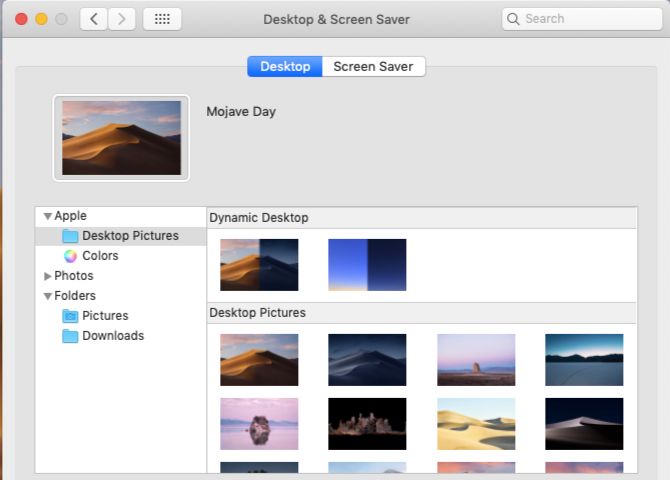
6. Give Your Desktop a Fresh Coat of Paint

Desktop and screensaver settings on macOS Mojave

The above steps are the most important parts of making your Mac feel like new, but there are a few optional sections of the process, too. If you’re sick of staring at the same old desktop all the time, you can revamp your experience.

There are tons of ways to personalize your Mac desktop, and you can tweak Safari to make it perform exactly as you want after leaving Chrome.

7. Physically Clean Your Mac

To replicate the “shiny new computer” experience even more closely, take a look at the physical state of your Mac. Is there any residue from spills on the system, dust on your keyboard, or other unsightly aspects?

If so, take a few minutes to follow our MacBook and iMac cleaning guide to get your keyboard, mouse, and screen nice and clean.

Your Old Mac Can Be as Good as New

With a few upgrades and a little maintenance, your old Mac might just feel like a new machine again. Following these steps on how to make your MacBook faster leads you to have a blazing-fast new SSD, plenty of RAM for keeping apps open, more optimized apps for better performance, less clutter, and possibly a quieter machine to boot.

This might help you get another few years out of your old Mac. It’s a lot cheaper to spend $100 on new components and take the time to perform some upgrades than it is to buy a new computer.

If these steps didn’t help your old Mac feel faster, it might be time to replace your Mac.

Read the full article: How to Make an Old Mac, MacBook, or iMac Faster


Read Full Article