11 April 2019

With consumer G+ dead, Currents hopes to make waves in the enterprise


Google today announced that Google+ in G Suite, the last remaining remnants of what was once Google’s attempt to rival Facebook and Twitter, will now be called Currents. We don’t need to belabor the fact that Google+ was a flop and that its death was probably long overdue. We’ve done that. Now it’s time to look ahead and talk about what’s next for Currents. To do that, I sat down with David Thacker, the VP of Product Management for G Suite, at Google’s Cloud Next conference.

As Thacker told me, Google has shifted its resources to have the former Google+ team focus on Currents instead. But before we get to what that teams plans to do, let’s talk about the name first. Currents, after all, was also the name of the predecessor of Google Play Newsstand, the app that was the predecessor of the Google News app.

The official line is that “Currents” is meant to evoke the flow of information. Thacker also noted that the team did a lot of research around the name and that it had “very low recognition.” I guess that’s fair. It also allows Google to reuse an old trademark without having to jump through too many hoops. Since the Google+ name obviously now carries some baggage, changing the name makes sense anyway. “The enterprise version is distinct and separate now and it was causing confusion among our customers,” said Thacker.

“This allows us to do new things and move much faster in the enterprise,” Thacker explained. “To run a consumer social network at the scale of consumer G+ requires a lot of resources and efforts, as you can imagine. And that’s partially the reason we decided to sunset that product, as we just didn’t feel it was worth that investment given the user base on that. But it basically frees up that team to focus on the enterprise vision.”

Now, however, with consumer G+ gone, the company is going to invest in Currents. “We’re moving consumer resources into the enterprise,” he said.

The plan here clearly isn’t to just let Currents linger but to improve it for business users. And while Google has never publicly shared user numbers, Thacker argues that those businesses that do use it tend to use it expensively. The hope, though, surely, is to increase that number — whatever it may be — significantly over time. “If you look at our top G Suite customers, most of them use the product actively as a way to connect really broad organizations,” Thacker said.

Thacker also noted that this move now removes a lot of constraints since the team doesn’t have to think about consumer features anymore. “When Google+ was first designed, it was never designed for that [enterprise] use case, but organizations had the same need to break down silos and help spread ideas and knowledge in their company,” Thacker explained. “So while Google+ didn’t succeed as a consumer product, it will certainly live on in the enterprise.”

What will that future look like? As Thacker told me, the team started with revamping the posting workflow, which was heavily focused on image sharing, for example, which isn’t exactly all that important in a business context.

But there are other features the team is planning to launch, too, including better analytics. “Analytics is a really important part of it,” said Thacker. “When people are posting on Currents, whether it’s executives trying to engage their employee base, they want to see how that’s resonating. And so we built in some pretty rich analytics.”

The team also built a new set of administrative controls that help manage how organizations can control and manage their usage of Currents.

Going forward then, we may actually see a bit of innovation in Currents — something that was sorely lacking from Google+ while it was lingering in limbo. Google Cloud’s CEO Thomas Kurian told me that he wants to make collaboration one of his focus areas. Currents is an obvious fit there, and there are plenty of ways to integrate it with the rest of G Suite still.


Read Full Article

AI dumbos, Niantic, mobility, design, and Google Next


Tomorrow: Google Cloud Next conference call

Join TechCrunch’s enterprise mavens Frederic Lardinois and Ron Miller as they discuss what’s happening on the ground and at the (I am sure, very exciting) parties this week at Google Cloud Next in SF. They will talk live tomorrow at 1pm EDT / 10am PDT, and be sure to check your inbox one hour before for the dial-in information.

When to ditch that nightmare customer

No, we are not “firing” any Extra Crunch members — yet. But multi-time founder Joe Procopio has a strong view that not only should you identify your worst customers, you should fire them, stat. Here’s a preview of his personal journey learning this fundamental tenet of startups:


Read Full Article

Instagram now demotes vaguely “inappropriate” content


Instagram is home to plenty of scantily-clad models and edgy memes that may start to get fewer views starting today. Now Instagram says “We have begun reducing the spread of posts that are inappropriate but do not go against Instagram’s Community Guidelines”. That means if a post is sexually suggestive, but doesn’t depict a sex act or nudity, it could still get demoted. Similarly, if a meme doesn’t constitute hate speech or harassment, but is considered in bad taste, lewd, violent, or hurtful, it could get fewer views.

Specifically, Instagram says “this type of content may not appear for the broader community in Explore or hashtag pages” which could severely hurt the ability of creators to gain new followers. The news came amidst a flood of “Integrity” announcements from Facebook to safeguard its family of apps revealed today at a press event a the company’s Menlo Park headquarters.

“We’ve started to use machine learning to determine if the actual media posted is eligible to be recommended to our community” Instagram’s Product Lead for Discovery Will Ruben said. Instagram is now training its content moderators to label borderline content when they’re hunting down policy violations, and Instagram then uses those labels to train an algorithm to identify.

These posts won’t be fully removed from the feed, and Instagram tells me for now the new policy won’t impact Instagram’s feed or Stories bar. But Facebook CEO Mark Zuckerberg’s November manifesto described the need to broadly reduce the reach of this “borderline content”, which on Facebook would mean being shown lower in News Feed. That’s policy could easily be expanded to Instagram in the future. That would likely reduce the ability of creators to reach their existing fans, which can impact their ability to monetize through sponsored posts or direct traffic to ways they make money like Patreon.

Today Facebook’s Henry Silverman explained that “As content gets closer and closer to the line of our Community Standards at which point we’d remove it, it actually gets more and more engagement. It’s not something unique to Facebook but inherent in human nature.” The borderline content policy aims to counteract this incentive to toe the policy line. Just because something is allowed on one our apps doesn’t mean it should show up at the top of News Feed or that it should be recommended or that it should be able to be advertised” said Facebook’s head of News Feed Integrity Tessa Lyons. ”

This all makes sense when it comes to click bait, false news, and harassment which no one wants on Facebook or Instagram. But when it comes to sexualized but not explicit content that has long been uninhibited and in fact popular on Instagram, or memes or jokes that might offend some people despite not being abusive, this is a significant step up of censorship by Facebook and Instagram.

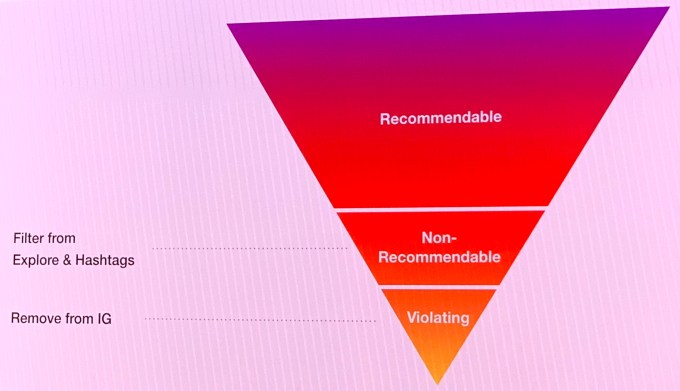
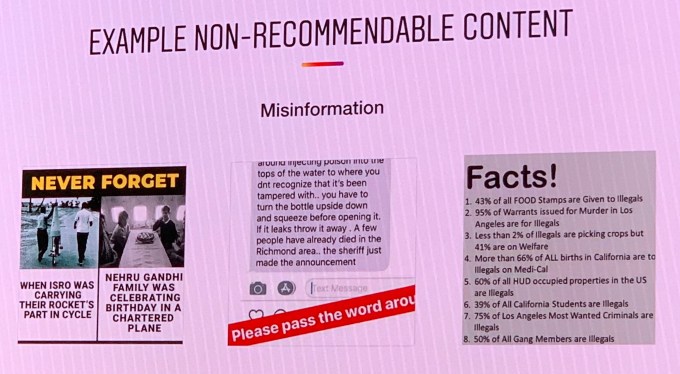
Creators currently have no guidelines about what constitutes Borderline Content — there’s nothing in Instagram’s rules or  terms of service that even mention non-recommendable content or what qualifies. The only information Instagram has provided was what it shared at today’s event. The company specficied that violent, graphic/shocking, sexuall suggestive, misinformation, and spam content can be deemed “non-recommendable” and therefore won’t appear on Explore or hashtag pages.


Instagram denied an account from a creator claiming that the app reduced their feed and Stories reach after one of their posts that actually violates the content policy taken down.

One female creator with around a half-million followers likened receiving a two-week demotion that massively reduced their content’s reach to Instagram defecating on them. “It just makes it like, ‘Hey, how about we just show your photo to like 3 of your followers? Is that good for you? . . . I know this sounds kind of tin-foil hatty but . . . when you get a post taken down or a story, you can set a timer on your phone for two weeks to the godd*mn f*cking minute and when that timer goes off you’ll see an immediate change in your engagement. They put you back on the Explore page and you start getting followers.”

As you can see, creators are pretty passionate about Instagram demoting their reach. Instagram’s Product Lead on Discovery Will Ruben said regarding the feed/Stories reach reduction: No, that’s not happening. We distinguish between feed and surfaces where you’ve taken the choice to follow somebody, and Explore and hashtag pages where Instagram is recommending content to people.”

The questions now are whether borderline content demotions are ever extended to Instagram’s feed and Stories, and how content is classified as recommendable, non-recommendable, or violating. With artificial intelligence involved, this could turn into another situation where Facebook is seen as shirking its responsibilities in favor of algorithmic efficiency — but this time in removing or demoting too much content rather than too little.

Given the lack of clear policies to point to, the subjective nature of deciding what’s offensive but not abusive, Instagram’s 1 billion user scale, and its nine years of allowing this content, there are sure to be complaints and debates about fair and consistent enforcement.


Read Full Article

Instagram now demotes vaguely “inappropriate” content


Instagram is home to plenty of scantily-clad models and edgy memes that may start to get fewer views starting today. Now Instagram says “We have begun reducing the spread of posts that are inappropriate but do not go against Instagram’s Community Guidelines”. That means if a post is sexually suggestive, but doesn’t depict a sex act or nudity, it could still get demoted. Similarly, if a meme doesn’t constitute hate speech or harassment, but is considered in bad taste, lewd, violent, or hurtful, it could get fewer views.

Specifically, Instagram says “this type of content may not appear for the broader community in Explore or hashtag pages” which could severely hurt the ability of creators to gain new followers. The news came amidst a flood of “Integrity” announcements from Facebook to safeguard its family of apps revealed today at a press event a the company’s Menlo Park headquarters.

“We’ve started to use machine learning to determine if the actual media posted is eligible to be recommended to our community” Instagram’s Product Lead for Discovery Will Ruben said. Instagram is now training its content moderators to label borderline content when they’re hunting down policy violations, and Instagram then uses those labels to train an algorithm to identify.

These posts won’t be fully removed from the feed, and Instagram tells me for now the new policy won’t impact Instagram’s feed or Stories bar. But Facebook CEO Mark Zuckerberg’s November manifesto described the need to broadly reduce the reach of this “borderline content”, which on Facebook would mean being shown lower in News Feed. That’s policy could easily be expanded to Instagram in the future. That would likely reduce the ability of creators to reach their existing fans, which can impact their ability to monetize through sponsored posts or direct traffic to ways they make money like Patreon.

Today Facebook’s Henry Silverman explained that “As content gets closer and closer to the line of our Community Standards at which point we’d remove it, it actually gets more and more engagement. It’s not something unique to Facebook but inherent in human nature.” The borderline content policy aims to counteract this incentive to toe the policy line. Just because something is allowed on one our apps doesn’t mean it should show up at the top of News Feed or that it should be recommended or that it should be able to be advertised” said Facebook’s head of News Feed Integrity Tessa Lyons. ”

This all makes sense when it comes to click bait, false news, and harassment which no one wants on Facebook or Instagram. But when it comes to sexualized but not explicit content that has long been uninhibited and in fact popular on Instagram, or memes or jokes that might offend some people despite not being abusive, this is a significant step up of censorship by Facebook and Instagram.

Creators currently have no guidelines about what constitutes Borderline Content — there’s nothing in Instagram’s rules or  terms of service that even mention non-recommendable content or what qualifies. The only information Instagram has provided was what it shared at today’s event. The company specficied that violent, graphic/shocking, sexuall suggestive, misinformation, and spam content can be deemed “non-recommendable” and therefore won’t appear on Explore or hashtag pages.


Instagram denied an account from a creator claiming that the app reduced their feed and Stories reach after one of their posts that actually violates the content policy taken down.

One female creator with around a half-million followers likened receiving a two-week demotion that massively reduced their content’s reach to Instagram defecating on them. “It just makes it like, ‘Hey, how about we just show your photo to like 3 of your followers? Is that good for you? . . . I know this sounds kind of tin-foil hatty but . . . when you get a post taken down or a story, you can set a timer on your phone for two weeks to the godd*mn f*cking minute and when that timer goes off you’ll see an immediate change in your engagement. They put you back on the Explore page and you start getting followers.”

As you can see, creators are pretty passionate about Instagram demoting their reach. Instagram’s Product Lead on Discovery Will Ruben said regarding the feed/Stories reach reduction: No, that’s not happening. We distinguish between feed and surfaces where you’ve taken the choice to follow somebody, and Explore and hashtag pages where Instagram is recommending content to people.”

The questions now are whether borderline content demotions are ever extended to Instagram’s feed and Stories, and how content is classified as recommendable, non-recommendable, or violating. With artificial intelligence involved, this could turn into another situation where Facebook is seen as shirking its responsibilities in favor of algorithmic efficiency — but this time in removing or demoting too much content rather than too little.

Given the lack of clear policies to point to, the subjective nature of deciding what’s offensive but not abusive, Instagram’s 1 billion user scale, and its nine years of allowing this content, there are sure to be complaints and debates about fair and consistent enforcement.


Read Full Article

The definitive Niantic reading guide


In just a few years, Niantic has evolved from internal side project into an independent industry trailblazer. Having reached tremendous scale in such a short period of time, Niantic acts as a poignant crash course for founders and company builders. As our EC-1 deep-dive into the company shows, lessons from the team’s experience building the Niantic’s product offering remain just as fresh as painful flashbacks to the problems encountered along the way.

As we did for our Patreon EC-1, we’ve poured through every analysis we could find on Niantic and have compiled a supplemental list of resources and readings that are particularly useful for getting up to speed on the company.

Reading time for this article is about 9.5 minutes. It is part of the Extra Crunch EC-1 on Niantic. Feature illustration by Bryce Durbin / TechCrunch.

I. Background: The Story of Niantic

Google-Incubated Niantic, Maker of Ingress, Stepping Out on Its Own | August 2015 | In August of 2015, Niantic announced that it would spin out from Google and become an independent company. As discussed in WSJ’s coverage of the news, Niantic looked at the spin out as a way to accelerate growth and collaborate with the broader entertainment ecosystem.


Read Full Article

The 6 most important announcements from Google Cloud Next 2019


Google is hosting its annual Cloud Next developer conference in San Francisco this week. While the event is still in full swing, with a mystery concert capping off most of the programming tonight, the flood of news has now subsided, so here is our list of the most important announcements from the event.

Anthos

What is it? Anthos is the new name of the Google Cloud Services Platform, Google’s managed service for allowing enterprises to run applications in their private data center and in Google’s cloud. Google decided to give the service a new name, Anthos, but also expanded support to AWS and Azure, its competitors’ cloud platforms. This will allow enterprises to use a single platform, running on Google’s cloud, to deploy and manage their applications on any cloud. Enterprises will get a single bill and have a single dashboard to manage their applications. All of this, unsurprisingly, is powered by containers and Kubernetes.

Why does it matter? It’s still highly unusual for the big cloud competitors to launch a product that allows users to run applications on other platforms. The money, after all, is in charging fees for compute time and storage allocations. Google argues that this is something its customers want and that it solves a real problem. Google, however, is also chasing its competitors and looking for ways to differentiate its approach from them. I don’t think we’ll see AWS and Azure react with similar tools, but if they do, it’s a good thing for their customers.

Open-source integrations into the Google Cloud Console

What is it? Google announced that it would deeply integrate the products of a number of open-source companies into its cloud and essentially make them first-party services. These partners are Confluent, DataStax, Elastic, InfluxData, MongoDB, Neo4j and Redis Labs, with others likely to follow over time.

Why does it matter? These integrations are a boon for Google Cloud customers who are likely already using some of these services. They’ll get a single bill and access to support from these companies, all while managing the services from a single console. The subtext here, though, is a bit more complicated and reveals Google’s approach to open source and puts it into contrast with AWS. Many of the companies that are participating here are highly critical of AWS’s treatment of open source and quite public about it. Google is working with them while the perception is that AWS simply uses the code and doesn’t give back.

Google’s AI Platform

What is it? Google sees its AI prowess as one of its main differentiators in its fight against AWS, Azure and Co. The company already offered a wide range of AI tools, ranging from developer tools and services for advanced data scientists to AutoML, a service that can automatically train models and doesn’t require a PhD. The new AI Platform offers an end-to-end solution for more advanced developers that allows them to go from ingesting data to training and testing their models, to putting them into production. The platform can also use pre-built models.

Why does it matter? AI (and machine learning) is the major focus for all big cloud providers, but the developer experience leaves lots of room for improvement. Having an end-to-end solution is obviously a major step forward here and opens up the promise of machine learning to a wider range of potential users.

Your Android phone is now a security key

What is it? Instead of using a physical security key to enable two-factor authentication, you’ll now be able to use any Android 7+ phone as a security key, too. You set it up in your Google Account and your phone will then use Bluetooth (but without the hassle of creating a Bluetooth connection) to provide your second factor. For now, this only works with Chrome, but Google hopes to turn this into a standard that other browsers and mobile operating system vendors will also support. Google also recommends you still use a regular key as a backup for that inevitable day when you lose your phone.

Why it matters? Two-factor authentication is inherently safer than just using a login and password. Systems that use SMS and push-notifications are still vulnerable to phishing attacks while security keys — and this new Android-based system uses the same standards as existing keys — prevent this by ensuring that you are on a legitimate site. This new system takes the hassle out of using a physical key and may just convince more people to use two-factor authentication.

Google Cloud Code

What is it? Cloud Code is a set of plugins and extensions for popular IDE’s like IntelliJ and VS Code. The general idea here is to provide developers with all of the necessary tools to build cloud-native applications — all without having to deal with any of the plumbing work and configuration that comes with that. Using Cloud Code, developers can simply write their applications like before, but then package them as cloud-native apps and ship them to a Kubernetes cluster for testing or production.

Why does it matter? Writing cloud-native apps is complicated and usually involves writing complex configuration files. Cloud Code ideally makes all of this so easy that it’ll be far easier for developers — and the companies that employ them — to make this move to a modern infrastructure.

Google Cloud aims at retailers

What is it? The news here is that Google is launching a vertical solution that’s squarely aimed at retailers. That doesn’t sound all that earth-shattering, does it? But Google Cloud plans to offer more of these specialized solutions over time.

Why does it matter? Google Cloud CEO Thomas Kurian told us that customers are asking for these kinds of integrated solutions that package some of the companies existing tools into integrated solutions that these enterprises can deploy. This is essentially the first time it is doing so (with maybe the exception of healthcare), but it’ll likely offer more of these over time and they could become a major factor in growing the platform’s user base.

Bonus

We also got a chance to sit down with Google Cloud’s new CEO Thomas Kurian to put some of the announcements into context and talk about his vision for Google Cloud going forward.


Read Full Article

The definitive Niantic reading guide


In just a few years, Niantic has evolved from internal side project into an independent industry trailblazer. Having reached tremendous scale in such a short period of time, Niantic acts as a poignant crash course for founders and company builders. As our EC-1 deep-dive into the company shows, lessons from the team’s experience building the Niantic’s product offering remain just as fresh as painful flashbacks to the problems encountered along the way.

As we did for our Patreon EC-1, we’ve poured through every analysis we could find on Niantic and have compiled a supplemental list of resources and readings that are particularly useful for getting up to speed on the company.

Reading time for this article is about 9.5 minutes. It is part of the Extra Crunch EC-1 on Niantic. Feature illustration by Bryce Durbin / TechCrunch.

I. Background: The Story of Niantic

Google-Incubated Niantic, Maker of Ingress, Stepping Out on Its Own | August 2015 | In August of 2015, Niantic announced that it would spin out from Google and become an independent company. As discussed in WSJ’s coverage of the news, Niantic looked at the spin out as a way to accelerate growth and collaborate with the broader entertainment ecosystem.


Read Full Article

M87 Black Hole Size Comparison


M87 Black Hole Size Comparison

10 April 2019

How to Unblock Live TV Streaming When You’re Abroad


unblock-live-streaming

We can all understand why TV channels like the BBC and Comedy Central are blocked when you’re abroad, but that doesn’t mean it’s not frustrating. Thankfully, it’s relatively easy to unblock streaming services.

As an expat for more than a decade, unblocking streaming services has been an ongoing battle for me. I’ve tried various VPNs, smart DNS providers, and (to my discredit) endless other not-necessarily-legal approaches.

Recently, I’ve settled on CyberGhost. The VPN makes it super easy to access international versions of Netflix, BBC live streams outside the U.K., and any other geo-restricted service you want to watch.

Here’s how to use CyberGhost to unblock streaming services.

How to Sign Up for CyberGhost

muo cyberghost price

In this article, I’m going to use CyberGhost to unblock streaming apps and services around the world. If you want to follow along, you need to go ahead and open an account.

MakeUseOf readers can receive a special rate of just $2.75/month if you sign up to a three-year plan. A month-by-month plan costs $12.99.

To make an account, head to the CyberGhost website and select the plan you want. At the bottom of the page, you will be prompted to choose your payment method (a credit card, PayPal, or BitPay), and then to enter your user details.

And in case you thought the deal needed any more sweetening, CyberGhost has recently opened new dedicated servers for Sky Go, BBC One, Player.pl, ORF, and Comedy Central, as well as new server locations in Strasbourg, Berkshire, and Barcelona.

Download Apps to Unblock Streaming Services

To demonstrate the power of CyberGhost, we’re going to show you how to watch a Comedy Central live stream, a BBC One live stream, and an international version of Netflix.

However, before you can dive in and start binge-watching all your favorite TV, you need to download the apps onto your various devices.

Almost every major platform you can think of is supported, including Windows, Mac, Linux, Chrome, Android, iOS, Android TV, and Fire TV. Apple TV is the notable exception.

How to Unblock Streaming Services

The process for unblocking streams from the U.S. or elsewhere varies depending on which platform you use.

We’re going to look at the method on Windows.

How to Watch a Comedy Central Live Stream

OK, let’s suppose you want to watch a Comedy Central live stream on Windows while you’re on holiday outside of the U.S. What’s the process?

First, you need to fire up the dedicated CyberGhost Windows app. But wait, don’t actually connect to a VPN server yet. First, you need to dive into the Settings menu. Just click on the small yellow arrow on the left-hand side of the CyberGhost app.

A new window will open. In the left-hand panel, you can access a list of all CyberGhost’s servers or click on one of the subcategories. To make your search for the perfect server easier, head straight to the For Streaming menu item.

comedy central server highlighted

You should now see a list of all the available streaming servers. For each server, you can see its location (as determined by the flag) and which streaming app or website that the server is optimized for.

In our example, we want to watch the U.S. version of Comedy Central. Scroll down through the list of servers until you find the appropriate entry. You can also use the Search box in the upper left-hand corner of the app.

When you’re ready, double click on the server’s name and the CyberGhost app will automatically connect. The connection process can take several seconds to complete. Once it’s successful, you will see a pop-up notification.

comedy central website live

Finally, head to the Comedy Central website and either choose an on-demand show or enter your TV provider’s username and password to watch live television. If you don’t have a cable TV subscription, you can sign up for an online streaming company that carries Comedy Central like Sling or PlayStation Vue.

(Note: Click the Star next to a server’s name to add it to your Favorites. Your favorites will sync across all your apps.)

How to Unblock a BBC One Live Stream

iplayer cyberghost

It’s even easier to watch a BBC One live stream. You don’t need to have a subscription with a TV provider to sign in (though you do need to make an account).

Instead, you can watch any BBC channel from outside the U.K. using the BBC iPlayer. It is available on the web and as a standalone app.

If you want to use the standalone app on Android TV, for example, you will need to sideload the APK file. It is not natively available to people outside of the U.K.

Of course, if you want to watch in a browser, it’s as simple as navigating to the BBC iPlayer website and choosing the live stream or on-demand video you prefer.

To access iPlayer content, use the app to connect to CyberGhost’s dedicated iPlayer server based in the U.K.

How to Access International Versions of Netflix

Probably the most commonly-requested geo-blocked service is Netflix. The app has wildly different TV shows and films available depending on the country you are in.

If you want to watch the U.S. version of Netflix, CyberGhost can once again help you.

Open the CyberGhost app and type Netflix in the Search box. At the time of writing, three Netflix servers are available, one in each of the United States, Germany, and France. If you want to watch the U.S. edition, double-click on the U.S. server.

netflix cyberghost

Sometimes, you might need to clear the cookies and data from your browser or Netflix app and sign in fresh in order for Netflix to recognize the VPN connection.

If you do watch international Netflix, be aware that you are breaking the company’s terms of service. Which means that, while it’s unlikely, the company could disable your account.

Other Reasons to Choose CyberGhost

CyberGhost isn’t only useful for streaming live TV when you’re out of the country. It has several other standout features that make it a great VPN.

They include simultaneous connections for up to seven devices with one subscription, unlimited data, safety features that can block malicious websites and user tracking, and a location outside of the five-eyes jurisdiction.

And if you’re not sure whether the service is the best way for you to unblock streaming services, you’re entitled to a 45-day money back guarantee if you’re not completely satisfied.

So, what are you waiting for? Sign up for CyberGhost today.

Read the full article: How to Unblock Live TV Streaming When You’re Abroad


Read Full Article

The Insta360 One X Feels Like Magic

10 IFTTT Google Assistant Recipes to Boost Productivity


ifttt-google-assistant

Staying productive is hard. Often, the sheer number of tools that we choose to use in the name of efficiency has a detrimental effect.

That’s why services like IFTTT are so essential. They can remove the need for manual input, instead letting you automate large parts of your workflow.

Today, it’s time to put Google Assistant under the microscope. How can IFTTT and Google Assistant work in tandem to make you more productive? Let’s take a look at 10 Google Assistant recipes on IFTTT.

1. Create an iPhone Calendar Entry

ifttt iphone calandar recipe

Google and Apple don’t exactly have a history of playing nicely together, but that hasn’t stopped Google creating its own IFTTT recipe. It lets you create an event on your iPhone’s calendar using your Google Home system.

The recipe lets you give the event a title, along with specifying the time and date. Just say “Ok Google, Add to my iOS Calendar” to get started.

2. Add a Task to Todoist

Todoist is well-established as one of the best task manager apps you can use. It’s multi-platform and offers a diverse number of features for all use cases.

If you pair Google Assistant with IFTTT, you can make new tasks in the Todoist app using nothing more than your voice. You just need to say “Ok Google, add a task [task]” to create a new item.

Remember—although there is a free version of Todoist, you will need to pay $3 per month to unlock all the features.

3. Add a New Item in the iPhone’s Reminders App

Anyone who has tried to use Apple and Google services at the same time knows that it’s not necessarily a straight forward process.

If you fall into that camp, you should consider using the IFTTT integration with the iPhone reminder app as well as the aforementioned calendar recipe.

It lets you instantly add reminders to the iPhone’s Reminders app using any Google Home-enabled device. Say “Ok Google, add a reminder to my iPhone [reminder]” to start the process.

4. Send a Text

ifttt send a text

Need to quickly get a message out to a friend, colleague, or family member, but you haven’t got any free hands, or you don’t have time to find your phone?

The solution could be to use Google Assistant’s texting recipe. If you have an Android phone, you can use it to send a message to any of your contacts with your voice.

After you have configured the recipe, you need to say, “Ok Google, message [name]” to your Google Home device to initiate the sending process.

5. Create a Wunderlist Item

Microsoft has bought Wunderlist, and many of its functions are now among the best features on the Microsoft To-Do app.

Nonetheless, there are still a lot of holdouts using the old app. If you’re one of them, you should check out this recipe.

Ok Google, add [item] to Wunderlist” is the phrase you’ll need.

6. Create a Note in Evernote

Evernote is yet another of the world’s leading task management apps. Although most of the app’s best features are now hidden behind a paywall, it’s still hugely popular.

If you install this Google Assistant IFTTT recipe, you will be able to add new notes to Evernote while you’re on-the-go and you don’t have a device to hand.

The title of the note will be the timestamp. The recipe even lets you create your own activation phrase.

7. Post a Tweet With Google Assistant

ifttt twitter post tweet

If you need to use Twitter as part of your job—perhaps because you’re a social media manager or because you’re trying to grow awareness of your personal brand—the ability to post tweets on Twitter without needing to use the company’s (terrible) app is undoubtedly going to be useful.

This recipe is made by Twitter rather than Google. To post a tweet, you just need to say, “Ok Google, tweet [message].”

Contrary to the recipe’s description, it does support Twitter’s new 280-character message limit.

8. Email a List of Notes to Yourself

One of the keys to becoming more productive is to do more things in a shorter amount of time.

To that end, you don’t want to waste time faffing around with notetaking apps on your mobile. By the time you’ve unlocked your phone, opened the app, typed your note, added a reminder, saved it, and put your phone back in your pocket, you can easily lose a couple of minutes.

Extrapolate that out over 10 or 15 notes every day, and it’s is easy to see the time slipping away.

Why not tell Google Assistant to take your notes instead, then get IFTTT to email you a list of said notes at the end of every day? This recipe lets you do just that.

9. Get Google Search Results on Your Phone

Google Assistant is a great way to look up information. You can ask it everything from math questions to capital cities, and you’ll get an answer in seconds.

Of course, behind the scenes, Google Assistant is pulling that information from Google Search. And as we all know, there are times when Google Search simply can’t provide the answers you’re looking for.

You can’t use an alternative search engine, so if the worst happens, you can activate this recipe to get a list of search results for your Google Assistant query sent directly to your phone.

10. Send a Note on Slack

We end with an IFTTT recipe that integrates Slack with Google Assistant.

Slack, of course, needs no introduction. Over the last few years, it’s become one of the most widely-used business tools on the planet.

If you enable this recipe, you will be able to dictate Slack notes using your voice. It’s a great way to quickly let your colleagues know you’re running late for a meeting or stuck in traffic on the way to work.

Other IFTTT Recipes You Should Try

The 10 IFTTT recipes for Google Assistant that we’ve looked at in this article should all help you become more productive.

However, if you’re looking for even more IFTTT recipes, we have got you covered. Check out our articles on IFTTT recipes to automate your Android phone and IFTTT recipes for every Instagram addict.

Read the full article: 10 IFTTT Google Assistant Recipes to Boost Productivity


Read Full Article

How to Quickly Create an Online Store Using Shopify


create-online-store

As daunting as it may seem, learning how to create an online store using Shopify isn’t as complicated as you think. Whether you’re trying to make some quick cash by dropshipping on Shopify, or you have a fantastic product that you want to sell, setting up a store using Shopify is one of your easiest options.

Shopify’s array of features makes it perfect for both professionals or beginners, and most people can set up their store in under a day. Are you ready for your store to go live? Let’s get started.

1. Sign Up for Shopify

Shopify Sign Up Page

It’s fairly simple to sign up for Shopify—all you need is your email and the name of your store. Keep in mind that Shopify won’t let you move on from this step if you don’t have a completely original store name. You might have to change the name of your store a few times before you find one that no one else has.

Shopify will then ask a few questions about whether you own an established business, or if you just started. To continue to your main dashboard you’ll also have to fill out a billing address.

Shopify Sign Up Questions

Like most good things, Shopify isn’t free. You’ll get a 14-day free trial, which helps you set up your website before you start getting charged. When the trial ends, you have to choose a monthly plan depending on the size of your business. The most basic plan starts at $29 per month and the price (unfortunately) goes upwards from there.

2. Add Products

Now that you’ve signed up, Shopify will immediately prompt you to add a product to your store. If you already have pictures of your product and a quick description, this will make your setup process go a whole lot faster.

There are two ways you can add products to your store:

  • Manually input products.
  • Import them with a CSV file.

For now, let’s just stick with the basics and manually add them.

Basic Product Information

Simply enter your product’s name in the Title bar and add any key information about your product in the Description box.

Shopify Product Title Description

Scroll down to find a section where you can insert a picture of your product. Either drag and drop a picture of your choice or simply select Upload an image. You might need some basic digital photography skills if you decide to take your own photos, but the beautiful results are worth it.

Product Pricing and Inventory

Here, you can add the price of a product. The section labeled Compare at price will display your price as a markdown.

Shopify Product Pricing Options

For example, if you sell a discounted item for $20, and its original price is $50, type $50 into the Compare at price section to show the price difference on your store. You can use for a sale at your Shopify store.

If you don’t want to display a markdown, enter the same value into the Price and Compare at price sections.

Shopify can also keep track of your inventory as long as you have the proper barcodes, SKU, and know how many products you have on hand.

Shopify Product Inventory Management

Adding Variants

The Variants section displays the different variations that your product may have. Variations can include anything from size, color, weight, and more.

Let’s say I’m selling a white t-shirt in various sizes. I’d input “Size” under Option name and then add every size option under Option values.

Shopify Variants Sizes Example

As you type in values, you’ll notice that you can change the price of each variant as well. Shopify lets you set a specific price for different colors, sizes, etc.

Shopify Product Variant Options

Incorporating SEO

SEO is one of the most crucial components when starting an online store, so you should definitely take advantage of the Search engine list preview section. Add any SEO keywords in the Meta description and come up with an SEO-friendly title to attract more customers.

Shopify SEO Web Description

3. Create Collections

How can your customers find a product on your store without scrolling through your entire catalog? Creating collections makes shopping much easier for your customers.

Collections are groups of products that belong in the same category. For example, you would place t-shirts in a collection titled “Short-Sleeve Shirts,” and you’d put discounted items in a collection called “Clearance.” When your customers are looking for something in a specific category, they can select a collection instead of endlessly scrolling through your site.

To create a collection, navigate to the left sidebar menu, find Products, and then click on Collections. As you can see, Shopify has already created a collection for you titled “Home page.” These are the featured products that your customers will see on the home page of your shop. You’ll want to add more collections than this, so click on the blue Create collection button.

Shopify Collections Home Page

You can create collections manually or automatically. Automatically creating collections is a lot easier, especially if you have a lot of products.

However, for Shopify to automatically generate collections, you have to add a condition. Input a certain tag, title, or vendor, that differentiates each product from one another.

Shopify Collections Types and Conditions

For instance, if you want to create a t-shirt collection, you need to tag each product with “T-shirt.”

4. Choose a Shopify Theme

Now it’s time to find the right theme for your Shopify store. Under the Sales Channel heading in the sidebar menu, go to Online Store > Themes. Shopify starts you off with a very basic theme called Debut.

Shopify Theme Debut Example

You don’t have to stick with this theme, so scroll down and hit Visit Shopify Theme Store. Shopify’s Theme Store includes both free and paid themes. From here, you can check out the most popular themes and find a theme based on your personal taste. While you can dish out $100 or more for a fancy theme, Shopify offers free themes that are just as good.

Shopify Themes Store

Find one you like? Click on it, select Add theme, and Shopify will install it to your dashboard (but it doesn’t activate the theme).

Shopify Simple Theme Themes Store

You’ll have to enable the theme yourself, so head back to Online Store > Themes and scroll down to the More themes section. Find the name of the theme you just installed, hit the Action dropdown menu and then select Publish.

5. Customize Your Theme

Shopify Theme Customization

If you don’t like the way your site is set up, don’t worry. You can change the layout of your store by customizing your theme. Take a look at other Shopify sites to gain some inspiration for your own.

Start by adding a photo to your home page that represents your company. Either upload your own photo or use one from Shopify’s free, high-quality stock image library. Pair the photo with some text that captures your brand and draws people into your store.

Shopify Theme Customization Home Page

Your home page has several different features that you can incorporate. Add an image gallery, slideshow, featured product, newsletter, testimonial, video, and more.

To edit the other pages in your store, navigate to the dropdown menu at the top of the screen that reads Home page. Select it to display your site’s pages, and begin customizing your product pages, collection pages, 404 page, cart, and blog.

Shopify Theme Customization Edit Pages

6. Create a Domain

No one wants their store’s website to end with “myshopify.com.” It looks unprofessional, and just doesn’t scream “legit.” That’s why you’ll need to create a domain for your website and find a host.

Luckily, Shopify makes this really easy. While you can take the time to research the best web hosting services, why bother when Shopify has an all-in-one web hosting and domain plan? Head to Online Store > Domains and click on Buy new domain.

Shopify Domains Pricing Options

Type in your desired domain to check if it’s available. You’ll probably want a “.com” extension, and Shopify will charge you $14 per year for that.

7. Set Up Payments

Shopify gives you quite a few options when it comes to payments. To adjust your payments, go to Settings on the left menu bar in your dashboard, and select Payment Providers.

Shopify Payment Options PayPal Amazon Pay

You can choose to stick with Shopify, PayPal, and Amazon Pay or opt for one of the several other payment options. Each payment service comes with a price—the most basic Shopify plan takes 2.9% of each transaction plus 30 cents.

8. Go Live With Shopify

If you got through all of these steps, then you’re ready to open up your shop!

By default, your store is password-protected, meaning no one can access your shop without entering a keyword. Disable this by heading to Online Store > Preferences and uncheck the box that says Enable password. You can only do this if you’ve already chosen a Shopify plan.

Shopify Store Password Protection

Congratulations; your store is now live!

Shopify Simplified

You’ll find that the most time-consuming aspects of setting up your shop have to do with uploading products and customizing your theme. Fortunately, the simplicity of Shopify allows you to keep moving forward towards debuting your store.

After you finally finish your store, you’ll need a way to stay secure. For more information, check out our article on the best Shopify apps to secure your store and protect your customers.

Read the full article: How to Quickly Create an Online Store Using Shopify


Read Full Article