09 October 2018

Google Lens comes to the Pixel 3 camera, can identify products


Google Lens, the technology that combines the smartphone camera’s ability to see the world around you with A.I. technology, is coming to the Pixel 3 camera, Google announced this morning. That means you’ll be able to point your phone’s camera at something – like a movie poster to get local theater listings, or even look up at actor’s bio, or to translate a sign in another language – and see results right in the camera app itself.

The integration is thanks to Google’s investment in A.I. technologies, something that was the underlying tie to everything Google announced today at its hardware event.

Lens, in particular, was first shown off at Google I/O back in 2017, before rolling out to new products like Google Image Search just weeks ago. Now, it’s in the camera itself – the most obvious place for the technology.

With Lens, you can point your camera at a takeout menu, Google says, and it will highlight the number to call.

Another feature is centered around shopping. With a long press, you can have Lens identify a product the camera sees in the viewfinder, and have it match it to real products. This is called “Style Search,” Google says.

As Google explained at the event, you can point your Pixel 3 camera at a friend’s cool new pair of sunglasses or some shoes you like in a magazine, and Lens will point you to where you can find them online and browse similar styles. The feature is similar to Pinterest’s visual search, which has been available for some time.

Also of note, Lens will be able to take some of its more common actions instantly in the camera, without the need for a data connection.

Google says this is possible by combining Pixel’s visual core with its years of work in search and computer vision.

“Being able to search the world around you is the next logical step and organizing the world’s information and making it more useful for people,” said Brian Rakowski, VP Product Management at Google.


Read Full Article

Google unveils the Pixel 3 XL, with a 6.3-inch screen and an $899 price tag


As part of this morning’s official unveiling of the Pixel 3, Google also announced its larger sibling, the Pixel 3 XL.

The news wasn’t a surprise, given the photos that leaked months ago (something that Google itself acknowledged by kicking off the event with a little montage of videos responding to early details). And Engadget’s Richard Lai had already gotten his hands on the phone in Hong Kong.

But what hadn’t actual come out were the details from the company tiself. As the name implies, a bigger version of the Pixel 3 (which has a 5.5 inch screen), with a 6.30inch screen. Google’s Liza Ma said the company was working to create an “edge-to-edge viewing experience” with a better screen-to-body ratio than previous screens.

One of the big selling points emphasized in Google’s presentation is the camera, including the Top Shot capability, which captures a number of alternate images when you take a photo, so you’re less likely to be cursing your timing if it isn’t just right. Naturally, all of that will be included in the Pixel 3 XL as well, along with other new features like call screening.

Pricing for the Pixel 3 XL starts at $899 and will arrive in the United States on October 18.

more Google Event 2018 coverage


Read Full Article

How to Manage Your Digital Files: 9 Tips and Tools to Keep You Organized

GE’s new light bulbs work with Google Assistant without a hub


What’s that you say, friend? Haven’t had enough Google news for the day? Have no fear. Here’s a little extra from the folks at General Electric. The company announced this afternoon that its C by GE bulbs are the first to carry Made for Google certification.

That means the bulbs will work with Google Home devices right out of the box, without the need for a smart home hub — which is nice, since none of the entry level devices sport the functionality. Screw the bulb in, and the Home device should detect it automatically, letting you turn it on and off via voice commands. That all happens via a bluetooth connection.

For good measure, the companies will be offering up a bundle featuring the Home Mini and pre-paired. That will run $55. The new Google-ready bulbs will hit retail on October 22. Two-packs of the C-Life and C-Sleep bulbs will run $25 and $35, respectively.

more Google Event 2018 coverage


Read Full Article

Google’s Home Hub has a screen but no camera ‘so that it is comfortable in private spaces’


Is Google finally taking consumers’ privacy concerns to heart? Today, the search and Android giant took the wraps off its $149 Home Hub, a new screen-based smart home device that lets you interact with Google services, Google Photos and connected smart home devices. It’s Google’s answer to the Amazon Echo Show and Facebook’s new Portal. But in this age of privacy, the company made an interesting feature decision: it will be shipping the first version of the device without a camera built in.

“We also consciously did not put a camera on so that it was comfortable to us in the private spaces of your home like your bedroom,” noted Diya Jolly, VP of product management in the presentation today, while going through other features on the device.

The feature — or lack thereof, as the case may be — is notable. Just yesterday, Facebook unveiled its own connected home screen device, the Portal, and Amazon has been working hard to push the Echo Show, its Alexa-powered home hub with a screen. Both companies are focused on just now how to show images, but how to capture them and to use visual cues to build more intelligent services.

Google it seems is taking a different approach: tech companies have been under the spotlight for how they are handling privacy these days, and Google’s decision to leave a camera out of this device plays into the idea of how tech companies are trying to be more sensitive to what users want — and maybe need, since we have so many other devices with cameras on them.

For Google specifically, the timing is especially important: just this week the company announced that it would be shutting down Google+, its ill-fated social network that had a bug in it that exposed the private information of users. The optics — pun intended — of pushing out a new device with a camera on it, at a time when many wonder just how much information these smart home speakers are picking up, would look very bad indeed.

On the other hand, leaving a camera out could serve other ends for Google. It helps it keep the cost of the device down, with $149 a very competitive price point. It also could help Google keep this device from competing with others that it is pushing to users — specifically its phones and now its new Pixel Slate tablet, which has a front-facing camera for video chat. Lastly, it helps Google start to build a roadmap for features that it could add into the product in later iterations, if it finds that users are requesting it.

more Google Event 2018 coverage


Read Full Article

Instagram’s app-based 2FA is live now, here’s how to turn it on


If you’d like to be sure you’re the only one posting elaborately staged yet casual selfies to your Instagram feed, there’s now a powerful new option to help you keep your account safe.

In late September, Instagram announced that it would be adding non SMS-based two-factor authentication to the app. Instagram confirmed to TechCrunch that the company rolled out the security feature last week and that non-SMS two-factor authentication is live now for all users.

Enabling two-factor authentication (2FA) adds an additional “check” to an account so you can be sure you’re the only one who can log in. Instagram previously only offered less secure SMS-based 2FA, which is vulnerable to SIM hijacking attacks but still better than nothing.

Now, the app supports authenticator apps that generate a code or send a user a prompt in order to prove that they are in fact the authorized account holder. When it’s available, enabling 2FA is one of the easiest, most robust basic security precautions anyone can take to protect any kind of account.

If you’d like to enable app-based 2FA now, and you really should, here’s how to do it.

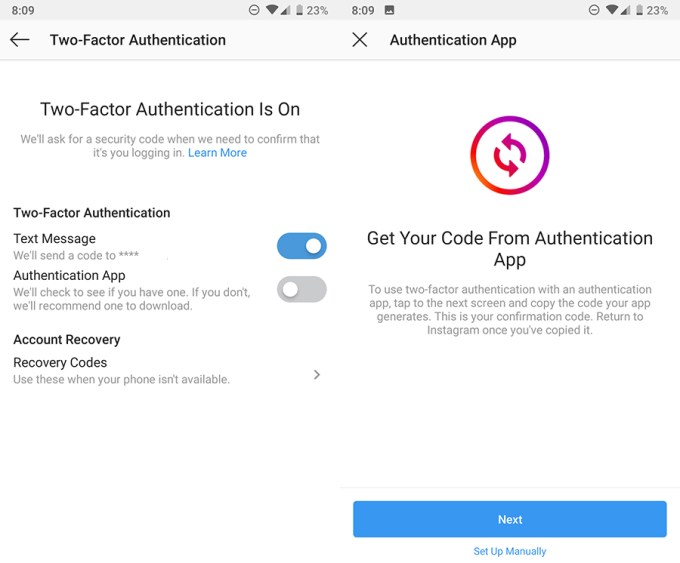
Open Instagram and navigate to the Settings menu. Scroll down into the Privacy and Security section and select Two-Factor Authentication. There, you’ll see two toggle options: Text Message and Authentication App. Choose Authentication App. On the next screen, Instagram will either detect existing authentication apps on your device, invite you to download one (Google Authenticator by default, Authy is a fine option too) or allow you to set up 2FA manually. Follow whichever option works best for you.

You’ll be asked to authenticate the device you’re on now, but you won’t have to do this every time for trusted devices once they have been authenticated. See? Not so bad. It was a long time for such a popular, well-resourced app to leave users unprotected by proper 2FA, but we’re glad it’s here now.

Additional reporting by Sarah Perez.


Read Full Article

Google’s Pixel phones will soon get mobile Smart Compose in Gmail


Google today announced that its Pixel phones will soon get support for Smart Compose in Gmail. Smart Compose automatically finishes your sentences for you as you type, based on what Google knows about how you and others write similar sentences. Smart Compose can also auto-complete addresses for you.

Google first launched this feature with its redesigned Gmail for the web, but it’s now bringing this to mobile, too. On mobile, of course, a feature like this is even more interesting since typing on mobile is obviously harder. Google says that on the web, Smart Compose is already saving people a billion characters of typing per week.

It’s interesting that Google is launching this feature first on its Pixel phones. Maybe that’s because those phones also feature Google’s own AI chip.

In my own experience, Smart Compose is great when it works. Too often, it still doesn’t, but the good thing is that you can always ignore it and go your merry way without Smart Compose’s suggestions getting in your way.

Google did not say when this feature would launch, but chances are it’ll go live in the next few days or weeks.

more Google Event 2018 coverage


Read Full Article

Google’s Pixel phones will soon get mobile Smart Compose in Gmail


Google today announced that its Pixel phones will soon get support for Smart Compose in Gmail. Smart Compose automatically finishes your sentences for you as you type, based on what Google knows about how you and others write similar sentences. Smart Compose can also auto-complete addresses for you.

Google first launched this feature with its redesigned Gmail for the web, but it’s now bringing this to mobile, too. On mobile, of course, a feature like this is even more interesting since typing on mobile is obviously harder. Google says that on the web, Smart Compose is already saving people a billion characters of typing per week.

It’s interesting that Google is launching this feature first on its Pixel phones. Maybe that’s because those phones also feature Google’s own AI chip.

In my own experience, Smart Compose is great when it works. Too often, it still doesn’t, but the good thing is that you can always ignore it and go your merry way without Smart Compose’s suggestions getting in your way.

Google did not say when this feature would launch, but chances are it’ll go live in the next few days or weeks.

more Google Event 2018 coverage


Read Full Article

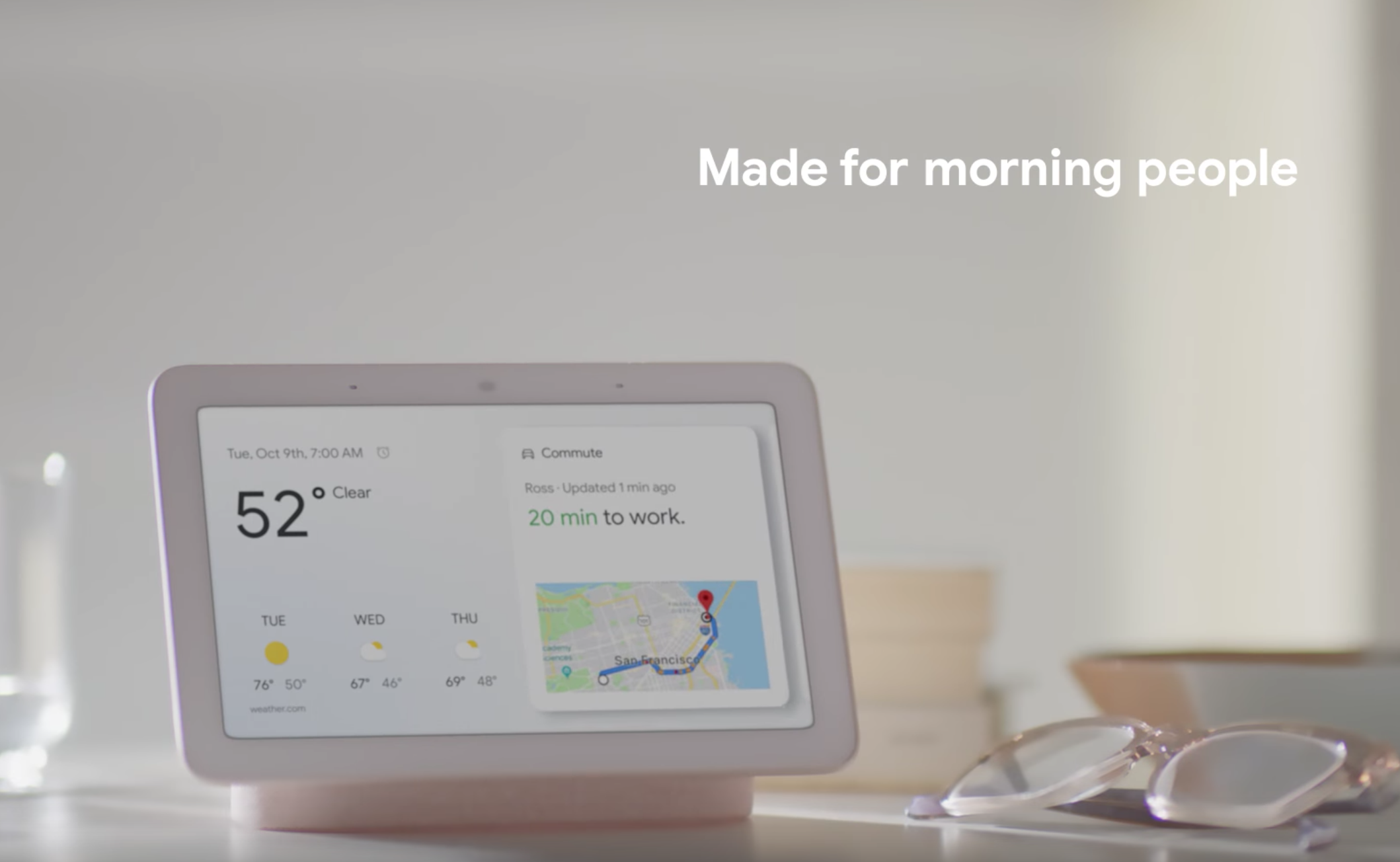
Here’s Google’s Echo Show competitor, the Home Hub


This is Google’s Echo Show competitor, the Home Hub. We knew it was coming, via an avalanche of leaks and now, moments before the event has officially kicked off, here it is in all of its glory by way of the full leaked product video (again spotted by 9 to 5 Google).  The product is a looker — especially compared to the last two generations of Amazon’s Echo Show.

Moments later, the head of hardware at Google, Rick Osterloh, made the device official at an event in New York City.

The device looks like an Android tablet mounted on top of a speaker — which ought to address the backward firing sound, which is one of the largest design flaws of the recently introduced Echo Show 2. The speaker fabric comes in a number of different colors, in keeping with the rest of the Pixel/Home products, including the new Aqua.

The device joins a trio of “Smart Displays” for Google Assistant built by JBL, Lenovo and LG. Design-wise Lenovo’s was the best of the bunch, but the Home Hub looks to have outclassed it. The functions pretty much what you’d expect from these devices, including traffic, weather and cooking. Of course, Google’s got one key, not so secret weapon against Amazon: YouTube.

Google has also clearly made fitness a key piece here, showing off some yoga classes on the product, along with a touchscreen smart home control center. We’re here covering the event live in New York — more information as Google makes it officially official.

more Google Event 2018 coverage


Read Full Article

Why Google Calendar and Google Tasks Are the Only To-Do Apps You Need


In early 2018, Google migrated all users to their newest version of Google Calendar. Google Tasks is now more integrated with Google Calendar. This makes a powerful combination that could potentially replace any other to-do apps you might use.

One of the more annoying things about using an external to-do app if you’re a Google Calendar user is keeping your calendar synced with your to-do app. There are ways to sync many of the most popular apps out there, but none are very convenient.

Instead: Why not keep your to-do list and your calendar all in one, well-organized place?

Viewing Google Tasks Alongside Google Calendar

If you haven’t customized Google Calendar, the default view looks fairly plain (if not a little bit boring).
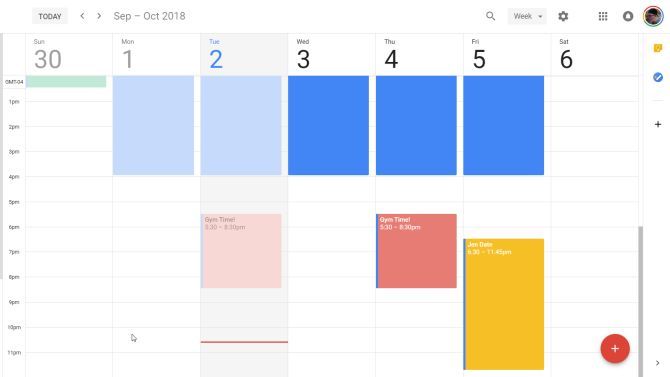
default google calendar

This boring facade is deceptive. Enabling Google Tasks adds a degree of functionality you might not expect.

Google Tasks used to be one of the worst to-do apps online. To integrate more useful features, you had to install a browser add-on like GTasks. But the newest version of Google Tasks is much more useful.

It’s only when you use it alongside Google Calendar that it becomes clear it could be the last to-do app you ever need.

You can open up Google Tasks by clicking on its icon on the right side of Google Calendar.
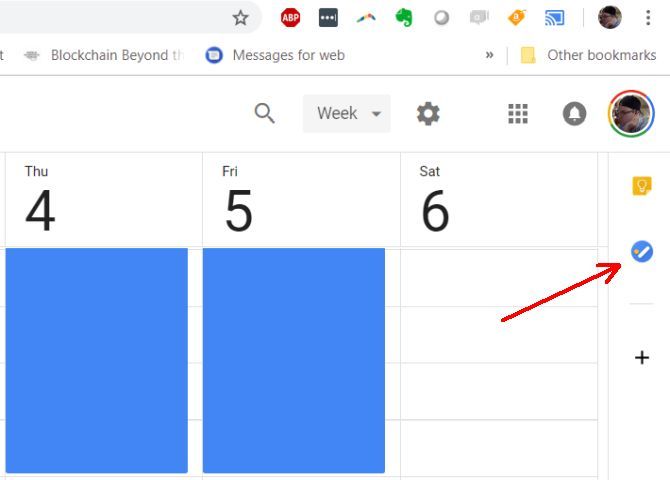
enable google tasks

This docks Google Tasks on the side of Google Calendar.

Once this is enabled, you’re ready to start building your various task lists.
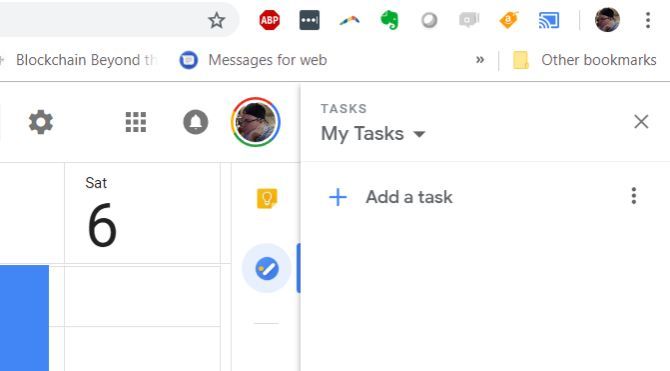
dock google tasks

But before we get to that, you need to enable Google Tasks integration with Google Calendar.

You do this in the navigation menu on the left side of Google Calendar. Click the checkbox to enable Tasks inside of the calendar.
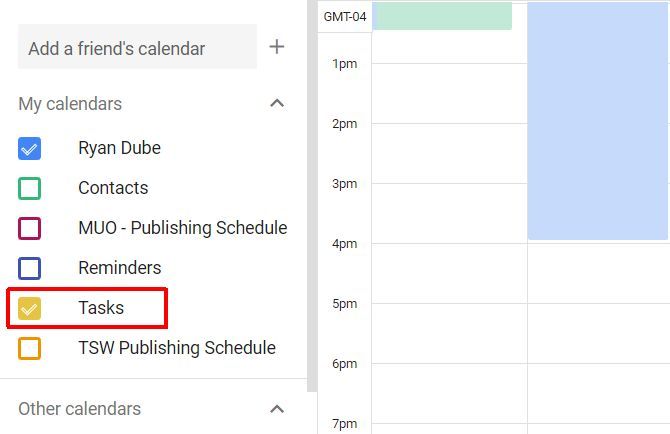
enable google tasks

Now that everything is enabled, it’s time to set up and organize your tasks.

If you use some other to-do app like Todoist or RememberTheMilk, I recommend going through the process below to transfer those tasks over.

By using the techniques below, Google Tasks and Google Calendar can do everything those apps can do, plus more.

Creating Your Google Task Lists

A lot of the power of this combination comes from how you organize your tasks inside Google Tasks.

If you haven’t read how to combine goal apps with to-do apps, take some time to do so now. It’ll help you create and organize your Google Task lists.

Gather your lists of goals you want to accomplish, and their associated list of tasks to accomplish them. Then, create a single list for every one of those high level goals.
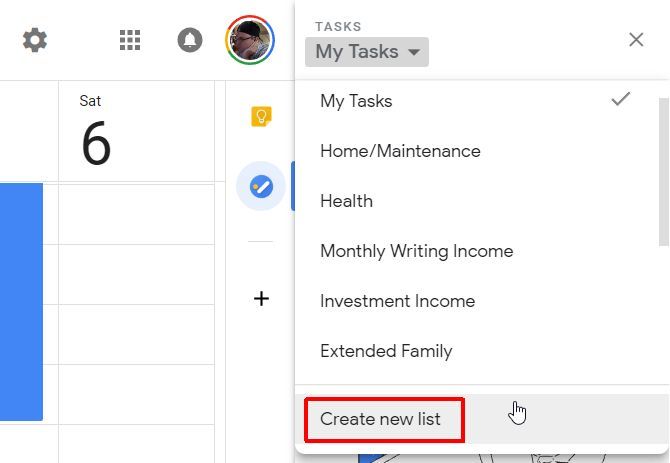
create new list

Inside these lists is where you create the sub-goals.

Sub-goals are added as regular tasks. You’ll add their individual subtasks inside them.
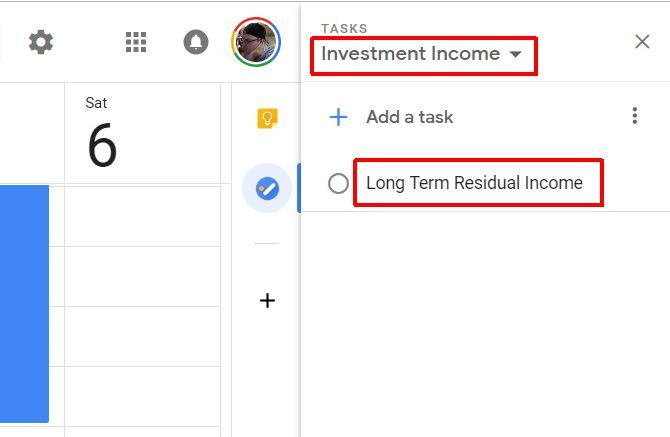
goals and subgoals

Click on the subgoal, and then list all of the steps you need to take to accomplish it.

With Google Tasks, this is easy. Press the edit icon to open the sub-goal. You just type each one and press Enter to type the next.
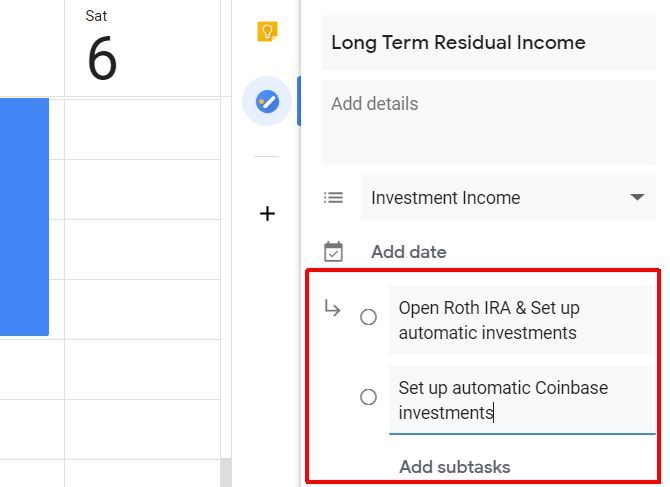
creating tasks

Finally, give each of these subtasks realistic due dates.

Remember, that you’ll be loading all your goals and their tasks into Google Calendar. So taking everything you’re planning to accomplish into consideration will ensure realistic due dates.

You’ll notice that you can’t add a due date to subtasks when you first create them. You need to go back up to the main list level, and add them there. Add the due date here by clicking on the edit icon for that task.
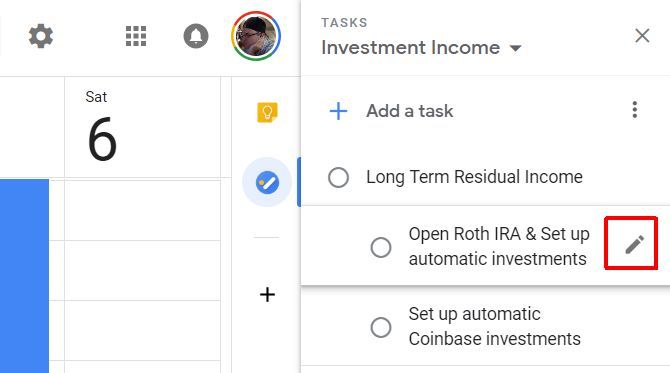
adding due date to subtasks

Add the due date on this page.

When you click on Add date, it’ll give you a pop-up calendar to choose the date.
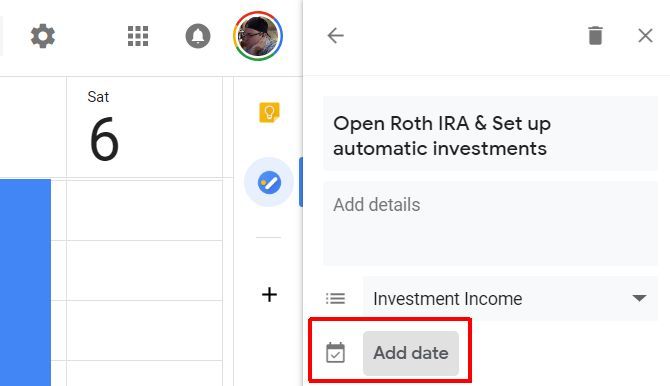
subtask due date

Something important to consider as you’re adding dates is that you should use the “start” date for when you want to start working on the task. This is where every other to-do app out there fails.

This is the first major benefit of using this approach over other to-do apps. Most apps will place your task in the priority to-do list based on when they’re due.

The neat Google Tasks integration with Google Calendar solves this problem.

Using Google Tasks Inside Google Calendar

When you enabled Tasks in the left navigation menu, it adds every task due date into the calendar.

You’ll see your tasks listed at the top of each day they’re due.
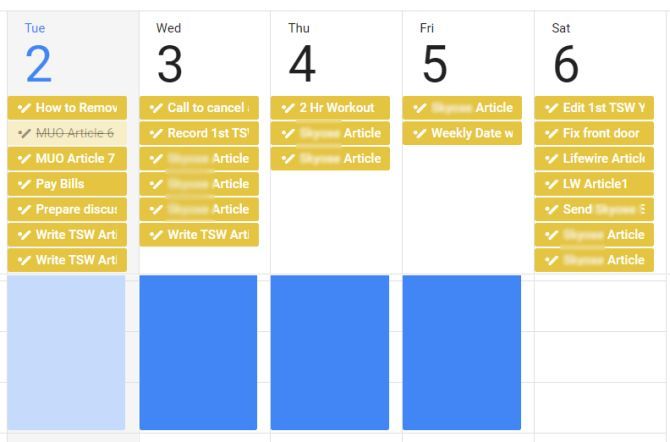
tasks due in calendar

This visual display is also helpful to reveal if you’ve overloaded any particular day during the week.

At the beginning of each week, preferably on Sunday, you can shift tasks around to level out the weekly workload.

You do this by clicking on any of the task items at the top of the calendar. Then click on the edit icon and change the due date.
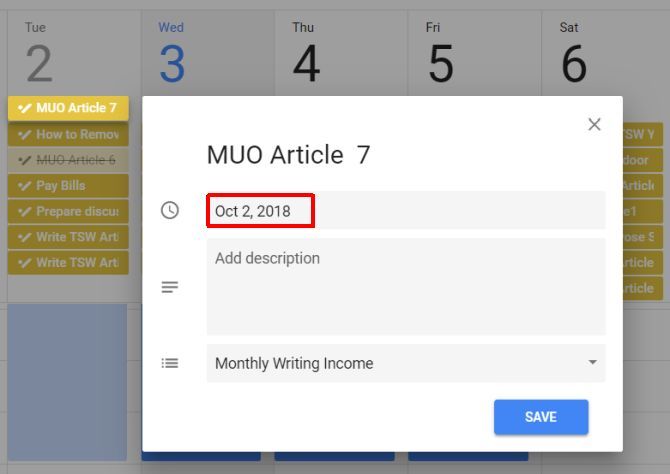
edit task due date

This is the second benefit over other to-do apps. Most to-do apps don’t provide a visual calendar inside the app itself, so it’s difficult to plan your workload. It’s also not this seamless to shift tasks around on-the-fly based on your visual workload.

After you change the due date, it automatically moves that task to the new date in the calendar.
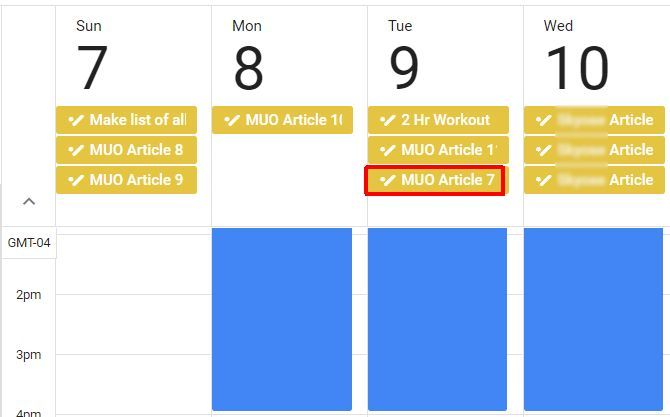
automatic task shifting

Every morning, you can use the layout of your work from Google Tasks to block off the times during the day when you plan to work on them.

You could do this on Sunday for the entire week. But sticking to planning your day in the morning gives you more flexibility. This way, if something unexpected happens and you need to shift around tasks to another day, you don’t have to rework your entire calendar because of it.

Whichever frequency you choose, this regular review follows the important 80/20 rule of time management.
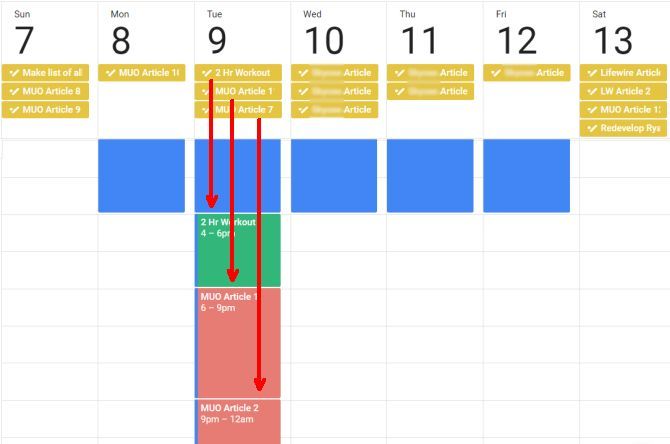
organize each day

This is the third major benefit over other to-do apps. With most apps, your daily to-do list is automatically laid out based on due dates.

With this visual approach, you’ll see quickly whether or not you actually have enough hours in the day to accomplish the list.

More Google Task Management Tips

It can take some time to get used to this visual approach to task management, especially if you’re used to the old-fashioned list-based to-do task method.

A few more tips:

  • Include the final due date in the task note so you know how far you can push tasks out
  • Consider using task batching when you schedule out each day
  • Try to keep a healthy weekly balance between tasks for short term goals and long term goals
  • For recurring tasks (like workouts), instead of completing the task, reschedule them

Using Google Tasks and Google Calendar in this way keeps the most important tasks in front of you every day.

If you’re looking for more ideas to stay productive, you can dig even deeper with more ways to follow through on your time management goals. Having a great to-do scheduling strategy is only the first step. There’s much more that goes into making sure you’re focusing on the most important things at the right time.

Read the full article: Why Google Calendar and Google Tasks Are the Only To-Do Apps You Need


Read Full Article

Is Your Business Making These 10 Cyber Security Mistakes?


You’ve probably heard over and over that computer security is vital, especially if you run a small business. But do you really take that seriously?

Sure, we hear about the odd security breach or malware attack and hope that it doesn’t happen to us. You might even think that your business is too small to be a target. But the risks of malware are so great that it’s wise to re-evaluate what you can do better.

Let’s look at ten major reasons and statistics that illustrate the important of cyber security, especially for businesses.

1. Data Recovery Is Insufficient

According to the BBB, just 35% of business owners said they’d be able to continue making a profit for over three months if they lost access to their most important data. Think about where you would be if you lost critical records and files.

This illustrates the importance of two factors: malware protection and a backup system.

With a proper backup, you can recover essential data if it’s accidentally deleted, stolen, or destroyed by malware. And of course, with proper malware protection, you run much less of a risk of having your data wiped out by an attack in the first place.

2. Company Device Risks

As mobile tech is a huge part of today’s business landscape, many companies issue their employees work-specific devices. Dell found that 22% of employees at small or medium businesses have lost such a device. That’s a terrifying figure.

Having a phone or tablet that’s full of company information out in the wild isn’t a pleasant thought. You need the right security software so you can locate or remotely erase it to minimize risk if this happens.

3. Late Detection

Microsoft found that the median number of days an intruder goes undetected on a network is 146. That’s a staggering figure, equal to nearly five months.

Can you imagine having an attacker snooping around on your company’s network for nearly half a year before you even know about it?

4. Cybercriminals Are a Major Threat

It’s easy to think that cyber crime is a minor pain point compared to other forms of illegal activity. But that’s not true. In fact, as of 2018, the FBI has 41 cybercriminals on its most wanted list.

That’s a large number of lawbreakers, and that number is growing all the time as cybercrime becomes more sophisticated and widespread.

5. Ransomware Is a Widespread Issue

You’ve likely heard of ransomware, a popular type of malware, that locks your computer files and demands payment to get them back. This type of attack is devastating if you aren’t prepared for it, and it’s not getting any better.

According to the FBI, over 4,000 ransomware attacks occur every day on business networks and home PCs. Having all your files locked in an instant is frightening and it could lead to end of your business.

6. Many Businesses Get Attacked

In a BBB report, 20% of businesses indicated that they’d been targeted by a cyberattack. Granted, this means not every business is in the crosshairs. But one in five is still significant, and shows that any company could be targeted.

7. Employees Don’t Take Caution

In a perfect world, a company’s emphasis on security would resonate with its employees. But that’s unfortunately not the case. Per Dell, 45% of employees across a variety of organizations have admitted that they take unsafe actions.

That means nearly every other employee takes some action that could put your company’s security at risk. Even if you take all the necessary precautions for the business at large, who’s to say one of your employees wouldn’t cause a breach?

8. Strong Passwords Are Vital

The BBB found that passwords are the number one type of data affected when a cyber-attack occurs. It doesn’t matter how strong a password is once it’s out in the open, so keeping them secret is essential.

But our passwords are still terrible. Easily guessable strings like “abc123” and “letmein” continue to top the charts of the most popular passwords. Weak security like this opens the door to attackers.

9. Compromised Credentials Are Common

Continuing from the above, it’s no surprise that stolen or otherwise leaked user credentials account for 63% of network intrusions, per Microsoft. A weak password that’s easy to guess, one the user has reused on multiple sites, or a password left in the open on a sticky note or text file are all easy targets for thieves.

Your network is only as strong as its weakest component, which is often the passwords of your users.

10. Companies Don’t Do Enough

Perhaps most shockingly, RSA found that 73% of companies have admitted their threat detection isn’t good enough. That means nearly three out of four organizations aren’t properly equipped to detect and shut down intrusions.

Is your company one of these, and thus open to attack?

Dell Small Business Can Help

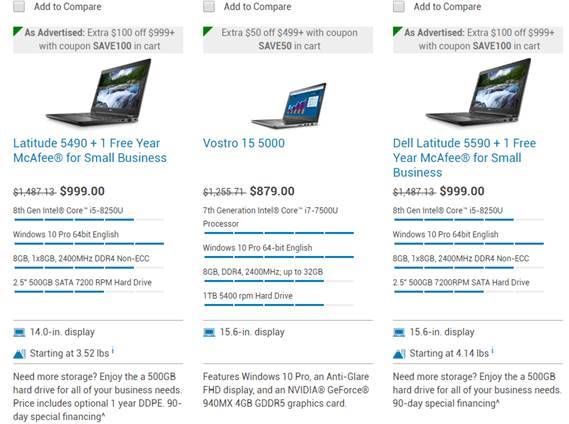
If you’re worried about your company’s security, a great first step is using computers that have great security software pre-installed. Thankfully, Dell Small Business has you covered on this.

Check out Dell Small Business Offers for great discounts on work-ready business PCs. You’ll find laptops and desktops for all sorts of needs, plus monitors.

Get Your Business Security in Order

It’s wise to reassess where your company stands on security. If you haven’t been the victim of a cyber-attack, take some time to identify your company’s weak points. Consider the above points and how your business can protect against them. And with some great computers from Dell Small Business, you’ll be well on your way.

Read the full article: Is Your Business Making These 10 Cyber Security Mistakes?


Read Full Article
The Google Pixel 3 is official (thanks Verizon)


There are no surprises in the world of consumer electronics. We’ve already seen the Pixel 3 from every conceivable angle, both in video and still. And now, mere minutes before today’s event is set to kickoff, Verizon (the company that owns the company that owns TechCrunch, mind) has gone ahead and confirmed the thing on its site.

Contrary to some earlier renders, the third version of Google’s Android flagship (spotted by 9 to 5 Google) does boast a sizable notch up top, in keeping with earlier images of the larger XL. Makes sense, after all, Google went out of its way to boast about notch functionality when it introduced Pie, the latest version of its mobile OS.

The specs are admittedly still a bit spot via the carrier page, but the bullet points do confirm most of what we thought we knew about the handset. Google’s sticking to the single camera on the rear of the device, in contrast to the majority of the competition.

The front facing camera (hence the notch) has been improved here, bringing with it wide angle selfies, and the ability to skip photos where the subject is blinking (a feature found on other competing handsets, including the Galaxy Note 9.

No specifics on the battery yet, beyond “all day,” along with wireless charging on-board. The ability to access Google Assistant with a squeeze, first introduced by HTC on its own handsets, is back as well.

We’re here at the event, and we’ll  keep updating when Google finally spills the beans.

more Google Event 2018 coverage


Read Full Article
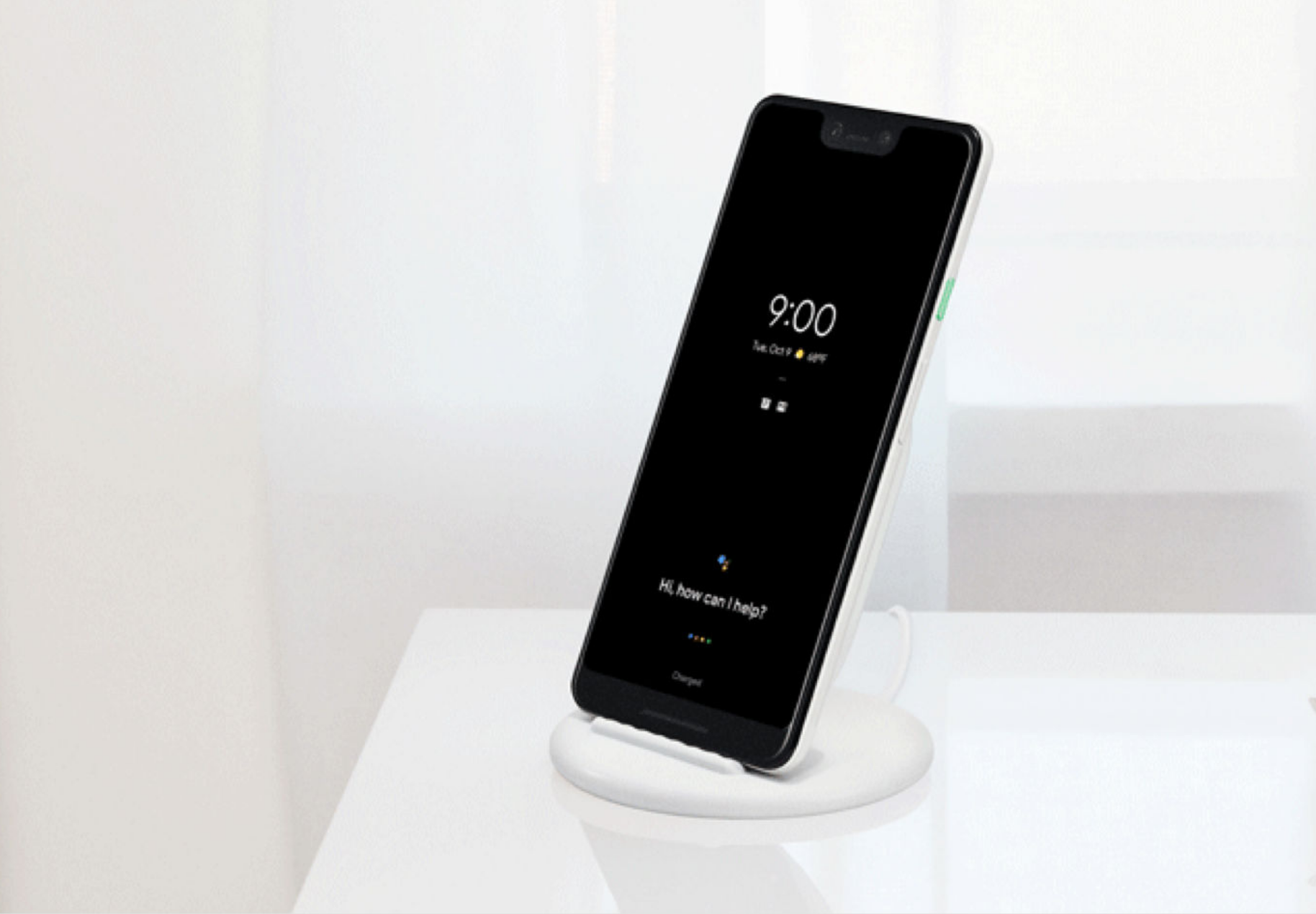
Here’s Google’s Pixel Stand


Google is launching its Pixel Stand today, a new wireless charging accessory for your Pixel phone that lets you dock your phone and — as you’ve probably guessed — sit your phone upright next to your bed or on your kitchen counter. That way, you can use it hands-free, similar to the new Google Assistant-powered smart displays that Google, Lenovo, LG and JBL have now announced.

While Google hasn’t officially announced this new gadget yet, we now know for sure that it’s coming, thanks to Verizon (via 9to5google), which put up its Pixel 3 page a bit too early. We expect Google will announce this at its annual hardware event, which is about to start.

The Pixel Stand is basically a sleek little round dock for your phone. While it can obviously charge your phone, what’s maybe more interesting is that when you put your phone into the cradle, it looks like it’ll start a new notifications view that’s not unlike what you’d see on a smart display.

You’ll be able to use it just like a Google Home and the Verizon page says you can use “one-touch shortcuts” or your voice.

We’ll update this post once we learn more details from Google’s official announcement or more features leak ahead of the official launch.

more Google Event 2018 coverage


Read Full Article
How to Attract More Instagram Followers by Picking a Niche

Google Photos adds ‘Live Albums’ an automated way of sharing people, pet photos with anyone


Just ahead of today’s Google’s hardware event, the company has quietly rolled out an update to its Google Photos application which introduces a new, automated way of organizing and sharing photos: Live Albums. According to the app’s “What’s New” description, Live Albums appear to be a spin-off from partner sharing, introduced last year. But instead of automating sharing of a set of photos – like those of a child – between just two people, Live Albums allow you to automate the sharing of people and pet photos with anyone you choose.

For example, the feature could be used to share photos of your children with your extended family, instead of just a spouse. You could also specify certain, close friends who would always receive the photos you took together.

Easy, collaborative photo sharing has been something of a holy grail for photo apps for years. It’s been the basis of numerous startups including Bump, whose founder David Lieb now leads Google Photos, Fabric, Batch, Color, Cluster, and many more. Facebook Moments also tries to make collaborative photo sharing easier.

But automation using A.I. technologies and facial recognition is a next step, and one that makes Google Photos an even more compelling app.

In practice, it means that you wouldn’t have to manually share photos with certain people ever again – you can just set up a Live Album once, and then allow the automation to take over.

The feature was previously spotted in testing, in an APK breakdown done by Android Police last month. However, today’s iOS app update text indicates it’s now rolling out to a broader set of users.

That may be a staged rollout, though, as not everyone has access to the feature at this time. It’s also not currently mentioned in the update text of the Android version, but Google keeps its cross-platform apps in parity, with few delays.

Here’s the full text of the change, per the App Store description:

Introducing Live Albums, an easier way to share with loved ones. Select the people and pets you want to see and Google Photos will automatically add photos of them as you take them. Now your family and friends will always see the latest photos, no manual updates needed.

It seems we’ll hear more at today’s Google event about the news, given Google Photos has been teasing updates on its Twitter account. Hopefully, there’s even more to come, as well.

In the meantime, we’ve reached out to Google for further comment. We aren’t expecting a response as this news is likely being held until the event later this morning.


Read Full Article
Review: The Marshall Worburn II packs modern sound, retro look


Marshall speakers stand out. That’s why I dig them. From the company’s headphones to its speakers, the audio is warm and full just like the classic design suggests.

The company today is announcing revisions across its lines. The new versions of the Action ($249), Stanmore ($349) and Woburn Bluetooth ($499) speakers now feature Bluetooth 5.0, an upgraded digital signal processor and a slightly re-worked look.

Marshall also announced a new version of the Minor wireless in-ear headphones. The wireless headphones were among the company’s first products and the updated version now features Bluetooth 5.0 aptX connectivity, new 14.2 mm drivers and 12 hours of battery life. Marshall also says the redesigned model will stay in place better than the original model.

It’s important to note that the company behind these Marshall speakers and headphones is different from the company that makes the iconic guitar amp though there is collaboration. The Marshall brand is used by Zound Industries, which also operates Ubanears.

The models produced by Zound Industries stay true to the Marshall brand. I’ve used several of the products since the company launched and I’m pleased to report that this new generation packs the magic of previous models.

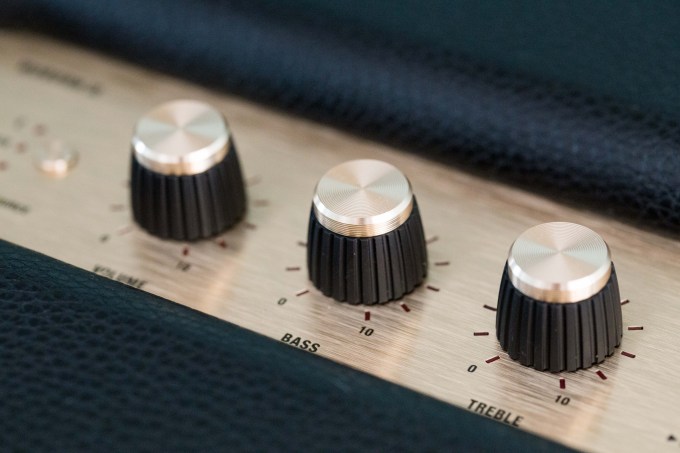
The company sent me the new Woburn II speaker (pictured above) and it’s a lovely speaker. This is the largest speaker in the company’s line. It’s imposing and, in Reddit-speak, an absolute unit. It’s over a foot tall and weighs just under 20 lbs.

The speaker easily fills a room. The sound is warm and inviting.

The Woburn II features a ported design which helps create the rich sound. Bass is deep though doesn’t pound. Mid-tones are lovely and the highs are perfectly balanced. If they’re not, there are nobs mounted on the top to adjust the tones.

I find the Woburn a great speaker at any volume. Turn it down and the sound still feels as complex as it does at normal listen volumes. Crank the speaker to 10, drop the treble a bit, and the speaker will shake walls.

Don’t be scared by the imposing size. The Woburn II can party, but it is seemingly just as happy to spend the evening in, playing some Iron and Wine.

Sadly, the Woburn II lacks some of the magic of the original Woburn. The new version does not have an optical input and the power switch is a soft switch. It’s just for looks. The first Woburn had a two position switch. Click one way to turn on and click the other to turn off. It was an analog experience. This time around the speakers retain the switch, but the switch is different. It’s artificial and might as well be a power button. When pressed forward, the switch turns on the speaker and then snaps back to its original position. The clicking it gone. I know that seems like a silly thing to complain about but that switch was part of the Marshall experience. It felt authentic and now it feels artificial.

Like past models, the speaker is covered in a vinyl-like material and the front of the speaker is covered in fabric. Don’t touch this fabric. It stains. The review sample sent to me came with stains already on the fabric.

The Woburn II is a fantastic speaker with a timeless look. At $549 it’s pricy but produces sound above its price-point rivals. I expect the same performance out of updated Action II and Stanmore II speakers. These speakers are worthy of the Marshall name.


Read Full Article
Has Your Facebook Been Hacked? Here’s How to Tell (and Fix It)


facebook-hacker

It’s no fun logging onto Facebook and realizing that someone has hacked your account. But it happens, and sometimes the damage done can mean a big deal for you or your friends and family members.

Thankfully, there are a few things that you can do to prevent an attack, as well as a few things you can do to fix your Facebook account if it gets hacked.

Identifying If Your Facebook Account Was Hacked

Usually, the hack is obvious. You profile might start posting ads on your friend’s wall encouraging them to buy a pair of knock-off Ray Bans (or similar). Your hacked Facebook account might also send unwanted emails, change your profile information, or change your email and password. All bad scenarios and something you’ll want to avoid.
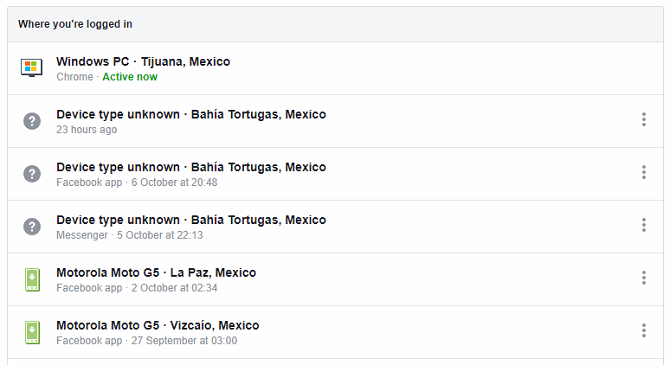
Thankfully, there’s an easy way to discover whether or not someone else has logged into your account, which you can check under your security settings section.

facebook where logged in

Go to Settings > Security > Where You’re Logged In and click Edit. The information contained in the section will show where you’ve logged in and with what devices you signed in with.

The Fix: If you do find a discrepancy with where you’ve logged in, you can easily end the activity of that session, which should help safeguard from any hacking attempt on that device.

Check Your Purchase History

There’s also another way to check whether someone has hacked your account, and that’s by checking your purchase history. If you have a credit card stored on your account, it’s possible that hackers could make fraudulent app or ad purchases and drive up your bill.

To ensure you’re protected, go to Settings > Payments and check under your payment activity, which should be readily displayed. You can even check your Ads Manager payment history in the same section.

The Fix: If you notice any fraudulent charges, you can inform Facebook using this link. They’re pretty good with replying to concerns, whether that’s through their account or through their official Twitter account.

Informing Facebook of Hack Attempts

In fact, if you have any problems whatsoever, you should inform Facebook. Facebook is keen to know about hack attempts and wants to do its part to keep the site as safe and secure as possible.

The Fix: You can contact Facebook through its official Twitter account or you can send a message using your Support Inbox. You can find yours under the Facebook Help Center page, and then by clicking Support Inbox. You can also check out the Bullying Center, Safety Check, and Safety Center pages if you have additional problems.

Protecting Your Facebook Account

Before we even get into fixing your account, it’s best to know how to prevent would-be hackers from accessing your account. Setting a better password, avoiding spam, and increasing your privacy are just a few methods that could help safeguard your security.

Note: We’ve explained Facebook’s privacy settings in more detail if you would like to learn more.

Use a Strong Password

You need to set a memorable password that isn’t susceptible to brute force attacks. Enabling fingerprint access is also good advice, and is rather convenient. Though, as some users have noted, thugs could force you to enter fingerprint password.

After you have taken care of the basics, there are a few more advanced options you should consider. You could enable email or login notifications, which you can do under Security Settings > Login Alerts. Unfortunately, Facebook discontinued text notifications some time ago.

Under security settings, you can also check the box for Login Approvals. Doing so requires a security code to be typed when logging in from an unknown device or browser, and is another powerful attack deterrent to consider.

Take Precautions When Browsing Facebook

You need to think about the preventative measures you can take to protect your Facebook account.

For example, you should avoid clickbait links. This might seem simple enough, but there are plenty of cases of people clicking spam on Facebook and ruining their computer. It happens. And it sucks. Don’t let it happen to you. Avoid spam links, which may even appear in your Message Requests folder.

Also, you should avoid fake websites that are made to look like Facebook and could steal your sensitive information. This attack vector is known as phishing and is not to be taken lightly.

Adjusting Your Facebook Privacy Settings

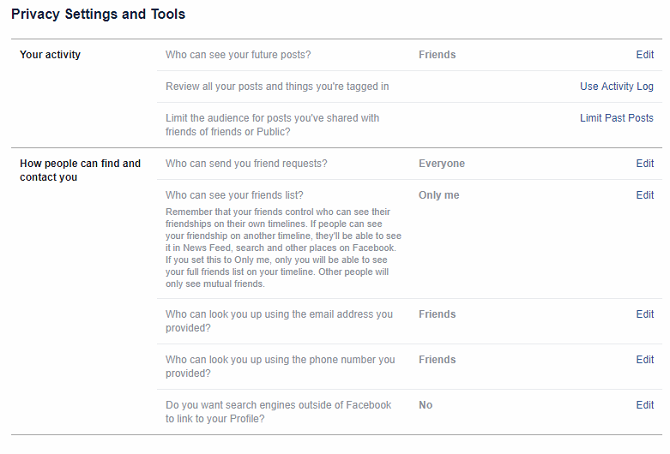
facebook privacy settings screen

Another step you can take is to increase privacy settings on your photos, posts, and tags.

I decided some time ago that I didn’t want every post and photo tag to be displayed on my wall, and have opted to review each tag before it’s posted. This gives me more control over what is made available to my friends and has saved me from a few embarrassing posts and photobombs.

Hiding these items might keep your privacy more intact, especially if you set up specific friend lists. Doing so is a good way to ensure that your items are shown to specific people, and not to your entire list—or worse—the entire internet-using public.

In terms of your Facebook account’s security, making the changes limits the number of comments you receive and restricts them to the people you trust most. This makes you less likely to click on a link from someone masquerading as your friend.

Now that you’ve done just about everything to prevent an attack, we’ll take a look at the next step: identifying whether you’re the victim of a hack.

Safeguard Your Facebook Privacy and Security

While nothing is 100 percent protected, there are ways to safeguard your account so that hackers are hard pressed to obtain your data or personal information. By taking these steps, you’re ensuring that you’re as protected as possible.

Beyond this article, there are more ways to secure your Facebook account that you should know about. And if you’ve been hacked on social media more than once, you may want to consider whether cyber insurance is right for you.

Image Credit: Andrey_Popov/Shutterstock

Read the full article: Has Your Facebook Been Hacked? Here’s How to Tell (and Fix It)


Read Full Article