15 June 2020

The 7 Best Computers for College Students


computer-college

It’s no secret that going to college is expensive. Student loans aside, housing costs and everyday expenses require a lot of financial planning. On top of that, it’s expected that you own essential items like computers, smartphones, and laptops.

As more of our higher education moves online, getting the best computer for college becomes ever more critical. However, balancing cost and features is a fine art.

Here are some of the best computers for college students today if you’re looking for a place to start.

1. Acer Chromebook 14 Bundle

Acer Chromebook 14 Bundle Acer Chromebook 14 Bundle Buy Now On Amazon $359.00

The Acer Chromebook 14 Bundle is one of the best computers for college students. Chromebooks are generally inexpensive as they run Google’s Chrome OS operating system, based on the Google Chrome web browser. This bundle includes the Chromebook 14, a wireless mouse, and a protective sleeve. If you don’t need specific software and do most of your work online in a browser, then a Chromebook makes an ideal choice.

They also have low maintenance requirements; updates are installed automatically when you restart, and you won’t need additional security software. Chrome OS also supports Android apps so that you can install and use your favorite smartphone apps on your laptop. The Chromebook 14 has a 14-inch HD display, 4GB of RAM, and 32GB of onboard storage and an additional 100GB of Google Drive cloud storage.

Importantly this Chromebook can last up to 12 hours on a single charge. Initial setup is a breeze, too; all you need to do is sign into your Google account, and your existing bookmarks, extensions, and saved passwords are automatically synced to your new Chromebook. Chrome OS also has wellbeing features like Night Light and Do Not Disturb that’ll help you wind down at the end of the day and step away from your college work for the night.

2. Asus Chromebox 3

Asus Chromebox 3 Asus Chromebox 3 Buy Now On Amazon $275.49

If you don’t need something portable like a laptop, but enjoy the lightweight Chrome OS experience, consider the Asus Chromebox 3 instead. This mini desktop computer has slightly higher hardware specifications for the same price. However, this is because it doesn’t come with a monitor or any peripherals, so you’ll have to provide them separately.

However, if you already have this equipment and are looking for an upgrade, this is a great choice. The Chromebox 3 has 4GB of RAM, 32GB of onboard storage, and can support a dual-monitor setup. The Chromebox 3 also comes with access to the Google Play Store so that you can install your much-loved smartphone apps.

The mini PC comes equipped with an Ethernet port, three USB A ports, an HDMI slot, and a USB-C connection. The USB-C support means you can take full advantage of the cable’s data-transfer and power delivery features. As a result, you can charge your compatible devices at full speed using this connection.

3. HP All-In-One Computer

HP All-In-One Computer HP All-In-One Computer Buy Now On Amazon $429.99

In most colleges, space is at a premium, so your dorm may not have much space to spare. In which case, you won’t want a large desktop computer tower in the middle of your room. That said, there are still desktop options available to you like the HP All-In-One Computer. This Windows 10 desktop PC combines a monitor and the computer into one space-saving unit.

The computer is equipped with 4GB of RAM, an AMD A4 processor, and a 1TB hard drive. If you have an extensive collection of DVDs, CDs, or other disc-based media, you’ll be pleased to see that the HP All-In-One Computer comes with a DVD-Writer drive. The computer has an integrated webcam, which could be a concern for some. However, the HP HD Privacy Camera has a switch that’ll cover the camera and disable video when not in use.

You won’t need to worry about peripherals either as the computer comes with a wired keyboard and mouse. That said, most people prefer wireless options, so you may want to switch these out for alternatives. Still, their inclusion means that you could easily purchase the HP All-In-One Computer, set it up on your desk, and get going with little effort.

4. Microsoft Surface Pro 7

Microsoft Surface Pro 7 Microsoft Surface Pro 7 Buy Now On Amazon $751.64

The Microsoft Surface Pro 7 is easily the best Windows laptop for college students. Importantly, it is also one of the most versatile devices on this list. The Surface 7 Pro is a two-in-one device that can operate in laptop or tablet mode. Unlike some two-in-one devices, the keyboard is detachable, so you get the productivity gains of a laptop, but the portability and convenience of a tablet.

The laptop comes with Windows 10 Home preinstalled and is available in a range of hardware configurations. This model features 8GB of RAM, 128GB of storage, and an Intel Core i5 processor. The Surface Pro 7 is light, weighing in at just 1.7 pounds. Despite this, the laptop can achieve up to 10.5 hours of battery life on a single charge. The Surface’s fast recharge capability can get your device from empty to 80 percent in just over an hour.

Importantly for college students, the Surface Pro 7 also has a Studio mode, where the tablet is laid at a very slight 15-degree angle from the desktop. This makes it easier to use stylus accessories for design work, art and drawing, and, crucially, taking handwritten notes. Although the initial cost is higher than some Windows laptops, the device is easy to use, and you can get direct support from Microsoft when things go wrong.

5. Lenovo Yoga C740

Lenovo Yoga C740 Lenovo Yoga C740 Buy Now On Amazon $664.00

An alternative to the Microsoft Surface Pro 7 is the Lenovo Yoga C740. This laptop is another two-in-one device that you can use as both a laptop and a tablet. The main difference here is that the display folds back against the keyboard, rather than detaching from it. Although most people wouldn’t carry the C740 around as they would, say, an iPad, it is still a great laptop for college students.

The 14-inch touchscreen is ideal for taking handwritten notes and quickly interacting with apps from the Microsoft Store. The device comes with an Intel Core i5 processor, 8GB of RAM, and 256GB of storage. The laptop has Windows 10 Home preinstalled and is equipped with a built-in HD webcam and a fingerprint reader for convenient security; ideal if your computer is briefly left unattended in lecture halls or the campus library.

The Lenovo Yoga C740 should last up to 13 hours on a single charge, so it may see you through a whole day of classes before needing a top-up. Interestingly, the laptop comes with Amazon’s digital assistant Alexa preinstalled. If you already use Amazon’s service, this makes the C740 a useful option. For those times you need to listen to audio, the device uses a Dolby Atmos speaker system. It also includes far-field mics for high-quality recordings.

6. Apple MacBook Pro

Apple MacBook Pro Apple MacBook Pro Buy Now On Amazon $2,099.00

Apple’s computers have long been associated with creative industries. Writers, video producers, and content creators are often seen with the Apple logo embossed on their devices. However, the Apple MacBook Pro makes an ideal choice for all college students, too. This is especially true if you already use an iPhone or other Apple device.

The latest edition of the MacBook Pro features a 16-inch Retina display, 512GB of storage, and an Intel Core i7 processor. The Touch Bar gives you easy access to apps and other shortcuts, while Touch ID means can log into your computer with your fingerprint. It comes equipped with six speakers and has a 11-hour battery life. There are also four Thunderbolt 3 ports which accept Thunderbolt and USB-C connections.

Aside from the hardware, macOS is an easy to use, low maintenance operating system. Software updates are handled automatically, you are at lower risk of malware and viruses than Windows users, and software can be easily installed via the App Store. If you’ve previously used a Windows 10 PC, you’ll be pleased to know that most of your favorite software is cross-platform, and can be installed on a Mac computer.

7. Dell New XPS 13 Developer Edition

Dell XPS 13 Developer Edition

Linux is an excellent alternative to Windows 10, macOS, and even Chrome OS. The open-source software is free to download and install and is often more secure and customizable than its well-known counterparts. Additionally, the flexibility of Linux lends itself well to Computer Science and Programming majors.

The Dell New XPS 13 Developer Edition is one of the best Linux computers for college students. The laptop comes with Ubuntu 18.04 preinstalled, 256GB of storage, and 8GB of DDR4 RAM. The device is powered by a 10th-generation Intel Core i5 processor and uses a 13.4-inch FHD+ InfinityEdge display. Given these specifications, it may not come as a surprise that this is an expensive laptop.

However, investing in the New XPS 13 Developer Edition should see you through college without further upgrades. The laptop supports Wi-Fi 6, Bluetooth 5.1, and can last up to 19 hours on a single charge. The hardware supports Windows 10 installations, so you could also consider dual-booting the laptop with Microsoft’s operating system.

The Best Computers for College Students

Educational expenses can be challenging to keep under control, but there are computers for college students that don’t have to break the bank. That said, we’ve covered a variety of the best computers for college here, so there should be something to suit every budget and requirement.

Before you head off to campus, you might want to upgrade your other gadgets, too. If a new phone is on the cards, consider one of the best budget smartphones.

Read the full article: The 7 Best Computers for College Students


Read Full Article

The Best Escape Room Games on Android and iPhone


escape-room-games

If you’re stuck indoors all day and need to escape, why not try doing so in a video game? Escape room games are a fun form of puzzle game where you have to use the tools given to you to escape a locked room. So, in this article, we explore the best escape room apps on Android and iPhone.

1. The Room Series

The Room is a highly popular escape room game for Android and iOS that was developed by Fireproof Games. The game enjoys very high review scores and an accolade of rewards, including a BAFTA award.

The Room is an excellent entry point for beginners. Not only is it a well-made game with excellent puzzles, but it also condenses the escape room game formula into a single contraption.

When you start the game, you’re presented with a strange puzzle box on a table. You cannot leave the table, neither can you perform actions away from the puzzle box. The focus of the game is entirely around the contraption and your interactions with it.

Because of this, The Room doesn’t require players to backtrack through places or dig through other puzzles to find a solution. If you’re stuck, all it takes is a closer look at the device and some out-of-the-box thinking. It’s likely the solution was staring at you the entire time.

If you really can’t progress, the game has a hint system that helps guide you through the fiendish puzzles. As such, you’re never “truly” stuck; you have help until the very end. As for how the contraption results in you “escaping the room”—you’ll have to finish it to find out.

The Room is a series featuring four games, plus a special VR version for Oculus, Steam, and PlayStation VR. If you don’t have a VR headset but you do have a powerful phone, why not turn your phone into a headset and play one of the best VR games for Android and iOS?

Download: The Room for Android (Free)
Download: The Room for iOS ($0.99)

2. The Birdcage Series

If you have played The Room and found it too mind-bending, give The Birdcage a try. It uses a similar formula than The Room, where you have a single contraption you have to explore. However, in this game, you’re not the one escaping the room; rather, you’re helping a bird escape its cage.

The Birdcage differs from The Room as it provides multiple cages as levels, instead of presenting one puzzle as the whole game. This means you’ll only have a handful of puzzle modules to think about at any given time, which reduces the difficulty of each puzzle considerably.

While escape room experts will likely scoff at the easy puzzles in this game, the Birdcage series is the perfect app for someone who wants to play something less taxing. It’s also the perfect app if you want to give your kids something cerebral to play. There is a small charge that unlocks more levels, removes ads, and gives you unlimited hints.

Download: The Birdcage for Android | iOS (Free, with in-app purchases available)

3. Rime

If you can complete easy escape room games with your eyes closed, it’s time for a tougher challenge. Fans of difficult escape rooms will get mileage out of Rime, which proves to be a fun mind-bending experience for experts.

In Rime, you find yourself within a book world and have to escape a building. While there is only one level, the puzzles are fiendishly difficult and will have you kicking yourself after you figure out how to solve them.

Fortunately, the game comes with a hint system, where you watch an ad in exchange for a guiding tip. If all else fails, the game has its own walkthrough that lets you peek at the solution.

The game also has a few endings to explore, including a “true ending” for those who are especially observant.

Download: Rime for Android | iOS (Free, with in-app purchases available)

4. Tiny Room Stories: Town Mystery

Tiny Room Stories has you play as a detective, called to a town by your father. The only problem is, when you turn up, everyone seems to have vanished into thin air. It’s up to you to explore the town and figure out what happened.

Tiny Room Stories is a worthy mention due to its unique gameplay. While other games use a first-person perspective as if you’re in the room, Tiny Room Stories instead takes an isometric viewpoint.

As such, it’s not so much escaping a “room” as it is escaping a diorama. You can rotate the scene, find doors to enter, and zoom in on important parts to find all of the pieces of the puzzle.

It’s worth noting that the game locks future chapters under a one-time season pass payment, so it’s not an ideal game if you’re looking for a totally free experience. However, the entry price is just $5 and also removes the ads, so it’s worth it if you’re enjoying the story.

Download: Tiny Room Stories: Town Mystery for Android (Free, with in-app purchases available)

5. Monument Valley

Don’t let the upfront price tag of Monumental Valley put you off; it’s a small price to pay for such a beautiful and ingenious game. This game is unlike other escape room games, as there is no inventory or tapping around a room to find a single item. Instead, it takes a refreshing and more relaxed take on the genre.

The goal behind Monumental Valley is to get from one side of a scene to another. The problem is, the scenery is broken up and won’t let you pass. You can move the geometry around by touching each part, thus building a path that lets you cross.

The interesting part about Monumental Valley is that it uses impossible spaces. Walkways that look like they wouldn’t connect in real life end up doing so due to the forced perspective. If you’ve ever looked at an Escher painting and wanted to play a game based in its world, you’ll love this app.

Download: Monument Valley for Android | iOS ($3.99)

More Escape Room Games to Play Online

Escape room games have been around for a while, and have even inspired real-life counterparts around the world. Fortunately, whether you’re at home or traveling somewhere, you always have an escape room waiting for you on your phone.

Once you’ve played all of these, check out the best online escape the room games.

Read the full article: The Best Escape Room Games on Android and iPhone


Read Full Article

WhatsApp finally launches payments, starting in Brazil


After months of talks and trials, WhatsApp has finally pulled the trigger on payments in its app. Today the Facebook-owned messaging service announced that users in Brazil would be the first to be able to send and receive money by way of its messaging app, using Facebook Pay, the payments service WhatsApp owner Facebook launched last year.

WhatsApp says in its blog post that the payments service — which currently is free for consumers to use (that is, no commission fee taken) but businesses pay a processing fee to receive payments — will work by way of a six-digit PIN or fingerprint to complete transactions.

You use it by linking up your WhatsApp account to your credit or debit card, with initial local partners including Banco do Brasil, Nubank, and Sicredi. Cielo, a payments processor, is also working with WhatsApp to complete transactions. “We have built an open model to welcome more partners in the future,” it noted.

The news comes a little bit as a surprise: the company has been testing this payments service among users in India for months, so many assumed that the world’s second largest internet market would be the debut region for the service. But Facebook remains stuck in a regulatory maze in India that has prevented it from expanding the payments service in what is otherwise its biggest market. (And indeed, it would have an interesting position there because of that: while there are a number of other digital payments services, including Google Pay and PayTM’s service, there are no clear, large and popular competitors offering payments within a messaging app in the country.)

WhatsApp had been adopted informally for commercial purposes almost from the very start: small business owners have used WhatsApp to exchange messages with users around the sale of goods, what is in stock and so on. But under the wing of Facebook — which acquired the company in 2014 for $19 billion — the company started in earnest the big task of bringing in a more formal set of business services.

That’s included the launch of WhatsApp Business, which lets SMBs post catalogues and stock links within the app; advertisers on Facebook also can create links through to their WhatsApp accounts.

But now with payments, WhatsApp, which has amassed over 2 billion users, is finally taking a more comprehensive commercial plunge, giving people not just a place to chat about a product, or even send payment details, but now to actually transact.

And that, in turn, gives WhatsApp and Facebook another shot at building a revenue stream based on its vast scale, one which does not turn the app over to monetising its users through ads and the data that is amassed around them.

“Payments on WhatsApp are beginning to roll out to people across Brazil beginning today and we look forward to bringing it to everyone as we go forward,” the company said.

Users in Brazil will be able to use the payments service on WhatsApp to make purchases from local businesses without leaving their chat, the Facebook-owned service said.

“The over 10 million small and micro businesses are the heartbeat of Brazil’s communities. It’s become second nature to send a zap to a business to get questions answered. Now in addition to viewing a store’s catalog, customers will be able to send payments for products as well,” the company wrote in a blog post.

Although WhatsApp has in theory been working on payments for years, from what we understand there were a lot of delays in part due to how Facebook wanted WhatsApp to implement it. Now that it’s launching with Facebook Pay, it seems that we know how that struggle landed.

As for subsequent regions for launching the service, we’ve reached out to Facebook and WhatsApp to ask for more specific details. Given the link with Facebook Pay, one obvious guess might be that we’ll see it rolled out in markets where that service is now live, which include the US and UK.

More to follow…


Read Full Article

ByteDance to shut down Vigo apps in India


Chinese internet giant ByteDance has announced plans to discontinue two of its apps in India, its biggest overseas market, and urged its users to move to TikTok.

Vigo Video and Vigo Lite, two apps that allow users to create and share short-form sketches and lip-syncing to Bollywood songs, posted a message early Monday (local time) to announce that they would be discontinued at the end of October this year.

In their message, titled “a farewell letter,” ByteDance said it was saddened to shut down the apps but did not offer an explanation for the decision. Indian news outlet Entrackr first spotted the letter.

Unlike TikTok, ByteDance’s most popular app, Vigo Video and Vigo Lite have struggled to make inroads in the world’s second largest internet market. While TikTok has more than 200 million users in India, Vigo Video had about 4 million monthly active users last month and Vigo Lite could only amass 1.5 million users, according to one of the top mobile insight firms — data of which an industry executive shared with TechCrunch.

While Vigo Video gained fewer than 1 million users in a year, Vigo Lite shredded just as many during the same period, the data showed.

Both the apps counted India as their biggest market but have been available in several other markets, including neighboring nation Bangladesh, for instance. It’s unclear whether ByteDance is discontinuing the app in every market. The company did not immediately respond to a request for comment.

The move, despite the apps’ poor reception in India, comes as a surprise. Recruitment posts submitted by ByteDance as late as last month described Vigo as one of the company’s biggest businesses in India.

Other posts reveal that the company is looking to hire executives to aggressively explore ways to monetize its services in the country. ByteDance’s TikTok app has been scrutinized in India in recent weeks for failing to actively remove videos that promoted violence, animal cruelty, racism, child abuse, and objectification of women.

In its message to users on Vigo apps today, ByteDance said it will help them migrate their videos to TikTok. On TikTok, “you will be able to show your talent to a larger group of friends. We are eager to see you [there]!” the message reads.


Read Full Article

14 June 2020

Keyboard Shortcuts for Pages, Numbers, and Keynote on Mac


MacBook displaying Pages document

iWork, the office suite that ships with every Mac, has three easy-to-use apps—Pages (for documents), Numbers (for spreadsheets), and Keynote (for presentations.) They make a strong case for choosing iWork over Microsoft Office.

If you use any or all of the iWork apps, we have a quick tip to help you transform your workflow: adopt keyboard shortcuts.

You can discover many useful shortcuts for Pages, Numbers, and Keynote with the comprehensive cheat sheet below. (The three apps have quite a few shortcuts in common, which means fewer shortcuts to learn!)

The cheat sheet contains keyboard shortcuts for navigation, tool selection, file management, text editing, object manipulation, and more.

FREE DOWNLOAD: This cheat sheet is available as a downloadable PDF from our distribution partner, TradePub. You will have to complete a short form to access it for the first time only. Download Keyboard Shortcuts for Pages, Numbers, and Keynote on macOS.

Keyboard Shortcuts for Pages, Numbers, and Keynote on macOS

Shortcut Action
File and Window Management
Cmd + N Open template/theme chooser
Esc Close template/theme chooser
Cmd + O Open file
Cmd + S Save current file
Shift + Cmd + S Duplicate current file
Option + Shift + Cmd + S Save current file as
Cmd + P Print
Shift + Cmd + P Open Page Setup dialog box
Fn + Up Arrow Scroll up one page
Fn + Down Arrow Scroll down one page
Cmd + W Close current window
Option + Cmd + W Close all windows
Cmd + M Minimize current window
Option + Cmd + M Minimize all windows
Control + Cmd + F Switch to Full Screen mode
Control + Tab Switch to next tab
Shift + Control + Tab Switch to previous tab
Control + Cmd + = Zoom current window
Option + Control + Cmd + = Zoom all windows
Cmd + H Hide current app
Option + Cmd + H Hide other apps
Cmd + , Open app settings
Cmd + ? Open Help window
Cmd + Q Quit app
Option + Cmd + Q Quit app and keep windows open
Tool and Panel Display
Shift + Cmd + ; Show Spelling and Grammar window
Control + Cmd + Space Show Character Viewer (Emoji & Symbols window)
Option + Cmd + E Show Edit Equation dialog box
Cmd + T Show Fonts window
Option + Cmd + I Toggle Inspector sidebar
Control + ` (Grave) Switch to next tab in Inspector
Shift + Control + ` (Grave) Switch to previous tab in Inspector
Cmd + R Toggle ruler(s)
Shift + Cmd + C Show Colors window
Option + Cmd + T Toggle primary toolbar
Cmd + drag toolbar item Move item around in toolbar
Cmd + drag item away from toolbar Remove item from toolbar
Edit and Find
Cmd + Z Undo last action
Shift + Cmd + Z Redo last action
Cmd + A Select all content
Shift + Cmd + A Deselect all content
Cmd + X Cut selection
Cmd + C Copy selection
Cmd + V Paste cut/copied content
Option + Shift + Cmd + V Paste and match style of destination
Option + Cmd + C Copy style of selection
Option + Cmd + V Paste copied style to selection
Delete Delete selection OR
Clear contents of selected cell(s) in table
Cmd + D Duplicate selection
Cmd + F Open Find & Replace dialog
Cmd + G Find next match (when Find & Replace dialog is active)
Shift + Cmd + G Find previous match (when Find & Replace dialog is active)
Cmd + E Find using selected text
Cmd + J Show selected text or object in window
Shift + Cmd + . (Period) Zoom in on file content
Shift + Cmd + , (Comma) Zoom out of file content
Cmd + 0 Return file content to actual size
Objects, Groups, and Layers
Arrow Key Move selected object one point or one screen pixel in specified direction
Shift + Arrow Key Move selected object ten points or ten screen pixels in specified direction
Shift + Cmd + B Send selected object to back
Option + Shift + Cmd + B Send selected object one layer back
Shift + Cmd + F Bring selected object to front
Option + Shift + Cmd + F Bring selected object one layer forward
Option + Cmd + G Group selected objects
Option + Shift + Cmd + G Ungroup selected objects
Cmd + L Lock selected objects
Option + Cmd + L Unlock selected objects
Shift + Cmd + M Edit image mask
Cmd + Return Exit text editing and select its object
Shift + Cmd + V Show Choose dialog box for inserting object
Control + Option + Cmd + T Define selected text as placeholder text
Control + Option + Cmd + I Define selected image or movie as placeholder media
Option + Shift + Cmd + P Draw custom shape with Pen tool
Text Manipulation
¹Fn (twice) Start dictation
Shift + Right Arrow Extend selection one character to right
Shift + Left Arrow Extend selection one character to left
²Option + Shift + Right Arrow Extend selection to end of current word
²Option + Shift + Left Arrow Extend selection to beginning of current word
Shift + Cmd + Right Arrow Extend selection to end of current line
Shift + Cmd + Left Arrow Extend selection to beginning of current line
Shift + Up Arrow Extend selection to line above
Shift + Down Arrow Extend selection to line below
Option + Shift + Up Arrow Extend selection to beginning of current paragraph
Option + Shift + Down Arrow Extend selection to end of current paragraph
Shift + Cmd + Up Arrow Extend selection to beginning of text
Shift + Cmd + Down Arrow Extend selection to end of text
Cmd + B Emphasize or embolden selected text
Cmd + I Italicize selected text
Cmd + U Underline selected text
Option + Delete Delete word before cursor
Option + Fn + Delete Delete word after cursor
Cmd + + Increase size of selected text
Cmd + - Decrease size of selected text
Option + Cmd + [ Decrease space between selected characters
Option + Cmd + ] Increase space between selected characters
Control + Shift + Cmd + + Make selected text (or word at cursor) superscript
Control + Cmd + - Make selected text (or word at cursor) subscript
Cmd + Shift + [ Align selected text flush left
Cmd + Shift + \ Center selected text
Cmd + Shift + ] Align selected text flush right
Option + Cmd + Shift + \ Justify selected text
Cmd + [ Decrease indent level of block of text or list item where cursor is placed
Cmd + ] Increase indent level of block of text or list item where cursor is placed
Cmd + K Turn selected text into hyperlink
Option + Space Insert non-breaking space
Shift + Return Insert line break (soft return)
Return Insert paragraph break
Control + O Insert new line after cursor, without moving cursor
Fn + Cmd + Return Insert page break
Control + T Swap characters on either side of cursor
Control + Cmd + D Look up selected word
Option + Esc Display list of words to complete selected word
Cmd + ; Check spelling and grammar
Comments
Shift + Cmd + K Insert new comment box for selected text, object, or cell
Cmd + Return Save current comment
³Option + Cmd + K Show next comment
³Option + Shift + Cmd + K Show previous comment
Charts and Tables
Shift + Cmd + D Toggle Chart Data editor
Return Complete cell entry and select cell below
Shift + Return Complete cell entry and select cell above
Tab Complete cell entry and select cell on right
Shift + Tab Complete cell entry and select cell on left
Arrow Key (when chart legend is selected) Move chart legend one point
Shift + Arrow Key (when chart legend is selected) Move chart legend ten points
Option + Up Arrow Add row above selected cells
Option + Down Arrow Add row below selected cells
Option + Right Arrow Add column to right of selected cells
Option + Left Arrow Add column to left of selected cells
Option + Cmd + Return Select all rows that intersect current selection
Control + Cmd + Return Select all columns that intersect current selection
Shift + Up Arrow Select row/cell above selected row/cell
Shift + Down Arrow Select row/cell below selected row/cell
Shift + Right Arrow Select column/cell to right of selected column/cell
Shift + Left Arrow Select column/cell to left of selected column/cell
Return (when cell is selected) Begin editing cell
Option + Cmd + U Auto-align cell content
Cmd + Return Stop editing cell and select it
Cmd + Return (twice) Stop editing cell and select its table
Arrow Key (when table is selected) Move selected table one point or one screen pixel in specified direction
Shift + Arrow Key (when table is selected) Move selected table ten points or ten screen pixels in specified direction
Arrow Key (when cell is selected) Select next cell in specified direction
Shift + Arrow Key (when cell is selected) Extend cell selection by one cell in specified direction
Control + Return Insert line break (soft return) when editing text in cell
Return Insert paragraph break (hard return) when editing text in cell
= Open formula editor for selected non-formula cell
Control + = Edit cell formula
Option + Cmd + Left Arrow Select first populated cell in current row
Option + Cmd + Right Arrow Select last populated cell in current row
Option + Cmd + Up Arrow Select first populated cell in current column
Option + Cmd + Down Arrow Select last populated cell in current column
Option + Cmd + Delete Delete selected rows
Control + Cmd + Delete Delete selected columns
Control + Cmd + M Merge selected cells
Control + Shift + Cmd + M Unmerge selected cells
Option + Shift + Cmd + Left Arrow Expand current selection to include first populated cell in current row
Option + Shift + Cmd + Right Arrow Expand current selection to include last populated cell in current row
Option + Shift + Cmd + Up Arrow Expand current selection to include first populated cell in current column
Option + Shift + Cmd + Down Arrow Expand current selection to include last populated cell in current column
Control + Option + Cmd + Up Arrow Toggle top border of selected cell(s)
Control + Option + Cmd + Down Arrow Toggle bottom border of selected cell(s)
Control + Option + Cmd + Right Arrow Toggle right border of selected cell(s)
Control + Option + Cmd + Left Arrow Toggle left border of selected cell(s)
Cmd + \ Enable Autofill mode
Option + Cmd + \ Autofill from row above
Control + Cmd + \ Autofill from column before
Pages-Specific Shortcuts
⁴Shift + Cmd + H Highlight selected text
⁴Tab Increase indent level of list item
⁴Shift + Tab Decrease indent level of list item
Option + Shift + Cmd + E Add an EndNote bibliography
Option + Cmd + A Accept change (when change tracking is on)
Option + Cmd + R Reject change (when change tracking is on)
⁵Option + Cmd + B Add bookmark
Shift + Cmd + L Toggle layout
Shift + Cmd + I Toggle invisibles
Shift + Cmd + T Toggle comments pane
Shift + Cmd + W Toggle word count
Control + Cmd + G Open dialog box for switching to specific page
Numbers-Specific Shortcuts
Cmd + Return Select table from cell selection
Shift + Cmd + \ Show Tab Overview
Shift + Cmd + [ Switch to previous sheet
Shift + Cmd + ] Switch to next sheet
Option + Shift + Cmd + [ Switch to first sheet
Option + Shift + Cmd + ] Switch to last sheet
Control + Shift + Cmd + D Insert current date in selected cell
Control + Shift + Cmd + T Insert current time in selected cell
Shift + Cmd + R Apply sorting rules
Option + Cmd + F Enable filters
Cmd + 8 Collapse selected groups
Option + Cmd + 8 Collapse peer groups
Option + Shift + Cmd + 8 Collapse all groups
Cmd + 9 Expand selected groups
Option + Cmd + 9 Expand peer groups
Option + Shift + Cmd + 9 Expand all groups
Keynote-Specific Shortcuts
Cmd + A Select all object types in object list
Shift + Cmd + A Deselect all object types in object list
Cmd + Return Select table from cell selection
Shift + Cmd + N Insert new slide OR
Add new master slide from Master Slides view
Shift + Cmd + H Skip selected slide
Shift + Cmd + E Toggle Master Slides view
Shift + Cmd + P Toggle presenter nodes
Shift + Cmd + L Toggle object list
Shift + Cmd + 0 Zoom to selection
Option + Cmd + 0 Zoom to fit slide
Option + Shift + Cmd + 0 Zoom to fit content (including objects on extended canvas)
Option + Cmd + P Play slideshow
Space Play video during presentation
K Pause or resume video
J Rewind video one frame at a time when paused
L Fast-forward video one frame at a time when paused
I Jump to beginning of video
O Jump to end of video
¹Shortcut is available only when the dictation feature is enabled under System Preferences > Keyboard > Dictation.

²Use shortcut multiple times to select more words.

³Shortcut also works with changes in Pages when change tracking is enabled.

⁴Shortcut does not work in table cells.

⁵Shortcut is not available for Page Layout documents.

Going Beyond the Basics in iWork Apps

Want more ways to improve your iWork experience? Explore these advanced tips for Pages, Numbers, and Keynote.

Image Credit: Bram Naus on Unsplash

Read the full article: Keyboard Shortcuts for Pages, Numbers, and Keynote on Mac


Read Full Article

13 June 2020

This Week in Apps: Android 11 beta, Snapchat’s makeover, Apple’s WWDC20 plans


Welcome back to This Week in Apps, the Extra Crunch series that recaps the latest OS news, the applications they support and the money that flows through it all.

The app industry is as hot as ever, with a record 204 billion downloads and $120 billion in consumer spending in 2019. People are now spending three hours and 40 minutes per day using apps, rivaling TV. Apps aren’t just a way to pass idle hours — they’re a big business. In 2019, mobile-first companies had a combined $544 billion valuation, 6.5x higher than those without a mobile focus.

In this Extra Crunch series, we help you keep up with the latest news from the world of apps, delivered on a weekly basis.

This week, we’re looking at the mobile news from the events that didn’t happen this year because of the coronavirus pandemic. That includes the launch of Android 11 beta, which would have normally arrived during Google I/O, along with all the new Android developer tools. Snap also held its partner summit this week, where it announced a number of new Snapchat features, new partner relationships, and its plans for its AR ecosystem.

Not to be left out, Apple stole a little attention this week with its reveal of the WWDC20 schedule. Like many others, Apple’s conference is going virtual for the first time. It’s even redesigning its forums to aid with Apple engineer-developer interactions.

This week in app trends, we examine data from new reports on COVID’s impact on home improvement apps and hypercasual gaming.

Headlines

Android 11 beta launches along with new developer tools

After a series of delays and the cancellation of Google I/O, the Android 11 beta finally launched this week. This next major version of the Android OS is focused around three themes, says Google: People, Controls and Privacy.

On the People side, Android 11 gives conversation notifications a dedicated section at the top of the shade, offers a Bubbles API for messaging apps, improves Voice Access, adds new emoji and more. New consolidated keyboard suggestions allow Autofill apps and Input Method Editors (e.g., password managers and third-party keyboards), to now securely offer context-specific entries in the suggestion strip.


New device controls make it easier for users to access and control connected/smart home devices with a long press of the power button or access payment options. New media controls in an upcoming beta release will make it easier to switch the output device for audio or video content.


Read Full Article

5 Intermittent Fasting Apps and Guides to Lose Weight Without Diet Restrictions


Intermittent Fasting Apps and Guides to Lose Weight

Intermittent fasting is often seen as an easy way to diet since you don’t have restrictions on what you can eat. Instead, you restrict when you can eat. Learn, track, and fulfill the promise of the diet with these best intermittent fasting apps and websites.

The idea that you have to fast for some time, and then eat for some time, is much easier to follow than the rules of other diets. The most popular form of intermittent fasting (IF) is the 16:8 diet, also called Leangains.

Science says the Leangains diet works to help you lose weight. These apps will tell you which IF diet is right for you, explain the basics, and help you track your progress.

1. Do Fasting (Web): Calculate a Preview of Intermittent Fasting

How much weight will you lose by intermittent fasting? Find out with Do Fasting’s web-based calculator, which lets you calculate a preview of effects on your body before downloading anything.

The 12-step questionnaire asks basic questions like your meal times, normal physical activity, and your mindset towards the diet. Of course, you also need to add your height, current weight, and target weight.

Based on your answers, Do Fasting calculates how long it will take to reach your desired weight. It also shows graphs of where you’re likely to lose weight on your body, how much you’ll lose after the first week, and so on.

Do Fasting doesn’t give you an IF plan along with it; for that, you’ll need to download the app and pay for a subscription plan. But the free web app is a great way to understand and estimate how much weight you will lose by intermittent fasting, and how fast you will lose it.

2. 21 Day Hero (Web): Beginner’s Guide to Intermittent Fasting

21 Day Hero's beginner's guide to intermittent fasting is the best introduction and set of guidelines for free

This free article details everything you might want to learn about intermittent fasting. While 21 Day Hero is a paid app for IF meal plans and challenges, blog posts like this are free and offer great advice.

The beginner’s guide goes through all the steps. It explains the science behind intermittent fasting for weight loss, and how to do it safely and healthily.

You will learn about the different types of IF plans, like 16/8, 5-2, OMAD, Eat Stop Eat, and others. And there’s a clear list of what you can and can’t eat or drink while you’re fasting. The 21 Day Hero Beginner’s Guide also offers a seven-day preview of what its three-week plan looks like, and the advice is solid.

Getting on an IF diet is all about changing your mindset and retraining your body. The first week is about slowly ramping up to the 16-8 diet by small changes to your eating times, ingredients, and cooking habits. It’s a must-read before you start any IF plan.

3. Fasting App (Android): The Best Free Intermittent Fasting Tracker App

Fasting App is the most gorgeous and completely free intermittent fasting tracker app for Android today. Unfortunately, there is no iOS version at the moment. But it does so many little things right that it’s worth mentioning.

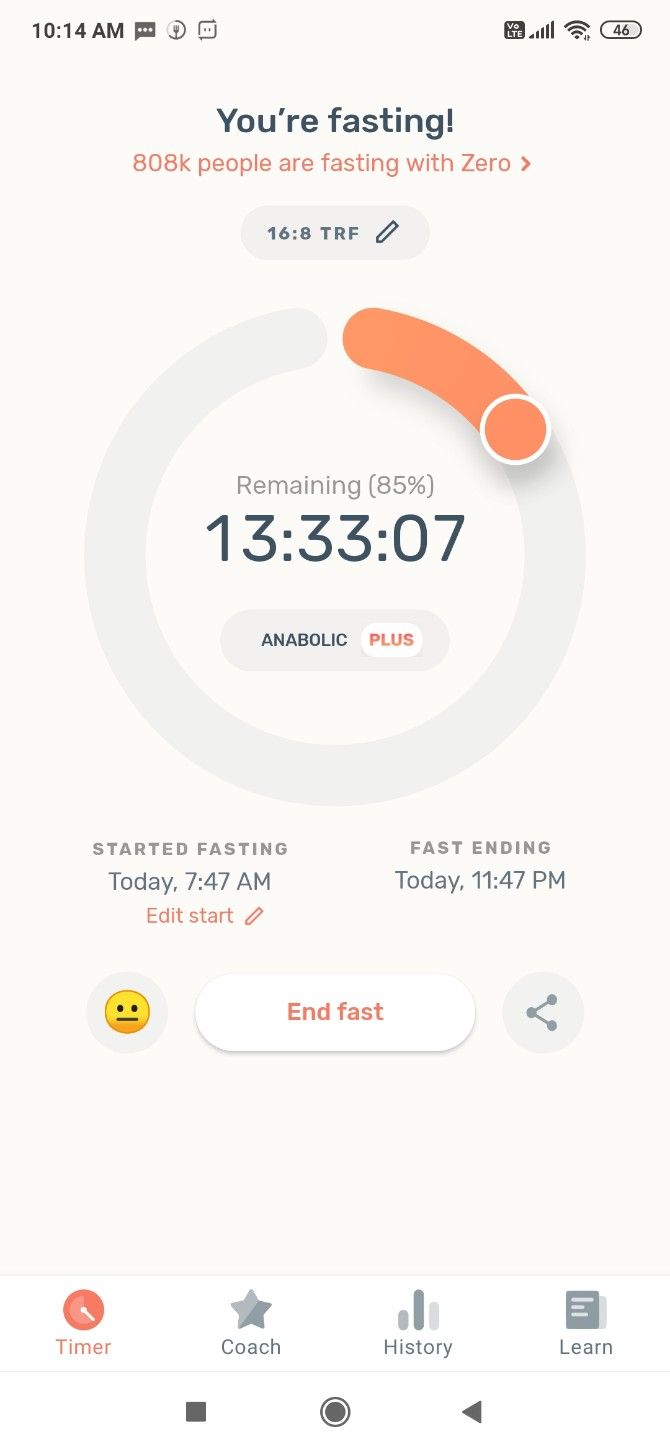
The app guides all types of IF users (beginner to advanced) to pick the right IF plan for them. You can then track your fasting hours, set reminders to begin and end the fast, and record all activity to see it in charts and graphs. It also syncs with Google Fit to track your weight loss and physical activity.

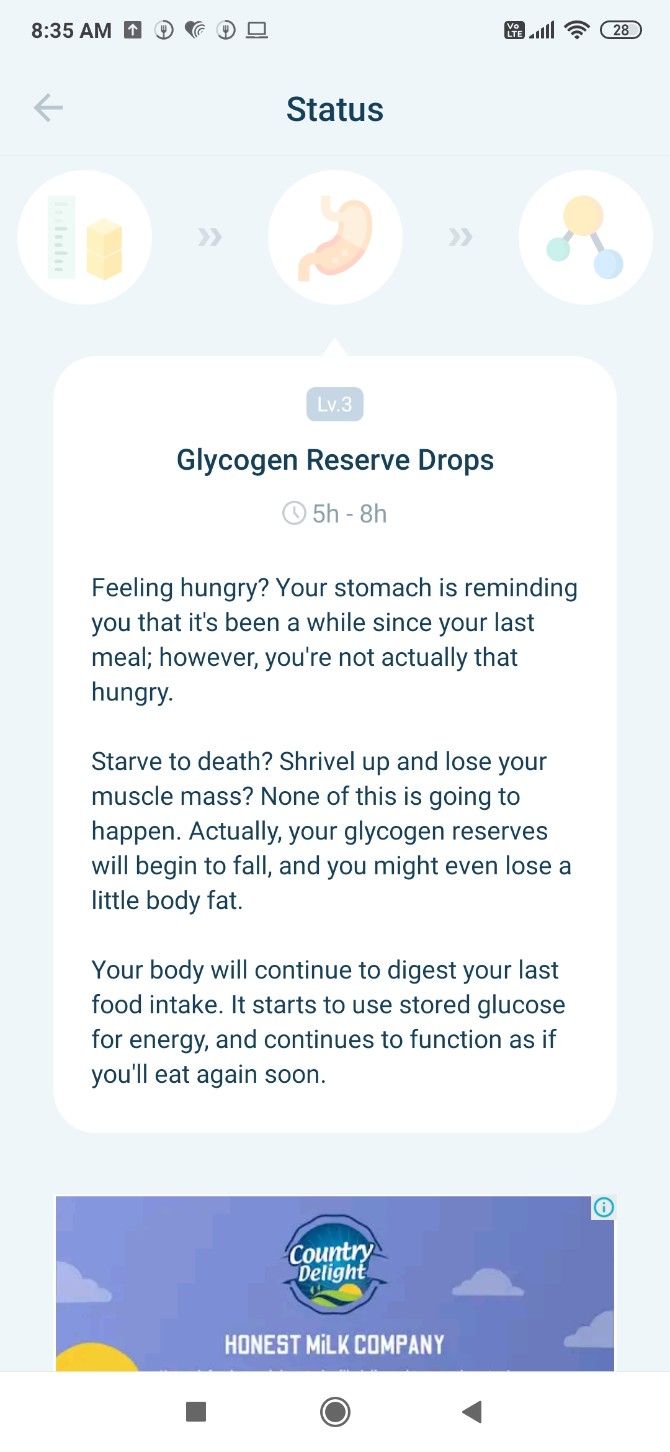
Fasting App is especially great for newcomers to IF. You’ll get a quick explanation of what your body is going through at any stage, corresponding to how many hours you have been fasting. The “Learn” tab has further information you might want to know about IF, with frequently asked questions like what you can and can’t eat. You’re getting it all in your app, without having to go search for it on the internet.

No features are behind a paywall in this app. However, it is ad-supported and those ads can get annoying after a while. If you like the app, it’ll be worth the $4 to stop the ads.

Download: Fasting for Android (Free)

4. Zero (Android, iOS): Most Popular App to Track Intermittent Fasting

Zero is the most popular app for intermittent fasting on the internet. It includes most of the features in the aforementioned Fasting App and has a smooth interface that’s easy for newcomers to get into. With badges and Google Fit data, Zero adds more gamification to the experience of intermittent fasting.

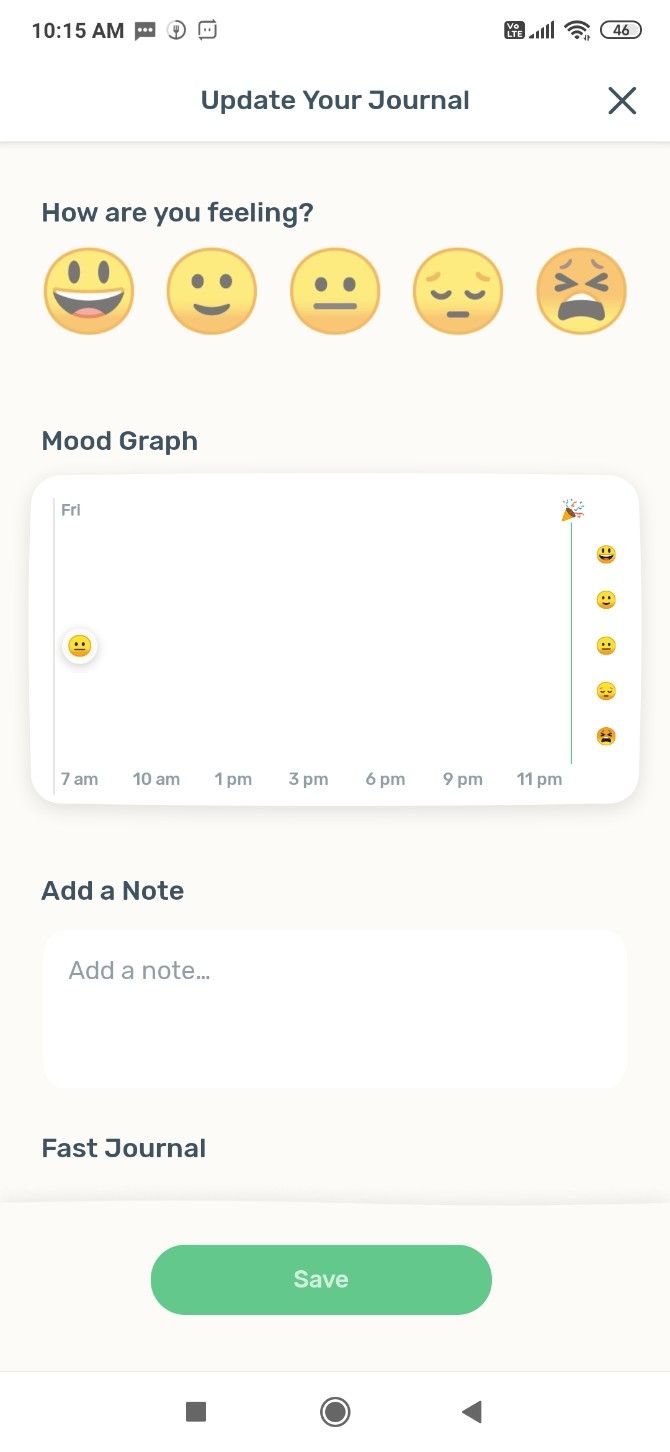
Apart from those features, Zero includes a journal to track how you’re feeling while on the diet. Mood tracking has shown to be an effective way to deal with retraining your mind, which is an integral part of intermittent fasting. You can simply track mood with emojis, or add notes to track deeper thoughts.

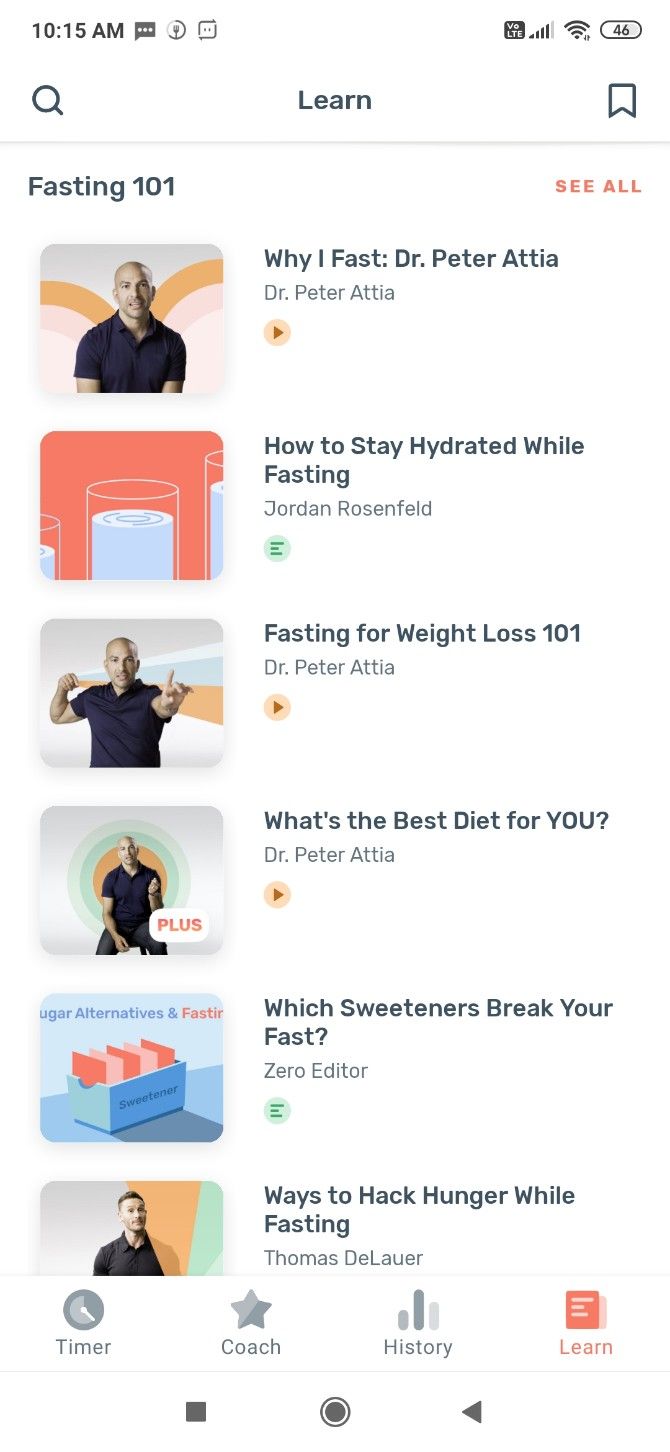
The app also has a robust “Learn” section where it regularly adds new videos made by its team of in-house medical officers. But many of these are behind a paywall, as are other features of the app. For example, you can’t set a custom IF plan in the free version. Get Zero if you plan to soon pay and upgrade to Zero Plus, but otherwise, Fasting App is a better tracker.

Download: Zero for Android | iOS (Free)

5. Vora (Android, iOS): Intermittent Fasting With Friends

Studies show that intermittent fasting is easier to stick to if you partner up with a buddy. You can motivate each other when the going gets tough, find someone who empathizes, and bond over your progress. Vora is an intermittent fasting tracker with a social component.

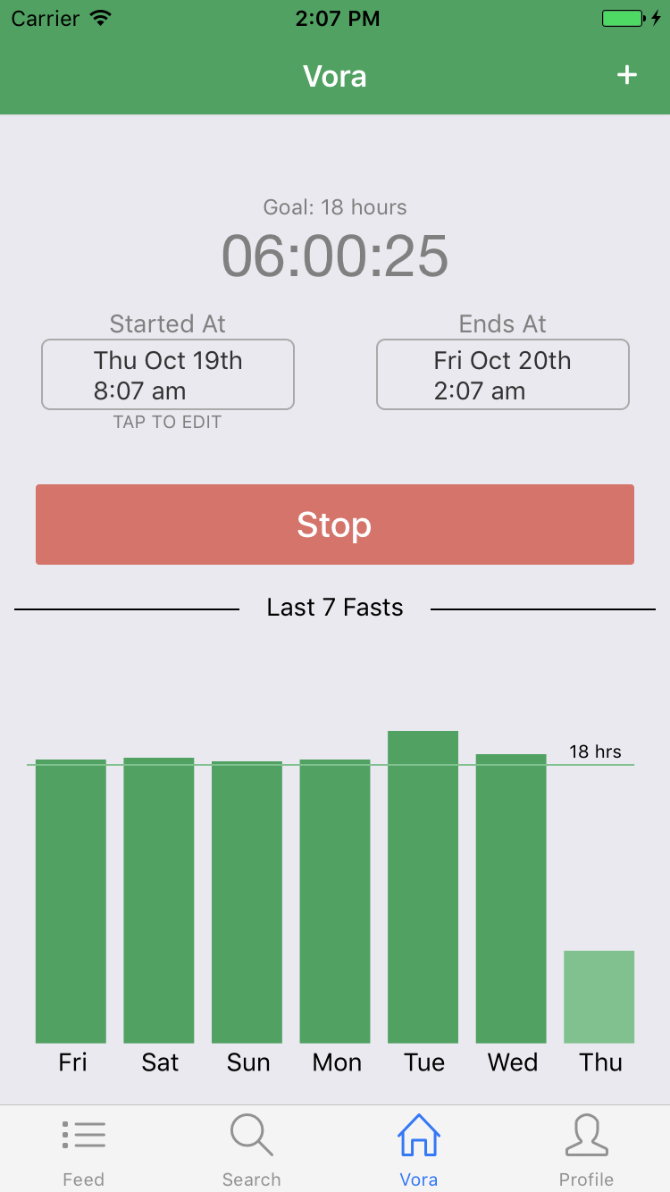
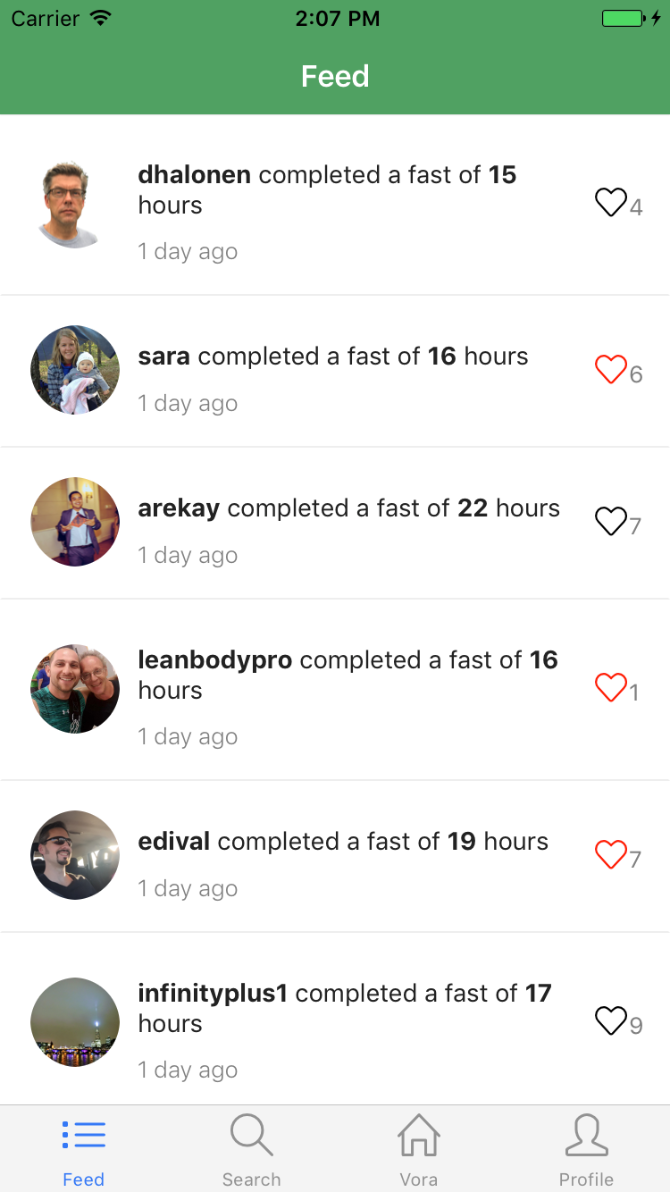
Sign up and connect with your friends who use the app, available on both Android and iPhone. Track your fasts like you would normally do with any of the other fasting trackers. And then share your data on the feed so that others can “like” your accomplishments. It’s a simple way to share your progress.

Vora is a barebones tracker and social feed, which is what a lot of people are looking for. It’ll keep records of your daily activity, weekly hours, and weight loss journey. You can also export all that data to a spreadsheet for free.

Download: Vora for Android | iOS (Free)

Mix Diet With Exercise

You will see results with intermittent fasting, no matter which of the diets you pick up. Maintain the basic idea that calories consumed should be less than calories expended. But weight loss isn’t the only path to being healthy.

It’s vital to balance your diet with exercise to ensure all-round health. If you’re wondering what’s quicker, read our article on diets vs. exercise.

Read the full article: 5 Intermittent Fasting Apps and Guides to Lose Weight Without Diet Restrictions


How to Squad Stream Together on Twitch


squad-stream

You can now stream with other people on Twitch thanks to a feature called Squad Stream. This allows up to four Twitch streamers to broadcast live together. Streamers get to collaborate, and viewers get to see multiple angles of the games being played.

How Twitch’s Squad Stream Feature Works

Squad Stream lets Twitch streamers go live together for the first time. Up to four streamers can broadcast live together in one window, sharing their viewers. Streamers can either start a Squad Stream or join an existing one from the Twitch dashboard.

Squad Stream has several benefits. It will help streamers foster new communities who all enjoy watching the same Twitch creators, enable popular streamers to help smaller streamers find an audience, and add an extra element (or three) for viewers.

How to Use Squad Stream on Twitch

If you’re a Twitch streamer keen to start a Squad Stream, go to your Creator Dashboard and open your Stream Manager. Then click the Quick Actions panel and find Squad Stream. You’ll see My Squad (to start a Squad Stream) and Invites (to accept an invite to one).

To start a Squad Stream, click Add a Channel and type the name of the Twitch channel you would like to invite. You can invite between one and three other channels. Once all of the channels have accepted your invites, click Start Squad Stream to begin.

If you’re a Twitch viewer keen to watch a Squad Stream, you just need to look for the “Squad Stream” tag when browsing. Once you find one, you can watch a Squad Stream, and click on each channel in turn to place them in the primary slot.

Why Squad Stream Is Only Available to Twitch Partners

Squad Stream is currently only available to Partners. However, Twitch plans to offer the feature to Affiliates and then all streamers over time. This is due to “the need for video quality options,” which only Partners currently receive by default.

In a nutshell, video quality options (or transcodes) enable Twitch to adjust the streams in certain slots. Without this option, Twitch would try to deliver four 720p+ streams at once. Twitch goes into more detail in a post on the Twitch Blog all about Squad Stream.

Hosting and Raiding Are So Passe

Twitch already offers a couple of ways for streamers to help each other out. There’s Host mode, which allows one Twitch streamer to host another channel’s live broadcast. And Raids, which allows one Twitch streamer to send their viewers to another channel.

Twitch streamers have actually been collaborating in this way for a while now using tools like MultiTwitch. However, Squad Stream should make the practice more popular. In the meantime, you should read our tips for building a live streaming audience.

Read the full article: How to Squad Stream Together on Twitch


Read Full Article

5 Intermittent Fasting Apps and Guides to Lose Weight Without Diet Restrictions


Intermittent Fasting Apps and Guides to Lose Weight

Intermittent fasting is often seen as an easy way to diet since you don’t have restrictions on what you can eat. Instead, you restrict when you can eat. Learn, track, and fulfill the promise of the diet with these best intermittent fasting apps and websites.

The idea that you have to fast for some time, and then eat for some time, is much easier to follow than the rules of other diets. The most popular form of intermittent fasting (IF) is the 16:8 diet, also called Leangains.

Science says the Leangains diet works to help you lose weight. These apps will tell you which IF diet is right for you, explain the basics, and help you track your progress.

1. Do Fasting (Web): Calculate a Preview of Intermittent Fasting

How much weight will you lose by intermittent fasting? Find out with Do Fasting’s web-based calculator, which lets you calculate a preview of effects on your body before downloading anything.

The 12-step questionnaire asks basic questions like your meal times, normal physical activity, and your mindset towards the diet. Of course, you also need to add your height, current weight, and target weight.

Based on your answers, Do Fasting calculates how long it will take to reach your desired weight. It also shows graphs of where you’re likely to lose weight on your body, how much you’ll lose after the first week, and so on.

Do Fasting doesn’t give you an IF plan along with it; for that, you’ll need to download the app and pay for a subscription plan. But the free web app is a great way to understand and estimate how much weight you will lose by intermittent fasting, and how fast you will lose it.

2. 21 Day Hero (Web): Beginner’s Guide to Intermittent Fasting

21 Day Hero's beginner's guide to intermittent fasting is the best introduction and set of guidelines for free

This free article details everything you might want to learn about intermittent fasting. While 21 Day Hero is a paid app for IF meal plans and challenges, blog posts like this are free and offer great advice.

The beginner’s guide goes through all the steps. It explains the science behind intermittent fasting for weight loss, and how to do it safely and healthily.

You will learn about the different types of IF plans, like 16/8, 5-2, OMAD, Eat Stop Eat, and others. And there’s a clear list of what you can and can’t eat or drink while you’re fasting. The 21 Day Hero Beginner’s Guide also offers a seven-day preview of what its three-week plan looks like, and the advice is solid.

Getting on an IF diet is all about changing your mindset and retraining your body. The first week is about slowly ramping up to the 16-8 diet by small changes to your eating times, ingredients, and cooking habits. It’s a must-read before you start any IF plan.

3. Fasting App (Android): The Best Free Intermittent Fasting Tracker App

Fasting App is the most gorgeous and completely free intermittent fasting tracker app for Android today. Unfortunately, there is no iOS version at the moment. But it does so many little things right that it’s worth mentioning.

The app guides all types of IF users (beginner to advanced) to pick the right IF plan for them. You can then track your fasting hours, set reminders to begin and end the fast, and record all activity to see it in charts and graphs. It also syncs with Google Fit to track your weight loss and physical activity.

Fasting App is especially great for newcomers to IF. You’ll get a quick explanation of what your body is going through at any stage, corresponding to how many hours you have been fasting. The “Learn” tab has further information you might want to know about IF, with frequently asked questions like what you can and can’t eat. You’re getting it all in your app, without having to go search for it on the internet.

No features are behind a paywall in this app. However, it is ad-supported and those ads can get annoying after a while. If you like the app, it’ll be worth the $4 to stop the ads.

Download: Fasting for Android (Free)

4. Zero (Android, iOS): Most Popular App to Track Intermittent Fasting

Zero is the most popular app for intermittent fasting on the internet. It includes most of the features in the aforementioned Fasting App and has a smooth interface that’s easy for newcomers to get into. With badges and Google Fit data, Zero adds more gamification to the experience of intermittent fasting.

Apart from those features, Zero includes a journal to track how you’re feeling while on the diet. Mood tracking has shown to be an effective way to deal with retraining your mind, which is an integral part of intermittent fasting. You can simply track mood with emojis, or add notes to track deeper thoughts.

The app also has a robust “Learn” section where it regularly adds new videos made by its team of in-house medical officers. But many of these are behind a paywall, as are other features of the app. For example, you can’t set a custom IF plan in the free version. Get Zero if you plan to soon pay and upgrade to Zero Plus, but otherwise, Fasting App is a better tracker.

Download: Zero for Android | iOS (Free)

5. Vora (Android, iOS): Intermittent Fasting With Friends

Studies show that intermittent fasting is easier to stick to if you partner up with a buddy. You can motivate each other when the going gets tough, find someone who empathizes, and bond over your progress. Vora is an intermittent fasting tracker with a social component.

Sign up and connect with your friends who use the app, available on both Android and iPhone. Track your fasts like you would normally do with any of the other fasting trackers. And then share your data on the feed so that others can “like” your accomplishments. It’s a simple way to share your progress.

Vora is a barebones tracker and social feed, which is what a lot of people are looking for. It’ll keep records of your daily activity, weekly hours, and weight loss journey. You can also export all that data to a spreadsheet for free.

Download: Vora for Android | iOS (Free)

Mix Diet With Exercise

You will see results with intermittent fasting, no matter which of the diets you pick up. Maintain the basic idea that calories consumed should be less than calories expended. But weight loss isn’t the only path to being healthy.

It’s vital to balance your diet with exercise to ensure all-round health. If you’re wondering what’s quicker, read our article on diets vs. exercise.

Read the full article: 5 Intermittent Fasting Apps and Guides to Lose Weight Without Diet Restrictions


Read Full Article

The 8 Best Sites for Quality HTML Coding Examples


The very first thing to learn when studying web development is how to code with HTML. More importantly, being able to code in HTML5 using all the latest techniques.

Everything you see on a website is built with HTML and CSS (with some JavaScript sprinkled in). There is a lot to learn, so what are the best resources to get started?

There are some awesome websites that offer well-designed HTML coding examples and tutorials that can show you the most effective ways to code.

Here are eight sites that offer good HTML code examples and help you become an HTML expert.

1. HTML Dog

HTML Sandbox for HTML Coding Example

HTML Dog has an offering of tutorials, techniques, references, and examples of HTML code. They also offer CSS and JavaScript, which is an added bonus if you’re a web developer. HTML Dog uses HTML5 so you’re getting up to date information.

Their HTML examples cover all kinds of syntax with demonstrations for each.

Clicking on any of the elements will open an interactive coding page. HTML Dog provides examples in code boxes that you can copy and paste into your own HTML code. It’s a good way to merge learning and working.

You can see the live HTML output of the sample code on the pane on the right. It’s a neat sandbox to play around with all kinds of code.

2. W3Schools

W3Schools HTML Code Example

W3Schools is widely regarded as a top resource for web developers, boasting coding examples, from PHP to JavaScript (what is JavaScript?) You’ll also find a section with basic HTML coding examples.

Just like HTML Dog, they’ve incorporated a split-screen tool to try coding in. You can test out the HTML you learn in each lesson and experiment with different pieces of code. Code your HTML, click Run, and you’ll see how the code would look on a real HTML page.

3. Mozilla MDN

MDN HTML Guide With Examples

The Mozilla Developer Network (MDN) has documentation for web developers. There is a comprehensive list of HTML tutorials and code examples to try. Most of examples are built into their tutorials, so working through their path will give you lots of opportunities to learn.

MDN is highly regarded by developers for its detail. They cover web development in great detail, which works to your advantage as their sections tie into each other. You’ll learn good behavior so that when you start coding CSS or JavaScript everything runs smoothly.

The detail can be a little daunting at first. The sections are very thorough, but you’ll get the hang of it! This is a great resource to keep around as you get more advanced, you’ll never really outgrow the tutorials.

4. freeCodeCamp

freeCodeCamp HTML Coding Examples

freeCodeCamp is known for its online courses and training guides for coders. They have a great section of HTML examples as well. The pictured tutorial covers code examples from beginner elements like headers to advanced concepts like semantic markup.

Each section has examples of HTML so you can see the element in action. It’s a great resource to come back to as you learn to code.

5. Codecademy

HTML web page code sample

One of the most well-known websites for learning programming is Codecademy. When it comes to learning HTML, Codecademy doesn’t disappoint with an HTML training course.

The course is around nine hours of content and covers most of the language. Four sections are covered in-depth: elements, tables, forms, and semantic HTML.

The course work area is quite advanced and gives you the flexibility to play around in the sandbox. You can also switch it to full screen to see what your website looks like in a full browser window.

The nice thing about this course is that it also incorporates learning about using CSS to format your pages. This is helpful since HTML and CSS work hand-in-hand to create web apps.

6. HTML.com

HTML.com Coding Examples

HTML.com is a website dedicated to all things HTML. Opening the site you will see a beginner’s guide to learning the language from ground zero. It’s worth a read before diving into the syntax.

Once you’re ready to learn HTML.com has many tutorials for various subjects. Tutorials like HTML document structure, using links in HTML, and working with images. Their tutorials are good reads with lots of code examples throughout to keep you sharp. You will also find an alphabetized list of HTML elements if you want to choose one to learn more about.

7. BitDegree

HTML Coding Examples on BitDegree

BitDegree focuses on interactive code learning so it’s very valuable as an HTML guide. You can read guides on every HTML element. Each guide explains what the element does and shows you a piece of code using it.

Each piece of code can be opened in their sandbox to try out. It’s a dictionary for HTML elements! You can spend plenty of time here experimenting with a quick reference for what everything does.

8. Tutorials Point

Tutorials point HTML Coding Examples

Tutorials Point is a no-frills HTML resource. It’s easy to navigate and pinpoint HTML elements for coding examples. Much like the rest of these examples, it’s a good choice to bookmark and have on hand when you’re writing code.

More HTML Code Examples and Resources

There is nothing quite as exhilarating as spending some time coding your own website and revealing your masterpiece to the world. If you study HTML you’re on your way to joining the ranks of web developers who have built their own apps. These 8 sources of HTML coding examples are all nice to save for when you need them.

If you want to dive further into HTML check out 17 simple HTML code pieces you can learn in minutes. Learning the basics of HTML is a great place to start writing web apps. Once you get far enough with the language it can do some amazing things.

Check out our guide to understanding the basics of HTML code, it goes hand in hand with a lot of these examples.

Read the full article: The 8 Best Sites for Quality HTML Coding Examples