14 February 2020

Instagram prototypes “Latest Posts” feature


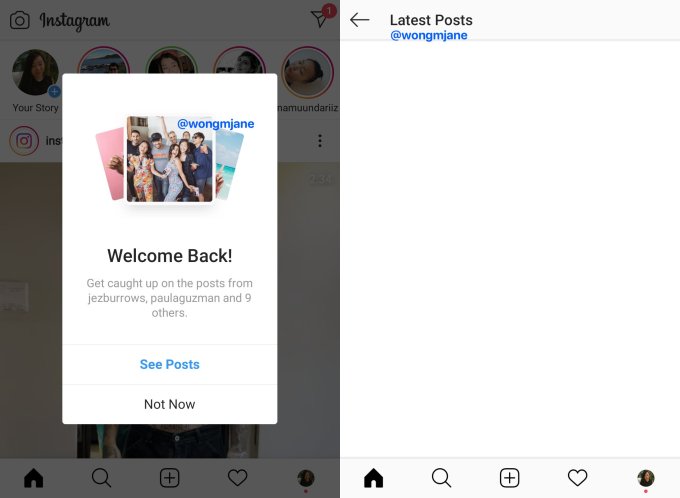
Instagram users who miss the reverse chronological feed might get a new way to see the most recent pics and videos from who they follow. Instagram has been spotted internally prototyping a “Latest Posts” feature. It appears as a pop-up over the main feed and brings users to a special area showing the newest content from their network.

Instagram Latest Posts

For now, this doesn’t look like a full-fledged “Most Recent” reverse-chronological feed option like what Facebook has for the News Feed. But if launched, Latest Posts could help satisfy users who want to make sure they haven’t missed anything or want to know what’s going on right now.

The prototype was discovered by Jane Manchun Wong, the master of reverse engineering who’s provided tips to TechCrunch on scores of new features in development by tech giants. She generated the screenshots above from the code of Instagram’s Android app. “Welcome Back! Get caught up on the posts from [names of people you follow] and 9 more” reads the pop-up that appears over the home screen. If users tap “See Posts” instead of “Not Now”, they’re sent to a separate screen showing recent feed posts.

We’ve reached out to Instagram for a confirmation of the prototype, more details, and clarification on how Latest Posts would work. The company did not respond before press time. However, it has often confirmed the authenticity of Wong’s findings, and some of the features have gone on to officially launch months later.

Back in mid-2016, Instagram switched away from a reverse-chronological feed showing all the posts of people you follow in order of decency. Instead, it forced all users to scroll through a algorithmic feed of what it thinks you’ll like best, ranked based on who and what kind of content you interact with most. That triggered significant backlash. Some users thought they were missing posts or found the jumbled timestamps confusing. But since algorithmic feeds tend to increase engagement by ensuring the first posts you see are usually relevant, Instagram gave users no way to switch back.

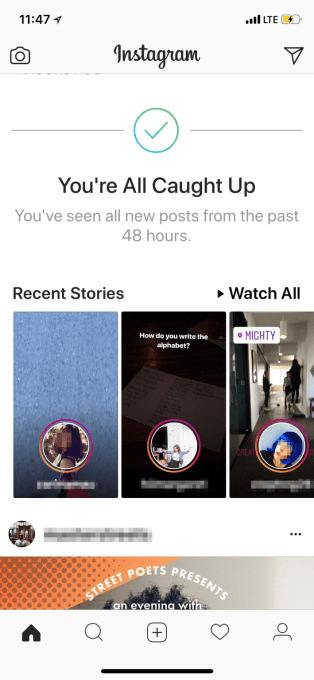
Instagram previously tried to help users get assurance that they’d seen all the posts of their network with a “You’re All Caught Up” insert in the feed if you’d scrolled past everything from the past 48 hours. Latest Posts could be another way to let frequent Instagram users know that they’re totally up to date.

That might let people close the app in confidence and resume their lives.


Read Full Article

Instagram prototypes “Latest Posts” feature


Instagram users who miss the reverse chronological feed might get a new way to see the most recent pics and videos from who they follow. Instagram has been spotted internally prototyping a “Latest Posts” feature. It appears as a pop-up over the main feed and brings users to a special area showing the newest content from their network.

Instagram Latest Posts

For now, this doesn’t look like a full-fledged “Most Recent” reverse-chronological feed option like what Facebook has for the News Feed. But if launched, Latest Posts could help satisfy users who want to make sure they haven’t missed anything or want to know what’s going on right now.

The prototype was discovered by Jane Manchun Wong, the master of reverse engineering who’s provided tips to TechCrunch on scores of new features in development by tech giants. She generated the screenshots above from the code of Instagram’s Android app. “Welcome Back! Get caught up on the posts from [names of people you follow] and 9 more” reads the pop-up that appears over the home screen. If users tap “See Posts” instead of “Not Now”, they’re sent to a separate screen showing recent feed posts.

We’ve reached out to Instagram for a confirmation of the prototype, more details, and clarification on how Latest Posts would work. The company did not respond before press time. However, it has often confirmed the authenticity of Wong’s findings, and some of the features have gone on to officially launch months later.

Back in mid-2016, Instagram switched away from a reverse-chronological feed showing all the posts of people you follow in order of decency. Instead, it forced all users to scroll through a algorithmic feed of what it thinks you’ll like best, ranked based on who and what kind of content you interact with most. That triggered significant backlash. Some users thought they were missing posts or found the jumbled timestamps confusing. But since algorithmic feeds tend to increase engagement by ensuring the first posts you see are usually relevant, Instagram gave users no way to switch back.

Instagram previously tried to help users get assurance that they’d seen all the posts of their network with a “You’re All Caught Up” insert in the feed if you’d scrolled past everything from the past 48 hours. Latest Posts could be another way to let frequent Instagram users know that they’re totally up to date.

That might let people close the app in confidence and resume their lives.


Read Full Article

Spotify Now Lets You Search Songs by Songwriter


Spotify has launched what it’s calling songwriter pages. These give songwriters a public profile on the streaming service, giving them a little bit of the spotlight. And Spotify users can use these songwriter pages to find songs by their favorite songwriters.

Unlock the FREE "Spotify Keyboard Shortcuts" cheat sheet now!

This will sign you up to our newsletter

Enter your Email

Your Favorite Artists Don’t Write Their Own Songs

You may be surprised to learn that your favorite artists probably don’t write their own songs. This is especially true of popstars, who usually employ teams of songwriters to write hits for them. And these songwriters rarely get the recognition they deserve.

However, things are slowly changing, and streaming music services are part of that change. Spotify has been publicly displaying song credits since 2018. And now, Spotify has launched songwriter pages which gives songwriters their own public profiles.

Spotify Launches Public Profiles for Songwriters

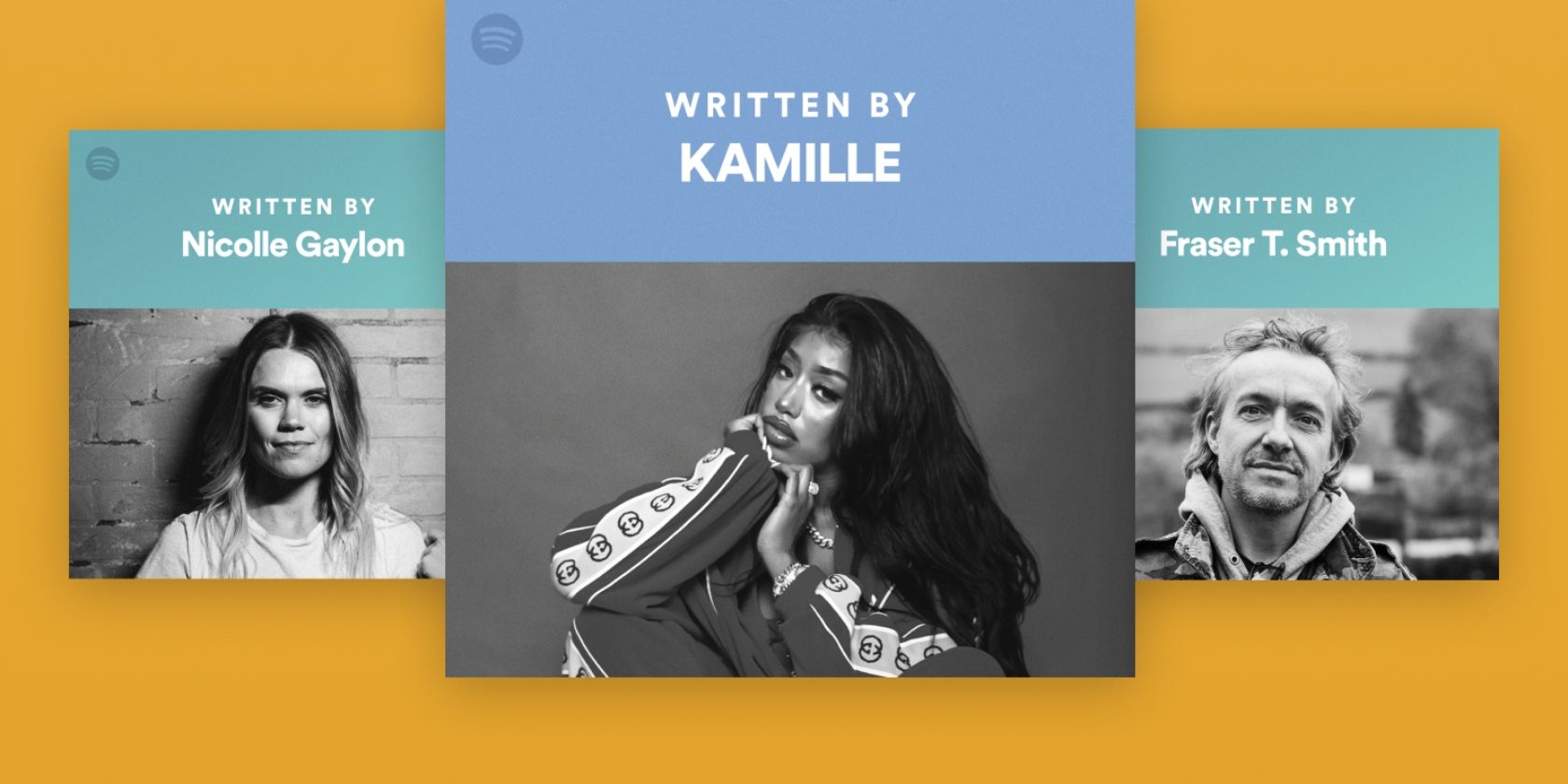
Spotify announced songwriter pages in a post on Spotify for Artists. It’s being launched in beta, with a limited number of high-profile songwriters involved from the beginning. These include Meghan Trainor, Fraser T. Smith, Teddy Geiger, and Justin Tranter.

These initial profiles have been created in collaboration between Spotify, the songwriters in question, and music publishers. However, Spotify is openly inviting other songwriters to express an interest in gaining a public profile on the streaming service.

Songwriter pages make it easier for you to get to know particular songwriters and discover what songs they have written. All you need to do is click the three dots next to a track, and select Song Credits. You can then click on the name of one of the songwriters.

You’ll see all of the songs they have written and the artists they’ve collaborated with. You can also click the Listen on Spotify button to open a playlist full of the songs they’ve written or co-written. Potentially allowing you to discover new music.

Timeless Ways to Discover New Music to Stream

Spotify’s songwriter pages are still only in beta, so they’re not yet perfect. However, this is a good first attempt to give songwriters the credit they deserve. And, as a bonus, they also give Spotify users another great way to discover new music to stream.

Read the full article: Spotify Now Lets You Search Songs by Songwriter


Read Full Article

How to Resize Images on Mac Using Photos or Preview


If you want to resize images on your Mac, you don’t need an expensive app to do it. Fortunately, macOS provides you with a few built-in tools that you can use to resize your images easily.

Here’s how to resize an image on Mac quickly using Preview, Photos, ColorSync Utility, and even the Mail app.

For Most Tasks: Resize Using Preview

Preview is a robust app that you can use for all sorts of tasks like viewing images, reading documents, and even signing PDFs. One of its most useful features is the ability to resize images, which is a task that Preview makes simple.

Preview does not require you to import an image into a library first, and it lets you unlock the aspect ratio so you can stretch or squish the image if you want to. For that reason, Preview is the best choice when it comes to quick resizing jobs for images other than those in your Photos library.

To resize an image with Preview:

  1. Double-click on your image to open it with Preview, if it’s your default image viewer. You can also select multiple images in Finder, right-click, and choose Open With > Preview.
  2. Click Tools > Adjust Size from the menu bar.
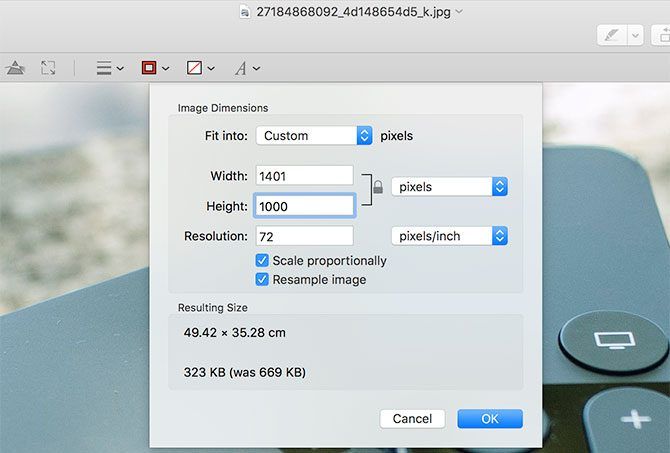
  3. Use the Fit into box to specify a preset value or input your own width and height into the boxes provided.
  4. Select the dropdown box to choose from pixels, percent, inches, or another unit.
  5. Optionally, you can check the box for Scale proportionally to retain the aspect ratio.
  6. Hit OK when you finish.

preview resize image

You can then save your resized image using File > Save or Save As (by holding the Option key). Alternatively, you can click File > Export to specify a file format and image quality. Check out our tutorial for additional image edits you can make using Preview.

Resize Images Using Photos

Apple replaced iPhoto with the new Photos app in 2015. Nowadays, most people are more familiar with the Photos app than its predecessor. As it turns out, you can use Photos for more than looking at your images. It lets you edit RAW photos, import your own custom filters, and even create slideshows.

You’ll need to import an image into your library before you can edit it in Photos. Images you add from your iPhone, digital camera, or SD card should already be in your library. If you have images from the web or other sources, you can drag them onto the Photos window or click File > Import from the menu bar.

From there, here’s how to resize an image in Photos:

  1. Open Photos and select your image(s).
  2. Click File > Export 1 Photo (or however many you are resizing).
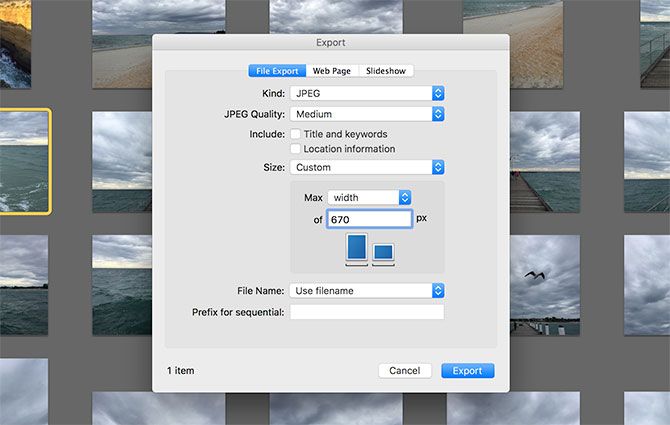
  3. Under Size you can choose the Full Size, Large, Medium or Small presets. Custom allows you to set your own size (in pixels).
  4. Choose Custom to specify a maximum Width or Height, or choose Dimension to limit both width and height to the number you provide.
  5. Optionally, you can choose the file type, compression quality, whether to omit embedded location information, and pick a color profile if you like.
  6. Click Export and choose where you want to save the image.

photos resize Mac

Note: You also have the option to Export Unmodified Original, which is what you should choose if you’re printing your images or plan on working with them in an external photo editor like Photoshop or Pixelmator.

Resize Images Using ColorSync Utility

ColorSync Utility is one of those default Mac apps you might not even know exists. Its purpose is to help you finely control color profiles on your system. But you can also use this hidden gem to resize images in a hurry.

One point to note about using ColorSync Utility to resize an image: images resized in this way must maintain their aspect ratio. To get started:

  1. Select the image in Finder, right-click, and choose Open With > ColorSync Utility.
  2. At the top of the window, click the Adjust Image Size button.
  3. Choose scale, width, or height in the Resize dropdown and enter the value in the To box.
  4. You can optionally adjust the Quality and Set DPI settings.
  5. Click Apply.

ColorSync Utility Resize Image Mac

You can then click File from the menu bar and pick Save, Save As, or Export to save the resized image.

Resize Images Using Mail

If you want to resize an image on your Mac simply to attach it to an email, you can actually resize that image in the Mail app itself:

  1. Open the Mail app to the email you’re composing.
  2. Attach the image by dragging it into the body of the email or by clicking the Attach button in the toolbar to locate and insert the image.
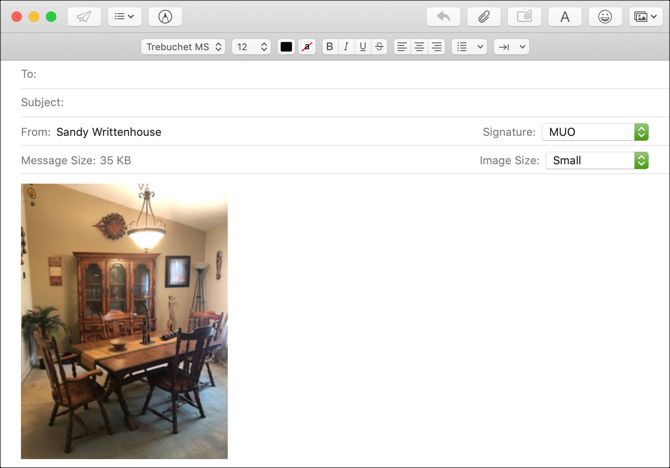
  3. With the image still selected in your email, click the Image Size dropdown box and select a different size. You can pick from Small, Medium, Large, or of course, the actual size.
  4. Finish composing your email and send when you’re ready.

Mail App Resize Image Mac

While you can’t resize an image in Mail to a specific size, if you only want to resize it so that it’s smaller for the email message, then this is convenient.

For Legacy OS X Users: Resize Images Using iPhoto

If you’re using an older Mac that isn’t compatible with the latest version of macOS, it’s possible that you still have iPhoto. So for you legacy Mac users, here’s how to resize your images with iPhoto.

In order to resize an image with iPhoto, that image must be in your iPhoto library. If you use iPhoto to import your images from an iPhone or digital camera, then this is already done. If you’re grabbing an image from the web, the best way to import it is by dragging the image into an iPhoto window.

Once you have the image in your library, you can export and resize it as you see fit. iPhoto will maintain the image aspect ratio, so you can’t stretch the image unnaturally. Resize by following these steps:

  1. Open iPhoto and select your image(s).
  2. Click File > Export.
  3. Under Size you can choose Full Size, Large, Medium or Small presets. Custom allows you to set your own size (in pixels).
  4. Choose Custom to specify a maximum Width or Height, or choose Dimension to limit both width and height to the number you provide.
  5. Hit Export and choose a location to save the image.

iphoto resize

You can also choose the file type, compression quality, whether or not to strip location information, and set a prefix filename. The latter is handy for exporting a series of images that follow a naming convention.

Resize an Image With Little Effort on Mac

Any of these built-in apps gets the job done when you want to resize an image on Mac. For example, you might use Preview most of the time, but take advantage of the Mail image resizing feature here and there. Whichever way you decide to go, you have options to make the process convenient.

Meanwhile, if you’re interested in resizing a batch of images on your Mac, we have a tutorial for that too!

Read the full article: How to Resize Images on Mac Using Photos or Preview


Read Full Article

The 10 Best Drawing and Painting Apps for Android


So you just picked up a new Android tablet, and you’re wondering what to do with it. How about drawing? While you may not be an artist (yet), a tablet with a painting app could be exactly what you need to jump-start the skill.

As tablets have increased in capabilities, sketching and paintings apps have followed suit. That means you can hold a complete painting studio right in your hands.

The following painting apps for Android are aimed at professionals and amateurs alike. While you don’t need a stylus, it’s recommended if you want to use these apps to their full potential.

Before You Start: Get Ready to Draw on Android

Drawing with a tablet is not like working with a pen and paper, and varies a lot from using a paintbrush. Unsurprisingly, using a mouse is also completely different.

Whatever digital art app you choose, be sure that your Android tablet has multiple touch points. Better still, it should be able to detect when your palm is resting on the display.

While most Android painting apps will let you use your fingers, a stylus is a smart option. Some Android tablets ship with a stylus. For example, the Samsung Galaxy Tab 4 has an S-Pen, a larger version of the Samsung Galaxy Note’s stylus.

A good all-around option is the Adonit Dash Capacitive stylus, compatible with all Android phones and tablets.

Adonit Dash Capacitive stylus Adonit Dash Capacitive stylus Buy Now On Amazon $34.11

If your budget is smaller, consider the MEKO Universal Stylus. This uses a disc stylus nib for improved accuracy. While it doesn’t look as impressive as other styli, it is a great entry-level option.

MEKO Universal Stylus MEKO Universal Stylus Buy Now On Amazon $12.99

Once you’re ready to draw, check these best Android drawing apps.

1. Adobe Illustrator Draw

Adobe offers a free sketching app called Adobe Illustrator Draw. It features a simple interface, intuitive gesture mechanics, and comprehensive feature list.

Adobe Illustrator Draw allows you to create and save vector illustrations on your phone or tablet. Not only are the brush tools sleek and easy to use, this feature-packed drawing app is surprisingly smooth.

Since this makes vector art, images are crisp and clear. And as an official Adobe app, you can seamlessly transfer sketches or finished products into Adobe Illustrator to continue working. From layering to sketching to painting, this app has it all.

Download: Adobe Illustrator Draw (Free)

2. Adobe Photoshop Sketch

Where Adobe Draw excels in vector drawing, Adobe Sketch is excellent at raster sketching (like Adobe Photoshop). Filled to the brim with brushes, Sketch lets you create anything you have the skills to draw.

Tools in Sketch overlap with those in Adobe Draw, so you can move back and forth between apps. After all, Adobe doesn’t just make fantastic apps—it also make creative, cross-device environments.

Download: Adobe Photoshop Sketch (Free)

3. ArtFlow

With everything ArtFlow has to offer, you won’t believe it’s free. Packing multiple brushes and in-app features available at the click of an icon, Artflow is one of the best Android sketch apps. Use it to just play around, or create serious art.

The free option only allows you to save art as either a JPEG or PNG. The Pro version, however, allow PSD format exports so you can continue working on your desktop.

Download: ArtFlow (Free, premium version available)

4. MediBang Paint

MediBang Paint is just that: a banger of a drawing app. It does everything you would want it to. The UI is similar to the Adobe suite, which will feel familiar to desktop graphic designers.

Because this app is both free and feature-packed, you’ll find plenty of online resources to help you start.

Download: MediBang Paint (Free, in-app purchase available)

5. Infinite Painter

Infinite Painter is an instant fan favorite. It’s so simple: all you see by default is a handful of tools (brush, smudge, brush size, color, and brush opacity).

That’s everything you get in the stock UI because it’s all you need. All additional tools are one button away, and Infinite Painter makes great use of that single button. It’s minimal, but packs enough features in its free version to create truly impressive, professional work.

Download: Infinite Painter (Free, premium version available)

6. Autodesk SketchBook

Another quasi-desktop iteration of tablet sketching, Autodesk’s SketchBook supplies useful tools and features to design whatever your imagination creates. And it’s more than just a fantastic app: Autodesk has also developed a fantastic ethic. From the SketchBook website:

“At Autodesk, we believe creativity starts with an idea. From quick conceptual sketches to fully finished artwork, sketching is at the heart of the creative process . . . . For this reason, we are excited to announce that the fully featured version of SketchBook is now FREE for everyone!”

It’s always pleasant to see a fantastic paid app go free. This includes both the desktop and mobile versions of Sketchbook, so you can work using whatever medium suits your expertise.

Download: SketchBook (Free)

7. PaperColor

While most apps try to give you a modern, minimal UI, PaperColor lays the pens and brushes out in front of you. It’s as close to an easel and canvas as you can get from an Android app.

PaperColor also features a fantastic portfolio display and one of the widest and intuitive brush selections of any drawing app. Purchase the VIP version, and you’ll have carte blanche of all the fantastic tools PaperColor has to offer.

Download: PaperColor (Free, premium version available)

8. DotPict

Is pixel art more your scene? DotPict is a simple but remarkable 8-bit drawing app. In addition, this artsy app is also partly a game.

Move a small hand with your finger or stylus, then push your color to create an 8-bit shape. There’s a variety of canvas sizes, so you can create anything from a small figure to a whole landscape.

Select a color, aim your cursor, and push. You can customize the color palette endlessly to complete an entire 8-bit project. It’s that easy. If you like it, have a look at other pixel art tools for creating great retro art.

Download: DotPict (Free, in-app purchase available)

9. ibis Paint X

With stroke stabilization, rulers, and clipping masks, ibis Paint X is a great tool for artists keen on illustration. As a strong alternative to Adobe Illustrator Draw, it also features a video tool to record your progress.

Ibis Paint X features over 300 brushes along with unlimited layers, each with individual parameters. When you’re done, you can share your creations from this Android painting app online with other users.

Two premium options are available: remove ads and a Prime membership. Membership adds advanced features such as new fonts and filters, so it’s worth considering. You should also check out the ibis Paint X YouTube channel for tutorial videos.

Download: ibis Paint X (Free, in-app purchases available)

10. Corel Painter Mobile

Finally, it’s worth considering an offering from another publisher with desktop art package experience: Corel. Painter Mobile is aimed at all levels of artist, with options to paint photos, trace, or start from nothing.

You’ll find the usual paint, blend, eyedropper, and paint bucket tools, along with support for 15 layers. There’s also integration with Samsung’s PENUP social art network.

Download: Corel Painter Mobile (Free, in-app purchases available)

A Great Selection of Free and Paid Painting Apps for Android

If you’ve had a hankering for drawing or sketching in the past, now you have no excuse. You can seriously develop your drawing capabilities anywhere you go with these best painting apps for Android.

In summary, the Android painting and drawing apps you should check out are:

  1. Adobe Illustrator Draw
  2. Adobe Photoshop Sketch
  3. ArtFlow
  4. MediBang Paint
  5. Infinite Painter
  6. Sketchbook
  7. PaperColor
  8. DotPict
  9. Ibis Paint X
  10. Corel Painter Mobile

These will all work on Android phones and tablets, although for the best results you should use an Android-compatible stylus. And if you find an Android tablet isn’t suitable for your artistic purposes, consider a dedicated drawing tablet.

Read the full article: The 10 Best Drawing and Painting Apps for Android


Read Full Article

The 5 Most Secure and Encrypted Email Providers


From hackers to businesses and overreaching governments, many people are looking to snoop on our communications. Free email providers surreptitiously use software to mine information from your emails and contacts to sell you ever more targeted advertising.

If you’re fed up with this state of affairs and want to secure your communications from prying eyes, it might be worth choosing a secure, encrypted email service instead.

Why Should You Use an Encrypted Email Service?

Google’s Gmail has over 1.5 billion users, while Microsoft’s Outlook sports 400 million. There’s a good chance, then, that you currently use a free email provider. These services feel like they are good value for money—they are free after all—but they do come at a cost; your privacy.

We use email for our most private conversations and documents, so it makes sense that you’d want to keep them private. However, as with many free services, if you aren’t paying, then your data is the product. Google famously used to scan the content of your emails to show you targeted ads. They have since disabled that feature, but your data is still freely available to the provider.

This is further complicated by the relationships these providers have, willingly or otherwise, with law enforcement agencies around the world. Many of the world’s most popular email providers are based in the US, leaving them open to requests from law enforcement and the NSA. If you choose to use these services, you should encrypt your webmail service, too.

Encrypted email is the most secure alternative to free email providers, and allows you to keep your sensitive data private. Most encrypted email providers are located outside of the US, putting them out of reach of the NSA. Even if those agencies could gain access to your account, encryption means that only you can view your data.

1. ProtonMail

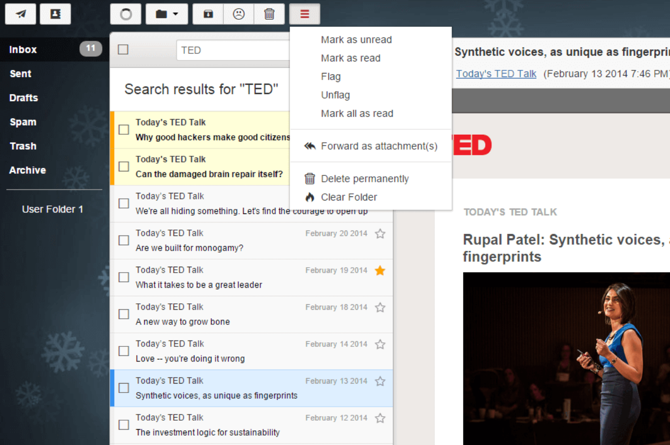
ProtonMail encrypted inbox

Price: Free. Premium accounts available.

Storage: 500MB. Up to 20GB for premium accounts.

Country: Switzerland

ProtonMail first launched in 2013 and was developed by researchers at CERN. Following a successful crowdfunding campaign, the open-source, encrypted email provider exited beta in March 2016. ProtonMail uses end-to-end encryption so that messages are only viewable by you and the recipient. Accordingly, it is widely considered one of the best private email services.

Although there are premium options, many of the service’s users are on free accounts. It is reasonable, then, to consider how they can sustain the service without leaning on targeted advertising. Fortunately, the company operates a Defence Fund which can support the service for up to a year without any other revenue.

Why ProtonMail?

All data is stored on the company’s servers in Switzerland—a country well known for its tough stance on privacy and data protection. Importantly, ProtonMail has open-sourced parts of their service. The code is available on ProtonMail’s GitHub for anyone to view and verify the security of the platform.

Although emails to and from other ProtonMail users are end-to-end encrypted, if you communicate with unencrypted services like Gmail, ProtonMail will scan these emails to protect against spam. However, these messages are scanned in memory, meaning that they aren’t kept and will be overwritten in very little time. As soon as the email has been examined, it is then encrypted. If all this talk of encryption is getting confusing, you may want to read up on encryption terms you should know.

According to their Privacy Policy, IP logging is disabled by default, although you can enable this in your account settings. Your IP address can reveal your location, so the lack of logging is a benefit to your privacy.

ProtonMail also doesn’t store any of your data once it’s deleted. If you delete an email, it’s really gone. The only exception is when the data has been stored in a backup, in which case it may take up to 14 days to be entirely removed. There is no need to submit any personal information while signing up. The company will even allow you to pay for premium accounts in the cryptocurrency Bitcoin.

ProtonMail’s parent company, Proton Technologies AG, also develops ProtonVPN, a multi-platform VPN. As with the email service, ProtonVPN offers free and premium tiers. Some ProtonMail premium accounts also come with access to ProtonVPN’s premium features. We even listed ProtonVPN as one of the best unlimited free VPN services.

Download: ProtonMail for Android | iOS | Web (Free)

2. TutaNota

Tutanota Secure Email inbox

Price: Free. Premium accounts available.

Storage: 1GB, upgradable.

Country: Germany

Tutanota was launched in 2011 by the German company Tutao GmbH. The service’s name comes from the Latin for secure message. It should be no surprise then that Tutanota is a free encrypted email service. Their servers are also based in Germany, making them subject to Germany’s rigorous Federal Data Protection Act.

While that sounds great in theory, it’s also worth noting that Germany’s Federal Intelligence Service collaborated with their American counterparts, the NSA, in their surveillance programs. While that impacts all data held in Germany, there’s no suggestion that Tutanota has ever been complicit. However, for the privacy-focused, it is worth keeping in mind as one of the best encrypted email services.

Why Tutanota?

Like ProtonMail, Tutanota uses end-to-end encryption to ensure the privacy of your emails. Where things differ slightly is in how the service handles external emails. If you send a message to another email service like Gmail, Tutanota sends a link to a temporary account where the recipient can view the message.

Tutanota is open-source, too, with the code available on the Tutanota GitHub page. All data stored in your inbox is encrypted, with only metadata like sender, recipient, and date visible. However, their FAQ states that they are looking into encrypting metadata too.

The company uses 2048-bit RSA and 128-bit AES encryption methods. However, they do not support PGP, a feature often used to judge secure email providers. That said, they believe their encryption offers advantages over PGP, like encrypting the subject line. There’s also room for them to build more encrypted services in the future, like the available-to-all calendar and planned cloud storage.

According to their Privacy Policy, they do collect mail server logs. Although these are only kept for seven days, they do contain sender and recipient email addresses, but no customer IP addresses.

While you can open a Tutanota account for free, they too offer paid-for options. A Premium account costs just 12€ per year and allows you to add an additional user, use up to five aliases, and enables support for custom domains.

Download: TutaNota for Android | iOS | Web (Free)

3. Mailfence

Mailfence Web Inbox

Price: Free. Premium accounts available.

Storage: 500MB of emails, 500MB of documents as standard.

Country: Belgium

Mailfence is a free secure email service from the creators of ContactOffice. Following the Snowden revelations documenting US government surveillance, ContactOffice felt there was a need for a privacy-focused email service.

Their servers are in Belgium, and, as with many European countries post-GDPR, the country has strong privacy laws. These regulations usually favor the consumer rather than the company, strengthening protections. Unlike some countries—namely the Five Eyes nations—there is no evidence to suggest Belgium collaborated in the NSA surveillance schemes.

Why Mailfence?

One concern when choosing a new digital service is whether it will remain operational for years to come. ContactOffice was started in 1999, and so the company has proven longevity. They also earn operational funds for Mailfence by licensing the software to businesses. To do so, they need to keep their software proprietary, so, unfortunately, Mailfence is not open-source.

Unlike the other services in this list, Mailfence is more than just a secure email provider. An account also provides access to calendars, contacts, and document storage. Free accounts come with storage space for 500MB of emails, 500MB of documents, and one calendar. Entry and Pro accounts upgrade this storage and add additional features. Bolstering their privacy-focused credentials, you can even opt to pay for your account using Bitcoin.

Disappointingly, there is no Mailfence mobile application. However, the company has stated one has been in development since at least 2017. If this is a deal-breaker, you could send encrypted email on Android using OpenKeychain instead. For the time being, though, if you want to manage your Mailfence mail on your smartphone, you’ll need to pay for a premium account. This gives you access to Exchange ActiveSync, POP, IMAP, and SMTPS.

Mailfence is end-to-end encrypted and supports OpenPGP. You can generate a key on your computer, which is then encrypted using 256-bit AES and stored on Mailfence’s servers. They also support two-factor authentication to prevent unauthorized access to your account.

Taking a stand for your principles is admirable in itself, but alongside that ContactOffice donates 15 percent of the income from their Pro plans to the pro-privacy organizations. Currently, donations go to the Electronic Frontier Foundation (EFF) and the European Digital Rights Foundation (EDRi).

Download: Mailfence for Web (Free)

4. Disroot

Rainloop email interface

Price: Free

Storage: 1GB, upgradeable.

Country: Netherlands

Disroot is a free secure email provider based in the Netherlands. Although free email services, especially those without premium options, are generally not recommended, Disroot is an exception. The service was set up in response to the lack of similar services and is run by volunteers, supported by donations.

There’s not just email here; Disroot has a comprehensive range of productivity and communications tools bundled in an Office-style web service. Unlike many of their peers, Disroot is open-source, decentralized, and some of their services are federated, too.

Why Disroot?

Although there are many reasons to use open-source software, most people do so because of what it stands for. To them, the open-source community represents the freedom and ideals of the early internet, before large companies came to dominate the sector. Disroot is part of this movement, expanding beyond open-source into decentralization and federalization.

Federalization is a popular feature of alternative social networks, allowing different services to communicate with one another. However, Disroot’s email service remains resolutely private. The service has been operational since 2015, although usage is hard to pin down as the company doesn’t keep track of active users.

In fact, the company hopes to know as little about you as possible. Disroot’s Privacy Policy explicitly states that they only collect essential data needed to provide you with their services. They do not sell it, analyze it, or access any of your stored data. Where Disroot falls short of the other providers on this list is encryption.

Disroot is not end-to-end encrypted, nor are your emails encrypted on the server. According to their Privacy Policy, all emails are stored in plain-text, unless you have manually encrypted them using PGP or GPG. There are no mobile or desktop applications either; you can only access your account through their webmail client. However, Disroot does support IMAP and POP3 so that you can access your emails through third-party apps.

Download: Disroot for Web (Free)

5. Posteo

Posteo secure email

Price: €1/month

Storage: 2GB, upgradeable.

Country: Germany

Posteo is an encrypted email provider based in Germany. In many ways, Posteo is the best alternative to ProtonMail and replicates many of the features found on other services. However, unlike ProtonMail, your data is centrally encrypted on Posteo’s servers, rather than end-to-end encrypted.

While that does mean that it isn’t the safest email provider, there are upsides to the lack of end-to-end encryption. For example, you can easily set up your Posteo account on any email software or app, giving you greater control over how you access your mail. Your account comes bundled with an Address Book and Calendar, too, smoothing the transition from Gmail or Outlook.

Why Posteo?

Posteo has been operational since 2009, making it one of the longest-running secure email services. However, its popularity and use increased dramatically after the Snowden leaks. Around the same time, Posteo introduced the DNS-based Authentication of Named Entities (DANE). This technology prevents man-in-the-middle attacks, and forces provider-to-provider encryption where available.

They also offer a one-click option to encrypt all of your emails, attachments, and other data using their Crypto Mail Storage feature. After activating the encryption, your emails will no longer be accessible on the server without your password. This prevents Posteo or any third-party from accessing your data on the server.

However, Crypto Mail Storage is an optional feature, which is off by default. To protect your data even without this encryption, all of Posteo’s servers, located in Frankfurt, are encrypted. They are hosted at a third-party data center, but this encryption prevents anyone at the data center from accessing your data.

Posteo is also focused on financial and environmental sustainability. All of their servers and offices run on green and renewable energy from Greenpeace Energy. To ensure the company can work independently, they have no debts, take out no loans, and are supported only by user subscriptions. Even their finances are conducted through Umweltbank, one of Germany’s environmental banks.

Download: Posteo for Web (Subscription required)

The Most Secure Email Provider

Many free email providers don’t take steps to protect your privacy, or they even take steps to undermine it. Switching to an encrypted email account is a change worth making and is a simple way to improve your security. When choosing, it’s essential to evaluate the provider on their encryption methods, how they finance the service, and where the servers are located.

Of course, no online service is entirely secure, no matter the ethics of the provider. There will always be hackers and surveillance agencies looking to expand their ever-growing databases. To increase your security, don’t forget the basics. That’s why you may want to consider improving your cyber hygiene and looking at our tips for handling data at work.

Read the full article: The 5 Most Secure and Encrypted Email Providers


Read Full Article
How to Identify Music and Songs in YouTube Videos


youtube-streaming-music

You’re watching a video on YouTube, and it has a catchy song playing in the background. You want to find the song from this video, but how do you figure out what music it is?

Identifying some music tracks is easy, while others require a little more persistence. Follow our step-by-step walkthrough to find the music in any YouTube video you watch.

1. Check the Video’s Description

YouTube Music in This Video

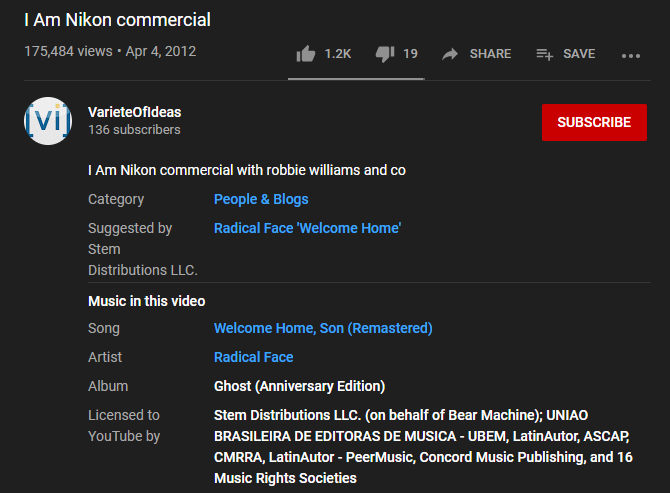
The first step is the easiest, but it’s one that many people overlook. You’ll often see credits for copyrighted music in video descriptions. YouTube adds this information automatically when it detects licensed music. This is part of the Content ID system that allows copyright owners to claim their intellectual property on YouTube.

Thus, your first stop should be the video’s description box. Click Show More to see the whole description. Then, scroll down and you’ll find a section called Music in this video.

This will show the song’s name, artist, and some other information. If the track is available on YouTube, clicking it will take you to that song.

Videos that use multiple songs will list multiple tracks here. However, they don’t always appear in the right order, so you’ll have to give them a listen to figure out which one you liked.

2. Search for the Song Lyrics on Google

YouTube Search Lyrics Google

Don’t worry if you can’t find the track through the above method. If the music has lyrics, you don’t need a Shazam for YouTube or anything like that. Simply listen carefully for the words to the song, and search for a line or two of them on Google.

Most of the time, this will easily identify the song name, artist, and even bring up a video or further information. If it doesn’t find anything, try the same search on Find Music By Lyrics. This engine is powered by Google, but it tweaks some settings to focus on musical content. This makes it a better YouTube song finder for our purposes.

The main problem with this method is that it doesn’t account for covers. Many movie trailers, for example, use covers of well-known songs. If you listen to a bit of the result and it doesn’t sound like what you heard in the video, don’t worry. Once you know the song title, try searching for that plus some additional information, such as the movie title.

Failing that, you can try searching for the song title plus “cover” and seeing what comes up. If you’re lucky, there will only be a few covers of the song, making it easy to pick your favorite out.

3. Search the Comments (or Ask)

YTComment Finder

Everyone likes finding new music, so there’s a good chance you aren’t the first viewer wondering what song is in that video. Read or search through the YouTube comments and you might just come across the question and its answer.

You can try the old-fashioned way first. Begin by scrolling down on the page for a moment so that some of the comments load. Then press Ctrl + F (or Cmd + F on a Mac) to open the Find box. Type song, and scroll through the comments that use the word.

Whether this helps you find the song in a YouTube video depends on the number and quality of comments, so it might not always work.

A better way is the dedicated YTComment Finder site. While it’s not particularly polished, the page allows you to search the comments of any YouTube video. Simply enter the URL of the video you want to search, then click Search this video underneath its entry.

From there, type song (or another keyword) and you’ll see all of the matching comments. If none of the comments mention it, click View replies on someone’s comment to hopefully find the answer in a response.

If you don’t find anything, you can try leaving a comment asking for help with identifying the music. Just don’t be surprised if you get a few “Darude—Sandstorm” comments when you ask this.

4. Use a Music Identification App

At this point, you might wonder how to Shazam a video to identify the music inside. As it turns out, you can often do just that to analyze the music in a YouTube video. Alternatively, there are browser extensions that specialize in identifying songs used in YouTube videos.

1. AHA Music (Chrome)

AHA Music Extension

ACRCloud offers a few music identification tools on its website. The easiest one for finding a song in a YouTube video is the free Chrome extension, which is worth installing if you’re still stumped.

Start playing the video with the song you want to identify, then click the icon of the Chrome extension. It will attempt to identify the song used in the video. Once it lists the song, you can use the shortcuts it provides to open the song in various music services.

Plus, AHA Music maintains a log of all the songs it’s identified, so you can easily look up past tracks again.

Download: AHA Music for Chrome (Free)

2. Shazam (Mobile)

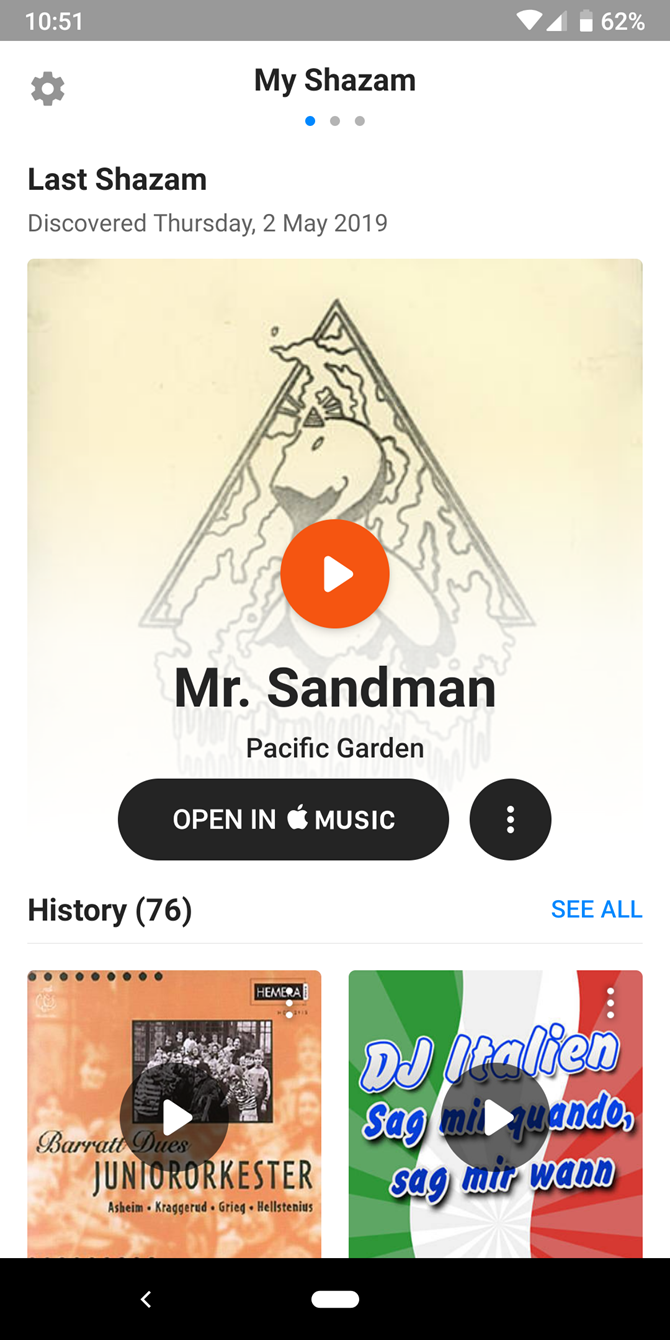
As we mentioned, if you’ve been wondering how to Shazam a video, the answer is clear. Shazam is one of the best music identification apps, and it works just fine for identifying music in YouTube videos. You’ll need to download the app on your mobile phone, but you can use it to analyze music from your desktop speakers.

When you’re watching a video on your computer, fire up Shazam on your phone. Hold the phone close to your speakers when the song starts playing, and Shazam will identify it in no time after you tell it to search.

If you want to find a song from a video playing on your phone, you can use the Pop-Up mode on Android or Auto Shazam on iOS.

On Android, first go to Shazam > Library > Settings > Pop-up Shazam and enable it. Next, go back to your video and start playing it. When the song that you want to identify starts, tap and hold the floating Shazam button. Shazam will identify the song and you’ll finally know what it is.

If you’re an iPhone owner you can’t control Pop-Up mode. Instead, you should press and hold the Shazam button on the app’s main screen to turn on Auto Shazam. This will identify music playing around you, even with other apps open. Simply open YouTube and play the video you want to identify.

Download: Shazam for Android | iOS (Free)

5. Ask Experts on a Forum

Reddit Name That Song

If the above methods have all failed to identify your song on YouTube, you only have one option left. You need to to ask someone else and hope they know what it is. Luckily, the internet has some forums and communities that focus on unmasking hard-to-identify songs.

These are three great places to start:

You’ll need a Reddit or Facebook account to post to these groups. If that’s an issue for you, check out dedicated music ID communities like WatZatSong instead.

Each of these forums assumes you have already tried the above options and failed, so make sure you’ve done your due diligence first. To make it easy for people, you should use the YouTube URL trick that lets you link to the part of the video where the music starts. Pause the video at the right point, then right-click and choose Copy video URL at current time.

The clearer your question is, the better your chances are of getting a quick and accurate answer.

Here are some other YouTube URL tricks to learn.

Find Out What Song Is in That YouTube Video

Hopefully, you can use these steps to find the music in any YouTube video. With the wealth of information on the internet, the chances are that you’ll find it before too long.

And if you enjoy using YouTube, here’s how to tweak YouTube for a better experience.

Read the full article: How to Identify Music and Songs in YouTube Videos


Read Full Article

Innovaccer wants to be the service that unifies all healthcare data


The holy grail for technology companies working in the healthcare industry is becoming the gateway for all healthcare data.

Big legacy providers like Epic and Cerner are trying to reach out to hospital networks to hoover up all of their data. Google is interested in it. Salesforce is interested in it. Everyone wants to be the resource that organizes and manages healthcare data for physicians and hospital providers — everyone including the San Francisco-based startup Innovaccer, which has raised $70 million in new financing to finance its mission.

The new investment from firms including Steadview Capital, Tiger Global, Dragoneer, Westbridge Capital, the Abu Dhabi investment firm Mubadala Capital, and Microsoft’s corporate investment arm, M12.

These are deep-pocketed investors for whom money is no object, but Innovaccer has shown a fair bit of traction among hospitals and health systems with its data analysis and management platform.

The company’s software pulls from datasets including those generated by Cerner and Epic’s healthcare records, as well as insurance companies and pharmacies to create a more holistic view of a patient, the company says.

Since its launch in 2014, Innovaccer has provided a single source or healthcare information for 3.8 million patients and saved healthcare systems more than $400 million, the company said.

“Healthcare still needs a lot of work to become patient-centered and connected by organizing information and making it more accessible. It is really important to make patient data seamlessly available to all providers along the patient’s care journey,” said Abhinav Shashank, the co-founder and chief executive at Innovaccer, in a statement. “We have been fortunate to work with transformational healthcare initiatives that our amazing customers are engaged in. The vision of helping healthcare work as one needs a connected and open technology framework. We are excited to be at the forefront of providing the tech platform for our customers to drive that change.”

Its technology relies on over 200 APIs to take data from health plans, primary care providers, pharmacies, labs and hospitals and serves that data to 25,000 care providers. The company hopes to take that number ot over 100 million healthcare records and 500,000 caregivers over the next several years.

It’s a lofty goal, but one that appeals to the Ravi Mehta, the founder of the $2.5 billion hedge fund Steadview Capital.

“By using their connected care framework coupled with their leading-edge data aggregation and analytics platform, they are unifying patient records and enabling care teams to coordinate patient care at a new level,” said Mehta. “We believe this will achieve greater efficiencies, enable better care and reduce overall healthcare spend in the years to come.” 


Read Full Article

Facebook’s latest experiment is Hobbi, an app to document your personal projects


Facebook is adding another app to its group of experimental projects from the NPE Team, an initiative it announced last year focused on rapidly trying out new ideas in social to see how users react. This week, the team released its fourth app experiment with the launch of Hobbi, a photo and video sharing app designed for documenting your personal projects and hobbies.

Though Hobbi takes obvious cues from Pinterest, it’s not just a pinboard of inspirational ideas. Instead, the app is designed to help hobbyists organize photos of their own projects into themed collections — like gardening, cooking, arts & crafts, décor and more. The idea is to track the progress you’re making over time.

There’s not a social networking component to the app beyond being able to create video highlight reels you could share externally with friends after your projects are complete.

In that sense, Hobbi is more like an editor and organizer than any sort of new social network.

It’s also a very simple app with limited controls or editing options, compared with something like Instagram’s more robust Stories editor, for instance.

It’s interesting, however, that Hobbi’s launch follows shortly after that of Tangi, an app from Google’s Area 120 incubator also focused on creativity, hobbies, and DIY content. Arguably Tangi is a different type of app, as it’s designed around short-form video — similar to a curated TikTok for DIY. But for both companies to launch experiments in the DIY space signals that’s an area where there’s potential to still carve out a niche, despite Pinterest’s domination as a home for hobbies, projects, and interests.

Facebook so far has launched just a handful of NPE Team-branded apps. In November, it launched a chat app for making friends called Bump and a social music app Aux. Its first experiment, a meme editor called Whale, has already shut down, however.

Facebook so far has declined to comment on its plans for any individual NPE Team app, pointing back to its original announcement that said availability would depend on the app. The company had also said the experiments in many cases would be short-lived, as the NPE Team will shut down apps that people don’t find useful and then move on to create others.

Hobbi became available as of yesterday on iOS only.


Read Full Article
Tinder tests new social features, including prompts and a ‘Share to Matches’ option


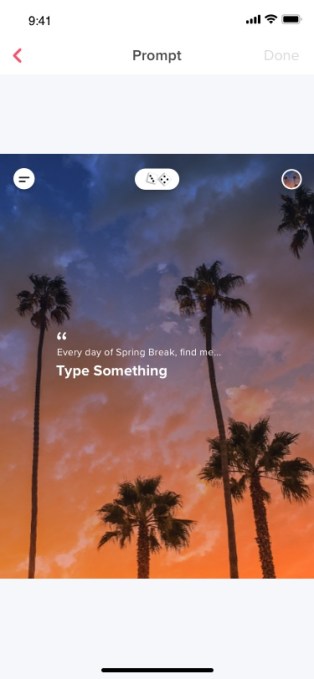
Tinder is testing a series of new social features designed to boost conversations between users on its service. One of the new features is a conversational prompt, first teased during parent company Match Group’s recent earnings. The prompt encourages users to respond to questions or finish a sentence in order to better showcase their personality with their answers. The other, a “Share to Matches” option, allows users to post photos, looping videos and other content that can only be seen by their existing matches.

With both new additions, the overall goal is to encourage Tinder users to start messaging with others in the app.

Breaking the ice to chat with an online stranger is often one of the more difficult aspects of online dating. That’s led to many a Tinder user resorting to cheesy one-liners, jokes, or overly risque remarks as an attempt to get a reaction or make light of the awkwardness of being on a dating app to begin with. But now Tinder seems to be borrowing ideas from Match Group’s newest acquisition Hinge, which relies on conversational prompts and captioned photos to get users to show off more of their personality on their profiles.

Meanwhile, Tinder’s new option to upload content that can only be seen by existing matches could be a useful way of nudging shy matches to initiate a conversation for the first time, as well as re-engage matches where the conversation had dropped off.

The features were discovered by app sleuth Jane Manchun Wong and confirmed by Tinder as tests. However, Match Group said earlier this month during earnings that Tinder would soon roll out new social engagement features, including prompts.

A Tinder spokesperson confirmed both features are tests.

“At Tinder, our goal is to make it easier to connect with new people. We’re testing ways to make it easier for members to express themselves and share their personalities, while keeping the experience simple and fun,” they said. “These changes may or may not roll out to everyone over time.”

Because the features are tests, some users may see both, some may see neither, and some may see just one or the other.

They may also not appear exactly as showcased in the above tweets.

For example, below is an image of a conversational prompt being shown to a Tinder U user.

Tinder declined to say where or when the tests were running or when they may roll out more broadly to users. However, the Spring Break prompt offers a good hint in terms of when something like this may become more broadly available to test recipients.

The additions are only two of several tests Tinder will run in the months ahead. The now-massive dating app can afford to be more experimental, having already established itself as a market leader — in 2019, Tinder brought in $1.2 billion in revenue, leading it to be the top-grossing (non-game) app of the year.

Match Group said it has other plans in store for Tinder in the near future, too, including an expansion of in-app storytelling experience “Swipe Night,” filters, new in-app purchase options for power users, and more.


Read Full Article

Phone manufacturers eye their next move as 5G goes mainstream


For two years running, Samsung played the same trick and front-loaded its annual event by announcing a new foldable.

Last year’s announcement of the Fold was a huge one — the first viable (relatively speaking, of course) foldable handset from a major manufacturer. Of course, some stuff has happened in the intervening months, taking a bit of the shine off the device and the category at large.

This week at Unpacked 2020, Samsung came out of the gate swinging once again, announcing the Galaxy Z Flip at the top of the event. As with last year, the move had the effect of taking some of the wind out of its flagship announcement, a sign of a company convinced that standing out from the pack and reversing flagging smartphone sales trends will require some bold decision-making.

That’s not to say the company’s not pushing the envelope on its flagships. Between 100x zoom on the Ultra and 8K video on all of the devices, Samsung is still duking it out on imaging. But it appears not to have any illusions about what really gets users excited in an era of smartphone ubiquity.


Read Full Article

AutoFlip: An Open Source Framework for Intelligent Video Reframing


Videos filmed and edited for television and desktop are typically created and viewed in landscape aspect ratios (16:9 or 4:3). However, with an increasing number of users creating and consuming content on mobile devices, historical aspect ratios don’t always fit the display being used for viewing. Traditional approaches for reframing video to different aspect ratios usually involve static cropping, i.e., specifying a camera viewport, then cropping visual contents that are outside. Unfortunately, these static cropping approaches often lead to unsatisfactory results due to the variety of composition and camera motion styles. More bespoke approaches, however, typically require video curators to manually identify salient contents on each frame, track their transitions from frame-to-frame, and adjust crop regions accordingly throughout the video. This process is often tedious, time-consuming, and error-prone.

To address this problem, we are happy to announce AutoFlip, an open source framework for intelligent video reframing. AutoFlip is built on top of the MediaPipe framework that enables the development of pipelines for processing time-series multimodal data. Taking a video (casually shot or professionally edited) and a target dimension (landscape, square, portrait, etc.) as inputs, AutoFlip analyzes the video content, develops optimal tracking and cropping strategies, and produces an output video with the same duration in the desired aspect ratio.
Left: Original video (16:9). Middle: Reframed using a standard central crop (9:16). Right: Reframed with AutoFlip (9:16). By detecting the subjects of interest, AutoFlip is able to avoid cropping off important visual content.
AutoFlip Overview
AutoFlip provides a fully automatic solution to smart video reframing, making use of state-of-the-art ML-enabled object detection and tracking technologies to intelligently understand video content. AutoFlip detects changes in the composition that signify scene changes in order to isolate scenes for processing. Within each shot, video analysis is used to identify salient content before the scene is reframed by selecting a camera mode and path optimized for the contents.
Shot (Scene) Detection
A scene or shot is a continuous sequence of video without cuts (or jumps). To detect the occurrence of a shot change, AutoFlip computes the color histogram of each frame and compares this with prior frames. If the distribution of frame colors changes at a different rate than a sliding historical window, a shot change is signaled. AutoFlip buffers the video until the scene is complete before making reframing decisions, in order to optimize the reframing for the entire scene.

Video Content Analysis
We utilize deep learning-based object detection models to find interesting, salient content in the frame. This content typically includes people and animals, but other elements may be identified, depending on the application, including text overlays and logos for commercials, or motion and ball detection for sports.

The face and object detection models are integrated into AutoFlip through MediaPipe, which uses TensorFlow Lite on CPU. This structure allows AutoFlip to be extensible, so developers may conveniently add new detection algorithms for different use cases and video content. Each object type is associated with a weight value, which defines its relative importance — the higher the weight, the more influence the feature will have when computing the camera path.
Left: People detection on sports footage. Right: Two face boxes (‘core’ and ‘all’ face landmarks). In narrow portrait crop cases, often only the core landmark box can fit.
Reframing
After identifying the subjects of interest on each frame, logical decisions about how to reframe the content for a new view can be made. AutoFlip automatically chooses an optimal reframing strategy — stationary, panning or tracking — depending on the way objects behave during the scene (e.g., moving around or stationary). In stationary mode, the reframed camera viewport is fixed in a position where important content can be viewed throughout the majority of the scene. This mode can effectively mimic professional cinematography in which a camera is mounted on a stationary tripod or where post-processing stabilization is applied. In other cases, it is best to pan the camera, moving the viewport at a constant velocity. The tracking mode provides continuous and steady tracking of interesting objects as they move around within the frame.

Based on which of these three reframing strategies the algorithm selects, AutoFlip then determines an optimal cropping window for each frame, while best preserving the content of interest. While the bounding boxes track the objects of focus in the scene, they typically exhibit considerable jitter from frame-to-frame and, consequently, are not sufficient to define the cropping window. Instead, we adjust the viewport on each frame through the process of Euclidean-norm optimization, in which we minimize the residuals between a smooth (low-degree polynomial) camera path and the bounding boxes.
Top: Camera paths resulting from following the bounding boxes from frame-to-frame. Bottom: Final smoothed camera paths generated using Euclidean-norm path formation. Left: Scene in which objects are moving around, requiring a tracking camera path. Right: Scene where objects stay close to the same position; a stationary camera covers the content for the full duration of the scene.
AutoFlip’s configuration graph provides settings for either best-effort or required reframing. If it becomes infeasible to cover all the required regions (for example, when they are too spread out on the frame), the pipeline will automatically switch to a less aggressive strategy by applying a letterbox effect, padding the image to fill the frame. For cases where the background is detected as being a solid color, this color is used to create seamless padding; otherwise a blurred version of the original frame is used.
AutoFlip Use Cases
We are excited to release this tool directly to developers and filmmakers, reducing the barriers to their design creativity and reach through the automation of video editing. The ability to adapt any video format to various aspect ratios is becoming increasingly important as the diversity of devices for video content consumption continues to rapidly increase. Whether your use case is portrait to landscape, landscape to portrait, or even small adjustments like 4:3 to 16:9, AutoFlip provides a solution for intelligent, automated and adaptive video reframing.
What’s Next?
Like any machine learning algorithm, AutoFlip can benefit from an improved ability to detect objects relevant to the intent of the video, such as speaker detection for interviews or animated face detection on cartoons. Additionally, a common issue arises when input video has important overlays on the edges of the screen (such as text or logos) as they will often be cropped from the view. By combining text/logo detection and image inpainting technology, we hope that future versions of AutoFlip can reposition foreground objects to better fit the new aspect ratios. Lastly, in situations where padding is required, deep uncrop technology could provide improved ability to expand beyond the original viewable area.

While we work to improve AutoFlip internally at Google, we encourage contributions from developers and filmmakers in the open source communities.

Acknowledgments
We would like to thank our colleagues who contributed to Autoflip, Alexander Panagopoulos, Jenny Jin, Brian Mulford, Yuan Zhang, Alex Chen, Xue Yang, Mickey Wang, Justin Parra, Hartwig Adam, Jingbin Wang, and Weilong Yang; MediaPipe team who helped with open sourcing, Jiuqiang Tang, Tyler Mullen, Mogan Shieh, Ming Guang Yong, and Chuo-Ling Chang.