18 July 2019

7 Vital Windows Maintenance Tasks You Should Do More Often


vital-windows-tasks

Owning a computer is great, but you should take the time to perform some basic Windows maintenance tasks to make sure your machine runs at its best. Otherwise, the few minutes you didn’t spend on maintenance could turn into hours of unnecessary work in the future.

Let’s look at the Windows 10 maintenance tasks every PC owner should do regularly and how to do them efficiently.

1. Update Windows and Software

Windows computer maintenance -Update Windows 10

Keeping your computer up-to-date is one of the most basic, but important, Windows maintenance tasks. Windows 10 is great about updating itself, but you should still check in from time to time and make sure it’s not hung up on something.

Head to Settings > Update & Security > Windows Update and click Check for Updates.

Windows will tell you if it finds any updates and should install them automatically. Some, but not all, updates require a restart. If there’s a new major Windows 10 version available, you can also decide whether to install it here.

While you’re working on updates, it’s a good idea to make sure all your installed software is updated. Some programs, like Chrome and Firefox, do this automatically. Other programs will prompt you for an update when you open them.

You can check for updates on most software by visiting Help > Check for Updates or Options > Check for Updates.

See our guide to updating everything on your Windows computer for more help.

2. Manage Your Email

computer maintenance - Email Unsubscribe

Email piles up quickly if you don’t stay on top of it. When your inbox is full of automated newsletters and other junk you don’t want, finding messages that are actually important takes longer.

Thus, another worthwhile computer maintenance task is to regularly reduce your incoming email by unsubscribing from newsletters you never read. Then set up email filters so only important messages hit your inbox. Your email app will become a much more pleasant place.

3. Back Up Your Data

computer maintenance - backing up data

Backing up data is a vital part of regular maintenance. While doing so is usually a set-and-forget operation, it’s wise to occasionally confirm your backup is operational. Otherwise, you could be in for a nasty surprise if your PC fails.

Most backup software shows you the status and/or last backup time right on its home screen. Open your software of choice and make sure everything is working properly.

If you use the File History backup in Windows, go to Settings > Update & Security > Backup and select More options to see the most recent backup time.

There’s no excuse for not backing up your data—if you haven’t set up a backup yet, now’s the perfect time. Check out our ultimate Windows backup guide for everything you need to get going.

4. Delete Unnecessary Files and Programs
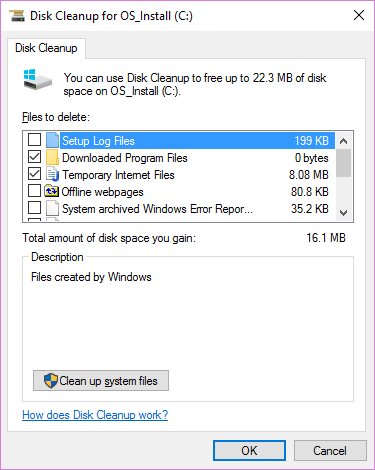
computer maintenance - Windows 10 Disk Cleanup

Seasoned Windows users know how the OS builds up cruft over time. You can’t prevent some of this, so it helps to occasionally clean up old data that you’re not actively using. Freeing up space can also improve your PC’s performance if you’re running especially low.

Thankfully, you have some built-in Windows maintenance tools to help you through this. Consult our ultimate checklist for Windows cleaning for more details.

5. Perform Windows Maintenance Scans

Windows Disk Check GUI

As part of maintaining Windows 10, you should perform a few scans every once in a while just to make sure there isn’t a problem you’ve overlooked.

One of them is an antivirus scan. You hopefully use a solid antivirus, which should scan automatically. But it’s a good idea to get a second opinion from a dedicated anti-malware program once in a while.

Malwarebytes is our top pick for this. The free version only lets you scan on-demand, but that’s all you need for an occasional check. Hopefully, it doesn’t find anything on your system, but it’s worth taking the time because it will find what other antivirus software don’t.

You should also perform an SFC scan occasionally. This command, short for System File Checker, is a Windows maintenance utility that checks for damaged system files and repairs them if needed.

Type cmd into the Start Menu, then right-click it and choose Run as administrator. Enter the following line to start the scan, which might take a while:

sfc /scannow

If your computer has a hard disk drive (not an SSD), you can also run a check to look for bad sectors on your disk. To do this, open a File Explorer window and navigate to This PC. Right-click on your hard drive (likely labeled C:) and choose Properties.

In the resulting window, switch to the Tools tab and hit the Check button. Windows will probably tell you that it didn’t find any errors on the drive; choose Scan drive to run a fresh scan.

6. Double-Check Important Settings

computer maintenance - Windows 10 Settings Panel

Windows 10’s regular stream of updates means that it’s always changing. While this results in lots of great features, it also means that Windows has more chances to introduce confusing new options that affect how your computer works.

After you install a major update, you should check the new settings and make sure they’re set up the way you want. And if you’ve never really dived into the panel, you should learn what Settings can do and set up your computer just how you like it.

Another important item you should check as part of regular PC maintenance is the startup section of your PC. As you install more software, you’ll likely build up a ton of programs that run as soon as you boot. Having too many programs run right away will slow your boot time and eat up resources in the background. Check in on this sometimes and make sure it’s under control.

7. Clean Your Hardware

computer maintenance - Clean laptop monitor

Nobody really enjoys cleaning their computer, but it’s an important step to keep it running at its best. Plus, most devices get pretty gross over time. You should at least wipe down your keyboard and screen, and clean the dust out of your computer, a few times per year.

We’ve written a guide to cleaning your laptop and much of the same advice applies for desktops. While you’re under the hood, make sure your setup isn’t suffering from any PC maintenance mistakes, such as poor ventilation.

Windows Maintenance Is Boring but Important

We’ve reviewed several important chores that should be on your desktop or laptop maintenance checklist to complete regularly. There’s no need to obsess over them, but neglecting these will lead to problems down the road. Keeping your computer in good repair saves you time and money, so you’ll be glad you kept up with these.

If you’re looking for more Windows 10 maintenance tips, make sure you don’t make any of these big Windows maintenance mistakes.

Read the full article: 7 Vital Windows Maintenance Tasks You Should Do More Often


Read Full Article

The 5 Best Drones for Kids in 2019

How to Search Your Entire Book Collection With This Evernote System


search-books-evernote

Evernote is an amazing tool for storing, organizing, and searching within your digital notes. But if you’re like me and read a lot of physical books etc., wouldn’t it be useful if you could search inside those books from within Evernote, too? Let me give you a couple of examples.

Imagine being able to search your physical books for passages about climate change, but only in books about business. Or articles about the Himalaya in travel magazines that you have stored in a box.

In this article, I’ll show you how to do just that. And no, it does not involve the terrible idea of digitizing all your physical media (thank God).

Common Advice That Isn’t Ideal for Mortals

You can try saving scanned passages into your Evernote library. Many Evernote gurus recommend that. This might work if you have a ton of time on your hands, or if you rarely read. But it’s not as convenient as flicking through a book or magazine to find what you’re looking for.

You can also try manually typing up each of the passages you’re interested in. This works, but only if you have the time and tenacity to see it through. For most of us mere mortals that love to highlight huge passages, typing them up by hand is asking too much.

To solve this problem, I’ve started creating notes in my Evernote library that act as indexes for the books, magazines, and reports I read.

Each of these indexes corresponds to an individual book, magazine, etc. on my shelves. This allows me to search for topics within every one of those physical media in a few seconds.

Start Creating Book Indexes When You Read

I first started creating personal book indexes after reading a 2007 blog post from Tim Ferriss on how to “Take Notes Like an Alpha-Geek“. Tim said,

“[…] information is useful only to the extent that you can find it when you need it.”

This idea was then expanded on in a podcast Tim recorded with Maria Popova of Brain Pickings. It’s well worth a listen.

When it comes to creating your own indexes, it couldn’t be simpler. When anything jumps out at you as you’re reading, rather than quickly highlighting the passage then reading on, do the following:

  1. Flick to one of the empty pages at the front or back of the book.
  2. Write one or two words about the subject the passage relates to.
  3. Jot down the corresponding page(s) right next to it.

By the end of the book, you’ll have something that looks like this (though maybe a little neater).

Creating a book index

For magazines or reports that don’t have a blank page, create the index on a separate sheet of paper, then attach this to the inside cover.

Save and Tag Your Indexes in Evernote

When you finish a book, create a new note in Evernote with a title that makes it obvious that this note contains a book index.

Example: “Book Index – Lost Japan (by Alex Kerr)”.

In the main body of the note, manually type up your index. I prefer to prefix each topic with “BI.” (standing for “Book Index”). This means that searching Evernote for “BI.Minimalism”, will only bring up book notes with passages relating to minimalism. Other notes won’t get caught up in the search results.

I also tag the note as per my Evernote organization system, which I’ve written about before. This system keeps my library organized no matter how many notes it contains.

It involves a tag explaining the type of content contained within the note, and tags stating broadly what topics the note covers. In the case below: culture, and history.

Evernote Book Index Example

Why Not Rely on OCR?

At this point, it’s worth noting that for premium users, Evernote offers optical character recognition. Evernote can search the text contained within images with OCR. If this worked perfectly, you could upload a photo of your hand-written index to your note, and Evernote can then search that image for text.

This sounds amazing in theory, but in practice, I’ve found it’s not particularly reliable. If your photo isn’t up to par, or (more commonly) if your handwriting isn’t legible enough, then Evernote will not be able to scan the images of your index for text.

Plus it can take a long time for Evernote’s servers to get around to scanning your images, which can be frustrating.

Also, try it yourself to see how manually typing an index like the one above will take less than 10 minutes. You can make sure there are no typos. And you can be confident that if ever you need to stop using Evernote, then your book indexes will still be searchable, even if your next notetaking app doesn’t provide OCR.

That being said, if you wanted to go even further, you could photograph the printed indexes at the back of each of your books. It might take a few days for Evernote’s servers to get around to scanning those photos. But by uploading these to individual, descriptively-named notes, you’ve made all of those previously unsearchable indexes, searchable from within your Evernote account.

Searching Your Indexes

When you need to search all your personal book indexes at once, it’s seriously easy.

Want to find passages relating to “nature”? Search Evernote for “BI.Nature” (adjusted for the taxonomy you decide to use). As you can see below, this search showed me that I have more than one book on my shelves with interesting passages on this subject. By clicking on the note itself, I can see the exact page(s) to turn to to find those passages.

Searching book index evernote

You can use this organizational system to make your book search more granular.

For instance, if I want to search for passages relating to “nature” specifically in books about “history”, this is possible, too. A search for the relevant tag (for me that would be “3history”), and “BI.nature”, will throw up the required results. In this case, I only have one match.

granular book index search evernote

Squeeze More Value Out of Your Information

Given the amount of information we all consume, there’s a very real problem with memory and recall. This is particularly important if you’re a student or knowledge worker who has a ton of information that you need to keep organized.

It is so easy to forget what we read, watch, and see with the information bombardment on our brains. Which is why it’s so important to capture the content that we deem valuable. We should be able to access those ideas again in the future and make connections between them, with as little resistance as possible.

Read the full article: How to Search Your Entire Book Collection With This Evernote System


Read Full Article

Love Trello? Try These 5 Alternative Kanban Productivity Tools


kanban-board-apps

Do you swear by the Japanese technique of Kanban for managing tasks? Then you’ve probably used (and loved) Trello—the app that made digital Kanban popular—at some point of time.

If your love affair with Trello continues and you wish you could use Trello-like boards in other apps, you’re in luck. Because the productivity apps we cover below combine Kanban boards with calendars, email, Slack, and more! Let’s explore them one by one.

1. HeySpace: Trello + Slack

Kanban view in HeySpace

After using Slack, you’ll most likely feel right at home in HeySpace—the layout is quite similar. Spaces, the equivalent of Slack channels, line up in the sidebar along with a list of your team members.

Of course, there’s also the Kanban view that you’re here for, plus a Calendar view.

The default view or the Chat view displays all your cards in the Card List sidebar to the right, with the lists stacked up in order. This sidebar gives you a quick way to add cards and lists without having to move away from your conversations.

For a full-fledged Kanban view, click on the Board button—look for it in the top section where the space name lives. This view, unlike the calendar view and the card list, is accessible only via spaces and not via private chats.

In the board view, you’ll find the usual Trello-like options to create, copy, and archive cards. You can add tags, due dates, checklists, attachments, and so on from the card back. But you’ll have to do without features like card sorting.

All in all, HeySpace is a pleasing app that captures the essence of Trello and Slack combined. You can even import your Trello boards to HeySpace! To do this, look for the Trello integration in HeySpace’s add-ons section.

Visit: HeySpace (Free, premium subscription available)

2. Kanbanist: Trello + Todoist

Kanban view in Kanbanist

The open-source app Kanbanist (formerly Trelloist) starts you off with a clean slate. Creating lists and cards is as easy as it is in Trello. Once created, each card shows up as a task in your Todoist account automatically, with the list name doubling up as the label name.

This doesn’t work the other way round—if you edit the label in Todoist, the corresponding task won’t show up under a new list of that name in Kanbanist. But the new label appears next to the task name.

The experience of moving tasks around to organize them did seem a little glitchy, but you might see better results.

Will you have to import your existing tasks from Todoist yourself? Not at all! They’re already there in Kanbanist, but stay hidden. Click on the Backlog toolbar button to display them in a separate list.

Visit: Kanbanist (Free)

3. Airtable: Trello + Google Sheets

Kanban view in an Airtable database

Airtable is one of the best online database apps and it’s as simple as a spreadsheet.

The main layout is quite colorful and easy enough to navigate, but the database views can feel overwhelming in the beginning. We recommend starting off with one of the many in-built templates. They’re organized into categories like Content Production, Event Planning, and Project Management.

As for the Kanban view, it’s one of the handful of views you can switch to via the Main View button that’s under the name of each sheet in the database.

In this view, Airtable allows you to create new stacks—lists, in Trello terms—and move cards around to organize them. You can also sort cards, filter them, and customize the details that show up on the cards.

Visit the app’s support page for the Kanban view to learn everything there is to know about setting up Kanban boards in an Airtable database.

Visit: Airtable (Free, premium subscription available)

4. Flow-e: Trello + Gmail/Outlook

Kanban view in Flow-e

If your work revolves around your inbox, get Flow-e. It turns your inbox into a Kanban board and your emails into cards. The idea here is to help you visualize your emails as tasks and prompt you to get through them.

When you hover over any card/email, you’ll find options to reply, forward, delete the email, and more.

Flow-e also includes a calendar component. This lets you create due dates, events, and reminders, and view the timeline for your tasks.

Keep in mind that Flow-e is only a “skin” that helps you visualize your inbox differently. Your email data remains intact underneath. Even the cards you create in Flow-e stay within it. At any time, if you want to return to the usual inbox view, all you have to do is visit mail.google.com for Gmail and outlook.live.com for Outlook.

Of course, Flow-e is not the only tool that turns your inbox into a Trello-like board, but it’s probably one of the few that work for Outlook users. KanbanMail is another option. If you’re a Gmail user, you can also go with Sortd or Drag.

Visit: Flow-e (Free, premium subscription available)

5. Quip: Trello + Google Docs

Kanban board in Quip

While Quip isn’t a dedicated Trello-like app, it makes a great alternative to Trello for project and task management. It has a customizable add-on that gives you a Kanban board. (Quip is also one of the best free online word processors.)

You can add a blank board to any document from the Live Apps ribbon below each document, the Insert menu, or from the toolbar. Starting off with a Kanban Board template document is another option.

Feel free to copy, edit, delete, and move cards as well as lists. You can also add comments to cards and change the card color.

While elements like checklists and attachments aren’t a part of Quip’s Kanban app, you can insert them directly into a Quip document.

Visit: Quip ($10/user/month starter plan, free trial available)

If Trello Had a Baby…

Too invested in Trello to even consider switching to Kanbanized apps like the ones above?

No problem. You can add calendars, forms or even data from apps like Slack, Google Drive, and Dropbox to Trello with Trello-IFTTT integrations or with Trello add-ons aka Power-Ups. We recommend beginning with these top Trello Power-Ups:

Read the full article: Love Trello? Try These 5 Alternative Kanban Productivity Tools


Read Full Article

The New and Improved Twitter.com Is Now Available


new-twitter

The new Twitter.com is rolling out to all users. Twitter has been testing its new website for some time, but has finally decided it’s fit for purpose. The redesign is intended to make Twitter.com look better, be easier to use, and be more customizable.

In January 2019, Twitter started testing the new Twitter website. Selected users got to try out the new Twitter.com, and let Twitter know what they thought of it. Twitter has since used this feedback to tweak the design and add new features.

The Best Things About the New Twitter.com

In a post on the Twitter Blog, Twitter has now formally launched its new homepage. The new Twitter.com looks better, makes Twitter’s best features easier to access, and introduces more customization options.

The biggest change is the new and improved sidebar. Trends for You and Who to Follow have been replaced with top-level menu items. These include Notifications, Messages, Bookmarks, Lists, Profile, and the Explore tab, which is where you’ll discover new content.

The Explore tab is new to Twitter.com, having made its way across from its apps. According to Twitter, this means you can “expect more live video and local moments personalized for wherever you are in the world.” Which should prove useful.

Other improvements include the option to see and send Direct Messages in one view, the option to switch between accounts from the sidebar, and new customization options such as themes, colors, and the Dim and Lights Out dark modes.

The New Twitter.com Is a Vast Improvement

The new Twitter.com looks better, performs better, and puts Twitter’s best features front and center. Not everyone will agree, but we think it’s a vast improvement for desktop users. And Twitter is promising to build on this foundation with more new features.

Let’s be honest, Twitter still has plenty of issues, from serial harassers and tiresome trolls to the lack of an (oft-promised) Edit button. However, if you’re persevering with the social media platform despite these issues, here’s how to use Twitter.

Read the full article: The New and Improved Twitter.com Is Now Available


Read Full Article

How to Set Up Your Own Discord Server


setup-discord-server

Whether you want a place to chat with friends or are looking to start a community built around a common interest, you need Discord. And in this article we explain how to set up your own Discord server.

Discord is an app that many consider to be the best free voice chat for gamers. It lets you create a text and voice chat forum quickly and easily.

Setting up your own Discord server is easy. We’ll walk you through the process.

How to Create a Discord Server

How to Set Up a Discord Server - Create Server

To set up your own Discord server, start by heading to the Discord website and either setting up a new account or logging in to your account if you already have one. Now, look at the menu of servers on the left and go all the way to the bottom, where you’ll see a round icon with a plus sign in it. Click on this to add a new server.

This brings up a popup asking if you want to Create a server or Join a server. Click on Create.

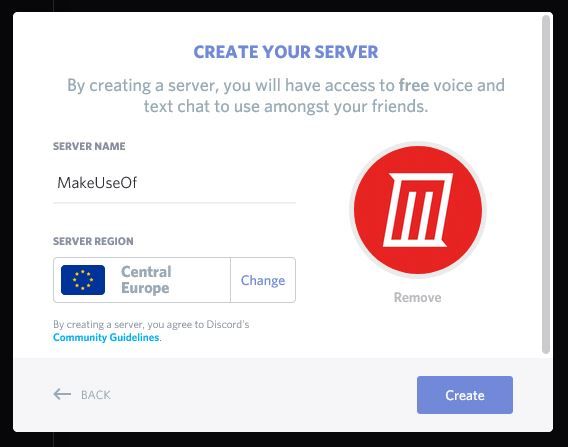
This takes you to the Create Your Server page. Give your server a name and choose a region for the server. The region isn’t terribly important so you can just use wherever you are located. You should also upload an image to use as your server’s logo. Then click Create.

Invite People to Join Your Server

Once you have created a server, you can use your friends list to invite people to join it. You will see a list of all your Discord friends, with a button saying Invite next to each one. To invite someone to your server, just click this button.

Alternatively, there is also a link at the bottom of the Invite Friends popup. The link will be in the format https://ift.tt/2O1GNQO. This is a temporary link that you can send to your friends to invite them to the server. But this will expire in 24 hours and after that no one can use the link to join your server. To change the link so it is permanently useable, click on Edit invite link and set the Expire After option to Never.

If you want to invite more people to join your server in future, use the Invite People button in the top left of the server page.

Edit Your Server’s Settings

How to Set Up a Discord Server - Server Settings

There are some things you’ll want to change before you begin using your server. To edit the server’s settings, look for the name of the server in the top left. Next to there is an arrow pointing down. Click this arrow to bring up the server menu.

Now select Server Settings from the menu. This takes you to the Overview, where you can change the name, region, or icon for the server.

There are two more settings on this page: the AFK channel and the System messages channel. The AFK channel is where users are sent if they have been active for a period of time. You probably don’t need this unless you have a very busy server, so leave the setting on No AFK Channel. The System messages channel is the default channel where new users are sent and where system messages are sent. You can leave this as the default, the #general channel, or set up a new channel for system messages.

Set Up Moderation to Prevent Spam

How to Set Up a Discord Server - Set Moderation

Another important thing to consider for your Discord server is moderation. Discord can have a problem with bot accounts leaving spam messages, so you may want to apply some moderation filters to mitigate this issue.

To set up moderation, choose the Moderation option from the server menu. The first option is Verification level. This sets the requirements for members to be able to post in the text channels or to send direct messages to other server members. By default, the level of verification is None.

If your Discord is private, you can leave the setting as is. But if your Discord is public, you should add verification to prevent spam. Choose from Low, where users must have a verified email address attached to their account to post, or Medium, where users must have an email plus have been registered on Discord for more than five minutes. There are also more strict rules designated by angry faces, which you can select for the highest level of security.

The second setting to look at is the Explicit Content Filter. You can enable this to scan for and delete messages which have explicit content if that’s not something you want in your server. You can choose to either Scan messages from members without a role, which will apply to new members before they have become full members, or Scan messages sent by all members, which will block explicit content from all users.

Set Admins to Help You Manage Your Discord Server

How to Set Up a Discord Server - Create Admins

Running a server can be a lot of work. Tasks like welcoming new members, answering member queries, approving new membership requests, and handling disputes in chat can all take a lot of time. For that reason, if you anticipate your server will be busy, you can deputize admins to help you manage the server.

To set up admins, go to the Roles section of the server menu. Create a new role by looking in the top left, where it says Roles with a plus icon next to it. Click the icon to make a new role, and name it admin.

Now change the permissions for this role by toggling the switches below. You’ll want to toggle Administrator only for those who you trust completely, as they’ll be able to do everything that you can do. For a more general role, toggle Manage Server, Manage Rolls, and Manage Channels. Then hit Save Changes.

Now you can assign the admin role to friends. To do so, right click on a friend’s username. Choose Rolls from the popup menu, then select admin. Now this person can help you moderate the server.

Set Up New Channels

How to Set Up a Discord Server - Create New Channel

Finally, you’ll probably want to add some more text or voice channels. Channels are used like forum topics to keep related messages in one place. For example, in a gaming server you might have channels for different games, then an off-topic channel, and a channel about technology or hardware.

You want to have enough channels that users can find the content they’re looking for. But you don’t want so many channels that they’re never active. As a guide, around 20 channels maximum is a good number for a server of a few hundred people.

To create a new text channel, look next to the Text Channels header for the plus icon. Or to create a new voice channel, look for the icon next to the Voice Channels header. Hit the plus icon to bring up the new channel window. Here you can enter a name for your new channel.

To edit a channel, click on the cog icon next to the channel name. This lets you set a topic for the channel, so users know what to talk about. You can also grant individual permissions to channels so that only some roles can see a channel. This is useful if you want a channel for your admins to discuss server matters, for example.

Start Your Own Discord Server for Any Topic

Now that you have a basic Discord server set up and you’re ready to start chatting with other users. There are lots more functions for you to play with as the server administrator, but these are the essentials.

If you enjoy Discord and you’re looking for more places to chat with like-minded people, then check out our list of awesome social networks just for gamers.

Read the full article: How to Set Up Your Own Discord Server


Read Full Article

17 July 2019

Facebook’s regulation dodge: Let us, or China will


Facebook is leaning on fears of China exporting its authoritarian social values to counter arguments that it should be broken up or slowed down. Its top executives have each claimed that if the U.S. limits its size, blocks its acquisitions, or bans its cryptocurrency, Chinese company’s absent these restrictions will win abroad, bringing more power and data to their government. CEO Mark Zuckerberg, COO Sheryl Sandberg, and VP of communications Nick Clegg have all expressed this position.

The latest incarnation of this talking point came in today and yesterday’s congressional hearings over Libra, the Facebook-spearheaded digital currency it hopes to launch in the first half of 2020. Facebook’s head of its blockchain subsidiary Calibra David Marcus wrote in his prepared remarks to the House Financial Services Committee today that:

“I believe that if America does not lead innovation in the digital currency and payments area, others will. If we fail to act, we could soon see a digital currency controlled by others whose values are dramatically different”

Senate Banking Committee Holds Hearing On Facebook's Proposed Crypto Currency

WASHINGTON, DC – JULY 16: Head of Facebook’s Calibra David Marcus testifies during a hearing before Senate Banking, Housing and Urban Affairs Committee July 16, 2019 on Capitol Hill in Washington, DC. The committee held the hearing on “Examining Facebook’s Proposed Digital Currency and Data Privacy Considerations.” (Photo by Alex Wong/Getty Images)

Marcus also told the Senate Banking Subcommittee yesterday that “I believe if we stay put we’re going to be in a situation in 10, 15 years where half the world is on a blockchain technology that is out of reach of our national-security apparatus” .

This argument is designed to counter House-drafted “Keep Big Tech Out Of Finance” legislation that Reuters reports would declare that companies like Facebook that earn over $25 billion in annual revenue “may not establish, maintain, or operate a digital asset . . .  that is intended to be widely used as medium of exchange, unit of account, store of value, or any other similar function.”

The message Facebook is trying to deliver is that cryptocurrencies are inevitable. Blocking Libra would just open the door to even less scrupulous actors controlling the technology. Facebook’s position here isn’t limited to cryptocurrencies, though.

The concept crystallized exactly a year ago when Zuckerberg said “I think you have this question from a policy perspective, which is, do we want American companies to be exporting across the world?” in an interview with Recode’s Kara Swisher.

“We grew up here, I think we share a lot of values that I think people hold very dear here, and I think it’s generally very good that we’re doing this, both for security reasons and from a values perspective. Because I think that the alternative, frankly, is going to be the Chinese companies. If we adopt a stance which is that, ‘Okay, we’re gonna, as a country, decide that we wanna clip the wings of these companies and make it so that it’s harder for them to operate in different places, where they have to be smaller,’ then there are plenty of other companies out that are willing and able to take the place of the work that we’re doing.”

When asked if he specifically meant Chinese companies, Zuckerberg doubled down, saying:

“Yeah. And they do not share the values that we have. I think you can bet that if the government hears word that it’s election interference or terrorism, I don’t think Chinese companies are going to wanna cooperate as much and try to aid the national interest there.”

WASHINGTON, DC – APRIL 10: Facebook co-founder, Chairman and CEO Mark Zuckerberg testifies before a combined Senate Judiciary and Commerce committee hearing in the Hart Senate Office Building on Capitol Hill April 10, 2018 in Washington, DC. Zuckerberg, 33, was called to testify after it was reported that 87 million Facebook users had their personal information harvested by Cambridge Analytica, a British political consulting firm linked to the Trump campaign. (Photo by Chip Somodevilla/Getty Images)

This April, Zuckerberg went deeper when he described how Facebook would refuse to comply with data localization laws in countries with poor track records on human rights. The CEO explained the risk of data being stored in other countries, which is precisely might happen if regulators hamper Facebook and innovation happens elsewhere. Zuckerberg told philosopher Yuval Harari that:

“When I look towards the future, one of the things that I just get very worried about is the values that I just laid out [for the internet and data] are not values that all countries share. And when you get into some of the more authoritarian countries and their data policies, they’re very different from the kind of regulatory frameworks that across Europe and across a lot of other places, people are talking about or put into place . . . And the most likely alternative to each country adopting something that encodes the freedoms and rights of something like GDPR, in my mind, is the authoritarian model, which is currently being spread, which says every company needs to store everyone’s data locally in data centers and then, if I’m a government, I can send my military there and get access to whatever data I want and take that for surveillance or military.

I just think that that’s a really bad future. And that’s not the direction, as someone who’s building one of these internet services, or just as a citizen of the world, I want to see the world going. If a government can get access to your data, then it can identify who you are and go lock you up and hurt you and your family and cause real physical harm in ways that are just really deep.”

facebook logo down glitch

Facebook’s newly hired head of communications Nick Clegg told reporters back in January that:

“These are of course legitimate questions, but we don’t hear so much about China, which combines astonishing ingenuity with the ability to process data on a vast scale without the legal and regulatory constraints on privacy and data protection that we require on both sides of the Atlantic . . .  [and this data could be] put to more sinister surveillance ends, as we’ve seen with the Chinese government’s controversial social credit system.”

In response to Facebook co-founder Chris Hughes’ call that Facebook should be broken up, Clegg wrote in May that “Facebook shouldn’t be broken up — but it does need to be held to account. Anyone worried about the challenges we face in an online world should look at getting the rules of the internet right, not dismantling successful American companies.”

He hammered home the alternative the next month during a speech in Berlin:

“If we in Europe and America don’t turn off the white noise and begin to work together, we will sleepwalk into a new era where the internet is no longer a universal space but a series of silos where different countries set their own rules and authoritarian regimes soak up their citizens’ data while restricting their freedom . . . If the West doesn’t engage with this question quickly and emphatically, it may be that it isn’t ours to answer. The common rules created in our hemisphere can become the example the rest of the world follows.”

COO Sheryl Sandberg made the point most directly in an interview with CNBC in May:

“You could break us up, you could break other tech companies up, but you actually don’t address the underlying issues people are concerned about . . . While people are concerned with the size and power of tech companies, there’s also a concern in the United States about the size and power of Chinese tech companies and the … realization that those companies are not going to be broken up.

WASHINGTON, DC – SEPTEMBER 5: Facebook chief operating officer Sheryl Sandberg testifies during a Senate Intelligence Committee hearing concerning foreign influence operations’ use of social media platforms, on Capitol Hill, September 5, 2018 in Washington, DC. Twitter CEO Jack Dorsey and Facebook chief operating officer Sheryl Sandberg faced questions about how foreign operatives use their platforms in attempts to influence and manipulate public opinion. (Photo by Drew Angerer/Getty Images)

Scared Tactics

Indeed, China does not share the United States’ values on individual freedoms and privacy. And yes, breaking up Facebook could weaken its products like WhatsApp, providing more opportunities for apps like Chinese tech giant Tencent’s WeChat to proliferate.

But letting Facebook off the hook won’t solve the problems China’s influence poses to an open and just internet. If Framing the issue as ‘strong regulation lets China win’ creates a false dichotomy. There are more constructive approaches if Zuckerberg seriously wants to work with the government on exporting freedom via the web. And the distrust Facebook has accrued through the mistakes it’s made in the absence of proper regulation arguably do plenty to hurt the perception of how American ideals are spread through its tech companies.

Breaking up Facebook may not be the answer, especially if it’s done in retaliation for its wrong-doings instead of as a coherent way to prevent more in the future. To that end, a better approach might be stopping future acquisitions of large or rapidly growing social networks, forcing it to offer true data portability so existing users have the freedom to switch to competitors, applying proper oversight of its privacy policies, and requiring a slow rollout of Libra with testing in each phase to ensure it doesn’t screw consumers, enable terrorists, or jeopardize the world economy.

Resorting to scare tactics shows that it’s Facebook that’s scared. Years of growth over safety strategy might finally catch up with it. The $5 billion FTC fine is a slap on the wrist for a company that profits more than that per quarter, but a break-up would do real damage. Instead of fear-mongering, Facebook would be better served by working with regulators in good faith while focusing more on preempting abuse. Perhaps it’s politically savvy to invoke the threat of China to stoke the worries of government officials, and it might even be effective. That doesn’t make it right.


Read Full Article

Parrotron: New Research into Improving Verbal Communication for People with Speech Impairments


Most people take for granted that when they speak, they will be heard and understood. But for the millions who live with speech impairments caused by physical or neurological conditions, trying to communicate with others can be difficult and lead to frustration. While there have been a great number of recent advances in automatic speech recognition (ASR; a.k.a. speech-to-text) technologies, these interfaces can be inaccessible for those with speech impairments. Further, applications that rely on speech recognition as input for text-to-speech synthesis (TTS) can exhibit word substitution, deletion, and insertion errors. Critically, in today’s technological environment, limited access to speech interfaces, such as digital assistants that depend on directly understanding one's speech, means being excluded from state-of-the-art tools and experiences, widening the gap between what those with and without speech impairments can access.

Project Euphonia has demonstrated that speech recognition models can be significantly improved to better transcribe a variety of atypical and dysarthric speech. Today, we are presenting Parrotron, an ongoing research project that continues and extends our effort to build speech technologies that help those with impaired or atypical speech to be understood by both people and devices. Parrotron consists of a single end-to-end deep neural network trained to convert speech from a speaker with atypical speech patterns directly into fluent synthesized speech, without an intermediate step of generating text—skipping speech recognition altogether. Parrotron’s approach is speech-centric, looking at the problem only from the point of view of speech signals—e.g., without visual cues such as lip movements. Through this work, we show that Parrotron can help people with a variety of atypical speech patterns—including those with ALS, deafness, and muscular dystrophy—to be better understood in both human-to-human interactions and by ASR engines.
The Parrotron Speech Conversion Model
Parrotron is an attention-based sequence-to-sequence model trained in two phases using parallel corpora of input/output speech pairs. First, we build a general speech-to-speech conversion model for standard fluent speech, followed by a personalization phase that adjusts the model parameters to the atypical speech patterns from the target speaker. The primary challenge in such a configuration lies in the collection of the parallel training data needed for supervised training, which consists of utterances spoken by many speakers and mapped to the same output speech content spoken by a single speaker. Since it is impractical to have a single speaker record the many hours of training data needed to build a high quality model, Parrotron uses parallel data automatically derived with a TTS system. This allows us to make use of a pre-existing anonymized, transcribed speech recognition corpus to obtain training targets.

The first training phase uses a corpus of ~30,000 hours that consists of millions of anonymized utterance pairs. Each pair includes a natural utterance paired with an automatically synthesized speech utterance that results from running our state-of-the-art Parallel WaveNet TTS system on the transcript of the first. This dataset includes utterances from thousands of speakers spanning hundreds of dialects/accents and acoustic conditions, allowing us to model a large variety of voices, linguistic and non-linguistic contents, accents, and noise conditions with “typical” speech all in the same language. The resulting conversion model projects away all non-linguistic information, including speaker characteristics, and retains only what is being said, not who, where, or how it is said. This base model is used to seed the second personalization phase of training.

The second training phase utilizes a corpus of utterance pairs generated in the same manner as the first dataset. In this case, however, the corpus is used to adapt the network to the acoustic/phonetic, phonotactic and language patterns specific to the input speaker, which might include, for example, learning how the target speaker alters, substitutes, and reduces or removes certain vowels or consonants. To model ALS speech characteristics in general, we use utterances taken from an ALS speech corpus derived from Project Euphonia. If instead we want to personalize the model for a particular speaker, then the utterances are contributed by that person. The larger this corpus is, the better the model is likely to be at correctly converting to fluent speech. Using this second smaller and personalized parallel corpus, we run the neural-training algorithm, updating the parameters of the pre-trained base model to generate the final personalized model.

We found that training the model with a multitask objective to predict the target phonemes while simultaneously generating spectrograms of the target speech led to significant quality improvements. Such a multitask trained encoder can be thought of as learning a latent representation of the input that maintains information about the underlying linguistic content.
Overview of the Parrotron model architecture. An input speech spectrogram is passed through encoder and decoder neural networks to generate an output spectrogram in a new voice.
Case Studies
To demonstrate a proof of concept, we worked with our fellow Google research scientist and mathematician Dimitri Kanevsky, who was born in Russia to Russian speaking, normal-hearing parents but has been profoundly deaf from a very young age. He learned to speak English as a teenager, by using Russian phonetic representations of English words, learning to pronounce English using transliteration into Russian (e.g., The quick brown fox jumps over the lazy dog => ЗИ КВИК БРАУН ДОГ ЖАМПС ОУВЕР ЛАЙЗИ ДОГ). As a result, Dimitri’s speech is substantially distinct from native English speakers, and can be challenging to comprehend for systems or listeners who are not accustomed to it.

Dimitri recorded a corpus of 15 hours of speech, which was used to adapt the base model to the nuances specific to his speech. The resulting Parrotron system helped him be better understood by both people and Google’s ASR system alike. Running Google’s ASR engine on the output of Parrotron significantly reduced the word error rate from 89% to 32%, on a held out test set from Dimitri. Below is an example of Parrotron’s successful conversion of input speech from Dimitri:

Input from Dimitri Audio
Output from Parrotron Audio

We also worked with Aubrie Lee, a Googler and advocate for disability inclusion, who has muscular dystrophy, a condition that causes progressive muscle weakness, and sometimes impacts speech production. Aubrie contributed 1.5 hours of speech, which has been instrumental in showing promising outcomes of the applicability of this speech-to-speech technology. Below is an example of Parrotron’s successful conversion of input speech from Aubrie:

Input from Aubrie Audio
Output from Parrotron Audio
Input from Aubrie Audio
Output from Parrotron Audio

We also tested Parrotron’s performance on speech from speakers with ALS by adapting the pretrained model on multiple speakers who share similar speech characteristics grouped together, rather than on a single speaker. We conducted a preliminary listening study and observed an increase in intelligibility when comparing natural ALS speech to the corresponding speech obtained from running the Parroton model, for the majority of our test speakers.

Cascaded Approach
Project Euphonia has built a personalized speech-to-text model that has reduced the word error rate for a deaf speaker from 89% to 25%, and ongoing research is also likely to improve upon these results. One could use such a speech-to-text model to achieve a similar goal as Parrotron by simply passing its output into a TTS system to synthesize speech from the result. In such a cascaded approach, however, the recognizer may choose an incorrect word (roughly 1 out 4 times, in this case)—i.e., it may yield words/sentences with unintended meaning and, as a result, the synthesized audio of these words would be far from the speaker’s intention. Given the end-to-end speech-to-speech training objective function of Parrotron, even when errors are made, the generated output speech is likely to sound acoustically similar to the input speech, and thus the speaker’s original intention is less likely to be significantly altered and it is often still possible to understand what is intended:

Input from Dimitri Audio
Output from Parrotron Audio
Input from Dimitri Audio
Output from Parrotron/Input to Assistant Audio
Output from Assistant Audio
Input from Aubrie Audio
Output from Parrotron Audio

Furthermore, since Parrotron is not strongly biased to producing words from a predefined vocabulary set, input to the model may contain completely new invented words, foreign words/names, and even nonsense words. We observe that feeding Arabic and Spanish utterances into the US-English Parrotron model often results in output which echoes the original speech content with an American accent, in the target voice. Such behavior is qualitatively different from what one would obtain by simply running an ASR followed by a TTS. Finally, by going from a combination of independently tuned neural networks to a single one, we also believe there are improvements and simplifications that could be substantial.

Conclusion
Parrotron makes it easier for users with atypical speech to talk to and be understood by other people and by speech interfaces, with its end-to-end speech conversion approach more likely to reproduce the user’s intended speech. More exciting applications of Parrotron are discussed in our paper. If you would like to participate in this ongoing research, please fill out this short form and volunteer to record a set of phrases. We look forward to working with you!
Acknowledgements
This project was joint work between the Speech and Google Brain teams. Contributors include Fadi Biadsy, Ron J. Weiss, Pedro Moreno, Dimitri Kanevsky, Ye Jia, Suzan Schwartz, Landis Baker, Zelin Wu, Johan Schalkwyk, Yonghui Wu, Zhifeng Chen, Patrick Nguyen, Aubrie Lee, Andrew Rosenberg, Bhuvana Ramabhadran, Jason Pelecanos, Julie Cattiau, Michael Brenner, Dotan Emanuel and Joel Shor. Our data collection efforts have been vastly accelerated by our collaborations with ALS-TDI.

Gastroenterology


Gastroenterology

Google’s Area 120 launches Byteboard to improve technical interviews


Area 120, Google’s lab for experimental projects, is launching Byteboard today, a new tool that aims to make the technical interview experience less tedious and more effective. The team argues that today’s interview process for software engineers just doesn’t cut it since it doesn’t really measure how well somebody would do in a day-to-day engineering job. Instead, it does a good job of figuring out how well somebody can remember material from an advanced algorithm class and then repeat that in a whiteboard session.

“Between day jobs and family responsibilities, the current technical interview process is anxiety-inducing and burdensome for candidates — benefiting those who have the time and resources to prepare, while creating a barrier for those who do not,” said Sargun Kaur, the General Manager for Byteboard. “So despite companies investing 7 to 9 hours per person on interviewing, they miss out on great, capable talent by testing for memorization instead of practical application of skills.”

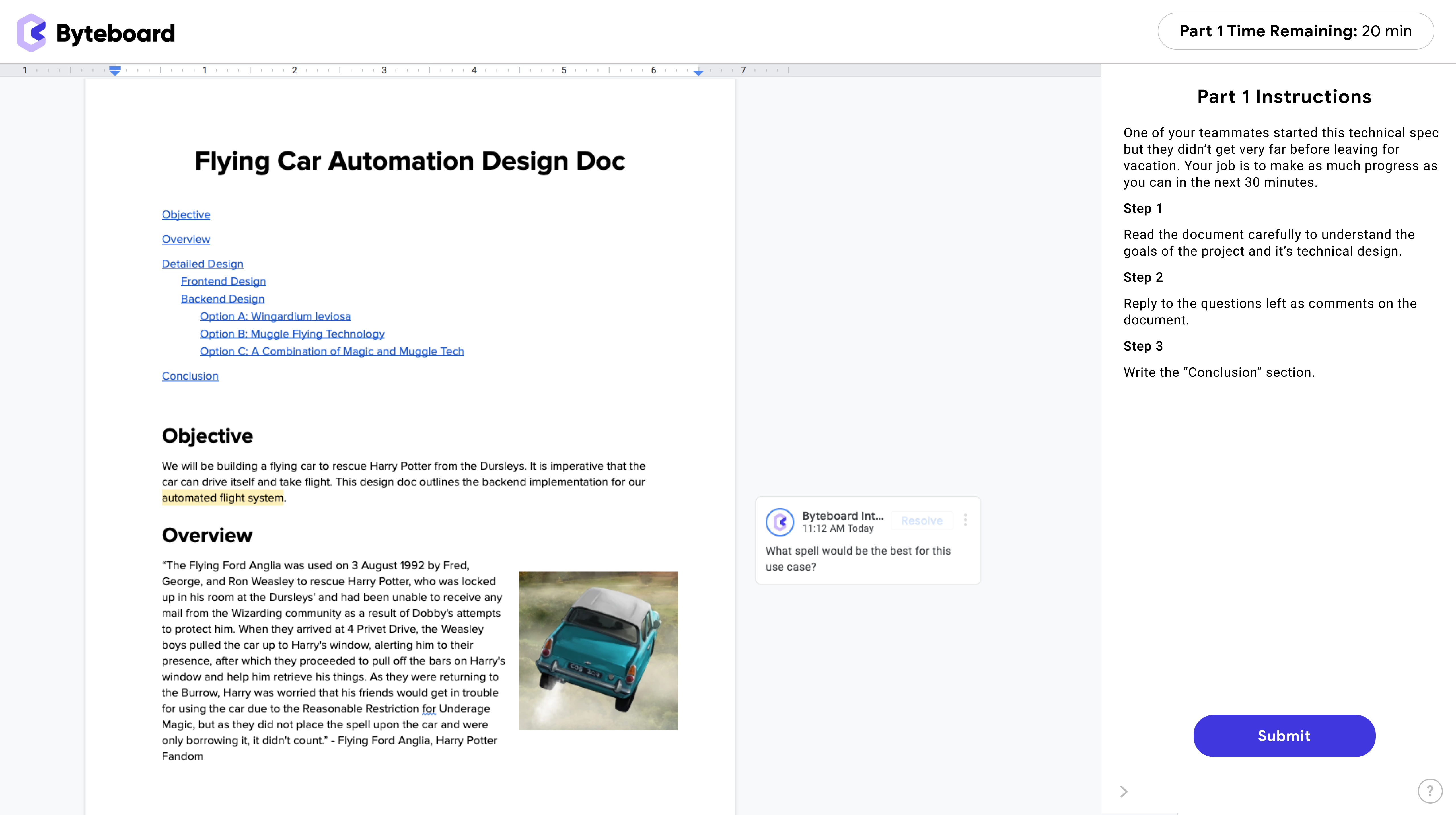
byteboard interview technical spec exercise

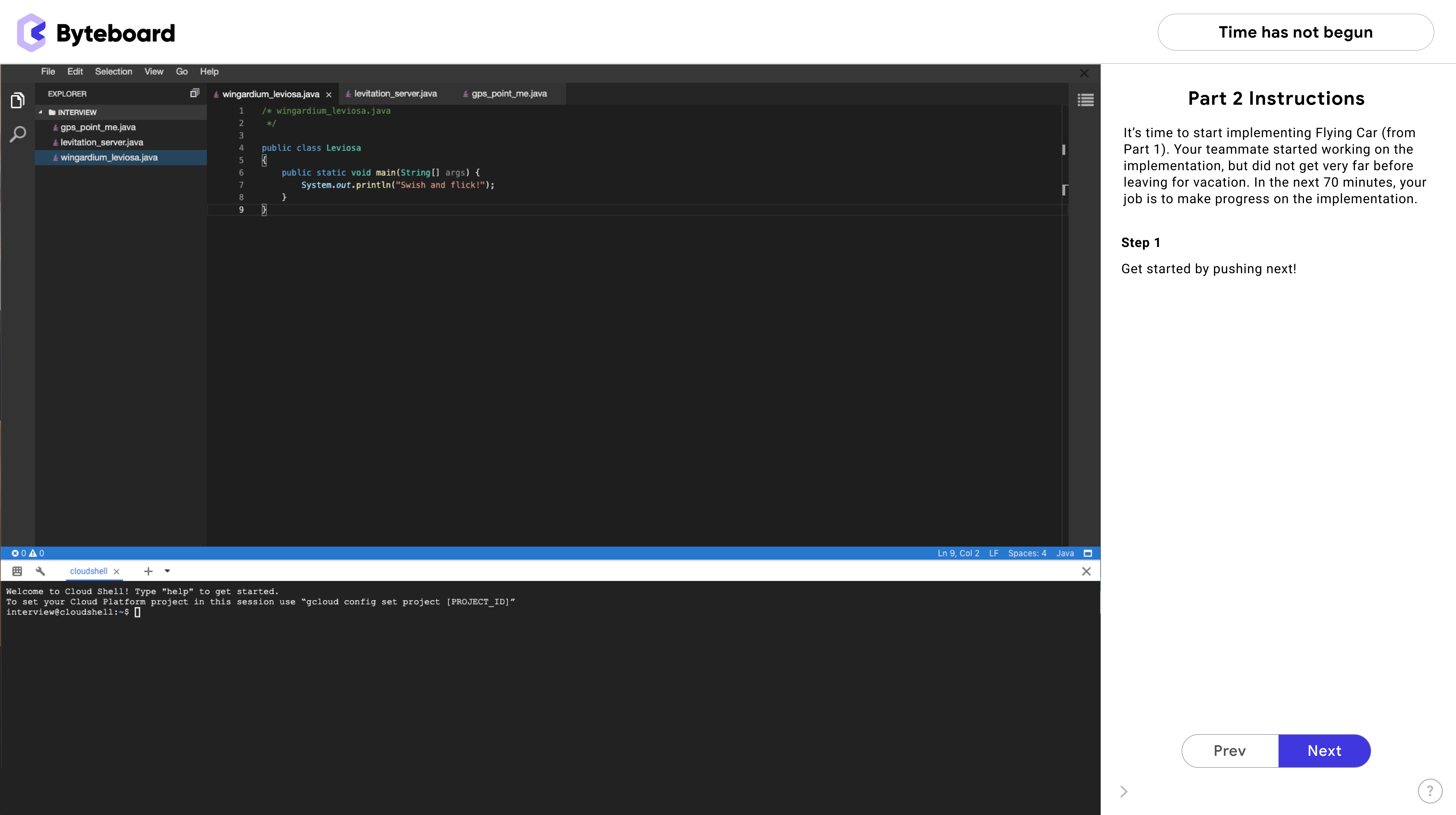
Byteboard replaces this old-fashioned process with an identity-blind, project-based evaluation process that highlights real-world skills that will be used on the job. To do this, Byteboard presents the interviewees with a real-world coding environment, for example, and candidates can choose between their own coding environment or Byteboard’s embedded web editor. Supported languages include Java, Python, Ruby, C++, C# JavaScript (node.js) and Go.

Employees can customize what domains they want candidates to work on, Kaur said. To do this, the team works with each employer to understand what they are looking for.

It’s worth noting that Google isn’t the first to do this, though this project does fit in well with the company’s recent focus on job search tools. HackerRank and others already offer employers similar tools for evaluating candidates. Kaur argues that Byteboard is different, though.

byteboard interview coding exercise

“Most other technical interview platforms focus on digitizing the traditional approach to technical interviews, which primarily tests for understanding of overly theoretical concepts,” he told me. “This still unfairly benefits those who have the time and resources to prepare for these interviews that over-index on algorithms and data structures and doesn’t allow companies to accurately assess how likely a candidate is to succeed in their job. The Byteboard interview is designed to simulate what engineers actually do on the job, asking candidates to work on a project from its design to implementation.”

The results are then assessed by a group of highly experienced engineers who have been trained to review each interview — after it has been anonymized — and rate it according to a set of rubrics that evaluate about 20 software engineering skills.

Google stresses that the evaluation process is anonymous, which will hopefully take most of the bias out of at least the early interview process.

The team also notes that some companies that have already tested the service have been able to replace all of their pre-onsite interviews with Byteboard interviews. Betterment, for example, has used it to interview over 50 engineering candidates and found that 86 percent of the candidates that made it through the process were “strong candidates.”


Read Full Article

Nintendo introduces a Switch model refresh with better battery life


Nintendo already announced an entirely new Switch console this month, the Switch Lite, and now it’s bumping some of the specs on the existing Switch with a slightly updated version, spotted by The Verge. This update improves the hardware right where it counts when it comes to Switch portable playing power.

The new model will provide between 4.5 and 9 hours of battery life, depending on use, which is a big bump from the 2.5 to 6.5 hour rating on the original hardware that’s been offered to date. This is likely an improvement derived from a change in the processor used in the console, as well as more power-efficient memory, both of which were detailed in an FCC filing from last week.

Nintendo’s official Switch comparison page lists the models with improved battery life as model number ‘HAC-001(-01), with the bracketed addition distinguishing it from the original. You can check the version based on the serial number, with XKW preceding the newer hardware, and XAW starting off serials for the older, less power efficient version. No word on a specific street date, but if you’re in the market it’s worth taking a ‘wait and see’ approach to ensure this battery boosted hardware is the one you get.

In all other respects the two Switch models appear to be similar, if not identical, so it’s probably not enough of a change to get anyone considering an upgrade, unless the battery life on your current version really seems to fall about two hours short of your ideal play session length on average.


Read Full Article

Nexar’s Live Map is like Street View with pictures from 5 minutes ago


We all rely on maps to get where we’re going or investigate a neighborhood for potential brunch places, but the data we’re looking at is often old, vague, or both. Nexar, maker of dashcam apps and cameras, aims to put fresh and specific data on your map with images from the street taken only minutes before.

If you’re familiar with dash cams, and you’re familiar with Google’s Street View, then you can probably already picture what Live Map essentially is. It’s not quite as easy to picture how it works or why it’s useful.

Nexar sells dash cams and offers an app that turns your phone into one temporarily, and the business has been doing well, with thousands of active users on the streets of major cities at any given time. Each node of this network of gadgets shares information with the other nodes — warning of traffic snarls, potholes, construction, and so on.

The team saw the community they’d enabled trading videos and sharing data derived by automatic analysis of their imagery, and, according to co-founder and CTO Bruno Fernandez-Ruiz, asked themselves: Why shouldn’t this data shouldn’t be available to the public as well?
Actually there are a few reasons — privacy chief among them. Google has shown that properly handled, this kind of imagery can be useful and only minimally invasive. But knowing where someone or some car was a year or two ago is one thing; knowing where they were five minutes ago is another entirely.

Fortunately, from what I’ve heard, this issue was front of mind for the team from the start. But it helps to see what the product looks like in action before addressing that.

nexar zoom

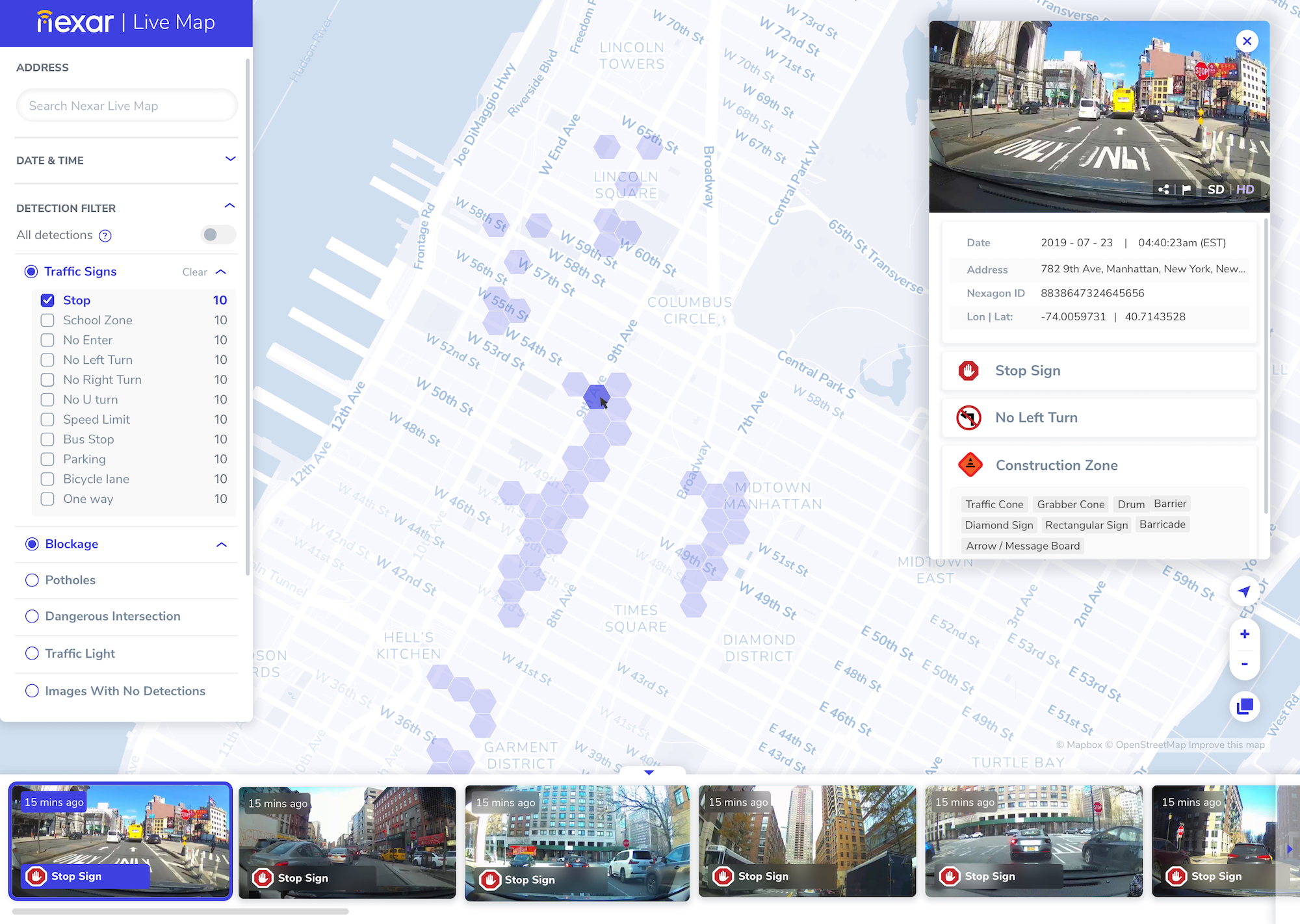
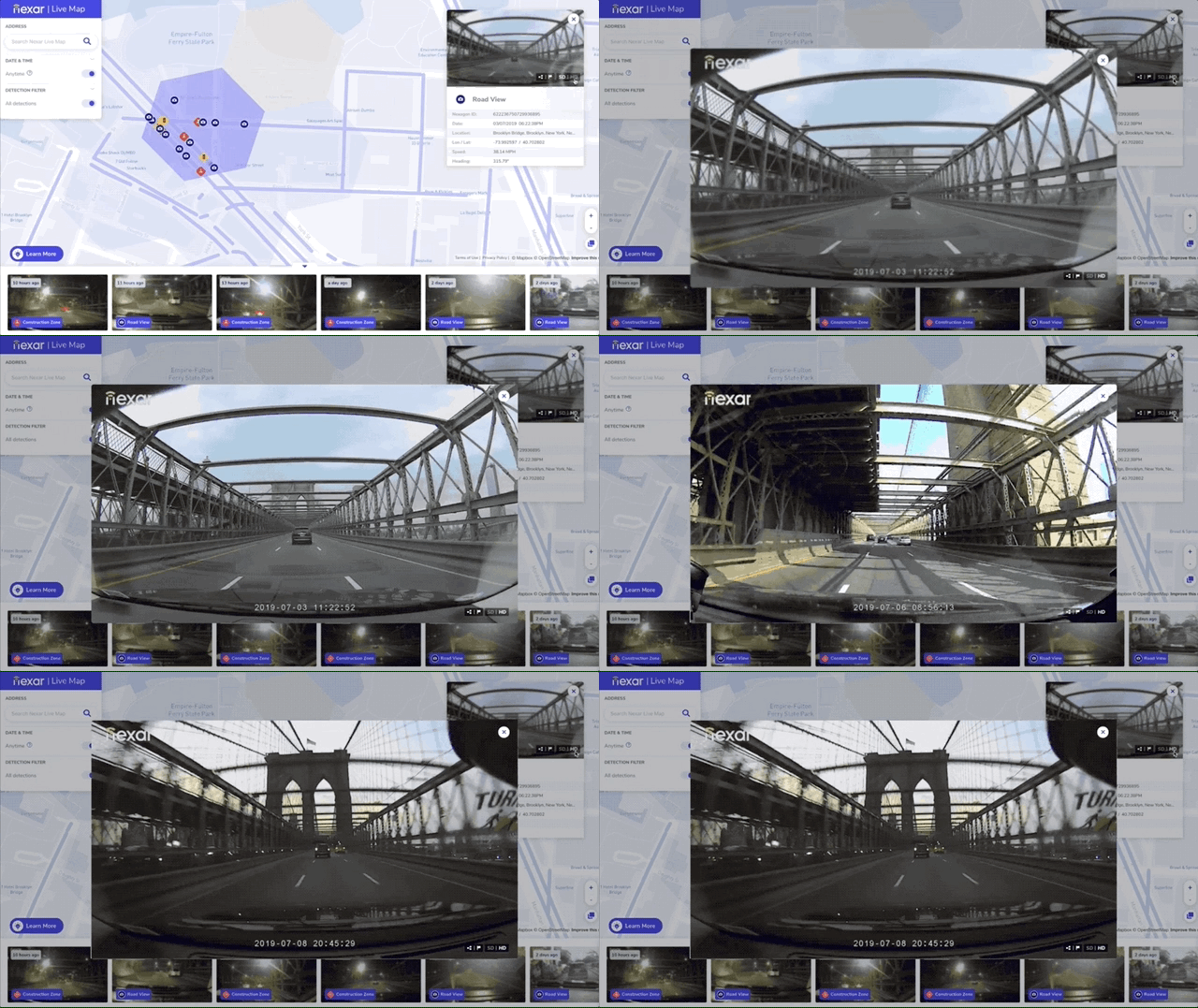
Zooming in on a hexagonal map section, which the company has dubbed “nexagons,” polls the service to find everything the service knows about that area. And the nature of the data makes for extremely granular information. Where something like Google Maps or Waze may say that there’s an accident at this intersection, or construction causing traffic, Nexar’s map will show the locations of the orange cones to within a few feet, or how far into the lanes that fender-bender protrudes.

You can also select the time of day, letting you rewind a few minutes or a few days — what was it like during that parade? Or after the game? Are there a lot of people there late at night? And so on.

Right now it’s limited to a web interface, and to New York City — the company has enough data to launch in several other areas in the U.S. but wants to do a slower roll-out to identify issues and opportunities. An API is on the way as well. (Europe, unfortunately, may be waiting a while, though the company says it’s GDPR-compliant.)

The service uses computer vision algorithms to identify a number of features, including signs (permanent and temporary), obstructions, even the status of traffic lights. This all goes into the database, which gets updated any time a car with a Nexar node goes by. Naturally it’s not in 360 and high definition — these are forward-facing cameras with decent but not impressive resolution. It’s for telling what’s in the road, not for zooming in to spot a street address.

Detection Filtering

Of course, construction signs and traffic jams aren’t the only things on the road. As mentioned before it’s a serious question of privacy to have constantly updating, public-facing imagery of every major street of a major city. Setting aside the greater argument of the right to privacy in public places and attendant philosophical problems, it’s simply the ethical thing to do to minimize how much you expose people who don’t know they’re being photographed.

To that end Nexar’s systems carefully detect and blur out faces before any images are exposed to public view. License plates are likewise obscured so that neither cars nor people can be easily tracked from image to image. Of course one may say that here is a small red car that was on 4th, and is on 5th a minute later — probably the same. But systematic surveillance rather than incidental is far easier with an identifier like a license plate.

In addition to protecting bystanders, Nexar has to think of the fact that an image from a car by definition places that car in a location at a given time, allowing them to be tracked. And while the community essentially opts into this kind of location and data sharing when they sign up for an account, it would be awkward if the public website let a stranger track a user all the way to their home or watch their movements all day.

“The frames are carefully random to begin with so people can’t be soloed out,” said Fernandez-Ruiz. “We eliminate any frames near your house and your destination.” As far as the blurring, he said that “We have a pretty robust model, on par with anything you can see in the industry. We probably are something north of 97-98 percent accurate for private data.”

So what would you do with this kind of service? There is, of course, something fundamentally compelling about being able to browse your city in something like real time.

On Google, there’s a red line. We show you an actual frame – a car blocking the right lane right there. It gives you a human connection,” said Fernandez-Ruiz. “There’s an element of curiosity about what the world looks like, maybe not something you do every day, but maybe once a week, or when something happens.”

No doubt we are many of us guilty of watching dash-cam footage or even Street View pictures of various events, pranks, and other occurrences. But basic curiosity doesn’t pay the bills. Fortunately there are more compelling use cases.

“One that’s interesting is construction zones. You can see individual elements like cones and barriers – you can see where exactly they are, when they’re started etc. We want to work with municiapl authorities, department of transportation, etc on this — it gives them a lot of information on what their contractors are doing on the road. That’s one use case that we know about and understand.”

In fact there are already some pilot programs in Nevada. And although it’s rather a prosaic application of a 24/7 surveillance apparatus, it seems likely to do some good.

But the government angle brings in an unsavory linen of thinking — what if the police want to get unblurred dash cam footage of a crime that just happened, or one of many such situations where tech’s role has historically been a mixed blessing?

“We’ve given a lot of thought to this, and it this concerns our investors highly,” Fernandez-Ruiz admitted. “There are two things we’ve done. One is we’ve differentiated what data the user owns and what we have. The data they send is theirs – like Dropbox. What we get is these anonymized blurred images. Obviously we will comply with the law, but as far as ethical applications of big data and AI, we’ve said we’re not going to be a tool of an authoritarian government. So we’re putting processes in place — even if we get a subpoena, we can say: This is encrypted data, please ask the user.”

That’s some consolation, but it seems clear that tools like this one are more a question than an answer. It’s an experiment by a successful company and may morph into something ubiquitous and useful or a niche product used by professional drivers and municipal governments. But in tech, if you have the data, you use it. Because if you don’t, someone else will.

You can test out Nexar’s Live Map here.


Read Full Article