25 September 2018

Here’s everything Google announced today at its “Future of Search” event


Google has changed a lot in 20 years. What started as an index of “just” a few million pages is now reaching into the hundreds of billions; what was once a relatively simple (if very clever!) search engine is now an impossibly complex brew of machine learning, computer vision, and data science that finds its way into the daily lives of most of the planet.

Google held a small press event in San Francisco today to discuss what’s next, and what it saw as the “Future of Search”.

Here’s everything they talked about:

Google Discover
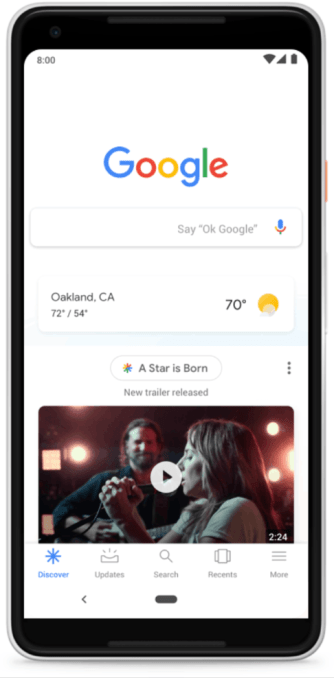
The famously minimalist Google.com homepage is about to get a bit more crowded (at least on mobile.)

Google says that 1 in 8 queries in a given month are repeats — a user returning to search on a topic they care about. With that in mind, it’s going to start highlighting these topics for you before you start your search.

Google Feed (the content discovery news feed it’s been building out in the dedicated Google App and on the Android home screen) is being rebranded as “Discover” and will now live underneath the Google.com search bar on all mobile browsers.

Discover will highlight news, video, and information about topics Google thinks you care about — like, say, hiking, or soccer, or the NBA. If you want a certain topic to show up more or less, there’s a slider to adjust accordingly.

It’ll start rolling out “in the next few weeks”

Recalling past queries
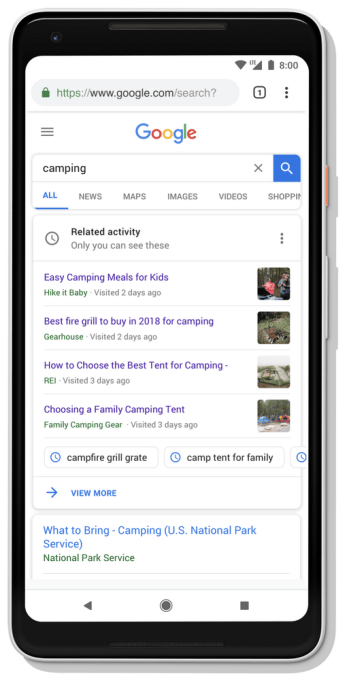
In the same vein: Google will now learn to recognize when you’re returning to a topic you’ve searched for before, and try to start back up where you left off. When returning to a search topic, you’ll now see a card at the top of the results that’ll offer up a list of the pages you clicked through to before, and relevant follow-up queries people tend to search for next.

While Google keeping track of what you searched for is nothing new, finding that info generally meant digging through settings pages to find your history. With this, Google is attempting to play something that otherwise seems a bit creepy into a front page feature.

(And to answer what I imagine will be just about everyone’s first question: Google’s Nick Fox says you can remove the card, or “opt out of seeing it all together”.)

Dynamic Organization

Trillions of searches later, Google knows what you’re probably looking for, and what you’ll be looking for next. And they can get pretty specific about it.

To use their example: if you’re searching for “Pug”, you’re probably looking for characteristics of the breed, or for images of well-known pugs. People searching for a longer haired breed like a Yorkshire Terrier, meanwhile, are often interested in things like grooming details — even if it’s not the first thing they search for.

With this in mind, Google’s knowledge graph will now dynamically generate cards for a given topic and present them at the top of the results page — basically, an all-in-one info packet of everything it thinks you’re looking for, or might look for next.

Collections
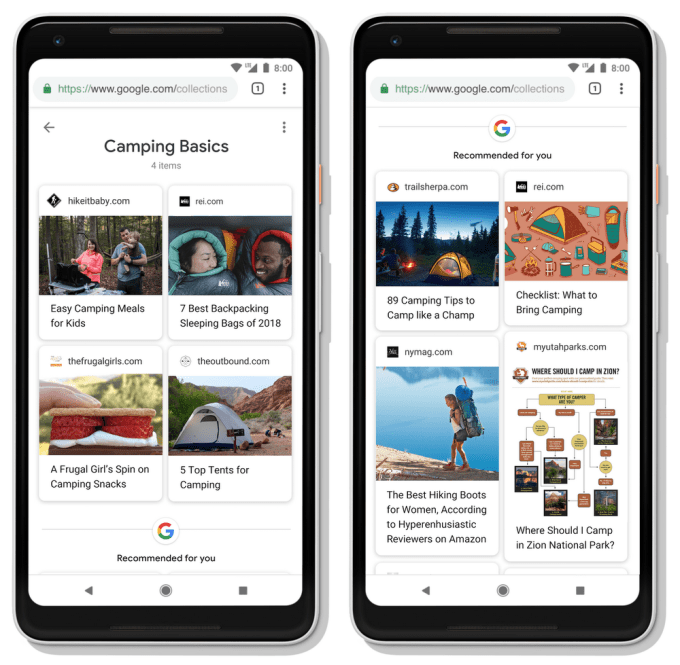
In a move that feels pretty Pinteresty, you’ll now be able to save search results into “collections” for later perusal. Google will look for patterns in your collections, and toss up suggested pages when it finds an overlap.

Stories

Snapchat has its stories. Facebook has stories. Instagram? Stories. Even Skype tried it for a while.

Now Google is “doubling down” (their words) on stories. AI will generate stories built up from articles, images, and videos on a search topic (starting with notable people “like celebrities and athletes) and incorporate them into search results.

Google Images Upgrades
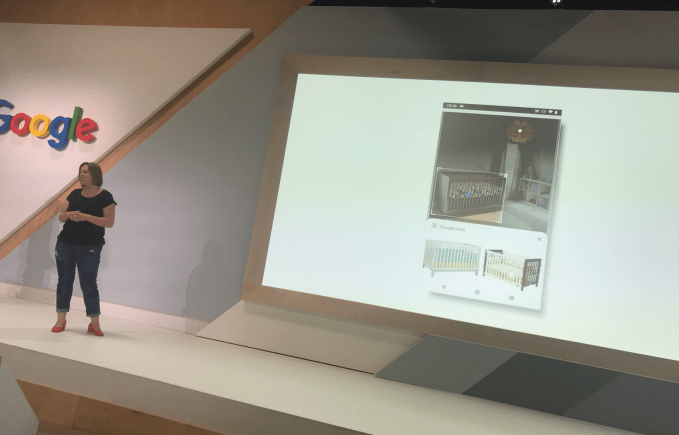
Google Images is picking up support for Google Lens — the company’s computer vision-heavy solution for figuring out exactly what is within an image. Their example: in a search result for “nursery”, Google Lens could help to identify a specific type of crib or bookcase that you’ve highlighted in an image.


Read Full Article

When Skype Isn’t Working: 7 Key Settings You Must Check


Most of the time, Skype just works. But sometimes, you’ll run into a snag and find that Skype can’t connect or otherwise isn’t working right. These troubleshooting steps will solve most common Skype problems, whether your microphone isn’t working or the other person sounds like a robot.

If you still find that Skype is not working after following these steps, be sure to ask the person you’re contacting to try them too—the problem could be on their end.

1. Check Skype Heartbeat

Skype-Status-Page

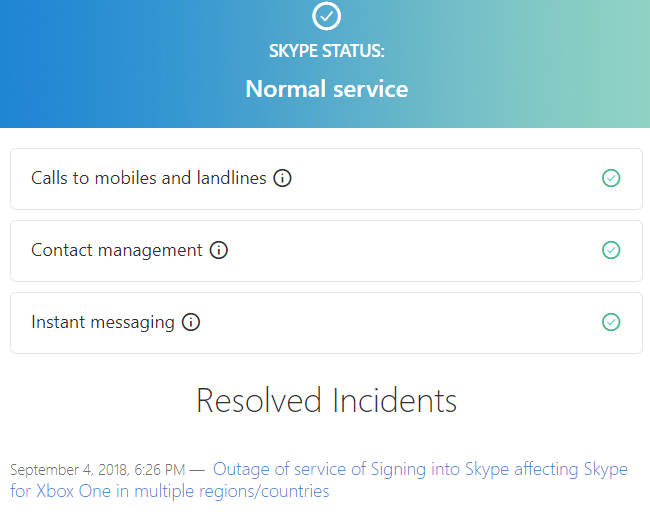
Before you do any troubleshooting, you should check if Skype itself is having issues. If Skype won’t connect or you can’t use a specific Skype feature, check the Skype Heartbeat page. You can also access this by clicking the Help menu in Skype and selecting Heartbeat (Skype Status).

The heartbeat page informs you of Skype’s system status. If there are any problems with Skype’s infrastructure, you’ll see them here. The page also lists recent Skype issues at the bottom as a reference. You can’t do anything about these issues—wait for Microsoft to fix them and try connecting later.

2. Review Skype Audio Settings

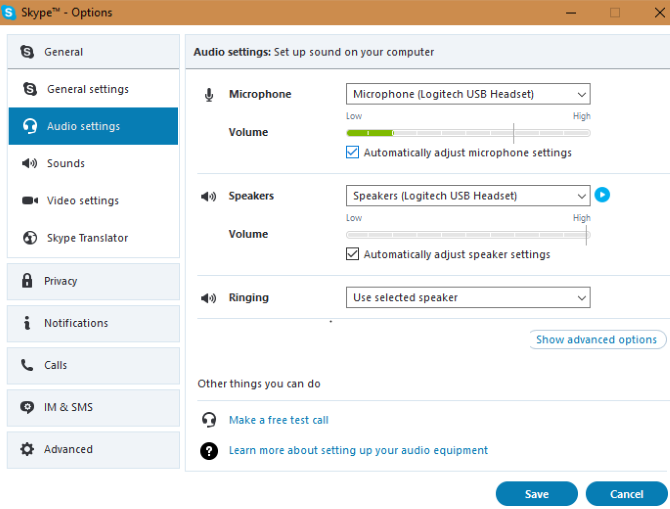
If your Skype microphone is not working, you can test your microphone (and speakers) from the Audio Settings panel. Open the Options window in Skype by clicking Tools > Options.

To test your microphone, speak into it. You should see the green volume bar under Microphone move as you speak.

Skype Test MicrophoneIf you don’t see the volume bar move, click the dropdown box next to Microphone and select another device. Keep trying different devices until you see the volume slider move when you talk. In a pinch, try using your smartphone as a makeshift microphone.
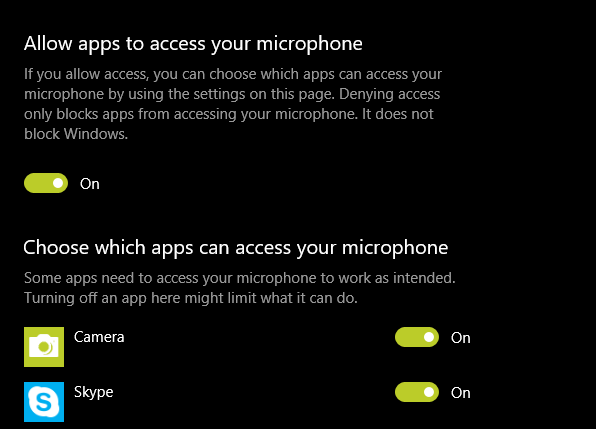
Windows 10 users may have blocked apps from using their microphone altogether. To check this, head to Settings > Privacy and select the Microphone tab to the left. Enable the Allow apps to access your microphone slider, and make sure the Skype app has permission too.

Windows-10-Allow-Mic-Access

No sound in Skype? Test your speakers in the same way by clicking the Play button to the right of the Speakers box. You should hear the Skype call sound. If you don’t, select a different device from the Speakers dropdown box and try again.

3. Troubleshoot Audio Hardware

If playing with the options on the Audio Settings panel doesn’t help, examine your hardware itself. Some microphones and headsets have volume sliders or mute switches on their cords. Thus, you could have accidentally moved the slider or flipped the switch.

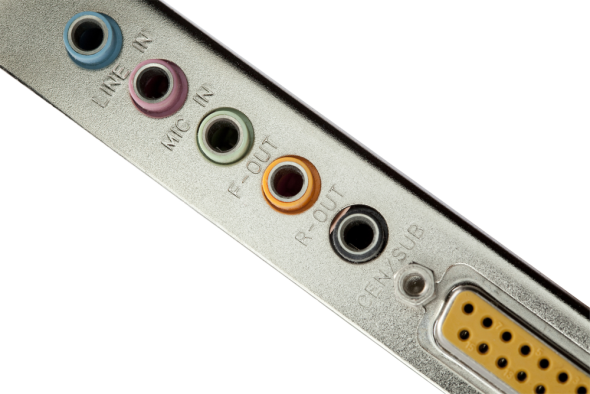
Also, check to make sure that your microphone and speakers are plugged into the correct ports. You can plug USB microphones into any USB slot, while analog microphones must connect to the correct sound jack.

The microphone jack is usually the pink one, although different audio hardware may sometimes use different colors.

Computer analog audio ports

If you’re using a desktop computer and the microphone doesn’t work when it’s plugged into the sound jack at the front of the PC, try the sound jack at the back of the computer. You may need to troubleshoot your microphone if nothing works.

4. Edit Skype Video Settings

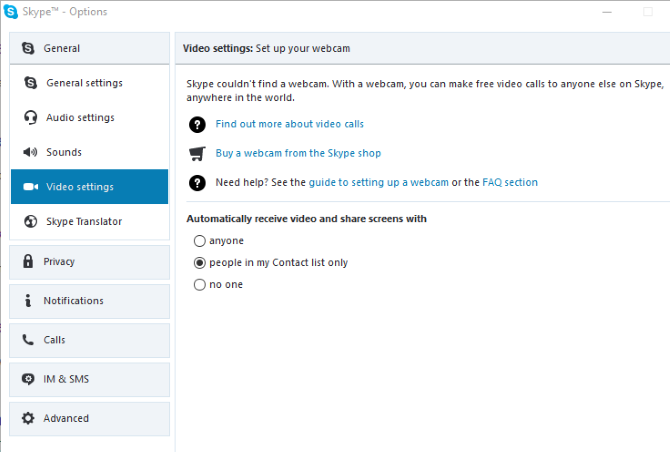
Assuming you have a webcam, you can configure it from the Video settings pane in Skype’s Options window.

Skype Video Options

If your webcam is connected and you don’t see it in this window, you may need to install drivers for it. You can usually grab drivers from your webcam or computer manufacturer’s website.

As mentioned in the microphone troubleshooting section, you should also check Windows 10’s privacy settings for camera access. Visit Settings > Privacy and open Camera on the left sidebar. Make sure you have Allow apps to access your camera enabled, as well as confirming Skype has permission.

Check out our guide to troubleshooting Skype webcam problems for more information.

5. Make a Skype Test Call

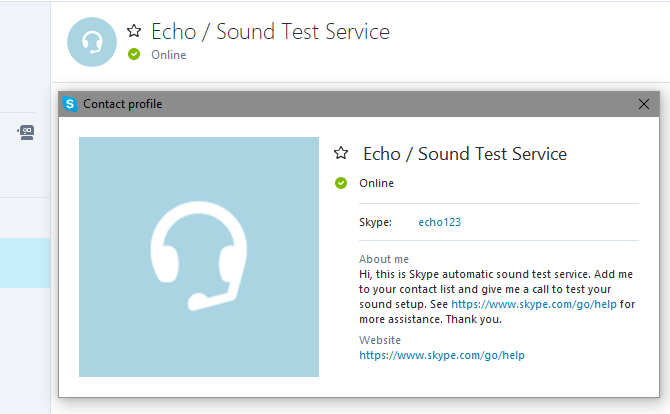
If everything above works properly, try a test call. One way you can perform this is by clicking the Make a free test call link at the bottom of the Audio settings window. You can also add the Skype user named echo123 (named Echo / Sound Test Service) to your contacts list and call it as a test.

Skype Test CallThe call testing service will ask you to speak into your microphone after a beep. It records what you say and, after a few seconds, plays your message back to you. This ensures that everything is working properly—your microphone, speakers, and the network connection. If the call worked properly, you should be good to go.
At this point, if you can’t hear another person on Skype, it’s probably a problem on their end.

6. Double-Check Bandwidth Usage

Skype quality guide

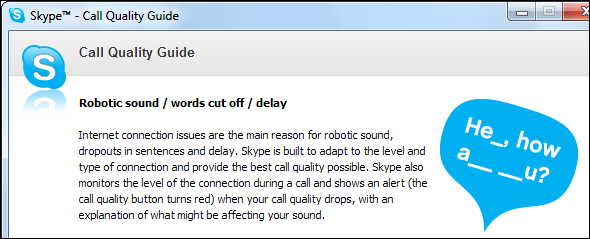
If you—or anyone else on your network—are overloading your network bandwidth with intensive tasks like downloading large files or streaming 4K video, you’ll experience poor call quality. One of the obvious signs of network congestion is robotic-sounding voices. Skype will usually display a red connection icon when this is happening.

Close any file-downloading programs (both on your computer and on other computers on the network) and try placing the Skype call again. If you’re on a Wi-Fi network, try moving closer to your router to improve your connection. You might also want to run through our network troubleshooting guide if you’re having further network problems.

Skype Problems Solved!

Using this quick checklist, you can eliminate common Skype problems and make your calls sound great. Most of the time, what seems like a huge problem is a pretty simple fix.

Remember that for Skype group calls, one user experiencing any of these problems could affect the quality for everyone. Also, you can always get more troubleshooting tips from the call quality guide integrated into Skype. Click the Help menu and select Call Quality Guide to open it.

You can become a better user with our top Skype efficiency tips. Or if you’ve decided that Skype isn’t worth it after all, try one of the best free alternatives to Skype.

Image Credits: Grublee, Tomas Jasinskis, RossHelen/Shutterstock

Read the full article: When Skype Isn’t Working: 7 Key Settings You Must Check


Read Full Article

Technology doesn’t have to be disposable


Dust off your old Bose 501 speakers. New devices are coming that will give traditional audio equipment a voice.

Amazon recently announced a mess of new Echo devices and among the lot are several small, diminutive add-ons. These models did not have a smart speaker built into the devices but rather turned other speakers into smart speakers.

Sonos has a similar device. Called the Sonos Amp, the device connects the Sonos service to audio receivers and can drive traditional speakers. There’s a new version coming out in 2019 that adds Alexa and AirPlay 2.

This movement back towards traditional speaker systems could be a boon for audio companies reeling from the explosion of smart speakers. Suddenly, consumers do not have to choose between the ease of use in an inexpensive smart speaker and the vastly superior audio quality of a pair of high-end speakers. Consumers can have voice services and listen to Cake, too.
Echo devices are everywhere in my house. They’re in three bedrooms, my office, our living room, my workshop and outside on the deck. But besides the Tap in the workshop and Echo in the kitchen, every Echo is connected to an amp and speakers. For instance, in my office, I have an Onkyo receiver and standalone Onkyo amp that powers a pair of Definitive Technology bookshelf speakers. The bedrooms have various speakers connected to older A/V receivers. Outside there’s a pair of Yamaha speakers powered by cheap mini-amp. Each system sounds dramatically better than any smart speaker available.

There’s a quiet comfort in building an audio system: To pick out each piece and connect everything; to solder banana clips to speaker wire and ensure the proper power is flowing to each speaker.

Amazon and Google built one of the best interfaces for audio in Alexa and Google Assistant. But that could change in the future. In the end, Alexa and Google Assistant are just another component in an audio stack, and to some consumers, it makes sense to treat them as a turntable or equalizer — a part that can be swapped out in the future.

The world of consumer electronics survives because of the disposable nature of gadgets. There’s always something better coming soon. Cell phones last a couple of years and TVs last a few years longer. But bookshelf speakers purchased today will still sound great in 20 years.

There’s a thriving secondary market for vintage audio equipment, and unlike old computer equipment, buyers want this gear actually to use it.

If you see a pair of giant Bose speakers at a garage sale, buy them and use them. Look at the prices for used Bose 901 speakers: they’re the cost of three Apple HomePods. Look at ShopGoodwill.com — Goodwill’s fantastic auction site. It’s filled with vintage audio equipment with some pieces going for multiple thousands of dollars. Last year’s smart speakers are on there, too, available for pennies on the dollar.

For the most part, audio equipment will last generations. Speakers can blow and wear out. Amps can get hit by surges and components can randomly fail. It happens, but most of the time, speakers survive.

This is where Amazon and Sonos come in. Besides selling standalone speakers, both companies have products available that adds services to independent speaker systems. A person doesn’t have to ditch their Pioneer stack to gain access to Alexa. They have to plug in a new component, and in the future, if something better is available, that component can be swapped out for something else.

Amazon first introduced this ability in the little Echo Dot. The $50 speaker has a 3.5mm output that makes it easy to add to a speaker system. A $35 version is coming soon that lacks the speaker found in the Dot and features a 3.5mm output. It’s set to be the easiest and cheapest way to add voice services to speakers.

Amazon and Sonos also have higher-end components nearing release. The Amazon Echo Link features digital and discrete audio outputs that should result in improved audio. The Amazon Echo Amp adds an amplifier to power a set of passive speakers directly. Sonos offers something similar in the upcoming Sonos Amp with 125 watts per channel and HDMI to allow it to be connected to a TV.

These add-on products give consumers dramatically more options than a handful of plastic smart speakers.

There are several ways to take advantage of these components. The easiest is to look at powered speakers. These speakers have built-in amplifiers and unlike traditional speakers, plug into an outlet for power. Look at models from Edifier, Klipsch or Yamaha. Buyers just need to connect a few cables to have superior sound to most smart speakers.

Another option is to piece together a component system. Pick any A/V receiver and add a couple of speakers and a subwoofer. This doesn’t have to be expensive. Small $30 amps like from Lepy or Pyle can drive a set of speakers — that’s what I use to drive outdoor speakers. Or, look at Onkyo or Denon A/V surround sound receivers and build a home theater system and throw in an Amazon Echo Link on top. As for speakers Polk, Klipsch, Definitive Technology, KEF, B&W, and many more produce fantastic speakers that will still work years after Amazon stops making Echo devices.

Best of all, both options are modular and allows owners to modify the system overtime. Want to add a turntable? Just plug it in. That’s not possible with a Google Home.

Technology doesn’t have to be disposable.

These add-on products offer the same solution as Roku or Fire TV devices — just plug in this device to add new tricks to old gear. When it gets old, don’t throw out the TV (or in this case speakers), just plug in the latest dongle.

Sure, it’s easy to buy a Google Home Max, and the speaker sounds great, too. For some people, it’s the perfect way to get Spotify in their living space. It’s never been easier to listen to music or NPR.

There are a few great options for smart speakers. The $350 Apple HomePod sounds glorious though Siri lacks a lot of smarts of Alexa or Google Assistant. I love the Echo Dot for its utility and price point, and in a small space, it sounds okay. For my money, the best smart speaker is the Sonos One. It sounds great, is priced right, and Sonos has the best ecosystem available.

I’m excited about Amazon’s Echo and Sub bundle. For $249, buyers get two Echos and the new Echo Sub. The software forces the two Echos to work in stereo while the new subwoofer supplements the low-end. I haven’t heard the system yet, but I expect it to sound as good as the Google Home Max or Apple HomePod and the separate component operation should help the audio fill larger spaces.

Sonos has similar systems available. The fantastic Sonos One speaker can be used as a standalone speaker, part of a multiroom system, or as a surround speaker with other Sonos One speakers and the Sonos Beam audio bar. To me, Sonos is compelling because of their ecosystem and tendency to have a longer product refresh cycle. In the past, Sonos has been much slower to roll out new products but instead added services to existing products. The company seems to respect the owners of its products rather than forcing them to buy new products to gain new abilities.

In the end, though, smart speakers from Apple, Sonos, Google or Amazon will stop working. Eventually, the company will stop supporting the services powering the speakers and owners will throw the speakers in the trash. It’s depressing in the same way Spotify is depressing. Your grandkids are not going to dig through your digital Spotify milk crate. When the service is gone, the playlists are gone.

That’s the draw of component audio equipment. A turntable purchased in the ’70s could still work today. Speakers bought during the first dot-com boom will still pound when the cryptocurrency bubble pops. As for Amazon Alexa and Google Assistant, to me, it makes sense to treat it as another component in a larger system and enjoy it while it lasts.


Read Full Article

How Sending One SMS Message Can Back Up a Web Page to Google Drive


backup-site-sms

Here’s a fast way to save an article or a web page. Just SMS that URL to yourself and save the web page as a PDF file to your Google Drive account to read later.

You can set up this convenient automation yourself in just a few steps, right now! Let’s get started.

Step 1: SMS to Google Sheets With IFTTT

You don’t have to sign up for any paid service to save pages for offline reading. The first step is going to be setting up an automation so that you can SMS a URL to Google Sheets. You’re going to do this by enabling an IFTTT applet.

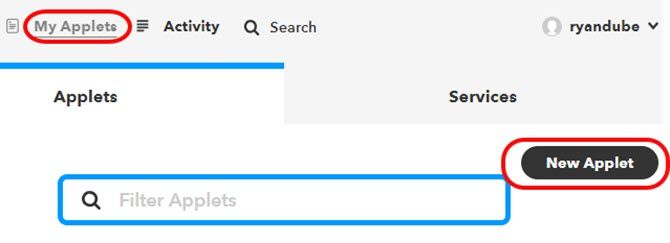
First, go to IFTTT (create an IFTTT account if you don’t have one), click on My Applets, and then New Applet.

new ifttt applet

Click on This, and then type SMS in the search field.

Choose SMS.

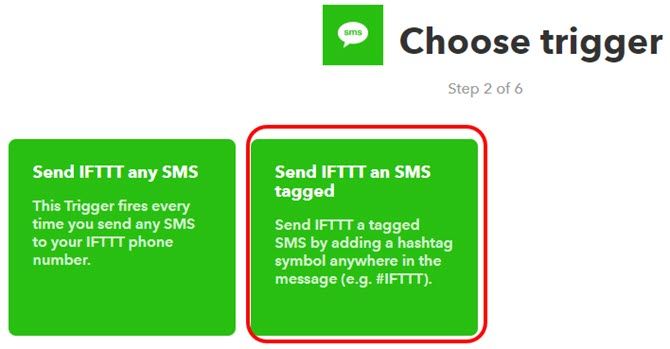
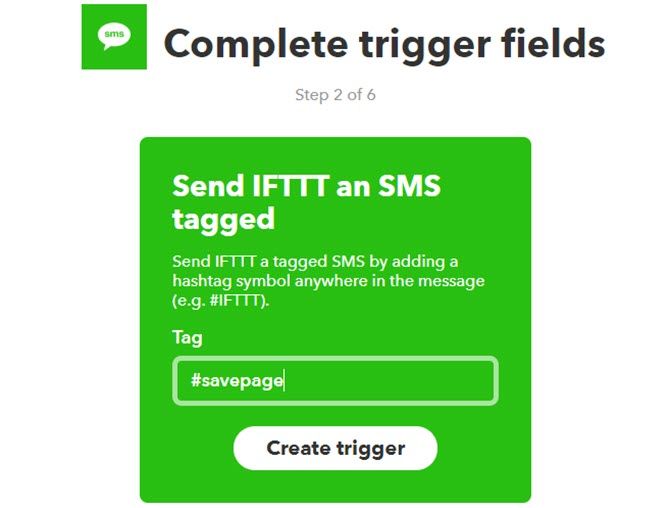
Select Send IFTTT an SMS tagged.

ifttt sms trigger

Next, type #savepage in the field for Tag.

This tells IFTTT to trigger the applet any time you send IFTTT an SMS message where you use the #savepage tag in the message.

Don’t worry about what phone number to send the message to, you’ll get that number further along in the process.

ifttt trigger tag

You’re almost done this step. Click Create trigger, and then on the next page click on That.

This brings up the Action search page.

Write a new field to a Google spreadsheet that will store the URL of the web page you want to save.

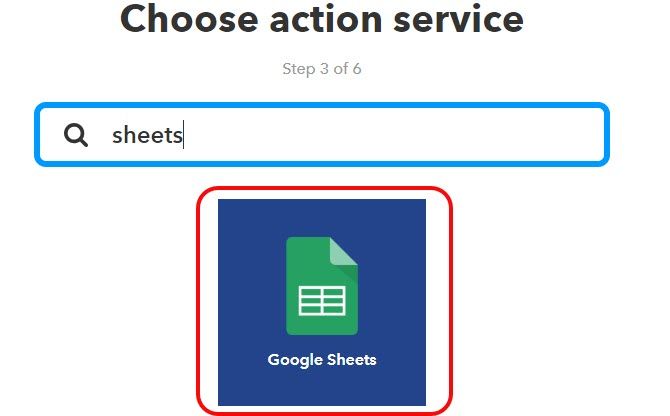
Search for “Sheets” and choose the Sheets action.

google sheets ifttt action

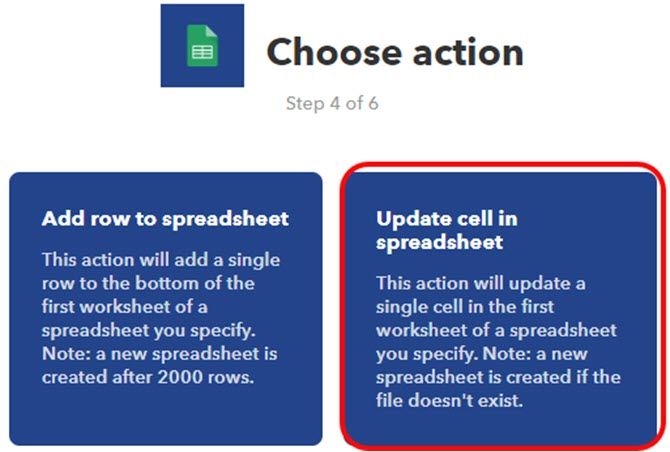
On the next page, you’re going to choose Update cell in spreadsheet.

This tells IFTTT that every time you send an SMS started with #savepage, you want IFTTT to update a specific cell in a spreadsheet in your Google Drive account.

sheets cell udpate action

On the next page is where you set up the specifics of this action.

Set up the fields on this next page as follows.

  • Drive folder path: IFTTT/SMS
  • Spreadsheet name: Article Warehouse
  • Which cell: A2
  • Value:

Before you click on Create, go into your Google Drive account, create the directory IFTTT/SMS, and create a spreadsheet to hold the URL you’ll be sending it.

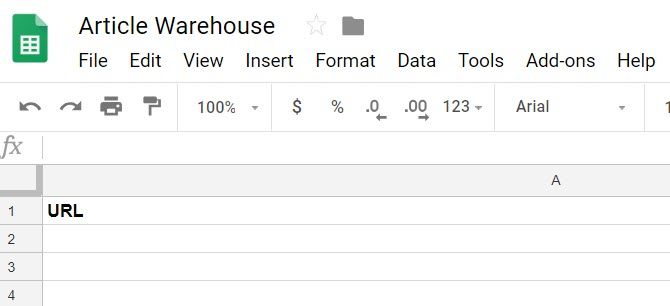
Make the spreadsheet look like this:

spreadsheet to save url

Give the spreadsheet name the exact name you’ve defined in the Spreadsheet name field.

As you can see, cell A2 is blank, and ready to receive the URL value that you’re going to be sending to IFTTT via SMS.

Now, back on IFTTT, click on Create.

Make a note of the phone number that you need to send your SMS to in order to save web pages you want to read later.

Step 2: Save URL to Google Drive

Now you have an automated system to SMS the URL you want to save to a Google Sheet.

Next, you’ll need to create a Google Script to convert that URL to a PDF and save it in a special “MyArticles” folder in your Google Drive account. Don’t worry, we’ve written the script for you, and it’s very simple.

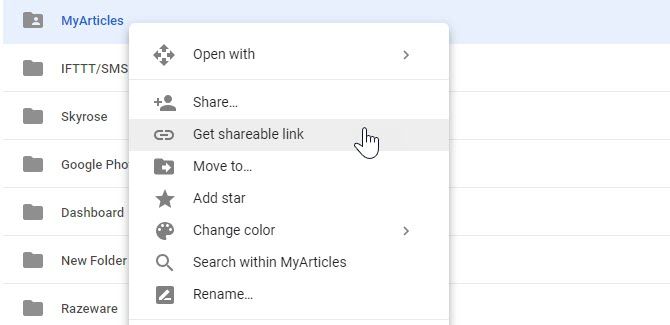
But first, create a new directory in your Google Drive account called “MyArticles”. Right-click on it and choose Get shareable link.

get shareable link

Paste this to notepad and set it aside. You’re going to need the special ID at the end of that link later.

Now, go back to the Article Warehouse Google Sheet you created above.

To create a new Google Script, click on Tools and then Script editor. Rename this project as SaveURL. Then paste the follow script in Code.gs:

function myFunction() {
  var ss = SpreadsheetApp.getActiveSpreadsheet();
  var sheet = ss.getSheetByName('Sheet1'); 
  var range = sheet.getRange(2,1); 
  var data = range.getValue();  
  var URLtext = data.substring(10,data.length)
  var response = UrlFetchApp.fetch(URLtext);
  var htmlBody = response.getContentText();
  var blob = Utilities.newBlob(htmlBody, 'text/html').getAs('application/pdf').setName(Date() + '_MyArticle.pdf');
  var folder = DriveApp.getFolderById("<type your folder ID here>")
  var file = folder.createFile(blob);
}

Here’s how this script works, step-by-step:

  1. Pulls the URL that’s stored in cell A2 (this is what “getRange(2,1)” does)
  2. Strips the first 10 characters, “#savepage” from the URL string
  3. Fetches the web page from the internet
  4. Converts the web page to PDF format
  5. Saves the PDF file to the drive that you’ve specified.

In the script, replace “<type your folder ID here>” with the ID of your folder from the notepad file you saved above.

get google drive folder id

Save this script by clicking on the disk save icon.

Step 3: Trigger the Script on Sheet Update

You want your script to run every single time the spreadsheet changes. A change in the spreadsheet means you’ve sent a new SMS with a new URL to save.

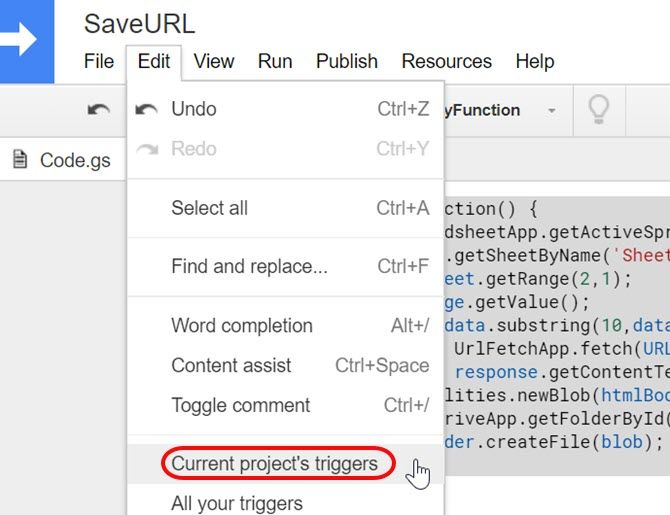
To do this, in the Script Editor window, click on Edit and then Current project’s triggers.

current project triggers

You’ll see that there are no triggers present for this project yet.

Click on the blue link, Click here to add one now.

trigger script on sheet change

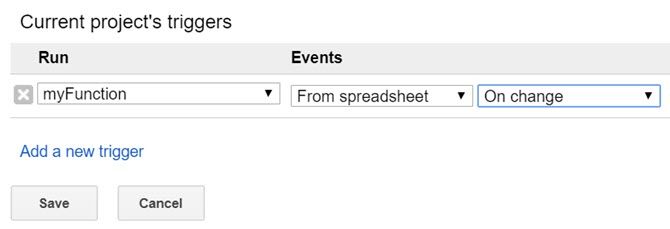
Configure the trigger by setting “Run” to myFunction, and “Events” to From spreadsheet, and On change.

Now your entire project is finished and ready to test!

Step 4: Testing Your Script

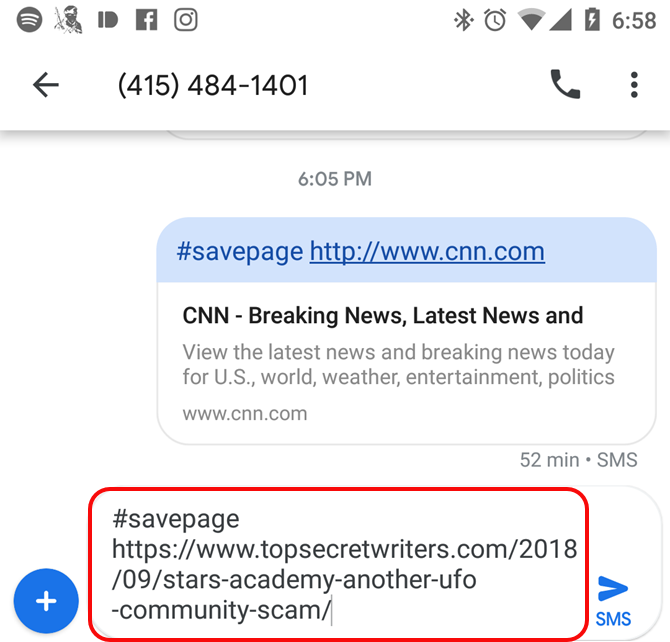
On your mobile phone, send an SMS to the phone number you recorded above. Make sure to include “#savepage” in front of the URL.

Just copy the URL from your mobile browser window, and paste it into the SMS message.

send url via sms

Next, check to make sure IFTTT worked properly.

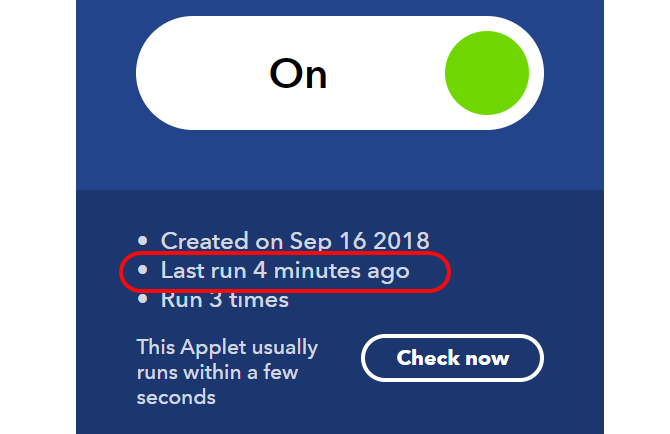
Go to your IFTTT account, click on the Applet you created for this project, and check when it last ran.

check when applet ran

If everything worked properly, it should have just ran recently.

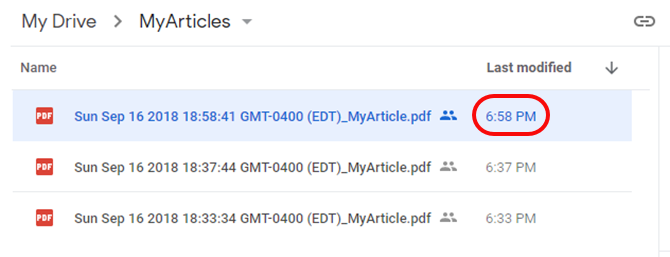
Once you’ve confirmed your IFTTT applet is working, next go to your Google Drive account and check the folder you created for your articles.

You should see a new PDF file appeared in the last few minutes.

verify pdf file

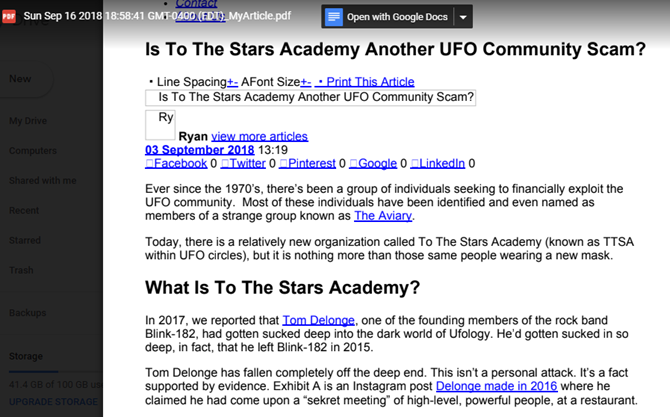
Open the PDF and make sure that it saved the right web page.

You’ll notice that the images from the page aren’t included in the PDF version.

read saved pdf web page

Saving Information Online via SMS

The fact that images are left out is beneficial for a few reasons.

It dramatically reduces the size of the PDF file stored in your drive. It also lets you focus on saving text that you want to read later, and it makes the process of skimming and reading it later less distracting.

This is a very efficient way to quickly save academic papers on the web, news stories you want to read later, or any other text online you want to save quickly.

This was just one example. There are many other examples of how you can boost your productivity with Google Scripts as well.

Read the full article: How Sending One SMS Message Can Back Up a Web Page to Google Drive


Read Full Article

Google and Yandex may collaborate on a real-time blacklist of all known pirated works


A meeting on the status of anti-piracy efforts at search engines has produced a collaborative approach to better addressing the issue of pirated works appearing in search results. An international collective of search giants thinking of creating a blacklist of all known pirated works, which will be compared with search results every five minutes and any matches removed.

The meeting, which took place last week, was reported by Russian outlets Vedomosti and RBC; TorrentFreak noted the news soon after. The attendees included Google, Yandex, Mail.ru Group, Gazprom Media, and other local trade associations. The issue at hand: how to return accurate results when someone searches for “download princess bride movie” without also including links to piracy sites.

Yandex in particular has been under threat by regulators for its refusal to take more serious steps to block pirated content — the company argues that it isn’t required by law to do so. The argument is in some ways similar to that of Google, which has resisted pressure to be the first and last line of defense, incurring great cost to protect someone else’s property. But clearly both are open to a more collaborative effort.

The solution proposed by the groups is a shared ledger of links and works known to be pirated. This register would be continually updated and each partner would regularly check it against its index and strike any matches from being displayed in results within six hours.

The list would be curated by the companies themselves and rightsholders who find, as they often do, links to or copies of their copyrighted materials online.

Obviously this isn’t an entirely novel idea: search engines and media companies of course have their own lists and may even share some information, and Russian regulator Roscomnadzor has one that ISPs consult when issuing blocks at their level. But this would be an official, cross-border, cross-industry collaboration, built to minimize both the time and paperwork needed to remove an infringing link.

The difficulties and dangers of such a system are easily imaginable. A mistaken or fraudulent entry could lead to a site being delisted or demoted in search results, and because this system is largely internal to the companies and not part of an official process (like DMCA takedowns, such as they are), the owner of that entry could lack recourse. There’s no shortage of stories of YouTube videos being taken down via fraudulent reports, so the new system would need to be both robust against that threat and responsive to petitions.

There are also plenty of ways that piracy sites can escape the clutches of these systems, which by necessity given the scale of the issue, are largely automated. Futzing with the URL — for instance, generating a new one for every user and deleting them shortly after —  could lead to an inflated and inaccurate register. (That’s just one simple way of throwing a wrench in the machinery; piracy sites are technically adept and legally savvy and their methods may be rather more sophisticated.)

And because the list wouldn’t necessarily be backed by law — this would be an understanding between these organizations based on mutual benefit — it might be respected only when convenient. If, for example, one of the companies faces an ugly lawsuit or challenge regarding a listing, it may choose to slacken its enforcement to avoid such complications.

The war between big web properties and piracy is an ongoing one and no one is likely to strike a killing blow given how advanced things are on both sides of the line of battle. But it’s equally unlikely that either side will stop or slow in its efforts to gain the upper hand, if only temporarily.

It’s unclear what stage this effort is at, but Roskomnadzor and the trade associations confirmed to Vedomosti that work is underway, though Yandex would only say that it was involved. I’ve asked Google for comment and will update this story if I hear back.


Read Full Article

Snapchat lets you take a photo of an object to buy it on Amazon


See, snap, sale. In a rare partnership for Amazon, the commerce giant will help Snapchat challenge Instagram and Pinterest for social shopping supremacy. Today Snapchat announced it’s slowly rolling out a new visual product search feature, confirming TechCrunch’s July scoop about this project codenamed “Eagle”.

Users can use Snapchat’s camera to scan a physical object or barcode which brings up a card showing that item and similar ones along with their title, price, thumbnail image, average review score and Prime availability. When the tap on one, they’ll be sent to Amazon’s app or site to buy it. Snapchat determines if you’re scanning a song, QR Snapcode, or object, and then Amazon’s machine vision tech recognizes logos, artwork, package covers, or other unique identifying marks to find the product. It’s rolling out to small percentage of US users first before Snap considers other countries.

Snap refused to disclose any financial terms of the partnership. It could be earning a referral fee for each thing you buy from Amazon, or it could just be doing the legwork for free in exchange for added utility. A Snapchat spokesperson tells me it’s the latter is the motivation (without ruling out the former), as Snapchat wants its camera to become the new cursor — your point of interface betwen the real and digital worlds.

Social commerce is heating up as Instagram launches Shopping tags in Stories and a dedicated Shopping channel in Explore, while Pinterest opens up Shop The Look pins and hits 250 million monthly users. The feature should mesh well with Snap’s young and culture-obsessed audience. In the US, its users are 20 percent more likely to have made a mobile purchase than non-users, and 60 percent more likely to make impulse purchases according to studies by Murphy Research and GfK.

In the video demo above, you can see Snapchat identifying Under Armour’s HOVR shoe (amongst all its other models), and the barcode for Covergirl’s clean matte liquid makeup. That matches our scoop based on code dug out of Snapchat’s Android app by TechCrunch tipster Ishan Agarwal. Snapchat’s shares popped three percent the day we published that scoop, and again this morning before falling back to half that gain.

The feature could prove useful for when you don’t know the name of the product you’re looking at, as with shoes. That could turn visual search into a new form of word-of-mouth marketing where every time an owner shows off a product, they’re effectively erecting a billboard for it. Eventually, visual search could help users shop across language barriers.

Amazon is clearly warming up to social partnerships, recognizing its inadequacy in that department. Along with being named Snapchat’s official search partner, it’s also going to be bringing Alexa voice control to Facebook’s Portal video chat screen that’s reportedly debuting this week according to Cheddar’s Alex Heath.

Snapchat could use the help. It’s now losing users and money, down from 191 million to 188 million daily active users last quarter while burning $353 million. Partnering instead of trying to build all its technology in-house could help reduce that financial loss, while added utility could aid with user growth. And if Snap can convince advertiers, they might pay to educate people on how to scan their products with Snapchat.

Snap keeps saying it wants to be a “Camera Company” but it’s really an augmented reality software layer through which to see the world. The question will be whether it can change our behavior so that when we see something special, we interact with it through the camera, not just capture it.


Read Full Article

Snapchat lets you take a photo of an object to buy it on Amazon


See, snap, sale. In a rare partnership for Amazon, the commerce giant will help Snapchat challenge Instagram and Pinterest for social shopping supremacy. Today Snapchat announced it’s slowly rolling out a new visual product search feature, confirming TechCrunch’s July scoop about this project codenamed “Eagle”.

Users can use Snapchat’s camera to scan a physical object or barcode which brings up a card showing that item and similar ones along with their title, price, thumbnail image, average review score and Prime availability. When the tap on one, they’ll be sent to Amazon’s app or site to buy it. Snapchat determines if you’re scanning a song, QR Snapcode, or object, and then Amazon’s machine vision tech recognizes logos, artwork, package covers, or other unique identifying marks to find the product. It’s rolling out to small percentage of US users first before Snap considers other countries.

Snap refused to disclose any financial terms of the partnership. It could be earning a referral fee for each thing you buy from Amazon, or it could just be doing the legwork for free in exchange for added utility. A Snapchat spokesperson tells me it’s the latter is the motivation (without ruling out the former), as Snapchat wants its camera to become the new cursor — your point of interface betwen the real and digital worlds.

Social commerce is heating up as Instagram launches Shopping tags in Stories and a dedicated Shopping channel in Explore, while Pinterest opens up Shop The Look pins and hits 250 million monthly users. The feature should mesh well with Snap’s young and culture-obsessed audience. In the US, its users are 20 percent more likely to have made a mobile purchase than non-users, and 60 percent more likely to make impulse purchases according to studies by Murphy Research and GfK.

In the video demo above, you can see Snapchat identifying Under Armour’s HOVR shoe (amongst all its other models), and the barcode for Covergirl’s clean matte liquid makeup. That matches our scoop based on code dug out of Snapchat’s Android app by TechCrunch tipster Ishan Agarwal.

The feature could prove useful for when you don’t know the name of the product you’re looking at, as with shoes. That could turn visual search into a new form of word-of-mouth marketing where every time an owner shows off a product, they’re effectively erecting a billboard for it. Eventually, visual search could help users shop across language barriers.

Amazon is clearly warming up to social partnerships, recognizing its inadequacy in that department. Along with being named Snapchat’s official search partner, it’s also going to be bringing Alexa voice control to Facebook’s Portal video chat screen that’s reportedly debuting this week according to Cheddar’s Alex Heath.

Snapchat could use the help. It’s now losing users and money, down from 191 million to 188 million daily active users last quarter while burning $353 million. Partnering instead of trying to build all its technology in-house could help reduce that financial loss, while added utility could aid with user growth. And if Snap can convince advertiers, they might pay to educate people on how to scan their products with Snapchat.

Snap keeps saying it wants to be a “Camera Company” but it’s really an augmented reality software layer through which to see the world. The question will be whether it can change our behavior so that when we see something special, we interact with it through the camera, not just capture it.


Read Full Article

Google Lens is coming to Google Image Search to help you figure out what you’re seeing


At a small press event in San Francisco today, Google dropped a mention of a big new feature on the way: Google Lens support is coming to Google Image Search.

For the unfamiliar, Google Lens (previously available as a dedicated app, and as part of Google Photos) taps the company’s computer vision work to figure out the contents of an image and provide more details about exactly what you’re looking at.

One example Google demonstrated: in a search for “nursery”, you might see a crib you like and want to buy. With the existing search interface, finding that exact model of crib with nothing but that image might prove challenging. Besides the color and “crib”, what keywords do you type in?

Tap the new Lens button, however, and Google will throw all of its computer vision chops at the image to tear it apart and try to work backwards to identify it. Want to identify something else in the image — like, say, a lamp in the background — instead? Use your finger to highlight that specific section, and it’ll focus on that object instead.

It’s not limited to random pieces of furniture though — it can identify dog breeds in a photo, or landmarks, or clothing, or cars, or any number of abstract categories. If Google has seen enough images of that object or thing to model some level of understanding of it, Lens should be able to work backwards to tell you more about it.

Lens should start rolling into Image Search later this week.


Read Full Article

The Roku Premiere Offers 4K Streaming on a Budget


Roku has launched two new devices, and they both provide 4K streaming for those on a budget. The Premiere and Premiere+ are tiny streaming players that boast both 4K and HDR capabilities. Which means you can finally take advantage of your new 4K TV.

Roku Launches Even More New Hardware

This time last year Roku unveiled lots of new hardware. This was a complete refresh of its lineup, and left consumers with a dizzying array of options. And now that situation is getting worse, with Roku launching two brand new devices.

The Roku Premiere is a small but powerful device. It’s about the size of last year’s Roku Express, but adds 4K and HDR streaming to the mix. Priced at $39.99, the Roku Premiere is available to pre-order from Roku.com, and will be available at other retailers in October.

The Roku Premiere+ is virtually identical to the standard Premiere. The only differences being it’s a Walmart exclusive, and comes with an enhanced voice remote. Priced at $49.99, the Roku Premiere+ will be available from early October 2018.

The Roku Ultra remains Roku’s premium device. At $99.99 it still offers 4K, HDR, Ethernet and wireless connections, and an enhanced remote. However, for 2018, Roku is bundling a pair of JBL headphones worth $39.95 with the Ultra.

Roku Isn’t Making Money on Hardware

With the release of these three new packages Roku has seven devices available to buy. So, Roku’s strategy seems to be to offer a huge range of different devices in the hopes of catering to everyone. And that scattergun approach may just work.

Even with all this hardware Roku doesn’t see itself as a hardware company. Instead, it’s an advertising company that’s selling hardware in order to build an audience. And with initiatives such as The Roku Channel, this strategy is clearly paying off.

Read the full article: The Roku Premiere Offers 4K Streaming on a Budget


Read Full Article

24 September 2018

Low Storage on Windows 10? 5 Tips to Help Reclaim Your Disk Space


disk-space-windows-10

You know it’s coming, the warning signs are there, and all of a sudden: you’re out of disk space. Although this isn’t as much a problem now as it was a few years ago—since hard drives are now both expansive and affordable—it’ll occur sooner or later.

Especially if you’re a gamer or designer using a PC laden with large files, folders, and programs. You may be asking “Well I’ve already run every cleaner out there, what’s next?” Read on!

Note: The following article assumes that you regularly clean your PC. If you rarely do, head to the following article for a brief on PC maintenance.

1. The Red Bar

You can only download files online for so long before they get a hold of you. Worse yet, that speedy SSD can easily get bogged down by the occasional large program.

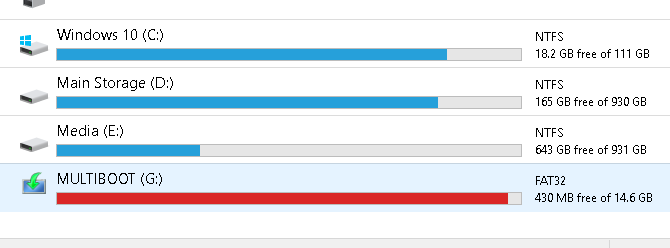
If you’ve already received warning from your Windows PC that your storage space is low, check it yourself by clicking your start menu and typing in file. Select the File Explorer option.

Scroll down the left-hand side of the window and select This PC.

The above is an example of a flash drive filled to capacity. Your storage will appear red when it is near full. You will also receive notifications from your PC when your storage is at full capacity.

If the hard drive your OS is installed on is full, your PC will freeze and, at times, cease to function until you clear some storage space.

2. Disk Cleanup

The first thing you must do to fix a slow storage issue is clear the trash present on your PC. It won’t budge your PC much, unless you’re long overdue for a cleaning.

There are plenty of tried and true ways to clean PC clutter. Disk Cleanup is the default method to clear trash on Windows 10, and it works surprisingly well.

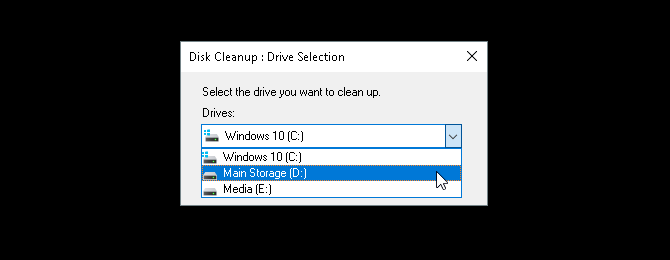
Click on your start menu and type in disk cleanup. Select the Disk Cleanup option, and then select the drive you want to clean.

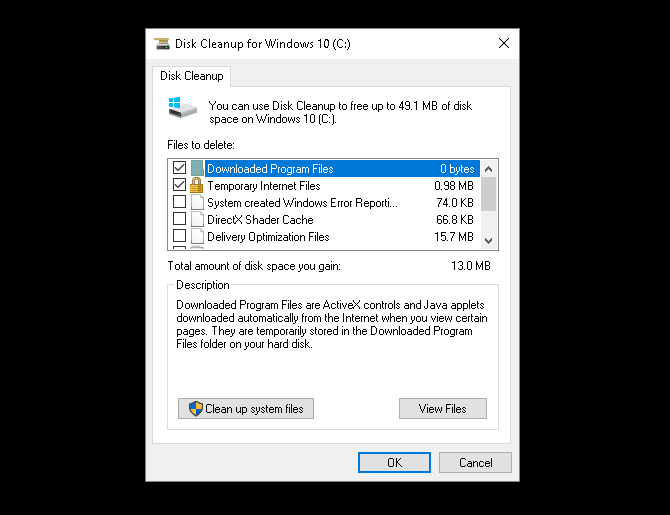
You’ll be presented with a selection of options to choose from.

To make some emergency space, the following options are the least invasive and won’t require you delete necessary files:

  • Downloaded Program Files
  • Temporary Internet Files
  • Thumbnails
  • Temporary files
  • Recycle Bin

That’ll take care of extraneous files, and should stop any hiccups you may be experiencing from the lack of storage.

3. Clean Up System Files

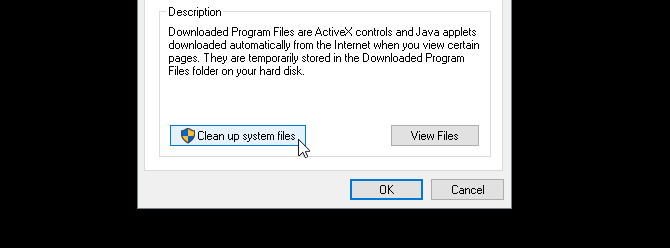
System files can seriously bog down your PC. To view what extraneous system files you have on your PC, select the option labelled Clean up system files at the bottom of your Disk Cleanup window. You will have to re-scan your drive.

There are a few important entries in the following selection that may free up a considerable amount of disk space. These are:

  • Windows Update Cleanup: “Windows Update cleanup deletes or compresses older versions of updates that are no longer needed and taking up space.”
  • Previous Windows installation(s): Deletes previous versions of Windows located in your local drive, which are typically reserved as backup operating systems.

Both of these options, if available, are safe to delete if your PC is otherwise in good working condition. Previous Windows installations typically delete automatically after about 30 days.

4. Uninstall Programs and Apps

The best way to create space in your PC is to uninstall otherwise unused programs. Everyone installs programs they don’t need. Over time, those unused programs can really add up.

First, start by running your default uninstall program. Click on the start button and enter control panel. Select the Control Panel option. Then head to Programs > Programs and Features.

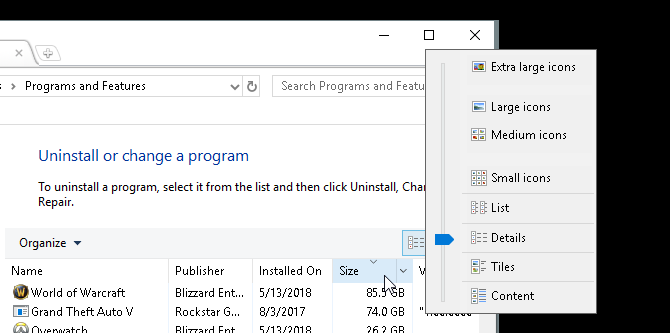
It’s a good idea to clear the largest possible installed programs you don’t use first. To organize your programs, click on the Organization icon to the top-left of your window and drag the blue slider to Details.

Then, click on the Size tab in your window. Your programs will appear in descending order according to size. Begin to scroll through your programs, and delete the programs you don’t use anymore by right-clicking your program and selecting Uninstall/Change.

Third-Party Uninstaller Programs

While the default uninstall program works well, it may also leave behind large, hidden files. To ensure you’ve completely deleted your files, you may want to look into installing a third-party uninstaller program.

My personal recommendation is Revo Uninstaller. It both locates and delete extraneous files associated with the program you uninstalled. Revo Uninstaller can also locate programs on your desktop that don’t typically appear in uninstall applications.

5. Locate Large File “Chunks”

An unfortunate side effect of digitized art and entertainment is storage clutter. If you design, game, or watch movies, huge chunks of your PC’s storage will be dedicated to large files.

The issue? Those large files are often embedded in obscure folders.

To visualize and locate large files, you’ll need to download and install WinDirStat. This program seems frozen in time, but WinDirStat is absolutely crucial when it comes to locating the particular size and scope of folders on your PC. Another good option is WizTree.

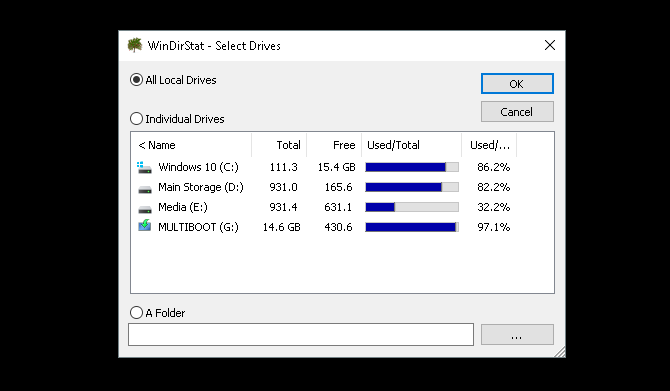
Install the application once you’ve cleared a bit of space on your PC. Then, run it by clicking your start menu and typing windirstat. Select the WinDirStat option. Finally, select one of the following options and click OK.

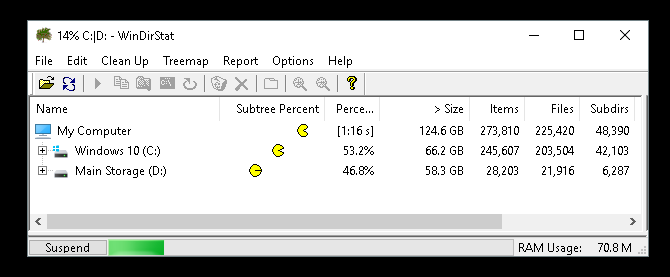
You can search all your local drives, including USB drives, individual drives, and even individual folders. Once you choose your selection, the program will load the display of your local files.

This process is both time-consuming and intensive, so limit the use of other programs like games or graphic editors.

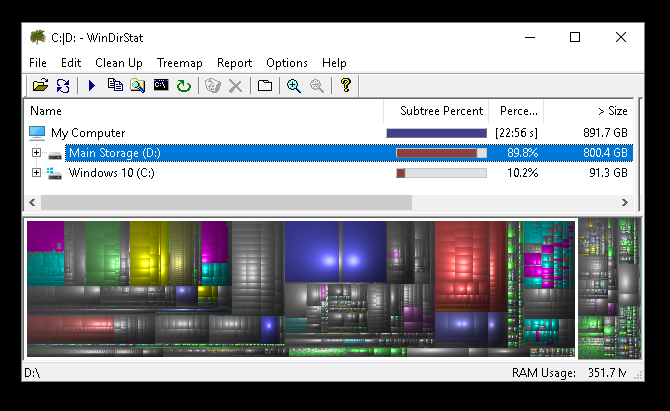
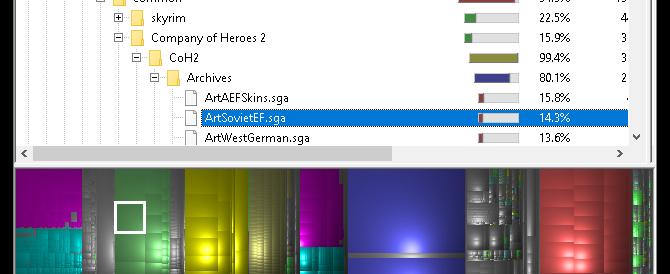
Once you’re files are loaded, you will be presented with a color-coded display of your files and folders.

Larger blocks are single chunks of storage. Similar colored blocks are individual files located within the same folder.

Click on individual blocks on the bottom of your window to view the location of the file above.

You’ll note that most composite chunks of storage will be used for games or system folders.

Click on large, single chunks, as those will clear the most clutter. Try to locate a downloaded ZIP or game add on you’ve forgotten about or stopped using.

They’re surprisingly easy to find, since the average PC user downloads so many different files and applications over the course of a hard drive’s lifespan.

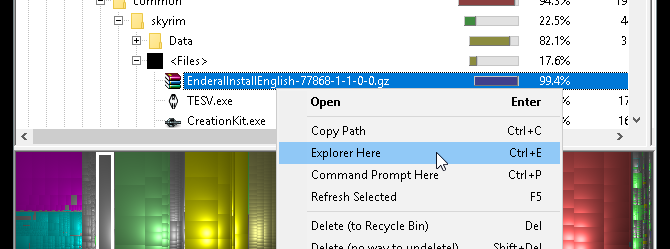
Right-click on your file and select Explorer Here. This will open your default file explorer to the selected file. Then, simply delete the file or folder.

Keep in mind, deleting parts of a program or game may render them obsolete. If you’re going to delete a file, ensure that it is not necessary for the use of another. Large, forgotten downloads are perfect candidate.

Cleaning Up Even More Disk Space

A download here and there, and next thing you know your PC has ground to a halt. It can be stressful trying to decide what file to remove when you’ve already exhausted typical cleansing tools.

No worries, now you know exactly how to go about clearing all that unwanted clutter. If necessary, keep going with our article on freeing up extra disk space in Windows 10.

Read the full article: Low Storage on Windows 10? 5 Tips to Help Reclaim Your Disk Space


Read Full Article