29 July 2020

Google’s Subsea Cable to Connect the US, UK, and Spain


Google’s new subsea cable is going to connect the US, UK, and Spain by 2022. Google has announced its intentions to lay this submarine cable on the Google Cloud Blog.

The new cable is the fourth of its kind owned by the company. It’ll be the first one owned by Google that connects the US to Spain. It will be one of the first new cables to connect the US and the UK since 2003.

What You Need to Know About Google’s Subsea Cable

Google has decided to call its new subsea cable Grace Hopper after the computer scientist known for her work on the development of the COBOL programming language.

The company will launch its cable from New York, NY, and run it under the Atlantic ocean. The cable will split off and go to Bude in Cornwall in the UK and Bilbao in Spain.

The undersea cable will have 16 fiber pairs, which Google says will provide “a significant upgrade to the internet infrastructure connecting the US with Europe.”

As far as what this means for end-users, the company claims, “Grace Hopper will incorporate novel optical fiber switching that allows for increased reliability in global communications, enabling us to better move traffic around outages.” Google says it will help power services like Meet, Gmail, and Google Cloud.

In fact, 98 percent of internet traffic travels through undersea cables. Adding a new one that connects major cities should help improve Google services a great deal.

Google also says that this new cable will allow it to provide “better resilience for the network that underpins Google’s consumer and enterprise products.”

Google has already signed a contract to build the cable with New Jersey-based subsea cable provider, SubCom.

International Cables Upgrade the Internet

The idea of placing cables miles under the ocean may sound daunting. However, transatlantic cables have been laid on the seabed since the 19th century. And Google’s efforts here will make the internet function better for all of us, so we’re not complaining.

Unfortunately, you can’t install fiber cables directly to the nearest internet source. However, you can improve your home Wi-Fi with these useful tips.

Read the full article: Google’s Subsea Cable to Connect the US, UK, and Spain


Read Full Article

You Can Now Listen to Spotify With Friends Online


If you have ever wanted to listen to Spotify with friends online, now you can. And it’s all thanks to the Spotify Group Session feature. Spotify launched Group Session in May 2020, but at the time it was limited to people in the same place. Now, that’s no longer the case.

How to Start a Spotify Group Session

In a post on For the Record, Spotify has announced the latest version of its Group Session feature. While still in beta, the feature is evolving to allow “Spotify Premium users around the world to tune into the same playlist or podcast simultaneously.”

It doesn’t matter how far away you live from your family and friends, you can all now listen to Spotify together online. The content will sync for everyone, so you all know you’re listening to the same song (or podcast) at the same time.

Everyone in the Group Session can control playback. Which means you can all play, pause, skip songs, and select tracks for the queue. This could lead to arguments, which you’ll have to have on a separate messaging app as there’s currently no chat feature available on Spotify.

To start a Spotify Group Session with friends online:

  1. Open Spotify and start playing a piece of content.
  2. Tap the Connect menu in the bottom-left corner.
  3. Scroll down to Start a Group Session and tap it.
  4. Share the invite link with your friends online.

For now, up to five people can listen to Spotify together in a Group Session. However, the feature is still currently in beta, and the music streaming service expects Group Session to evolve over time. So who knows, maybe one day you’ll be able to invite everyone you know to listen to cheesy pop music.

Other Ways to Listen to Music With Friends Far Away

While most of us will be happy to listen to Spotify alone through headphones most of the time, the Group Session feature is a nice option to have when you need some company. And if you don’t subscribe to Spotify Premium, here are some other ways to listen to music with friends.

Read the full article: You Can Now Listen to Spotify With Friends Online


Read Full Article

Pixoo Max: The Best Pixel Display Yet, at a Budget Price


pixo max featured image lego
Our verdict of the Divoom Pixoo Max:
A gorgeous pixel art display screen without any fluff, and at a great budget price point. If you've been waiting for the right time to grab a Divoom display, we think you'll like this one.
1010

Divoom makes retro pixel art displays of all shapes and sizes, but their latest display, the Pixoo Max, is the simplest, brightest, and most vivid yet.

The Pixoo Max is available to preorder on Kickstarter until August 14th, but hurry to secure the last few spots of early bird $69 pricing. If alarm bells are ringing at the very mention of the word Kickstarter, don’t worry. Divoom is a seasoned pro at crowdfunding and should have no issues fulfilling this campaign too.

Pixoo Max Specifications

  • Size: 1 inch (2.5cm) thick, 7 inches (18cm) wide and tall
  • Screen size: 6.25×6.25 inches square (16x16cm)
  • Resolution: 32×32 pixels
  • Battery: 5000mAh
  • Accessories: 1.5m USB-C cable, kickstand, stickers
  • Car mounting kit: Two suction cup mounts, 3.5m car port extension cable, car port to USB adaptor
pixoo max
Even at half brightness, the 32×32 pixel display is perfectly visible in daylight, and colors are vivid

With the car mounting kit (currently included in the Kickstarter package), you can turn the Pixoo Max into an inter-car messaging system. The battery is also designed to withstand higher temperatures of up to 80C (176F), so it shouldn’t explode when left in the car on a sunny day. That’s always nice.

On the side of the device you’ll find simple controls for power, and to change the mode. Charging is done using a USB-C cable. An AC charger is not included, though any phone charger will work.

Two small mounting threads can on the top and bottom of the frame, where the two suction cup mounts can be attached. This is great for attaching to glass, either for mounting on your car rear windscreen, or standard glass panes for digital signage applications. On the back of the Pixoo Max is a hole for a screw or picture hook, should you wish to hang it.

pixoo max glass mounting

Finally, for use freestanding, a simple plastic rod is included, which can be poked into the back. Freestanding, the frame tilts about 30 degrees backward.

Compared to the other Divoom displays I’ve tested, the Pixoo Max appears to be the brightest yet.

pixoo max comparison to other displays

Siri Integration

One of the standout new features of the Pixoo Max is voice control, designed primarily for use when you’ve mounted the device in your car. Currently, this is only compatible with iOS Siri, though this may change in the future.

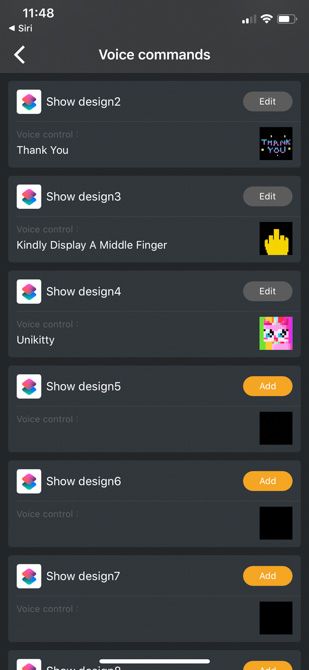
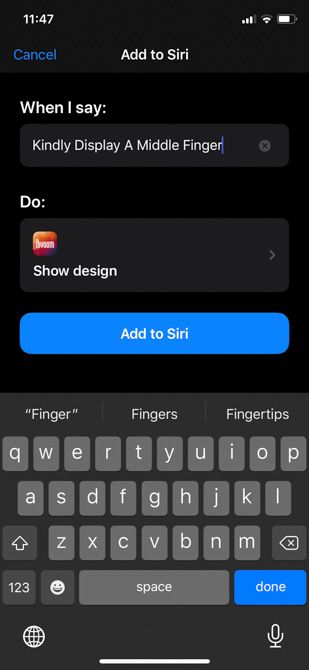
Voice control makes uses of the Siri Shortcuts feature, providing a set of predefined commands like increase brightness, as well up to ten completely custom commands of your choosing. For instance, you could set one to thank the driver behind you, or to show some other appropriate gesture.

In my testing, this worked really reliably, presumably because Siri matches more accurately to locally stored specific commands than trying to infer a meaning. Siri will automatically open up the Divoom app, and set the appropriate design on the display.

pixoo max door message

Of course, using the Siri Shortcuts isn’t limited to in-car use. Anti-social folk could also send messages to someone at the door. Shopkeepers could display the official mask-wearing emoji as a gentle reminder. However, your messages would need to be saved already as an animation–you can’t tell Siri to display some text on the fly, or to search the library of animations.

Voice control is a neat feature, but if this isn’t something you think you’ll use, or have no intention of mounting it in your car, not a problem. The real highlight is the Divoom app, available for iOS and Android.

Divoom App Features

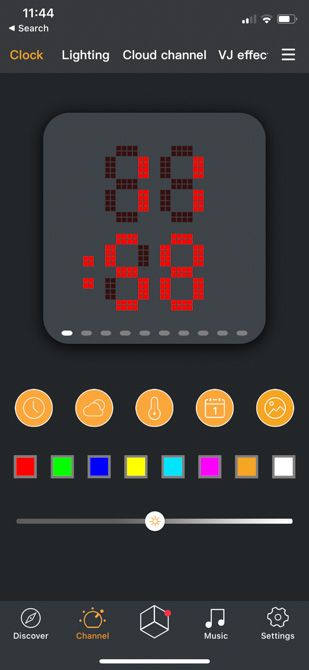
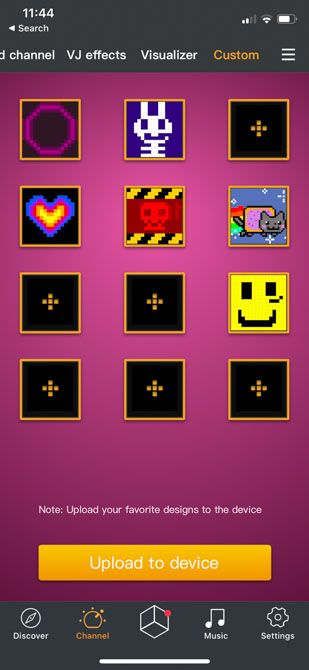
As with all Divoom displays, the Divoom app is core to the experience. It’s your gateway to an archive of pixel art from talented artists and other users, all available for free. In fact, users even get rewarded for submissions in monthly competitions. The amount of pixel art you’ll find in the app is immense, with more added every day–you’re sure to find something you like.

The Pixoo Max can display both 32×32 and 16×16 artworks, so your choice is even larger than before. You can search, browse, mark your favorites, and create a custom playlist of up to 12 animations (which can be uploaded to the device for use offline). If you’re feeling lazy, just set the screen to a cloud channel, a curated playlist of the most popular animations that updates each month.

Creative types, of course, can create their own animations from scratch, or use the comprehensive text tools to create marquee signs.

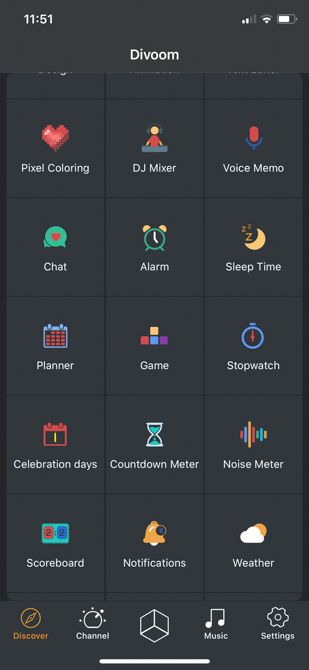
You’ll also find a variety of small games and “applets” you can run on the Pixoo, like a paint-by-numbers game, a score counter, or a music visualizer (which uses the built-in microphone).

Divoom continues to innovate constantly with fun new features. You might not use any of them, and may just be here for the extensive library of pixel art, but it’s nice to find a company that actively engages with their user community and continues to develop the products.

Is This The Pixel Display You’ve Been Looking For?

In your car, on your shelf, or for digital signage, the Pixoo Max is an incredibly versatile display that’ll look fantastic. For messaging, meme-ing, or just the love of pixel art. It’s bright, vivid, and puts all the focus on the art itself, rather than the trimmings around the edge. There’s a variety of mounting options, and your creative choices are unlimited. Grab a bargain by backing the Kickstarter today!

pixoo max close up lego

If you’d like something a little more like an object of art, check out the Tivoo Max. It’s designed to look like an old CRT television, and features a bassy Bluetooth speaker. Or if you’d rather strap a massive pixel display to your back, the Pixoo Backpack might be more up your alley.


Enter the Competition!

Divoom Pixoo Max Giveaway

Read the full article: Pixoo Max: The Best Pixel Display Yet, at a Budget Price


Read Full Article

The 8 Best Fluid Head Tripods Under $200


fluid-head-tripods

When looking for a tripod for your video camera, there are a dizzying array of options with across many price ranges. That definitely makes it difficult to know where to start. If you’re looking for a great way to capture stable videos, a fluid head tripod is a great choice.

As you might have guessed by the name, the system uses a fluid chamber to help lessen any jerkiness or vibrations when capturing video. They can easily make a big difference in the final result and turn a decent video into something better.

Here are some of the best fluid head tripods under $200.

1. COMAN Heavy Duty Tripod

COMAN Heavy Duty Tripod COMAN Heavy Duty Tripod Buy Now On Amazon $129.99

A great all-around choice is the COMAN Heavy Duty Tripod. The fluid head can pan 360 degrees. It can also tilt +90 degrees and -75 degrees vertically to help capture the best shot. Along with legs made from a high-strength aluminum alloy, there is a spreader in the middle of the tripod to help the left from collapsing on uneven ground and to add stability.

There is a 1/4-inch screw and spare 3/8-inch screw for compatibility with most cameras and camcorders. A safety button on the left side of the fluid head helps equipment from accidentally falling down. The maximum load is 13.2 pounds. You can adjust the 10.2-pound tripod from 35.6 inches to 72 inches.

2. Magnus VT-4000 Tripod System

Magnus VT-4000 Tripod System Magnus VT-4000 Tripod System Buy Now On Amazon $119.00

The Magnus VT-4000 Tripod System features a two-way fluid head for smooth motion. A two-stage design easily allows you to adjust the tripod’s height from 27.6 inches to 59 inches. The fixed counterbalance spring is set to 3.3 pounds to help provide smoother tilt motions. Ground spikes can help stabilize the tripod outdoors.

When setting up indoors, there are retractable rubber feet that can help protect delicate floors. You can attach your camera using a slide plate that is attached using a 1/4-inch screw with a video pin. The tilt angle is from +90 degrees to -60 degrees and it can pan a full 360 degrees. The tripod can hold up to an 8.8-pound load and weighs 7.9 pounds.

3. GEEKOTO Video Camera Tripod

GEEKOTO Video Camera Tripod GEEKOTO Video Camera Tripod Buy Now On Amazon $99.99

The GEEKOTO Video Camera Tripod sports a fluid ball head to provide 360-degree panning and a +90 degree to -70 degree tilt. Thanks to quick-release flip locks and a four-section column, you can quickly adjust the height of the tripod anywhere from 24 inches to 77 inches.

For additional flexibility and shooting styles, the tripod can also transform into a monopod adjustable from 35 inches to 82 inches. Even though the tripod weighs just 3.1 pounds, it can handle a load of up to 20 pounds with a 1/4-inch screw mount. The handle can be detached for a more compact form when on the go.

4. Andoer Professional Video Tripod System

Andoer Professional Video Tripod System Andoer Professional Video Tripod System Buy Now On Amazon $98.15

The Andoer Professional Video Tripod System is made for traveling and comes with a nylon carrying bag with an adjustable shoulder strap. The tripod itself weighs 8.8 pounds and collapses to 31.5 inches. The maximum load is 20 pounds.

When ready to shoot, the fluid head offers 360-degree panning and +90 degree to -80 degree tilt. It can be adjusted anywhere from 29 inches to 66 inches. The dual-convertible 1/4-inch and 3/8-inch mounting screws are made for most types of cameras.

5. Neewer 2-in-1 Camera Tripod

Neewer 2-in-1 Camera Tripod Neewer 2-in-1 Camera Tripod Buy Now On Amazon $84.99

Consider the Neewer 2-in-1 Camera Tripod if you have a heavy camera set up—it can handle a load of up to 26.5 pounds. The fluid head allows 360-degree panning and titling anywhere from +90 degrees to -70 degrees.

The four-section column legs can be adjusted from 24.4 inches to 70.8 inches. A removable leg can convert into a monopod adjustable from 20.8 inches to 55.9 inches. To help protect your equipment, there is a security locking knob. Neewer provides a carrying bag for traveling with the 3.17-pound tripod.

6. Regetek Professional Video Camera Tripod

Regetek Professional Video Camera Tripod Regetek Professional Video Camera Tripod Buy Now On Amazon

The Regetek Professional Video Camera Tripod is a great choice if you’re looking to shoot video in many different environments. On a muddy surface, special legs can be inserted directly into the ground for stability. They can also help stability on gravel. The fluid head offers 360 degrees of pan and a tilt range from +90 degrees to -60 degrees.

The tripod can extend from 32.28 inches to 65 inches. You can take advantage of either a 3/8-inch or 1/4-inch mounting screw. The 8.7-pound tripod also comes with a water-resistant carrying bag with a shoulder strap. The maximum load of the Regetek Professional Video Camera Tripod is 22 pounds.

7. Cayer BV30L Video Tripod System

Cayer BV30L Video Tripod System Cayer BV30L Video Tripod System Buy Now On Amazon $139.88

The fluid head on the Cayer BV30L Video Tripod System features a pre-set counterbalance for smoother motion. You can pan 360 degrees and tilt from +90 degrees to -70 degrees. A middle spreader provides more stability on uneven surfaces. A 75mm ball adapter with a 3/8-inch stud makes it easy to level the head of the tripod without needing to spend time readjusting the legs.

The top of the head offers a 3/8-inch and 1/4-inch mounting screw. There is also a 3/8-inch thread on the side of the head to mount additional accessories. You can adjust the tripod 8.8-pound anywhere from 33.3 inches to 72.7 inches. The maximum load capacity is 13.2 pounds.

8. Ravelli AVTP Video Camera Tripod

Ravelli AVTP Video Camera Tripod Ravelli AVTP Video Camera Tripod Buy Now On Amazon $119.96

The Ravelli AVTP Video Camera Tripod sports a mid-level spreader for maximum stability and has a maximum load of 27 pounds. The tripod’s legs have lock adjustment knobs and feet for stability. The fluid head provides 360 degrees of pan and a full 180 degrees of tilt. As a nice touch, dual handles on the 14-pound tripod provide more precise control. There are also independent locks for the pan and tilt axis.

Your camera secures to the tripod head with a quick-release plate. There is also a safety latch to prevent equipment from accidentally falling off. You can adjust the tripod up to a height of 54.5 inches. The tripod legs, head, and spreader can all fit into the included carrying bag.

Stabilize Your Content With the Best Fluid Head Tripod

Using a fluid head tripod can quickly help take your videos to the next level. And with all of these options under $200, you won’t have to break the bank.

Using any tripod can open up many creative possibilities. Once you’ve chosen your favorite, be sure to take a look at these additional tips to help shoot better video.

Read the full article: The 8 Best Fluid Head Tripods Under $200


Read Full Article

What Is 127.0 0.1, Localhost, or a Loopback Address?


whats-localhost

There are a few IP addresses that are useful to know off by hand—your router’s IP, for example. One of the lesser-known IP addresses you should know is 127.0.0.1, but what does it connect to and when should you use it?

Let’s explore what 127.0.0.1 is, and what it can do.

What Is 127.0.0.1?

127.0.0.1 is known as a loopback address, but you may see it under the name “localhost.” When you point your browser to 127.0.0.1, it tries to connect to the computer you’re using right now. This is handy when you want to connect to a server on your own computer.

127.0.0.1 is special among IP addresses. Typically, an IP address is unique to every computer on both your local network and the internet. 127.0.0.1, however, always points to the computer you’re currently using no matter what.

For example, if you set up a server on Computer A, you can connect to it by visiting 127.0.0.1 on Computer A. However, if you move to Computer B and type in 127.0.0.1, you’ll connect to Computer B instead of A. You’ll need either Computer A’s internet or local network IP address to connect to it from Computer B.

What’s the Difference Between 127.0.0.1 and Localhost?

There is no real difference between 127.0.0.1 and localhost. Some programs may like one over the other, but they both point to the same location: your computer.

You can imagine localhost as the “name” for the 127.0.0.1 address, much like how “www.google.com” is the “name” for Google’s IP address. However, when you visit www.google.com, it has to go through a DNS server so your computer can figure out which IP address matches with the name.

Localhost doesn’t need a DNS server, because your computer already knows that it means you want to connect to it. As such, you can use localhost even if you don’t have an internet connection.

How to Access 127.0.0.1

If you want to connect to your own computer, you can do so like any other IP address. Open up your web browser and type 127.0.0.1 into the address bar, then press Enter. If you can’t remember numbers very well, you can type localhost instead.

If you type this in without any prior setup, you won’t find anything exciting. It’s likely that your browser will tell you that your computer refused your request.

This sounds a little odd, as your computer basically denied itself from connecting to itself; however, it only did so because it’s not expecting any connections at this time. As such, it has no reason to let itself connect to itself, as weird as that sounds!

What Is 127.0.0.1 Used For?

So we have this useful way of telling our PC to connect to itself, but why would we bother in the first place? What practical applications does this have?

Using Localhost to Set Up Networking Tools

While 127.0.0.1 doesn’t do much by itself, things change when you run a server on your computer. When you do, your computer now has a reason to listen to incoming connections, so it won’t refuse your request.

In fact, it will allow you to access a server hosted on your PC as if you were looking at it via the internet. This is valuable when you’re working with networking software and want to ensure everything runs smoothly before putting it on the internet.

For example, let’s say you’re setting up a server that you want others to connect to in the future. Regardless of if you’re using premade software or you’re coding the server yourself, you may want to give it a “test run” to ensure it works before letting others connect.

To do this, you can run the server on your computer, then connect to it using 127.0.0.1. The server will load in your browser as if you had connected to it via the internet while also barring anyone else from peeking in on your work-in-progress.

You can see this in action in our guide on how to set up your own WAMP server. In the guide, we talk about how to set up and run a WAMP server on your computer. Once it’s running, you can then use “localhost” to see your server in your browser without putting it on the internet.

Using Localhost to Play Games With Friends

You can also use localhost when you’re playing multiplayer games. For example, some games allow you to host a server on your PC so friends can play with you. Of course, you want to play along, so you need to connect to the server hosted on your own PC—good thing you have the perfect tool for the job!

Minecraft is one good example where you might use localhost. You can run the server software on your computer to host a world on your PC, but you still need to connect to it via the Minecraft server browser.

To do this, open the server browser and enter “localhost” or “127.0.0.1” as the IP address. Minecraft will recognize this and connect to the server running on your PC.

What’s the Difference Between 0.0.0.0 and 127.0.0.1?

Sometimes you’ll come across another IP address called 0.0.0.0, which seems to do the same job as 127.0.0.1. However, when you compare them, you’ll find that they perform two completely different tasks.

127.0.0.1 is a signal to your computer’s TCP/IP that you don’t want to connect to the internet; you want to connect to a server on your own computer. As such, you’ll typically enter it when telling the software to connect to a server either via a web browser or a game.

0.0.0.0, on the other hand, is more of a wildcard than a specific location. When you use 0.0.0.0, you’re telling the software to allow connections from every local IP address possible, instead of just 127.0.0.1.

Getting to Know Your IP Addresses

There are a handful of useful IP addresses that are handy to know, 127.0.0.1 being one of them. Now you know what it does, how it works, and when you can use it.

If you want to learn more useful addresses, how about finding out your router’s IP address?

Read the full article: What Is 127.0 0.1, Localhost, or a Loopback Address?


Read Full Article

Google Store Price Matching Now Covers More Retailers


Close up of Google logo

One of the biggest secrets when buying Google devices is the Google Store price matching policy. There are many occasions where Google devices are discounted at major retailers, but not through Google’s own store.

Google started offering price matching last year. However, the company was only offering it with a very select group of retailers. Additionally, Google only matched US-based companies.

Now, that’s changed, as Google has expanded its price matching policy. As a consequence, Google Store price matching is now available for an additional US retailer and at a bunch of international stores.

NB: Check out these online shopping sites with free international shipping.

What Is Google’s Price Matching Policy?

When Google Store price matching started, it was only available for Amazon, Best Buy, Target, and Walmart. Now, as announced on Google Support, B&H is also eligible for price matching in the United States.

Outside of the US, Google has added price matching to a ton of different regions.

There’s Australia, Austria, Belgium, Canada, Denmark, Finland, France, Germany, Ireland, Italy, Japan, Netherlands, New Zealand, Norway, Portugal, Puerto Rico, Singapore, South Korea, Spain, Sweden, Switzerland, Taiwan, and the UK. Each country has its own list of supported retailers, which you can find on the aforementioned Support page.

google store price match US

In order to price match, you must be within what Google calls “the buyer’s remorse period.” That time frame is 15 calendar days from the date of purchase.

You’ll need to contact Google to request a price match or price adjustment on the device. Also, the discount needs to be on the exact same model of device as the one you purchased (this may include colors and memory, depending on the device).

In the end, Google’s price matching policy is a pretty standard one. But it definitely makes buying devices directly from Google a safer proposition, as you can request a refund if you find the product cheaper elsewhere.

Google’s Price Matching Eases Buyer’s Remorse

Buyer’s remorse is terrible. It’s especially bad when an item you purchased goes on sale soon afterwards. With Google expanding its price matching policy to more stores and more countries, this shouldn’t be an issue any more.

If you buy apps as well as devices from Google, here’s how to fix common Google Play Store problems.

Read the full article: Google Store Price Matching Now Covers More Retailers


Read Full Article

How to Prevent Pornographic Virus Alerts From Microsoft


pornographic-virus-alert

Picking up malware is never good. Your computer behaves strangely, you worry about losing data, and removing the virus can take time and money. Lately, users are reporting a surge in pop-up alerts allegedly from Microsoft, advising users that there is dangerous pornographic content on their machine.

So, what is the pornographic virus alert? Is it a dangerous malware type, or just an irritating scam? Here’s how you remove the pornographic virus alert from Microsoft for good.

What Is the Pornographic Virus Alert From Microsoft?

The pornographic virus alert from Microsoft is a low-level tech support scam that comes courtesy of a potentially unwanted program, or PUP. So, what is a tech support scam?

A tech support scam is a way of extracting money from unsuspecting computer users. The scammers install a potentially unwanted program on your computer, usually as part of a freeware installation, bundled into the installer to make the distributor a few extra bucks at your expense.

windows fake pornographic virus alert

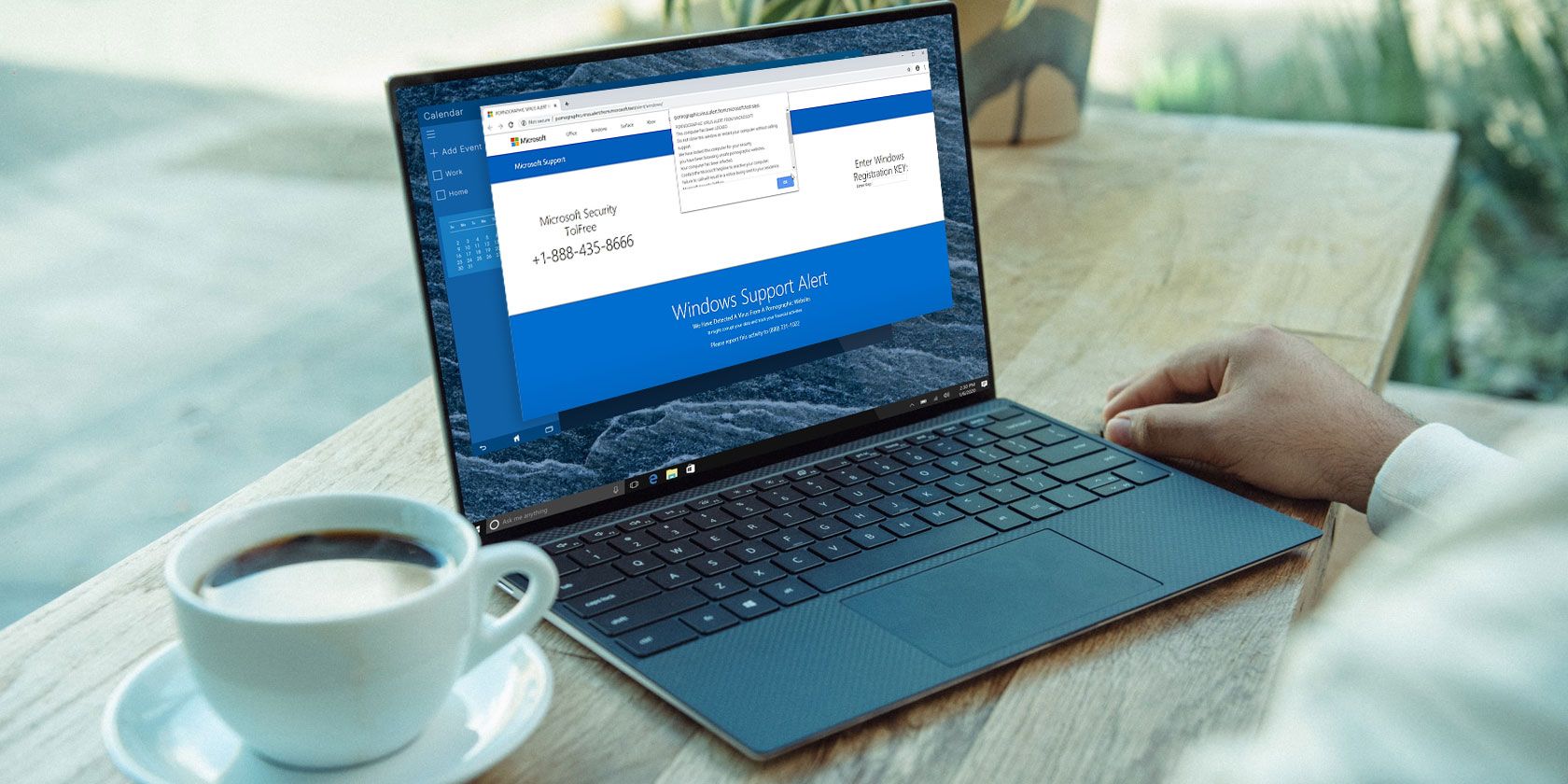
Once installed, the PUP forces the fake error message on your screen, or in this case, takes over the operation of your browser. The error message displays a message advising you that “We have locked this computer for your security” and that “You have been browsing unsafe pornographic websites.”

The error message always culminates with a number you can call the Microsoft security team on. But—you guessed it—when you call the number, you don’t reach a Microsoft security team, you reach the scammers. In this final part of the tech support scam, the “Microsoft” representative will advise you to pay for a special antivirus tool that removes the PUP, restores your browser to normal, and deletes your history on the pornographic websites.

Of course, this is a complete lie, and they’re only after one thing: your money.

Under no circumstances should you call the number that displays with the pornographic virus alert from Microsoft. It is dangerous and could make the situation much worse.

How to Remove the Pornographic Virus Alert From Microsoft

The good news is that despite how irritating the pornographic virus alert from Microsoft is, it is easy to remove and doesn’t cause much harm (so long as you don’t call the number in the alert message!).

As the majority of PUPs enter your system piggybacking on the installation of another program, you can uninstall the suspect program to remove the alert. Once uninstalled, you can scan your system with antivirus and antimalware programs to catch any lingering files.

1. Remove the PUP From Your Computer

The fake Microsoft alert attempts to lock your browser into full-screen mode and won’t let you switch windows to anything useful.

Press CTRL + Shift + ESC to open the Task Manager. Find the process for your browser, such as Chrome, Firefox, Edge, or so on. Right-click and select End Task to close the browser, and with it, the fake virus alert.

Now, head to Control Panel > Programs and Features. Select the Installed On tab to sort the list of programs chronologically. Now, you should uninstall any suspicious programs installed on your system recently. Think back to the last program you installed. What was it? Did you forget to uncheck any boxes during installation?

windows 10 remove programs

Regardless, make sure to uninstall any recent installations. Select the unwanted application, right-click, and select Uninstall.

2. Reset Your Browser Settings

Next up, you can reset your browser settings. The fake pornographic virus alert changes your browser startup page to display the warning each and every time you boot it.

In Google Chrome, select the three-dot icon, then Settings. Scroll down to the On Startup section and press Open the New Tab Page to remove the existing option. Now, scroll back up to the Reset and Clean Up section and select Restore Settings to Their Original Defaults.

remove startup page from google chrome

This will reset your Chrome browser settings to default, further eliminating the fake virus alert. The browser reset process is similar for all major browsers.

3. Clean Your System With Malwarebytes

Once you remove the PUP and reset your browser settings, you can begin scanning your system for any remaining malicious files. The best option is Malwarebytes, whose free offering will search and destroy anything untoward.

Download: Malwarebytes for Windows (Free)

Download and install Malwarebytes. You can agree to the Premium Trial if you want as it does not require any payment and will simply expire at the end of the period. Now, Scan your system for any malicious files. When the scan finishes, select and quarantine all files.

malwarebytes scan in progress

Removing all of the PUPs (and anything else!) Malwarebytes uncovers is the final step for removing the pornographic virus alert from Microsoft.

How to Stop Future Potentially Unwanted Programs

Now you have removed the PUP, reset your browser, and cleaned the rest of your system, you should consider bulking up your security, so it doesn’t happen again.

Many unreputable free programs offering a seemingly innocent product secretly bundle pointless extras, like PUPs. Other programs do it for more nefarious reasons. Some developers might not even know that their program is available for download on another site—but has been bundled with some additional malicious files.

To protect against future PUPs or worse malware, you need to upgrade your existing security. Many of the editors and writers at MakeUseOf advise using Malwarebytes Premium, which offers real-time protection against a huge number of threats. It does come with a cost, but the outlay is absolutely worth it.

However, if you don’t want to part with any cash, you should check out the best free internet security tools for Windows.

You Can Remove the Pornographic Virus Alert From Microsoft

The pornographic virus alert from Microsoft is irritating, for sure. However, now you know it is the lure for a tech support scam, you can avoid becoming a victim and keep hold of your cash and your data.

Malware is an ever-present risk in the online world. If you fall foul of malware again, check out our complete guide to removing malware.

Read the full article: How to Prevent Pornographic Virus Alerts From Microsoft


Read Full Article

28 July 2020

What to expect from tech’s historic antitrust showdown with Congress


Chief executives from four of the world’s most powerful companies will defend the vast empires they’ve built in testimony before Congress on Wednesday.

In a hearing held by the House’s Antitrust Subcommittee, Jeff Bezos, Tim Cook, Sundar Pichai and Mark Zuckerberg will all face questions about how their business practices propelled them into the market-dominant giants they are today. Amazon, Apple, Google and Facebook make up four of top six most valuable public companies in existence and are widely regarded as reshaping the consumer world, both within the tech industry and beyond.

The event will begin at 12 PM ET and may run all day, given the breadth of relevant topics and the four very different, deeply influential tech companies that we’ll be hearing from. Here’s what to expect from the big day.

What’s the big deal?

There have been quite a few Congressional hearings examining tech companies in recent years, but usually those companies send their lead counsel — not their CEOs.

When a tech CEO appears before Congress it’s a sign that whatever they’re testifying about poses a real enough threat to their business that it’s better to place nice with lawmakers rather than blowing them off.

While Tim Cook, Sundar Pichai and Mark Zuckerberg have all testified before Congress before — Pichai in 2018, Zuckerberg in 2018 and 2019 and Tim Cook way back in 2013 — this will be the first time Jeff Bezos has agreed to come before Congress. Given the amount of concerns lawmakers have expressed over Amazon in recent years, that’s a big deal.

Who’s running the show?

The hearing is being coordinated by the House Judiciary’s Antitrust Subcommittee, a subsection of the broader House committee that focuses on antitrust issues, among other topics. Because it’s in the House, the subcommittee is controlled by Democrats and is helmed by David Cicilline, a prominent and serious critic of big tech companies. It’s worth noting that Val Demings, who is currently being considered as Joe Biden’s running mate, is among the Democratic members.

On the Republican side, Jim Sensenbrenner is the ranking member. The outspoken Trump supporter Matt Gaetz also serves on the subcommittee and we can expect to hear a lot from him for reasons we’ll get into it a little bit.

What is this all about?

The title of the hearing is “Online Platforms and Market Power, Part 6: Examining the Dominance of Amazon, Apple, Facebook, and Google.” Five previous hearings were also part of the subcommittee’s year-long antitrust investigation into digital markets, touching on issues like data privacy, innovation, the free press and competition. Expect all of those angles to come up at Wednesday’s hearing.

What the hearing is about and what will end up being the focus could be two different things, depending on how well Cicilline is able to rein things in as the subcommittee’s chair. As we mentioned previously, Florida Republican Matt Gaetz has signaled his interest in steering the four tech CEOs to the less substantive but more politically expedient topic of anti-conservative bias in tech.

Earlier this week, Gaetz made a criminal referral to the Justice Department that accused Mark Zuckerberg of lying in his 2018 testimony to Congress when he said Facebook does not have a bias against conservatives. The issue of anti-conservative bias is a favorite among Trump-friendly Republicans, and Gaetz is likely to veer away from very real concerns over anti-competitive behavior among tech companies toward unproven bias claims.

Will they really say anything useful?

House Judiciary Committee Chairman Jerry Nadler and Antitrust Subcommittee Chairman David Cicilline stressed the importance that the tech CEOs are “forthcoming” on Wednesday, emphasizing the “central role these corporations play in the lives of the American people.” While it would serve these companies to appear transparent and not evasive, the testimony is likely to be a careful combination of the two.

In past appearances, tech CEOs have been criticized for being tight-lipped, offering only robotic answers and promising to “get back” to members of Congress every other question. We can expect more of this Wednesday, though the tone and efficacy of the hearing will really depending on who’s asking the questions and how well lawmakers coordinate their lines of inquiry.

Where is Twitter? Microsoft?

Last week, House Republicans led by Jim Jordan called on Twitter to appear at tech’s big antitrust hearing, claiming that the day would be “incomplete” without an appearance from Jack Dorsey. Dorsey has made appearances before Congress before, but the new request was rightfully ignored.

While often elevated to the status of peer companies like Facebook and YouTube, Twitter is a relatively small company with an outsized impact on society — and one not suspected of market-shaping practices that could box competitors out. To put it in perspective: Twitter’s market capitalization is $29 billion; Facebook’s is $667 billion.

Compared to Twitter, Microsoft is massive and a more natural fit for the hearing but the company has a much more storied history of government scrutiny. Cicilline himself said that regulatory enforcement against Microsoft two decades ago “made space for an enormous amount of additional innovation and competition.”

Depending on who you ask, U.S. regulatory efforts against Microsoft either presaged an era of regulatory overreach or failed to be little more than a slap on the wrist. Sound familiar?

How do I watch it?

We’ll be watching the hearing and reporting on it, so check back for our coverage and analysis throughout the day. If you’re keen to sit through it yourself, we’ve embedded a YouTube link below that should work when the livestream begins on Wednesday, July 29 at 12 PM ET.


Read Full Article

Priti Youssef Choksi explains how to get your startup acquired — not sold


Today, Priti Youssef Choksi is a partner with venture firm Norwest Venture Partners. But she previously spent five-and-a-half years at Google, where she worked on strategic partnerships, and nearly nine years at Facebook, where she began in corporate development and later focused on M&A.

Because Choksi knows firsthand how some of the biggest companies on the planet think about potential acquisition targets and how deals ultimately come together, we asked if she would share some of those insights with us during our recent founder-centric Early Stage event. The idea was to help attendees better how understand how — and why — certain acquisitions come together; her advice was so helpful that we wanted to share it more widely here.

So where to start? Choksi suggested people first understand the “build, partner, or buy” mentality of big acquirers. Indeed, while deals can look very much alike to outsiders (a deal is a deal is a deal), they are not. First, big companies will build internally if they are bolstering a strategic asset or what they need involves sensitive information or technology. A good example of something that Google would never buy, for example, is search tech, because search is the company’s crown jewel, she noted. Companies will meanwhile partner in order to fill a product or service gap or when they’re looking to stand up a new platform, she said, pointing to the early days of Google’s Android ecosystem.

As for when they finally go shopping, companies are driven by three things, said Choksi: talent, technology and traction. With talent, as you might imagine, companies may conduct an acqui-hire with the goal of filling a talent or leadership gap internally or to acquire niche skills that their current employees don’t already have, she said.

Companies meanwhile shop for technology when they need outside tech to boost their organic efforts. Choksi pointed to Luma.io by way of example. Back in 2013, the young company, which created a video-capture, stabilization and sharing app, was acquired by Instagram (which was itself already owned by Facebook); a week after it closed the Luma deal, Facebook launched video on Instagram largely based on Luma’s platform.


Read Full Article

Announcing ScaNN: Efficient Vector Similarity Search


Suppose one wants to search through a large dataset of literary works using queries that require an exact match of title, author, or other easily machine-indexable criteria. Such a task would be well suited for a relational database using a language such as SQL. However, if one wants to support more abstract queries, such as “Civil War poem,” it is no longer possible to rely on naive similarity metrics such as the number of words in common between two phrases. For example, the query “science fiction” is more related to “future” than it is to “earth science” despite the former having zero, and the latter having one, word in common with the query.

Machine learning (ML) has greatly improved computers’ abilities to understand language semantics and therefore answer these abstract queries. Modern ML models can transform inputs such as text and images into embeddings, high dimensional vectors trained such that more similar inputs cluster closer together. For a given query, we can therefore compute its embedding, and find the literary works whose embeddings are closest to the query’s. In this manner, ML has transformed an abstract and previously difficult-to-specify task into a rigorous mathematical one. However, a computational challenge remains: for a given query embedding, how does one quickly find the nearest dataset embeddings? The set of embeddings is often too large for exhaustive search and its high dimensionality makes pruning difficult.

In our ICML 2020 paper, “Accelerating Large-Scale Inference with Anisotropic Vector Quantization,” we address this problem by focusing on how to compress the dataset vectors to enable fast approximate distance computations, and propose a new compression technique that significantly boosts accuracy compared to prior works. This technique is utilized in our recently open-sourced vector similarity search library (ScaNN), and enables us to outperform other vector similarity search libraries by a factor of two, as measured on ann-benchmarks.com.

The Importance of Vector Similarity Search
Embedding-based search is a technique that is effective at answering queries that rely on semantic understanding rather than simple indexable properties. In this technique, machine learning models are trained to map the queries and database items to a common vector embedding space, such that the distance between embeddings carries semantic meaning, i.e., similar items are closer together.
The two-tower neural network model, illustrated above, is a specific type of embedding-based search where queries and database items are mapped to the embedding space by two respective neural networks. In this example the model responds to natural-language queries for a hypothetical literary database.
To answer a query with this approach, the system must first map the query to the embedding space. It then must find, among all database embeddings, the ones closest to the query; this is the nearest neighbor search problem. One of the most common ways to define the query-database embedding similarity is by their inner product; this type of nearest neighbor search is known as maximum inner-product search (MIPS).

Because the database size can easily be in the millions or even billions, MIPS is often the computational bottleneck to inference speed, and exhaustive search is impractical. This necessitates the use of approximate MIPS algorithms that exchange some accuracy for a significant speedup over brute-force search.

A New Quantization Approach for MIPS
Several state-of-the-art solutions for MIPS are based on compressing the database items so that an approximation of their inner product can be computed in a fraction of the time taken by brute-force. This compression is commonly done with learned quantization, where a codebook of vectors is trained from the database and is used to approximately represent the database elements.

Previous vector quantization schemes quantized database elements with the aim of minimizing the average distance between each vector x and its quantized form . While this is a useful metric, optimizing for this is not equivalent to optimizing nearest-neighbor search accuracy. The key idea behind our paper is that encodings with higher average distance may actually result in superior MIPS accuracy.

The intuition for our result is illustrated below. Suppose we have two database embeddings x1 and x2, and must quantize each to one of two centers: c1 or c2. Our goal is to quantize each xi to i such that the inner product <q, i> is as similar to the original inner product <q, xi> as possible. This can be visualized as making the magnitude of the projection of i onto q as similar as possible to the projection of xi onto q. In the traditional approach to quantization (left), we would pick the closest center for each xi, which leads to an incorrect relative ranking of the two points: <q, 1> is greater than <q, 2>, even though <q, x1> is less than <q, x2>! If we instead assign x1 to c1 and x2 to c2, we get the correct ranking. This is illustrated in the figure below.
The goal is to quantize each xi to i = c1 or i = c2. Traditional quantization (left) results in the incorrect ordering of x1 and x2 for this query. Even though our approach (right) chooses centers farther away from the data points, this in fact leads to lower inner product error and higher accuracy.
It turns out that direction matters as well as magnitude--even though c1 is farther from x1 than c2, c1 is offset from x1 in a direction almost entirely orthogonal to x1, while c2’s offset is parallel (for x2, the same situation applies but flipped). Error in the parallel direction is much more harmful in the MIPS problem because it disproportionately impacts high inner products, which by definition are the ones that MIPS is trying to estimate accurately.

Based on this intuition, we more heavily penalize quantization error that is parallel to the original vector. We refer to our novel quantization technique as anisotropic vector quantization due to the directional dependence of its loss function. The ability of this technique to trade increased quantization error of lower inner products in exchange for superior accuracy for high inner products is the key innovation and the source of its performance gains.
In the above diagrams, ellipses denote contours of equal loss. In anisotropic vector quantization, error parallel to the original data point x is penalized more.
Anisotropic Vector Quantization in ScaNN
Anisotropic vector quantization allows ScaNN to better estimate inner products that are likely to be in the top-k MIPS results and therefore achieve higher accuracy. On the glove-100-angular benchmark from ann-benchmarks.com, ScaNN outperformed eleven other carefully tuned vector similarity search libraries, handling roughly twice as many queries per second for a given accuracy as the next-fastest library.*
Recall@k is a commonly used metric for nearest neighbor search accuracy, which measures the proportion of the true nearest k neighbors that are present in an algorithm’s returned k neighbors. ScaNN (upper purple line) consistently achieves superior performance across various points of the speed-accuracy trade-off.
ScaNN is open-source software and you can try it yourself at GitHub. The library can be directly installed via Pip and has interfaces for both TensorFlow and Numpy inputs. Please see the GitHub repository for further instructions on installing and configuring ScaNN.

Conclusion
By modifying the vector quantization objective to align with the goals of MIPS, we achieve state-of-the-art performance on nearest neighbor search benchmarks, a key indicator of embedding-based search performance. Although anisotropic vector quantization is an important technique, we believe it is just one example of the performance gains achievable by optimizing algorithms for the end goal of improving search accuracy rather than an intermediate goal such as compression distortion.

Acknowledgements
This post reflects the work of the entire ScaNN team: David Simcha, Erik Lindgren, Felix Chern, Nathan Cordeiro, Ruiqi Guo, Sanjiv Kumar, and Zonglin Li. We’d also like to thank Dan Holtmann-Rice, Dave Dopson, and Felix Yu.


* ScaNN performs similarly well on the other datasets of ann-benchmarks.com, but the website currently shows outdated, lower numbers. See this pull request for more representative performance figures on other datasets.


Facetune maker Lightricks brings its popular selfie retouching features to video


Lightricks, the startup behind a suite of photo and video editing apps — including most notably, selfie editor Facetune 2 — is taking its retouching capabilities to video. Today, the company is launching Facetune Video, a selfie video editing app, that allows users to retouch and edit their selfie and portrait videos using a set of A.I.-powered tools.

While there are other selfie video editors on the market, most today are generally focused on edits involving filters and presets, virtually adding makeup, or using AR or stickers to decorate your video in some way. Facetune Video, meanwhile, is focused on creating a photorealistic video by offering a set of features similar to those found in Lightricks’ flagship app, Facetune.

That means users are able to retouch their face with tools for skin smoothing, teeth whitening, and face reshaping, plus eye color, makeup, conceal, glow, and matte features. In addition, users can tweak tools for general video edits, like adjusting the brightness, contrast, color, and more, like other video editing apps allow for. And these edits can be applied in real-time to see how they look as the video plays, instead of after the fact.

In addition, users can apply the effect to one frame only and Facetune Video’s post-processing technology and neural networks will simultaneously apply an effect to the same area of every frame throughout the entire video, making it easier to quickly retouch a problem area without having to go frame-by-frame to do so.

“In Facetune Video, the 3D face model plays a significant role; users edit only one video frame, but it’s on us, behind-the-scenes, to automatically project the location of their edits to 2D face mesh coordinates derived from the 3D face model, and then apply them consistently on all other frames in the video,” explains Lightricks co-founder and CEO Zeev Farbam. “A Lightricks app needs to be not only powerful, but fun to use, so it’s critical to us that this all happens quickly and seamlessly,” he says.

Users can also save their favorite editing functions as “presets” allowing them to quickly apply their preferred settings to any video automatically.

In a future version of the app, the company plans to introduce a “heal” function which, like Facetune, will allow users to easily remove blemishes.
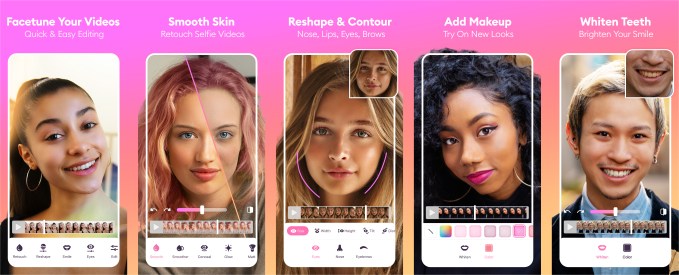
Image Credits: Lightricks

The technology that makes these selfie video edits work involves Lightricks’ deep neural networks that utilize facial feature detection and geometry analysis for the app’s retouching capabilities. These processes work in real-time without having to transmit data to the cloud first. There’s also no lag or delay while files are rendering.

In addition, Facetune Video uses the facial feature detection along with 3D face modeling A.I. to ensure that every part of the user’s face is captured for editing and retouching, the company says.

“What we’re also doing is taking advantage of lightweight neural networks. Before the user has even begun to retouch their selfie video, A.I.-powered algorithms are already working so that the user experience is quick and interactive,” says Fabram.

The app also does automated segmentation of more complex parts of the face like the interior of the eye, hair, or the lips, which helps it achieve a more accurate end result.

“It’s finding a balance between accuracy in the strength of the face modeling we use, and speed,” Fabram adds.

One challenge here was overcoming the issue of jittering effects, which is when the applied effect shakes as the video plays. The company didn’t want its resulting videos to have this problem, which makes the end result look gimmicky, so it worked to eliminate any shake-like effects and other face tracking issues so videos would look more polished and professional in the end.

The app builds off the company’s existing success and brand recognition with Facetune. With the new app, for example, the retouch algorithms mimic the original Facetune 2 experience, so users familiar with Facetune 2 will be able to quickly get the hang of the retouch tools.

Image Credits: Lightricks

The launch of the new app expands Lightricks further in the direction of video, which has become a more popular way of expressing yourself across social media, thanks to the growing use of apps like TikTok and features like Instagram Stories, for example.

Before, Lightricks’ flagship video product, however, was Videoleap, which focused on more traditional video editing, and not selfie videos where face retouching could be used.

Facetune has become so widely used, its name has become a verb — as in, “she facetunes her photos.” But it has also been criticized at times for its unrealistic results. (Of course, that’s more on the app’s users sliding the smoothing bar all the way to end.)

Across its suite of apps, which includes the original Facetune app (Facetune Classic), Facetune 2, Seen (for Stories), Photofox, Video Leap, Enlight Quickshot, Pixaloop, Boosted, and others, including a newly launched artistic editor, Quickart, the company has generated over 350 million downloads.

Its apps also now reach nearly 200 million users worldwide. And through its subscription model, Lightricks is now seeing what Farbam describes as revenues that are “increasing exponentially year-over-year,” but that are being continually reinvested into new products.

Like its other apps, Facetune Video will monetize by way of subscriptions. The app is free to use by will offer a VIP subscription for more features, at a price point of $8 per month, $36 per year, or a one-time purchase of $70.

Facetune 2 subscribers will get a discount on annual subscriptions, as well. The company will also sell the app in its Social Media Kit bundle on the App Store, which includes Facetune Video, Facetune 2, Seen and soon, an undisclosed fourth app. However, the company isn’t yet offering a single subscription that provides access to all bundled apps.


Read Full Article

5+ Free Online Tests, Guides, and Resources to Overcome Burnout at Work


Work Burnout

Are you feeling too tired to work, or are you suffering from burnout? Take these free tests to find out if you have burnout, and guides to learn how to deal with it.

In 2019, WHO officially recognized burnout as an occupational phenomenon, so it’s not just “in your mind” anymore. There are signs of burnout to watch out for, and techniques to overcome burnout in your professional life.

To begin, there are a few online tests you can take, free ebooks you can pick up, and videos you can watch.

1. Take a Quiz to Test Your Burnout Level

Mind Tools offers a free 15 question quiz to test if you have burnt out at work

The most popular, thorough, and medically accepted burnout test is the Maslach Burnout Inventory. Unfortunately, it is only available as a paid test. Before you pony up big bucks for that, you might want to try out some of the well-reviewed free burnout tests on the internet.

Please note that these aren’t scientifically validated, and you can’t consider them as a diagnosis of your condition. Use them as a platform to know whether you need a more clinical test like the Maslach Burnout Inventory.

Mind Tools Burnout Self-Test: Mind Tools hosts a free burnout self-test kit of 15 questions. You have to answer how deeply each statement applies to you, with choices being not at all, rarely, sometimes, often, and very often. At the end of it, you’ll get a points score, which you can then check against the score interpretation chart.

Foundation of Nursing Leadership’s Stress Level and Burnout Test: Nursing staff in hospitals are a high-risk group for burnout. The Foundation of Nursing Leadership created a free multiple-choice burnout test that takes 5-10 minutes to finish. The 35 questions apply to any profession, not just nursing, making it an effective tool to test your stress and burnout levels.

The Fried Quiz: Biologist Joan Borysenko, author of Fried: Why You Burn Out and How to Revive, created a free questionnaire, available on Oprah.com. The Fried Quiz is a set of 14 multiple-choice questions, which attempts to figure out if you have burnt out.

Fried: Why You Burn Out and How to Revive Fried: Why You Burn Out and How to Revive Buy Now On Amazon $9.99

2. Extinguish Burnout (Web): Free Burnout Course and Toolkit

Robert and Terri Bogue wrote a book on identifying and dealing with burnout and turned it into a successful online course. The Extinguish Burnout course is available for free for a year during COVID-19 to help stressed workers deal with extenuating circumstances.

The Extinguish Burnout: Prevention and Recovery course has over 25 modules, each taught as a video under 13 minutes, for a total of about six hours. You can do these at your own time. It’ll take you through all the steps of identifying burnout, strategies to deal with it, and how to prevent it from happening.

The website also has other helpful resources. The Bogues made two burnout tests you can take online for free, based on the Copenhagen Burnout Inventory and the Oldenburg Burnout Inventory. They also provide a burnout toolkit full of free resources, as stop-gap aid in case you don’t want to take the full course.

3. The Burnout Shield Assessment (Web): 5 Areas to Test Your Stress Level

The Burnout Shield Assessment is a research-backed way to find out if you have burnout in five key areas of your life

The Burnout Shield is a more involved questionnaire to test your burnout level. It assesses five areas of your mental make-up and life: self-care, reflection and recognition, capacity, community, coping.

You answer a series of questions about work, life, mental health, and more, to identify the factors that protect you from burnout and how vulnerable you are to it. In the final step, you’ll have to fill out a standard Holmes & Rahe Life Stress Inventory sheet. Each question has a clear description, so take your time reading it and then answer truthfully. No one is judging you, this is an indicator for your eyes only.

The whole Burnout Shield takes about half an hour, so make sure you carve out time for it. At the end of it, you’ll find your vulnerability risk for all five areas, to know where you have to step it up. Grab the free Burnout First Aid Handbook and use it as a guide to overcoming the hump. Beth Genly, the maker of Burnout Solutions, also offers a free first consultation.

You should also familiarize yourself with the four-step science-backed method to defeat stress.

4. Overcoming Burnout in 30 Days (PDF): Free Guide by Burnout Psychotherapist

Download psychotherapist Dr. Carien Karsten's free ebook 30 Days to Overcome Burnout

Dr. Carien Karsten is a psychotherapist and coach specializing in burnout cases, with a career spanning over 20 years and multiple books. One of these is available as a free ebook on her website, Overcoming Burnout in 30 Days.

It’s a great book that dives into why you are burning out, and what you can do about it. As the title suggests, it charts a day-by-day path with small tasks to conquer burnout in a month. It teaches you a six-step method called ACCESS: Analysis, Condition, Concepts, Effective, Social, and Stabilizing. Through the book’s chapters, you’ll slowly learn to deal with burnout and how to beat it.

Dr. Karsten says that in studies, her method showed that 80% of participants got back to work. Importantly, they also had a better understanding of burnout factors and triggers, and were more mindful of them.

Download: Overcoming Burnout in 30 Days (PDF)

5. TED Talks for Burnout (Web): Watch the Best Videos on Burnout

TED Talks compiled a free playlist of videos for those feeling burnt out at work

Who better to talk about burnout than some of the biggest achievers and successful people in professional spheres? TED compiled a playlist of the best TED Talks for burnout, touching on a variety of topics. It includes mindfulness experts, psychologists, journalists, designers, musicians, and more. The playlist is great for both creative and non-creative professionals dealing with workout.

You should also check out a TEDx talk by productivity expert Allan Ting. Ting himself was waylaid by burnout before turning it around. And in this talk, he shares three simple steps to bounce back from burnout.

Finally, therapist Kati Morton has a special Burnout Playlist on her YouTube channel for the A-Z on it. In successive videos, she discusses the science of burnout, who is more likely to get burned out, and other related topics. It’s a nice distillation of the ideas you’ll read in most other articles and guides about the subject.

Meditate Your Way to Calmness

As you’ll see from the recommendations, every expert says meditation helps. It’s a common practice to bring some calmness to your life when going through burnout, anxiety, stress, or other forms of mental fatigue. Start with these free meditation apps to beat stress and anxiety, it’s a must-have tool in fighting burnout.

Read the full article: 5+ Free Online Tests, Guides, and Resources to Overcome Burnout at Work