10 July 2020

The 10 Best Apps to Install on Your Raspberry Pi


The Raspberry Pi is an awesome little computer, whose capabilities won’t stop increasing. As such, you should make sure that you have the best apps installed on it. Whether you’re running Raspberry Pi OS (formerly known as Raspbian) some apps are unmissable.

Here are best apps for your Raspberry Pi.

Doesn’t Raspberry Pi Come With Apps Preinstalled?

Before proceeding you’re probably thinking “hold on, my copy of Raspberry Pi OS already has a bunch of apps installed.” No doubt you’re thinking of VLC media player, Scratch, and LibreOffice.

With three editions of Raspberry Pi OS to choose from, though, you won’t be surprised to find that those apps aren’t included on them all. The Lite version comes with little to talk of, not even a desktop, and is aimed at project builders. Meanwhile the “Raspberry Pi OS with desktop” comes with VLC media player and the Chromium Web Browser, but little else.

The “Raspberry Pi desktop and recommended software” version, meanwhile, is jam-packed full of everything you could need. But it’s a bit of a big download, so you might prefer to avoid it.

Whatever the case, we’ve chosen the best 10 Raspberry Pi apps that you don’t already have installed. Let’s take a look at them.

So, add VLC media player and Scratch as required

1. Guake

Guake terminal app for Linux

Whether you’re new to Linux or an expert, the default Terminal is frustrating. It’s plain, obscures the desktop, and, overall, the Terminal application is difficult to appreciate.

Consider a replacement: Guake. With a Quake-style semi-transparent interface, Guake can be installed via the Add/Remove Software tool.

After installation, you’ll find it in Applications > System Tools > Guake. Once you see the notification that Guake is running, tap F12 to summon it. Guake will drop down from the top of the screen when called.

Guake lets you see what is happening elsewhere on the desktop. You can also right-click inside the Guake window to alter the Preferences, which includes tweaking the appearance.

2. Synaptic Package Manager
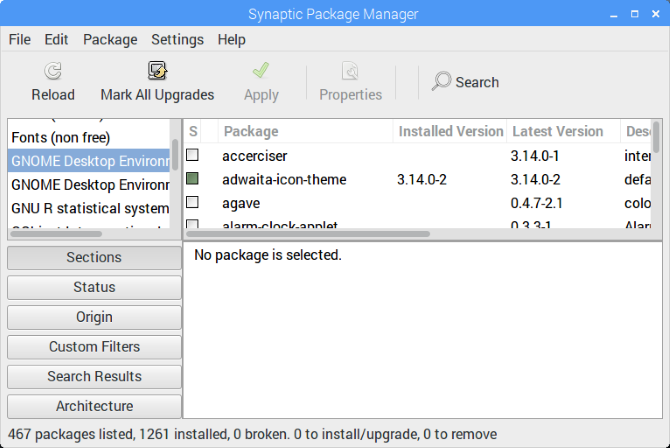
Use Synaptic Package Manager to install software

It’s easy enough to install software via the command line, and Raspbian has its own mouse driven Add/Remove Software tool. But sometimes that’s not enough. If you’re looking for something more expansive, try Synaptic.

Unlike the native tool, Synaptic uses more specific software categories, helping you to find the tools you need. Synaptic (one of several Linux package managers) also ensures you’re using the current version of apps installed on your Pi. All you need to do is click Reload and then Apply to run the updates.

You can install Synaptic Package Manager on Raspbian with:

sudo apt install synaptic

Once installed, run it with a command:

gksudo synaptic

…or launch Synaptic Package Manager from the Preferences section of the desktop menu.

3. MyPaint

Best open source apps lists like this almost always suggest GIMP as a sort of easy Photoshop alternative. While this is a good option, it’s often preinstalled on Raspberry Pi OS. For something a little different, try MyPaint.

This is an open source graphics editor for digital painting, rather than image manipulation. Closer to Corel Painter or Krita than Photoshop, it includes layers, brush settings, scratch pad, and brushstrokes that differ based on the angle and zoom. Many other features can be found on the project’s GitHub page.

To install MyPaint, open a terminal and enter

sudo apt install mypaint

Alternatively, find it in Add/Remove Software in the Graphics category.

4. QMMP

VLC media player plays music, but if you’re looking for something a more visually striking, try QMMP.

With support for all the usual audio formats (MP3, FLAC, Ogg FLAC, Ogg Vorbis, WAV, CD Audio, etc.), it also delivers equalization settings and visual effects.

Various plugins are also supported, adding functionality. This ranges from playing music from YouTube to playing chiptunes (music created on or for 8-bit systems).

Install QMMP with

sudo apt install qmmp

You’ll also find it in Add/Remove Software listed under Multimedia. Once installed, simply launch it from Menu > Sound & Video and open your favorite tunes.

5. DOSBox
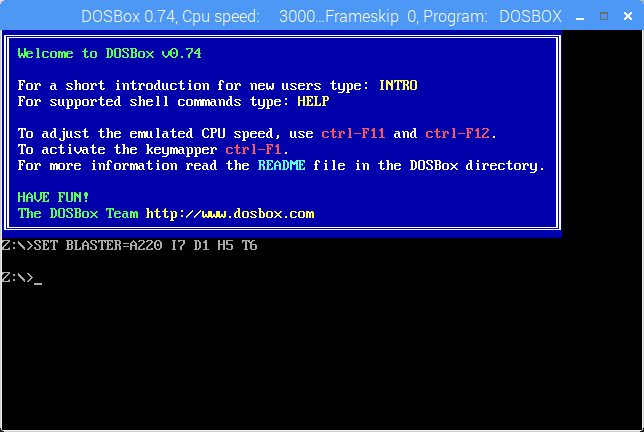
DOSBox for Raspberry Pi

The Raspberry Pi isn’t exactly short of games. Amateur developers and have created hundreds of homebrew games; some Linux titles run on the Pi, too. It’s also an excellent platform for playing retro games.

Various types of emulation are possible with the Raspberry Pi, from 8-bit home computers to consoles. But if your preference is for classic PC games, try DOSBox.

Capable of running all software from the MS-DOS era, DOSBox lets you play PC games from the 1980s and 1990s.

To install DOSBox on the Raspberry Pi, open Preferences > Add/Remove Software and search for it. Once installed, head to your Home directory and create a new folder, dosgames. This is where you should save the extracted contents of downloaded games to, ready to use them.

DOSBox itself can be launched from Menu > Applications > Games > DOSBox Emulator. See our guide to using DOSBox for help on configuring the application and finding and installing games.

6. Arduino IDE
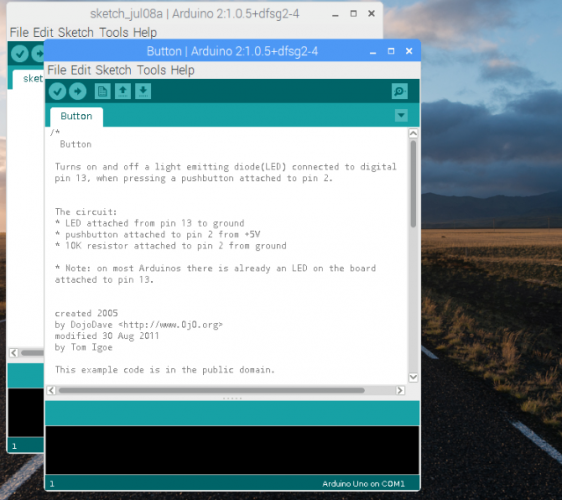
Arduino IDE for Raspberry Pi

Planning to pair your Raspberry Pi up with an Arduino for some maker fun? If so, you’ll need Arduino IDE (Integrated Development Environment). The IDE makes it simple to write and upload code to any Arduino connected to your Raspberry Pi.

You can install Arduino IDE on your Pi via Preferences > Add/Remove Software.

Once installed, launch via Applications > Programming > Arduino IDE. Use the Tools > Boards menu to select the correct Arduino model (Arduino Uno and clones are selected by default).

From here, you can check File > Examples for some useful example scripts for the Arduino. You can also extend its capabilities via new libraries. You’ll find information on these at www.arduino.cc/en/Reference/Libraries. Meanwhile, our detailed guide to Arduino will help you get started.

7. NixNote

NixNote Evernote client for Raspberry Pi

Using a different computer doesn’t mean you won’t need to keep notes from time to time. NixNote is an open source client for Evernote, easily installed in Add/Remove Software.

Once installed, NixNote gives you access to your existing Evernote archive of ideas, jottings, lists, and so on. It can export as PDF, and the data can be backed up and restored as needed.

In short, this is a useful notebook client that syncs with Evernote on your other devices for unified notetaking.

8. Deluge
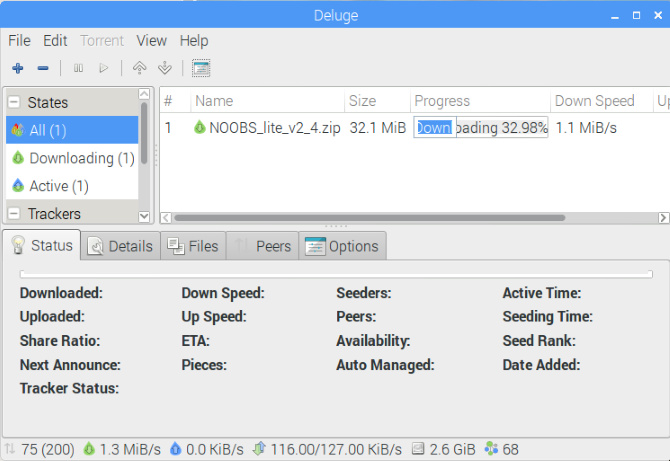
Download torrents to Raspberry Pi with Deluge

First things first: Deluge is a BitTorrent client. This doesn’t mean that it is illegal; BitTorrent itself isn’t illegal. Rather, the misuse of the peer-to-peer networking technology to download copyright-protected movies and games is illegal.

For instance, many Linux operating systems (including Raspbian) can be downloaded over BitTorrent. This provision reduces the overhead on hosting the distribution on a dedicated server. Our guide to BitTorrent explains this in more detail.

Why might you need a BitTorrent client on your Raspberry Pi? Well, it depends how you’re using the computer. If you utilize it as a repository for personal data, Deluge can download data from your Pi wherever you are. Full details on how to this can be found on the Deluge Wiki.

You’ll find Deluge in Preferences > Add/Remove Software. If you want to use the torrent app in headless mode, connect via SSH and run:

sudo apt install deluged deluge-console python-mako deluge-web

Once this is done, Deluge is ready to run. Pi desktop users can launch it in Menu > Internet.

9. OpenVPN

Configure a VPN with OpenVPN on Raspberry Pi

Every computer should connect to the internet via a VPN. While there are no VPN clients for the Raspberry Pi, there is OpenVPN.

This is a VPN client app that lets you connect to your preferred VPN server using existing account credentials. For example, you can connect to ExpressVPN VPN servers using the configuration files they provide.

Install OpenVPN with

sudo apt install openvpn

Be sure to download the OVPN configuration file for your preferred server and save it on your Pi. Most VPN services provide OpenVPN support so this should be straightforward.

Check our guide to setting up a VPN on the Raspberry Pi for configuration tips.

10. Steam Link
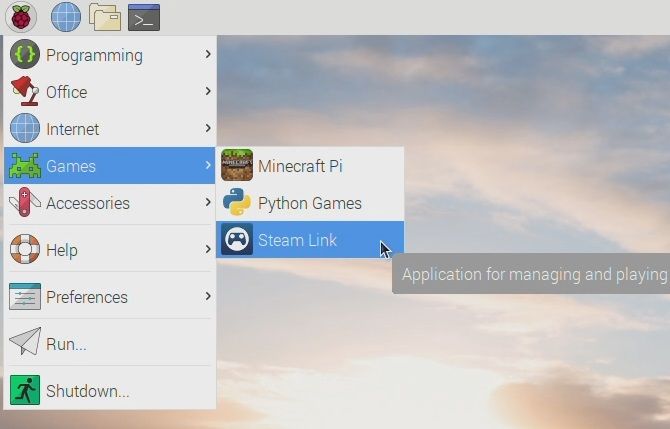
Stream PC games to Raspberry Pi

While the Raspberry Pi doesn’t have the hardware to run standard PC games, it is good enough to stream them. This is possible thanks to the Steam Link software from Valve, which lets you stream games from a PC.

With the games you want to play installed on your PC and streaming enabled, setup is simple. Just connect your Raspberry Pi to your TV and run

sudo apt install steamlink

Learn more in our guide to Steam Link for Raspberry Pi.

Awesome Raspberry Pi Apps You Can Install Today

Along with the apps already installed on your Raspberry Pi, a wealth of alternatives is available. They bring new functionality, improve privacy, deliver gaming, improve productivity, and more.

Which apps you install will determine how you use your Raspberry Pi. Explore the possibilities further in our guide to the best Raspberry Pi projects.

Read the full article: The 10 Best Apps to Install on Your Raspberry Pi


PIN or Password? What’s Safer to Use in Windows 10


windows-10-pin-password

In Windows 10, Microsoft provides several ways to log into your user account aside from a standard password. These include facial recognition and fingerprint scanning, but those aren’t available on some machines.

However, anyone can use a PIN (personal identification number) to protect their Windows 10 account. And doing so is a great idea. Let’s take a look at the Windows 10 PIN security feature, the differences between a PIN and password, and which you should use.

What Is a Windows PIN?

A PIN (“PIN number” is redundant) is a series of digits that’s you can use to log into your Windows 10 user account thanks to the Windows Hello feature. It’s easier to type than a full password, especially on a touchscreen device. No matter if you use a Microsoft or local account to log in, you can supplement your password with a PIN.

As we’ve discussed, there are pros and cons to signing in with a Microsoft account. It’s required for many Microsoft services, and helps to sync your preferences across devices. This makes it convenient, but some people prefer to use a local PC account that’s not tied to anything else.

If you use a Microsoft account to sign into Windows, your PC password and your Microsoft account password are identical. Depending on how many of Microsoft’s other services you use, this password could also protect your Skype, Xbox, and Outlook accounts. As a result, your PC password becoming compromised would pose a huge risk.

If you use a local account, you can decline to set a password (which is quite insecure). Assuming you set a password, it’s applied for only that machine and is not tied to any Microsoft resources. We’ve shown how to convert a Microsoft login to a local account if you’re interested.

How Do I Set Up a Windows 10 PIN?

Access your password and PIN settings by heading to Settings > Accounts > Sign-in options. Here, you’ll find every setting related to your password and sign-in methods.

Windows 10 Sign In Options

To change your current password, expand the Password section and click the Change button. When using a Microsoft account, this will change your password for all Microsoft services. If you use a local account, this only changes that password.

Add a PIN to your account by opening Windows Hello PIN and clicking Add. You’ll likely be asked to confirm your account password before setting a PIN.

The minimum is four digits, but you should choose at least six for a more secure PIN. A six-digit PIN has one million possible combinations, while a four-digit PIN only has 10,000 possibilities.

For more security, you can also check the Include letters and symbols box. This lets you add additional characters to make it like a password. However, doing so defeats the convenience of using a PIN, so this isn’t necessary.

Windows 10 Set PIN

Of course, you should be careful with the PIN you choose. Don’t pick something common, like 0000 or 1234, and don’t choose an obvious date like your birthday. You should also avoid duplicating any other important PINs, such as your ATM PIN. That way, if someone stole your PIN, they wouldn’t be able to break into other accounts.

For best results, choose a random set of numbers and commit it to memory—or store it in a password manager if you’re worried about forgetting it. If you ever need to change your PIN or want to remove it, you’ll find those options on this page.

You can also click I forgot my PIN to reset it. You’ll be prompted to enter your account password to do so.

Other Sign-in Options

On the Sign-in options page, you’ll see several other options aside from PINs and passwords. These include Windows Hello Face and Windows Hello Fingerprint, which allow for biometric security. If you use one of these methods, you’ll also need to set a PIN as a fallback method.

While useful, those options require compatible hardware, which not every computer has. Feel free to use them if your computer has a fingerprint scanner or compatible webcam.

The Security Key option lets you sign in using a YubiKey or similar device. This is a highly secure option but also requires you to buy the key and have it on you to sign in.

Finally, Picture Password has you draw on a photo to unlock your computer. It’s a fun novelty, but not particularly useful.

Windows 10 PIN vs. Password: What Should I Use?

Protecting an account, like most security matters, comes down to a trade-off between convenience and security. A PIN of 1234 is super convenient, but also highly insecure. Likewise, a 100-digit PIN would take a long time to crack, but it is extremely inconvenient to enter.

Because you can use a PIN and password together, you don’t have to choose between them. When used correctly, a solid PIN is a great compromise between convenience and security. Let’s see why PINs are so useful.

PINs Are Unique to Each Device

The best security feature of a Windows 10 PIN is that it applies only to one device; it’s only used on your computer, and never passed to Microsoft’s servers. Thus, if you set a PIN on your home PC and someone stole it, they couldn’t access your account unless they had physical access to your device. In addition, your PIN can’t sign into your Microsoft account like your password can.

Thus, using your Microsoft password to sign into your PC is actually more of a risk. If you have to type that password to log in every time, it might tempt you to make it simple and weak. Should someone steal that password, they could also log into your Outlook email, Xbox account, or any number of other Microsoft services.

Use a PIN and a Strong Password

If you’ve used a password manager to set a secure password for your Microsoft account, it’s probably much too complex to type every time you log in. Logging in with a PIN solves this problem; you just need to make sure it’s a good one.

Our recommendation for most people is to set a strong password for your Microsoft account and combine it with a solid PIN for signing into your computer. This keeps your Microsoft account resources protected while also allowing you to conveniently sign into your PC, especially if you also use two-factor authentication on your Microsoft account for even more security.

There’s really no downside to setting a PIN. Local account users can also set a PIN, and the same rules apply. Since a local account only applies to your particular machine, though, a PIN is simply an alternate means of logging in. It doesn’t offer the benefits of obscuring your Microsoft account password.

Note that you can’t use your PIN when connecting to your PC via Remote Desktop, and you can’t enter a PIN to log in using Safe Mode. Be sure you still have your standard password handy for those situations.

Using Your PIN to Sign Into Apps

As an added benefit, some Windows apps support using Windows Hello to approve access to sensitive information, including 1Password and Google Chrome.

For instance, after you’ve signed into 1Password with your master password once, you can enter your PIN to unlock the app next time. And Chrome now allows you to enter your PIN to auto-fill saved credit card details into forms.

1Password Windows Hello

Entering your PIN is more convenient than typing a long password every time, so these connections are worth setting up. Just keep in mind that the security they provide is only as strong as your PIN.

Using a Windows 10 PIN Is Smart

Now you know how PINs work in Windows 10. When you log into Windows, the system will prompt you for your PIN instead of your password. To sign in with your password instead, look for the Sign-in options link below the text entry field.

We recommend everyone set up a Windows 10 PIN, whether you use a Microsoft account or not. If you’re looking to secure your phone as well, check out the pros and cons of using a fingerprint or PIN to lock your smartphone.

Read the full article: PIN or Password? What’s Safer to Use in Windows 10


How to Make Windows Transparent in Windows 10


windows-screenshot

Windows Aero has added a few nice effects to desktop windows over the years, but even to this day, there’s no official way to make a window transparent. Fortunately, there are third-party tools that can help us achieve this goal.

Let’s explore how to make transparent windows and where each tool shines.

1. Glass2k

The Glass2k application

We’re not going to lie to you; Glass2k is an ancient piece of software. The moment you load the page, you’re assaulted with broken Flash panels and a huge red banner declaring that development stopped a long time ago.

The system requirements demand that your computer has a 400 Mhz CPU, 64 MB of RAM, and an 8MB graphics card. In the FAQ, you can read the saddening news that this project won’t, in fact, be developed for Windows 95 or 98. And yet, despite its age, it still works perfectly on a Windows 10 machine.

If you’re not a fan of installing old software on your PC, don’t worry. Glass2K doesn’t require installation; simply download the 55 kb executable and open it to start it up. You can set it to automatically run on Windows start-up if you find it particularly useful.

When Glass2k loads up, you’ll find a few options available to you. “Transparency Popup” lets you set a shortcut to make the settings window appear. The first button has to be a right-click, but you can select what other buttons to press down when bringing the window up.

If you’d rather now right-click everything, you can instead use numbers to customize your transparency. “Keyboard shortcuts” lets you set a hotkey for instant activation of transparency. Once you’ve set a hotkey, just hold it down and press a number key from zero to nine.

Depending on the number you pressed, the window will turn transparent to a certain degree. The 1 key makes it the most transparent, while the 9 key applies the smallest amount of transparency. Pressing the 0 key makes the window opaque.

You can also customize the taskbar transparency here. Just slide the blue bar left and right to customize how clear the bar becomes. If you like this feature, Glass2k is but one of a few pieces of software that can make the taskbar transparent in Windows 10.

2. Peek Through

The PeekThrough app

Peek Through is another entry that has stood the test of time, albeit more recent than Glass2k. It came out as version 1.1.0.0 back in 2010, then received zero updates since then. Again, despite this, Peek Through still works very well with Windows 10.

Once it boots up, set a hotkey that uses the Windows key on your keyboard. Peek Through will let you know if your chosen hotkey conflicts with another, so prod around until you find something that’s free and works for you. Then, press the hotkey on a window to make it transparent or opaque. You can toggle how transparent a window becomes on the slider in the app.

At first, it feels like a lesser version of Glass2k; however, it has an excellent feature up its sleeve. If you enable the option for it, you can click on windows underneath a transparent one. For example, if you only have the one monitor, you can type away on your report in one window, turn it transparent, then click a link on a browser behind it to research what to write about next.

3. WindowTop

The WindowTop menu

Coming to the end of our history tour through transparency programs, we have WindowTop. WindowTop is still receiving updates at the time of writing, and it’s developed with modern-day versions of Windows 10 in mind. Older versions of Windows and Windows 10 can still download a less feature-packed version.

Once booted up, WindowTop lives at the top of your windows, appearing only when you mouse over it. WindowTop doesn’t focus on window transparency alone; it has a few nice tricks up its sleeve, such as the ability to pin a window to the top, shrink windows to an incredibly small size, and invert its colors.

You can activate window transparency in one of two ways. You can press the shortcut (ALT+A, which is changeable by clicking the toolbar icon) or you can hover your mouse over the top of a window and click the down arrow that appears, then select “Opacity.” WindowTop also has the click-through feature that Peek Through has.

4. Actual Transparent Window

The Actual Transparent Window app

For the ultimate in transparency management, you can’t go wrong with Actual Transparent Window. This software has a lot of options to play around with, so you can set up the perfect workspace for your PC.

When you boot up the software, you’ll find the automatic transparency options first and foremost. These allow you to tweak how windows act under certain conditions. Do you want windows to start up transparent? Do you want all inactive windows to be see-through? How about when you hover your mouse over them? You can toggle these options on and off, as well as setting individual transparency levels for each action.

If you don’t like windows adjusting by themselves, you can always do it manually. Compatible windows will have two buttons at the top that toggle transparency, but if they tend to get in the way, you can remove them via the “Title Buttons” option in the settings. You can also enable transparency options to appear on right-click, or apply when you double-click the title bar.

The app also features a “Ghost Mode.” When activated, you can click on items behind the window as if it weren’t there, but you can still interact with it via the keyboard. This lets you click on windows underneath a transparent word processor while still typing away in your document.

Actual Transparent Window is a fantastic tool; unfortunately, it’s the only entry on this list that requires payment to use forever. You can try it for a week, after which it’s $19.95 for the full version. If you buy it and don’t like it, you have 30 days to get a refund; as such, you have a month and one week to decide if it’s for you without risk.

Making Windows 10 Work for You Better

If you like the sound of transparent windows, you’ll be disappointed in what Windows 10 has to offer by default. Fortunately, there are plenty of third-party tools that can help you achieve that goal, even if they’re quite dated!

If you want to equip your Windows 10 machine with even more handy tools, check out the best PC software for your Windows computer.

Read the full article: How to Make Windows Transparent in Windows 10


AutoML-Zero: Evolving Code that Learns


Machine learning (ML) has seen tremendous successes recently, which were made possible by ML algorithms like deep neural networks that were discovered through years of expert research. The difficulty involved in this research fueled AutoML, a field that aims to automate the design of ML algorithms. So far, AutoML has focused on constructing solutions by combining sophisticated hand-designed components. A typical example is that of neural architecture search, a subfield in which one builds neural networks automatically out of complex layers (e.g., convolutions, batch-norm, and dropout), and the topic of much research.

An alternative approach to using these hand-designed components in AutoML is to search for entire algorithms from scratch. This is challenging because it requires the exploration of vast and sparse search spaces, yet it has great potential benefits — it is not biased toward what we already know and potentially allows for the discovery of new and better ML architectures. By analogy, if one were building a house from scratch, there is more potential for flexibility or improvement than if one was constructing a house using only prefabricated rooms. However, the discovery of such housing designs may be more difficult because there are many more possible ways to combine the bricks and mortar than there are of combining pre-made designs of entire rooms. As such, early research into algorithm learning from scratch focused on one aspect of the algorithm, to reduce the search space and compute required, such as the learning rule, and has not been revisited much since the early 90s. Until now.

Extending our research into evolutionary AutoML, our recent paper, to be published at ICML 2020, demonstrates that it is possible to successfully evolve ML algorithms from scratch. The approach we propose, called AutoML-Zero, starts from empty programs and, using only basic mathematical operations as building blocks, applies evolutionary methods to automatically find the code for complete ML algorithms. Given small image classification problems, our method rediscovered fundamental ML techniques, such as 2-layer neural networks with backpropagation, linear regression and the like, which have been invented by researchers throughout the years. This result demonstrates the plausibility of automatically discovering more novel ML algorithms to address harder problems in the future.

Evolving Learning Algorithms from Scratch
We use a variant of classic evolutionary methods to search the space of algorithms. These methods have proved useful in discovering computer programs since the 80s. Their simplicity and scalability makes them especially suitable for the discovery of learning algorithms.

In our case, a population is initialized with empty programs. It then evolves in repeating cycles to produce better and better learning algorithms. At each cycle, two (or more) random models compete and the most accurate model gets to be a parent. The parent clones itself to produce a child, which gets mutated. That is, the child’s code is modified in a random way, which could mean, for example, arbitrarily inserting, removing or modifying a line in the code. The mutated algorithm is then evaluated on image classification tasks.
A population is initialized with empty programs. Many generations later, we see a more evolved population and two of its algorithms compete. The most accurate wins to produce a child. After many such events, the final population contains highly accurate classifiers.
Exploring a Difficult Search Space
Our AutoML-Zero setup, in contrast to much previous AutoML work, makes the search space very sparse — an accurate algorithm might be as rare as 1 in 1012 candidates. This is due to the granularity of the building blocks provided to the algorithm, which include only basic operations such as variable assignment, addition, and matrix multiplication. In such an environment, a random search will not find a solution in a reasonable amount of time, yet evolution can be tens of thousands of times faster, according to our measurements. We distributed the search on multiple machines that occasionally exchange algorithms (analogous to migration in real life). We also constructed small proxy classification tasks on which to evaluate each child algorithm, and executed this evaluation with highly optimized code.

Despite the sparsity, the evolutionary search discovers more complex and effective techniques as time passes. Initially, the simplest algorithms appear, which represent linear models with hard-coded weights. In time, stochastic gradient descent (SGD) is invented to learn the weights, in spite of the gradient itself not having been provided as a building block. Though flawed at first, SGD gets fixed relatively quickly, starting a series of improvements to the prediction and learning algorithm. Within our toy scenario, the process discovers several concepts known to have been useful to the research community. In the end, our approach manages to construct a model that outperforms hand-designs of comparable complexity.
Progress of an evolution experiment. As time passes, from left to right, we see the algorithms becoming more complex and more accurate.
The Evolved Algorithm
The figure above includes the best evolved algorithm produced by our method. This final algorithm includes techniques such as noise injection as data augmentation, bilinear model, gradient normalization, and weight averaging, and the improvement over the baseline also transfers to datasets that are not used during search. Our paper describes how the different lines in the evolved code implement each of these techniques, and verifies their value through ablation studies.

Through more experiments, we show that it is possible to guide the evolutionary search by controlling "the habitat" — i.e., the tasks on which the evolutionary process evaluates the fitness of the algorithms. For example, when we reduce the amount of data, the noisy ReLU emerges, which helps with regularization. Or when we reduce the number of training steps, we witness the emergence of learning rate decay, which enables faster convergence. Targeted discoveries such as these are important — while it may be interesting if an automatic tool-inventing machine comes up with a hammer or a needle, it is much more interesting if it comes up with a hammer when you show it some nails and a needle when you show it some thread. By analogy, in our work the noisy ReLU ("hammer") is discovered when in the presence of little data ("nails") and the learning rate decay when in the presence of few training steps.

Conclusion
We consider this to be preliminary work. We have yet to evolve fundamentally new algorithms, but it is encouraging that the evolved algorithm can surpass simple neural networks that exist within the search space. Right now, the search process requires significant compute.* As the coming years scale up available hardware and as the search methods become more efficient, it is likely that the search space will become more inclusive and the results will improve. We are excited at the prospects of discovering novel machine learning algorithms as we further our understanding of AutoML-Zero.

Acknowledgements
We want to thank our co-authors, David R. So and Quoc V. Le, and the many who helped us through discussions during the project and paper writing, including Samy Bengio, Vincent Vanhoucke, Doug Eck, Charles Sutton, Yanping Huang, Jacques Pienaar, Jeff Dean, and particularly Gabriel Bender, Hanxiao Liu, Rishabh Singh, Chiyuan Zhang, and Hieu Pham. We also want to especially thank Tom Small for contributing the animations in this post.


* The electricity consumption for the experiments (run in 2019) was matched with the purchase of renewable energy.


09 July 2020

iOS 14 gets rid of the app grid to help you find the app you’re looking for


Apple unveiled the next major version iOS a few weeks ago. I’ve been playing around with beta versions of iOS 14 and here’s what you should expect when you update your iPhone to the final release of iOS 14 this fall.

The most interesting change is something you’re not going to notice at first. The home screen has been rethought. In some ways, the iPhone now works more like Android devices. You can add widgets to the home screen and there’s a new app launcher called the App Library.

If you’ve been using a smartphone for many years, chances are your device is cluttered with a dozen apps you frequently use, some of apps you only need a few times a year and a ton of apps that are no longer useful.

Maybe your home screen is perfectly organized and you’re thinking that this doesn’t apply to you. Arguably, you’re part of the minority. Many people tell me they don’t even know where app icons are located anymore and they just pull down to use the search feature.

With iOS 14, changes are not immediately visible. If you want to keep using your phone just like before, nobody is stopping you. But the home screen is now more customizable.

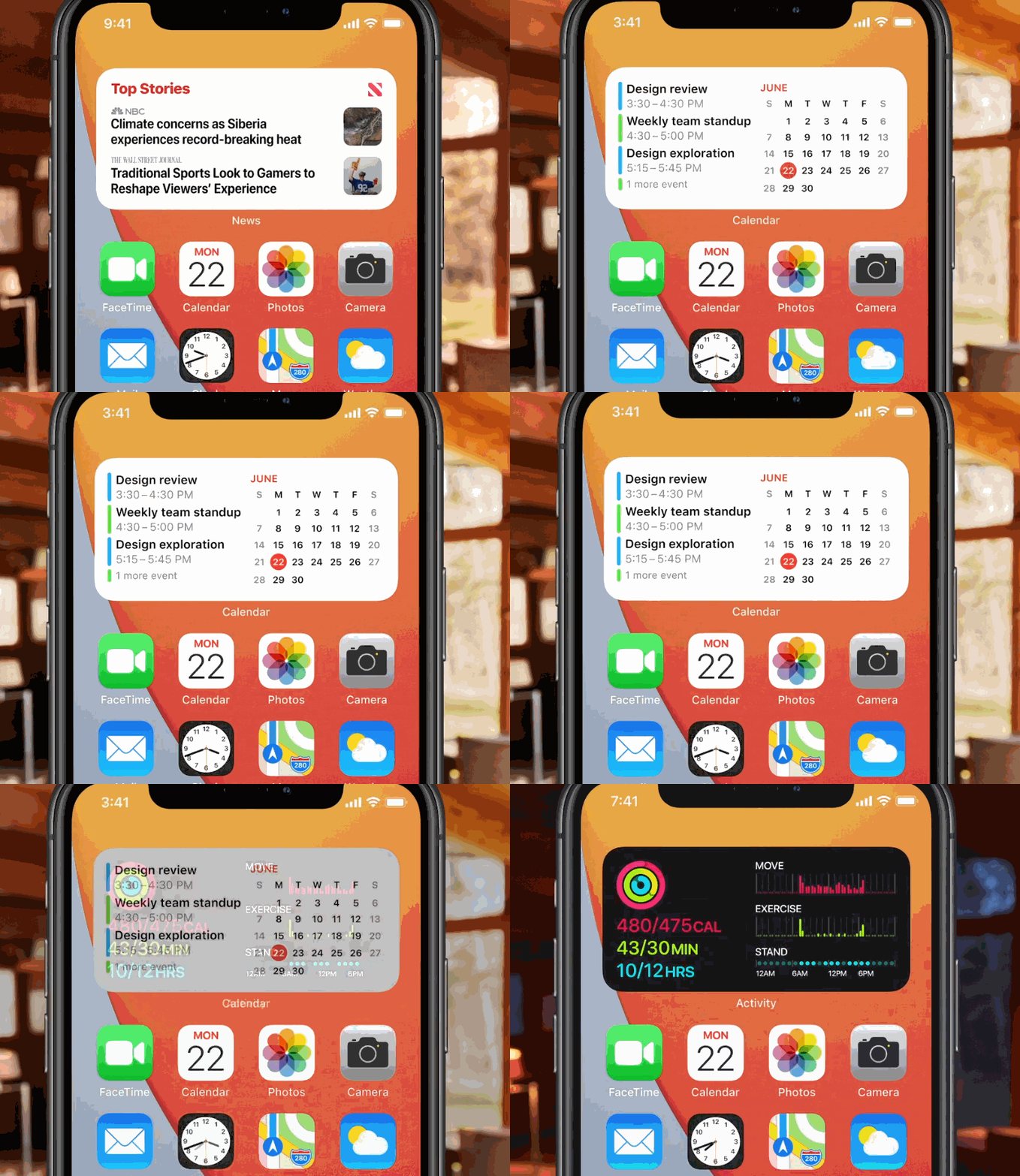
When you tap and hold on a home screen icon, there’s a new menu that lists all the widgets you can install on your home screen. Many default apps already support widgets, such as Reminders, Calendar, Stock, Weather, Music etc. And each widget comes in multiple sizes if you want to see more or less info.

The most interesting thing about widgets is that you can stack them and flip through them. Otherwise, they’d quickly take over your entire home screen. Apple also tries to surface the widget that is more relevant to the time of the day and what you’re doing.

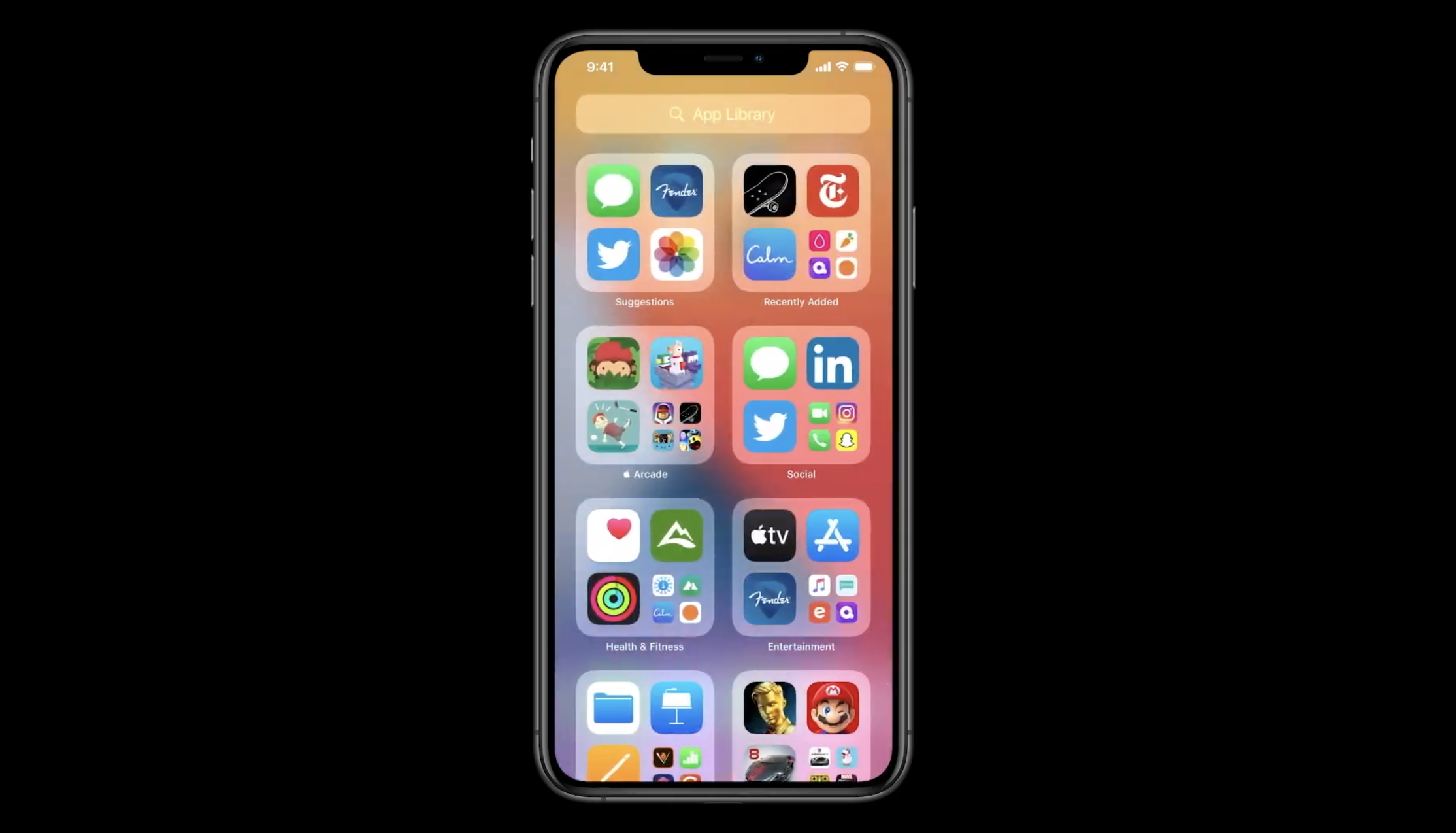
The second big change with the home screen is that there’s a new page at the right of your last page. The App Library groups all your apps on your phone by category. Some icons are bigger than others as Apple tries once again to surface the most important apps to you.

In my experience, categories don’t work that well as they’re based on the broad categories of the App Store. But you can always tap on the search bar at the top to display an alphabetical list of your apps. It could be useful if you can’t remember the name of an app for instance.

Image Credits: Apple

Fighting app fatigue

Those changes for the home screen might seem minor, but they are important to change the current app paradigm. People simply don’t want to download new apps. They don’t want to create a new account and they don’t want to have another icon.

Now that you can hide pages of apps and that there’s the App Library, downloading new apps has become less intimidating. If you combine that with Sign in with Apple, you can go from no app to interacting with content in no time.

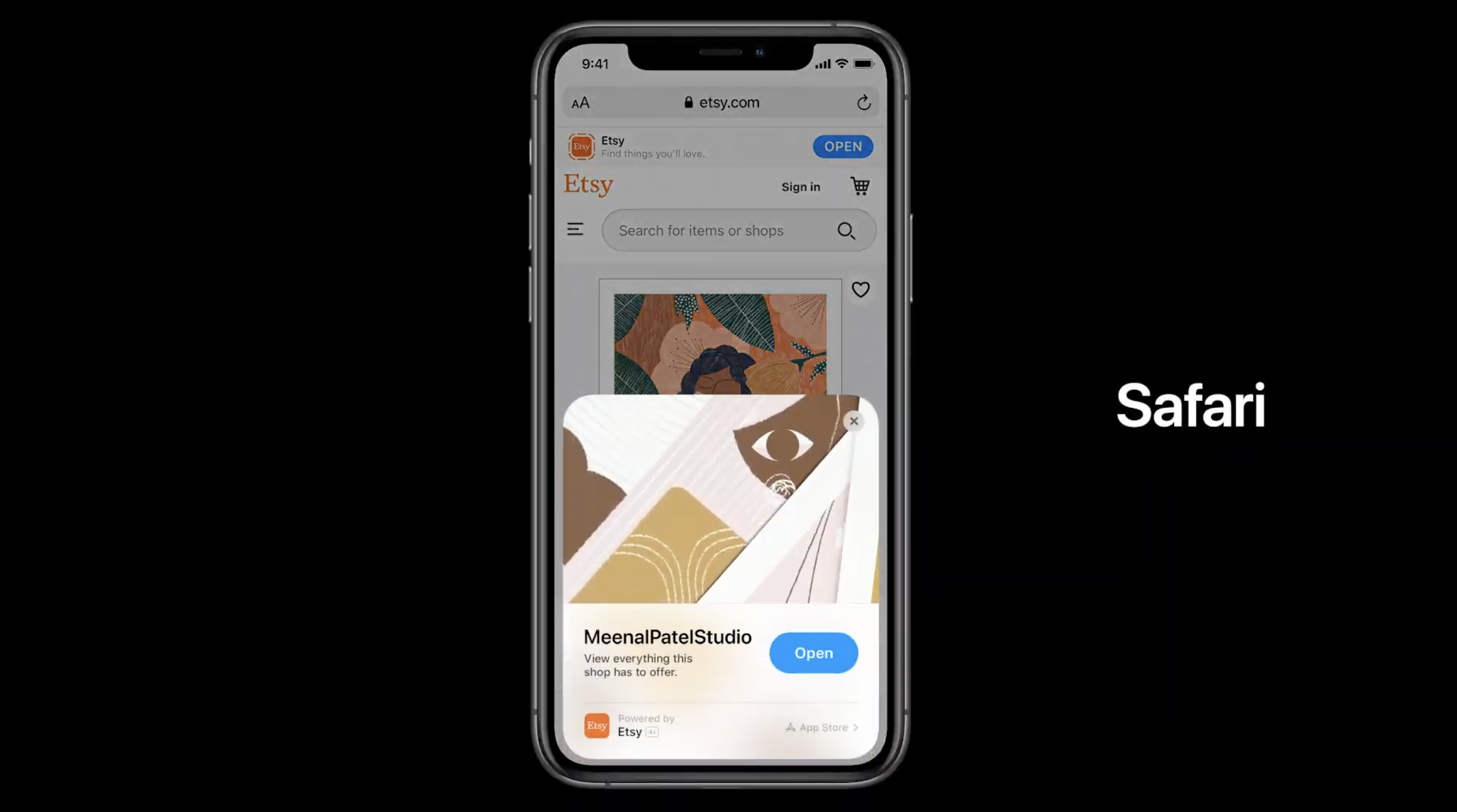
In addition to that, Apple is introducing App Clips. They are sort of mini apps that you can launch without installing an app. It’s a small part of an app that you can easily share. I haven’t had the chance to try it out yet as third-party developers have yet to take advantage of App Clips.

There are many ways to share App Clips. You can launch those apps from the web, from Messages, from Maps, from NFC tags or from QR codes. Get ready to see stickers at cafés, on scooters or in museums. Scan a code or tap your phone on it and you get an app-like experience. If you want to dive deeper, you can download the full app from the App Library.

But it’s also going to have some major impacts on utility apps, apps that you don’t use that often or travel apps for instance. Sure, you may keep your favorite social app on your home screen. But you’re going to forget about apps that only live in the App Library.

Developers will be happy that downloading apps is easier. And yet, it is going to be harder to make people come back to your app after the first launch.

Image Credits: Apple

Some app refinements

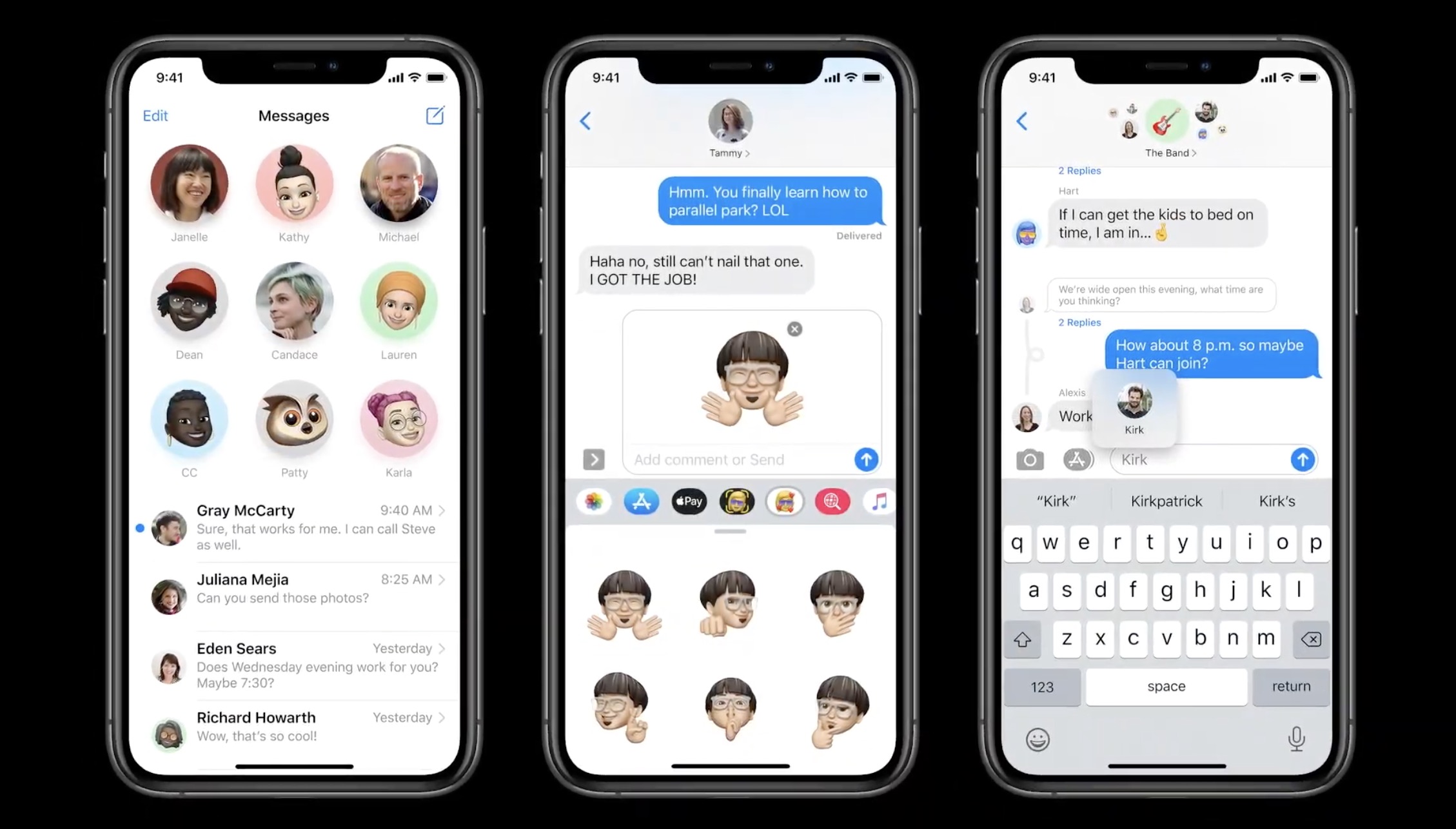
Let me list some quality-of-life improvements that are going to make your phone works better. In Messages, you can now pin conversations to the top. Group conversations are also receiving a major update with the ability to @-mention people, reply to specific messages and set a group of photos. Once again, Apple is bringing Messages closer to WhatsApp and Telegram. But it’s not a bad thing.

In Maps, there are many new features that I already detailed in a separate post. I encourage you to read it if you want to learn more about guides, electric vehicle routing, cycling directions and more.

The Home app has been improved with a new row of icons that describe the status of your home. For instance, you can see the temperature, see if a door is open, see if lights are on, etc.

Like every year, Notes and Reminders are getting some small improvements. For instance, document scanning has been improved, search has been improved, you can assign reminders to others and more. Those apps have become really powerful with these small incremental updates.

Image Credits: Apple

All the rest

There are many things that I haven’t mentioned yet or that I haven’t tried because I can’t use those features yet. Similarly, it’ll take some time before developers start adopting those features. Here’s a quick rundown:

  • Incoming calls don’t take over the entire screen anymore. You get a notification at the top of the screen, which is so much better if you don’t want to answer a call.
  • Similarly, Siri doesn’t overtake the screen. Your display fades out. I think more people are going to use Siri because of this as it doesn’t feel as invasive.
  • Your AirPods will automatically switch between your iPhone, iPad, Mac, etc.
  • When you’re on a FaceTime call or watching a video, you can switch to another app and keep the video in a corner. There’s not much else to say other than it’s nice.
  • Cycling directions in Apple Maps: I’m a bike lover but the feature isn’t available in Paris. It’s hard to know whether directions make sense in San Francisco or New York as I don’t know cycling infrastructure that well in those cities.
  • When you pull down to search for something, iOS now automatically highlights the first result. You can tap Go on the keyboard to hit the first result. It’s so much better.
  • HomeKit-compatible security cameras can now recognize faces based on tags in Photos.
  • You can unlock cars with your phone using NFC if you have a compatible car.
  • Following the acquisition of Dark Sky, you’ll be able to see next-hour precipitation in Apple’s Weather app.
  • You’ll be able to choose a different web browser and email client as default apps with iOS 14.

What about stability?

The big issue of iOS 13 was that it was quite buggy when it launched in September 2019. It’s hard to know whether iOS 13 is going to perform better on this front as it’s still a beta.

But, as you can see, Apple didn’t try to reinvent the wheel with default apps. There are a ton of improvements across the board, but no big redesign of Photos or Messages for instance. And I think it’s a good thing.

Changes on the home screen as well as App Clips could have wider implications for developers. It could change the way you discover and install apps today. So it’s going to be interesting to see if the developer community embraces App Clips.


Read Full Article

Apple just released the first iOS 14 beta to everyone


This is your opportunity to get a glimpse of the future of iOS — and iPadOS. Apple just released the first public beta of iOS 14 and iPadOS 14, the next major version of the operating systems for the iPhone and iPad. Unlike developer betas, everyone can download those betas without a $99 developer account. But don’t forget, it’s a beta.

The company still plans to release the final version of iOS and iPadOS 14.0 this fall. But Apple is going to release betas every few weeks over the summer. It’s a good way to fix as many bugs as possible and gather data from a large group of users.

As always, Apple’s public betas closely follow the release cycle of developer betas. And Apple released the second developer beta of iOS and iPadOS 14 earlier this week. So it sounds like the first public beta is more or less the same build as the second developer build.

But remember, you shouldn’t install an iOS beta on your primary iPhone or iPad. The issue is not just bugs — some apps and features won’t work at all. In some rare cases, beta software can also brick your device and make it unusable. You may even lose data on iCloud. Proceed with extreme caution.

But if you have an iPad or iPhone you don’t need, here’s how to download it. Head over to Apple’s beta website and download the configuration profile. It’s a tiny file that tells your iPhone or iPad to update to public betas like it’s a normal software update.

You can either download the configuration profile from Safari on your iOS device directly, or transfer it to your device using AirDrop, for instance. Reboot your device, then head over to the Settings app. In September, your device should automatically update to the final version of iOS and iPadOS 13 and you’ll be able to delete the configuration profile.

The biggest change of iOS 14 is the introduction of widgets on the home screen, a new App Library to browse all your apps and the ability to run App Clips — those are mini apps that feature a small part of an app and that you can run without installing anything.

There are also many refinements across the board, such as new features for Messages with a big focus on groups with @-mentions and replies, a new Translate app that works on your device, cycling directions in Apple Maps in some cities and various improvements in Notes, Reminders, Weather, Home and more.

If you want to learn more about iOS 14, I looked at some of the features in the new version:


Read Full Article

Coronavirus impact sends app downloads, usage and consumer spending to record highs in Q2


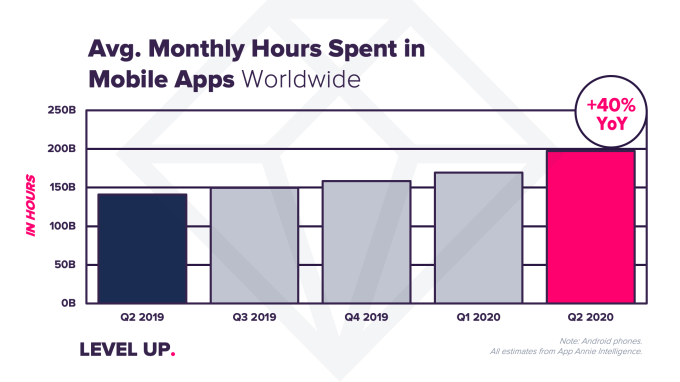
As the world continued to cope with the impact of the coronavirus outbreak, the second quarter of 2020 became the largest yet for mobile app downloads, usage, and consumer spending. According to new data from app store intelligence firm App Annie, mobile app usage grew 40% year-over-year in the second quarter of 2020, even hitting an all-time high of over 200 billion hours during April. Consumer spending in apps, meanwhile, hit a record high of $27 billion in the second quarter. And app downloads reached a high of nearly 35 billion.

The growth in app usage has been fueled by social distancing and lockdown measures, as countries around the world try to quell the spread of the novel coronavirus.

Image Credits:

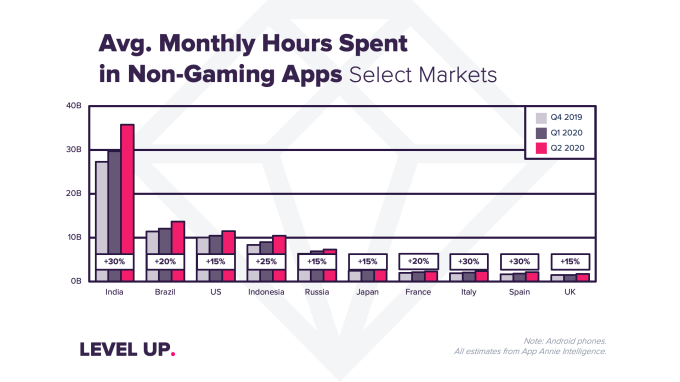
In India, for example, time spent in apps grew 35% in Q2 2020 from Q4 2019. Italy and Indonesia saw growth of 30% and 25%, respectively. In the U.S., time spent in apps grew 15%.

App Annie says that now, the average user is spending 4 hours and 20 minutes per day on their smartphones.

Image Credits: App Annie


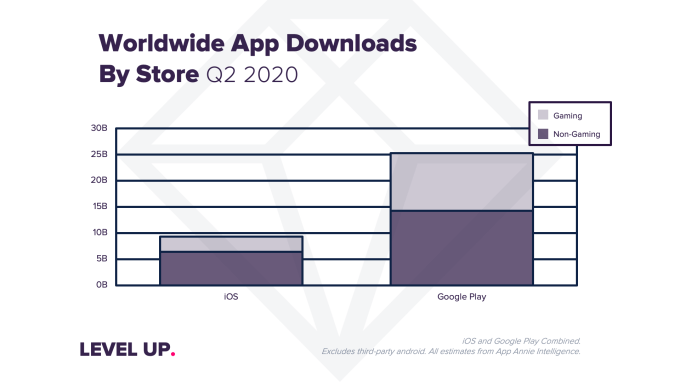
But consumers aren’t just launching apps they already have installed on their phones — they’re also downloading new ones. In the second quarter, consumers downloaded a nearly 35 billion new apps, an all-time high.

Google Play accounted for 25 billion of those downloads, representing 10% year-over-year growth. India and Brazil were the the two largest markets for Google Play in the quarter.

Image Credits: App Annie

iOS downloads grew 20% year-over-year to reach nearly 10 billion. The U.S. and China were iOS’s biggest markets for downloads, but the U.S. and Saudi Arabia saw the most quarter-over-quarter growth. The latter was likely attributed to a nationwide lockdown and school closures, driving app downloads in the country to a all-time high in April and 100% year-over-year growth on iOS.

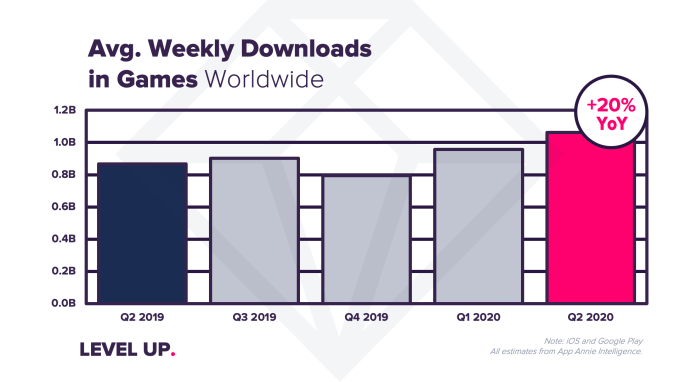
Games were downloaded at record levels in the quarter, App Annie noted, totalling 14 billion games. In the first week of Q2, weekly mobile game downloads broke records at over 1.2 billion, and weekly download levels remained at 1 billion on average throughout the quarter, up 20% year over year.

Image Credits: App Annie

Non-gaming apps represented over half (55%) of the new downloads on Android and 70% of those on iOS.

More specifically, top categories outside of games included “Tools” and “Entertainment” on Google Play and “Photo and Video” and “Entertainment” on iOS. But other categories saw strong growth, including “Business,” “Health & Fitness” and “Education” which saw quarter-over-quarter growth in downloads of 115%, 75% and 50% respectively on Google Play.

On iOS, “Health and Fitness,” “Shopping,” and “Medical” apps saw strong quarter-over-quarter growth of 30%, 25% and 20%, meanwhile.

With record downloads and usage, consumer spending also grew significantly as a result, particularly among streaming video services.

Image Credits:


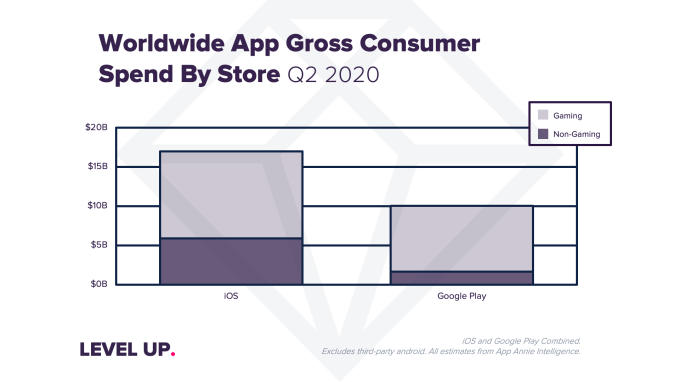
In the second quarter, consumers spent a record $27 billion in apps, up 15% year-over-year to $17 billion on iOS and up 25% to $10 billion on Android.

Games accounted for $19 billion of the spend, up 15% quarter-over-quarter. Google Play saw sizable growth at 25% quarter-over-quarter, which was 2x the growth rate on iOS.

Image Credits: App Annie

Non-gaming apps were 35% of the spend on iOS. The U.S. and China the largest contributors in both games and non-game apps on iOS in the quarter. However, the U.S. notably took back the top position as the largest market for consumer games — a spot previously held by China — with 30% quarter-over-quarter growth in Q2.

Non-games were 15% of the spend on Google Play. The U.S., Japan, and South Korea were the largest markets in both non-games and games alike on Google Play.

Top Google Play categories in addition to “Games” included “Social” and “Entertainment.” Growth in the “Entertainment” category was driven largely by Disney+ and Twitch, App Annie noted.

On iOS, “Entertainment” and “Photo and Video” were the largest categories by consumer spend, in addition to “Games.” Here, TikTok drove growth for the “Photo and Video” category, becoming the No. 1 top grossing app on iOS App Store globally in Q2 2020 thanks to sales of virtual gifts used to tip streamers.

Image Credits: App Annie

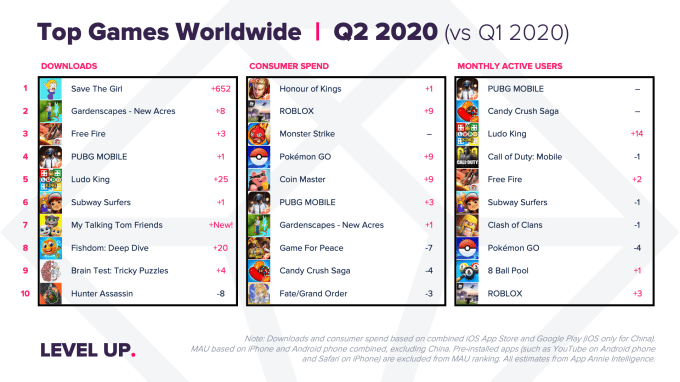
While much of the activity taking place on mobile devices during the pandemic is related to having fun — like watching videos or playing games, for example — several of the top apps in the quarter were work-related.

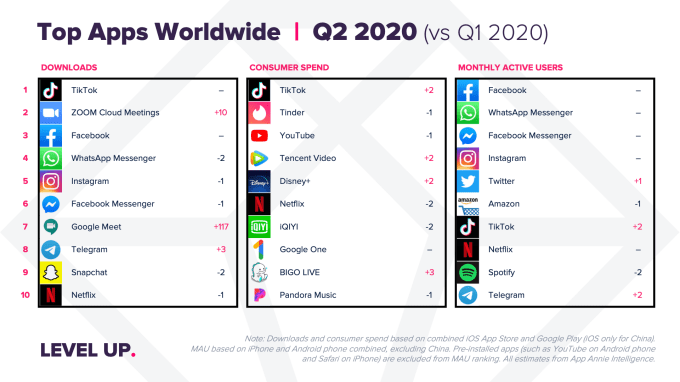
Zoom, for instance, became the No. 2 of most downloaded app globally in Q2 2020.  Google Meet was No. 7.

TikTok, meanwhile, was the top app by downloads and spending, and the No. 7 by monthly active users. That will likely change in the months ahead, due to its ban in India. A proposed U.S. ban has also recently seen TikTok rivals gaining ground. Amid this disruption, local competitors in India have seen increased usage, and elsewhere, competitors like Byte and Likee have surged.


Read Full Article

Coronavirus impact sends app downloads, usage and consumer spending to record highs in Q2


As the world continued to cope with the impact of the coronavirus outbreak, the second quarter of 2020 became the largest yet for mobile app downloads, usage, and consumer spending. According to new data from app store intelligence firm App Annie, mobile app usage grew 40% year-over-year in the second quarter of 2020, even hitting an all-time high of over 200 billion hours during April. Consumer spending in apps, meanwhile, hit a record high of $27 billion in the second quarter. And app downloads reached a high of nearly 35 billion.

The growth in app usage has been fueled by social distancing and lockdown measures, as countries around the world try to quell the spread of the novel coronavirus.

Image Credits:

In India, for example, time spent in apps grew 35% in Q2 2020 from Q4 2019. Italy and Indonesia saw growth of 30% and 25%, respectively. In the U.S., time spent in apps grew 15%.

App Annie says that now, the average user is spending 4 hours and 20 minutes per day on their smartphones.

Image Credits: App Annie


But consumers aren’t just launching apps they already have installed on their phones — they’re also downloading new ones. In the second quarter, consumers downloaded a nearly 35 billion new apps, an all-time high.

Google Play accounted for 25 billion of those downloads, representing 10% year-over-year growth. India and Brazil were the the two largest markets for Google Play in the quarter.

Image Credits: App Annie

iOS downloads grew 20% year-over-year to reach nearly 10 billion. The U.S. and China were iOS’s biggest markets for downloads, but the U.S. and Saudi Arabia saw the most quarter-over-quarter growth. The latter was likely attributed to a nationwide lockdown and school closures, driving app downloads in the country to a all-time high in April and 100% year-over-year growth on iOS.

Games were downloaded at record levels in the quarter, App Annie noted, totalling 14 billion games. In the first week of Q2, weekly mobile game downloads broke records at over 1.2 billion, and weekly download levels remained at 1 billion on average throughout the quarter, up 20% year over year.

Image Credits: App Annie

Non-gaming apps represented over half (55%) of the new downloads on Android and 70% of those on iOS.

More specifically, top categories outside of games included “Tools” and “Entertainment” on Google Play and “Photo and Video” and “Entertainment” on iOS. But other categories saw strong growth, including “Business,” “Health & Fitness” and “Education” which saw quarter-over-quarter growth in downloads of 115%, 75% and 50% respectively on Google Play.

On iOS, “Health and Fitness,” “Shopping,” and “Medical” apps saw strong quarter-over-quarter growth of 30%, 25% and 20%, meanwhile.

With record downloads and usage, consumer spending also grew significantly as a result, particularly among streaming video services.

Image Credits:


In the second quarter, consumers spent a record $27 billion in apps, up 15% year-over-year to $17 billion on iOS and up 25% to $10 billion on Android.

Games accounted for $19 billion of the spend, up 15% quarter-over-quarter. Google Play saw sizable growth at 25% quarter-over-quarter, which was 2x the growth rate on iOS.

Image Credits: App Annie

Non-gaming apps were 35% of the spend on iOS. The U.S. and China the largest contributors in both games and non-game apps on iOS in the quarter. However, the U.S. notably took back the top position as the largest market for consumer games — a spot previously held by China — with 30% quarter-over-quarter growth in Q2.

Non-games were 15% of the spend on Google Play. The U.S., Japan, and South Korea were the largest markets in both non-games and games alike on Google Play.

Top Google Play categories in addition to “Games” included “Social” and “Entertainment.” Growth in the “Entertainment” category was driven largely by Disney+ and Twitch, App Annie noted.

On iOS, “Entertainment” and “Photo and Video” were the largest categories by consumer spend, in addition to “Games.” Here, TikTok drove growth for the “Photo and Video” category, becoming the No. 1 top grossing app on iOS App Store globally in Q2 2020 thanks to sales of virtual gifts used to tip streamers.

Image Credits: App Annie

While much of the activity taking place on mobile devices during the pandemic is related to having fun — like watching videos or playing games, for example — several of the top apps in the quarter were work-related.

Zoom, for instance, became the No. 2 of most downloaded app globally in Q2 2020.  Google Meet was No. 7.

TikTok, meanwhile, was the top app by downloads and spending, and the No. 7 by monthly active users. That will likely change in the months ahead, due to its ban in India. A proposed U.S. ban has also recently seen TikTok rivals gaining ground. Amid this disruption, local competitors in India have seen increased usage, and elsewhere, competitors like Byte and Likee have surged.


Read Full Article