Google is giving you the option to create and use multiple signatures in Gmail. This will enable you to create different signatures for different situations, so you can use a different signature in an email to your boss as you would in an email to a co-worker.
How to Create and Use Different Signatures in Gmail
Google announced that Gmail now supports multiple email signatures in a post on the G Suite Updates Blog. The company explains that multiple signatures gives you the flexibility to use different signatures across a range of different situations.
These different situations include “communicating across teams, organizations, or products,” “communicating across languages,” and “using different default signatures for new emails and replies.” Essentially, it puts more options at your fingertips.
Now in #gmail, you can use different signatures for different situations to:
?? Communicate across work and personal emails
?? Communicate across languages
To create multiple signatures, open Gmail, then click the Cog icon > Settings. Then, scroll down to Signature and select Create New. Here, you can create as many signatures as you want, varying them up so that they can be employed as and when needed.
To use multiple signatures, when composing a new email, click the Pen icon to open the signature menu. Then choose which signature you want to use on that particular email. You can also click Manage Signatures to add, edit, or remove signatures.
How to Create a Professional Email Signature
This might not be the biggest feature Google has ever added to Gmail, but it could be an extremely useful one. Especially if you’re the type of person who likes to use a signature on all of your emails, and employ different personas depending on the recipient.
Email signatures are a useful tool that many people aren’t taking advantage of. Which is a mistake, as they can make your communications look that little bit more professional. With that in mind, here are some tips for creating the perfect email signature.
Reddit can help you improve your photography skills. There are some great subreddits dedicated to photography. And if you pick out the best advice, Reddit can help make you a better photographer.
To help you get started, we’ve compiled a list of the best photography subreddits. All of which can help you take better photographs with whatever camera you have to hand.
This subreddit is the mothership for photographers of all hues. More than 2.4 million members make this the most-subscribed photography subreddit.
With so much going on, it can feel a little congested. However, you can get shares that might not fit into any of the other photography subreddits. As the sidebar says, this may not be a good place to upload your photos, but it’s a great meeting place to discuss everything else related to photography.
To get the idea, read through the Info Threads on the right that are a collection of the most important discussions. Also, go over to the Photographs subreddit which works as a sister community to this one.
Beginner photographers may feel crowded out from the other subreddits for photography by advanced amateurs or professionals. Therefore, this subreddit is more suited for newbies and amateurs.
Air your learning gaps, but do keep in mind that asking for feedback on your photos is frowned upon. You can use many of the other subreddits down below for photo critiques.
If you are new to photography, the Photo Class subreddit for this year will give you something to do with weekend assignments. You can take inspiration from members who completed those assignments. It doesn’t matter if the posts have died down.
The class began in January, but you can hop on anytime. This subreddit is a great place to go when you need a few project ideas to challenge yourself with. You can then compare your work to those who have previously submitted theirs.
Reddit also has a collection of similar photography classes for the previous years. Check them out too if you need more ideas.
Read: Go back to the Reddit Photo Class that began in 2011. The site gives you 30 lessons covering the basics of photography.
If you have a question about anything dealing with photography—digital or otherwise—then you’ll find the answer in the /r/askphotography subreddit.
This is a massive hub for newbie and veteran photographers alike, and is also one of the best locations for online photography discussions.
Don’t be shy about asking what you need to ask, but do browse and search the subreddit before submitting any questions to make sure they haven’t been asked and answered before.
Even before you take up photography, the chatter of which camera is the best will take over your thoughts. It’s often the camera you have in your hands. But that’s never a satisfactory answer when so many camera bodies and lenses compete for your attention.
The Cameras subreddit is a magnet for these discussions. Go crazy over new cameras, compare cameras, and find the best lenses, gear, and accessories.
If practice makes progress, contributing to this photo-filled subreddit will get you closer to your goals much quicker than you might expect. In a way, it borrows from photography ideas that task users with taking one photo every day or week for a year.
The difference is that the ITookAPicture subreddit is updated more often and is a little bit more relaxed, allowing participants to increase or decrease their efforts as they wish.
Overall, it’s a great place to post works in progress and ask for feedback without the anxiety of a formal critique. And you can stay on as a lurker too while learning about different photography techniques and styles.
Read: The Wiki index is a compilation of all contests and their winning entries.
Some photography subreddits are only geared towards amateur photographers. Others are there for professional and aspiring photographers, and the PhotoCritique subreddit is one of those. In fact, it’s considered one of the best places to go for honest feedback.
A lot of the information on this subreddit is meant to be taken as a tool for learning, but because the critiques are rarely sugarcoated, you should only start participating when you have a good bit of experience and some thick skin.
Looking at finished photos can awe and overwhelm you. But you should remember that some of the most beautiful shots go through post-processing to finetune what the lens cannot capture.
So, if you are asking why your photographs don’t look that stunning then this young subreddit is here to provide some inspiration. The threads are all about comparisons between straight-out-of-the-camera shots and post-processed photos.
At the very least, the photos will push you towards the next two subreddits on the list and improve your skills with Adobe Photoshop and Lightroom.
Post-processing is a lot about theory and style and less about the filters at your disposal. Anyone who wants to learn how to produce a photo in a particular style will find this community helpful.
Just browse around and search for threads that involve questions like your own and you’ll find a lot of helpful tips and advice. A lot of photos are also cross-posted on the Before and After Edits subreddit too.
The Lightroom subreddit is a place for photographers to discuss the technical details of post-processing with Adobe Lightroom. This includes light settings, file organization, geotagging, screen calibration, and more.
You’ll find various questions are asked and answered with links to outside sources that can help, particularly concerning the Adobe suite for the desktop and mobile. There are also several posts that provide links to free Lightroom presets to use.
The advice here is perhaps not as useful until you’ve started dabbling in post-processing, but once you do, this is a must-visit. Pair this with the large Photoshop subreddit to have two critical photography communities to fall back on.
You will discover many more photography subreddits as you narrow down the kind of photographs you want to take. Start with the most important photography tips for beginners and then go from there.
Reddit is a useful tool for improving your photography skills, but don’t be a Reddit lurker. Contribute and help others. And if you want to jump all-in then it pays to know what Reddit Karma is and how to earn it.
Remembering the name of a song when you can’t recall the lyrics can be frustrating. Worse still is when the tune keeps playing over and over in your head, like a broken, looping tape.
Fortunately, there are apps and websites out there that can help you find songs with partial lyrics, notes, or chords. There are even websites that can find a song by humming! Here’s how to use a song finder and other music-related apps to do just that.
A Word on Voice Recognition Technology
Before we list the apps, we also wanted to give a quick explanation of voice recognition technology, and how it can help you find a song by humming online.
Sometimes, when we’re talking about machine learning, an image of a starship crew seeking the help of a ship’s AI comes to mind. The crazy part about this technology, however, is that some of it is no longer in the realm of science fiction.
Voice recognition is becoming increasingly integrated into the apps and websites that we use today, including apps that allow you to hum a song to find them. To learn more, check out the best Google AI experiments to explore artificial intelligence. Now let’s talk about those apps.
Midomi isn’t exactly a unique website. Like every other online vendor where you can search and buy music, Midomi lets you research genres, bands, and individual artists. You can also watch music videos, listen to song clips, or join the Midomi community to record your own music.
However, what makes Midomi very useful is that little box at the top of the home page that says “Click and sing or hum.”
Can you really find a song by humming? We tested the accuracy of this online application by humming “The Imperial March” from Star Wars. After clicking the box, the recording began.
The test included humming ten seconds of the song, with no words whatsoever.
When done, we clicked on the red microphone to search for results.
Even with my terrible singing rendition, one of our “guesses” was a perfect match.
As such, Midomi’s ability to find a song was pretty impressive.
To make sure that this wasn’t just luck, we tried the website again with a different tune—ten seconds of “Over the Rainbow,” originally sung by Judy Garland in The Wizard of Oz. After humming, the app processed our recording and provided accurate results.
If you were looking for convincing proof that Midomi worked, this is it. Apparently all you need is the general tune of the song, no title or lyrics required.
If you’re a skilled musician, then you’ll probably know most of the notes in a particular song. You might even prefer to use notes to find a tune rather than humming along. If that describes you, then Musipedia might be a good fit.
Musipedia gives you the ability to play a tune with several note-related searches. These include:
A Keyboard Search. This is done by notes.
A Contour Search. These are the general note patterns of a song.
A Rhythm Search. Through this, you can hunt for a song by rhythm.
When you use any of these features, Musipedia will convert the data into a general “note contour” line. The website then runs this line through its database, looking for a match.
After it finds a match, you’ll see a list of the songs in the search results. Each result includes the portion of the musical pattern that matched the tune that you played.
However—while exploring this website—we also noticed some major downsides to it.
Musipedia runs very slow. It isn’t exactly what we’d call a work of art by any web development standards, either.
There have been reports by its users on the Musipedia forums that the website is not returning results. This leaves its current functionality circumspect.
While Musipedia does offer the option to find songs by humming, this feature still requires Flash.
Unfortunately, Adobe Flash can be flakey, so chances are high that this feature will not work. Adobe also plans to phase out Flash very soon.
As such, the connection to this website is not secure.
Another way that you can find a song by humming or singing is by installing the AHA Music – Music Identifier Chrome extension.
The way it works is very simple.
If you’re watching a movie or TV show, click on the AHA Music Identifier icon in your browser.
If there’s a song playing in the background, the app will listen in and identify.
You can also click on the Spotify icon to open up the song on the Spotify website.
What’s really nice about this app is that it’s a great way to identify songs that are being played on a video streaming service, especially when song titles aren’t readily available.
Additionally, you can try using this extension as a hum song finder in a two-step process:
First, you can use a site like Online Voice Recorder to record yourself humming or singing.
Next, when you play it back, you can trigger the AHA Music Identifier extension.
However, we should note that the results for this two-step process were very mixed. While AHA did analyze the recording, if we sang too far off-key it couldn’t match the song.
So if you’re bad at singing, you might want to stick to Midomi. It’s much more reliable.
Lastly, we wanted to give a shout out to the website-and-app combo, Shazam.
While Shazam cannot find songs by humming if you hum off-tune (trust us, we tried), it does have one of the best music databases out there. With a couple of clicks, it can help you find a song in seconds either by listening in on a music recording or by typing the partial lyrics into the website.
If you’ve got a partial line stuck in your head—in this case, let’s just use the word “somewhere”—Shazam can instantly pull up all songs that contain that word or those lyrics, so long as you type it into the search bar.
If you click on the song page on the website, you’ll also get:
Artist and title info.
The full lyrics to that song.
An embedded YouTube video of that song, to allow you to listen to it.
If you have the app on your phone, you can simply turn it on while listening to a movie or TV show. The app will pull up the artist and title for you.
Prior to us releasing this article, there was another song finder search engine that we wrote about called MelodyCatcher. MelodyCatcher was similar to Musipedia, in that it was a melody search engine that let you search for tunes by playing them on a virtual keyboard.
Unfortunately—while the melody catcher website is still live—the website has not been updated in several years. This leave site insecure and vulnerable to exploits.
As such, we can no longer recommend it.
What Is That Sound? Hum a Song to Find It
Few things are quite as frustrating as walking around all day with a tune stuck in your head. Fortunately, the next time this happens, you’ll know where you can go for answers. You’ll also know how to find a song by humming a tune or playing the notes!
A surprising number of Windows users don’t change their desktop background. Don’t believe us? Just peek over a couple of people’s shoulders next time you’re in a coffee shop or airport.
And of the people that do change their desktop, far too many stick with one of the operating system’s stock images. It’s boring.
Why not jazz up your computer with a cool system-wide Windows theme instead? Here are the best Windows 10 themes for every desktop.
There are so many dark themes out there that it’s hard to choose a winner, but we like GreyEve. You can grab the ZIP file off DeviantArt. Place the file into %USERPROFILE%\AppData\Local\Microsoft\Windows\Themes then go to Settings > Personalization > Themes and select it from the list.
Granted there’s not a lot of difference between a dark theme and a black theme. However, Hover Dark Aero Theme does use more blacks and fewer greys than GreyEve Theme.
Before using the theme, you need to install UXThemePatcher For Windows 10. Once that’s up and running, grab a copy of the theme off DeviantArt.
When the download has finished, move the contents of the Theme folder into %windir%/Resources/Themes. You can apply the theme to your system from the Settings app.
3D Theme, which is available on ThemePack, contains 17 high-definition wallpapers. The wallpapers all give the illusion of a 3D graphic.
The images are all abstract; though several of them draw inspiration from spheres and cubes.
To use 3D Theme, put the files in %windir%/Resources/Themes. You can use all 17 images at once; right-click on your desktop and choose Next Desktop Background to cycle through the options.
If you think the Windows layout is too cluttered, have a look at the Simplify 10 theme. It is one of the best Windows 10 themes. The theme strips away a lot of the unnecessary design elements, leaving you with a minimalist theme that looks impressively sleek.
Simplify 10 comes in three different versions—a light theme, a dark theme, and a third option called Maverick. The Maverick theme is designed to have a resemblance to the Linux distro, Ubuntu.
Of course, you shouldn’t still be using the operating system for your day-to-day computing. Support ended a long time ago and it’s a security nightmare. However, you can still make Windows 10 look like XP—it’s the best of both worlds for XP diehards.
The best option is XP Themes on DeviantArt. Just make sure you install the latest version of UxStyle before you proceed with setup.
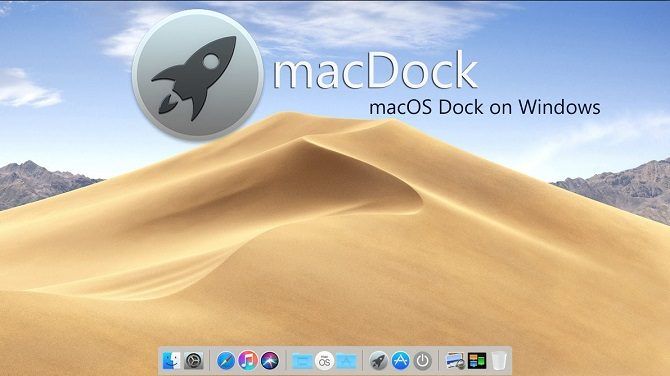
The most well-known aspect of the macOS operating system is the dock. It provides quick access to all your frequently-used apps. The Windows taskbar works in a similar way, but if you’re craving the Mac feel, perhaps you should try using macDock.
As the name suggests, it adds a Mac-like dock to the bottom of your screen. It will replace the existing taskbar, and you can customize the dock to display the apps you want to see.
Better yet, it also comes with a host of Mac apps ready to use, including Widget, Launchpad, Siri, Finder, and Exposé. It even has three skins and a drag-and-drop interface.
Grab the installation files off DeviantArt and run the EXE file to get started.
Therefore, it perhaps unsurprising to learn that you can find a glut of anime themes for Windows 10. On ThemePack you can grab themes for all your favorite stars and shows, including Gintama, Vegeta, Evangelion, and Haikyuu.
You can find some of the best Windows 10 themes with a free download in the Microsoft Store. There are dozens to choose from (including a few paid options).
One of our favorite free themes in the store is Meteor Showers. It features 18 images of shooting stars for you to choose from, or you can get Windows to cycle through all 18 at predefined intervals.
Some of the other subject matter in the images include forests, cityscapes, lakes, and animals.
As the name suggests, Flattastic kills color gradients and other design elements that give the impression of curvature and replaces the entire desktop with a flat look.
There are 16 different versions of theme—eight light designs and eight dark designs. You will have access to all 16 when you paste the appropriate files into C:\Windows\Resources\Themes.
We’ve looked at how to make Windows look like macOS, but what about making Windows look like Linux? If you want Windows’ functionality with Linux’s looks, check out the Ubuntu SkinPack.
In addition to Windows 10, the Ubuntu SkinPack also supports Windows 7 and Windows 8.
Note: Before Changing Your Windows 10 Theme…
Whenever you change your Windows 10 theme, you should always make sure you make Windows’ accent colors match your desktop background. It’ll make your theme appear more cohesive.
Luckily, this process can be automated. Head to Settings > Personalization > Colors > Choose your color and mark the checkbox next to Automatically pick an accent color from my background.
Your internet connection can be uncertain at times, and a sudden drop in the connectivity while downloading a large file can be frustrating. Sometimes, you might have to download the file from scratch because Chrome can’t detect the file fragment you just downloaded.
If you’re on a limited bandwidth plan or your ISP throttles the data after you exceed the fair usage limit, the consequences of an interrupted download can prove expensive. Let’s see how to resume failed downloads in Google Chrome.
Cause for Partial Downloads
We cannot entirely blame Chrome for interrupted downloads. There are a few reasons why a partial or incomplete download can occur.
The web server doesn’t allow you to resume a download and forces it to start from the beginning.
If your internet connection is slow or the server gets overloaded with requests, then a timeout can result in incomplete downloads.
The source file is corrupted. In such a case, you’ll experience a partial download no matter which browser you use.
Use Chrome’s Download Manager to Resume Downloads
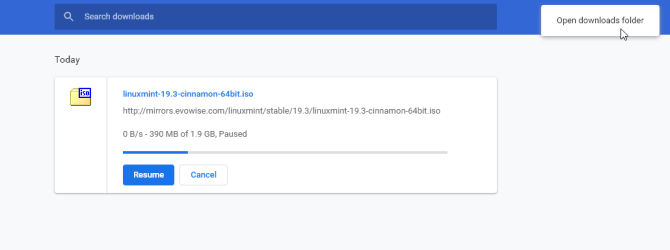
Google Chrome has a built-in download manager to display all your downloads—whether it’s active, failed, canceled, or completed. Press Ctrl + J or click the Options dropdown menu and select Downloads to open the download manager.
In the list of downloads, find the failed item and click Resume. If everything goes right, your download will resume from where it got interrupted.
Resume Interrupted Download With Wget
If the download fails to resume, you can try Wget. It’s a free, command-line tool to download files from the web. Wget is excellent over slow or unstable network connections. If a download fails, it’ll keep retrying until the whole file transfers to your computer.
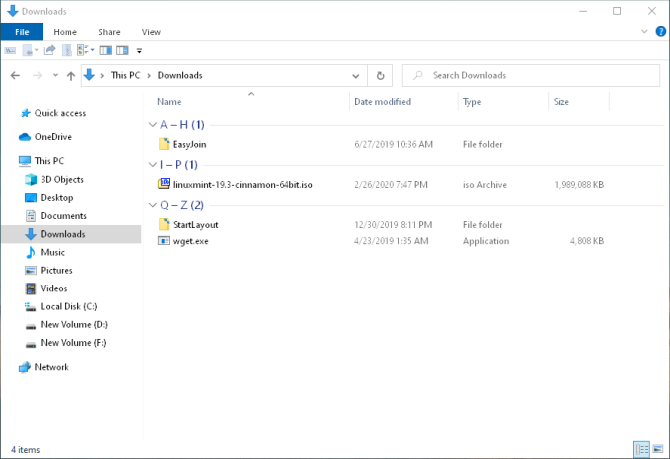
There are many versions of Wget available for Windows 10. Head to Eternally Bored to download the latest 64-bit build. Drag the executable file to
C:\Users\[User Name]\Downloads
Now, you can run Wget in two ways: Change to the directory that has the executable with the cd command or add it as an environment variable so that you can access it from any directory. We recommend you to use the latter if you plan on using Wget frequently.
Let’s set it up as an environment variable.
Setting Up Wget
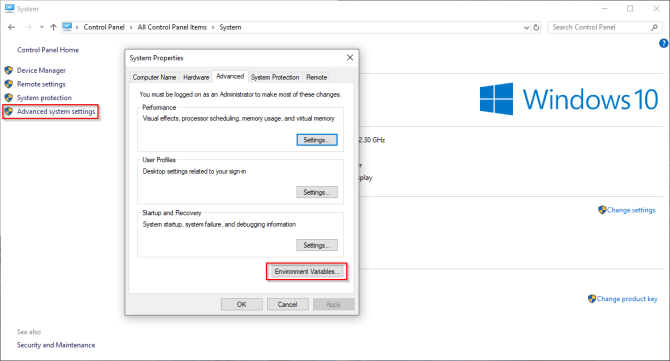
Navigate to Control Panel > System and click Advanced System Settings. In the window that opens, click Environment Variables.
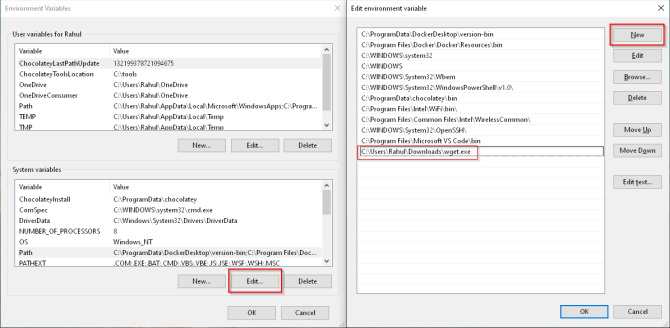
Select Path under System variables and click Edit. Then, click on the New button located at the upper-right corner of the window. Type:
C:\Users\[User Name]\Downloads\wget.exe
Click OK.
Open Command Prompt and type “wget -h” to test if everything works. In PowerShell type “wget.exe -h” to load the Wget help menu.
Rename the Partially Downloaded File
To rename your file, we need two essential bits of information—website URL and location of the partially downloaded file.
Press Ctrl + J to open the download manager. Locate the file, right-click the source file’s website, and then select Copy link address. Paste your link in the Notepad.
Now, click More and choose Open downloads folder.
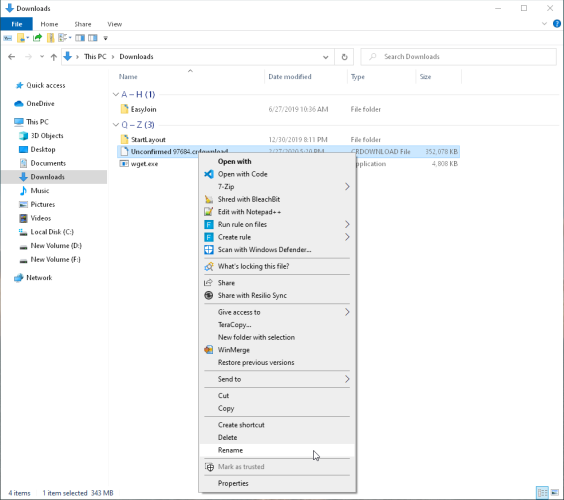
When your file gets partially downloaded, Chrome gives a default name of “Unconfirmed [Random Number].crdownload.”
The .crdownload extension is a byproduct of Chrome. You can neither open or convert it to another format. Once you download completes, it gets removed.
You can get the original filename quickly from the website URL. If the link is
then your filename is linuxmint–19.3-cinnamon–64-bit.iso. Right-click the partially downloaded file and select Rename. Remove the .crdownload extension from the end of the file and press Enter.
A message will warn you that the file might become unusable if you change the extension. Click Yes.
If you see a weird message “File in Use,” then find out the error preventing you from renaming the file. In Chrome, it is a particular process that’s causing all the problems.
Note: Do not quit Chrome, or else it’ll delete the file from your system.
Resume Your Download with Wget
To resume your download through Wget, you need the file path of the target download file and the website URL.
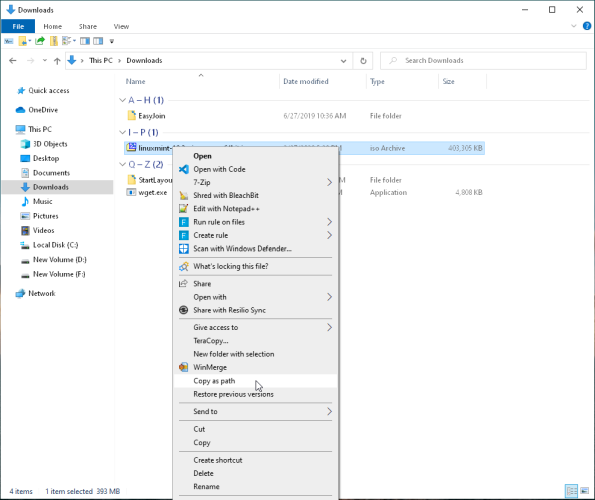
Press and hold the Shift key, then right-click your file and select Copy as path. Also, copy-and-paste the website URL you copied earlier. Paste these two bits of information in Notepad.
While Google Chrome has improved a lot in terms of stability and user experience, the native download manager lacks essential features like resuming incomplete downloads, scheduling, download acceleration, and more.
Internet Download Manager
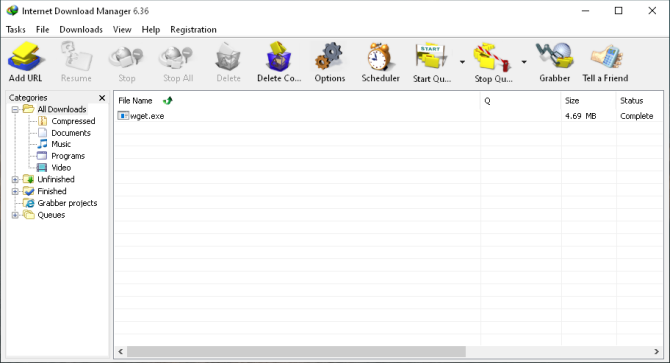
It is the most popular download manager for Windows. When you install the app, its built-in extension deeply integrates with Chrome and allows IDM to intercept URLs. The download segmentation feature accelerates the download speed considerably.
IDM error recovery and resume capability will restart broken or interrupted downloads due to lost network connections, unexpected shutdown, or power outages. Other features include download categories, scheduler, queue processor, progressive download with quotas, and more.
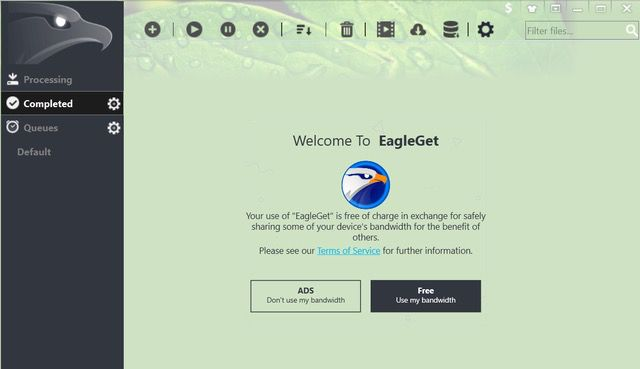
It is a free alternative to IDM. The app has a simple and intuitive interface and uses a similar kind of multi-threading technology to speed up your downloads. The resume ability is not as powerful as IDM. But nevertheless, it is a feature rich download manager.
With high internet speed and almost unlimited data, partial or incomplete downloads aren’t a big problem. If an interruption occurs, resuming your download through Wget is quick and easy. If the file is large or if your internet connection is spotty, it’s better to download the file with Wget.
Wget is a versatile command line utility that can do quite a few things with a single command. Did you know that with Wget and a few simple scripts, you can save multiple webpages into PDFs?
Knowledge of how to bypass blocked websites at school is a valuable commodity amongst students. While the freedom to do whatever you please is tempting, is it entirely safe to do so?
Let’s break down how to get past a school firewall, as well as some reasons why you may not want to.
How to Bypass a School Firewall
There are several tricks to getting around a school firewall. It depends on how the firewall works; some may monitor what you type in the address bar, while others will actively monitor the traffic. Give these a shot and see which one works best.
1. Use a Proxy Site to Get Around URL Restrictions
Proxy sites are services that handle your requests for you. These servers are handy when you’re trying to circumvent a firewall because the proxy handles all the surfing for you.
If your institution blocks a game’s website, it’ll likely look for you typing the URL into the address bar. A web proxy server circumvents this because you’re not visiting the game’s website; you’re going to the proxy’s page and telling it to go to the page instead. It then shows you everything on the game’s website, while your school firewall only sees the proxy’s URL.
For example, if you wanted to play Minecraft for free on your browser, your school may have already blocked the minecraft.net domain. As such, when you go to play it, the firewall spots that you’re visiting the Minecraft website and stops you.
However, if you access the website via a proxy server, the firewall won’t see that the traffic is from the Minecraft website. Instead, it’ll only see your proxy server’s details, which just so happens to be sending you data from the Minecraft website!
The best part is, you don’t need to use or install special software to use one. If your school’s computers dislike you installing programs on them, using a proxy in a browser will easily skirt around this restriction.
Alternatively, companies such as ExpressVPN offer a special SOCKS5 proxy service that you can use to skirt around a firewall. “SOCKS5” sounds complicated, but it’s just the name of the latest proxy server technology. It should work just like any other proxy service.
VPNs, on the other hand, allow you to bypass firewalls by encrypting your traffic. Proxies get around the restrictions by giving you the banned website via a whitelisted one, but a VPN protects you by not allowing the firewall to see your browsing in the first place.
It achieves this by taking all of the information your computer is about to send out, and encrypting it so that prying eyes can’t see what you’re sending. The computer then sends this encrypted data to a VPN server, which unscrambles your data, reads where you want to go, and goes there. It carries its traffic back encrypted, which skirts around the firewall.
VPNs are good for more than skirting around school firewalls. Check these reasons why you should be using a VPN, all of which affect your life outside of school.
If you’re unsure about which VPN to use, why not save some money and get ExpressVPN for 49 percent off? It’s one of our favorite VPN services for beginners and doesn’t skimp on your privacy.
3. Type the IP Address of the Website
When you type the name of a website into your browser, it is converted into an IP address. This occurs because computers have no idea what names are; it has to convert them to an IP address using a Domain Name Server (DNS).
This knowledge comes in handy if the firewall is looking for domain names instead of IP addresses. By typing the number into the address bar, you can visit the webpage without informing the firewall that you’re going there.
Unfortunately, it’s not apparent what each website’s IP address is. You can use WhatIsMyIPAddress‘s lookup tool to find it.
4. Use Google Translate as an Impromptu Proxy Server
Funnily enough, Google Translate is useful as a way to circumvent a firewall! You have to use Google Translate’s “translate page” feature to use it. When Google Translate translates a page, it loads the page the server, translates it, and sends the result to you.
Sound familiar? It should—it’s doing the same job as a proxy server. This little trick makes Google Translate an inconspicuous choice if all of the proxy websites are blocked.
5. Use a Smartphone Hotspot on Mobile Data
If you can’t figure out how to bypass the school Wi-Fi, you could try turning your smartphone into a hotspot. That way, you can connect to the internet without needing to go through the school’s system. It will eat away the phone’s data, but it removes the hassle of bypassing the school firewall.
If you want to learn more, be sure to read how to connect mobile internet to a PC or laptop.
The Repercussions for Bypassing a School Firewall
As much as you hate the school firewall, it’s there for a good reason. Not only does it enforce the idea that a school is a place of learning, but it can also protect you and the school from illegal or malicious content.
1. You Could Have Your Personal Information Stolen
If you use a proxy server, your traffic is going through a third-party server to reach the destination. The thing is, how confident are you that the server hosts aren’t looking at all the traffic you’re sending?
This is one of the bigger reasons why it’s safer to wait until you get home. When you use free services, often they’re free because the developers make money off of you, somehow. This can be due to ads, or they could harvest your personal information to sell on.
2. You Could Get a Virus
Even worse, free services may not be too strict on what advertisements they show you. This could lead to your computer catching a nasty virus, which could then spread to other computers in the school.
Virus outbreaks in school aren’t unheard of; ItemLive reported on how Lynn Schools had their internet shut down by a virus for a whole week. Before you get any ideas, the school didn’t close down for the week; it was school as usual, just without any internet to spend time on!
3. You Could Get Suspended or Expelled
It’s highly likely your institution has a use policy for their computers. These detail what you can and can’t do with them, as well as what to expect if you’re caught performing said actions.
These terms may state that, by circumventing the security, the school can ban from the computer network. If you’re banned, you can’t use the internet for fun browsing anymore. Even worse, you can’t use them for studying—which is a huge disadvantage for your future work!
4. You Could Face Legal Action
While using the methods above aren’t illegal, you can access unlawful content using them. If you’re caught accessing illegal content, the school may decide to pass the information onto the authorities. If this happens, you’ll be facing legal ramifications for what you’ve done.
Workarounds That Don’t Bypass the Firewall
Of course, there are ways you can perform specific actions without having to bypass a firewall. These are safer (and sometimes school-supported!) ways of using the internet without the above issues.
Chatting With Google Docs
Hopefully, your school lets you use Google Docs for work. Google Docs also has a chat feature that allows you to collaborate with other people on the same document.
Of course, while you can use the chat feature to talk about productive things such as homework and studies, you can always use it as an impromptu messaging service. Who knows—maybe you can do homework within the document while you chat!
Play Educational Games
While they may not be as fun as Fortnite, educational games are a solid choice. If a teacher catches you playing something that’s helping you learn, why would they stop you?
If you can’t find any games that teach you what you want to learn, you can always play typing games. This helps improve your words-per-minute, which is handy in this digital age. The 10 Fast Fingers game, for instance, puts you in a race against other people to type a passage.
Learn a Useful Skill
If you’re bored and none of the game websites work, why not use the time to learn a cool new skill? For example, there are plenty of sites with free online computer programming courses, so you can learn to code in your downtime. Not only are these websites productive, but your teacher definitely won’t disapprove of your learning during your spare time!
Using Technology Efficiently at School
Firewalls are not installed to annoy you; they help promote learning and keep you safe from dangerous and illegal content. Skirting around them isn’t impossible; however, with the potential repercussions and the alternatives available, you have to ask yourself if it’s worth it.
It’s no fun logging into Facebook and realizing that someone has hacked your account. But it happens, and the damage done can be a big deal for you and your friends and family.
Thankfully, there are a few things that you can do to prevent your Facebook from being hacked. And if it is hacked, there are also things you can do to fix the problem.
How to Identify If Your Facebook Account Was Hacked
Usually, the hack is obvious. Your profile might start posting ads on your friends’ walls encouraging them to buy a pair of knock-off Ray-Bans, or something similar. Your hacked Facebook account might also send unwanted emails, change your profile information, or even change your email address and password. These are all bad scenarios and things you’ll want to avoid.
Thankfully, there’s an easy way to discover whether or not someone else has logged into your Facebook account.
Go to Settings > Security > Where You’re Logged In and click See More. The information contained in the section will show where you’ve logged in and with what devices you signed in with.
The Fix: If you do find a discrepancy with where you’ve logged in to Facebook, you can easily end the activity of that session, which should help safeguard from any hacking attempt on that device.
Check Your Payment History
There’s another way to check whether someone has hacked your Facebook account, and that’s by checking your purchase history. If you have a credit card stored on your account, it’s possible that hackers could make fraudulent purchases and drive up your bill.
To ensure you’re protected, go to Settings > Payments, and check under your payment activity, which should be readily displayed. You can even check your Ads Manager payment history in the same section.
The Fix: If you notice any fraudulent charges, you can inform Facebook about it using this link. The company is pretty good with replying to concerns, whether that’s through the Facebook account or through the official Twitter account.
How to Inform Facebook of Hack Attempts
If you have any problems with hacking whatsoever, you should inform Facebook. Facebook is keen to know about hack attempts and wants to do its part to keep the site as safe and secure as possible.
The Fix: You can contact Facebook through its official Twitter account or you can send a message using your Support Inbox. You can find yours by going to Settings >Support Inbox.
(NB: You could check out the Bullying Center, Safety Check, and Safety Center pages if you have additional problems with your Facebook account and/or security.)
How to Protect Your Facebook Account
Before we get into fixing your account, it’s best to know how to prevent would-be hackers from accessing your account. Setting a better password, avoiding spam, and increasing your privacy are just a few methods that could help safeguard your Facebook.
Use a Strong Password
You need to set a memorable password that isn’t susceptible to brute force attacks. Enabling fingerprint access is also good security advice and is convenient.
After you have taken care of the basics, there are a few more advanced options you should consider. You could enable email or login notifications, which you can do under Security and login > Setting up extra security > Login Alerts > Get alerts about unrecognized logins.
Under the security settings, you can also set up two-factor authentication. Doing so requires a security code to be typed when logging in from an unknown device or browser, and is another powerful deterrent to consider.
Take Precautions When Browsing Facebook
You also need to think about the preventative measures you can take to protect your Facebook account.
For example, you should avoid clickbait links. This might seem simple enough, but there are plenty of cases of people clicking spam on Facebook and ruining their computer. It happens. And it sucks. Don’t let it happen to you. Avoid spam links, which may even appear in your Messenger inbox.
You should also avoid fake websites that are made to look like Facebook and could steal your sensitive information. This attack vector is known as phishing and is not to be taken lightly. If you enter your login details into such a site, your Facebook account will be hacked in seconds.
Adjusting Your Facebook Privacy Settings
Another step you can take is to increase privacy settings on your photos, posts, and tags.
Hiding these items might keep your privacy more intact, especially if you also set up friend lists. Doing so is a good way to ensure that your items are shown to specific people, and not to your entire list—or worse—the entire internet.
In terms of your Facebook account’s security, making the changes limits the number of comments you receive and restricts them to the people you trust most. This makes you less likely to click on a link from someone masquerading as your friend.
How to Fix a Hacked Facebook Account
If you have been unfortunate enough to suffer from a hacked Facebook account, don’t worry. It is possible to rectify the issue.
To minimize the damage you should:
Change your Facebook password.
Reset your Facebook password.
Remove suspicious applications.
Alert your friends and family as soon as possible.
Report the issue to Facebook via the company’s official channels.
Hopefully, you now know how to tell if your Facebook account has been hacked and what to do about it.
And remember, while nothing is ever 100 percent protected, Facebook offers lots of ways to safeguard your account. Doing so means that hackers will be hard-pressed to obtain your data or personal information. By taking the necessary security precautions, you’re ensuring that you’re as protected as possible.
There are other ways to secure your Facebook account that you should know about, so be sure to educate yourself to ensure you stay safe online and on social media.