20 November 2019

A creative solution for the water crisis in Flint, Michigan | LaToya Ruby Frazier

A creative solution for the water crisis in Flint, Michigan | LaToya Ruby Frazier

Artist LaToya Ruby Frazier spent five months living in Flint, Michigan, documenting the lives of those affected by the city's water crisis for her photo essay "Flint is Family." As the crisis dragged on, she realized it was going to take more than a series of photos to bring relief. In this inspiring, surprising talk, she shares the creative lengths she went to in order to bring free, clean water to the people of Flint.

Click the above link to download the TED talk.

Ubiquiti announces new AmpliFi Alien router with Wi-Fi 6


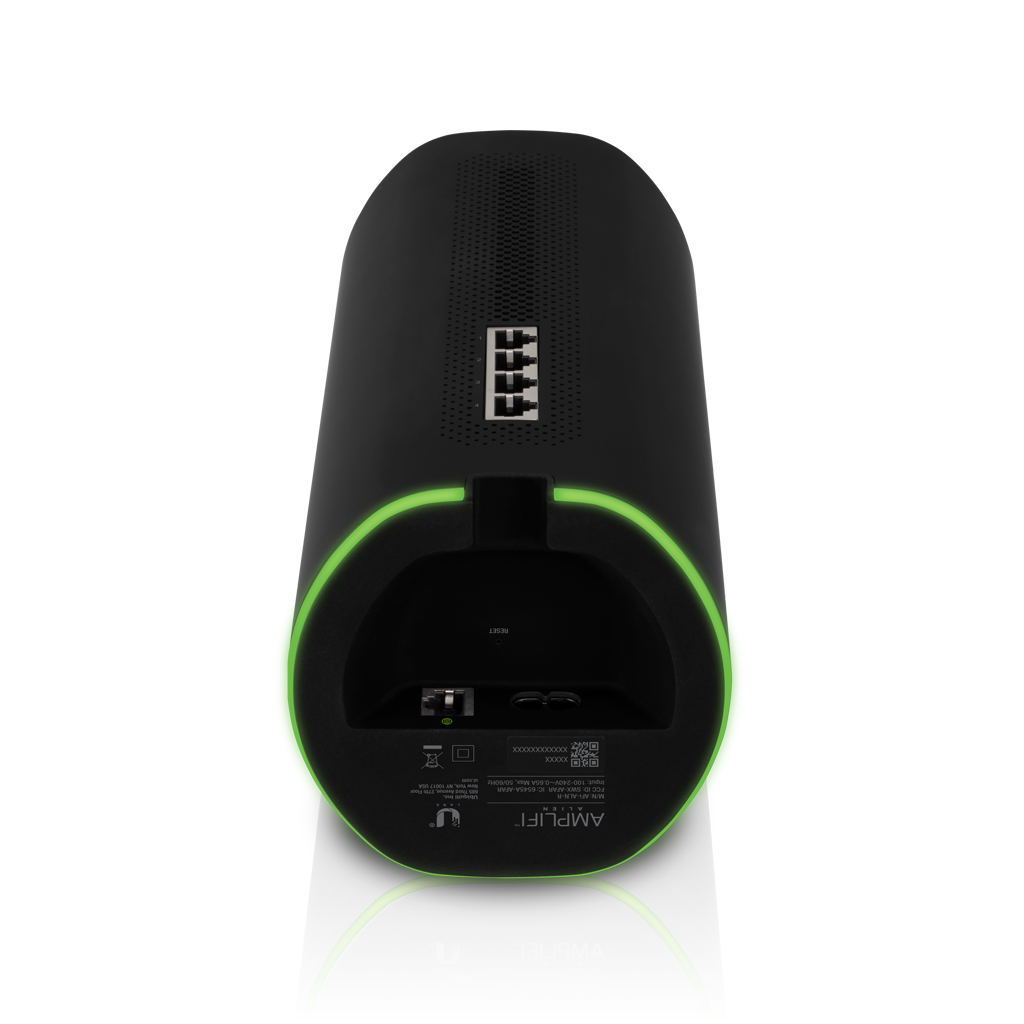
Ubiquiti, the company behind popular UniFi Wi-Fi access points and networking equipment, is releasing a new router for consumers — the AmpliFi Alien.

Today’s new device is an all-in-one networking device. It features a router (the “brain” of your local network), four Gigait Ethernet ports and Wi-Fi capabilities. And yes, it is a Wi-Fi 6 (802.11ax) device.

You can plug the AmpliFi Alien to your modem, put your modem in bridge mode and let it take care of your network at home. It should be a huge improvement compared to ISP-provided hardware.

When it comes to Wi-Fi performance, the AmpliFi Alien supports 8×8 MIMO Wi-Fi 6 (both 2.4GHz and 5GHz) and offers a separate 5GHz Wi-Fi 5 radio (802.11ac). There aren’t a ton of devices that support Wi-Fi 6 just yet. The iPhone 11 and the Samsung Galaxy S10 support Wi-Fi 6, but not the brand new 16-inch MacBook Pro for instance.

But the AmpliFi Alien also works with older devices that run on previous Wi-Fi generations, so you don’t have to replace all your gadgets. You can also set up an isolated guest network if you don’t want your friends to be able to access your computers on your network. You can also use your AmpliFi devices as a VPN endpoint when you’re on the road.

The device itself is a cylinder-shaped tower with flat edges at the front of the back of the device. It looks a bit like the recently announced UniFi Dream Machine, but it’s less curvy and taller. There’s a color touch screen to get information about connection speeds and some LEDs at the base of the tower.

You can buy multiple AmpliFi Alien and create a mesh network around your house. A single AmpliFi Alien costs $379.

Compared to the UniFi Dream Machine, you can’t control the device with UniFi’s network management controller. This is a consumer device so you don’t get a ton of customizations on the software front — the AmpliFi Alien isn’t designed for enterprise clients. But Ubiquiti offers an AmpliFi mobile app to configure the DHCP server, port forwarding and Wi-Fi settings.


Read Full Article

Email app Spark receives update with new design


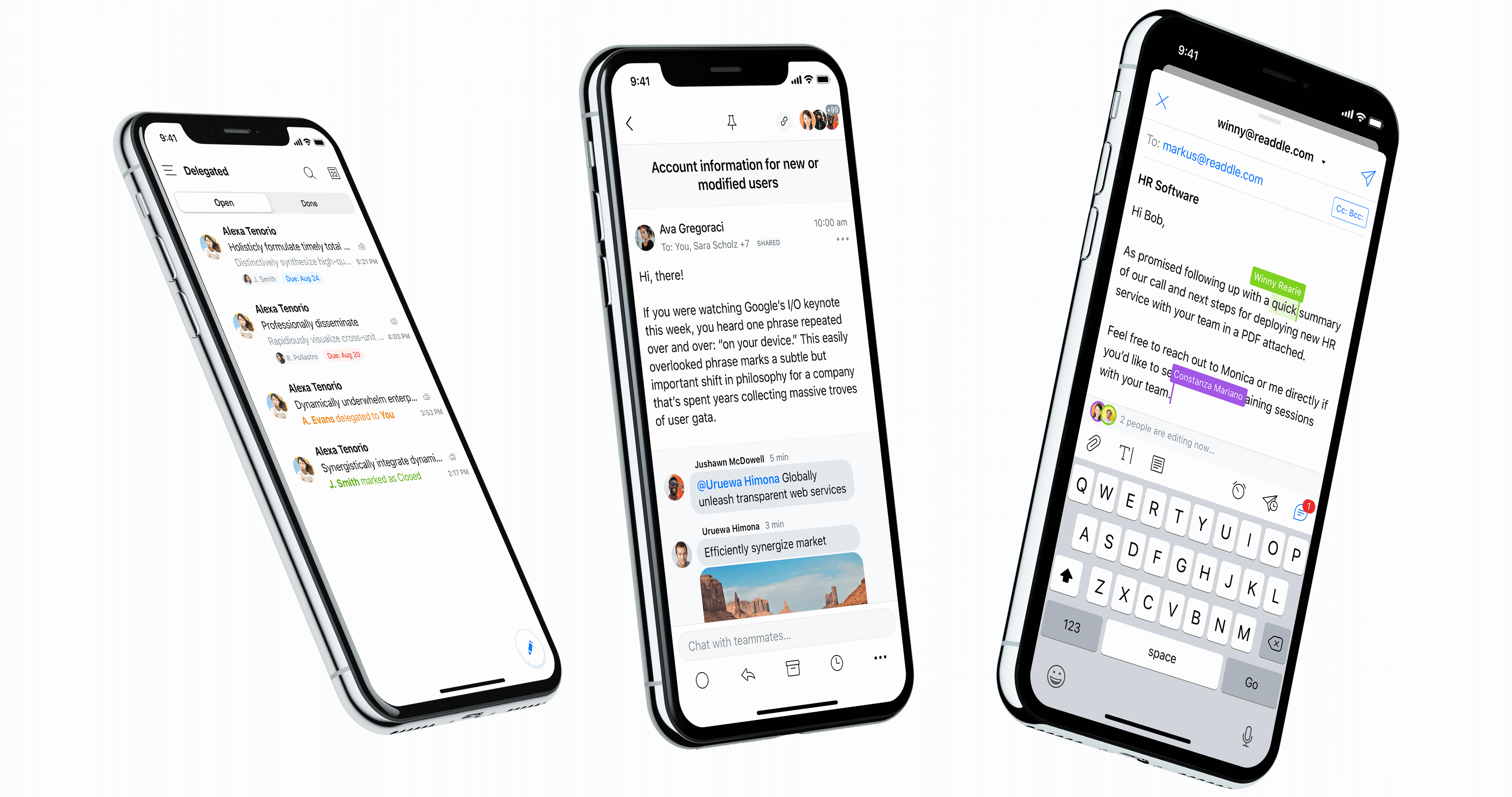
Spark, the popular email app from Readdle, has been redesigned on iOS and Android. The interface has always been a bit busy in the mobile app. That’s why the updated app now features a cleaner design and a handful of new features.

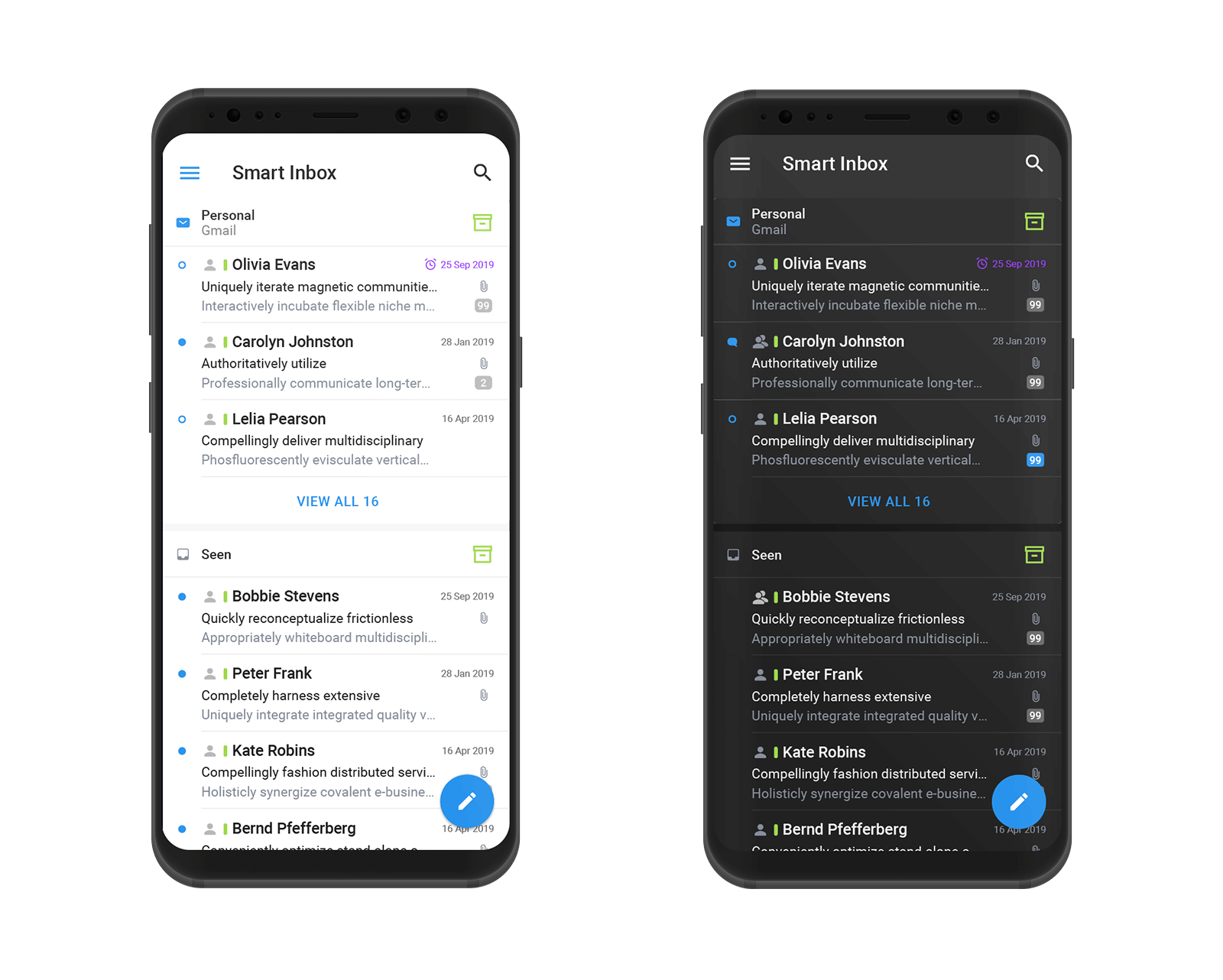
On the design front, Spark now uses simple headers to separate smart sections, such as newsletters, notifications and personal emails. It looks better than the rounded boxes with a colorful background.

There’s a lot of whitespace now, but the company has also taken advantage of this update to add dark mode. When you tap on a thread, the thread view has been updated as well.

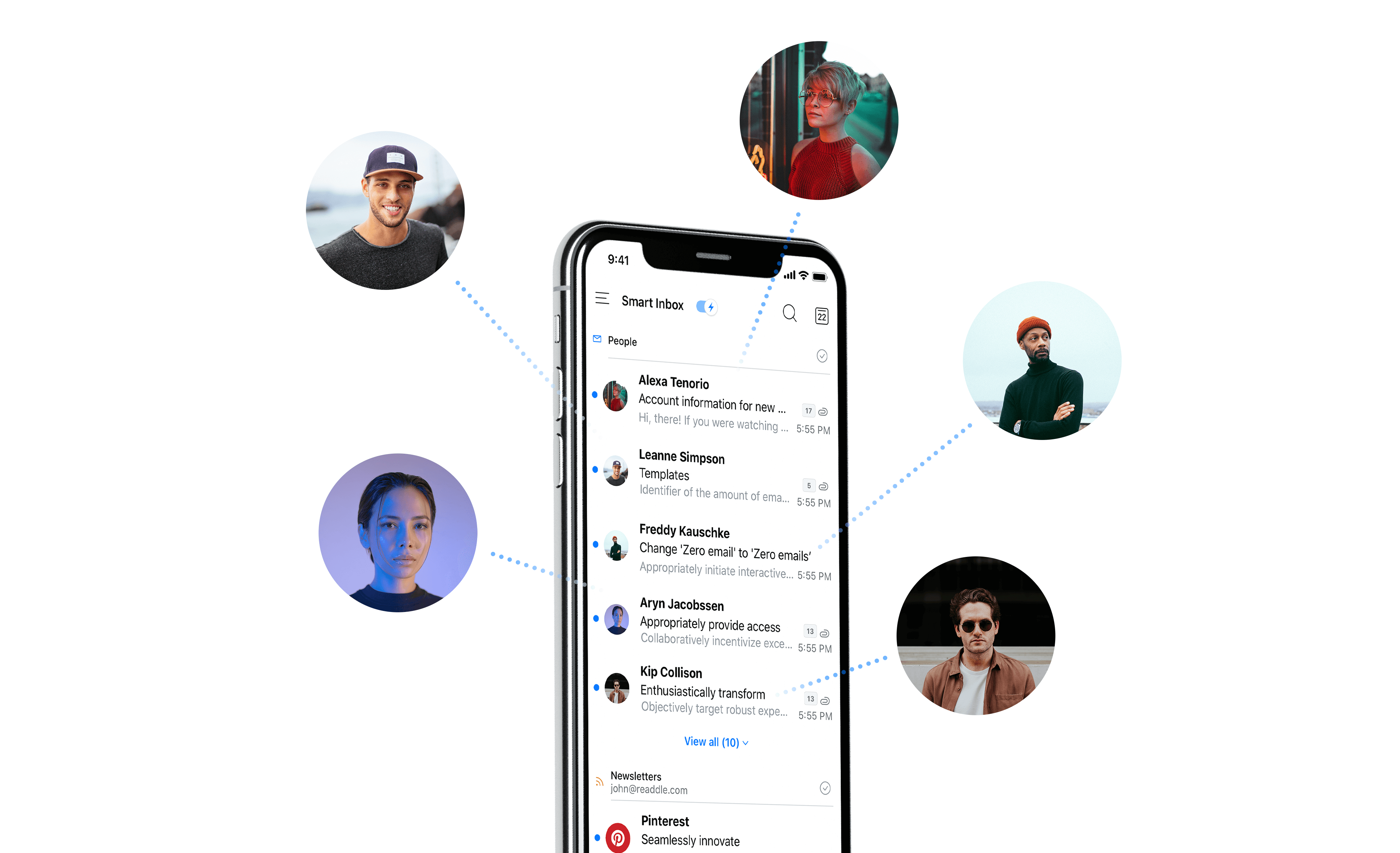
When it comes to new features, the app tries to autopopulate your inbox with profile pictures. Just like Vignette, it pulls images from popular web services. For instance, if somebody who emails you has a Twitter account under the same email address, Spark can add the Twitter profile picture to your inbox.

Everybody has their own way of dealing with their email inbox. That’s why Spark lets you choose the buttons that appear at the bottom of an email thread. For instance, if you use folders a lot, you can put a folder button. But if you want to replace that button with a snooze button, you can.

Spark is now a better citizen on iPadOS 13. You can open multiple instances of Spark. This way, you can work on a document with an email thread using Split View and you can open a second Spark window to check your inbox in a separate workspace. Spark on iPadOS also supports the floating keyboard and new iPadOS gestures.


Read Full Article

Samasource raises $14.8M for global AI data biz driven from Africa


AI training data provider Samasource has raised a $14.8 million Series A funding round led by Ridge Ventures.

The San Francisco headquartered company delivers Fortune 100 companies with the inputs they need for machine learning development in fields including autonomous transportation, e-commerce and robotics.

And it does so with a global work-force of data-specialists, a large number of whom are located in East Africa.

In addition to San Francisco, New York and the Hague, Samasource has offices and teams in Kenya and Uganda. The company has a global staff of 2900 and is the largest AI and data annotation employer in East Africa, according to CEO and founder Leila Janah.

As part of its Series A, Samasource opened an AI Development Center in Montreal, Canada and expanded its digital delivery center in Kampala, Uganda to serve its corporate client-base.

“Typically we’re working with very large companies for whom AI is a key part of their business strategy. So therefore they have to be really careful about…bias in the algorithms or bad data,” Janah explained on a call with TechCrunch.

Samasource works through a discovery phase with customers, to determine the problems their trying to solve, their sources of input data, and customizes an approach to providing what they need.

“In some cases we might refine elements of our software…then we go into deployment and…annotation work,” said Janah, referring to the company’s SamaHub training data platform.

Samasource clients include Google, Continental Tires, Walmart, and Ford. The company generates revenue primarily through its machine learning data annotation and validation services.

Samasource was originally founded by Janah as a non-profit in 2008. “I saw huge opportunity for tapping into the incredible depth of…talent in East Africa in the tech world,” she said of the firm’s origins.

She converted Samasource to for-profit status in 2019, making the previous non-profit organization a shareholder.

“As a CEO I need to make it clear to investors that this is an investible entity,” Jana said of the reason for Samasource becoming a private company.

Ridge Ventures Principal Ben Metcalfe confirmed the fund’s lead on Samasource’s $14.8 million Series A round and that he will take a board seat with the company. Other investors included, Social Impact Ventures, Bestseller Foundation, and Bluecrest Limited Capital.

Samasource’s founder believes that providing for-profit AI training data to global companies can be done while improving lives in East Africa.

“I strongly believe you can combine the highest quality of service with the core mission of altruism,” she said.

“A big part of our values is offering living wages and creating dignified technology work for people. We hire people from low-income backgrounds and offer them training in AI and machine learning. And our teams achieve above the industry standard.”

It’s not unusual for Samasource to hear comparisons to Andela, the well-funded tech talent accelerator that trains and connects African developers to global companies.

“We are very different in that our whole model is about delivering high-quality training data. I would call Samasource an AI company and Andela a software training company,” she said.

Janah does see some parallels, however, in both companies’ recognizing and building tech-talent in Africa, along with a number of blue-chip entrants.

“I think it’s telling that Facebook, IBM and Google have all opened tech hubs in Africa, some of them AI or machine-learning focused,” she said.

Some Samasource professionals are also taking their skills on to other endeavors in Africa’s innovation ecosystem.

“A lot of our alums go on to do entrepreneurial things [and] start businesses and I think you’re going to see a lot more of that as we grown,” said Janah.

For now she will be the one hiring and training new tech workers in East Africa.

As part of its Series A, Samasource increased employees in Kampala to 90 people and plans to grow that by 150 percent in 2020, its CEO said.


Read Full Article

Google makes converting VMs to containers easier with the GA of Migrate for Anthos


At its Cloud Next event in London, Google today announced a number of product updates around its managed Anthos platform, as well as Apigee and its Cloud Code tools for building modern applications that can then be deployed to Google Cloud or any Kubernetes cluster.

Anthos is one of the most important recent launches for Google, as it expands the company’s reach outside of Google Cloud and into its customers’ data centers and, increasingly, edge deployments. At today’s event, the company announced that it is taking Anthos Migrate out of beta and into general availability. The overall idea behind Migrate is that it allows enterprises to take their existing, VM-based workloads and convert them into containers. Those machines could come from on-prem environments, AWS, Azure or Google’s Compute Engine, and — once converted — can then run in Anthos GKE, the Kubernetes service that’s part of the platform.

“That really helps customers think about a leapfrog strategy, where they can maintain the existing VMs but benefit from the operational model of Kubernetes,” Google Engineering Director Jennifer Lin told me. “So even though you may not get all of the benefits of a cloud-native container day one, what you do get is consistency in the operational paradigm.”

As for Anthos itself, Lin tells me that Google is seeing some good momentum. The company is highlighting a number of customers at today’s event, including Germany’s Kaeser Kompressoren and Turkey’s Denizbank.

Lin noted that a lot of financial institutions are interested in Anthos. “A lot of the need to do data-driven applications, that’s where Kubernetes has really hit that sweet spot because now you have a number of distributed datasets and you need to put a web or mobile front end on [them],” she explained. “You can’t do it as a monolithic app, you really do need to tap into a number of datasets — you need to do real-time analytics and then present it through a web or mobile front end. This really is a sweet spot for us.”

Also new today is the general availability of Cloud Code, Google’s set of extensions for IDEs like Visual Studio Code and IntelliJ that helps developers build, deploy and debug their cloud-native applications more quickly. The idea, here, of course, is to remove friction from building containers and deploying them to Kubernetes.

In addition, Apigee hybrid is now also generally available. This tool makes it easier for developers and operators to manage their APIs across hybrid and multi-cloud environments, a challenge that is becoming increasingly common for enterprises. This makes it easier to deploy Apigee’s API runtimes in hybrid environments and still get the benefits of Apigees monitoring and analytics tools in the cloud. Apigee hybrid, of course, can also be deployed to Anthos.


Read Full Article

New Google Translate Tricks, Android Apps on Windows, Lower Your Rent


best-android-emulator-windows

We take a look at a bunch of new features on popular services, the Disney+ Europe launch, Android apps on Windows, lowering your rent, how to scan old photos, print your own board games, and more…

Really Useful Podcast Season 4 Episode 12 Shownotes

This week’s Really Useful Podcast features Christian Cawley and Megan Ellis discussing:

Your rating or brief review on iTunes can help us reach more listeners. Or share the Really Useful Podcast via email and social media. We’re available wherever you can listen to podcasts, including:

Don’t miss next week’s Black Friday special!

Read the full article: New Google Translate Tricks, Android Apps on Windows, Lower Your Rent


Read Full Article

4 Large Senior-Friendly Keyboards and Icons for Android


change-android-keyboard

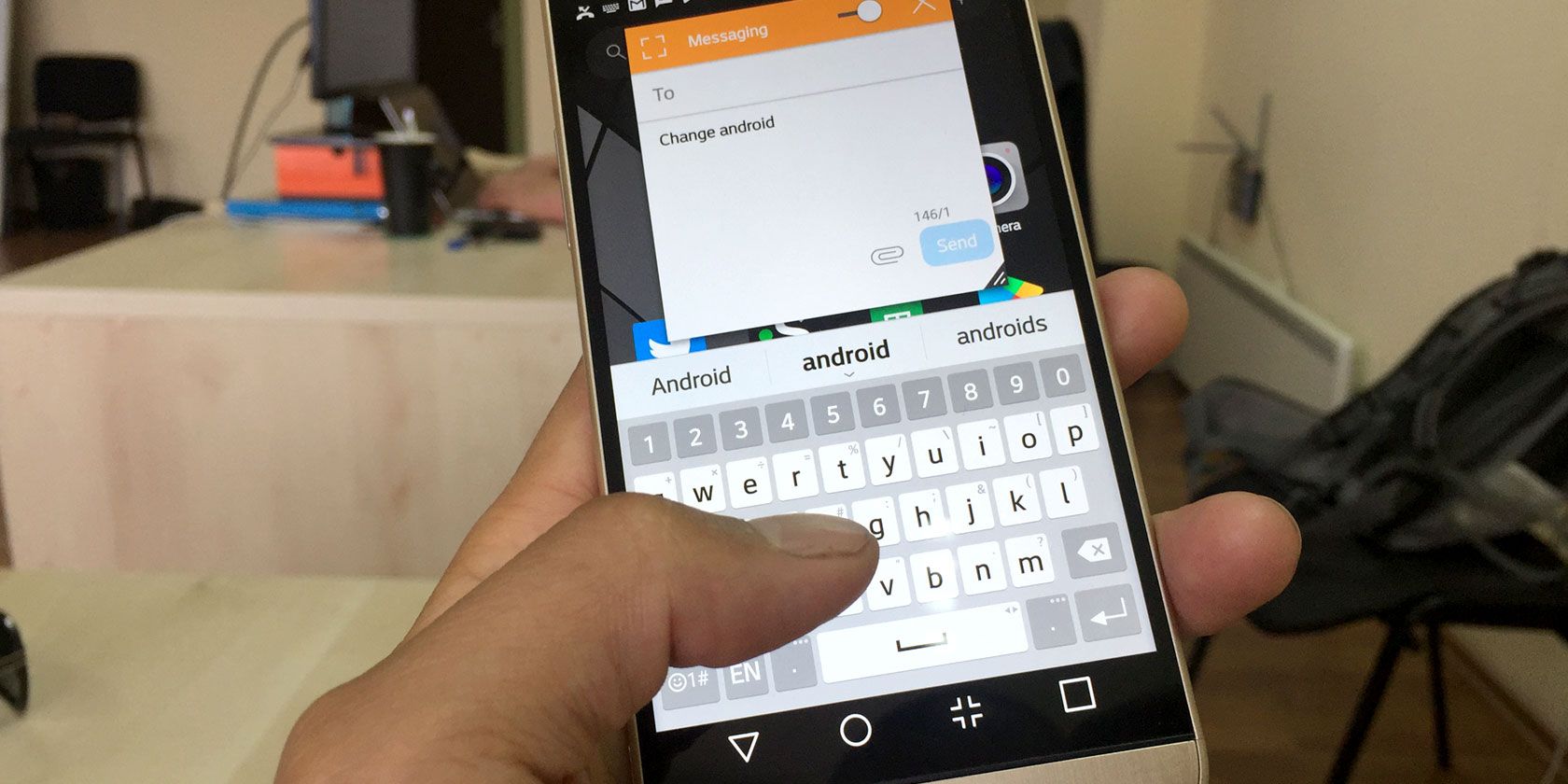
Smartphones tend to be designed towards the young and trendy, which makes them a pain for the older generation. If you reach for your reading glasses every time somebody messages you, you may benefit from a big-button keyboard or larger icons on your phone.

Here’s how to make the keyboard and icons larger on Android, as well as the best phones for elderly people.

How to Make the Keyboard Bigger on Android

If you’d like to know how to change the keyboard size on Android, there are two approaches you can take. The first is to resize the default Gboard keyboard to a bigger scale, and the second involves downloading a third-party keyboard.

If your phone doesn’t have Gboard preinstalled, you’ll need to install it from the Play Store first. You may also be able to perform a similar process on your default keyboard app.

To make the Gboard bigger, you’ll first need to open the keyboard appear. You can do so by tapping on a spot where you can type, like in a messaging chatbox.

When the keyboard appears, press and hold on the comma key. You’ll see two green options pop up above the key: a cog and a box. Slide your finger that’s on the comma key over to the cog, then release it.

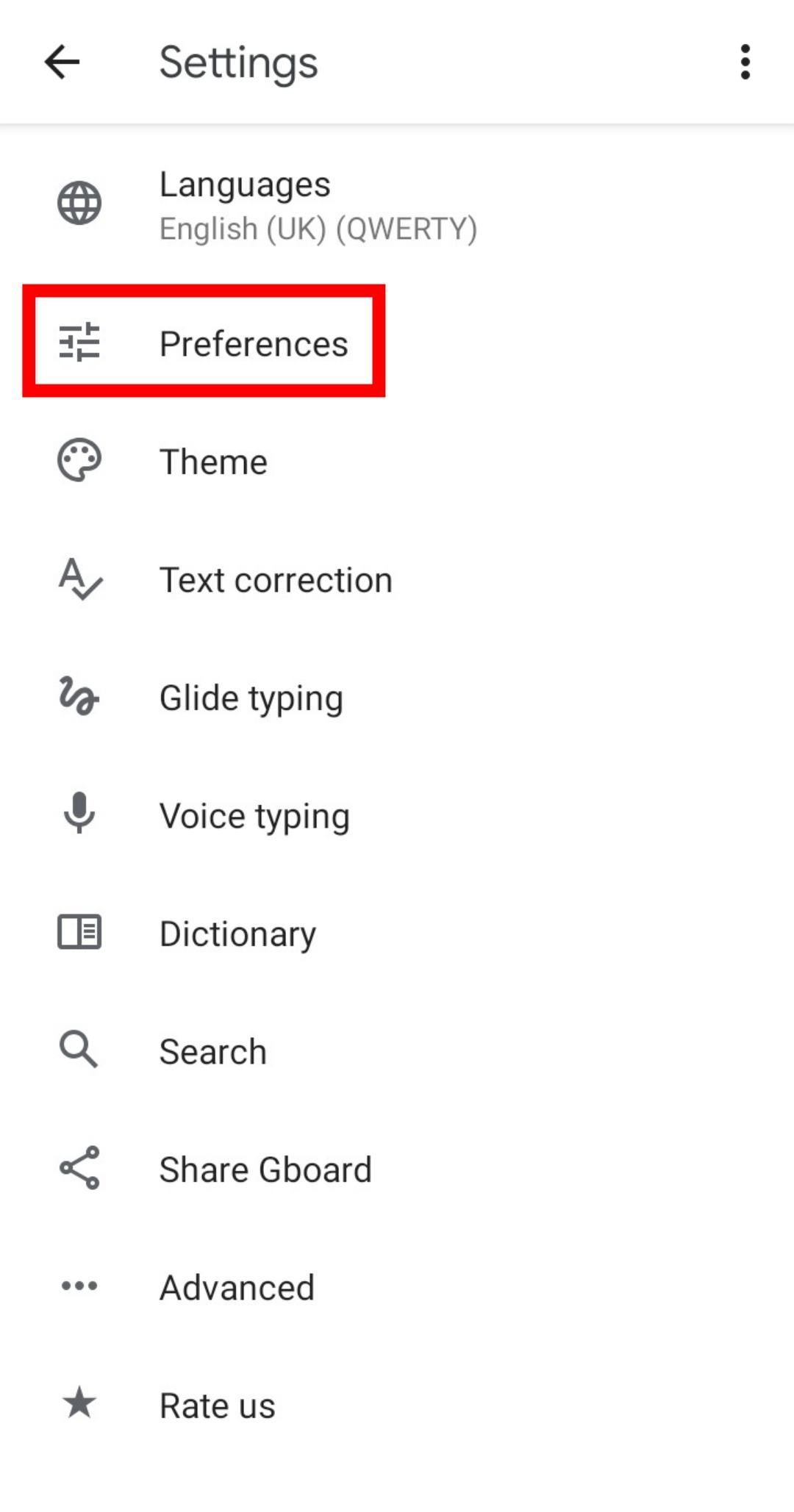
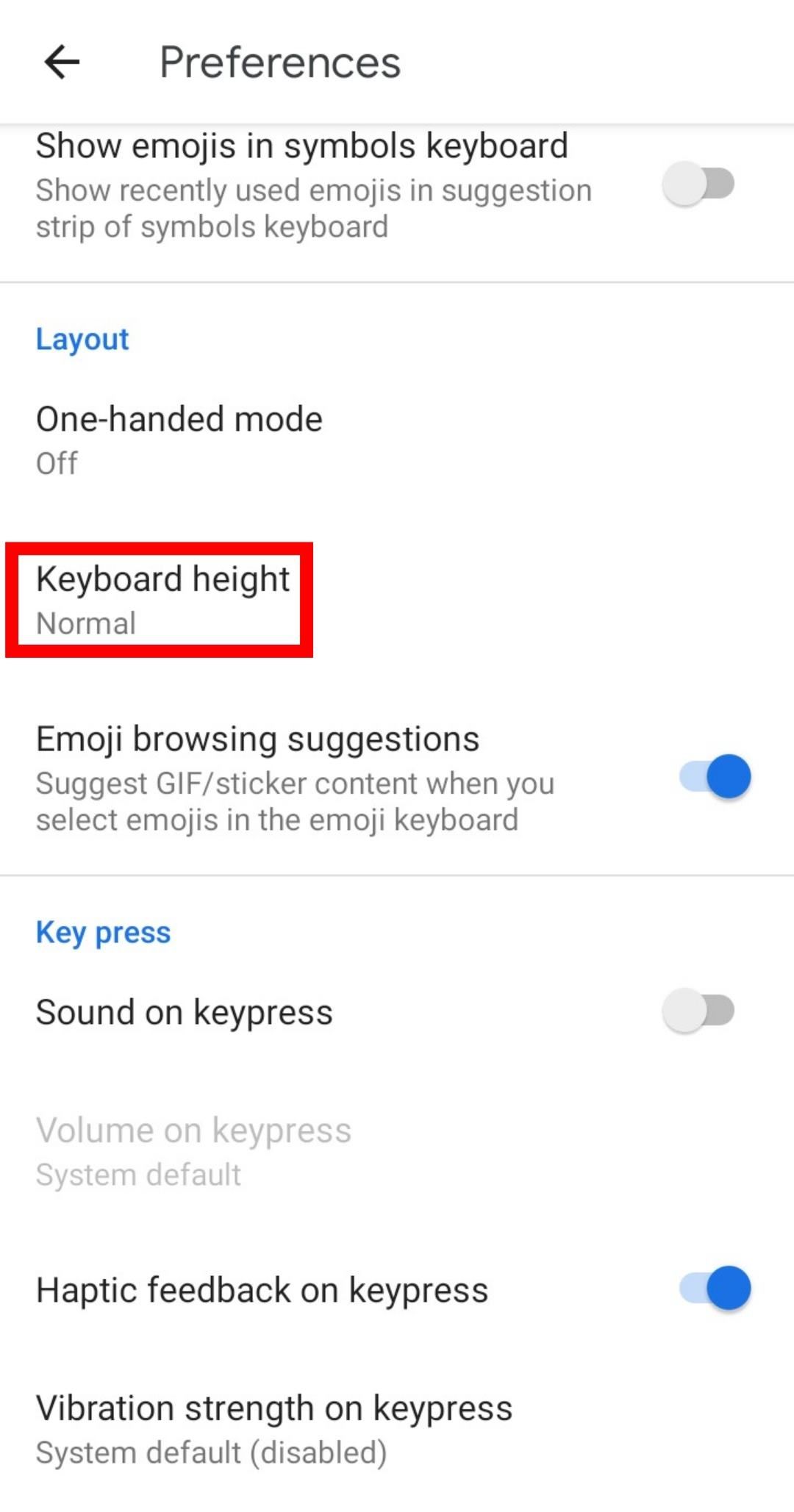
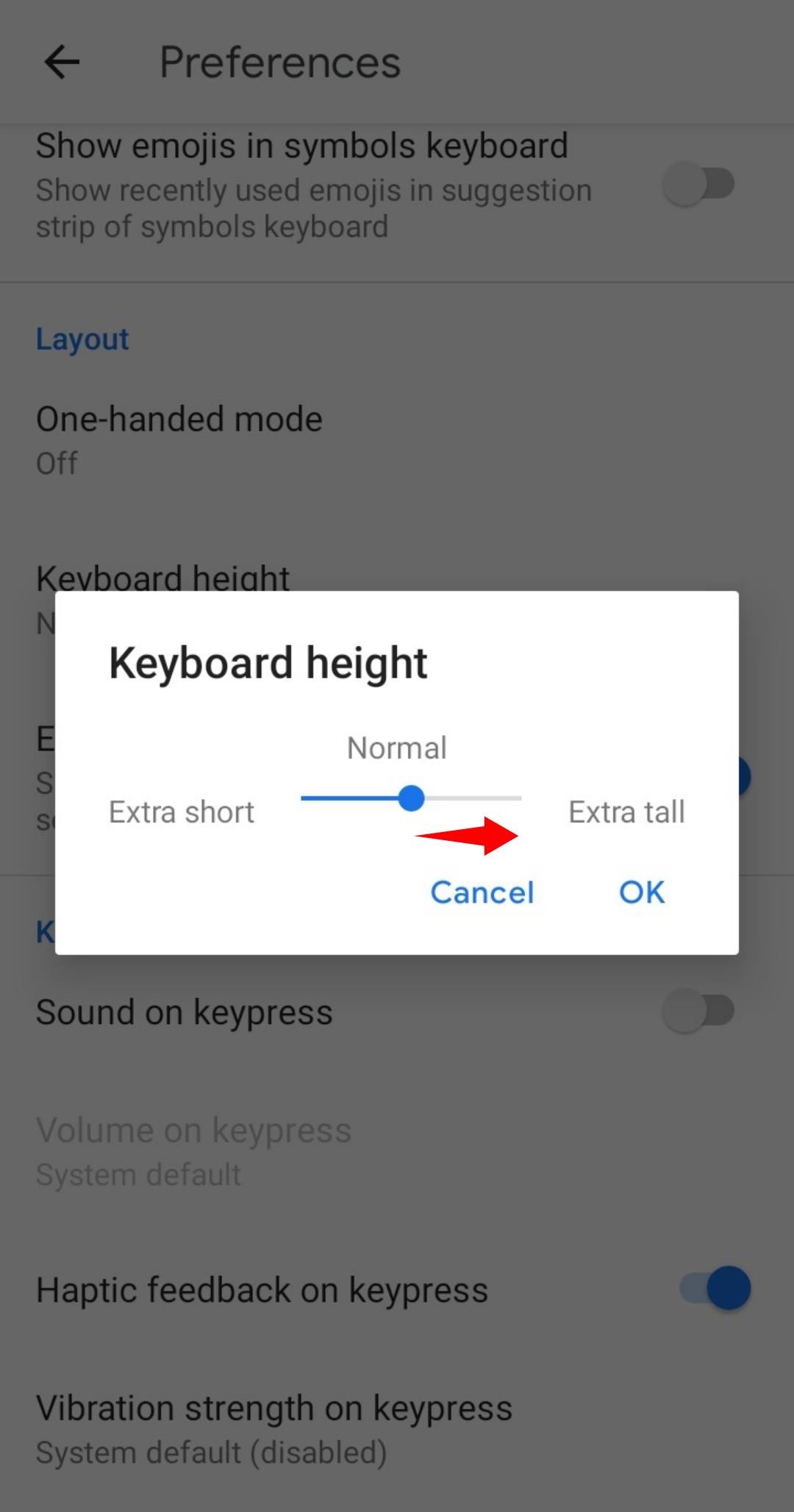
In the menu that pops up, tap Preferences, then select Keyboard Height. On the slider that appears, drag the dot to Extra Tall. Tap OK.

Now you’ll have an extra-large keyboard, which makes it easier to type. The keyboard will take up more of the screen, but it’s worth the sacrifice if you’re struggling to type with the default size.

Download: Gboard (Free)

How to Download a Larger Android Keyboard From the Play Store

If the default Android keyboard doesn’t fit your needs, why not try a new one? There are a handful of big-button keyboards for Android; these ones in particular stand out from the rest.

1. SwiftKey Keyboard

The first extra-large keyboard option we recommend is SwiftKey. Not only is SwiftKey a great all-around option, but it also allows you to customize how large the keyboard is. During setup, tap on Resize and adjust the keyboard to the size you like.

SwiftKey also has an excellent range of themes available. These don’t make the buttons any bigger, but they can help the letters stand out from the background. The right theme can increase accessibility by making it easier to identify what each letter is.

Download: SwiftKey Keyboard (Free)

2. Huge Keyboard

If you’d like a keyboard that’s big right from the start, why not try the aptly-named Huge Keyboard? This large keyboard for Android users has some generously-sized buttons to make typing more comfortable.

While it does take up a lot of the screen, it’s a blessing for anyone who struggles to make out the individual letters of the default keyboard.

Download: Huge Keyboard (Free, in-app purchase available)

3. 1C Big Keyboard

If you want an enormously big keyboard, try 1C Big Keyboard. It’s advertised toward people with big fingers, but the enlarged buttons make typing easier for seniors too.

The keyboard uses gigantic buttons for each letter, which bears similarities to a traditional typewriter. It achieves this by taking the QWERTY keyboard and arranging the rows in a zigzag pattern to make room for the increased button size.

A small warning: the app shows ads along the top of the keyboard. If you love the app but hate the ads, you can purchase the premium option to get rid of them.

Download: 1C Big Keyboard (Free, in-app purchases available)

4. MessagEase Keyboard

If 1C Big Keyboard is still too small, your best bet is the MessagEase keyboard. This puts up nine extra-large buttons with a letter in each button, which cover the most common letters used in English.

Each large button has a smaller letter around it, which you can type by pressing the button and swiping in the letter’s direction. It’s a bit different, but worth a look if other options didn’t work for you.

Download: MessagEase Keyboard (Free)

How to Make the Icons Bigger on Android

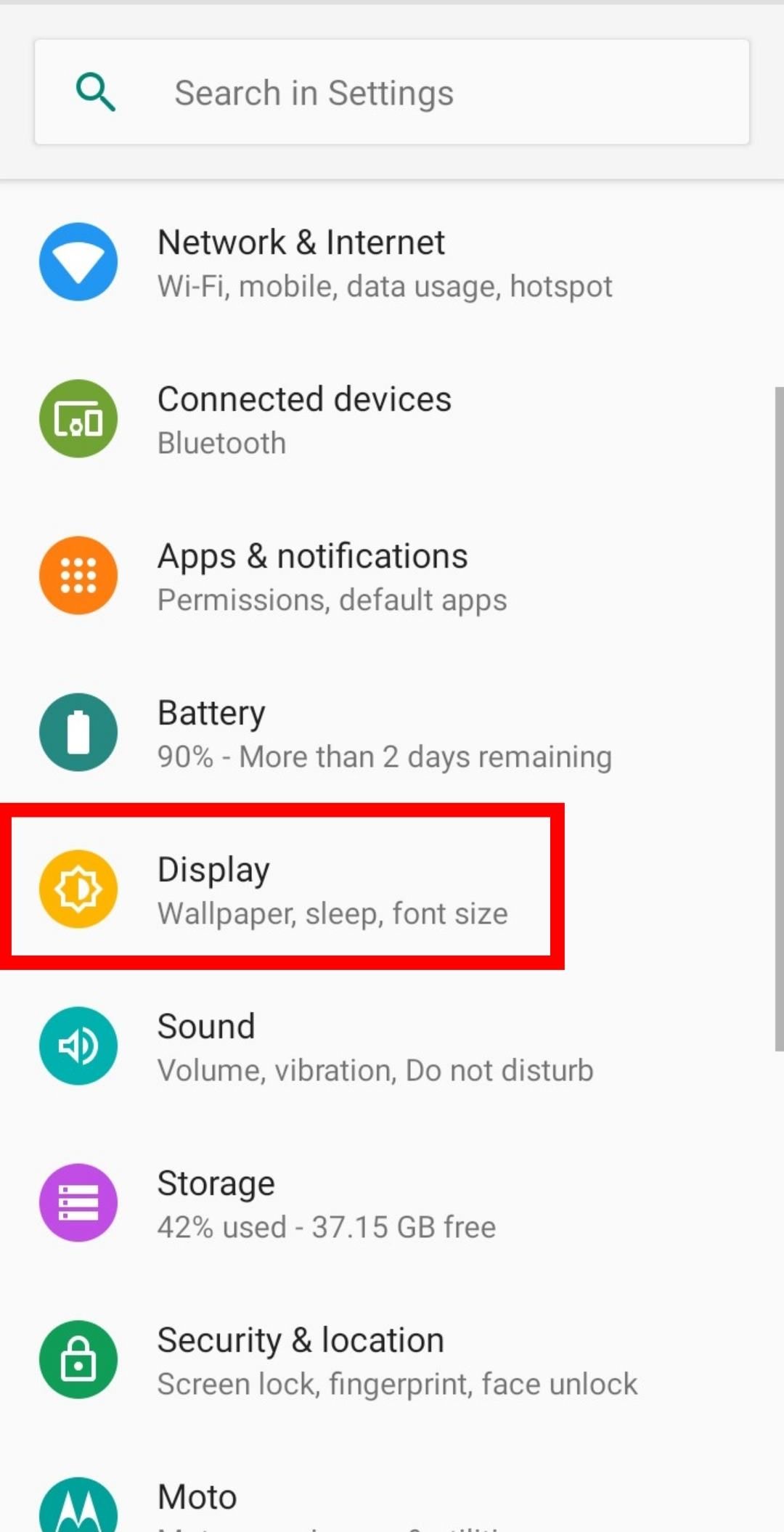
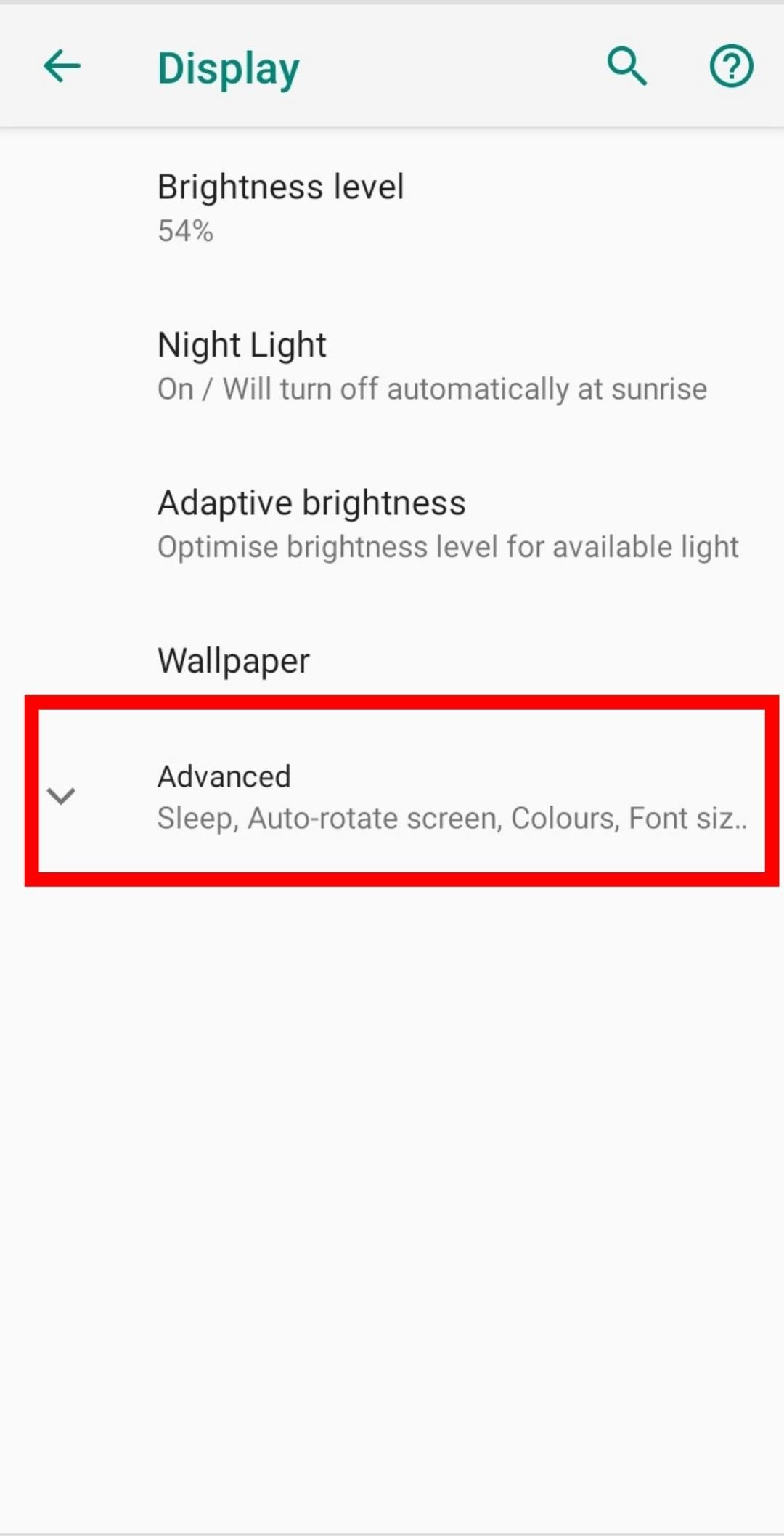
If the icons on your home screen look a little on the small side, you can tell Android to make your display larger. To do this, bring up the list of apps on your phone and tap on Settings. Next, select Display, then find the Advanced dropdown menu at the bottom.

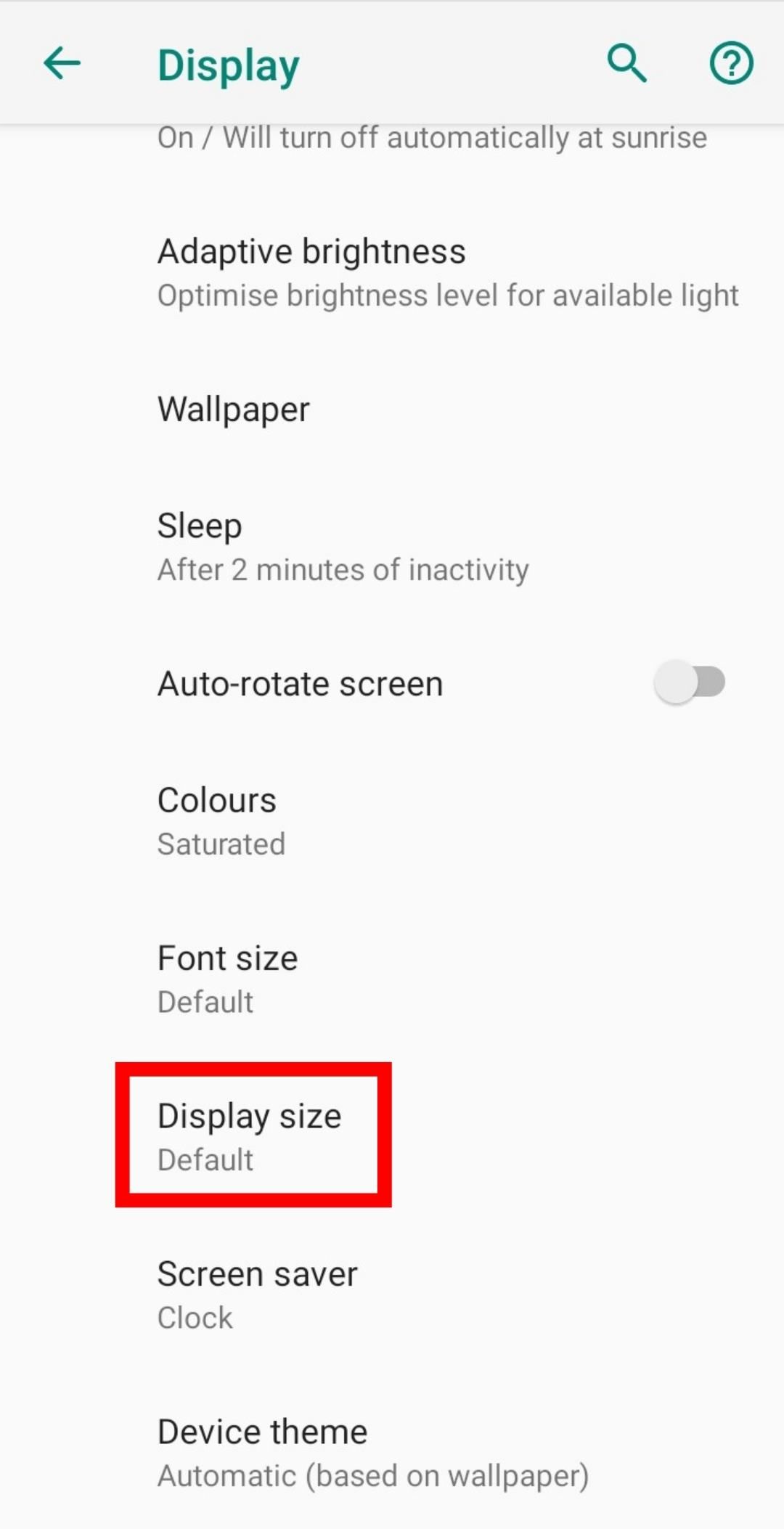
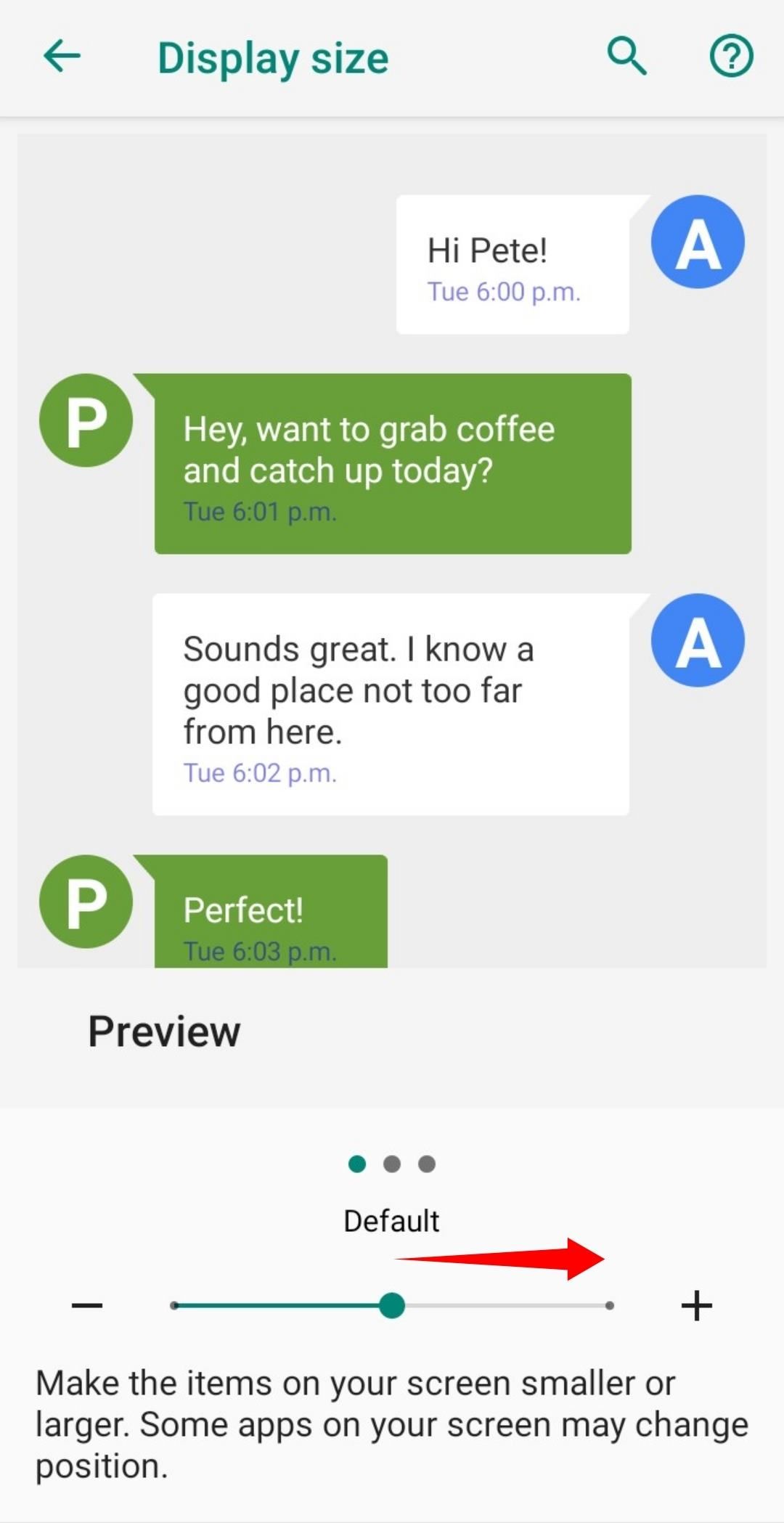
Tapping Advanced will reveal new options. Find Display Size and tap on it. Then, drag the slider on this screen over to Large. Now your phone will display UI elements at a larger scale, including the icons on your home screen.

Choosing the Best Phone for an Elderly Person

If texting your mom on her mobile device means watching the “typing…” notification for minutes on end, or you’re looking for a phone yourself, there are plenty of phones specifically designed for older people.

There is no unanimous “best phone” for the elderly, as each one focuses on something different. Some phones will have larger buttons for the short-sighted, while others have a built-in emergency alarm if something terrible happens. As such, it’s best to work out what your new phone should achieve, and buy the one that ticks the most boxes for you.

If the thought of sifting through phones for hours seems daunting, don’t worry. We covered the best phones for seniors already, so be sure to check them out.

Making Senior Life Easier

Senior life has its share of problems, but your phone doesn’t have to be one of them. If using your phone is a pain, you can download one of the many big keyboards for Android and increase the icon size. Failing that, you can ditch your old phone and buy one more suited to your needs.

To make Android devices even easier to use, why not also try some simple Android launchers for grandparents?

Read the full article: 4 Large Senior-Friendly Keyboards and Icons for Android


Read Full Article

Sound Not Working on Your Mac? Easy Fixes for Audio Problems


no-sound-mac

Audio glitches, internal components making strange sounds, problems with connecting an external audio device, or sound not working at all are some of the common Mac sound issues you may encounter.

At times, misconfigured apps or settings can result in static in your audio output, inability to change the volume, lack of stereo output, or even no output at all. Here’s a list of fixes to resolve sound problems on your Mac.

No Sound on Mac? Check the Volume First

Mac volume control through menu bar

Before you spend all day resolving a non-existent issue, check the volume and make sure it’s not muted. Press and hold the F12 button to increase the volume, or use the slider in the menu bar to adjust it.

Additionally, check your computer’s audio port to ensure that you haven’t forgotten about any connected headphones or other external devices.

Choose the Right Audio Device

If your Mac’s sound is still not working after the basic troubleshooting above, we’ll next find whether the sound problem is system-wide or only in a particular app.

When you can’t hear anything after plugging in your headphones, microphone, or any other external device, you must check the input/output audio device settings. Sometimes your Mac might select the wrong device due to incorrect configuration, driver incompatibility, conflicts, or other reasons.

From the Apple menu, launch System Preferences and select Sound. Jump to the Input tab to check the input audio device settings. Make sure you have the correct input device for your audio selected.

Mac choose the right input audio device

Repeat the same procedure for the output audio device settings. A common mistake is unknowingly having a Bluetooth device connected, so audio plays to that instead of through your Mac’s speakers.

Mac choose the right output audio device

Sometimes simply switching from one output to another can also fix the problem. Also, try unplugging and reconnecting your audio devices. Remember to uncheck the Mute option and adjust the output again.

You’ll get a better view of all output devices through the Audio MIDI Setup utility. Open the app (search for it using Spotlight with Cmd + Space) and choose Built-in Output. In here, you can configure the audio channel, bit-depth, format, and rate.

If your sound is acting funny, tweak the audio settings. After you’ve made changes, quit the app and try playing your audio again.

configure settings in Audio MIDI Setup utility

Reset Core Audio

Apple’s documentation defines Core Audio as a set of software frameworks designed to handle the audio needs in apps. This includes recording, editing, playback, signal processing, compression and decompression, and more.

On Mac, coreaudiod is the launchdaemon that powers Core Audio. Daemons typically run as root in the background, whether you’re logged in or not. Their process names end with the letter “d”. We’ve covered more about launchdaemons and their implications on macOS if you’re interested.

If the sound stops working or becomes distorted (crackling or noisy), then restarting the coreaudiod process should solve your problem. This effectively resets the sound on your Mac, and you can quit the processes in two ways.

One is to open Activity Monitor, type coreaudiod in the search box at the top-right, and click the Force Quit button to manually kill the process.

quit coreaudiod process in Activity Monitor

The other method is to launch Terminal and type the following command:

sudo killall coreaudiod

Press Return, input your administrator password, and check your sound again.

quit coreaudiod process in Terminal

The coreaudiod process should restart via either method. In rare cases, if it does not restart, you may not hear any sound at all. In this case, shut down and restart your Mac.

If rebooting isn’t an option at the moment, use this Terminal command instead:

sudo launchctl start com.apple.audio.coreaudiod

The launchctl command starts the daemon and reinitializes the coreaudiod process.

Sound Not Working Due to Third-Party App Issues

Third-party plugins that integrate with your system can cause the sound on your Mac to not work correctly. Music producers and audio engineers are cautious of this, because there are often hardware and software incompatibilities with a new release of macOS. While developers are usually quick and responsive to issue app updates, the operating system itself can be a major headache.

With the release of macOS Catalina, every audio unit plugin must be “notarized” by Apple’s security systems. Non-notarized apps are not allowed to run on Catalina, meaning that any older audio plugin will not work at all.

Also, macOS Mojave was the last release to support 32-bit apps. We’ve covered how to check for 32-bit apps on your Mac before you upgrade.

Points to Consider With Third-Party Apps

With so many creative audio apps available for Mac, it’s not possible to describe exact solutions for each app. Here are some general points to consider for fixing Mac sound problems with specific apps:

  1. Check the desired output device in Audio MIDI Setup utility as mentioned above. Launch the app and right-click the Built-in Output option to see the list of devices. Toggle the output device selection to correct configuration problems, if any.
  2. Every audio app stores a profile in the Audio MIDI Setup utility. If you see any errors like “Error in the sound driver of Core Audio,” delete the profile and restart the app.
  3. Mix multiple audio interfaces by creating an Aggregate Device. This increases the number of audio inputs and outputs and reduces the chance of any configuration-related errors. See Apple’s help page on Aggregate Devices for help.

Update macOS

Updating macOS using Mojave

Every macOS release comes with new features and improvements. Under the hood, you’ll notice many changes in kernel frameworks, audio drivers, Unix tools, and more. But often, people complain about new bugs aswell. USB-related audio issues in 2018 Macs were quite common in Apple’s discussion forums.

The macOS Mojave release notes highlighted some improvements. In macOS 10.14.4, Apple improved the reliability of USB audio issues used with the MacBook Air, Pro, and Mac Mini. And in macOS 10.14.5, Apple fixed the audio latency on MacBook Pro models introduced in 2018.

So if you’re having sound problems, updating your OS is a good solution. However, if you work with a dedicated audio workstation, it makes sense to install updates on other Macs before applying them to your production machine. You should also keep a backup of audio files in case something goes wrong.

Reset NVRAM

NVRAM (non-volatile random-access memory) is a small amount of memory that your Mac uses to store various types of settings, including sound volume, display resolution, start-up disk selection, the time zone, and more. Resetting the NVRAM can help clear up glitches with these and other attributes.

Follow our guide to resetting NVRAM and the SMC on your Mac to try this.

Problems With External Devices

Sometimes when you connect an external device (like an HDMI TV), the sound will continue to come from your internal speakers. Bizarrely, the connection still results in a perfect picture. And the connected HDMI device won’t show up in Preferences > Sound > Output.

First, check the cable’s connection and inspect the HDMI cable for any physical defects. Even tiny flaws can cause problems, so you should try an alternate cable.

Ensure that your equipment is compatible. Some older components might be unable to receive audio via an HDMI connection, even though your Mac and other devices can play sound through it. Note that older MacBook models (around mid-2010) do not support passing audio through Mini DisplayPort.

Navigate to Sound > Sound Effects. In the Play sound effects through section, click the dropdown menu and choose your connected device.

adjust the sound effects setting

Restart your Mac. Afterward, open Sound > Output in System Preferences and select your TV from the Select a device for sound output section.

select HDMI tv from the output tab

Finally, launch the Audio MIDI Setup app once again. Select the HDMI option from the left panel and choose your TV from the Output tab. If you cannot see the speaker icon next to HDMI, click the cog button and select Use this device for sound output.

choose the correct output device for HDMI tv

Check Hardware and Ports

If after checking all these software aspects, you’re still facing sound problems on your Mac, then you should examine all ports. This includes Thunderbolt, HDMI, USB, and headphone (or microphone) sockets.

Detach all wired accessories connected to your system. While doing this, check the integrity of the cables to make sure nothing is frayed or split. Then shut down your Mac and plug in one peripheral at a time after each restart. Try playing your audio each time.

With this thorough check, you’ll figure out if there are any problems with your hardware, cables, or ports. If you use headphones and hear crackling noise, examine the socket. Modern Macs display a red light inside to warn of blocked sockets. Clean the jack, then connect your headphones and adjust the volume level to address the problem.

Reset Your Mac’s Sound and Move On

Troubleshooting sound issues on your Mac is not always easy. macOS lacks a comprehensive set of tools to diagnose and fix the problem. Thus, you’re left with trial and error and your judgment on finding the source of the problem. Hopefully, these tips will start to guide you through all the steps.

Sound issues aren’t the only problem you can have on macOS. You should know other warning signs of Mac problems so you can spot them early.

Read the full article: Sound Not Working on Your Mac? Easy Fixes for Audio Problems


Read Full Article

Give InKind’s smarter giving platform brings in surprise $1.5 million in pre-seed funding


Helping out a friend in need online can be surprisingly difficult. While giving cash is easy enough, that’s often not what people need most — so Give InKind aims to be the platform where you can do a lot more than write a check. The idea is such a natural one that the company tripled its goal for a pre-seed round, raising $1.5 million from Seattle investors.

The company was selected for inclusion in the Female Founders Alliance’s Ready Set Raise accelerator, at the demo day for which I saw founder Laura Malcolm present.

The problem Malcolm is attempting to solve is simply that in times of hardship, not only do people not want to deal with setting up a fundraising site, but money isn’t even what they require to get through that period. Malcolm experienced this herself, when she experienced a personal tragedy and found that what was out there to let others help was simply inadequate.

“My friends and family were trying to support me from around the country, but the tools they had to do that were outdated and didn’t solve the problems for us,” she explained. “There just wasn’t one place to put all the help that’s needed, whether that’s meal drop-off, or rides to school for the kids, or a wishlist for Instacart, or Lyft credits. Every situation is unique, and no one has put it all together in one place where, when someone says ‘how can I help?’ you can just point there.”

The idea with Give InKind is to provide a variety of options for helping someone out. Of course you can donate cash, but you can also buy specific items from wishlists, coordinate deliveries, set up recurring gifts (like diapers or gift boxes), or organize in-person help on a built-in calendar.

These all go on a central profile page that Malcolm noted is rarely set up by the beneficiary themselves.

“90 percent of pages are set up by someone else. Not everyone has been impacted by one of these situations, but I think almost everyone has known someone who has, and has wondered how they were supposed to respond or help,” she explained. “So this isn’t about capturing people during a time of need, but about solving the problem for people who want to know how to help.”

That certainly resonated with me, as I have always felt the cash donation option when someone is going through a tough time to be pretty impersonal and general. It’s nice to be able to help out in person, but what about a friend in another city who’s been taken out of action and needs someone else to figure out the dog walking situation? Give InKind is meant to surface specific needs like that and provide the links (to, for instance, Rover) and relevant information all in one place.

“The majority of actions on the site are people doing things themselves — signing up for meals, or to help. The calendar view is for coordination, and it’s the most used part of the site. About 70 percent is that, the rest is those national services [i.e. Instacart, Uber, etc.],” Malcolm said.

Locally run services (cleaners that aren’t on a national directory, for instance) are on the roadmap, but as you can imagine that takes a lot of footwork to put together, so it will have to wait.

Right now the site works almost entirely on an affiliate model; Helpers make accounts to do things like add themselves to the schedule or help edit the profile, then get sent out to the merchant site to complete the transaction there. The company is experimenting with on-site purchases for some things, but the idea isn’t to become host transactions except where that can really add value.

The plan for expansion is to double down on the existing organic growth patterns of the site. Every page that gets set up attracts multiple new users and visits, and those users are far more likely to start more pages even years down the line. Between improving that and some actual marketing work, Malcolm feels sure that they can grow quickly and could soon join other major giving services like GoFundMe in scale.

Ready, set, raise… a lot more than expected

Give InKind came to my attention through the Female Founder Alliance here in Seattle, which hosted a demo night a little while ago to highlight the companies and, naturally, their founders as well. Although some of the companies focused on female-forward issues, for instance the difficulty of acquiring workwear tailored to women’s bodies, the idea is more to find valuable companies that just happen to have female founders.

“Ready Set Raise was built to find high potential, dramatically undervalued investment opportunities, and translate them into something the VC community can understand,” said FFA founder Leslie Feinzaig. “Our last member survey results were consistent with findings that women founders raise less capital but make it go further. Give InKind is a perfect example. They bootstrapped for 3 years, found product market fit, grew 20% every month, and still struggled to resonate with investors.”

Yet after presenting, Malcolm’s company was honored at the event with a $100K investment from Trilogy Ventures. And having originally kicked off fundraising with a view to a $500K round, she soon found she had to cap it at an unexpected but very welcome $1.5M. The final list of participants in the round includes Madrona Venture Group, SeaChange Fund, Keeler Investments, FAM Fund, Grubstakes, and X Factor Ventures.

I suggested that this must have been something of a validating experience.

“It’s super validating,” she agreed. “The founder journey is long and hard, and the odds are not in favor of female founders or impact companies, necessarily, and consumer is not huge in Seattle, either. We really sort of defied the odds across the board raising this round so quickly… Seattle really showed up.”

She described the accelerator as being “incredibly unique. It’s entirely about creating access for female founders to investors, mentors, and experts.”

“We spent so much time turning my model upside down and shaking everything out of it. Turns out it was much more defensible than I thought. We didn’t change the business, and we didn’t change the product — we lightly changed the positioning,” she said. “This combination of access with coaching and mentorship, getting the ability to present the business in a way that’s compelling, you realize how much of this is held back from people who don’t have these opportunities. I’ve been carrying around Give InKind for three years in a paper bag, and they put a bell on it.”

Feinbaig cited the competitiveness of the application process and quality of their coaches, which give lots of 1 on 1 time, for the high quality of the companies emerging from the accelerator. You can check out the rest of the companies in the second cohort here — and of course Give InKind is live should you or anyone you know need a helping hand.


Read Full Article

Facebook announces dates for its 2020 F8 developers conference


Facebook announced its plans for its F8 annual developer conference, which is where the company shows off its latest technology, apps and its vision for the future. The company says the next event will take place on May 5-6, 2020 at the McEnery Convention Center in San Jose, CA.

Interested attendees can sign up at www.f8.com to be notified when registration opens and receive updates.

Last year, the company used the F8 event to introduce a huge redesign of Facebook.com, plus upgrades, products, and expansions in areas like Messenger, WhatsApp, Dating, Marketplace and beyond. It also showed off how it’s putting new technology to work, including with VR, smart home, hardware, and other developer-facing technology, including Facebook’s Ax and BoTorch initiatives.

Facebook isn’t yet talking about what it will show off at F8 in 2020, but says it will feature: “product demos, deep-dive sessions that showcase how technology can enable you to come together and create your best work, and opportunities for you to network with our global developer community and learn from each other,” according to its announcement.

Beyond the news that comes from F8 in terms of individual products, the conference gives Facebook a platform to present its overarching vision.

Last year, for example, it was one of a network that’s trying to become more private and working to retain users. More recently, Facebook’s initiatives show a company that’s still trying to be disruptive, with new products like Libra. But some of its launches also demonstrate that the company is painfully aware of how much it’s ceding traction to other social apps, like Snapchat and TikTok. We’ll see if Facebook has any new responses to those challenges, or to the larger, more existential issues Facebook now faces with the rise of anti-trust investigations that put Facebook in their crosshairs.


Read Full Article

Google Assistant introduces personalized playlists of audio news


Starting today, when you say “Hey Google, play me the news” to a Google Assistant-enabled phone or smart speaker, you’ll get a tailored playlist of the day’s big headlines and stories.

That’s probably what many of us are hoping for when we listen to a news radio station or a daily news podcast during the morning commute. But those come from a single broadcaster, and may require you to hop around to get all the news you’re looking for.

In contrast, the feature that Google is calling Your News Update draws stories from a variety of publisher partners, focusing on the ones that seem relevant to your interests and your location.

“Audio has always been great,” said Audio News Product Manager Liz Gannes (a former tech journalist herself.) “It’s a tremendously evocative medium that conveys an immense amount of information.”

But she suggested that “the distribution technology has been slower [t evolve] than things like text and video,” which is why Google has been experimenting in this area. For example, it’s already added news stories to Google Assistant, as well as responses to news-related questions like “What’s the latest news about Brexit?”

Gannes added that behind the scenes, the company has been developing “an open specification for single topic audio stories.” So rather than dealing with an unwieldy hourlong broadcast or podcast, Google Assistant is working clips focused on a specific piece of news.

Your News Update usually starts with a few brief, general interest clips — namely, the big headlines of the day. Then it starts playing longer stories that are selected based on what Google knows about you.

For example, when I tried it out this morning, my update began with a 30-second update on the impeachment from Fox News (not one of my regular news sources) and ran through other then major stories of the day, then switched to longer (two- to three-minute) entertainment stories from sources like The Hollywood Reporter.

Gannes noted that “there’s a big emphasis on local news in this product — that don’t just mean where you live, but also other locations you care about.” And she said the average update will be around an hour and a half — so it can keep you occupied during a long commute, no dial-fiddling required.

John Ciancutti, Google’s director of engineering for search, added that the recommendations should get smarter over time: “If you want to skip a story … the more you listen, the better sense we get of your tastes and interests.” He also suggested that Your News Update could become more sensitive to context, offering different stories depending on whether (say) you’re in your car or in your kitchen.

“You can imagine in the future, you tune in and we know you’re in your car on Tuesday morning at 7:36, and we can predict based on other listening that you’ve got about a 28-minute commute,” Ciancutti said.

Your News Update is currently available in English in the United States, with plans for international expansion next year.


Read Full Article

19 November 2019

Google Assistant introduces personalized playlists of audio news


Starting today, when you say “Hey Google, play me the news” to a Google Assistant-enabled phone or smart speaker, you’ll get a tailored playlist of the day’s big headlines and stories.

That’s probably what many of us are hoping for when we listen to a news radio station or a daily news podcast during the morning commute. But those come from a single broadcaster, and may require you to hop around to get all the news you’re looking for.

In contrast, the feature that Google is calling Your News Update draws stories from a variety of publisher partners, focusing on the ones that seem relevant to your interests and your location.

“Audio has always been great,” said Audio News Product Manager Liz Gannes (a former tech journalist herself.) “It’s a tremendously evocative medium that conveys an immense amount of information.”

But she suggested that “the distribution technology has been slower [t evolve] than things like text and video,” which is why Google has been experimenting in this area. For example, it’s already added news stories to Google Assistant, as well as responses to news-related questions like “What’s the latest news about Brexit?”

Gannes added that behind the scenes, the company has been developing “an open specification for single topic audio stories.” So rather than dealing with an unwieldy hourlong broadcast or podcast, Google Assistant is working clips focused on a specific piece of news.

Your News Update usually starts with a few brief, general interest clips — namely, the big headlines of the day. Then it starts playing longer stories that are selected based on what Google knows about you.

For example, when I tried it out this morning, my update began with a 30-second update on the impeachment from Fox News (not one of my regular news sources) and ran through other then major stories of the day, then switched to longer (two- to three-minute) entertainment stories from sources like The Hollywood Reporter.

Gannes noted that “there’s a big emphasis on local news in this product — that don’t just mean where you live, but also other locations you care about.” And she said the average update will be around an hour and a half — so it can keep you occupied during a long commute, no dial-fiddling required.

John Ciancutti, Google’s director of engineering for search, added that the recommendations should get smarter over time: “If you want to skip a story … the more you listen, the better sense we get of your tastes and interests.” He also suggested that Your News Update could become more sensitive to context, offering different stories depending on whether (say) you’re in your car or in your kitchen.

“You can imagine in the future, you tune in and we know you’re in your car on Tuesday morning at 7:36, and we can predict based on other listening that you’ve got about a 28-minute commute,” Ciancutti said.

Your News Update is currently available in English in the United States, with plans for international expansion next year.


Read Full Article

For better health care, embrace irrationality | David Asch

For better health care, embrace irrationality | David Asch

Why do we make poor decisions that we know are bad for our health? In this frank, funny talk, behavioral economist and health policy expert David Asch explains why our behavior is often irrational -- in highly predictable ways -- and shows how we can harness this irrationality to make better decisions and improve our health care system overall.

Click the above link to download the TED talk.

Spotify turns its personalization technology to podcasts with launch of Your Daily Podcasts


Spotify is taking the personalization technology that powers its music playlists, like Discover Weekly and Daily Mix, and turning it to podcasts. The company announced this morning the launch of a new podcast playlist called Your Daily Podcasts, that allows users to discover new shows and keep up with their favorites. In other words, it’s a discovery mechanism for finding new podcasts — similar to how Discovery Weekly will recommend new music.

The playlist will only appear when you’ve listened to at least four podcasts in the past 90 days, Spotify says. It will be available in the “Your Top Podcasts” shelf in the Home tab or in the “Made for You” hub in the app.

As with Spotify’s music playlists, algorithms will be used to analyze your podcast listening behavior like what’s you’ve recently streamed and what you follow. It will then recommend what episode to listen to next based on this history and what sort of podcasts you like. This could be the next episode in something you’re already listening to, a standalone evergreen episode from a popular podcast, or a more timely episode from a daily updating podcast, the company says. It also promises it won’t skip ahead if you’re listening to a story-driven sequential series.

After a few recommended episodes from your own subscriptions or history, Spotify will suggest new shows and begin playing their episodes after a brief intro that says, “And now, something new based on your listening.”

But unlike Discover Weekly, where the main goal is to keep users engaged and subscribed to Spotify’s service, Your Daily Podcasts has a secondary motive as well — to point users to Spotify’s own, in-house programs. While the new playlist at launch doesn’t appear to be favoring Spotify’s shows over others, it certainly is including them.

Over time, Spotify’s playlist could help grow the fan bases for its own programming, which listeners can’t get elsewhere. That also keeps them subscribed. Plus, podcasts are another surface against which Spotify can advertise, and they don’t have the hefty licensing fees associated with streaming music — especially when their creation is handled in-house.

In the third quarter, Spotify launched 22 original and exclusive titles from Spotify Studios, including The Ringer: The Hottest Take and The Conversation with Amanda de Cadenet in the U.S. It also launched a number of originals from the studios it recently acquired, Gimlet and Parcast, the company said. As a result of its efforts, it’s seeing exponential growth in podcast hours streamed (up 39% from the prior quarter).

However, podcast adoption among the overall user base lags…just under 14% of users are listening to the audio programs. A new playlist like this could help, but it also misunderstands how some people listen to audio shows. They don’t necessarily want to hear any ol’ program they like at any time. Much like selecting something to watch on TV, people will be in the “mood” for one type of podcast over another at different times. Sometimes, it may be true crime, sometimes news, sometimes pop culture, sometimes comedy, etc. Throwing all those genres into the same mix is a disjointed experience.

If anything, Spotify should be trying to design a podcast experience that looks more like Netflix than a music app. Perhaps with rows where there are different grouping by genre or topic, or rows featuring short-form quick bites or longer, in-depth shows. A row with clips where you could check out new shows then click “subscribe” to keep following them. It could even put easy-to-access buttons next to these rows in order to launch a stream of favorites from a given genre. Basically, personalize the whole podcast interface so it feels like your own rather than trying to do that within a single playlist.

This is not Spotify’s first attempt at a podcast playlist. It also recently launched “Your Daily Drive” which combines music and podcasts. And it now allows users to create their own playlists using podcasts.

Spotify says the new playlist is available free and Premium users in U.S., U.K., Germany, Sweden, Mexico, Brazil, Canada, Australia, and New Zealand.


Read Full Article

India says law permits agencies to snoop on citizen’s devices


The Indian government said on Tuesday that it is “empowered” to intercept, monitor, or decrypt any digital communication “generated, transmitted, received, or stored” on a citizen’s device in the country in the interest of national security or to maintain friendly relations with foreign states.

Citing section 69 of the Information Technology Act, 2000, and section 5 of the Telegraph Act, 1885, Minister of State for Home Affairs G. Kishan Reddy said local law empowers federal and state government to “intercept, monitor or decrypt or cause to be intercepted or monitored or decrypted any information generated, transmitted, received or stored in any computer resource in the interest of the sovereignty or integrity of India, the security of the state, friendly relations with foreign states or public order or for preventing incitement to the commission of any cognizable offence relating to above or for investigation of any offence.”

Reddy’s remarks were in response to the parliament, where a lawmaker had asked if the government had snooped on citizens’ WhatsApp, Messenger, Viber, and Google calls and messages.

The lawmaker’s question was prompted after 19 activists, journalists, politicians, and privacy advocates in India revealed earlier this month that their WhatsApp communications may have been compromised.

WhatsApp has said that Israeli spyware manufacturer NSO’s tools have been used to send malware to 1,400 users. The Facebook-owned company has in recent weeks alerted users whose accounts had been compromised. The social juggernaut earlier this month sued NSO alleging that its tools were being used to hack WhatsApp users.

NSO has maintained that it only sells its tools to government and intelligence agencies, an assertion that stoked fear among some that the state could be behind targeting the aforementioned 19 people — and perhaps more — in the country.

Reddy did not directly address the questions, but in a blanket written statement said that “authorized agencies as per due process of law, and subject to safeguards as provided in the rules” can intercept or monitor or decrypt “any information from any computer resource” in the country.

He added that each case of such interception has to be approved by the Union Home Secretary (in case of federal government) and by the Home Secretary of the State (in case of state government.)

Last month, the Indian government said it was moving ahead with its plan to revise existing rules to regulate intermediaries — social media apps and others that rely on users to create their content — as they are causing “unimaginable disruption” to democracy.

It told the country’s apex court that it would formulate the rules by January 15 of next year.

A report published today by New Delhi-based Software Law and Freedom Centre (SFLC) found that more than 100,000 telephone interception are issued by the federal government alone every year.

“On adding the surveillance orders issued by the state governments to this, it becomes clear that India routinely surveils her citizens’ communications on a truly staggering scale,” the report said.

The non-profit organization added that the way current laws that enable law enforcement agencies to conduct surveillance on citizens’ private communications are “opaque” as they are run “solely by the executive arm of the government, and make no provisions for independent oversight of the surveillance process.”


Read Full Article

The iRobot Roomba s9+ and Braava m6 are the robots you should trust to clean your house well


This holiday season, we’re going to be looking back at some of the best tech of the past year, and providing fresh reviews in a sort of ‘greatest hits’ across a range of categories. First up: iRobot’s top-end home cleaning robots, the Roomba s9+ robot vacuum, and the Braava m6 robot mop and floor sweeper. Both of these represent the current peak of iRobot’s technology, and while that shows up in the price tag, it also shows up in performance.

iRobot Roomba S9+

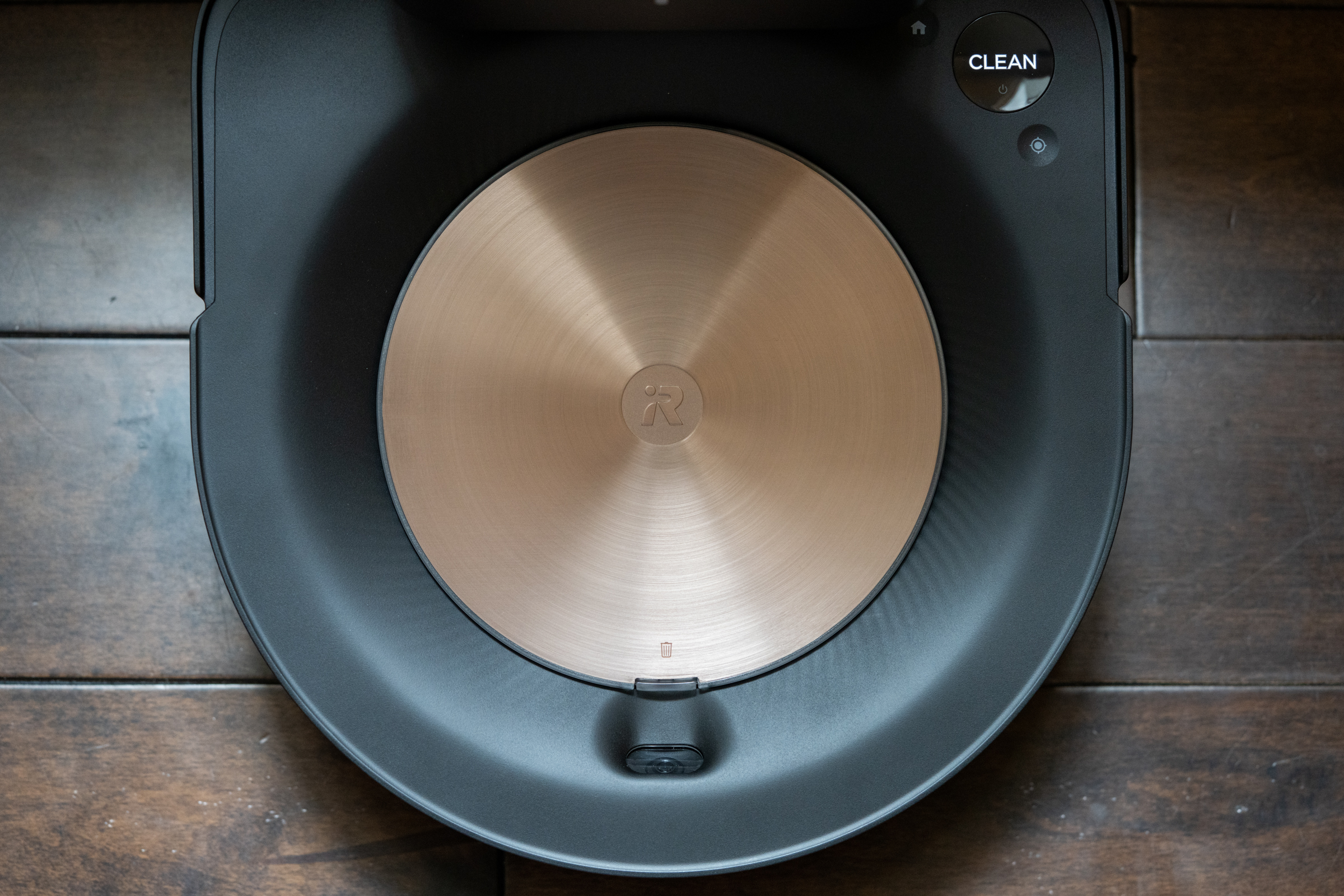
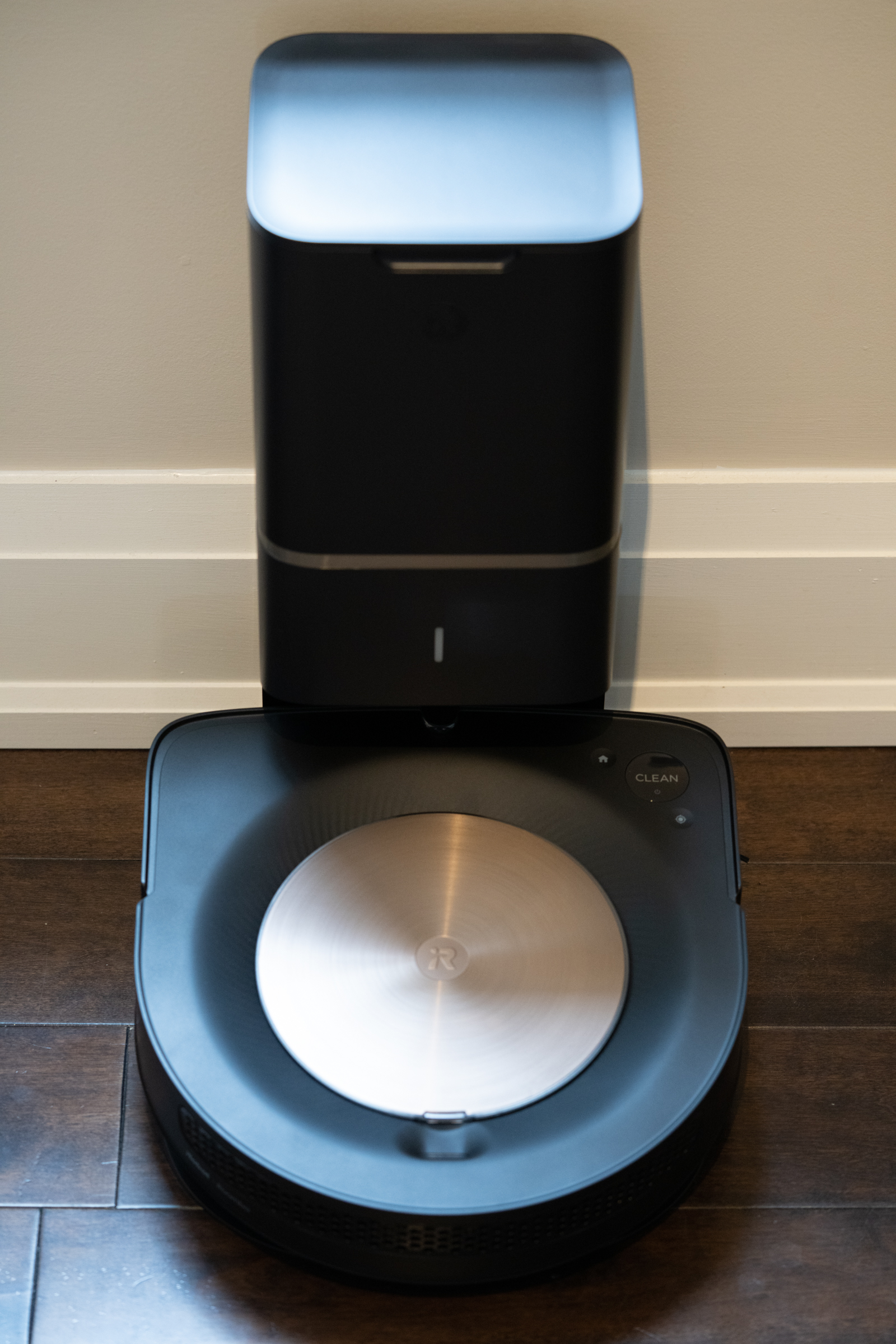
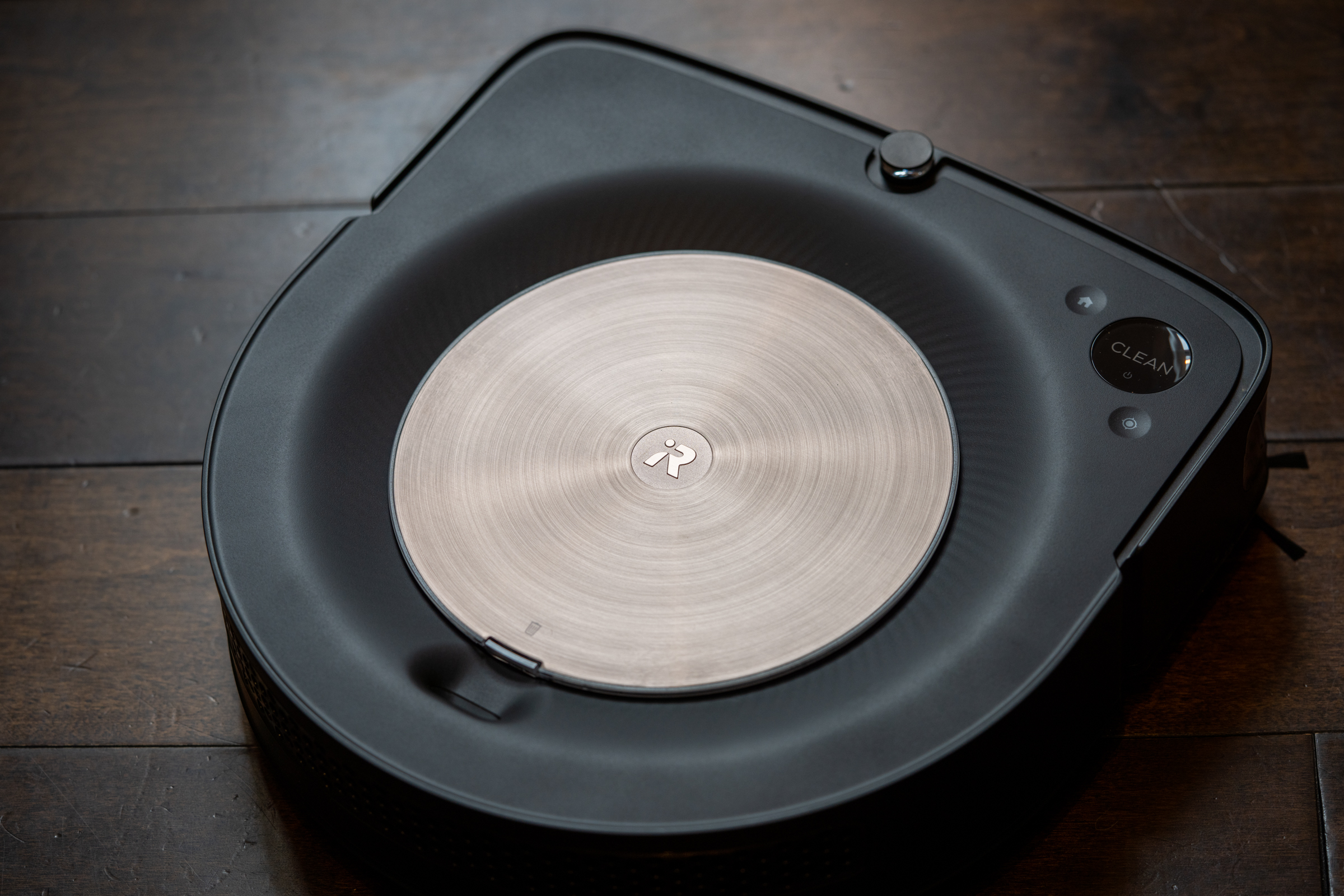
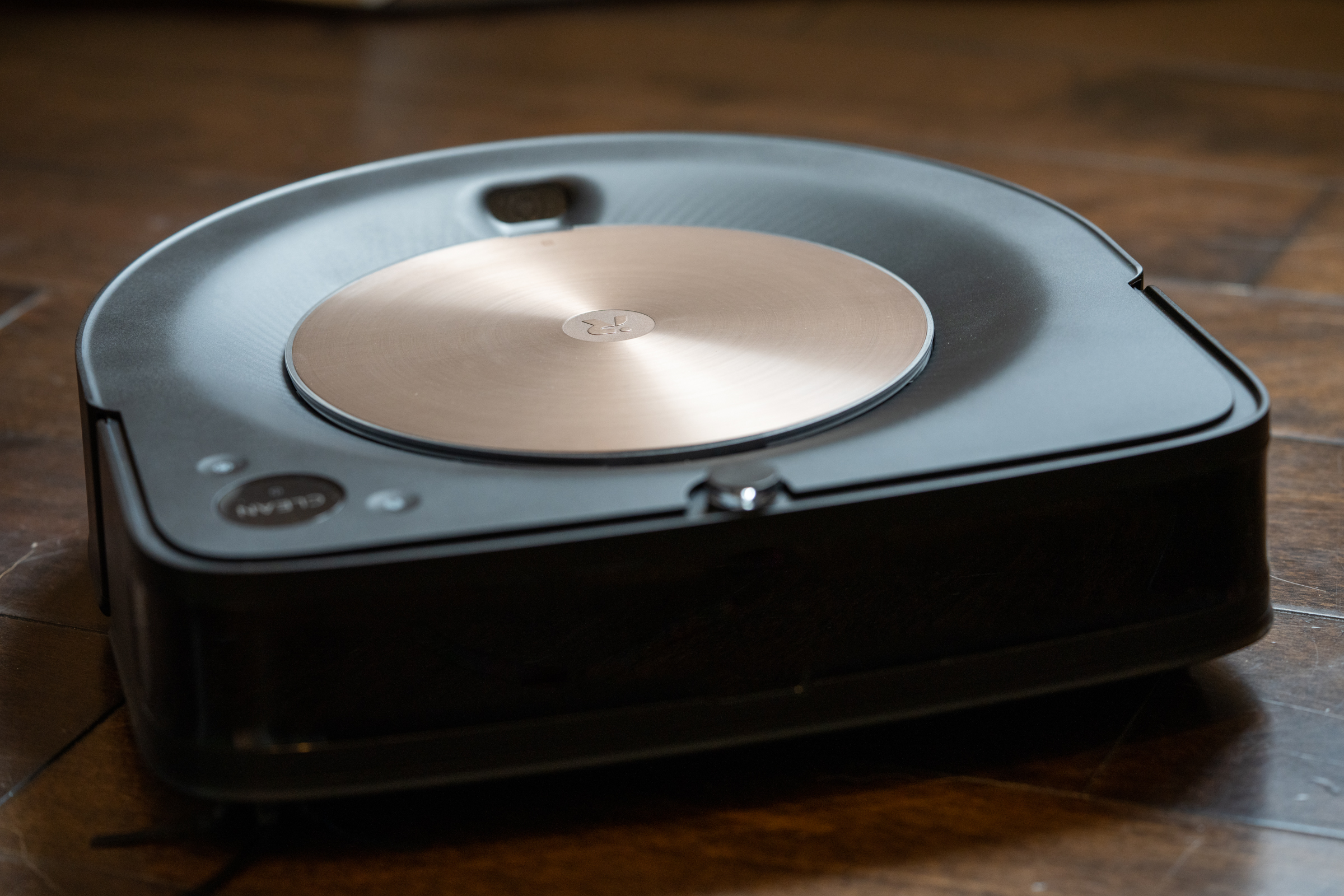
The iRobot Roomba S9+ is actually two things: The Roomba S9, which is available separately, and the Clean Base that enables the vacuum to empty itself after a run, giving you many cleanings before it needs you to actually open up a bin or replace a bag. Both the vacuum and its base are WiFi-connected, and controllable via iRobot’s app, as well as Google Assistant and Alexa. Combined, it’s the most advanced autonomous home vacuum you can get, and it manages to outperform a lot of older or less sophisticated robot vacuums even in situations that have historically been hard for this kind of tech to handle.

Like the Roomba S7 before it (which is still available and still also a great vacuum, for a bit less money), the S9 uses what’s called SLAM (Simultaneous Localization and Mapping), and a specific variant of that called vSLAM (the stands for ‘visual’). This technology means that as it works, it’s generating and adapting a map of your home to ensure that it can clean more effectively and efficiently.

After either a few dedicated training runs (which you can opt to send the vacuum on when it’s learning a new space) or a few more active vacuum runs, the Roomba S9 will remember your home’s layout, and provide a map that you can customize with room dividers and labels. This then turns on the vacuum’s real smart superpowers, which include being able to vacuum just specific rooms on command, as well as features like letting it easily pick up where it left off if it needs to return to its charging station mid-run. With the S9 and its large battery, the vacuum can do an entire run of my large two-bedroom condo on a single charge (the i7 I used previously needed two charges to finish up).

The S9’s vSLAM and navigation systems seem incredibly well-developed in my use: I’ve never once had the vacuum become stuck, or confused by changes in floor colouring, even going from a very light to a very dark floor (this is something that past vacuums have had difficulty with). It infallibly finds its way back to the Clean Base, and also never seems to be flummoxed by even drastic changes in lighting over the course of the day.

So it’s smart, but does it suck? Yes, it does – in the best possible way. Just like it doesn’t require stops to charge up, it also manages to clean my entire space with just one bin. There’s a lot more room in here thanks to the new design, and it handles even my dog’s hair with ease (my dog sheds a lot, and it’s very obvious light hair against dark wood floors). The new angled design on the front of the vacuum means it does a better job with getting in corners than previous fully round designs, and that shows, because corners are were clumps of hair go to gather in a dog-friendly household.

The ‘+’ in the S9+ is that Clean Base as I mentioned – think of it like the tower of lazy cleanliness. The base has a port that sucks dirt from the S9 when it’s done a run, shooting it into a bag in the top of the tower that can hold up to 30 full bins of dirt. That ends up being a lot in practice – it should last you months, depending on house size. Replacement bags cost $20 for three, which is probably what you’ll go through in a year, so it’s really a negligible cost for the convenience you’re getting.

Braava m6

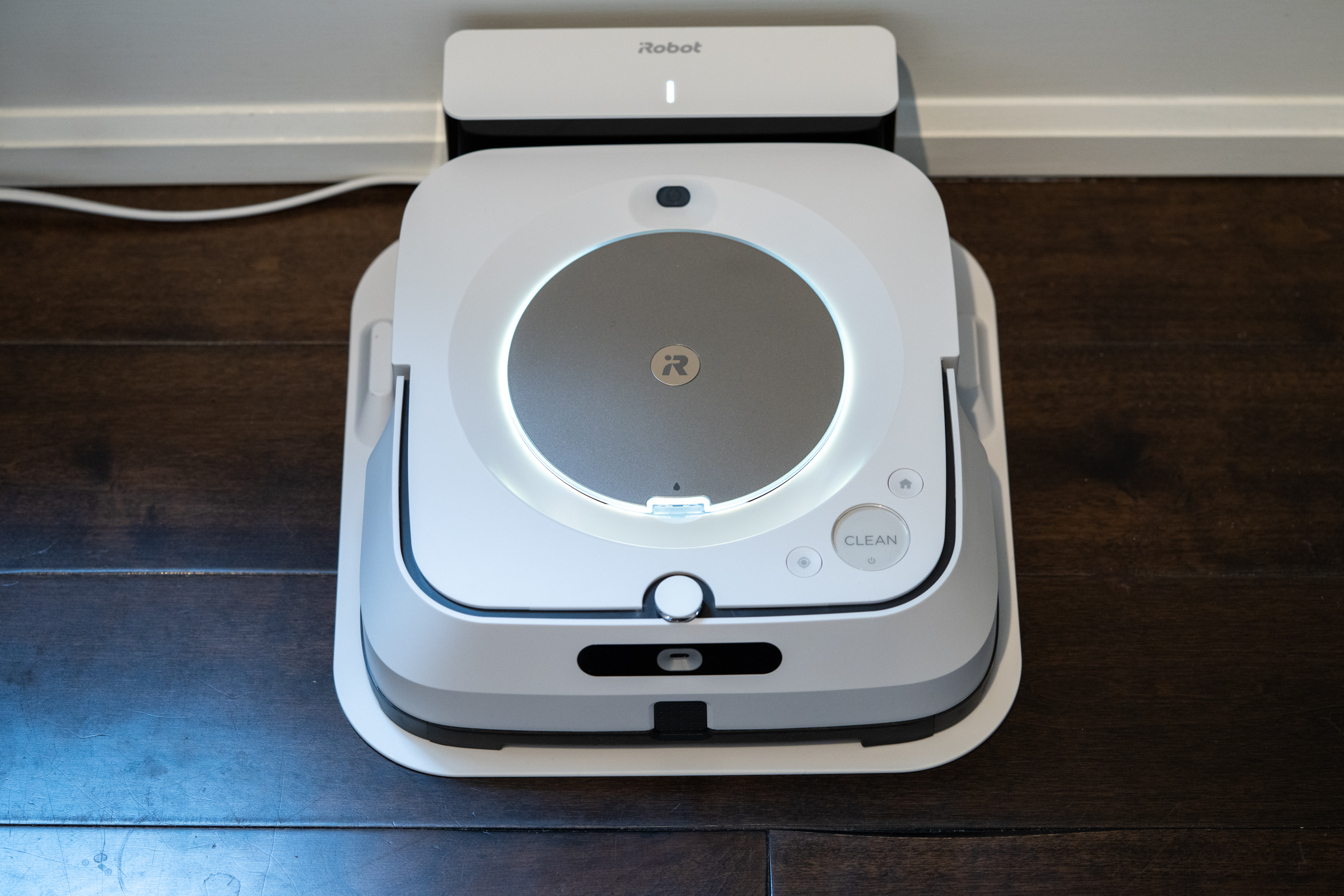
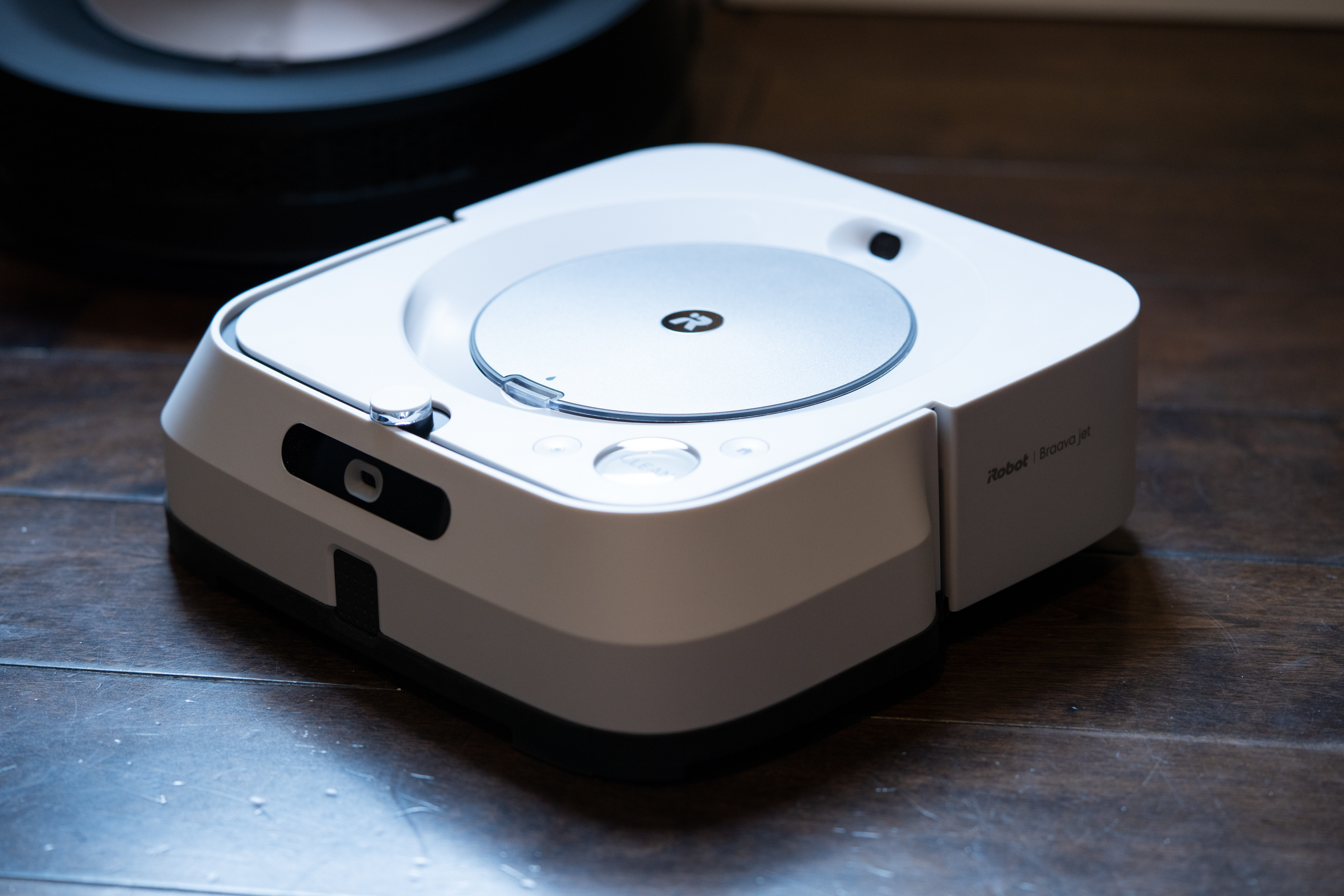
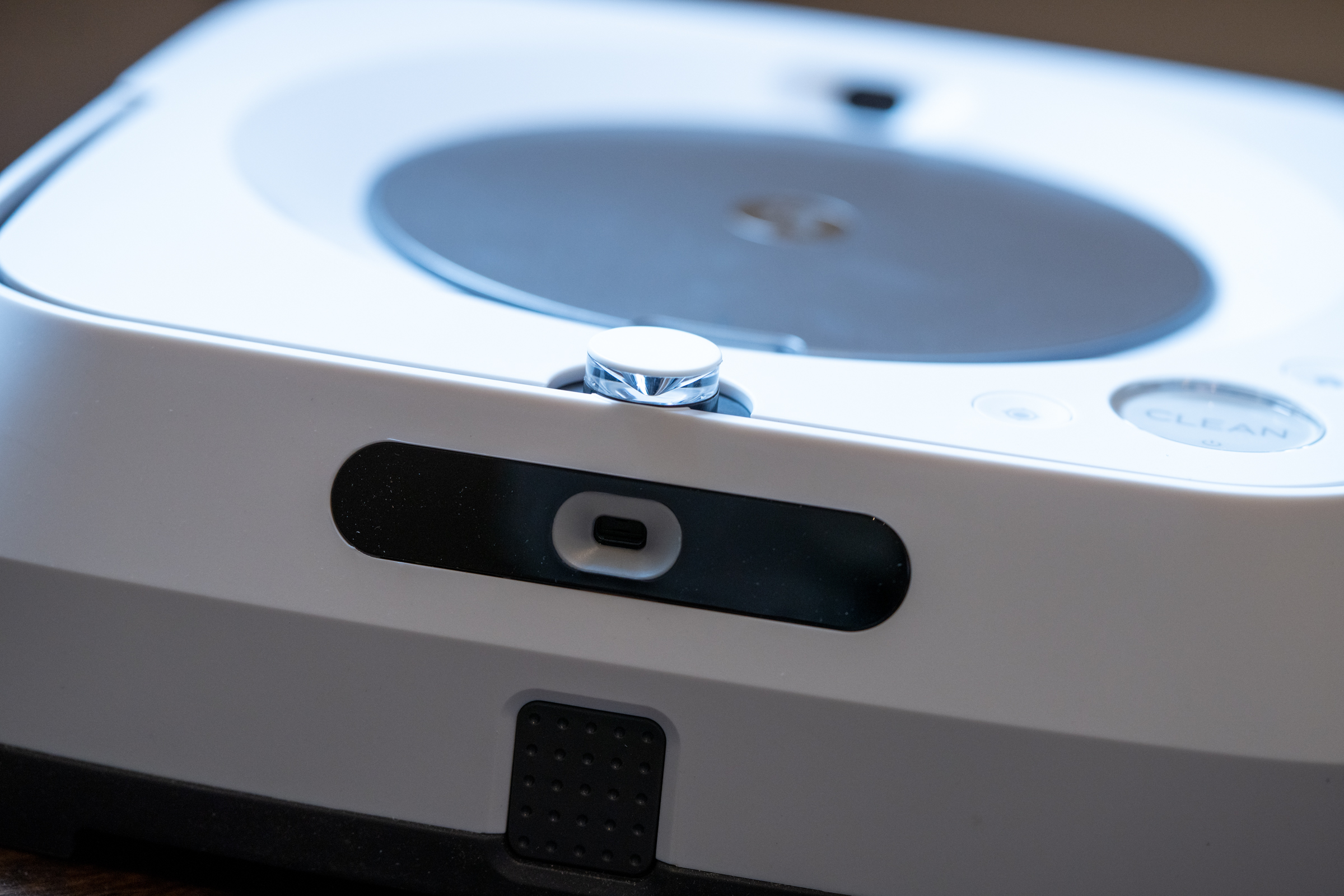
The Roomba S9’s best friend, if you will, is the Braava m6. This is iRobot’s latest and greatest smart mop, which is exactly what it sounds like: Whereas Roomba vacuums, the Braava uses either single use disposable, or microfibre washable/reusable pads, as well as iRobot’s own cleaning fluid, to clean hardwood, tile, vinyl, cork and other hard surface floors once the vacuuming is done. It can also just run a dry sweep, which is useful for picking up dust and pet hair, as a finishing touch on the vacuum’s run.

iRobot has used its unique position in offering both of these types of smart devices to have them work together – if you have both the S9 and the Braava m6 added to your iRobot Home app, you’ll get an option to mop the floors right after the vacuum job is complete. It’s an amazing convenience feature, and one that works fairly well – but there are some differences in the smarts powering the Braava m6 and the Roomba s9 that lead to some occasional challenges.

The Braava m6 doesn’t seem to be quite as capable when it comes to mapping and navigating its surroundings. My condo layout is relatively simple, all one level with no drops or gaps. But the m6 has encountered some scenarios where it doesn’t seem to be able to cross a threshold or make sense of all floor types. Based on error messages, it seems like it’s identifying some surfaces as ‘cliffs’ or steep drops when transitioning back from lighter floors to darker ones.

What this means in practice is that a couple of times per run, I have to reposition the Braava manually. There are ways to solve for this, however, built into the software: Thanks to the smart mapping feature, I can just direct the Braava to focus only on the rooms with dark hardwood, or I can just adjust it when I get an alert that it’s having difficulty. It’s still massively more convenient than mopping by hand, and typically the m6 does about 90 percent of the apartment before it runs into difficult in one of these few small trouble areas.

If you’ve read online customer reviews fo the m6, you may also have seen complaints that it can leave tire marks on dark floors. I found that to be true – but with a few caveats. They definitely aren’t as pronounced as I expected based on some of the negative reviews out there, and I have very dark floors. They also only are really visible in direct sunlight, and then only faintly. They also fade pretty quickly, which means you won’t notice them most of the time if you’re mopping only once ever few vacuum runs. In the end, it’s something to be aware of, but for me it’s not a dealbreaker – far from it. The m6 still does a fantastic job overall of mopping and sweeping, and saves me a ton of labor on what is normally a pretty back-hostile manual task.

Bottom line

These iRobot home cleaning gadgets are definitely high-end, with the s9 starting at $1,099.99 ($1,399.99 with the cleaning base) and the m6 staring at $499.99. You can get a bundle with both staring at $1439.98, but even that is still a lot for cleaning appliances. This is definitely a case where the ‘you get what you pay for’ maxim proves true, however. Either rate s9+ alone, or the combo of the vacuum and mop represent a huge convenience, especially when used on a daily or similar regular schedule, vs. doing the same thing manually. The s9 also frankly does a better job than I ever could wth my own manual vacuum, since it’s much better at getting into corners, under couches, and cleaning along and under trip thanks to its spinning brush. And asking Alexa to have Roomba start a cleaning run feels like living in the future in the best possible way.

Read Full Article