24 July 2018

Xiaomi goes after global markets with two new Android One phones


Xiaomi gave Google’s well-intentioned but somewhat-stalled Android One project a major boost last year when it unveiled its first device under the program, Mi A1. That’s now joined by not one but two sequel devices, after the Chinese phone maker unveiled the Mi A2 and Mi A2 Lite at an event in Spain today.

Xiaomi in Spain? Yes, that’s right. International growth is a major part of the Xiaomi story now that it is a listed business, and Spain is one of a handful of countries in Europe where Xiaomi is aiming to make its mark. These two new A2 handsets are an early push and they’ll be available in over 40 countries, including Spain, France, Italy and 11 other European markets.

Both phones run on Android One — so none of Xiaomi’s iOS-inspired MIUI Android fork — and charge via type-C USB. The 5.99-inch A2 is the more premium option, sporting a Snapdragon 660 processor and 4GB or 6GB RAM with 32GB, 64GB or 128GB in storage. There’s a 20-megapixel front camera and dual 20-megapixel and 16-megapixel cameras on the rear. On-device storage ranges between 32GB, 64GB and 128GB.

[gallery ids="1678961,1678962,1678963"]

The Mi A2 Lite is the more budget option that’s powered by a lesser Snapdragon 625 processor with 3GB or 4GB RAM, and 32GB or 64GB storage options. It comes with a smaller 5.84-inch display, there’s a 12- and 5-megapixel camera array on the reverse and a front-facing five-megapixel camera.

The A2 is priced from €249 to €279 ($291-$327) based on specs. The A2 Lite will sell for €179 or €229 ($210 or $268), against based on RAM and storage selection.

The 40 market availability mirrors the A1 launch last year, but on this occasion, Xiaomi has been busy preparing the ground in a number of countries, particularly in Europe. It has been in Spain for the past year, but it also launched local operations in France and Italy in May and tied up with CK Hutchison to sell phones in other parts of the continent via its 3 telecom business. While it isn’t operational in the U.S., Xiaomi has expanded into Mexico and it has set up partnerships with local retailers in dozens of other countries.

Xiaomi has been successful with its move into India, where it one of the top smartphone sellers, but it has not yet replicated that elsewhere outside of China so far.

China is, as you’d expect, the primary revenue market but Xiaomi is increasingly less dependent on its homeland. For 2017 sales, China represented 72 percent, but it had been 94 percent and 87 percent, respectively, in 2015 and 2016.


Read Full Article

3 Places You Can Download High-Resolution Satellite Images


There’s nothing like a high-resolution satellite image to convey how beautiful our Earth is. They are also wonderful educational tools to explore the geographical changes our planet goes through.

But where can you find them? And if you were to find them, could these satellite images be downloaded to your desktop? Actually, yes! There are several geospatial websites that can help us out. Try these three free solutions.

1. Earth Explorer

Earth Explorer

Earth Explorer is run by the US Geological Service. The high-resolution maps and datasets are specific to the country but are detailed and informative. The information is collated from sources like the Landsat remote sensing programme as well as NASA’s Land Data Products and Services.

You can use a combination of query options to comb through the United States Geological Survey (USGS) archives and download the datasets.

2. Copernicus

The European Commission (EC) along with the European Space Agency (ESA) launched the world’s largest global Earth observation program. Data from the Sentinel satellites is provided free of cost through an open access hub on the site. You do need to register to download the satellite images.

The high-resolution images are offered to the general public under a Creative Commons IGO license. The quality is better than the images from the USGS.

Also look into the Sentinel Hub Playground which helps you to use a  GIS interface and explore and download full-resolution images from Sentinel-2.

3. NASA Worldview

NASA Worldview

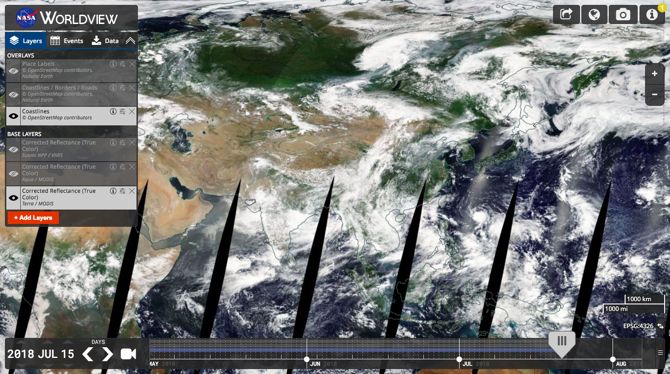
Worldview is a powerful application that allows you to browse high-resolution satellite images almost in real-time. As the screenshot above shows, you can use the features on the site to set a timeline and download the map with its underlying datasets.

Also, try the unique nighttime layer (Earth at Night) to explore how Earth looks after sunset with lights switched on. Take a snapshot and download the imagery to your desktop.

There’s Google Earth (and Google Maps) too. Today, you can load Google Earth in a browser and find out more about the world we live in, but these satellite imagery tools also give you a few extra layers of interesting information to explore.

Read the full article: 3 Places You Can Download High-Resolution Satellite Images


Read Full Article

How to Avoid Library Late Fees Using Google Calendar


new-google-calendar

While you can automatically add certain types of events found in your Gmail inbox to your Google Calendar, library due dates don’t seem to trigger that process. If you want to be sure to avoid late fees, there’s a quick way to add events from Gmail to your Google Calendar.

While this process is manual, there is an easy way to create events right there from your Gmail inbox.

  1. Open the email from your library in a browser.
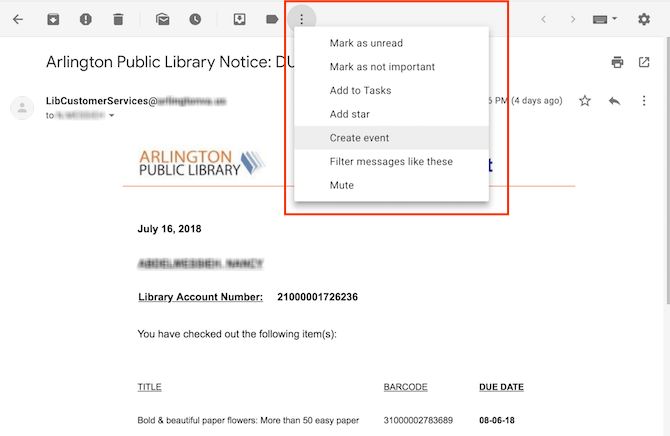
  2. In the menu of tools directly above the message, click the button with three dots to access additional options.
  3. Click Create Event
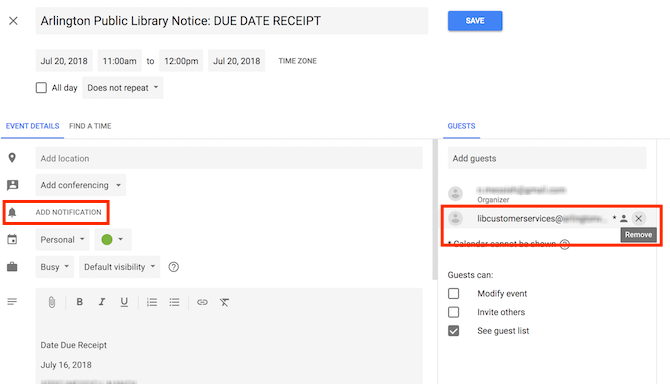
  4. A new window will open in Google Calendar where you can enter the information. You will need to change the date as Google doesn’t pull that information from the email. (Google will pull the text from the body of the email and put that info into the description.)
  5. You’ll also want to remove the email address of your library from the event, since you obviously don’t want to notify them. For the date select either the due date itself or a day before, depending on what’s more convenient for you.
  6. You can also select a specific time based on when it’s best to receive the notification. 
  7. Click Add notification to make sure that you get the notification.

You can also get creative with how you receive those notifications, with Google Calendar’s robust custom notification settings.

Read the full article: How to Avoid Library Late Fees Using Google Calendar


Read Full Article

How to Set Up a VPN on a Chromebook


chromebook-pixel

Everyone should be using a VPN. It’s an essential part of modern internet browsing that’ll keep you more secure and enhance your privacy. You can use a VPN on most devices you own, including Chromebooks.

Sadly, it’s not as easy to get a VPN up and running on a Chromebook as it is on Windows, Mac, Android, or iOS. Because Chromebooks rely on web apps, you can’t always install a VPN provider’s dedicated app. In that case, you will need to set up the VPN connection manually instead.

In this post, we explain how to add and set up a VPN to your Chromebook.

How to Set Up a VPN on a Chromebook

Some of the largest VPN providers offer official Chrome extensions in the Web Store. We do not recommend them; they will only protect traffic flowing through the browser and will leave traffic from your other Chromebook apps vulnerable.

If your Chromebook can run Android apps and your VPN provider has created its own app, you could install it. Unlike the Chrome extensions, it will protect your entire device’s traffic.

However, if your VPN provider doesn’t offer an app, you’re using a corporate machine without Google Play Store access, or you’re Chromebook doesn’t support Android apps, you’ll need to enter the VPN’s information yourself.

You can add the information by clicking on your profile picture and navigating to Settings > Network > Add connection > Add OpenVPN/L2TP.

You’ll need to decide whether you want to connect using OpenVPN or L2TP, then fill out the necessary details that your VPN provider has supplied to you. Simply hit the Connect button to join your VPN network and start browsing in safety.

Note: You might need to download and install a CA Certificate from your VPN provider.

Not sure which VPN you should be using? Whatever you do, stay away from free VPNs because they’re fraught with issues and risks. We recommend the two leading premium VPNs, CyberGhost and ExpressVPN.

Read the full article: How to Set Up a VPN on a Chromebook


Read Full Article

How to Watch Videos in Secret Using YouTube Incognito

5 Text, Voice, and Video Call Apps You Can Use Without Registration


Online Chat

Technology is at its best when it gets out of the way and lets you do what you want. When you want to talk to someone, you shouldn’t have to jump through hoops downloading an app or signing up for a service. These fantastic apps are what you need.

Usually, your office is likely to use a service like Skype or GoToMeetings, but those fail to work sometimes. And with the number of data and privacy leaks happening these days, it’s probably better if you use a service without ever giving them your email or password.

These apps have different purposes, but a common thread to bind them all. They don’t need you to install anything, and they don’t need you to register. All these messenger services work from a modern web browser on desktop or mobile. And they are all free.

JumpChat: Awesome Skype Alternative for Video Conferences

JumpChat is another free video conferencing apps that doesn’t need anyone to register to use it. You start a chat, share the link, and you’re ready to start talking. It supports free video and audio calling for up to eight people simultaneously.

JumpChat does more than just setting up a video chat though. You can also share your screen, so others can see what’s happening on your window. There’s a simple chat function to send messages. And in a feature that sets it apart from our favorite app Appear.in, JumpChat lets you share files with other users with a peer-to-peer connection, so it’s more secure.

If you use the app regularly, you can use the JumpChat mobile apps. But it’s not necessary, you can use the service on a mobile web browser without any issue.

Download: JumpChat for Android | iOS (Free)

Webroom: Free Video Conferences for Small Teams

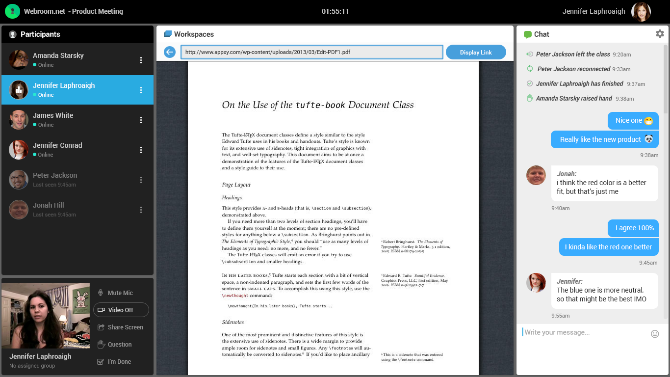
Webroom doesn’t want you to sign up to use it, but it still requires an email address from you. I’m not sure why that is, but hey, you get to create a room immediately and invite up to eight participants for a video conference.

While JumpChat and Appear.in feel a bit more casual, Webroom seems to be primed for small teams and office users. It also has file-sharing between all of you, but it also adds Google Docs, Sheets, and Presentations so you can collaborate with your files in the G Suite. Webroom also lets you create a shared whiteboard so you can brainstorm while still having a chat. And you can play a video or audio file (including YouTube videos) in the chat, so everyone can see it simultaneously.

If you like how Webroom functions, feel free to register for an account. This gives you a few additional features like session history and a meeting scheduler.

Volafile: Chat With Dropbox-like File-Sharing

File-sharing and chat are usually two separate entities. You share something in Dropbox and then send your friends a message about it. Volafile combines file-sharing and chat, while adding a bit of privacy too.

Create a room and send its link to anyone you want to participate in it. You can share files up to 20GB in size per file. Any file will stay online for 48 hours, after which it is automatically deleted. Any participants can filter the files by video, image, music, documents, or archives for quick sorting. And there’s a handy search feature too.

Remember, it’s all anonymous and the privacy policy says the site doesn’t read any of the files you upload. This could be a much safer way to share sensitive files than to upload it on popular cloud storage providers.

Cyph: One-on-One Chat for Always Encrypted Audio, Video, and Text

Cyph is the app for those who want a secure line of communication with one other person, where you can say and share anything you want without it ever being leaked.

Cyph wants to be the alternative to Messenger by Facebook, given the privacy suspicions around Facebook. It’s an end-to-end encrypted chat service that works on the browser, and even lets you share files.

Cyph is all about its encryption, which is akin to what you would get if you use an app like Signal messenger. Cyph encrypts all your video and voice calls, along with your chats. Even the documents you share, be it photos or videos, are encrypted, so they are safe from data leaks.

Unlike many of the other chat apps in this article, Cyph restricts you to one-on-one chat session. You can’t use Cyph for group messaging or sharing unless you’re ready to pay for one of its business plans.

Chatzy: Quick, Free, Feature-Filled Text Chatroom

Our favorite no-signup chatroom, TinyChat, is now a video conferencing app. The search for a replacement led us to Chatzy, which might just be a better app overall.

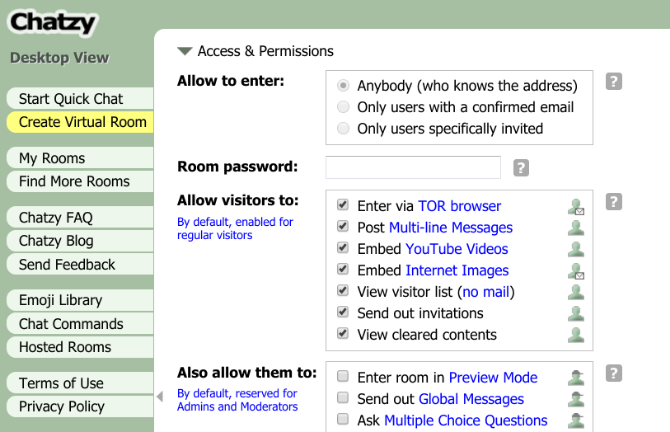
Chatzy feels like an old-school chatroom app, but with a ton of modern features. You can get notified when someone says a certain word, send emojis, set up text expansion, and do much more. If you’re creating a room yourself, check out the advanced settings to see the myriad options you can apply to your room.

In effect, Chatzy is a free chatroom creator that comes filled with the kind of features you see in full-fledged chat apps like Slack. But it still requires no registration and protects your privacy, which most big chat apps can’t say about themselves.

Stop Signing Up

There is a real threat to your privacy and data if you keep using apps that require you to sign up for their services. Whenever you can use an app without registering for it, that’s a better option to choose. Get started with these 15 excellent no-signup websites for everyday use.

Read the full article: 5 Text, Voice, and Video Call Apps You Can Use Without Registration


Read Full Article

Instagram Now Shows Your Friends When You’re Online


Instagram has rolled out a new feature that shows you when you’re friends are online, and vice versa. This feature, known as the Activity Status, isn’t exactly unique to Instagram, but we suspect it will still cause some controversy.

Common across a range of apps and services is an indicator showing whether someone is online or not. From AIM through Facebook Messenger and on into Slack. And now Instagram has finally decided it too should add such a feature.

Look for the Green Dot

From now on you should be able to see when your friends are active on Instagram. On the flipside your friends will be able to see when you’re active on Instagram. And it’s all thanks to the green dot that will appear next to their profile pictures.

This green dot, which indicates that someone is active on Instagram, will be visible in various places across the app. This includes the Direct inbox and your friend list for when you’re sharing a post from your feed.

In a blog post, Instagram explained the thinking behind the new Activity Status, saying:

“DMing friends and connecting over the content you love is more fun when you know your friends are there to see it. This update gives you the ability to have more of those realtime conversations while giving you the control to hide your status altogether.”

The good news is that you can turn Activity Status off just by sliding the Show Activity Status option to off. And while this means you won’t be able to see the activity status of other accounts, at least you won’t be exposing your activity to the world.

Increasing Engagement Levels

It’s quite surprising that it has taken Instagram this long to add an Activity Status, to be honest. Its presence could increase engagement levels, as you’re more likely to converse with people you know are actually active on Instagram at the time.

Instagram is constantly adding new features, and this is just the latest in a long line. Instagram has previously added threaded comments, a Mute button, and a Questions sticker to Stories. All of which are solid additions to an already brilliant app.

Read the full article: Instagram Now Shows Your Friends When You’re Online


Read Full Article

Microsoft is building low-cost, streaming-only Xbox, says report


It was revealed at E3 last month that Microsoft was building a cloud gaming system. A report today calls that system Scarlett Cloud and it’s only part of Microsoft next-gen Xbox strategy. And it makes a lot of sense, too.

According to Thurrott.com, noted site for all things Microsoft, the next Xbox will come in two flavors. One, will be a traditional gaming console where games are processed locally. You know, like how it works on game systems right now. The other system will be a lower-powered system that will stream games from the cloud — most likely, Microsoft’s Azure cloud.

This streaming system will still have some processing power, which is in part to counter latency traditionally associated with streaming games. Apparently part of the game will run locally while the rest is streamed to the system.

The streaming Xbox will likely be available at a much lower cost than the traditional Xbox. And why not. Microsoft has sold Xbox systems with a slim profit margin, relying on sales of games and online services to make up the difference. A streaming service that’s talk about on Thurrott would further take advantage of this model while tapping into Microsoft’s deep understanding of cloud computing.

A few companies have tried streaming full video games. Onlive was one of the first and while successful for a time, but eventually went through a dramatic round of layoffs before a surprise sale for $4.8 million in 2012. Sony offers an extensive library of PS2, PS3 and PS4 games for streaming through its PlayStation Now service. Nvidia got into the streaming game this year and offers a small selection of streaming through GeForce Now. But these are all side projects for the companies.

Sony and Nintendo do not have the global cloud computing platform of Microsoft, and if Microsoft’s streaming service hits, it could change the landscape and force competitors to reevaluate everything.


Read Full Article

Google joins the race to $1 trillion


Google was already worth more than $800 billion and, while well short of Apple, is now jumping into that batch of companies that are on their way to being a $1 trillion company.

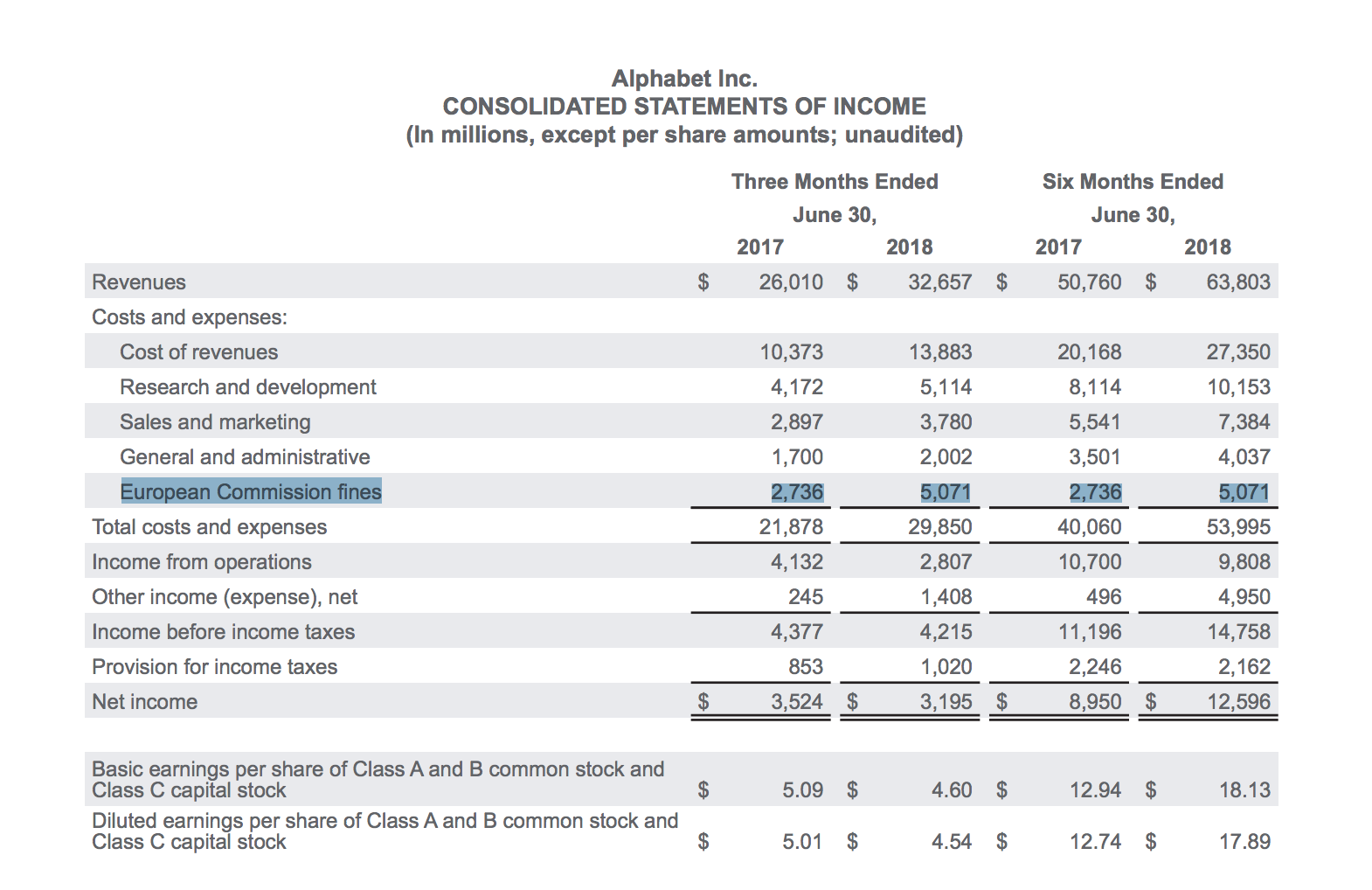
Alphabet, Google’s parent company, substantially outperformed market expectations in its second quarter by bringing in $32.66 billion. That’s a 26 percent increase year-over-year, and, perhaps more significantly, it’s a faster rate of increase than it saw in the same quarter last year. The company’s second-quarter revenue in 2017 was a 21 percent jump from that in 2016. It’s a bit of a handful, but either way it shows that Alphabet still continues to — unsurprisingly — print money off its advertising business even as its cost-per-click (one of the metrics that indicates the value of its advertisements) continues to decline.

Following the report, Alphabet shares jumped an additional 5 percent, making its valuation about neck-and-neck with Amazon — though, again, well short of Apple. But it wasn’t that long ago that Apple hit a $900 billion market cap and we started talking about it being a contender to hit $1 trillion. Google’s advertising business continues to be healthy and growing. While it’s getting slapped with a massive fine by the EU, this doesn’t seem to bother Wall Street all that much as it sees Alphabet as a company that will continue to grow over time.

Google’s “other revenue,” which includes its very increasingly important cloud efforts, rose substantially to $4.43 billion. But comparing the growth patterns, Google’s advertising revenue grew around 24 percent, while Google’s other revenue grew around 37 percent year-over-year. This isn’t so dissimilar from the patterns you’ll see with Amazon, where its core business continues to grow but its AWS growth appears to be increasingly contributing to its growth and performance. It’s still a slice-of-a-slice of its advertising revenue, but it does represent some substantial upside.

That’s going to be critical going forward as Google tries to convince investors that it’s not just an advertising company, but also a services company, with a set of hardware, and a platform company beyond even that. As Google continues to capture developers with its deep-learning framework TensorFlow, and lock them into its own ecosystem with hardware like the TPU geared toward deep learning, it’ll continue to see a lot of momentum as deep learning tools proliferate across the entire technology industry. Indeed, TensorFlow is increasingly killing off a lot of the complexity that goes into complicated machine learning problems, and it’s going to be a strong lure to get companies onto its cloud platform.

That EU fine also got its own line item in Google’s earnings report, which is kind of interesting in a sort of zeitgeist-y way.

Its other bets — not to be confused with other revenue — that include its other ancillary projects that may or may not pan out and be part of Alphabet’s future business continued to see some improvement by hitting $145 million in revenue in the second quarter this year. Its losses there widened from a loss of $633 million to $732 million.


Read Full Article

How to Create an Ebook in Pages on Mac: 5 Easy Steps


create-ebook-pages

You don’t have to rely on iBooks Author to create ebooks on your Mac. There’s a simpler solution waiting for you.

The Export to EPUB feature in Apple’s Pages can set you up with interactive ebooks ready for viewing in iBooks and other EPUB readers. Here’s a step-by-step tutorial on how to create an ebook in Pages on Mac.

Step 1: Decide Between Fixed and Flexible Layouts

Here’s the first question you need to ask yourself before you create an ebook in Pages:

Do you want the ebook layout to rearrange itself depending on the size and orientation of devices? Or do you want your ebook layout to stay the same regardless of device size and orientation?

If you want a flexible ebook layout, you’re looking for what Apple calls a Reflowable EPUB as the finished product. Otherwise, it’s the Fixed layout EPUB for you.

You’ll need to stick with a portrait book template if you want a Reflowable EPUB. That’s because landscape templates don’t support this export format. If you’re going for a fixed layout, either orientation works.

reflowable-vs-fixed-pages-mac

Ensure that you choose the correct format when you set up the document, because you can’t switch to a different type of template when you’re exporting it.

Ideally, you should pick the Reflowable layout for a text-heavy book or a word processing document. In the case of a book loaded with images or one with multiple columns, you’re dealing with a page layout document. And it’s best to export that as a Fixed layout EPUB.

If you plan to convert the EPUB to Kindle’s MOBI format, go with the Reflowable layout for exporting as that is likely to give you better results overall.

Step 2: Set Up a Template

choose-template-pages-mac

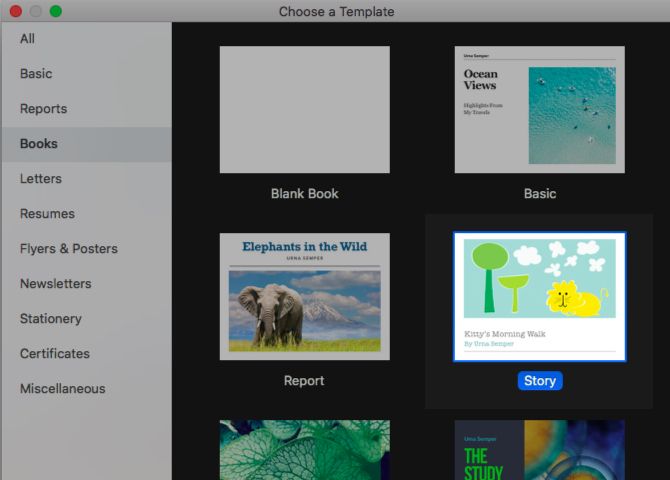
You can create an ebook from a blank document or from any of the free Pages templates available in the template chooser that pops up when you open the app.

But it helps to start out with one of the templates designed specifically for ebooks. You’ll find these listed under Books in the template chooser. (Already started with a basic blank document and want to switch to a new template? You can bring up the template chooser anytime with the keyboard shortcut Option + Cmd + N.)

For this tutorial, let’s go with a Fixed layout and a landscape ebook template. We’ve chosen the Story template from Books > Books—Landscape in the template chooser. It’s a page layout document.

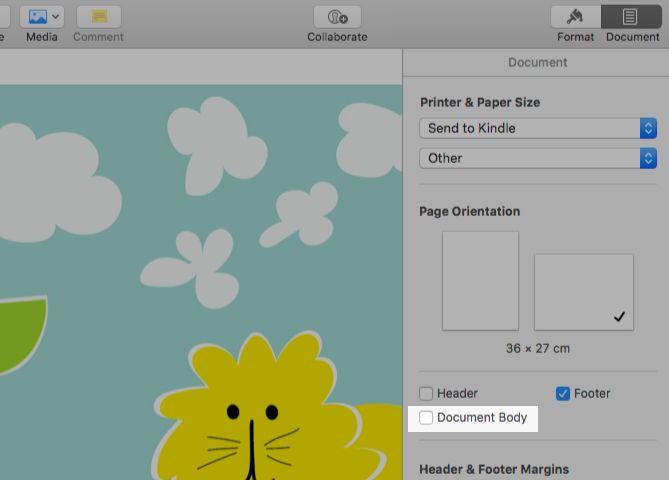
To confirm, open the Document inspector. Under the Document tab, the checkbox for Document Body appears unselected. That’s the indicator to look for. If you had a word processing document open, the Document Body box would appear selected.

document-type-indicator-pages-mac

Step 3: Add Text and Media

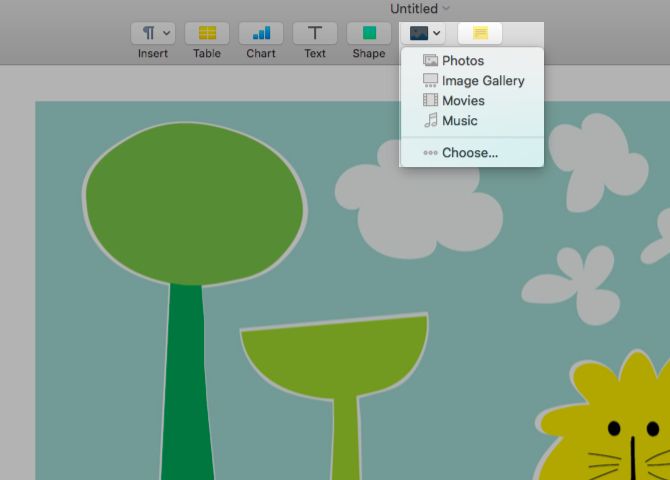
Now it’s time to add content to your ebook. You can insert text, images, videos, tables, charts, and shapes using the appropriate toolbar buttons. As we’re creating a Fixed layout EPUB, we don’t have to worry about wrapping text. Thus images, shapes, and other objects will always appear inline.

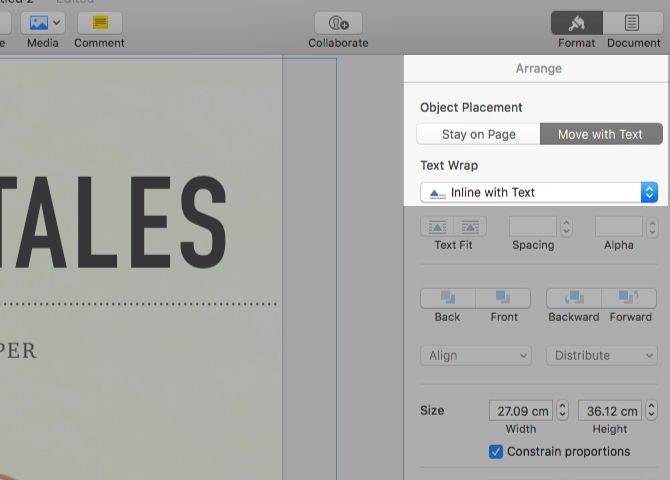
That’s a concern only when you’re creating a Reflowable EPUB. And in that case, to ensure that an object stays inline, first select it and open the Arrange tab of the Format inspector. Next, switch to the Move with Text tab under Object Placement and select Inline with Text from the Text Wrap dropdown menu.

wrap-text-pages-mac

Note: Keep in mind that if you insert images greater than 4MP, Pages resizes them to 4MP during export.

If you’re comfortable with the drawing tools that are now a part of the iWork suite, you might also want to add drawings to your ebook.

insert-media-pages-mac

Since we’re going for a Fixed layout EPUB, we don’t have to worry about losing elements like page numbers, tab stops, and master objects when we export.

Are you creating a Reflowable EPUB? You’ll need to scan Apple’s Fixed layout feature list to know which elements might be missing from the exported file.

But regardless of the layout you choose to begin with, you’ll lose certain items like comments, shadows, and smart fields during the export to EPUB.

How to Insert New Pages

Every time you want to add a new page to your ebook, you’ll need to click on the Add Page toolbar button. This process is where page layout templates differ from word processing ones.

In word processing templates, adding pages equals inserting a blank page after the cursor location. You don’t actually need to do this. The app inserts new pages as you continue to type. In other words, you get a new page when you reach the bottom of the current one and hit the Enter key.

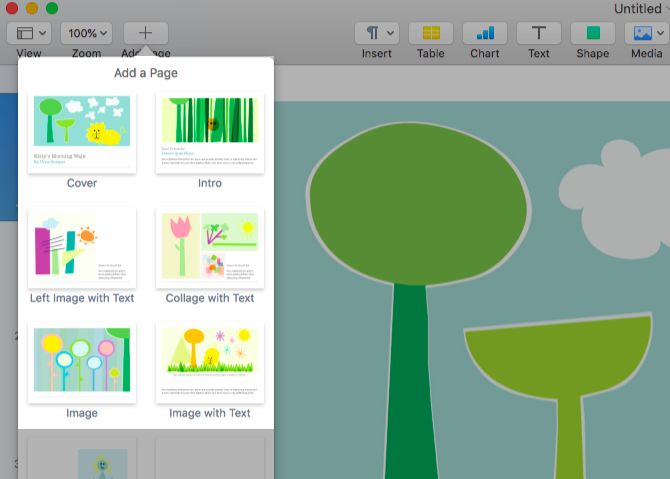
But in page layout templates such as ours, you start out with a set of master pages with varying content layouts. (There’s a blank master page too.) And when you click on the Add Page button to insert a new page, you have to select one of these master pages to duplicate.

add-page-pages-mac

Step 4: Insert a Table of Contents

Pages generates a Table of Contents (ToC) for you based on the paragraph styles in your document (see our advanced iWork guide for more on that).

If you would like to set up a custom ToC, you can, but only in a word processing document. Click on Insert > Table of Contents > Document to set up the ToC.

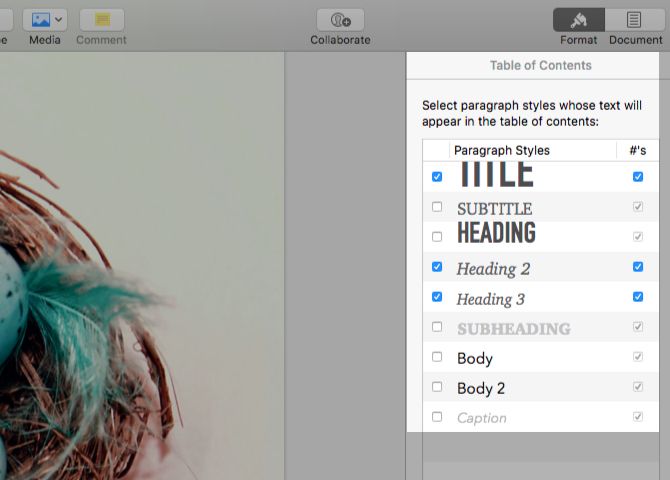
Now, with the ToC selected, switch to the Format inspector pane. Here you can enable/disable paragraph styles depending on whether you want the corresponding text to show up in the table of contents.

select-paragraph-styles-toc-pages-mac

We can’t create a ToC for our sample book. This is because it’s a page layout document, which doesn’t support the ToC feature.

Step 5: Export Your Book as an EPUB

No, we haven’t forgotten about adding a cover for your ebook. We’ll get to that now.

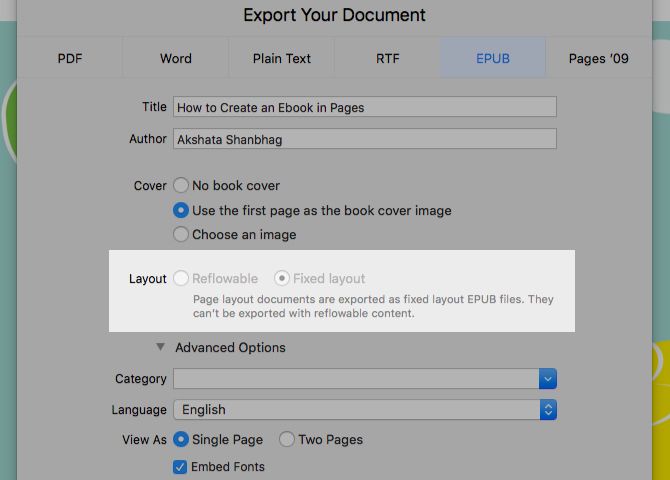
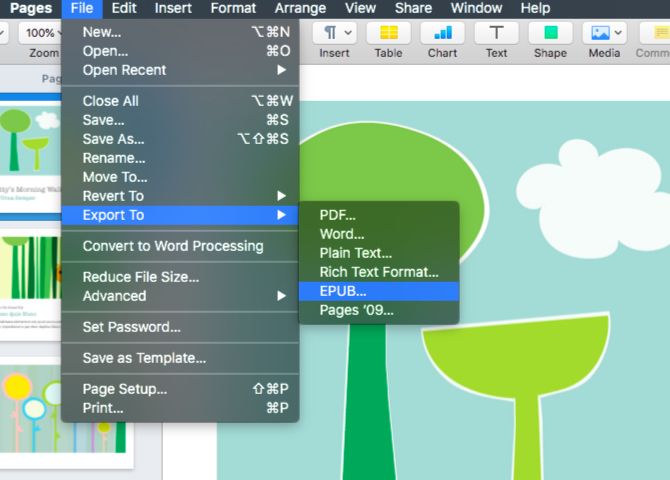
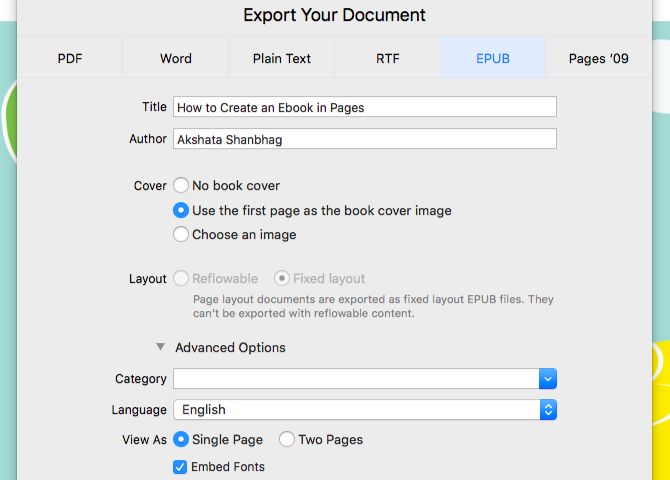
You’ll find the book cover option when you proceed to export your document as an EPUB. To do that, click on File > Export To > EPUB. Here, the Export Your Document dialog box comes up. Let’s enter a title and author name for our sample book.

export-to-epub-pages-mac

The radio button for switching layouts is disabled because we’ve started out with a landscape template. That automatically renders a Fixed layout EPUB.

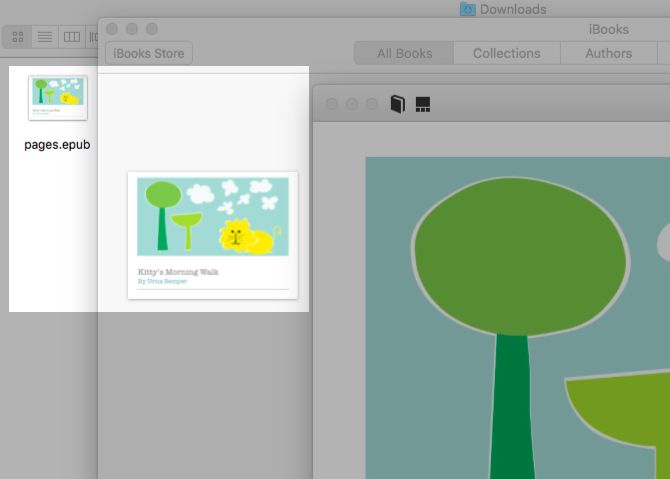
For the book cover, we’ll stick with the default setting: Use the first page as the book cover image. You can add a custom image as your book cover with the Choose an image radio button. Pages uses this image as the book’s thumbnail in iBooks and in file explorer applications.

epub-ebook-thumbnail

From the expandable Advanced Options section, you can pick a category and a language for your ebook.

Let’s leave the Embed Fonts checkbox selected to ensure that the reader’s ebook viewer displays the same fonts that we’ve chosen. After we hit the Next button, we get to pick a name and storage location for our exported EPUB. Now with one click of the Export button, our ebook is ready!

export-dialog-pages-mac

Note: If you open your Pages document from your iPhone/iPad or iCloud.com, you can also export it to EPUB from there.

Now, we’ll keep our ebook to ourselves, but you can share your ebook or even put it up for sale on iBooks with an iTunes Connect account.

Note: iBooks Author is not going away. And while you can import EPUB files into iBooks Author for editing, you can’t open IBOOKS and IBA files in Pages.

When Is Your Ebook Hitting the iBooks Store?

For creating ebooks, Pages isn’t as advanced as iBooks Author, but it’s no slouch either. If you’re familiar with the basics of iWork and want to create beautiful digital books the easy way, why not create an ebook with Pages?

And remember, ebooks are not the only impressive documents you can create with Pages on your Mac!

Read the full article: How to Create an Ebook in Pages on Mac: 5 Easy Steps


Read Full Article

Google Cloud’s partnership network begins paying dividends


When Google Cloud brought Diane Greene on board at the end of 2015, one of her goals was to expand the division’s partnership network, an approach she found worked quite well when she was running VMware in the early 2000s. It appears to be working at Google too.

This week at Google Next, the company’s annual cloud conference, they announced the partner program had grown significantly since the beginning of last year. “Since the start of 2017, we’ve increased the number of technology partners by 10x and we’ve more than doubled our team supporting these partners,” Google’s Nan Boden and Nina Harding wrote in a blog post on partner program progress.

Google is partnering with a variety of large enterprise vendors from Cisco to SAP to NetApp to Diane Greene’s old company, VMware. In addition, they are also working with the traditional systems integrators like Accenture, Deloitte, KPMG and others.

All of this is enabling Google Cloud customers to work through familiar channels while helping Google to build out its cloud business and gain more traction in the enterprise. Partners in general help customers work with a platform like Google Cloud more easily by providing integrations that might not otherwise exist.

One thing Google has going for it, especially on the G Suite side of the house, which includes Gmail, Docs, Drive and Calendar, is sheer numbers with millions of users. It benefits the partner to work with a company like Google Cloud to help all their common users, and perhaps attract new ones, and it benefits Google because it makes their cloud services all the more valuable to the customer.

The company sees Software as a Service in particular as a key area for growth and they announced out a new partnership program this week with access to more Google personnel and marketing funding to help encourage more interaction with SaaS partners on the platform. They already have multiple agreements in place with popular SaaS vendors including Salesforce, Box, MongoDB, Zenoss, Elastic, RedisLabs, JFrog, BetterCloud, DialPad, and many others

Cloud computing has always been different from traditional enterprise computing because cooperation has always been the watch word. Even companies like Salesforce and DialPad and Cisco and SAP that could be competing with Google on some levels see the benefits of working with them (and other cloud providers). It’s what their customers want, and cooperation when it makes sense, benefits all parties involved.


Read Full Article

The 8 Best Free Browser-Based Adobe Illustrator Alternatives


ai-online-alternatives

Adobe Illustrator is the default choice for anyone who needs high quality graphic design software. But Adobe’s subscription model is pretty expensive, and Illustrator only works on Windows and Mac.

If you’re a hobbyist on a budget, or use Linux or a Chromebook, what are your options?

Fortunately, there are plenty of free, browser-based Adobe Illustrator alternatives you can try. Not only do you not have to pay for them, but they’ll run on any device running any operating system.
1. Gravit Designer

gravit designer

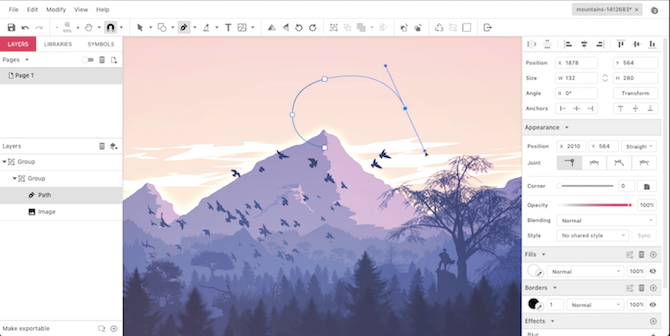
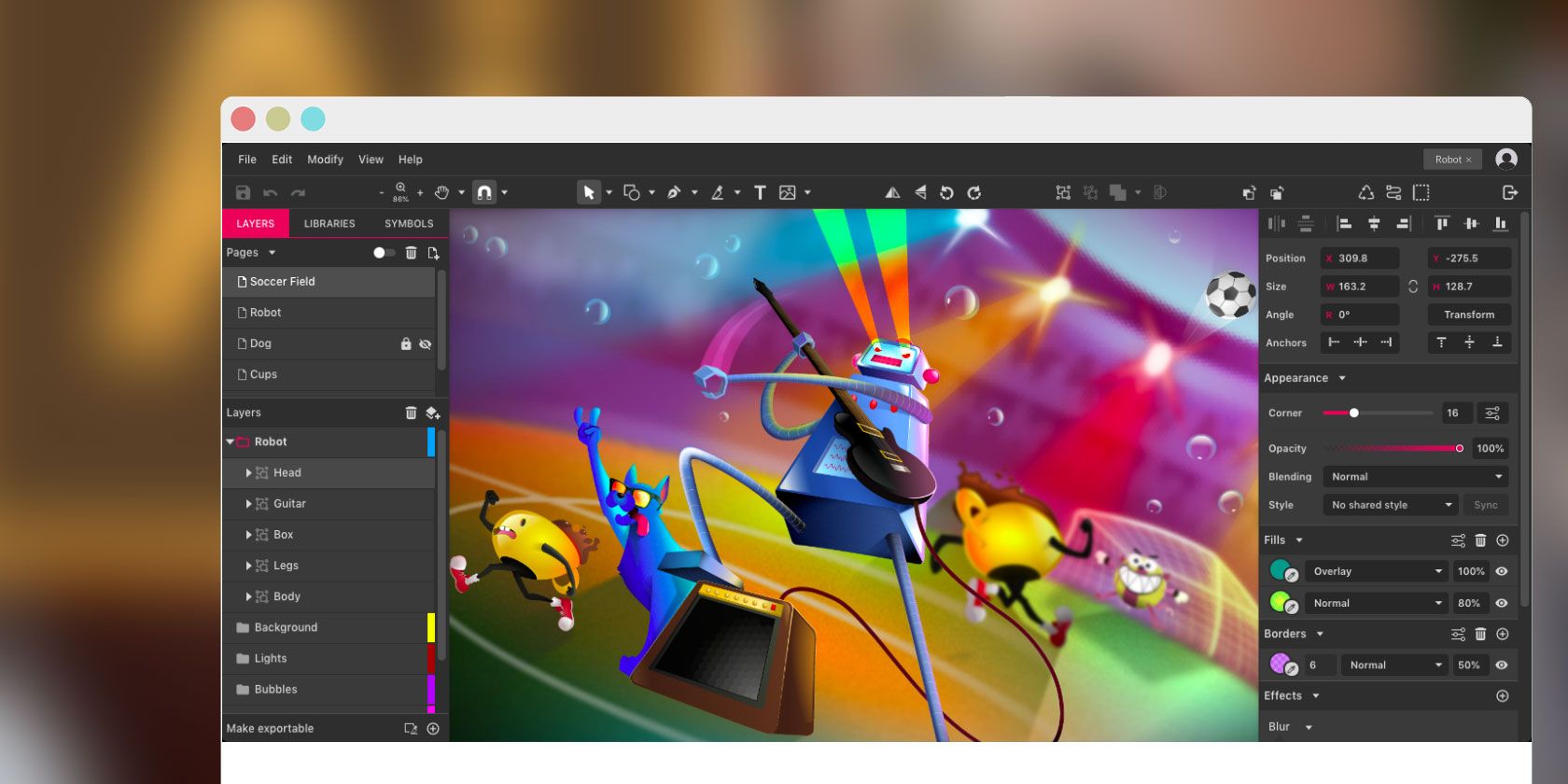
Gravit Designer is a fast, powerful, and great-looking free vector design tool. As well as working in all major browsers you can download a desktop version for Mac, Windows, Linux, and Chrome OS. In all cases you get full cloud sync integration.

The program has all the basics you’d expect from Illustrator, including a version of the Pen tool (called Paths) and a freehand drawing tool that smooths your lines as you go.

It’s easy to create custom shapes thanks to Gravit’s take on the Pathfinder tool. There’s also a wide variety of keyboard shortcuts, including many that are the same as in Adobe’s software.

In addition to all this you get huge libraries of pre-designed shapes, illustrations, icons, lines, and more to use in your designs. For pro users Gravit Designer also supports CMYK.
2. Vectr

vectr

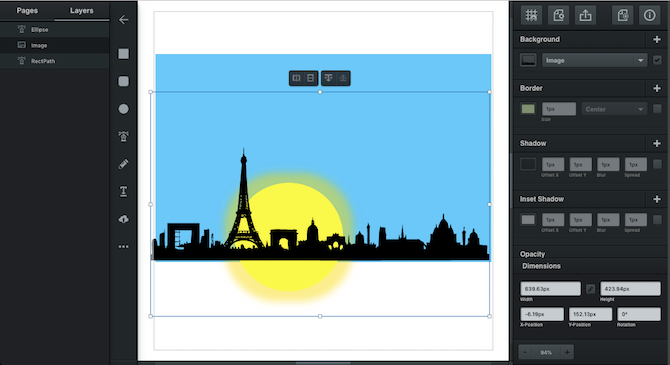
With support for all major browsers as well as a downloadable version for Windows, Linux, and Chrome OS, Vectr is a simple tool for creating quick vector designs.

It isn’t as feature-rich as Gravit, but that means there’s a shorter learning curve. And it has strengths for particular types of usage.

Vectr is especially good for creating social media cover pages. There are preset document sizes, and its easy to import photos and add your own text on top.

There’s seamless cloud integration. Every image has its own unique URL that you can share with anyone. Or you can export your finished work in the SVG, PNG, and JPEG formats.
3. Boxy SVG

boxy svg

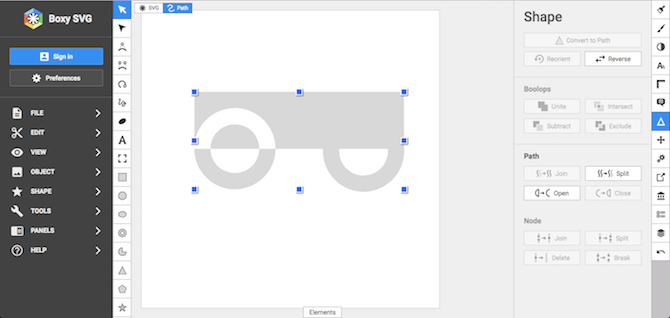
Boxy SVG is an SVG editor that works in Chromium-based browsers like Chrome or Opera. It also has a desktop version for Windows, Mac, and Chrome OS.

Boxy works natively with SVG files, so you never need to export your images when you’re ready to use them, and can easily open them in other image-editing apps. It also means you can output HTML code for your images, which you can paste straight into a web page. If you prefer, you can create normal image files in the JPEG, PNG, WebP, and GIF formats.

So what features do you get? All the basics are here. There are lots of shape drawing tools, plus a pen and various curve tools. You also get plenty of type options, including integration with Google Fonts. Support for clipping masks gives you the power to create more complex works.

We found Boxy’s interface to be a little tricky to master at first, but it’s a fast and very capable Illustrator alternative, so worth persevering with.
4. Canva

canva

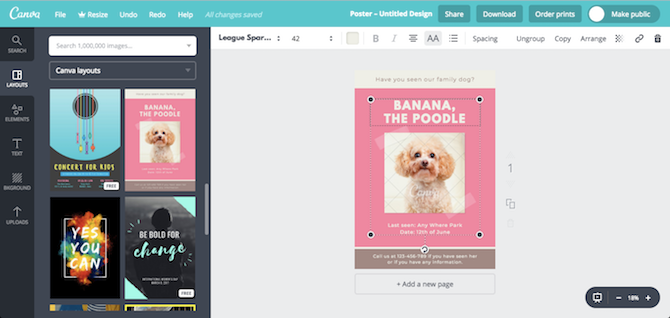
Canva is a very popular and easy to use browser based design tool. It offers more than 50,000 templates for every type of user and purpose. You can use it to create logos, ebook covers, posters, ads, and a whole lot more.

You don’t get much control. There aren’t any drawing tools so it’s not possible to create something from scratch. Instead, you just pick the template and customize it to taste.

And that’s really the point. Canva is about simplification. You can create some beautiful, complex, and very professional-looking designs without any design skills.

Check out our guide to things you can create with Canva.
5. Figma

figma

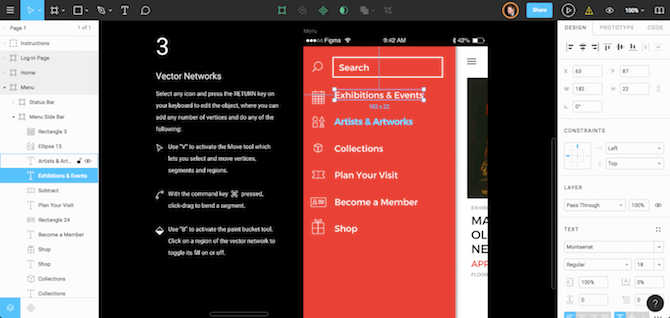
Aimed at professional or serious users who may already know how to use Illustrator, Figma has a growing reputation. It comes with its own Adobe-style subscription plan, but has a free offering that lets you create three projects and work in a team with two members.

Figma is primarily built for interface design, and fully supports files made in Sketch, another popular pro design tool. It also has mobile apps for iOS and Android that you can use to preview your designs on the fly.

The learning curve is steep, but there’s little you can’t do with Figma. There’s both support for Google Fonts and your own imported, offline fonts. It’s easy to create shapes and to design custom shapes through a pathfinder-like tool, and there’s full mask support. You can also save them as Components to reuse in your other projects.

When you’re finished you can export your work as PNG, JPEG, or SVG files, or just copy out your styles as CSS code.
6. Inkscape

inkscape

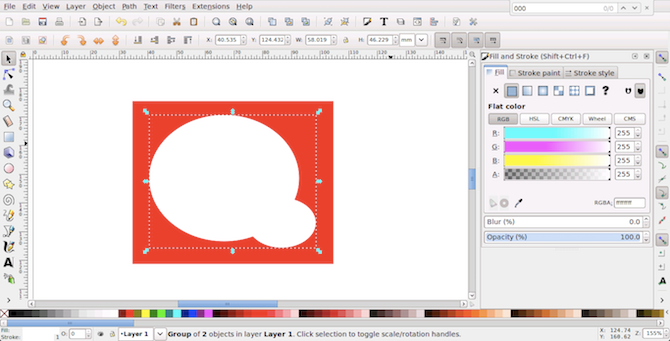
Inkscape has long been established as one of the best free Illustrator alternatives. While it’s always been a desktop program you can use it in-browser through the RollApp service.

The effect is a little strange since you get the full desktop UI crammed into a browser window. However, once you switch the browser to full screen mode it works much better.

Inkscape is a powerful piece of software. There’s a learning curve, both in terms of mastering its tools and in that it uses a whole different set of keyboard shortcuts.

It’s also a tad slow. Using Inkscape with RollApp is ideal when you need to edit on the go, but in most cases you’d be better installing the desktop software.
7. Janvas

janvas

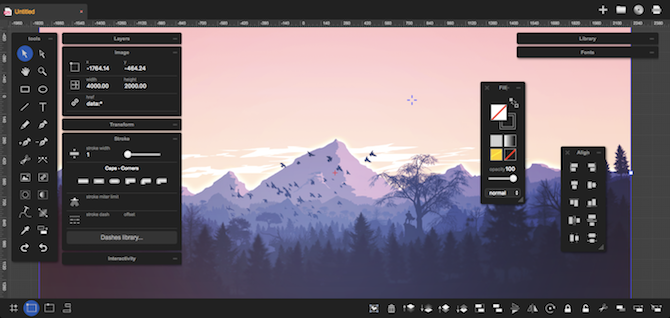
Janvas has a solid set of features, including support for masks, and plenty of pen tool and text options.

It suits the beginner thanks to a library of templates covering everything from icons and UI elements, to letter and photo book templates. An extra series of pre-made gradients, patterns and textures, and filters help to make common design features accessible with a single click. You can save your work in the SVG, JPEG, or PNG formats.

Janvas has its quirks. It’s got a panel-heavy interface that takes some time to master. It’s configurable, but you’ll need to experiment to find a layout that suits your workflow. The biggest downside is that it doesn’t support keyboard shortcuts at all.

All of which means Janvas is a solid choice for smaller, quicker projects, if not for more complex pieces of work.
8. Vecteezy Editor

vecteezy editor

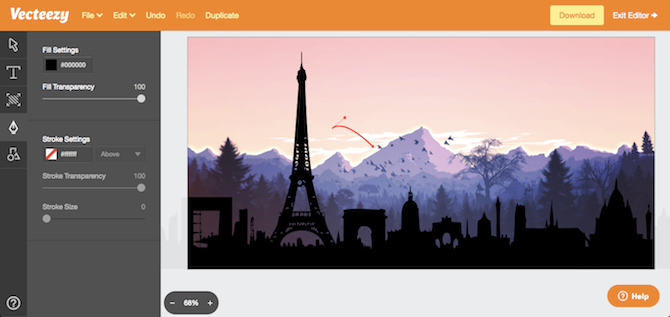
If you have got an existing SVG file that you want to tweak, Vecteezy is a good choice. It’s best for editing files or making very simple icons and logos, rather than creating larger pieces of work from scratch.

This is due to the simplicity of the app. You get pen and type tools and not much else. Instead, there are heaps of pre-designed shapes and pre-drawn illustrations that you can import into your work. Templates are promised for the future, too.

Saving files is trivial: just choose to export as either an SVG or PNG and your final image downloads instantly.

Adobe Illustrator Isn’t the Only Option!

None of the these browser-based apps can match the full feature set that Adobe Illustrator has to offer.

But they’re more than good enough to create things like posters, illustrations, logos and the like. You can even use them to learn the principles of graphic design, since all the tools—the various drawing, text, color, and shape tools—all work in the same way.

And you needn’t stop there. Once you’ve mastered your chosen vector design app, it’s time to check out some of the best free alternatives to Photoshop, Lightroom, and other Adobe products.

Read the full article: The 8 Best Free Browser-Based Adobe Illustrator Alternatives


Read Full Article

YouTube is testing its own ‘Explore’ tab on iPhone


YouTube CEO Susan Wojcicki on Friday promised the company would do a better job with communicating to creators about its experiments and tests. Today, YouTube is making good on that commitment with an update about a new feature it’s testing out: an Explore tab, aimed at offering viewers a more diverse set of video recommendations.

The news was announced via the Creator Insider channel – the same channel Wojcicki highlighted in her recent update as the “unofficial” resource operated by YouTube employees. The channel today offers weekly updates, responses to creator feedback, and behind-the-scenes info on product launches.

According to the announcement, the new Explore feature is currently in testing with just 1 percent of iPhone YouTube app viewers, so there’s a good chance you won’t see the option in your own app.

However, if you do happen to be in the test group, then you’ll notice the bottom navigation bar of the app looks different. Instead of the tabs Home, Trending, Subscriptions, Inbox and Library you have today, you’ll instead see Home, Explore, Subscriptions, Activity and Library.

The idea behind Explore is to offer YouTube viewers a wider variety of what-to-watch suggestions than they receive today. Currently, personalized video recommendations are very much influenced by past viewing activity and other behavior, which can then create a sort of homogenous selection of recommended content.

“Explore is designed to help you be exposed to different kinds of topics, videos or channels that you might not otherwise encounter, but they’re still personalized,” said Tom Leung, Director of Product Management, in a YouTube video.

That is, the videos are still based on viewing activity.

For example, he explains, a viewer who was watching videos about telescopes might be recommended videos about high-end cameras.

“It’s just going to give you a little more variety,” says Leung.

The tab will also feature a “Trending” section at the top of the screen, which directs users to the same sort of content that the Trending tab in the current version of the YouTube app today features.

The hope, however, with the new Explore tab is to offer creators the ability to reach more viewers, even if their content doesn’t “trend.”

Whether or not that theory proves true, remains to be seen. YouTube will review the data from the experiment before making a decision to roll out the Explore tab to more users.

Early feedback from YouTube creators in the comments section of the video seems cautiously optimistic, with many expressing hopes that the new tab would provide exposure to smaller creators rather than just the well-known names.

Calling the tab “Explore” makes sense in light of the increased threat from Instagram, whose own Explore section features personalized video suggestions, and has launched a YouTube rival with IGTV. YouTube has responded by offering its stars big, five to six-figure checks to post their best stuff on YouTube, according to Business Insider. (YouTube downplayed the report, saying it has “always invested in creators’ success.)

But an experiment involving YouTube’s own Explore section makes it clear that the company is interested taking on Instagram head-on when it comes to offering a home for discovering new video content through algorithmic recommendations.

If successful, YouTube’s Explore tab would connect viewers to more creator channels they’ll like and subscribe to, as well as increase their time spent in app. That, in turn, could potentially decrease viewers’ time in apps like IGTV, Facebook, Instagram and elsewhere.


Read Full Article

YouTube is testing its own ‘Explore’ tab on iPhone


YouTube CEO Susan Wojcicki on Friday promised the company would do a better job with communicating to creators about its experiments and tests. Today, YouTube is making good on that commitment with an update about a new feature it’s testing out: an Explore tab, aimed at offering viewing a more diverse set of video recommendations.

The news was announced via the Creator Insider channel – the same channel Wojcicki highlighted in her recent update as the “unofficial” resource operated by YouTube employees. The channel today offers weekly updates, responses to creator feedback, and behind-the-scenes info on product launches.

According to the announcement, the new Explore feature is currently in testing with just 1 percent of iPhone YouTube app viewers, so there’s a good chance you won’t see the option in your own app.

However, if you do happen to be in the test group, then you’ll notice the bottom navigation bar of the app looks different. Instead of the tabs Home, Trending, Subscriptions, Inbox and Library you have today, you’ll instead see Home, Explore, Subscriptions, Activity and Library.

The idea behind Explore is to offer YouTube viewers a wider variety of what-to-watch suggestions than they receive today. Currently, personalized video recommendations are very much influenced by past viewing activity and other behavior, which can then create a sort of homogenous selection of recommended content.

“Explore is designed to help you be exposed to different kinds of topics, videos or channels that you might not otherwise encounter, but they’re still personalized,” said Tom Leung, Director of Product Management, in a YouTube video.

That is, the videos are still based on viewing activity.

For example, he explains, a viewer who was watching videos about telescopes might be recommended videos about high-end cameras.

“It’s just going to give you a little more variety,” says Leung.
The tab will also feature a “Trending” section at the top of the screen, which directs users to the same sort of content that the Trending tab in the current version of the YouTube app today features.

The hope, however, with the new Explore tab is to offer creators the ability to reach more viewers, even if their content doesn’t “trend.”

Whether or not that theory proves true, remains to be seen. YouTube will review the data from the experiment before making a decision to roll out the Explore tab to more users.

Early feedback from YouTube creators in the comments section of the video seems cautiously optimistic, with many expressing hopes that the new tab would provide exposure to smaller creators rather than just the well-known names.

Calling the tab “Explore” makes sense in light of the increased threat from Instagram, whose own Explore section features personalized video suggestions, and has launched a YouTube rival with IGTV. YouTube has responded by offering its stars big, five to six-figure checks to post their best stuff on YouTube, according to Business Insider. (YouTube downplayed the report, saying it has “always invested in creators’ success.)

But an experiment involving YouTube’s own Explore section makes it clear that the company is interested taking on Instagram head-on when it comes to offering a home for discovering new video content through algorithmic recommendations.

If successful, YouTube’s Explore tab would connect viewers to more creator channels they’ll like and subscribe to, as well as increase their time spent in app. That, in turn, could potentially decrease viewers’ time in apps like IGTV, Facebook, Instagram and elsewhere.


Read Full Article