07 May 2013

9 Tips To Improve Surface Pro Battery Life


CLICK HERE TO SEE FULL POST


Microsoft Surface Pro, without a doubt, is the best Windows powered tablet out there. Its elegant and sturdy design, kick-stand, stylus, and the powerful specification easily make it the most desirable Windows tablet. As Surface Pro includes a powerful Intel Core i5 processor (3rd generation), 4GB of RAM and runs Windows 8 Pro OS, it’s [...]

How To Open Office Word, Excel, And PowerPoint Files In Chrome Browser


CLICK HERE TO SEE FULL POST


The team behind Chrome browser has been doing a fantastic job by regularly updating Google’s web browser with new features. Over the last three years, Chrome has evolved as one of the finest and powerful desktop web browsers out there for Windows and Mac. Majority of power users prefer to use Chrome over other desktop [...]

4 Ways To Take Time-Lapse Videos


take time lapse videoTime-lapse videos are some of my favorite videos to watch. They’re just so fascinating, whether the video shows the passage of time in a desert or the workflow of a sketch artist. There’s just something about watching many hours crammed into a 2- or 3-minute clip that stimulates my interest and if you’ve never given much thought to time-lapse videos, you should really reconsider.


Making your own time-lapse video can seem daunting, especially because you need to record a long length of video before you can cut it down into an actual lapse. However, as long as you can spare the time to record for a while, the actual process of lapsing the resulting video is made really easy with a handful of tools that you can grab for free.


In this article, we’ll take a look at time-lapse apps and programs that you can find and use on various platforms, so you’ll have no excuse not to make one of these cool videos of your own.


Lapse It [Android]


Lapse It is a fantastic time-lapse video app for Android. Not only is it easy to learn and easy to use, and not only is it free, but it comes with a handy little video that explains how time-lapsing works and how you can achieve the time-lapse effect with the app. Don’t have the time to watch it? Basically, Lapse It takes a single snapshot every so often, then combines all of those images to play back at 30 frames-per-second. Done.


The Lapse It interface is both intuitive and responsive. It’s really fast and well-designed, which means you can focus on making the time-lapse instead of figuring out what does what. Some really cool features you can find here:


  • Customize the capture speed and the frame rate.

  • Stop Motion mode which lets you create – you guessed it – stop motion videos.

  • Add various video effects to the final video.

  • Insert soundtracks into the final video.

  • Export the final video to MOV, MP4 and FLV formats.

  • Upload the result directly to Youtube, Facebook, Google+, and more.


Lapse It has a Pro version for $1.99 USD that unlocks the front-facing camera on your device (if you have one) and lets you capture stunning images using the camera full sensor.


Timelapse [iPhone]


take time lapse video


Timelapse is an iPhone app that lets you create professional-quality time-lapse sequences right on your iPhone. The app comes with two functions: Timelapse Classic, where you can snap individual photos that you will use later for professional post-production, or Timelapse Express, which handles all of the video creation right on the device.


To use Timelapse Express, all you have to do is set the shoot duration, the length of the final video, select an audio track that you want to use in the result, set up the device to frame your shot, then let it do its thing. By the end, Timelapse Express will have created a complete HD video that you can share with your friends.


Unfortunately, the free version is limited to 59 snapshots and 20 seconds in the final video. To remove those limitations, you’ll need to upgrade to Timelapse Unlimited for £1.99.


Timelapse [Windows Phone]


time lapse video


Now, Windows Phone isn’t exactly the most popular mobile device brand out on the market, but I know there are those of you out there who use it. It’s actually been making its presence known over the past few years, so if you’re using a Windows Phone and want to make a time-lapse video, give this app a try.


Timelapse is a simple app that does the following: set a time interval between shots, then let it go do its thing. You can enable or disable flash and focus and you can change the snapshot resolutions if you want. The video linked above was created using Timelapse.


Chronolapse [Windows]


take time lapse video


Time-lapse videos on mobile devices are great and all, but a desktop time-lapse program can do so much more for you depending on what sort of videos you plan on making. If you want to record nature then go ahead and use your phone, but if you want to create tutorials or workflow videos, then you’ll need a time-lapser on your computer.


Chronolapse is the perfect tool for this. Check out the video above to see what it can do (Ludum Dare is a 48-hour game coding contest). With Chronolapse, you can define a specific time interval and the program will take snapshots regularly, then process them into a video file when you’re done. The best part? It can do screenshots, webcam shots, or both simultaneously.


Some other features that might pull your fancy:


  • Support for dual monitor screenshots.

  • Support for picture-in-picture snapshots.

  • Support for scheduled captures, even when you aren’t there.

  • Uses the MEncoder interface for encoding the final video.

  • Add audio tracks to the final video if you want.


Conclusion


So there you have it: tools that will help you to take and create time-lapse videos. It’s a photography technique that’s rather simple in terms of technological difficulty, but it can produce some really awesome clips and effects. Give the apps above a run and tell us how they worked out for you in the comments!


Image Credit: Starry Night Via Shutterstock


The post 4 Ways To Take Time-Lapse Videos appeared first on MakeUseOf.


Void Your Bowels With Terror Thanks To FEWDIO’s Short Horror [Stuff to Watch]


From terrifying games to feature-length horror films, as humans we seem to love being scared. Getting the adrenaline pumping and stepping outside of our comfort zones doesn’t have to involve skydiving or a wing suit; many of us prefer to immerse ourselves in the horror genre instead.


FEWDIO is a small studio that specialises in the horror genre. In this instance short horror films are a specialty, with more than 40 finished products viewable on their YouTube channel. By putting their hard work online, horror junkies like you and I can fill our pants as much as we like, for free!


Don’t look behind you while watching this shortlist of FEWDIO’s warped catalogue!


Bedfellows


At 2 minutes 47 seconds total including titles and credits, Bedfellows is the very definition of a short horror film. The concept could have been lifted right out of the “oh shi-” moment in a bid budget production for its incredibly tense reveal moment. Really, this is a spark of absolute genius that will make your skin crawl using visuals rather than atmosphere alone.


Bedfellows is the perfect FEWDIO film to watch first to get a taste for their unique brand of horror.


The Prey


When a wannabe gangster sees an old man headed to a pawn shop with a bag of gold jewellery, he has to tell his equally gang-affiliated friends. However when the three decide to take the old man for everything he’s got, things take a remarkably different turn to how they had imagined.


Conviction


Lovecraft fans rejoice, this is FEWDIO’s own tribute to the horror novelist. The production team have based the short on H. P. Lovecraft’s personal religious philosophy and a staple of horror films for years (and years to come): fear of the dark.


Ninja Clown Monster


With a name like Ninja Clown Monster, how can this short not be included? A must for anyone who read the Goosebumps series of books as a child or who fondly remembers Chucky’s murderous tendencies, this is one Childs Play-inspired short scene you probably won’t want to show your kids.


Show Me


Is there anything more terrifying than a lifeless doll? Probably, but dolls carry that lifeless, glassy-eyed look that has been celebrated by horror filmmakers for years now. Show Me is considerably longer than FEWDIO’s past films at nearly 13 minutes long, though that’s not to say it departs from the unsettling feeling so many of their videos generate.


Road Rage


Another slightly longer short at just under 10 minutes total, Road Rage might make you think twice about losing your temper while behind the wheel. As you’d expect from a film that uses anger as its catalyst there is liberal use of hand gestures and strong language. This is one incredibly effective short that gets the blood pumping in bright sunshine in a busy city.


Neighbours


Not the Australian TV series but another (seemingly normal at first) short from the scare factory themselves. There’s a very light sense of humour with a touch of menace here, generating a burning curiosity in the viewer which is in turn extinguished by the rather clever ending


O.C.D.


A girl who suffers from obsessive compulsive disorder decides to give Internet dating a go. The results are, as expected, unexpected. The film treads very carefully around the subject of O.C.D. before culminating in a suitably mind-blowing finale. Really… I’m just… what?


Cleansed


A short that wallows in the horror film staple that is blood. Lots and lots of blood. Probably best avoid this one if you don’t like (you guessed it) blood. The film takes the resulting mess of most thrillers and chillers – the crime scene – and turns it into a horror film of its own with some excellent special effects (and blood).


Meet the FEWDIO Team


If you’ve read this far and have become somewhat of a fan of the team who brought you these short movies then the video above, shot at Comic Con 2009, shines some light on the warped imaginations behind the horror. Seeing as it’s a few years old there’s no reference to the newer films like Road Rage or Show Me, but it’s an interesting chat nonetheless.


The Rest


You can check out even more short horror at the FEWDIO YouTube channel where you can subscribe to be kept in the loop about new uploads and trailers for upcoming releases. The team also has an official website, though at the time of writing it’s scheduled to be completely overhauled.


Let’s hope this promising young production company continues to make some of the best indie short horror on the web, Personally, I can’t wait for the next upload.


Have you seen any FEWDIO films? Any other similar studios specialising in chilling short horror? Leave a comment below this post and let us know what you think.


The post Void Your Bowels With Terror Thanks To FEWDIO’s Short Horror [Stuff to Watch] appeared first on MakeUseOf.


New Question Types in Google Forms


Google Forms added two new question types for dates and time. There's a pretty useful date picker, but you can also enter dates manually. You can customize the time questions and enable "duration" to ask questions like "how much time a day do you spend on Facebook every day?".


To add a question to your form, click the arrow next to the "Add item" button and select "date" or "time" from the list of question types.


If you're wondering what's next for Google Forms, the source code reveals that Google will add support for rich-text editing, embedding images and that Google Forms will integrate with Fusion Tables and Google Scripts (codename "maestro").


{ Thanks, Herin and Daniel. }


Are These Circles Moving? 6 Places To Find Amazing Optical Illusions Online


optical illusionsEver since I was a little kid, I’ve adored optical illusions. Believe it or not, but 1993 found me browsing my parents’ hefty Escher art book, looking for more and more drawings I couldn’t quite figure out. This fascination continued through the famous Autostereogram era, when I learned to see those cool 3D images in seconds, becoming a source of jealousy to all my cross-eyed friends.


Optical illusions, be it Escher-style drawings, surprising geometrical shapes, well-taken photographs, or even intricate video illusions, are a great way to pass some idle moments, without resorting to yet another endless Facebook or Twitter browse. It can also be quite an educational one — what better way is there to learn about things such as complimentary colors but seeing them with your own eyes?


Not surprisingly, the Web is full of visual illusions of all kinds, and if you enter the words “optical illusions” in your trusty Google search box, you’ll find many good specimens. But here at MakeUseOf, we strive to doing the hard work for you, scanning the multitudes of Google results, and finding the absolute best places to get some optical illusion fun. So get ready to be amazed!


Optical Spy


optical illusions


Can you believe that all center dots in the cubes above are the same size? Optical Spy is a great place to find dozens of original optical illusions, visual challenges, amazing anamorphic street art, and other visual gems. The website is divided into different categories, and includes a blog where you can read more about special visual effects and why they occur. If you like visual challenges such as hidden words or tasks you have to complete only with your eyes, you’re going to love Optical Spy.


Mighty Optical Illusions


The above video shows a simple immobile structure, but for some reason, balls placed on it defy the law of gravity. This is one of the many illusions you’ll find on Mighty Optical Illusions. The website has been around for quite a while — long enough to have been mentioned in our previous post about optical illusions back in 2010.


Mighty Optical Illusions is a mighty collection of everything that’s visually interesting, including photos taken at just the right moment, works of art, and videos, along with regular illusions. Many of the illusions come with fascinating explanations, and the “Random Illusion” button on top can keep you busy for hours. I did find that videos in posts sometimes don’t match the text above them, but all in all the website offers a fun experience.


Illusion of the Year


cool optical illusionsr


Look at the mask above, do you see anything special about it? If not, I’ll solve the mystery for you at the end of this paragraph. Illusion of the Year brings together amazing illusions from all over, picking the best ones every year. The illusions are sometimes created especially for the contest, so it’s a good place to find illusions you won’t find on other websites. The Illusion of the Year website is not the best looking one I’ve ever seen, but sections such as the top rated illusions are a real gem for illusion lovers.


And no, I didn’t forget about the image above! Look carefully in the center part of the mask, is it really one face, or two faces of a man and a woman kissing?


Brain Bashers


cool optical illusions


Are the lines on the board straight or curvy? Brain Bashers is a website dedicated to much more than optical illusions, but its optical-illusion section boasts a respectable collection of what I would call “classic” illusions, like the one you see above. Despite its unimpressive looks, Brain Bashers offers a fun experience for illusion lovers, as it turns many optical illusions into dynamic challenges. Most illusions featured on Brain Bashers comes with a bar you can move your mouse over. When you hover over the bar, the image changes, and the solution comes to light. Try it!


Pinterest


cool optical illusions


Can you manage to see 4 complete circles? As a social network dedicated solely to images, Pinterest is the perfect place to find cool illusions. All you have to do is search for them. The search will not yield a consistent feed of optical illusions, but will definitely bring up some cool visual games and puns you’re bound to enjoy. And since Pinterest’s results rely on the way people categorize their pins, and not on Google’s algorithms, there’s lots to be found you may miss on a simple Google search.


Brusspup – Illusions and Science


Looking for some awesome visual illusions on video? Tim already found 10 incredible ones you really don’t want to miss in a previous Stuff to Watch article. After you’re done with those, though, you’re going to want to head over to the brusspup YouTube Channel, and watch everything you can get your hands on. Some of these already appear in Tim’s post, but there’s plenty more to watch. Believe me, you don’t want to miss these.


Your Turn


The real challenge with finding good optical illusions online is that many of them hide under websites that look like they were made in the early 90s. This doesn’t mean there aren’t other good websites I missed, or never managed to find. Know of a wonderful place to see some optical illusions? Do you even like optical illusions? Tell us all about it in the comments!


Image credit: Optical Spy


The post Are These Circles Moving? 6 Places To Find Amazing Optical Illusions Online appeared first on MakeUseOf.


06 May 2013

The Old Google Image Search in Chrome


There's a weird regression in Google Image Search if you use Chrome 27+ and enable "Extended Instant API" in chrome://flags. Extended Instant is a feature I've mentioned a few months ago and it's still a work in progress. It integrates Chrome with Google Search, replaces the new tab page with a special version of the Google homepage and removes the navigation bar and the search box from Google's search pages.


Back to Google Image Search. For some reason, when Extended Instant is enabled, Google Image Search switches to the old interface: thumbnails are smaller and you can mouse over to see more details about the images. When you click an image result, Google sends you to a new page that loads the original image file.


Google's Red Sign In Button


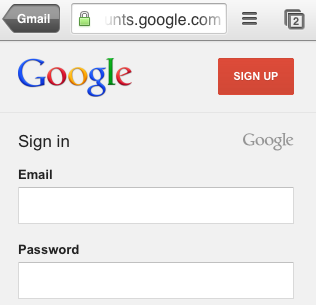
Google now shows a red "sign in" button on the homepage, at the top of the search results pages, in Google Maps, Google News, Google Translate and many other services. The button is a lot more visible than the old gray "sign in" button.


Here's the Google Image Search homepage in Internet Explorer. The red button clearly stands out from all the other promotional messages.


After the Gmail sign in page, Google's standard sign in page also has a new interface: "One password. All of Google. Want to enjoy the best of Google? Just stay signed in. One username and password is all you need to unlock more features from services you use every day, like Gmail, Maps, Google+, and YouTube."


{ Thanks, Jérôme. }


Open Gmail Links Using Google Apps in iOS


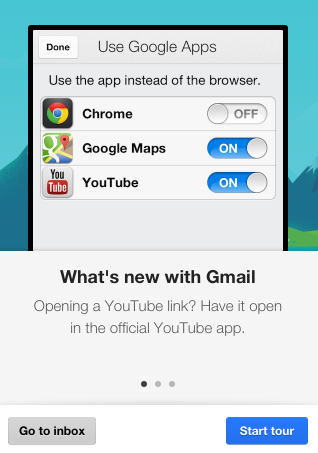
The latest version of the Gmail app for iOS added a feature that opens links using other Google apps: Chrome, Google Maps and YouTube, assuming you've already installed them. It works well for Google Maps links and YouTube links, but not that well for other links: some open using Chrome, but most links open using the internal browser of the Gmail app.


If you don't like this feature, you can disable it by tapping the settings icon next to the account switcher, picking Google Apps and unchecking the apps you don't want to handle Gmail links.


You can't change the default browser in iOS, but some Google apps include an option to use Chrome. For example, the YouTube app opens all the links using Chrome, if you've installed the app, and you can disable this feature from the settings. When you open a page from a Google app like YouTube, Gmail or Google+, Chrome shows a button that sends you to the previous app, just like the Android back button.


How To Set Windows As Default OS In Boot Camp On Mac


CLICK HERE TO SEE FULL POST


Installing Windows on a Mac with the help of Boot Camp Assistant is the best method out there to run Windows on Mac hardware. There are a couple of advantages of using this method over other methods. Boot Camp is an official Apple software, which means that when you install Windows on Mac machine, all [...]

How To Shutdown Windows 8 Quickly By Changing Power Button Action To Shutdown


CLICK HERE TO SEE FULL POST


The lack of easy access to shutdown, hibernate, sleep, and restart options in the newest iteration of Windows operating system has forced many users to install third-party Start menu programs, pin shutdown and hibernate options to the Start screen, and also add shutdown, restart, and hibernate to the Windows + X power menu. While it’s [...]

Getting Rich Snippet Video Previews Into Your Search Results


rich snippet videoProducing your own video content is great. Search engines and users alike love video content. It increases user engagement – keeping visitors on your page – but moreover it’s just makes your content more interesting, adding value. You’re already doing this? Awesome – but do you upload them all to YouTube and just embed them on your site? Yes? Then you’re doing it wrong.


We’ve talked about Rich Snippets before – pieces of meta you can add to a page that Google will understand and potentially include in the search results. Authorship is one example; here’s one of my own search results, standing out nicely on a video game review search.


rich snippet video


In short, users are more likely to click on something when it’s not just a bland text result.


What you really want then, is for Google to recognize that your page contains a nice juicy video that you put time into creating, and to rank that page higher or with potentially more visibility. Here’s another result from the same search result, though it’s actually ranking further down the page since it’s less relevant. Still, it highlights nicely rich, video content.


rich snippets video google


How To Get Video Previews into Google


This is not an easy task, and as ever – there’s no guarantee that your site will benefit from them. However, here are the basic steps needed:


1. Host your own videos. Don’t use YouTube.

2. Make sure they are marked up correctly.

3. Use an HTML5 video player.

3. Submit a special video sitemap to Google.


What’s Wrong With YouTube?


There’s nothing wrong with YouTube per se, but you’ll be in competition with yourself. YouTube is indeed a great inbound marketing tool. Users may stumble across your video, love the content and try to find more at a site address listed, particularly if it’s a viral teaser or “full instructions at the link in the description” type video. But they may also just click through to another related video and never visit your site at all.


The point is that when you make YouTube videos to accompany the page you’re trying to rank with, you’ll more than likely be outranked by your own video as a YouTube result; it won’t be a pretty thumbnail pointing to your page, it’ll be pointing to YouTube. There’s a time and place and a reason to use YouTube videos. Outranking your own content is not one of them.


Hosting & Player


The simplest option here is to upload video content to your own site, so we’ll use that for demonstration purposes. There are ways of using a premium Vimeo account, or some other third party hosts, but since you already have webspace you might as well use it. If you’re expecting a lot of traffic, be sure to have this all cached with a CDN (see my tips on how to speed up a WordPress blog).


Next, we need a suitable player – something that outputs HTML5, but can fallback to Flash or Silverlight when absolutely needed. For this, let’s use MediaElements.js; it’s a capable player for all kinds of media. You can find it directly from the WordPress dashboard.


rich snippets video google


Usually we would embed the video using a shortcode like this:


[video src="myvideo.mp4"]

However, this won’t result in Schema.org markup being used, so instead we’re going to manually code it like this:


<video width="600" height="400" controls="controls" preload="true" itemprop="video" itemscope="" itemtype="http://schema.org/VideoObject">
<source src="http://technophiliapodcast.com/podcast/tech63.mp4" type="video/mp4" />
<meta itemprop="name" content="Technophilia Technology Podcast, Episode 63 - Generic Podcast Listener"/>
<meta itemprop="contentURL" content="http://technophiliapodcast.com/podcast/tech63.mp4" />
<meta itemprop="description" content="Episode 63 of Technophilia Technology Podcast" />
<meta itemprop="thumbnailUrl" content="http://technophiliapodcast.com/wp-content/uploads/2013/04/tech63.png" />
</video>

Which still results in this:


rich snippets video google


Warning: Don’t switch back to visual editor or your code will be butchered apart. Yes, not ideal. The best would be to adjust or code your own plugin that would load the MediaElements.js player AND output suitable markup. Nevertheless, this is what we have.


Check your markup using the Rich Snippet Tester, but be aware that it won’t show a video preview in the tool – just check if the markup is correct:


rich search snippets


Video Sitemaps


Unfortunately, this is where things get really difficult. If you search the WordPress plugins directory for “Video sitemaps”, you’ll find a few plugins claiming to do this. However, they only work with YouTube links, which for our purposes is completely worthless. There isn’t a free WordPress plugin that will work for our needs, but you can manually code a video sitemap like this (I’m being lazy and not writing a proper description, but you should):


<urlset xmlns="http://www.sitemaps.org/schemas/sitemap/0.9"
xmlns:video="http://www.google.com/schemas/sitemap-video/1.1">
<url>
<loc>http://technophiliapodcast.com/2013/63-generic-podcast-listener/</loc>
<video:video>
<video:thumbnail_loc>http://technophiliapodcast.com/wp-content/uploads/2013/04/tech63.png</video:thumbnail_loc>
<video:title>Episode 63 of Technophilia Technology Podcast</video:title>
<video:description>Episode 63 of Technophilia Technology Podcast</video:description>
<video:content_loc>http://technophiliapodcast.com/podcast/tech63.mp4</video:content_loc>
<video:duration>5204</video:duration>
</video:video>
</url>
</urlset>

(included above are the basic minimum of required fields, except for duration – in seconds – which optional but recommended)


Alternatively, Yoast – the creator of the famous WordPress SEO plugin (featured on our Best WordPress Plugins) – offers a premium plugin to handle this side of things, and it integrates nicely with the MediaElements.js player. The downside is the price, at a whopping $60 for a single site or $250 for a developer licence. Then again, if you’re putting at least an hour into making each video, they really deserve a little love and attention on the SEO side.


Submission To Google


Finally, log into Google Webmaster Tools and point it toward your video sitemap. Mission accomplished.


rich snippet video


It’s a shame there’s not an easier way to do this, but that’s what you get for being on the bleeding edge of Internet developments. Video previews in the search results will give you a competitive edge, but remember – if your accompanying content or the video itself isn’t up to scratch, that effort will have been wasted.


Do you know of a better way to handle this in WordPress? Let us know.


The post Getting Rich Snippet Video Previews Into Your Search Results appeared first on MakeUseOf.


05 May 2013

Why Won’t Windows Play My DVD Or Blu-ray Disc?


windows wont play dvdYou insert a DVD into your Windows 8 computer – you want to watch a movie. Nothing happens.


You try opening Windows Media Player. It can’t play the disk.


What’s going on with Windows 8 and DVDs? And for that matter, Blu-ray discs?


You’re not the first person to ask this, and you won’t be the last. The answer, basically, is that Windows 8 cannot play DVDs or Blu-Ray disks out of the box.


Why? Because the software technology for playing these disks isn’t free — Microsoft previously paid $2 for every copy of Windows sold, just for the right to use the patented technology needed to play DVDs . Considering the ever-increasing number of devices without optical drives, Microsoft decided it wasn’t worth paying for features many people can’t even use.


So what is a movie-loving Windows 8 user to do? There are basically two options: finding third party software that can play your disks, or paying Microsoft for the privilege. Let’s go over both possibilities.


Option A: Install A Different Media Player


Windows 8 can’t play DVDs out of the box, but that doesn’t mean third party programs can’t. We’ve written a lot about VLC, and this program can easily play any DVD (and unencrypted Blu-Ray disks – there’s experimental support for encrypted Blu-Rays in the works, but that’s an issue for another article entirely).


VLC can be a little hard to use, but not for playing DVDs: just click “File” followed by “Open Disc”.


windows wont play dvd


In most cases the menu will show up, allowing you to play your DVD however you like.


Want more of a lean-back experience? I highly recommend XBMC – so much so that I even wrote an unofficial XBMC manual. The program is designed to make browsing media on your computer easy, but also supports DVDs out of the box. It takes some setting up, but you’ll end up liking it – and the DVD playback is basically automatic.


windows wont play blu ray


Both of these options are fantastic for DVDs, but somewhat lacking for Blu-Ray. The format, created by Sony, is a tough nut for free software to crack – it’s heavily encrypted, so you may need something commercial for the job. You’ll need to pay for software, such as WinDVD Pro.


Before you buy anything, though, know that most computers that come with a Blu-Ray drive include some sort of Blu-Ray software. Check your computer for software if it’s new, or check your collection of disks if you upgraded to Windows 8. You’ll probably find something that can play Blu-Ray discs.


Option B: Give Microsoft Your Money


Couldn’t get the above solutions to work? Well, you can also pay Microsoft. It’s not as though Redmond simply stopped offering DVD and Blu-Ray support – they just started charging for it, along with their Media Center software.


Microsoft briefly offered this software free of charge, but that period is over. How much does it cost now? That depends on which version of Windows 8 you currently have: Windows 8 Pro users need to pay considerably less. Here’s what you can expect to pay:


  • $99.99 if you’re just using Windows 8 (ie, not Windows 8 Pro) – you’ll need to upgrade to the Pro Pack, which comes with Media Center and a bunch of other, unrelated features. Microsoft itself advises people to purchase third-party DVD software instead of doing this.


windows wont play dvd


  • $9.99 if you’re already using Windows 8 Pro – you’ll only need to download the Media Center Pack.


Upgrading is simple: just open the Control Panel, then click “Add Features to Windows 8″. You’ll be shown the upgrade available, depending on which version of Windows 8 you’re using.


Enterprise users: you cannot download the Media Center Pack. Stick with the free and/or commercial options outlined above.


Conclusion


Is it annoying that Microsoft stopped supporting DVDs by default? Yes. Is it understandable? Considering they were paying for patents customers may or may not even be using, probably. As a long-time Ubuntu user I grew accustomed to these shortcomings, but it’s a new problem for Windows users – and an especially frustrating one for people who paid for an upgrade only to lose features.


What software are you using to play DVDs and Blu-Ray discs on your computer? Fill us all in using the comments below, or just complain bitterly about the change. Whatever you prefer.


The post Why Won’t Windows Play My DVD Or Blu-ray Disc? appeared first on MakeUseOf.


Things You Should Do After Installing WordPress


After you have installed WordPress, you may tweak a few settings to further optimize the performance and security of your WordPress website. Here's a complete guide to optimizing your WordPress installation.


Tweet this Share on Facebook


Digital Inspiration @labnol This story, Things You Should Do After Installing WordPress, was originally published at Digital Inspiration on 04/05/2013 under WordPress, Internet.