11 August 2020

How to Copy and Paste Anywhere


copy-paste

Copying and pasting is a basic function of every operating system, so it’s important that you know how to use it. Even if you’re familiar with one method of copying and pasting, you might not know how to do it on another platform.

Let’s look at how to copy and paste everywhere—we’ll look at how to do this on Windows, macOS, Linux, Android, and iPhone/iPad.

Jump to a section:

Copy and Paste Basics

Before we dive into how to copy and paste on each platform, we should discuss a few points about the function that apply everywhere.

First, copying and pasting uses an invisible part of the operating system known as the clipboard. This is a small storage space that can hold one item at a time—it works with text as well as images and even files.

When you copy an item, you take the text or other content and duplicate it onto the clipboard. The original item that you copied stays unchanged in its current position. Later, the paste operation takes whatever is on the clipboard and inserts it at your current location.

clipboard

There’s another related operation: cut. Cutting acts like copying, except that it removes the current text, file, or other content from its position to put it on the clipboard. This only works in text blocks where you can edit text; you can’t cut text from an online article, for example.

Pasting doesn’t delete the contents of the clipboard. If you don’t overwrite its contents, you can paste the same item multiple times. Just keep in mind that the clipboard can only hold one item at a time. As soon as you copy or cut something else, the original clipboard contents are lost.

Now, let’s look at how to copy and paste on your computer and phone.

How to Copy and Paste in Windows

Like most desktop OSes, Windows has several ways to copy and paste. Some are faster than others, but we’ll cover each of them so you can try them all.

You’ll need to select the item you want to copy before doing so. To select the text, use your mouse to click and drag over something to highlight it. If you want to select everything (such as an entire webpage or document), use Ctrl + A to highlight everything easily.

Windows Select Text

To select multiple items in File Explorer or similar, click and drag your mouse around multiple items or hold Ctrl while clicking them to select more than one.

Copy and Paste in Windows With the Keyboard

The fastest way to copy and paste is by using keyboard shortcuts. Use Ctrl + C to copy something, then Ctrl + V to paste. If you want to cut instead of copying, use Ctrl + X.

To paste the copied text, use the arrow keys or mouse to put the cursor where you want to insert the copied item and press Ctrl + V.

Windows Copy Paste GIF

This works to copy highlighted text (as described above) as well as files in File Explorer, bits of media in apps like photo and video editors, and most other apps.

The main exception is that you can’t copy images in most browsers using this shortcut, unless you have the image open at its direct URL.

Copy and Paste Using Menus

If you don’t like using the keyboard, you can usually copy and paste through the right-click menu. Right-click on the highlighted text, an image, a file, or similar and you should see a Copy option on the menu (as well as Cut, if applicable). If you don’t see these options on a website, keep in mind that some sites disable them.

To paste that content, put your cursor where you’d like to insert it, right click, and hit Paste. Some apps have a Paste without formatting option if you want to paste in plain text.

Windows Cut Copy Paste Example

Finally, most Windows apps have Copy and Paste buttons on the Edit menu at the top toolbar as well. You can use these as a fallback if other methods aren’t convenient.

Paint-Net Edit Copy Paste

How to Copy and Paste on a Mac

Copying and pasting on macOS is very similar to how it works on Windows. We’ll go over the basics here; be sure to read our full guide to Mac copy and paste for more info.

Copy and Paste on macOS With the Keyboard

On a Mac, Cmd + C is the keyboard shortcut for copying, while Cmd + V is the shortcut to paste. Use them on the highlighted text, files in Finder, or elements on webpages as needed.

On modern versions of macOS, the Cmd + X shortcut works to cut text, objects in documents, and similar. However, it won’t work for cutting files or folders in Finder. For that, you must use Cmd + C to copy a file, then hit Cmd + Option + V to simulate a cut and paste action.

Cut option in Edit menu on Mac

Copy and Paste on Mac Using Menus

If you don’t like keyboard shortcuts, you’ll find the familiar Copy and Paste menu actions on the right-click context menu in most apps. They’re also found on the Edit menu at the top of your Mac’s display.

Copy and paste menu options in Finder on Mac

Note that in Finder, you won’t see a Cut option in the context menu by default. Copy something, then hold the Option key when pasting and you’ll see Move Item Here.

How to Copy and Paste in Linux

Because Linux distros can vary, we’ll illustrate how to copy and paste in Linux using Ubuntu since it’s so popular.

Like other desktop operating systems, copying and pasting in Linux is easiest with keyboard shortcuts. Use Ctrl + C to copy items, Ctrl + V to paste, and Ctrl + X to cut.

The notable exception to these shortcuts is in the Terminal. Ctrl + C is the command to cancel in a Terminal window, so Linux uses the following copy and paste shortcuts for the Terminal instead:

  • Ctrl + Shift + C to copy
  • Ctrl + Shift + V to paste

Linux Terminal Copy Paste

If you don’t want to use the above, right-click on an element to find Copy and Paste commands instead, or check the Edit menu at the top.

How to Copy and Paste in Android

On mobile operating systems, copy and paste is a little more limited since you don’t have as many ways to interact with the system. However, it’s not difficult to learn.

To copy text on Android in most apps, simply press and hold on a bit of text for a moment. You should see handles appear that surround the highlighted word, along with a menu above them.

Use those handles to highlight the text you want to copy, or tap Select All to highlight the entire page or text box. When you’re satisfied, tap Copy from the menu to put the text on your clipboard. If you’ve selected text in a text entry box, such as inside a note-taking app, you’ll see a Cut option as well.

Highlight one word Android

In some apps, long-pressing on text like this won’t show the handles or menu. For example, if you press and hold on an address in Google Maps, it will copy the address to your clipboard for you.

To paste text, navigate to the text entry box where you want to enter the content. Long-press on the space, then choose Paste to insert the contents of your clipboard.

Paste text Android

We’ve looked more closely at copying and pasting on Android if you’d like more details and advice.

How to Copy and Paste on iPhone and iPad

Copying and pasting on iPhone is similar to the process on Android. To select text in a text box (such as in the Notes app), double tap a word to select it. Meanwhile, press and hold to select a word that’s not in an editable box, such as on a website.

When you do, handles and a menu will appear. Drag the handles to select the text you want, then tap Copy to put the text on your clipboard (or Cut if applicable).

Copy and Paste on iPhone

To paste the text later, press and hold on an empty spot and choose Paste when that menu appears.

As of iOS 13, Apple added gesture-based shortcuts for copying, cutting, and pasting text. You can try these, but we find them awkward compared to using the menus:

  • Cut: Use three fingers in a closing-pinch motion two times.
  • Copy: Pinch closed with three fingers.
  • Paste: Start with three fingers together and spread them open.

You can copy other elements, such as images and text messages, by long-pressing on them and looking for the Copy option.

Use Copy and Paste Everywhere

Copying and pasting saves you lots of time when you use it properly. Now you know how it works on the platforms you use every day!

To go further, you should look into using a clipboard manager. These are third-party apps that let you keep more than one item on the clipboard at a time, pin frequently used items for easy access, and much more. We’ve looked at the best iPhone clipboard managers to get you started.

Read the full article: How to Copy and Paste Anywhere


Samsung Galaxy Buds vs. Buds+ vs. Buds Live: Which Are Right For You?


samsung-buds

There are lots of wireless earbuds available, and it can be hard to know which ones to buy. Even once you’ve narrowed it down to a manufacturer, they often have multiple ranges to choose from.

That’s true of Samsung, who offer a variety of wireless earbuds depending on what features you need and your budget. We’re going to examine the Samsung Galaxy Buds, Samsung Galaxy Buds+, and the Samsung Galaxy Buds Live to help you decide which is best for you.

Samsung Galaxy Buds

Samsung Galaxy Buds Samsung Galaxy Buds Buy Now On Amazon $109.99

The Samsung Galaxy Buds are true wireless earbuds that were first available in March 2019. Whereas Apple’s AirPods feature an awkward stem that protrudes down, the Galaxy Buds are more circular and fit into your ear canal. They are praised for their good sound quality and comfortable, stylish design.

Samsung Galaxy Buds Plus

Samsung Galaxy Buds+ Samsung Galaxy Buds+ Buy Now On Amazon $85.46

Less than a year later, in February 2020, Samsung released the Galaxy Buds Plus. As the name suggests, these are a direct improvement over the standard Buds. The sound and microphone quality are improved, as is the battery life. Otherwise, much remains the same, including the aesthetic design.

Samsung Galaxy Buds Live

Samsung Galaxy Buds Live Samsung Galaxy Buds Live Buy Now On Amazon $169.99

The Samsung Galaxy Buds Live released in August 2020 and are a clear departure from the previous two pairs of earbuds. The design is completely different. These slot into your ear, with no tip that goes inside your ear canal. Though style is naturally subjective, these are less obtrusive than their predecessors.

The Buds Live also provide noise-canceling technology, great battery life, and clear audio quality.

Design and Shape

samsung buds plusThe Buds and the Buds+ are near-identical in design. The original Buds were praised for their comfortable design, so Samsung saw no reason to change them for the Buds+.

These two have a silicone tip that goes into your ear canal. At the top of the earbuds are wing tips, which help secure them and stop them from falling out of your ear. As everyone has different shaped ears, multiple wing tip sizes are included in the box so you can find which works best for you.

The Buds Live are different and are affectionately referred to as beans due to their unique shape. There is no tip here, but instead, the earbuds slot inside your ear’s concha, making them feel less intrusive. While the Buds Live are taller than the Buds and Buds+, they are slimmer, lighter, and fit closer to the ear for a less noticeable presence.

Color Scheme and Finish

samsung buds live colorsWhen it comes to color, there’s a nice variety to choose from.

  • Buds: White, yellow, and black.
  • Buds+: White, blue, black, red, pink, deep blue.
  • Buds Live: White, black, and copper.

The earbuds and charging case of the Buds have a matte finish, while the Buds+ are glossy. The Buds Live have a glossy exterior, to the point that the copper color can look different depending on the light, but the interior that sits against your ear is matte.

Sound Quality

samsung buds live breakdownSound quality is essential when it comes to earbuds. What’s the point of having them if they don’t sound good?

In terms of the raw specifications, the Buds have a one-way dynamic speaker. Opinion on the audio quality varies, but most agree the sound is vibrant and full of bass. The Buds+ have a two-way dynamic speaker, which offers clear and accurate audio that is a marked improvement over the original Buds.

The Buds Live are the best of the bunch when it comes to sound quality. The bass remains good, and it can handle high volumes well. However, while the Buds Live do filter out low-frequency noise thanks to their noise-cancelling technology, by design, they aren’t as tight-fitting as the Buds or Buds+. As a result, you can hear people talking next to you, for example.

Microphone Quality

If microphone quality does matter to you, avoid the original Buds. While they have one inner and one outer microphone, they don’t isolate your voice well, meaning they struggle in busy environments. Even in quiet places. they sound muffled.

The Buds+ are much improved, with one internal and two outer microphones. They are far better at removing background audio and generally offer clearer voice quality. The Buds Live are equally good, if not better, thanks to hardware and software advancements. They eliminate background noise well and offer crisp vocals.

Battery Life

samsung buds live batteryEach pair of Samsung earbuds comes with a wireless charging case neatly stores the earbuds, and also charges them. The case itself can be charged wirelessly or with a USB cable. All three versions of the Buds can also use Samsung’s PowerShare feature, which charges the case when placed on the back of compatible Samsung devices.

On a full charge, the Buds can get six hours of playtime, with an additional seven hours from the case. They can last 100 minutes from just 15 minutes of charge. The Buds+ improves things with 11 hours on a full charge, with another 11 from the case. They are also speedy to get back once charge is lost—60 minutes of play can be gained from a three-minute charge.

Finally, the Buds Live’s battery depends on whether you enable the active noise-canceling and Bixby wake-up features. Keep them on, and you’ll get six hours from a single charge. Turn both of these features off, and you get eight hours, with an additional 21 hours from the case.

Device Compatibility and App Support

If you’re an Android user, you’ll be pleased with the compatibility offered by the Buds, Buds+, and Buds Live. You can download the Galaxy Wearable app to control your earbuds. This includes allows you to tweak audio levels, check the battery, and change the touch functions.

If you’re an iPhone user, a companion app only exists for the Buds+ or Buds Live. Because of that, you may as well avoid the Buds entirely—while they technically do still work with an iPhone, the additional features offered by the app aren’t worth missing out on.

The Best Samsung Galaxy Buds for You

If you want the cheapest Samsung earbuds, go for the Galaxy Buds. However, you are much better off with either the Galaxy Buds+ or the Galaxy Buds Live—both offer good speaker and microphone quality, plus decent battery life and app support.

Your decision between those two then comes down to your personal preference on design. If you’re not convinced by any of these, check out our guide to the best wireless earbuds.

Read the full article: Samsung Galaxy Buds vs. Buds+ vs. Buds Live: Which Are Right For You?


Read Full Article

Xbox Game Pass Subscribers Can Now Try xCloud on Android


The Xbox Game Pass logo

Microsoft is preparing to launch its xCloud game streaming feature on Android in September. So, ahead of its official launch, Xbox Game Pass Ultimate subscribers can try xCloud on Android in beta from today (August 11).

Once up and running, Xbox Game Pass Ultimate will let you play the best Xbox games on your Android device by streaming games from the cloud. And you can try it right now by downloading the Xbox Game Pass (Beta) app from the Google Play Store.

How to Try xCloud on Android

To clear up any confusion, you may have heard about Microsoft’s cloud gaming effort as “Project xCloud.” However, Microsoft isn’t using this name any more. Project xCloud is now a part of the Xbox Game Pass. As such, you’ll need to download the Xbox Game Pass app for Android to join in with the beta test.

Unfortunately, iOS users are not invited to the party. This is because Apple has banned the Xbox Game Pass and other cloud gaming apps from its platform.

The second caveat is that only Xbox Game Pass Ultimate subscribers can play games in the cloud. Both during the beta testing phase and after launch. As such, you should grab the Ultimate tier if you want to play Xbox games on your mobile device.

This is also a limited beta without the full library of games. While the full service is expected to feature around 100 games, the beta will only offer around 30 games.

Microsoft Tests Cloud Gaming on Android

In a statement to The Verge, a Microsoft spokesperson said:

“As we approach the launch of cloud gaming with Xbox Game Pass Ultimate on September 15, we’re entering a limited beta period to ensure a smooth transition of the cloud gaming experience to the Xbox Game Pass app on Android.

“Existing Xbox Game Pass (Beta) app users will get the opportunity to test a subset of the available titles as we ready the experience for broader availability next month. This limited beta is critical to providing the best possible experience for members at launch and should not be considered indicative of the final experience or library.”

If a limited library and potential bugs put you off, never fear; the app’s official release date isn’t too far away. Mark your calendars for September 15 when Microsoft will officially launch Xbox Game Pass on mobile devices. Which will make the full game library available to stream on Android.

Everything You Need to Know About Xbox Game Pass

If you love cloud gaming, be sure to grab the Xbox Game Pass (Beta) app and upgrade to an Ultimate pass. Which will allow you to try out Microsoft’s cloud gaming feature on Android ahead of its full release on September 15.

And if you’re completely in the dark about what a subscription gets you, here’s everything you need to know about Xbox Game Pass.

Read the full article: Xbox Game Pass Subscribers Can Now Try xCloud on Android


Read Full Article

How to Copy and Paste Anywhere


copy-paste

Copying and pasting is a basic function of every operating system, so it’s important that you know how to use it. Even if you’re familiar with one method of copying and pasting, you might not know how to do it on another platform.

Let’s look at how to copy and paste everywhere—we’ll look at how to do this on Windows, macOS, Linux, Android, and iPhone/iPad.

Jump to a section:

Copy and Paste Basics

Before we dive into how to copy and paste on each platform, we should discuss a few points about the function that apply everywhere.

First, copying and pasting uses an invisible part of the operating system known as the clipboard. This is a small storage space that can hold one item at a time—it works with text as well as images and even files.

When you copy an item, you take the text or other content and duplicate it onto the clipboard. The original item that you copied stays unchanged in its current position. Later, the paste operation takes whatever is on the clipboard and inserts it at your current location.

clipboard

There’s another related operation: cut. Cutting acts like copying, except that it removes the current text, file, or other content from its position to put it on the clipboard. This only works in text blocks where you can edit text; you can’t cut text from an online article, for example.

Pasting doesn’t delete the contents of the clipboard. If you don’t overwrite its contents, you can paste the same item multiple times. Just keep in mind that the clipboard can only hold one item at a time. As soon as you copy or cut something else, the original clipboard contents are lost.

Now, let’s look at how to copy and paste on your computer and phone.

How to Copy and Paste in Windows

Like most desktop OSes, Windows has several ways to copy and paste. Some are faster than others, but we’ll cover each of them so you can try them all.

You’ll need to select the item you want to copy before doing so. To select the text, use your mouse to click and drag over something to highlight it. If you want to select everything (such as an entire webpage or document), use Ctrl + A to highlight everything easily.

Windows Select Text

To select multiple items in File Explorer or similar, click and drag your mouse around multiple items or hold Ctrl while clicking them to select more than one.

Copy and Paste in Windows With the Keyboard

The fastest way to copy and paste is by using keyboard shortcuts. Use Ctrl + C to copy something, then Ctrl + V to paste. If you want to cut instead of copying, use Ctrl + X.

To paste the copied text, use the arrow keys or mouse to put the cursor where you want to insert the copied item and press Ctrl + V.

Windows Copy Paste GIF

This works to copy highlighted text (as described above) as well as files in File Explorer, bits of media in apps like photo and video editors, and most other apps.

The main exception is that you can’t copy images in most browsers using this shortcut, unless you have the image open at its direct URL.

Copy and Paste Using Menus

If you don’t like using the keyboard, you can usually copy and paste through the right-click menu. Right-click on the highlighted text, an image, a file, or similar and you should see a Copy option on the menu (as well as Cut, if applicable). If you don’t see these options on a website, keep in mind that some sites disable them.

To paste that content, put your cursor where you’d like to insert it, right click, and hit Paste. Some apps have a Paste without formatting option if you want to paste in plain text.

Windows Cut Copy Paste Example

Finally, most Windows apps have Copy and Paste buttons on the Edit menu at the top toolbar as well. You can use these as a fallback if other methods aren’t convenient.

Paint-Net Edit Copy Paste

How to Copy and Paste on a Mac

Copying and pasting on macOS is very similar to how it works on Windows. We’ll go over the basics here; be sure to read our full guide to Mac copy and paste for more info.

Copy and Paste on macOS With the Keyboard

On a Mac, Cmd + C is the keyboard shortcut for copying, while Cmd + V is the shortcut to paste. Use them on the highlighted text, files in Finder, or elements on webpages as needed.

On modern versions of macOS, the Cmd + X shortcut works to cut text, objects in documents, and similar. However, it won’t work for cutting files or folders in Finder. For that, you must use Cmd + C to copy a file, then hit Cmd + Option + V to simulate a cut and paste action.

Cut option in Edit menu on Mac

Copy and Paste on Mac Using Menus

If you don’t like keyboard shortcuts, you’ll find the familiar Copy and Paste menu actions on the right-click context menu in most apps. They’re also found on the Edit menu at the top of your Mac’s display.

Copy and paste menu options in Finder on Mac

Note that in Finder, you won’t see a Cut option in the context menu by default. Copy something, then hold the Option key when pasting and you’ll see Move Item Here.

How to Copy and Paste in Linux

Because Linux distros can vary, we’ll illustrate how to copy and paste in Linux using Ubuntu since it’s so popular.

Like other desktop operating systems, copying and pasting in Linux is easiest with keyboard shortcuts. Use Ctrl + C to copy items, Ctrl + V to paste, and Ctrl + X to cut.

The notable exception to these shortcuts is in the Terminal. Ctrl + C is the command to cancel in a Terminal window, so Linux uses the following copy and paste shortcuts for the Terminal instead:

  • Ctrl + Shift + C to copy
  • Ctrl + Shift + V to paste

Linux Terminal Copy Paste

If you don’t want to use the above, right-click on an element to find Copy and Paste commands instead, or check the Edit menu at the top.

How to Copy and Paste in Android

On mobile operating systems, copy and paste is a little more limited since you don’t have as many ways to interact with the system. However, it’s not difficult to learn.

To copy text on Android in most apps, simply press and hold on a bit of text for a moment. You should see handles appear that surround the highlighted word, along with a menu above them.

Use those handles to highlight the text you want to copy, or tap Select All to highlight the entire page or text box. When you’re satisfied, tap Copy from the menu to put the text on your clipboard. If you’ve selected text in a text entry box, such as inside a note-taking app, you’ll see a Cut option as well.

Highlight one word Android

In some apps, long-pressing on text like this won’t show the handles or menu. For example, if you press and hold on an address in Google Maps, it will copy the address to your clipboard for you.

To paste text, navigate to the text entry box where you want to enter the content. Long-press on the space, then choose Paste to insert the contents of your clipboard.

Paste text Android

We’ve looked more closely at copying and pasting on Android if you’d like more details and advice.

How to Copy and Paste on iPhone and iPad

Copying and pasting on iPhone is similar to the process on Android. To select text in a text box (such as in the Notes app), double tap a word to select it. Meanwhile, press and hold to select a word that’s not in an editable box, such as on a website.

When you do, handles and a menu will appear. Drag the handles to select the text you want, then tap Copy to put the text on your clipboard (or Cut if applicable).

Copy and Paste on iPhone

To paste the text later, press and hold on an empty spot and choose Paste when that menu appears.

As of iOS 13, Apple added gesture-based shortcuts for copying, cutting, and pasting text. You can try these, but we find them awkward compared to using the menus:

  • Cut: Use three fingers in a closing-pinch motion two times.
  • Copy: Pinch closed with three fingers.
  • Paste: Start with three fingers together and spread them open.

You can copy other elements, such as images and text messages, by long-pressing on them and looking for the Copy option.

Use Copy and Paste Everywhere

Copying and pasting saves you lots of time when you use it properly. Now you know how it works on the platforms you use every day!

To go further, you should look into using a clipboard manager. These are third-party apps that let you keep more than one item on the clipboard at a time, pin frequently used items for easy access, and much more. We’ve looked at the best iPhone clipboard managers to get you started.

Read the full article: How to Copy and Paste Anywhere


Read Full Article

6 Super Secure Paid Antivirus Apps for Mac in 2020


mac-paid-antivirus

Don’t believe everything you read online—Mac computers can get viruses. Sure, there might be a lower level of risk than on a Windows machine, but the threat is unquestionably large enough to require a high-quality antivirus app.

Several free antivirus apps exist, but if you want to make sure you have the best level of protection available, you need a paid app.

Here are the best paid antivirus apps for macOS in 2020.

1. Trend Micro Antivirus for Mac

Trend Micro has been a leading name in the antivirus world for many years. The company offers a range of solutions for desktop and mobile operating systems.

Two macOS packages are available: Maximum Security for Mac ($80/year) and Antivirus for Mac ($50/year). They have some key differences.

For example, the Maximum Security plan supports up to five devices, includes Trend Micro’s Pay Guard feature (for online payments), has a built-in password manager, and can protect both desktop and mobile devices.

In contrast, Antivirus for Mac is aimed at people who only want to protect a single macOS machine; only one device is allowed.

Both plans protect against ransomware, email scams, and social media privacy issues.

2. Avast Premium Security

avast paid comparison

Avast Premium Security has three plans available for Mac users.

The basic package ($70/year) will only protect a single macOS machine; the $90/year premium plan can protect up to 10 devices and lets you register PCs, Macs, iOS, and Android devices.

The top plan—called Ultimate—costs $100/year and adds Avast SecureLine VPN. We don’t recommend using this plan. There are better paid VPNs available that cost less than the $10 difference between the Premium and Ultimate plans.

Savvy MakeUseOf readers will know that Avast also has a free antivirus plan—but there are some critical differences between the paid and free versions. Most notably, the free app does not protect you against ransomware, phishing scams, webcam spying, or online payment threats.

3. Kaspersky Internet Security for Mac

Kaspersky has an overwhelming number of paid antivirus plans available, but most Mac users will want to decide between Kaspersky Internet Security and Kaspersky Total Security.

The Internet Security package includes protection against viruses and ransomware, webcam hacks, and online payment threats. It can be installed on both desktop and mobile devices.

If you opt for the Total Security plan, you’ll get everything included in the cheaper plan, plus a suite of tools aimed at keeping kids safe. The tool includes a “bad content” blocker and a GPS tracker. This package also comes with a password manager and backup software.

Perhaps the most significant selling point of Kaspersky, however, is the ability to choose how many devices you want to protect, meaning you’re not going to end up paying for protection you don’t use. Internet Security starts at $35/year for one device, and incrementally increases to $55/year for five devices. Total Security runs from $40/year to $60/year.

4. Bitdefender Antivirus for Mac

bitdefender paid mac

Bitdefender’s Mac product isn’t as comprehensive as its Windows solution, but it’s still one of the best paid antivirus suites for Mac. It also outperforms many of its competitors in AV-TEST’s independent antivirus testing, scoring full marks for protection, performance, and usability in the most recent round of results (June 2020).

We especially like some of Bitdefender’s dedicated Mac features. For example, the company’s Time Machine Protection tool adds an extra layer of security to your backups, ensuring you don’t fall victim to backup-based ransomware issues.

There’s also an adware blocker, a browser extension that can assess a site’s security on-the-fly, anti-phishing protection, and even cross-platform virus detection.

Bitdefender Antivirus for Mac costs $60/year and can protect up to three Mac computers. It will not cover iOS mobile devices.

5. Airo

airo mac antivirus cost

The four paid Mac antivirus apps we’ve looked at so far are all part of a wider product line-up from their respective companies. Airo is different—it is the only company on our list that focuses exclusively on antivirus for Mac; it does not make products for Windows or mobile devices.

Airo’s suite, which costs $50/year, includes real-time threat detection and prevention, a safe browsing tool to protect against phishing scams, and support for up to five computers.

And don’t worry, just because Airo is a less-recognizable name, it still managed to bag a perfect score when AV-TEST most recently (at the time of writing) tested the suite in December 2019.

5. Norton 360

Norton 360 comes in five different versions. The standard plan ($80/year) protects one device from standard web threats. In contrast, the most expensive package (Ultimate Plus, $350/year), lets you register an unlimited number of computers and mobile devices, and extends the coverage to both your online privacy and your identity.

For the best balance between cost and features, consider the Deluxe plan. It costs $100/year and supports up to five Macs and iOS mobile devices.

The package includes dark web monitoring, 50GB of cloud backup storage space, a password manager, parental controls, and protection against webcam attacks.

6. ESET Cyber Security for Mac

eset mac

Our last entry is ESET Cyber Security for Mac. Two paid plans for Mac are on offer: ESET Cyber Security and ESET Cyber Security Pro.

The basic plan ($50/year) will cover you against malware, ransomware, and network hackers on one device. You can add extra devices for $10/year per device.

If you sign up for the ESET Cyber Security Pro plan instead, you’ll also get protection on your non-macOS devices, such as Windows and Linux computers and Android smartphones.

One of ESET Cyber Security’s best features is its low draw on system resources. Antivirus suites are notorious power hogs, but ESET slashes the consumption by ditching popups, scheduling maintenance for overnight, and offering a battery-saving mode.

Which Is the Best Paid Antivirus for Mac?

It’s a near-impossible question to answer. You need to think about the features you want, the number of devices on which you want to run your antivirus, and how much you’re willing to pay.

If you had to push us, we’d probably opt for ESET or Kaspersky, but make sure you do your own research before committing. Remember, almost all paid antivirus will offer a free trial.

If you’d like to learn more about Mac security, make sure you check out our other articles on the best free antivirus apps for Mac and our analysis of the controversial MacKeeper security tool.

Read the full article: 6 Super Secure Paid Antivirus Apps for Mac in 2020


Read Full Article

Launch a Successful Podcast With This Podcast Training Bundle


podcast

Podcasts are everywhere now; you’ve almost certainly subscribed to a few yourself. With over 45 percent of podcast listeners making over $250,000 a year, it’s become a business that many users want to get into.

Starting a podcast is like beginning any other business. You need a plan, proper execution of that plan, and an analytical mind to process the data and take actions to grow your podcast user base. If you’re completely new to it, this might sound like too much to you.

Luckily, there are some courses you can take to help you learn what it takes to start a podcast and make it successful. The Start-to-Finish Guide to Launching a Successful Podcast Bundle is one such course we’re highlighting today.

What’s in the Podcast Bundle?

podcasts bundle deal

The Start-to-Finish Guide to Launching a Successful Podcast Bundle is a group of many small courses that helps you launch your podcast. It takes you on the journey from setting up your equipment to recording your first podcast to finally bringing it to a large audience.

You will learn what equipment to use for your podcast, how to record and edit your podcasts, and finally getting people to know your podcast exists.

Right now at MakeUseOf Deals, you can grab the podcasting course for just $44.99. That saves you a total of 97 percent on the original price of the bundle, which is $1,800.

What Does This Podcasting Bundle Offer?

mind mapping for podcasts

With comprehensive lectures on various essential parts of the podcasting process, you’ll learn the most essential steps for starting a podcast and the efforts it takes to make it a successful one. It includes lectures on presentation, speaking, mixing your audio, and more.

It will show how to utilize mind-mapping for your first podcast. You’ll then move onto putting yourself in front of the public. The bundle also has a social marketing course that explains how to utilize social media to get more subscribers.

Having crystal-clear sound is of utmost importance in podcasting. As a result, this bundle includes a course for mixing audio using a software tool. This should help remove any noises from your recordings to make them more refined.

Once you’re on track and have started a podcast, you may want to interview some people. The bundle offers a course teaching you how to go about interviewing heroes of yours online.

After nine courses and 541 lessons, you’ll become a podcaster that people love to listen to.

Get Started With Podcasting Now

To begin your podcast journey, head over to The Start-to-Finish Guide to Launching a Successful Podcast Bundle page and you’ll see the reduced price. Grab the deal and you’ll become the proud owner of extensive courses about podcasts. Follow each course, apply the newly learned skills to your podcast, and people will notice and admire your work in no time.

Read the full article: Launch a Successful Podcast With This Podcast Training Bundle


Read Full Article

5 Search Engines to Find More Than What Google Shows


Google Search Alternatives

Google is synonymous with searching the web, but did you know there’s a lot that Google isn’t showing you? Here are some alternative search engines to search the internet in a way Google won’t.

There is nothing wrong with Google Search when it comes to finding web pages. But Google can’t search within your computer and cloud accounts to find a file. Google also restricts itself to the language you’ve set. And why are we helping a corporation get bigger by handing over data in exchange for them earning ad revenue?

Break the habit and try one of these search engines instead.

1. Command E (Windows, macOS): Lightning Fast Search for Local Files and Online Apps

Command E might finally replace Everything and Spotlight as the fastest way to find any file on your computer. Available for both Windows and macOS, this universal search bar is lightning fast and hooks into oft-used cloud services.

Currently, Command E connects to accounts on Google Suite, Github, Slack, Salesforce, Jira, Zendesk, Notion, Hubspot, Asana, Figma, Evernote, Dropbox, Trello, and other popular online productivity suites. Once you’ve authorized access, give it a few minutes to index, and then fire up the console by pressing Command+E or Ctrl+E.

The console enables instant universal search across all accounts. Type a few characters and you’ll start seeing results, changing on the fly as you type. It’s super-fast, and a treat for keyboard warriors. All your data’s file indexes are stored in an encrypted database on your computer, to quell privacy concerns. Try it out, you’ll fall in love.

For download links to the Command E apps for Windows and macOS, you’ll need to register on their website, which triggers the auto-download.

2. Million Short (Web): Search the Less Popular Results

Million Short removes the most popular websites from search results to find fresh and undiscovered web pages

Do your Google search results look a little too similar each time, as if the same websites keep showing up? Search engines prioritize big and popular sites. While that often gives good results, it also hides the serendipitous finds of gems in the deep recesses of the internet. Million Short wants to help you search these overlooked websites.

The idea of Million Short is to search by eliminating top sites. When you search any keyword, you have the option to remove the top 100, 1000, 10,000, 100K, or one million websites from the results. This will show you results that you wouldn’t easily find on Google or other big search engines.

Million Short provides further filters to only show or fully remove e-commerce and live chat sites. You can also filter results by date and location. It’s a fantastic way to find unique search results that others won’t come across, which is especially useful when you’re researching for an assignment or trying to make an impression with trivia.

3. Hopely (Web): Help Charities by Searching the Web

Hopely is a search engine that donates half its earnings from advertisements to charity causes

Hopely is on a mission to help the world using an activity we all do every day: search the internet. The idea is so simple. Every search you do results in ad revenue for Hopely. The organization will keep half of that revenue, and donate the other half to charity. Can you imagine Google or Microsoft Bing promising that?

On the main page, you can choose which charity causes you’d like to support. The main organizations are Bread for the World, Doctors Without Borders, and the World Wildlife Fund. You can pick all three, or only the one you want to donate to.

The search results are not too different from what you’d get on Google or other pages. You can even sort results by images, videos, news, and maps. Hopely doesn’t have additional filters though, like date, video length, type of site, image resolution and other options that you’d get on Google.

Still, for a basic regular search engine, Hopely does the job well enough to consider switching to it and helping the world. It’s an excellent Google search alternative that feeds real people rather than large corporations. On the rare occasion that Hopely doesn’t give you what you want, you can always Google it instead.

4. Sourceful (Web): Search and Discover Public Google Docs, Sheets, Slides

Sourceful indexes and searches publicly available Google Docs, Sheets, and Slides

Google Docs gives you the option to make any Doc, Sheet, or Slide into a publicly viewable file on the internet. Sourceful finds these files and indexes them to make a library of public documents, which anyone can search.

You can refine the search by document, spreadsheet, or slideshow, and further sort results by Hot, Best, or New. There are a few popular search results already available to browse. For example, click “coronavirus” to find publicly available files about it, like trackers and statistics, toolkits and checklists, advisories and presentations, and more.

Sourceful users can also refine the description of each file, and add tags to make it easier to search. You can also comment on the results to start a discussion.

If you have an interesting file to share, whether your own or someone else’s, add it to Sourceful.

5. 2Lingual (Web): Search in Two Languages Simultaneously

2Lingual searches Google for two languages simultaneously, so you can see results from different language web pages side-by-side

The world speaks way more languages than English alone, and so does the internet. But when you Google search for an English keyword, you don’t see pages in Spanish, Russian, Arabic, Hindi, and several other languages. 2Lingual is here to fix that, by searching in two languages simultaneously.

Powered by Google, you can select from a range of languages from Arabic to Vietnamese. The results appear side-by-side in two panes, which lets you see the difference between simple English results and how much more there is to the subject.

In most cases, you’ll need to know how to read the second language as well. But if you’re searching something regional, you could turn on “automatic query translation” and try to parse the results. You’ll probably get better local insights that way.

Protect Your Privacy While Searching

Google and Bing are the leading search engines in the world, but both are notorious for how little they value your privacy. They track all your searches, use it to feed advertising, and you’re never in control of where your data might finally end up.

There are a few other choices for search that protect their users. DuckDuckGo is the most famous name among them, with plenty of integrations across platforms. But you might want to also check out some of the other best privacy focused search engines if you’re ready to dump Google for good.

Read the full article: 5 Search Engines to Find More Than What Google Shows


Read Full Article

Google’s Lookout app for vision-impaired now scans food labels and long documents


Google has updated its Lookout app, an AI toolkit for people with impaired vision, with two helpful new capabilities: scanning long documents and reading out food labels. Paper forms and similarly-shaped products at the store present a challenge for blind folks and this ought to make things easier.

Food labels, if you think about it, are actually a pretty difficult problem for a computer vision system to solve. They’re designed to be attention-grabbing and distinctive, but not necessarily highly readable or informative. If a sighted person can accidentally buy the wrong kind of peanut butter, what chance does someone who can’t read the label themselves have?

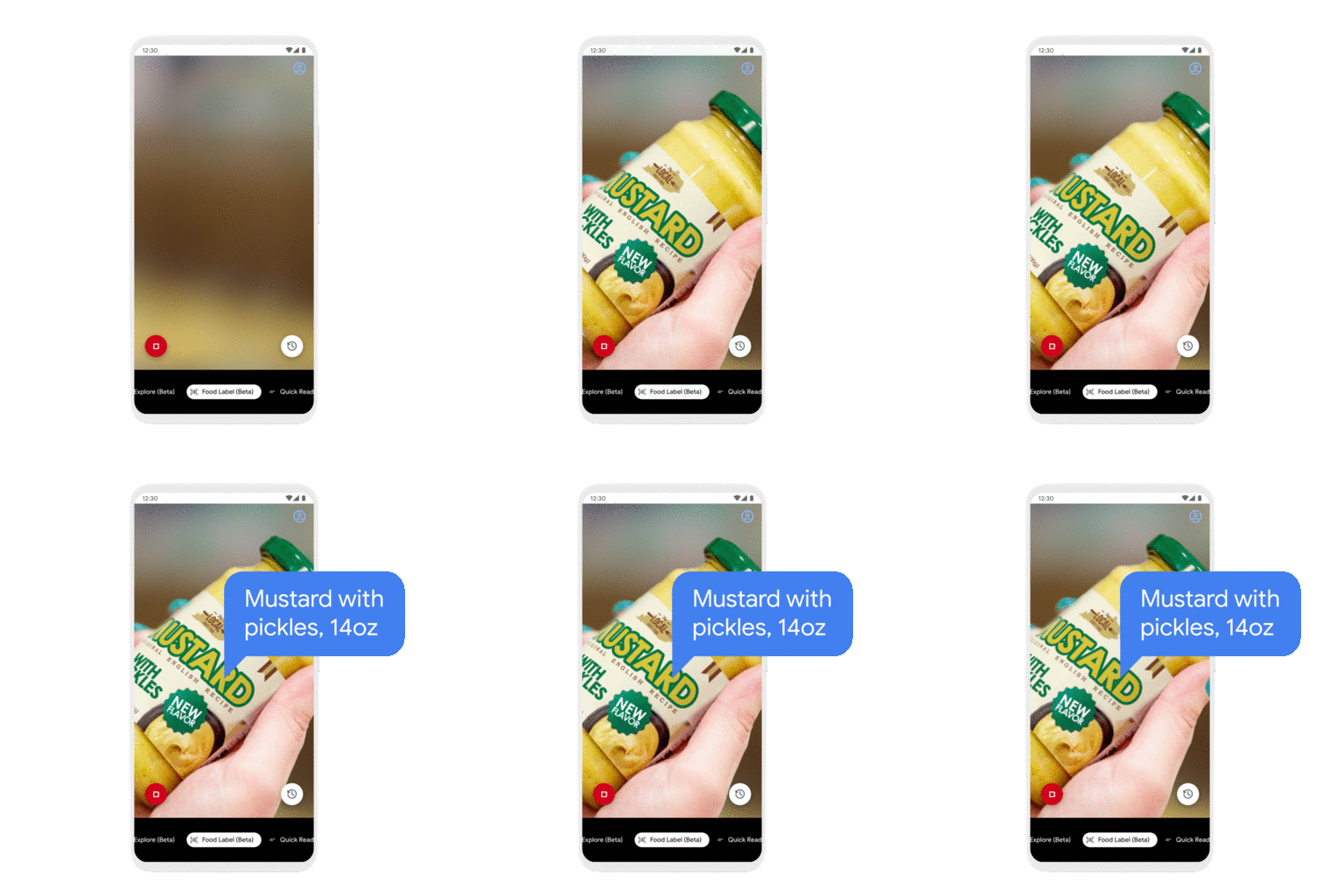
GIF of Google's Lookout app showing it identifying a jar of mustard.

Image Credits: Google

The new food label mode, then, is less about reading text and more about recognizing exactly what product it’s looking at. If the user needs to turn the can or bottle to give the camera a good look, the app will tell them so. It compares what it sees to a database of product images, and when it gets a match it reads off the relevant information: brand, product, flavor, other relevant information. If there’s a problem, the app can always scan the barcode as well.

Document scanning isn’t exactly exciting, but it’s good to have the option built in a straightforward way into a general-purpose artificial vision app. It works as you’d expect: Point your phone at the document (the app will help you get the whole thing in view) and it scans it for your screen reader to read out.

The “quick read” mode that the app debuted with last year, which watches for text in the camera view and reads it out loud, has gotten some speed improvements.

The update brings a few other conveniences to the app, which should run on any Android phone with 2 gigs of RAM and running version 6.0 or higher. It’s also now available in Spanish, German, French, and Italian.


Read Full Article

With former Misfit founder Sonny Vu at the helm, Arevo raises $25 million for its 3D printing tech


Sonny Vu, the former founder and chief executive of the wearable technology company, Misfit, has had a busy summer since he was named the new chief executive of 3D printing technology company, Arevo.

Vu’s new startup brought on a new executive management team, launched a crowdfunding campaign for its 3D printed Superstrata bicycle and is now announcing the close of a $25 million financing round to support the growth of its business.

It’d be a lot for anyone to take on even if it didn’t happen in the middle of global pandemic. But Vu, a serial entrepreneur whose last business went head-to-head with Apple before it was acquired by Fossil for $260 million, doesn’t shy away from challenges.

Vu was first introduced to Arevo in 2019 and was initially going to come on as an advisor to the company. Since the acquisition of Misfit he had been investing from Alabaster, his personal investment vehicle. First introduced by Vinod Khosla, an investor in the business, Vu quickly moved from being an advisor to an executive at the helm of the business and an investor providing bridge financing until the company could close its latest round.

Vu had initially intended to start his own business, but was drawn to Arevo’s potential. “3D printing is about making things slowly and in small quantities. With Arevo’s technology you can make big things quite fast,” Vu said in an interview.

Several companies are attempting to take 3D printing into heavy industry and large scale manufacturing. Relativity raised $140 million in its most recent financing to make rockets using 3D printers, Velo3D is a supplier of 3D printers to SpaceX, and now Arevo has $34 million for its efforts to scale 3d printers. Of course all of these investments pale in comparison to the whopping $438 million that Desktop Metal has raised for its 3D printing tech.

“Arevo is a compelling opportunity for us as it combines our three main investment foci: consumer internet, enterprise, and smart tech. We see fantastic potential in this market, and have backed Sonny before at Misfit,” said Hans Tung, in a statement. “Arevo is led by an experienced team with solid technological foundation and 3D printing manufacturing know-how at scale – to offer breakthrough products at competitive prices.”

Arevo already has a successful proof of concept with its Superstrata bicycle and manufacturing facilities in Vietnam that are intended to prove that the company’s technology will work as expected.

“We’re making this bike to make a point that we can make complex shapes at a pretty large scale,” Vu said. Unlike other companies that sell their printers to manufacturers, Arevo intends to sell parts. That’s because the printers are a pretty hefty ticket for anyone to buy. At $1 million to $1.4 million, it’s a big ask for a company to acquire if it wants to start using 3D printing.

On top of that cost, Vu said candidly that the company’s Achilles heel was the post-manufacturing treatment process required to finish the pieces. And while Arevo already counts automotive and aerospace companies as customers (including Airbus, which previously invested in the business), Vu wants to bring this to consumers. “We’ve had tennis racquet companies, golf clubs, surfboards,” approach Arevo about using the company’s technology, Vu says.

“We can do about two frames per day per machine,” Vu says of the latest production rates. “And coming up with our next gen system we can do about six frames per day.”

The ascension of Vu to the chief executive position and the new capital infusion marks the latest chapter for Arevo which is on its third chief executive since it was founded. Two years ago, Jim Miller, a former Amazon and Google executive, was brought on board to take the reins at the company. Miller’s appointment coincided with a $12.5 million investment round led by Asahi Glass, with Sumitomo Corp., Leslie Ventures and Khosla Ventures participating. Miller was involved with collaborating with Studio West on the design of its Superstrata bike.

Now, Defy Partners and GGV Capital are joining to lead the company’s Series B round with participation from Khosla Ventures, Alabaster and others. Brian Shin, a scout with Defy Ventures is joining the board which now counts Bruce Armstrong, from Khosla Ventures, and Hemant Bheda, Arevo’s co-founder as directors (along with Vu).

“Arevo’s new platform enables fabrication of high strength, low weight carbon fiber parts, currently not possible with today’s standard techniques,” said Trae Vassallo, founding partner at Defy. “We are thrilled to be working with the team to help scale up this incredibly impactful technology.”


Read Full Article

Google is turning Android Phones into seismometers


Google is launching a handful of new Android features today that don’t really have a lot in common but that are all interesting in their own right. There are updates to Android Auto and Android’s emergency location service, new accessibility features thanks to an updated Lookout app, and the promise of better sleep thanks to the bedtime tools in the Android Clock app now rolling out to all Android devices running version 6.0 or later (this was a Pixel-only feature before).

But the highlight of today’s release is surely Google’s new worldwide earthquake detection system and the new earthquake alerting feature it is launching for California. With this, Google is essentially turning your Android phone into a seismometer to create what the company says is “the world’s largest earthquake detection network.”

Image Credits: Google

The company argues that smartphone accelerometers are sensitive enough to measure the P-waves that are the first waves to arrive after an earthquake. Whenever the phone thinks it has detected an earthquake, it will send that info to a central server which then determines whether this was really an earthquake. For now, Google will only use this data to show information when somebody then searches for ‘earthquake’ or a similar keyword. Over time, though, it expects to be able to send out alerts based on these phone-based systems.

In California, the company is already going a step further, though. Working with the United States Geological Survey (USGS) and California Governor’s Office of Emergency Services (Cal OES), Google is using the ShakeAlert network — which itself uses data from 700 seismometers from across the state — to provide earthquake alerts. “A few seconds of warning can make a difference in giving you time to drop, cover, and hold on before the shaking arrives,” Google argues.

Image Credits: Google


Read Full Article

Google, Nokia, Qualcomm are investors in $230M Series A2 for Finnish phone maker, HMD Global


Mobile device maker HMD Global has announced a $230M Series A2 — its first tranche of external funding since a $100M round back in 2018 when it tipped over into a unicorn valuation. Since late 2016 the startup has exclusively licensed Nokia’s brand for mobile devices, going on to ship some 240M devices to date.

Its latest cash injection is notable both for its size (HMD claims it as the third largest funding round in Europe this year); and the profile of the strategic investors ploughing in capital — namely: Google, Nokia and Qualcomm.

Though whether a tech giant (Google) whose OS dominates the world’s smartphone market (Android) becoming a strategic investor in Europe’s last significant mobile OEM (HMD) catches the attention of regional competition enforcers remains to be seen. Er, vertical integration anyone? (To wit: It’s a little over two years since Google was slapped with a $5BN penalty by EU regulators for antitrust violations related to how it operates Android — and the Commission has said it continues to monitor the market ‘remedies’.)

In a further quirk, when we spoke to HMD Global CEO, Florian Seiche, ahead of today’s announcement, he didn’t expect the names of the investors to be disclosed — but we’d already been sent press release material listing them so he duly confirmed the trio are investors in the round. (But wouldn’t be drawn on how much equity Google is grabbing.)

HMD’s smartphones run on Google’s Android platform, which gives the tech giant a firm business reason for supporting the mobile maker in growing the availability of Google-packed hardware in key growth markets around the world.

And while HMD likens its consistent (and consistently updated) flavor of Android to the premium ‘pure’ Android experience you get from Google’s own-brand Pixel smartphones, the difference is the Finnish company offers devices across the range of price points, and targets hardware at mobile users in developing markets.

The upshot is relatively little overlap with Google’s Pixel hardware, and still plenty of business upside for Google should HMD grow the pipeline of Google services users (as it makes money by targeting ads).

Connoisseurs of mobile history may see more than a little irony in Google investing into Nokia branded smartphones (via HMD), given Android’s role in fatally disrupting Nokia’s lucrative smartphone business — knocking the Finnish giant off its perch as the world’s number one mobile maker and ushering in an era of Android-fuelled Asian mobile giants. But wait long enough in tech and what goes around oftentimes comes back around.

“We’re extremely excited,” said Seiche, when we mention Google’s pivotal role in Nokia’s historical downfall in smartphones. “How we are going to write that next chapter on smartphones is a critical strategic pillar for the company and our opportunity to team up so closely with Google around this has been a very, very great partnership from the beginning. And then this investment definitely confirms that — also for the future.”

“It’s a critical time for the industry therefore having a clear strategy — having a clear differentiation and a different point of view to offer, we believe, is a fantastic asset that we have developed for ourselves. And now is a great moment for us to double down on this,” he added.

We also asked Seiche whether HMD has any interest in taking advantage of the European Commission’s Android antitrust enforcement decision — i.e. to fork Android and remove the usual Google services, perhaps swapping them out for some European alternatives, which is at least a possibility for OEMs selling in the region — but Seiche told us: “We have looked at it but we strongly believe that consumers or enterprise customers actually love [Google] services and therefore they choose those services for themselves.” (Millions of dollars of direct investment from Google also, presumably, helps make the Google services business case stack up.)

Nokia, meanwhile, has always had a close relationship with HMD — which was established by former Nokia execs for the sole purpose of licensing its iconic mobile brand. (The backstory there is a clause in the sale terms of Nokia’s mobile device division to Microsoft expired in 2016, paving the way for Nokia’s brand to be returned to the smartphone market without the prior Windows Mobile baggage.)

Its investment into HMD now looks like a vote of confidence in how the company has been executing in the fiercely competitive mobile space to date (HMD doesn’t break out a lot of detail about device sales but Seiche told us it sold in excess of 70M mobiles last year; that’s a combined figure for smartphones and feature phones) — as well as an upbeat assessment of the scope of the growth opportunity ahead of it.

On the latter front US-led geopolitical tensions between the West and China do look poised to generate a tail-wind for HMD’s business.

Mobile chipmaker Qualcomm, for example, is facing a loss of business, as US government restrictions threaten its ability to continue selling chips to Huawei; a major Chinese device maker that’s become a key target for US president Trump. Its interest in supporting HMD’s growth, therefore, looks like a way for Qualcomm to hedge against US government disruption aimed at Chinese firms in its mobile device maker portfolio.

While with Trump’s recent threats against the TikTok app it seems safe to assume that no tech company with a Chinese owner is safe.

As a European company, HMD is able to position itself as a safe haven — and Seiche’s sales pitch talks up a focus on security detail and overall quality of experience as key differentiating factors vs the Android hoards.

“We have been very clear and very consistent right from the beginning to pick these core principles that are close to our heart and very closely linked with the Nokia brand itself — and definitely security, quality and trust are key elements,” he told TechCrunch. “This is resonating with our carrier and retail customers around the world and it is definitely also a core fundamental differentiator that those partners that are taking a longer term view clearly see that same opportunity that we see for us going forward.”

HMD does use manufacturing facilities in China, as well as in a number of other locations around the world — including Brazil, India, Indonesia and Vietnam.

But asked whether it sees any supply chain risks related to continued use of Chinese manufacturers to build ‘secure’ mobile hardware, Seiche responded by claiming: “The most important [factor] is we do control the software experience fully.” He pointed specifically to HMD’s acquisition of Valona Labs earlier this year. The Finnish security startup carries out all its software audits. “They basically control our software to make sure we can live up to that trusted standard,” Seiche added. 

Landing a major tranche of new funding now — and with geopolitical tension between the West and the Far East shining a spotlight on its value as alternative, European mobile maker — HMD is eyeing expansion in growth markets such as Africa, Brail and India. (Currently, HMD said it’s active in 91 markets across eight regions, with its devices ranged in 250,000 retail outlets around the world.)

It’s also looking to bring 5G to devices at a greater range of price-points, beyond the current flagship Nokia 8.3. Seiche also said it wants to do more on the mobile services side. HMD’s first 5G device, the flagship Nokia 8.3, is due to land in the US and Europe in a matter of weeks. And Seiche suggested a timeframe of the middle of next year for launching a 5G device at a mid tier price point.

“The 5G journey again has started, in terms of market adoption, in China. But now Europe, US are the key next opportunity — not just in the premium tier but also in the mid segment. And to get to that as fast as possible is one of our goals,” he said, noting joint-working with Qualcomm on that.

“We also see great opportunity with Nokia in that 5G transition — because they are also working on a lot of private LTE deployments which is also an interesting area since… we are also very strongly present in that large enterprise segment,” he added.

On mobile services, Seiche highlighted the launch of HMD Connect: A data SIM aimed at travellers — suggesting it could expand into additional connectivity offers in future, forging more partnerships with carriers. 

“We have already launched several services that are close to the hardware business — like insurance for your smartphones — but we are also now looking at connectivity as a great area for us,” he said. “The first pilot of that has been our global roaming but we believe there is a play in the future for consumers or enterprise customers to get their connectivity directly with their device. And we’re partnering also with operators to make that happen.”

“You can see us more as a complement [to carriers],” he added, arguing that business “dynamics” for carriers have also changed substantially — and customer acquisition hasn’t been a linear game for some time.

“In a similar way when we talk about Google Pixel vs us — we have a different footprint. And again if you look at carriers where they get their subscribers from today is already today a mix between their own direct channels and their partner channels. And actually why wouldn’t a smartphone player be a natural good partner of choice also for them? So I think you’ll see that as a trend, potentially, evolving in the next couple of years.”


Read Full Article

Android Auto gets Google Calendar integration


Google today announced a number of updates to Android Auto (which runs on the user’s phone) and Android Automotive (which car manufacturers can natively build into their cars) that will affect both users and developers on these platforms. In addition, Google today announced that it expects Android Auto to be available in more than 100 million cars in the coming months.

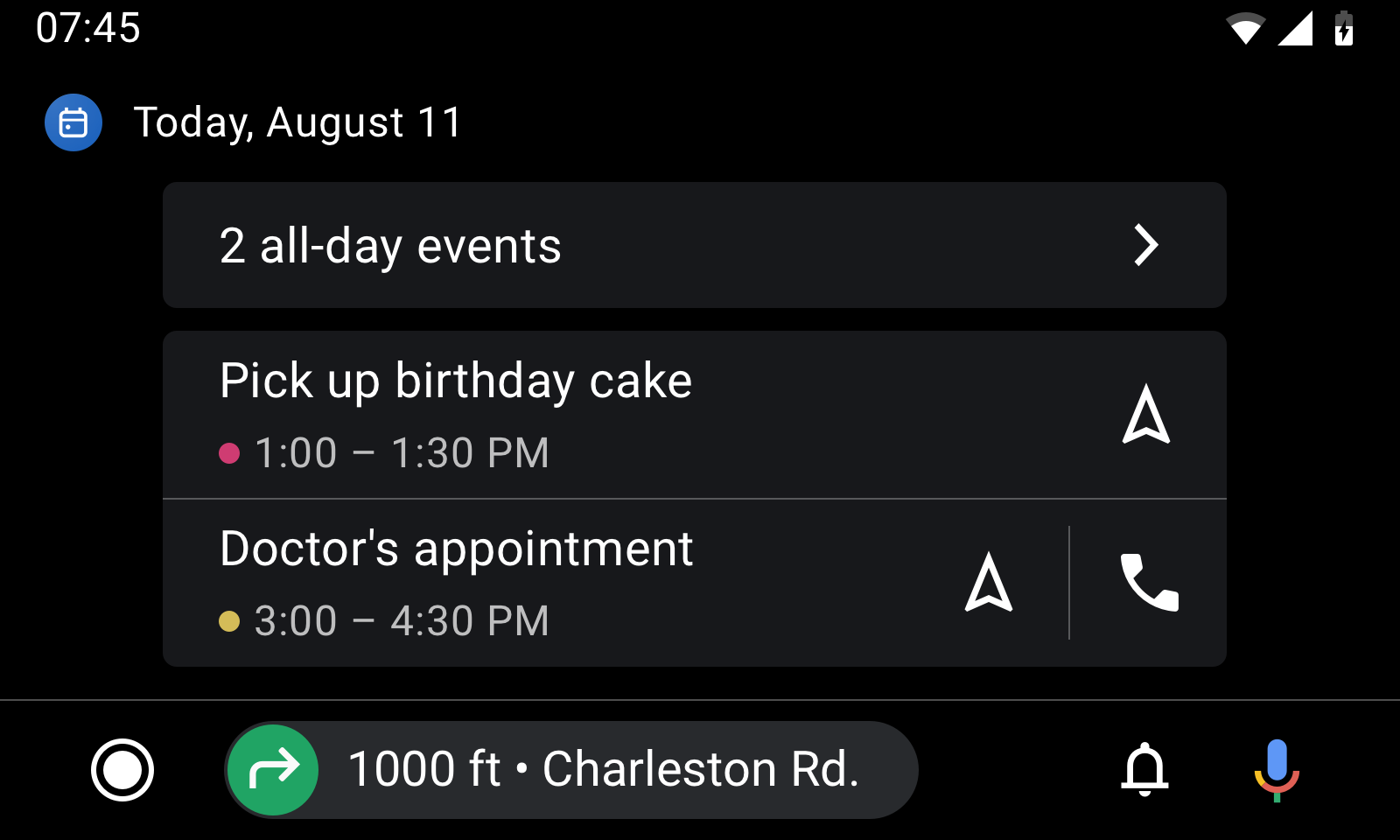
The most obvious user-facing update is the integration of Google Calendar into Android Auto thanks to the new calendar app. There are very few surprises here as the app lets you see your upcoming appointments (and get directions to them or make a call right from the app).

Image Credits: Google

Another new feature is a new settings app, which now lets you manage your Android Auto preferences right from your in-car car display without having to go back to your phone to make major changes.

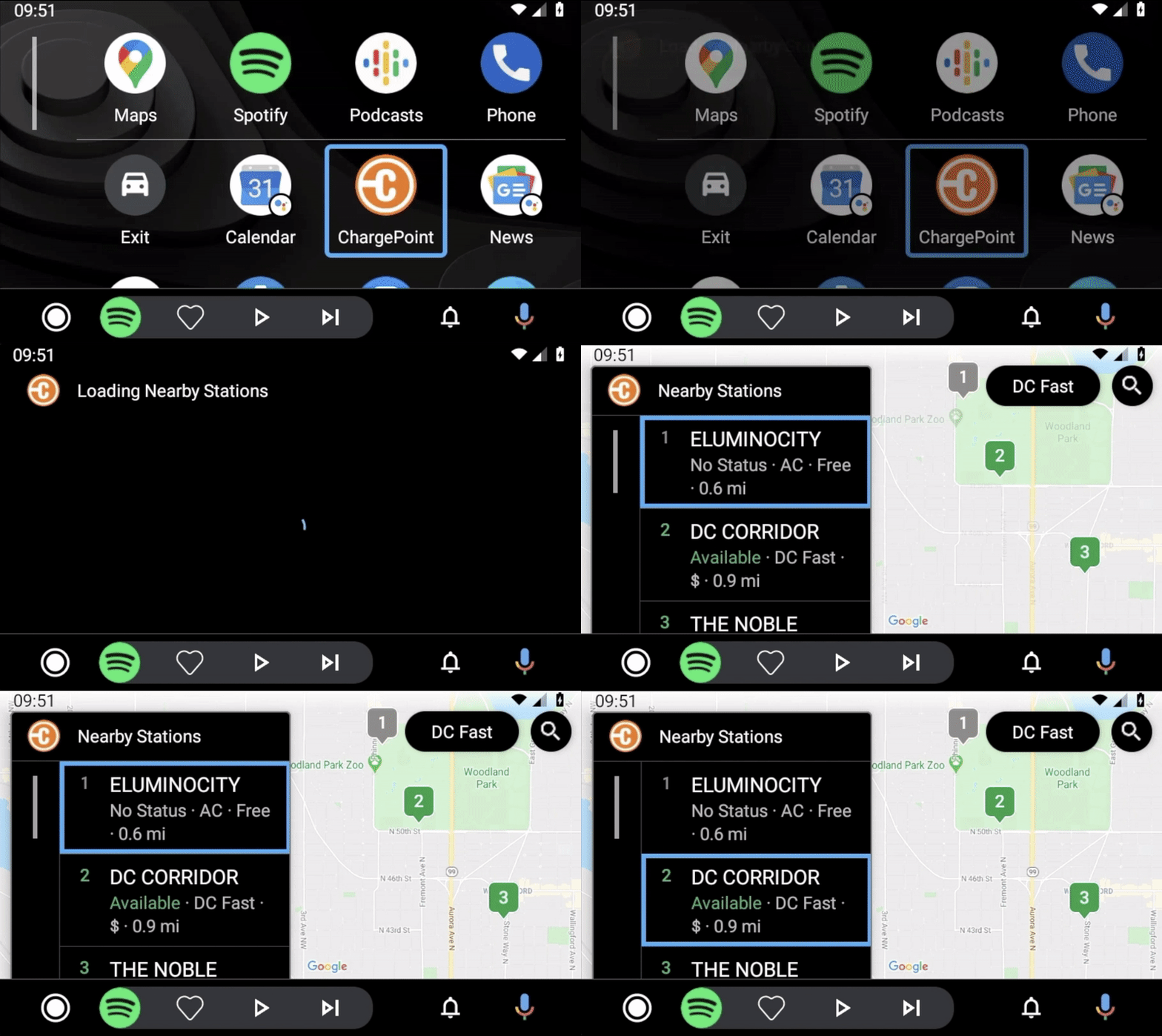
The company today also said that it is working with a number of partners like SpotHero, Chargepoint and Sygic to bring more navigation, parking and electric charging apps to the platform. Google expects that some of these companies will be able to beta test their new apps by the end of the year.

Image Credits: Google

Currently, there are about 3,000 apps in the Google Play store that support Android Auto. To expand this set of apps — which have to pass a number of tests to ensure that they don’t distract drivers — Google is launching a new Cars App Library that developers can use to ensure that tasks within their apps will only take a few taps and minimal glances.

Image Credits: Google


“To mitigate driver distraction, we collaborated with government, industry and academic institutions to develop our own best practice guidelines that we apply to every aspect of our product development process,” Google says in today’s update. “With our standard templates and guidelines, developers have the tools to easily optimize their apps for cars, without needing to become an expert in driver distraction.”

On the Android Automotive side, Google is working with developers and car manufacturers to help them bring more media apps to the platform. Currently, the Polestar 2 is the first car that uses the new system, but Volvo, Renault and General Motors have announced plans to launch infotainment systems that will use it.

For these developers, Google is launching an update emulator that now includes the Google Assistant, Maps and Google Play — and the Google Play Console now accepts Android Automotive APKs. Developers can also test their apps against the Polestar 2 system image.


Read Full Article