04 July 2020

Facebook Thinks Everybody Should Wear Face Masks


With the COVID-19 pandemic continuing to affect our lives in a number of different ways, there’s a debate about whether everybody should be wearing face masks. Some people say face coverings help stop the spread, while others think they do more harm than good.

In the US, face masks have become a political issue. However, with the Centers for Disease Control and Prevention (CDC) now recommending people wear face masks in public, Facebook is reminding users to cover their faces to “prevent the spread of COVID-19”.

Facebook Reminds Users to Wear Face Masks

In a post on the Facebook Newsroom, the social network outlines some of the things it’s doing to keep people “safe and informed about the coronavirus”. One of which is placing alerts at the top of Facebook and Instagram reminding people to wear face masks.

On both Facebook and Instagram this alert will tell people to, “Wear a cloth face covering to help prevent the spread of COVID-19”. Users will also be directed to Facebook’s COVID-19 Information Center and the CDC website for more information on face coverings.

These alerts are only going to appear for users in the US (at least for now). This is due to “the rise in COVID-19 cases in the US.” And whatever you personally attribute that rise to, anything that can help flatten the curve once again is surely a good thing.

Facebook Wants You to Get the Facts on Coronavirus

While the wearing of face masks has become a political issue, especially in the US, this isn’t Facebook taking sides and pushing its own agenda. Instead, the social network is taking its cue from the CDC, a federal agency set up to protect public health.

This also isn’t Facebook’s first attempt to educate and inform the public about COVID-19. In April 2020, in an effort to counter some of the wild conspiracy theories flying around online, the social network invited users to get the facts on coronavirus.

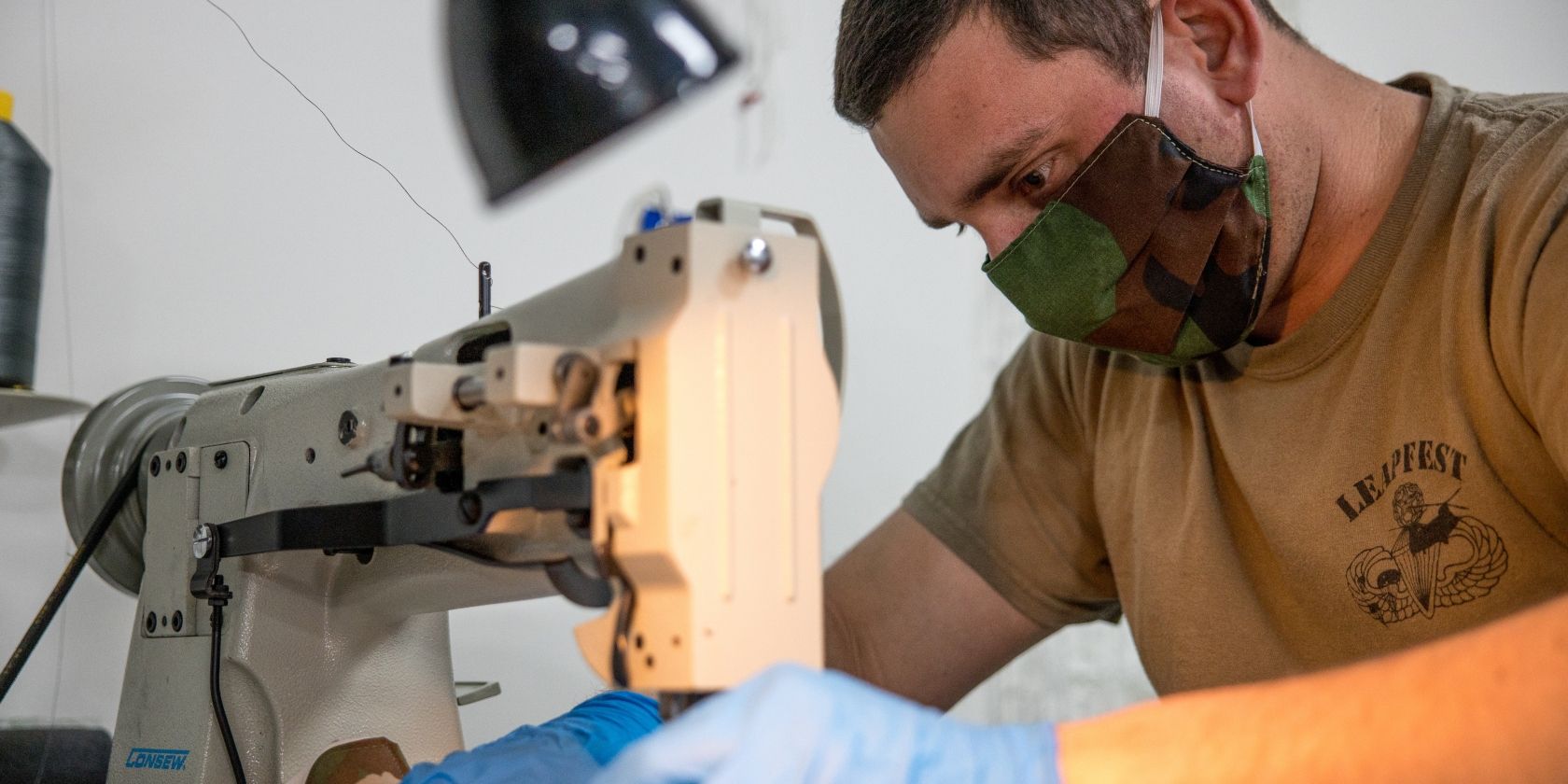
Image Credit: The National Guard/Flickr

Read the full article: Facebook Thinks Everybody Should Wear Face Masks


Read Full Article

The Best Mouse Pads for Gamers in 2020


gaming-mouse-pads

It’s a shame to have a top-of-the-line rig, an expensive mechanical keyboard, a customizable DPI mouse, but a hand-me-down mouse mat from years ago.

Upgrading to a good gaming mouse pad can help kit out your desk, improve mouse performance, and could even save your wrists from RSI!

Let’s explore the best gaming mouse pads to finish off your gaming desk.

1. Razer Goliathus Speed Gaming Mouse Pad

Razer Goliathus Speed Gaming Mouse Pad Razer Goliathus Speed Gaming Mouse Pad Buy Now On Amazon $7.99

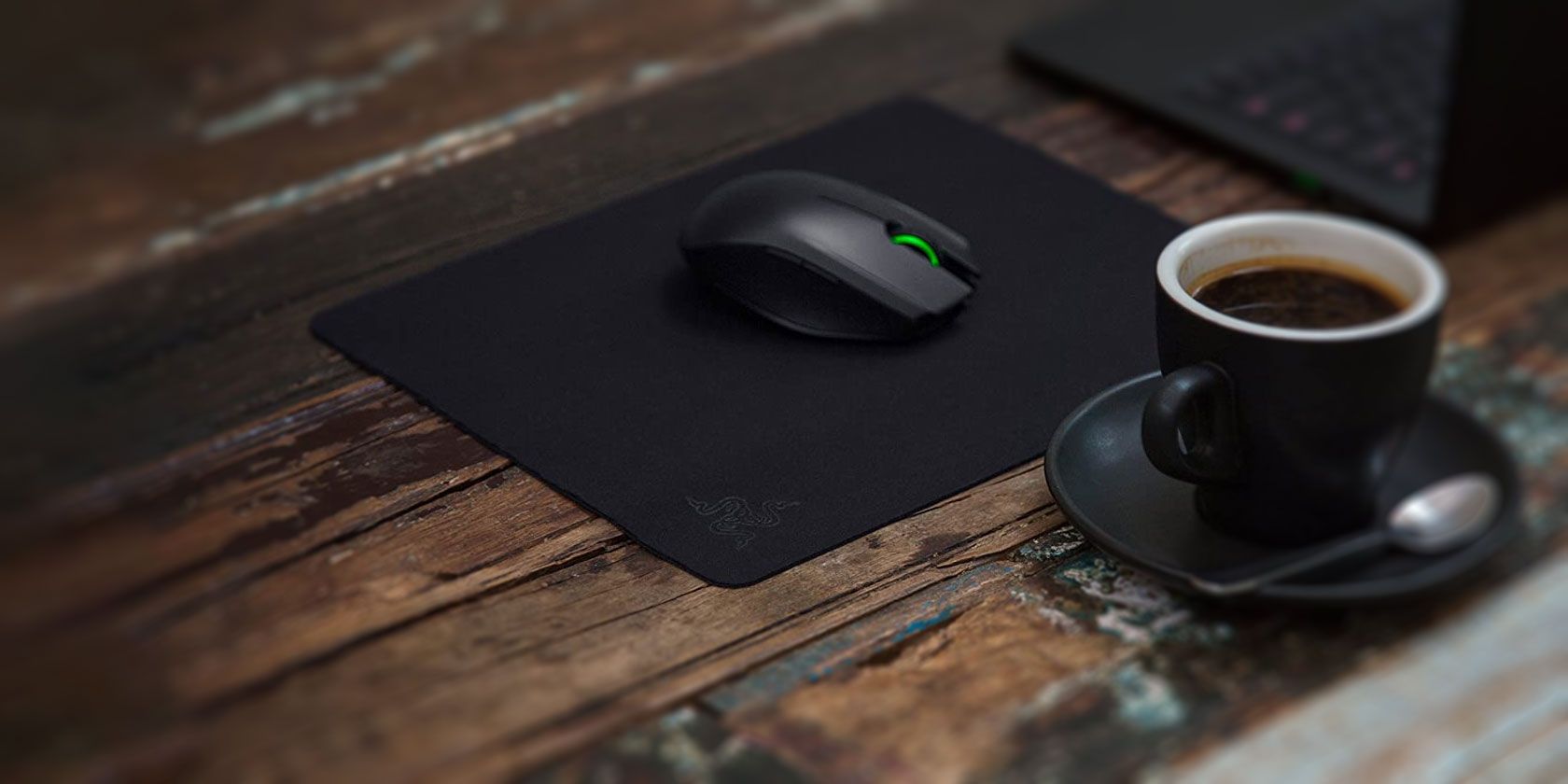
Let’s start with something simple yet effective. The Razer Goliathus Speed Gaming Mouse Pad is a fantastic option made by a top gaming company that doesn’t hurt your wallet.

Although it doesn’t look fancy, it’s designed to allow mice to move quickly for sharp movements while retaining precision for minute actions. Better yet, if you have a Razer mouse, you can customize it for your chosen pad.

2. Razer Firefly Chroma Hard Gaming Mouse Pad

Razer Firefly Chroma Hard Gaming Mouse Pad Razer Firefly Chroma Hard Gaming Mouse Pad Buy Now On Amazon $49.42

If you like Razer products, but want something a little more exciting than a blank pad, try the Razer Firefly Chroma Hard GamingMouse Pad. The mat itself is black, but with an attractive colored border that can sync with other Razer hardware.

This pad also has an interesting feature; a cable catch. On the mat itself, there’s an inconspicuous black bar at the top. You can tie your phone’s wire to this catch to stop it catching or dragging when you move your mouse.

3. UtechSmart RGB Gaming Mouse Pad

UtechSmart RGB Gaming Mouse Pad UtechSmart RGB Gaming Mouse Pad Buy Now On Amazon $26.99

If you like the look of the previous mouse pad, but you feel it’s a bit small, try the UtechSmart RGB Gaming Mouse Pad. It’s the best large mouse pad that balances looks with price, so you can create a cool setup without breaking the bank.

For the price, you get an impressive 31.5 by 11.8-inch mat that can fit both a mouse and keyboard. The light around the mouse pad is customizable with flashing, wavy, and breathing patterns available to mix things up.

4. Luxcoms LED RGB Gaming Mouse Pad

Luxcoms LED RGB Gaming Mouse Pad Luxcoms LED RGB Gaming Mouse Pad Buy Now On Amazon $26.99

If you want a mouse mat you can carry around, try the Luxcoms LED RGB Gaming Mouse Pad. It comes in at 31.5 by 11.8 inches, and also has an attractive color border. However, it has some added extras that make it great for tournament use.

Unlike harder models, it’s easy to roll up and store away. Additionally, the mouse pad remembers your color settings when unplugged, so you need not reset it once you arrive. Finally, the stylish artwork on the mousemat means you’ll always feel proud to unroll it amongst friends.

5. Redragon P020 Gaming Mouse Pad

Redragon P020 Gaming Mouse Pad Redragon P020 Gaming Mouse Pad Buy Now On Amazon $15.99

If you’ve played games for a long period and felt an ache in the wrists, you may have considered a wrist rest. Fortunately, there are ways to give your wrists a much-needed break while still looking stylish.

The Redragon P020 Gaming Mouse Pad does just that. Its precision-enhancing silk, anti-slip underside, and anti-curl design are fit for any gamer, but it also comes with a built-in wrist pad that takes care of your joints.

If you enjoy a drink while you play games, you probably know the pains of getting drink stains on your mouse mat. Fortunately, this Redragon mat is waterproof and can be wiped clean, so it’ll stay clean and stain-free.

6. Gimars Large Memory Foam Ergonomic Mouse Pad

Gimars Large Memory Foam Ergonomic Mouse Pad Gimars Large Memory Foam Ergonomic Mouse Pad Buy Now On Amazon $11.86

If you’d like something a little larger, try the Gimars Large Memory Foam Ergonomic Mouse Pad. It doesn’t look as stylish as the Redragon, but does come in a larger size and at a lower price point.

The wrist rest on this mouse pad is made with breathable materials, so you won’t get sweaty after prolonged use. It uses memory foam for a snug fit. It’s soft enough to feel comfortable, but tough enough to support your wrist at a healthy angle.

7. VicTsing Mouse Pad

VicTsing Mouse Pad VicTsing Mouse Pad Buy Now On Amazon $6.49

Fancy an effective mouse pad without any extra bells and whistles? The VicTsing Mouse Pad is a simple gaming mouse pad that provides a smooth surface for quick movements. Given its incredibly affordable price, it’s the best mouse pad for pinching the pennies after a big Steam sale.

Even at this price point, you still get a lot from this durable mouse pad. The surface is sleek, the underside uses a rubber grip to keep the mouse pad in place, and the stitched edges prevent wear and tear.

8. NJHX Large Gaming Mouse Pad

NJHX Large Gaming Mouse Pad NJHX Large Gaming Mouse Pad Buy Now On Amazon $14.99

In the same vein as the above product, the NJHX Large Gaming Mouse Pad keeps things simple. It’s the best gaming mouse pad for those who want an extended mouse pad with no special extras.

Despite the lack of colorful lighting or cable clips, the NJHX Mouse Pad does a fantastic job. The surface is waterproof, the mat can be folded and rolled up, and the edges are stitched to prevent damage.

9. Yucoon Extended Gaming Mouse Pad

Yucoon Extended Gaming Mouse Pad Yucoon Extended Gaming Mouse Pad Buy Now On Amazon $19.99

If you can’t stand bland mouse pads, give the Yucoon Extended Gaming Mouse Pad a try. Not only is it available in different stylish designs, but it measures an impressive 35.4 by 15.7 inches. Thus making it the biggest pad on this list.

It also has all the features you’ve come to expect from a gaming pad. Its rubber underside keeps it in one place, the stitched edges prevent your mouse or hand from catching the sides, and you can clean it with a quick wipe-down.

Improve Your Gaming Performance

The mouse pad is one of the most overlooked computer accessories out there. To get the best performance, it’s essential to have a smooth surface to better translate your hand movements to in-game actions. Fortunately, whatever your requirements, there’s a gaming mouse pad for you.

Now that you have the mouse pad sorted, why not complement it with one of the best gaming mice?

Read the full article: The Best Mouse Pads for Gamers in 2020


Read Full Article

The Best Free Family Tree Templates for Microsoft Word and Excel


family-tree-templates

Most of us are familiar with a couple of generations within our families. But we all know that everyone’s family history goes back much further than that.

There are websites available that can help you research your ancestors. So if you’d like to create your own family tree, with the details you already have, that you can build on with your research, these templates are ideal.

Here are several terrific family tree templates for Microsoft Word and Excel for both adults and kids.

Family Tree Templates for Adults

Depending on how many generations you plan or are able to include in your family tree, one of these templates is sure to be a great fit.

Five-Generation Family Tree Chart

5-Gen Family Tree Template-MS Office

Since the templates we’re providing are for Word and Excel, there’s no better place to begin than with one from Microsoft Office.

This five-generation family tree template is available for Excel as a download or for use in Excel Online. It’s a very basic chart with boxes, lines, and nothing fancy, but gets the job done.

Start by adding yourself and then work your way through the generations. There’s plenty of space to include first and last names, titles, and birthdates, or years. So you have the flexibility to include only those details you want.

For other types of chart templates, take a look at these flowchart templates for Microsoft Office.

Three-Generation Family Tree Generator

Family Tree Template Generator-MS Office

Another template from Microsoft Office for Excel, this one builds a family tree for you. You’ll begin on the Family Members tab by entering three generations with spouses, parents, and children.

When you finish typing in your details, click the Create Family Tree button. Then hop over to the Family Tree tab to see your creation.

Family Tree Template Generator Tab -MS Office

This is a nice template and family tree generator because you can easily change your tree with the click of a button as your family grows.

Six-Generation Family Tree Template

6-Gen Family Tree Template-Vertex42

If you want to go back six generations on your family tree, then check out this template from Vertex42. Similar to the first basic template from Microsoft Office, this one is structured the same way and has room to add names, dates, and more. The Example tab includes a neat sample and you’ll see that it also includes the states of residence for each person.

As a bonus, you can add a small photo next to each family member. Although the pictures will appear tiny in the Excel sheet, this is a cool option if you plan to print your family tree.

Four-Generation Family Tree Template

4-Gen Family Tree Template-TemplateNet

For a neatly structured, landscape view template for Word, this one from Template.net has placeholders ready for four generations of your family members.

Just replace the names, birthdates, and locations with those for your family. And if you need to add more people, you can use the simple editing features in Word to copy and paste the placeholders and connecting lines.

Four-Generation Family Tree Generator

Family Tree Generator-FPPT

To take this list of templates for adults up a notch, have a look at this next one from Free PowerPoint Templates. The template is for Microsoft Excel (not PowerPoint) and has tons of extras in addition to the family tree generator.

Go through each of the labeled tabs and enter names for both your maternal and paternal family members. Those names will automatically populate to create your family tree in the same named tab.

What makes this family tree template stand out, aside from filling in the names for you, is that each tab contains nicely displayed details. You can add photos, notes, and information about each child.

Family Tree Generator Tab-FPPT

In addition, you can click the Details buttons on the family tree to head right to that person’s tab. And reversely, you can click the Back to Tree button on a tab to go right to that person’s spot on the tree.

If you’re interested in an attractive family tree template and generator with bonus features, this is it.

Family Tree Templates for Kids

Maybe your child has a school project, or you simply want to do a project together at home. These nifty family tree templates are excellent options for kids. They don’t go back several generations like those for adults, but they offer visually fun ways for your child to view the family tree.

12- and 20-Member Family Trees

TemplateLab has an enormous collection of family tree templates for both adults and children. For little kids specifically, these are two really cute choices for Word.

The apple design gives you 12 spots for family members. With a neat apple for each person, you can type in everyone’s name or use the spaces for photos instead.

Family Tree Template Apple-TemplateLab

The other tree has spots for 20 family members if your clan is a bit bigger. This family tree template is designed more for written names rather than photos.

Family Tree Template Tree-TemplateLab

13-Member Family Tree Templates

Template.net offers almost 20 family tree templates for kids, including these two fun options for children designed for Word.

One template has hand drawn, cartoon-style images of all family members from grandparents to children. You can simply swap out the names for those of your own family.

Family Tree Template Cartoon-TemplateNet

The other template is ideal for photos. Pop in a picture for each person from your computer or print it out first and then glue them on. You can type or write each family member’s name right beneath their photograph.

Family Tree Template Photo-TemplateNet

For other types of photo templates, take a look at these Squarespace templates for art and photographs.

15-Member Family Tree Template

15-Gen Family Tree Template-TemplateLab

One more template from TemplateLab that’s great for kids is this 15-member family tree for Microsoft Word.

It has a nice casual but colorful look that an older child might really like. You can easily enter everyone’s name and include extra details like birthdates and locations.

For additional family members, you can add more boxes using Word’s SmartArt Text feature. Just click on the chart and when the window pops open, use the plus sign to add another name box. You can also use the arrows to rearrange the boxes and move family members to the right spots.

15-Gen Family Tree Template SmartArt Edit Tool-TemplateLab

Plant Your Family Tree With a Template

From small families to large ones, there’s a family tree template on this list that should be exactly what you need. And since learning more about your heritage can be informative and fun at the same time, this type of project is wonderful for yourself or for you and your child to do together.

If you happen to own a Linux computer, check out these free family tree software options for Linux.

Read the full article: The Best Free Family Tree Templates for Microsoft Word and Excel


R&D Roundup: Tech giants unveil breakthroughs at computer vision summit


Computer vision summit CVPR has just (virtually) taken place, and like other CV-focused conferences, there are quite a few interesting papers. More than I could possibly write up individually, in fact, so I’ve collected the most promising ones from major companies here.

Facebook, Google, Amazon and Microsoft all shared papers at the conference — and others too, I’m sure — but I’m sticking to the big hitters for this column. (If you’re interested in the papers deemed most meritorious by attendees and judges, the nominees and awards are listed here.)

Microsoft

Redmond has the most interesting papers this year, in my opinion, because they cover several nonobvious real-life needs.

One is documenting that shoebox we or perhaps our parents filled with old 3x5s and other film photos. Of course there are services that help with this already, but if photos are creased, torn, or otherwise damaged, you generally just get a high-resolution scan of that damage. Microsoft has created a system to automatically repair such photos, and the results look mighty good.

Image Credits: Google

The problem is as much identifying the types of degradation a photo suffers from as it is fixing them. The solution is simple, write the authors: “We propose a novel triplet domain translation network by leveraging real photos along with massive synthetic image pairs.” Amazing no one tried it before!


Read Full Article

03 July 2020

Dating app S’More adds blurred video calling and launches in LA


The pandemic hasn’t slowed down dating app S’More — at least according to CEO Adam Cohen-Aslatei, who said that the app’s daily active user count doubled in March and hasn’t gone down since.

“When people are working form home, they have much more time to dedicate to their relationships,” Cohen-Aslatei told me.

The app (whose name is short for “something more”) launched last fall and has supposedly attracted nearly 50,000 users. The goal is to move beyond the superficiality of most dating apps, where you first learn about another user and then unlock visual elements (like a profile photo) as you interact.

Cohen-Aslatei said the team has also spent more on marketing to attract a diverse audience, both in terms of racial diversity (something S’more reinforces by not allowing users to filter by race) and sexual orientation, with 15% of users identifying as LGBTQ.

Of course, dating someone new can be challenging when meeting up in-person poses real health risks, but Cohen-Aslatei said S’More users have gotten creative, like remote dinners where they order each other takeout from their favorite restaurants. And now that things are reopening (though some of those reopenings are getting pulled back), users are asking, “How do we transition these virtual relationships into IRL?”

S'More video calling

Image Credits: S’More

To give users more ways to interact, the S’More team recently launched a video calling feature. But Cohen-Aslatei noted, “We had to to create it in a way that was really fitting for our app … Women actually don’t want to see a guy right away, when you don’t know if they’re a creep.”

So in S’more’s video calling, the video is blurred for the first two minutes, which means you’ve got to actually start an interesting conversation before you can see who you’re talking to, and before they see you (a concept that may be familiar to viewers of Netflix’s dating show “Love is Blind”).

S’More has also expanded geographically, launching last week in Los Angeles (it was already available in Boston, Washington, D.C., New York and Chicago). And it recently started its a video series of its own on Instagram’s IGTV — the S’More Live Happy Hour, where celebrities offer dating advice.

“There’s this negative history of dating apps perpetuating negative online behaviors, fake images, catfishers,” Cohen-Aslatei said. “But now we’re going into a new era of authenticity, where we’re going from super vain to super authentic. S’more is one of those apps that’s going to lead you in that direction.”


Read Full Article

Dating app S’More adds blurred video calling and launches in LA


The pandemic hasn’t slowed down dating app S’More — at least according to CEO Adam Cohen-Aslatei, who said that the app’s daily active user count doubled in March and hasn’t gone down since.

“When people are working form home, they have much more time to dedicate to their relationships,” Cohen-Aslatei told me.

The app (whose name is short for “something more”) launched last fall and has supposedly attracted nearly 50,000 users. The goal is to move beyond the superficiality of most dating apps, where you first learn about another user and then unlock visual elements (like a profile photo) as you interact.

Cohen-Aslatei said the team has also spent more on marketing to attract a diverse audience, both in terms of racial diversity (something S’more reinforces by not allowing users to filter by race) and sexual orientation, with 15% of users identifying as LGBTQ.

Of course, dating someone new can be challenging when meeting up in-person poses real health risks, but Cohen-Aslatei said S’More users have gotten creative, like remote dinners where they order each other takeout from their favorite restaurants. And now that things are reopening (though some of those reopenings are getting pulled back), users are asking, “How do we transition these virtual relationships into IRL?”

S'More video calling

Image Credits: S’More

To give users more ways to interact, the S’More team recently launched a video calling feature. But Cohen-Aslatei noted, “We had to to create it in a way that was really fitting for our app … Women actually don’t want to see a guy right away, when you don’t know if they’re a creep.”

So in S’more’s video calling, the video is blurred for the first two minutes, which means you’ve got to actually start an interesting conversation before you can see who you’re talking to, and before they see you (a concept that may be familiar to viewers of Netflix’s dating show “Love is Blind”).

S’More has also expanded geographically, launching last week in Los Angeles (it was already available in Boston, Washington, D.C., New York and Chicago). And it recently started its a video series of its own on Instagram’s IGTV — the S’More Live Happy Hour, where celebrities offer dating advice.

“There’s this negative history of dating apps perpetuating negative online behaviors, fake images, catfishers,” Cohen-Aslatei said. “But now we’re going into a new era of authenticity, where we’re going from super vain to super authentic. S’more is one of those apps that’s going to lead you in that direction.”


Read Full Article

Festo’s latest biomimetic robots are a flying feathered bird and ball-bottomed helper arm


You could be excused for thinking that German robotics company Festo does nothing but put together fabulous prototype robots built to resemble kangaroos, jellyfish, and other living things. They do in fact actually make real industrial robots, but it’s hard not to marvel at their biomimetic experiments; Case in point, the feathered BionicSwift and absurd BionicMobileAssistant motile arm.

Festo already has a flying bird robot — I wrote about it almost 10 years ago. They even made a flying bat as a follow-up. But the BionicSwift is more impressive than both because, in an effort to more closely resemble its avian inspiration, it flies using artificial feathers.

Image Credits: Festo

“The individual lamellae [i.e. feathers] are made of an ultralight, flexible but very robust foam and lie on top of each other like shingles. Connected to a carbon quill, they are attached to the actual hand and arm wings as in the natural model,” Festo writes in its description of the robot.

The articulating lamellae allow the wing to work like a bird’s, forming a powerful scoop on the downstroke to push against the air, but separating on the upstroke to produce less resistance. Everything is controlled on-board, including the indoor positioning system that the bird was ostensibly built to demonstrate. Flocks of BionicSwifts can fly in close quarters and avoid each other using an ultra wideband setup.

Festo’s BionicMobileAssistant seems like it would be more practical, and in a way it is, but not by much. The robot is basically an arm emerging from a wheeled base — or rather a balled one. The spherical bottom is driven by three “omniwheels,” letting it move easily in any direction while minimizing its footprint.

The hand is a showcase of modern robotic gripper design, with all kinds of state of the art tech packed in there — but the result is less than the sum of its parts. What makes a robotic hand good these days is less that it has a hundred sensors in the palm and fingers and huge motility for its thumb, but rather intelligence about what it is gripping. An unadorned pincer may be a better “hand” than one that looks like the real thing because of the software that backs it up.

Not to mention the spherical movement strategy makes for something of an unstable base. It’s telling that the robot is transporting scarves and not plates of food or parts.

Of course, it’s silly to criticize such a machine, which is aspirational rather than practical. But it’s important to understand that these fascinating creations from Festo are hints at a possible future more than anything.


Read Full Article

7 Free Ways to Download or Save Instagram Videos


download-insta-video

Instagram videos aren’t known for their quality or replayability. However, on the rare occasion that you do find a clip that you’d like to keep a copy of, you’re going to need to know how to save Instagram videos onto your smartphone or computer.

Thankfully, downloading videos from Instagram is as easy as pie. Just choose one of the free methods below to get started.

1. Video Downloader for Instagram

Available on: Android

Android users can find an abundance of specialist apps for downloading Instagram videos in the Google Play Store.

One of the most popular is Video Downloader for Instagram. It lets you download or repost videos from Instagram with a single tap. The app can even download the tags that accompany the videos.

The downloaded content is automatically added to your phone’s gallery app.

Download: Video Downloader for Instagram (Free)

2. IFTTT

ifttt instagram

Available on: Android, iOS, Web

Do you want to download all of your Instagram videos? Or maybe save Instagram videos you like? You can set up an IFTTT applet. To get the applet working, you will need an IFTTT account, an Instagram account, and a Dropbox account.

The result is an automatic process in which any Instagram video you add or like is automatically downloaded and added to your chosen Dropbox folder. What could be simpler than that?

3. w3toys

w3toys

Available on: Web

Another tool that’s ideal for saving Instagram videos is w3toys. It lets you download any Instagram video in HD format, then save it into any of your device’s libraries.

To grab your video, find the URL of the video post on Instagram and paste it into the web app. When you’re ready, click on the Download button to start the saving process. Make sure you remove any junk tags from the end of the URL before you attempt the download, or else the process will fail.

The w3toys tool also works if you want to save Instagram videos, stories, highlights, and IGTV content. You can even download entire feeds that have a combination of all of the above.

4. Dredown

dredown

Available on: Web

Dredown—which is still sometimes referred to by its previous name, Instadown—is one of the original Instagram video download tools, and it’s still going strong.

All Dredown needs to work is a URL. Paste the URL into the box and click Dredown. Within a few seconds, your browser will start downloading the Instagram video as an MP4 file.

Dredown works with more services than just Instagram. You can also use it to download content from YouTube, Facebook, Twitter, Twitch, Vimeo, Metacafe, Vevo, Kohtakte, and Tumblr.

For all the services Dredown supports, you just need to know the URL of the post, video, or photo you want to save.

5. Regrammer

regrammer

Available on: Web

Regrammer used to be one of the best ways to download Instagram videos on iOS, but the app (since renamed) no longer supports the feature.

However, although the iOS app is gone, Regrammer lives on in web browsers. You can use it on any operating system to download an Instagram video to a PC or Mac. Once again, you’ll need the URL of the Instagram video you want to download to make the app work. When you have it, head to the Regrammer website, paste in the URL, and click Preview.

On the final page, you can choose to either download the video onto your device or repost it under your own name.

(NB: If you have an iOS device, you can also check out how to download videos from any social media site, not just Instagram.)

6. Documents + InstaDownloader

Available on: iOS

If you want to save Instagram videos onto your iOS device, the process is a little more complex. These days, you will struggle to find a regular Instagram video downloader in the Apple App Store, presumably because the practice breaches Instagram’s terms and conditions.

One solution is to pair the Documents app with a web-based downloader. For those who don’t know, Documents is probably the best iOS app for managing your system folders and keeping your files organized.

If you have the Documents app on your device and visit InstaDownloader, you can save the video directly onto your device and access/share/view it at your leisure.

Download: Documents (Free)

7. Blastup

blastup

Available on: Web

We will leave you with one more web app. It’s always sensible to keep a few web apps for downloading Instagram videos in your arsenal, as they will often go down for a couple of days at a time.

By now, you’ll be familiar with the process of using these services. Grab the URL of the video or picture you want, then paste it into the Blastup web app, and click Download Gram.

Depending on the size of the file, you should have a new MP4 on your computer within a matter of seconds. You can use the re-upload the video to a different social network, or just keep it on your hard drive so you can refer back to it later.

Can You Download Instagram Videos Legally?

As easy as it is to download videos off Instagram, don’t forget that you have no rights over videos you did not create.

Yes, you can download them. Yes, you can enjoy them. But don’t go uploading them as your own, or distributing them in any other way, especially without giving due credit. You wouldn’t want the same thing done to you.

Other Ways to Save Instagram Videos

If these apps don’t give the results you want when trying to download videos from Instagram, there are some additional methods you can use.

For example, you can one of the generic apps that let you download streaming video from websites. VideoGrabby, Video DownloadHelper, and Freemake Video Downloader are all solid options in this department.

Make sure you also check out our guides detailing how to download YouTube video playlists and how to download Periscope videos.

Not being able to download videos without using a third-party tool is just one of Instagram’s many annoyances. Thankfully, we’ve covered how to break Instagram restrictions in a separate article.

Read the full article: 7 Free Ways to Download or Save Instagram Videos


Read Full Article

The 6 Best Android Apps to Remote Control Your Linux PC


android-remote-control-linux

Linux and Android should work well together; after all, they’re pretty much cousins. You’ve probably heard of apps that let you remotely control an Android device from your desktop. There are also apps that make it possible to control a Windows PC from Android.

Linux users need not feel left out. It’s just as easy to control Linux from Android, and we’ll show you how.

Why Use a Remote App?

Since your goal is to control the computer from a mobile device, in most cases it’s necessary to install additional software on the computer. Most remote control software (sometimes referred to as “remote desktop software”) works on the client/server principle.

To simplify, this means that you must set up one device as the server (in our case, the computer). You then install client apps on any devices that you want to hook up to it (Android). These client devices offer varying degrees of control over the device designated as the server.

But why use remote control apps in the first place? Some of the uses include:

  • Perform backups
  • Monitor your downloads
  • Copy an important file to check or edit
  • Confirm the security of your Linux device
  • Pause a movie on your Linux media center
  • Remote administration
  • Remote technical support

What can you expect from remote control apps? It depends on the scope of the app:

  • Some behave like a remote mouse
  • Others provide text entry via the Android keyboard
  • Remote apps are available for specific desktop apps
  • Desktop sharing (mirroring) apps provide remote access to the full desktop

Let’s take a look at the best Linux remote apps for Android, covering all possible uses.

1. AndroMouse: A Remote Linux Mouse

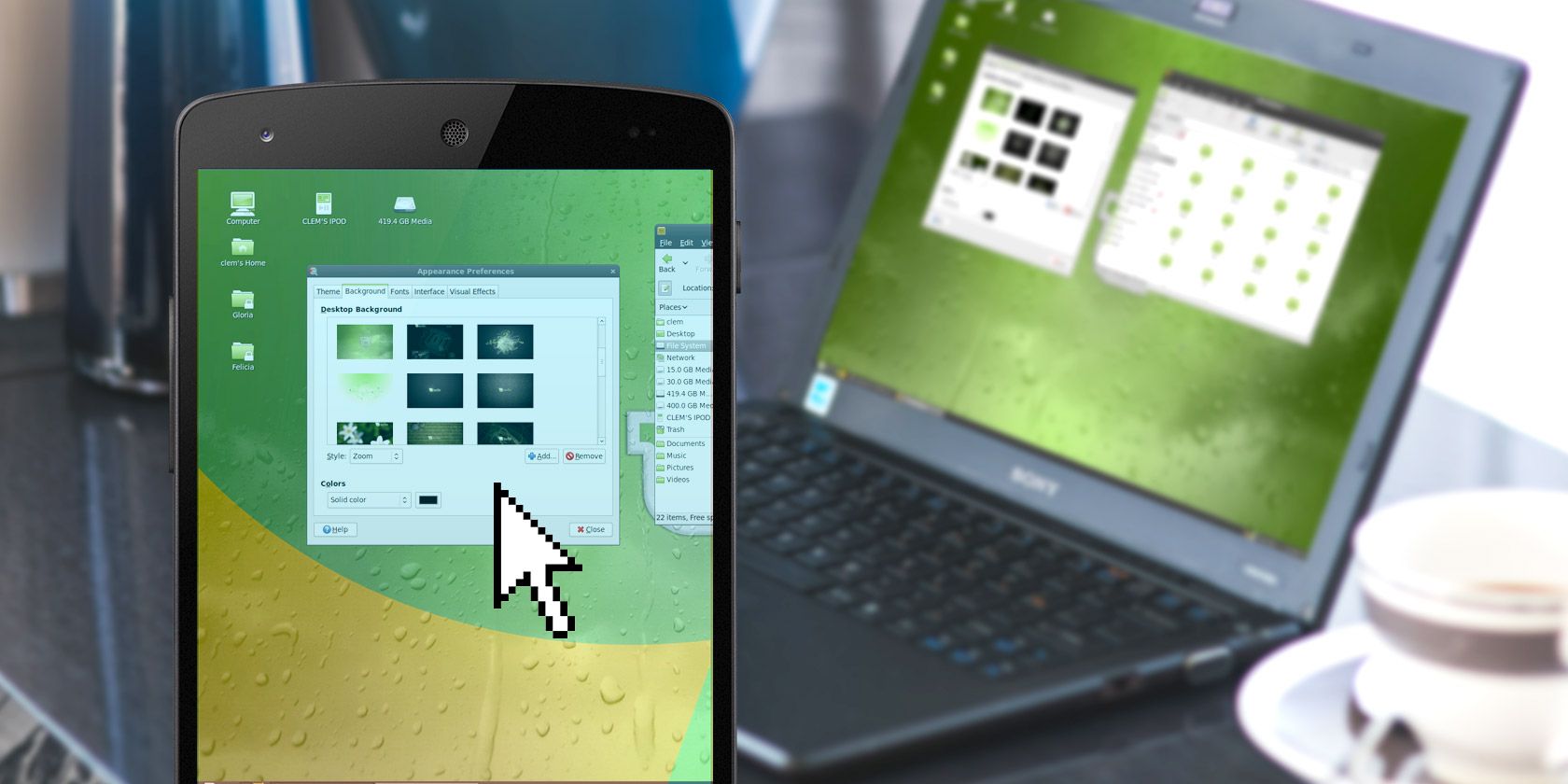
If your mouse breaks or your laptop touchpad becomes defective (or soaked in coffee) a replacement pointing device is paramount. AndroMouse lets you remotely control Linux, Windows, and macOS systems via Wi-Fi or Bluetooth.

The app pairs with a server application that you’ll need to install on your computer first. You can then use AndroMouse as a mouse with tap, drag, and pinch gestures, or as a keyboard. Function keys are supported, and the app also provides remote shutdown, file browsing, and voice commands. Presentation Mode can remotely switch slides on public presentations.

To get rid of ads, you can purchase the Pro version. Note that for some reason, the free and paid apps have different names on the Play Store, but rest assured they’re the same one. Alternatives to AndroMouse include Blink Linux Remote Control and DroidMote.

Download: AndroMouse Lite (Free) | AndroMouse ($1.99)

2. Remote Ripple: Remote Desktop Sharing With VNC

Viewing your remote Linux desktop on an Android phone or tablet is a massive productivity boost. The best way to achieve this is with the VNC (Virtual Network Computing) technology. This allows remote access across networks and uses the RFB (Remote Framebuffer) protocol to share the screen and provide remote access options.

TightVNC is among the most popular remote desktop applications, and Remote Ripple is its official Android client app. The procedure is simple: install the server on Linux and run the app on Android to establish the connection. Just use this command:

sudo apt install tightvncserver -y

From there, use Remote Ripple to only view the desktop, or open and edit files on it in full-control mode. There’s a mouse tool to help you move the cursor on the desktop. If you want to create a more secure connection, you’ll need the Pro version.

Remote Ripple isn’t the only VNC viewer. bVNC Secure VNC Viewer supports TightVNC, UltraVNC, TigerVNC, and RealVNC. If you prefer dead-simple remote control of Linux instead, see how Chrome Remote Desktop works. You can also remotely access a Windows desktop from Android.

Download: Remote Ripple Pro ($3.99)

3. Unified Remote: Remote File Browsing and App Launching on Linux

Unified Remote aims to be the end-all solution for Android-to-Linux remote control. It supports both Wi-Fi and Bluetooth connections, and works as a mouse, keyboard, or gamepad. You’ll need the server app on the desktop, but beyond copying the server address to the client, it requires little configuration.

Unified Remote comes with several predefined remote settings. These are intended for popular multimedia apps like VLC, as well as everything else that needs a remote control. The strongest feature, however, is the ability to create completely custom sets of functions to launch and control any app you want.

If this doesn’t work for you, other options with customizable remote settings are available. Check out Home Remote Control and Remote iT.

Download: Unified Remote (Free) | Unified Remote Full ($4.99)

4. VLC Remote: Control VLC Media Player With Android

If VLC is your favorite Linux media player, this app is a must-have. With VLC Remote, you can toggle fullscreen mode, browse cover art, manage subtitles, adjust aspect ratio, and modify sound output. Use discs? You can even control DVD and Blu-ray playback.

If you want to remotely browse files on your Linux system, too, you can do so with VLC Remote’s paid version.

Alternative media player remotes for Linux are plentiful in the Play Store. Clementine Remote is designed for the Clementine Music Player; similarly, MPDroid remotely controls Linux’s MPD music server.

Meanwhile, if you use Kodi as your media center, the Kore app for Android provides full remote control.

Download: VLC Remote Free (Free) | VLC Remote ($2.99)

5. JuiceSSH: Remotely Access Linux Files

If desktop sharing is overkill, but you still want to remotely manage files on Linux, consider SSH. The SSH (Secure Shell) protocol enables remote Linux access even from older Android devices. It’s an encrypted connection that lets you manage and troubleshoot a Linux computer or server.

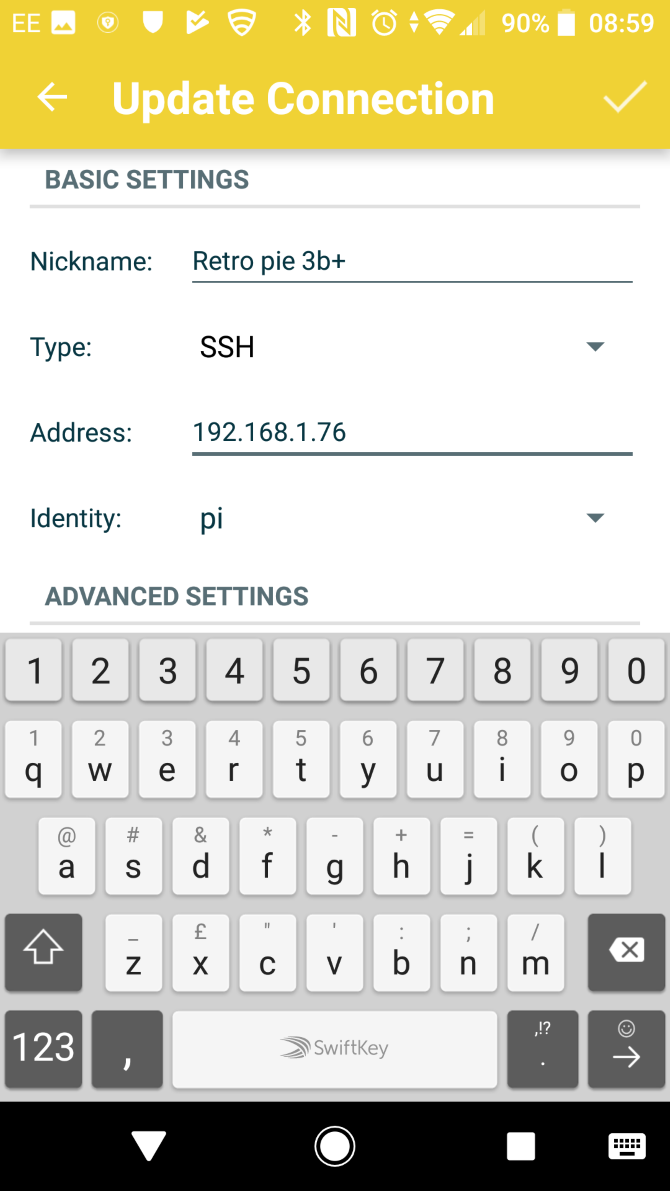
JuiceSSH is an SSH client for Android that supports terminal color schemes, adjustable font size, plugins, and gestures. You can password-protect your connection with a Linux computer and create custom profiles (“identities”) for each connection. Just be sure to first enable SSH remote connections to your Linux PC first.

It’s also possible to save session transcripts and maintain multiple active SSH connections. Additional port forwarding, security, and sync options are available through in-app purchases. JuiceSSH is ideal for remote admin of Linux devices, especially Raspberry Pi and other hobbyist Linux systems.

Other SSH clients for Android include Connectbot and Termius.

Download: JuiceSSH (Free, premium version available)

6. Play Linux Games Remotely On Android

Stream games from Steam to Android

Your remote control with Android isn’t limited to just productivity and media playback on Linux. You can even play PC games remotely with Steam Link.

This is a built-in feature of the Steam gaming client that Valve offers to make PC games more accessible. Better still, it means a whole selection of top PC games run on Linux.

With the Steam Link app installed on Android, you can remotely play any game that’s installed on your PC. Just check Enable Remote Play in the Remote Play tab of Steam’s Settings to allow access. See our guide to playing Steam games on Android for more information.

Download: Steam Link (Free)

Remote Control Any Linux Operation With Android

There are many more apps that help you control Linux with an Android device, but these ones should get you started.

Looking for an Android app to control your media and smart home devices? We’ve show how to use the Peel Smart Remote app for entertainment control. And if you want to control other desktop platforms from Android, check out how to remotely control your computer from your phone.

Read the full article: The 6 Best Android Apps to Remote Control Your Linux PC

How to Run Command Prompt Commands With a Desktop Shortcut


command-prompt-powershell

Opening the command prompt and typing in a command manually can get tiresome, but what if you could create a desktop shortcut to run commands whenever you please? Fortunately, while it’s not immediately obvious how to do this, it is possible in Windows 10 to create a command prompt shortcut.

Let’s explore how to make a Windows shortcut that runs a command prompt.

How to Open Command Prompt via Windows 10 Shortcut

To start, let’s explore how to open the command prompt using a Windows 10 shortcut. It won’t do anything right away; you’ll still have to manually type in the command you want to do. However, what we’ll cover here will act as the basis for the other commands we’ll cover in this article.

First, we need to create a CMD shortcut. To do this, right-click in an empty space in File Explorer or the desktop. Then, go to New > Shortcut.

Creating a new shortcut

When you click this, Windows 10 will immediately show a pop-up window asking for a location. In this window, type "C:\Windows\System32\cmd.exe" then click Next.

This is telling Windows to go into the system files and run the Command Prompt executable. If your Windows 10 installation is on another drive, replace the “C:\” with the drive you use for your OS.

Defining a path for the shortcut

Once you click Next, you can name the shortcut something memorable. Give it a name like “Open Command Prompt” and click Finish.

Naming a new shortcut

Now when you double-click your new shortcut, the command prompt appears.

How to Run a Command via Windows 10 Shortcut

Now that we’ve got the basics down, let’s learn how to make a CMD shortcut with a command built into it. If you want to make a new shortcut, repeat the steps above; however, if you want to edit the command you created previously, simply right-click it, click Properties, then add your new command under Target.

Changing the path of a shortcut

Now, let’s run a command via our shortcut. To do this, type "C:\Windows\System32\cmd.exe" /k followed by your command.

For example, "C:\Windows\System32\cmd.exe" /k echo hello world will tell the command prompt to print “hello world.”

You may notice the odd “/k” in the middle of the command. This tells the command prompt to run what we type after it, then stay open so that you can see the result.

If you prefer the command prompt to close as soon as it’s done, replace this /k with /c instead.

How to Run Multiple Commands via Windows 10 Shortcut

You can also chain multiple commands together. Just add an ampersand (&) between each command to chain them.

For example, "C:\Windows\System32\cmd.exe" /k echo hello & echo world will print “hello,” then “world.” You don’t need to repeat the /k or /c for each command; one at the start will do.

Examples of Useful Commands to Have As Shortcuts

Now you have everything you need to run commands from a shortcut, whether you want to manually type the command or automatically run a pre-set one. As such, let’s take some time to explore some useful ways you can use this tool to make specific tasks easier.

Ping or Trace the Route of a Specific Website or IP

If a website you visit goes down often, or you want to check the health of a remote server, the ping and tracert commands come in great use. Ping lets you see how fast your connection between you and the target is, while tracert lets you see each step in the connection.

To set up an automatic ping command, enter "C:\Windows\System32\cmd.exe" /k ping followed by your target.

For example, "C:\Windows\System32\cmd.exe" /k ping www.google.com will let you know how fast you can contact Google in milliseconds.

Likewise, using "C:\Windows\System32\cmd.exe" /k tracert followed by your target will show you every step taken between you and the server. Using this on Google will show you all the servers your connection visits before it reaches the website.

If you’d like to know more about these commands, be sure to read up on the wireless network commands in Windows.

Flush the DNS Cache to Resolve Connection Issues

If you keep having DNS connection issues, why not set up an automatic shortcut that flushes your DNS cache? Just create a shortcut with "C:\Windows\System32\cmd.exe" /k ipconfig /flushdns and double-click it every time a DNS connection problem appears. You may even want to use /c for this command to close it once it’s finished.

Are you unsure as to what flushing the DNS cache actually does? Then be sure to read about what DNS is, and why it can become unavailable.

Check Your File System’s Health With Chkdsk and SFC

If you want to quickly check how your file system is doing, you can do so using Checkdisk (chkdsk) and the System File Checker (SFC). Chkdsk scans your entire computer for errors, while SFC does the same for just your important system files.

If you want easy access to these tools, you can create a checkdisk shortcut with"C:\Windows\System32\cmd.exe" CHKDSK /f C: , and an SFC command with "C:\Windows\System32\cmd.exe" /k sfc /scannow.

We covered both chkdsk and SFC in our guide on how to fix an unmountable boot drive, so be sure to check it out if you want to learn more about these commands.

Log Off, Restart, or Shut Down Your Computer

Finally, did you know that you can log off, restart, and turn off your PC from the command prompt? They all use the same “shutdown” command, but the variables you give the command defines which action you wish to perform.
All of the following commands are activated with "C:\Windows\System32\cmd.exe" /k shutdown, so enter that regardless of what you want to do. Then, add one of the following arguments to the end:

  • /l will log off the current user.
  • /r will restart the computer.
  • /r /o will restart the computer then boot back into the advanced startup options.
  • /s will turn off the computer.
  • /s /hybrid shuts down the PC, then prepares it for a fast startup.
  • /h will put the computer into hibernation mode.
  • /a cancels a current shutdown sequence, as long as it’s done during the time out period.
  • /t, when placed after a shutdown (/s) or restart (/r) command, defines how many seconds the PC will wait before performing that activity. Add a number after the /t to define the time; for example, /r /t 100 will restart the PC after 100 seconds pass.

Using the Command Prompt in a Smarter Way

Constantly re-typing commands can get tiresome, so why not create a shortcut that does the hard work for you? Now you know how to make a shortcut that, when double-clicked, will either open the command prompt or automatically execute a command of your choosing.

If you want to know what kind of commands you can use with your new trick, why not check out the CMD prompts every Windows user must know?

Read the full article: How to Run Command Prompt Commands With a Desktop Shortcut


Sprint 5G is no more, as T-Mobile focuses on its own network


A day after formally completing the sale of Boost, Virgin and other Sprint prepaid networks to Dish, T-Mobile is pulling the plug on Sprint 5G. The move is one in a long list of issues that need sorting out in the wake of April’s $26.5 billion merger. And like a number of other moves, it’s set to leave some customers in the lurch.

The end of Sprint’s 2.5 GHz 5G comes as T-Mobile opts to focus on its own network. T-Mobile already started the process in New York City, a few weeks after the merger and has since completed it in a handful of other cities, including Atlanta, Chicago, Dallas-Fort Worth, Houston, Kansas City, Los Angeles, Phoenix and Washington, D.C.

As CNET notes, while most of the Sprint 5G handsets won’t be able to make the transition, Samsung Galaxy S20 5G users are in the clear here. For everyone else, T-Mobile is offering up credits on leases for new 5G handsets.

T-Mobile told TechCrunch in a statement, “We are working to quickly re-deploy, optimize and test the 2.5GHz spectrum before lighting it up on the T-Mobile network.”

Along with the sale of Boost, 5G was a big selling point for T-Mobile’s Sprint acquisition. The carriers argued that the deal was necessary to keep them competitive with first and second place carriers AT&T and Verizon when it came to the next-generation wireless technology.

At the time FCC chairman Ajit Pai agreed stating, “This transaction will provide New T-Mobile with the scale and spectrum resources necessary to deploy a robust 5G network across the United States.”

Earlier this week, OpenSignal awarded T-Mobile the top spot in availability, noting, “In the U.S., T-Mobile won the 5G Availability award by a large margin with Sprint and AT&T trailing with scores of 14.1% and 10.3%, respectively.”


Read Full Article

Police roll up crime networks in Europe after infiltrating popular encrypted chat app


Hundreds of alleged drug dealers and other criminals are in custody today after police in Europe infiltrated an encrypted chat system reportedly used by thousands to discuss illegal operations. The total failure of this ostensibly secure method of communication will likely have a chilling effect on the shadowy industry of crime-focused tech.

“Operation Venetic” was reported by various police agencies, major local news outlets, and by Motherboard in especially vibrant form, quoting extensively people apparently from within the groups affected.

The operation involved hundreds of officers working across numerous agencies in France, the Netherlands, the U.K., and other countries. It began in 2017, and culminated two months ago when a service called EncroChat was hacked and the messages of tens of thousands of users exposed to police scrutiny.

EncroChat is a step up in some ways from encrypted chat apps like Signal and WhatsApp. Rather like Blackberry once did, EncroChat provided customized hardware, a dedicated OS, and its own servers to users, providing an expensive service costing thousands per year rather than a one-time purchase or download.

Messages on the service were supposedly very secure and had deniability built in by letting conversations be edited later — so theoretically a user could claim after the fact they never said something. Motherboard’s Joseph Cox has been following the company for some time and has far more details on its claims and operations.

Image Credits: EncroChat /

Needless to say those claims were not entirely true, as at some point in early 2020 police managed to introduce malware into the EncroChat system that completely exposed the conversations and images of its users. Because of the trusted nature of the app, people would openly discuss drug deals, murders, and other crimes, making them sitting ducks for law enforcement.

Throughout the spring criminal operations were being cracked open with alarming (to them) regularity, but it wasn’t until May that users and EncroChat managed to put the pieces together. The company attempted to warn its users and issue an update, but the cat was out of the bag. Seeing that its operation was now exposed, the Operation Venetic teams struck.

Arrests across the several countries involved (there were numerous sub-operations but France and the Netherlands were the primary investigators) total near a thousand, but exact numbers are not clear. Dozens of guns, tons (metric, naturally) of drugs and the equivalent of tens of millions of dollars in cash were seized. More importantly, the chat logs seem to have provided access to people higher up the food chain than ordinary busts would have.

That the reportedly most popular of encrypted chat companies focused on illegal activities could be so completely subverted by international authorities will likely put a damper on its competition. But like other, more domestic challenges to encryption, such as the perennial complaints by the FBI, this event is more likely to strengthen the tools in the long run.


Read Full Article