18 May 2020

Google Earth Tour Guide: 14 Virtual Tours You’ll Want to Check Out


google-earth-must-see

For ages, Google Earth has remained the go-to service for browsing our globe. You can use this app to visit all corners of the planet from the comfort of your living room. In 2017, Google Earth was also completely overhauled to add more features. This overhaul included additional Google virtual tours to the world’s most remote and amazing places.

Here are the best Google Maps tours that are available on Google Earth.

1. Life in the Ocean Deep

Google Maps Deep Ocean

With Life in the Ocean Deep, you can discover mysterious sea creatures with the help of renowned naturalist Sir David Attenborough. This Google tour takes you on a journey through the many quirky yet breathtaking creatures that inhabit our oceans, like glow-in-the-dark jellyfish and giant crabs.

Assisting this Google Earth tour are a series of videos and underwater maps.

2. UNESCO World Heritage Sites

Visit Unesco World Heritage Sites Google Earth

Looking to dive into the past? Follow this Google Maps virtual tour as it briefs you on thirty historic landmarks that were declared World Heritage Sites by UNESCO. The tour includes but is not limited to, India’s Taj Mahal, Cambodia’s Towers of Angkor Wat, and Spain’s Catedral de Sevilla.

If you’re dreaming of traveling, don’t forget to plan your itineraries with these smart travel planning apps.

3. This is Home

Google Tour Remote Houses

Sometimes home is where the heart is, even if that home is very far away. With This is Home, Google lets you visit traditional homes from around the world. You’ll even get to know about the history behind each of these places and get a glimpse inside the unique structures with Google Street View.

For instance, Jordan’s House of Hair is a string of tents constructed from the hair of camels and other animals. It’s located in the middle of the desert, but some of the other houses on this tour are located in even more far-flung regions than that.

4. Stop and Smell the Flowers

Google Tour Botanical Gardens Around the World

Stop and Smell the Flowers is a Google virtual tour that takes you on a journey through some of the most breathtaking botanical gardens and arboretums around the world. This tour highlights a total of eleven places, ranging from countries like Russia, Sweden, and Canada, to the Netherlands.

If you’re into gardening, then this one is for you.

5. Pilgrimage to Mecca

Google Tour Mecca

Every year, many thousands of Muslims embark on a pilgrimage to Mecca, a holy city for practitioners of the Islamic faith. Google’s virtual tour lets you learn about this practice, from landing at the Hajj Terminal Jeddah Airport to the final destination of Masjid al-Haram.

6. Global Flea Markets

Tour Flea Markets on Google Maps

Have you ever had an interest in bustling flea markets? Experience them yourself with this Google Maps virtual tour. This tour walks you through nine of the most iconic markets worldwide, such as France’s Les Puces de Saint-Ouen, India’s Anjuna Flea Market, and London’s Portobello Market.

While we’re still on the subject: If you want to plan a dream vacation, here are some easy ways that you can travel more cheaply.

7. Colorful Street Fests & Carnivals

Google Maps Tour Street Festivals

Being a land of diverse cultures and societies, the world is laden with numerous festivals. The most vibrant of them are covered in a Google Maps tour.

This tour features eight of the biggest celebrations from around the globe. These celebrations include the large-scale food fight La Tomatina in Spain, Holi in India, and Mardi Gras in New Orleans.

8. Comic Geek Destinations

Google Tour Comic Geek Destinations

Unleash your inner geek with this virtual tour that takes you on a trip through a bunch of iconic comic book spots. Comic Geek Destinations curates a total of ten locations known for appearing in various fictional universes. One of these locations is the Parkwood Estate. It was a mansion used by X-Men’s Professor Xavier for his school of “Gifted Youngsters.”

If you feel like doing some light reading after this tour, here are the best ways to read comics online for free.

9. Iconic Film Locations in the Mediterranean

Google Tour Film Locations

Are you more of a movie buff than a comic book aficionado? Try out this tour featuring iconic film locations in the Mediterranean.

In this tour, you can travel to each selected landmark where a movie scene has been shot. If you don’t want to use Google Earth to find these spots, however, here’s how to track down your favorite film locations using websites.

10. International Year of the Reef

Google International Year of the Reef

Coral reefs have been in peril for many decades now due to the threat of global warming. To raise awareness on this issue, a Google Maps virtual tour was set up to help familiarize the public with the basics.

With the International Year of the Reef, you can see how these marvelous underwater colonies are formed over millions of years. Each chapter in the tour also discusses fundamental topics like coral reef diversity. Additionally, it includes video highlights and subaqueous street view images.

11. In Mandela’s Footsteps

Google Virtual Tour in Mandela's Footsteps

Sometimes you can take a virtual walk through history. In Mandela’s Footsteps lets you follow the journey of the legendary political leader and former president of South Africa, Nelson Mandela.

This tour highlights the places that played a critical role in Mandela’s life. For example, there’s a page devoted to the University of Fort Hare. It was one of the first institutions in the region that allowed non-white people to study for a post-secondary degree.

12. Reading the ABCs from Space

Google Earth Tour Reading the ABCs From Space

Perhaps one of the most intriguing virtual tours available on Google Earth is Reading the ABCs from Space. Developed by NASA, this tour consists of twenty-six chapters that reveal locations on the planet that form an alphabet from space.

Our personal favorite is the letter “J” off the coast of Australia, which is made up of a coral reef.

13. The Beautiful Game

Google Maps Virtual Tour the Beautiful Game

If you’re in a World Cup spirit, you might want to check out The Beautiful Game. This Google Earth tour takes you on a trip through some of the planet’s most unforgettable soccer destinations. The destinations include the Allianz Arena in Munich, Barcelona’s Camp Nou, and Old Trafford in England.

14. National Parks of the United States

Google Maps Tour National Parks of the United States

Looking for natural wonders closer to home? Especially ones that will help you appreciate the great outdoors?

If so, then you need to check out the National Parks of the United States. It’s a virtual tour that will take you on a journey through the most pristine areas of wilderness from coast to coast, ranging from Acadia National Park to Denali.

Use a Google Tour to Visit the World

While all of these virtual tours are absolutely amazing, we’ve barely scratched the surface in just how many there are. If you go deep-diving through the archives, you’ll also find that the tours are divided into subcategories like nature, culture, education, and street view. The best thing about the tours is that they’re entirely free. A reliable, high-bandwidth connection to view them is a must, however.

For those that want to dig deeper into this app, it might surprise you to learn that Google Earth is an offshoot of Google Maps. With that in mind, take some time to understand how Google Maps works.

Read the full article: Google Earth Tour Guide: 14 Virtual Tours You’ll Want to Check Out


Read Full Article

The 5 Best Video Game Emulators to Install on Your iPhone or iPad


iphone-ipad-emulators

Modern mobile games are fine, but most of them can’t come close to classic games like Pokémon, Crash Bandicoot, Super Mario 64, or The Legend of Zelda. Thankfully, it’s possible to play all these classic video games and more on your iPhone using the best emulators below.

An emulator is a software imitation of a video games console. You can install emulators on your iPhone—without jailbreaking it—to play some of the most popular video games ever made. Here are all the best emulators to use on your iPhone or iPad.

About Emulators and ROMs

Apple doesn’t allow video game emulators on the App Store, but it’s still possible to install them on your iPhone, iPad, or iPod touch without jailbreaking your device. That does mean the emulators are sometimes a little bit unstable, but that’s a small price to pay for access to the best classic video games on your iPhone.

Most of the emulators in this list are available to download for free from websites like iEmulators or the AppMarket. But you can get better reliability if you pay for a BuildStore subscription. Otherwise, you may need to compile the apps on your iPhone using a computer.

For more information, check out our detailed guide about installing emulators on your iPhone.

After you install a video game emulator on your iPhone, you still need to get some ROMs to use with it. A ROM is the software version of a video game cartridge or disk. While you’ll need a ROM for each game you want to play, the same game ROM will work on every emulator that supports the console. For example, the same N64 ROM will work with any of the N64 emulators below.

Emulators are legal, but downloading ROMs for games that you don’t own is considered piracy. Some companies don’t mind if you create a “backup copy” of games you already own, but this isn’t always allowed either. While ROMs are freely available online, we don’t condone downloading them.

1. Delta (Game Boy, N64, SNES)

Delta is the best iPhone emulator for Nintendo enthusiasts. It’s the successor to the hugely popular GBA4iOS emulator; you can download an incredibly stable version of Delta using the Alt Store.

Delta supports a huge range of Nintendo consoles:

  • Game Boy, Game Boy Color, and Game Boy Advance
  • NES and SNES
  • N64
  • Nintendo DS (with a Patreon subscription)

With Delta, you can save your games in any state, take advantage of Quick Saves if you have an external controller, and sync all your data to Google Drive or Dropbox for safekeeping. You can even add cheat codes to your games to add some flair, or lock your favorite saves to make sure they don’t get overwritten.

If you’re looking to play Pokemon on your iPhone, this is the best emulator to use.

Delta lets you connect wireless PS4, Xbox One, and MFi game controllers, as well as Bluetooth or wired keyboards. You can customize the button mapping however you like, even saving presets on a per-system or per-controller basis.

Without an external controller, you can still customize the emulator skins that appear on your iPhone screen and choose buttons for Delta to hold down so you don’t need to keep pressing certain buttons as you play.

All this detail only scratches the surface of Delta. The developer is still working to improve it, with plenty more updates yet to come.

Download: Delta (Free)

2. Provenance (Nintendo, Sony, Sega, Atari)

You need to install Provenance by compiling it from a computer, but it’s well worth doing. Provenance is one of the oldest and most popular multi-platform emulators for iPhone. It’s especially good if you’re looking to play original PlayStation games on your iPhone.

Provenance emulates 30 systems, including major consoles from:

  • Nintendo
  • Sega
  • Sony
  • Atari
  • and more

You can save your games at any point, or record footage of you playing and sync all that data to iCloud. You can even choose to auto-load a particular save every time you open Provenance to start playing as quickly as possible.

Connect a wireless MFi, iCade, or Steam controller for better comfort while playing on a small screen.

Unfortunately, the developers of Provenance recently removed it from the most popular emulator websites. But you can still install it using an Apple developer account following the instructions on the Provenance Wiki.

3. iNDS (Nintendo DS)

We previously mentioned Delta as the best Nintendo emulator for iPhone. But to unlock Nintendo DS emulation on Delta, you need to pay for a Patreon subscription. That’s where iNDS comes in; this emulator lets you play Nintendo DS games on your iPhone for free.

Derived from the once-popular NDS4iOS emulator, iNDS is available for non-jailbroken devices through iEmulators and the BuildStore. As with all iOS emulators, Apple sometimes revokes the license for this app, which means you may need to wait for the developers to renew it before you can install it on your iPhone.

But once it’s working, iNDS will let you play Nintendo DS games at nearly full speed on iPhone 5 and newer, at up to 60FPS on newer iPhones.

Take advantage of save states and auto-save options to sync your game data over Dropbox so you never need to worry about losing your progress, even if the emulator does get revoked. iNDS also includes 100,000 game cheats for adding a new layer of fun to your favorite DS games.

Because the Nintendo DS features two screens, one above the other, you can use iNDS in portrait or landscape mode with both screens appearing in the center of your iPhone display. You can also customize the controller size and style, and even disable touchscreen on the second screen to avoid accidental taps.

Download: iNDS (Free)

4. PPSSPP (Sony PSP)

PPSSPP is dedicated to emulating PlayStation Portable (PSP) games on your iPhone, iPad, or iPod touch. While it should be able to run any PSP game on your device, older iPhones might not run the games at full speed.

Like all the other emulators on this list, you can create save states for your games, so you don’t need to worry about reaching a save point before exiting the emulator. You can also add cheats to your games for extra fun.

Perhaps one of the best features of PPSSPP is that it gives you the ability to transfer existing saves from your real PSP. So you can pick up in GTA: Vice City exactly where you left off.

Unfortunately, it doesn’t seem to have a built-in way to sync your games to the cloud. However, that might be best considering most PSP ROMs are extremely large files.

The PSP controls appear transparently over the game screen while you’re playing games, which means PPSSPP presents the largest screen possible on your device.

Download: PPSSPP (Free)

5. RetroArch (Atari, DOS, Genesis, PC Engine)

RetroArch brings together emulators for a long list of different consoles, offering a single slick interface to play all the best classic games on almost any device. You can install RetroArch on Windows, macOS, Linux, Android, and iOS, making it one of the most versatile emulators available.

Alongside Game Boy, SNES, and PlayStation emulators, RetroArch also supports older platforms, such as:

  • Atari
  • DOS
  • MSX
  • Neo Geo Pocket
  • PC Engine
  • Sega Genesis (Mega Drive)
  • and more

RetroArch uses the same gamepad for all the different emulators included. This makes it easy to get comfortable with the touchscreen layout no matter which game you’re playing, which could be one of many thanks to RetroArch’s wide support.

You can create custom save states and set your favorites to auto-load when you boot up the app. You can also lock the most previous saves to avoid overwriting them.

With RetroArch’s Netplay feature, you can connect to other players for multiplayer sessions. This works across multiple platforms, so you can even play with Android or PC users as well.

Other iPhone Gaming Options

Though they’re a bit of work to set up, emulators offer a ton of great classic games once you have them running. And these choices let you play a ton of games on any platforms you like.

If you find the emulators too much work to install, check out other great gaming options for your iPhone. You can also play many classic Sega games on iOS without bothering with emulators.

Read the full article: The 5 Best Video Game Emulators to Install on Your iPhone or iPad


Read Full Article

What Is Google Meet and How Does It Work?


whats-google-meet

Google Meet is a video conferencing service from Google. It’s a great solution for both individuals and businesses to meet on audio and video calls. It was born from Google Hangouts, but boasts some unique features.

In this article, we take a look at Google Meet, explaining what Google Meet is, and how it emerged from Google Hangouts. We also explore the best Google Meet features, and explain how to create or join a Google Meet meeting.

What Is Google Meet?

Google Meet call

Google Meet is a video conferencing service from Google. It was originally only available to enterprise customers, but everyone can now use Google Meet for free.

Google Meet is available on the web, and phones and tablets for Android and iOS.

Google Meet is primarily designed as a way to host video meetings. However, you can enable the camera and microphone independently, so you can just use it for audio calls if you wish.

You can create ad hoc calls and invite your friends and family. They can join by typing your meeting code or you can send them a link that they click on.

One of the best things about Google Meet is that you don’t need to install any software on desktop. Everyone in the call (the organizer and the attendees) simply has to be using a modern web browser.

Google Meet vs. Google Hangouts vs. Google Chat

Google Hangouts vs Google Meet

Google is known for having multiple chat services that all seem to do the same thing. It often changes the name of services or retires them, which leads to even more confusion.

Google Hangouts is a video and messaging platform. Google Hangouts split into Hangouts Meet and Hangouts Chat, which were then rebranded to Google Meet and Google Chat respectively.

All three of these services—Google Hangouts, Google Meet, and Google Chat—are separate and still exist. There’s also Google Duo (our guide to Duo and Allo). However, Google will likely retire Google Hangouts at some point, though the exact date is unknown.

If you want to host a video meeting for multiple people, use Google Meet. If you want to have a one-on-one conversation with someone, either in a video call or via text, use Google Hangouts or Google Chat. Check out our list of Google Hangouts tips and tricks.

You can find out more information regarding the differences between the chat apps on Google’s FAQ page.

What Are the Best Features of Google Meet?

Google Meet features

On the free plan, Google Meet supports meetings of up to one hour, though this has been extended to 24 hours until September 30, 2020.

You can create and join as many meetings as you like, so there’s nothing to stop you hosting a second meeting if you hit the hour limit.

Up to 100 participants can be in the same meeting. As a meeting organizer, you can mute other people, which you might want to do if your meetings reach that size.

Google Meet does its best to filter out any background noise that isn’t speech. It also has a live caption feature, which automatically captions what people say—it’s pretty reliable and great for accessibility.

You can also share your screen to everyone on the call. This can either be a specific window or the entire desktop, and it works on mobile too.

Finally, Google claims that “video conferences are encrypted in transit” and that “our array of safety measures are continuously updated for added protection”. Business users get enterprise-grade security, but for the average user the privacy settings are fine.

How Much Does Google Meet Cost?

Google Meet is free for everybody to create and join calls. All you need is a Google account (which you’ll have if you use Gmail), but that’s also free.

However, some features of Google Meet are only available via a paid G Suite subscription. This costs $10/active user/month. G Suite is targeted at enterprise users and is Google’s suite of collaboration and productivity apps.

Google Meet pricing

Some additional features that G Suite gives Google Meet are:

  • 300 hours meeting length
  • 250 meeting participants
  • US or international dial-in phone numbers
  • Meeting recordings saved to Google Drive
  • 24/7 online support

More information can be found on the Google Meet plans and pricing page.

How to Start a Google Meet Call

Google Meet start a meeting

To start a Google Meet call on desktop, go to the Google Meet website. Click Start new meeting. You will be prompted to log in to your Google account, if you’re not already signed in.

You will see a waiting area. Your browser will likely ask if you want to grant meet.google.com access to your microphone and webcam, so Allow both of these. Use the preview area to ready yourself, then click Join now to begin.

A window will pop-up with a link to share with others so that they can join the call. You can bring this up again at any time by clicking Meeting details in the bottom-left.

To start a Google Meet call on mobile or tablet, open the Google Meet app and tap New meeting. A pop-up will show you the meeting invitation details—tap Share to send this directly to someone in another app.

How to Join a Google Meet Call

There are two ways to join a Google Meet call:

1. Use a Google Meet Invite Link

The first is to ask the meeting host to send you the invite link. This will be formatted like meet.google.com/xxx-xxxx-xxx. (The characters at the end of this URL are also the meeting code, used in the second method below.)

On desktop, click the link and you will automatically join the meeting. You will need to log in to your Google account if you’re not already signed in, though if the host is using G Suite this step isn’t required.

On mobile or tablet, providing you have the Google Meet app installed, tap the link to launch the app and join the meeting.

2. Use a Google Meet Meeting Code

The second method is to ask the meeting host to give you the meeting code. You can then enter this to join the meeting.

On desktop, go to the Google Meet website and input the code in the Enter meeting code field, then click Join.

On mobile and tablet, launch the Google Meet app, tap Meeting code, input it in the field, then tap Join meeting.

Other Free Video Conferencing Apps

That’s everything you need to know about Google Meet and how to create and join video calls. However, if Google Meet doesn’t do it for you, take a look at our comparison pitting Zoom vs. Houseparty, two of the biggest video chat apps around right now.

Read the full article: What Is Google Meet and How Does It Work?


Read Full Article

Google Earth Tour Guide: 14 Virtual Tours You’ll Want to Check Out


google-earth-must-see

For ages, Google Earth has remained the go-to service for browsing our globe. You can use this app to visit all corners of the planet from the comfort of your living room. In 2017, Google Earth was also completely overhauled to add more features. This overhaul included additional Google virtual tours to the world’s most remote and amazing places.

Here are the best Google Maps tours that are available on Google Earth.

1. Life in the Ocean Deep

Google Maps Deep Ocean

With Life in the Ocean Deep, you can discover mysterious sea creatures with the help of renowned naturalist Sir David Attenborough. This Google tour takes you on a journey through the many quirky yet breathtaking creatures that inhabit our oceans, like glow-in-the-dark jellyfish and giant crabs.

Assisting this Google Earth tour are a series of videos and underwater maps.

2. UNESCO World Heritage Sites

Visit Unesco World Heritage Sites Google Earth

Looking to dive into the past? Follow this Google Maps virtual tour as it briefs you on thirty historic landmarks that were declared World Heritage Sites by UNESCO. The tour includes but is not limited to, India’s Taj Mahal, Cambodia’s Towers of Angkor Wat, and Spain’s Catedral de Sevilla.

If you’re dreaming of traveling, don’t forget to plan your itineraries with these smart travel planning apps.

3. This is Home

Google Tour Remote Houses

Sometimes home is where the heart is, even if that home is very far away. With This is Home, Google lets you visit traditional homes from around the world. You’ll even get to know about the history behind each of these places and get a glimpse inside the unique structures with Google Street View.

For instance, Jordan’s House of Hair is a string of tents constructed from the hair of camels and other animals. It’s located in the middle of the desert, but some of the other houses on this tour are located in even more far-flung regions than that.

4. Stop and Smell the Flowers

Google Tour Botanical Gardens Around the World

Stop and Smell the Flowers is a Google virtual tour that takes you on a journey through some of the most breathtaking botanical gardens and arboretums around the world. This tour highlights a total of eleven places, ranging from countries like Russia, Sweden, and Canada, to the Netherlands.

If you’re into gardening, then this one is for you.

5. Pilgrimage to Mecca

Google Tour Mecca

Every year, many thousands of Muslims embark on a pilgrimage to Mecca, a holy city for practitioners of the Islamic faith. Google’s virtual tour lets you learn about this practice, from landing at the Hajj Terminal Jeddah Airport to the final destination of Masjid al-Haram.

6. Global Flea Markets

Tour Flea Markets on Google Maps

Have you ever had an interest in bustling flea markets? Experience them yourself with this Google Maps virtual tour. This tour walks you through nine of the most iconic markets worldwide, such as France’s Les Puces de Saint-Ouen, India’s Anjuna Flea Market, and London’s Portobello Market.

While we’re still on the subject: If you want to plan a dream vacation, here are some easy ways that you can travel more cheaply.

7. Colorful Street Fests & Carnivals

Google Maps Tour Street Festivals

Being a land of diverse cultures and societies, the world is laden with numerous festivals. The most vibrant of them are covered in a Google Maps tour.

This tour features eight of the biggest celebrations from around the globe. These celebrations include the large-scale food fight La Tomatina in Spain, Holi in India, and Mardi Gras in New Orleans.

8. Comic Geek Destinations

Google Tour Comic Geek Destinations

Unleash your inner geek with this virtual tour that takes you on a trip through a bunch of iconic comic book spots. Comic Geek Destinations curates a total of ten locations known for appearing in various fictional universes. One of these locations is the Parkwood Estate. It was a mansion used by X-Men’s Professor Xavier for his school of “Gifted Youngsters.”

If you feel like doing some light reading after this tour, here are the best ways to read comics online for free.

9. Iconic Film Locations in the Mediterranean

Google Tour Film Locations

Are you more of a movie buff than a comic book aficionado? Try out this tour featuring iconic film locations in the Mediterranean.

In this tour, you can travel to each selected landmark where a movie scene has been shot. If you don’t want to use Google Earth to find these spots, however, here’s how to track down your favorite film locations using websites.

10. International Year of the Reef

Google International Year of the Reef

Coral reefs have been in peril for many decades now due to the threat of global warming. To raise awareness on this issue, a Google Maps virtual tour was set up to help familiarize the public with the basics.

With the International Year of the Reef, you can see how these marvelous underwater colonies are formed over millions of years. Each chapter in the tour also discusses fundamental topics like coral reef diversity. Additionally, it includes video highlights and subaqueous street view images.

11. In Mandela’s Footsteps

Google Virtual Tour in Mandela's Footsteps

Sometimes you can take a virtual walk through history. In Mandela’s Footsteps lets you follow the journey of the legendary political leader and former president of South Africa, Nelson Mandela.

This tour highlights the places that played a critical role in Mandela’s life. For example, there’s a page devoted to the University of Fort Hare. It was one of the first institutions in the region that allowed non-white people to study for a post-secondary degree.

12. Reading the ABCs from Space

Google Earth Tour Reading the ABCs From Space

Perhaps one of the most intriguing virtual tours available on Google Earth is Reading the ABCs from Space. Developed by NASA, this tour consists of twenty-six chapters that reveal locations on the planet that form an alphabet from space.

Our personal favorite is the letter “J” off the coast of Australia, which is made up of a coral reef.

13. The Beautiful Game

Google Maps Virtual Tour the Beautiful Game

If you’re in a World Cup spirit, you might want to check out The Beautiful Game. This Google Earth tour takes you on a trip through some of the planet’s most unforgettable soccer destinations. The destinations include the Allianz Arena in Munich, Barcelona’s Camp Nou, and Old Trafford in England.

14. National Parks of the United States

Google Maps Tour National Parks of the United States

Looking for natural wonders closer to home? Especially ones that will help you appreciate the great outdoors?

If so, then you need to check out the National Parks of the United States. It’s a virtual tour that will take you on a journey through the most pristine areas of wilderness from coast to coast, ranging from Acadia National Park to Denali.

Use a Google Tour to Visit the World

While all of these virtual tours are absolutely amazing, we’ve barely scratched the surface in just how many there are. If you go deep-diving through the archives, you’ll also find that the tours are divided into subcategories like nature, culture, education, and street view. The best thing about the tours is that they’re entirely free. A reliable, high-bandwidth connection to view them is a must, however.

For those that want to dig deeper into this app, it might surprise you to learn that Google Earth is an offshoot of Google Maps. With that in mind, take some time to understand how Google Maps works.

Read the full article: Google Earth Tour Guide: 14 Virtual Tours You’ll Want to Check Out


To overcome challenges, stop comparing yourself to others | Dean Furness

To overcome challenges, stop comparing yourself to others | Dean Furness

When you stop comparing yourself to others, you can accomplish great things, says wheelchair athlete Dean Furness. He shares how, after losing the use of his legs in an accident, he discovered a powerful new mindset focused on redefining his "personal average" and getting better little by little.

Click the above link to download the TED talk.

U.S. House approves remote voting, though the tech is unclear


Congress will allow remote voting for the first time in its history, after the U.S. House approved Resolution 965 late Friday in response to the coronavirus pandemic.

The measure — sponsored by Massachusetts Representative Jim McGovern — authorizes proxy voting by members for renewable periods of 45 days and allows for remote participation in committee hearings.

H.R. 965 could also permanently alter the way Congress operates through a provision that establishes a bi-partisan process to explore digital voting away from Capitol Hill.

Per the directive, “The chair of the Committee on House Administration, in consultation with the ranking minority member, shall study the feasibility of using technology to conduct remote voting in the House, and shall provide certification…that operable and secure technology exists.”

Previous House rules required in person voting only. The Senate still makes decisions by recording verbal “Yeas” and “Nays” on a tally sheet.

Friday’s congressional action is another example of how COVID-19 is forcing every organization in the U.S. to overhaul longstanding ways of doing things, usually through a mix of digital tools.

We still don’t have clear details on what tech the U.S. House will use to implement both the short and longer term provisions of H.R. 965.

The proxy voting arrangement will allow members to vote remotely through designated representatives on Capitol Hill — effectively a form of pinch-hitting for Congress. For remote participation in hearings, there are a range of options that could be selected — from Google Meet to Microsoft Teams. Last week, Dr. Anthony Fauci testified before the U.S. Senate using Zoom.

On determining long-term means for remote voting, that’s now up to the Chairperson of the Committee on House Administration —  representative Zoe Lofgren (D-CA) —  and the ranking minority member Rodney Davis (R-IL), who voted against H.R. 965.

Lofgren offered a preview of how it could shape up in a statement supporting H.R. 965 late Friday: “For voting on the floor, we will rely on a secure email system, coupled with member-driven, remotely-directed authorizations.  This system would use secure email for proxy votes: a solid, well known, resilient technology with very low bandwidth requirements that we understand very well from a cybersecurity standpoint.”

Of course, she and Republican Congressman Davis will have to find agreement on this during a time when both parties rarely agree on anything. The vote on H.R. 965 was split along party lines, with 217 Dems voting in favor and not a single Republican member supporting the measure.

In the past, Congress has resisted calls to allow for remote voting. There was discussion of the need for such provisions after the September 11 attacks and 2001 Anthrax attacks. These was overridden by a long time expectation that those elected to represent constituencies be physically present to vote.

Over the last two months, it appeared the House might become a last holdout in the U.S. for in person only workplaces, as much of the country has shifted to tech-enabled measures for remote operations.

Shortly after the coronavirus outbreak hit the U.S. in March, Congressman Eric Swalwell (D-CA) pressed a resolution with Arkansas Representative Rick Crawford (R-AR) that would allow members to participate virtually in hearings and vote remotely, under special circumstances.

US capitol building at night

Image Credits: Bill Dickinson/Getty Images

That was nixed by House Speaker Nancy Pelosi  who, at the time, wanted Congress to remain in session and present to pass the first coronavirus stimulus bill.

Two months and nearly one hundred thousand American deaths later, it appears COVID-19 could force one of the more significant procedural changes in the House’s 231 year history.

In person voting could soon be replaced with some form of two-factor authentication, digital voting. This could change longstanding patterns for how lawmakers travel, interact with constituencies, and divide their time between the Beltway and districts back home.


Read Full Article

Buzzy Ethereum wallet app Argent comes out of stealth


Argent is launching the first public version of its Ethereum wallet for iOS and Android. The company has been available as a limited beta for a few months with a few thousand users. But it has already raised a seed and a Series A round with notable investors, such as Paradigm, Index Ventures, Creandum and Firstminute Capital. Overall, the company has raised $16 million.

I managed to get an invitation to the beta a few months ago and have been playing around with it. It’s a well-designed Ethereum wallet with some innovative security features. It also integrates really well with DeFi projects.

Many people leave their crypto assets on a cryptocurrency exchange, such as Coinbase or Binance. But it’s a centralized model — you don’t own the keys, which means that an exchange could get hacked and you’d lose all your crypto assets. Similarly, if there’s a vulnerability in the exchange API or login system, somebody could transfer all your crypto assets to their own wallets.

At heart, Argent is a non-custodial Ethereum wallet, like Coinbase Wallet or Trust Wallet. You’re in control of the keys. Argent can’t initiate a transaction without your authorization for instance.

But that level of control brings a lot of complexities. Hardware wallets, such as Ledger wallets, ask you to write down a seed phrase so that you can recover your wallet if you lose your device. It requires some discipline and it’s hard to understand if you’re not familiar with the concept of seed phrases.

Even Coinbase Wallet tells you to back up your seed phrase when you first create a wallet. “We see them as advanced tools for developers,” Argent co-founder and CEO Itamar Lesuisse told me.

That’s why a new generation of wallets tries to hide the complexity from the end user, such as ZenGo and Argent. Creating a wallet on Argent is one of the best experiences in the cryptocurrency space. Your wallet is secured by something called ‘guardians’.

Trust your friends

A guardian can be someone you know and trust, a hardware wallet (or another phone) or a MetaMask account. Argent also provides a guardian service, which requires you to confirm your identity with a text message and an email. If you lose your phone and you want to recover your wallet on another phone, you need to speak to your guardians and get a majority of confirmations. If they can all confirm that, yes, indeed, your phone doesn’t work anymore and you want to recover your crypto assets, the recovery process starts.

Let’s take an example. Here’s your list of guardians:

  • Argent’s own guardian service
  • Two friends who are also using Argent
  • A Ledger Nano S hardware wallet

In total, there are five different factors involved, you including. If you lose your phone, you can recover your wallet by downloading Argent on another phone (factor #1), asking Argent’s guardian service to send you a text and an email to confirm your identity (factor #2) and confirming your identity with the Ledger Nano S (factor #3).

You have reached a majority and the recovery process starts. You’ll get your funds in 36 hours so that you have enough time to cancel it it’s a hijacking attempt.

But you could also have downloaded the Argent app on another phone (factor #1) and pinged your two friends (factor #2 and #3) directly. If they can confirm the same sequence of characters (emojis in that case), the recovery process would start as well.

“I’m interested in social recovery, multi-key schemes,” Ethereum creator Vitalik Buterin said in a TechCrunch interview in July 2018. It’s not a new concept as social media apps already use social recovery systems. On WeChat, if you lose your password, WeChat asks you to select people in your contact list within a big list of names.

In Argent’s case, social recovery adds an element of virality as well. The experience gets better as more people around you start using Argent.

In addition to wallet recovery, Argent uses guardians to put some limits. Just like you have some limits on your bank account, you can set a daily transaction limit to prevent attackers from grabbing all your crypto assets. You can ask your guardians to waive transactions above your daily limits.

Similarly, you can ask your guardians to lock your account for 5 days in case your phone gets stolen.

Betting on Ethereum

Argent is focused on the Ethereum blockchain and plans to support everything that Ethereum offers. Of course, you can send and receive ETH. And the startup wants to hide the complexity on this front as well as it covers transaction fees (gas) for you and gives you usernames. This way, you don’t have to set the transaction fees to make sure that it’ll go through.

The startup plans to integrate DeFi projects directly in the app. DeFi stands for decentralized finance. As the name suggests, DeFi aims to bridge the gap between decentralized blockchains and financial services. It looks like traditional financial services, but everything is coded in smart contracts.

There are dozens of DeFi projects. Some of them let you lend and borrow money — you can earn interest by locking some crypto assets in a lending pool for instance. Some of them let you exchange crypto assets in a decentralized way, with other users directly.

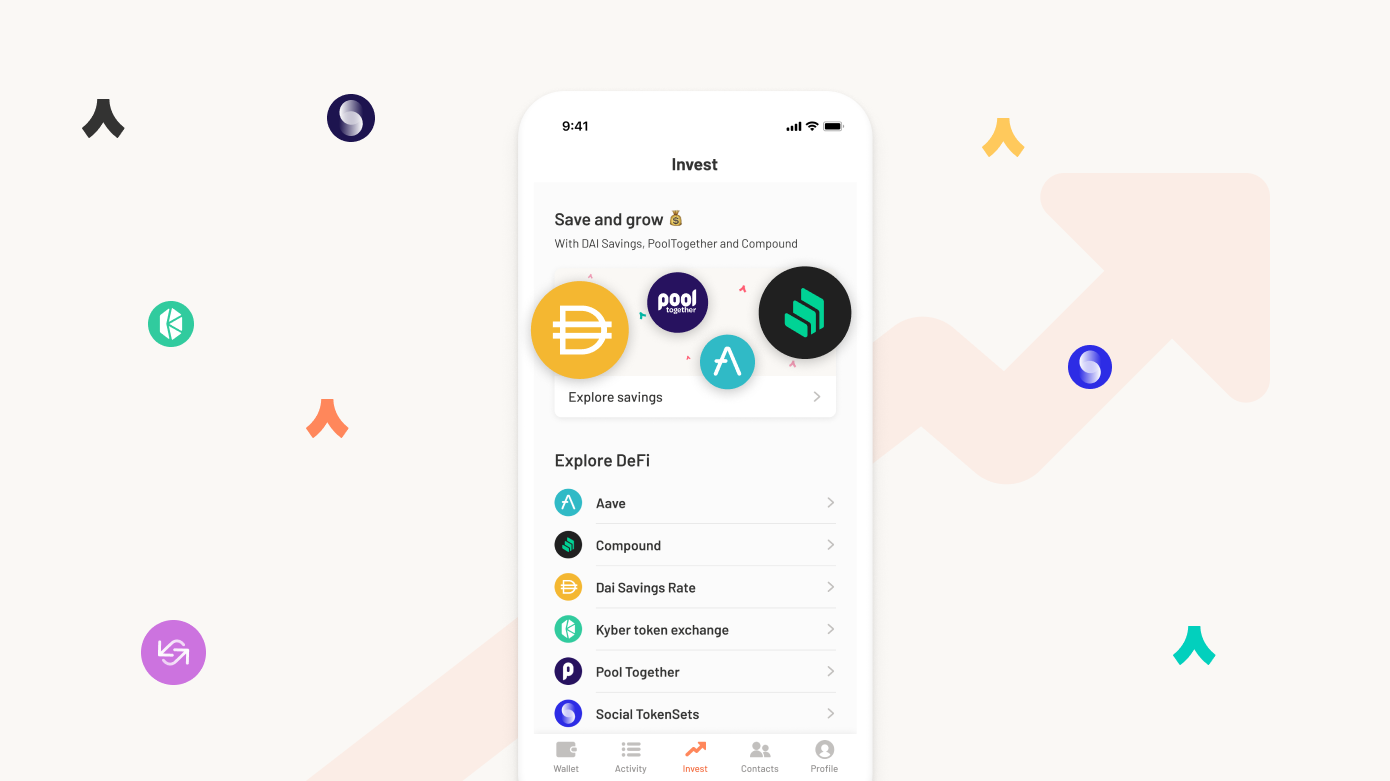
Argent lets you access TokenSets, Compound, Maker DSR, Aave, Uniswap V2 Liquidity, Kyber and Pool Together. And the company already has plans to roll out more DeFi features soon.

Overall, Argent is a polished app that manages to find the right balance between security and simplicity. Many cryptocurrency startups want to build the ‘Revolut of crypto’. And it feels like Argent has a real shot at doing just that with such a promising start.


Read Full Article

Intraday Trading Calls for 19-May-2020

Intraday Trading Calls for 19-May-2020

Please click on the following link to view full post.

https://intradayguruji.blogspot.com/2020/05/intraday-trading-calls-for-19-may-2020_18.html

Via http://intradayguruji.blogspot.com

Live Intraday Trading on 18-May-2020 (Profit 5300)

Live Intraday Trading on 18-May-2020 (Profit 5300)

Please click on the following link to view full post.

https://intradayguruji.blogspot.com/2020/05/live-intraday-trading-on-18-may-2020.html

Via http://intradayguruji.blogspot.com

Fitbit’s Chinese rival Amazfit mulls a transparent, self-disinfecting mask


The COVID-19 pandemic has ushered in a wave of Chinese companies with manufacturing operations to produce virus-fighting equipment: Shenzhen-based electric vehicle giant BYD quickly moved to launch what it claims to be the world’s largest mask plant; Hangzhou-based voice intelligence startup Rokid is making thermal imaging glasses targeted at the US market; and many more.

The latest of such efforts comes from Huami, the NASDAQ-listed wearables startup that makes Xiaomi’s Mi Bands and sells its own fitness tracking watches under the Amazfit brand in more than 70 countries. In a phone interview with TechCrunch, the firm said it is developing a see-through plastic mask with built-in ultraviolet lights that can disinfect filters within 10 minutes when connected to a power supply through a USB port.

The Aeri concept comes with built-in ultraviolet lights that can disinfect filters within 10 minutes when connected to a power supply through a USB port.

Called Aeri, the mask uses removable filters that are on par with N95 filtration capacity. If the concept materializes, each filter could last up to a month and a half, significantly longer than the average life of surgical masks and N95 respirators. The modular design allows for customized accessories such as a fan for breathable comfort, hence the mask’s name Aeri, a homophone of “airy”.

Aeri started from the premise that wearing masks could thwart the increasingly common adoption of facial recognition. That said, imaging companies have been working on biometric upgrades to allow analyses of other facial features such as irises or the tip of noses.

Aeri might still have a market appeal though, argued Pengtao Yu, vice president of industrial design at Huami. “Whether people need to unlock their phones or not, they want to see each other’s faces at social occasions,” said Yu, the California-based Chinese designer who had served clients including Nest Labs, Roku, GoPro and Huawei prior to joining Huami.

Huami’s U.S. operation, which focuses on research and development, opened in 2014 and now counts a dozen of employees.

Many companies turning to pandemic-fighting manufacturing have taken a hit from their core business, but Huami has managed to stay afloat. Its Q1 revenue was up 36% year-over-year to hit $154 million, although net income decreased to $2.7 million from $10.6 million. Its stocks have been declining, however, sliding from a high point of $16 in January to around $10 in mid-May.

Huami is in the process of prototyping the Aeri masks. In Shenzhen, which houses the wearables company’s headquarters, the development cycle for hardware products — from ideation to market rollout — takes as short as 6-12 months thanks to the city’s rich supply chain resources, said Yu.

Huami hasn’t priced Aeri at this early stage, but Yu admitted that the masks are targeting the “mass consumer market” around the world, not only for protection against viruses but also everyday air pollution, rather than appealing to medical workers. Given Huami’s history of making wearables at thin margins, it won’t be surprising that Aeri will be competitively priced.

The Aeri project is part of Huami’s pivot to enter the general health sector beyond pure fitness monitoring. The company has recently teamed up with a laboratory led by Dr. Zhong Nanshan, the public face of China’s fight against COVID-19, to track respiratory diseases using wearables. It’s also in talks with the German public health authority to collaborate on a smartwatch-powered virus monitoring app, the company told TechCrunch.


Read Full Article