09 May 2020

5 Fuss-Free Websites to Find What Book to Read Next


Book Recommendation Sites to Find Your Next Book

Which book should you read next? These websites will find the best book for your tastes and recommend titles by experts and famous people.

No matter how cooped up or bogged down you feel, books can be your escape. You can dive into a world that takes you away from harsh reality. And if fiction isn’t what you seek, you can learn more through engaged reading than any other media.

After all, successful and intelligent people don’t talk about the TV series they’re binge-watching, they talk about the books they are reading.

These websites take different routes to suggest books to read. Some work like multiple-choice apps, while others take the effort to ask experts what they think you should be reading. But whichever path you take, at the end of it, you’ll have a new book to enjoy.

1. Next Book to Read (Web): 3-Step App to Find Book Recommendations

Next Book To Read is a simple three step app to find books based on your tastes

Don’t you love it when an app does exactly what it says without making you jump through a million hoops? Next Book to Read helps you find a book that you’ll like based on your tastes. It’s a simple three-step process to get 15 recommendations each time.

First, pick genres that you’re interested in. Next, pick a few books you’ve already read and liked. At this step, you’ll also see four sliders to give weightage. You can look for something from the same author or series. Or you can find books with similar themes by dragging the Category or Description sliders.

The app will then deliver 15 book recommendations in a neat grid of covers. Hover over a title to read its brief description. There’s an option to email the list to yourself, and you can remove titles before the mail is sent. It’s a convenient way to discover new books to read and keep track of them.

2. The Quarantine Book Club (Web): Q&A Video Meetings With Authors

The Quarantine Book Club is like a virtual book tour event where authors interact with readers and answer questions about their book

The Quarantine Book Club is an online space to interact with authors in a Zoom meeting about their creations. Hosted by US-based design studio Mule Designs, it’s a chance to get the book tour experience from the comfort of your home.

The website lists all upcoming authors and the books they’re talking about. Each meeting has a $5 entry ticket, much like some real-life book signings and readings where you have to purchase the book to gain entry.

And just in case your economic situation isn’t great, don’t worry. The Quarantine Book Club has free entry voucher codes for each talk. Similarly, if you’re dissatisfied with the experience, you can ask for your money back.

The Zoom interactions are similar to what a book tour has. The author talks about their journey with the book, answers questions from the audience, and has a free-flowing interaction. The illustrious list of authors includes Cory Doctrow, Arjun Basu, Ariel Waldman, and many more. Check the website weekly for the updated list.

3. Good Books (Web): Books Recommended by Successful People

Good Books rounds up book recommendations from successful and famous people

Successful people read a lot. You’ll often find interviews or blog posts where they talk about a few books that helped them achieve that success or changed how they approached life. Good Books rounds up book recommendations by those who’ve made it.

The illustrious list of people includes Barack Obama, Bill Gates, Ariana Huffington, Emma Watson, Noam Chomsky, and many, many more. Search for a person you admire and you’ll find the books they think you should be reading. You can also browse people by the industry they’re famous for.

If you browse by books, you’ll find how many successful people say it’s a must-read. The top 100 books list is a good way to find new titles that many achievers think is worth reading. You can also browse by category and check new featured titles.

4. Five Books (Web): Expert Recommendations on Their Subject

Experts on a topic recommend five books on that subject in detailed interviews at Five Books

If you want to learn more about viruses, find out what an expert on the subject recommends you read. Instead of relying on suggestions by friends, Five Books seeks out experts and authors to get five book recommendations about their chosen field.

This cool website takes a different approach than just compiling recommendations based on different interviews and blog posts. Instead, Five Books conducts an interview with the expert.

After the expert names their five suggestions, the editors ask a series of questions about the books and why the expert considers them important. The interview is as illuminating as any critique or review of the book you’ll read online.

There are various ways to browse Five Books. Choose a genre, a region of the world, lists and round-ups, popular book awards, and new releases. The “popular expert interviews” is a good place to start.

And don’t forget to check the list of most recommended books, which is where many experts from different fields agree on a classic. It’s a unique way to find book recommendations to read.

5. Book Series in Order (Web): Read a Great Fictional Character’s Adventures

Book Series in Order (BSIO) arranges and recommends books by the order in which a famous character appears

Books have given us some of the greatest fictional characters, spread across series. James Bond, Miss Marple, Jack Reacher, Katniss Everdeen, and so many other characters are who we fall in love with. Book Series in Order (BSIO) lets you find all books that feature one of your favorites.

For example, if you like Jack Reacher, you’ll find all the books by Lee Child where he features. The website provides both the publication order and the chronological order. So you could go by the correct order of Reacher’s life rather than jumping back-and-forth in his timeline. You’ll also find other books and short stories where Jack Reacher has appeared, and a short biography of the character.

The website’s browsing experience lends itself to discovering new books. It suggests a new book of the month, featured authors, featured series, lists and best-ofs, and a newsletter with six to eight titles every fortnight. Each book title has quick links to pick it up on Amazon.

The Heavyweight Book Recommendation Sites

The websites on this list are some of the newer ways to find the best book to read. Of course, the internet has several book recommendation engines and forums that are much more popular.

From Goodreads and Gnook to Riffle and Whichbook, you need to try out these heavyweight book suggestion engines too. They are the best sites to find what book to read next.

Read the full article: 5 Fuss-Free Websites to Find What Book to Read Next


Read Full Article

5 Free Apps for Reminders to Take a Break From Screens


reminder-apps

You know that staring at the screen for too long isn’t good for your health or your eyesight, but it’s easy to get sucked in. Use these apps to get a reminder to take a break from apps and screen time, and take care of your health.

Continuous screen usage can lead to severe eye strain, neck pain in the cause of phones, and sitting too long causes health issues too. It’s also surprisingly easy to avoid all these problems by simply switching off every once in a while. Usually, a break reminder app is all you need.

1. Stretchly (Windows, macOS, Linux): Simple Reminder for Micro and Long Breaks

stretchly reminds you to take a break and stretch

For most people, Stretchly is the break reminder that will change how you use the computer. The app enables both micro-breaks as well as scheduled long breaks that will keep you focussed.

A small popup will let you know before it’s time to take a break, and then remind you when it’s time. One of the nicer features of Stretchly is that you can skip to the next break or micro-break at any time, in case you feel like stopping right now and not later. The micro-break is every 10 minutes, for 20 seconds, where the app recommends a few stretches to keep your body healthy. Every 30 minutes, it suggests a longer 5-minute break.

You can naturally customize the duration of micro-breaks and long breaks, as well as how long a break should last. In fact, Stretchly can even become a simple Pomodoro timer to be more productive.

In case you don’t want to take a break, you can skip the prompt and continue working. But if you do this too often, you’re putting your own health at risk. You might want to enable the “strict mode” to ensure you stick to the breaks.

Download: Stretchly for Windows | macOS | Linux (Free)

2. Stretch Reminder (Android, iOS): Reminders and GIFs to Stretch Periodically

Stretchly isn’t available for smartphones, but Stretch Reminder might be an even better app to take a break. It sends unobtrusive periodic reminders to look away from your computer screen and do a few stretches.

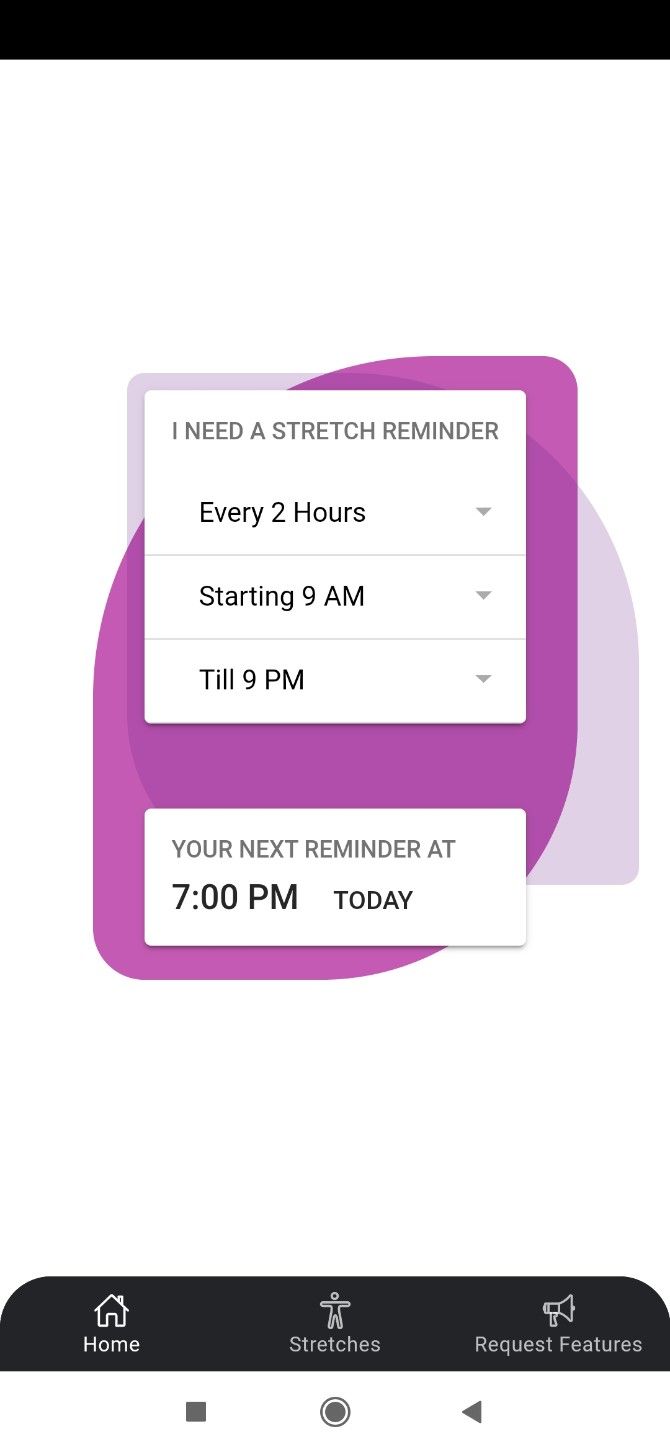
The app is simple and gorgeous. First, set how often you want to receive notifications. You can select an interval of one to six hours, and set a start and end time during the work day. When you get a reminder, head to the second screen of the app, Stretches.

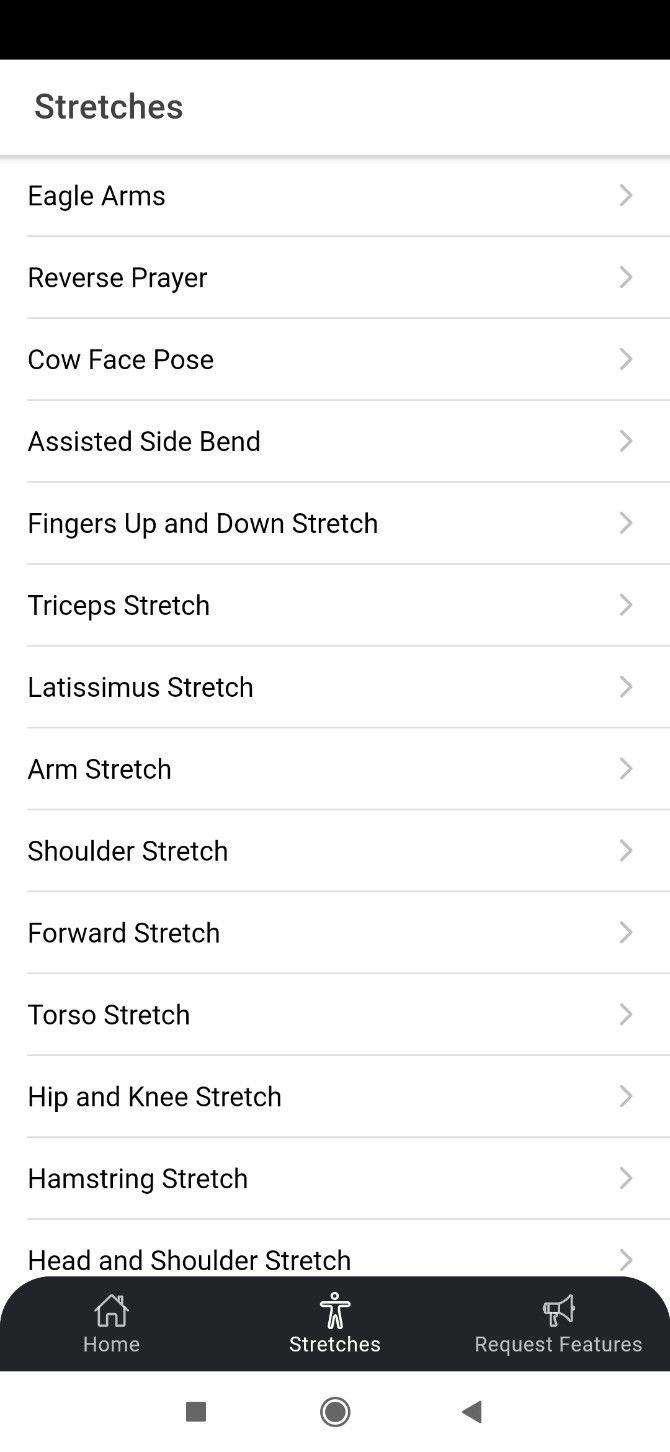
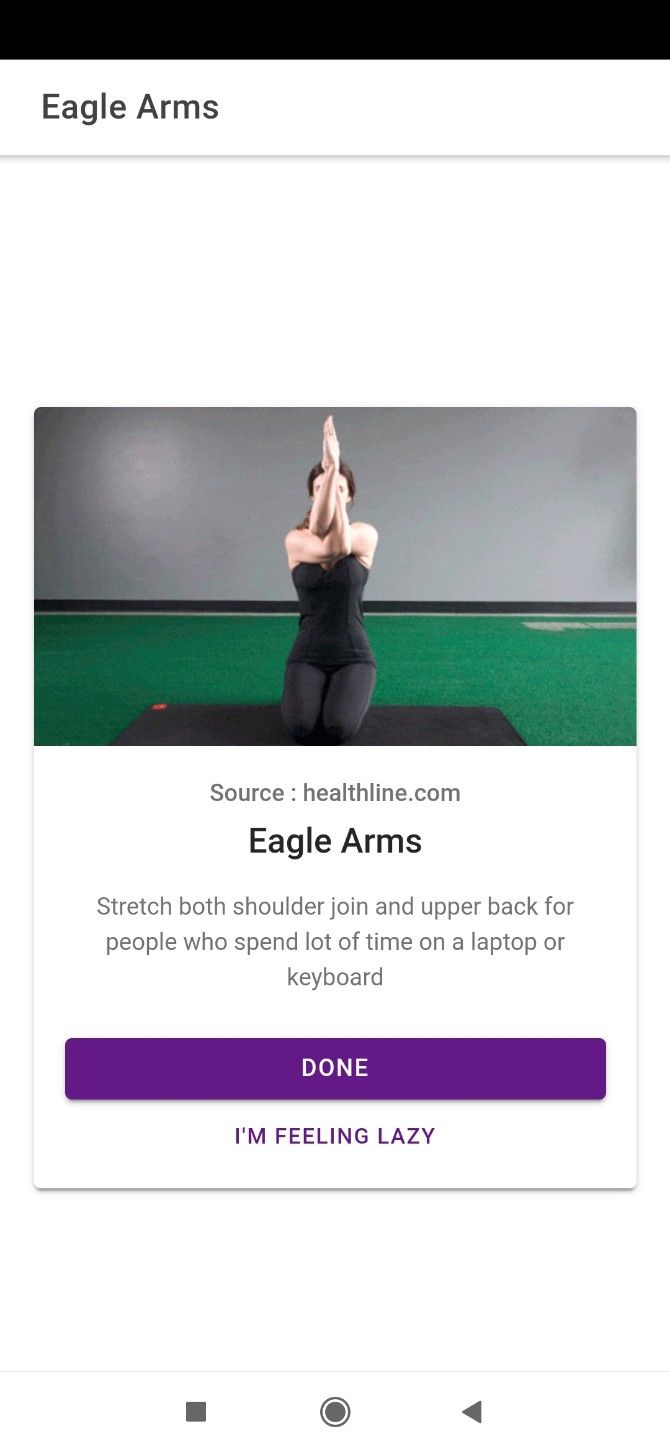
Stretch Reminder offers 17 different stretches that limber up different parts of your body. All of these stretches are made with an office worker in mind. They can be done while sitting on your chair, or require minimal room to stand. And they don’t look silly either, so you won’t be causing a scene in front of others.

I’d recommend starting with a break every hour, and trying different stretches each time to loosen up varied body parts. If you’re working in front of a screen for long hours, use this break reminder app to also take care of your shoulders and neck.

Download: Stretch Reminder for Android | iOS (Free)

3. Eye Care 20 20 20 (Android, iOS): Put Down Your Mobile

The screens of computers and phones are backlit, casting their light into your eyes. Over time, this can take a toll. In fact, you should check if you have the tell-tale signs of computer eye strain.

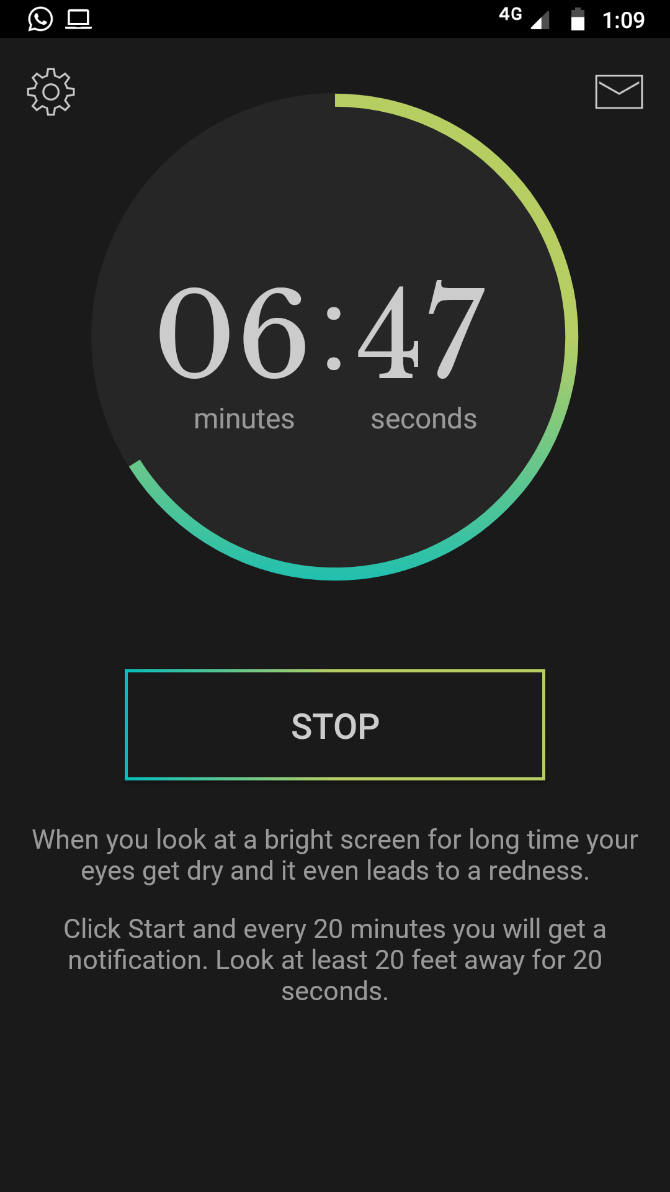
Eye Care 20 20 20 is a mobile app to relieve this eye strain using an age-old technique. The idea is that every 20 minutes of using a screen, look at something 20 feet away, for no less than 20 seconds. Apparently this is the relief your eyes need to stay healthy and not get dry.

The Eye Care 20 20 20 app will simply give you simple reminders when the time comes, and not mess around more than that. By that, we mean it isn’t reliant on whether the screen has been on for all of those 20 minutes or not, that reminder is coming.

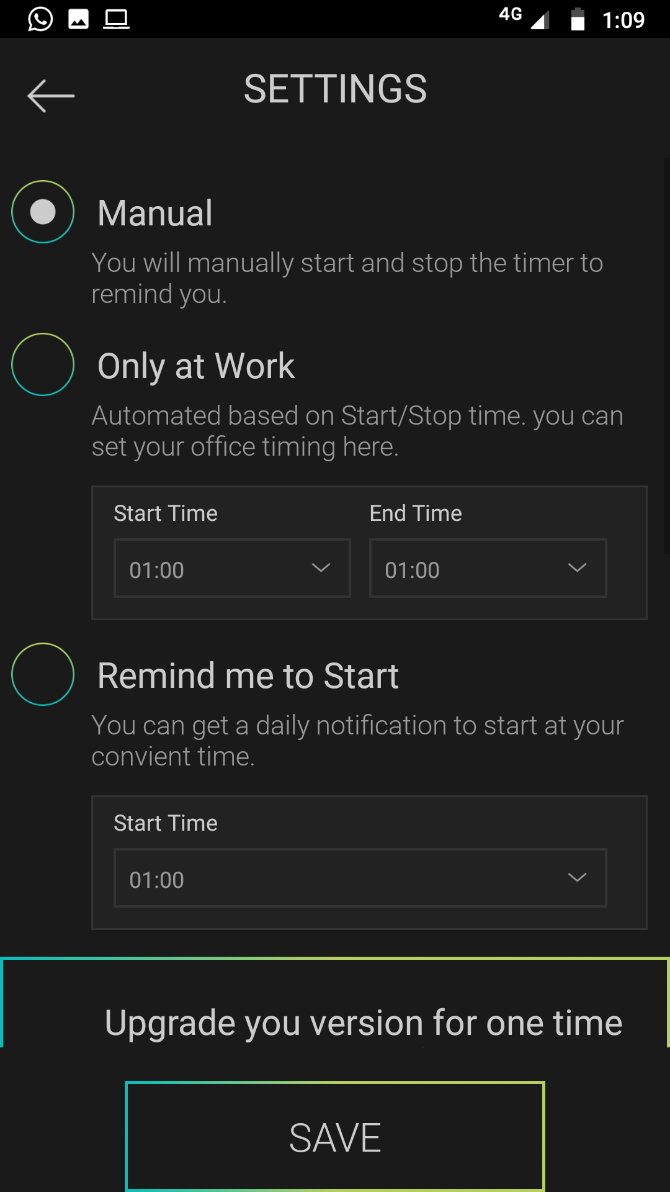
You can dive into the app’s settings to customize it further, so that you can either manually start it or set it to start automatically at a certain time every day.

Download: Eye Care 20 20 20 for Android | iOS (Free)

4. Unhook (Android): Set Screen Time Limits, And Walk to Get More Time

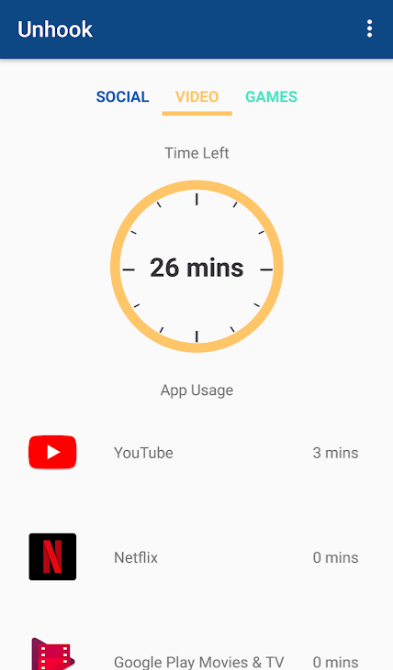
Unhook is the most different app in this list. It doesn’t have reminders to take breaks, but instead, it forces breaks upon you.

Here’s how it works. You set a daily time limit for different types of screen usage, such as social apps, video streaming, and games. Once you cross the limit you set, Unhook makes you walk to unlock more time. For every 100 steps that you walk, you will get 10 minutes of extra usage time on the phone. The data is gathered through the built-in Google Fit on Android, which you can sync with any of your favorite fitness apps as well..

Don’t worry, it isn’t an intrusive and strict app. When you really need to browse your phone but can’t be bothered with those extra steps, you can switch off Unhook and continue using the phone as usual. But use this sparingly, it’s all about self-discipline.

Download: Unhook for Android (Free)

5. Micro Breaks (Chrome): Customizable Reminder for Multiple Breaks

Micro Breaks is a customizable Chrome extension for periodic reminders to take breaks

If you use Google Chrome, don’t look further than this little extension for all your break reminders. Micro Breaks is the simplest and best tool for the job.

By default, there are a few reminders already set for healthy habits. This includes:

  • Breathing: Breathe in and out to manage stress, for 2 minutes, every 2 hours.
  • 20/20/20: Prevent digital eye strain by looking at something 20 feet away, for 20 seconds, every 20 minutes.
  • Break: A simple break, for 6 minutes, every 80 minutes.
  • Exercise: Stand up and stretch to relieve muscles, for 2 minutes, every hour.

Micro Breaks also lets you set up any custom reminders you might want, and it’s all free. This is hands down the simplest implementation of a timer reminder in Chrome. Nonetheless, you might want to check out other excellent Chrome extensions to keep you healthy at your desk.

Download: Micro Breaks for Chrome (Free)

Fix Your Posture Quickly

These apps solve that important problem of getting a reminder to regularly take a break from your computer or phone screen. You could also use the any other reminder app to help you. But they don’t always tell you what to do when you take those breaks.

One of the best options for desk workers is to try out this 3-minute exercise to fix your posture. You can do it anywhere, and it doesn’t look so weird that the whole office will stare at you.

Read the full article: 5 Free Apps for Reminders to Take a Break From Screens


Read Full Article

Here’s What People Are Searching Google for About You


people-search-google-for

You may be a father, mother, boss, or employee. However you identify, there are people out there searching Google about you. It’s amazing how many life secrets you can learn from a simple Google search.

The Google Autocomplete feature reveals a lot of search trends. What are people “Googling” about you? What are kids searching for about their parents? What do employees want to know about their boss?

The clues might help you build better relationships, improve your career, and it could even improve your family life. Ready for some amazing insights into what other people want to know about you? Let’s start.

Why Is Someone Googling You?

While online, especially when using social networks, it can be easy to forget your digital footprint. How many times have you looked up your own name lately?

The results may surprise you, but they can do a lot more for those who Google about you.

There are different reasons why someone would look you up, but some of the common ones involve social networking.

Just remember, those results provide an often unexpected amount of information to anyone searching for you. Before we discuss those results, here are some of the most common reasons people will look you up with Google Search.

Googling Before You First Meet

First impressions are important, but they can often occur before you’ve ever met a person.

Consider this, you’re about to meet someone, but you’re nervous. You want to leave a good impression, and you think you could use a little help.

By Googling someone, you’ll often get a glimpse into their hobbies and likes via social media channels. It’s a great way to gain information, and you’re not exempt from it.

Googling After Dating

Another reason you might end up a search result comes after dating. Your first date could go wonderfully, but your date might wonder if you’re too good to be true. A small amount of curiosity can turn into them finding all your social networks and other personal details.

This is one reason it’s important to know how to protect your privacy while online dating.

Googling by Employers

While potential employers Google you after an interview may seem unlikely to you, it occurs much more often than you think. Employers value their image, so they’re likely to respond to anyone who might indirectly tarnish it.

Some companies make it a policy to screen social media accounts and any reference on the web while others might check-in after a tip-off.

You don’t want your job security held hostage by a disgruntled coworker. This is why online privacy matters and you should reclaim it.

See What People Google About You

Regardless of what reason caused someone to Google you, it’s important to get a look through their eyes. There are different ways to go about doing this. However, the easiest first step is simply Google your name for yourself.

Depending on how common your name is, the nature of your work, and how active you are on social media all factor into what you’re going to see. If you’re comfortable with the results, you can stop right there.

However, you should do your due diligence to get a truly neutral look through a lens such as a VPN.

Use VPN Browser Add-Ons

Browsing for a VPN that works consistently can prove stressful. If you’re using Firefox, look at the best free VPN for Firefox. However, if you’re using Google Chrome, you’ll be able to use many of the same VPN options just as easily.

Once you’ve decided on one of the reliable VPNs to use, head back to Google. Search for your name and make sure the results haven’t shifted at all.

Use Free Anonymous Proxy Browsers

If you don’t want to use an add-on, you can also use anonymous proxy browsers. There are several proxies you can use but hide.me consistently works and makes it super easy to double-check your information.

On the site, enter Google’s address and choose a proxy located outside your native country.

Once you use Google to search your own information via proxy, you can move onto your response.

How to Respond to People Googling You

Now that you know what others are seeing, you’re probably wondering who’s exactly looking. Take advantage of these ways to find out who’s searching for you online. Even if you can’t figure out who is, between your Google results and mentions, you can begin to shape your privacy actively.

Be Self-Aware of Your Online Footprint

While it’s difficult to advise and provide information relevant to everyone, there are some details you can control.

If you Google yourself, and your results point unquestionably to your social media, personal websites, or work history then consider whether or not you’re leaving the right impression.

You can change your posting habits and the content on any social media or websites you control.

If you find yourself listed erroneously (say wrongful information about your work history) anywhere, you can also reach out via a site’s contact information to try and get it corrected.

Take Active Approaches to Improve Your Privacy

On the other hand, your information is fine, but you might want to keep it private from others. For instance, you don’t want just anyone to stumble onto your public social media page and glean information about you.

Also, be extra careful when linking your phone number to all your accounts. Personal contact information, like phone numbers or addresses are the most common things searched for and misused.

Still, an easy way to stay more private involves learning the privacy controls and protocol for the sites you’re on. These can vary widely between sites, so it’s important to stay informed.

However, it sometimes can be as simple as setting your profile information to private versus public.

Be Aware of What People Google About You

Someone Googling you may have never occurred to you before. But it’s important to know your information is out on the internet. Depending on your lifestyle and comfort levels, your response will differ. The important part is that you know now, and you have options.

Protecting you personal information is easier when you set tiny online habits. For instance, one way to stop Google’s data gathering involves simply avoiding Google and Bing and using alternative search engines that value your privacy.

Read the full article: Here’s What People Are Searching Google for About You


Read Full Article

15 Checklist, Schedule, and Planner Templates for Students


planners-checklist-templates

Templates are extremely useful for business documents, but for students they can be lifesavers.

You have enough to think about during the school year, so using a template can save a ton of time. Put your mind on your classes and use these helpful checklist and planning templates for the rest.

1. Homework Checklist

homework checklist teacher vision

For a plain and simple homework checklist, this template from TeacherVision is great for younger students, but can work for any age. Each subject is in its own spot with days of the week and check boxes to mark off as you complete assignments.

2. Printable Homework Planner

printable homework planner tidyform

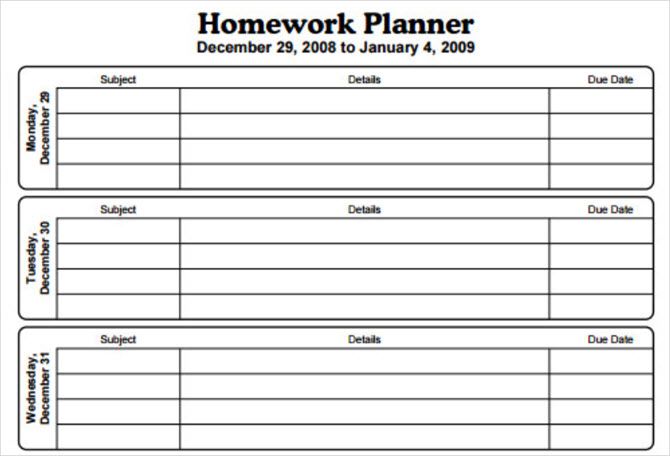
This next homework planner from TidyForm lets you easily plan your assignments for each day of the week and even the weekend. Instead of listing out the subjects, you can enter them yourself for the day and include details with due dates for each.

Note: you will need a PDF editor to make changes to the template on your computer.

3. Homework Schedule

homework schedule tidyform

Another planner from TidyForm breaks down your days into time blocks. Each hour slot is along the left side of the sheet with the seven days of the week across the top. This one is great for assignments, but you could use it for class schedules or work shifts to plan your entire week ahead of time.

It is a basic template, but a useful one.

4. Class Schedule and Planner

class schedule template tidy templates

If you need a more detailed planner, this schedule is intended for classes. However, it can also be used for more. It uses time blocks like the TidyForm planner, but breaks them down into increments that you choose. Adjust the start time and interval minutes and the sheet automatically updates. You can add your classes, pop in your homework time, and add shifts for work all in one place.

5. Assignment Schedule

assignment schedule vertex42

This template from Vertex42 is another with time blocks in 30-minute increments. And, this one has even more detail. On one side of the template, you can list out classes with assignments, dates, and times.

On the other side, you can add your class schedule or plan your homework and projects. The workbook also includes a Homeschool tab for parents homeschooling their children. Overall, it’s a good dual-purpose option.

6. Multiple-Task Planner

multiple task planner onenotegem

If you are a OneNote user, check out this option from OneNoteGem. You can quickly fill out subjects and assignments for five days of the week. This is ideal for classes that have many tasks on the same day.

For example, you may need to work on a group project, research a paper, and finish an assignment in one day. The template has a good amount of room for those to-dos.

7. Student Notebook

student notebook onenotegem

Also, for OneNote you can download an entire student notebook template. Just scroll further down on the OneNoteGem templates page for this option.

What’s nice about this template is that the notebook includes sections for planners, five classes, and research along with note-taking tips.

8. Class Schedule

class schedule vertex42

For a neat and flexible class schedule template, this one is available for Excel, OpenOffice, and Google Sheets. It is basic with time slots broken into 15-minute increments on one tab and 30-minute increments on another. Plus, it includes seven days of the week, unlike many others. For college students, this is a terrific class schedule template.

9. Student Planner

student planner vertex42

With a student planner that lists your subjects by week, you can stay on track every single day. Vertex42 has two templates to pick from that offer different layouts.

One option has the subjects down the left side with days of the week across the top. The other template is the reverse of that. Each has spots for to-dos and notes and is available for either Excel or as a PDF.

10. All-in-One Schedule and Budget

all-in-one schedule and budget office

For an all-in-one workbook for college, this Excel template has sheets for classes per term, course credits, a college budget, and textbooks. You can keep everything in one place. You can also track your overall progress and your current GPA.

11. Student Calendar

student calendar office

Another planner from Microsoft Office is this 12-month student calendar. There is a tab for each month, spots for a weekly schedule, and a section for assignments. The year cell is editable making it reusable for your entire college career.

This template makes planning study time and homework a breeze.

12. Dorm Room Checklist

Dorm Room Checklist

If you are heading to a dorm room for college, there is no better way to make sure you have everything than with this checklist template. You can add box numbers for packing and checks when you pack the items.

The template gives you sections such as kitchen supplies, electronics, computer equipment, safety items, and more.

13. Back to School Checklist

Back To School Checklist

For parents with kids in elementary or middle school, this checklist is perfect for back-to-school time. One column has tasks to take care of like verifying immunizations and obtaining a school supply list. The second column has items to purchase from clothes and a backpack to school supplies.

If you have a youngster getting ready for a new school year, this is the template for you.

14. College Budget

college student budget vertex42

When you need to keep an eye on your college budget, this template is just for it. The top section is for your funding and income with the bottom for your expenses. The most common types of college-related items are included, making this a convenient template for college students.

15. Monthly College Budget

monthly college budget office

This monthly budget tracker from Microsoft Office gives you a simple way to view your cash flow. You can glance at the pie charts at the top to get an overview of your income and expenses by month. Change the values below to add your items and the charts change automatically.

It’s one simple sheet with everything you need to budget each month.

Time for Class!

For classes, assignments, budgeting, supplies, course credits, and all that goes with these things, make sure you are prepared when the bell rings or classroom door closes. Now that you have these 15 awesome template options, you are on your way to starting the school year off right.

You might also check out these essential Windows apps for students to help with school.

Image Credits: Rawpixel.com/Shutterstock

Read the full article: 15 Checklist, Schedule, and Planner Templates for Students


Read Full Article

How to Search YouTube Like a Pro Using Advanced Search Operators


search-word-youtube

Most of the time, searching YouTube is easy: you simply type in a term and relevant videos appear. But what happens if you need a better YouTube search?

Thankfully, YouTube offers advanced search options that help you drill down and find what you’re looking for. Let’s look at advanced search options on YouTube and how to master them.

Unlock the "Top Google Search Keyboard Shortcuts" cheat sheet now!

This will sign you up to our newsletter

Enter your Email

Using YouTube’s Filter Options

Much of the time, you can use YouTube’s built-in filters to help narrow your search results.

To access them, first run a search on YouTube. Next, click the Filter button and you’ll see several filter options. You can choose just one of them or combine several for deeper searches.

Note that some combinations won’t work, however. For example, if you filter by upload date, you can’t also filter by channels.

YouTube Filters

Let’s quickly run through what these options offer.

Upload Date

This option makes it easy to find the latest content on YouTube. The date options are:

  • Last hour
  • Today
  • This week
  • This month
  • This year

If you’re looking for breaking news, content relevant to a recent software release, or other timely videos, these are a great help. Use them when the default results show outdated content.

Type

YouTube Channel Search

Want to search YouTube for something other than videos? You can change your search to look for Channel, Playlist, Movie, or Show content instead.

If you weren’t aware, full-length movies and shows are available to purchase on YouTube, which is what the last two choices are for. Shows doesn’t show YouTube Originals, though you can use it to find children’s shows on YouTube.

Duration

Looking for a quick video, or a longform piece on content to enjoy over dinner? Use Short to find videos that are under four minutes. Long will filter to only show videos that are longer than 20 minutes.

Features

YouTube 360 Video

This large section lets you filter by many different types of content on YouTube. There are too many to cover here, but some of the highlights include:

  • Live: See content that’s live on YouTube right now.
  • Subtitles/CC: Only show content that has subtitles. Great if you want to watch a video but can’t turn the audio up.
  • Creative Commons: Find content that’s licensed for reuse. See our guide to Creative Commons for an explanation.
  • 360 degrees: Filter by videos that let you click and drag to look all around. Try these with a VR headset, if you have one.

Sort By

YouTube View Count Search

By default, YouTube searches are sorted by Relevance, which means that YouTube tries to match your search intent. You can change this to Upload date, View count, or Rating if you’d prefer.

Most of these are self-explanatory. Upload date lets you find brand-new content, while View count makes it easy to find the most-viewed content on YouTube. Rating, however, doesn’t seem helpful. In our testing, it doesn’t show the highest-rated videos first and instead displays a random mix of videos old and new.

Using Filters As Operators

If you don’t want to click on these filter options every time, YouTube offers a faster way to include them in your search. Simply include a comma after your search term and one of the above keywords to filter by it.

For instance, typing “iPhone, week, short, HD” (without the quotes) would show videos about the iPhone uploaded this week that are under four minutes and in HD. You can use just one or as many as you like, and they work in combination with the advanced search operators below.

Master YouTube’s Advanced Search Operators

If the above options don’t help you find what you’re looking for, you can use advanced search operators in the search field. These will sound familiar if you’ve used Google’s advanced operators.

Search for Exact Matches

By default, YouTube will try to use all the words in your search phrase. Putting your search query in quotes instead will search for that exact string in both video titles and descriptions.

It’s useful for anything that requires precision, especially if your search term is ambiguous. Something like “2012 Honda Accord oil change” (in quotes) should filter out similar but unrelated results.

Force Specific Terms

YouTube Plus Operator

If you want to require one or more specific words to appear in your video search, you can use the plus operator.

For example, if you were looking for videos about NES version of Donkey Kong, you could enter “Donkey Kong +NES” (not including quotes) and all video results would include NES.

This is a handy way to combine terms for more specific searches, especially because YouTube can sometimes ignore a certain term in a long search query.

Exclude Terms From a Search

YouTube Minus Operator

The flipside of the above is the minus operator. This lets you remove certain terms from your search.

As an example, let’s say you wanted to watch clips of tennis from the Olympics, but didn’t want to include anything from the 2012 games in London. You could enter “Olympic tennis -London” to exclude anything that took place in London.

Search for Multiple Terms

If you want to find results that match at least one of several different terms, you can use the pipe operator. This returns results for the query on either side of the pipe.

For example, a search for “cats | dogs” would bring up videos containing either one or the other.

Search Video Titles Only

When you run a search, YouTube doesn’t just look at video titles. It also considers content in the video description, which can give you irrelevant results.

Using the intitle: operator, you can force YouTube to only search the titles of videos. Give it a try if the results don’t seem to make sense.

Add a Wildcard

Not sure what to search for? Let YouTube’s wildcard operator fill in for you. Adding an asterisk will fill in at least one word in its place.

It’s not useful in all situations, but it can help you find terms related to your search without much extra work. Try something like “best * of 2019” to discover something new.

Specify a Price Range

YouTube Price Search

Looking for product recommendations that fit into a certain budget? You can use two dots to specify a range of cost in video results.

For example, if you search for “build PC $200..$700” you’ll find guides on building your own PC with costs between those two values.

Search By Hashtag

Did you know that YouTube lets creators include hashtags on their videos? This can make it easier to find content grouped around a common theme.

To search by hashtag, simply enter one, like #ThrowbackThursday. Even if the video doesn’t have a hashtag in the title, YouTube will use ones from the video description. You’ll see a few of those hashtags above the video title once you click on it.

Find What You Need With YouTube Advanced Search

While YouTube doesn’t have a dedicated advanced search page, it’s still possible to perform custom YouTube searches with operators and filters. These should let you find whatever you’re looking for on YouTube.

If they weren’t enough for you, don’t forget that you can use the Google advanced operators mentioned above. Running a site:youtube.com search on Google will help you find relevant content on YouTube.

For more, have a look at other online services that offer advanced search.

Read the full article: How to Search YouTube Like a Pro Using Advanced Search Operators


Read Full Article

CRV’s Saar Gur wants to invest in a new wave of games built for VR, Twitch and Zoom


Saar Gur is adept at identifying the next big consumer trends earlier than most: The San Francisco-based general partner at CRV has led investments into leading consumer internet companies like Niantic, DoorDash, Bird, Dropbox, Patreon, Kapwing and ClassPass.

His own experience stuck at home during the COVID-19 pandemic spurred his interest in three new investment themes focused on the next generation of games: those built for VR, those built on top of Twitch and those built for video chat environments as a socializing tool.

TechCrunch: We’ve been in a “VR winter,” as it’s been called in the industry, following the 2014-2017 wave of VC funding into VR drying up as the market failed to gain massive consumer adoption. You think VR could soon be hot again. Why?

Saar Gur: If you track revenues of third-party games on Oculus, the numbers are getting interesting. And we think the Quest is not quite the Xbox moment for Facebook, but the device and market response to the Quest have been great. So we are more engaged in looking at VR gaming startups than ever before.

What do you mean by “the Xbox moment,” and what will that look like for VR? Facebook hasn’t been able to keep up with demand for Oculus Quest headsets, and most VR headsets seem to have sold out during this pandemic as people seek entertainment at home. This seems like progress. When will we cross the threshold?


Read Full Article

Google’s Duo video chat app gets a family mode with doodles and masks


Google today launched an update to its Duo video chat app (which you definitely shouldn’t confuse with Hangouts or Google Meet, Google’s other video, audio and text chat apps).

There are plenty of jokes to be made about Google’s plethora of chat options, but Duo is trying to be a bit different from Hangouts and Meet in that it’s mobile-first and putting the emphasis on personal conversations. In its early days, it was very much only about one-on-one conversations (hence its name), but that has obviously changed (hence why Google will surely change its name sooner or later). This update shows this emphasis with the addition of what the company calls a “family mode.”

Once you activate this mode, you can start doodling on the screen, activate a number of new effects and virtually dress up with new masks. These effects and masks are now also available for one-on-one calls.

For Mother’s Day, Google is rolling out a special new effect that is sufficiently disturbing to make sure your mother will never want to use Duo again and immediately make her want to switch to Google Meet instead.

Only last month, Duo increased the maximum number of chat participants to 12 on Android and iOS. In the next few weeks, it’s also bringing this feature to the browser, where it will work for anyone with a Google account.

Google also launched a new ad for Duo. It’s what happens when marketers work from home.


Read Full Article

Google’s Duo video chat app gets a family mode with doodles and masks


Google today launched an update to its Duo video chat app (which you definitely shouldn’t confuse with Hangouts or Google Meet, Google’s other video, audio and text chat apps).

There are plenty of jokes to be made about Google’s plethora of chat options, but Duo is trying to be a bit different from Hangouts and Meet in that it’s mobile-first and putting the emphasis on personal conversations. In its early days, it was very much only about one-on-one conversations (hence its name), but that has obviously changed (hence why Google will surely change its name sooner or later). This update shows this emphasis with the addition of what the company calls a “family mode.”

Once you activate this mode, you can start doodling on the screen, activate a number of new effects and virtually dress up with new masks. These effects and masks are now also available for one-on-one calls.

For Mother’s Day, Google is rolling out a special new effect that is sufficiently disturbing to make sure your mother will never want to use Duo again and immediately make her want to switch to Google Meet instead.

Only last month, Duo increased the maximum number of chat participants to 12 on Android and iOS. In the next few weeks, it’s also bringing this feature to the browser, where it will work for anyone with a Google account.

Google also launched a new ad for Duo. It’s what happens when marketers work from home.


Read Full Article

08 May 2020

Facebook’s redesign goes live with simplified navigation and dark mode


After months of testing, Facebook’s redesign is finally official. Announced last year at F8, the more minimalist approach to its desktop design has been rolled out in waves. In March, the company added an option to try out the new version. Users could switch back and leave feedback for why they had done so. This week, the redesign becomes official (and until you get it, the option to update manually is available, too). 

Change is hard, especially when it comes to redesigning a popular website. Even the best redesign still requires some rewiring of the user’s brain to adapt. Simplicity is the thing here — that’s a particularly big ask for a platform like Facebook, which is constantly adding new venues for content. Having played around with it in its earlier iteration, I can say that Facebook’s not afraid to leave blank canvas for this “fresh, simpler” design. Videos, games and groups are among those content types that will be prioritized here. 

The redesign takes cues from the mobile app, designed to offer faster load times and easier navigation (again, it will take getting used to).”We’ve grown since Facebook.com launched 16 years ago,” the company writes. “We’ve built new features, optimized for new devices and operating systems, and expanded to hundreds of languages. Recently we’d focused on the mobile Facebook experience, and realized our desktop site had fallen behind. People need it to keep up.”

For many, however, the biggest news here may be the long awaited arrival of dark mode for the desktop, as Facebook finally joins the likes of Twitter and countless apps. You’re no doubt well-versed with the benefits of dark mode: it’s easier on the ease and generally makes for a better video viewing experience (a top priority for the company, these days).

Also new is the ability to create groups, pages and, naturally, ads faster than before. The new version also offers previews of each, so you know what you’re getting yourself into before hitting Publish.

The company says it’s still actively seeking user feedback. So you can voice your inevitable dissatisfaction through the settings menu. Facebook will continue to tweak the design going forward, in a Sisyphean effort to please everyone on the internet.


Read Full Article

How American and Chinese values shaped the coronavirus response | Huang Hung

How American and Chinese values shaped the coronavirus response | Huang Hung

To combat COVID-19, countries have enforced city-wide shutdowns, stay-at-home orders and mask mandates -- but the reaction (and adherence) to these rules has differed markedly in the East and West. In conversation with TED's head of curation Helen Walters, writer and publisher Huang Hung sheds light on how Chinese and American cultural values shaped their responses to the outbreak -- and provides perspective on why everyone needs to come together to end the pandemic. (Recorded April 16, 2020)

Click the above link to download the TED talk.