23 April 2020

Apple said to sell Macs powered by in-house ARM-based chips as early as 2021


Apple’s long-rumored Mac ARM chip transition could happen as early as next year, according to a new report from Bloomberg. The report says that Apple is currently working on three Mac processors based on the design of the A14 system-on-a-chip that will power the next-generation iPhone. The first of the Mac versions will greatly exceed the speed of the iPhone and iPad processors, according to the report’s sources.

Already, Apple’s A-series line of ARM-based chips for iPhones and iPads have been steadily improving, to the point where their performance in benchmark tests regularly exceeds that of Intel processors used currently in Apple’s Mac line. As a result, and because Intel’s chip development has encountered a few setbacks and slowdowns in recent generations, rumors that Apple would move to using its own ARM-based designs have multiplied over the past few years.

Bloomberg says that “at least one Mac” powered by Apple’s own chip is being prepared for release in 2021, to be built by chip fabricator and longtime Apple partner Taiwan Semiconductor Manufacturing Co. (TSMC). The first of these chips to power Macs will have at least 12 cores, including eight designed for high-performance applications, and four designed for lower-intensity activities with battery-preserving energy efficiency characteristics. Current Intel designs that Apple employs in devices such as the MacBook Air have four or even two cores, by comparison.

Initially, the report claims Apple will focus on using the chips to power a new Mac design, leaving Intel processors in its higher-end pro level Macs, because the ARM-based designs, while more performant on some scores, can’t yet match the top-end performance of Intel-based chip technology. ARM chips generally provide more power efficiency at the expense of raw computing power, which is why they’re so frequently used in mobile devices.

The first ARM-based Macs will still run macOS, per Bloomberg’s sources, and Apple will seek to make them compatible with software that works on current Intel-based Macs as well. That would be a similar endeavor to when Apple switched from using PowerPC-based processors to Intel chips for its Mac lineup in 2006, so the company has some experience in this regard. During that transition, Apple announced initially that the switch would take place between 2006 and 2007, but accelerated its plans so that all new Macs shipping by the end of 2006 were powered by Intel processors.


Read Full Article

The 5 Best Bone Conduction Headphones


Headphones have changed the way we interact with the world. They aren’t perfect, though. Noise-cancelling technology is effective but shuts out everything around you. This makes them especially problematic if you need to maintain a safe distance from others while exercising.

Bone conduction headphones, on the other hand, use vibrations instead of audible sound waves to get your music into your ears, so you can still interact with the world around you. As you aren’t inserting anything into your ears or covering them, they are generally more comfortable, too.

If you’ve been considering switching, these are the best bone conduction headphones available today.

1. AfterShokz Titanium

AfterShokz Titanium AfterShokz Titanium Buy Now On Amazon $79.95

One of the most popular sets of bone conduction headphones are the AfterShokz Titanium. These are primarily aimed at active users as they even come with a set of reflective stickers for exercise in low-light. Bone conduction audio products lend themselves well to outdoor exercise as you must have an awareness of your surroundings.

To that end, the Titanium are IP55-rated for sweat resistance. The AfterShokz Titanium come equipped with Bluetooth 4.1 and are designed to wrap around your head, with the conduction points resting just alongside your ear. The company’s Premium Pitch technology can be found here, too, ensuring that you get a full dynamic range of audio reproduction.

This set also has microphones built-in, so you can still take calls on the go. Two external mics also provide noise-cancellation, so the outside world doesn’t interfere with the sound quality. This headset should last for up to six hours on a single charge.

2. Vidonn F1 Sports Headset

Vidonn F1 Sports Headset Vidonn F1 Sports Headset Buy Now On Amazon

The Vidonn F1 Sports Headset has also been designed with exercise in mind. The IP55-rated device is protected against sweat and light rain for peace of mind while exercising outdoors. Most bone conduction headphones use a standard wrap-around design, and that can be found here, too.

The F1 Sports Headset are equipped with Bluetooth 5.0 for an efficient and reliable connection to your device. They take just two hours to charge and can last up to six hours, long enough for most fitness sessions. The 180mAh battery even ensures that the headphones can last 10 days on standby, too.

There are also onboard mics so you can take calls and interact with your chosen voice assistant. A single button on the right-hand conduction pad gives you easy access to music controls. The headset is lightweight as well, thanks to the titanium alloy design. Vidonn evens offer a 12-month warranty on for F1 Sports Headset.

3. Zulu Exero

Zulu Exero Zulu Exero Buy Now On Amazon $59.99

The Zulu Exero are an affordable set of bone conduction headphones. These aren’t an entry-level option, though; they still come equipped with all the crucial features. The Exero weigh just one ounce. Thanks to this lightweight design, they’ll provide hours of comfortable use. Unlike traditional over-ear headphones, the Exero are even suitable to wear alongside glasses.

The wrap-around set rests just near your ear so that the vibrations can be felt around your upper-cheek and ear bones. Like the other options we’ve discussed, the Zulu Exero also have six-hour battery life on a single charge. Recharging the set is easy, too, thanks to the included micro-USB charging cable. The headset uses a Bluetooth 5.0 wireless connection.

There are built-in microphones as well, so you can take calls or talk to your phone’s voice assistant. When you need to mute the microphone, just press the button on the left conduction pad. This set is IPX5-rated for splash proofing and weigh just 0.96 ounces. The Zulu Exero are available in either black or grey editions.

4. AfterShokz Aeropex

AfterShokz Aeropex AfterShokz Aeropex Buy Now On Amazon $159.95

If you’re after a high-performance set of bone conduction headphones, then you’ll want to check out the AfterShokz Aeropex. This headset offers similar advantages to other devices in the company’s range. However, each feature here is a slight upgrade on other models. For example, audio reproduction has been engineered to perform well at both low and high frequencies.

This is no mean feat as bone conduction sets often struggle with treble frequencies. The Aeropex also offers an eight-hour battery life. The redesigned charging port means faster charging, too; they can reach a full charge in just two hours. To further enhance the Aeropex’s fitness credentials, they even come with a free sport belt for you to store your belongings while exercising.

The headset is IP67-rated for sweat and waterproofing. Due to this, they are the ideal companion for extreme weather conditions. There’s even a moisture detection alert, so you don’t damage the headphones while charging. Despite these improvements, the Aeropex clock in at less than 26 grams. You can even connect the Aeropex to two devices simultaneously.

5. Tayogo Bone Conduction Headphones

Tayogo Bone Conduction Headphones Tayogo Bone Conduction Headphones Buy Now On Amazon $33.99

Perhaps you want to try bone conduction technology. In this case, you may not want to spend large amounts on a device. If you’re after a budget set, consider the Tayogo Bone Conduction Headphones. Despite their low price, they are still feature-packed.

This set can last up to eight hours and uses a Bluetooth 5.0 wireless connection. The headphones are lightweight and are even IP65-rated for sweat and water resistance. There are physical controls on the conduction pads, too, for music selection. You can even make calls using the built-in mics.

With all of these features, they are great value for money. Tayogo even includes a one-year warranty with the headphones. However, don’t expect superior audio quality from this set. That said, if you’re on a budget and need a set of headphones for safe outdoor exercise, then this Tayogo set is an ideal choice.

The Best Bone Conduction Headphones for You

Bone conduction headphones leave your ears uncovered, enabling you to stay aware of your surroundings. This is in contrast to noise-canceling headphones, which aim to remove external sounds. You may even find wearing a set of bone conduction headphones more comfortable.

If you don’t enjoy the fit of over-head or in-ear headphones or need to be situationally aware, then bone conduction headphones are a great choice. That said, if you’d rather opt for a set of in-ear AirPod alternatives, check out the best affordable true wireless headphones instead.

Read the full article: The 5 Best Bone Conduction Headphones


Read Full Article

Upgrade Your Work-From-Home Setup With These HP Deals


Working from home has just taken on an entirely new and world-changing meaning. As a growing number of companies across the country are shutting their doors and altering their business models, millions of workers have found themselves setting up shop in their living rooms for the foreseeable future.

That once-humble home office setup that was up until recently only used for the occasional evening email has now been transformed into an all-out 9-5 work bunker, and it looks as though this is going to be the new normal for most workers in a variety of industries.

And while it’s tempting to bemoan the loss of your high-speed office internet connection and that fancy HD monitor that remains untouched in your walled-off corporate office, you should instead take advantage of this unprecedented work-life shakeup by upgrading your home office to the point where you’ll never want to leave.

From now until May 3rd, HP is making it easier than ever to work from home by allowing you to pick from a wide range of office gadgets and accessories that are available for a fraction of their usual cost with this mix-and-match deal.

You can get 20% off accessories with purchase of PCs as well as protect your PC with 20% off HP Care Packs when added at checkout.

From tablets and HD monitors to wireless keyboards and USB docks, the online HP store is stocked with best-selling products that will transform your home office into a full-fledged productivity behemoth.

Land a best-selling HP Elite Dragonfly Notebook that will help you craft captivating reports while you lounge on the sofa, treat yourself to an HD 24-inch monitor that allows you to multitask like a pro, grab a streamlined USB dock that makes it easy to simultaneously connect and sync all of your various devices at home, or perhaps grab a top-rated Jabra portable speaker system that can fuel your late-night work sessions by pumping out your favorite tracks in all of their sonic glory.

There’s no limit to the number of deal combinations you’ll be able to find, but the offer is only available until May 3rd, so stock up on these discounted work-from-home deals while you can.

Read the full article: Upgrade Your Work-From-Home Setup With These HP Deals


Read Full Article

Find New Podcasts Using Spotify’s Podcast Playlists


Spotify has launched a host of podcast playlists designed to help you discover new podcasts. These playlists will be curated by actual humans, and recommend the best podcasts based around a theme. These include true crime, celebrity, and climate change.

Spotify Starts Recommending Podcasts to People

In November 2019, Spotify launched the Your Daily Podcasts playlist. This was Spotify’s first official playlist dedicated to podcasts, and, similar to what Discover Weekly and Release Radar do for music, it recommends podcasts based on your listening habits.

Now, Spotify is ready to recommend more podcasts to you. A lot more podcasts. And its new podcast playlists are based around different genres and subject matters rather than your listening habits. Which means they could seriously broaden your podcast horizons.

How to Discover New Podcasts on Spotify

The three flagship podcast playlists are Best Podcasts of the Week, Crime Scene, and Brain Snacks. Best Podcasts of the Week curates a list of the week’s top podcasts, Crime Scene features true crime content, and Brain Snacks boasts short, educational episodes.

Spotify’s other podcast playlists are:

  • Murder Monday – For bone-chilling murder stories.
  • Who Run the World? – Inspiring stories of women.
  • This Week in Hollywood – Pop culture and entertainment news.
  • Family-Friendly Fun – Educational podcasts for the family.
  • Latinx and Proud – Latinx stories from cultural commentators.
  • Talk Flirty to Me – Stories from the world of dating.
  • Fodder for Foodies – A menu of tales from the world of food.
  • LGBTQ+ Voices – Stories from within the LGBTQ+ community.
  • Unsolved Crimes and Mysteries – Haunted houses and cold cases.
  • Climate Crisis – Conversations about climate change.
  • Real People, Real Stories – Personal stories about everyday life.
  • Let’s Talk Women in Hip Hop – Redefining the culture of hip hop.
  • Stay in the Know – Engaging podcasts going behind the headlines.
  • 100% Celebrity Interviews – Interviews with your favorite celebrities.

You’ll be able to find all of these playlists on Spotify. Either head to the Podcasts tab and browse through the available playlists, or search for an individual playlist by name. They will all be updated regularly, and Spotify is also promising to add more playlists soon.

Spotify Is Taking Podcasts More Seriously

Spotify is clearly getting into podcasts in a big way, taking the format more seriously over time. And these podcast playlists should help people discover new podcasts, just as Spotify’s algorithmic playlists help people discover new music to stream.

If you regularly listen to podcasts, be sure to check out these other articles:

Read the full article: Find New Podcasts Using Spotify’s Podcast Playlists


Read Full Article

Polar’s Grit X Smartwatch Is the Ultimate Outdoor Fitness Companion


Fitness-focused technology brand Polar has been releasing well-received fitness trackers and smartwatches for many years now. Their products are the ideal choice for exercise enthusiasts.

The company has just launched its latest wearable, the Polar Grit X. The smartwatch has been designed with outdoor exercise in mind, combining hardware and software to track your workout effectively.

What Is the Polar Grit X?

The Polar Grit X is a rugged smartwatch, packed with sensors and equipped with Google’s Wear OS operating system. It builds upon its high-end Vantage range of watches. However, the Grit X is one of Polar’s most comprehensive devices to date.

Adding to its outdoor credentials, the watch is designed to the US military-grade standard MIL-STD-810G. Despite this, it won’t weigh down your wrist, as it measures just 64 grams. If you plan to be away from home for an extended period while hiking or on endurance events, you won’t need to worry about the battery dying on you, either.

The Polar Grit X has an estimated 40-hour battery life while in use. When combined with the various power-saving settings available on the watch, you may be able to stretch this out to an incredible 100 hours.

Polar Grit X Features

Polar Grit X smartwatch

One of the most notable inclusions is the new Hill Splitter feature. This enables the watch to detect the uphill and downhill parts of your workout automatically. As a result, the Polar app can then offer you detailed performance reporting. This is a common theme among the Grit X’s features. Most of them don’t just record your workout; they analyze it, too.

Software capabilities like FuelWise, a rehydration and nutrition companion, and Komoot, turn-by-turn GPS guidance, alongside two-day weather forecasts, provide an end-to-end assistant to your workout. This is coupled with Polar’s Smart Coach, which combines heart rate data, FitSpark training plans, and personalized sleep analysis courtesy of Nightly Recharge.

Of course, other much-loved Polar highlights are here too, including their mobile app and web hub. The watch provides some of this analysis and feedback, but it’s using the Polar Flow software that you can really dig into your performance and training tips.

Where Can You Buy the Polar Grit X?

The Polar Grix X smartwatch is available to purchase now from Polar’s website for $429.95 and comes in black and green for medium and large sizes. The small/medium edition comes in white.

As with most smartwatches, you can customize the Grit X with accessory bands, available in Green Tundra, Red Paracord, and Blue Paracord. There’s a leather strap available, too.

If you don’t think you’d use many of the features on offer here but are still interested in fitness tracking, you do have options. Fitbit has a range of devices at multiple price points. So, be sure to check out our Fitbit comparison guide to decide which is right for you.

Read the full article: Polar’s Grit X Smartwatch Is the Ultimate Outdoor Fitness Companion


Read Full Article

The Best Free Voice Chat Apps for Gaming


Voice chat is now standard fare in video gaming communities. Gone are the days when you had to share a couch to socialize while playing. Why bother when you can stay at home and chat over the internet instead?

However, with so many options available, you may be confused as to which one is right for you and your circle of friends. So, here are the best free voice chat apps for gaming, along with their pros and cons.

1. Discord

Discord is a free app that runs on Windows, Mac, Linux, Android, iOS, and as a web app (which sadly isn’t as feature-rich as the desktop versions). If you’ve ever used Slack or IRC, then you’ll feel right at home on Discord. In addition to voice chat, Discord supports text chat and video chat (for up to 10 people).

The Pros of Discord

Anyone can create a Discord server for free. Users can join up to 100 different servers, and each server is essentially its own independent community. Servers can have text channels and voice channels, and the server owner can tweak pretty much everything about it. Discord hosts the servers itself, and here’s how to find the best Discord servers to match your interests.

You and your friends can get set up and running within minutes. Servers are private and people can only join them through invite links (a “public” server is one with a permanent public invite link that anyone can use). Discord has many features beyond just the voice chat client, and is well worth checking out.

The Cons of Discord

Since all servers are hosted through Discord, an outage means all Discord servers go down and you can’t do anything about it except wait.

Furthermore, Discord servers are hosted in the following locations: U.S. East, U.S. Central, U.S. West, U.S. South, Europe, Russia, Brazil, Hong Kong, Singapore, India, Japan, South Africa, and Australia. If you’re outside those regions, then latency may cause delays in your voice chat.

Discord may actually be a little overkill if you only want voice chat. It’s best to use if you’re already participating in a few other Discord servers, in which case you’ll already be running the Discord app and have nothing to lose.

For more help getting started with the app, look at our Discord tips and tricks.

2. Mumble

Mumble is a free and open-source app that runs on Windows, Mac, and Linux. On mobile, you can use a third-party app: Plumble for Android and Mumblefy for iOS. It’s mainly used for voice chat, though it also supports primitive text chat.

The Pros of Mumble

Mumble specializes in low-latency communication, which makes it great for high-octane games with lots of fast action, especially ones that involve teamplay. It can also do positional audio based where you are in the game world, but this is only supported on some games (such as most Source Engine games and Guild Wars 2).

Everything is within your control. If you want to host a server, you just download the server version of Mumble and run it on your computer. Then everyone else downloads the client version of Mumble to connect to your IP address. You can create channels to keep everything organized.

If you want 24/7 uptime without leaving your computer on all of the time, you can buy Mumble server hosting. Expect to pay about $2.50/month for five slots, although the price-per-slot drops drastically as slots increase. And you can get hefty discounts by paying for multiple months at once instead of paying monthly.

The Cons of Mumble

You can only connect to one Mumble server at a time.

The clunky interface is probably its worst aspect, followed by the learning curve. While Mumble is extremely easy to use once you get familiarized, that initial experience can be pretty frustrating, especially when you’re trying to set up the server software on your computer and can’t figure out why your friends can’t connect. Tip: You need port forwarding (what is port forwarding?)

3. TeamSpeak

TeamSpeak is a free app that runs on Windows, Mac, Linux, Android, and iOS (the mobile apps are client apps only). TeamSpeak is very similar to Mumble in design and operation, but offers some unique features while also falling short in certain aspects.

The Pros of TeamSpeak

TeamSpeak has an easy-to-use interface with high-quality audio, though with slightly more latency than Mumble. However, the difference is negligible in most cases.

TeamSpeak also has a flexible and powerful permissions system that allows different users to have control over different areas of the server based on their “power level.” The permissions also divide into groups, so you can grant control over a channel to one user and grant control over the server to another. This makes community management much easier.

Like Mumble, you can self-host TeamSpeak or you can pay for hosting.

The Cons of TeamSpeak

You can only connect to one TeamSpeak server at a time.

Self-hosted TeamSpeak servers have a maximum capacity of 32 simultaneous users. If you request and acquire a non-commercial non-profit license, you can raise that limit to 512. Otherwise, you’ll need to pay an annual fee based on maximum capacity. Thi won’t be a big deal for private groups of friends, but is a possible deal-breaker for public communities.

4. Steam Voice Chat

Despite being one of the most popular gaming platforms on the planet, Steam had no integrated voice chat option until 2018. Which given the astronomical amounts of money spent on the platform, the 100 million users, and the astounding range of games available, is somewhat shocking.

In fact, the lack of an integrated Steam Voice Chat option has helped some of the alternative options on this list grow into a better alternative, building dedicated communities of their own.

The Pros of Steam Voice Chat

If you’re already playing a game on Steam, you don’t have to mess around with a third-party voice chat app. Everyone you play with is using the same game launcher, playing the same game, so all of your friends can chat using the same app.

As you might expect with a Steam product, Steam Voice Chat works well. You can drop different media types, such as a GIF or audio clip, into the Steam Voice Chat to share with ease. Plus, the chat hub makes managing your Steam Voice Chat simple.

Another plus to Steam Voice Chat is the global coverage of Steam servers. Wherever you are, you’re not far from a Steam server location. That proximity is good for latency, helping your voice sound clear.

If you want to boost your connectivity further, check out the best gaming routers.

The Cons of Steam Voice Chat

There aren’t many downsides to using Steam Voice Chat. The voice calling quality is poor at times, but this is often explained through other internet issues.

If you rely on Steam Voice Chat to communicate with specific friends or gamers, you won’t be able to reach them if the Steam network goes down. In that, some users prefer to use an alternative voice chat client because it stops one company from consolidating the market (even further).

In terms of chatting to other people or different gamers, Steam Voice Chat is limiting. You’re most likely to chat with your friends on Steam Voice Chat. Whereas, with other options such as Discord, you can join different servers and chat with different people.

5. Tox

Tox is slightly different from the other voice chat options on this list. Unlike the alternatives, Tox has a strong focus on user privacy, using end-to-end encryption to protect your data. It also uses a peer-to-peer connection model to boost your privacy further while chatting and playing games.

Tox is actually a protocol that has several different implementations, depending on your operating system. Voice chat software using the Tox protocol is available for Windows, macOS, Linux, Android, and iOS, as well as a web-based option.

The Pros of Tox

The Tox protocol offers a secure voice chat option for gamers. Privacy is important, and many voice chat options overlook this important issue. Furthermore, as the Tox source code is open source, you can make sure nothing untoward is taking place with your data.

You can find a Tox app for almost any modern operating system, meaning cross-platform chat is a possibility. Also, because Tox is cross-platform, you’ll find developers innovating around the protocol and adding features to their chat clients where possible.

The Cons of Tox

Because Tox is peer-to-peer, the voice quality can suffer. The quality is only as good as your connection to one another. By extension, you cannot send messages if the other user is not connected to the Tox messenger. Some apps might show the message as sent when, in reality, it is waiting to complete transmission.

Moreover, because of the open-source nature of the Tox protocol, developers come and go. There are at least seven different abandoned instant messaging services at the time of writing. That number could increase if a service doesn’t attract enough users, or even if the development team lose interest in the project.

Notable Mentions: Google Hangouts and Skype

The options above are some of the best voice chat apps for gaming. Almost every gamer develops a preference for one of them. If you don’t like any of them for whatever reason, there are two other voice chat solutions you can use: Google Hangouts and Skype. But be warned… they have some glaring flaws.

Google Hangouts lets you make free voice calls to other Hangouts users, plus video conferences with up to 10 total participants. It’s fine for lounging around with fellow gaming friends, but isn’t the best to use while actually gaming because the quality isn’t optimized for it, you don’t have options for push-to-talk, and there’s no persistence between calls.

Skype is a better fit for gaming because you can have persistent group chats between voice chats, but the Skype software itself leaves much to be desired. It’s buggy and prone to errors, plus the voice quality is generally bad and has a distinct tinniness to it.

These Voice Chat Apps Will Keep You Gaming

In this article, we have listed a handful of free voice chat apps for gamers. All of which we would happily recommend. However, if we had to choose just one, we would recommend Discord.

If you’re looking for more free apps for gamers, check out this list of free apps for PC gamers. Or, if you’re all about squeezing more juice out of your gaming rig, here’s how to optimize your PC for gaming.

Read the full article: The Best Free Voice Chat Apps for Gaming


Read Full Article

You Can Now Download Fortnite From the Google Play Store


Fortnite is now available on the Google Play Store. After 18 months of offering Fortnite on Android directly from its website, Epic Games has now made it available on Google Play too. But not before telling Google exactly what it thinks of the situation.

Why Was Fortnite Not on the Google Play Store?

In 2018, Epic Games released Fortnite for Android and iOS. However, while Fortnite for iOS was available from the Apple App Store, Epic Games decided to bypass the Google Play Store and release Fortnite for Android from the official Fortnite website instead.

Why? To avoid Google taking a 30 percent cut from the sale of in-app purchases. As the game itself is free-to-play, Epic makes its money on IAPs, and didn’t want to give a chunk of that money to Google for doing nothing other than hosting the game.

How to Download Fortnite From the Google Play Store

Now, 18 months on, Epic Games has decided to release Fortnite on the Google Play Store after all. This is because, according to Epic, “Google puts software downloadable outside of Google Play at a disadvantage, through technical and business measures”.

These measures include “scary, repetitive security pop-ups for downloaded and updated software, restrictive manufacturer and carrier agreements and dealings, Google public relations characterizing third party software sources as malware, and new efforts such as Google Play Protect to outright block software obtained outside the Google Play store.”

The upshot being that Fortnite is now available to download from the Google Play Store. However, Epic Games is set to continue operating the Epic Games App and keep Fortnite available from sources other than the Google Play Store. Namely, its own website.

Still, this is good news for those people who have avoided playing Fortnite on Android due to the game not being available on Google Play. All you need to do now is get good enough at the game to actually beat the people who have been playing it for years.

Download: Fortnite on Android

How to Download Fortnite From Epic Games

To download Fortnite on Android, you now have two options. You can either head to the Google Play Store and grab it from there, no questions asked. Or you can sideload Fortnite using Epic’s dedicated launcher, with a little help from our guide.

Whether you’re new to Fortnite or a veteran, here are some other articles to check out:

Read the full article: You Can Now Download Fortnite From the Google Play Store


Read Full Article
What Is an APU? The Accelerated Processing Unit, Explained


cpu-cache

The Central Processing Unit (CPU) is the brain of the computer, handling most of the processing. However, one area where it doesn’t excel is graphics.

To compensate for this, Graphics Processing Units (GPU) deal exclusively with visual output tasks. However, designing and manufacturing two units to handle this data is inefficient.

The solution is the Accelerated Processing Unit or APU.

What Is an APU?

Electronics Production Line In Chinese Factory
Image Credit: omur12/DepositPhotos

The Accelerated Processing Unit is designed to combine the two separate units onto a single die. In this case, a die is a small segment of semiconducting material, containing a copy of a mass-produced circuit.

Although placing two circuits onto a single die doesn’t sound that forward-thinking, it is the manufacturing and design decisions that dictate the performance of your computer.

Reducing the footprint of the processing units brings down the cost, allows more room for other hardware, and is more efficient. Keeping the components close together increases the data transfer rates and reduces power consumption, too.

If you haven’t heard of APU technology before, there may be a reason; the term is almost exclusively used by a single manufacturer, AMD.

The Benefits of an APU

Illustration of a computer processor
bodkins18/Pixabay

When considering upgrading your CPU or GPU, things can quickly become overwhelming. There are many products out there, with similar numerical names, and tall marketing claims. Each new release is touted as a vast improvement over the last, even if this isn’t strictly borne out in benchmarking tests.

Of course, it’s natural that a company should want to sell their product, so you’d be right to be skeptical of APUs, too. However, there are some real benefits to using the technology. The most immediate transformation is in system performance.

If your computer previously used just a single CPU and integrated graphics, then you’ll see a noticeable bump in performance. Tasks will be quicker, videos will run smoother, and speeds will generally increase. In the long-term, you’ll also see a reduction in power usage.

Although it is a significant change, the actual reduction may be minimal. Given the global climate, many of us want to decrease our energy usage. This is especially the case when it comes to our technology. You can, however, find out how much energy your PC uses and how to reduce it.

As the two processors reside on the same die, they can share resources, too. This makes your computer more efficient, increases speeds, and reduces the cost of manufacturing. For this reason, APUs are often good value for money and are a more affordable way of upgrading your hardware.

Should You Buy an APU?

Exposed PC motherboard undergoing repair
jarmoluk/Pixabay

Despite these performance improvements, choosing whether to buy an APU isn’t as straightforward as it seems. The first point to consider is that AMD’s APUs are just one variety of combined processing unit. Intel and other manufacturers also produce components that are APUs in all but name.

Given that you can purchase devices that look and behave like APUs, you may wonder why you’d opt for AMD’s implementation. While others turned their focus solely toward combined processors, AMD has continued to develop unique ranges; CPUs, GPUs, and APUs.

You should also consider, though, that APUs are a step up from your motherboard’s integrated graphics, but are still trumped by an independent GPU. If gaming or video is a vital part of your setup, then an APU will only offer you limited improvements.

In this case, it would likely be preferable to purchase a high-end CPU and GPU separately. If you aren’t sure of the function of a Central Processing Unit, then you may be interested in finding out more about the CPU and what it does.

Furthermore, APUs were impactful when they were first released in 2011, but technology has since moved on. As a combined processor became an industry standard, designers looked for other improvements they could make to the electronics. This led to the transformation of the APU into the System-on-a-Chip.

The Evolution of APUs

Snapdragon System on a Chip
Monoar Rahman Rony/Pixabay

AMD released its first APU in January 2011. As mentioned before, APU was the firm’s marketing term for combining two processing units on a single die. However, they weren’t the only company to explore the benefits of this union.

Another notable processor manufacturer was also moving in the same direction. Intel began development on its own combined processing units, released under multiple Intel product names. If you’re unsure of all the differences, check out our guide to Intel’s CPU models.

As predicted by Moore’s Law, the cost of technology has reduced, while the capability has increased. APUs were the first stage in the evolution of computer processing and electronics manufacturing.

If combining two computer components on a single die brings performance benefits, then it would follow that adding more onto that die would do the same. This led to the creation of System-on-a-Chip (SoC) designs.

SoCs combine the majority of all critical components on a single chip. The benefits of APU design—reduced power consumption, lower heat generation, increased performance—hold true here, too.

This design trend was prompted by the explosion in mobile devices, which happened around a similar time that APUs first launched. Mobile devices, like smartphones and tablets, needed to be both cheaper and more portable than their desktop counterparts.

Thus, the SoC became an industry-standard. However, this was only possible thanks to the advances made through APU design.

The Best Processor for Your Computer

While APUs were instrumental in the development of processors, these days, they are mostly a relic of an older time. The units were a stepping stone between standalone CPUs and GPUs and the SoC designs in use today. That said, their combined power offers an advantage over your motherboard’s integrated graphics.

Still, times have moved on, and there’s a lot of choice out there if you want to upgrade your setup. To find the most effective option, consider the parts of a computer and how to upgrade them.

Read the full article: What Is an APU? The Accelerated Processing Unit, Explained


Read Full Article
How to Control Your Android Device Entirely With Your Voice


google-voice-access

Android voice commands allow you to control your smartphone with your voice. All you need is Google’s official voice control app, called Voice Access.

Let’s look at how to use Voice Access on Android, as well as a few examples of how to control your phone with your voice.

Install Voice Access on Android

First, you’ll need to install Voice Access on your device. The guided setup process may differ depending on your phone, but it’s not a complicated process.

Voice Access requires a minimum of Android 5.0 and the latest version of the Google app. Also, in order to get the full Voice Access experience, it’s recommended that you enable “OK Google” voice detection and install the Pixel Launcher app.

Download: Voice Access (Free)
Download: Google (Free)
Download: Pixel Launcher (Free)

How to Set Up Voice Access on Android

After installation, the Voice Access app will guide you through setup. The first prompt asks for the Accessibility permission, while the second asks for Phone permissions. A third prompt asks to enable Always on Google Assistant. All three are required for full Voice Access functionality.

If the automated setup process doesn’t launch, you can enable the Accessibility and Always on Google Assistant permissions manually. Here’s how to enable the Accessibility permission:

  1. Go to Settings > Accessibility > Voice Access.
  2. Switch the service on. A brief tutorial runs after switching the service on (walk through the tutorial).
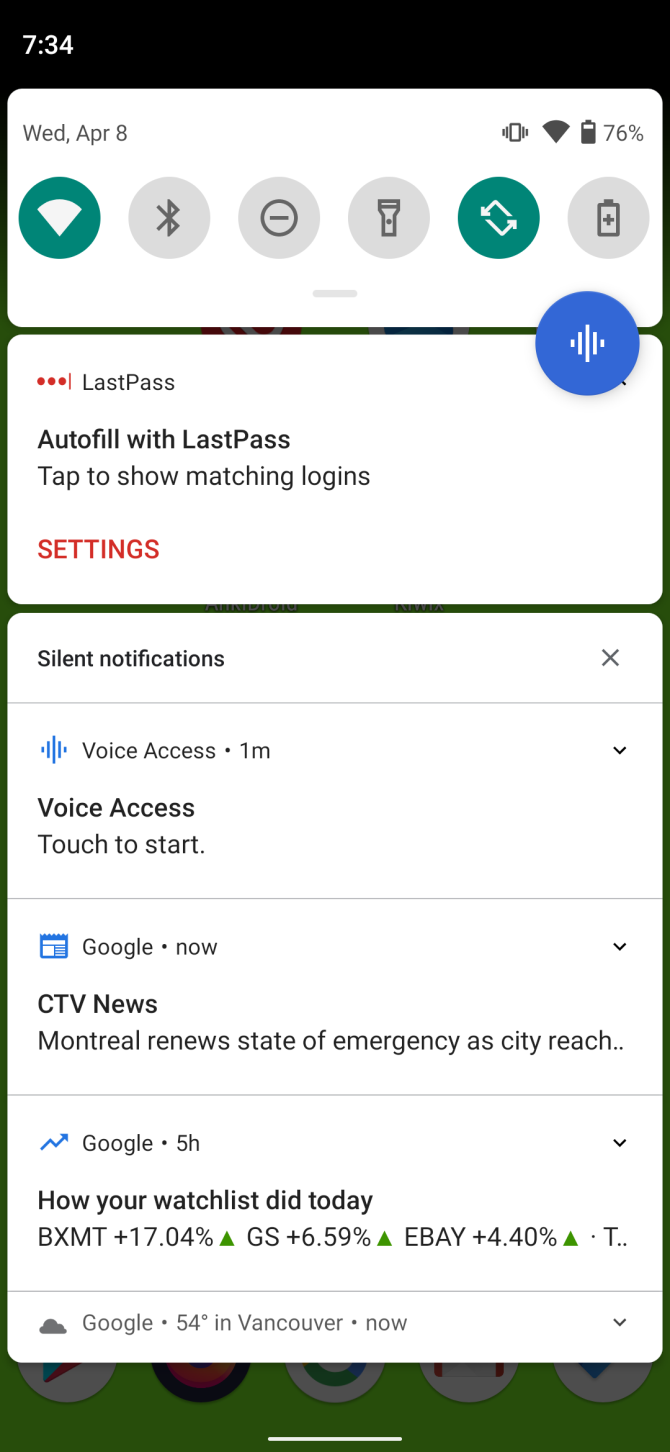
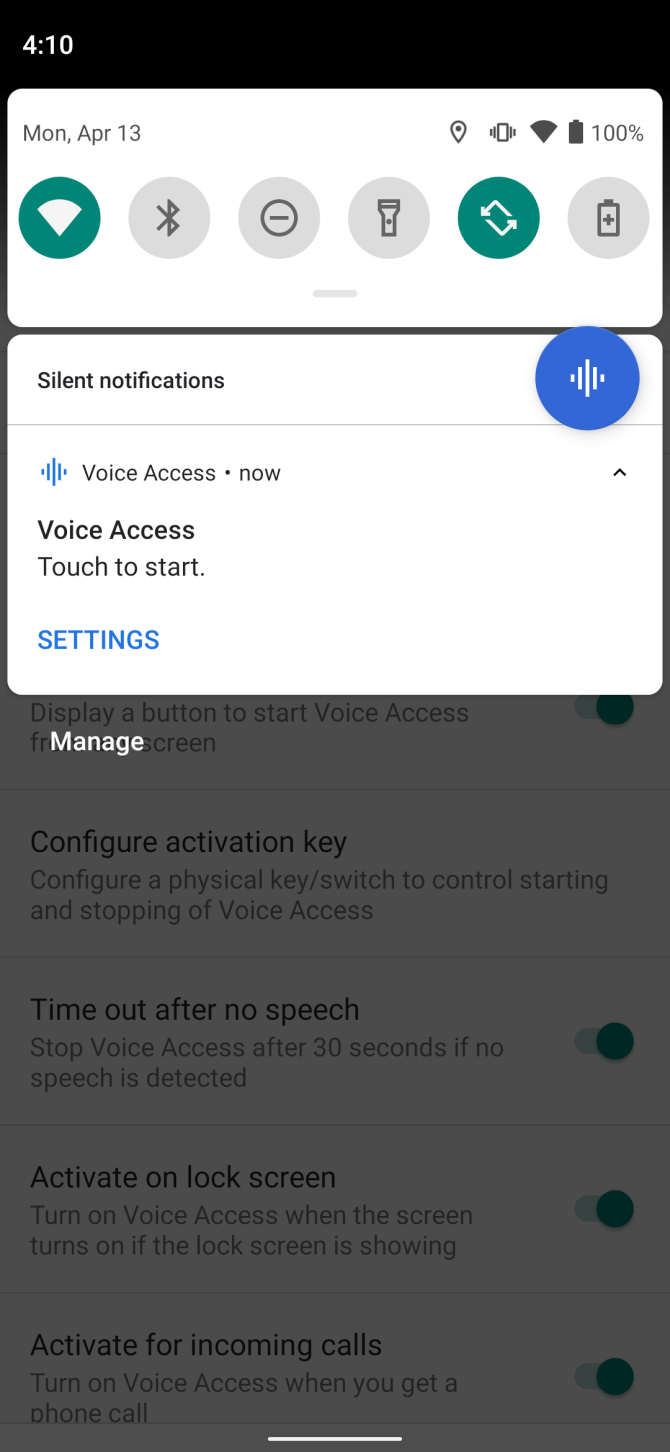
  3. You can pause or activate Voice Access from any screen by pulling down the notification tray and tapping on Voice Access.

Next, here’s how to turn on Always On Google Assistant:

  1. Open the Google app and browse to More > Settings > Voice > Voice Match.
  2. Turn the permission on for Hey Google.
  3. If prompted, go through the guided setup for training Google to recognize your voice.

How to Use Voice Control on Android

To start Voice Access from anywhere on your Android phone:

  1. Run the Voice Access app by pulling down the notification tray and tapping on Voice Access. Alternatively, if you enabled always-on voice detection, say “OK Google” aloud.
  2. Provide the command you’d like to execute.
  3. If you need a full list of voice commands, say “show commands.”

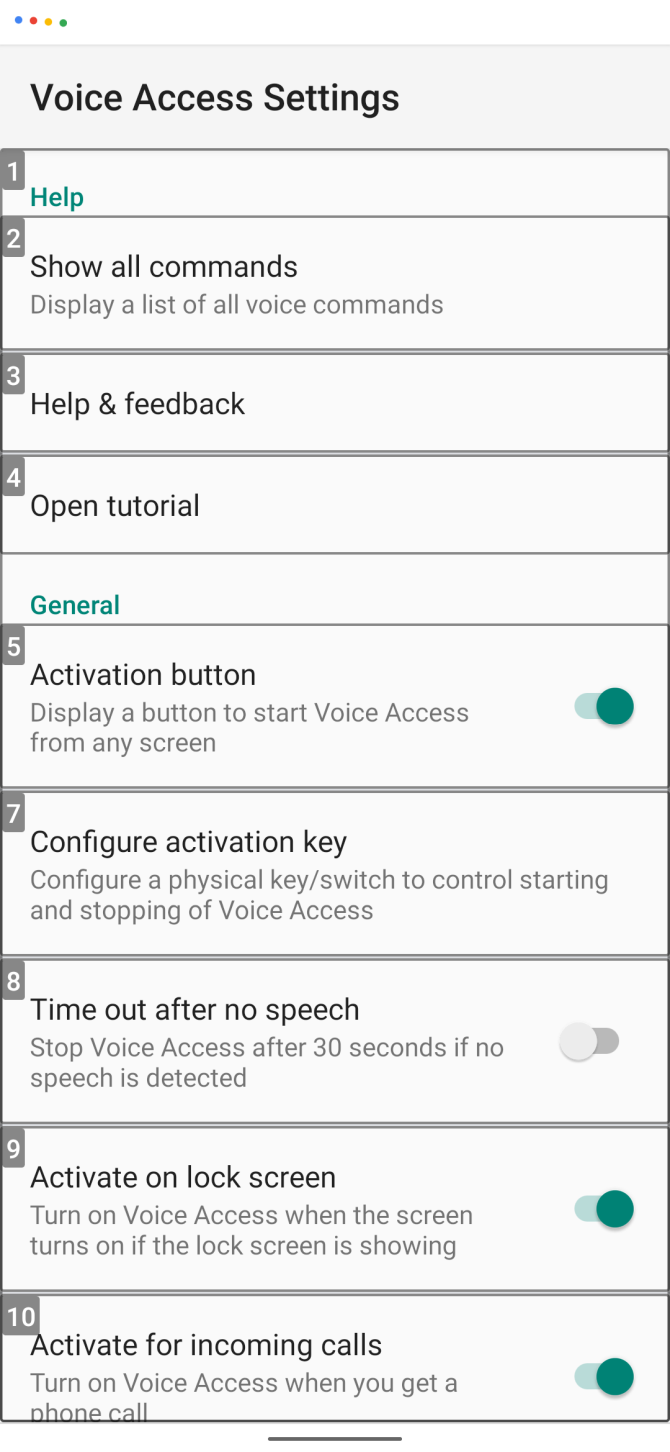
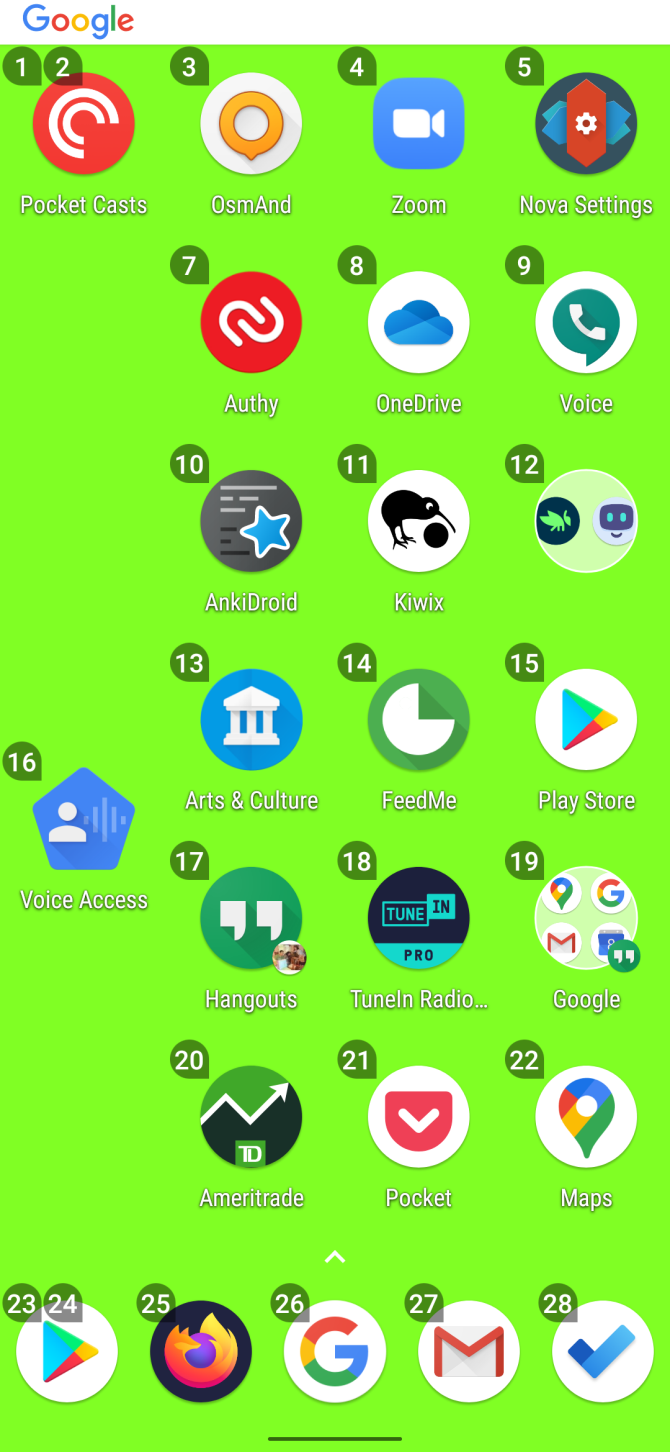
Voice Access overlays numbers on top of everything you can interact with on the screen. Speaking the number or the name of the on-screen item will launch that feature.

For example, in the screenshot above, saying “two” will activate the Pocket Casts app. Alternatively, you can also say “launch Pocket Casts.” After a brief pause, the app will launch.

Exploring Voice Access Features

There are four categories of features offered by Voice Access:

  1. Text composition
  2. Menu navigation
  3. Gesture control
  4. Core functions of the phone

Let’s look at how to use these.

Text Composition via Voice Commands

Text composition allows speech-to-text transcription inside any text entry box. For example, you can write an email using just your voice by doing this:

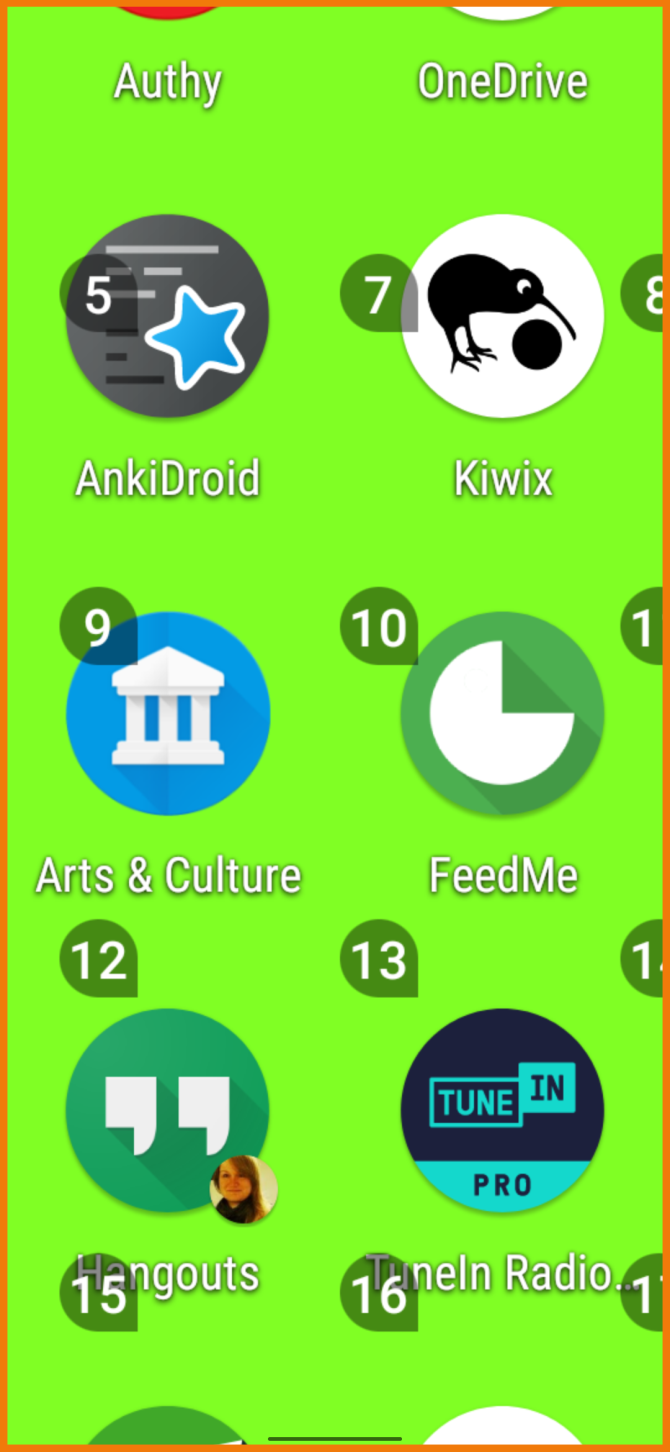
  1. Activate Voice Access on the Gmail homepage, as shown in the left screenshot.
  2. Say “compose email” or “five”.
  3. Verbally spell out the email address of the recipient.
  4. Write your email, speaking the words you would normally type.

Voice Access recognizes commands, such as “backspace” and “enter.” Also, it includes numerous advanced composition voice commands, such as “delete sentence,” which erases an entire sentence, and “delete word,” which wipes out the word next to the cursor.

There are a lot more commands than the ones shown here. For a complete list, say “show commands.”

Voice-Controlled Menu Navigation

You can also use your voice for menu navigation. The commands allow you to open apps, navigate forward and back, go to the home screen, and a lot more. Some voice navigational commands include:

  • Show notifications
  • Show Quick Settings
  • Show recent apps
  • Open [app name]
  • Back

Voice-Controlled Gestures and Functions

Because Voice Access is an accessibility tool, it can turn voice commands into gestures, such as opening the notification tray. If an app requires a particular gesture to perform an action, you only need to speak the name of the gesture.

The best example is on the unlock screen. Saying “unlock” activates the unlock gesture. You can also say “swipe up.”

Combining composition, navigation, and gestures make Voice Access capable of doing anything you’d do with your fingers.

Core Phone Functions

You can also toggle your phone’s Bluetooth and Wi-Fi, adjust the volume, or silence the phone. Take a look at Google’s Voice Access commands help page for a longer list.

Magnification and Grid Selection

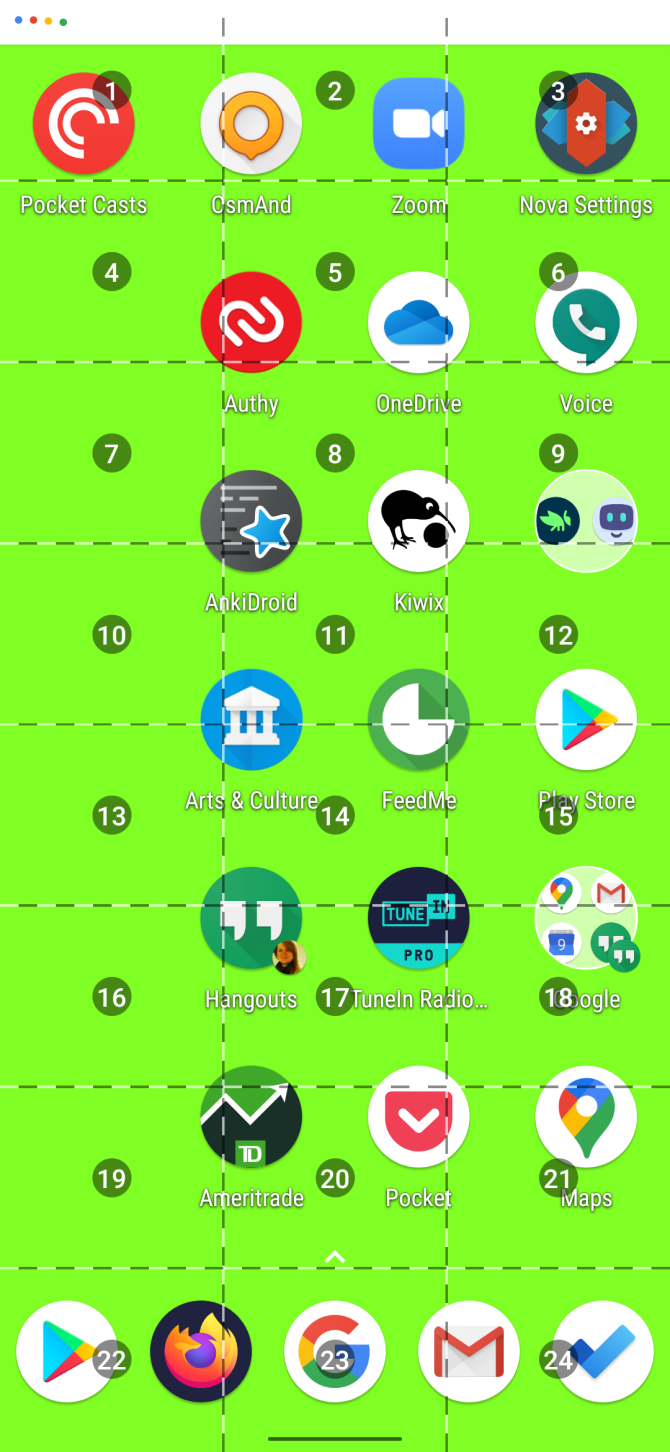
Like most accessibility apps, Voice Access focuses on delivering larger icons and text to help with visibility. It can also divide the screen into a grid, which allows you to zoom in on sections of the screen and interact with smaller on-screen elements.

For example, saying “open grid” will divide the screen into a grid. Saying “swipe 23 up” after this will open the app drawer, per the right screenshot.

To zoom in on any element of the screen, you can say “zoom in.” This is particularly useful for the visually impaired.

Voice Access Settings

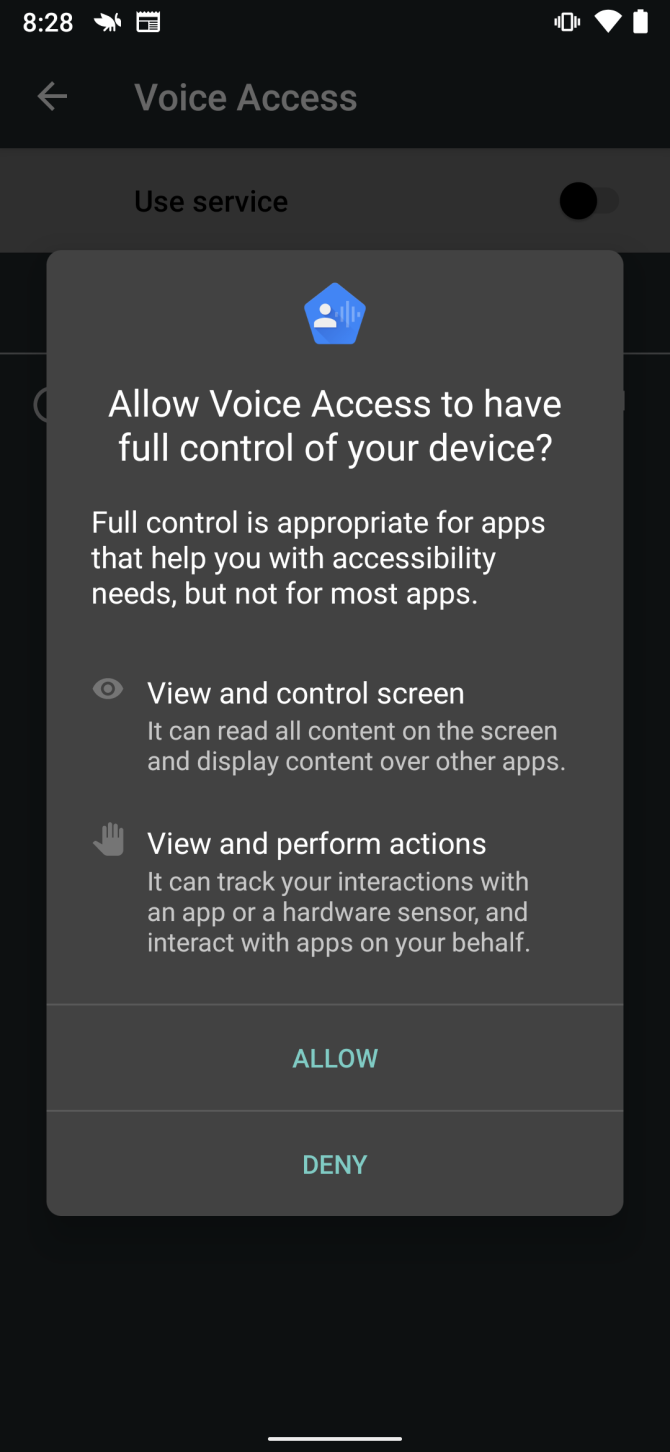
You can access additional features of Voice Access in its Settings menu. Accessing the Settings menu is a little tricky, as you don’t open it from the app drawer like most apps. Instead, you must pull down on the Voice Access entry in the notification tray and then tap on Settings. Alternatively, go to Settings > Accessibility > Voice Access > Settings.

Within the Settings menu, there are additional options. Of these, the most important are:

  • Activation button: Overlays a persistent bubble on the screen. Tapping on it will let you activate voice recognition from any menu.
  • Configure activation key: This lets you assign a physical button, such as a keyboard or Bluetooth switch, as a voice recognition trigger.
  • Time out after no speech: Disabling this lets you run Voice Access continually while the phone’s screen is turned on. By default, when enabled this has a 30-second timeout.
  • Active during calls: Lets you use Voice Access during phone calls.
  • Cancel on touch: Normally, touching the screen disables Voice Access. Enabling this makes it so touching the screen does not disable voice recognition.
  • Show all commands: See everything that Voice Access lets you do.
  • Open tutorial: Runs through the tutorial again, in case you need a refresher on how to use Voice Access.

Shortcomings of Voice Access

While you can use Voice Access to unlock your phone, it only supports a PIN lock. To protect your passcode, the labels display random words, like the names of colors, instead of actually having you speak your passcode out loud.

To use this, go to the Settings page as mentioned above, and make sure you have Activate on lock screen enabled. You can change your security type to a PIN at Settings > Security > Screen lock.

Voice Command dramatically reduces your battery life if left on continuously. This makes sense, since it’s always listening for your next command.

On top of that, it can be a little buggy. Sometimes Google Assistant won’t understand a command. Other times, it won’t respond. But for the most part, the app performs well.

Get Android Voice Commands Now

If you want Android voice commands, Voice Access is the best app available. It can control every aspect of your phone, from accessibility features like grid select mode to navigation and gesture controls. Getting started only requires installing the app and enabling Always on Google Assistant and Accessibility permissions.

If you find Voice Access to be overkill for your needs, check out how to use voice commands with Google Assistant instead.

Read the full article: How to Control Your Android Device Entirely With Your Voice


Read Full Article

12 Creative Uses for Audacity: Podcasts, Voiceovers, Ringtones, and More


audacity-new-features

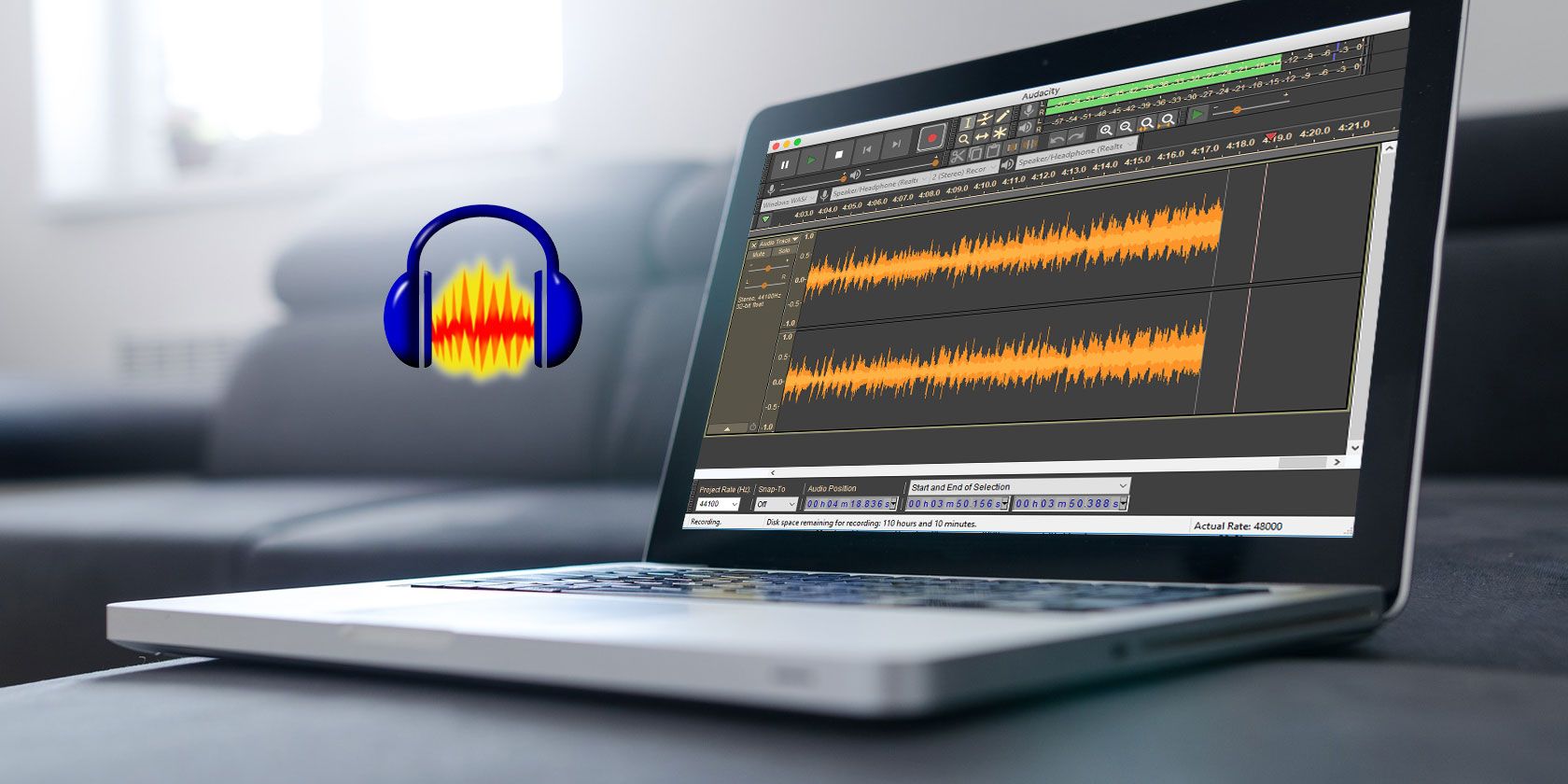
Audacity is a free application you can use for recording, editing, and mixing audio. It also happens to be incredibly versatile.

People use Audacity for a wide range of different projects, including creating music, recording ringtones, and capturing conversations.

If you aren’t sure what you can do with Audacity, this is the article for you. We list some creative ways to use Audacity, along with a few pointers on how to get started.

Download Audacity If You Haven’t Already

Audacity website banner

First things first, you need to download and install Audacity. It’s totally free to use on Windows, macOS, or Linux machines. All you need to do is download the latest version from the Audacity website.

If you ever need help finding out how to use Audacity, take a look at the comprehensive Audacity wiki. This wiki covers all of the basics, including beginner tutorials, FAQs, and troubleshooting suggestions.

Download: Audacity for Windows | macOS | Linux (Free)

1. Record Multitrack Music

Whether you’re part of a band or a singer in need of backing tracks, one of the most obvious uses of Audacity is to record some multitrack music. It’s easy to make music with Audacity, and all you need to get started is a microphone and an audio interface.

You can even get some pretty professional results from recording in Audacity. Don’t believe us? Check out this list of musicians who used Audacity to record their songs. Some of the examples speak wonders to Audacity’s musical potential.

2. Create a Podcast or Radio Show

Headphones and microphone over a white background

Audacity is the perfect tool for mixing several tracks together, making it excellent for creating podcast episodes or radio shows. Thanks to its multitrack capabilities, it’s easy to fade in different tracks or add sound effects and music in between the dialog of your show.

All you need to do is drag-and-drop an audio file into Audacity to import it to your project. You could even use our previous audio project idea to record some music for a theme song.

3. Practice a Speech or Presentation

Another great use of Audacity is to record yourself delivering a speech or monolog. Listening back to how you sound will help you perfect your delivery before the big day. You might decide to cut out a section, add more jokes, or practice your pronunciation.

This is a great tip for getting ready to deliver presentations, wedding toasts, or even to prepare for an acting audition.

4. Produce a Radio Advert or Voiceover

Man reading script into a microphone

If you have a good voice, you could use Audacity to create a radio advert for a small business. All you need to do is read your script and add a few sound effects. It’s far cheaper to record it yourself than pay for a professional.

If the advert turns out well, you could use it to form a portfolio and seek more voiceover work in the future.

5. Make a Recording of Your Interviews

It’s a good idea to use Audacity to make a recording of any interviews you conduct. You might use these for research projects, hiring purposes, or to publish them online. Either way, it’s incredibly useful to have an audio recording to refer back to.

Take a look at our simple tips to improve your interview recordings for the best quality.

6. Record the Audio From Other Apps

Large speaker on a computer desk

There are plenty of reasons you might want to record the audio from other applications on your computer. You can use Audacity to record the audio from a Skype call, a YouTube clip, or even an online radio station.

To dissuade copyright infringements, you can’t usually do this without commercial software or a loopback cable. But you’ll find a comprehensive guide detailing how to record your computer’s audio on the Audacity Wiki.

7. Practice Foreign Languages

Anyone who’s successfully learned a foreign language will agree that you need to speak it frequently to get it right. It’s difficult to improve if you have no-one to talk to, but that’s what you can use Audacity for.

Record yourself speaking a foreign language, then listen back to make sure your accent is right. Bonus points if you can compare your own voice with recordings of your language teacher or a native speaker.

8. Create Audiobooks for LibriVox

Headphones plugged in to a book

Put your reading voice to good use by using Audacity to record free audiobooks for people. This is a particularly simple audio project idea because all you need to do is record a single voice.

If you have small kids in the family, you could create children’s audiobooks for them to enjoy as bedtime stories. If those books are in the public domain, you could even share them with other people when you have finished.

LibriVox is a great place to volunteer public domain audiobooks for other people to listen to.

9. Create Karaoke Backing Tracks

Karaoke is a lot of fun, but sometimes you can’t find the backing tracks for the songs you want to sing. Once again, Audacity can help.

Follow our step-by-step guide to remove the vocals from your favorite songs and create karaoke backing tracks using Audacity. You could even record your own vocal performance over the top to show off your singing skills to friends.

10. Capture Your Every Thought

Tascam voice recorder dictaphone

Whatever’s on your mind, you can use Audacity to capture it in a recording. If you’re a musician, record the new melody that just popped into your head. If you’re a writer, keep an audio account of your best story ideas. Or just use Audacity to capture random thoughts that you don’t want to forget.

Whatever you do, make sure you keep all these audio recordings well organized and clearly labeled. Otherwise you’ll never find the ones you’re looking for again.

11. Export Custom Ringtones

You can use Audacity to export MP3 files, which in turn, you can use as new ringtones. So it follows that you can use Audacity to make custom ringtones.

If you’re into video games, there are lots of free video game ringtones available to use.

12. Create Samples and DJ Mixes

DJ decks in a colorful club

Audacity is what a lot of DJs use to cut up samples or create mixes from multiple songs. It’s easy to import MP3 files by dropping them into the Audacity window, then grab the samples you want to keep using Cut and Paste.

If you add multiple songs to different tracks, experiment with fading them in over the top of one another to create your own mixes. You might want to make sure they both play at the same tempo first for the best chance of success.

How to Remove Background Noise

By now, you should have a pretty good idea of what you can do with Audacity and all of the different audio projects you can use it for. It’s an incredibly flexible and powerful piece of software, especially considering that it’s totally free.

However, despite Audacity’s versatility, any of your audio projects can get ruined by intrusive background noise. Thankfully, we have detailed how to remove ambient noise using Audacity to help you keep your recordings crisp and clear.

Read the full article: 12 Creative Uses for Audacity: Podcasts, Voiceovers, Ringtones, and More


Read Full Article

Google data centers watch the weather to make the most of renewable energy


Google’s data centers run 24/7 and suck up a ton of energy — so it’s in both the company’s and the planet’s interest to make them do so as efficiently as possible. One new method has the facilities keeping an eye on the weather so they know when the best times are to switch to solar and wind energy.

The trouble with renewables is that they’re not consistent, like the output of a power plant. Of course it isn’t simply that when the wind dies down, wind energy is suddenly ten times as expensive or not available — but there are all kinds of exchanges and energy economies that fluctuate depending on what’s being put onto the grid and from where.

Google’s latest bid to make its data centers greener and more efficient is to predict those energy economies and schedule its endless data-crunching tasks around them.

It’s not that someone at Google looks up the actual weather for the next day and calculates how much solar energy will be contributed in a given region and when. Turns out there are people who can do that for you! In this case a firm called Tomorrow.

Weather patterns affect those energy economies, leading to times when the grid is mostly powered by carbon sources like coal, and other times when renewables are contributing their maximum.

This helpful visualization shows how it might work – shift peak loads to match times when green energy is most abundant.

What Google is doing is watching this schedule of carbon-heavy and renewable-heavy periods on the grid and shuffling things around on its end to take advantage of them. By stacking all its heavy compute tasks into time slots where the extra power they will draw is taken from mostly renewable energy sources, they can reduce their reliance on carbon-heavy power.

It only works if you have the kind of fluid and predictable digital work that Google has nurtured. When energy is expensive or dirty, the bare minimum of sending emails and serving YouTube videos is more than enough to keep its data centers busy. But when it’s cheap and green, compute-heavy tasks like training machine learning models or video transcoding can run wild.

This informed time-shifting is a smart and intuitive idea, though from Google’s post it’s not clear how effective it really is. Usually when the company announces some effort like this, it’s accompanied by estimates of how much energy is saved or efficiency gained. In the case of this time-shifting experiment, the company is uncharacteristically conservative:

“Results from our pilot suggest that by shifting compute jobs we can increase the amount of lower-carbon energy we consume.”

That’s a lot of hedging for something that sounds like a home run on paper. A full research paper is forthcoming, but I’ve asked Google for more information in the meantime; I’ll update this post if I hear back.


Read Full Article
How to shift your mindset and choose your future | Tom Rivett-Carnac

How to shift your mindset and choose your future | Tom Rivett-Carnac

When it comes to big life problems, we often stand at a crossroads: either believe we're powerless against great change, or we rise to meet the challenge. In an urgent call to action, political strategist Tom Rivett-Carnac makes the case for adopting a mindset of "stubborn optimism" to confront climate change -- or whatever crisis may come our way -- and sustain the action needed to build a regenerative future. As he puts it: "Stubborn optimism can fill our lives with meaning and purpose."

Click the above link to download the TED talk.

Facebook’s $5.7 billion bet on Indian giant Jio spells trouble for Amazon and Flipkart


Facebook’s major bet on Jio Platforms could create a headache for mobile payments services that have amassed tens of millions of users while struggling to find a business model in the world’s second-largest internet market.

The $5.7 billion investment, Facebook’s second-largest to date, could also further its dominance in India — its biggest market by user count — by expanding the reach of consumer-facing services like WhatsApp and expanding its lead over ByteDance’s TikTok, which has amassed more than 250 million Indian users in two years.

But based on what Facebook and Reliance Jio executives have shared — along with feedback from several industry analysts — the companies that need to worry most about this multi-billion-dollar bet are Walmart’s Flipkart, Paytm and Amazon.

Facebook and Jio executives said their companies will work together to build solutions; their biggest synergy would revolve around JioMart and WhatsApp, given that Reliance Jio is India’s top telecom network with more than 380 million subscribers.

One of those collaborations may allow users to find local stores around them on WhatsApp, talk to store operators and place orders from within the Facebook-owned instant messaging service, said Ajit Mohan, a Facebook VP who spearheads the company’s business in India, in an interview with TechCrunch.

“You can browse shops and talk to the shop owner. And ultimately, where we do want to take this flow is for you to be able to place your orders,” he said in an interview with TechCrunch. Mohan refuted reports that Facebook saw the deal as an opportunity to turn WhatsApp into a so-called “super app,” however.


Read Full Article
Facebook’s $5.7 billion bet on Indian giant Jio spells trouble for Amazon and Flipkart


Facebook’s major bet on Jio Platforms could create a headache for mobile payments services that have amassed tens of millions of users while struggling to find a business model in the world’s second-largest internet market.

The $5.7 billion investment, Facebook’s second-largest to date, could also further its dominance in India — its biggest market by user count — by expanding the reach of consumer-facing services like WhatsApp and expanding its lead over ByteDance’s TikTok, which has amassed more than 250 million Indian users in two years.

But based on what Facebook and Reliance Jio executives have shared — along with feedback from several industry analysts — the companies that need to worry most about this multi-billion-dollar bet are Walmart’s Flipkart, Paytm and Amazon.

Facebook and Jio executives said their companies will work together to build solutions; their biggest synergy would revolve around JioMart and WhatsApp, given that Reliance Jio is India’s top telecom network with more than 380 million subscribers.

One of those collaborations may allow users to find local stores around them on WhatsApp, talk to store operators and place orders from within the Facebook-owned instant messaging service, said Ajit Mohan, a Facebook VP who spearheads the company’s business in India, in an interview with TechCrunch.

“You can browse shops and talk to the shop owner. And ultimately, where we do want to take this flow is for you to be able to place your orders,” he said in an interview with TechCrunch. Mohan refuted reports that Facebook saw the deal as an opportunity to turn WhatsApp into a so-called “super app,” however.


Read Full Article
Facebook and Instagram will now show location of posts from high-reach accounts targeting US audiences


Facebook today is introducing another feature aimed at making it easier to see who’s behind the posts published across Facebook and Instagram. The company says it will now display the location of the Facebook Page or Instagram account with a large audience on every post it shares, so end users have a better understanding of how reliable or authentic the accounts may be. While the feature is described as one designed for overall increased transparency, it will initially launch only in the U.S.

That means Facebook will display the location information for Facebook Pages and Instagram accounts that are based outside the U.S., but that reach large audiences located primarily in the U.S.

The move is the latest attempt to crack down on outside influence on U.S. politics and elections, following the revelation that Russia-backed content reached as many as 126 million Americans on Facebook’s platform during and after the 2016 presidential election.

That led Facebook to implement several new processes around Pages and political ad transparency in the years since.

In August 2018, for example, it implemented a new measure for securing Facebook Pages with large U.S. followings in order to make it more difficult for people to administer a Page using a fake or compromised account. This process involved having Facebook Page managers secure their accounts and verify their location. By December 2018, this “People Who Manage This Page” section had rolled out to all Facebook Pages with a large audience.

Facebook last year made this section easier to find by adding it to the Home tab on every Page, and expanded the feature to those who managed Pages with large audiences in India, Indonesia and the EU, as well.

Similar authentication and verification tools were also rolled out to Instagram in 2018.

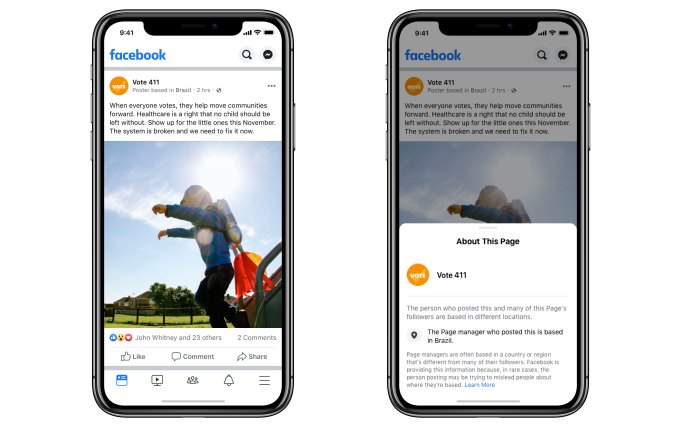
The new feature arriving today is an expansion on those earlier efforts, as it will display the location of the Page or Instagram Account directly beneath their Page or Account name on the posts they share. This will read “Poster based in…” followed by their country on posts published on Facebook and “Based in…” on those published to Instagram.

Users will also be able to access an informational pop-up about the Page or Account which further explains that the person or account who posted this content and many of its followers are based in different locations. The message will also state that Facebook or Instagram is providing this information because some accounts attempt to mislead people about where they’re based.

This is a significant change compared with providing this location information somewhere more buried on the Facebook Page or profile, where it can be easily overlooked. And because it follows the account as the post is shared, it could cut down on the viral re-sharing of misleading information.

However useful, this feature will only be the latest volley in an ongoing war with often state-sponsored propaganda bot networks aimed at misleading Americans. As Facebook’s systems evolve, so will the bot networks’ tactics. They’ll find new ways to fake their location as being U.S.-based…or simply being based outside of Russia. In fact, Russian trolls had already outsourced some of their propaganda efforts to Africa, a recent investigation found. And the battle will continue.

Facebook says it’s piloting the new location transparency feature in the U.S. now and is exploring ways to bring this transparency to more places on Facebook Pages and Instagram Profiles.


Read Full Article