14 April 2020

The 13 Best YouTube Channels to Binge-Watch


binge-watching-youtube

Only one site stands toe-to-toe with Netflix when it comes to binge-watching, and that site is YouTube. Need a pick-me-up? Want to laugh away your stress? Or just have some time to kill? These YouTube channels may be the binge-watching remedy you need.

All of the channels below have one thing in common: entertainment value. Some of them may not be your cup of tea, but we guarantee that you’ll end up loving at least one of them, or maybe even several of them. So give them a try and see what you think.

These are the best YouTube channels to binge-watch. And they ensure you’ll never get bored.

1. Epic Rap Battles of History

As far as binge-worthy YouTube channels go, few are as consistent in both quality and delivery as Epic Rap Battles of History. Every single episode—each of which is only a few minutes long—is fresh, fun, and full of laugh-inducing lines.

For those who don’t know, Epic Rap Battles of History takes famous figures throughout history (or pop culture) and pits them against each other for a few rounds of verbal sparring. The lyrics are written from the point-of-view of each character, which is what makes it so entertaining.

Still confused? Just watch the Picasso vs. Bob Ross battle in the video above. If you love this—and millions of people do—then you should check out all of the other videos on this binge-worthy YouTube channel.

2. 5 Second Films

These films truly live up to their gimmick. Each video is nine seconds long (four seconds of intro, five seconds of content) and they’re all dense enough to pack a whopping punchline. Some are better than others, of course, but they’re all pretty good.

The thing about 5 Second Films is that each video is so short that none of them are entirely satisfying—and that makes this one of the best YouTube channels to binge-watch several videos in one go.

Despite their short length, it’s way too easy to lose half an hour with these. Don’t get too carried away though, as there are pros and cons to binge-watching.

3. Zero Punctuation

If you’re a fan of video games, then you can’t miss Zero Punctuation. A lot of video game reviewers have popped up on YouTube over the past few years, but Zero Punctuation was a pioneer—and still reigns as one of the funniest and most relevant of them all.

Zero Punctuation’s claim to fame is two-fold: its characteristic talk-without-taking-any-breaths approach to communication, and the snarky way in which the narrator criticizes various aspects of the games under review. It’s as entertaining as it is informative, which is why so many people love Zero Punctuation reviews.

You’ll find Zero Punctuation hosted on the Escapist channel, alongside other great things to watch on YouTube such as 3 Minute Reviews and Yahtzee’s Dev Diary Series.

4. Cinemassacre

Cinemassacre is actually the production channel for a handful of different gaming-related YouTube series. The most popular is the Angry Video Game Nerd (AVGN), but the channel also has movie reviews and board game antics.

Like Zero Punctuation, the AVGN series is one about video game reviews, but with a twist: not only does it focus on games that are absolutely terrible, it ramps up the, “Oh my God, this frustrates me” factor as each review goes on.

It’s certainly not for everybody but the show has plenty of fans. And if you find that you do enjoy it, then there are over 100 episodes for you to burn through. Each episode is around 10 to 20 minutes, making this one of the best YouTube channels to binge-watch over a short lunch break.

5. Extra Credits

It’s one thing to play video games, but another thing to understand video games. There’s a lot that goes into the design of a game, and the Extra Credits channel tries to break things down in a way that the average gamer can grasp. But to be clear, Extra Credits isn’t always right.

Experienced game designers know that most videos on this channel are oversimplified; game design is a complicated field that often lacks clear-cut answers. However, as lightweight binge-worthy entertainment for gamers, Extra Credits fits the bill well.

You might also enjoy the history and mythology lessons from Extra Credits as well. Both of which deliver fascinating lessons in the same enjoyable tone that we expect from this channel.

6. CinemaSins

“No movie is without sin. We exist mostly just to remind you of that.” It’s a simple concept, but when executed as brilliantly as this channel manages to do, you get wonderfully entertaining videos that also teach you about characters, narratives, and tropes.

In each episode, CinemaSins takes a particular film and pokes fun at its various elements. Sometimes it deals with story inconsistencies, other times it emphasizes continuity goofs. Mostly it just makes wry commentary—but in all things, it’s lighthearted and silly.

Episodes are anywhere from three to 20 minutes long, making this one of the best YouTube channels to binge-watch. Because no matter how much time you have to kill, there’s something that will fit your schedule.

7. Songify This

Songify This, from the Schmoyoho YouTube channel, played a big part in establishing some well-known memes in the early 2010s. It’s possible that the world may have never known about the Double Rainbow Guy, Antoine Dodson, or Backin’ Up if it wasn’t for Schmoyoho.

Long story short, these guys take semi-popular web clips and turn them into songs using auto-tune technology—and many of these songs are actually quite catchy (and, of course, silly). Not only does binge-watching this YouTube channel kill hours of time, but it’s also likely to fill up your playlist with awesome new tunes.

8. Bad Lip Reading

Take any clip of someone talking—whether from a film, a TV show, or even a press conference—and dub it over with your own words, but in a way that still matches the lip movements of the clip. It’s harder to do than you might think, but when done well, can be hilarious.

Therefore, due to the difficulty, Bad Lip Reading videos can be hit or miss. However, if there’s a Bad Lip Reading for a movie or show you’ve already seen, there’s a good chance that you’ll find it funny (because you know the original context). Regardless, if you don’t know what to binge-watch on YouTube, this channel is a great place to start.

9. The Slow Mo Guys

Explosions are already exciting, but when you slow them down by several orders of magnitude, they become exponentially more interesting. Don’t believe me? The Slow Mo Guys do nothing but slow down clips and have over 13 million subscribers.

We know it sounds silly, but as the above video shows, it’s surprisingly entertaining. You think you’d get sick of it in just a few minutes or so, but it somehow sucks you in. Every new slow-motion video is yet another awe-inspiring bit of footage.

There seems to be no end to the creativity on display from The Slow Mo Guys as they find new and interesting things to slow down on camera. That includes slowing down a tranquilizer dart in action, a flame thrower, and a thousand mousetraps snapping shut on a trampoline.

10. CGP Grey

With the aid of crude stick figures, CGP Grey explains the overlooked details of different historical, political, and geographical subjects. It’s amazing how much information he crams into each video, all while keeping them entertaining to watch.

In the example above, CGP Grey breaks down the unexpected complications that scientists encounter when attempting to answer a seemingly simple question: Which planet is closest to Earth?

Binge-watching the playful videos on CGP Grey’s YouTube channel is sure to quench your thirst for knowledge. If you find yourself wanting more to broaden your horizons, check out the best YouTube channels for self-improvement and motivation as well.

11. Game Maker’s Toolkit

If you enjoyed learning about video game design from Extra Credits, you’re going to love getting into more depth with Game Maker’s Toolkit. This channel details the thinking behind a range of video game elements, covering everything from difficulty settings to dungeon design.

It’s fascinating to learn about the different considerations developers need to make when designing video games. In fact, these ideas will probably bounce around inside your head the next time you sit down to play.

Game Maker’s Toolkit displays an infectious passion for game design that makes it impossible not to start dreaming up your own game ideas. But even if you never create them, you’ll still find a new appreciation for games that already exist.

12. Every Frame a Painting

Every Frame a Painting is widely regarded as the number one source for video essays about films. If you’re a movie-lover, this is absolutely the best channel for you to binge on YouTube. There aren’t a huge number of videos, and most are under 10 minutes long, so you may be able to watch them all in a single day.

In the video above, Every Frame a Painting breaks down the one-of-a-kind visuals of a Michael Bay movie. After watching it, you’ll never watch one of those films the same way again. But it doesn’t stop there.

You’ll also find in-depth analyses of Jackie Chan, Edgar Wright, Bong Joon-ho, David Fincher, and a whole host of other extraordinary filmmakers. Binge-watching every Every Frame a Painting video is better than attending a crash course film school.

13. Kurzgesagt—In a Nutshell

Thousands of hours go into the making of every Kurzgesagt video, and it shows. These meticulously researched, carefully written, and expertly animated short videos are some of the best things to watch on YouTube. Especially if you want to learn a little more about the world around you.

Kurzgesagt’s colorful animations offer a stark contrast to the dark subject matter that covers heavy topics such as nuclear war or loneliness. But don’t be fooled. This YouTube channel is optimistic at heart, and binge-watching it for a few hours is certain to brighten your day by the end of each video.

What Are Your Favorite YouTube Channels to Binge-Watch?

There are hundreds of other popular YouTube channels that probably deserve a spot on this list, including those from binge-worthy YouTubers such as Nigahiga, PewDiePie, and Freddie Wong. Unfortunately, we had to pick the best of the best, but feel free to share your picks in the comments.

If you’re looking for individual videos, rather than entire channels, take a look at our list of the most viewed videos on YouTube instead. They may not all be to your taste, but you’ll at least learn what people are watching on YouTube.

Image Credit: Andrey_Popov/Shutterstock

Read the full article: The 13 Best YouTube Channels to Binge-Watch


Read Full Article

How to Easily Pixelate or Blur Your Images Online


Before you share a photo online you may need to pixelate part of the image. Whether you want to hide sensitive information, or provide anonymity to someone in the photo, you don’t always want the entire image to show.

Fortunately, there are lots of websites that you can use to pixelate or blur an image online, regardless of your OS, browser, or platform. So, in this article, we detail how to pixelate or blur your images online.

1. LunaPic

How to Pixelate an Image Lunapic

If you want to pixelate or blur an entire image, head over to LunaPic. This website is very straightforward and incredibly simple to use.

On LunaPic, you can either upload your image directly, or share an image with the website using a URL.

To use LunaPic:

  1. Under the main menu, click Adjust > Pixelate.
  2. Upload your picture.
  3. Once your picture is uploaded, adjust the pixel size by using the pixelation slider.
  4. Click Apply.

NB: We’ve noticed that the Apply button can sometimes be slow or unresponsive. If the changes don’t work the first time around, click Apply again.

If you want to add a pixelated blur to your image, go to Adjust > Blur under the main menu. Once again, a sliding scale allows you to adjust how blurry your image will be.

If you think the blur isn’t strong enough, you can easily apply the blur tool multiple times to the same image. This will help you achieve the desired effect.

After all adjustments are complete, you can save your image to your computer. You can also share your pixelated image on Facebook, Twitter, Imgur, Pinterest, or Google Photos.

In terms of security:

  • Images uploaded to LunaPic are temporarily cached and stored on its server.
  • Once your editing session is over, your image should be deleted.

2. Facepixelizer

Pixelate Part of an Image Facepixelizer

What if you want to pixelate part of an image, but not the whole thing?

Facepixelizer is a great option for this, especially if you want to hide personal information in a screenshot. You can either blur or pixelate a photo. You can also easily adjust the degree to which an image is obscured.

With Facepixelizer, there are two main options for pixelating a picture:

  • You can automatically detect faces to censor.
  • If you don’t like the automatic result, you can manually select the parts to censor instead.

To manually pixelate an image:

  1. Drop your picture into the image editor.
  2. Select Manual in the editing menu on the left.
  3. Select the Size that you want each individual pixel to be.
  4. Click and drag your mouse over the sensitive information that you want to hide.

Once you’re finished, you can save your image to your computer by clicking Save Image.

For security:

  • Facepixelizer removes EXIF data from the image.
  • Your images are not saved on the website’s server.
  • The images are secured because all image processing happens in your browser. They never leaves your browser, nor is data sent over the network.

For more information on what EXIF data is, check out our article on how to remove metadata from photos.

3. Pinetools

How to Pixelate a Photo With Pinetools

Pinetools is an online editing app that can teach you how to pixelate a photo. You can blur a photo on the website, too.

Like the other apps on this list, Pinetools is free to use. All you need is a browser.

To pixelate part of an image online:

  1. Open up Pinetools in your web browser.
  2. Next, upload a photo from your computer.
  3. Click and drag to select the area that needs to be “censored.”
  4. Select the pixelation Block size for that area. The slider is located to the right of your screen.
  5. Click on the green button at the bottom of the screen that says Censor!

When you click this button, Pinetools will pixelate part of an image or blur it. After that, you can download the image as a JPEG, PNG, or BMP.

Under its Terms of Service, Pinetools states that you can use the website for personal, non-commercial projects. While easily available information about the company is scant—and we wish there was more of it—Pinetools is very transparent about what they’ll do with your data.

For security:

  • Pinetools does not collect any information from website visitors.
  • It does not use cookies for tracking purposes.
  • Pinetools does collect information when you use the site, such as pixelating a photo.
  • It does not use an SSL certificate.

So in terms of security, it could be better.

However, that doesn’t mean this site is unusable. It just means it’s best for funny images or adding cool effects. Save your sensitive documents for something like Facepixelizer.

4. PNG Pixelator

Pixelate Part of Image With PNG Pixelator

PNG Pixelator is one of our favorite tools on this list. Billing itself as “the world’s simplest online Portable Network Graphics image pixelator,” the website takes pride in being user-friendly and ad-free.

Honestly, after trying it out, we would have to agree. PNG Pixelator is fantastic.

To learn how to pixelate a picture with this app:

  1. Open up the website.
  2. Upload your image into the upload box on the left.
  3. Click and drag the bounding box across the specific area that needs to be pixelated.
  4. To the right of your screen, you should see a live preview box. Here, you can watch the pixelation happen in real time.

Once you’re satisfied with your adjustments, click Save As > Download, located under the right-hand box. This will save your image to your computer.

The best thing about PNG Pixelator—beyond the fact that it’s free—is that it’s much more than a pixelation tool. As part of a wider collection of apps, Online PNG Tools function as “a collection of useful PNG image utilities.”

Some other things you should know:

  • You can use all tools on the website for personal use, so long as you’re not doing anything illegal.
  • At the moment, you don’t need an account, username, or password to access any of the tools.

For security:

  • PNG Pixelator does “all conversions and calculations in your browser.”
  • The website doesn’t send any of your input data to its servers.
  • Your IP address is saved to the website’s servers, but there’s no personal identifying information attached.

PNG Pixelator is definitely one of the top tools on this list.

Learn How to Pixelate Photos Online

Now that you know how to easily pixelate or blur your images online, you can start editing out sensitive information, completely free of charge.

However, there may be additional edits that you want to make that have nothing to do with censoring. Perhaps you want to recolor an image, or add some text to it. If so, here’s a list of no-signup image editors on the web you can make use of.

Read the full article: How to Easily Pixelate or Blur Your Images Online


Read Full Article
6 Tips to Improve the Speed of Your Powerline Network


improve-powerline-network

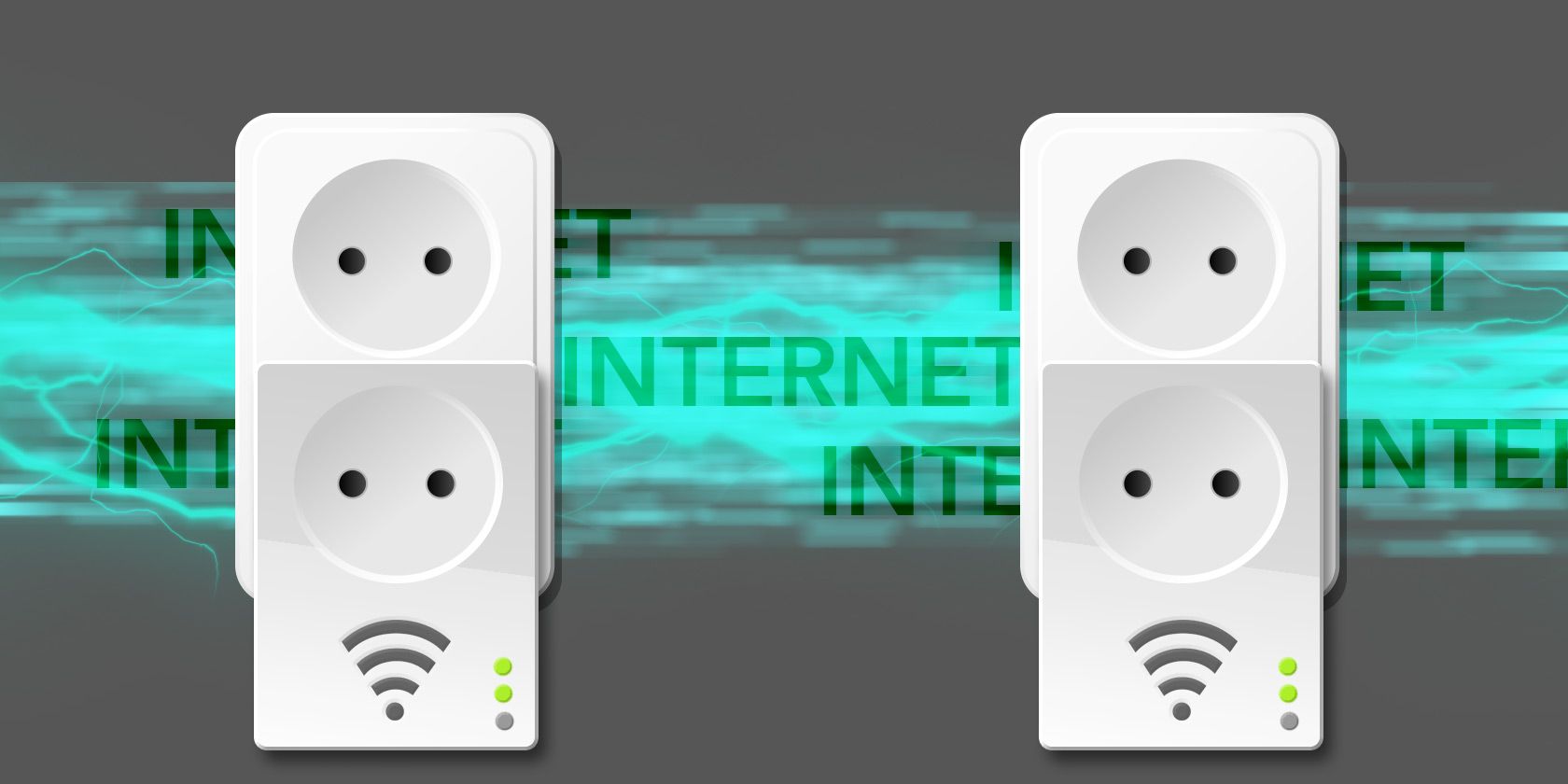
A powerline network is a great solution to patchy Wi-Fi coverage in your home. It also helps you get a wired, Ethernet connection to a computer or console without running long lengths of cable around your house.

But if your powerline adapter is slow compared to what you expected, there are some things you can do to fix it. Let’s take a look at how to improve your powerline speed.

What Is a Powerline Network`?

Powerline adapters are an easy and effective way of extending your home network.

They use your existing electrical cabling to carry data, enabling you to push your network into every part of your house without having to install large lengths of Ethernet cables or dealing with the problems that cause slow Wi-Fi.

But while powerline networks are simple to set up, very affordable, and can work well, they’re also susceptible to interference from environmental factors. This can leave you with a network that’s slower than you’d like, and slower than your existing Wi-Fi setup.

A few changes can help you speed up your powerline network.

1. Use the Most Efficient Setup

First things first, you need to make sure you’ve got the basics right. Powerline adapters need to be plugged directly into the wall. Don’t use surge protectors or power strips, as both can block the frequencies that powerlines use.

Ideally, you should also put the adapters on the same mains circuit. Powerline signals can cross from one circuit to another, but they lose strength each time they do.

House wiring can be pretty complicated, so if you don’t have access to an electrical wiring map for your home, experiment by using your plugs in different outlets—and even different rooms—to find the best performance.

2. Distance Matters

powerline setup
Image Credit: Zyxel

Range is a factor you have to consider on any network. The further a signal has to travel, the weaker it becomes. If you use Ethernet or Wi-Fi you are typically limited to 100m or 30m respectively.

For most powerline adapters, the theoretical range is 300 meters. In practice you should try to keep it below 200m.

And remember, we’re not talking about the straight line distance from point A to point B. The amount of wire the signal passes through may be considerably longer than you think it is.

3. Beware Circuit Breakers & Power Cables

Tests have shown that certain types of circuit breaker—specifically, a few brands of AFCI circuit breaker—can block powerline adapters. Since you won’t want to change the circuit breaker itself, all you can do is ensure you don’t plug your adapter into an outlet protected by one of them.

It’s also worth noting that performance depends on the quality of the copper lines in your home. If you live in an old building with old wiring, then your powerline speeds may always be limited beyond your control.

4. Filter Out Noise

plug in powerline adapter
Image Credit: TRENDNet

A lot of mains-powered devices can produce electrical noise that interferes with the performance of powerline networks. In particular, this includes devices that use switch-mode power supplies such as mobile phone or tablet chargers.

Noise has greater impact at the receiving end of the network than at the transmitting end, so reduce it near the receiving end whenever possible. Still, reducing noise across the board wouldn’t hurt either.

The effect of noise is local. Don’t plug your powerline adapter into a twin socket outlet with another device plugged in alongside it, or have another device plugged in within a couple meters of the adapter.

Powerline manufacturer TP-Link recommends plugging devices with electromotors into surge protectors to reduce interference. You can also create a makeshift noise filter of your own by attaching other devices to a long extension lead that’s two meters long or more.

But the best solution for dealing with noise is to use powerline adapters with built-in filtered outlets, like the NETGEAR Powerline 500. These feature pass-through sockets that enable you to use the power outlet for other devices without any effect on performance.

NETGEAR Powerline 500 NETGEAR Powerline 500 Buy Now On Amazon $199.00

5. Upgrade to a Faster Network

powerline adapter speed

If you’ve optimized the environmental factors of your powerline network and you’re still not happy with the Ethernet speed, consider upgrading your hardware.

It’s important to know that the headline speed quoted by a manufacturer for one of its products is not the actual speed you will achieve.

For starters, the speeds often show the upload and download speeds combined, meaning that a 1,200Mbps adapter is potentially providing 600Mbps upload and download at best. And when you factor in noise, distance, cable quality, and so on you can expect to get half, or even just a third, of what it says on the box.

With this in mind, upgrading to faster devices—such as those based on the HomePlug AV2 standard—should always be beneficial.

However, another limiting factor exists. No matter how fast your powerline adapters are, your actual internet speed determines how fast you can connect to the web. Local area network speeds will be fast—such as when transferring files between home machines—but browsing won’t be as fast.

6. Don’t Mix and Match Adapter Types

When choosing your gear, you should always look to standardize on a single system. Don’t mix and match standards or speeds.

There is some level of compatibility between certain standards, but it won’t produce anything close to optimal performance. And if you have mismatched speeds, you will always be restricted to the speed of the slowest one.

To find out which are the right products to buy, take a look at our guide to the best powerline adapters.

Powerline Networks Are Worth It

The convenience of a powerline network makes it an ideal choice for any home, especially if you have areas where your Wi-Fi signal won’t reach.

In most cases powerline adapters will work right out of the box, and with just a little tweaking, it’s possible to speed them up even more. The main thing is to experiment with where you plug in your adapters—different outlets and different rooms can produce vastly different levels of performance.

If you’re thinking of installing a powerline network, here’s what you should know about powerline adapters before diving in.

Read the full article: 6 Tips to Improve the Speed of Your Powerline Network


Read Full Article
How to Change Your Android Keyboard


change-android-keyboard

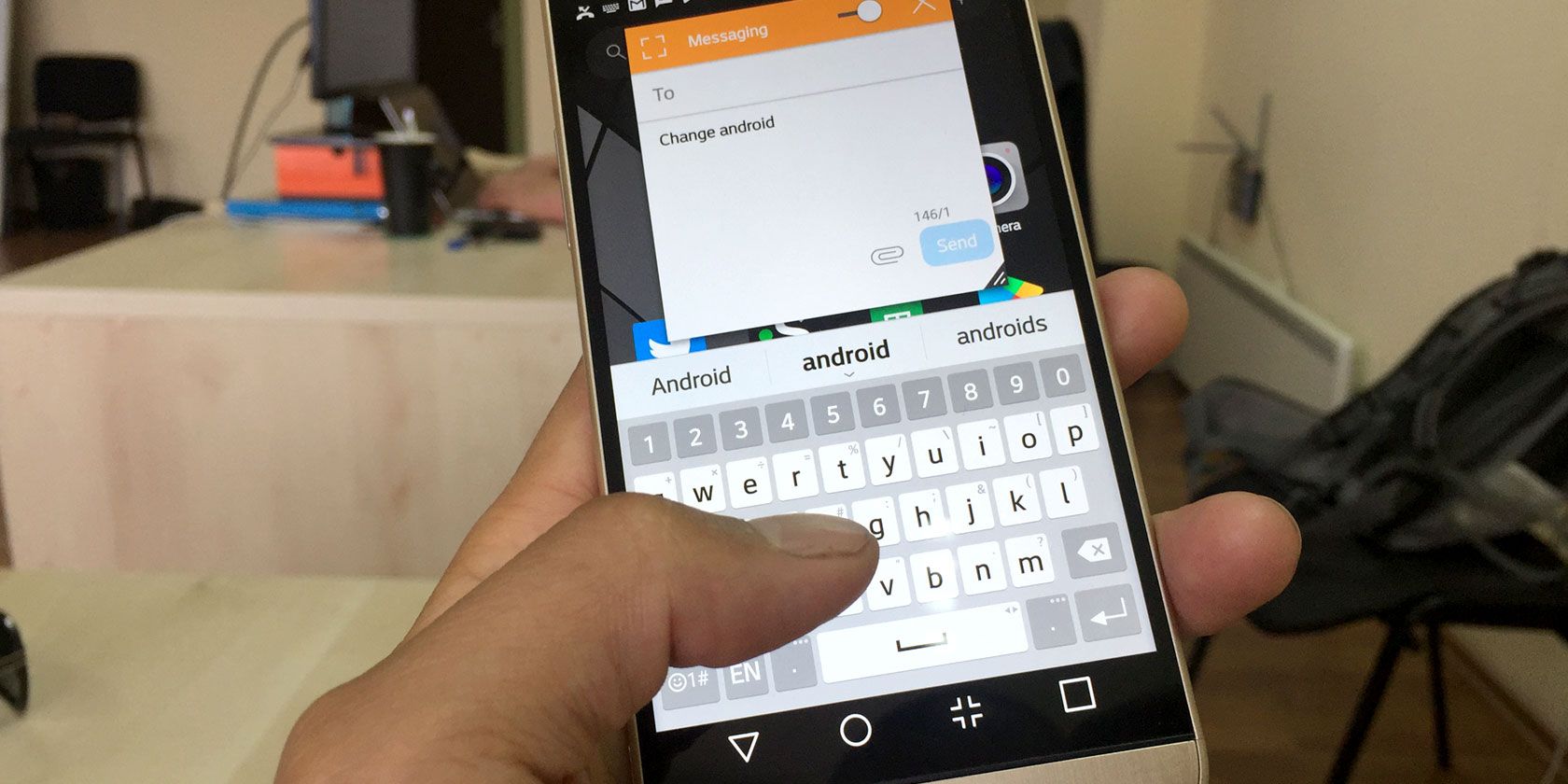
Whether your Android phone came with Google’s Gboard or another keyboard app by default, you should know how to change it. You have many keyboard choices on Android to choose from, and can switch between installed ones at any time.

Here’s how to change your Android keyboard easily.

First, Install Another Keyboard App

To switch Android keyboards, you must have a second option installed. You’ll find plenty of free keyboard options on the Play Store to try out.

We’re big fans of SwiftKey, which is known for its accurate predictions. Among its other standout features is the ability to add up to five languages and use them simultaneously, which is great for bilingual users.

If you have a Samsung phone or another device that comes with its own keyboard app, you should give Gboard a try. Google’s keyboard app offers built-in access to emoji and GIF search, Google Translate access, and even handwriting support.

If you don’t like either of these options, check out the best free and open source Android keyboards for more choices.

Download: SwiftKey (Free)
Download: Gboard (Free)

How to Enable New Keyboards on Android

After you install a new keyboard app and open it, the app should walk you through the process of enabling it. In case it doesn’t, you’ll need to follow these steps before you can use it.

The below instructions cover adding a new keyboard on stock Android 10. The steps may be slightly different depending on your phone’s manufacturer or installed version of Android. Try searching for “keyboard” in the Settings app if you can’t find the right menu.

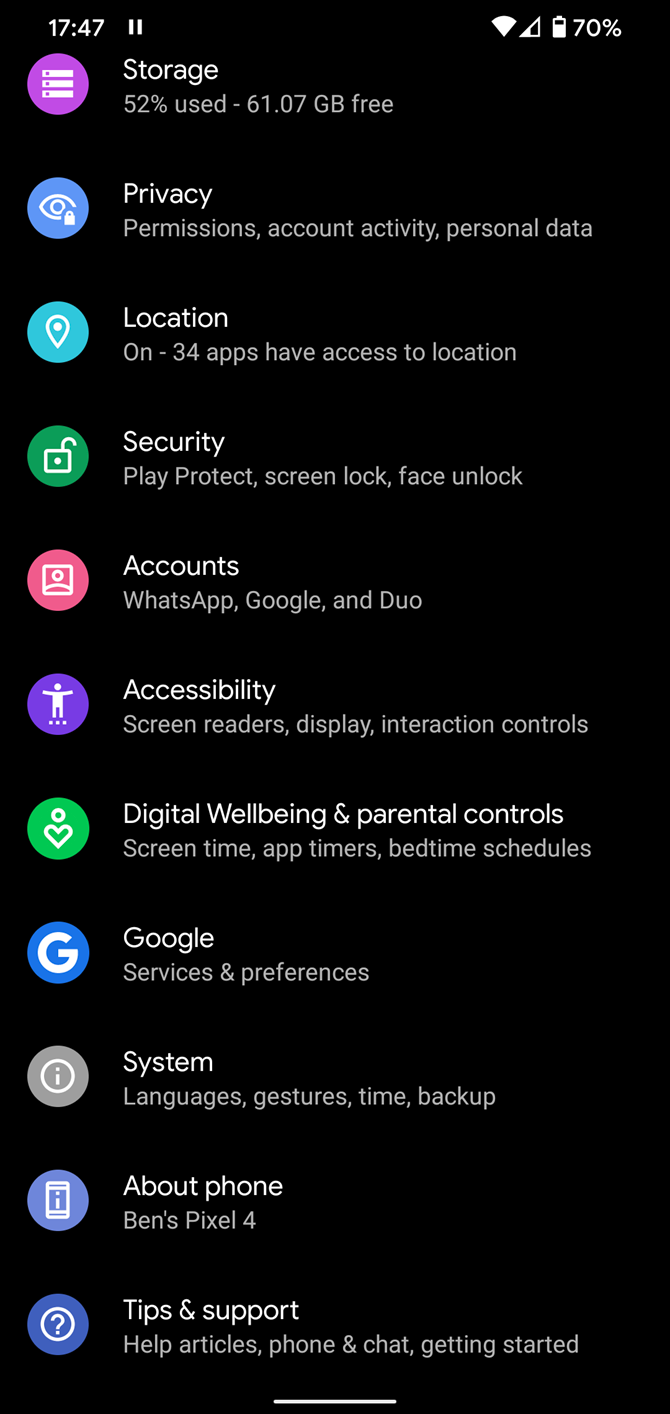
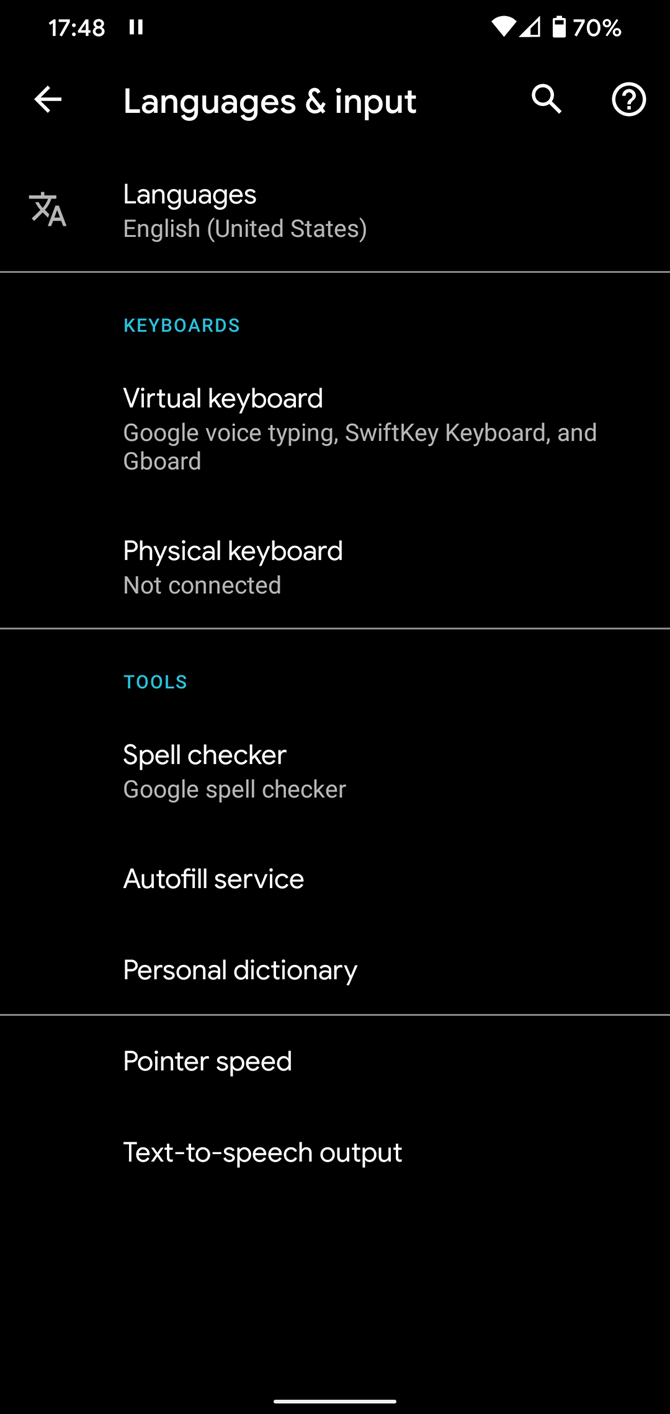
To turn on your new Android keyboard, first open the Settings app. Scroll down to the System entry and tap this. Next, choose Languages & input.

On the resulting page, tap Virtual keyboard. Here, you’ll see all the active keyboards on your device. Tap Manage keyboards to show every keyboard app installed on your phone.

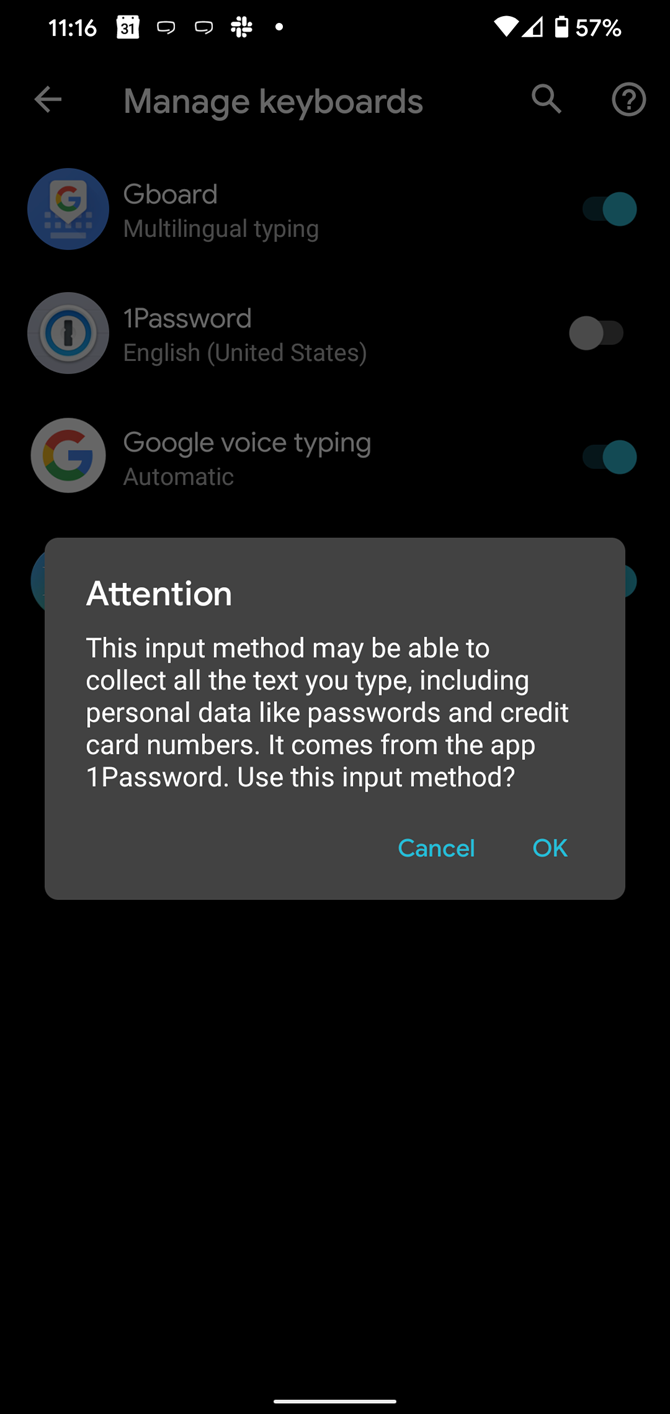
Simply toggle the slider on for the app you want to use, and it’s ready to go. Android will display a warning prompt letting you know that the app has the potential to collect all the information you type into it, so make sure you trust the keyboard before continuing.

How to Change Your Android Keyboard

Even after you enable a new Android keyboard, you still need to switch to it. Thankfully, it’s easy to swap to another active keyboard.

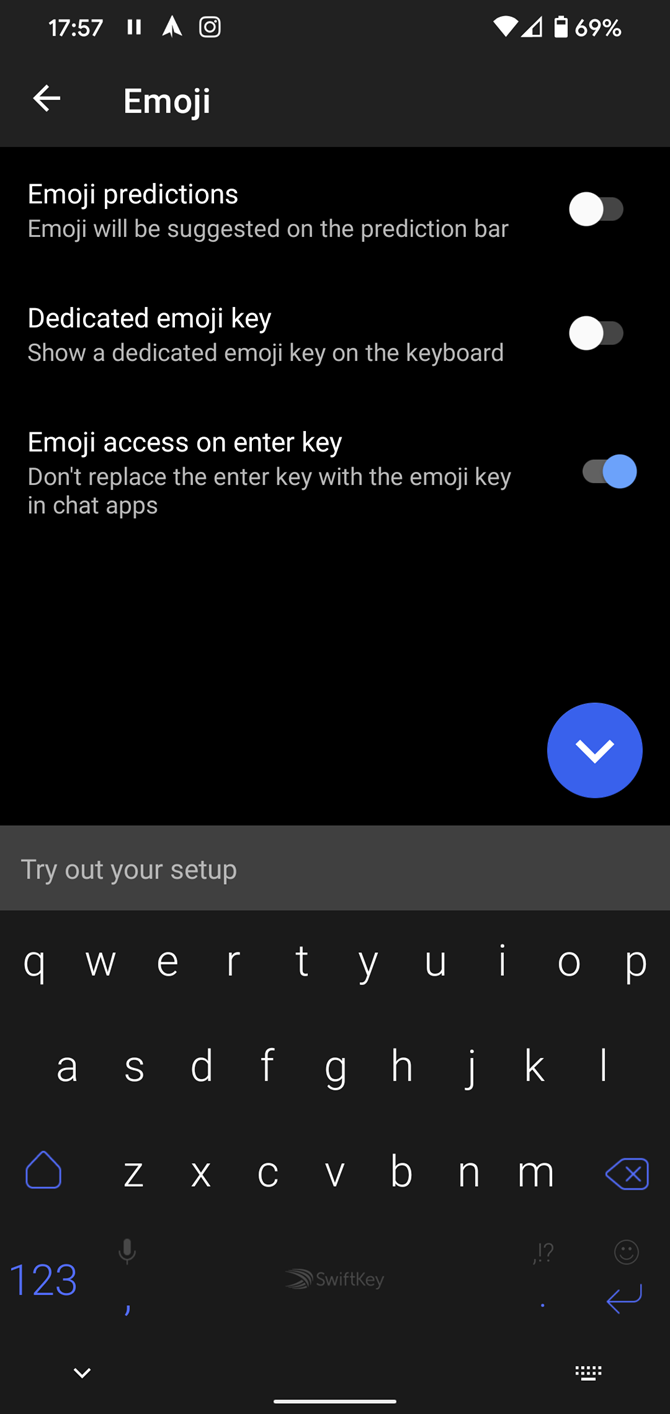
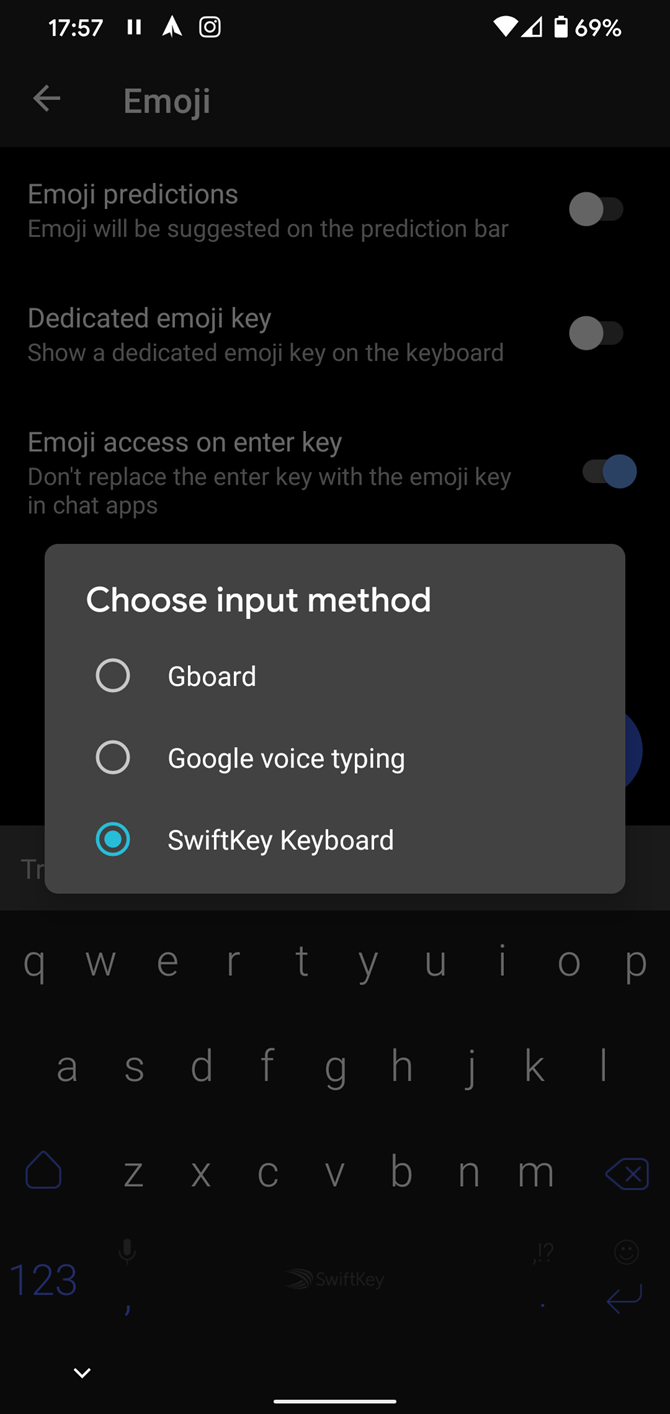
First, open the keyboard by tapping on any text box. This could be the search widget on your home screen, a text conversation, or similar. Once the keyboard is open, you’ll see a small keyboard icon appear at the bottom-right of your screen.

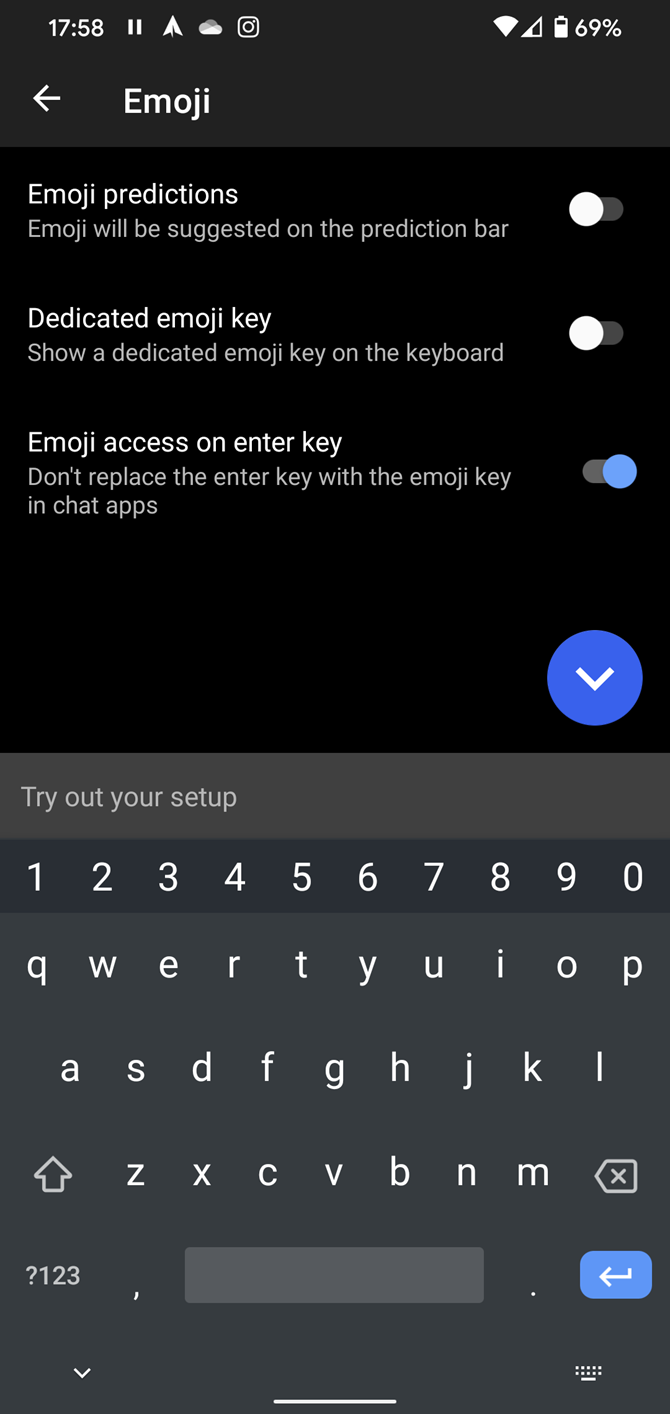
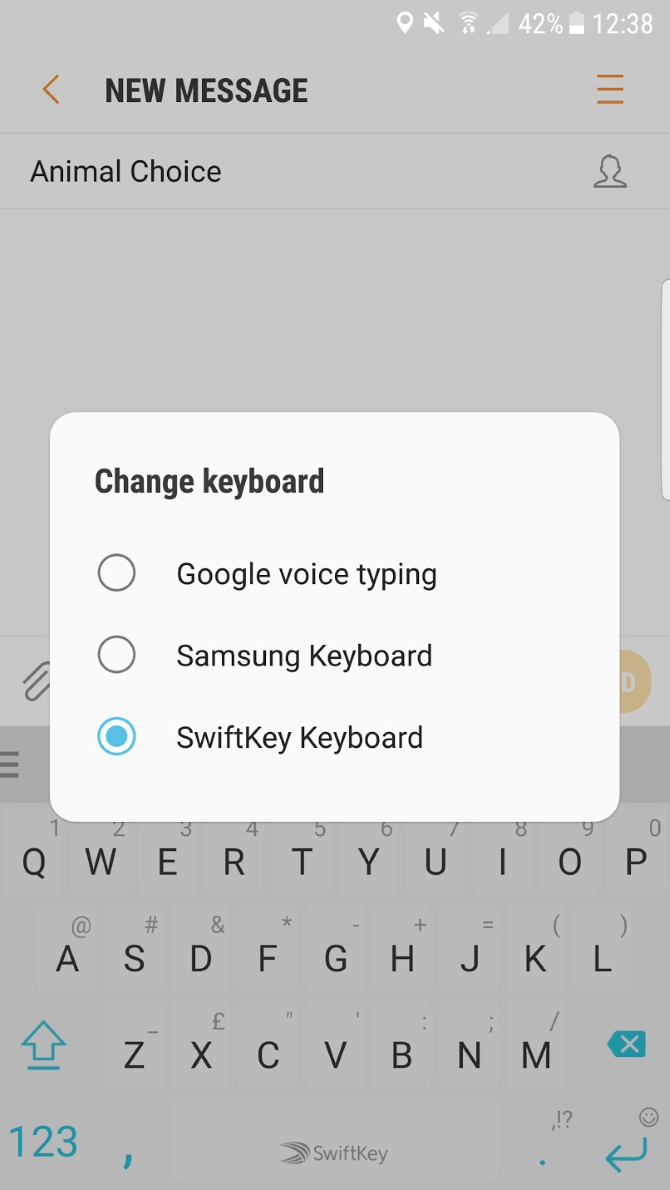
Tap this to open the Choose input method window. There, you can select from your enabled keyboard apps. Once you tap one, your keyboard will switch immediately.

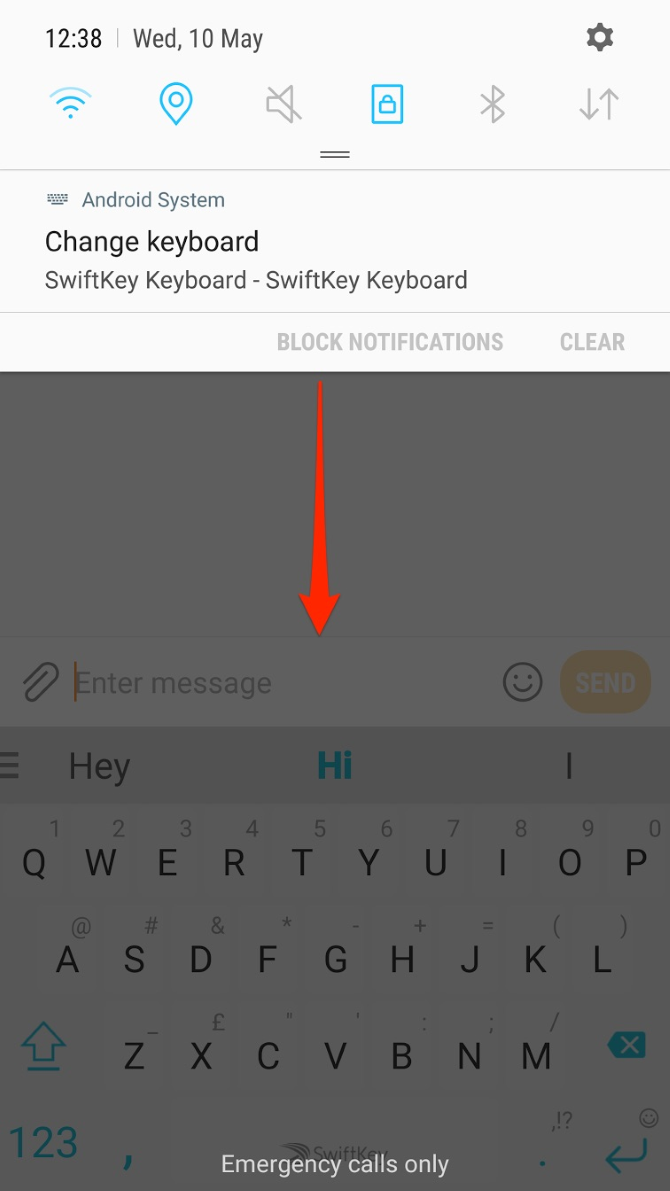
Depending on your device, this icon might not appear at the bottom-right. If so, you’ll likely find it by pulling down on your notification bar at the top of the screen and tapping the Change keyboard entry.

Customizing Your Android Keyboard

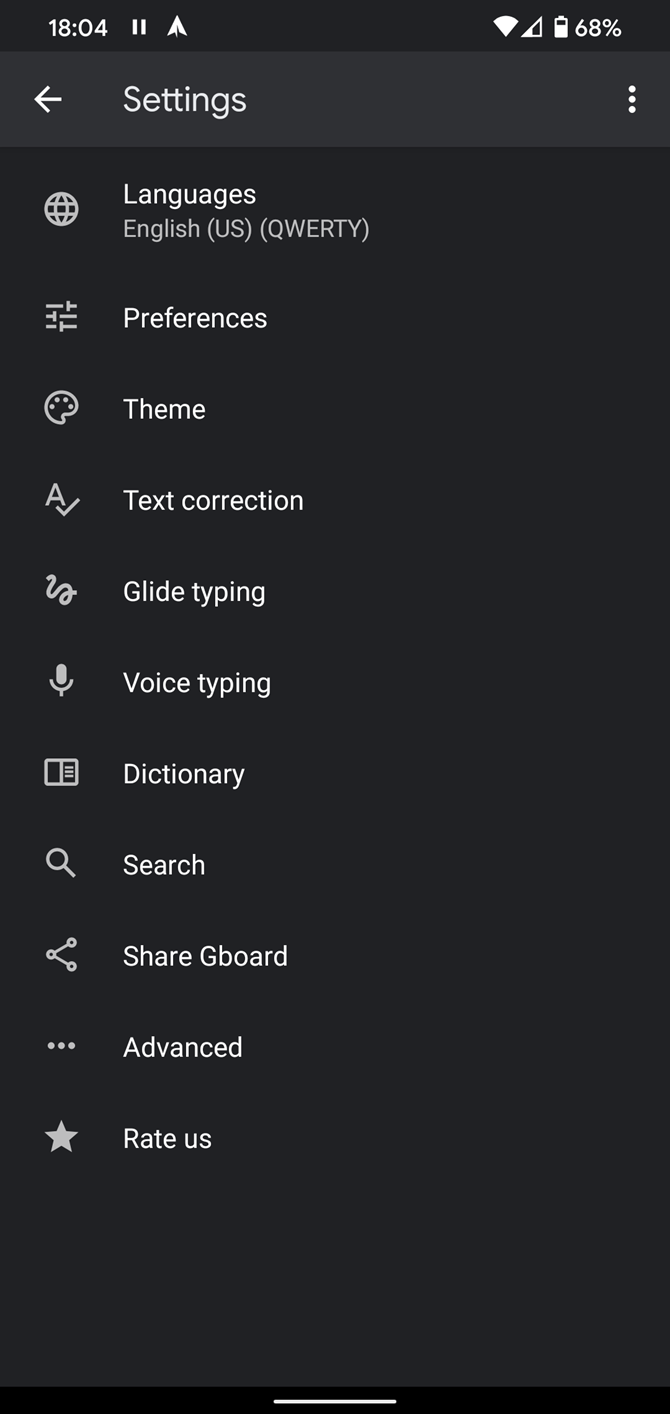
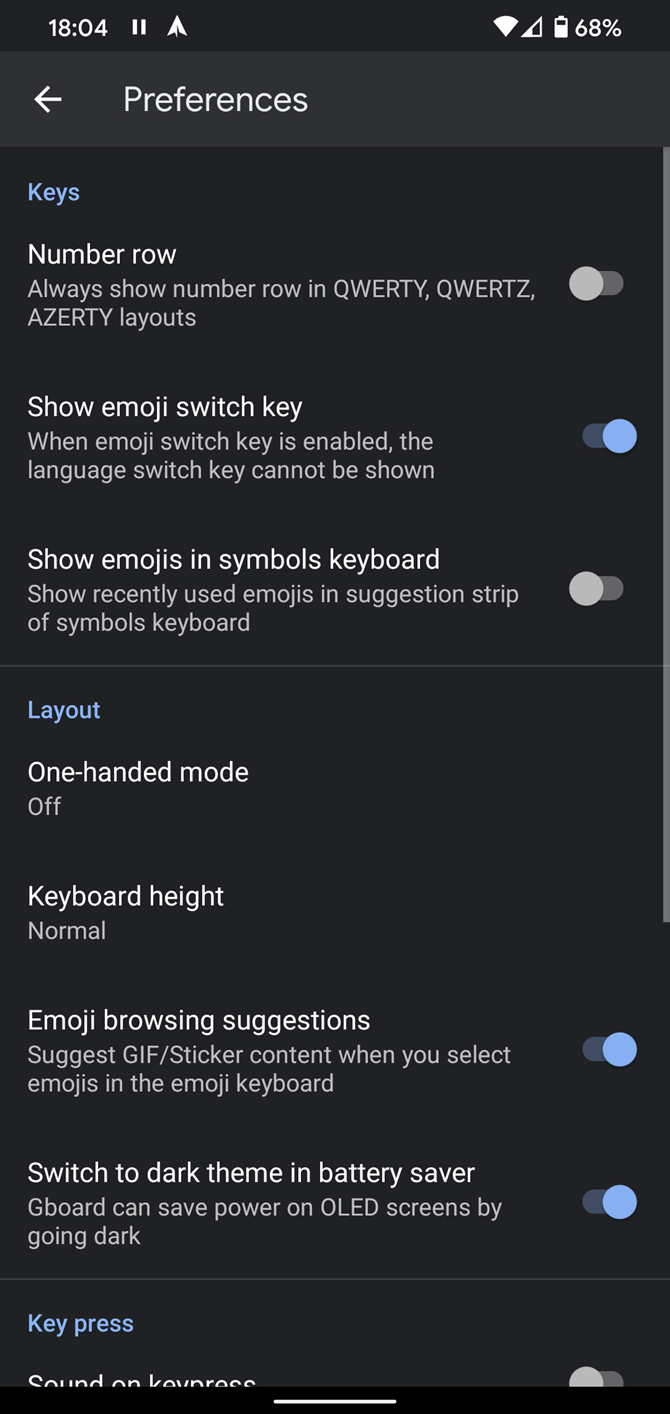
That’s all it takes to switch to a new Android keyboard. However, you should also take a look at the app’s settings to make sure they work for you. For instance, most keyboard apps offer the ability to change the layout, add custom auto-correct entries, change the theme, and more.

You can do this by opening the keyboard app from your app list. If it doesn’t appear there, head back to Settings > System > Languages & input > Virtual keyboard and tap your keyboard to open its options.

Type More Efficiently on Android

Using the right keyboard app makes typing on your phone all the time much more pleasant. You can install as many as you like and switch them at will, or replace the default keyboard and never look back.

For more tips, check out how to type faster on your Android phone and alternate ways to enter text on Android.

Read the full article: How to Change Your Android Keyboard


Read Full Article
Hallway creates a ‘virtual break room’ for remote workers using scheduled video chats


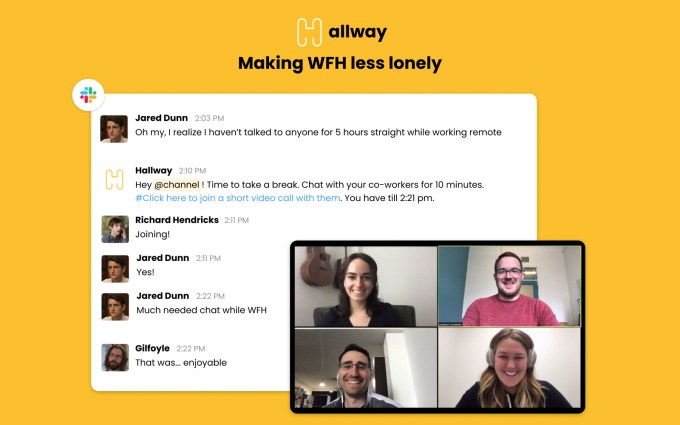
The coronavirus outbreak has forced millions of U.S. employees to work from home — many for the first time. But remote work can be lonely and isolating, as people feel disconnected from their team and co-workers due to the lack of face-to-face conversations. That’s where the new startup, Hallway, aims to help. The service re-creates the break room experience and the serendipity of random hallway conversations with its new app aimed at Slack users.

The app allows companies to schedule 10-minute long video chats within Slack channels where colleagues can catch up with one another outside of more formal web meetings.

The startup was co-founded by Parthi Loganathan, a former Product Manager at Google who launched Google Chat and Google Go; and Kunal Jasty, a former Associate at private equity firm Insight Partners.

The two were originally working on a product called Across that would help teams provide customer support in shared Slack channels. But when the shelter-in-place was brought into effect in San Francisco, things quickly changed.

“It forced a lot of companies that were unprepared for remote work to go remote overnight,” Loganathan explains. Meanwhile, his roommate complained he was going stir-crazy working from home and missed talking to his team.

“Hallway seemed like a simple and fun way to tackle that problem, so we built it in a couple of days,” Loganathan says.

The founders already had first-hand experience with the challenges involved in dealing with remote teams, as half their team was based in India. And they had experience building Slack apps, not only with Across but with others similar to Hallway, as well.

As a result, Hallway was built quickly, with only four days in between the idea and the first user, Loganathan says.

To use Hallway, you can either add it to Slack from the Hallway website or from the Slack app directory. (To install it, you may need admin approval if you don’t have permission to add apps to your Slack workspace.)

There’s no front-end for the app — everything is user-facing in Slack, including the login process, onboarding experience, and the settings user interface. Once installed, you’re given the onboarding instructions over direct message within Slack. You can then invite the Hallway bot to any Slack channel by typing /invite @hallway. This kicks off the bot to start creating break rooms on a recurring basis automatically which are announced by way of an @here message.

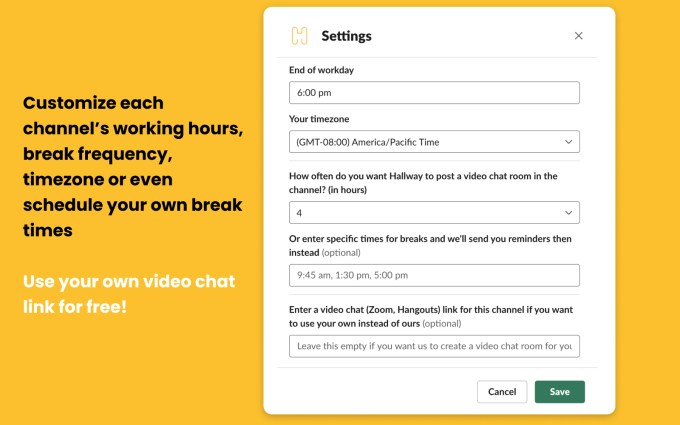
By default, Hallway’s break rooms are scheduled every 2 hours between 9 AM and 6 PM Monday through Friday, but users can adjust the timezone and adjust the frequency of the breaks by typing in /hallway in a Slack channel to customize the settings.

You can opt to use your own Zoom or Google Meet links with Hallway. But the experience works better with Hallway’s timed video chat rooms, which are powered by daily.co’s video infrastructure.

The service itself is free for up to 2 slack channels but only offers 10 of its timed video chats before you have to either switch to using your own web meeting links or have to upgrade.

Hallway’s “team” pricing plan for larger companies supports up to 5 channels and offers an unlimited number of video chat rooms as well as the customization options for $30 per month. For more than 5 channels, enterprise pricing is available upon request.

Since launching just a few weeks ago, Hallway has quickly grown its customer base.

The service is now being used by over 170 teams at companies like Nextdoor, Productboard, Bank Novo, Pivotal, Coursera, and others. The majority of users are on the free plan for now. However, companies in need of an upgrade can access more flexible pricing if users are willing to share the service with friends.

For the time being, the co-founders want to focus on improving the Hallway experience in Slack, but they’re already thinking about what comes next.

“We’re solving the problem of keeping teams connected and reducing workplace loneliness while working remotely. Right now, we’re improving the core experience of spontaneous timed video chats and giving users more options to customize them,” says Loganathan. “We’re looking into specific use cases we can help companies with like team building and employee onboarding for remote teams,” he notes.

The company may also consider a solution for Microsoft Teams in the future, he says.

Hallway has raised an undisclosed amount of pre-seed funding.


Read Full Article
13 April 2020

XTREME: A Massively Multilingual Multi-task Benchmark for Evaluating Cross-lingual Generalization


One of the key challenges in natural language processing (NLP) is building systems that not only work in English but in all of the world’s ~6,900 languages. Luckily, while most of the world’s languages are data sparse and do not have enough data available to train robust models on their own, many languages do share a considerable amount of underlying structure. On the vocabulary level, languages often have words that stem from the same origin — for instance, “desk” in English and “Tisch” in German both come from the Latin “discus”. Similarly, many languages also mark semantic roles in similar ways, such as the use of postpositions to mark temporal and spatial relations in both Chinese and Turkish.

In NLP, there are a number of methods that leverage the shared structure of multiple languages in training in order to overcome the data sparsity problem. Historically, most of these methods focused on performing a specific task in multiple languages. Over the last few years, driven by advances in deep learning, there has been an increase in the number of approaches that attempt to learn general-purpose multilingual representations (e.g., mBERT, XLM, XLM-R), which aim to capture knowledge that is shared across languages and that is useful for many tasks. In practice, however, the evaluation of such methods has mostly focused on a small set of tasks and for linguistically similar languages.

To encourage more research on multilingual learning, we introduce “XTREME: A Massively Multilingual Multi-task Benchmark for Evaluating Cross-lingual Generalization”, which covers 40 typologically diverse languages (spanning 12 language families) and includes nine tasks that collectively require reasoning about different levels of syntax or semantics. The languages in XTREME are selected to maximize language diversity, coverage in existing tasks, and availability of training data. Among these are many under-studied languages, such as the Dravidian languages Tamil (spoken in southern India, Sri Lanka, and Singapore), Telugu and Malayalam (spoken mainly in southern India), and the Niger-Congo languages Swahili and Yoruba, spoken in Africa. The code and data, including examples for running various baselines, is available here.

XTREME Tasks and Languages
The tasks included in XTREME cover a range of paradigms, including sentence classification, structured prediction, sentence retrieval and question answering. Consequently, in order for models to be successful on the XTREME benchmarks, they must learn representations that generalize to many standard cross-lingual transfer settings.

Tasks supported in the XTREME benchmark.
Each of the tasks covers a subset of the 40 languages. To obtain additional data in the low-resource languages used for analyses in XTREME, the test sets of two representative tasks, natural language inference (XNLI) and question answering (XQuAD), were automatically translated from English to the remaining languages. We show that models using the translated test sets for these tasks exhibited performance comparable to that achieved using human-labelled test sets.

Zero-shot Evaluation
To evaluate performance using XTREME, models must first be pre-trained on multilingual text using objectives that encourage cross-lingual learning. Then, they are fine-tuned on task-specific English data, since English is the most likely language where labelled data is available. XTREME then evaluates these models on zero-shot cross-lingual transfer performance, i.e., on other languages for which no task-specific data was seen. The three-step process, from pre-training to fine-tuning to zero-shot transfer, is shown in the figure below.
The cross-lingual transfer learning process for a given model: pre-training on multilingual text, followed by fine-tuning in English on downstream tasks, and finally zero-shot evaluation with XTREME.
In practice, one of the benefits of this zero-shot setting is computational efficiency — a pre-trained model only needs to be fine-tuned on English data for each task and can then be evaluated directly on other languages. Nevertheless, for tasks where labelled data is available in other languages, we also compare against fine-tuning on in-language data. Finally, we provide a combined score by obtaining the zero-shot scores on all nine XTREME tasks.

A Testbed for Transfer Learning
We conduct experiments with several state-of-the-art pre-trained multilingual models, including: multilingual BERT, a multilingual extension of the popular BERT model; XLM and XLM-R, two larger versions of multilingual BERT that have been trained on even more data; and a massively multilingual machine translation model, M4. A common feature of these models is that they have been pre-trained on large amounts of data from multiple languages. For our experiments, we choose variants of these models that are pre-trained on around 100 languages, including the 40 languages of our benchmark.

We find that while models achieve close to human performance on most existing tasks in English, performance is significantly lower for many of the other languages. Across all models, the gap between English performance and performance for the remaining languages is largest for the structured prediction and question answering tasks, while the spread of results across languages is largest for the structured prediction and sentence retrieval tasks.

For illustration, in the figure below we show the performance of the best-performing model in the zero-shot setting, XLM-R, by task and language, across all language families. The scores across tasks are not comparable, so the main focus should be the relative ranking of languages across tasks. As we can see, many high-resource languages, particularly from the Indo-European language family, are consistently ranked higher. In contrast, the model achieves lower performance on many languages from other language families such as Sino-Tibetan, Japonic, Koreanic, and Niger-Congo languages.
Performance of the best-performing model (XLM-R) across all tasks and languages in XTREME in the zero-shot setting. The reported scores are percentages based on task-specific metrics and are not directly comparable across tasks. Human performance (if available) is represented by a red star. Specific examples from each language family are represented with their ISO 639-1 codes.
In general we made a number of interesting observations.
  • In the zero-shot setting, M4 and mBERT are competitive with XLM-R for most tasks, while the latter outperforms them in the particularly challenging question answering tasks. For example, on XQuAD, XLM-R scored 76.6 compared to 64.5 for mBERT and 64.6 for M4, with similar spreads on MLQA and TyDi QA.
  • We find that baselines utilizing machine translation, which translate either the training data or test data, are very competitive. On the XNLI task, mBERT scored 65.4 in the zero shot transfer setting, and 74.0 when using translated training data.
  • We observe that the few-shot setting (i.e., using limited amounts of in-language labelled data, when available) is particularly competitive for simpler tasks, such as NER, but less useful for the more complex question answering tasks. This can be seen in the performance of mBERT, which improves by 42% on the NER task from 62.2 to 88.3 in the few-shot setting, but for the question answering task (TyDi QA), only improves by 25% (59.7 to 74.5).
  • Overall, a large gap between performance in English and other languages remains across all models and settings, which indicates that there is much potential for research on cross-lingual transfer.
Cross-lingual Transfer Analysis
Similar to previous observations regarding the generalisation ability of deep models, we observe that results improve if more pre-training data is available for a language, e.g., mBERT compared to XLM-R, which has more pre-training data. However, we find that this correlation does not hold for the structured prediction tasks, part-of-speech tagging (POS) and named entity recognition (NER), which indicates that current deep pre-trained models are not able to fully exploit the pre-training data to transfer to such syntactic tasks. We also find that models have difficulties transferring to non-Latin scripts. This is evident on the POS task, where mBERT achieves a zero-shot accuracy of 86.9 on Spanish compared to just 49.2 on Japanese.

For the natural language inference task, XNLI, we find that a model makes the same prediction on a test example in English and on the same example in another language about 70% of the time. Semi-supervised methods might be helpful in encouraging improved consistency between the predictions on examples and their translations in different languages. We also find that models struggle to predict POS tag sequences that were not seen in the English training data on which they were fine-tuned, highlighting that these models struggle to learn the syntax of other languages from the large amounts of unlabelled data used for pre-training. For named entity recognition, models have the most difficulty predicting entities that were not seen in the English training data for distant languages — accuracies on Indonesian and Swahili are 58.0 and 66.6, respectively, compared to 82.3 and 80.1 for Portguese and French.

Making Progress on Multilingual Transfer Learning
English has been the focal point of most recent advances in NLP despite being spoken by only around 15% of the world’s population. We believe that building on deep contextual representations, we now have the tools to make substantial progress on systems that serve the remainder of the world’s languages. We hope that XTREME will catalyze research in multilingual transfer learning, similar to how benchmarks such as GLUE and SuperGLUE have spurred the development of deep monolingual models, including BERT, RoBERTa, XLNet, AlBERT, and others. Stay tuned to our Twitter account for information on our upcoming website launch with a submission portal and leaderboard.

Acknowledgements:
This effort has been successful thanks to the hard work of a lot of people including, but not limited to the following (in alphabetical order of last name): Jon Clark, Orhan Firat, Junjie Hu, Graham Neubig, and Aditya Siddhant.

RIP John Conway


RIP John Conway

Daily Crunch: Apple and Google announce contact tracing initiative


Apple and Google reveal a joint effort to track the spread of COVID-19, a new study shows how fringe coronavirus theories are making their way to the mainstream and — in happier news — we get some hints on Apple’s hardware plans for the fall. Here’s your Daily Crunch for April 13, 2020.

1. Apple and Google are launching a joint COVID-19 tracing tool for iOS and Android

Apple and Google’s engineering teams have banded together to create a decentralized contact tracing tool that will help individuals determine whether they have been exposed to someone with COVID-19.

The first phase of the project is an API that public health agencies can integrate into their own apps. The next phase is a system-level contact tracing system that will work across iOS and Android devices on an opt-in basis.

2. Coronavirus conspiracies like that bogus 5G claim are racing across the internet

According to Yonder, an AI company that monitors online conversations including disinformation, conspiracies that would normally remain in fringe groups are traveling to the mainstream faster during the epidemic. The company estimates that it would normally take six to eight months for a “fringe narrative” to make its way from the edges of the internet into the mainstream, while that interval looks like three to 14 days in the midst of COVID-19.

3. Apple said to be planning fall iPhone refresh with iPad Pro-like design

Apple is readying a new iPhone for fall to replace the iPhone 11 Pro this fall, Bloomberg reports, as well as follow-ups to the iPhone 11, a smaller HomePod and a locator tag accessory.

4. Amazon to hire 75,000 more to address increased demand due to coronavirus crisis

The company said its hiring efforts can help mitigate some of the job loss and furloughing that has resulted from the economic crisis that is also occurring as part of the COVID-19 pandemic. In fact, Amazon positioned its openings as an option for anyone looking to seek work “until things return to normal and their past employer is able to bring them back.”

5. Checking on Utah’s startup scene as the economy slips

TechCrunch is taking a closer look at a few startup markets as the world changes. Following our dive into Boston late last week, we’re widening our scope and taking a peek at the state of Utah. (Extra Crunch membership required.)

6. Tesla resurrects long-range RWD Model 3 for the Chinese market

Tesla is now producing and selling the long-range, rear-wheel-drive version of its Model 3 electric vehicle at its Shanghai factory. The move is notable because Tesla discontinued production of the long-range RWD Model 3 in the U.S. This also marks a shift from Tesla’s initial plan to sell a more basic version of the Model 3 in China.

7. This week’s TechCrunch podcasts

The latest full-length episode of Equity rounds up a bunch of different fintech stories (including SoFi’s $1.2 billion purchase of Galileo), while the Monday news roundup looks at some of SoftBank’s latest financial numbers. And over on Original Content, we had some pretty strong feelings about the initial content lineup at Quibi.

The Daily Crunch is TechCrunch’s roundup of our biggest and most important stories. If you’d like to get this delivered to your inbox every day at around 9am Pacific, you can subscribe here.


Read Full Article
The wonders of the molecular world, animated | Janet Iwasa

The wonders of the molecular world, animated | Janet Iwasa

Some biological structures are so small that scientists can't see them with even the most powerful microscopes. That's where molecular animator and TED Fellow Janet Iwasa gets creative. Explore vast, unseen molecular worlds as she shares mesmerizing animations that imagine how they might work.

Click the above link to download the TED talk.

Apple said to be planning fall iPhone refresh with iPad Pro-like design


Apple is readying a new iPhone for fall to replace the iPhone 11 Pro this fall, Bloomberg reports, as well as follow-ups to the iPhone 11, a new smaller HomePod, and a locator tag accessory. The top-end iPhone 11 Pro successors at least will have a new industrial design that more closely resembles the iPad Pro, with flat screens and sides instead of the current rounded edge design, and they’ll also include the 3D LIDAR sensing system that Apple introduced with the most recent iPad Pro refresh in March.

The new highs-end iPhone design will look more like the iPhone 5, Bloomberg says, with “flat stainless steel edges,” and the screen on the lager version will be slightly bigger than the 6.5-inch display found on the current iPhone 11 Pro Max. It could also feature a smaller version of the current ‘notch’ camera cutout in at the top end of the display, the report claims.

Meanwhile, the LIDAR tracking system added to the rear camera array will be combined with processor speed and performance improvements, which should add up to significant improvements in augmented reality (AR) performance. The processor improvements are also designed to help boost on-device AI performance, the report notes.

These phones are still planned for a fall launch and release, though some of them could be available “multiple weeks later than normal,” Bloomberg claims, owing to disruptions caused by the ongoing coronavirus pandemic.

Other updates to the company’s product line on the horizon include a new smaller HomePod that’s around 50 percent smaller than the current version, with a planned launch sometime later this year. It’ll offer a price advantage versus the current model, and the report claims it’ll also come alongside Siri improvements and expansion of music streaming service support beyond Apple’s own. There’s also Apple Tags, which Apple itself has accidentally tipped as coming – a Tile-like Bluetooth location tracking accessory. Bloomberg says that could come out this year.

Finally, the report says there are updates to the MacBook Pro, Apple TV, lower-end iPads and iMac on the way, which is not surprising given Apple’s usual hardware update cadence. There’s no timeline for release on any of those, and it remains to be seen how the COVID-19 situation impacts these plans.


Read Full Article

Google unveils Maps, Search and YouTube features in India to help people combat coronavirus


Google has launched a website dedicated to coronavirus updates in India and tweaked its search engine and YouTube to prominently display authoritative information and locally relevant details about the pandemic from the nation’s Ministry of Health and Family Welfare, the company said on Monday.

Additionally, Google is also showing more than 1,500 food and night shelters in about three dozen cities in India on Google Maps and Search to guide people in need, it said. Millions of migrant daily-wage workers in India recently started to head to their home towns as their work disappeared after New Delhi ordered a 21-day lockdown across the nation last month to fight the spread of the infectious disease.

People can also find these locations by also asking Google Assistant about “food shelters,” for instance, in English and Hindi. Assistant is available to users on smartphones, KaiOS-powered feature phones and through a Vodafone-Idea phone line. (The company said it is working on supporting additional Indian languages.)

The Mountain View-headquartered giant, which counts India among its key overseas markets, said it has published COVID-19 Community Mobility Reports to help health officials in the country in their decision-making. The reports capture how traffic and movement across public places such as parks, transit stations and grocery stores have changed in the country in recent weeks.

On Maps, Google has also introduced Nearby Spot on Maps to help people in the nation find local stores that are providing essential items such as groceries.

YouTube and Search are showing consolidated information including the top news stories, links to MoHFW resources, and other authoritative content on symptoms, prevention, and treatments, Google said. YouTube has additionally also launched a ‘Coronavirus News Shelf,’ featured atop the homepage, that provides the latest news from authoritative media outlets regarding the outbreak.

In recent weeks, Google’s Pay service, as well as Walmart’s PhonePe and Paytm, introduced simplified ways to donate to Indian Prime Minister Narendra Modi’s fund to fight the coronavirus. Google said people have used its payments service to donate north of $13 million to date.

These steps should help contain another outbreak that India has been grappling with for several years: False information. Messaging services are filled with speculative and false information about why the government is doing what it is doing, who is spreading the infectious disease, or the age-old Indian devised cure for the Covid-19. And more often than not, these hoaxes are presented as facts by select TV news networks that reach hundreds of millions of users.

WhatsApp, the most popular app in India, has also stepped up to inform users about the infectious disease.


Read Full Article

Is 5G Safe or Dangerous? Here’s Everything You Need to Know


Smartphones have changed the way we interact with the internet. Our cell networks have evolved over the years to keep up with our increasing demand, and 5G is the latest iteration of mobile internet.

Now that 5G networks are coming online, there has been speculation about the safety of the technology. You may have even heard some of these claims. So, it’s time to find out, is 5G safe?

What Is 5G?

In most homes, connections to the internet are usually made via Wi-Fi. This is common across offices, and even coffee shops and public spaces like shopping malls. Outside of those areas, the cellular networks operated by AT&T, Verizon, and similar providers connect us to the internet.

There have been technological developments to improve mobile internet speeds, reliability, and coverage to support the increase of internet-connected devices. One of the most significant developments came in the form of 4G and LTE, which allowed us to use our smartphones to stream music, video call, and even watch Netflix while on the go.

5G represents the evolution of cellular networks to handle the coming influx of devices. The technology promises broadband-like speeds while out and about, as well as supporting the future of the internet of Things (IoT) devices. These are just the headlines, though; there are many ways that 5G will make mobile internet faster.

Is 5G Dangerous?

Illustration of devices connected via a 5G network
mohamed_hassan/Pixabay

In 2019, there was a public debate about whether Huawei should be able to operate 5G networks. This may have made you concerned whether 5G is a security risk. It’s also possible that you’ve heard about some of the health concerns raised about the network, too. During the COVID-19 pandemic, 5G was wrongly implicated in spreading the disease, for example.

There are some extreme claims about the health impact of 5G networks and technologies. However, despite media coverage of such claims, there is no evidence to suggest that 5G is dangerous to your health. As the New York Times noted, many of the same issues were raised about 4G, too.

Similarly to those older technologies, there is no evidence that 5G networks are dangerous. Initial studies have shown that the amounts of radiation generated by 5G cell towers and 5G smartphones are well below official safety limits.

In March 2020, The Guardian recounted statements by The International Commission on Non-Ionizing Radiation Protection (ICNIRP), noting that 5G is safe, while the risk posed is no different from other wireless networks.

It is reasonable, though, to still be cautious—after all, absence of evidence is not evidence of absence. That’s why governments around the world keep the situation under review.

One complication is that scientific studies produce different results from one another. Study A may show no negative impact, while Study B shows a small possible impact. In this example, Study A would not be widely reported—it’s not very interesting to say nothing happened—but Study B would likely receive a fair amount of media coverage.

The Scientific Method

Close-up image of a microscope
kkolosov/Pixabay

The Scientific Method exists to deal with inconsistent results. This is a method of inquiry used by researchers, where data is observed without bias or assumption, as much as possible. In this scenario, someone has a question and sets about trying to answer it by developing a test and generating data.

The researchers then draw conclusions from the data. Once written up, the study is peer-reviewed, and, if found to be without error, will be accepted into a scientific journal for publication. This allows for public scrutiny of the study and the conclusions that were drawn from it.

Other scientists may ask the same or similar question, but have a different method of testing. This will likely give different results, too. Because of this, there could be a situation where two studies, broadly examining the same topic, give different results.

To combat this, scientists and governments look for consensus on a given issue. However, an agreement can be challenging to achieve. For example, two opinion articles in Scientific American exposed differing views on the safety of 5G.

Published first, an article by Joel M. Moscowitz makes the arguement that 5G is unsafe. At the same time, a follow-up piece by David Robert Grimes contends that personal idealogy and low-quality studies guide Moscowitz’s argument.

Is 5G Safe?

The British telecoms regulator, Ofcom, performed one of the country’s first studies into 5G networks. They took measurements at 16 locations in 10 UK cities. As reported by the BBC, their results showed that the maximum radiation output was 0.039 percent of official safety limits.

Scientific consensus is based on the data we currently have. So, of course, this may change in the future.

Studies into 5G are presently limited as the technology is still being rolled out. There are low numbers of users and compatible phones, too. As 5G becomes widely available, there will be more opportunities for studies and, importantly, long-term research into wireless technologies.

Based on our current understanding, though, 5G does not pose a risk to human health.

Wireless Networks and Cancer

Illustration of a DNA double helix
qimono/Pixabay

One of the long-standing claims about the new network is that 5G may cause cancer, so it’s worth taking a look at this particular assertion.

Cancer is the uncontrollable growth of our body’s cells. Our DNA contains instructions on how the cell should behave, and control the growth of the cell, too. If there is a change, or mutation, to these structures, then the instructions become incorrect, leading to abnormal growth and multiplication of cells.

Radiation can damage cells, leading to these mutations. There are multiple types and strengths of radiation. If the radiation has enough energy, it is able to interact with atoms, and detach electrons. This is ionizing radiation and is considered the most dangerous to humans. Despite the damage it can inflict, ionizing radiation is also used in cancer radiotherapy treatment.

Low-energy, non-ionizing radiation is not able to interact with atoms, and, as a result, our cells. Wireless technologies, like Wi-Fi, radio, and LTE, fall into this category. That is true of 5G, as well. However, since the introduction of mobile phones in the 1990s, there have been suggestions that the non-ionizing radiation emitted by these wireless devices can harm us.

Does 5G Cause Cancer?

The World Health Organization’s (WHO) 2014 guidance states that a “…large number of studies have been performed over the last two decades to assess whether mobile phones pose a potential health risk. To date, no adverse health effects have been established as being caused by mobile phone use.”

While this type of non-ionization radiation may not directly cause mutations, there have also been studies into the other effects of wireless radiofrequency radiation. For example, this low-energy radiofrequency radiation can cause increases in temperature. However, investigations into this effect have also shown there are no impacts to your health as a result.

Such was the case in Australia. As reported by ZDNet, network operators found that 5G networks were no more harmful than other household items like baby monitors and microwaves.

Is 5G the Future?

While it’s worth being cautious around new technologies, there’s no evidence to suggest that 5G is any more dangerous than 4G, Wi-Fi, or any other existing wireless systems. Even then, the impact of such networks is debatable, with most studies concluding there is insufficient evidence to report them as unsafe.

If you’re ready to dive into the mobile network of the future, then you’ll need a phone that supports it. So, be sure to check out the best 5G smartphones before you make your next upgrade.

Read the full article: Is 5G Safe or Dangerous? Here’s Everything You Need to Know


Read Full Article

12 April 2020

Key Image Sizes for Facebook, Twitter, and More


Mobile device with Facebook login screen, placed to Scrabble pieces spelling social media

Do your photos look great on your computer, but not so much when you upload them to a social media website? That can happen when you haven’t optimized the photos for the website in question.

If you don’t design images to match the sizes specified by various social networking sites, the fate of your images is unpredictable. They can get cropped at odd points, appear blurry or askew, cut off key visual information, or look weird in some other way.

To avoid those scenarios, use the cheat sheet below as a guide. It can help you keep your images looking sharp across any kind of device or screen.

The cheat sheet lists optimal image sizes for Facebook, Twitter, Instagram, YouTube, Pinterest, LinkedIn, and Tumblr. Plus, it includes specifications for video content. You can use this information to optimize profile pictures, thumbnails, cover photos, pins, shared images, and more!

FREE DOWNLOAD: This cheat sheet is available as a downloadable PDF from our distribution partner, TradePub. You will have to complete a short form to access it for the first time only. Download Key Image Sizes for Your Favorite Social Media Websites.

Key Image/Video Sizes for Your Favorite Social Media Websites

Element Specification
Facebook
Profile Picture (Minimum) 180x180
¹Profile Picture (Recommended) 200x200
Cover Photo (Minimum) 400x150
²Cover Photo (Recommended) 820x462
Shared Image and Shared Link Image
in Timeline (Minimum)
600x315
Shared Image and Shared Link Image
in Timeline (Recommended)
1200x630
Event Cover 1920x1080 OR 16:9 Aspect Ratio
Story 1080x1920 OR 
9:16 Aspect Ratio
Group Cover 1640x856 OR 1.91:1 Aspect Ratio
Twitter
Profile Photo 400x400
Header Photo 1500x500
Timeline Image (Minimum) 440x220
Timeline Image (Recommended) 1024X512 OR 2:1 Aspect Ratio
Video (Square) 720x720
Video (Landscape) 1280x720
Video (Portrait) 720x1280
Instagram
Profile Picture (Recommended) 180x180
Photo Thumbnails 161x161
³Photo (Square) 1080x1080
³Photo (Landscape) 1080x566 OR 1.91:1 Aspect Ratio
³Photo (Portrait) 1080x1350 OR 
4:5 Aspect Ratio
Video Minimum (Square) 600x600
Video Maximum (Square) 1080x1080
Video Minimum (Landscape) 600x315
Video Maximum (Landscape) 1080x608
Video Minimum (Portrait) 600x750
Video Maximum (Portrait) 1080x1350
Video Minimum (Carousel) 600x700
Video Maximum (Carousel) 1080x1080
Story 1080x1920 OR
 9:16 Aspect Ratio
YouTube
Profile Picture 800x800
Video Thumbnail 1280x720
Banner (Cover Photo or Channel Art) 2560x440
Banner Safe Area 1546x423
Mobile Display 1546x423
Tablet Display 1855x423
Desktop Display 2560x423
TV Display 2560x1440
4K (2160p) 3840x2160
2K (1440p) 2560x1440
Max. Resolution for HD (1080p) 1920x1080
Min. Resolution for HD (720p) 1280x720
Standard Definition (480p) 854x480
Traditional Website Resolution (360p) 640x360
Minimum YouTube Video Size (240p) 426x240
Pinterest
Profile Photo (Minimum) 165x165
Profile Photo (Recommended) 280x280
Board Cover 600x600
Small Thumbnail for Board Display 55x55
Large Thumbnail for Board Display 222x150
Standard Pin (Minimum) 600x900
Standard Pin (Recommended) 1000x1500 OR 
1:1.5 Aspect Ratio
Square Pin (Minimum) 600x600
Square Pin (Recommended) 1000x1000 OR
 1:1 Aspect Ratio
Tall Pin (Minimum) 600x1260
Tall Pin (Recommended) 1000x2100 OR 
1:2.1 Aspect Ratio
LinkedIn
Profile Picture (Minimum) 160x160
Profile Picture (Recommended) 400x400
Profile Picture (Maximum) 20000x20000
Profile Cover 1584x396
Shared Image (Desktop) 1200x1200
Shared Image (Mobile) 1200x627
Blog Post Link Share Image 1200x628
LinkedIn Page Logo 300x300
LinkedIn Page Cover Image 1128x191
Overview Tab Image 360x120
Overview Tab Cover Image 1192x220
Life Tab Main Image 1128x376
Life Tab Company Photos 900x600
Life Tab Custom Modules 502x282
Shared Image in Page Update With URL 1200x627
Tumblr
Avatar (Profile Picture) 128x128
Dashboard Image (Minimum) 500x750
Dashboard Image (Maximum) 1280x1920
1-Image Photoset 500x* per image
2-Image Photoset 245x* per image
3-Image Photoset 160x* per image
Photo Post (Recommended) 540x810
Photo Post (Maximum) 2048x3072
GIF (Maximum) 540x*
¹Dimensions for retina screens: 360x360.

²These dimensions account for the total image cropping of 150 px (vertical) that occurs on desktop.

³These dimensions also work for photo posts in your Facebook feed.

Tips for Social Media Success

Uploading visual content that’s on point is just one part of a successful social networking strategy. For more tips on how to win at social media, explore our platform-specific guides and roundups. Start with these top Facebook tips and tricks.

Read the full article: Key Image Sizes for Facebook, Twitter, and More


Read Full Article