07 April 2020

The 5 Best Instagram Repost Apps for Android and iPhone


repost-apps-instagram

Instagram has become the ultimate social network for sharing photos and videos. However, while the Facebook-owned social network has almost all of the features that you might want, Instagram still lacks a few features.

The biggest omission is the ability to repost photos or videos. Generally speaking, you need a third-party app to accomplish this, and there are quite a few available. So, here are the best Instagram repost apps…

1. Repost For Instagram
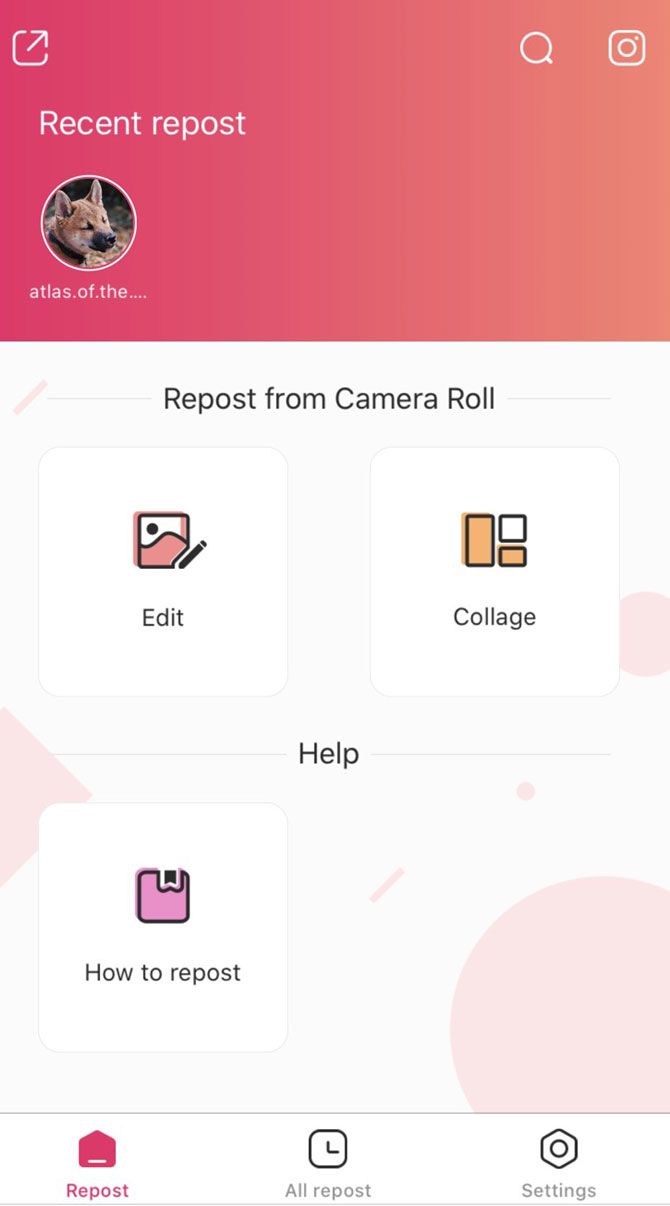
Pros: Repost For Instagram provides a very easy to use app experience. Simply go to Instagram either via Repost’s button or manually, find the post you want, and click the three dots to copy the link. After you return to Repost, the post will appear under the All repost tab.

Once you interact with the post, there are just a few streamlined options to work with. You can copy the caption and all of the tags with a click of the copy hyperlink. You can also remove or add a watermark indicating the original source.

For those particular about the watermark, you can change its color and position as well. Afterwards, simply press repost to finish.

Besides its simplicity, the app’s ability to access your camera roll makes for a nice back-up should anything go wrong. The collage option also provides a nice multi-post option which the majority of Instagram repost apps shy away from.

Cons: You still have to remember to paste the caption and tags after copying them. There’s no paid variant, so you’ll have to deal with some annoying ads.

Download: Repost For Instagram for iOS (Free)

2. Regram Posts – Repost for Instagram

Pros: Regram features a lot of nice features by default such as a one-click Instagram opener and night mode. However, it mostly stands out for its customizable settings versus other reposting apps. You control what notifications you want to see, and you can set up numerous default settings to make reposting faster.

Once you get to the editing stage for your image, you have a lot more options for what to do with the watermark (if you want to include it). You can alter the location, make it opaque, change the background color, and change the font color.

There’s also an experimental HD quality.

Cons: The only real downside to the app is the costly price to remove ads. Unlike other apps, it will cost you $4.99.

Download: Repost For Instagram for Android (Free, Subscription available)

If you’re someone who is trying to use Instagram as a business tool, check out our article about how to find Instagram hashtags for more likes and followers.

3. Sepia Software’s Repost for Instagram

Pros: Repost for Instagram features a simple interface with two views: expanded and compact. The app also does an amazing job of auto-detecting when you copy links on Instagram and automatically inputs them into its gallery. You can also schedule a reminder for when you want to repost anything.

In terms of options, you change the color of the watermark and its positioning. For the post itself, you can’t really do anything else besides repost.

Cons: You can’t access the editor or remove the watermark without paying $4.99/month for a pro subscription. Non-pro users will also have to deal with ads.

Download: Repost For Instagram for iOS (Free, Subscription available)

4. Repost for Instagram – Regrann
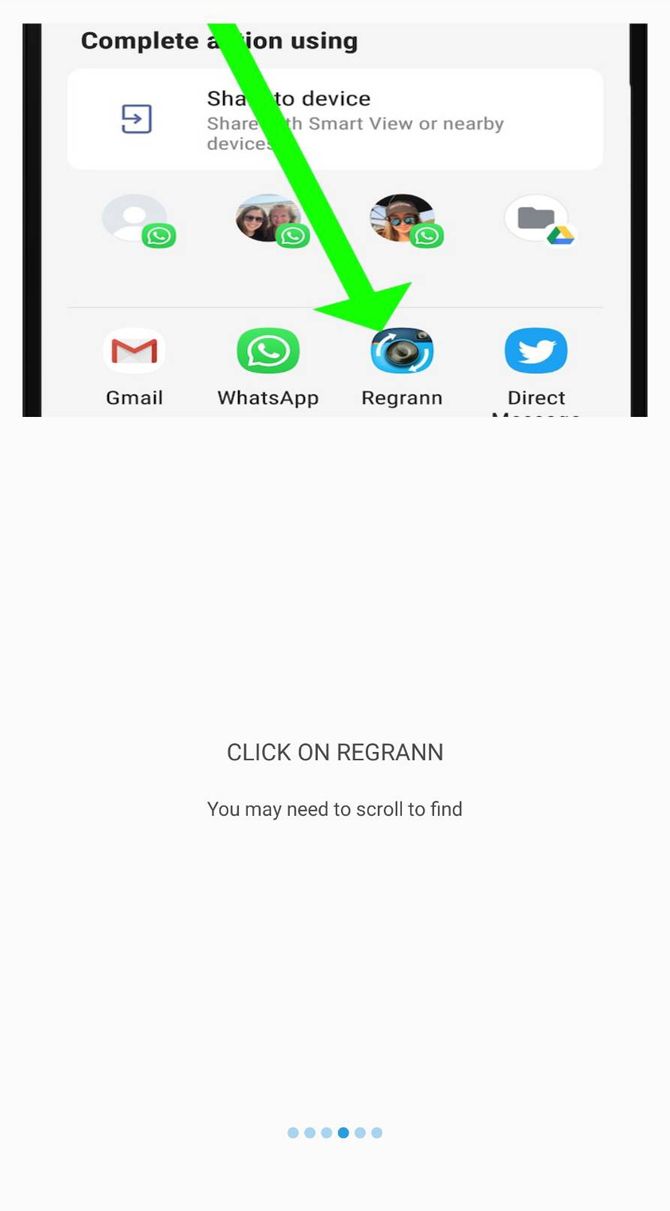
Pros: Repost for Instagram – Regrann greets you with a tutorial. If you happen to forget what you’ve learned, you can easily go through it again.

The app provides you with two modes to try as a free user. The most convenient one is the “Selection Pop-up Mode.” After you’ve selected Copy Link on Instagram, Regrann offers you the option to save, share, post later, or post the image to your Instagram stories and feed.

Regrann also provides you the option to place a credit watermark. The app automatically copies the caption but you still have to post it in yourself. It also gives you the option to have a text “Signature” to add to the caption or to replace the caption with.

The “Quick Post-Later” mode is pretty nifty, too, letting you bookmark posts. However, if you don’t use them after going into Regrann, it will clear them out.

Cons: The “Quick Repost” and “Quick Save” modes are only available to Premium users that pay $1.99. As a free user you’ll also have to deal with random video ads.

If you want to copy a post with multiple photos/videos, you’re only able to download the images/videos. Instead, you’ll have to upload them manually from the Regrann-Multi-Post album saved to your phone.

Download: Repost for Instagram – Regrann for Android (Free, Subscription available)

If your focus is Instagram stories rather than posts, check out our guide to visual tricks that can make your Instagram stories pop.

5. Photo and Video Downloader for Instagram – Repost IG (Repost for Instagram)
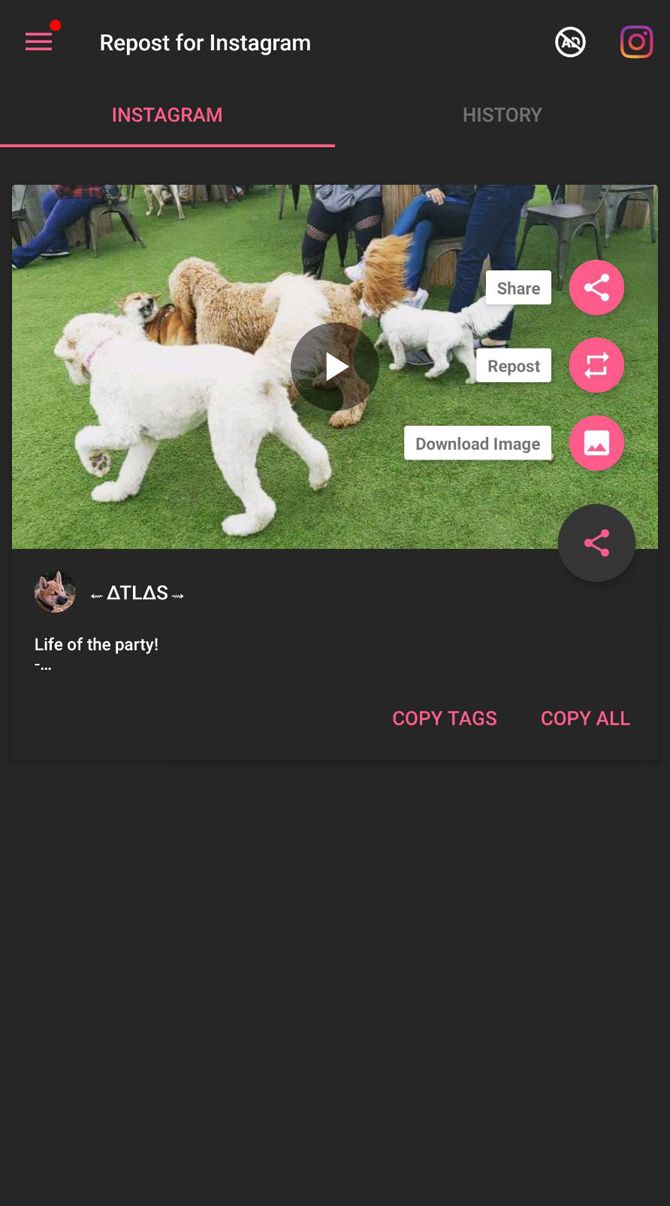
Pros: Repost IG (Repost for Instagram) offers a very streamlined interface. If you don’t have Instagram open, you can open it with the press of the Instagram button. After you either copy in your Instagram URL or share it with the app, a preview image appears alongside the other options.

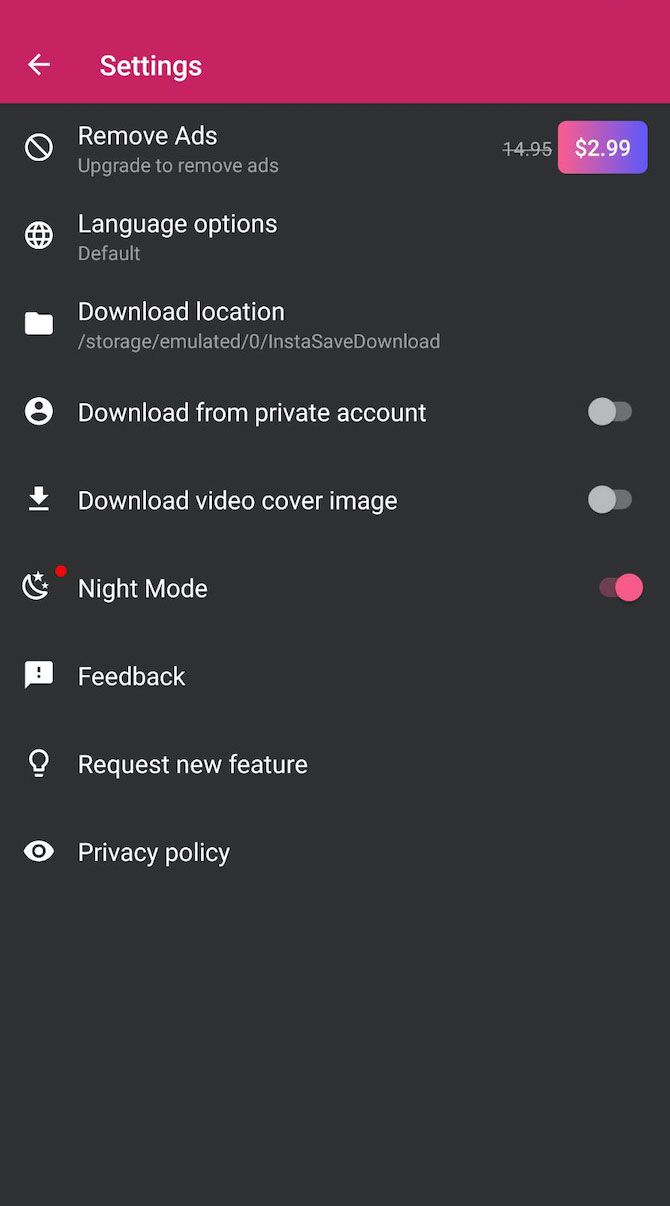
Unlike other apps, you have the option to just copy the tags or the full caption. Additionally, if you prefer using night mode in your apps, Repost IG has it. The ability to repost from the previewed screen to your direct messages, feed, and stories also makes it incredibly fast.

Cons: The ads aren’t as glaring in Repost IG, but you’re asked $2.99 to remove them. Additionally, repost to your feed will sometimes not work. This requires you to download the image/video and repost it manually.

Download: Photo and Video Downloader for Instagram – Repost IG for Android (Free, Subscription available)

For more information about reposting, and ways to handle Instagram reposts without using a dedicated app, take a look at our guide detailing how to repost Instagram photos and videos.

Things to Note About Instagram Repost Apps

Finding the best Instagram repost app can be tricky. A number of apps will go through periods of instability, so one might stop working at any time. So, if you decide to invest in an app, be sure to pick Instagram repost apps that offer guarantees or refunds.

For more help with Instagram, check out our article explaining what Instagram is and how it works and our list of the best Instagram photo editors.

Read the full article: The 5 Best Instagram Repost Apps for Android and iPhone


Read Full Article

7 Ways to Prevent Drones Infringing on Your Privacy


drones-privacy

A lot of people are hyped about drones these days. And while it’s true that drones are set to transform the future in amazing ways, what we can’t forget is that drones pose a serious risk to security and privacy. You might want to know how to stop drones from flying over your house. Or you might wonder how to disable or jam a drone.

However, the legal status of these activities is complicated.

Fortunately, methods of protection against drones are being developed right now. Here are some drone blocking strategies that have been devised.

1. Anti-Drone Drones

In 2015, Malou Tech gave their first demonstration of an anti-drone drone: a bigger, badder drone equipped with a huge net meant for capturing and disabling smaller drones. It could be an effective method, but in a lot of cases, something more subtle is needed.

That’s why the Rapere project turned a lot of heads, offering a unique solution for interfering with drones. Rather than using a net, it proposed dropping a string that could entangle drone rotors. This meant faster and more precise strikes at target drones. Unfortunately, it seems the project is no more, but you can expect more ideas like this to pop up in the future.

2. Anti-Drone Birds

Drone-intercepting drones may be practical. But if you’re the kind of person who wants to kick it up a few notches, then you’ll probably want to look into anti-drone birds. Specifically, eagles that have been trained to tackle drones out of the sky.

In fact, some of these birds are even able to snatch drones and carry them all the way back to their trainers. And in case you were worried whether this process is harmful to the birds, rest assured it’s not. The birds are intelligent enough to pull it off without so much as clipping a talon.

These birds are only available in the Netherlands and only for police. But it’s conceivable to expect other countries to follow suit in some form or another.

3. Anti-Drone Jammers

If you need a method that’s even more subtle than physical interception, then there are ways to jam a drone signal. The Anti-UAV Defense System (AUDS) is one such solution. It scans the skies for drones and jams their control signals using its own high-powered radio signal.

Or if you need a more portable option, you could look into the DroneDefender. This is an accurate anti-drone rifle that uses targeted radio signals to disrupt drone controls. It works much in the same way that the AUDS operates. It currently has a range over 1,300 feet but may be able to reach even farther in future versions.

But there’s one good reason not to use these kinds of devices: radar jammers may be illegal where you live. Don’t even think about buying one of these until you’ve made sure that you won’t be arrested for it.

4. Drone-Blinding Lasers

Anti-drone lasers are kind of like anti-drone jammers. Except instead of interfering with a drone’s control signals, they interfere with its camera. Digital cameras use a light sensor to pick up visual information, so if you overload that sensor with too much light, you can blind it.

Have you ever taken a video from inside your house and walked out the door? For a few seconds, everything becomes really bright and white. That’s basically how a blinding laser works. All you’d need is a low-powered laser pointer and some good aim.

But be careful. It’s not exactly legal to shine lasers into the sky because you might accidentally blind an airplane pilot. So you really need to take caution when playing around with lasers like this.

5. Drone Detection Systems

Prevent Drones Infringing on Your Privacy - drone sky

Back in 2013, a group of engineers and computer scientists started a crowdfunding campaign for a device called DroneShield. Powered by a Raspberry Pi core, it was able to detect the presence of drones with a microphone that could pick up frequencies that humans can’t hear.

Once processed, the signal would be compared against a database to separate it from everyday noises and to confirm that it was actually a drone. If so, the device would shoot a notification your way to let you know that a drone was nearby.

This particular project was benched, but DroneShield does have other enterprise-grade drone detection systems for sale. Nothing currently exists for single homes or other consumer-grade situations, however.

6. Drone Hijacks

Prevent Drones Infringing on Your Privacy - drone flying

One important thing to know about drones is that they’ll never be 100% impervious to hacks, much in the same way that computers and mobile devices will never be completely protected. Keep that in mind if you ever plan on buying a drone of your own.

The thing is, this kind of weakness can always be exploited, which was proved when a security researcher demonstrated the hijacking of a $35,000 police drone from up to one mile away. If a government drone can be disabled like that, it’s reasonable to assume that most consumer-grade drones won’t stand a chance either.

Not to say that you should go around hijacking drones, but in the future we may see disruption devices that utilize these kinds of vulnerabilities to knock drones out the sky and maintain the peace.

7. Drone Surveillance Laws

Prevent Drones Infringing on Your Privacy - drone camera

If all else fails, the last thing you can do is to push for laws that protect the privacy of citizens against drones. Bills have been popping up ever since the drone craze really took off back in 2013, and some have even been passed into law, but we still have a long way to go.

In 2019, both the US and the UK brought in new laws about drone flying. In the US, drones must be registered to an owner before they are used if they weigh more than 250 grams. Permission needs to be obtained before drones are flown in controlled airspace. And drone pilots must pass a test before they can fly. This means that it should be easier to trace who a drone belongs to and who was flying it if it causes a problem.

In the UK, drones over 250 grams also need to be registered and pilots need to pass a theory test.

The good news for privacy advocates is that both sides of US Congress agree and want to “prevent high-tech window-peeping.” Drones with cameras may be covered by laws like the Data Protection Act (DPA). Groups like the Uniform Law Commission (ULC) are working to create laws regarding drones which balance privacy concerns with the potential benefits of drones for search and rescue, delivering medical supplies, and other important functions. These laws are being frequently updated as drones become more popular.

Ideally, a middle ground will be found, but until that happens, there’s not a lot you can do about drones threatening your privacy as a private citizen. Laws may end up being the only effective defense.

Drone Users Should Be Aware of Privacy Concerns

Plenty of people are concerned about how drones could impact their privacy. There are some methods to stop a drone, but these are mostly suited to military or large organizations, not to individuals trying to protect their homes. Therefore, the best defense is to lobby for laws which restrict the use of drones.

If you are a drone user yourself, remember that you should consider the privacy of others when you fly. And you must register yourself as a pilot. For more information, see our guide on how to get an FAA drone license as fast as possible.

Read the full article: 7 Ways to Prevent Drones Infringing on Your Privacy


Read Full Article

How to Use Skype on Android for Beginners


Want to make Skype calls on the go? With the Skype app for Android, you can make Skype-to-Skype calls, ring landlines, send messages, and video conference with others.

Skype revolutionized how we make calls on computers and it’s also available for your Android cell phone. Here’s everything you need to know to get started with Skype for Android.

What Skype Can Do on Your Phone

Skype brings modern communication tools to your mobile phone. With a single free account, you can:

  • Make free local and international calls as well as low-cost international, local, and mobile calls
  • Send instant messages
  • Hold video chats and video conferences
  • Record calls and videos

When calling a Skype account, calls are free. For non-Skype telephone numbers, you’ll need Skype credit, which is charged at a very low rate. Calls are receivable on other phones, laptops, tablets, desktop PCs, and any device with the Skype app.

Let’s look at how to use Skype on Android. First, you’ll need to install the app from Google Play. Note that while we focus on Android here, the Skype app for iPhone is similar.

Download: Skype for Android | iOS (Free, in-app purchases available)

Getting Started With Skype for Android

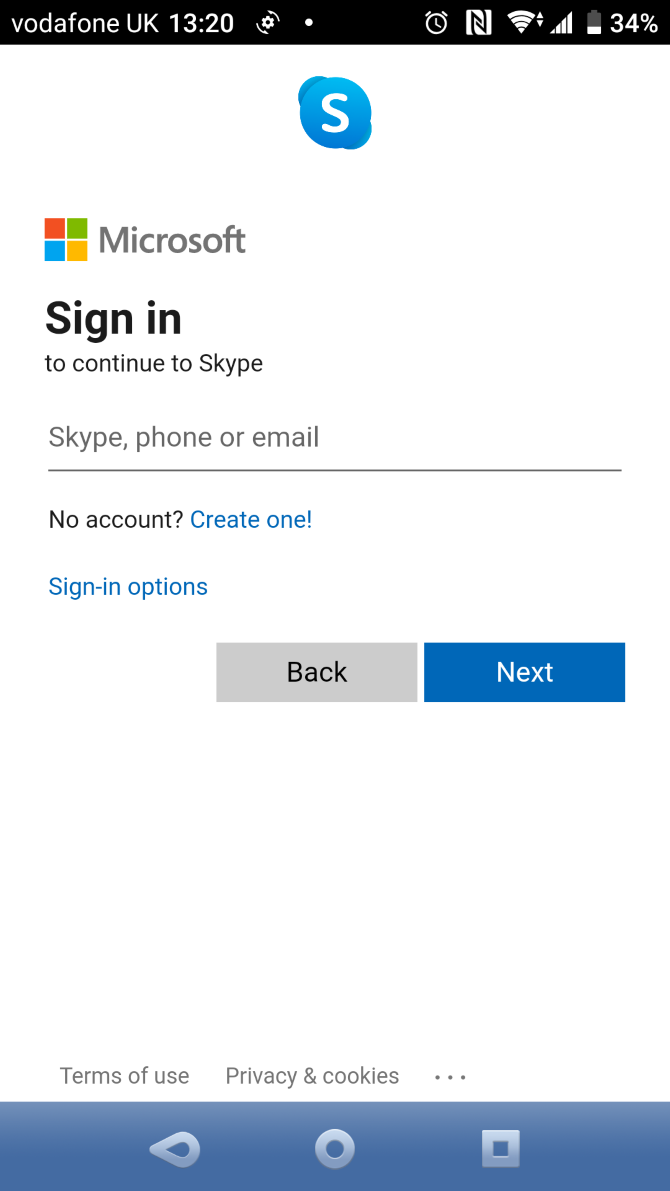
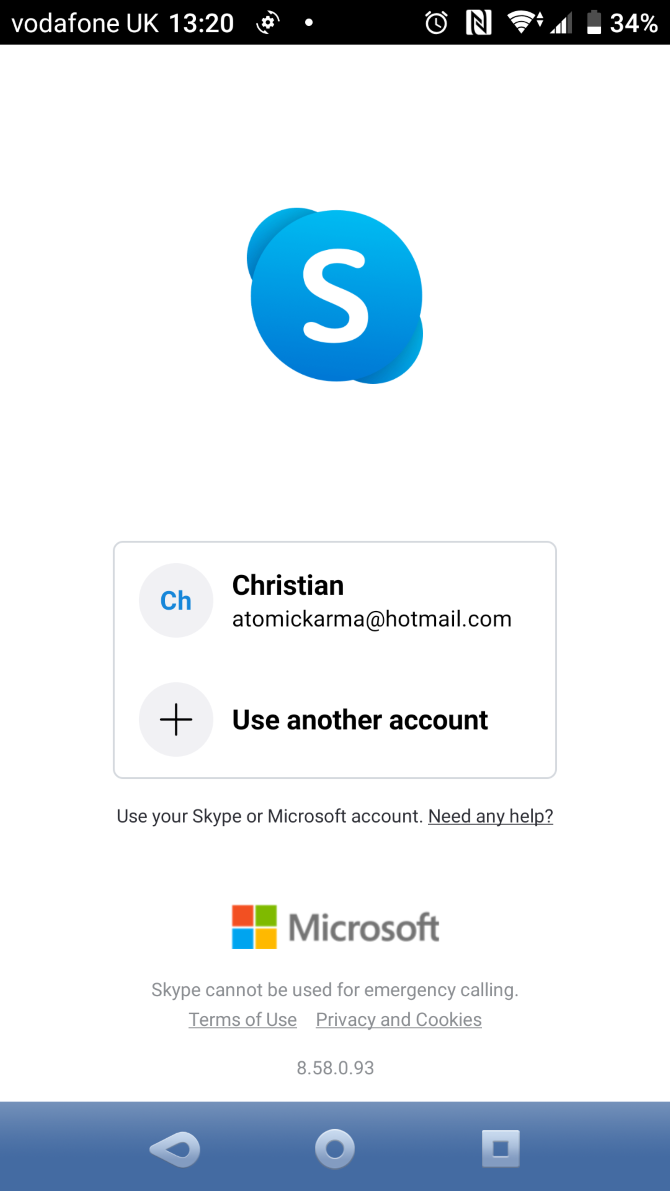
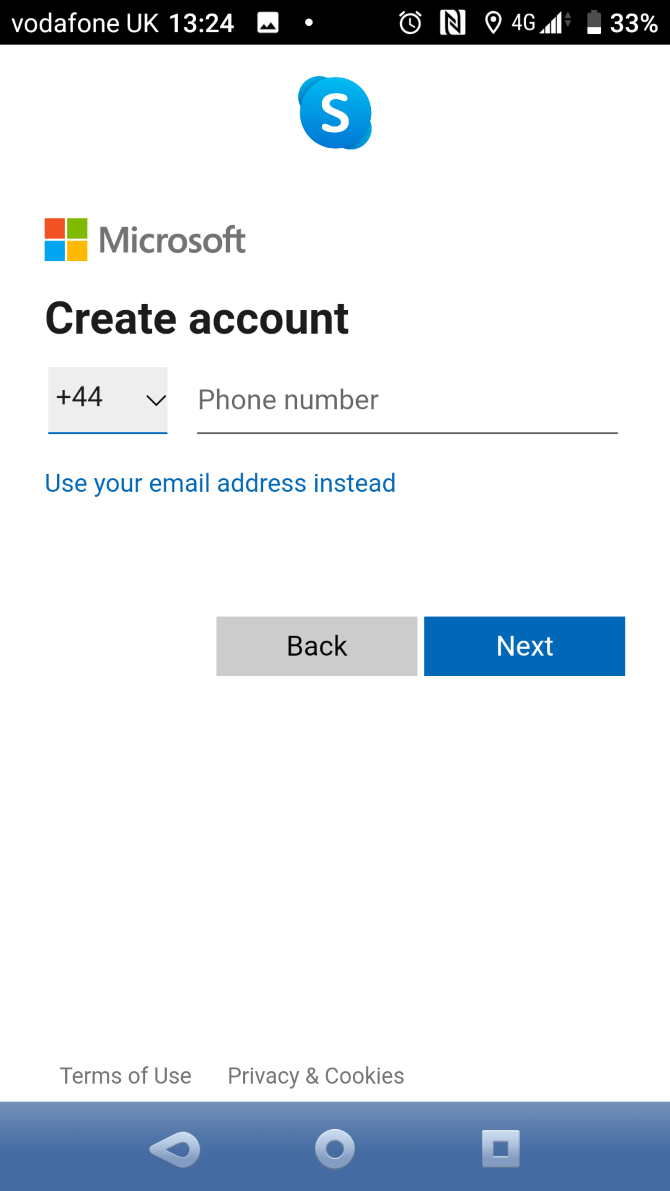
After launching the app, sign into Skype. Use an existing Microsoft account or tap Create one to open a new Microsoft account.

Often, Skype will ask you to add call credit to your account. You can use this on any device running Skype tied to your account. If you want to add credit later, you can do so on your Skype account management page.

Before you add credit, however, you should ensure the app is working properly by making a Skype to Skype call. We’ll look at this shortly.

Manage Your Skype Profile

With Skype installed and your account set up, it’s important to make sure your profile is ready.

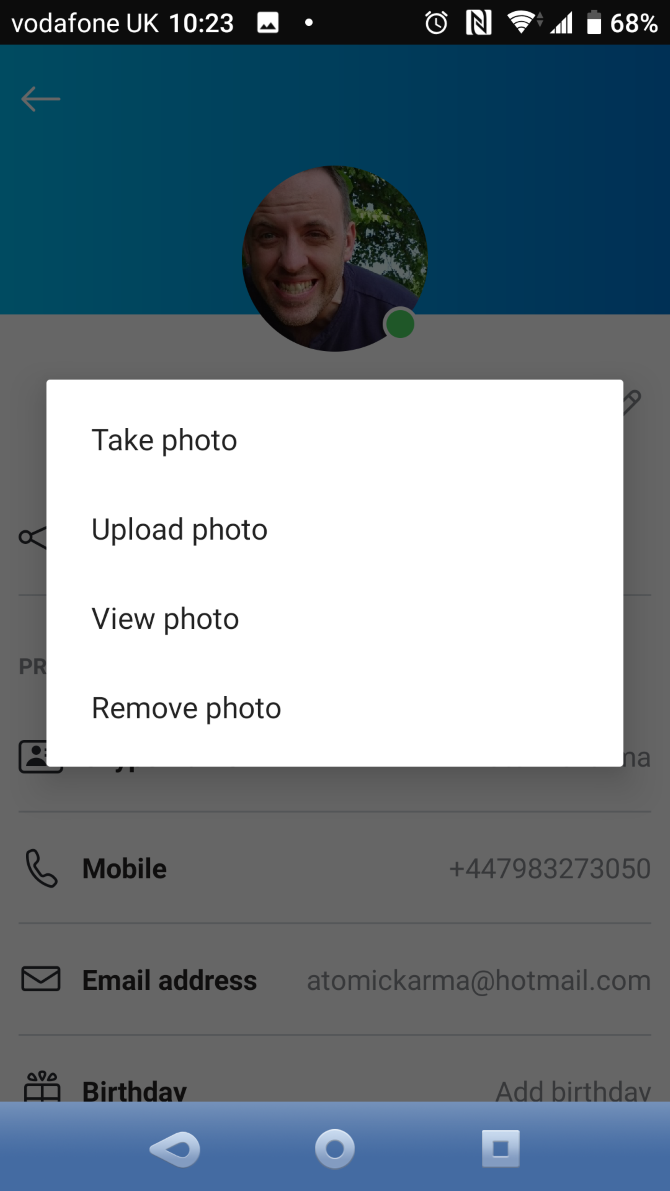
At the top of the Chats window, tap your avatar. Here, you can set your status (Active/Away/Do Not Disturb/etc.), add a comment, and even buy credit. You can also view your full Skype profile.

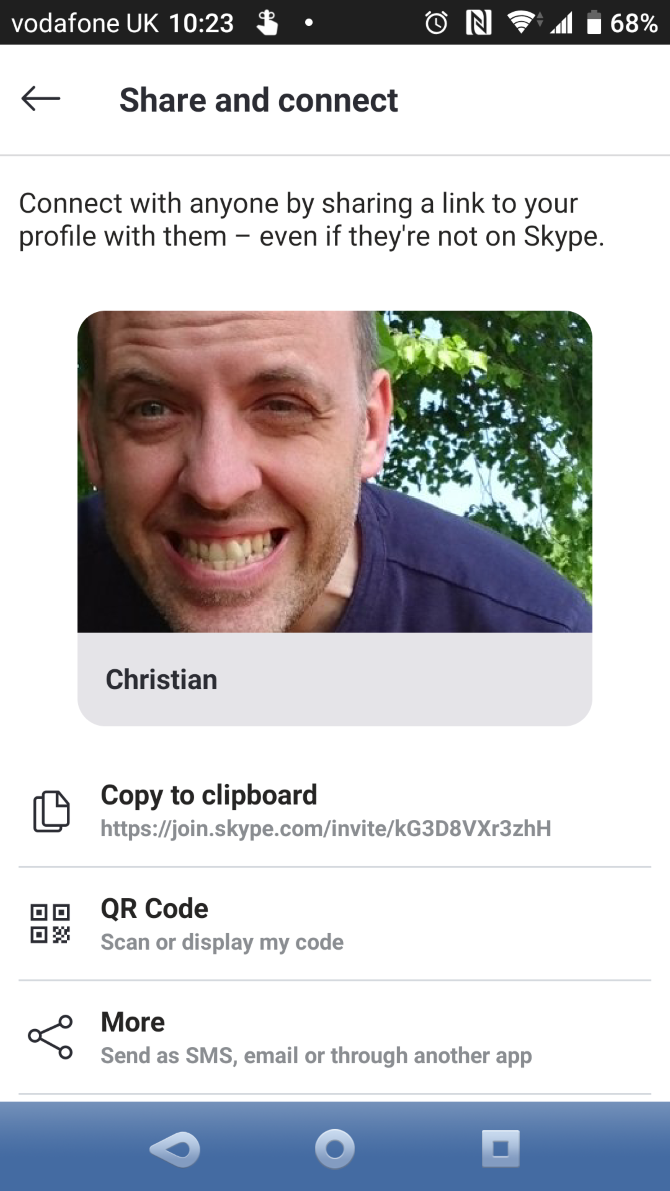
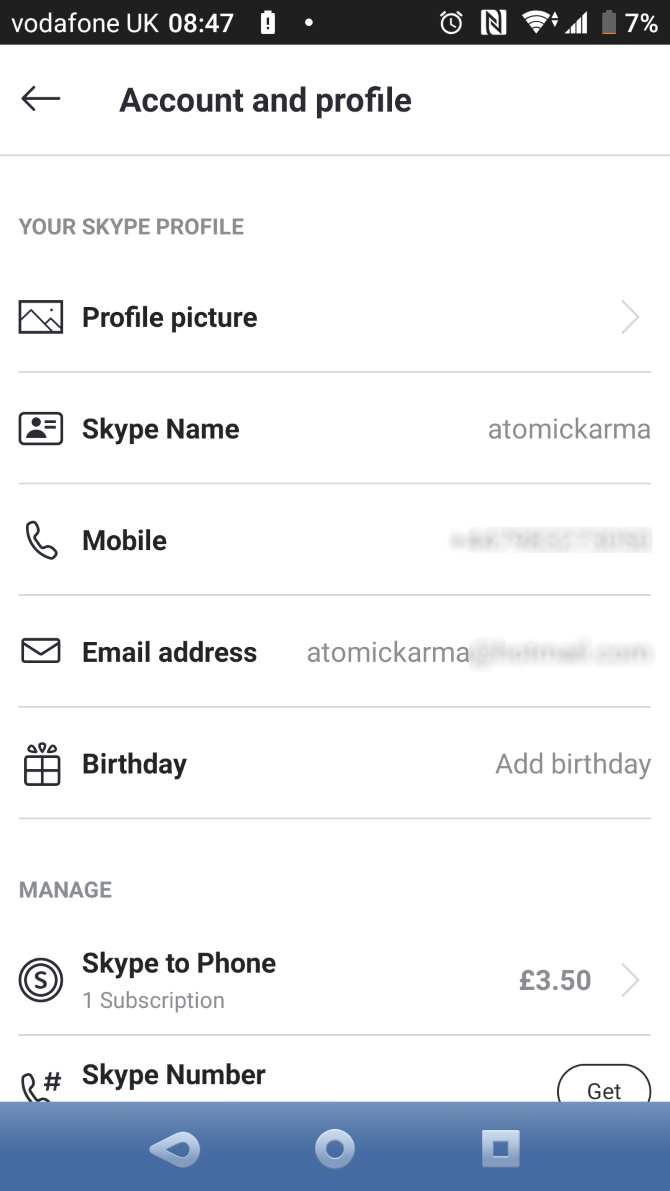
On this screen, it’s possible to edit your Skype name, mobile number, and email address. You can also set a new avatar/profile image and share your profile via URL, QR code, and SMS.

How to Make a Call With Skype for Android

Unlike the desktop version of Skype, it isn’t possible to make a test call. The next best option is making a Skype-to-Skype call, which will allow you to confirm that the app works properly. You should also make sure the other person can hear your voice and vice-versa.

To use this feature, open the Calls screen. You’ll find this view split into two. At the top, your Recent calls are listed. Scroll down to find a list of contacts that you can call, then tap the phone icon beside that name.

Add contacts by opening the Contacts screen and tapping the Add people icon. Enter the username of the contact and when the app finds them, choose Add to contacts to save them. You can alternatively tap the call button to drop them a line right away.

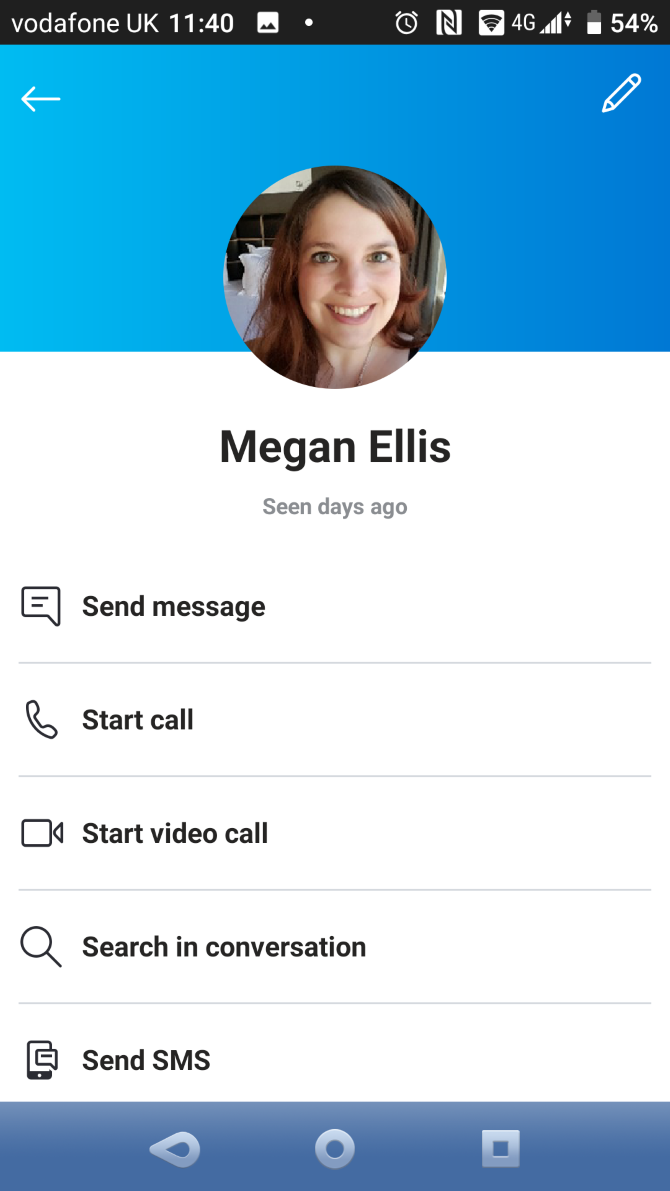
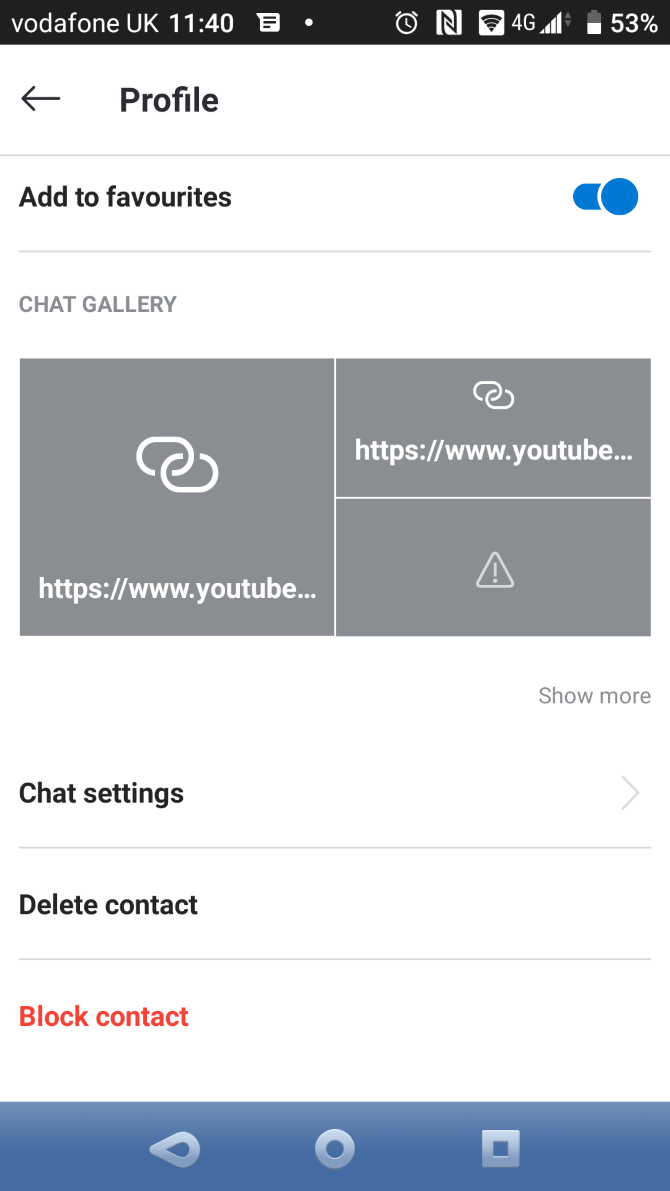
Viewing a contact’s profile opens a host of options. You can check their Skype name, mobile number if shared, and even use the Add to favorites feature.

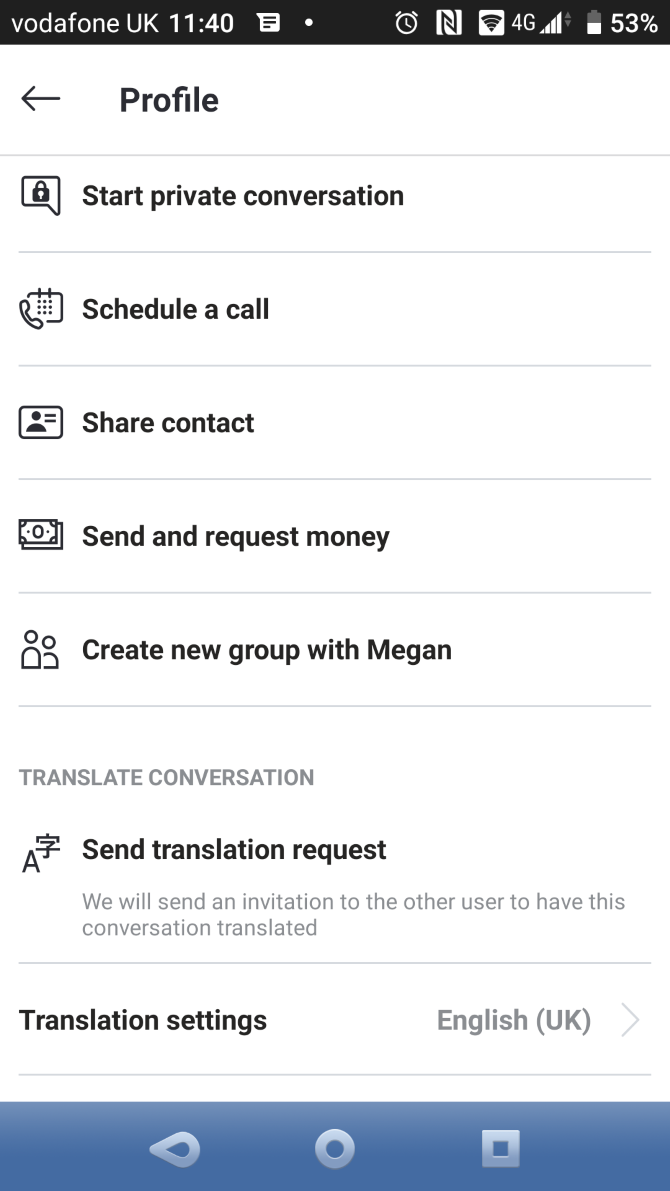
You can start voice, text, and video calls, Schedule a call, and even hold a private conversation from here. The latter is Skype’s end-to-end encrypted messaging service for secure conversations.

For privacy purposes, Skype provides Block contact and Remove contact options, each of which is self-explanatory.

With a Skype-to-Skype call completed, it’s time to try a Skype-to-Phone call. This can be a landline or a mobile number and requires that you have some credit in your account.

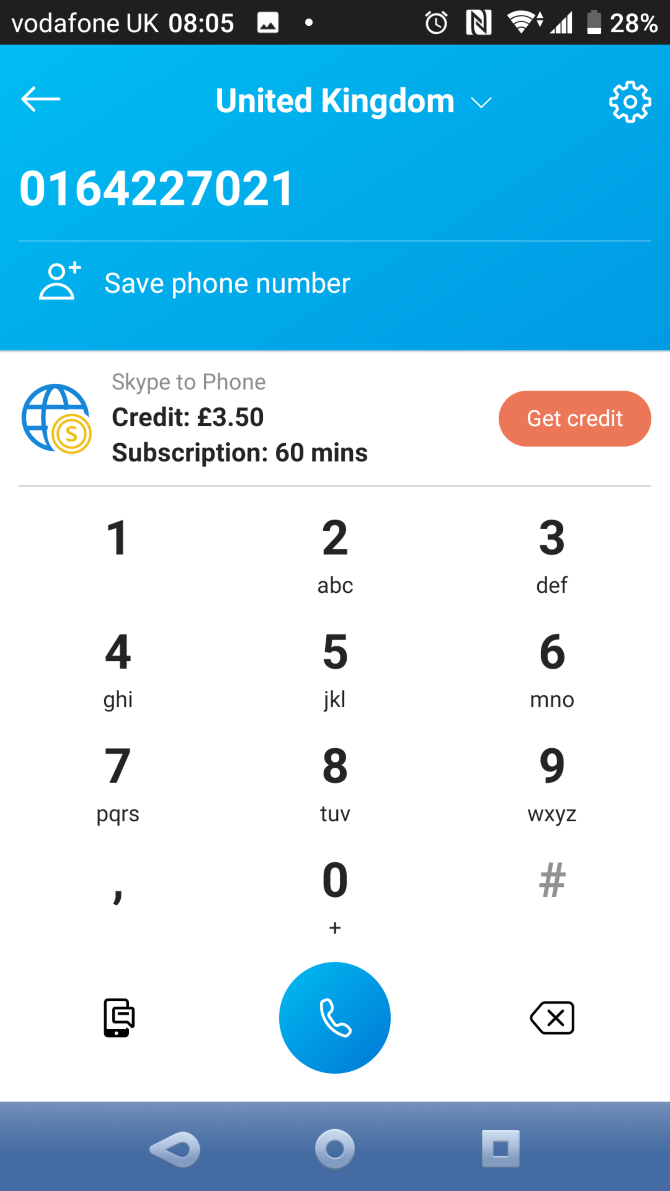
Making a call is as simple as you’d expect. Tap the phone button in the bottom-left corner. From here, enter the number, tap Call, and you’re using Skype like a standard phone.

Skype Options During a Call on Android

With the call running, several Skype features are accessible to enhance the experience.

For example, you can mute your microphone to talk to someone else in the room, or when you need to sneeze. There are also options to enable the device loudspeaker or toggle video chat.

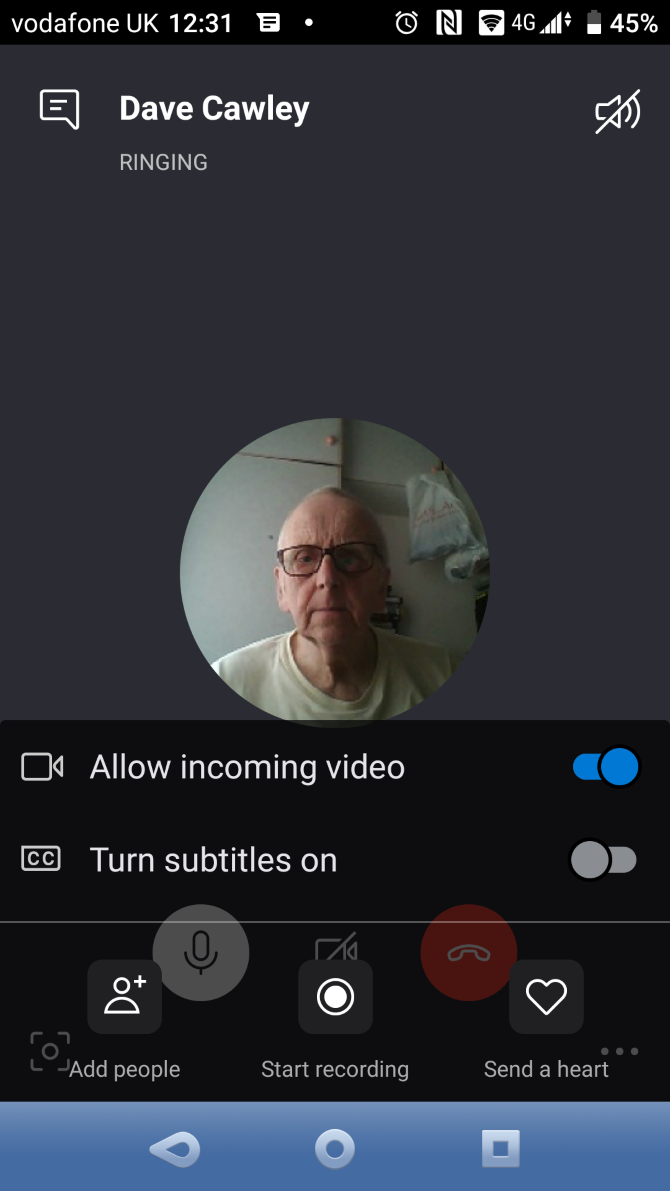
Tapping the three-dot button in the bottom-right corner reveals five options:

  • Allow incoming video
  • Turn subtitles on
  • Add people
  • Start recording
  • Send a heart

Add people brings new contacts into an existing call, turning it into an audio or video conference call. Start recording records the call as an MP4 file (regardless of whether it was a video call). This becomes downloadable after the call ends.

Buy Skype Call Credit on Android

If you need to make calls to landlines or mobiles with Skype, you’ll need call credit. The price of a call depends on the country you’re calling. To add credit, open your contacts list and tap Get credit. You’ll also find options to buy credit in your profile. Tap My Account > Add Skype Credit to begin the transaction.

For example, calling India from the USA costs $7.99 for 800 minutes each month. Calls within the USA to mobiles and landlines come at a price of just $2.99 for unlimited minutes. Payment options differ depending on territory, but in the USA, you can pay by credit card, PayPal, Western Union, Alipay, and even Skype prepaid cards.

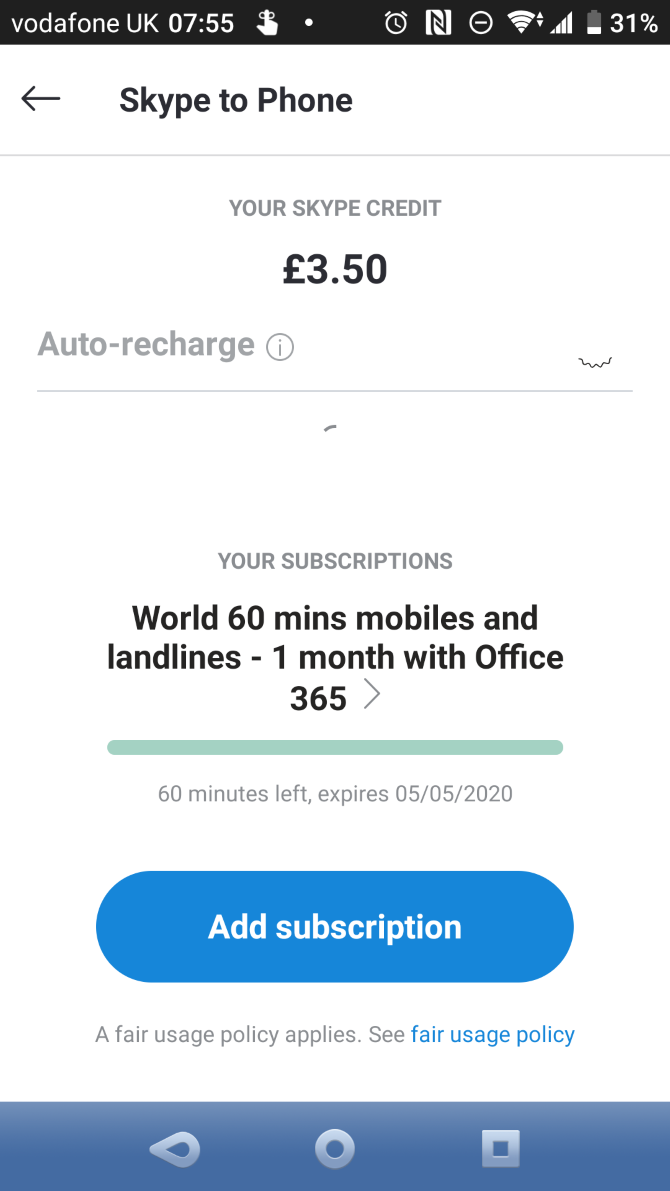
There is an alternative to paying for monthly bundles. With a Microsoft 365 subscription, you get 60 minutes of calls to mobiles and landlines included each month. Note that if you cancel your Microsoft 365 subscription, you’ll lose this monthly credit.

Call Groups With Skype on Your Phone

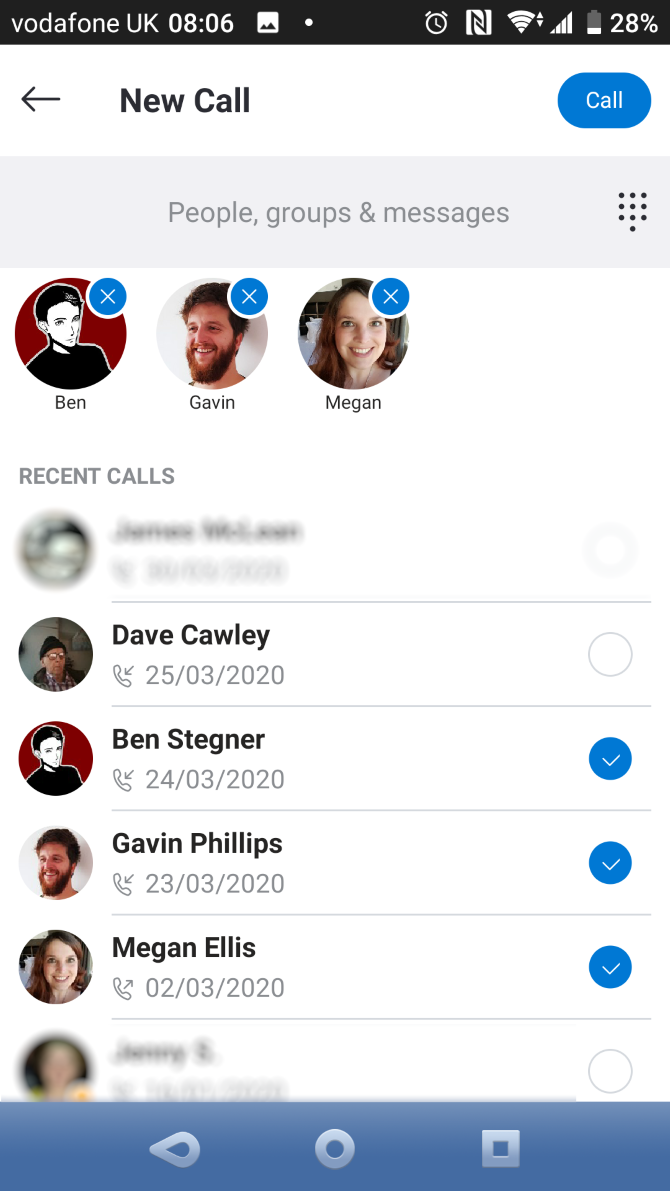
Group calling is an important feature of Skype, as it enables conversation with multiple people. Up to 50 people can engage in a group call on Skype.

Calling a group is useful not just for voice calls, but also video calls and instant messaging. To create a group:

  1. Tap Chats > New Chat (pen icon) > New Group Chat.
  2. Give the chat a name, and perhaps an image too (such as your company logo).
  3. Tap the right arrow.
  4. Add contacts by tapping the circle next to each required contact.
  5. Use the Search feature to find contacts if necessary.
  6. Tap Done to finish.

Once set up, you can use a chat group for calls, video, and instant messaging.

It Gets Better: Video Calling on Android With Skype

Have you noticed the video camera button in Skype? This isn’t for taking photos—it’s for video calls! Find it in the top-right corner of the display when you open an existing Skype contact. It should be next to the phone icon.

Tap the camera button to start a video call. For video conferencing, open or create a group in Skype, then tap the camera icon.

You can also create an ad hoc group by doing the following:

  1. Open the Calls view.
  2. Tap the Group Call button (a video camera).
  3. Tap Share invite to send the invite via email/SMS/social.
  4. Recipients will receive a link to join the call.
  5. When you’re ready to start, tap Start call.

Video calling drains a lot of battery, and if you’re on a limited mobile data connection, it can suck up a lot of data. When you’re not using Wi-Fi, make video calls with discretion.

With support for up to 50 people, video calling Skype is a good alternative to using Zoom for online meetings.

Send Instant Messages With Skype

As well as making calls with Skype, you can use the app to send messages to contacts with Skype accounts. This comes in handy for arranging a call or just having a quick text chat, plus it works with multiple recipients for a group discussion.

Sending a message is simple:

  1. Tap Chats.
  2. Select a contact.
  3. Type a message, then tap the blue arrow to send it.
  4. Tap New Chat to message someone new.

You can also send voice messages, photos, videos, and files from the instant messaging window:

  1. Tap the mic icon to record and send a voice message.
  2. Use the camera icon to open your phone’s camera and snap a photo to send, or use images from the gallery.
  3. Tap the Plus button to the left of the message box to browse and send a file saved to your phone.
  4. You can also share contacts or location, send money (via PayPal), create a poll, or schedule a call.

Skype allows you to apply filters to images; you can even use whiteboard mode to annotate before sending.

This feature could be useful for talking to a group of family members, work colleagues, or any other group whose members share the same interest.

Protect Your Privacy When Using Skype on Android

The Android Skype app includes advanced settings to ensure your privacy. Unfortunately, some Skype users make money from spamming users like you, which they do by sending instant messages.

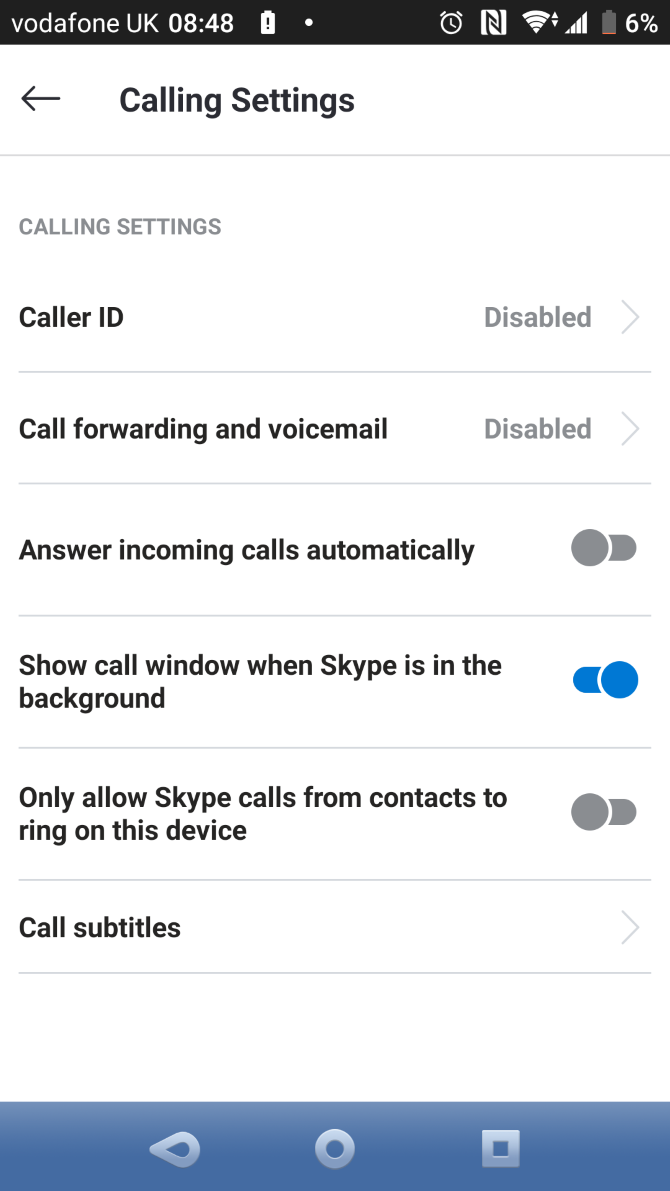
You can easily stop this behavior from affecting you by opening your Profile and choosing Settings. From there:

  • In Calling, enable Only allow Skype calls from contacts.
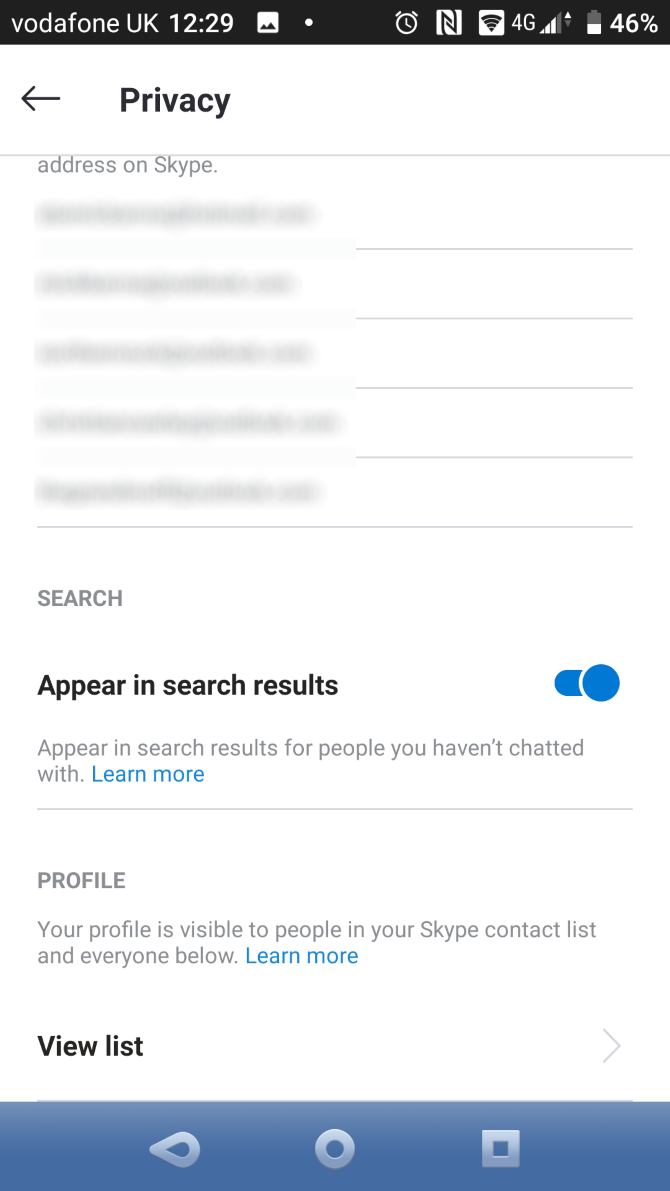
  • Under Contacts > Privacy, disable Appear in search results.

Start Using Skype on Android

Skype is easy to use and works for phone calls, Skype-to-Skype calls, instant messaging, and video chat. You probably already know that from using it on your desktop computer—and now you understand how to use the mobile version.

Skype for Android is simple enough for anyone new to the app or even to smartphones to pick it up. It can even save you money if you need to make occasional calls.

Hopefully, everything works well for you. But if you run into problems, check these Skype troubleshooting tips for help.

Read the full article: How to Use Skype on Android for Beginners


Read Full Article

5 Tools to Give an Online Presentation From Anywhere


online-presentation

Whether you work with a global team or you’re just working from home, the ability to give a presentation remotely using the magic of the internet can make the difference between a powerful presentation, or a boring one.

The tools presented in this article all allow you to not only share your presentation online with others, but they all offer built-in tools that let you present in real-time, while others on your team are connected and collaborating with you.

1. Google Slides

Any list of the best online presentation tools would be lacking if it didn’t include Google Slides. You can access it anywhere from your Google Drive account and it is free. Even as you present Google Slides online you can use the built-in chat tools to interact with your team.

But the best feature? You can start a live Q&A session with an audience during a presentation with Google Slides

For creating slick designs, you have a choice of several themes and hundreds of fonts while you add embedded videos, animations, charts and diagrams. Up to 100 people can work on a collaborative presentation in real time.

How to Present With Google Slides Online

To create your Google Slides presentation, go to your Google Drive account, click on the New button in the navigation menu, and select Google Slides from the list.

Select Google Slides in Google Drive

You can choose a blank presentation or take the help of the free presentation templates. The easiest way to start is with the free themes so you don’t have to build the presentation from scratch.

After you finish your presentation, just share it with your team. You can control who can view, edit, or add comments to it with the right permissions even as they view it in real-time. Google recommends you use Chrome for best results.

Go to the top-right of your open presentation and click Present.

The presentation will open in full-screen Presenter view and you can control the flow with the toolbar at the bottom. Use the Esc key to exit full-screen.

Click on the button marked Q&A to open Audience Tools in a mini-window. This allows you to open the session to questions from the viewers. You can choose who can submit questions.

2. Microsoft PowerPoint

Business presentations often rely on Microsoft PowerPoint. And it no longer bound to your desktop thanks to Office Online that lets you create a PowerPoint presentation online.

There are some differences between PowerPoint Online and PowerPoint on Windows. But the ability to give remote presentations isn’t one of them.

In PowerPoint 2013 and newer versions, you can broadcast your slides by using the Office Presentation Service. This free, public service is like the bridge that allows others to join in from their web browser. No special setup is required.

How to Give a PowerPoint Presentation Online

To start broadcasting, go to Slide Show > Present Online > Office Presentation Service.

Start Office Presentation Service in PowerPoint

Click Connect to the start the service. You can allow remote viewers to download a copy of the presentation by checking the Enable remote viewers to download the presentation box.

Send your meeting invitation with the link on display or as an email invite so that your team members can join. You can use any email program for this.Send invite to join a Microsoft PowerPoint Presentation online

Click Start Presentation to begin.

When it’s time to end your online presentation, press Esc to get out of Slide Show View. Again, on the Present Online tab, click End Online Presentation.

3. Zoho Docs

Zoho Docs a lot like Google Drive. You can create not only slideshows but also documents and spreadsheets if you like.

The presentation tool is Zoho’s suite is called Zoho Show. You’ll find that the presentation editor is just as functional—if not more functional—than Google Slides. It also offers a whole bunch of great templates for you to choose from to get started.

How to Give an Online Presentation With Zoho Show Broadcast

Create and save your presentation on Zoho Show. Now, you can broadcast your presentation to your team while retaining complete control from any location in the world.

Invite your participants by sending an email or by sharing the broadcast URL link. Access the Broadcast button from the File dropdown on the top-left or the Share button on the top-right.

Zoho Show Broadcast Button

All participants will receive the invitation to join the broadcast. When they join, a pop-up message will display to indicate their participation.

Click Start Broadcast begin with the first slide of your online presentation. You can invite missing members even after starting your show.

As a presenter, you can use all the different tools at your disposal like zoom controls, presenter notes, access timer, pen or highlighter tools, etc. to manage the flow.

Zoho also allows you to set edit access and allow collaborators to present with you. This can help you design group presentations when every team member is not at the same spot.

But what’s a presentation without some interaction? The presenter and the participants can ask questions and share comments using the Chat panel while having a remote session on Zoho Show.

4. Slides

Slides is another interesting and highly functional online presentation tool that can be used by individuals and teams, This service is not only simpler than all the others on the list but it has a few unique features for creating collaborative presentations.

It works on the browser and thus on all devices as you don’t need to download anything.

Slides is a subscription service with two paid plans for individuals, and one for teams. You can try out the service with the Free plan which is publicly viewable and comes with ads.

How to Create and Share Presentations With Slides

With Slides Team, your entire team can share assets and anyone involved can add to a presentation. The Slides editor is a drag and drop interface that is supported by a media library with reusable images, videos and slide templates.

The Open Source format of your presentation makes it unique among all such tools. So, you can access the code and customize it further with CSS.

Once your slides are ready and everyone is connected to the service, click the Start Presenting button and you’re good to go.

Slides Remote Presentation

A control panel with your speaker notes, live streaming, and remote control from any touch-enabled mobile device enable you to present from any browser.

Slides for Teams is also equipped with Google Analytics integration to help you measure the impact of your presentation.

5. GotoMeeting

GoToMeeting is a paid tool that’ll cost you a small monthly fee. But it’s also the one virtual meeting tool that provides the capability of meeting with the largest number of people without freezing up or crashing. Free services like Skype and Google Hangouts have maximum limits of 50 and 25 respectively.

How to Give an Online Presentation With GoToMeeting

GoToMeeting isn’t a presentation designing tool. But think of it as the medium which will carry your presentation among other things. The big advantage of GoToMeeting is that it is a full featured screen sharing and meeting tool over video.

So, you can not only can you show your team the slideshow presentation you created, but also show them data from Google Spreadsheets, a document from Google Docs or even show them anything else on your computer or mobile.

For instance, the Virtual Whiteboard is also a powerful medium for holding webinars and live sessions with your team. GoToMeeting’s Drawing Tools like the Pen, Highlighter, Spotlight, and screen annotations let you mark up your screen as you’re giving your presentation.

And while you are doing it, share content on your screen and then pass presenter control to another user whenever you need to.

You can hold cross-platform presentations across any device and even while your team members are on the move.

The Perfect Online Presentation Software

Choosing the perfect platform for your online presentation will vary from person to person and the needs of the team. You may need a platform that no one needs to pay for. This makes Google Slides the right solution.

Maybe, your company is on the Microsoft suite. Then, PowerPoint is an obvious choice. Or maybe you just want to do a product demo for potential clients, in which case GoToMeeting is what you should use.

The other fallback option is to screen share the presentation software on your desktop with virtual meeting tools like Zoom and GoToMeeting. Zoom even allows you to present in one monitor while going through the presenter’s notes in another monitor.

Read the full article: 5 Tools to Give an Online Presentation From Anywhere


Read Full Article

Make Staying at Home More Interesting With This Subscription Bundle, Featuring Rosetta Stone


Staying away from other humans means finding productive ways to occupy your mind at home. The best way to defeat boredom is to learn something new and stay connected. The Social Distancing Lifetime Subscription Bundle helps you achieve both aims, with three world-class apps for language learning, non-fiction reading, and online freedom. You can get it now at MakeUseOf Deals for $199 — that is over $600 off the total value.

Social Distancing Essentials

No-one knows how long this crisis will last. But spend your time wisely, and you should come away with new skills and even new friends.

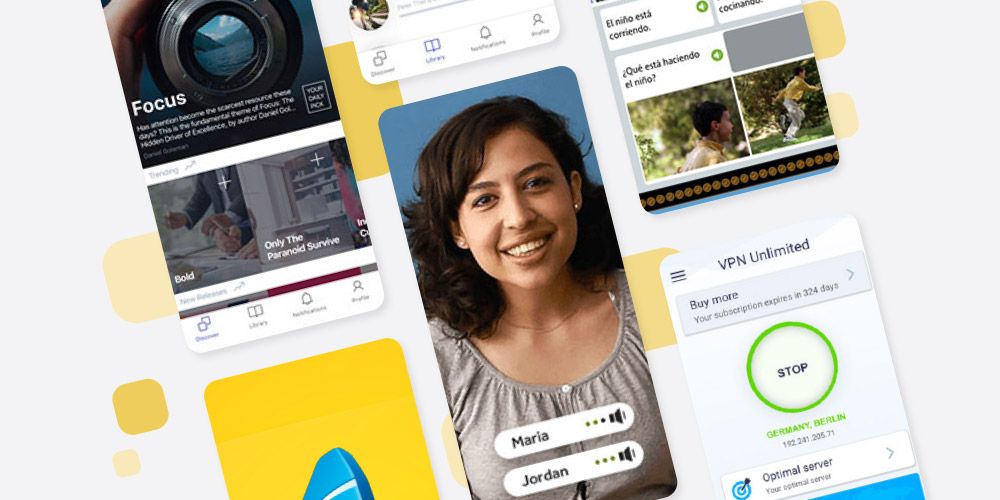
With this bundle, you can learn 24 different languages with Rosetta Stone. This PC Magazine Editors’ Choice has been trusted for over 27 years by the likes of NASA and Calvin Klein. The software helps you build conversation skills through fun activities, while TruAccent technology analyzes your accent 100 times a second to provide feedback.

The bundle also offers lifetime access to the 12min Premium Micro Book Library. Available on iOS and Android, this app condenses top non-fiction books into short reads and audio versions.

In addition, you get lifetime service with KeepSolid VPN Unlimited. Trusted by over 10 million users, this VPN protects your online privacy and security with military-grade encryption.

Order Now for $199

These subscriptions are worth $844.50 in total, but you can get the bundle now for just $199.

Read the full article: Make Staying at Home More Interesting With This Subscription Bundle, Featuring Rosetta Stone


Read Full Article
Firefox gets a refreshed address bar


Mozilla is launching version 75 of its Firefox browser today. As always, there are plenty of bug fixes and changes for developers who write web apps, but the marquee feature of this update is a refreshed address bar. Given how often you likely use the address bar — though these days it’s often more of a search bar than URL bar — that’s prime real estate in any browser and the kind of feature where users will quickly notice any changes.

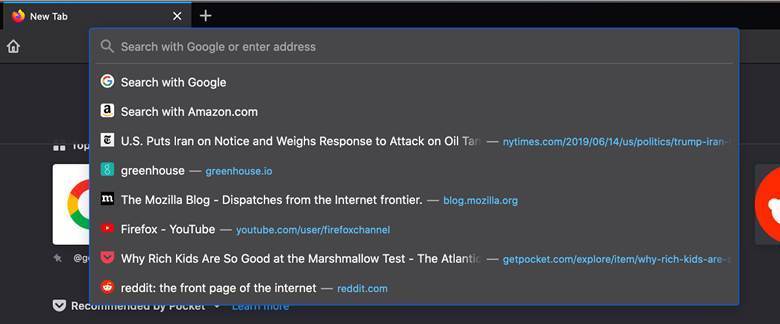
Today’s update brings three major changes to the Firefox address bar. The one you’ll notice immediately is that when you click into the address bar it’ll open a list of your most visited site. If you have that site already open in a tab, that’ll get highlighted in the list and you can jump right to that tab with a shortcut (though that’s something I didn’t quite see in the preview releases yet). This list of most-visited sites is the same you see in Firefox’s new tab page and you can manage it from there, too.

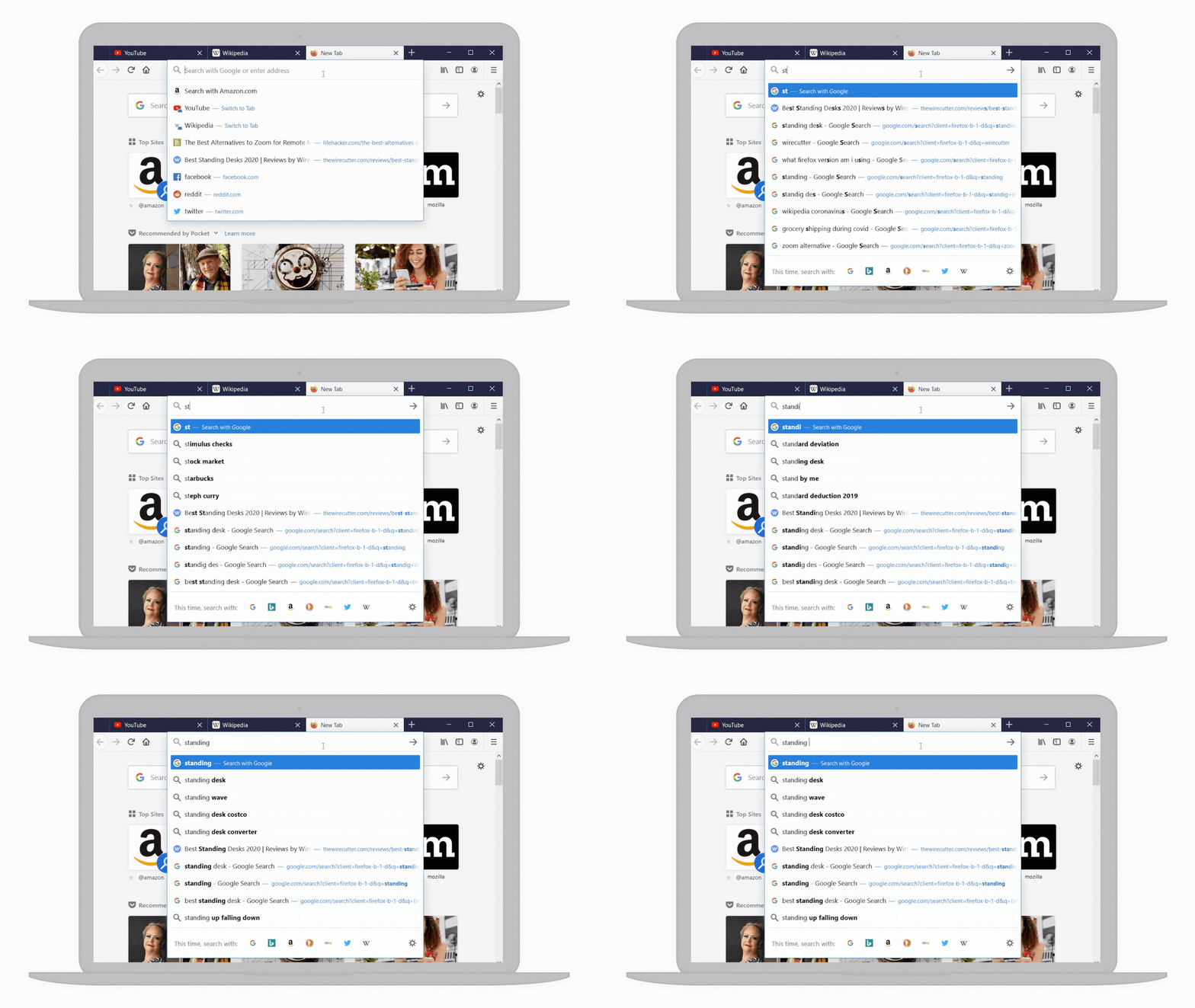
When you start a search in the address bar, Firefox now also makes the autocompleted queries a bit easier to read. That’s a minor but welcome change.

With the redesign, the address bar is also getting a bit of a refreshed look and you’ll likely notice that it’s a bit larger, too. For the most part, though, it’s not a radical change.

As the Firefox team also announced today, Mozilla believes that it doesn’t need to make any changes to its 2020 release schedule for the time being, despite the COVID-19 pandemic. So while Google has decided to skip a version with its Chrome release schedule, you’re unlikely to see any changes to how Mozilla releases Firefox. But the team did take note of what today’s users are doing with their browser and has prioritized fixing issues with in-browser video conferencing systems, for example.

“Going forward, we will continue to examine all new features and planned changes with closer attention paid to backwards compatibility, and their potential for any user-facing issues,” the team writes today.


Read Full Article
Cloud Foundry Foundation executive director Abby Kearns steps down to pursue a new executive role elsewhere


The Cloud Foundry Foundation (CFF), the home of the Cloud Foundry open-source developer platform, today announced that its executive director Abby Kearns is stepping down from her role to pursue an executive role elsewhere.

If you’ve followed the development of the CFF for a while, it won’t come as a surprise that its current CTO, Chip Childers, is stepping into the executive director role. For the last few years, Kearns and Childers shared duties hosting the foundation’s bi-annual conferences and were essentially the public faces of the organization.

Both Kearns and Childers stepped into their roles in 2016 after CFF founding CEO Sam Ramji departed the organization for a role at Google. Before joining the Cloud Foundry Foundation, Kearns worked on Pivotal Cloud Foundry and spent over eight years as head of product management for integration services at Verizon (which, full disclosure, is also the corporate parent of TechCrunch).

Today, according to its own data, the Linux Foundation-based Cloud Foundry project is used by more than half the Fortune 500 enterprises. And while some use the open-source code to run and manage their own Cloud Foundry platforms, most work with a partner like the now VMware-owned Pivotal.

“I am tremendously proud of Cloud Foundry and of the Foundation we have all built together,” said Kearns in today’s announcement. “Cloud Foundry offers the premier developer experience for the cloud native landscape and has seen massive adoption in the enterprise. It also has one of the strongest, kindest, most diverse communities (and staff) in open source. I leave the organization in the best hands possible. Chip was the first Foundation staff member and has served as CTO for more than four years. There is literally nobody else in the world more qualified for this job.”

During her role as executive director, Kearns helped shepherd the project through a number of changes. The most important of those was surely the rise of Kubernetes and containers in general, which quickly changed the DevOps landscape. Unlike other organizations, the CFF adapted to these changing times and started integrating these new technologies. Over the course of the last two years, the Cloud Foundry community started to deeply integrate these cloud-native technologies into its own platform, despite the fact that the community had already built its own container orchestration system in the past.

As Childers told me last year, though, the point of Cloud Foundry isn’t any specific technology, though. Instead, it’s about the developer experience. Ideally, the developers who use it don’t have to care about the underlying infrastructure and can simply integrate it into their DevOps workflow. With a lot of the recent technical changes behind it,

“We as a Foundation are turning the page to a new chapter; raising the profiles of our technical contributors, highlighting the community’s accomplishments and redefining the Cloud Foundry platform as the best Kubernetes experience for enterprise developers,” said Childers today. “Abby has done a tremendous job leading the Foundation through a period of massive growth and upheaval in the cloud native world. Her leadership was instrumental in building Cloud Foundry as a leading cloud development tool.”

As the CFF also today announced, Paul Fazzone, SVP Tanzu R&D at VMware, has been named Chairman of the Board of Directors, where he replaces Dell EMC global CTO John Roese.

“This next chapter for Cloud Foundry will be a shift forward in focusing on evolving the technology to a Kubernetes-based platform and supporting the diverse set of contributors who will make that outcome possible,” said Fazzone. “In my new role as Chairman of the Board, I look forward to helping guide the Foundation toward its goal of expanding and bolstering the ecosystem, its community and its core of users.”


Read Full Article
WhatsApp introduces new limit on message forwards to fight spread of misinformation


WhatsApp is imposing additional restriction on how frequently a message can be shared on its platform in its latest effort to curtail the spread of misinformation.

The Facebook-owned instant messaging service said today that any message that has been forwarded five or more times will now face a new limit that will prevent a user from forwarding it to more than one chat (contact) at a time.

A spokesperson told TechCrunch that WhatsApp will roll out this change to users worldwide today.

Today’s move builds on WhatsApp’s effort from last year when it limited users from forwarding a message to more than five users at once. The service, used by more than 2 billion users, said the move allowed it to reduce the volume of message forwards globally by 25%.

The end-to-end encryption on WhatsApp — which the company is fighting for in several markets — prevents it from reading the content of a message, so it relies on metadata of a message to gauge its spread.

“Is all forwarding bad? Certainly not,” the company wrote in a blogpost today. “However, we’ve seen a significant increase in the amount of forwarding which users have told us can feel overwhelming and can contribute to the spread of misinformation. We believe it’s important to slow the spread of these messages down to keep WhatsApp a place for personal conversation.”

More than a dozen deaths in recent years — several in WhatsApp’s biggest market, India — have been linked to viral circulation of misinformation on Facebook’s service.

Facebook has moved to take several efforts in recent weeks as the world grapples with the coronavirus pandemic. Last month, it announced free developer tools for Messenger to combat COVID-19, and introduced an info centre atop of the news feed to prominently showcase reliable information.

Additionally, the company is also working with nonprofit organizations such as the WHO to build helplines, and has committed to donate millions of dollars. The World Health Organization’s helpline on Messenger and WhatsApp has already reached more than 10 million users, days after its launch. The Indian government also launched a helpdesk bot on WhatsApp last month.

But the vast reach of Facebook has also attracted scammers. “Unfortunately, scammers may try to take advantage of people’s vulnerability and generosity during this time,” wrote Stan Chudnovsky, VP of Messenger.

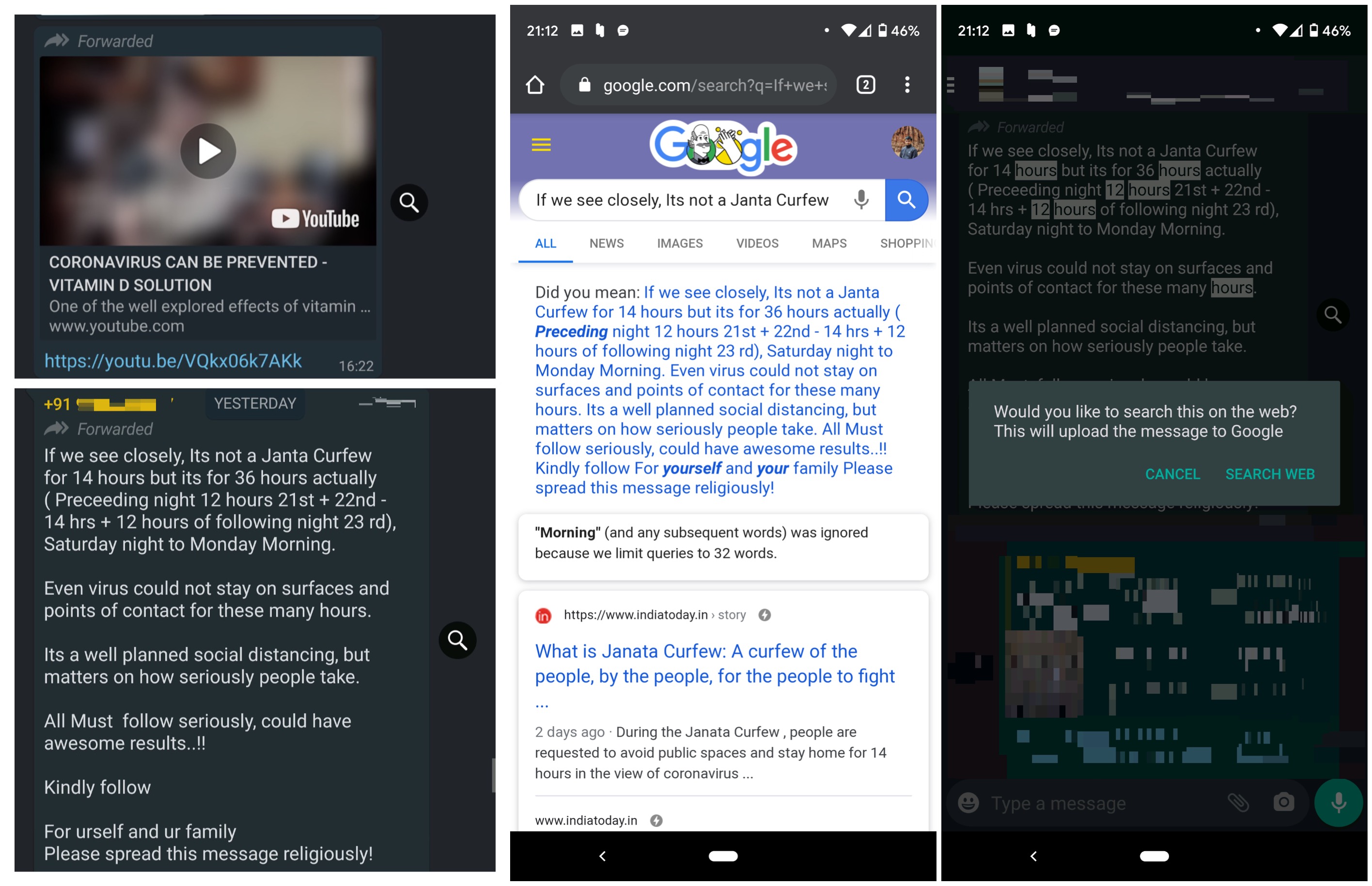
WhatsApp has also been testing a feature on the beta version of its Android app that gives users the ability to quickly comb through the web with the text or video they have received for more context.

Images credit: @shrinivassg

A spokesperson said the platform plans to roll out this feature in the near future.


Read Full Article
Gmail to Freshdesk - Convert Emails into Support Tickets


Custom support systems like Freshdesk, Zoho Desk, or Zendesk offer an email address - like support@example.com - for quickly creating customer tickets without having to fill any complicated web forms.

Any email message sent to your support email address automatically gets converted into a ticket and a unique ticket ID gets assigned to the support request.

When a ticket is created from an email address, the email subject becomes the ticket title, the email body becomes the ticket description and the most important part, the customer’s name and email address is pulled from the FROM field of the email message header. This is important because when your helpdesk agents respond to a ticket, the replies are sent directly to the customer.

Email Ticketing with Gmail Forwards - The Problem

This system works perfect when the customer sends an email message directly to the help desk email but imagine if they send an email to you, the support agent, and it is your job to create a support ticket from the customer’s email.

Now if you forward the customer’s email message received in your Gmail mailbox to Freshdesk, the ticket would still be created but since it will have your name and email in the FROM field, the helpdesk software would assign you as the customer even though you are just creating a support ticket on behalf of the customer. If any agent responds to such a ticket, you’ll be part of all the communication and not the original customer since their email address is no part of the support ticket created from the forwarded email.

I have been exploring Freskdesk and faced a similar issue. How to easily create support tickets from existing email messages in Gmail. Couldn’t find a readymade solution so decided to build one using the Freshdesk API and Google Apps Script.

Convert Gmail Emails to Freshdesk Tickets

To get started, you’ll need the domain (where your Freshdesk site is hosted) and the API Key that is available under your Freshdesk profile page.
Next, go to your Gmail and create a label - say Freshdesk. Now you can simply drag customer emails from your Gmail Inbox to this new Freshdesk label and they’ll be automatically converted into customer tickets. Unlike email forwards, here the tickets would be created with the customer’s name and email address as the requestor.

const GMAIL_LABEL_NAME = "Freshdesk";
const FRESHDESK_API_KEY = "Your API Key";
const FRESHDESK_SUBDOMAIN = "Your subdomain";

const connectToFreshdesk_ = (postData) => {
  const API = `https://${FRESHDESK_SUBDOMAIN}.freshdesk.com/api/v2/tickets`;
  const response = UrlFetchApp.fetch(API, {
    method: "POST",
    contentType: "application/json",
    muteHttpExceptions: true,
    payload: JSON.stringify(postData),
    headers: {
      "Content-type": "application/json",
      Authorization: "Basic " + Utilities.base64Encode(FRESHDESK_API_KEY + ":X"),
    },
  });
  if (!/^2/.test(String(response.getResponseCode()))) {
    console.error("Cannot create ticket", response.getContentText());
  }
};

const createSupportTicket_ = (message) => {
  const [email, ...names] = message.getFrom().replace(/[<>"]/g, "").split(" ").reverse();
  const postData = {
    subject: message.getSubject(),
    description: message.getBody(),
    name: names.reverse().join(" "),
    email,
    source: 3,
    status: 3,
    priority: 2,
  };
  connectToFreshdesk_("", postData);
};

const gmailToFreshdesk = () => {
  const label = GmailApp.getUserLabelByName(GMAIL_LABEL_NAME);
  label.getThreads(0, 20).forEach((thread) => {
    const [message] = thread.getMessages().reverse();
    createSupportTicket_(message);
    thread.removeLabel(label);
  });
};

Inside the Google Script editor, go to Edit > Current Project Triggers > Add Triggers and create a new time based trigger that runs every 15 minutes for the gmailToFreshdesk method.

Now the Google Script will connect to your Gmail every 15 minutes, finds any new email messages in the specified label and convert them to Freskdesk support tickets. It will also remove the email message from the label after the ticket is created.

No Gmail Sending Limits Apply

With Apps Script, you need not worry about Gmail sending limits since the tickets are created with API calls and your not sending (forwarding) email anywhere.


Cookie consent still a compliance trash-fire in latest watchdog peek


The latest confirmation of the online tracking industry’s continued flouting of EU privacy laws which — at least on paper — are supposed to protect citizens from consent-less digital surveillance comes by via Ireland’s Data Protection Commission (DPC).

The watchdog did a sweep survey of around 40 popular websites last year — covering sectors including media and publishing; retail; restaurants and food ordering services; insurance; sport and leisure; and the public sector — and in a new report, published yesterday, it found almost all failing on a number of cookie and tracking compliance issues, with breaches ranging from minor to serious.

Twenty were graded ‘amber’ by the regulator, which signals a good response and approach to compliance but with at least one serious concern identified; twelve were graded ‘red’, based on very poor quality responses and a plethora of bad practices around cookie banners, setting multiple cookies without consent, badly designed cookies policies or privacy policies, and a lack of clarity about whether they understood the purposes of the ePrivacy legislation; while a further three got a borderline ‘amber to red’ grade.

Just two of the 38 controllers got a ‘green’ rating (substantially compliance with any concerns straightforward and easily remedied); and one more got a borderline ‘green to amber’ grade.

EU law means that if a data controller is relying on consent as the legal basis for tracking a user the consent must be specific, informed and freely given. Additional court rulings last year have further finessed guidance around online tracking — clarifying pre-checked consent boxes aren’t valid, for example.

Yet the DPC still found examples of cookie banners that offer no actual choice at all. Such as those which serve a dummy banner with a cookie notice that users can only meaningless click ‘Got it!’. (‘Gotcha data’ more like.. )

In fact the watchdog writes that it found ‘implied’ consent being relied upon by around two-thirds of the controllers, based on the wording of their cookie banners (e.g. notices such as: “by continuing to browse this site you consent to the use of cookies”) — despite this no longer meeting the required legal standard.

“Some appeared to be drawing on older, but no longer extant, guidance published by the DPC that indicated consent could be obtained ‘by implication’, where such informational notices were put in place,” it writes, noting that current guidance on its website “does not make any reference to implied consent, but it also focuses more on user controls for cookies rather than on controller obligations”.

Another finding was that all but one website set cookies immediately on landing — with “many” of these found to have no legal justification for not asking first, as the DPC determined they fall outside available consent exemptions in the relevant regulations.

It also identified widespread abuse of the concept of ‘strictly necessary’ where the use of trackers are concerned. “Many controllers categorised the cookies deployed on their websites as having a ‘necessary’ or ‘strictly necessary’ function, where the stated function of the cookie appeared to meet neither of the two consent exemption criteria set down in the ePrivacy Regulations/ePrivacy Directive,” it writes in the report. “These included cookies used to establish chatbot sessions that were set prior to any request by the user to initiate a chatbot function. In some cases, it was noted that the chatbot function on the websites concerned did not work at all.

“It was clear that some controllers may either misunderstand the ‘strictly necessary’ criteria, or that their definitions of what is strictly necessary are rather more expansive than the definitions provided in Regulation 5(5),” it adds.

Another problem the report highlights is a lack of tools for users to vary or withdraw their consent choices, despite some of the reviewed sites using so called ‘consent management platforms’ (CMPs) sold by third-party vendors.

This chimes with a recent independent study of CPMs — which earlier this year found illegal practices to be widespread, with “dark patterns and implied consent… ubiquitous”, as the researchers put it.

“Badly designed — or potentially even deliberately deceptive — cookie banners and consent-management tools were also a feature on some sites,” the DPC writes in its report, detailing some examples of Quantcast’s CPM which had been implemented in such a way as to make the interface “confusing and potentially deceptive” (such as unlabelled toggles and a ‘reject all’ button that had no effect).

Pre-checked boxes/sliders were also found to be common, with the DPC finding ten of the 38 controllers used them — despite ‘consent’ collected like that not actually being valid consent.

“In the case of most of the controllers, consent was also ‘bundled’ — in other words, it was not possible for users to control consent to the different purposes for which cookies were being used,” the DPC also writes. “This is not permitted, as has been clarified in the Planet49 judgment. Consent does not need to be given for each cookie, but rather for each purpose. Where a cookie has more than one purpose requiring consent, it must be obtained for all of those purposes separately.”

In another finding, the regulator came across instances of websites that had embedded tracking technologies, such as Facebook pixels, yet their operators did not list these in responses to the survey, listing only http browser cookies instead. The DPC suggests this indicates some controllers aren’t even aware of trackers baked into their own sites.

“It was not clear, therefore, whether some controllers were aware of some of the tracking elements deployed on their websites — this was particularly the case where small controllers had outsourced their website management and development to a third-part,” it writes.

The worst sector of its targeted sweep — in terms of “poor practices and, in particular, poor understanding of the ePrivacy Regulations and their purpose” — was the restaurants and food-ordering sector, per the report. (Though the finding is clearly based on a small sampling across multiple sectors.)

Despite encountering near blanket failure to actually comply with the law, the DPC, which also happens to be the lead regulator for much of big tech in Europe, has responded by issuing, er, further guidance.

This includes specifics such as pre-checked consent boxes must be removed; cookie banners can’t be designed to ‘nudge’ users to accept and a reject option must have equal prominence; and no non-necessary cookies be set on landing. It also stipulates there must always be a way for users to withdraw consent — and doing so should be as easy as consenting.

All stuff that’s been clear and increasingly so at least since the GDPR came into application in May 2018. Nonetheless the regulator is giving the website operators in question a further six months’ grace to get their houses in order — after which it has raised the prospect of actually enforcing the EU’s ePrivacy Directive and the General Data Protection Regulation.

“Where controllers fail to voluntarily make changes to their user interfaces and/or their processing, the DPC has enforcement options available under both the ePrivacy Regulations and the GDPR and will, where necessary, examine the most appropriate enforcement options in order to bring controllers into compliance with the law,” it warns.

The report is just the latest shot across the bows of the online tracking industry in Europe.

The UK’s Information Commission’s Office (ICO) has been issuing sternly worded blog posts for months. Its own report last summer found illegal profiling of Internet users by the programmatic ad industry to be rampant — also giving the industry six months to reform.

However the ICO still hasn’t done anything about the adtech industry’s legal blackhole — leading to privacy experts to denouncing the lack of any “substantive action to end the largest data breach ever recorded in the UK”, as one put it at the start of this year.

Ireland’s DPC, meanwhile, has yet to put the decision trigger on multiple cross-border investigations into the data-mining business practices of tech giants including Facebook and Google, following scores of GDPR complaints — including several targeting their legal base to process people’s data.

A two-year review of the pan-EU regulation, set for May 2020, provides one hard deadline that might concentrate minds.


Read Full Article