07 March 2020

The 6 Best Tools to Print to PDF


print-to-pdf

Whether you want to send legal briefs to the lawyer with intact layout, print product manuals or magazines or cut down on printer costs, the PDF format has a lot to offer.

PDF printer tools let you save any file you can print as a PDF. Because these tools disguise themselves like regular printers, you can use them to create a PDF file in any app.

Let’s look at some of the best PDF printer apps for Windows 10.

1. Microsoft Print to PDF

microsoft print to PDF options

Windows 10 has a native “print to PDF” functionality built into the operating system. When you want to print a file from an app that supports printing, select Microsoft Print to PDF from the list of installed printers, and click Print. Browse to the location, type in the name of your file, and click Save.

The print dialog box you see may look different depending on the app you’re using. Apps you install from the Windows Store will display a larger window and have a modern visual appearance. You can customize the print job with the options in the dialog.

 Key Features:

  • No need to install any third-party software/driver to print files.
  • Extract one or more pages from a PDF without using third-party utilities. In the Print dialog box, select Page Range under the Pages drop-down box, and enter the page number you want to extract.
  • Encrypt the document with a password and restrict anyone else’s ability to print, edit, or copy this file. Select More settings while printing to see the encryption options.

2. clawPDF

clawPDF multipurpose PDF printer

clawPDF is a free and open-source PDF printer based on the popular PDFCreator code. It supports Windows 7 to 10 and Windows Server 2008 to 2019.

After installing the app, you can set up printing profiles. Profiles are a set of configurations used while creating the PDF file.

Each profile lets you manage specific settings and access profile presets. To print your file, select clawPDF from the list of installed printers, and click Print.

From the dialog, select your profile, add the document metadata (for example, subject, keywords, and author name), and click Save.

Key Features:

  • Support for various output formats, including PDF, PDF/A, PDF/X, JPEG, TIF, and text formats.
  • Lets you customize settings per profile—file naming templates, compression settings for color and grayscale images, encryption options, and adding signature with a digital certificate.
  • Perform repetitive actions like adding a cover, background, attach other files, open email client, upload with FTP, and more.
  • Merge multiple pages into one PDF document.

Download: clawPDF (Free)

3. CutePDF Writer

cutePDF writer integrates with file explorer

CutePDF Writer is a simple and easy to use PDF printer for Windows. Out of the box, it supports Windows Vista to 10 and Windows Server 2008 to 2019.

The installation requires an additional free postscript to PDF driver (PS2PDF converter) to create PDF files.

To print your file, select CutePDF Writer from the printers list and click Print. The app right away shows you a Save as dialog with options integrated into the File Explorer itself. Type in your file name, add the document properties and click Save.

CutePDF professional adds several features like add comments, create interactive form fields, create booklets, stylized text stamp, and more at a price.

Key Features:

  • Encrypt your PDF with 128-bit AES security. You can even restrict other users’ ability to prevent printing, editing, or extract the content.
  • Support for basic programmatic access. You can create registry keys to customize the display and file name template. The paid version lets you set a timestamp a template and email the PDF.
  • Edit the PDF file with the free online version of CutePDF Editor right from the browser.

Download: CutePDF Writer (Free, Professional Version: $50)

4. PDF24 Creator

pdf24 multipurpose printer and creator tool

PDF24 Creator is a free and all-in-one tool that offers easy to use solutions for day-to-day PDF problems.

With this app, you can create PDFs from any printable document, extract pages, merge and split files, create self-signed documents, and more.

In any app that supports printing, choose PDF24 from the printers list, and click Print.

From the PDF24 Assistant, select the PDF quality, and click Save as PDF. The Assistant integrates with many tools. For example, you can send your file by email, save the file in various image formats or text, and open in the creator for editing your PDF.

Key Features:

  • The app lets you customize many PDF parameters like the quality of PDF, document metadata, PDF standard (PDF/A, PDF/X), file resolution, color, and monochrome compression settings, and more.
  • Create profiles with different settings. For each profile, you can choose an export format, self-sign the document, or merge multiple files into a single PDF.
  • Append or prepend the additional attachment as an enclosure. For confidential documents, you can watermark and restrict the editing capability with 256-bit encryption.
  • Open your converted file in the Creator. The interface has a built-in file explorer, which makes editing simpler.

Download: PDF24 Creator (Free)

5. PDFCreator

PDFCreator printer tool

PDFCreator is a popular print to PDF tool developed by pdfforge. Out of the box, it lets you create documents in various formats like PDF/A (1b, 2b, 3b), PDF/X, Image (JPEG, PNG, multipage TIFF), and text files.

To convert a file, open it with an application of your choice, and choose PDFCreator. Or, simply right-click on any document and select Convert with PDFCreator.

In the free version, the EXE installer works fine for personal use. PDFCreator professional lets you download a separate MSI installer. You can deploy this package in the active directory to create a shared printer for the entire network.

The HotFolder feature automates the whole PDF creation process. Any printable files you add to this folder gets automatically converted to PDF or another supported format of your choice.

Key Features:

  • It comes with a set of pre-defined profiles—Default, high compression, high quality, or multipage graphic file. You can define settings for the output file and quick actions you want to take.
  • Automate the creation process without any interaction using a pre-selected profile. Activate the Autosave mode and set up with parameters like filename template, location of the document, and encryption settings.
  • Use a token to add variable content for several settings like filename, target folder, or mail content. For example, DateTime, DropBoxLink, JobID, Keyword, and more.
  • Set up quick actions to directly modify the documents. For example, open the folder, open it with a particular viewer, send by email, FTP, or Dropbox.
  • The workflow editor lets you configure a custom order for your unique needs.

Download: PDFCreator (Free, Professional Version: $17)

6. BullZip PDF Printer

bullzip PDF printer tool

Bullzip PDF printer is a well-balanced, easy to use PDF printer that supports Windows XP to 10 and Windows Server 2003 to 2016.

During installation, it offers optional downloads for Ghostscript Lite (required), PDF Power tool, and Xpdf. The options are visible in separate tabs.

In the General tab, you can select the output format (PDF, BMP, EPS, PNG, PS) of your choice, file location, and customize the default profile. In Document, you can set the document metadata, PDF quality, compatibility, and compression settings.

The standard and professional versions offer you different stamps and backgrounds for PDF, MSI package for deployment, multiple option sets, automate workflow process through its API, and more.

Key Features:

  • Stamp your document with a text watermark and customize its properties. You can also use macros to create dynamic text watermarks.
  • Print on existing PDF as a stamp or background with max 300 dpi.
  • Provides you access to Microsoft.NET, COM Automation API, and COM OCX API for developers to print PDF programmatically.

Download: Bullzip PDF Printer (Free, Professional Version: 69$)

Convert Webpages to PDF for Easier Reading

With so many print to PDF tools out there, it becomes difficult to choose the right app. If you’re just looking for a simple tool, use the built-in Microsoft Print to PDF along with PDFCreator or PDF24 Creator. And if you want more, try out the affordable PDFCreator or CutePDF.

Even the simplest tool will have you covered when you may just want to convert a print-friendly version of a webpage into PDF without any clutter and for easier reading.

Read the full article: The 6 Best Tools to Print to PDF


Read Full Article

20 Common Android Problems Solved


android-problems

Android is reliable, stable, and resistant to malware, but it’s not perfect. When problems arise, you can fix most issues with a few simple Android troubleshooting tips.

This guide covers common Android phone mobile problems and easy solutions for them. Note that depending on your phone and Android version, these steps might vary slightly for you.

Jump ahead to a specific Android issue:

  1. Google Play Store Keeps Crashing
  2. Insufficient Space on Device
  3. Google Play Store Not Downloading Apps
  4. How to Reinstall the Google Play Store
  5. How Do I Install Google Play?
  6. I Need an Older Version of the Google Play Store
  7. How Do I Free Up Memory on My Android Device?
  8. System UI Not Working (Android 9 or Older)
  9. Android Download Manager Not Working
  10. I Can’t Find My Download
  11. I Can’t Play a Downloaded Video
  12. I Installed Android Malware!
  13. Slow Internet Speeds on Android
  14. Can’t Connect to Wi-Fi Network
  15. How Do I Break an Android Password?
  16. Android Device Crashes on Boot
  17. Android Device Won’t Turn On
  18. Android Not Reading microSD Card
  19. Can’t Connect Android Device to a Windows PC
  20. The Nuclear Option: Factory Reset

1. Google Play Store Keeps Crashing

If Google Play crashes after launching it, you might have a corrupt cache. Wiping the cache usually fixes the problem. To do so:

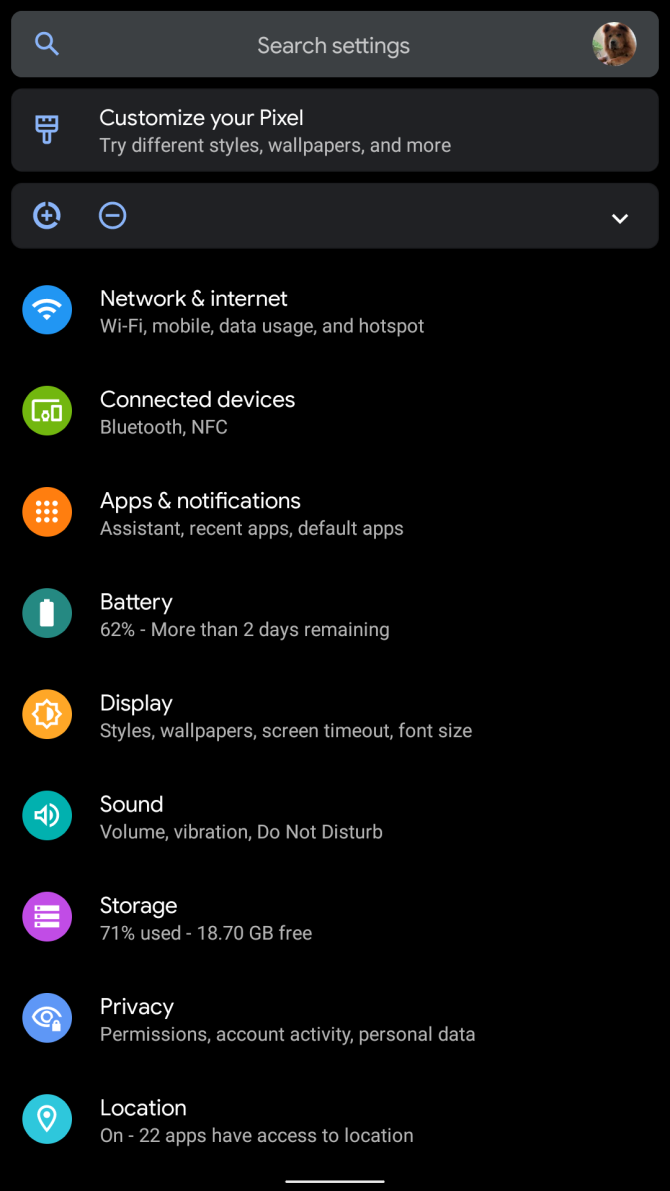
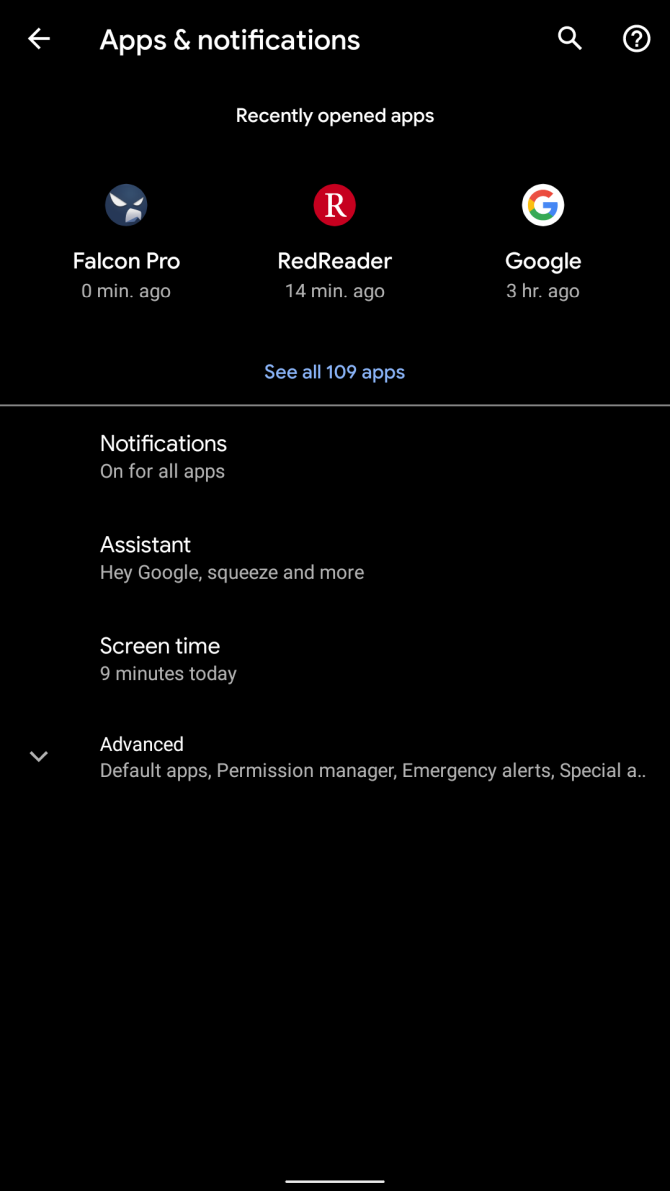
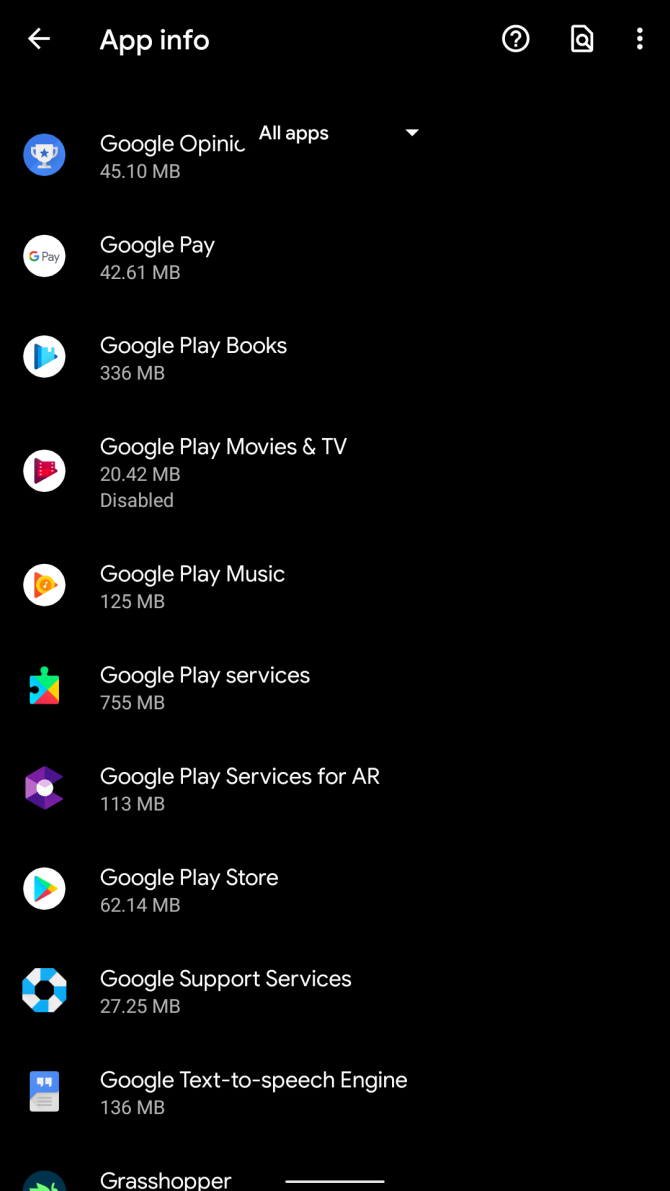
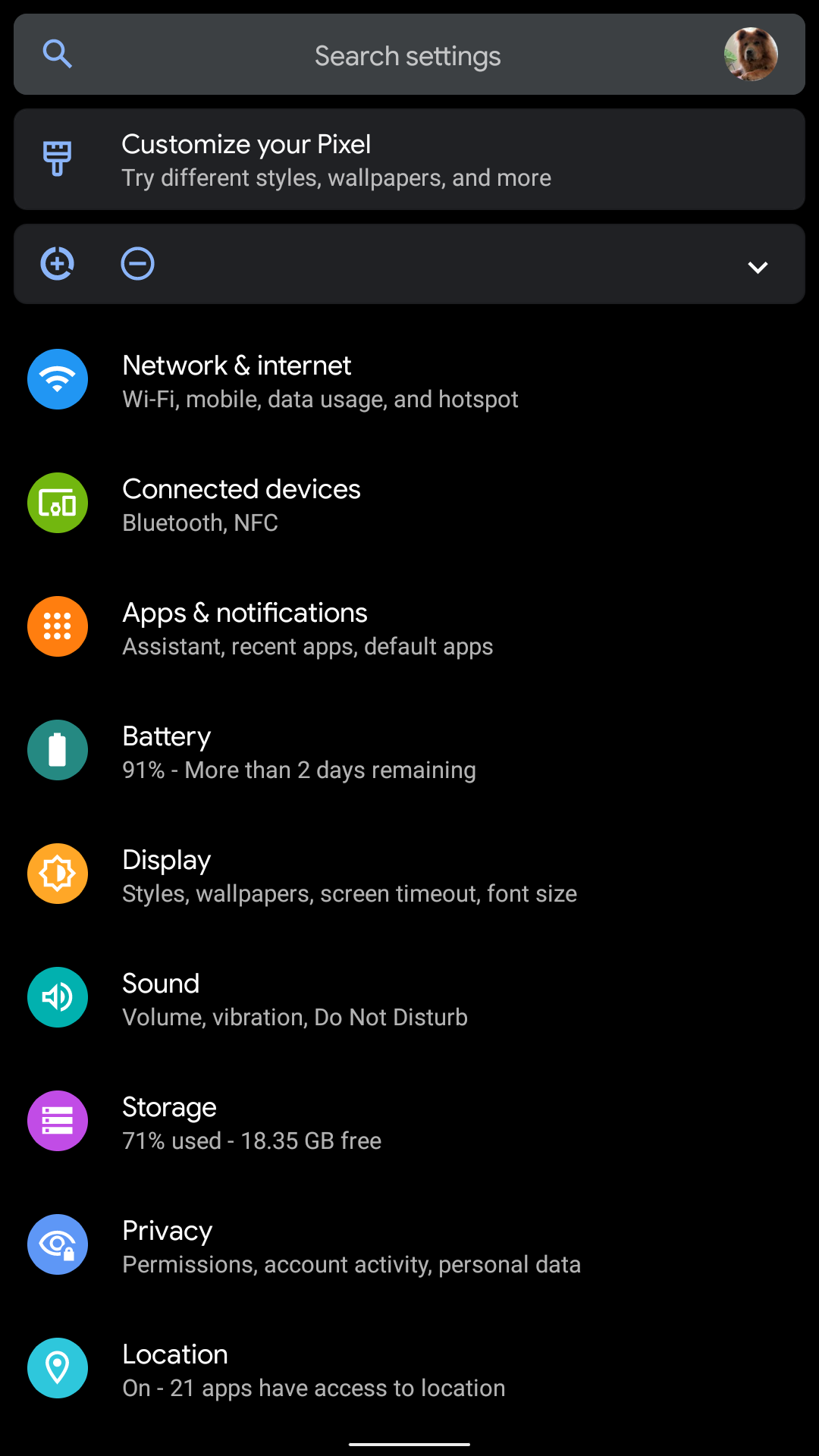
  1. Go to Settings > Apps & Notifications > See all X apps.
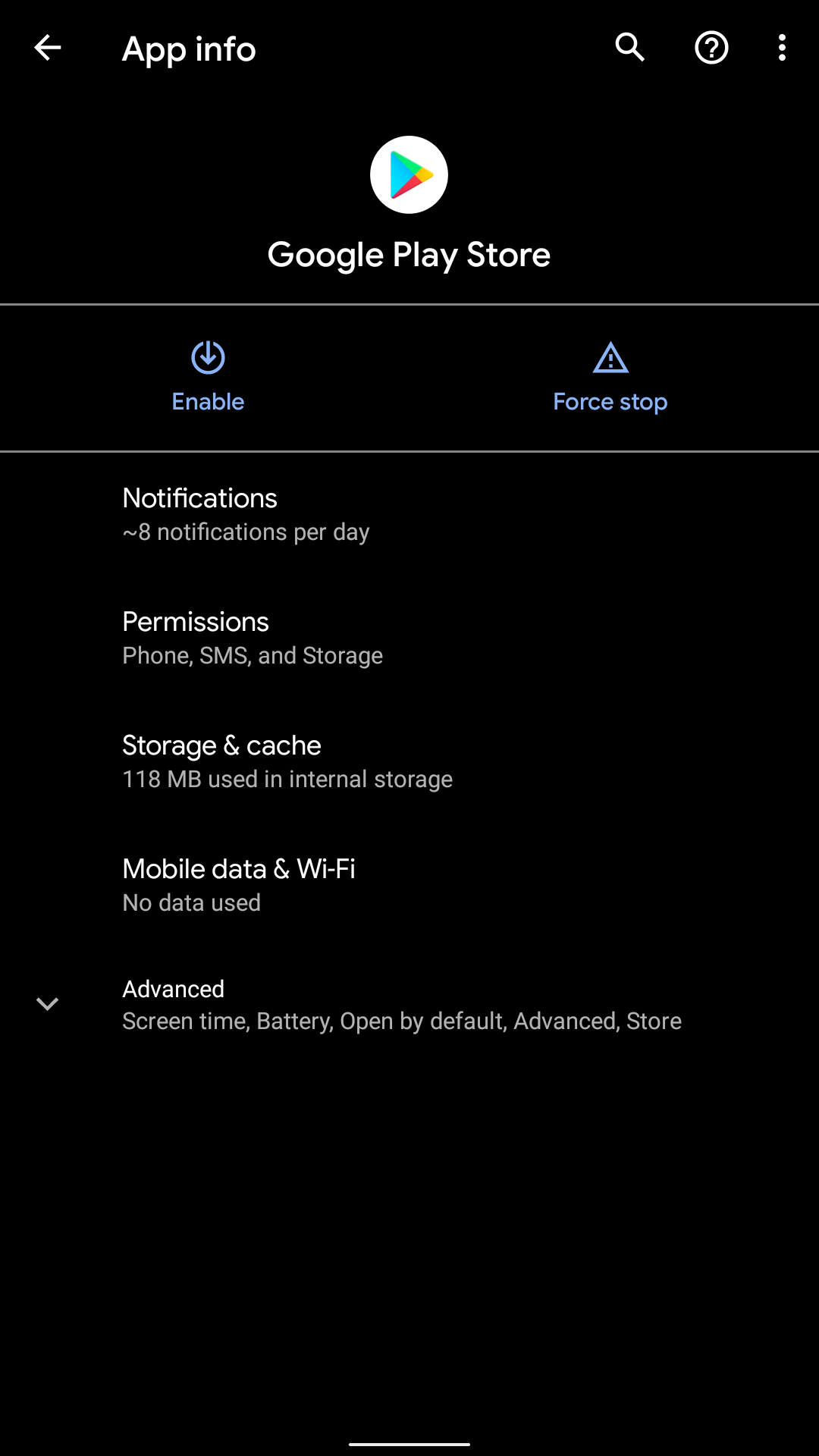
  2. In the list, find and tap on Google Play Store.
  3. Open the Storage & cache section, then tap both Clear storage and Clear cache (older versions of Android use Data instead of Storage).
  4. Restart your phone.

If that fails, try wiping the storage and cache for Google Play Services and Google Services Framework using the same steps outlined above. Remember to restart the device after you’ve finished. And have a look at our dedicated Google Play Store problems troubleshooting guide for more help.

2. Insufficient Space on Device

If your phone runs low on space and does not support a microSD card, your only option is to delete files. But how do you find space-wasting clutter?

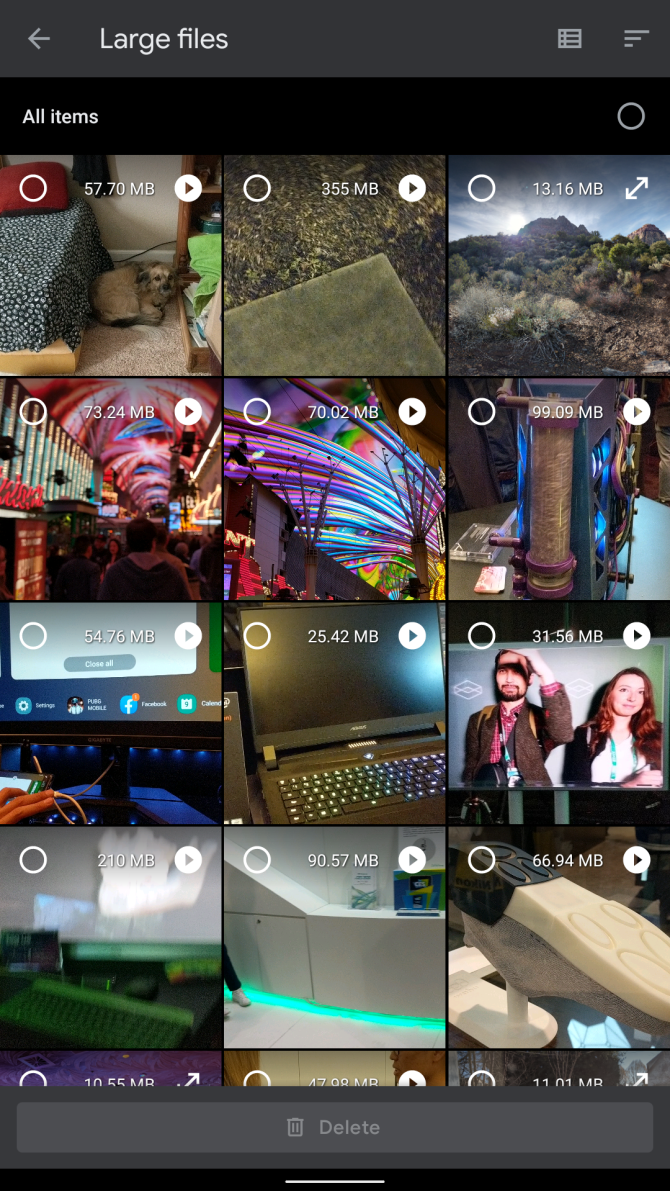
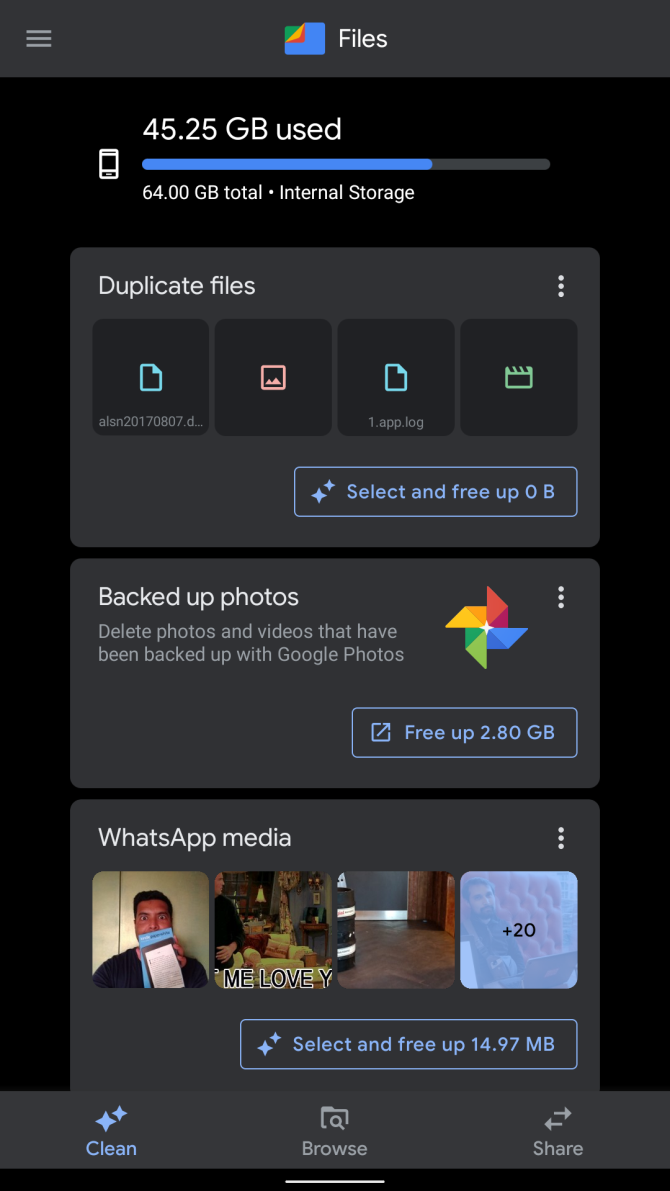
One of the easiest options is to use Files by Google. It automatically finds common space wasters, like large media files, and removes them when you direct it to. On the downside, it gives Google complete access to the contents of your phone.

Advanced users can instead give DiskUsage a try. It’s free and open source, though it hasn’t seen an update since late 2017.

Download: Files by Google (Free)
Download: DiskUsage (Free)

3. Google Play Store Not Downloading Apps

Sometimes Google Play won’t install applications. You have two major options to fix this. The first is to wipe Google Play’s cache, as demonstrated in #1 above. The second is to erase Google Play’s history.

How to Wipe Google Play History

This method isn’t a sure fix, but it’s worth a try if clearing cache didn’t work. Here’s what to do:

  1. Launch the Google Play Store.
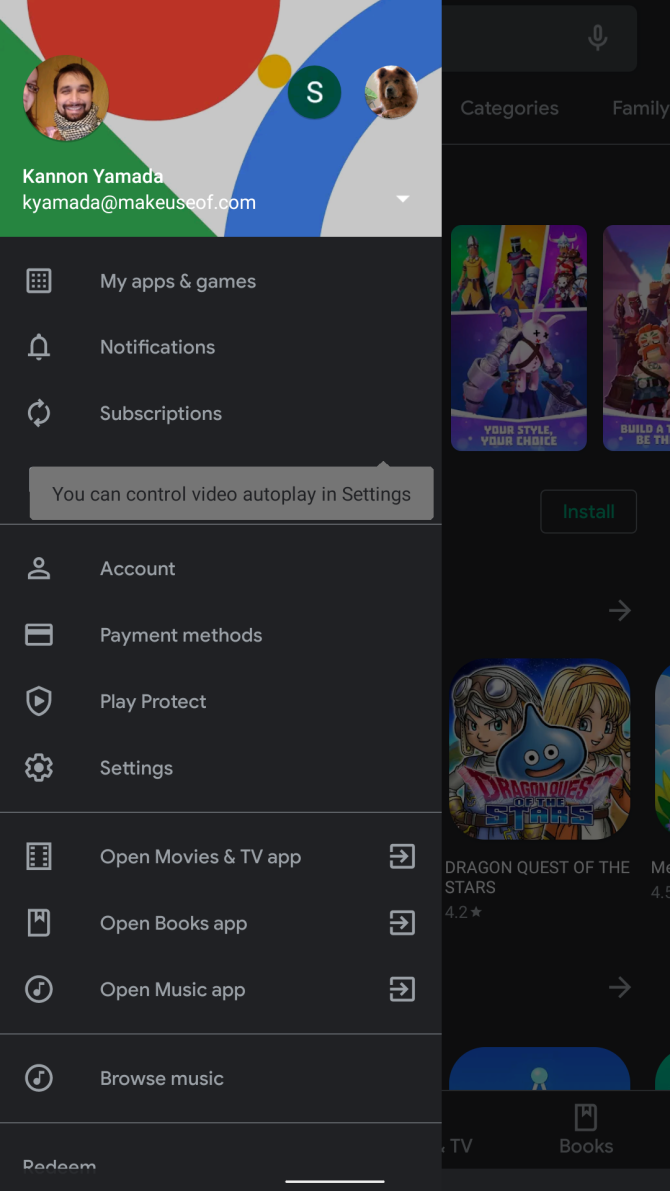
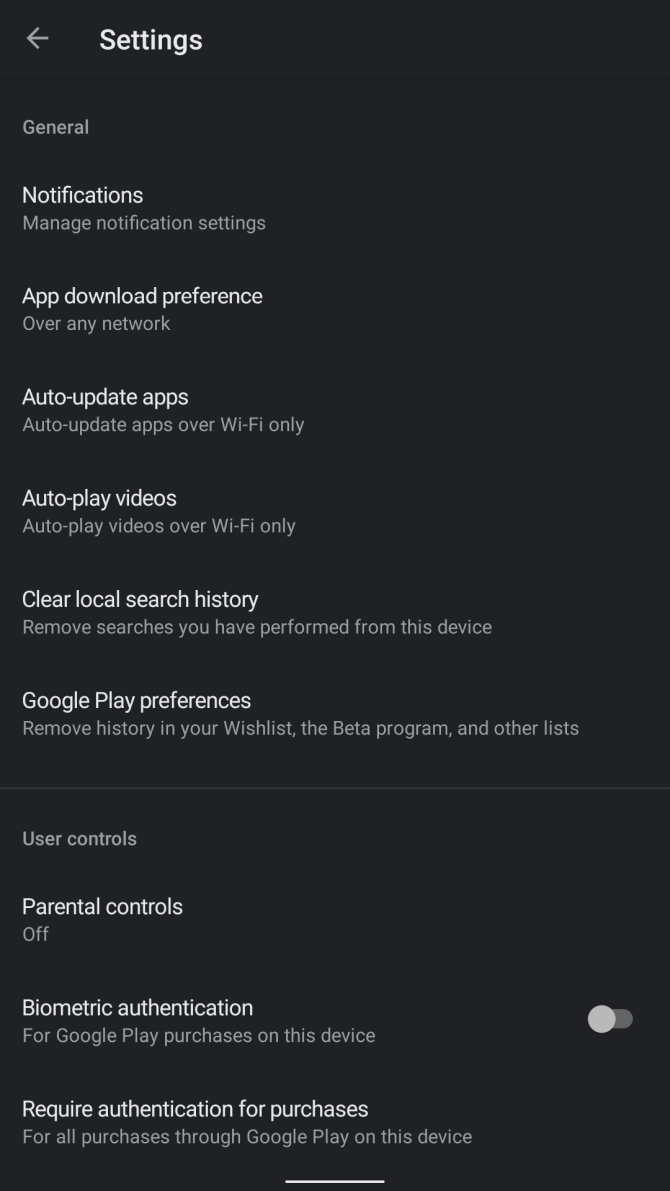
  2. Open the left sidebar and go to Settings.
  3. Choose Clear local search history.

4. How to Reinstall the Google Play Store

You can’t uninstall the Google Play Store without rooting your device. If you think you’ve deleted Google Play, chances are that you’ve actually disabled it instead. To re-enable the Play Store:

  1. Visit Settings > Apps & notifications and choose See all X apps.
  2. At the top of the list, tap the All apps dropdown and change it to Disabled apps.
  3. Find Google Play Store and tap on it. Tap on the Enable icon to activate it again.

5. How Do I Install Google Play?

Some imported tablets and smartphones don’t come with the Google Play Store installed. In this case, you’ll need to locate a Play Store APK file from a third-party source and then manually install it.

To do this you’ll first need to follow our guide to sideloading apps on Android. Once you’re set up, grab the Play Store APK from APKMirror and sideload it.

Download: Google Play Store (Free)

6. I Need an Older Version of the Google Play Store

google play store logo

Sometimes, the newest version of Google Play won’t work on your device. In that case, you can try installing an older version.

Take a look at this APKMirror directory of Google Play Store APKs, which includes links to every major version of the Play Store. You can follow the above steps to sideload it once downloaded. Unfortunately, very old versions of the Play Store may not work at all.

7. How Do I Free Up Memory on My Android Device?

In Android (like most operating systems), “memory” refers to RAM, not storage. The Android OS works best with a minimal number of installed applications. That’s because some apps like to run in the background, even when you aren’t using them

The more apps you have installed, the more likely some will run hidden from view, all the while consuming resources and battery life. The simplest solution is to uninstall all non-essential applications.

We don’t recommend using task killers, as they negatively impact the functionality of your device. On top of that, they don’t adequately address the main issue: apps which consume resources can also start themselves at will. See how to manage memory on Android for more tips.

8. System UI Not Working (Android 9 or Older)

Sometimes the System User Interface (UI) can stop working. If restarting your device doesn’t fix this problem, we suggest wiping the System UI cache. To wipe the cache:

  1. Launch Settings > Apps & notifications and select See all X apps.
  2. Make sure the top dropdown list says All apps, then scroll down to System UI.
  3. Select Storage & cache, then choose to Clear cache.
  4. Restart your device.

On Android 10 and newer, you don’t have access to the System UI service. However, you can attempt to modify the System UI using an app called System UI Tuner. Unfortunately, this app can only change the appearance of some of Android’s user interfaces, such as the status bar. Even so, it’s better than nothing.

Download: System UI Tuner (Free)

9. Android Download Manager Not Working

Sometimes the Android Download Manager doesn’t work. Oftentimes, the files it’s downloading (to a temporary location called a “cache”) become corrupted.

In this case, wiping the cache should fix the problem. However, this doesn’t work in Android 10 or newer. To wipe the cache on older Android versions:

  1. Launch Settings > Apps & notifications and tap See all X apps.
  2. Make sure the top dropdown list says All apps, then find and tap System UI in the list.
  3. Select Storage & cache, then Clear cache.
  4. Restart your phone.

If that doesn’t work, or you have Android 10 or newer, consider using a third-party download manager like Advanced Download Manager.

Download: Advanced Download Manager (Free, in-app purchases available)

10. I Can’t Find My Download

By default, Android stores your downloaded files in a folder called Download. You can locate this directory using a file manager, like Ghost Commander. Once installed, navigate to /Download and you should see a complete list of downloaded files.

If you don’t want to bother with this, Files by Google is an easier choice. It includes a direct link to the Download directory on its main page.

Download: Ghost Commander (Free)
Download: Files by Google (Free)

11. I Can’t Play a Downloaded Video

Problems with a video on your Android device? Try using VLC Player or MX Player, which work with almost every file you can imagine. However, sometimes videos in a proprietary format won’t play. There’s no real solution for this issue other than installing the proprietary video codec.

In the event that neither MX nor VLC Player can play your video, it’s likely corrupted. You’ll need to download it again.

Download: VLC Player (Free)
Download: MX Player (Free)

12. I Installed Android Malware!

When you suspect you have malware on your Android phone, simply uninstall the supposed culprit. If you’re not sure which app is causing an issue on your phone, follow our guide to finding and removing Android malware.

Most of the time, we don’t recommend using any paid anti-malware solution for Android, since you can simply uninstall the malware. In a worst-case situation, a factory reset resolves almost every problem.

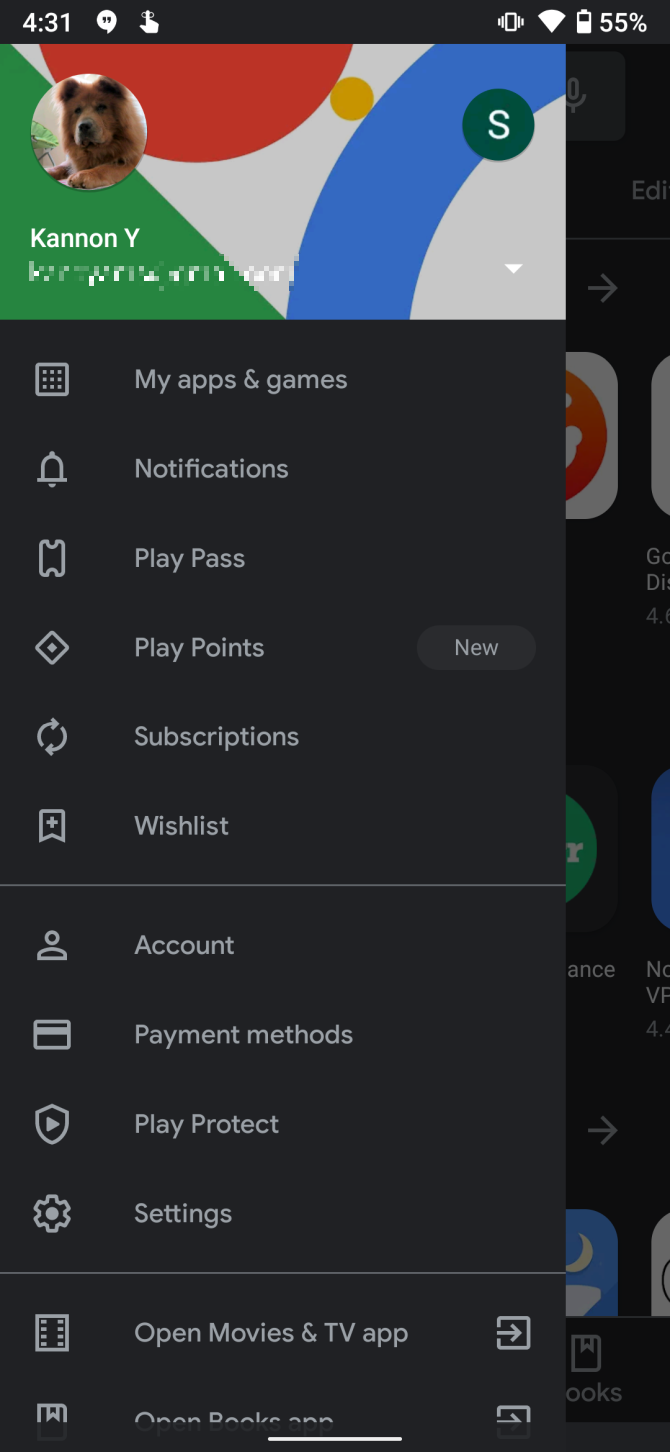
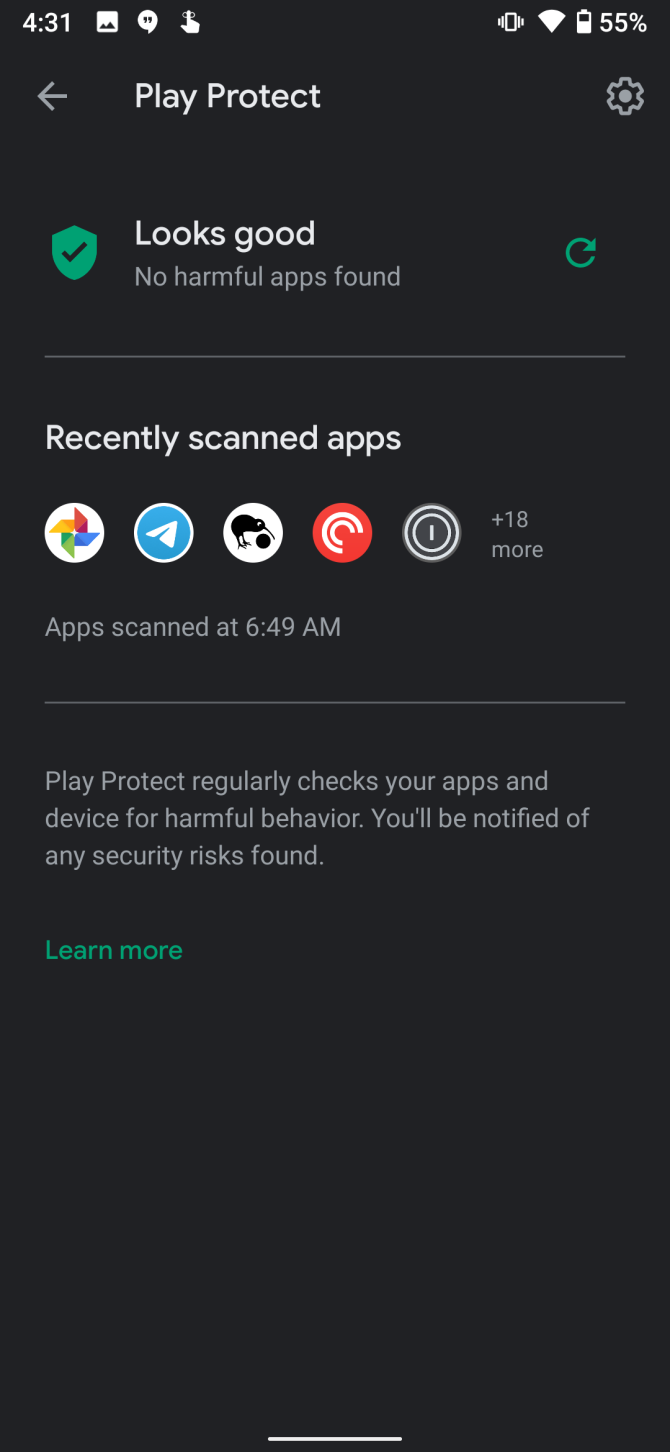
Plus, Google Play Protect is now baked into Android to keep your device safe. To make sure you’ve enabled Google Play Protect, take the following steps:

  1. Open the Google Play Store.
  2. Tap on the three horizontal bars in the upper-left corner and select Play Protect.
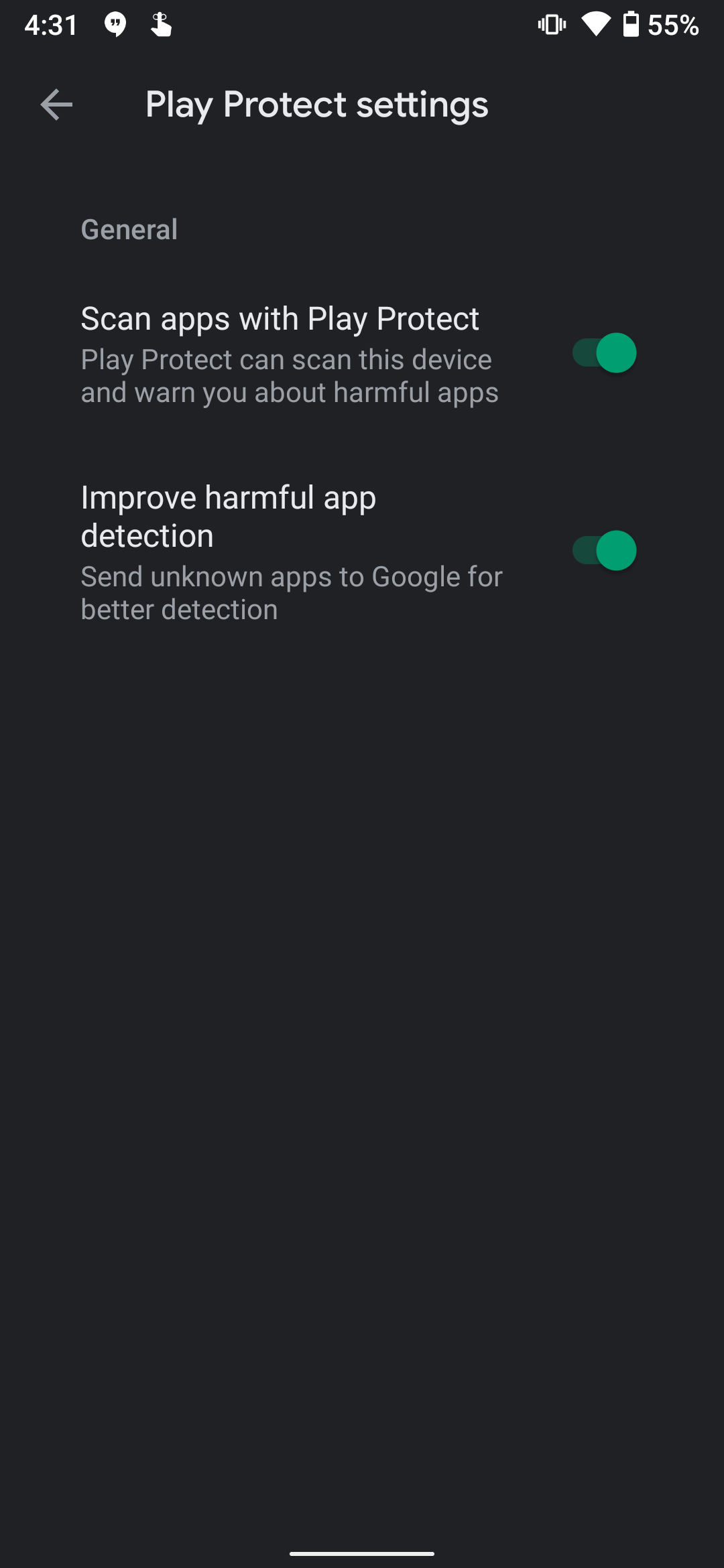
  3. Tap the Settings gear in the top-right corner.
  4. Make sure Scan apps with Play Protect is turned on.
  5. Tap the Refresh arrow next to the shield icon to run a scan.

If your phone doesn’t have Google Play Protect or you want another opinion, Malwarebytes Security is a good second option.

Download: Malwarebytes Security (Free, subscription available)

13. Slow Internet Speeds on Android

Poor-quality connections are a common issue on both Wi-Fi and mobile internet. You can resolve most Wi-Fi speed issues by restarting your router.

For issues with data connections, see our guide to speeding up mobile internet on your phone.

14. Can’t Connect to Wi-Fi Network

Chances are that your router is at fault for this issue. If restarting your router and phone doesn’t work, take a look at our quick tips for fixing network issues.

15. How Do I Break an Android Password?

google find my mobile website

If you’ve forgotten your Android passcode, first follow our steps to get back into your Android phone. If none of those work, you’ll need to perform a factory reset from the bootloader. This is a pre-boot environment that allows you to restore the operating system, among other tasks.

While there are ways to potentially break Android passwords, no method is as reliable as a factory reset. On the downside, doing so will erase all your data.

The method to enter the bootloader varies among devices. For most models, you can access it by holding the Volume down and Power buttons until your phone goes to the bootloader. Once inside, you factory reset your device using the Recovery Mode option.

Note that if you have a custom ROM, you shouldn’t do this. It can render your device unbootable.

16. Android Device Crashes on Boot

If your phone no longer boots, you can enter Android’s “safe mode”. This allows you to disable all non-essential startup apps that might cause your phone to crash.

Once you load into safe mode, it should be easy to remove the misbehaving app.

17. Android Device Won’t Turn On

If your phone doesn’t turn on, try the following steps:

  1. Remove and reinsert the battery, if possible.
  2. If the battery isn’t removable, hold down the power button for 15 seconds.
  3. Plug the device into a power source, give it a few minutes, then hold the power button down for 15 seconds again.
  4. Failing that, you likely need to either have the device serviced or return it.

For more detail, see our full guide on what to do when your Android phone won’t turn on.

18. Android Not Reading microSD Card

When this happens, you should format the SD card from within Android. To format an Android microSD card:

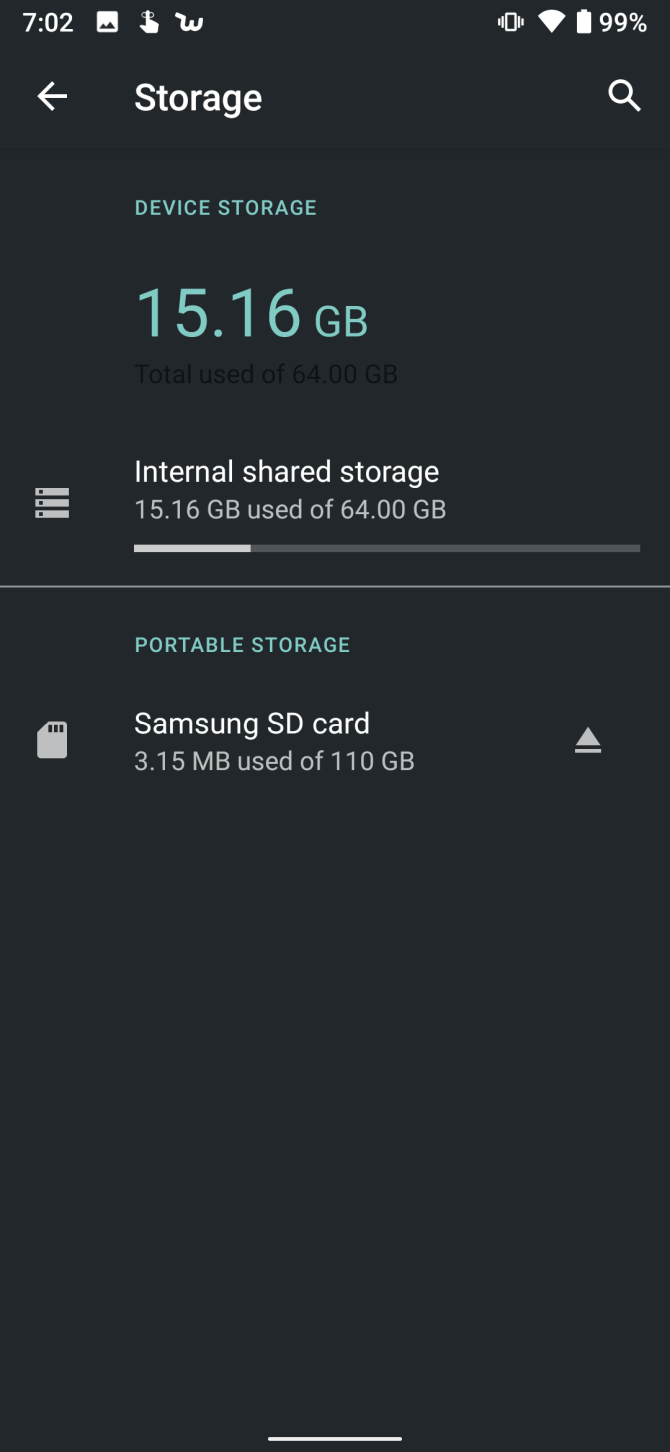
  1. Go to Settings > Storage.
  2. Scroll down to the bottom and select Format SD card.
  3. Finally, select Format SD card again.

On Android 10, this process is slightly different:

  1. Head to Settings > Storage.
  2. Under Portable Storage, tap on your microSD card.
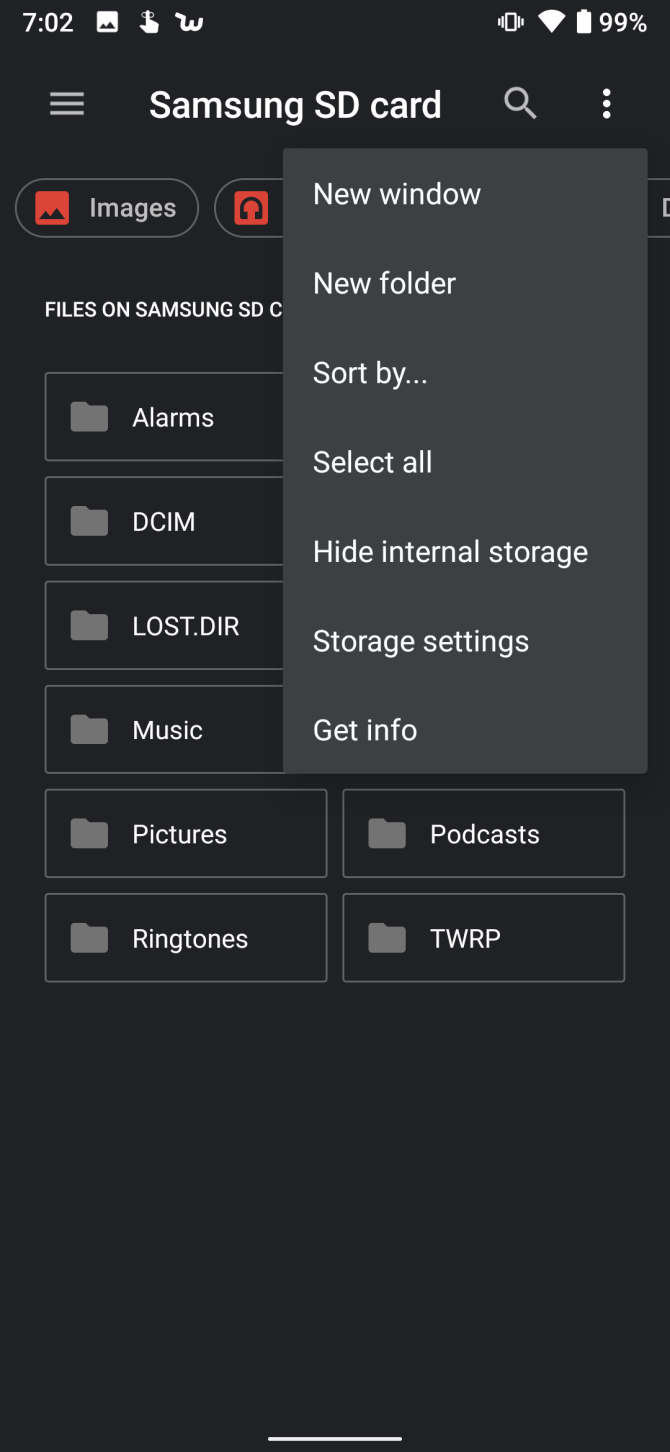
  3. Tap on the three dots at the upper-right of the screen.
  4. Select Storage settings from the context menu.
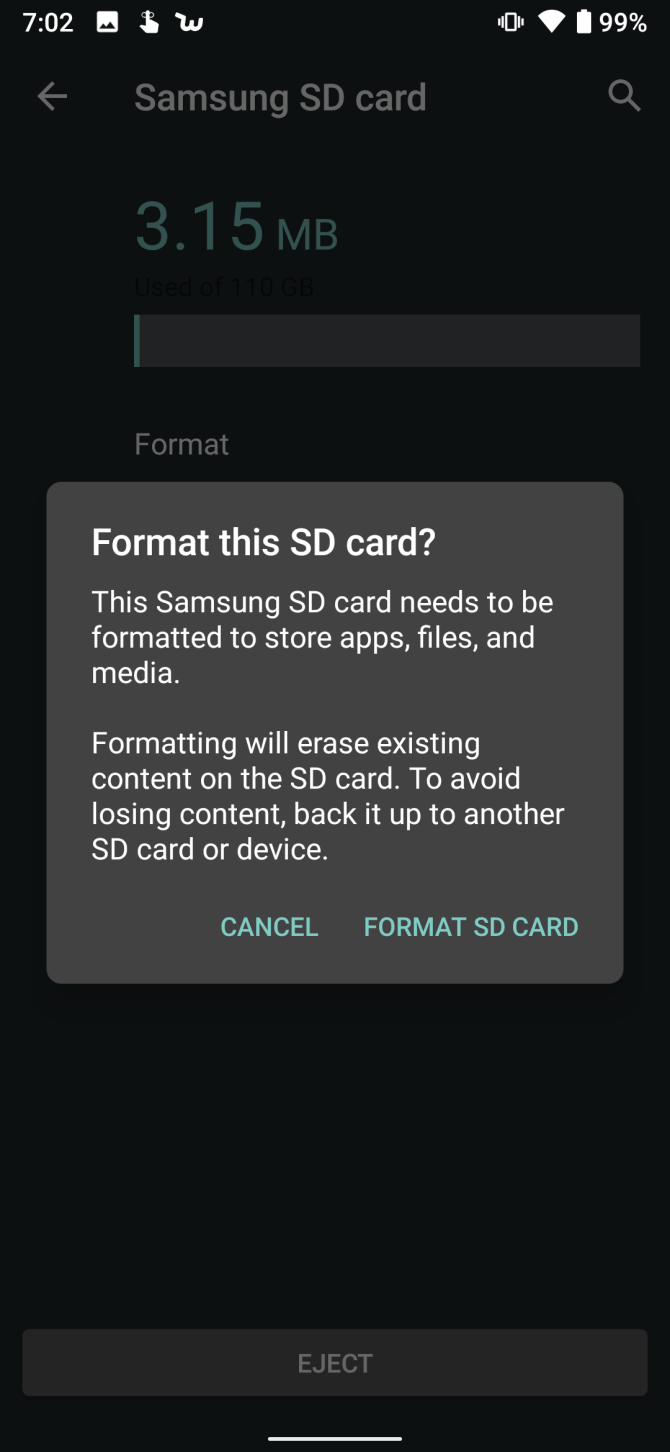
  5. Choose Format, then select Format SD Card.

If this fails, you’ll need to connect the SD card to a PC using a card reader and format it that way.

19. Can’t Connect Android Device to a Windows PC

There are two methods that an Android device can use to connect to a computer: Android Debug Bridge (ADB) or Media Transfer Protocol (MTP). ADB lets you interact with Android’s operating system, while MTP only permits access to specifically designated media storage directories.

ADB is much more complicated, which means it runs into problems more often. See how to fix ADB in Windows for help with troubleshooting it.

20. The Nuclear Option: Factory Reset

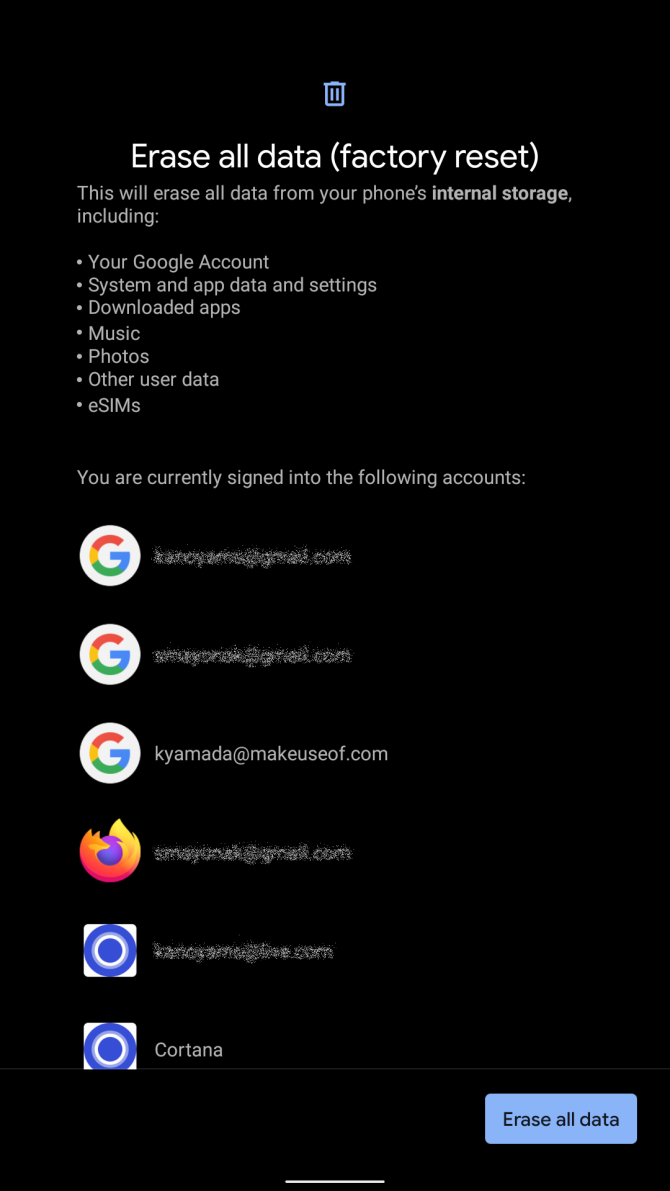
If all else fails, you’ll need to turn to a factory reset. Remember that this will completely delete everything from your device, so you should back up your Android device first.

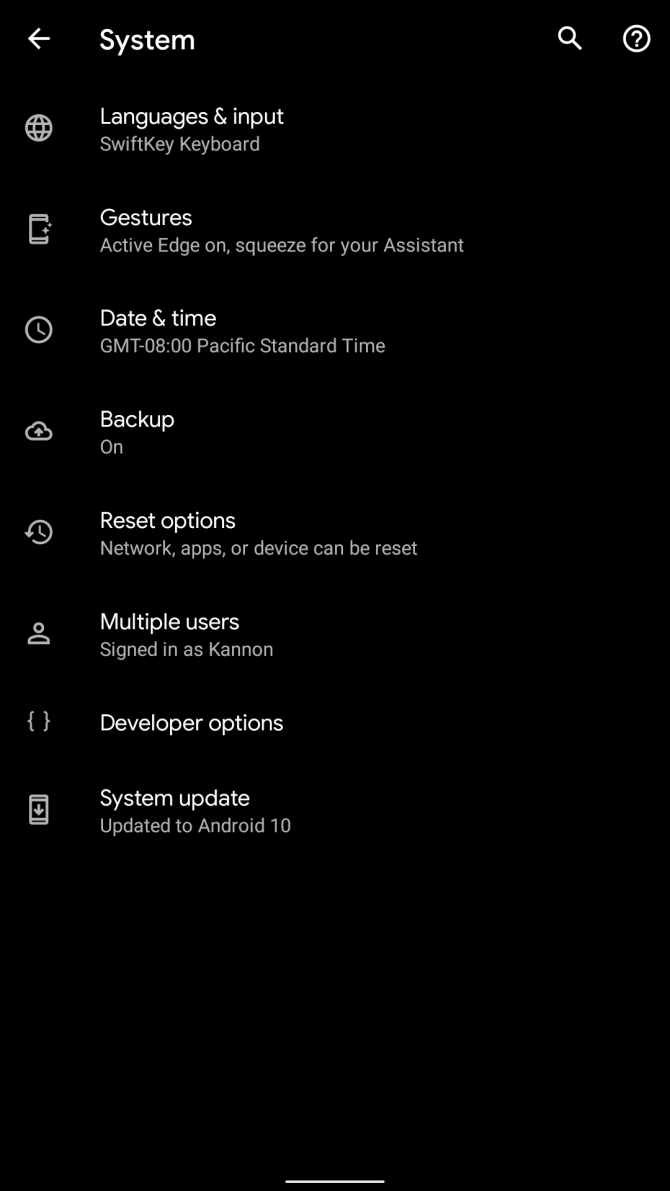
On Android 10, take the following steps:

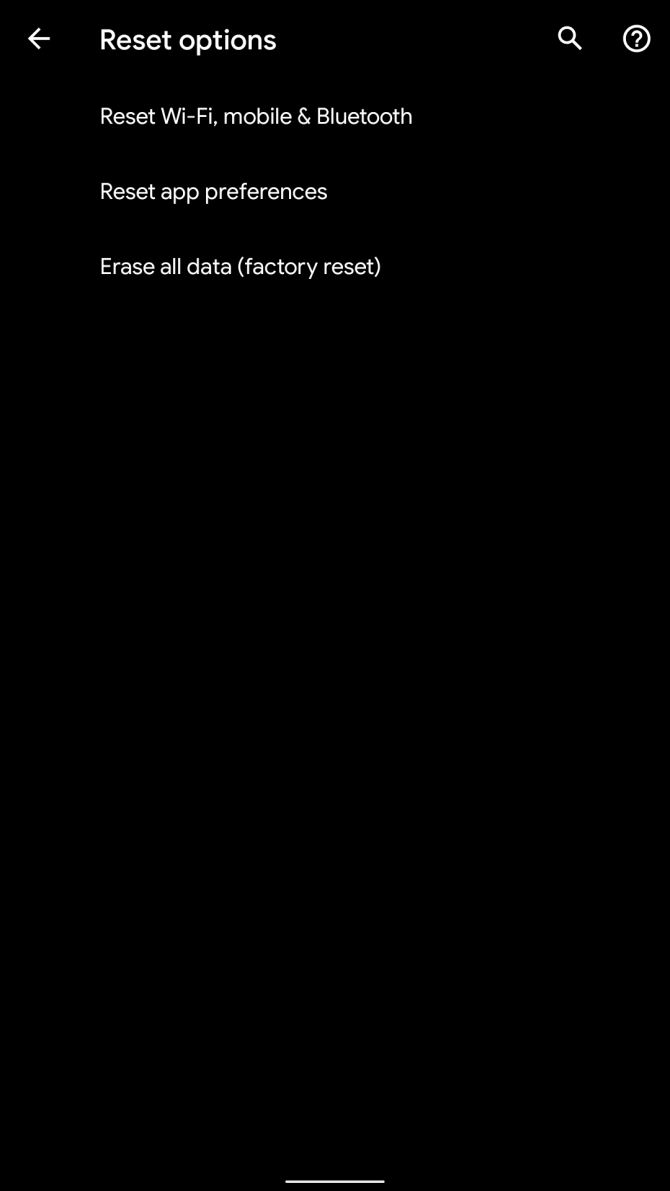
  1. Go to Settings > System > Advanced > Reset options.
  2. Tap Erase all data (factory reset).
  3. Confirm the operation, then enter your passcode to start the process.

To perform a factory reset in older versions of Android:

  1. Go to Settings > Backup & reset.
  2. Choose Reset at the bottom of the window and confirm the operation.

Android Issues Solved

Now you know how to resolve the most common Android problems. You should always start by rebooting your phone before moving onto more specific troubleshooting.

If you want to perform a checkup while you’re at it, take a look at the best apps for making sure your Android phone is functioning properly.

Read the full article: 20 Common Android Problems Solved


Read Full Article
30+ Nifty Snipping Tool Shortcuts for Screenshots in Windows


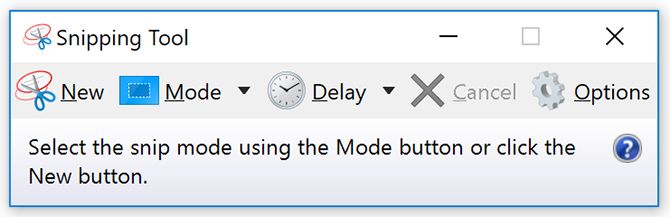
The Snipping Tool is an often-overlooked but helpful app that’s been part of Windows for a long time. While it doesn’t have too many bells and whistles, it’s a convenient and quick way to grab a screenshot on your computer. Using the Snipping Tool’s keyboard shortcuts can make that process even quicker.

Create a Snipping Tool Shortcut

It’s easy to search for the Snipping Tool via the Start menu and pin it to your Taskbar. However, for more convenience, you can easily create your own Snipping Tool hotkey. See our guide to creating custom Windows keyboard shortcuts for everything you need to know.

Keyboard Shortcuts for the Snipping Tool

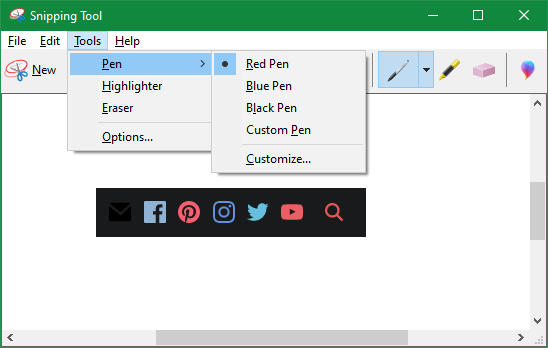
Snipping Tool in Windows 10

Once you have the Snipping Tool open, you can use the following Snipping Tool keyboard shortcuts to make quick work of your screenshots:

  • Choose a snipping mode: Alt + M, followed by the arrow keys and Enter to make your selection
  • Create a new snip in the same mode as the last one: Alt + N
  • Move the cursor to select a rectangular snip area: Shift + Arrow keys
  • Delay capture: Alt + D, then use the arrow keys and Enter to make your selection
  • Copy a captured snip to the clipboard: Ctrl + C
  • Save the snip: Ctrl + S
  • Print the snip: Ctrl + P
  • Create a new snip: Ctrl + N
  • Cancel the snip operation: Esc

Snipping Tool Menu Bar Shortcuts

Windows Snipping Tool Menu Keyboard Shortcuts

If you have a hard time remembering these keyboard shortcuts, there’s a more intuitive way to utilize shortcuts for the Snipping Tool.

After you’ve taken one snip and see the full Snipping Tool window with the menu bar at the top, access its menu items with the following shortcuts:

  • File menu: Alt + F and then select from the following (or use the arrow keys):
    • N to take a new screenshot
    • A to save the snip
    • T to send via email (followed by E to email normally or A to email as an attachment)
    • P to print it
  • Edit menu: Alt + E, then:
    • C to copy the current snip to your clipboard
    • E to edit it in Paint 3D
  • Tools menu: Alt + T, followed by one of these:
    • P to open the Pen menu, followed by one of the underlined letters, or the arrow keys and Enter, to make your selection
    • H to select the Highlighter
    • E to switch to the Eraser tool
    • O to open the Snipping Tool’s Options panel
  • Help menu: Alt + H, then:
    • H to open the online help page
    • A to see the Snipping Tool’s info page

More Snip Tool Shortcuts With Snip & Sketch

Windows Snip Sketch Shortcuts

As you may know, one of the other ways to take a screenshot in Windows 10 is using the modern Snip & Sketch app. This is similar to the Snipping Tool but has a few distinct advantages.

One of them is the snip shortcut it offers. You can press Win + Shift + S anytime to open the Snip & Sketch capture panel. Once it opens, press Tab to cycle through the available modes and hit Enter when you land on the one you want.

Once you have a Snip & Sketch editing window open, you can use a variety of shortcuts to work more efficiently in it. Some of these are familiar Windows keyboard shortcuts, such as Ctrl + Z to undo or Ctrl + Mouse wheel to zoom.

Here are a few of the unique Snip & Sketch snipping shortcuts. Note that for the drawing tools, you’ll need to hit the key twice to open the color and thickness options:

  • Open a new snip: Alt + N
  • Toggle Touch Writing: Alt + T
  • Switch to the pen tool: Alt + B, then use the arrow keys to select a color and Tab to select thickness
  • Swap to the pencil tool: Alt + I, followed by the arrow keys to choose a color and Tab to set thickness
  • Switch to the highlighter tool: Alt + H, then arrow keys to choose the color and Tab to select the thickness bar
  • Crop the snip: Alt + R, then use Tab to switch between corners and the arrow keys to move them
  • Change zoom level: Alt + Z, then use arrow keys
  • Share the snip: Alt + A
  • Show a menu with more options: Alt + M

Windows Snipping Tool Shortcuts for Better Efficiency

We’ve looked at the best hotkeys for the Snipping Tool and Snip & Sketch app. If you rely on either of them to take screenshots, these keyboard shortcuts will make it much easier to capture, edit, and share your snips.

See our full guide on the Snipping Tool for a lot more help with this tool.

Read the full article: 30+ Nifty Snipping Tool Shortcuts for Screenshots in Windows


Read Full Article
What to consider when employees need to start working remotely


The COVID-19 crisis is touching all aspects of society, including how we work. In response, many companies are considering asking some percentage of their workforce to work remotely until the crisis abates.

If your organization doesn’t have a great deal of experience with remote work, there are a number of key things to think about as you set up a program. You are going to be under time constraints when it comes to enacting an action plan, so think about ways to leverage the tools, procedures and technologies you already have in place. You won’t have the luxury of conducting a six-month study.

We spoke to a few people who have been looking at the remote working space for more than a decade and asked about the issues companies should bear in mind when a large number of employees suddenly need to work from home.

The lay of the land

Alan Lepofsky, currently VP of Salesforce Quip, has studied the remote work market for more than a decade. He says there are three main pieces to building a remote working strategy. First, managers need to evaluate which tools they’ll be using to allow employees to continue collaborating when they aren’t together.


Read Full Article
Big tech commits to paying wages for hourly employees affected by coronavirus plans


Following Microsoft’s lead from late last night, some the biggest technology companies in the U.S. have agreed to pay wages for hourly employees impacted by the ongoing corporate response to the coronavirus outbreak.

It’s the right thing for companies to do, from both a health and safety perspective, and to ensure that the hourly workers who are most impacted by work stoppages and shortages are not adversely affected by events that are beyond their control.

As we reported earlier today, Facebook committed to pay its “contingent” workers. And according to a report in Axios, Amazon, Google and Twitter are joining them. We’ve reached out to Apple but have yet to receive a comment.

In a statement to Axios, Amazon made the same commitment for its employees.

“We will continue to pay all hourly employees that support our campus in Seattle and Bellevue – from food service, to security guards to janitorial staff – during the time our employees are asked to work from home,” the company said in a statement. “In addition, we will subsidize one month of rent for the local small businesses that operate inside our owned buildings to help support them during this period.”

Google and Twitter have reportedly made the same commitments.

Tech companies have taken a lead on the issue and received praise from labor organizations for the stance. But organizers in the Bay Area and beyond are encouraging companies to cushion the blow hourly workers will face from lost wages due to office closures.

The issue has even caught the attention of the Democratic Senator Mark Warner from Virginia, who is pressuring gig economy companies Uber, Lyft, Postmates and DoorDash to provide compensation for workers impacted by the coronavirus.

“I strongly urge that you attempt to address the potential financial hardship for your workers if they are sick or have to self-quarantine during this time,” Warner wrote. “In order to limit the spread of COVID-19, it is critical that platform companies lead by example by committing that economic uncertainty will not be deterrents to their workers following public health guidance during the response.”


Read Full Article
FCC looks to mandate anti-robocall tech after prodding from Congress


The FCC is finally going to require wireless carriers to implement an anti-robocalling technology, after asking them nicely for more than a year to do so at their convenience. Of course, the FCC itself is now required to do this after Congress got tired of waiting on them and took action itself.

The technology is called Secure Telephony Identity Revisited / Secure Handling of Asserted information using toKENs, mercifully abbreviated to STIR/SHAKEN, and amounts to a sort of certificate authority for calls that prevents phone numbers from being spoofed. (This is a good technical breakdown if you’re curious.)

STIR/SHAKEN has been talked about for quite some time as a major part of the fight against robocalls, and in 2018 FCC Chairman Ajit Pai said that carriers would have until the end of 2019 to implement it. 2019 came and went, and while the FCC (and indeed carriers) took other actions against robocallers, STIR/SHAKEN went largely undeployed.

Meanwhile, Congress, perhaps tired of receiving scam calls themselves, managed to collectively reach across the aisle and pass the TRACED Act, which essentially empowers the FCC and other departments to take action against robocallers — and prevents carriers from charging for anti-robocall services.

It also ordered the FCC to set a timeline for STIR/SHAKEN implementation, which is what Pai is doing now.

“It’s clear that FCC action is needed to spur across-the-board deployment of this important technology. There is no silver bullet when it comes to eradicating robocalls, but this is a critical shot at the target,” he said in a statement issued today.

There does not, however, appear to be any great hurry. The proposal, which will be voted on at the FCC’s meeting later this month, would require voice service providers to implement STIR/SHAKEN by June 30… of 2021. And one-year extensions will be available to smaller providers who claim difficulty getting the system up and running.

In other words, you can expect to keep receiving strange calls offering discounts on cruises and warning you of IRS penalties for some time to come. Of course, there are some things you can do to stem the flow of scammers — check out our 101 on preventing robocalls for some simple tips to save yourself some aggravation.


Read Full Article

FCC looks to mandate anti-robocall tech after prodding from Congress


The FCC is finally going to require wireless carriers to implement an anti-robocalling technology, after asking them nicely for more than a year to do so at their convenience. Of course, the FCC itself is now required to do this after Congress got tired of waiting on them and took action itself.

The technology is called Secure Telephony Identity Revisited / Secure Handling of Asserted information using toKENs, mercifully abbreviated to STIR/SHAKEN, and amounts to a sort of certificate authority for calls that prevents phone numbers from being spoofed. (This is a good technical breakdown if you’re curious.)

STIR/SHAKEN has been talked about for quite some time as a major part of the fight against robocalls, and in 2018 FCC Chairman Ajit Pai said that carriers would have until the end of 2019 to implement it. 2019 came and went, and while the FCC (and indeed carriers) took other actions against robocallers, STIR/SHAKEN went largely undeployed.

Meanwhile, Congress, perhaps tired of receiving scam calls themselves, managed to collectively reach across the aisle and pass the TRACED Act, which essentially empowers the FCC and other departments to take action against robocallers — and prevents carriers from charging for anti-robocall services.

It also ordered the FCC to set a timeline for STIR/SHAKEN implementation, which is what Pai is doing now.

“It’s clear that FCC action is needed to spur across-the-board deployment of this important technology. There is no silver bullet when it comes to eradicating robocalls, but this is a critical shot at the target,” he said in a statement issued today.

There does not, however, appear to be any great hurry. The proposal, which will be voted on at the FCC’s meeting later this month, would require voice service providers to implement STIR/SHAKEN by June 30… of 2021. And one-year extensions will be available to smaller providers who claim difficulty getting the system up and running.

In other words, you can expect to keep receiving strange calls offering discounts on cruises and warning you of IRS penalties for some time to come. Of course, there are some things you can do to stem the flow of scammers — check out our 101 on preventing robocalls for some simple tips to save yourself some aggravation.


Read Full Article
Daily Crunch: Jack Dorsey defends his work as Twitter CEO


Twitter’s CEO defends himself from activist investors, Google takes additional coronavirus precautions and a fizzy drink maker raises $30 million. Here’s your Daily Crunch for March 6, 2020.

1. Twitter CEO’s weak argument why investors shouldn’t fire him

Twitter CEO Jack Dorsey spoke yesterday at a Morgan Stanley conference, where he delivered remarks (also shared via Twitter’s investor relations account) that responded obliquely to activist investor Elliott Management’s efforts to pressure Twitter into a slew of reforms, potentially including replacing Dorsey with a new CEO.

Among other things, Dorsey said he might not spend six months a year in Africa after all, claimed the company’s real product development is happening under the hood and offered an excuse for deleting Vine before it could become TikTok.

2. Google recommends Washington State employees work from home, citing coronavirus risk

The software giant has not closed its Washington offices outright, nor is it planning to make an official statement regarding the recommendation, but the news certainly points to a broader trend of serious precautions around the novel coronavirus outbreak. The move follows a similar decision by Lyft, which sent home employees in its San Francisco office.

3. Spindrift, maker of fizzy drinks, has raised $29.8M

Spindrift, founded in 2010, is up against big players, like the beloved and decades-old LaCroix, another sparkling water brand. The company differentiates itself by emphasizing “real fruit” in its drinks — think cucumbers from Michigan, strawberries from California and Alfonso mangoes from India.

4. Airbnb and three other P2P rental platforms agree to share limited pan-EU data

The European Commission announced that it has reached a data-sharing agreement with vacation rental platforms Airbnb, Booking.com, Expedia Group and Tripadvisor — trumpeting the arrangement as a “landmark agreement” which will allow the EU’s statistical office to publish data on short-stay accommodations across the EU.

5. SaaS companies flirt with correction territory as another wild week comes to a close

Stocks are set to fall further today, likely forcing shares in SaaS and cloud companies down yet again. After two wild trading weeks, the high-flying tech category is off over 9% from recent highs before the bell this morning, putting it close to correction territory. (Extra Crunch membership required.)

6. Mark Cuban backs ChatableApps, developer of a hearing assist app that removes background noise

The company has built a smartphone app that provides hearing assistance by removing background noise in near real time. Alongside auditory neural signal processing researcher Dr. Andy Simpson, the company’s co-founders are Brendan O’Driscoll, Aidan Sliney and George Boyle — the original team behind the music discovery app Soundwave.

7. Pex buys Dubset to build YouTube ContentID for TikTok & more

Pex is a royalty attribution startup that scans social networks and other user-generated content sites for rightsholders’ content, then lets them negotiate licensing with the platforms, request a take-down, demand attribution and/or track the consumption statistics. Dubset, meanwhile, has spent 10 years tackling the problem of getting remixes and multi-song DJ sets legalized for streaming.

The Daily Crunch is TechCrunch’s roundup of our biggest and most important stories. If you’d like to get this delivered to your inbox every day at around 9am Pacific, you can subscribe here.


Read Full Article
Measuring Compositional Generalization


People are capable of learning the meaning of a new word and then applying it to other language contexts. As Lake and Baroni put it, “Once a person learns the meaning of a new verb ‘dax’, he or she can immediately understand the meaning of ‘dax twice’ and ‘sing and dax’.” Similarly, one can learn a new object shape and then recognize it with different compositions of previously learned colors or materials (e.g., in the CLEVR dataset). This is because people exhibit the capacity to understand and produce a potentially infinite number of novel combinations of known components, or as Chomsky said, to make “infinite use of finite means.” In the context of a machine learning model learning from a set of training examples, this skill is called compositional generalization.

A common approach for measuring compositional generalization in machine learning (ML) systems is to split the training and testing data based on properties that intuitively correlate with compositional structure. For instance, one approach is to split the data based on sequence length — the training set consists of short examples, while the test set consists of longer examples. Another approach uses sequence patterns, meaning the split is based on randomly assigning clusters of examples sharing the same pattern to either train or test sets. For instance, the questions "Who directed Movie1" and "Who directed Movie2" both fall into the pattern "Who directed <MOVIE>" so they would be grouped together. Yet another method uses held out primitives — some linguistic primitives are shown very rarely during training (e.g., the verb “jump”), but are very prominent in testing. While each of these experiments are useful, it is not immediately clear which experiment is a "better" measure for compositionality. Is it possible to systematically design an “optimal” compositional generalization experiment?

In “Measuring Compositional Generalization: A Comprehensive Method on Realistic Data”, we attempt to address this question by introducing the largest and most comprehensive benchmark for compositional generalization using realistic natural language understanding tasks, specifically, semantic parsing and question answering. In this work, we propose a metric — compound divergence — that allows one to quantitatively assess how much a train-test split measures the compositional generalization ability of an ML system. We analyze the compositional generalization ability of three sequence to sequence ML architectures, and find that they fail to generalize compositionally. We also are releasing the Compositional Freebase Questions dataset used in the work as a resource for researchers wishing to improve upon these results.

Measuring Compositionality
In order to measure the compositional generalization ability of a system, we start with the assumption that we understand the underlying principles of how examples are generated. For instance, we begin with the grammar rules to which we must adhere when generating questions and answers. We then draw a distinction between atoms and compounds. Atoms are the building blocks that are used to generate examples and compounds are concrete (potentially partial) compositions of these atoms. For example, in the figure below, every box is an atom (e.g., Shane Steel, brother, <entity>'s <entity>, produce, etc.), which fits together to form compounds, such as produce and <verb>, Shane Steel’s brother, Did Shane Steel’s brother produce and direct Revenge of the Spy?, etc.
Building compositional sentences (compounds) from building blocks (atoms).
An ideal compositionality experiment then should have a similar atom distribution, i.e., the distribution of words and sub-phrases in the training set is as similar as possible to their distribution in the test set, but with a different compound distribution. To measure compositional generalization on a question answering task about a movie domain, one might, for instance, have the following questions in train and test:
While atoms such as “directed”, “Inception”, and “who <predicate> <entity>” appear in both the train and test sets, the compounds are different.

The Compositional Freebase Questions dataset
In order to conduct an accurate compositionality experiment, we created the Compositional Freebase Questions (CFQ) dataset, a simple, yet realistic, large dataset of natural language questions and answers generated from the public Freebase knowledge base. The CFQ can be used for text-in / text-out tasks, as well as semantic parsing. In our experiments, we focus on semantic parsing, where the input is a natural language question and the output is a query, which when executed against Freebase, produces the correct outcome. CFQ contains around 240k examples and almost 35k query patterns, making it significantly larger and more complex than comparable datasets — about 4 times that of WikiSQL with about 17x more query patterns than Complex Web Questions. Special care has been taken to ensure that the questions and answers are natural. We also quantify the complexity of the syntax in each example using the “complexity level” metric (L), which corresponds roughly to the depth of the parse tree, examples of which are shown below.
Compositional Generalization Experiments on CFQ
For a given train-test split, if the compound distributions of the train and test sets are very similar, then their compound divergence would be close to 0, indicating that they are not difficult tests for compositional generalization. A compound divergence close to 1 means that the train-test sets have many different compounds, which makes it a good test for compositional generalization. Compound divergence thus captures the notion of "different compound distribution", as desired.

We algorithmically generate train-test splits using the CFQ dataset that have a compound divergence ranging from 0 to 0.7 (the maximum that we were able to achieve). We fix the atom divergence to be very small. Then, for each split we measure the performance of three standard ML architectures — LSTM+attention, Transformer, and Universal Transformer. The results are shown in the graph below.
Compound divergence vs accuracy for three ML architectures. There is a surprisingly strong negative correlation between compound divergence and accuracy.
We measure the performance of a model by comparing the correct answers with the output string given by the model. All models achieve an accuracy greater than 95% when the compound divergence is very low. The mean accuracy on the split with highest compound divergence is below 20% for all architectures, which means that even a large training set with a similar atom distribution between train and test is not sufficient for the architectures to generalize well. For all architectures, there is a strong negative correlation between the compound divergence and the accuracy. This seems to indicate that compound divergence successfully captures the core difficulty for these ML architectures to generalize compositionally.

Potentially promising directions for future work might be to apply unsupervised pre-training on input language or output queries, or to use more diverse or more targeted learning architectures, such as syntactic attention. It would also be interesting to apply this approach to other domains such as visual reasoning, e.g. based on CLEVR, or to extend our approach to broader subsets of language understanding, including the use of ambiguous constructs, negations, quantification, comparatives, additional languages, and other vertical domains. We hope that this work will inspire others to use this benchmark to advance the compositional generalization capabilities of learning systems.