03 March 2020

Google cancels Cloud Next because of coronavirus


Google today announced that it is canceling the physical part of Cloud Next, its cloud-focused event and its largest annual conference by far with around 30,000 attendees, over concerns around the current spread of COVID-19.

Given all of the recent conference cancellations, this announcement doesn’t come as a huge surprise, especially after Facebook canceled its F8 developer conference only a few days ago.

Cloud Next was scheduled to run from Apri 6 to 8. Instead of the physical event, Google will now host an online event under the “Google Cloud Next ’20: Digital Connect” moniker. So there will still be keynotes and breakout sessions, as well as the ability to connect with experts.

“Innovation is in Google’s DNA and we are leveraging this strength to bring you an immersive and inspiring event this year without the risk of travel,” the company notes in today’s announcement.

The virtual event will be free and in an email to attendees, Google says that it will automatically refund all tickets to this year’s conference. It will also automatically cancel all hotel reservations made through its conference reservation system.

It now remains to be seen what happens to Google’s other major conference, I/O, which is slated to run from May 12 to 14 in Mountain View. The same holds true for Microsoft’s rival Build conference in Seattle, which is scheduled to start on May 19. These are the two premier annual news events for both companies, but given the current situation, nobody would be surprised if they got canceled, too.


Read Full Article

Aurora VP Jinnah Hosein is coming to TC Sessions: Robotics + AI


TechCrunch Sessions: Robotics + AI is tomorrow and we have one more exciting speaker announcement to share.

Jinnah Hosein, the vice president of software engineering at self-driving vehicle startup Aurora, is coming to TC Sessions: Robotics + AI at UC Berkeley on March 3. Hosein will join Ike Robotics CTO and co-founder Jur van den Berg on stage to discuss autonomous vehicles, particularly safety critical software and the various technical approaches being taking to solve this game-changing technology.

If Hosein’s name sounds familiar, it should be. After a 10-year stint at Google, where he rose to director of software engineering, Hosein went to SpaceX. While Hosein was heading up the software engineering at SpaceX, he also was working at Elon Musk’s other company Tesla, where he was interim vp of Autopilot software.

Who else is coming to TC Sessions: Robotics + AI? Nvidia VP of engineering Claire Delaunay, the CEOs of Traptic, Farmwise and Pyka, a packed panel featuring Boston Dynamics’ Construction Technologist Brian Ringley, Built Robotics’ Noah Campbell-Ready, Tessa Lau of Dusty Robotics and Toggle’s Daniel Blank as well as TRI-AD’s CEO James Kuffner and TRI’s VP of Robotics Max Bajrachary. And that’s just a few of the speakers, not to mention demos and exhibits to be found at TC Sessions: Robotics + AI.

Tickets are on sale now for $345; you’ll save $50 when you book now as prices go up at the door.

Student tickets are still available at the super-discounted $50 rate when you book here.


Read Full Article

The companies that will shape the upcoming multiverse era of social media


Throughout this series on the rise of multiverse virtual worlds, I have outlined the collision of gaming and social media into a new multiverse era of social media within virtual worlds due to technological and cultural changes. The result will be a healthier ecosystem of social media than what currently exists and the economic development of these virtual worlds such that many people turn to them as sources of income.

The critical question that remains in this final part of the series: Who will be the dominant companies of this multiverse era who build the most popular virtual worlds? Will one virtual world achieve a monopoly or will there be many worlds we hop between on a daily basis? Will the most influential company be the developer of a certain world or an infrastructure layer underpinning many worlds?

(This is the final column in a seven-part series about “multiverse” virtual worlds.)

There are three categories of competitors in position for this new stage: gaming incumbents, social media incumbents and new virtual world startups.


Read Full Article

Waymo brings in $2.25 billion from outside investors, Alphabet


Waymo, the former Google self-driving car project that is now a business under Alphabet, said Monday it raised $2.25 billion in a fundraising round led by Silver Lake, Canada Pension Plan Investment Board, and Mubadala Investment Company.

This is the company’s first external investment, which also included Magna, Andreessen Horowitz, and AutoNation and its parent company Alphabet.

“We’ve always approached our mission as a team sport, collaborating with our OEM and supplier partners, our operations partners, and the communities we serve to build and deploy the world’s most experienced driver,” said Waymo CEO John Krafcik said in blog the company posted Monday. “Today, we’re expanding that team, adding financial investors and important strategic partners who bring decades of experience investing in and supporting successful technology companies building transformative products. With this injection of capital and business acumen, alongside Alphabet, we’ll deepen our investment in our people, our technology, and our operations, all in support of the deployment of the Waymo Driver around the world.”

The round follows a flurry of activity in the past year that illustrated Waymo efforts to ramp up into a commercial enterprise. Much of the activity has focused on mapping and testing its autonomous vehicle technology in new locales such as Florida while continuing to expand its core fleet in Mountain View, Calif., and the Phoenix area.

Waymo has long focused on testing and eventually launching an on-demand ride-hailing service called Waymo One using its autonomous vehicles in the suburbs surrounding Phoenix. In October, Waymo began pulling safety drivers out of some of the vehicles on its Waymo One service.

But here have been other expansions, including a focus on finding new business applications for its autonomous vehicle technology such as delivery and trucking and even a plan to start selling its custom lidar sensors, to companies outside of self-driving cars such as robotics, security and agricultural technology.

In January, Waymo announced that it would begin mapping and eventually testing its autonomous long-haul trucks in Texas and parts of New Mexico.

Waymo has also expanded through acquisitions and partnerships. Waymo acquired in December a U.K. company called Latent Logic that spun out of Oxford University’s computer science department. The company uses a form of machine learning called imitation learning that could beef up Waymo’s simulation efforts. The acquisition marked the launch of Waymo’s first European engineering hub, which will be in Oxford, U.K.

Last spring, Waymo hired more than a dozen engineers from Anki, the robotics startup that shut down in April. The 13 robotics experts includes Anki’s  co-founder and former CEO Boris Sofman, who is leading engineering in the autonomous trucking division.

Waymo also locked in an exclusive partnership with Renault and Nissan to research how commercial autonomous vehicles might work for passengers and packages in France and Japan.


Read Full Article

Coronavirus Name


Coronavirus Name

The 7 Best Social Media Apps for Travelers


tourists-smartphone

There’s no better way to explore a new location than with advice from people who have lived or traveled there before. Social media apps are fast becoming the best way to connect travelers with these experienced insiders.

While existing social media apps may inspire jealousy in your followers, or enable you to share experiences with friends, they aren’t designed for travelers. Thankfully, there are travel social media apps designed specifically for travelers, and these are the best.

1. Foursquare

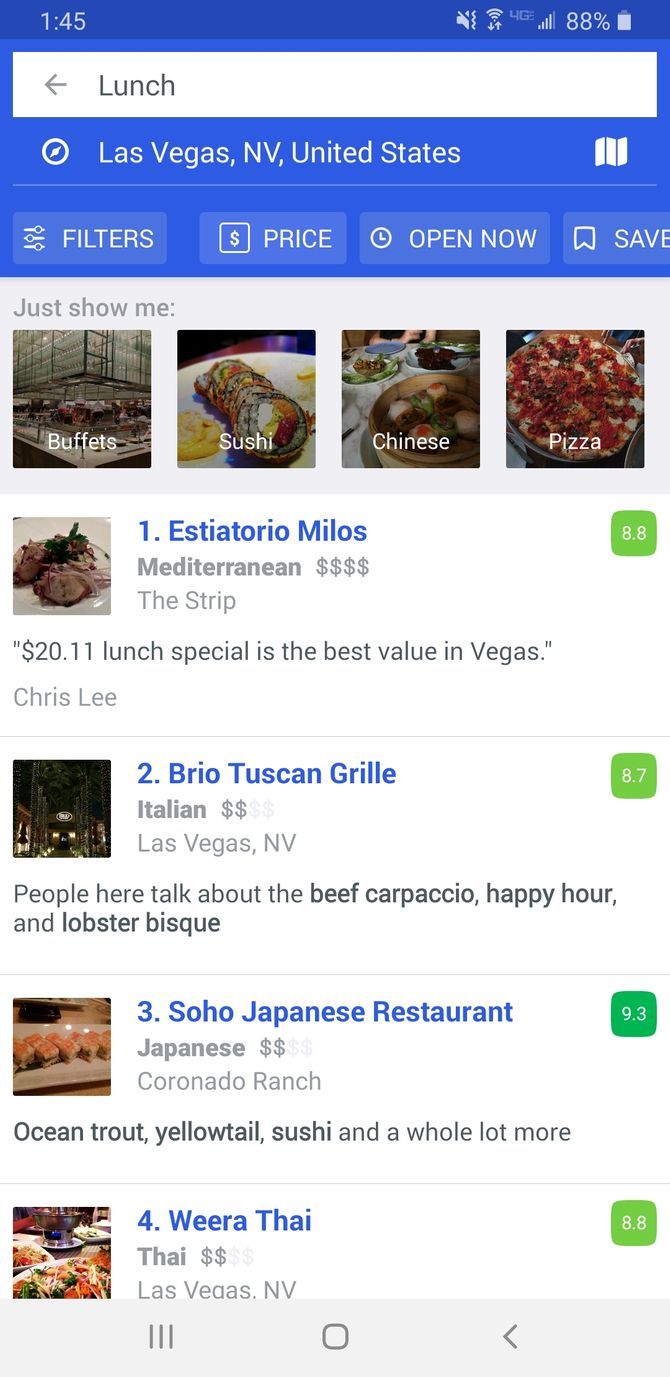
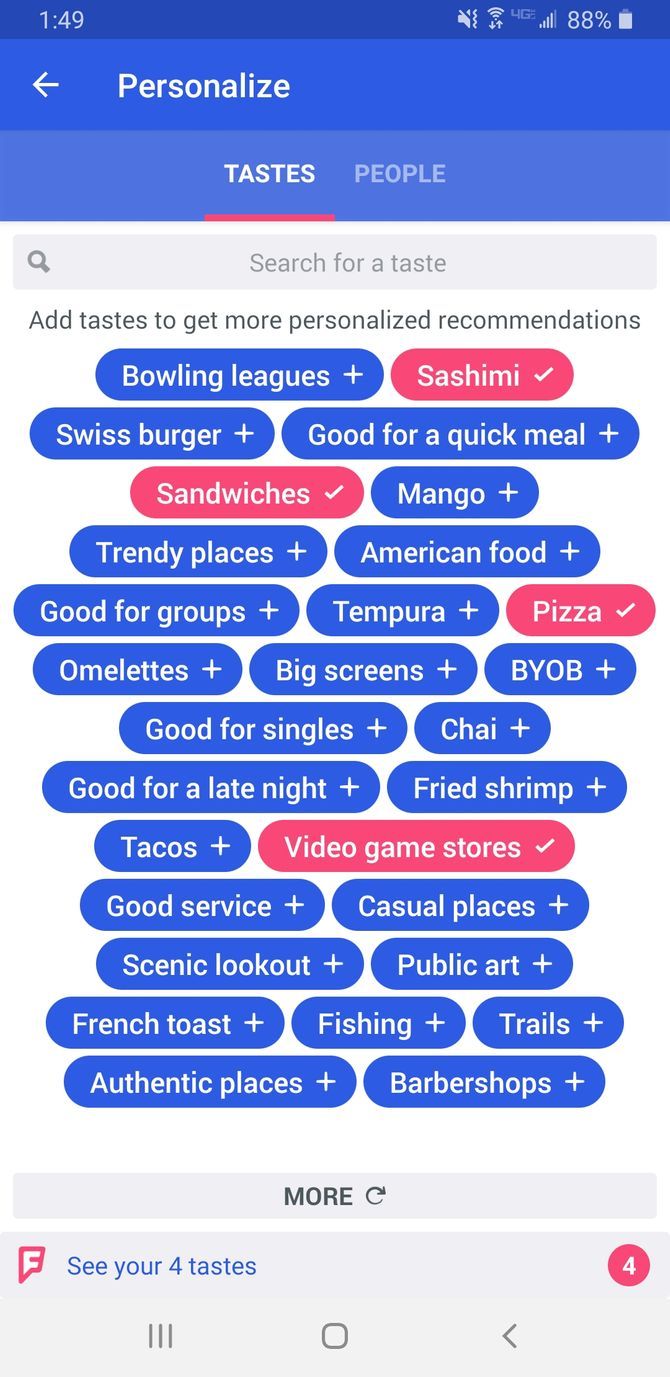
Foursquare has been a mainstay of online travel planning for many years. The app offers an incredible number of functions, and allows you to search for nearby attractions based on the distance from your destination or current location, rating, or Foursquare’s personalized estimate of your tastes.

The app also offers you the chance to follow travelers who have similar tastes to your own, read reviews from other travelers, and add your own insights to help fellow travelers in the future.

The ability to create and save your information in a profile means that your preferences, saved locations, and information will always be available to you, whether in the planning stages or in the middle of your trip.

Download: Foursquare for iOS | Android (Free)

2. Trover

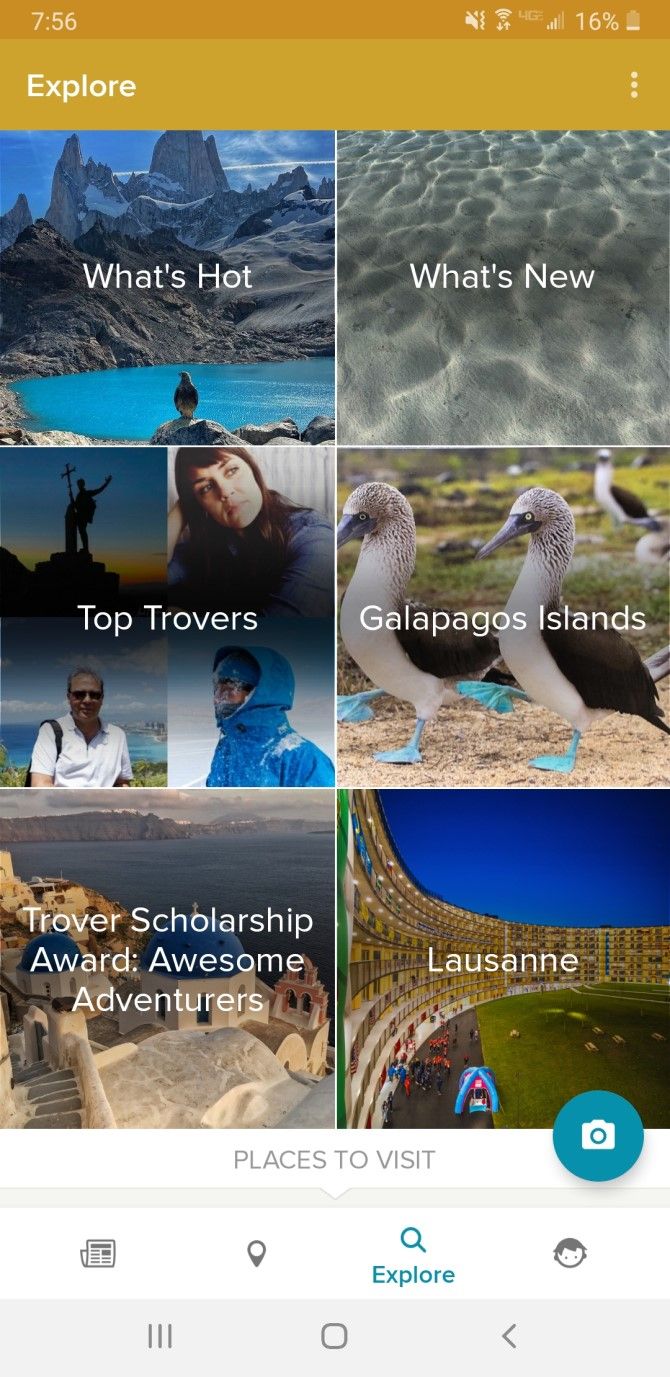
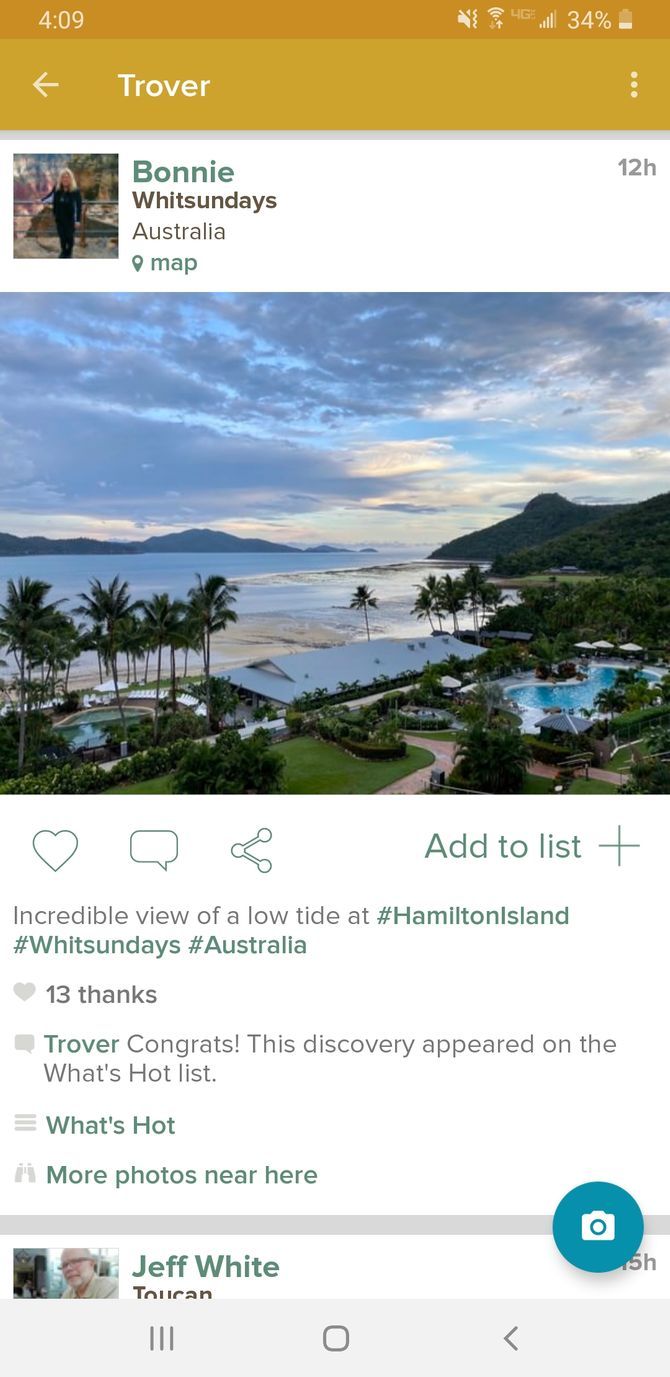
Trover is one of the best apps available when looking for travel inspiration. The home screen presents you with many different feeds of beautiful images to view, including a feed of the most popular photos, a feed of the latest images, feeds specific to different locations, and feeds based on hashtags that have been assigned by users.

This app focuses more on the travel experiences of individual users and beautiful photographs than providing in-depth reviews or traveler tips. These functions make Trover ideal for conceptualizing a vacation you hope to take, but another app may be required to turn that trip into a reality.

Download: Trover for iOS | Android (Free)

3. Spotted by Locals

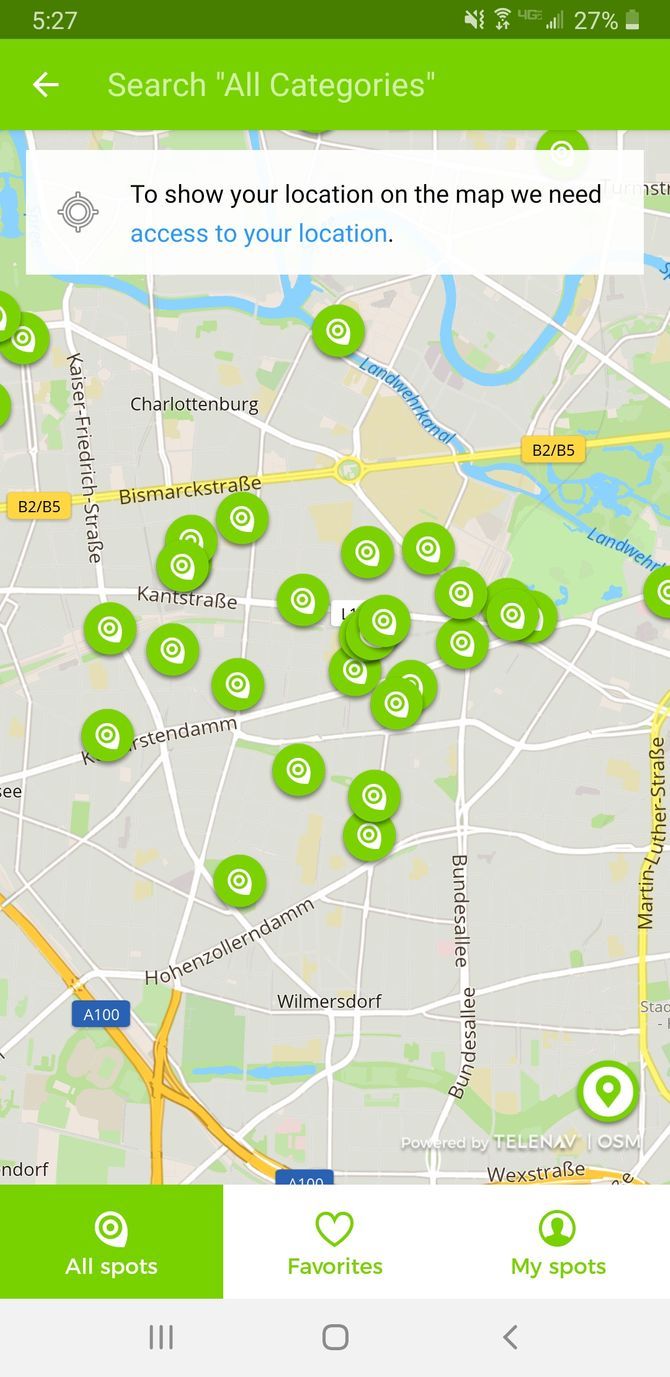
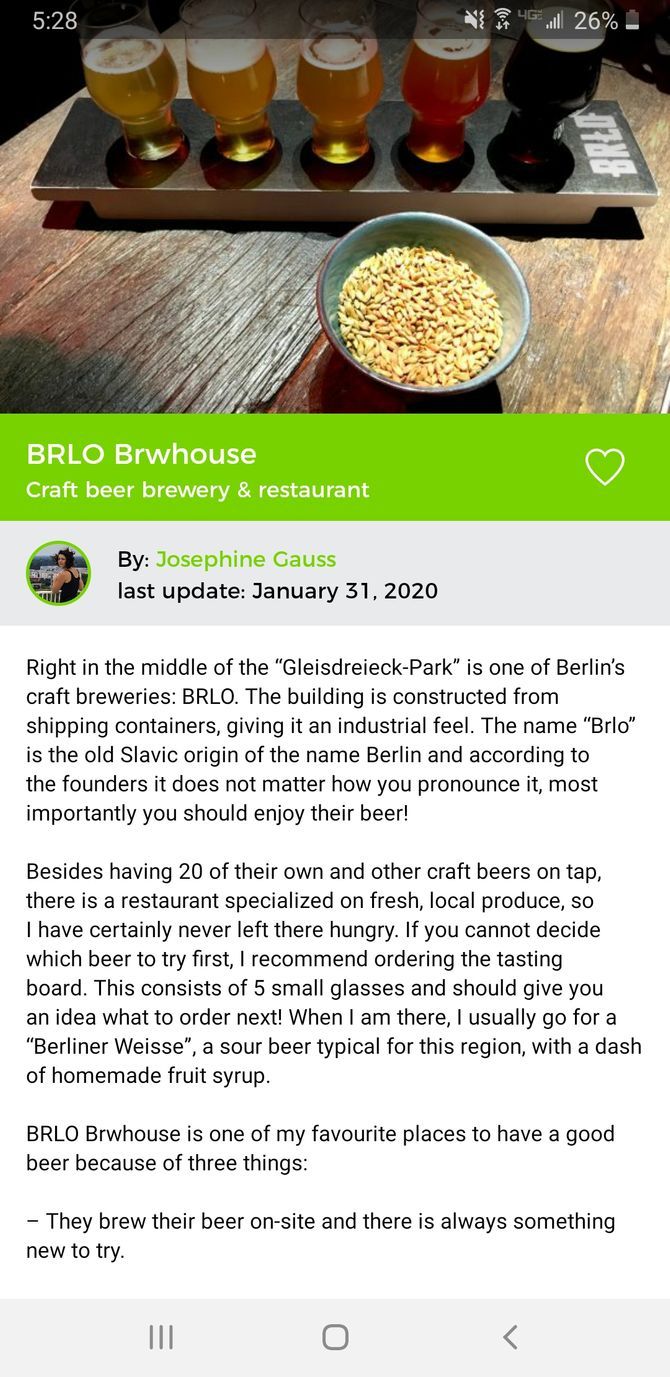
Spotted by Locals offers quirky sightseeing and activity ideas handpicked by real locals. When you have no idea what to do or where to eat, you can browse through a ton of helpful guides for over 70 cities. Since all of the suggestions are written by locals, you can expect to find some non-touristy, hole-in-the-wall destinations.

Just keep in mind that you can’t access a full city guide or save spots unless you pay a fee for each guide. The offline version of the app is also only available if you pay. However, it may be worth it if you’re looking for smart travel planning apps to put a unique spin on your trip.

Download: Spotted by Locals for iOS | Android (Free, in-app purchases available)

4. Withlocals

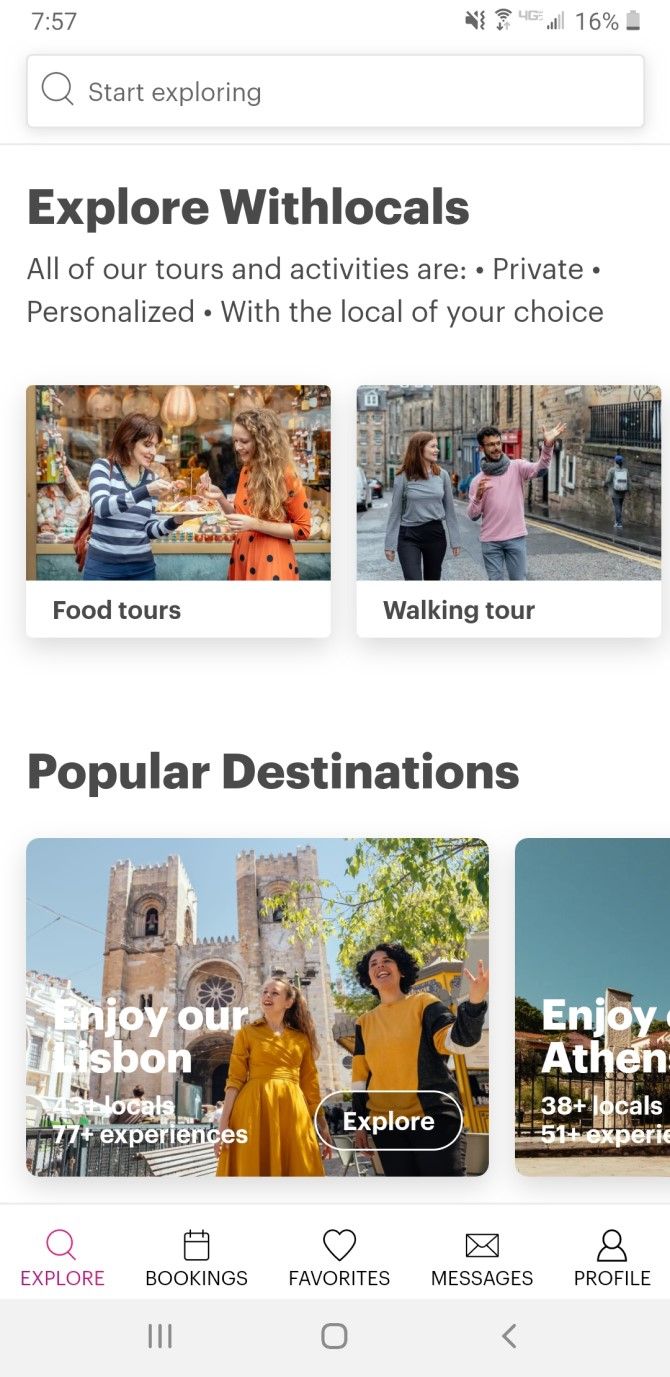
While Spotted by Locals helps you find destinations thanks to guides written by locals, Withlocals connects you with local tour guides. You can use this social travel app to find food tours, walking tours, day trips, night tours, and even bike tours.

When you select a tour you’re interested in, you’ll see a detailed description of the tour along with an itinerary. Scroll down the page to find reviews by other users, and tap Pick Your Local to view each guides’ profile and book your tour. After all, there’s really nothing better than receiving a tour from someone who knows their way around.

Download: Withlocals for iOS | Android (Free)

5. Couchsurfing

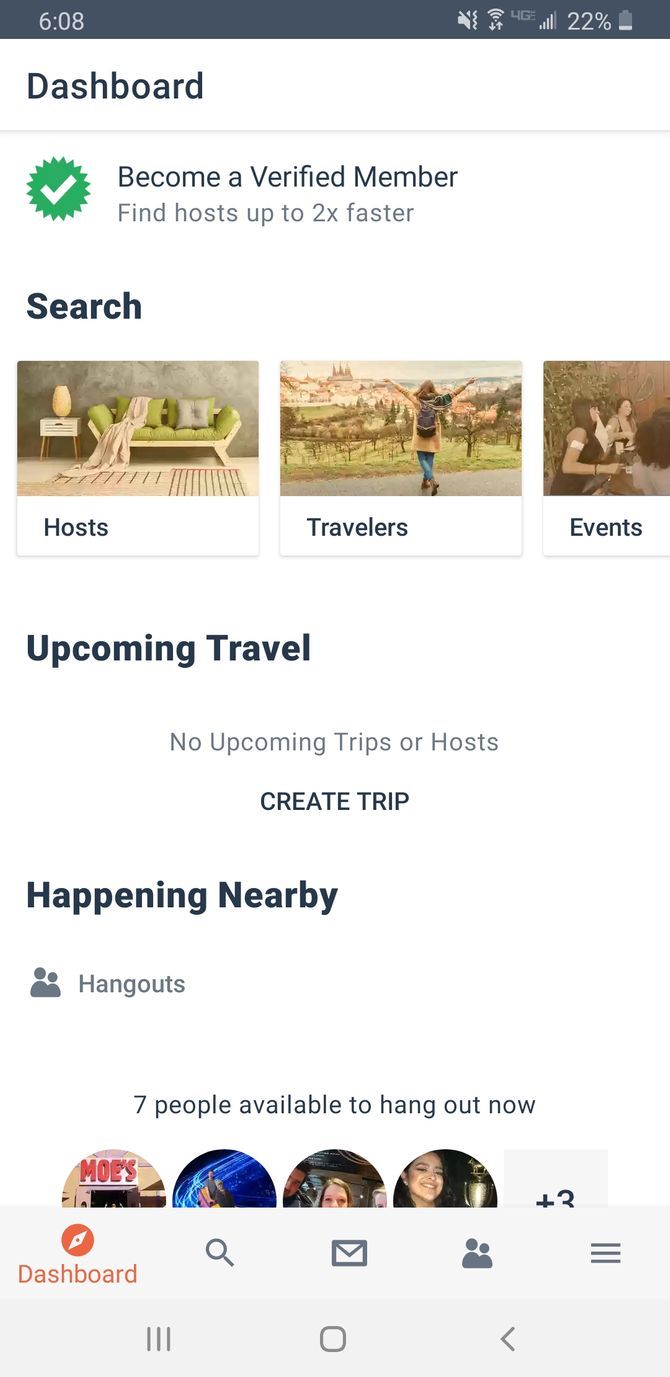
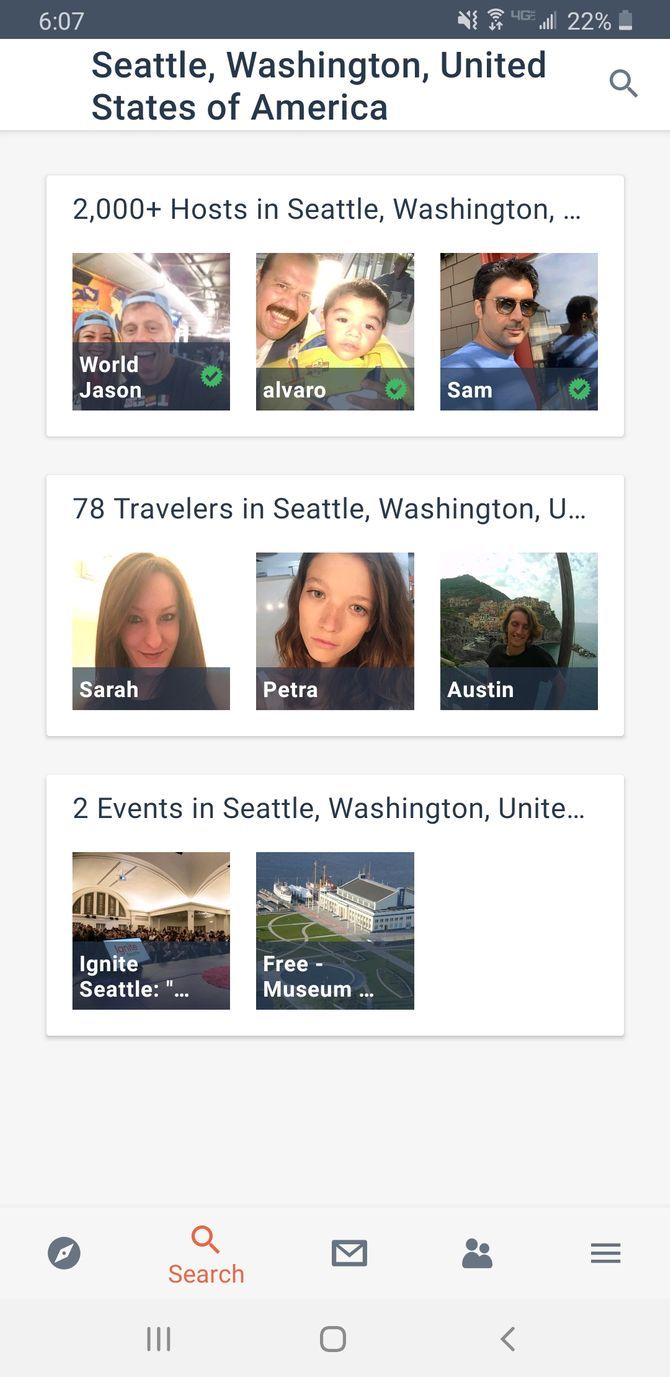
The Couchsurfing website and app have been well-used over the past several years by budget-conscious travelers looking for a free place to stay. While the app is entirely free, you can increase your chances of finding a host by paying a fee to verify yourself.

Even if crashing on a stranger’s couch isn’t your preferred style of accommodation, the app can still be a great resource for meeting new people around the world.

Every profile on the website features information about the Couchsurfing hosts, as well as their photo. If you find a host in the area you plan on traveling to, it’s worth sending them a message to see if they’d be willing to meet during your travels.

Download: Couchsurfing for iOS | Android (Free)

6. Travello

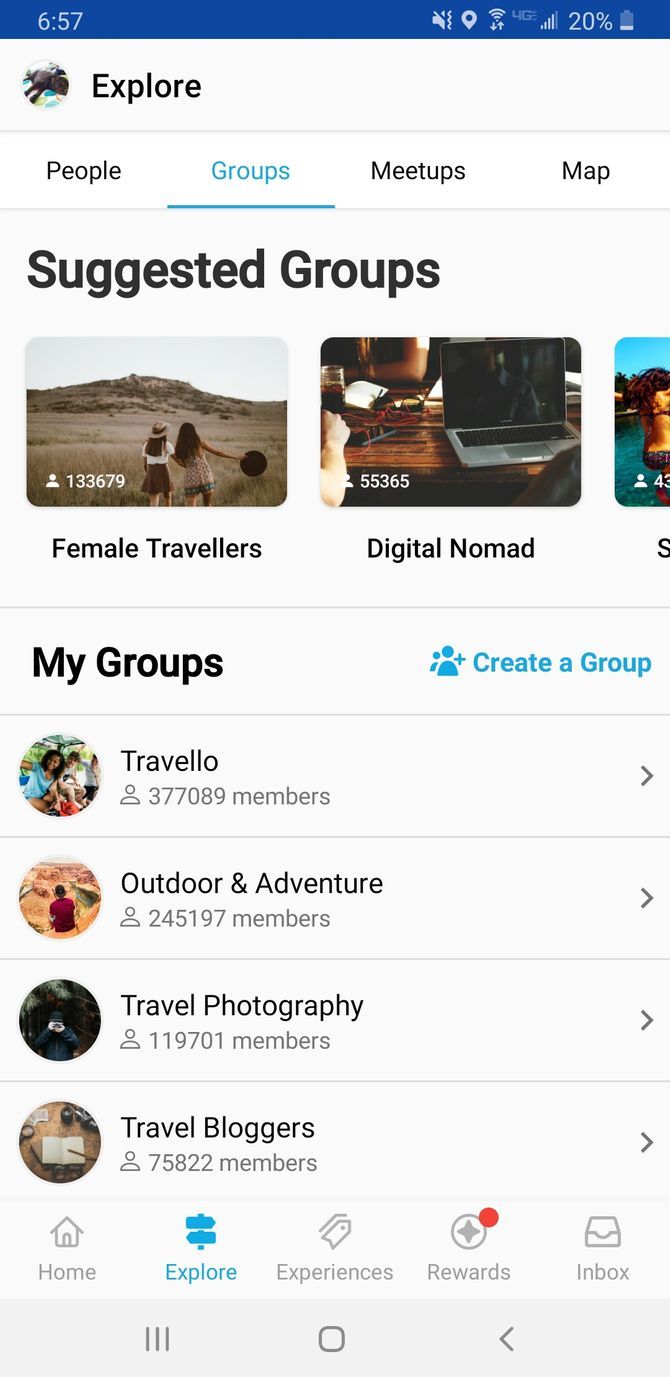
Travello is a social media app for travelers and people interested in traveling. When you sign up, you’ll see a feed filled with posts made by people traveling around the world. If you want, you can even connect with the other travelers on the app by commenting on their photos or by messaging them to ask questions.

You can also use Travello to find groups of like-minded travelers. Head to Explore > Groups to find groups such as Solo Travelers, Backpackers Asia, Digital Nomads, Female Travelers, and more.

Once you start traveling, you can start posting your own photos and keeping track of your trips. Make sure you know these key photography tips for beginners before you start posting pictures of the amazing sights you see.

Download: Travello for iOS | Android (Free)

7. TravelBuddy

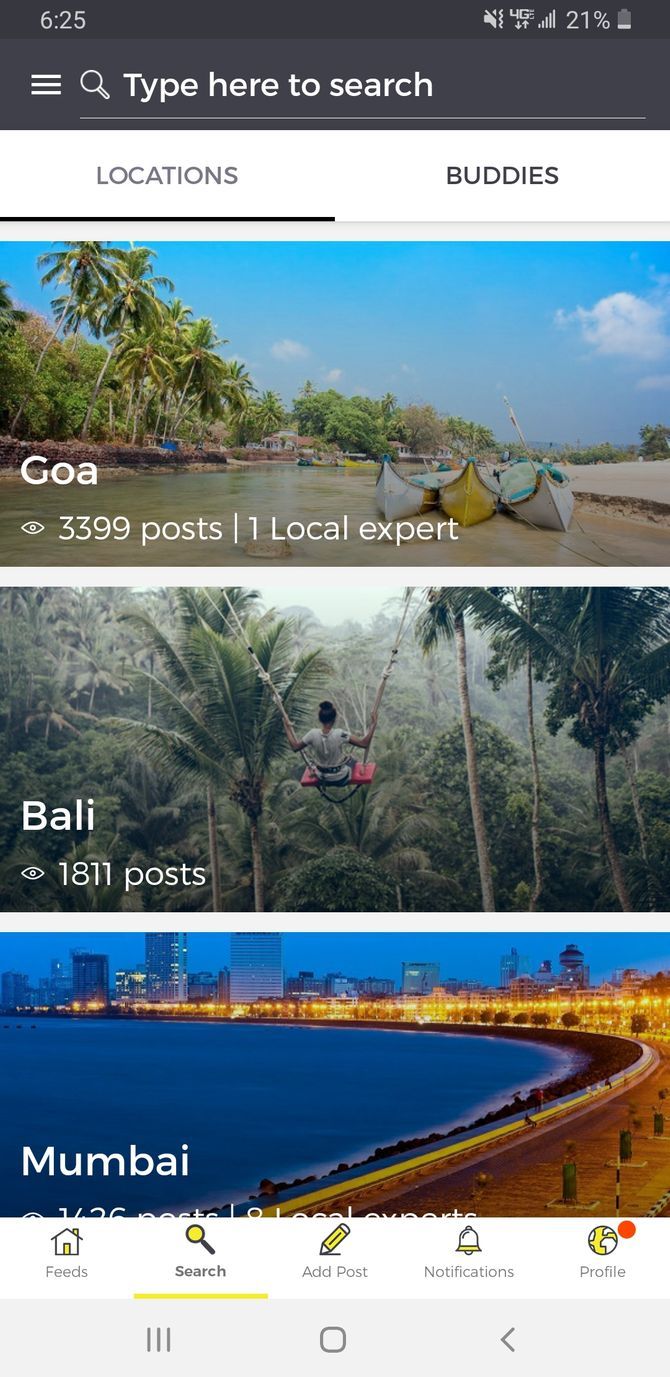
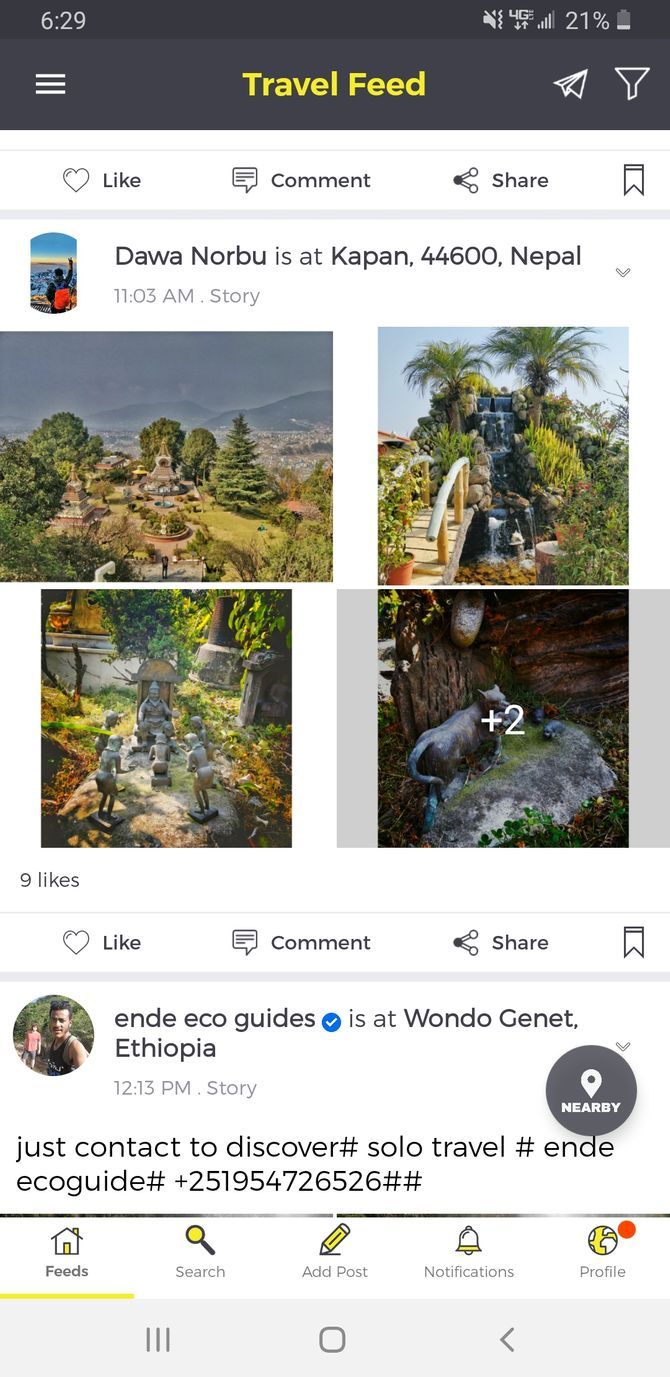
If you’re looking for a social media app for travel that doubles as a way to find a travel partner, TravelBuddy is for you. The home page presents you with a travel feed that will definitely inspire you to take a vacation. You can also opt to filter posts by location, which can help you find potential sightseeing spots.

To get in touch with a travel buddy, you can hit Find a Buddy on the home page. Simply enter your destination, choose a preferred gender for your buddy, and add your travel dates. TravelBuddy is also a great way to ask locals any questions about your travel destination.

Download: TravelBuddy for iOS | Android (Free)

Social Media Apps Can Improve Your Vacations

You should never be over reliant on technology while traveling. However, while you shouldn’t be glued to your phone the entire trip, these social media apps for travelers can help make your trip better.

Having a few quality social travel apps at your fingertips can improve your experience, and help you find hidden gems throughout your travels. To explore even further, check out these travel apps to help you find unique tourist spots.

Read the full article: The 7 Best Social Media Apps for Travelers


Read Full Article

The Best Free Movie Streaming Sites


best-streaming-movie-sites

Although streaming movies for free might sound synonymous with piracy, there are a bevy of free movie streaming sites on the internet. And these are packed full of movies you can stream for free, and it’s all completely legal.

Whether you’re looking for movies or television shows, finding streaming video is totally feasible. It just requires you to know where to look. With that in mind, here are the best free online movie streaming sites to check out.

If you visual content, we have compiled the Top 10 free movie sites into a quickfire video below!

What to Expect From Free Movie Streaming Sites

There’s a ton of free and legal video online, so you’ll find a real mix of content. A healthy portion of the movies available to stream for free are public domain. Because these films have lapsed in ownership and fallen into common property, many sites host such video treasures.

But it isn’t just B-movies available to stream online; you’ll also find many big-budget releases. Often, these are ad-supported. Like watching a movie on television, you’ll have to sit through limited commercials. Nevertheless, the movies are usually presented uncut.

You shouldn’t expect to see the latest releases. Instead, you’ll mostly see movies dating back anywhere from a few months to many years. Additionally, some sites include original productions and amateur films.

To watch on the go, here are the best free movie apps to install on your phone instead.

1. YouTube

YouTube Free Movies

It’s no surprise that YouTube ranks among the best free movie streaming sites you can find. It offers a ton of free films to pick from, including many public domain films from channels such as the aptly titled Public Domain Films and Public Domain Cinema.

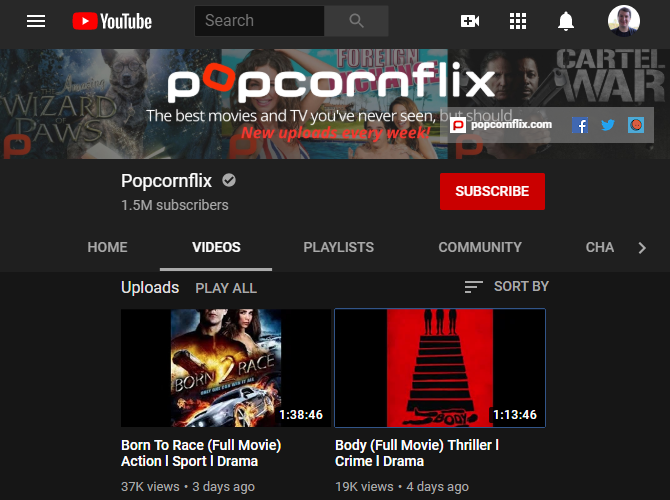
Furthermore, sites such as Popcornflix host full movies via YouTube, and you’ll find an official Free to Watch section from YouTube.

There’s a fantastic mix, with everything from gems like Plan 9 From Outer Space to action movies such as Recoil with Danny Trejo and Steven Austin. You’ll also find cult classics, such as Curse of the Puppet Master and much more.

You may have to dig for what you most want to watch, but for those with patience, YouTube is a treasure trove of free, legal streaming cinema.

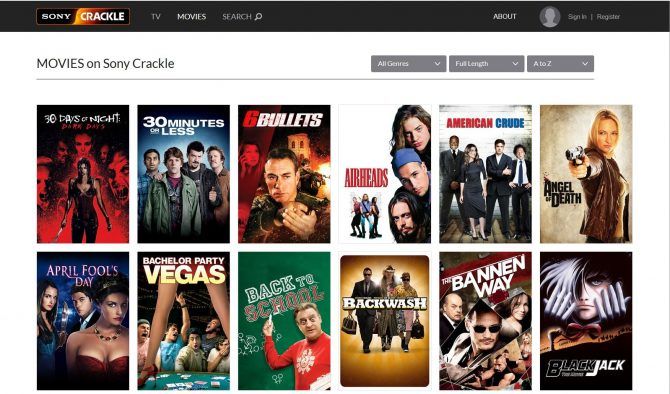
2. Crackle

movies to stream on Crackle

Boasting a solid array of syndicated content and original productions, Crackle is a must for any film buff. Its rotating selection varies, but you’ll find quality movies such as the cult favorite comedy Hot Rod, gothic horror flick Bram Stoker’s Dracula, the masterful 1988 remake of The Blob, and the horror-crime film The Exorcism of Emily Rose.

Aside from films, Crackle features television shows such as Charlie’s Angels, Hell’s Kitchen, and even original programming like its Snatch series. With its robust lineup of movies and shows, we also think Crackle is one of the best free Roku channels.

3. CONtv

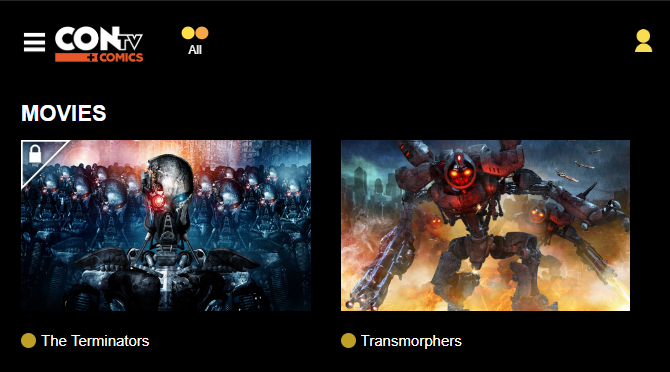
CONtv Movies

CONtv, formerly known as Viewster, features a lot of anime content, plus TV shows inspired by video games. However, you’ll still find some free movies to enjoy here, including a lot of horror B-films. Some of it requires a subscription, but a lot of the content is available to watch for free.

4. Vudu Movies on Us

free streaming on Vudu Movies on Us

While Vudu is best known for its digital video rentals and sales, the Vudu Movies on Us section makes it one of the best free movie streaming sites too. With a comprehensive array of movies such as La La Land, The Karate Kid, and Saw 3, it’s a fantastic service.

Vudu Movies on Us operates in a similar way to Crackle by providing full, uncut movies with limited commercials. Through hosting films with ads, Vudu is able to offer free movies and TV shows.

You still need to register for a Vudu account to use this service, but it’s worth doing so. Once you do, you can use your account to activate digital copies of movies and shows, as well as buy and rent movies from Vudu.

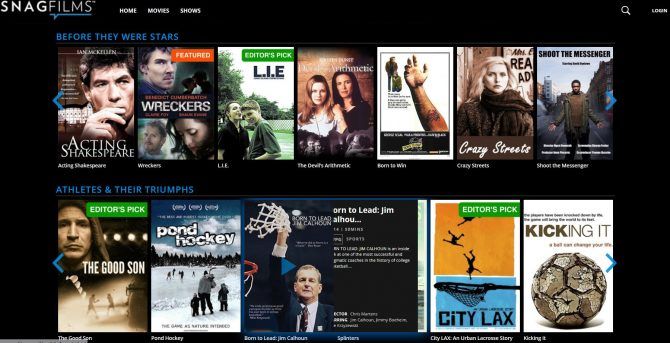
5. SnagFilms

SnagFilms streaming movies categories

For a free Netflix alternative, check out SnagFilms. With unique categories such as Athletes and Their Triumphs and Explore the World, SnagFilms specializes in fresh content. The library of more than 2,000 videos includes films, shows, and documentaries. Additionally, there’s a portion of original comedy shorts.

The service offers a fantastic classic movies category as well. Don’t expect a ton of well-known fare, but for under-the-radar movies and more, SnagFilms is a gem.

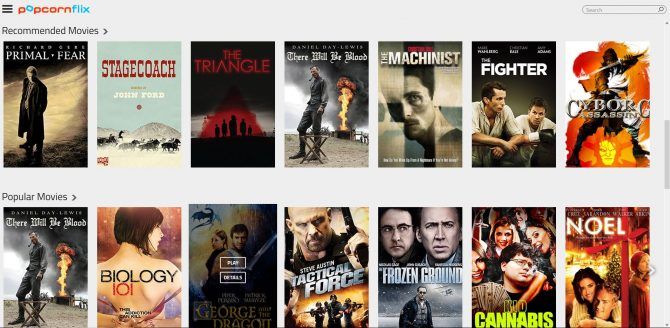
6. Popcornflix

PopcornFlix movies to stream

Like Crackle, Popcornflix presents full movies with limited ads. Here, you’ll find a range of movies in a rotating selection, from Double Dragon to Flawless and Roman Holiday. The service even offers some original content to boot.

Flicks are segmented into categories such as popularity, genre, new arrivals, and staff picks, making Popcornflix easy to use. With a beefy lineup and excellent navigation, Popcornflix is an awesome choice for free, legal movie streaming.

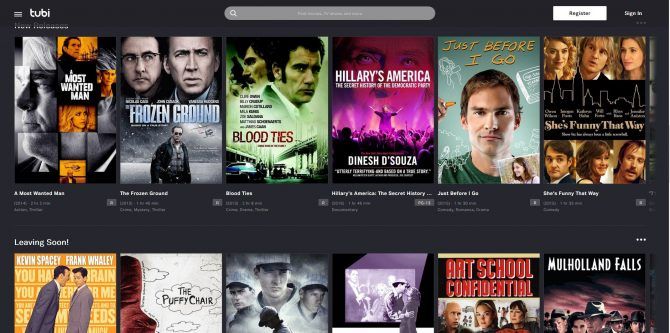
7. Tubi

Tubi TV free movie streaming

Providing free movies and shows, Tubi is another fantastic service. Here, you’ll be able to view newer movies including The Giver and Serena, as well as older titles such as Fist of Fury.

Helpfully, Tubi offers a Leaving Soon category so you can catch movies and shows before they disappear, and thus prioritize your streaming queue. Be sure to check out Not on Netflix, too.

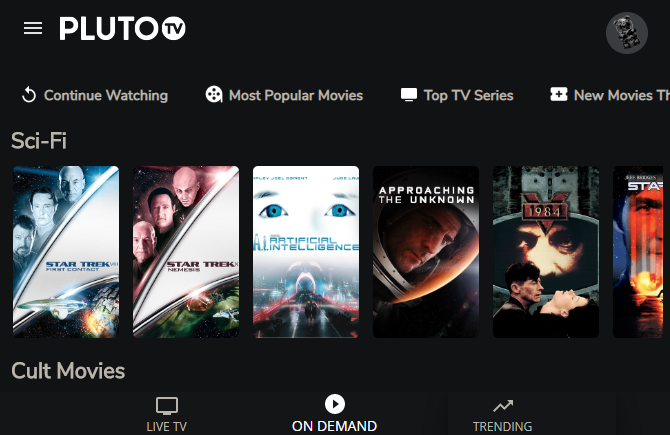
8. Pluto TV

Pluto TV On Demand

Pluto TV has a lot to offer. You’ll find a Live TV section where you can switch between channels, much like traditional cable. Find the Movies section on the left side to jump to channels that only play films, though they may be in the middle of one when you do so.

If you can’t find something that you like on the live stations, open the left sidebar and switch to On Demand. Here you’ll find tons of free movies you can start streaming right away.

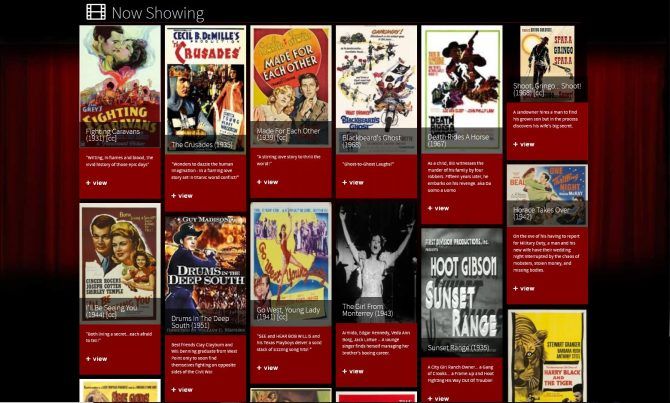
9. Classic Cinema Online

Classic Cinema Online free movie selection

As the name suggests, Classic Cinema Online focuses on older content. Even its website aesthetic captures a decidedly retro vibe, with a backdrop of red theater curtains. You can find movies such as Pinocchio, The Thin Man, and Citizen Kane here.

Some of the inclusions may have you calling the definition of “classic cinema” into question. Nevertheless, Classic Cinema Online is pure gold for old-school movies.

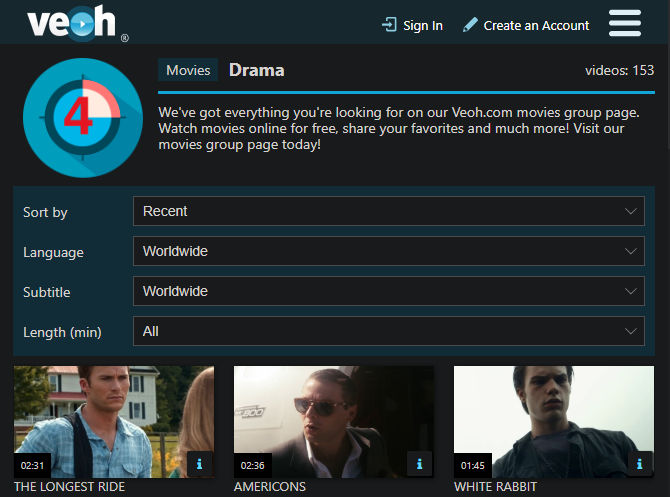
10. Veoh

Veoh Movie Streaming

On Veoh, you’ll be able to stream a number of movies and shows. In addition, Veoh hosts user-submitted content, making it one of the best alternatives to YouTube.

Veoh’s filters help you find something you’ll want to watch. However, in our testing, a lot of the videos came up as unavailable, and the ads on the page are often inappropriate. It’s worth a look, but this isn’t one of the first movie sites you should visit.

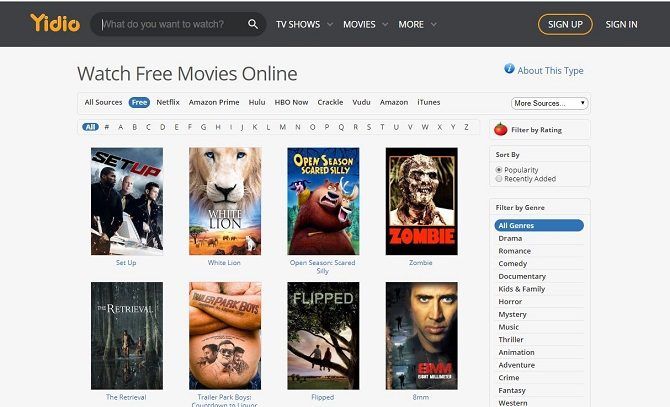
11. Yidio

watch free movies online on Yidio

Although Yidio isn’t a content host, it does act as an excellent aggregator of free streaming movies and TV shows. The way Yidio works is by redirecting to third-party sites such as Amazon Prime, Netflix, and others. As such, certain films and shows do require a subscription.

Using the Free filter will help you find content that comes at no cost. Unfortunately, not everything in the free categories is actually free. Clicking on some titles prompts you to sign up for a free trial.

Still, Yidio makes finding free movie streams far easier than checking individual sites, and you can filter by rating, genre, and more to find something to watch.

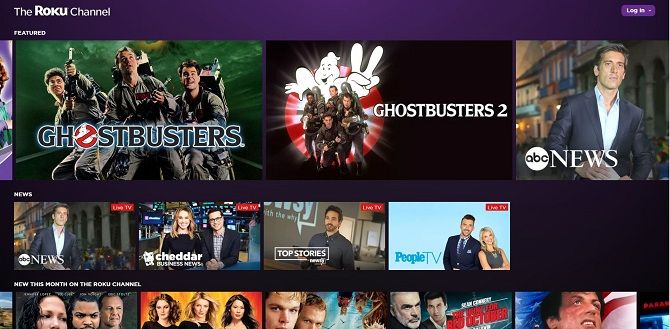
12. The Roku Channel

The Roku Channel for streaming movies

Don’t be fooled by The Roku Channel’s name. While it’s available for Roku streaming devices via an app, you can watch on the web too. In a few clicks, you can stream anything from Stranger than Fiction to Fury.

The selection rotates, and there are helpful categories including Martial Arts, Mysteries, and Family Night. As expected, you’ll have to sit through ads, but ad-supported means free, right?

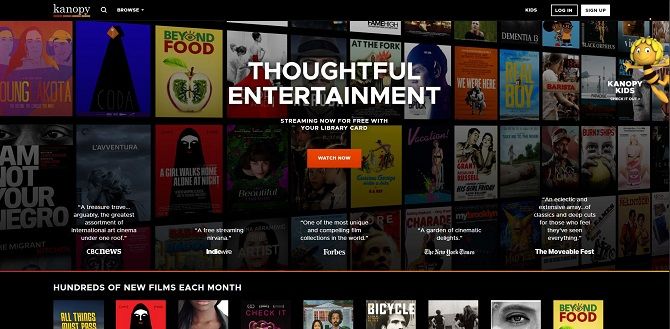
13. Kanopy

free streaming with your library card at Kanopy

Libraries are most often associated with books, but that’s not all they provide. Kanopy lets you stream tons of “thoughtful entertainment” movies for free with a participating library card or university credentials.

So long as you have a compatible login, you can watch hundreds of free movies. These include a lot of documentaries and international films.

14. IMDb TV

IMDb TV Movies

Did you know that the premier movie database also hosts free movies? Launched in 2019, the IMDb TV service allows anyone with a free IMDb account to watch a selection of free movies and TV shows. In addition to watching online, you can enjoy this content on your Fire TV.

As of this writing, your movie options include A Few Good Men, Ace Ventura: Pet Detective, and Air Force One. You’ll also find some TV series and IMDb originals to enjoy.

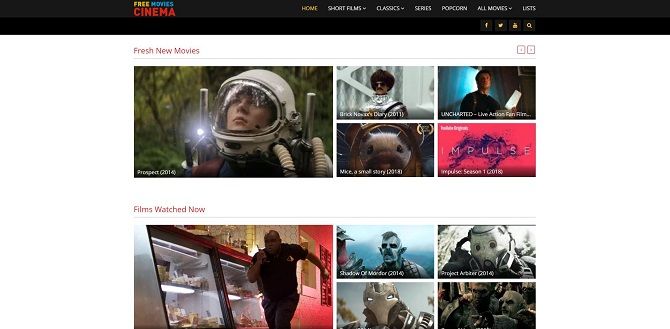
15. Free Movies Cinema

Free Movies Cinema list of fresh movies and films watched now

As the name suggests, Free Movies Cinema features legal free movie streaming. Unlike many sites, the selection touts not only general categories like action and comedy, but also short films.

There’s also a collection of fan-made movies, such as Portal and Watch Dogs, based on the video games of the same name.

16. Big Five Glories

Big Five Glories free black and white movie streaming

With the subtitle “a tribute to classic movies,” you can probably already guess that Big Five Glories is mostly dedicated to public domain cinema. Here, you’ll find mostly older fare such as The Old Dark House, Charlie Chaplin classic The Kid, and noir gems like The Scar.

The front page features a “now playing” section, and you can sort by rating to find quality flicks to stream. At the time of writing some of these movies were unavailable, so your results may vary.

17. Retrovision

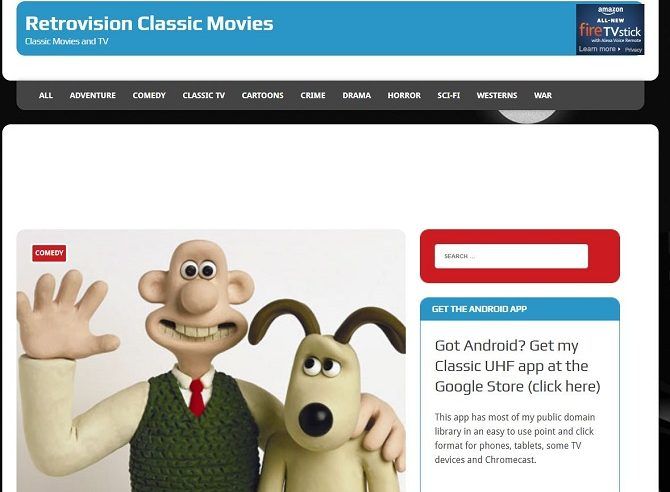
Retrovision Classic Movies and TV streaming online

At Retrovision, you’ll find loads of content similar to what’s available on Big Five Glories or Classic Cinema Online. It’s packed with older, public domain, free streaming films. Watch flicks from bygone eras, such as Aces and Eights, Battle Beyond the Sun, and The Black Brigade.

Site organization is pleasant, with a sidebar highlighting genres such as film noir, crime, and cartoons, as well as specific actors or characters.

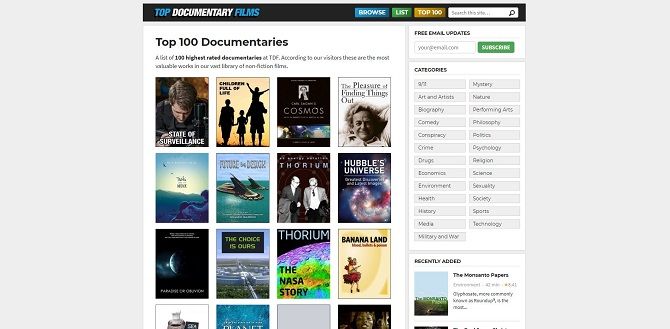
18. Top Documentary Films

list of 100 highest rated documentaries on Top Documentary Films

If you’re looking for free documentaries, you’ll find plenty at Top Documentary Films. It packs a varied selection including Square One, Future By Design, and even amateur documentaries like The Smash Brothers.

Browse the Top 100 documentaries to find something that’s popular, or take a look at recently added movies or the various genres.

The Best Free Movie Sites for Everyone

With these free online movie sites, you now know where to look for hundreds of free movies. Enjoy these legal films anytime, anywhere and you’ll never be without something to watch.

Keep in mind that your ISP can secretly throttle your video streaming speeds. To avoid this, you should use a VPN like ExpressVPN, CyberGhost, or Hotspot Shield to preserve your video streaming speeds. A VPN is also great for protecting yourself when you want to download videos from the internet.

Use our special link to get three FREE months when you sign up for one year of ExpressVPN, our preferred VPN.

Read the full article: The Best Free Movie Streaming Sites


Read Full Article

You Can Now Play the Final Fantasy VII Remake Demo


The Final Fantasy VII Remake demo is now available to play. The demo features the first chapter of the game, introducing players to the settings, characters, combat, and controls. The Final Fantasy VII Remake demo should help you decide whether to buy the full game.

When Is Final Fantasy VII Remake Released?

Square Enix is set to launch Final Fantasy VII Remake on PS4 on April 10, 2020. You can already pre-order the game on the PlayStation Store. However, before you do, it would be a good idea to play the demo to make sure this is the FF7 you know and love.

The demo is available on the PlayStation Store, with no restrictions on who can access it. The download weighs in at 7.6GB, ensuring most people will have room on their hard drives. You should be aware that progress will not carry over into the retail version.

What’s In the Final Fantasy VII Remake Demo?

The Final Fantasy VII Remake demo lets you play through the first chapter of the game. Which, as a reminder for fans of the original, sees Cloud Strife and Barret Wallace make a daring escape after bombing Mako Reactor 1 of the Shinra Electric Power Company.

You can follow the story, explore the environment, discover secrets, get to know the characters, and see how the combat has evolved from the original game. You’ll also get to face off against the first boss, which is called the Scorpion Sentinel.

The combat system is likely to be the sticking point for fans of the original. However, Square Enix has tried to blend the old Active Time Battle System of FF7 with the realtime action seen in more recent Final Fantasy games. And we think it works rather well.

Final Fantasy VII Remake: Try Before You Buy

Video game demos aren’t as common as they once were, but Square Enix has made a good decision releasing one for Final Fantasy VII Remake. After all, the company is taking a beloved game and reinventing it. So, letting people try before they buy is only fair.

If you’re keen for more Final Fantasy action, you should know that you can now play Final Fantasy XIV for free indefinitely. There are restrictions on how far you can level up in the game for free, but the restrictions are generous enough to make it worth playing.

Read the full article: You Can Now Play the Final Fantasy VII Remake Demo


Read Full Article

9 Useful DIY Ways to Set Up a Tablet or Smartphone Car Mount


If you want to use satnav apps on your phone (e.g. Google Maps or Waze), you need to see the directions. Your phone or tablet need to be mounted on your car’s dashboard.

But dashboard mounts will set you back a few dollars. Some—such as those that stick to the windscreen—aren’t reliable. Meanwhile, it might take a few days for a car mount ordered online to arrive. So, what’s the solution?

Well, you could build you own. Here’s how to make car mobile phone holder at home with common materials.

Why Mount Your Phone or Tablet in Your Car?

Before we look at the various ways you can a DIY phone holder for your car, here’s why you should.

Primarily, holding a phone while driving is a big no-no. Whether you’re planning to use the phone for satnav or for music or simply calls, you shouldn’t hold it. While calls and music can usually be controlled via the in-car controls when synced over Bluetooth, satnav apps cannot.

So, a sensible mounting strategy is required. Being stopped by police or photographed using a phone as you drive will result in a fine or ban.

But why not just buy a phone mount? Well, you can, but it can be difficult to find one to suit your cars specific layout. With so many different car holder options available on Amazon alone, it might take several purchases to find the option that fits.

Building a DIY car phone mount is the smart option. In most cases, your chosen phone mount will be ready to use in minutes.

1. A Binder Clip DIY Car Phone Holder

Perhaps the easiest option to secure your smartphone in your car is to use a binder clip.

As demonstrated above, all you need is a binder clip, some rubber bands, and a wrench (or similar tool). Bend the handles of the binder clip into a claw shape and wrap the rubber bands around the claws.

Next, slot the binder clip onto your dashboard, then slide the phone between the bent handles. The rubber bands will secure the phone in place, while the binder clip grips the dashboard.

2. Make a DIY Phone Mount: Elastic Band and a Paperclip!

If you thought a binder clip was a low-tech smartphone mount solution for your car, check this out.

Simply thread a rubber band around one of the grilles of your car’s heater blower fans. The paperclip is used to pull the rubber band back through. All you need to do then is slot your phone through the loop formed by the band.

There is a shortcoming with this solution, however: the screen is partially obscured by the rubber band. So, it’s an adequate DIY phone mount for your car, but limited to calls and music, rather than Google Maps.

3. DIY Smartphone Mount With String and Two Paperclips

Sticking with the stationery theme, you can even mount your phone with a length of string and two paperclips! This DIY phone holder for cars requires the phone to have a “flip” cover. For the best results the cover should hinge along the long edge.

Simply measure the distance between your car’s heater blower fans and cut some string a little longer. Tie each end to each paperclip, then secure these in the fan grille. Open your phone’s flip cover and hook this over the string.

4. Mount Your Tablet in Your Car With Command Strips!

A solution so obvious we’re amazed we haven’t seen it sooner. Just attach Command mounting strips to your car’s dashboard and the back of your phone or tablet (or case). Be sure to follow the instructions for correct adhesion of the strips.

Attaching your device to the strips is simple—at a 45-degree angle to the mounting point, swing the tablet down. Push to attach. Reverse this step to detach.

5. Make a DIY Smartphone Mount for Your Car With a Selfie Stick

If you’re into DIY builds, this DIY phone mount might be more suitable. It relies on a selfie stick and a “koozie” drinks sleeve to secure the stick in your car’s drinks holder. With a plastic bottle, some putty, and a screw, the stick can be held firmly in place.

While it might take slightly longer than playing with bits of stationery, this cell phone holder is a straightforward build.

It’s worth noting that this build can be adapted for tablets.

(If you’re new to DIY, check our list of beginner DIY skills anyone can master.)

6. Mount Your Phone or Tablet Using Your Car’s CD Player

The CD drive on your car can support a mounted phone or tablet. All it needs is something designed to slot into the drive without damaging the motor and laser. Several paid solutions are available, but the build demonstrated above uses an old router stand.

Perfectly sized for the CD drive, the stand is inserted while the phone is held in place with rubber straps. This project can be adapted for tablets, specifically smaller 7-inch devices.

7. Magnetic DIY Phone Holder for Your Car

A solution that lets you easily attach and detach your phone, this project relies on magnets.

Using a compact magnetic disc in your phone’s case you can attach your device to an L-shaped mount. In this example the mount is metal, thin enough to sit between hardware on your car’s dashboard. An alternative mounting position might be required in your car.

The mount has four batteries glued to it, ready to hold your smartphone in place. The result is a DIY smartphone mount that lets you quickly connect and disconnect your phone as you get in and out of your car.

It’s likely this build is strong enough to handle the weight of a tablet, too.

8. Wooden DIY Smartphone Car Holder

Unleash the woodworker within by following the concept in this video. Designed for a central dashboard pop-open cupboard, this smartphone car holder is wooden. It’s basically a piece of wood with a groove cut into it for the phone.

All you do is open the cupboard and place the phone into the groove. Simple, effective, but potentially difficult and time-consuming to construct. However, if you’re looking for a simple woodworking project to develop your skills, this is a good place to start.

9. Ultimate Tablet Holder: iPad Car Dash

Mounting a phone or tablet in your car is the easy way to get an Android Auto or Apple CarPlay-like experience without buying a new vehicle.

But you can go one better than standard mounting with stationery, magnets, or wood. Build your Apple or Android tablet into your car’s dash.

This incredible project demonstrates exactly how to do that. It isn’t cheap (the audio amplifier will set you back around $150) but the results are stunning. By the end you’ll have a tablet mounted in your car where your entertainment system once sat.

Awesome DIY Phone and Tablet Car Mounts

As you will have noticed, these projects increase in difficulty. However, at least one of these solutions will work with your car or truck.

We’ve looked at nine different DIY ways to mount a phone in your car:

  1. A binder clip and rubber/elastic band
  2. A paperclip and rubber band
  3. Two paperclips and string
  4. Command strips
  5. A selfie stick and koozie
  6. Attach a mounting bracket to the CD player
  7. Attach your phone with magnets
  8. Build a wooden phone holder for your car
  9. Mount a tablet in the car’s dashboard

Now your car mount is sorted—what’s next? Well, possibly some in-car entertainment. Here’s how to connect your phone to your car audio system and stream music.

Read the full article: 9 Useful DIY Ways to Set Up a Tablet or Smartphone Car Mount


Read Full Article
How to Fix the WHEA Uncorrectable Error on Windows 10


whea-uncorrectable-error-fix

Windows has a long and beautiful (read: painful) history of blue-screen error messages. Affectionately known as the Blue Screen of Death, these error screens also contain important information regarding the sudden demise of your system.

Unlock the FREE "Ultimate Windows Keyboard Shortcuts" cheat sheet now!

This will sign you up to our newsletter

Enter your Email

Some Windows crash errors are more cryptic than others and therefore more difficult to troubleshoot. The WHEA Uncorrectable Error is one of those.

In this article, we explain how to fix the WHEA Uncorrectable Error and how to stop it from happening again.

What Is the WHEA Uncorrectable Error?

WHEA_UNCORRECTABLE_ERROR (Windows stop code 0x0000124) is a hardware error. There are several common causes for a WHEA_UNCORRECTABLE_ERROR (we’ll abbreviate it as WUE), most of which directly relate to your system hardware:

  • Corrupt hardware (Damaged hard drives, GPU, CPU, PSU, corrupt RAM, etc.)
  • Driver compatibility issues
  • Heat and voltage issues (Overclocking and voltage changes)
  • Corrupt Windows system files or registry files

Although it isn’t always the source, voltage issues are a very common cause of this particular Windows error. The WUE message and 0x0000124 stop code give us an indication as to the nature of the error, but a look at the error dump file will provide further information. Your error dump file (.DMP) is found at C:/Windows/Minidump and will have a timestamp.

Unfortunately, we cannot offer solutions for every issue, but the following fixes should alleviate your WHEA_UNCORRECTABLE_ERROR.

How to Fix the WHEA Uncorrectable Error

Remember the list of common system hardware issue that triggers WHEA_UNCORRECTABLE_ERROR? The following section expands on some of those hardware aspects and illustrates a few potential fixes.

Step 1: Run CHKDSK

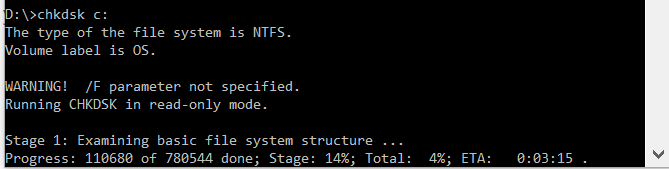
First, before making any specific hardware alterations, try running Windows Check Disk from the Command Prompt. CHKDSK is a Windows system tool that verifies the file system and with certain settings, fixes issues as it runs.

Type command prompt in your Start menu search bar, then right-click the best match and select Run as administrator. (Alternatively, press Windows Key + X, then select Command Prompt (Admin) from the menu.) Next, type chkdsk /r and press Enter. The command will scan your system for errors and fix any issues along the way.

how to fix whea uncorrectable error in windows 10

Step 2: Check Your System Hardware

The WHEA_UNCORRECTABLE_ERROR closely relates to your system hardware. Before progressing with system resets and memory tests, physically double-check your system hardware.

Check if the cooling systems are fully functioning, your RAM is secure in its slots, and the CPU has mystifyingly not come loose, and so on. If you’re unsure how to reseat your system hardware, check out the following video.

Step 3: Reset System Overclocking

If you have overclocked your system in search of higher speeds, there is a chance you’ll run into the WHEA_UNCORRECTABLE_ERROR. The easiest way to cross this off the list is to reset your system BIOS and remove the effects of any overclocking.

You need to enter your system BIOS or UEFI menu. To do this, turn off your system. Next, turn your system back on, pressing your BIOS/UEFI menu access key (common keys include F1, F2, F10, DEL, and ESC).

BIOS and UEFI settings vary by manufacturer, but menu titles are usually similar. You are looking for an Overclocking option. For the most part, overclocking options are found under the Advanced, Performance, Frequency, or Voltage menu.

Find the menu and reset your overclocking options. Resetting will return your system to its out-of-box state—but could also remove WHEA_UNCORRECTABLE_ERROR in the process.

Step 4: Reset Your BIOS/UEFI Settings

If clearing your BIOS/UEFI overlock settings, try resetting your entire BIOS. Somewhere amongst the BIOS menu, there is an option to complete a full BIOS settings reset or load the default BIOS setup. Find the option and select it.

Step 5: Update Your BIOS/UEFI Settings

Again, this process varies heavily depending on your system’s motherboard manufacturer. Some BIOS/UEFI settings can automatically download and update using a desktop utility. Other manufacturers require you to download the BIOS update and flash the firmware yourself.

Unsure what motherboard you have? Download and run CPU-Z. Open the Mainboard tab and find your motherboard manufacturer and model. You can find your BIOS brand and version on this tab, too.

CPU Z mainboard motherboard bios info

Armed with this knowledge, complete an internet search for “[your motherboard manufacturer + model] bios update.” For instance, I would search for “micro-star ms-1796 bios update” for my system. You should find instructions, tutorials, and if you’re lucky, even a video or two.

Step 6: Check Your Drivers

Sometimes new drivers have an adverse effect on your system. In this day and age, it is becoming rarer as Windows 10 handles most driver updates. However, that doesn’t mean a dodgy driver cannot upset your system. Thankfully, Windows 10 lists any driver updates in the Windows Update section, so you can rapidly figure out where the issue stems from.

Press Windows Key + I to open the Settings panel, then select Update & Security > View update history. You can find any driver updates here. Now, type device manager in the Start menu search bar and select the best match. Head down the list and check for an error symbol. If there is nothing, your driver status is likely not the source of the issue.

That said, you can use a third-party tool to update all of your system drivers simultaneously. Check out this list of free tools you can use to fix the majority of Windows problems. The first two options—IOBit’s Driver Booster and Snappy Driver Installer—do exactly this.

Step 7: Check Your RAM Using MemTest86

Windows has an integrated memory checker, called Windows Memory Diagnostic. Unfortunately, it doesn’t have a great reputation and regularly misses issues found using another excellent tool: MemTest86.

MemTest86 is a free, standalone memory testing tool for x86 machines. You boot MemTest86 from a USB flash drive (or bootable disc) and leave it to check your system RAM. Now, a MemTest86 RAM check takes a long time to complete; a single pass takes hours depending on the amount of RAM you have installed.

memtest86

To get the full MemTest86 experience you should run at least two passes (that’s two complete cycles). However, by most reports, MemTest86 should expose a serious RAM issue after a short amount of time.

Head to the MemTest86 download page and download the Image for creating bootable CD (ISO format). Next, you need to write the MemTest86 ISO to a USB flash drive. Check out this list of ten free tools to make a bootable USB flash drive.

Burn MemTest86 using the tool of your choice, then shut-down your system. Reboot the system while pressing the button for your Boot Selection menu (usually F10, F11, DEL, or ESC), then select the bootable MemTest86 USB flash drive. The memory test will start automatically.

If it does return RAM errors, complete an internet search for the error code and type to discover your next course of action.

Step 8: Reset Windows 10 (Last Resort)

If nothing else works, you can use the Windows 10 Reset function to refresh your system.

Windows 10 Reset replaces your system files with a completely fresh set of files and will theoretically clear any lingering issues relating to WHEA_UNCORRECTABLE_ERROR while keeping the majority of your important files intact.

Head to Settings > Update and Security > Recovery, then under Reset this PC select Get started.

Your system restarts as soon as you hit the button, so make sure you backup any important files beforehand. Your system will restart, then you may select Keep my files or Remove everything.

WHEA Uncorrectable Error Cleared!

Bluescreen errors are frustrating. Even more so if you genuinely don’t understand which piece of hardware is causing the issue. The fixes above will fix your WHEA error, but remember, playing with your hardware could cause it to come back.

Another handy bluescreen error code tool is Nirsoft’s BlueScreenView. It helps you understand error codes so you can better isolate issues!

Read the full article: How to Fix the WHEA Uncorrectable Error on Windows 10


Read Full Article
This 3-Minute Exercise Will Actually Fix Your Posture


Now that we’ve settled into a brand new year, it may be time to address an issue that many of us have, but tend to ignore: our back posture.

The issue of posture is an important one for those of us who sit at a computer all day. What’s worse is that bad posture can lead to trouble falling asleep, or long-term issues with your spine. With that in mind, here are three exercise routines that will help fix bad posture.

Disclaimer: The following exercises and this article are not medical or health advice. If you experience pain trying any of these activities, immediately discontinue them.

1. Try These Exercises to Fix Forward Head Posture

The first posture quick fix is a trio of easy exercises that you can complete at home. Brought to you by backintelligence.com, these exercises—and the YouTube channel they’re featured on—are run by a group of chiropractors, physical therapists, and personal trainers.

Back Intelligence’s mission is to find a posture fix, before and after.

In the video above, a licensed chiropractor explains what “forward head posture” is. Basically, forward head posture is an “abnormal posture” that arises from sitting in front of computers, heavy texting, or driving.

The human head weighs a lot. If you move your head forward to focus on something, it can cause stress along your shoulders and neck. This in turn, can lead to back complications.

Back Intelligence recommends a set of three exercises that you can do in ten minutes or less. The first exercise is a two-finger “chin tuck.”

  • In this exercise, either stand or sit up straight. Gently place two fingers against your chin.
  • Next, press your head back with your fingers, and hold.
  • Back Intelligence strongly cautions against this exercise if it causes you pain. Feeling a little uncomfortable, however, is normal.

The second exercise that you can do is designed to stretch out your shoulder blades.

  • Rounded or sloping-forward shoulders are a side-effect of bad posture.
  • In this exercise, Back Intelligence tells you to lift your arms up into a “W” position.
  • After that, bring your shoulders together and down, so your shoulder blades move together.
  • Once again, Back Intelligence stresses that you should not do this exercise if it causes abnormal pain.

Lastly, Back Intelligence recommends that you do the “YWLT exercise,” to fix posture.

  • This exercise is a series of back-and-arm movements.
  • You complete it by moving your arms into various positions in a cyclical repetition.
  • The “YWLT exercise” is more complicated than the previously mentioned stretches, but it doesn’t take long to do.

While our own opinion on these posture quick fixes is anecdotal, after trying them we immediately felt better. I personally stood straighter and had less pain in my back while I was sitting at my desk.

Please Note: Although these exercises have immediate results, those results are temporary. In order to undo years of bad posture, you’ll have to make stretching a regular, daily occurrence.

2. Try These Exercises to Fix Rounded Shoulders

The next posture quick fix review that we think you should watch is this video by Doctor Jo. She’s a licensed physical therapist over at askdoctorjo.com. The video reviews a posture corrector that you can use to fix your back. It also goes through a series of exercises to help you with rounded shoulders.

While this set of exercises has some overlap with the first group that we mentioned, the difference here is that the video specifically focuses on your shoulders.

The first exercise that Doctor Jo advises is a chin tuck.

  • We’ve covered chin tucks in detail at the beginning of this article, so there’s not much more to add.
  • However, you’ll be happy to hear that Doctor Jo’s advice is identical to Back Intelligence’s. So you’re getting standard exercise instructions across the board, whichever video you choose to watch.

This video also recommends a set of shoulder squeezes.

  • The goal of this exercise is to squeeze your shoulder blades together to reposition the muscles.
  • By doing this, your shoulders should unclench from their rolled position.

If you have a lot of shoulder pain from working at a desk, this video also covers the benefits of using a back brace to get your shoulders into a better position. However, the presenter stresses that braces should only be used in the short term.

Finally, the video covers the benefits of using a resistance band to do shoulder squeezes, along with an explanation on an incredibly simple arm stretch that most people can do from the comfort of their chair.

Make sure to try these exercises out if you’re short on time or if you have a very busy schedule.

3. Try These Exercises to Strengthen Your Back

Lastly, we wanted to mention this informative video from pelvicexercises.com.au, which works on strengthening your back muscles.

The presenter of this video, Michelle, has a long history of working as a physiotherapist, with a focus on women’s health. Her video on back strengthening is not well-suited for everyone looking for a posture quick fix, but she does offer some great solutions for anyone who wants to ease themselves into a daily exercise routine.

In her video, Michelle walks you through a series of standard exercises that you can complete at home. She then moves into the benefits of using a foam roller to work out the stiffness in your back.

Lastly, she talks about strengthening exercises that you can complete at the gym—if you have access to one.

While it may be difficult to find time away from your busy schedule to complete this set, we still recommend watching the video if you’re interested in long-term health.

You can also look into yoga as an alternative. These free courses and apps for yoga beginners will show you the way.

Exercise Daily to Fix Your Posture

One final thing that we want to stress before you try any of these exercises:

As stated at the beginning of the article, these stretches are not a remedy for spinal problems. If you have doubts about these exercises in relation to your own health, do not do them. All we’re trying to do with this listicle is help you find the most useful information for fixing bad posture online.

Want to begin a full-fledged exercise regime? Try looking into these free no-equipment workouts and exercise-based video games to get fit.

Image Credit: jehsomwang/Shutterstock

Read the full article: This 3-Minute Exercise Will Actually Fix Your Posture


Read Full Article
How to Finally Add a Thesaurus to Google Docs


create-beautiful-google-docs

Whether you’re a professional writer or composing an essay for school, a thesaurus is an essential tool. Most people tend to use the same words out of habit, but a thesaurus can help you find a suitable synonym to broaden your writings.
Unlock the "Essential Google Drive Keyboard Shortcuts" cheat sheet now!

This will sign you up to our newsletter

Enter your Email

If you use Google Docs for creating your documents, you have a few great options for a thesaurus. From the basic built-in dictionary to add-ons with extra features, here’s how to use a thesaurus in Google Docs.

The Google Docs Dictionary

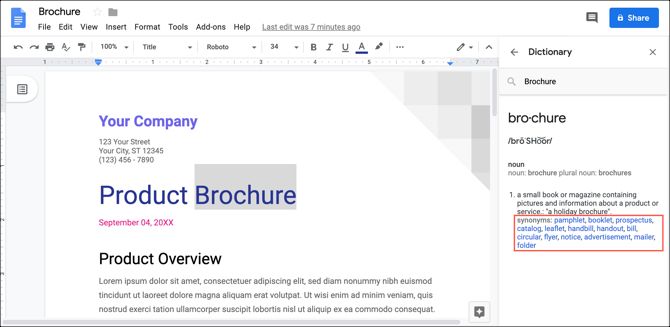
The quickest and easiest way to find synonyms in Google Docs is with the built-in Dictionary. Select the word you want a synonym for and either right-click and pick Define ‘[word]’ or click Tools > Dictionary from the menu.

A sidebar will open on the right with the word definition and the synonyms will be listed as well.

Google Docs Dictionary Synonyms

For additional tools and features like this, take a look at our Google Docs guide; what is it and how to use it.

OneLook Thesaurus

While there’s absolutely nothing wrong with the Google Docs Dictionary tool, you may want something more robust. And you might enjoy a tool that gives you some bonus features. This is where add-ons for Google Docs help with your documents.

OneLook Thesaurus is a terrific add-on for Google Docs. Just using one comparison for the word “brochure,” the Google Docs Dictionary provides 14 synonyms while OneLook Thesaurus provides 42. So you do get more options with the add-on.

Once you install the add-on, using it is a breeze. Select your word, click Add-ons from the menu, put your cursor over OneLook Thesaurus, and click Synonyms. Your results will open the sidebar.

Google Docs OneLook Thesaurus

In addition, OneLook Thesaurus offers more help with your word selection. You can get triggers, rhymes, adjectives, nouns, and terms that start with your selected word.

Power Thesaurus

Want even more synonyms for your selected text? Power Thesaurus is another excellent add-on for Google Docs.

For our comparison, this thesaurus gives us 443 synonyms for the word “brochure.” You’ll see the most common ones first but can click the link to view the entire list. This takes you to the Power Thesaurus website with the list right there and ready.

After you install the add-on, be sure to refresh your Google Docs page. Then, select your word, click Add-ons from the menu, put your cursor over Power Thesaurus, and click Search Selected Term to see your results in the sidebar.

Google Docs Power Thesaurus

As for extra features, Power Thesaurus shows you antonyms and a definition if you like. Click the Settings button (gear icon) at the bottom of the sidebar or Add-ons > Power Thesaurus > Settings from the menu.

From there, turn on or off the dark theme, check the boxes to show the options you want, and pick to display five or 10 synonyms or antonyms.

Is There a Different Way to Say It?

Making sure that you have a tool to give you different ways to say the same thing is helpful for many types of writings. And these Google Docs thesaurus options are ideal.

For tools like a thesaurus on your mobile device, check out these reference apps for lookups on-the-go.

Read the full article: How to Finally Add a Thesaurus to Google Docs


Read Full Article