22 January 2020

How to Make Digital Flashcards With Google Docs Spreadsheets


find-google-sheets-templates

When you’re a student of any subject, flashcards are a necessity. They come in handy when studying for tests, quizzes, or if you just want to refresh your memory.

Creating physical flashcards becomes a problem when you don’t have spare flashcard paper (and you don’t feel like cutting printer paper down to size). That’s why learning how to make flashcards on Google Docs spreadsheets is a much faster and more convenient way to study.

How to Make Flashcards on Google Docs Spreadsheets

When it comes to figuring out how to make notecards on Google Docs spreadsheets, you’ll notice that there’s no completely direct way to do so. Because of this, we’ll have to find a Google Sheets template that will suit our needs.

In this case, Flippity works as the perfect Google flashcard template. Flippity takes the content you add to its template and uses it to create flashcards. The flashcards won’t appear on Google Sheets—you’ll have to use a link to access your cards on Flippity’s website, which I’ll explain later. Simply follow these steps to create your own digital flashcards using Flippity.

1. Get the Flippity Flashcard Template

To access the Flippity flashcard template for Google Docs spreadsheets, head to Flippity’s website. You’ll see a range of Google Sheets templates geared towards education. Click on Template underneath the Flippity Flashcards option, and you’ll get redirected to Google Sheets.

Flippity Google Sheets Template Flashcards

From here, Google will ask if you’d like to make a copy of the document. Hit Make a Copy, and you’ll have your very own flashcards template on Google Sheets.

2. Customize Your Template

Once you receive a copy of the Google flashcards template, don’t feel overwhelmed. This flashcard maker automatically comes with data filled in. All you need to do is delete this data and add your own.

The column labeled Side1 represents one side of the flashcard. This side contains the prompt for your answer. Under the column named Side2, you’ll type in your answer for the corresponding question or prompt.

Flippity Flashcards Templates Google Sheets Customize

Since Flippity makes your flashcards as interactive as possible, you can feel free to insert links to images or videos that will appear on either side of the flashcard. For photos, you can simply paste the image’s URL into the cell. If you want to add a YouTube video, use the video’s Share this video URL, and insert that into the cell.

Flippity is also a fun way to learn a new language—you can choose from a variety of languages in the row labeled Audio at the top of the spreadsheet. This way, Flippity will prompt you in the language you’re learning, and can also read you the translation in your native language. Flippity supports several languages like French, German, Japanese, Hindu, and more.

The Flippity template even has visual learners covered. You can choose the color of your flashcards under the CardColor column, as well as the text color under the TextColor column.

You can rename the default title of the flashcards set from “Demo” to a custom name in the bottom menu bar of the spreadsheet. Click the arrow next to “Demo,” and hit Rename to fill in your own title.

3. Publish the Flashcards

In order to view and use the flashcards on Flippity, you need to publish the document. Navigate to File > Publish to the web.

Google Sheets Flashcards Publish to Web

When the popup appears on the page, don’t click Publish just yet. Ensure that the box reading Automatically republish when changes are made is checked off.

This means that you can make edits to your flashcards, and these changes will instantly appear on Flippity. Now, you’re ready to start studying!

4. Access the Flashcards on Flippity

Flashcards Template Flippity Link

You can access your flashcards by going clicking the Get the Link Here tab on the spreadsheet’s bottom menu bar. Once you click that link (or copy and paste it into your address bar) you’ll see your flashcards on Flippity.

5. Using Your Flashcards

When viewing the final result of your flashcards, you’ll find that it works as a great way to boost your memory. Each flashcard is clean, crisp, and easy to read.

You can use the arrows on the bottom of the flashcard to view the previous card, flip the card over, and view the next card. The arrows on top of the card come in handy too—while you can click the speaker icon to have Flippity to hear the audio of the card, the other icons allow you to shuffle the cards, remove cards, flip the stack to the other side, or reload the cards.

Flippity Flashcards Example

If you get tired of using flashcards, you can use Flippity’s other tools to study the same content. Flippity uses your text, and formats it in the form of a list, questionnaire, matching game, word cloud, and much more.

While Flippity allows you to print out an entire list of your flashcard terms, it doesn’t support double-sided printing for each card. In other words, Flippity keeps your flashcards purely digital.

6. Share Your Flashcards

Do you have a study group that you’d like to share your flashcards with? Fortunately, Flippity allows you to share your flashcards with others. Just click the Share button on the bottom of your flashcard’s webpage. Send this link to any of your friends, and they can view the flashcards as well.

Although Flippity doesn’t have an official app, its site is still mobile-friendly. This makes it even easier to study on-the-go or at home.

Using Google Flashcard Makers

Studying isn’t so difficult when you learn how to make index cards on Google Docs spreadsheets. With Flippity’s flashcard template, you can quickly type in all of your information and make your cards more interactive. Better yet, these shareable flashcards save you from making physical copies for friends and provide a quicker way to record your notes.

If creating Google Drive flashcards isn’t your thing, you might want to try creating flashcards on sites dedicated to making flashcards. In particular, these awesome sites can help you make flashcards as well.

Read the full article: How to Make Digital Flashcards With Google Docs Spreadsheets


Read Full Article

How to View Live Weather Radar on Google Earth


Google Earth is one of the best tools for traveling by proxy. After all, who doesn’t like to zoom in on our home town, see our own roof, where we go to school, or where we work? But did you know that Google Earth is also a useful “weather map”?

Google Earth works with a rich source of datasets that can give you a bird’s eye view of the globe. But can you use it as a weather radar? Let’s look at the weather layer on Google Earth Pro and the latest updates to it and Google Earth for the Web (and what they offer).

Where Is Google Earth’s Built-In Weather Layer?

Launch Google Earth Pro on your desktop. If it’s not already visible, open the sidebar within Google Earth. You’ll find the weather layer in the Layers tab on the sidebar.

Google Earth Pro Weather Layer

Right now, you can check the Clouds layer to see a static visual of where clouds are calculated to show up around the globe.

The Information link that will not only give you more (you guessed it) information about how the weather data is gathered, but also the time of the last clouds and radar image. You can also download weather animations there.

Google Earth Pro Weather Layer Information

Note that the cloud imagery is near real-time. In my case, they were from two hours earlier, so that’s good enough. But as Google says, cloud data shouldn’t be used for public safety or daily planning.

You can also download a 24-hour cloud animation and use it to see the difference between clear and cloudy areas. Make sure the “Clouds Animation” Network Link has been checked under Temporary Places and the “Weather” layer is checked off before starting the animation.

Google Earth Pro Cloud Animation

How to See Clouds in Google Earth for Web

Animated cloud data is also visible in Google Earth for Web as a looping animation. You just have to:

  1. Launch Google Earth for Web on Chrome.
  2. Open the Menu (the three horizontal bars icon).
  3. Click on Map Style.
  4. Locate the Turn on Animated Clouds button and toggle it to on.

But none of this is exactly the “live weather” you wanted to look up. So, what happened?

Why Live Weather Forecasts on Google Earth Disappeared?

Earlier, you could keep an eye on the current weather while using Google Earth like a live radar but that feature had been dropped in 2017 because of sketchiness with the third-party weather feeds. The Google Earth Weather “Radar” layer was also removed for the same reason.

You may have noticed that the “Conditions and Forecast” and “Ocean Observations” in the Weather layer folder haven’t received updates in awhile. Unfortunately, this is due to changes in the third-party data feeds that we’re unable to fix.

Till 2018, you could also switch on the weather layers on Google Earth Web, Android, and iOS. Real-time data for temperature, wind speed, and precipitation data was supplied by The Weather Company (an IBM subsidiary).

We couldn’t spot the layers in Google Earth for Web’s Voyager feature.

Though, you can switch on other layers related to the climatological shifts on Earth. For example, as of writing, you can track current hurricanes and tropical storms.

Google Earth Voyager layer shows tropical storms

But this is not the same as “live weather” with Google Earth. So, it’s safe to say that tracking weather has been dropped on all Google Earth versions.

That said, it’s always better to remove broken data rather than continue with something as time-sensitive as weather and its hazards.

So, where does it leave us all who relied on Google Earth and its use as a personal weather satellite? Here are a few alternatives to consider:

Download Weather Radar Images in Google Earth

Many third-party websites and forecasters offer Keyhole Markup Language (KML) files or KMZ (a compressed or “zipped”) KML file. They can include rich datasets on the environment, geography, or the weather. You can import them into Google Earth add it as a layer of information on top of the Earth’s globe.

For instance, the National Weather Service in the U.S. provides rich datasets for all climate phenomenons. You can search for a similar service in your country and check if they provide weather radar layers as KML files for Google Earth.

The steps to use them are the same. You can check the weather information on the site or download a KML file if available. Here’s how it works for the NWS site in the U.S.

1. Go to radar.weather.gov.

2. Enter your location in the search bar for the forecast search.

Earth radar image from National Weather Service

3. Pinpoint your location and the search will lead to the forecast page. Click on the KML button to download the file.

National Weather Service Forecast Page

4. Click on the downloaded file on your desktop and Google Earth Pro will load the image. Once loaded you’ll see the weather radar image and clicking on it will open an information panel with the forecast.

Google Earth Current Weather Layer

The advantage of using KMZ and KML files are that weather services keep them updated. As you can see, the information in the above panel was current for the day I downloaded the file.

Like the weather, you can find a slew of climate-related information packaged in KML files. Those related to sudden weather changes like flash floods, oceanic storms, heavy snowfall forecasts can be critical for personal safety.

Here are a couple more informative GIS websites for downloading climate-related KML files in Google Earth.

Alternatives to Google Earth’s Weather Layer

Downloading KML files is an extra step and it might be an overkill for the casual user. The Google Earth Weather layer was a handy way to quickly peek at the weather while using the satellite image tool for exploration or fun. Thanks to the rapid maturity of weather apps in the last decade, you don’t need to miss it.

Here are some alternatives to Google Earth and its use as a weather radar for everyday use:

These three are just the tip of the iceberg as there several excellent weather apps you can carry around in your pocket.

Google Earth for Live Weather Updates?

Google Earth Pro has fallen by the wayside even as Google invests more in Google Earth for the Web and the fantastic Street View library. The Voyager feature is another interesting combination of stories with geography. You can even use the excellent Google Earth VR website for a bird’s eye view of our world.

Maybe, you won’t be launching Google Earth if you want to check the weather in an instant. But you can still use it for tracking critical geospatial data. For the less scientifically inclined, here are a few more everyday uses of Google Earth to try out.

Read the full article: How to View Live Weather Radar on Google Earth


Read Full Article

How to Install Python PIP on Windows, Mac, and Linux


install-pip-python

Just like any serious programming language, Python supports third-party libraries and frameworks that you can install to avoid reinventing the wheel with every new project. If you want to use them you can find these Python libraries on a central repository called the Python Package Index (PyPI).

Downloading, installing, and managing these packages by hand can be frustrating and time-consuming. This is why many Python developers rely on a special tool called PIP for Python (or Python PIP) to make everything much easier and faster.

What Is PIP for Python?

PIP is an acronym that stands for “PIP Installs Packages” or “Preferred Installer Program”. It’s a command-line utility that allows you to install, reinstall, or uninstall PyPI packages with a simple and straightforward command: pip.

If you’ve ever done any command-line work on Windows (with the Command Prompt) or Mac or Linux (with the Terminal and Bash), then you can skip down to the installation instructions for your particular operating system.

Is PIP Installed With Python?

If you’re using Python 2.7.9 (or greater) or Python 3.4 (or greater), then PIP comes installed with Python by default. If you’re using an older version of Python, you’ll need to use the installation steps below. Otherwise, skip to the bottom to learn how to start using PIP.

If you’re running Python in a virtual environment created with either virtualenv or pyvenv, then PIP will be available regardless of the Python version.

Is Python Correctly Installed?

You have to make sure Python is properly installed on your system. On Windows, open up the Command Prompt using Windows key + X and selecting Command Prompt. On Mac, open the Terminal using Command + Space and searching for terminal. On Linux, open the Terminal using Ctrl + Alt + T. Linux shortcuts may vary by distribution.

Then type:

python --version

On Linux, Python 3.x users may need to use:

python3 --version

If you get a version number (e.g. “Python 2.7.5”) then Python is ready to go.

If you get a “Python is not defined” message, then you’ll have to first install Python properly. That’s beyond the scope of this article. The Python site has some detailed instructions for installation.

How to Install PIP on Windows

These instructions should work on Windows 7, Windows 8.1, and Windows 10:

  1. Download the get-pip.py installer script. If you’re on Python 3.2, you’ll need this version of get-pip.py instead. Either way, right-click on the link and select Save As… and save it to any safe location, such as your Downloads folder.
  2. Open the Command Prompt and navigate to the get-pip.py file.
  3. Run the following command: python get-pip.py

How to Install PIP on Mac

Modern Mac systems come with Python and PIP already installed. However, this version of Python tends to be outdated and not the best choice for serious Python development. It’s highly recommended that you install a more current version of Python and PIP.

If you want to use the native system Python installation but don’t have PIP available, you can install PIP with the following command in Terminal:

sudo easy_install pip

If you’d rather install a more up-to-date version of Python, then you can use Homebrew. Don’t know what that is? Learn more about installing software with Homebrew on Mac. These instructions will assume you already have Homebrew installed and ready to go.

Installing Python with Homebrew is done with a single command:

brew install python

This will install the latest version of Python, which should come packaged with PIP. If the installation is successful but PIP is unavailable, you may need to re-link Python using the following Terminal command:

brew unlink python && brew link python

How to Install PIP on Linux

If your Linux distribution came with Python already installed, you should be able to install PIP using your system’s package manager. This is preferable since system-installed versions of Python do not play nicely with the get-pip.py script used on Windows and Mac.

Advanced Package Tool (Python 2.x)

sudo apt-get install python-pip

Advanced Package Tool (Python 3.x)

sudo apt-get install python3-pip

pacman Package Manager (Python 2.x)

sudo pacman -S python2-pip

pacman Package Manager (Python 3.x)

sudo pacman -S python-pip

Yum Package Manager (Python 2.x)

sudo yum upgrade python-setuptools
sudo yum install python-pip python-wheel

Yum Package Manager (Python 3.x)

sudo yum install python3 python3-wheel

Dandified Yum (Python 2.x)

sudo dnf upgrade python-setuptools
sudo dnf install python-pip python-wheel

Dandified Yum (Python 3.x)

sudo dnf install python3 python3-wheel

Zypper Package Manager (Python 2.x)

sudo zypper install python-pip python-setuptools python-wheel

Zypper Package Manager (Python 3.x)

sudo zypper install python3-pip python3-setuptools python3-wheel

How to Install PIP on Raspberry Pi

As a Raspberry Pi user, you’re probably running Raspbian since it’s the official operating system designated and provided by the Raspberry Pi Foundation. You’re free to install another operating system, such as Ubuntu. If that is the case you should look at the Linux instructions.

Starting with Raspbian Jessie, PIP comes installed by default. It’s one of the big reasons to upgrade to Raspbian Jessie instead of sticking with Raspbian Wheezy or Raspbian Jessie Lite. However, if you’re on an older version of Raspbian, you can still install PIP.

On Python 2.x:

sudo apt-get install python-pip

On Python 3.x:

sudo apt-get install python3-pip

With Raspbian, Python 2.x users should use pip while Python 3.x users should use pip3 when issuing PIP commands.

How to Upgrade PIP for Python

While PIP itself doesn’t update very often, it’s still important to stay on top of new versions because there may be important fixes to bugs, compatibility, and security holes. Fortunately, upgrading PIP is quick and easy.

On Windows:

python -m pip install -U pip

On Mac, Linux, or Raspberry Pi:

pip install -U pip

On certain versions of Linux and Raspberry Pi, you may need to use pip3 instead.

How to Manage Python Packages With PIP

Once PIP is ready, you can start installing packages from PyPI:

pip install package-name

To install a specific version of a package instead of the latest version:

pip install package-name==1.0.0

To search PyPI for a particular package:

pip search "query"

To see details about an installed package:

pip show package-name

To list all installed packages:

pip list

To list all outdated packages:

pip list --outdated

To upgrade an outdated package:

pip install package-name --upgrade

Note that older versions of a package are automatically removed by PIP when upgrading to a newer version of that package.

To completely reinstall a package:

pip install package-name --upgrade --force-reinstall

To completely get rid of a package:

pip uninstall package-name

Learn More About Python

We recommend reading up on reasons why Python is useful today and how it is used in some very high-paying software jobs. This can give you the motivation to keep learning Python and push your skills to the next level.

If you’re still a beginner, check out these these best websites to learn Python programming.

If you’re more of an intermediate Python developer, consider sharpening your knowledge with some real-world applications like building your own social media bot using Python.

Read the full article: How to Install Python PIP on Windows, Mac, and Linux


Read Full Article

10 Essential The Witcher 3 Tips for New Players


the-witcher-3-tips

The Witcher is now a hit TV show on Netflix. However, there are The Witcher novels, comic books, and video games as well. And in this article we list the essential The Witcher 3 tips.

The Witcher 3: Wild Hunt is a great entry point for fans of the TV show. So, for new players unfamiliar with the game, here are the essential The Witcher 3 tips to guide you on your journey.

1. Stay Close to Roads

The Witcher 3 tips - staying on the road

There are two main reasons you’ll want to consider staying close to the road. The first reason is that you have a better chance of avoiding higher level enemies if you stay on it. While adapting to the world and initially leveling up Geralt, this can serve as an early safety net.

The second reason pertains to traveling with Roach (your horse). Typically, utilizing Roach requires stamina. However, Roach will auto-follow a road without losing any stamina if you hold down the canter key and don’t steer.

While auto-following the road, you can also gallop down it by pressing its respective key twice. Keep in mind, you’ll still have to slightly adjust Roach to stay on the right path.

2. Pick Up Side Quests Often

The Witcher 3 tips - notice board offering quests

At the start of the game, Geralt is pretty vulnerable. Completing quests early on will give you both valuable experience points as well as teach you the game early on. Whenever you visit a village, town, or city you should be checking notice boards to unlock new side quests.

Also, take side quests just so you can experience more of The Witcher 3’s world. To bring their narratives to life, many side quests have their own cutscenes and voice work. As the story progresses, you can also lose access to side quests, so try to complete them when they first appear.

3. Loot Everything

The Witcher 3 tips - dismantling loot

When it comes to items, grab everything in sight. If you have too many of one item, sell it or dismantle it. If you dismantle an item at a blacksmith, there’s the possibility you’ll get rare materials for future crafting.

The Witcher 3’s alchemy system also features a huge list of harvestable components. So, if you have an option to lift an item from anything in the world, do it. You’ll want to stay on top of acquiring items to help you complete the game’s various diagrams and recipes.

4. Utilize the Quen Sign and the Gourmet Skill

The Witcher 3 tips - gourmet skill for use with quen

If you want to try harder difficulties such as Death March, try using the gourmet skill and Quen sign. If you have the Blood and Wine DLC and the gourmet skill, eating food regenerates health rapidly for 20 minutes. When you combine this with Quen’s protecting shield, it’ll give you a moment to breathe during combat.

It’s a pretty simple-yet-effective strategy. Simply dip in and out of combat utilizing the shield and regeneration to keep yourself healthy. You’ll eventually win against your enemies in a battle of attrition.

5. Use Your Bestiary

The Witcher 3 tips - bestiary entry

While it might seem like common sense, it helps to know your enemy’s weaknesses. After encountering an enemy in The Witcher 3, you’re able to look up their weaknesses in the bestiary. Use this knowledge and get an edge against your enemy.

If you feel stuck, don’t underestimate its usefulness.

6. Save Your Game Often

The Witcher 3 tips - save menu

Like the bestiary, it seems like it should be second nature to save your game often. The Witcher 3 does save your progress automatically under certain conditions (i.e. after completing an objective). However, you shouldn’t rely on that during your playthrough.

Unpredictable deaths can occur whether it’s an ambush or an accidental fall to your doom. If you hate backtracking, make it a habit to manually save your game.

NB: If you worry about losing your game saves, here’s how to protect your game saves on any system.

7. Upgrade Roach (Your Horse)

The Witcher 3 tips - horse equipment

For Roach, there are four pieces of equipment: trophies, saddles, saddlebags, and horse blinders. Trophies provide unique bonuses and offer some added personalization. Horse blinders prevent Roach from panicking as often, so Roach won’t throw you off as easily.

Saddles increase Roach’s stamina, so they’re great for traveling offroad or for horse races. Saddlebags provide a nice touch because they increase your max inventory weight. With as many items as there are to collect, you’ll definitely want to improve your saddlebags most of all.

8. Weigh Up Your Decisions

The Witcher 3 tips - dialogue consequences

Remember that Geralt’s world is built on interactions. While you might not see the immediate consequences of your in-game choices, they do have an impact. Quest rewards are usually similar regardless of the outcome, so choices won’t put you at a gameplay disadvantage.

However, your choices will have narrative consequences. They’ll range from the death of others, easier passage through an area, to an impact on the game’s ending. It’s not all seriousness, but it’s important to not regret your decisions.

9. Utilize the Axii Sign

The Witcher 3 tips - axii sign

Axii can open up a lot of alternative routes for players. Use it to influence the actions of others in order to avoid fighting or to pay off certain people. It can make it easy to kill non-threat creatures such as deer for crafting materials and money early on.

You can also use Axii to reduce Roach’s fear level or charm enemies into attacking other enemies. Axii’s versatility makes it a great sign to invest in.

10. Make Good Use of Fast Travel

witcher 3 boat for fast travel

In The Witcher 3, fast travel works conditionally. On land, you fast travel between signposts within the world. These appear as green signposts on your world map, and they’ll appear around most locations.

The Witcher 3 tips - fast travel map

After boarding a boat, you can also initiate fast travel between different harbors by having Geralt interact with the rudder. Once you interact with the rudder, open up your world map. You can then fast travel to different harbors by selecting their anchor icon.

If you go too fast and don’t let Geralt finish his animation, the harbors won’t appear—so be patient.

Use These The Witcher 3 Tips to Tame the Game

The Witcher 3: Wild Hunt is an amazing game. The vast openness and diversity of Geralt’s world form a living and breathing medieval sandbox for you to explore. And these The Witcher 3 tips should help you tame the game, especially if it’s your first time playing.

Once you have finished The Witcher 3, you’ll probably want another vast, sandbox game to explore. With that in mind, here are the essential Red Dead Redemption 2 tips to help you get started.

Read the full article: 10 Essential The Witcher 3 Tips for New Players


Read Full Article

Is Your Ring Device Making Your Home Less Safe?


ring-device-safety

Home security products like smart doorbells and security cameras are getting more popular, especially those produced by Amazon’s Ring. But these products have been in the spotlight for causing security issues too. Here we’ll show you some of the ways that Ring devices can be a security problem.

What Happened in the Ring Hack

Ring security issues - Ring hack
Image Credit: BeeBright/DepositPhotos

At the end of 2019, Amazon’s Ring smart doorbells and home security cameras made headlines. A group of customers in California sued the company after hackers attacked their Ring devices. The customers said they had experienced hackers using the devices’ two-way voice communication in appropriate ways. Customers heard the hackers yelling racist obscenities, threatening their lives, and in one case even taunting a young child.

Ring’s defense was that its security cameras were not actually hacked. This is true. What had happened is that hackers used login information found online to access the Ring devices. At some point, the customers must have reused usernames and passwords across multiple sites, including Ring. Then, when one of their logins was compromised, the hackers were able to use that same information to access their Ring devices.

In fairness to Ring, it is standard security advice that customers should not reuse passwords for multiple sites. Because it can lead to just this sort of event. However, the incident still raises serious security concerns.

The Problems Raised by the Ring Hack

There are two reasons this is so worrying. Firstly, smart cameras have access to a huge amount of very personal data. Having a Ring device hacked is not the same as having your email address leaked online. That is annoying, but manageable. Hackers accessing Ring devices can see into users’ homes in real time. They can use the voice system to send threatening messages. They could observe children, which parents find particularly worrying. And they could save any of this information and later distribute it online.

The second reason for concern is that people buy devices like smart doorbells or home security systems in order to feel more safe. They want a higher level of security. When a security device is hacked, it does the opposite of this, by making them feel afraid and unsafe.

Many security experts and technology reporters have blamed Ring itself for the situation. Even though customers shouldn’t reuse passwords, any security company should know that they commonly do so anyway. Ring could have built more protections for customers into the system. For example, there is an option to enable two-factor authentication on the Ring system.

If this had been enabled by default, it would have been harder for hackers to attack the devices. Similarly, there could be more prompts within the software to encourage people to use strong passwords. Or it could require unique account names instead of using email addresses to log in, which would make hackers reusing logins from other sites less effective.

The Security Risks of Ring

Ring security issues - issues to consider

This shows how a system you buy to increase your security can cause security problems of its own. Here are some of the security risks of smart doorbells and cameras like Ring products which you should consider.

Vulnerability to Hacking

Like the example mentioned above, any security system is vulnerable to attacks somewhere. Security systems are especially attractive targets to hackers because they hold so much information.

If you buy a security system you check out the company first. You should see if the company has good security policies and whether it has suffered data breaches in the past.

Bear in mind that a hacker accessing your smart doorbell can see a lot of information that you want to keep private. Make sure you take precautions like using unique passwords, enabling two-factor authentication, keeping your software up to date, and changing your password if security breaches do occur.

Employees Accessing Data

You should also remember that there doesn’t have to be a hack for someone else to see your Ring data. Employees of Amazon or Ring can access your videos too. In January 2020, Amazon fired four employees after it discovered they were inappropriately viewing videos of Ring customers.

Even without the misbehaving employees, staff may look at your Ring footage for legitimate reasons like troubleshooting. When you purchase a device like a Ring, you are essentially trusting not only the company but all of its staff with footage of you in your home. You have to decide if a company is worthy of that degree of trust.

Police Involvement With Ring

Another factor in Ring which makes some people uncomfortable is the company’s relationship with the police. Ring has entered “partnerships” with more than 400 police forces across the US. This offers local police forces access to a portal through which they can request Ring footage. Ring customers aren’t obliged to comply with these requests, but customers don’t necessarily know this.

In some towns, police have used taxpayer money to offer free or discounted Rings to the public. In some of these situations, it has been reported that users are required to turn over their footage to police in exchange for the device.

The situation has become so worrying that US senator Edward J. Markey (D-Mass.) has written to Amazon to raise privacy and civil liberties concerns, and to question Ring about the nature of its partnership with police forces. Perhaps the most concerning part about the whole situation is the lack of clarity offered by Ring regarding the exact details of its relationship with the police.

Issues of Civil Liberties

Ring devices also raise concerns over civil liberties. Ring devices don’t only include gadgets for recording inside the home, like security cameras. They also include smart doorbells which record outside the home as well. This essentially makes Ring doorbells an unofficial network of surveillance cameras.

This raises several issues. Firstly, there is the fact that this surveillance network is owned and operated by a private company, without oversight from the government. When combined with the possibility of facial recognition technology, this fact becomes even more alarming.

Secondly, the devices seem to have a negative impact on people’s perception of safety. Programs like Ring’s Neighbors inform Ring users about crimes which have occurred in their local area. This is supposed to keep people informed about crimes. However, even though violent crime has fallen sharply in the US in the last 25 years, these programs can actually make more afraid of crime and contribute to the incorrect belief that crime is on the rise.

Thirdly, activists have reported that Ring devices and the Neighbors program contribute to racial profiling. They are often used in predominately white neighborhoods to report of the activities of non-white people as “suspicious.” Technology’s use in this context seems to reinforce social prejudices rather than providing objective information.

Security Issues With Ring Smart Doorbells and Cameras

Although devices like security cameras and smart doorbells can help to keep your home safe, they can also come with security risks of their own. And they are just one example of Internet of Things (IoT) devices you may have in your home which can cause security problems.

To make sure the other devices on your home network are also protected against hackers, check out our tips for securing your smart devices and IoT devices.

Read the full article: Is Your Ring Device Making Your Home Less Safe?


Read Full Article

Steam vs. Epic Games Store: Which Is Best?


steam-vs-epic-games

Steam’s dominance as the go-to platform for PC games has faced a few challengers over the years—but the Epic Games Store is one of the biggest and best contenders for the crown. But which digital platform is better?

In this article, we pit Steam vs. Epic Games Store, taking a look at different aspects of these two stores, from their user interfaces to game prices. Here’s how each measures up across different categories…

What Is the Epic Games Store?

Epic Games Store window

The Epic Games Store is a digital PC game storefront launched by video game company Epic Games—most notably known for creating the Unreal Engine and Fortnite. The store launched in December 2018, built off the Epic Games launcher. As such, the Epic Games Store can be accessed as standalone software or as a website.

Unlike most other storefronts launched by game publishers, the platform is not only limited to titles from Epic Games. The store provides a variety of timed exclusives, notable indie games, and a few AAA titles.

It also features social functionality such as a friends list and chat. Other features include a games library and a news stream.

Visit: Epic Games Store

What Is the Steam Store?

Steam Store front page

Steam is a digital PC game distribution and streaming platform created by Valve Software, the creators of games such as Left 4 Dead and Dota. Valve also created the Source game engine.

The platform launched in 2003, making it one of the oldest digital games distribution platforms still around. It comes as standalone software, but can also be accessed via the Steam website or the Steam mobile app.

Steam has a considerable number of other features besides its storefront. The platform acts as social gaming hub, game streaming software, and more.

Visit: Steam

Steam vs. Epic Games Store

So when comparing Steam vs. the Epic Games Store, which is better? That depends on the category. There are some things that Steam does better and other things that Epic Games does. Here’s a look at different aspects of each storefront and which comes out best in each category.

Steam vs. Epic Games Store: User Interface

When it comes to the UI of each storefront, both opt for a sleek, modern design. However, Steam’s has noticeably more features, tags, and elements.

This applies to each platform’s games library too. In 2019, Steam updated its games library to look more modern, but also paired a games newsfeed with each title in your library (similar to the PlayStation Network). The downside is that this makes the library considerably more cluttered.

Steam games library user interface

In contrast, Epic Games keeps its newsfeed in the user’s home tab, making the library minimalistic and simple. Clicking on a title will launch, update, or install the game.

Epic Games Store library

Since both have modern designs, the appeal of each UI’s aesthetics will come down more to personal taste. However, when it comes to ease-of-use, the Epic Games Store’s simpler interface makes the UI considerably more user-friendly.

Fewer tabs and dropdown menus add to this simplicity, whereas Steam’s UI can be a bit overwhelming for those who don’t use it regularly.

Winner: Epic Games Store

Steam vs. Epic Games Store: Game Selection

When it comes to the selection of games, the Steam store has a much larger variety of titles to choose from. That said, quantity doesn’t equal quality. One of the reasons to stop buying on Steam is that the platform allows low-quality games and clones on the platform. The varied quality makes it more akin to something like the Google Play Store.

This means you have more to choose from, but great games can become buried among the trash. When it comes to Early Access games, there’s also a lot less accountability and vetting of developers.

Steam Store games variety

Steam is a haven for indie titles, but these same indie developers struggle to gain exposure among such a massive amount of choice.

On the other hand, the Epic Games Store has far fewer games on the platform, but their quality is markedly better. The games include both AAA and indie titles, but the common trait seems to be a reliable track record.

Epic Games Store games selection

The major downside is that there is still a lot missing from the store in terms of availability. While Epic Games has definitely been fleshing out the selection since the store’s launch, many gaming gems have been left out. These include great indies like Stardew Valley, Don’t Starve, and more. Epic seems to be focusing on newer indies rather than adding slightly older ones to its catalog.

Both storefronts are guilty of heavily promoting pre-ordering games (even though you should stop pre-ordering games), even for titles that aren’t set to be released for months. So neither performs better on that front.

Winner for the variety of games: Steam

Winner for the quality of games: Epic Games Store

Steam vs. Epic Games Store: Store Features and Perks

Besides the user interface and game selection, each store also has different strengths when it comes to their exclusive features and perks.

Steam has spent years polishing its game recommendations algorithm for users. This means the storefront offers an explore queue—a curated list of recommendations that players can use to sort through the many games on the platform.

Steam game recommendations queue

Steam also offers mini-games for sale, in-game collectibles, and a marketplace for in-game items. The review system for Steam also helps get community feedback on games, a useful metric you can use to check out game quality. However, this is also vulnerable to review bombing.

The Epic Games Store also has a few special perks up its sleeve. This includes limited-period offers on games that allow you to download them for free. The store has also pushed exclusive timed releases heavily, with a few notable developers choosing to release their PC games on Epic Games before any other platform.

Even with all of that taken into account, Steam still has the upper hand when it comes to helping users explore through games, recommending games that suit their tastes, and allowing you to collect and sell items.

Winner: Steam

Steam vs. Epic Games Store: Social Features

Both Steam and the Epic Games Store boast social features such as chat and the ability to add people to your friends list. However, much like in other categories, Steam’s social features are considerably more extensive than Epic’s.

Other social features Steam has include profiles where friends can leave posts, media sharing, game recommendations based on what friends are playing, the ability to invite friends to games, message boards, and groups.

Steam friends list and chat

Epic’s social features mostly focus on chat and your friends list. However, a notable perk is the ability to link your Steam profile to console profiles so you can communicate with your friends across platforms. This means you can talk to and invite your friends in games like Fortnite even when you are using different platforms.

Epic Games Store friends list

If you’re looking to really implement social aspects into your gaming, Steam is the better platform for this.

Winner: Steam

Steam vs. Epic Games Store: Prices and Revenue Split

For many gamers, the deciding factor between platforms won’t necessarily be UI or social features, but the price of the games. So how do Steam and the Epic Games Store compare in this respect?

Neither platform consistently undercuts the other across the board, with price differences seemingly on a case-by-case basis or due to region-specific pricing.

However, because Steam is available in more local currencies, it often uses market-related prices rather than a straightforward dollar conversion. So in South Africa, for example, games retail for closer to the equivalent of $70 rather than $60. Steam uses the local price as a baseline rather than the usual dollar price.

In this scenario, the raw conversion rate offered by Epic Games Store on most games works out cheaper. At the same time though, Epic also sometimes institutes its own regional price differences.

As such, there’s no way to conclusively say which store has the better price for gamers.

But when it comes to the revenue split for developers, the Epic Games Store provides a better ratio than Steam.

Epic Games Store revenue split policy

At the time of writing, Steam’s revenue split with developers ranges from 30/70 to 20/80, depending on game sales. This means that Steam takes a cut of between 20 and 30 percent of revenue made by a game. The company only lowers the percentage from 30 when a game makes over $10 million.

On the other hand, the Epic Games Store offers a 12/88 revenue split ratio. This doesn’t change based on the revenue of the game. Furthermore, for developers who have used Unreal Engine 4 for their game, the Epic Games Store waives the usual 5 percent royalties fee that Epic charges when these games are published on other platforms.

Revenue Split Winner: Epic Games Store

Steam vs. Epic Games Store: It’s a Draw!

After comparing the two digital platforms across a range of categories, we can’t pick a winner. Steam is better in some ways, while the Epic Games Store is better in others. So, just use the one which you personally prefer.

And if you want to buy games online from elsewhere, check out our guide to the best sites for video game deals and discounts. Who knows, you may even find a bargain or two.

Read the full article: Steam vs. Epic Games Store: Which Is Best?


Read Full Article

2020 will be a moment of truth for foldable devices


Phones were not the centerpiece at the recently wrapped Consumer Electronics Show; I’ll probably repeat this point a few more times over the course of this piece, just so we’re clear. This is due, in no small part, to the fact that Mobile World Congress has mostly usurped that role.

There are always a smattering of announcements at CES, however. Some companies like to get out ahead of the MWC rush or just generally use the opportunity to better spread out news over the course of the year. As with other categories, CES’s timing positions the show nicely as a kind of sneak preview for the year’s biggest trends.

A cursory glance at the biggest smartphone news from the show points to the continuation of a couple of key trends. The first is affordability. Samsung leads the pack here with the introduction of two “Lite” versions of its flagship devices, the Galaxy S10 and Note 10. The addition of the line lent some confusion to Samsung’s strategy amongst a handful of tech analysts around where precisely such devices would slot in the company’s portfolio.


Read Full Article

Google Cloud lands Lufthansa Group and Sabre as new customers


Google’s strategy for bringing new customers to its cloud is to focus on the enterprise and specific verticals like healthcare, energy, financial service and retail, among others. It’s healthcare efforts recently experienced a bit of a setback, with Epic now telling its customers that it is not moving forward with its plans to support Google Cloud, but in return, Google now got to announce two new customers in the travel business: Lufthansa Group, the world’s largest airline group by revenue, and Sabre, a company that provides backend services to airlines, hotels and travel aggregators.

For Sabre, Google Cloud is now the preferred cloud provider. Like a lot of companies in the travel (and especially the airline) industry, Sabre runs plenty of legacy systems and is currently in the process of modernizing its infrastructure. To do so, it has now entered a 10-year strategic partnership with Google “to improve operational agility while developing new services and creating a new marketplace for its airline,  hospitality and travel agency customers.” The promise, here, too, is that these new technologies will allow the company to offer new travel tools for its customers.

When you hear about airline systems going down, it’s often Sabre’s fault, so just being able to avoid that would already bring a lot of value to its customers.

“At Google we build tools to help others, so a big part of our mission is helping other companies realize theirs. We’re so glad that Sabre has chosen to work with us to further their mission of building the future of travel,” said Google CEO Sundar Pichai. “Travelers seek convenience, choice and value. Our capabilities in AI and cloud computing will help Sabre deliver more of what consumers want.”

The same holds true for Google’s deal with Lufthansa Group, which includes German flag carrier Lufthansa itself, but also subsidiaries like Austrian, Swiss, Eurowings and Brussels Airlines, as well as a number of technical and logistics companies that provide services to various airlines.

“By combining Google Cloud’s technology with Lufthansa Group’s operational expertise, we are driving the digitization of our operation even further,” said Dr. Detlef Kayser, Member of the Executive Board of the Lufthansa Group. “This will enable us to identify possible flight irregularities even earlier and implement countermeasures at an early stage.”

Lufthansa Group has selected Google as a strategic partner to “optimized its operations performance.” A team from Google will work directly with Lufthansa to bring this project to life. The idea here is to use Google Cloud to build tools that help the company run its operations as smoothly as possible and to provide recommendations when things go awry due to bad weather, airspace congestion or a strike (which seems to happen rather regularly at Lufthansa these days).

Delta recently launched a similar platform to help its employees.


Read Full Article

Huawei’s answer to life after Google Maps? TomTom


Losing access to Google software and services understandably threw Huawei for a loop. The Chinese hardware giant has clearly been working on a contingency plan to deal with the loss of access to things like Android and the Play Store, but Google’s offering formed so much of the devices’ software core — as they do so many of its competitors.

Huawei just lined up a pretty big name in its attempts to rebuild a competitive software suite. Dutch mapping giant TomTom has agreed to provide access to its navigation, mapping and traffic information. The two companies finalized a deal this week, per Reuters, letting Huawei use that information to build its own proprietary apps.

TomTom confirmed the deal, but declined to offer additional information. The move comes as the mapping company has taken a step back from hardware offerings, in favor of monetizing its software services. Given Huawei’s pretty massive footprint in the global smartphone market, this presents a pretty big deal for TomTom, which had previously provided info for AppleMaps.

Huawei was left reeling from U.S. sanctions that cut off access to U.S.-produced software and components. The company has been working to build its own Android competitor behind the scenes, though what we’ve seen of HarmonyOS has thus far been fairly muted. Rumors have also swirled around Huawei developing its own Maps competitor, so it’s hard to say how much it views this new deal as a stopgap. 


Read Full Article

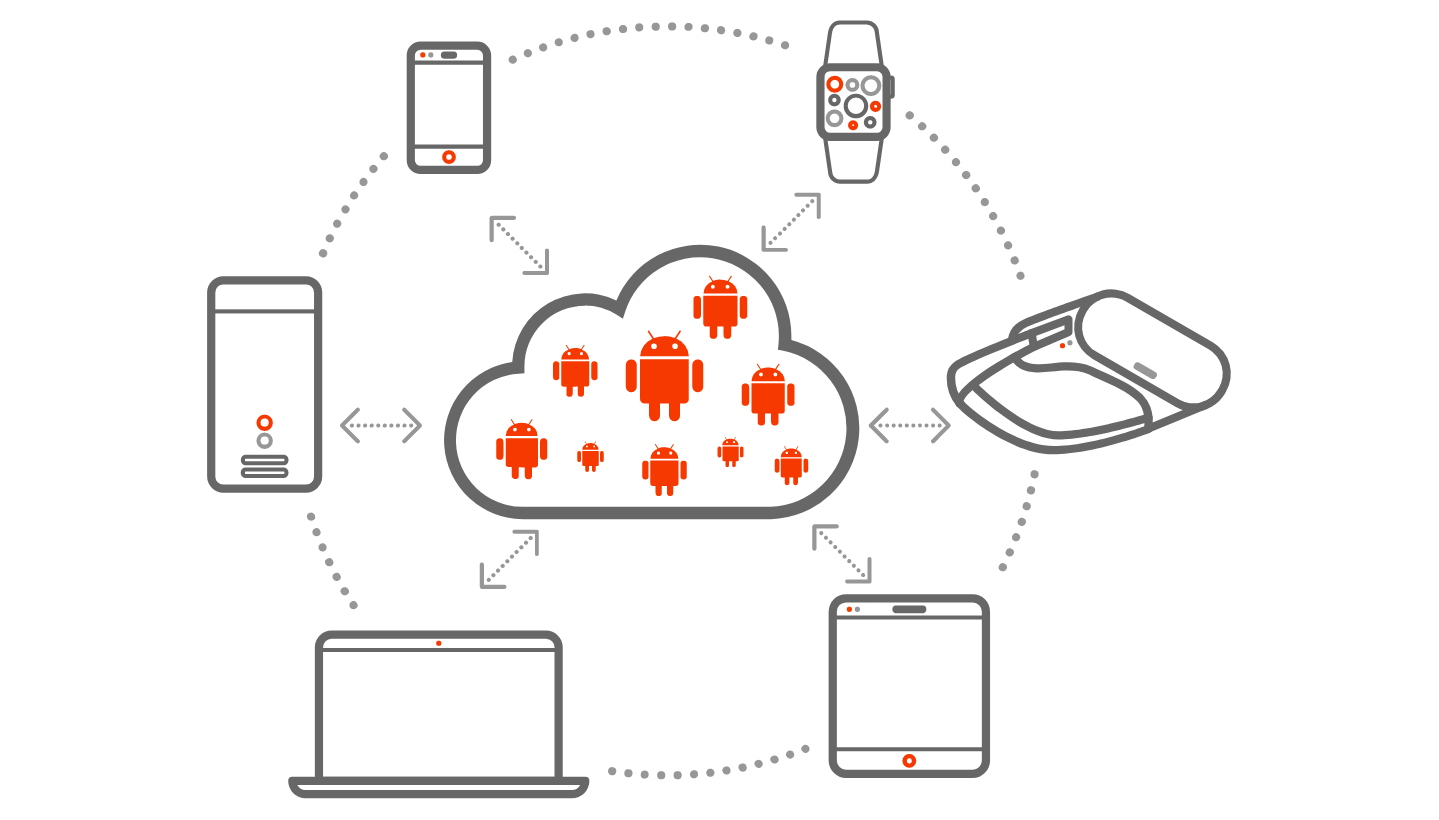
Canonical’s Anbox Cloud puts Android in the cloud


Canonical, the company behind the popular Ubuntu Linux distribution, today announced the launch of Anbox Cloud, a new platform that allows enterprises to run Android in the cloud.

On Anbox Cloud, Android becomes the guest operating system that runs containerized applications. This opens up a range of use cases, ranging from bespoke enterprise app to cloud gaming solutions.

The result is similar to what Google does with Android apps on Chrome OS, though the implementation is quite different and is based on the LXD container manager, as well as a number of Canonical projects like Juju and MAAS for provisioning the containers and automating the deployment. “LXD containers are lightweight, resulting in at least twice the container density compared to Android emulation in virtual machines – depending on streaming quality and/or workload complexity,” the company points out in its announcements.

Anbox itself, it’s worth noting, is an open-source project that came out of Canonical and the wider Ubuntu ecosystem. Launched by Canonical engineer Simon Fels in 2017, Anbox runs the full Android system in a container, which in turn allows you to run Android application on any Linux-based platform.

What’s the point of all of this? Canonical argues that it allows enterprises to offload mobile workloads to the cloud and then stream those applications to their employees’ mobile devices. But Canonical is also betting on 5G to enable more use cases, less because of the available bandwidth but more because of the low latencies it enables.

“Driven by emerging 5G networks and edge computing, millions of users will benefit from access to ultra-rich, on-demand Android applications on a platform of their choice,” said Stephan Fabel, Director of Product at Canonical, in today’s announcement. “Enterprises are now empowered to deliver high performance, high density computing to any device remotely, with reduced power consumption and in an economical manner.”

Outside of the enterprise, one of the use cases that Canonical seems to be focusing on is gaming and game streaming. A server in the cloud is generally more powerful than a smartphone, after all, though that gap is closing.

Canonical also cites app testing as another use case, given that the platform would allow developers to test apps on thousands of Android devices in parallel. Most developers, though, prefer to test their apps in real — not emulated — devices, given the fragmentation of the Android ecosystem.

Anbox Cloud can run in the public cloud, though Canonical is specifically partnering with edge computing specialist Packet to host it on the edge or on-premise. Silicon partners for the project are Ampere and Intel.


Read Full Article