02 January 2020

10 Free Alternatives to Microsoft Word You Should Try Today


word-alternatives

Microsoft Word is a wildly popular word processor, but many still do not use it. Whether it’s because of cost, access, or preference, not everyone is a Word fan.

If you fall into this category, you might use alternative office suites like LibreOffice or WPS Office.

However, there are still plenty of other great and free options out there if you know where to look. Here are several fresh alternatives to Microsoft Word that you might not know about.

1. Jarte
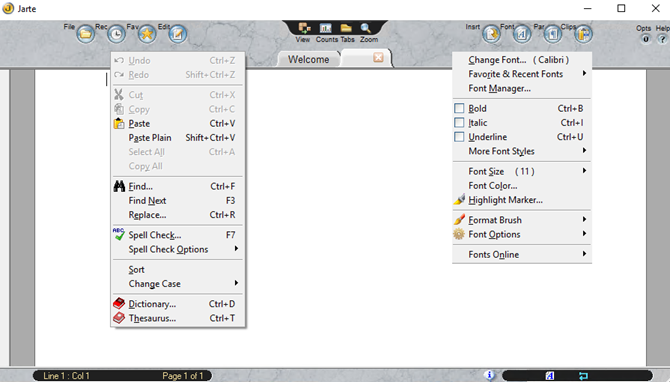
Screenshot of Jarte--- an alternative to Microsoft Word

Jarte has a neat and clean interface that makes it simple to work with your documents. You can create multiple documents in one window using the tabs at the top. You also have options to customize the application for button labels, automatic detection of links, and word wrapping.

Features:

  • Edit with basic tools like copy, paste, find, and spell check as well as a dictionary and thesaurus.
  • Insert images, hyperlinks, tables, equations, and objects.
  • Format fonts with bold, italic, underline, color, size, and style.
  • Adjust paragraphs using alignment, indent, line spacing, and tab stops.
  • And more: Multiple views, counts for words, pages, and characters, zoom in or out, and a built-in screen capture feature.

You can download and use Jarte for free. If you are interested in bonus features such as custom keyboard shortcuts, scripting, and autocorrect, you can take a look at Jarte Plus.

Download: Jarte (Free)

2. AbleWord

AbleWord---an alternative to Microsoft Word

For an application with the same familiar appearance as Microsoft Word, check out AbleWord. You have a standard menu at the top for tools like File, Edit, and View, quick button actions right below for undo, redo, and spell check, and the font formatting bar beneath that.

Features:

  • Save documents as DOC, DOCX, PDF, HTML, or TXT.
  • Insert images, text frames, tables, and page numbers.
  • Format fonts, paragraphs, styles, columns, bullets, and numbering.
  • Use tables by inserting, selecting, or deleting along with merging and splitting cells.
  • And more: PDF file importing, print or draft layout views, word count, zoom in or out, and page layout options.

AbleWord is available for download at no charge with all features. And if you need help getting started, just click the Help button from the toolbar or visit AbleWord Online Help.

Download: AbleWord (Free)

3. WordGraph

WordGraph---an alternative to Microsoft Word

SSuite Office provides a host of applications like word processors, spreadsheets, and editors. One such product is called WordGraph and is a terrific alternative to Microsoft Word. Similar to AbleWord, you have a standard menu at the top, action buttons, and formatting toolbar. Each new document resides in its own tab.

Features:

  • Select views from full width, centered outline, or full height along with thumbnail views along the side.
  • Insert objects, images, tables, links, emoticons, equations, automatic text, and character art.
  • Format fonts, paragraphs, and visual text effects.
  • Use tools for spell check, word count, track changes, and online dictionaries, thesauruses, and translations.
  • And more: Tiled windows, document exporting, history, and statistics, keyboard shortcuts, and cloud storage integration.

You can download WordGraph for free as well as other products from SSuite. You might also check out the helpful online tutorials if you have any specific questions.

Download: WordGraph (Free)

4. FocusWriter

FocusWriter---an alternative to microsoft word

FocusWriter is ideal for those who want a distraction-free writing experience. When you open FocusWriter, you will see the document area on a wooden background. So, you can start writing immediately. But the application also offers the features you need in a word processor when you put your mouse towards the top of the window.

Features:

  • Edit with basic undo, redo, cut, copy, and paste features.
  • Format fonts, paragraphs, indents, and headings.
  • Use tools to find, replace, spell check, and symbols.
  • Adjust settings for focused text, themes, and focus preferences.
  • And more: Hideaway tools on all four edges, focus timer, daily progress statistics, goal setting, toolbar customizations, and keyboard shortcuts.

FocusWriter is free and available on multiple platforms. If you like features of word processors but prefer a focused writing tool, then this is the application for you.

Download: FocusWriter (Free)

5. Page Four

Page Four---an alternative to microsoft word

While intended for creative writers, Page Four is a wonderful word processor for master organizers as well. This is due to its Notebook feature which provides a structured hierarchy for your items. So, you can create new notebooks, add folders and subfolders, and insert pages easily.

Features:

  • Navigate to each page with tabs at the bottom of the window.
  • Format fonts, paragraphs, and lists.
  • Use tools to import or export notebooks, word count, and document locking via password.
  • Click Smart-Edit to scan your document for overused words and phrases.
  • Search for text on pages or in notebooks.
  • And more: Customizable view for full-screen writing, snapshot feature with list display, ability to insert dates, characters, links, or email addresses.

Page Four comes from Bad Wolf Software and is available at no charge. Just note, the application will not receive future enhancements. But if you like the idea of a free tool that keeps your work organized well, take it for a spin.

Download: Page Four (Free)

6. Shaxpir 4

Shaxpir 4 (pronounced like Shakespeare) is another word processor that is ideal for creative writers. But don’t let that stop you from trying it for papers, essays, and even for brainstorming for ideas. You can organize your documents by type like books, short stories, or articles, all within an attractive, intuitive interface.

Features:

  • Navigate to content using the sidebar.
  • Format fonts, paragraphs, styles, and lists.
  • Insert images, connections, and block quotes.
  • Export items as DOCX or HTML.
  • Plus: Version history (paid), word count, spell check, color-coded display for sentiment, vividness, and spelling, and content creation by type and folder.

Shaxpir 4 is available at no charge and comes with a free trial for Shaxpir 4: Pro. Should you decide to subscribe to the upgrade you will receive features like EPUB exporting, custom themes, and version history. However, you can still continue with the free version if you prefer.

Download: Shaxpir 4 (Free)

7. LyX

LyX---an alternative to microsoft word

LyX is a full-featured word processor with tons of extras. You might be surprised at the number of buttons you see beneath the menu when you open Lyx, but the screen tips as you mouse-over the buttons help. Select File > New and you are on your way. You can also work with multiple documents with the handy tabbed view.

Features:

  • Format fonts, lists, paragraphs, and sections.
  • View outline, source, and message panes within the window.
  • Insert everything from images, links, and tables to math formulas, citations, and comments.
  • Use tools for spell check, thesaurus, statistics, and file comparisons.
  • And more: Import and export with dozens of file types, math macros, margin notes and footnotes, labels, cross-references, and index entries.

LyX is free and open-source, and available across multiple platforms. The website offers a lot of helpful information regarding releases, bug tracking, and development statuses.

Download: LyX (Free)

8. Thinkfree Online Editor

If you would rather not download a word processor, Thinkfree Online Editor is an excellent option. To begin, either click the New Document plus sign on the main page or select Word from the New Document dropdown box at the top. When the editor opens, you will see your standard menu items and buttons.

Features:

  • Download documents as DOCX or PDF files.
  • Format fonts and paragraphs.
  • Add headers, footers, endnotes, page numbers, or page breaks.
  • Insert shapes, images, tables, text boxes, symbols, bookmarks, or links.
  • And more: Selection tools, ruler, and task pane views, zoom in or out, page setup options like size, orientation, color, and margins.

Website: Thinkfree Online Editor (Free)

9. Hemingway

Hemingway---an alternative to microsoft word

Another nice online editing option is Hemingway. You can click Write from the top to start and then Edit to access helpful tools. While this editor does not offer specific features for images, tables, or downloads like others, it does give you a good writing experience.

Features:

  • Format fonts with bold or italic.
  • Add headers that are H1, H2, or H3.
  • Create quotes with a click.
  • Insert links and lists with bullets or numbers
  • And more: Readability tools, color-coded display for active voice, adverbs, and hard-to-read sentences, and counts for words, characters, letters, and more.

Hemingway is one of the simplest yet useful free online writing tools. In addition to access on the internet, you can check out the Hemingway Editor 3 desktop app with plenty of awesome features.

Website: Hemingway (Free)
Download: Hemingway Editor 3 for Windows | Mac ($19.99)

10. Draft

Draft---an alternative to microsoft word

One final alternative to Microsoft Word that is available for free online is Draft. This very simple tool has the features you need to create, edit, and save your documents. Like Hemingway, you can write directly on the screen (once you create a free account). One of its standout features is version control.

Features:

  • Format fonts with bold or italic.
  • Insert comments, to-dos, images, snippets, and footnotes.
  • Export documents as TXT, HTML, DOC, or PDF.
  • Share for help with your documents from coworkers or fellow students.
  • And more: Create folders for organization, preview and Hemingway modes, import files, and customize interface settings.

Draft is a basic but an easy tool for your writing needs. From business to personal to educational, create the documents you need on any computer with internet access.

Website: Draft (Free)

The Best Alternatives to Microsoft Word

Whether it’s cost, access, or features, there are many word processors that can give you what you need if you want to veer from Microsoft Word. So, pick the right one for you and get writing!

If you’re interested in office suites instead of just document editors, take a look at these best free Microsoft Office alternatives. Or if you own a Mac, check out these free Office alternatives for macOS.

Read the full article: 10 Free Alternatives to Microsoft Word You Should Try Today


Read Full Article

How You Can Prepare for Winter Storms With These Apps and Websites


winter-apps-websites

If you live in a colder climate where snow or ice is commonplace, you might have second thoughts about traveling between December to February. After all, winter driving conditions can get hazardous, and you don’t want to get caught in a storm.

What if you still want to go out and enjoy the season in this bad weather? Is there any way to avoid those bad roads without becoming a hermit during the colder winter months?

Here’s how to use technology to avoid winter storms, ranging from apps to websites.

1. Ready.gov

Winter Storm Warning Ready.Gov

Ready.gov is a weather preparedness website run by the government. On the website, Ready.gov tells you:

  • How to recognize severe weather.
  • How to prepare for severe weather.
  • What to do if you find yourself caught in a severe weather event.

Ready.gov covers every winter storm event or manmade disaster possible, ranging from hail to nuclear explosions. No, really.

The reason for this? The website aims to maximize awareness and minimize panic by breaking down what kind of weather is most likely to affect your region. You can see how this would come in handy during winter weather events.

As part of this in-depth planning, Ready.gov also shows you how to put together a family emergency plan for winter storm warnings. The information on Ready.gov is concrete, easy to understand, and vetted for accuracy. So you can trust the info you’re getting, and know what to do in an emergency.

2. The Weather Channel

Winter Storm the Weather Channel

The Weather Channel’s section on winter storms is a good resource for figuring out what the weather will be like in your area during the colder months.

While the articles are not as up-to-the-minute as something like The Weather Network’s radar maps, The Weather Channel will give you a good idea of the systemic issues affecting a particular area when it comes to winter storms. The site reports on the events that have already happened in your area and those that can be expected with a long-term forecast.

For example:

  • Let’s say you were planning to go on a road trip the next day, but there was a twenty-car pileup on a nearby highway.
  • Get available information on that pileup, along with feedback on whether or not slippery road conditions were involved.
  • Also, you can get a good estimate on how long the road is scheduled to be closed.

3. The National Weather Service: Winter Prediction Center

National Weather Service Winter Storm Warning

The Winter Prediction Center was set up by the National Weather Service to give you up-to-date information on weather events for every area in the United States.

The NWS aims to provide you with data on water safety, storm systems, long-term forecasts, and natural disasters. Additionally, the NWS draws its data from additional governmental resources, including its ability to rely on existing partnerships with other agencies when dealing with extremely bad storms.

You can stay as prepared as possible with the winter storm warnings. With a track record of doing just that for decades, they are a trusted and reputable source.

4. The Weather Network

The Weather Network App

The Weather Network is most commonly known as the go-to channel for up-to-the-minute weather reporting on current and future weather events. What is less well-known about this network, however, is that they also operate one of the top-rated weather apps.

Through the Weather Network’s app—available on iOS and Android—you can get updates on air quality or temperature fluctuations directly through your phone. The Network also relies on an extensive array of maps and local news stories to generate data.

Like the other sites on this list, The Weather Network is extremely accurate with the information it’s supplying.

Don’t like the apps, or don’t want to use them to get winter storm warnings? No worries. Just check out The Weather Network through your web browser to learn about bad road conditions for winter driving.

Download: The Weather Network for Android | iOS (Free)

5. Apple’s Weather App or Google Weather

Google Weather

Apple’s pre-installed “Weather” app for iOS devices is another source you can use. The app gives you current information on the weather forecast in your location, including snow, sleet, and hail. You can also find out the forecast for other regions, too, so long as you type them in.

Additionally—if you’re looking for another quick way to find local weather information—type “Google Weather” into Google’s search engine. Google will immediately give you detailed information on nearby temperature and precipitation trends. You can take a glance at the nice, simple infographic at the top to understand the trend.

You can also check out our article on the best weather widgets for Android.

6. Make an Emergency Kit With the Red Cross

Emergency Car Kit Winter Weather Red Cross

Lastly, it’s really important to understand that while you can use all these apps to help you prep for a winter storm, it doesn’t actually change the fact that winter weather can be unpredictable.

Sometimes a storm will hit you unexpectedly that keeps you stuck outdoors or stranded.

A winter emergency car kit can help you handle this crisis. The Red Cross is a great resource when it comes to putting together kits.

According to The Red Cross—when designing one yourself—make sure you have a brightly colored tie or piece of fabric to mark your car in whiteout conditions. You also want to make sure you have enough water on hand to avoid dehydration. Store emergency blankets in your back trunk as well.

Outside of that: If it looks like bad weather will keep you trapped at home, it’s common sense to have a battery-powered radio on hand in case the power goes out. Also make sure to dress warmly, to keep your body temperature normal.

Don’t Get Stuck in a Winter Storm

Scheduling hang-ups due to winter storms are unavoidable in colder climates. However, that doesn’t mean that you shouldn’t go outside at all. If you plan your day right, keep your schedule flexible, and use some of these tech tools to help, you can still get out and about with minimum difficulty.

Looking for other tools to help you navigate the weather, whether it’s winter or not? Here are the best weather apps for the iPhone.

Read the full article: How You Can Prepare for Winter Storms With These Apps and Websites


Read Full Article

Is “Scam Likely” Calling You? Here’s How to Block Them


scam-likely-block

While you’re probably used to your phone’s caller ID letting you know who’s calling, you may have recently seen a strange “scam likely” message in its place instead. Who is “scam likely,” why are you seeing this, and what should you do?

Let’s look at the “scam likely” situation so you can understand it fully.

What Is “Scam Likely”?

“Scam Likely” is a message that appears for T-Mobile and MetroPCS (a subsidiary of T-Mobile) customers on incoming calls. It’s part of T-Mobile’s “Scam ID” feature, which works to prevent scam calls. The company has this turned on for everyone by default, which is why you probably saw this message appear all of a sudden.

T-Mobile checks all incoming calls to its customers’ phones against a database of known scam numbers. These include the usual signs of scam calls, such as government impersonation, demanding that you pay for something with gift cards, the classic tech support scam, or just plain old annoying robocalls.

Scam ID is applied at the network level, so you’ll see “Scam Likely” on iPhone, Android, and even basic phones. You don’t have to install any special apps to use it.

Can I Trust “Scam Likely” Calls?

Scam Likely iPhone

There’s a chance that you’ll see “Scam Likely” on a legitimate call, since no automatic filter is perfect. However, we recommend taking extreme caution if you choose to answer a call with this tag. Chances are that almost all “Scam Likely” calls are indeed trying to deceive you.

When in doubt, ignore calls from unknown numbers. They’ll leave a message if it’s important. And if you’re ever on a call that makes you feel uncomfortable, just hang up.

How to Block “Scam Likely” Calls

T-Mobile Security Features

If you get a lot of “Scam Likely” calls and want to take this a step further, T-Mobile offers a free “Scam Block” feature as well. This allows you to automatically block all calls marked “Scam Likely” so they never reach your phone.

To opt into it, open your phone’s dialer app. Enter #662# and call this number to activate the service. If you decide you want to turn it off later, dial #632#. You can call #787# anytime if you’re not sure whether you have it enabled or not.

For more on Scam Block, visit T-Mobile’s Mobile Security page. You can click Log in to activate under Scam Block to use the feature without making a call.

How to Identify Scam Calls on Other Carriers

The “Scam Likely” warning is great, but what if you don’t use T-Mobile or MetroPCS? Most other carriers have their own similar service. This is due to the new STIR/SHAKEN standard that US carriers are currently implementing on their networks.

Essentially, this is a set of protocols that allows carriers to fight back against caller ID spoofing. You’ve probably experienced this when you receive a call from a number that matches your area code and exchange. For example, if your number is (718) 555-1212, you might get a call from (718) 555-3434. This is a scammer attempting to gain your trust by disguising their far-away number as a local one.

Eventually, these standards will allow providers to display a “Call Verified” message on your phone to confirm that it wasn’t spoofed. This is already available on select Android devices with T-Mobile, and should roll out to more carriers and phones in the future.

Identifying Scam Calls With Sprint, Verizon, AT&T, and Others

If you have AT&T, you can download AT&T Call Protect for iOS and Android. It includes spam and fraud blocking features for free, plus an optional in-app purchase for advanced protection.

Sprint offers a free basic spam detection plan that’s on by default, but you can also sign up for its Premium Caller ID for $3/month. You’ll need to sign up for this through your Sprint account.

Verizon states that all customers who have an eligible device are automatically enrolled in its free Call Filter service. You can download the Verizon Call Filter app for iOS or Android to manage this. As you’d expect, Verizon also offers a paid subscription service.

And if you use T-Mobile and are interested in extra protection, you can sign up for Name ID for a few dollars per month.

How to Handle Unwanted Calls on Android and iPhone

Don’t use these carriers, or don’t want to pay for a service like this? Thankfully, both Android and iOS allow you to detect and block scam calls no matter what carrier you have.

Handling Scam Calls on Android

Stock Android’s Phone app will warn you of suspected spammers, which is great.

To make sure this is enabled, open the app and tap the three-dot Menu button at the top-right. Hit Settings, then select Caller ID & spam. Enable the first slider to identify spam callers when your phone is ringing. The second one will block spam calls altogether.

If you don’t have this app on your phone or you want stronger protection, check out our guide on blocking unwanted calls and texts on Android. You can block numbers as they call you, or use a third-party app to filter out spam.

Filter and Block Scam Calls on iPhone

On your iPhone, you can open the Phone app and tap Recents to see everyone who’s called you. Tap the i icon next to a spam number to open its contact page, then scroll down and tap Block this caller to prevent it from calling you.

In iOS 13, Apple introduced a feature that allows you to filter out all calls from unknown numbers. You’ll find it at Settings > Phone > Silence Unknown Callers. If you enable this, all calls from numbers you don’t have in your contacts will be silenced and go immediately to voicemail.

This is a handy option, though it’s a bit heavy-handed. Most people occasionally receive legitimate calls from unknown numbers, such as an appointment reminder or an emergency call from someone using a friend’s phone. Thankfully, the feature still allows numbers you’ve recently called or those from Siri Suggestions to go through.

We recommend only enabling this if you get a lot of spam, as you might miss important calls otherwise. Otherwise, take a look at the best apps for blocking spam calls on iPhone.

How to Stop “Scam Likely” Calls

The best way to stop “Scam Likely” calls from happening in the first place is to protect your mobile number.

If you haven’t done so already, you should add your number to the National Do Not Call Registry. While this doesn’t stop all calls, it filters out annoying telemarketing and similar junk.

Do Not Call Registry

Otherwise, you should also be careful where you give out your number. Nearly every online promotion, account, and other service requires your phone number these days. In some cases, the companies are allowed to share your number with affiliates for marketing purposes, which is obviously undesirable.

Think twice before sharing your number online. You may want to sign up for a free Google Voice number to use as a secondary contact method. If you provide this for all non-essential services, you can silence the number and not worry about incoming calls.

“Scam Likely” No Longer!

We’ve taken a look at what “Scam Likely” calls are and what you should do about them. In summary, this is a simply helpful warning as mobile carriers upgrade their networks to fight dangerous and unwanted calls. You can take further steps to block these calls if you receive them often, and you shouldn’t need to pay anything to do so.

Call spam isn’t the only type of unwanted communication you’ll come across on your phone. Next, find out how to report spam text messages.

Read the full article: Is “Scam Likely” Calling You? Here’s How to Block Them


Read Full Article
Dangerous times call for dangerous women | Pat Mitchell

Dangerous times call for dangerous women | Pat Mitchell

Pat Mitchell has nothing left to prove and much less to lose -- she's become a "dangerous woman." Not dangerous as in feared, she says, but fearless: a force to be reckoned with. In this powerful call to action, Mitchell invites all women, men and allies to join her in embracing the risks necessary to create a world where safety, respect and truth burn brighter than the darkness of our current times.

Click the above link to download the TED talk.

This SEO Training Shows You How to Boost Your Traffic and Sales on Google


While social media and video are both important, search is still the key ingredient in any digital marketing drive. If you want to see your website at the top of Google and Amazon, the Pro Google SEO & SERP Certification Bundle should be on your wishlist. This learning library includes 10 courses, covering key search optimization strategies and online marketing techniques. You can pick up the training now for just $29 at MakeUseOf Deals.

Rise to the Top

The main aim of running any website is for people to discover your content, services, or products. Perhaps the easiest way to make this happen is by appearing near the top of the search results on Google and other search engines.

This bundle explains how you can rise up the rankings and dominate your niche, with 27 hours of video training. Along the way, you learn how to use backlinks to improve your ranking, and how to optimize your site for voice search.

You also discover how to use Google Citations to boost local interest, and find out how to make a splash on Amazon. With 407 tutorials in total, you should come away with a full overview of search marketing.

10 Courses for $29

These courses would normally sell for $2,000, but you can grab the training now for just $29 with this bundle.

Prices subject to change

Read the full article: This SEO Training Shows You How to Boost Your Traffic and Sales on Google


Read Full Article

01 January 2020

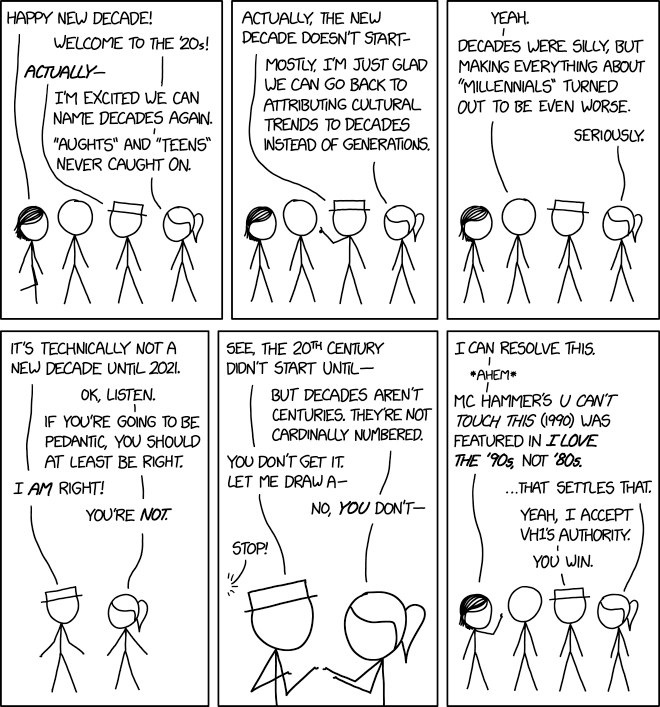
I Love the 20s


I Love the 20s

TRACED Act signed into law, putting robocallers on notice


The Pallone-Thrune TRACED Act, a bipartisan bit of legislation that should make life harder for the villains behind robocalls, was signed into law today by the President. It’s still possible to get things done in D.C. after all!

We’ve covered the TRACED Act several times previously, as robocalls are, in addition to being horribly annoying, a uniquely annoying high-tech threat. Using clever targeting and spoofing technology, scammers are placing millions of calls that at best irritate and at worst take advantage of the vulnerable.

The new law won’t end that practice overnight, but it does add some useful tools to regulators’ toolboxes. Here’s how I summarized the bill’s provisions earlier this month:

  • Extends FCC’s statute of limitations on robocall offenses and increases potential fines
  • Requires an FCC rulemaking helping protect consumers from spam calls and texts (this is already underway)
  • Requires annual FCC report on robocall enforcement and allows for it to formally recommend legislation
  • Requires adoption on a reasonable timeline of the STIR/SHAKEN framework for preventing call spoofing
  • Prevents carriers from charging for the above service, and shields them from liability for reasonable mistakes
  • Requires the Attorney General to convene an interagency task force to look at prosecution of offenders
  • Opens the door to Justice Department prosecution of offenders
  • Establishes a handful of specific cutouts and studies to make sure the rules work and interested parties are giving feedback

FCC Chairman Ajit Pai was effusive in his praise in a statement:

I applaud Congress for working in a bipartisan manner to combat illegal robocalls and malicious caller ID spoofing.  And I thank the President and Congress for the additional tools and flexibility that this law affords us.  Specifically, I am glad that the agency now has a longer statute of limitations during which we can pursue scammers and I welcome the removal of a previously-required warning we had to give to unlawful robocallers before imposing tough penalties.

And I thank the American people for never letting us forget how fed up they are with scam, spoofed robocalls.  It’s their voices that power our never-ceasing push to fight back against the scourge of robocalls and malicious spoofing.

The FCC is limited in what it can do, and even major fines like this $120 million one have had a negligible effect on the nefarious industry. “Like emptying the ocean with a teaspoon,” said Commissioner Jessica Rosenworcel at the time.

Here’s hoping the TRACED Act amounts to more than a bigger spoon. We’ll find out as regulators and the mobile industry grow into their new capabilities and begin the long process of actually applying them to the problem. It may take months or more to see any real abatement, but at least we’re taking concrete steps.


Read Full Article

31 December 2019

Launch a New Tech Career in the New Year With Stone River eLearning


With the New Year fast approaching, now is a good time to reflect on the previous 12 months and plan ahead. If you want to switch jobs or climb the career ladder in 2020, Stone River eLearning can help. This online platform offers unlimited access to over 300 certified courses on code, design, animation, and many more skills. Right now, you can get lifetime membership for only $59 via MakeUseOf Deals.

Learn Anything

In times past, recruiters would only consider candidates with a degree. But in many careers, skills and talent are now valued more than certificates.

Whether you want to develop iOS apps for a living or become a graphic designer, Stone River can help you get started. This platform has over 3,500 hours of video training, covering a wide range of topics and skill levels.

Aspiring web designers can master HTML, CSS, node.js, and Bootstrap. Programmers can dive into Java and Python, while graphic designers can master Photoshop. You can also learn about cybersecurity, cryptocurrencies, business insights, and more.

Along with unlimited access to this training, members get downloadable eBooks, personal guidance, free entry to certification exams, and one year of membership to CodeMag.

Lifetime Membership for $59

Lifetime access to Stone River is worth $11,500, but you can become a member now for just $59 with this deal.

Prices subject to change

Read the full article: Launch a New Tech Career in the New Year With Stone River eLearning


Read Full Article

5 Sites to Search and Find the Best Massive Open Online Course (MOOC) for You


Online Learning and MOOC Search

Online learning is bigger than ever before, with top universities offering free courses on the internet. In fact, there are so many of these massive open online courses (MOOCs) that you need to rely on websites to help you figure out the best education for you.

From MIT to Coursera, there are some amazing websites that offer free college courses online. But go to any and you’ll be overwhelmed by the choices on offer. Plus, these sites limit themselves to courses available on their own platform.

So how do you search for or discover the best MOOC? These websites offer robust search engines, filters, reviews, and guided paths for free online courses.

1. Class Central (Web): Top 100 Free Online Courses

Class Central lists the best free MOOCs and online courses

Class Central is all about free online courses but it also lists paid courses. It includes a variety of universities, including MIT, Stanford, and Harvard. It neatly categorizes all these courses into subjects like computer science, business, humanities, engineering, etc.

The website has a powerful search engine to find any type of online course you’re looking for. You can also browse MOOCs by providers, universities, institutions, careers, and languages.

Class Central’s best feature is the regularly updated lists they provide. At any time, you can check the list of the top 100 free online courses of all time. The website also creates annual lists of the best MOOCs of the year, so if you want to know what’s new and awesome in 2019, there’s a ready reckoner available.

2. Course Root (Web): Search Over 80,000 Courses

Search over 80,000 MOOCs and online courses at Course Root

Course Root is one of the most comprehensive databases of MOOCs, both free and paid. It is an aggregator that lists everything from Khan Academy and Coursera to those made by smaller universities from around the world. And it simplifies the process of finding the right course for you.

At Course Root, you can choose a subject and then add filters to find the type of course that’s best for you. The three main filters are Difficulty (beginner, intermediate, expert), price (free or paid), and certificate (okay, good, excellent). The certificate filter is especially useful if you’re taking a course so that you can add accomplishments to your CV.

You can further filter the results by the number of hours it takes to complete the course, and choose from one of the eight most popular online course platforms. For each course, you’ll get a brief description, as well as find out whether it’s self-paced or an in-session course.

3. MOOC-List (Web): Most Comprehensive Filter System to Find MOOCs

MOOC-List has the Most Comprehensive Filter System to search for MOOCs

If you want to search or filter your results by various parameters, then it doesn’t get better than MOOC-List. The website has a multiple criteria search that lets you find any online course based on:

  • Words from the course title
  • Provider
  • University / Entity
  • Category
  • Length
  • Estimated Effort
  • Language
  • Subtitles
  • Country
  • Peer Assessments
  • Team Projects
  • Exam
  • Certificate
  • Audio Lectures
  • Video Lectures
  • Start Date

As you start looking at more and more MOOCs, you will find that many of these criteria are extremely useful in figuring out the right type of course for you. For example, peer assessments can play a major role in how much you understand a course, as can subtitles if you’re having trouble picking up accents.

MOOC-List also notifies you of upcoming MOOCs and free online courses for the next 30 days, sorted by date. All of these features combine to make it one of the best sites for beginners to online courses.

4. Course Talk (Web): Discover Courses Through Student Reviews

Discover online courses and MOOCs based on student reviews at Course Talk

Given how big the MOOCs industry is, there is naturally a lot of people who are gaming the system through search engines and ads. If you prefer to rely on word of mouth for your recommendations, Course Talk lets you find courses based on reviews by students.

People who take a course rate it on different aspects on the website. Course Talk also encourages them to write detailed reviews so you can figure out what you’re getting into, from someone who has already done the course. Based on ratings, there are also leaderboards for the top course providers.

Meanwhile, try the Course Advisor by clicking Recommendations. Course Talk will ask you different questions about your interests and recommend a few of the best-reviewed courses that you’re likely to find interesting.

A lot of the better reviews on the site are pretty old now, but they’re still beneficial. After all, education doesn’t have to be new or change every year for it to be an engaging lesson.

5. MOOCLab’s Degree Paths (Web): Guides to Learn Like a Degree Course

MOOCLab's Degree Paths make playlists of online courses to give you an online education equivalent of a bachelor's degree

MOOCLab believes that if you combine the right courses from different online learning resources, you can get an education that is close to a traditional bachelor’s degree course. It calls these learning playlists Degree Paths.

Currently, MOOCLab has 272 degree paths, divided into four main categories: computer science, business administration, health science, and general education. Click any for further options, like a core business course or a business specialization course. The website estimates that if you commit to 15 hours of study time per week, you can finish a degree path in two to three years.

Before you ask, no, you won’t get a certified bachelor’s degree by doing any of these. Upon completion, you can get a certificate for a small fee. MOOCLab’s degree paths are a great way to learn about a subject in detail, but potential employers are not going to see it as actual academic qualifications.

Google’s Best Courses

Apart from educational institutions, Google has jumped into the MOOC game. The internet giant offers a variety of online courses through its own portals or through other platforms like Udacity. But don’t worry, you don’t have to go hunting for them, we rounded up the best Google online courses for you.

Read the full article: 5 Sites to Search and Find the Best Massive Open Online Course (MOOC) for You


Read Full Article

Listen to top VCs discuss the next generation of automation startups at TC Sessions: Robotics+AI


Robotics, AI and automation have long been one of the hottest categories for tech investments. After years and decades of talk, however, those big payouts are starting to payoff. Robotics are beginning to dominate nearly every aspect of work, from warehouse fulfillment, to agriculture to retail and construction.

Our annual TC Sessions: Robotics+AI event on March 3 affords us the ability to bring together some of the top investors in the category to discuss the hottest startups, best bets and opine on where the industry is going. And this year’s VC panel is arguably our strongest yet.

Eric Migicovsky is a General Partner a Y Combinator. Prior to joining the firm, he cofounded Pebble. The smartwatch pioneer was itself a YC-backed venture, along with raising three of Kickstarter’s all-time top crowdfunding campaign. Migicovsky joined YC following Fitbit’s acquisition of the startup in 2016.

DCVC partner Kelly Chen focuses primarily on the AI, robotics, manufacturing and work-work-related sectors. Her work is generally focused on the world of hardware, along with the transformations of populations and labor.

Dror Berman cofounded Innovations Ventures in 2010 with former Google CEO, Eric Schmidt. A key driver in the firm’s investments in Uber, SoFi and Formlabs, Berman also focuses on robotics, including companies like Blue River Technology and Common Sense Robotics.

TC Sessions: Robotics+AI returns to Berkeley on March 3. Make sure to grab your early bird tickets today for $275 before prices go up by $100. Startups, book a demo table right here and get in front of 1000+ of Robotics/AI’s best and brightest – each table comes with four attendee tickets.


Read Full Article

30 December 2019

10 Simple Design Rules for Professional Microsoft Word Documents


word-formatting-fonts

Microsoft Word is packed with so many features that you can produce pretty much whatever you want with it. But these features don’t always result in the kind of beautiful, high-quality, and professional document designs that may be expected of you.

Unlock the "Essential Microsoft Office Shortcuts" cheat sheet now!

This will sign you up to our newsletter

Enter your Email

It’s one thing to know everything about Microsoft Word, all of its intricacies and quirks and functions—it’s something else entirely to know what makes a great document.

1. Keep It Simple, Less Is More

Want to know how to make a Word document look good? Just keep it simple, and take advantage of the hidden features that Microsoft Word comes with. Let this be the driving force behind any design decisions in your documents, and if you walk away remembering only one thing from this article, let it be this one!

When writing a document, the content should be the main focus. Document formatting guidelines exist to make that content easier to read and digest. Eliminate the temptation to introduce eye-catching elements that only serve to distract. Maximize whitespace. Keep your wording tight and revise any wordy sentences or paragraphs. Simple and minimal rules over all.

2. Choose a Context-Appropriate Typeface

Your first big design decision should be which typeface you’re going to use. Traditional knowledge says that serif fonts are easier to read in printed documents whereas sans-serif fonts are better on the eyes when read on a digital screen.

Good examples of serif fonts include Garamond, Georgia, Hoefler Text, and Palatino, while good examples of sans-serif fonts include Arial, Gill Sans, Helvetica, and Lucida Sans. Skip Comic Sans if you want to avoid one of the most common presentation design mistakes. And whatever you end up using, stick to the same typeface throughout the document. If desired, you can use a different typeface for headings.

3. Use Standard Font Size and Color

Microsoft Word Formatting Font Size and Color

You can’t learn how to format a word document to look professional without paying attention to look of the text. Most business and academic papers are typed in 12-point font size, which generally produces the most readable paragraphs when combined with the guidelines for page size, margins, and line spacing later in this article.

Some information-dense reports may sometimes go down to 10-point font size, but never less than that. You can speed up font resizing and other actions in Microsoft Word with keyboard shortcuts for Microsoft Office.

In general, it’s best to keep your hands off of anything related to colors, especially for printed documents. You’ll have to pay more for the color ink, and it won’t carry over if the document ever gets copied. For digital documents, reserve colored text for critical warnings and the like. Prefer to emphasize using bolded and italic text.

4. Use Standard Page Size and Margins

Nearly all office documents are printed for standard 8½” x 11″ pages, known as US Letter size (also known as A4 elsewhere, which is 210mm x 297mm). This is the only size that’s guaranteed to be available regardless of which printer you use.

As for margins, most style manuals and style guides call for a 1″ margin on all sides of the page, which produces the best readability for line lengths and allows for written annotations if necessary. However, if the document is going to be bound in a binder, you may want to increase the side margins to 1½” to accommodate the rings.

5. Align Paragraphs to the Left

Microsoft Word Tips Align Left

You may be tempted to use justified alignment because that’s what’s used in newspapers and novels and some textbooks, but it’s the wrong choice for office and academic documents. Why is it important to make a document formal? Without formality, your document becomes unreadable.

What you want is left alignment for text. This produces jaggedness on the right side of paragraphs, but it keeps letter spacing as intended by whatever typeface you’re using, and that means optimal legibility. Otherwise, you may end up with typographic rivers, which are extremely distracting and simply look ugly.

6. Indent the First Lines of Paragraphs

Indent the First Lines of Paragraphs

Paragraphs should have no extra spacing between them, and the first lines of paragraphs should be indented to make each paragraph stand out. The only exception is for paragraphs that directly follow a section heading, which can be left unindented because the surrounding context makes it clear that it’s its own paragraph.

A general rule of thumb is to make the indent size the same as the font size. Make sure you use Word’s paragraph styling features to handle the indents rather than using the Tab key!

7. Place Images Between Paragraphs

Microsoft Word Chart Image Formatting

It may be okay to place images inside a paragraph and allow the surrounding text to flow around it, and if your organization prefers it that way, then go ahead and do that. But generally speaking, it can damage readability, especially in data-driven reports.

The safest option, particularly for graphs and charts and tables, is to put images in between paragraphs and keep them center aligned. That way your images are never vying for attention with the surrounding text. It also helps captions to stand out.

8. Choose Context-Appropriate Line Spacing

Microsoft Word Paragraph Line Spacing

The right choice for line spacing (the whitespace that separates a line of text from the next line of text) really depends on what kind of document you’re writing.

Academic papers should first follow any academic style guides in place, then prefer double-spacing if no style guide exists. Business and office documents tend to be single-spaced to minimize the number of pages needed when printing, but digital documents may be easier to read if spaced at somewhere between 120-150 percent.

9. Break Up Text With Headings and Lists

Microsoft Word Headings Formatting

The longer the document, the more important headings become. Would you rather read a 20-page report that’s nothing but a wall of text from end to end? Or a 30-page report that’s organized into proper sections, subsections, and headings? I prefer the latter every time.

Lists are also good for breaking up walls of text and drawing eyes to important points. Use numbered lists when counting a set of items (e.g. “the five attributes of a successful entrepreneur”) or when providing step-by-step instructions. Otherwise, bulleted lists are fine. Just be sure to avoid overusing lists, which detracts readability from your Word document design.

10. Separate Sections With Breaks

Microsoft Word Formatting Section Breaks

When you want to learn how to make your report look professional, you need to get acquainted with section breaks. In Microsoft Word, section breaks allow you to differentiate certain pages with changes in orientation, columns, headers, footers, page numbers, and more. Section breaks come in four forms:

  • Next Page: Start the next section on the following page.
  • Continuous: Start the next section on the current page.
  • Even Page: Start the next section on the next even page.
  • Odd Page: Start the next section on the next even page.

If your document is large enough to need chapters, this is the best way to format them in a clean way. Each chapter should be made with a “Next Page” section break, or the “Even Page” or “Odd Page” section breaks if you’re going to place it within a binder.

Learning How to Make a Word Document Look Professional

Unless your organization or school requires a specific layout and format, you can skip the hard work of setting up your own template and just download one instead. This helps you quickly achieve a professional document design.

Need an attractive cover page to finalize your document? These cover page templates will put the finishing touches on your Word document.

Read the full article: 10 Simple Design Rules for Professional Microsoft Word Documents


Read Full Article

Make a Personal Budget With Microsoft Excel in 4 Easy Steps


You don’t need expensive software to help you become financially stable. Today, I’m going to share a few of the nifty spreadsheet techniques that I used to generate a useful budget.

Unlock the FREE "Essential Excel Formulas" cheat sheet now!

This will sign you up to our newsletter

Enter your Email

Also, I’m going to share a technique to pay down your debt in a fraction of the time using the same exact payments you’re making today.  It’s a trick that I’ve seen a lot of people trying to sell elsewhere on the net — I’m going to share it with MakeUseOf readers right here, for free.

I want to show you the four ways Excel helped create a stable personal budget.

The Power of Budgeting

Years ago, my wife and I were saddled with so much debt that we thought it would take the next sixty years to pay it all off. There came a moment when we realized that we either had to make a personal budget that could outsmart the system or it would keep us enslaved for our entire adult lives.

That’s when I sat down with a blank Microsoft Excel spreadsheet and just started playing around, using various techniques to cut down our budget to bare bones.

My goal was to create a debt plan that wouldn’t take decades to eliminate our debt, but also wouldn’t keep us eating macaroni and cheese for dinner until we retire. With this plan, we were able to eliminate all of our credit card debt in only five years. In the end, we even had good enough credit to get approved for a low-rate mortgage to buy our first home!

1. Structure Your Personal Budget Spreadsheet

If you’ve ever tried to make a personal budget you know the basics. You need to make a log of all of your bills and all of your income. Your bottom line is how much you have leftover for fun, or tells you how much spending to cut.

It sounds easy, but when you start entering all of your details into a budget things can get very messy very quickly. Sometimes the numbers look bleak, a lot of people give up after the first attempt.

A basic layout is easy enough. List your bills in the first left column. Then in the next few columns list total balance you owe, monthly required payments, and the date that the bill is usually due.  These four columns are really all you need to create a budget.

Excel Budgeting Tools

Here I’ve gone an extra step and added a column to the right for each month for easy expense tracking.

However, as your budget grows to a large number of columns and rows you’re going to run into a problem. The screen will start to scroll and you can’t always see the bills to the left or the header at the top. The quick and easy technique to fix this is using the Freeze Panes feature.

Excel Freezing Panes

First, select the box where the intersection at the upper left represents the row and column that you don’t want to scroll when you use the spreadsheet’s scrollbars. Select View > Freeze Panes.

Freeze Pane Demo for Excel


When you scroll up or down, the header and left column remain in view so you always know what the value you’ve selected applies to. This has saved me a great deal of frustration where I normally would have had to keep scrolling back to check which bill I’d selected.

If you’re new to Excel and need some tips on getting started with creating spreadsheets, make sure to check out Excel courses for beginners.

2. Organize Your Budget Using Shading

I remember searching for a free budget spreadsheet and finding all of these templates filled with data that just made my head spin. Without clear lines separating the major sections of your budget, you’ll have a hard time zoning in on the area that you’re interested in.

The best way to organize a budget spreadsheet is by shading each summary section between your major groups.

Excel Formatting for Personal Finance Sheet

As you can see here the first section of the budget pertains to bills, including household utilities and fixed bills. Another section is devoted to credit cards. At the bottom of this particular section, the total for fixed bills is highlighted with light green shading so it’s clear and easy to find.

Excel Budgeting Sheet

Once you start shading rows, the entire spreadsheet is easier to read.

Excel Formatting Using Fill Tool

Getting started with shading rows is very easy to do.

The Fill tool is located on the Excel menu bar under the Home menu and looks like a paint can tipping over with paint pouring out. Just highlight the entire row and then click the Fill button and select what color you’d like to use.

Try to avoid colors that are too bright or too dark. The shading provides a nice divider when looking at your budget, it should not be overwhelming.

3. Use Excel Formulas to Project Your Credit Card Balances Into the Future

Now that you can make a personal budget that is well organized and easy to follow, the next step is attacking credit card debt.

Credit Card Chart in Excel


Set up your debt log in the same way. Split and freeze the panes, but this time list each month along the left and your credit card balances (and monthly payments) to the right.

After you’ve entered your current balance in the top cell (In this example Capital One is $3,000), in the next cell below it you would enter a formula that multiplies that balance by your card’s interest rate and divides by twelve. That is your estimated monthly interest.

Then you subtract your monthly payment from the balance and add the interest that you just calculated.

Now you can duplicate the formula for every month below it by clicking and holding the small box to the lower right of the cell you just calculated and dragging it down as far as you like.

Each month will have a new calculated balance based on the previous month’s balance.

Chart for Paying Off Credit With Excel

When you do this formula, you’ll eventually find the date where the balance is completely paid off. As you can see, when I maintain a $250 payment every month it’ll take me until July 2021 to pay off the entire Advanta credit card balance.

For more on saving money and reducing your spending, take a look at these helpful apps and sites.

4. Recalculate Payments Based on Interest and Eliminate Your Debt

By playing around with this kind of spreadsheet I uncovered a common-sense solution that a lot of finance gurus out there are charging people for.

Instead of maintaining constant payments on each of your credit cards until it’s paid off, you pay the minimum balance on all of them and divert all of your current “debt-payment” money toward the credit card with the highest interest.

Here is how it works.

Chart for Paying off Credit in Excel

According to my sheet, the Advanta card will be paid off in May of 2021. Instead of saving this money, it’s going to be used to pay more debt.

I took the extra $200 I was paying on the Advanta and added it to the Capital One payment. This takes the payment from $100 to $300.

Now the Capital One card will be paid off by February 2022. If you have additional credit card balances, you simply “snowball” the payment and eliminate your debt in months rather than years.

This is why I love Excel. By using the ability to autofill the monthly balance calculations, I was able to test different scenarios to pay off debts faster.

Using Excel for Budgeting

The power of Excel for budgeting and debt planning like this can’t be understated. And even if you don’t use Excel, you should at least explore the various budget and debt planning tools available out there. Make the commitment to try a few out and work on it regularly.

In the beginning, it will take a lot of work to set up, but it will be worth it in the end.

And, be sure to check out these ways to avoid overspending and then bookmark some of these helpful sites that keep you on top of the financial market.

Read the full article: Make a Personal Budget With Microsoft Excel in 4 Easy Steps


Read Full Article