03 December 2019

7 Great Udemy Courses for Enhancing Your Business Skills


business-courses-udemy

Getting ahead and even keeping up in the business world these days is tough. Whether you’re seeking a promotion, want to learn a new skill, or need to improve your current skill set, you need an edge.

To help you on your path to business success, taking an online course is a smart move. You can learn at your own pace, on your own time, and from the comfort of your home with Udemy classes. Here are several to get you started on the right foot.

1. Excel Essentials for the Real World

Udemy Excel Essentials for the Real World

Microsoft Excel is a widely used spreadsheet app that you can find in pretty much any office environment. And while knowing the basics of Excel is important, learning to use it with real-world scenarios gives you a jump-start.

In this course, you’ll learn how to master Excel formulas, use pivot tables and charts for interactive reports, explore Power Query, and more. You’ll even get your hands on hacks and hidden features to help you accelerate your Excel learning.

Course Details:

  • 10 hours of on-demand video
  • More than 25 articles
  • Over 25 downloadable resources

2. Microsoft Word: Forms, Mail Merge, and Field Code Rules

Udemy Microsoft Word: Forms, Mail Merge, and Field Code Rules

Microsoft Word is one of those programs most people open, use, and complete what they need to in no time. But there are some features of Word that are highly beneficial in the business industry, yet harder to understand and use.

Jump into this course and you’ll learn how to use form controls. This lets you create your own business forms, set up mail merge rules to control information, and create personalized emails, labels, and letters with the Mail Merge Wizard. For a fast way to learn these key features of Word, this Udemy course is ideal.

Course Details:

  • Over an hour of on-demand video
  • 12 articles
  • Over 25 downloadable resources

3. Ultimate Guide to Microsoft PowerPoint for All Levels

Udemy Advanced Microsoft PowerPoint Training

Creating presentations in Microsoft PowerPoint is a common way for businesses to get their message across to consumers, investors, and even internal staff. And while PowerPoint is pretty intuitive, it’s also very robust. If you want to enhance your PowerPoint knowledge and learn to create presentations faster, this class is the right way to do it.

The course teaches how to systematize your creations for faster output, shows you shortcuts that help you craft slideshows in less time, and offers up hidden commands and features you probably don’t know exist.

Course Details:

  • Over five hours of on-demand video
  • 10 articles
  • 12 downloadable resources

4. Overcome Difficult People: Assertiveness With Games Players

Udemy Overcome Difficult People

Succeeding in business isn’t always about how to use tools; knowing how to handle people is also vital. No matter where you work, you likely deal with other people.

Whether it’s coworkers or customers, you create relationships with people from all walks of life. And unfortunately, not everyone is easy to get along with. There are people who play psychological games, and this class teaches you how to deal with them.

In this course, you’ll learn to identify game players and ways to overcome them. You’ll also gain knowledge in controlling manipulative conversations, techniques for interactions, overcoming fear of confrontation, and ways to reduce anxiety.

Course Details:

  • Two hours of on-demand video
  • Seven downloadable resources

5. Leadership: Practical Leadership Skills

Udemy Leadership: Practical Leadership Skills

If it’s a promotion you seek, then this course is for you. Becoming a leader is an achievement, but becoming a good leader is another category entirely. Not everyone has the knowledge or skills that it takes to be a supervisor, manager, or other person in charge.

This course will teach you how to delegate effectively and the different styles of delegation. You’ll also learn about leadership techniques, how to develop plans and ideas, and ways to create a healthy work-life balance. And you’ll feel more confident overall with your newly learned leadership skills.

Course Details:

  • Over two hours of on-demand video
  • More than 15 downloadable resources

6. Social Media Marketing: Digital Marketing Strategy New 2019

Udemy Social Media Marketing

Marketing takes place in almost every type of business, in one form or another. And nowadays it’s a lot more than print ads, mail pieces, and billboards. Social media plays a huge role in marketing, and being able to do it with the right understanding can help you and your company’s efforts.

Jump into this class and you’ll learn how to set up a digital marketing strategy, build a plan and schedule, and become a pro at posting on social media platforms. It will help you to understand how social media marketing works, how to use the platforms effectively, and how to employ SEO in successful ways. This is definitely a Udemy class that can help you with your digital marketing initiatives.

Course Details:

  • Over 20 hours of on-demand video
  • One article
  • Nine downloadable resources

7. Project Management Fundamentals: Run Projects Effectively

Project Management Fundamentals

Whether you’ve decided to delve into a project management career, would like to move into your company’s project management office, or have recently taken on a project manager role at work, check out this class. Projects come in all shapes and sizes, but you can succeed at managing all of them with the right tools and know-how.

This course teaches you how to develop an idea to get a project started, plan and execute a project, monitor progress and changes, help your team with challenges, and review your finished projects for successful closeouts.

Course Details:

  • An hour of on-demand video
  • Five articles
  • 11 downloadable resources

About Udemy and Its Courses

Udemy is a trusted name in online education with over 40 million students, relevant classes and materials, subject matter experts, and 130,000 courses to choose from. Each course on our list comes with a certificate of completion, lifetime access, and is also available on mobile devices and smart TVs.

All of Udemy’s courses vary in cost, but they start as low as just $9.99. Plus, you’ll find frequent sales on classes and many Udemy courses available for free that might add to your motivation.

Learning, Improving, and Succeeding With Udemy

Whether you want to learn skills for a new job, become an expert in your field, or simply enhance your knowledge, Udemy has a class for you. And when it comes to business, there’s sure to be at least one class in this list that can benefit you in significant ways.

Even better, Udemy’s unbeatable prices mean that you can check them out without breaking the bank. These high-quality courses are only $9.99 each during the Black Friday sale until December 6, so sign up today!

For other types of classes, take a look at Udemy courses for self-improvement or how to become a self-taught programmer with Udemy.

Read the full article: 7 Great Udemy Courses for Enhancing Your Business Skills


Read Full Article

The Best Free Windows 7 Themes You Might Want to Try


best-windows-10-themes

You’re running your Windows desktop. The first thing you want is customization. How can you customize your Windows desktop?

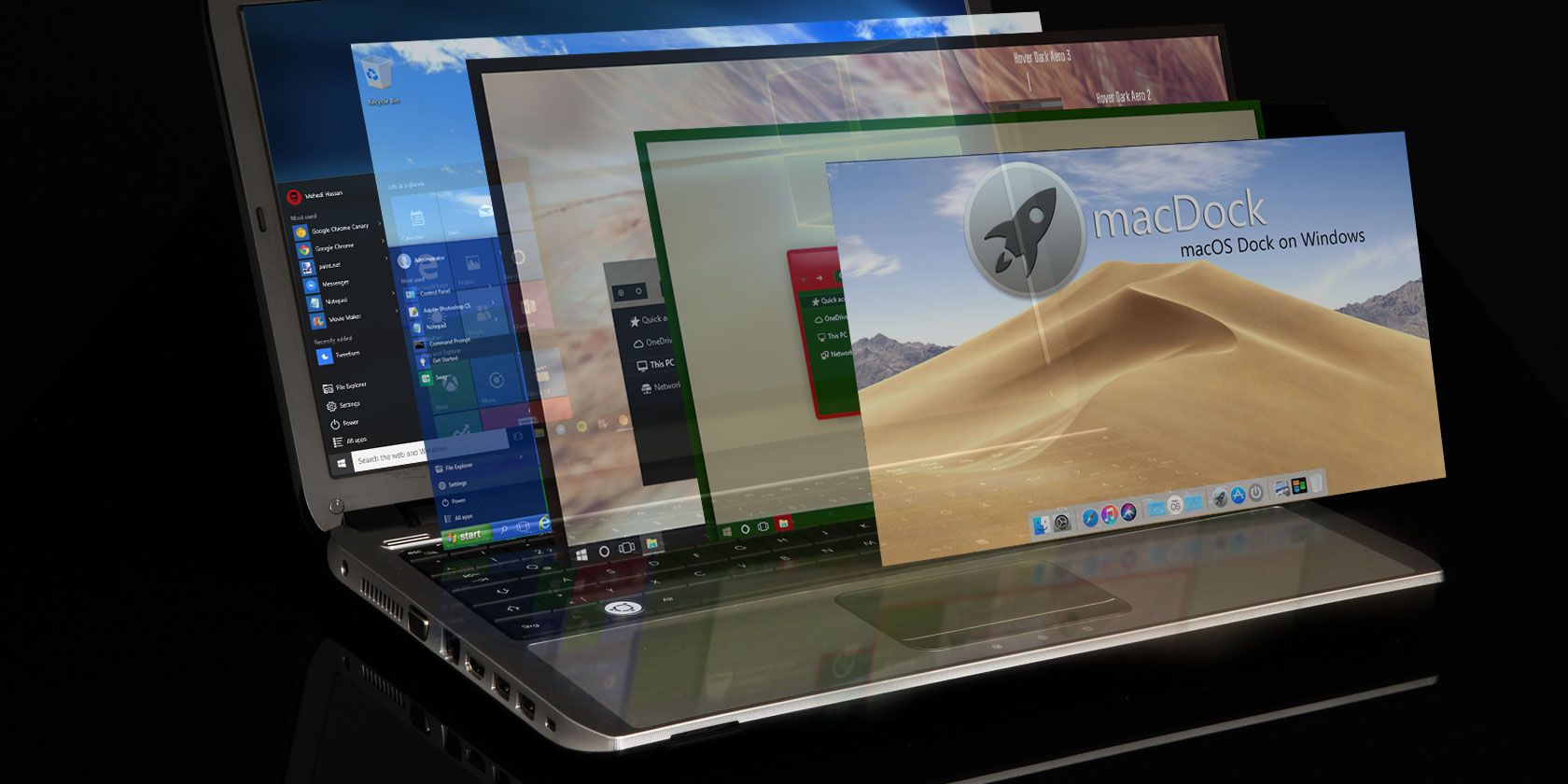
Microsoft includes a bunch of Windows themes with each operating system. If you don’t like the default operating system design options, check out the best free Windows 7 themes for your operating system.

1. Windows 10 Theme for Windows 7

windows 10 theme for windows 7

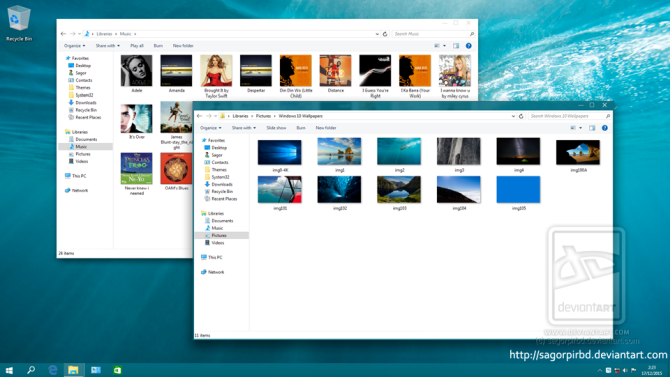
Why not bring modernity to your Windows 7 installation? The Windows 10 Theme for Windows 7 switches out the default Windows 7 theme for the latest visual array from Microsoft.

In all honesty, this is an excellent representation of Windows 10. The Start Menu, File Explorer, and taskbar are almost an exact replication of Windows 10. The detail between the two operating system versions makes it hard to figure out which one is which, even down to the System Tray icons.

The Windows 10 Theme for Windows 7 also updates your Control Panel, Start Menu icons, wallpapers, and much more.

2. macOS Catalina SkinPack

Windows 7 theme macOS Catalina SkinPack

If Windows 10 isn’t your thing, but you want a modern look, you could try a macOS Catalina theme for Windows 7. The macOS Catalina SkinPack theme brings the crisp lines and soft aesthetic of the macOS to your Windows 7 machine.

What’s nice about the macOS Catalina SkinPack theme for Windows 7 is the icons. The theme designers have made sure the icons match the macOS version, as well as including the iconic macOS dock (which works!). The macOS SkinPack also moves your taskbar to the top of the screen, true to macOS style, and changes the File Explorer to match the theme, too.

You still keep the same Windows 7 functionality, but with a sleek macOS vibe.

3. TransLucent for Windows 7

translucent for windows 7

TransLucent is a minimalist theme for Windows 7 that strips back the operating system. It uses design elements from macOS and the core Windows 7 operating system to blend a lightweight appearance with decent functionality.

For example, the taskbar switches to the top of the screen but is made transparent to give the illusion of extra space. The icons are all small, again to create extra space. You’ll also find the macOS dock at the bottom of the screen in the TransLucent theme, as well as tweaks to fonts, kerning, icons, File Explorer, and more.

Overall, TransLucent is a great theme.

4. Minimal White Theme

Windows 7 Minimal White Theme

Keeping with the minimalist theme, you can also strip Windows 7 back into a blank white slate. The Minimal White Theme strips Windows 7 of any color, replacing any icons with black vector artwork, with suitably matching Windows 7 theme backgrounds.

The Minimal White Theme won’t suit everyone’s tastes. It is basic, to say the least. However, if you want Windows 7 to lose the extra colors, this is the perfect option for you instead of the Windows 7 integrated black and white theme options (which are harsh in comparison).

If white isn’t your cup of tea, why not try the Minimal Black Theme from the same designer, arsonist1234.

5. Tavaris Dark Theme for Windows 7

tavaris dark theme for windows 7

Every Windows 7 theme list needs a dark theme, maybe even more than one. The Tavaris Dark Theme fits the bill nicely, coming in two different flavors: Basic and Glass.

What’s nice about the Tavaris theme is that it isn’t pitch black. The darkness comes from a nice shade of gray. The font color isn’t pure white either, so it doesn’t glare. There are also updated font colors for menus and other parts of the File Explorer, helping the Tavaris Dark Theme blend in seamlessly with Windows 7.

6. Tonic for Windows 7

tonic for windows 7

Tonic is another stylish Windows 7 theme. Great news for those that prefer darker tones: Tonic for Windows 7 comes in Light or Dark modes.

Regarding the theme itself, Tonic for Windows 7 introduces some nice changes to the File Explorer structure, as well as custom icons. You can also find the accompanying backgrounds on the linked page, too.

7. Clean VS

clean vs for windows 7

The Clean VS Windows 7 theme makes several visual changes to the operating system. My favorite bits include the slimline and transparent taskbar, which fits in well with the included background, and the custom icon set that overhauls the visual style of the operating system.

There are other handy changes to the File Explorer, which is also slimmed down. Furthermore, the icon changes don’t stop with regular icons. The Start Menu icon changes into a small right-angle of tiny squares, a significant departure from the regular Windows 7 Start Menu icon.

8. Placebo for Windows 7

placebo for windows 7

Placebo for Windows 7 is the last option on this list, and it makes some significant visual changes to Windows 7. It introduces eight new visual styles to Windows 7, letting you flick through each Placebo theme to find the one the suits you. Better yet, the styles vary in color, tone, and direction.

Some Placebo visual styles use a contrast of colors to help those with color blindness or other visual impairments. Others cater to those looking for a Windows 7 dark theme, using bright color highlights to give your eyes some welcome rest.

The Placebo for Windows 7 theme set includes borderless versions, support for top, left, and bottom taskbar placement, plus additional fonts.

Windows 7 Rainmeter Customization

Another great option for customizing Windows 7 is Rainmeter. Rainmeter is an extensive customization tool for Windows that lets you add interactive wallpapers, widgets, buttons, meters, and much more.

Sounds interesting? Check out our simple Rainmeter guide to get up and running. It has everything you need to begin customizing your Windows 7 desktop. And if you want some inspiration, consider some of the best Rainmeter skins for a minimalist desktop design.

What Is Your Favorite Windows 7 Theme?

Your desktop design and theme of your computer is a personal thing. The majority of Windows 7 themes on this list come with a minimalist edge. But there are lots of alternatives that you can find with extravagant backgrounds, crazy custom fonts and icons, and much more.

You should also note that some of the Windows 7 themes and styles require additional software. Each Windows 7 theme includes details of the extra software you need to download and install before using the theme.

If you are using Windows 10, why not check out the best Windows 10 themes for any desktop.

Read the full article: The Best Free Windows 7 Themes You Might Want to Try


Read Full Article
The 6 Best Sites to Download High-Quality CD Cover Art


Music streaming services automatically display album art, but you’re on your own with local music collections. Besides being cool to look at, having proper CD covers help you easily identify tracks and make your collection feel complete.

Below, we round up some of the best sites to download high-quality CD album cover art. You can use them to perfect your MP3 collection or just collect your favorite CD cover designs.

1. Album Art Exchange

Album Art Exchange

Album Art Exchange is a site wholly devoted to high-quality images of album covers, making it a great resource for anyone interested in album art.

On its About page, the founder mentions that he started the site because so much of the CD cover art online was of terrible quality. These images are often plagued with JPEG compression, poor contrast, scratches, and even scans where someone didn’t bother to take the CD insert out of the case.

As a result, you’ll find excellent album cover images here for over 500,000 albums. Just search for a specific album (or an artist) to find what you’re looking for. Each one displays the image size, dimensions, and user rating, so you can pick the best one for your needs.

Click the Advanced button on the search page to change sorting options. You can also use the Change Layout option at the top to display more albums per page.

If you’re not logged in, you’ll see a watermark on your downloads. Register for a free account using the button at the top-right first to get unmarked images.

2. Discogs

Discogs Album Page

Discogs is one of the go-to resources for music data online. It’s a huge database that collects information about artists, albums, record companies, and much more. It’s no surprise, then, that Discogs collects album art images as well.

Get started by searching for your chosen album or artist using the box at the top. After you select an album, you’ll see the chosen image for it at the top-left of the page. Select More images to see other pictures related to that album, such as the CD’s back cover, inserts, special editions, and regional variants.

Overall, the images on Discogs aren’t as high-quality as Album Art Exchange. However, the site has images for singles, compilations, and rarities as well. If you’re interested in those as well as images aside from the main album art, there’s something here for you.

3. MusicBrainz

MusicBrainz Screenshot

Discogs has a lot of information, but MusicBrainz might surpass it. It’s like an IMDb for music, as it allows you to see every place that a song has appeared, track music by tags and categories, find a band’s internet presence, and much more. We listed it in our roundup of the best websites for audiophiles.

This information can be overwhelming at first, but finding album art with MusicBrainz is pretty straightforward. Search for an artist or album name using the bar at the top-right and you’ll see plenty of results for it. Select the album you’re looking for, and it will likely bring up several versions from different regions of the world.

You can select a regional release if you like, but this typically isn’t necessary. Instead, you can access a high-quality version of the cover art on the right side of the root album page.

4. Amazon

Amazon Album Art

The above sites should take care of CD cover art needs most of the time. But in case you’re looking for something more accessible or can’t find what you want on them, you do have other options.

One of the best is right under your nose. Amazon sells tons of music, and typically features high-quality artwork on each album page. Simply search for the album that you’re looking for and you can access its art easily. You’ll need to right-click and choose Open image in new tab for a copy of the image that’s available to save.

However, there’s a little trick to making sure that you get the highest-quality image when doing this.

Make sure to select the Streaming or MP3 formats from the list, as they provide the highest-quality images. When you open the album art in a new tab, you’ll get a URL like this:

https://ift.tt/2rJlgSn

The SS500 part of the link means that it displays the album artwork at 500×500 pixels, which is good but not great. If you change the value after SS, you can adjust the image resolution, in pixels. For example, replace SS500 with SS1400 to get this link, which displays a 1400×1400 image:

https://ift.tt/2DCDtU7

We tested a few albums and found that around 1425 is the highest you can go before adding a white box around the image. This may differ per album, so give it a try to find the highest-quality version possible.

5. Google Images

Google Images Album Art

Still can’t find the CD cover art you’re looking for? Try turning to the world’s largest image search platform. Chances are that you can find the art for pretty much anything, since Google Images searches the whole web.

You’ll have to be a bit particular when looking on Google Images, as you’re likely to find poor-quality images. You may want to set the Size option under Tools to Large to avoid tiny versions of the files.

Google Images may find the photos from the above sites, so it’s up to you which search interface you prefer.

6. Desktop Music Tools

If you only want to grab a few album covers, the above methods work well. But they’re too slow for downloading dozens or hundreds of CD covers for your collection. When you need to add art to a lot of tracks, you should use a desktop tool dedicated to the task.

One of the best tools for this is MP3tag, which makes it easy to edit music metadata, including album art. See our full guide to MP3tag for how to use it.

There are plenty of other choices for CD cover downloads, though. Have a look at MusicBrainz Picard or Album Art Downloader if MP3tag doesn’t do the job for you.

It’s Easy to Find Quality CD Album Covers

This list of resources makes it easy to find CD cover art for any song in your collection. Whether you’re looking to add proper art for a rare release or just want to find high-quality versions of your favorite album art, these sites will deliver what you need.

For more like this, take a look at how to design artwork for your Spotify playlists.

Read the full article: The 6 Best Sites to Download High-Quality CD Cover Art


Read Full Article
How to Use the Linux Command Line on Android With Termux


Android is a capable operating system, as it offers many apps that approach desktop class. Yet sometimes, it takes a fair bit of effort to accomplish something on Android that would be a snap on a desktop.

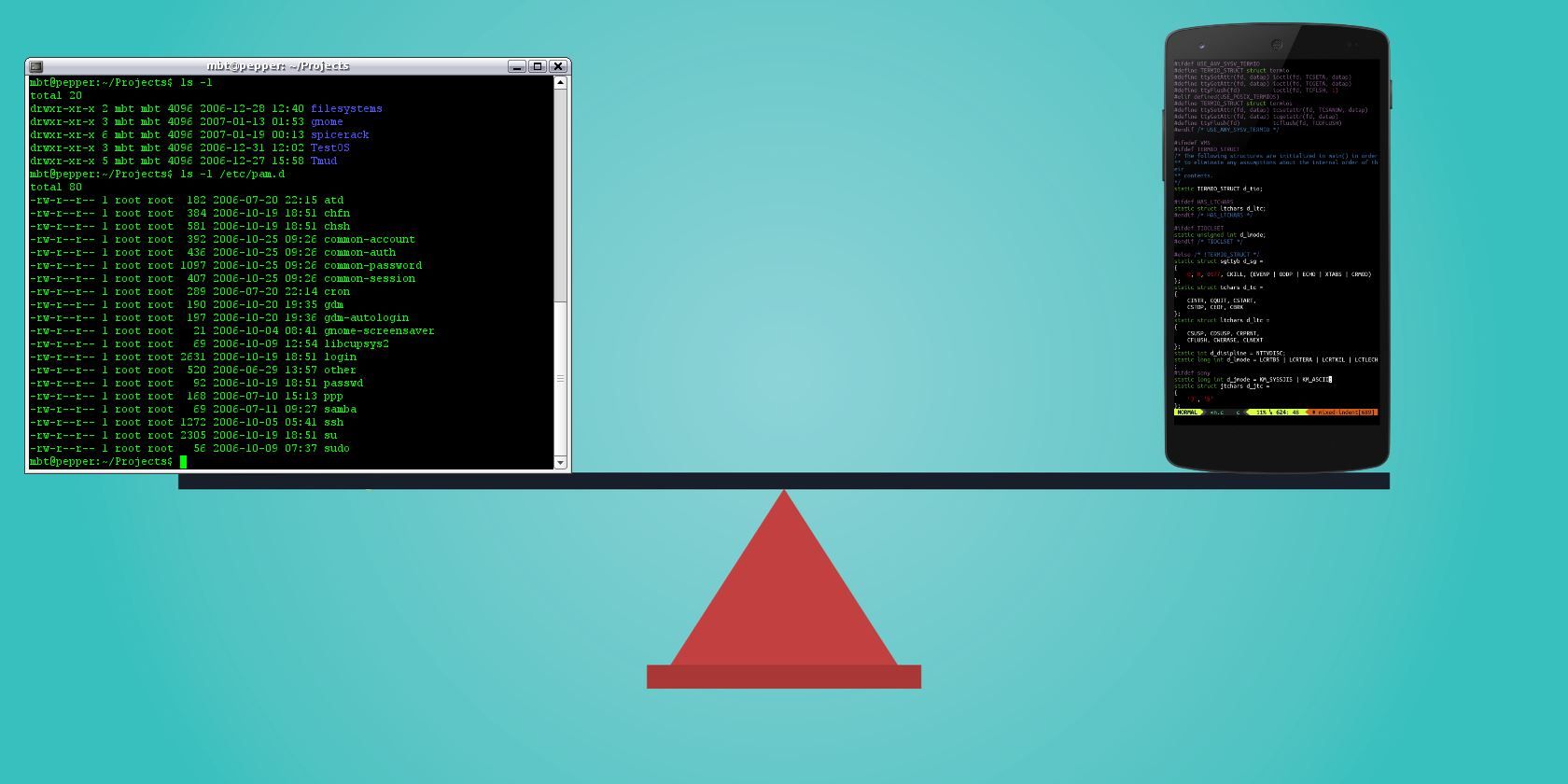
One solution is to take advantage of Android’s hidden Linux infrastructure. The Termux app provides a command line environment and allows you to install honest-to-goodness Linux apps on your Android device. Here’s how to use the Termux app.

Why Use Termux?

There are already some apps in the Play Store that are Android ports of Linux applications. These differ from Termux in that they replicate those Linux apps, but they’re made in an “Android way.”

In contrast, Termux is a self-contained Linux environment. Its programs are (for all intents and purposes) the same as their Linux counterparts. This conveys some advantages over the ported applications:

  • Consistency: Linux apps that have been ported to Android require a user interface of some kind. The user experience on Android largely depends on how much effort the developer puts into it. Conversely, Termux apps are the same as the Linux versions, from keyboard shortcuts to how you install them.
  • Compactness: The addition of Android code can cause some slim applications to become heavy. For example, an Android SSH client might be anywhere from 2MB to 12MB in size. Compare this to Dropbear, available in Termux, which weighs in at 396KB (that’s kilobytes) installed. And it provides an SSH server too.

Get a Linux command line on Android with Termux

  • Timeliness: When an application receives an update, you remain at the mercy of the Android app’s developer for an upgrade. In contrast, Termux applications are standard Linux packages that require less maintenance. They may even be created automatically alongside the desktop versions. You’re likely to get access to new features more quickly with Termux.
  • Price: There is a chance any app you purchase from the Play Store will have a charge associated with it. All the apps in Termux are free (and open source), as is Termux itself.

How to Use Termux

Before diving in, understand that Termux is primarily a command line environment. There’s no fancy user interface with shiny buttons here. This goes not only for the base Termux package, but its apps as well. You won’t get the newest version of LibreOffice with this method.

Most importantly, you must be comfortable with the command line in order to install and use these programs on Termux. To develop some familiarity, check our list of the most-used Linux Terminal commands.

When you’re ready, grab your phone or tablet and install Termux.

Download: Termux (Free)

Basic Termux Commands You Should Know

Launching Termux will drop you straight into a command line environment. From here, you can install new tools. Termux uses the same package installer as found in Debian, Ubuntu, and related Linux distros.

Advanced Packaging Tools (more commonly referred to as APT) is used to find, install, and remove software in Termux. Start off by updating packages and upgrading with these commands:

apt update

apt upgrade

Update packages in the Termux command line

Next, find out what apps are available:

apt list

To find out more about one of these packages, use

apt show [package name]

This will display the name, maintainer, file size, dependencies, and other useful details. To install an app, simply use:

apt install [package name]

Our guide to using APT will tell you more about this tool, such as how to upgrade packages. You can run an installed tool by entering its name at the Terminal prompt in the Termux command line.

In addition to apt, this list of built-in commands works in Termux on Android:

  • cp lets you copy a file
  • mv will move a file
  • ls lists the contents of a directory
  • rm deletes (removes) data
  • ln creates a symbolic link (for example, ln /data/data/com.termux/files/home/documents to /sdcard/Documents)

With these built-in tools, you reduce the need for an Android file manager. They also save you from having to root your phone to enjoy such functionality.

Linux Apps You Can Install With the Termux Command Line

Using apt with Termux, you can install several useful Linux apps on Android. These fall into several categories—let’s look at some of the highlights.

Text Editors

Termux provides recent versions of both popular Linux text editors: VIM and Emacs. Other editors, such as the minimalist nano, are also available.

Of course, Android has a lot of text editors already. So what do Emacs and Vim bring to the platform? Well, if you like to work in Markdown, both support it well. Into the “distraction-free” mindset? It doesn’t get much more distraction-free than VIM.

Need something to take notes and provide to-dos? Org-mode in Emacs has you covered. You can even use Emacs as your file manager, screenwriting app, Trello client, music player, or to play Minesweeper.

Why switch? Android text editors tend to focus on one standout feature. For example, one may focus on distraction-free drafting, another can preview Markdown and other formatting, and still others might be built on keeping notes (though they’re really just text editors at their core).

Terminal-based editors can fulfill these needs in a single program, while also being available on desktop platforms.

Termux Command Line Utilities

Termux packages include several useful Linux command line utilities:

  • gnuplot: A mathematical graphing program
  • ImageMagick: An image manipulation and conversion toolkit
  • p7zip: An archiving utility for the 7-Zip compression scheme
  • UnRAR: A different archive tool for the RAR format
  • Wget: A program to fetch files over the internet via HTTP or FTP

Why switch? These are dedicated programs with a lot to offer.

Install Servers in Termux

We’ve already shown how you can turn your Android device into a web server with specific apps. Termux similarly provides genuine Linux web servers like Apache, nginx, and Lighttpd.

But why would you want to run a web server on your Android device?

In addition to programming, bear in mind that many of today’s best applications are web apps. For example, you could install nginx, the PostgreSQL database, and Python, then use the Taiga project management platform. This is a lot of utility, all without having to sign up for any third-party services or hosting.

Termux also includes Dropbear, which provides an SSH server (and client) to log into your phone/tablet and transfer files. This is useful in situations where you want to exchange a few files but don’t want to use cloud services. Simply start up the Dropbear server, use an SSH client to grab what you need, and shut it down.

Why switch? Apps like Tiny Web Server allow you to spin up a web server. But what’s more intriguing than having a lightweight server you can start from the command line?

Development Apps in the Termux Command Line

While many Android apps (listed as “code editors”) provide the ability to write code, they may not provide the languages themselves. With Termux, you can test your code on your phone or tablet.

Install Python development tools in the Termux command line

It offers standard distributions of programming languages such as:

  • BASH shell (the default available out of the box, and a great way to get started hacking around)
  • Python (both v2 and v3 are available)
  • PHP
  • Ruby

Source control systems git and Subversion are also available, which have their uses beyond just development. If you like being in control of your own data, source control lets you stash your files wherever you want. You also control when you send updates to other devices, and can use “tags” to label versions.

Why switch? There are some programming language packages for Android, such QPython. But these provide their own bulky UIs. They may also require additional apps to be fully useful.

Android-based apps are available for both git and svn. However, you need to have a separate app for each source control type. Termux provides both in the same package for free. By going with source control, you can also cut down on clients for cloud syncing services such as Dropbox.

Add Linux to Android With Termux Commands

Termux is a super-compact offering that opens a lot of functionality for your Android device. The command line is one of the most powerful features of Linux, and Termux builds on your device’s Linux kernel to make you more efficient on the go.

And who knows, maybe dabbling with these apps will convince you to try Linux on the desktop as well. Check out our Linux commands cheat sheet for some help giving it a try.

Read the full article: How to Use the Linux Command Line on Android With Termux


Read Full Article
The 8 Best Binaural Beats Apps for Android


Binaural beats are a kind of sound wave therapy that its advocates say can help you sleep, improve your mood, make you more creative, and much more. If that sounds like something you could benefit from, you can try it out on your smartphone today.

But with so many apps to choose from, what is the best binaural beats app for Android? Let’s take a look.

What Are Binaural Beats?

The idea behind binaural beats is that you play two tones with slightly different frequencies into each ear (through headphones, ideally), and your brain perceives it as a single sound. Depending on the frequencies used, it’s said that this can change your mental state.
Does it work? The research is inconclusive, but the science world is certainly taking binaural beats seriously. There are studies into their effect on everything, from depression to dental anxiety. And there are many users who swear by them.

The suggested benefits are in line with those you’ll get from a white noise generator or one of the best meditation apps. If you wish you could sleep better or stay more focused, why not give one of these binaural beats apps a download to see if it works for you?

1. Atmosphere

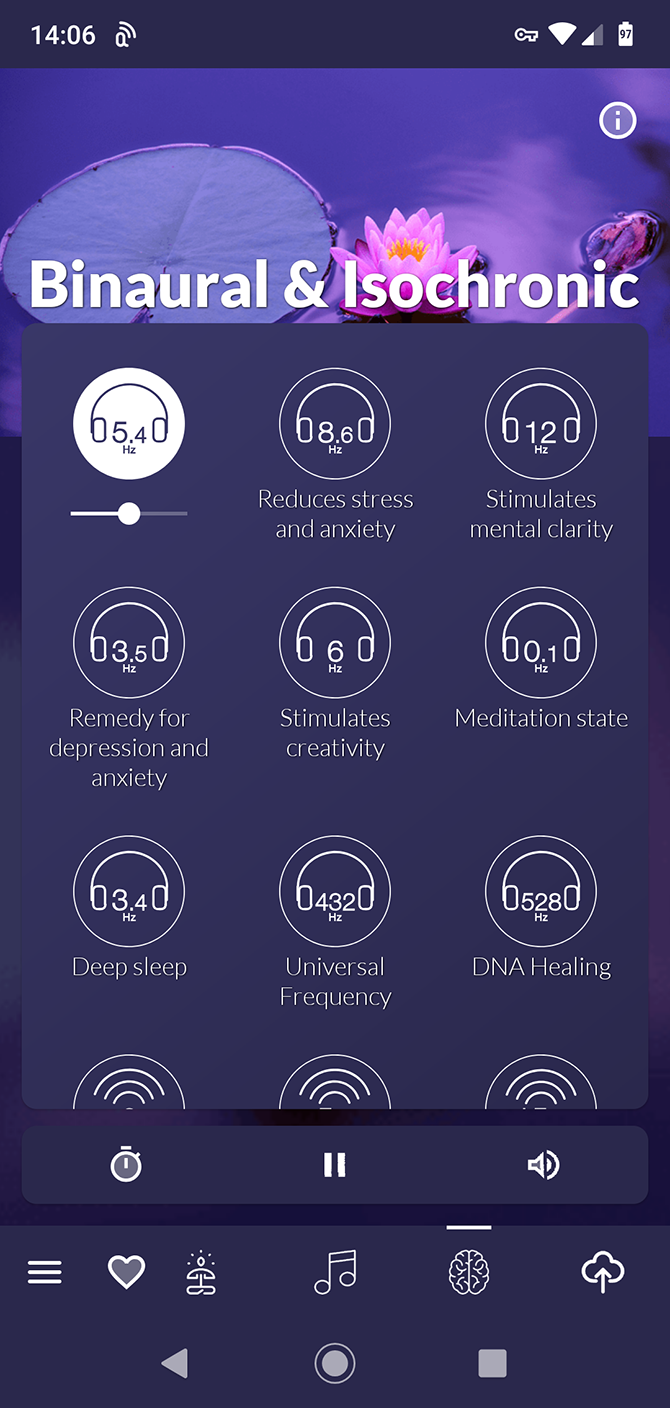
Atmosphere is one of the most attractively designed sound therapy apps. It combines a load of different ideas into a single tool, making it the perfect binaural app for beginners.

You get the binaural beats, of course, covering 18 categories. Among them are frequencies for anxiety and depression, to help you sleep, or even relieve a headache.

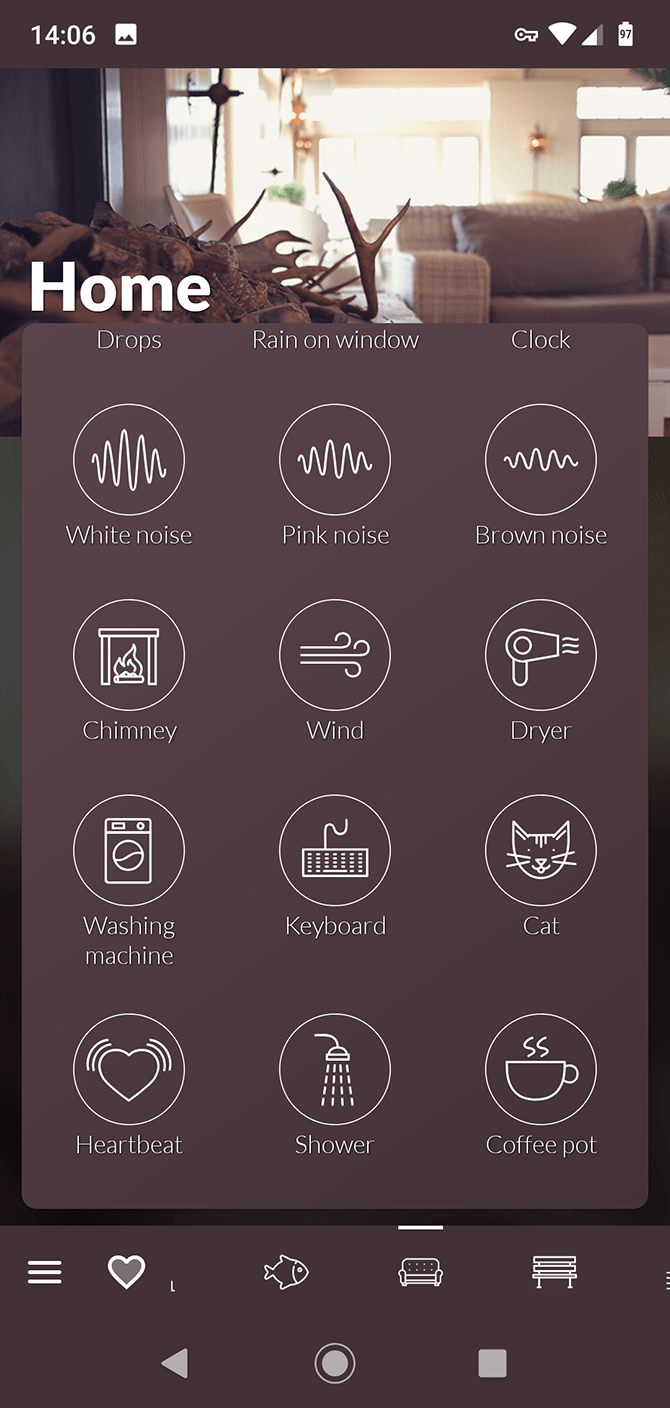
On top of that, there are white, brown, and pink noise options, along with a huge number of relaxing background sounds and music. You can mix them together, too, enabling you to create your own unique sound recipe.

Download: Atmosphere (Free, in-app purchases available)

2. Brain Waves

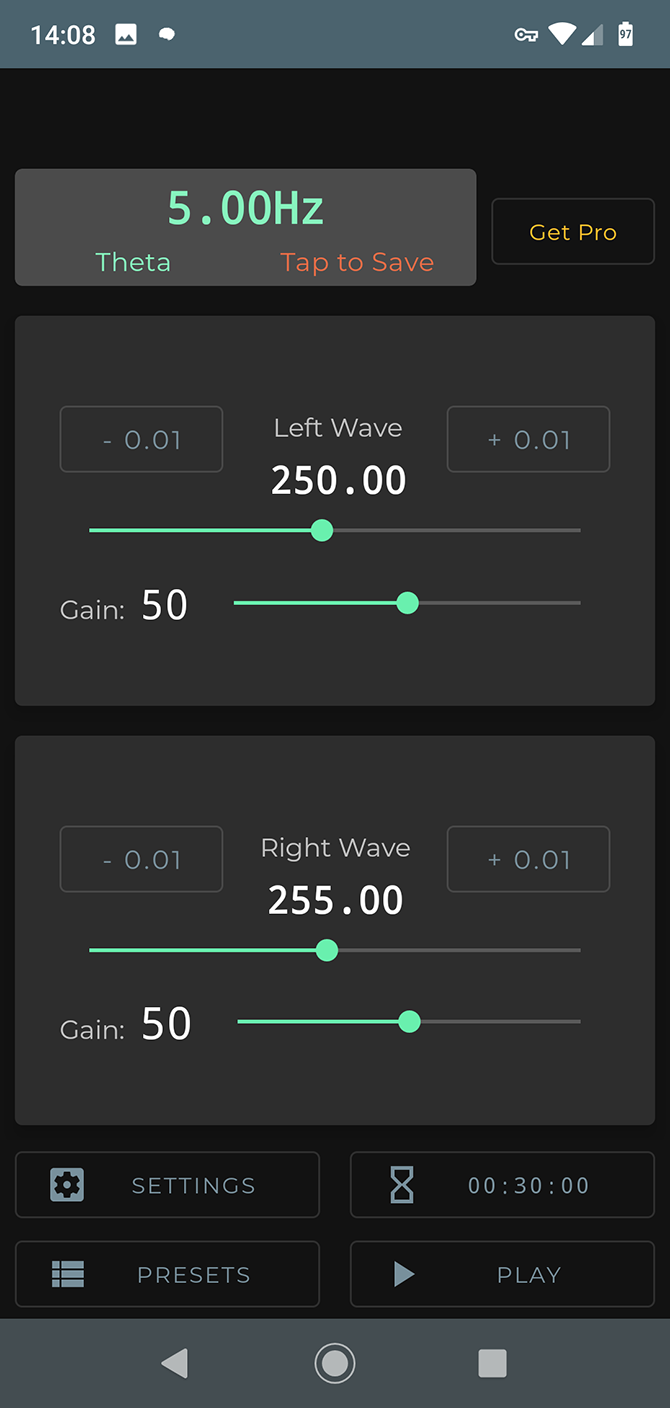
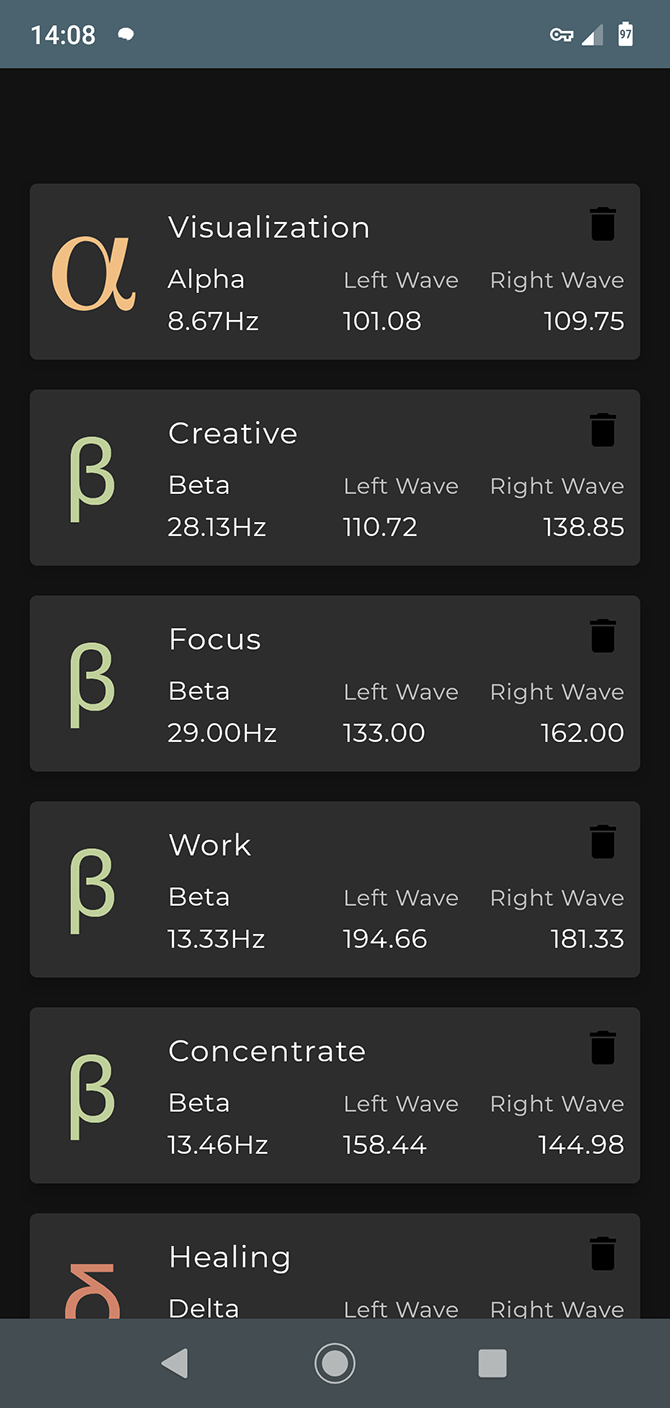
Brain Waves is aimed more at users who want to experiment with what binaural beats can do. At the heart of the app is the ability to mix your own beats. You can choose a precise frequency for the left and right ears, along with a volume level for each, and then save your preset.

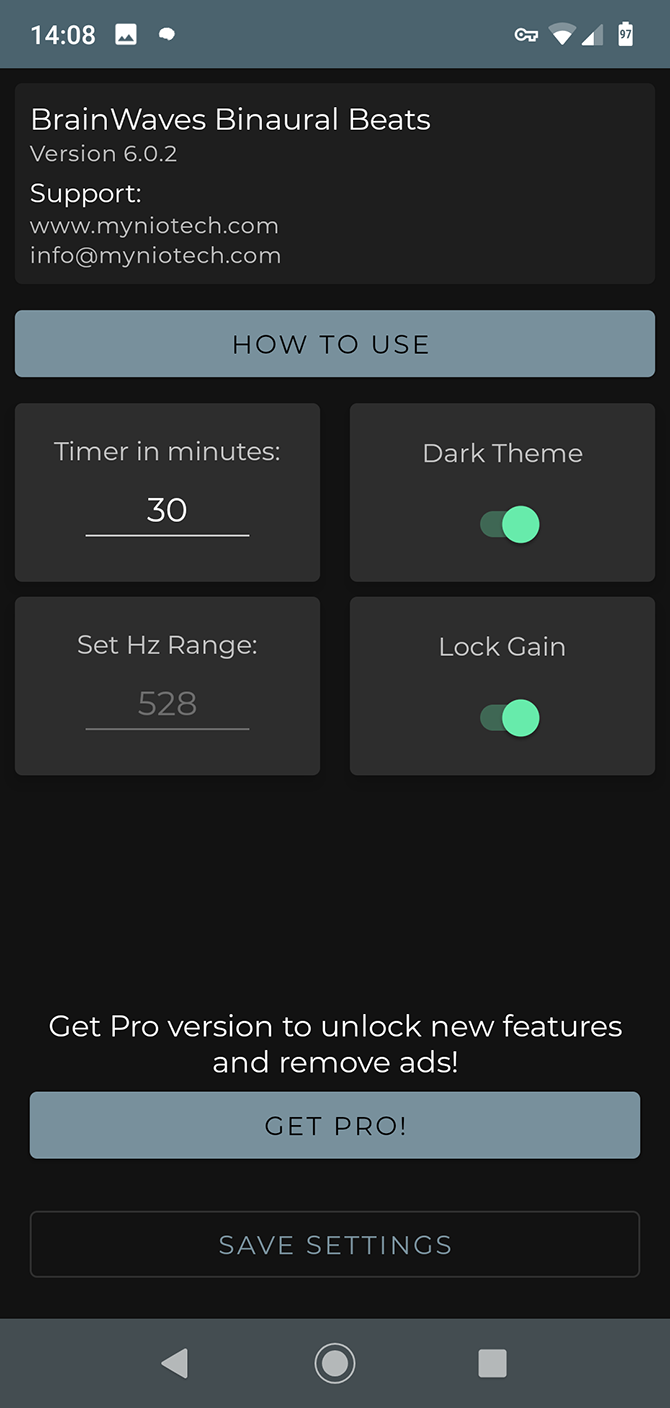
There isn’t much guidance for what does and doesn’t work, so the app offers 10 preset sound combinations to get you started. These cover generic points of emphasis like focus and relaxation, and you can use either a 30 minute timer or enable endless play.

Download: Brain Waves (Free)

3. Binaural Beats Therapy

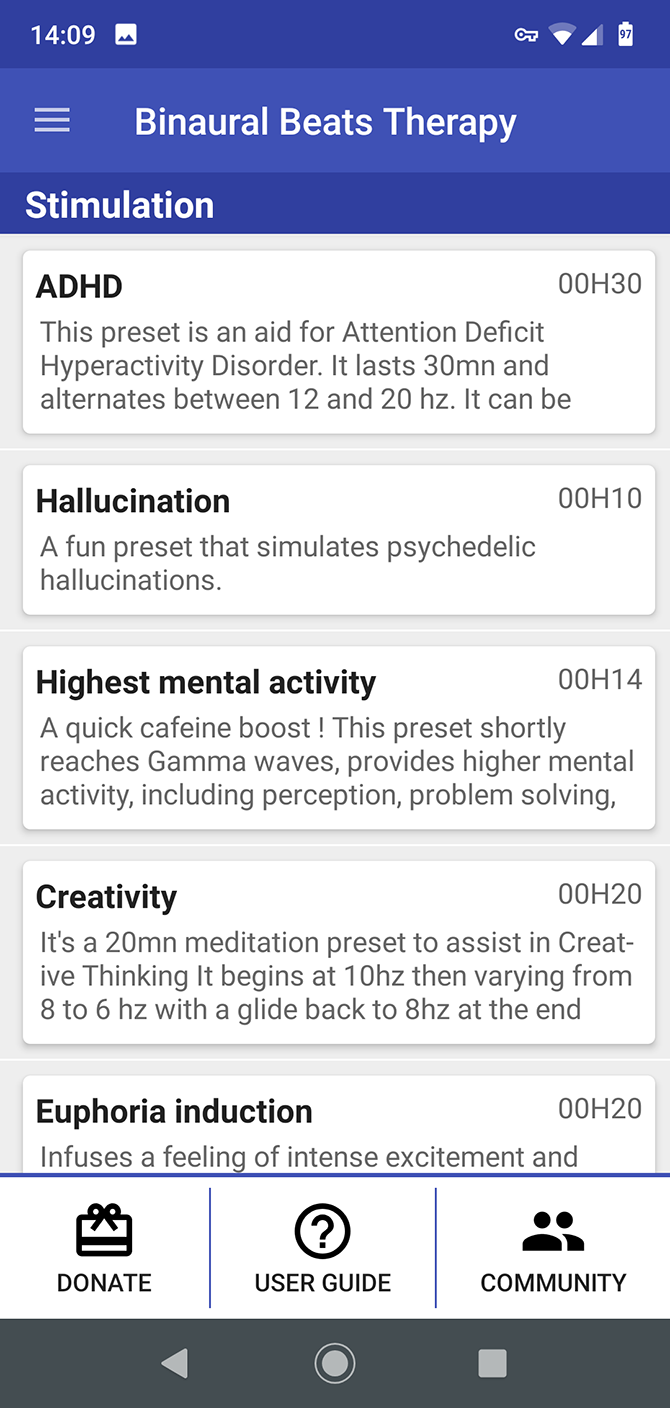
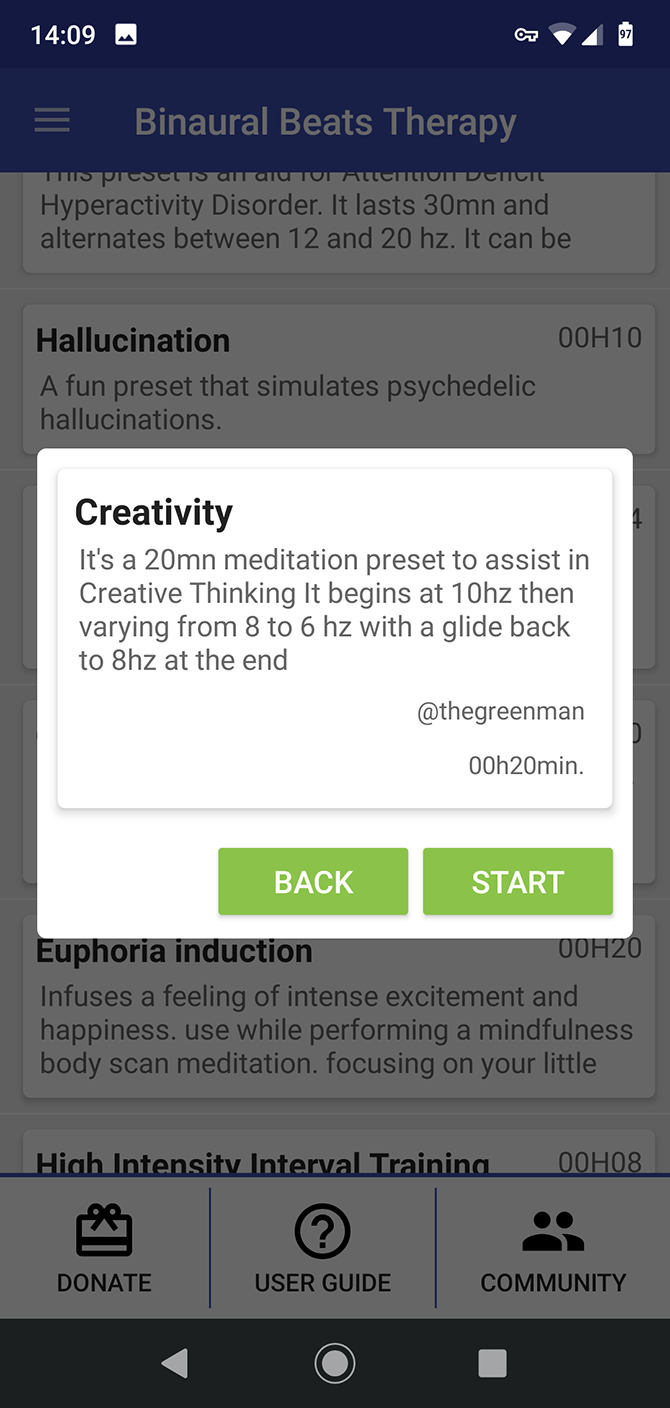
Binaural Beats Therapy is one of the oldest apps in its class. Its presets are split into seven categories, with 20 sound combos in total. Many have names that promise great benefits, like Euphoria Induction, Lucid Dreams, or Astral Projection.

The basics of sleep, pain relief, and concentration are also covered. And there are some very specific practical beats that make perfect choices for skeptics to try. Who doesn’t need an Airplane Travel Aid, after all?

Download: Binaural Beats Therapy (Free, in-app purchases available)

4. myNoise

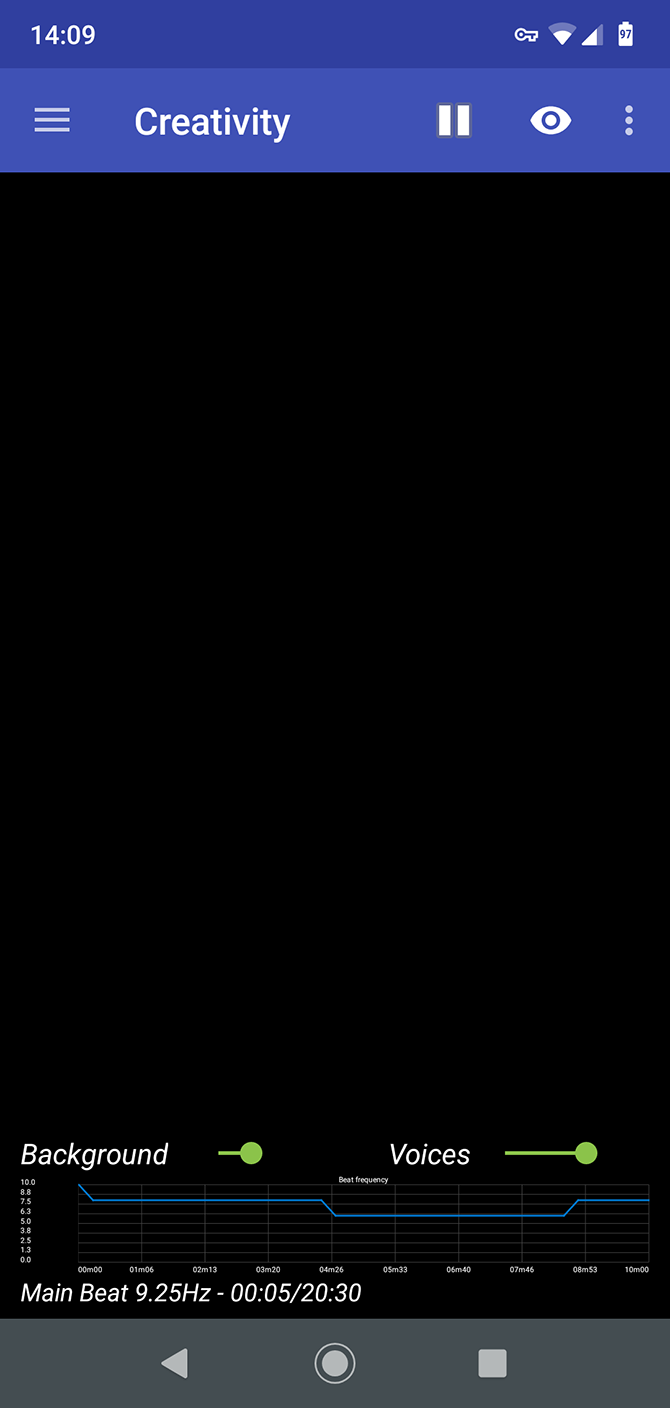
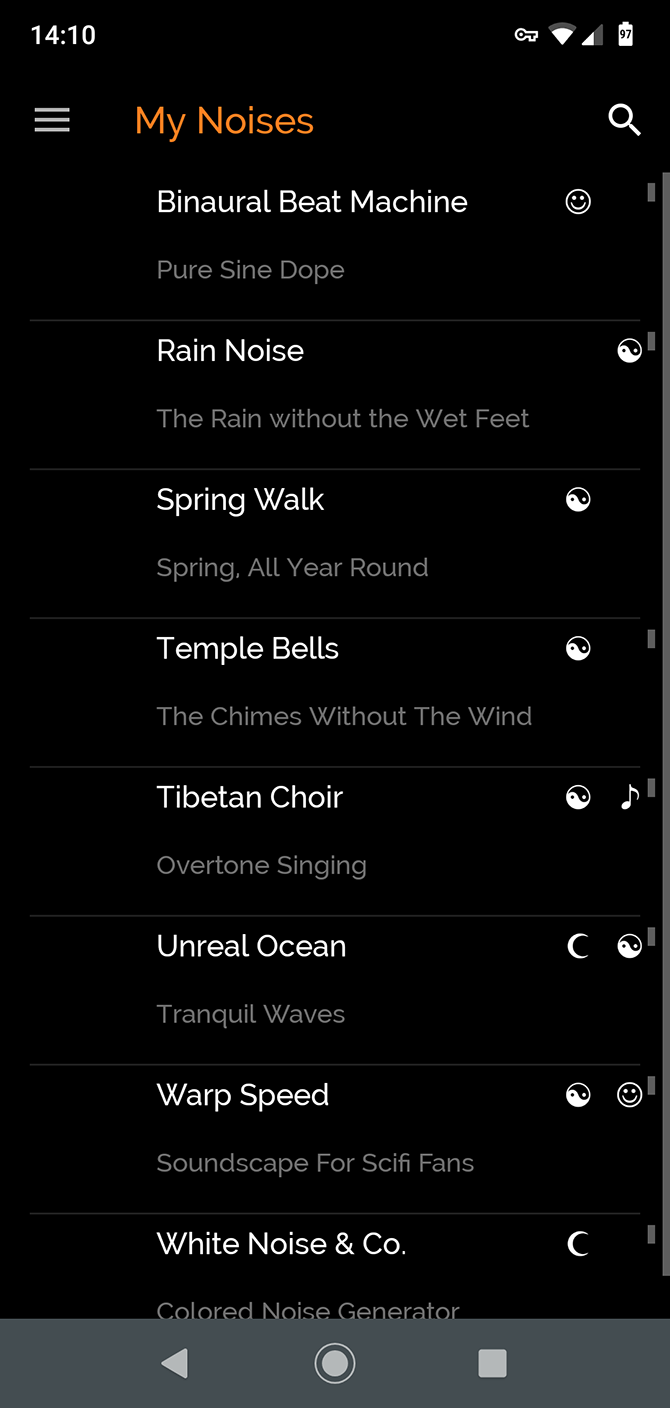
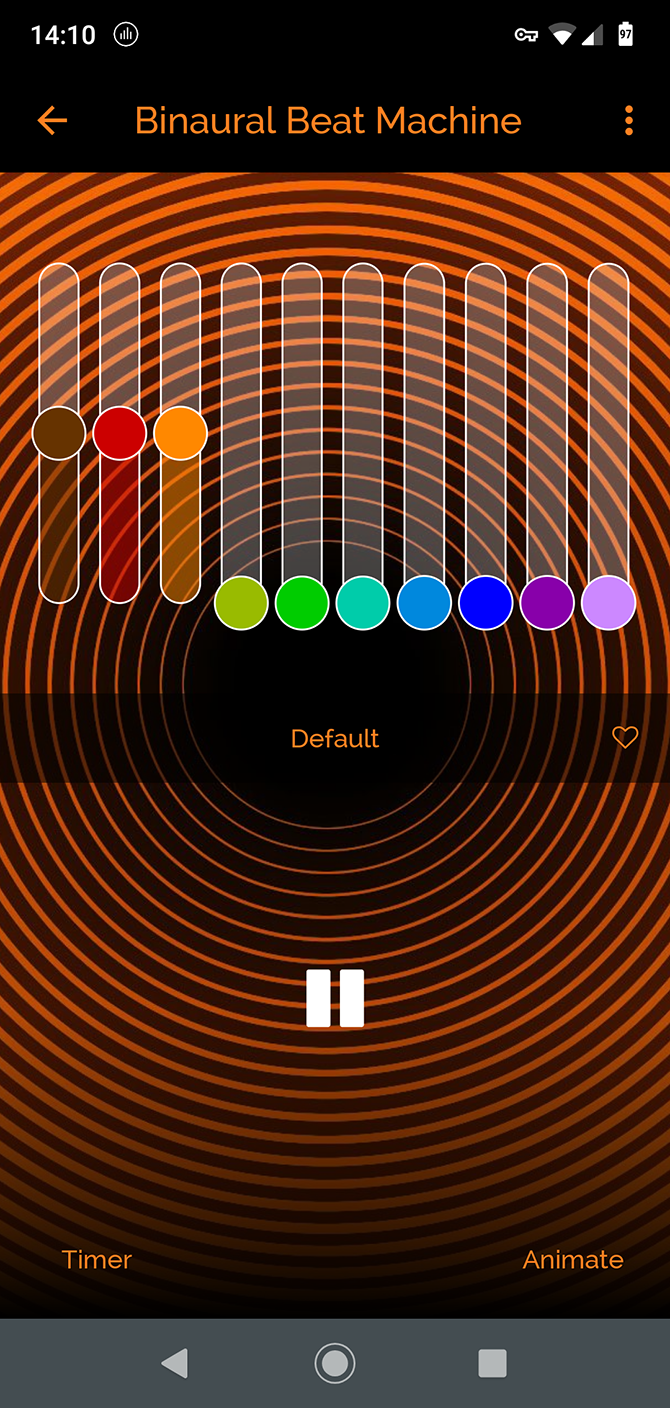
Easily one of the best binaural beats apps, myNoise is both attractively designed and truly comprehensive. It’s an all-purpose noise machine app, so you get white noise, rain, and a fun sci-fi inspired Warp Speed mode as well. All the presets are customizable.

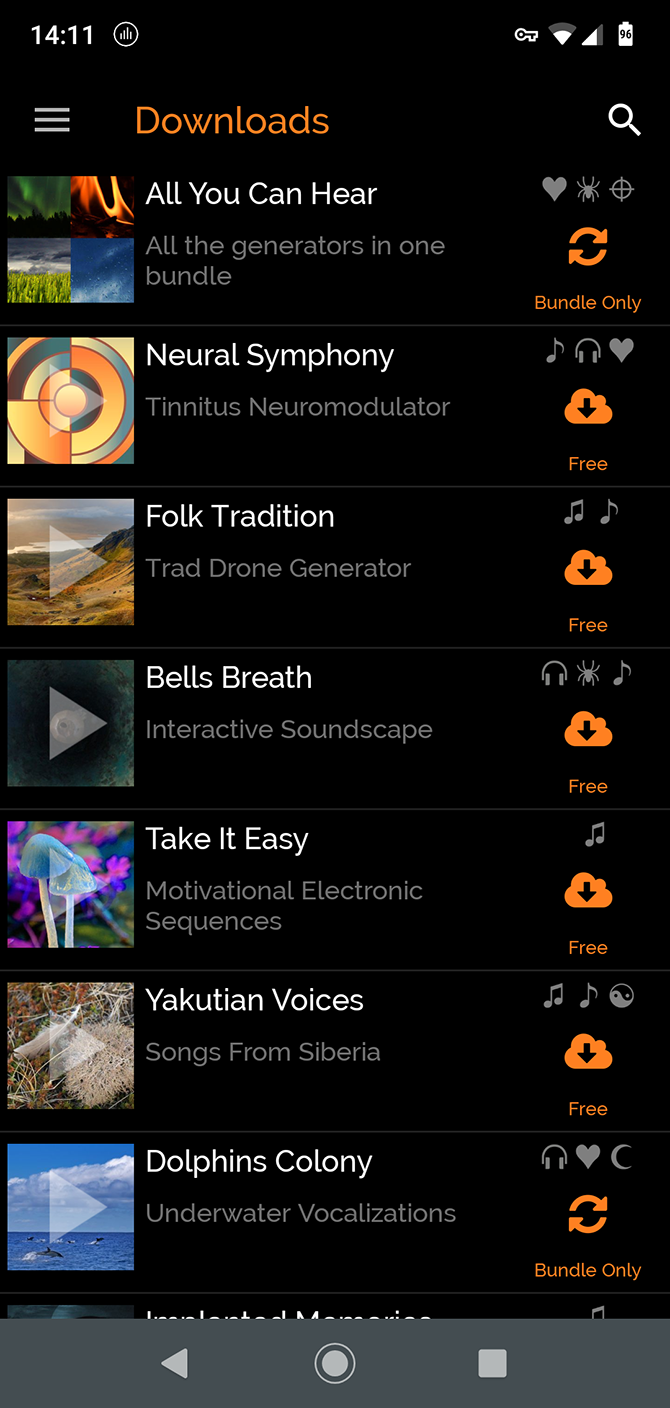
If the built-in choices aren’t enough, you’ve got over a hundred more to choose from. Some are available individually, while others come as part of a bundle. Among them is a tinnitus reliever, which some people will definitely appreciate.

Download: myNoise (Free, in-app purchases available)

5. Binaural Beats Generator

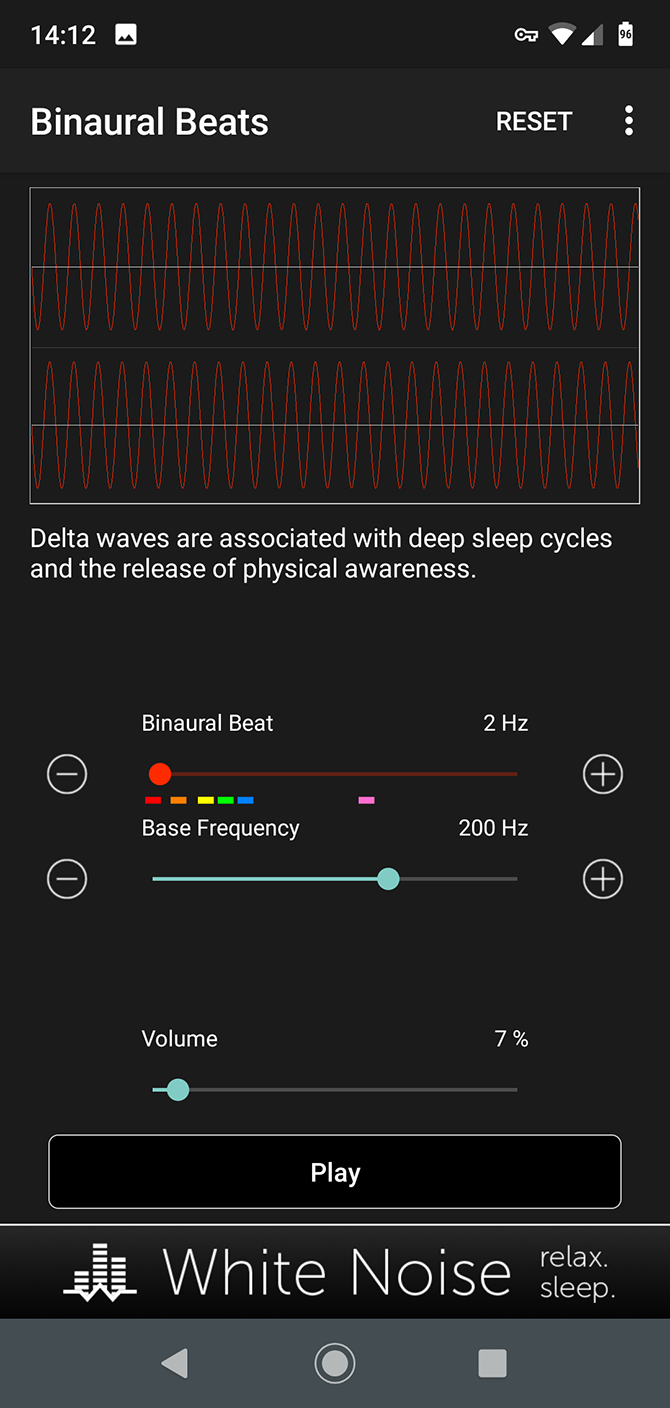
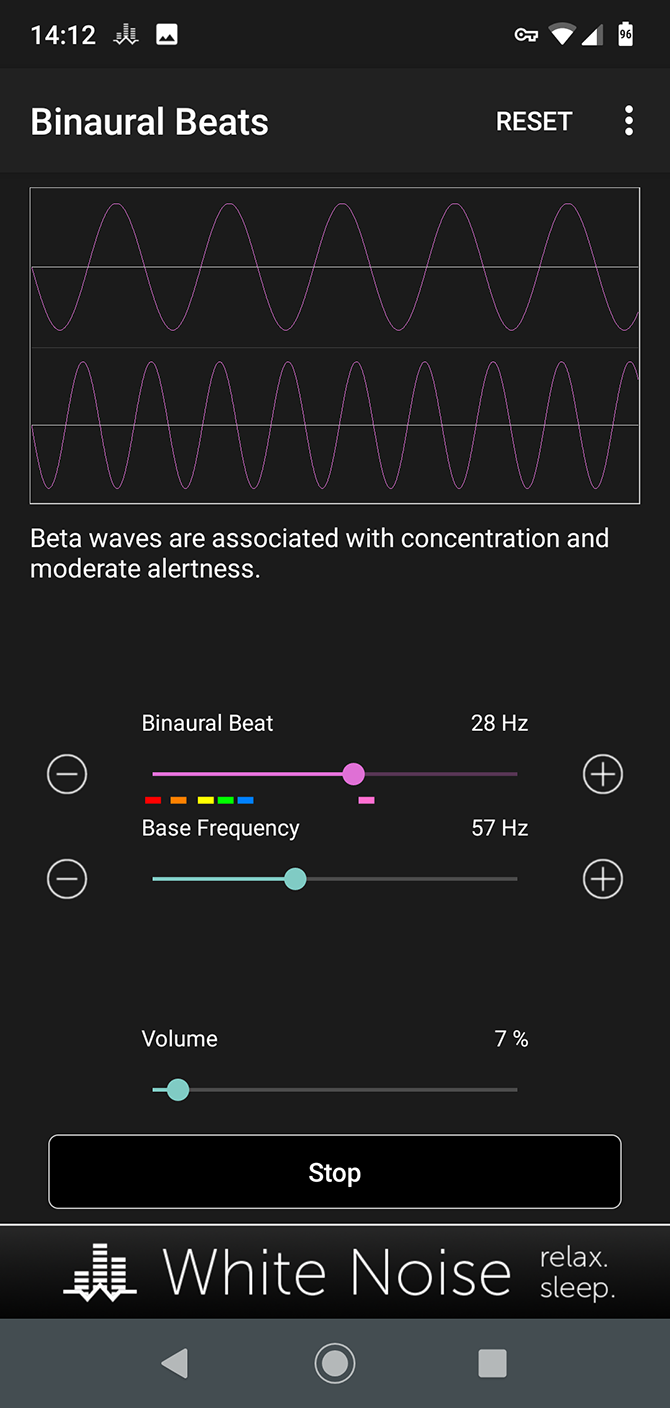
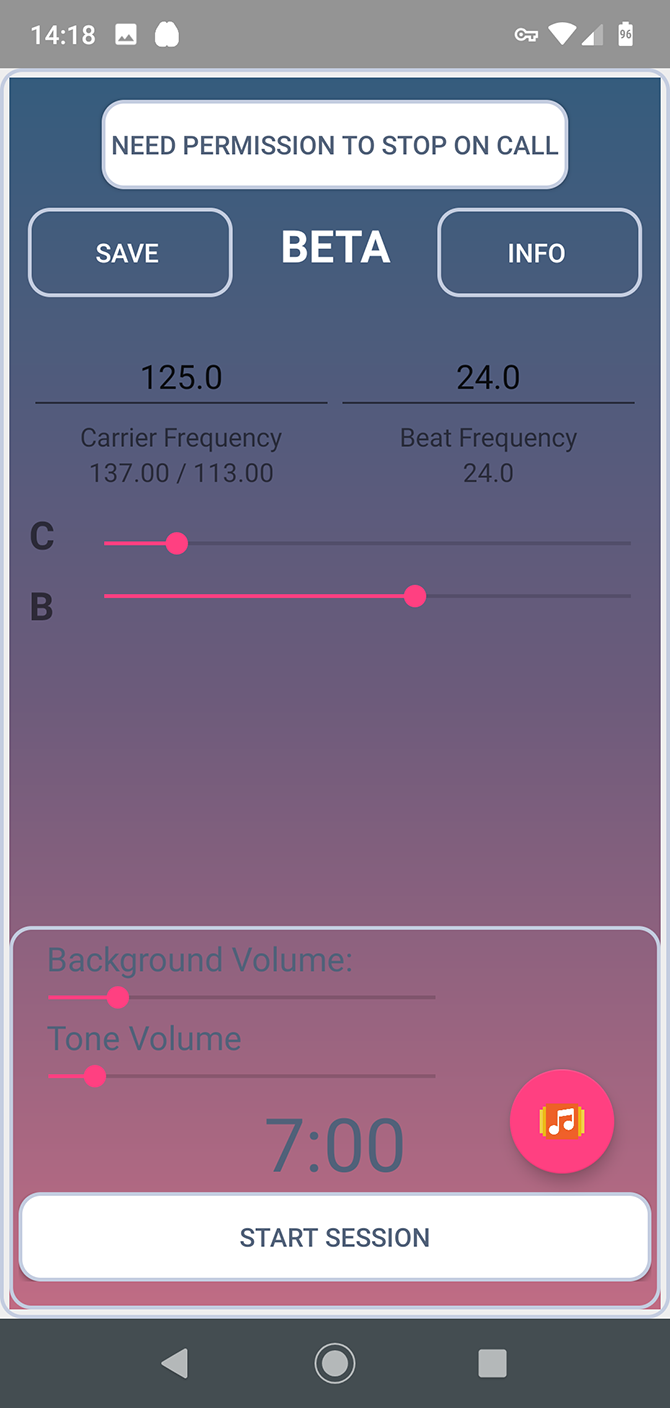
As the name suggests, Binaural Beats Generator is a roll-your-own beats app. It’s quite simple to use. You’ve got three sliders: one for the binaural beat, one for the bass frequency, and one for the volume. There’s a little guidance along the way to show the effect your chosen frequency might have.

While the app is limited in some respects—there are no presets and you can’t save your own—good sound quality, ease of use, and the fact that it’s completely free make it a winner.

Download: Binaural Beats Generator (Free)

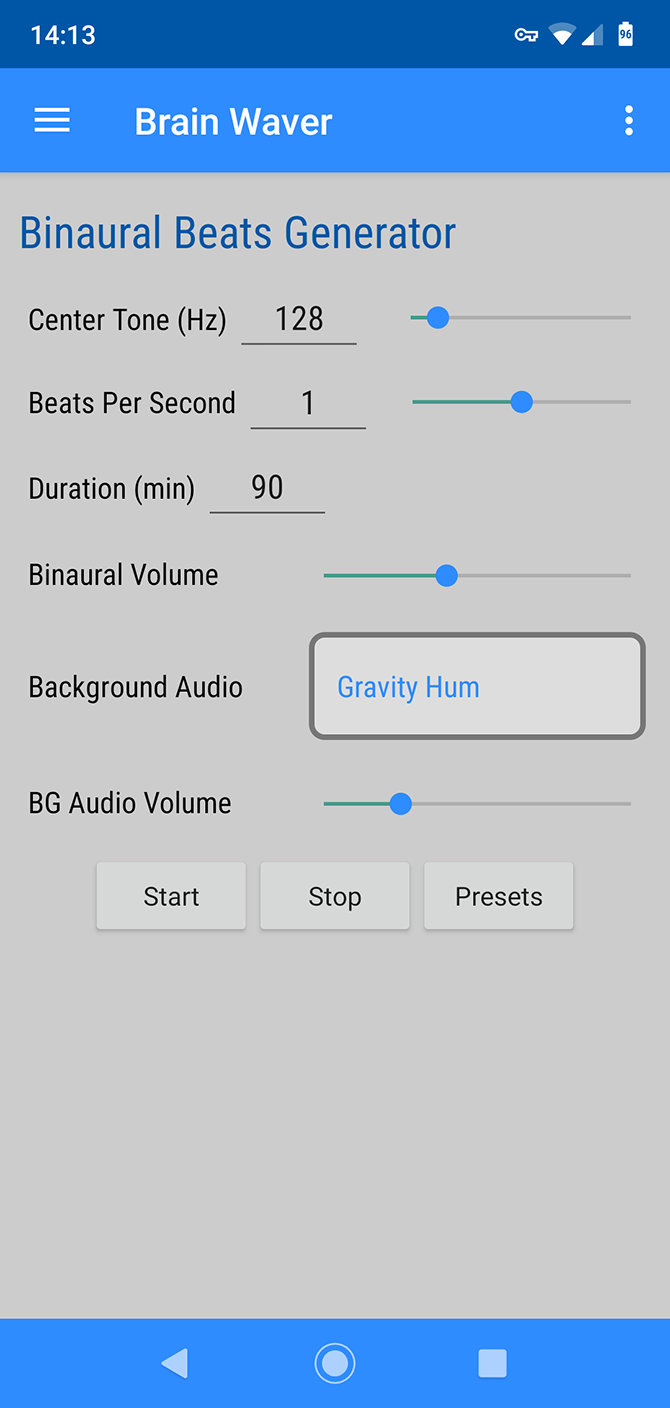
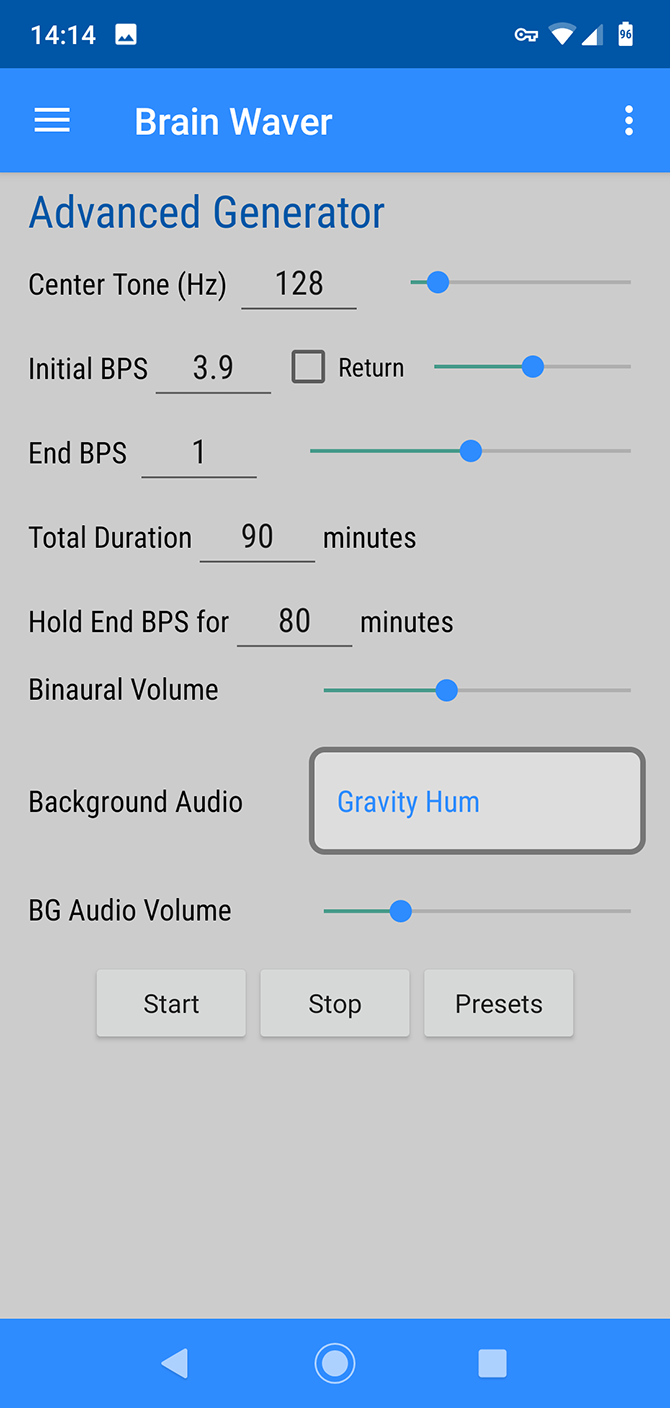
6. Brain Waver

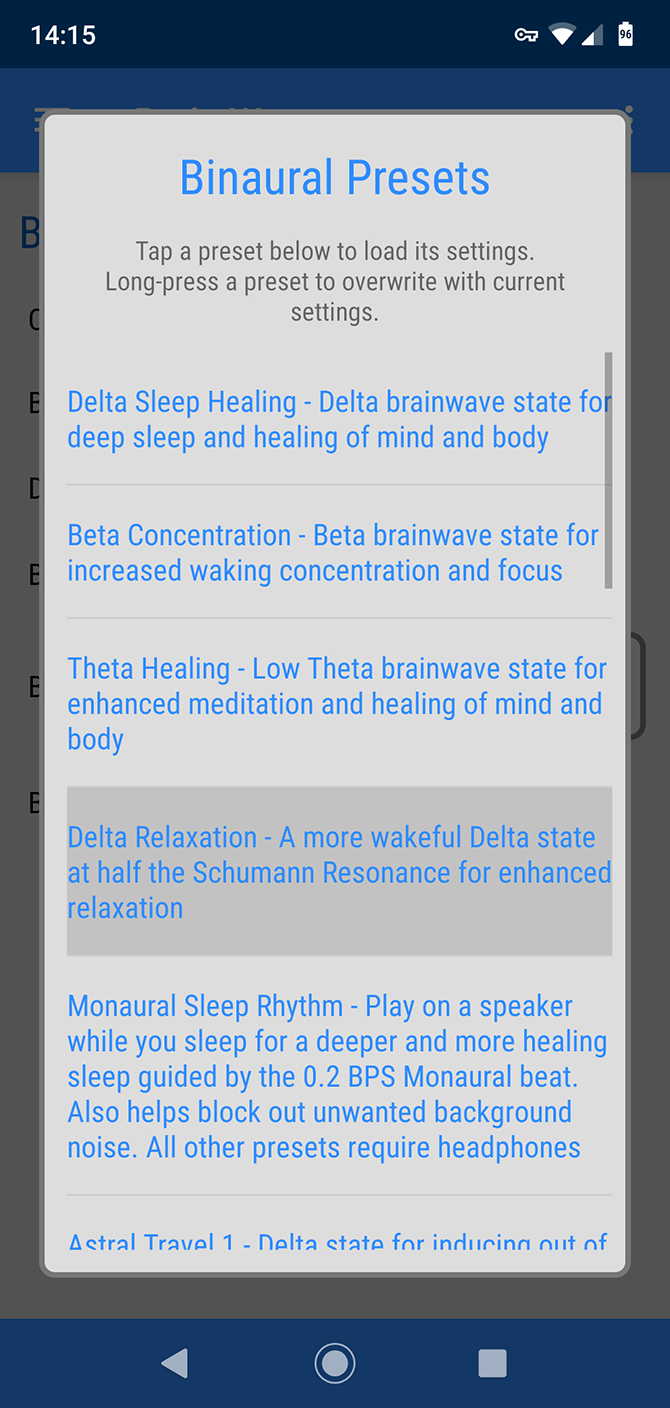
Brain Waver comes with 20 presets, although only nine have descriptions. They cover the usual topics such as sleep and relaxation, along with more exciting focuses like out of body experiences. Your mileage may vary on this.

The app has two generator tools. The main one lets you tweak the presets and add background sounds as you listen. The advanced option is for anyone who really gets into the science of binaural beats.

One interesting extra is that you can use the app as a white noise generator by setting the binaural volume to zero and choosing any of the background sounds. If you like this feature, take at our guide to the best white noise machines for a possible upgrade.

Download: Brain Waver (Free)

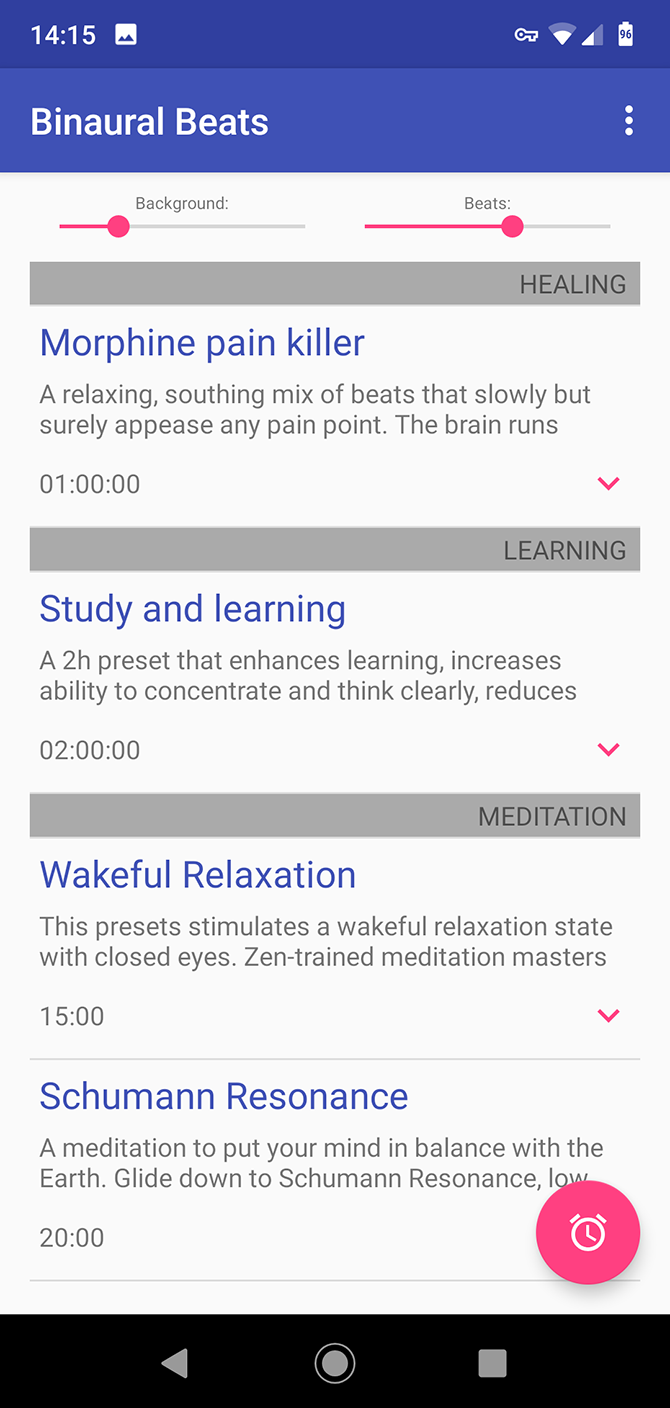
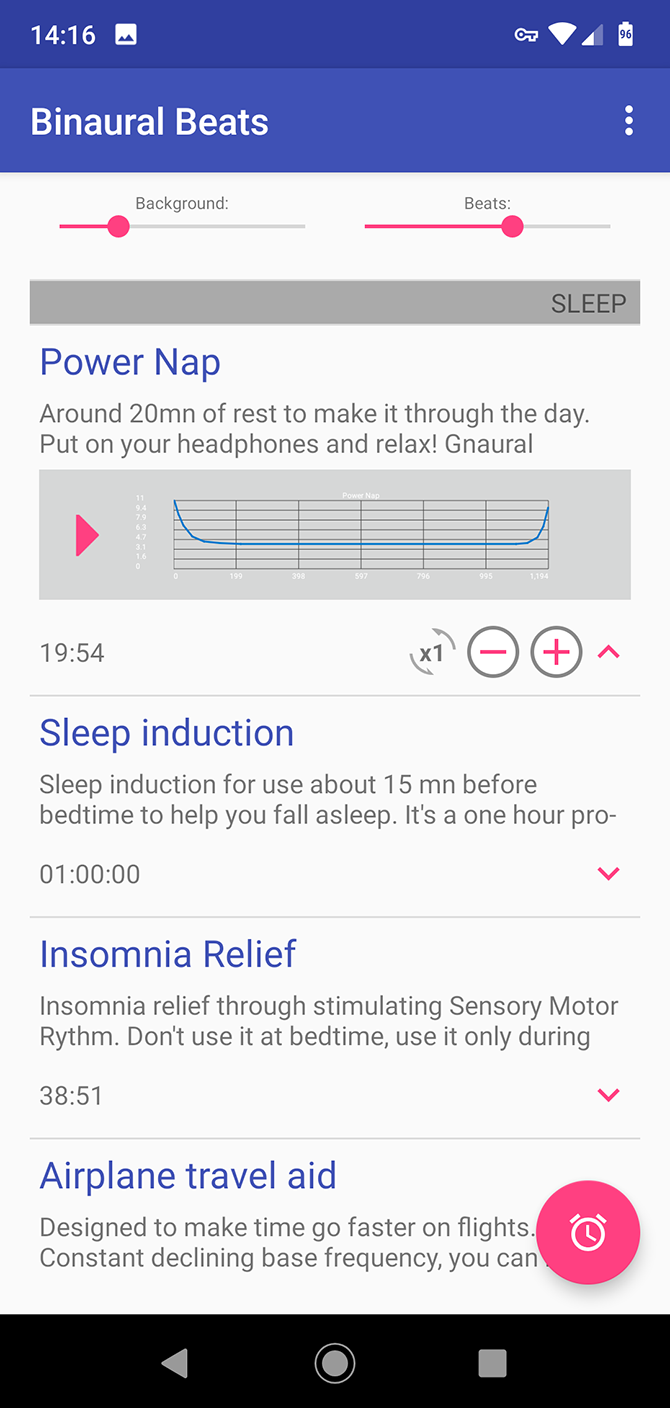
7. Binaural Beats

One of the best free binaural beats apps is simply called Binaural Beats. Not only is it free with no in-app purchases, there are no ads and it’s open source.

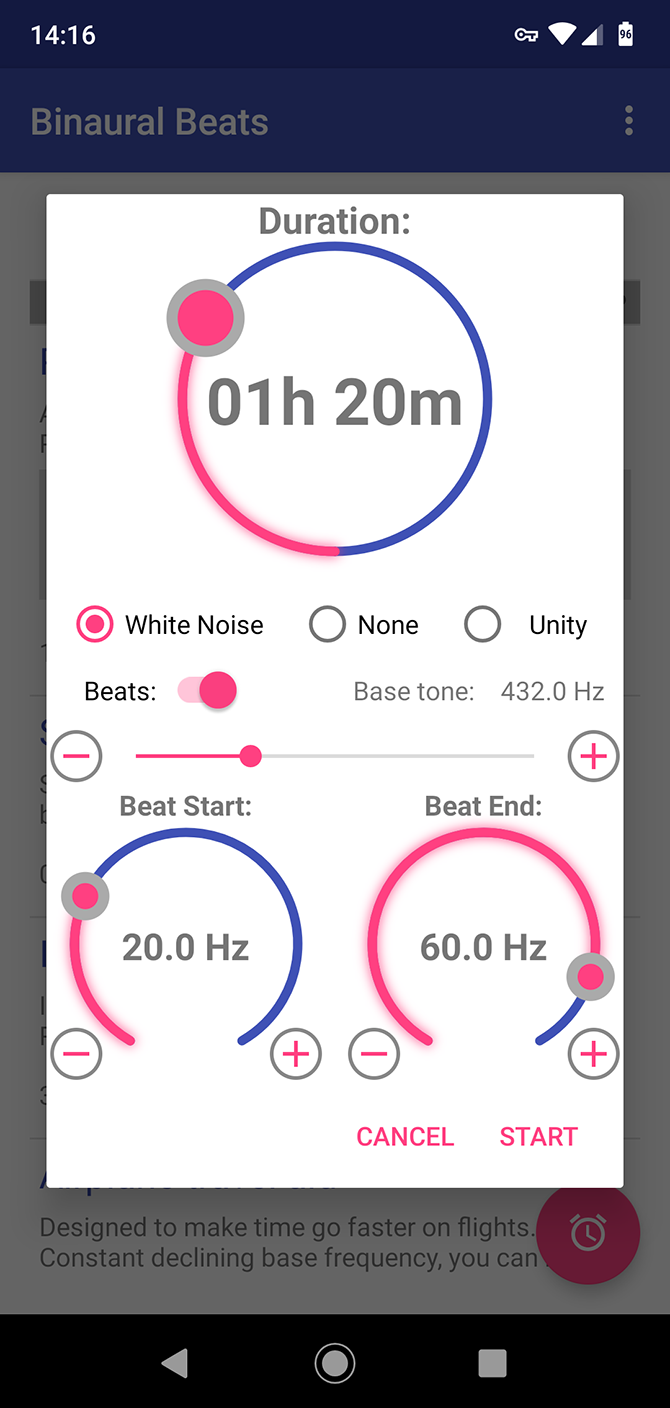
It also doesn’t compromise on features. There are 19 preset beats for study, sleep, creativity, and so on, plus you can create your own (although you can’t save them). Even better, you can import more binaural beats created in the Gnaural desktop program.

The app integrates with your phone well. It’ll pause the sounds when you get an incoming call. Or if you prefer, it can automatically put your phone into silent mode so you don’t get interrupted.

Download: Binaural Beats (Free)

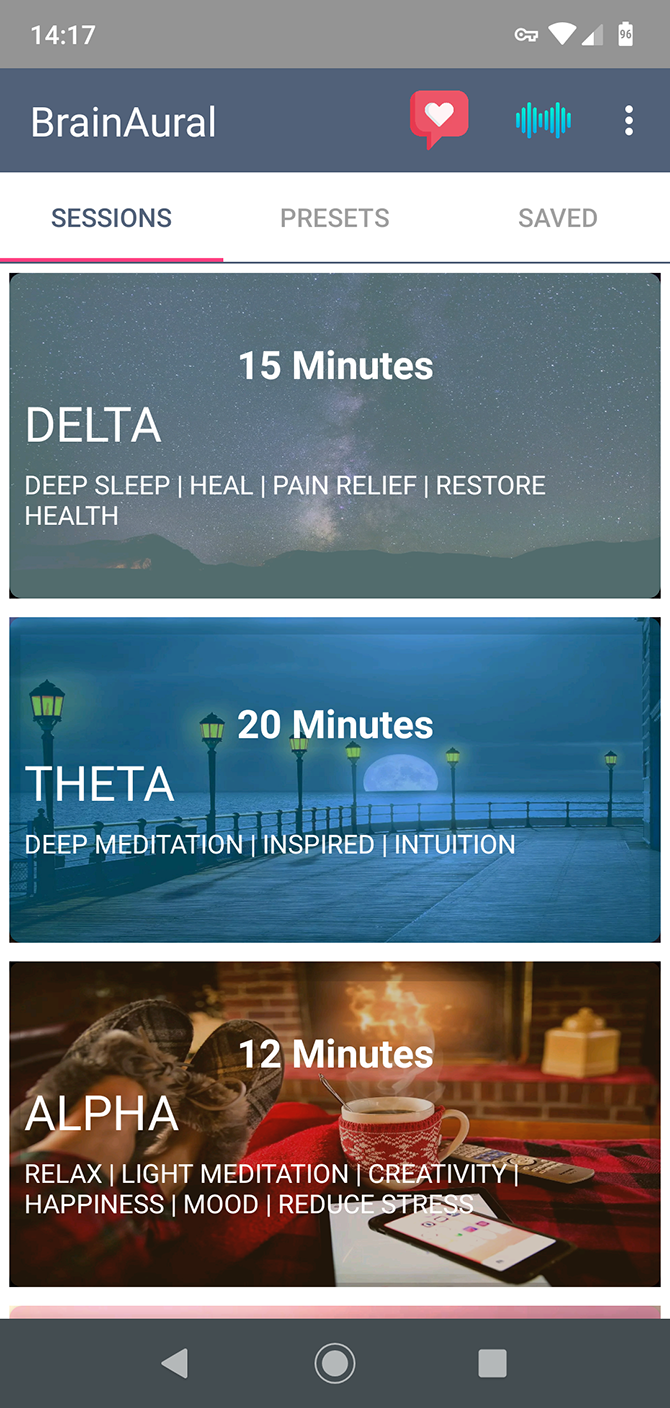
8. BrainAural

Our final binaural app recommendation is BrainAural. It’s free—you can remove the ads through an in-app purchase—and works fully offline. It’s a good option if you’re on a limited data plan.

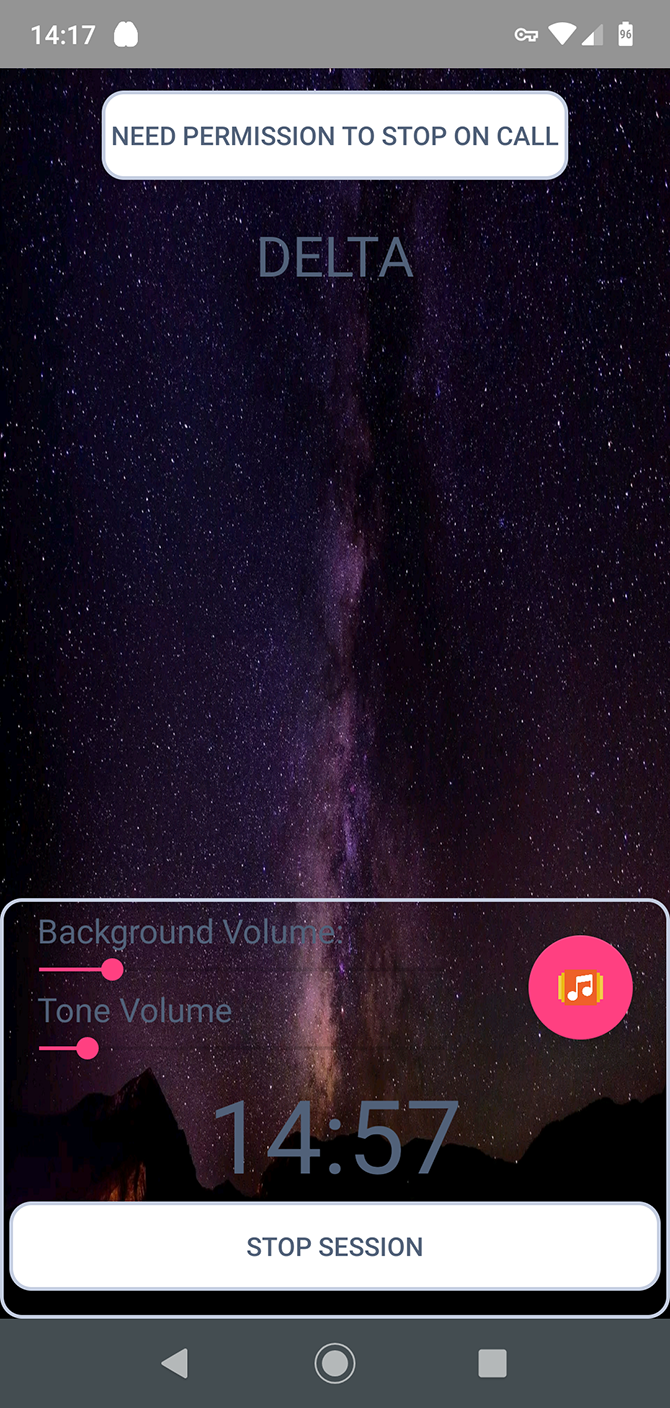
The app offers four “sessions” for general use, based on the four main audio frequencies binaural beats use. Along with this, it has a further 14 presets tuned to more specific goals like anti-aging and problem solving.

There’s also a generator tool so you can craft your own, with instructions on which frequencies to choose. You can save these for future use.

Download: BrainAural (Free, in-app purchases available)

More Apps to Help You Focus

Pick the best app for binaural beats and you’ll have something that can potentially help you sleep better, improve your mood, and become more focused.

If constant distractions are a big problem for you, there are other solutions you can try. Our guide covering the best Android apps to help you focus is a good starting point.

Read the full article: The 8 Best Binaural Beats Apps for Android


Read Full Article