12 November 2019

MyFridgeFood & More Sites to Find Recipes With Ingredients You Have


instant-pot-cooking

Few of us spend a lot of time prepping our meals.

This lack of care is usually due to a busy schedule or a low budget. But just because you’re hunting around the house or asking yourself “what can I make with what’s in my fridge?” doesn’t mean that your meals have to be unappetizing.

Here’s a list of the best websites with simple recipes for the food you have in your fridge.

1. MyFridgeFood

MyFridgeFood Find Recipes With Ingredients You Have

MyFridgeFood is a recipe-based search engine. It presents you with two options—Quick Kitchen and Detailed Kitchen—when you open the website. You can access Detailed Kitchen by clicking on the button Show All Ingredients.

Both pages have checkboxes representing various food items. To find a recipe, click on the boxes for the foodstuff that you have on hand. It’ll then show you a list of meals that you can make with some or all your supplies.

If you sign up to myfridgefood.com, you can submit a recipe, too.

2. Recipe Puppy

Recipe Puppy Search for Recipes

Recipe Puppy is another ingredient-based search engine that helps you answer the question “what to make with what I have.” It does this by allowing you to hunt for simple recipes with the foodstuff lying around the house.

Recipe Puppy’s search function is similar to myfridgefood.com recipes. The search engine is part of the overarching “Recipe Labs” website, where you can create recipes to post for others or hunt for coupons.

This search engine is a great tool for anyone who needs to make a meal with a particular dietary requirement, as you can include or exclude ingredients that may conflict with your allergies.

If you’re looking for other food websites that allow you to use up the ingredients around your home, check out our list of recipe websites that show you how to cook with leftovers.

3. Student Recipes

Student Recipes Best Food for Parties

Student Recipes also answers the question “what should I do with my fridge food?” Unlike the other links on this list, it comes with a specific post-secondary focus.

If you’ve ever been a student, you’ll know that you won’t have access to a lot of food supplies due to your budget. You also won’t have a lot of time to go shopping. Student Recipes aims to fix this with a blog and cooking videos to boot.

The website was originally created by James Bailey, a former student who has admitted to having “very few culinary skills” at the time. One thing we really like about this website is how it breaks down its recipe sections, not only by prep time and type but by content.

You can sort recipes by vegetarian, pork, beef, and fish. There’s also a section specifically devoted to parties.

4. Budget Bytes

Budget Bytes Make Cheap Meals

Budget Bytes is a big website entirely devoted to cheap, easy recipes that don’t empty your wallet. It also focuses on meals that can be made with the supplies that you find in your home.

Founded in 2009 by the blogger Beth—when she herself was “struggling with student debt”—Budget Bytes operates on the simple concept that “good food doesn’t have to be complicated or expensive.”

With detailed subsections on the website that are devoted to each type of meal and prep suggestions, Budget Bytes aims to be a mega-shop for all your culinary questions.

5. Good Cheap Eats

Good Cheap Eats How to Do Meal Plans

Like Budget Bytes, Good Cheap Eats is a website devoted to cheap and easy recipes for people who are trying to budget. It also aims to help those who rely on less-than-healthy premade meals due to time constraints.

Run by the blogger Jessica, Good Cheap Eats has sections on its website where it breaks down the many ways that you can save money on groceries through meal plans, alongside its wealth of in-house recipes.

Through these tools, you can maximize your kitchen and cooking skills to their full potential.

6. Love Food Hate Waste

Love Food Hate Waste Recipes for Leftovers

Love Food Hate Waste is part of a larger website run by the charity WRAP. Its mission? To make sure there is as little food waste as possible.

WRAP wants to raise awareness about the issue of food waste and how it affects the most vulnerable in our population. They don’t want to do this without offering solutions on how to fix the problem, so they have a section entirely devoted to making meals.

The goal of these recipes is to cook food from the odds and ends lying around the house. In the recipe section, you can filter by dietary needs, difficulty, and cooking times.

You can also sort the recipes by popularity, the age of the recipe, or the most votes applied to them.

7. Kraft Recipes

Recipes for Kraft Products

How many times have you seen Kraft products in the grocery store? If you’re living anywhere in North America, probably a lot.

As one of the most commonly recognized brands when it comes to foodstuff, Kraft offers cheap-to-midrange products ranging from salad dressing to cream cheese. There’s a high chance you have one or two of Kraft products lying around your home.

Because of this, Kraft has this entire website devoted to making easy meals with Kraft products as the base. It’s a useful repository of ideas if you’re wondering what you can make for lunch or dinner with what’s in your fridge.

8. Betty Crocker Recipes

Betty Crocker Recipes

Like Kraft, Betty Crocker is another major food company whose products you can find in most stores. The company’s items come in a variety of different categories, although it’s most well-known for baking.

Because of its ubiquity at the grocery store, Betty Crocker has its own recipe section where you can learn to make cheap and easy meals by using its products. The ease of access to these products means they’re perfectly suited for constructing meals from handy ingredients.

9. Love Canned Food

Recipes for Canned Food

How many of us have canned food lying around the house that we know is good to eat, but we don’t know what to make with it? Love Canned Food is a website devoted to recipes for simple meals that you can make from food in tins.

Canned food is often cheaper than fresh food, and keeps for longer, too. Because of this, it’s great for people who are working with a budget.

10. Food Combo

Food Combo Find Recipe by Listing Ingredients

Last on the list is Food Combo, another ingredient-based search engine that helps you find recipes for the food that you have nearby.

Food Combo runs on a similar premise to Recipe Puppy and MyFridgeFood. The company’s mission statement explains that it wants to “promote cooking at home while making it more efficient, more affordable, and less wasteful.”

To use the service, simply type an ingredient into the search bar to find recipes based on that item. Food Combo will then pull up all the recipes that it can find for that ingredient.

From there, you can narrow down your list of recipes by adding or excluding additional ingredients from your search parameters.

Make an Easy Home-Cooked Meal

Now that you’ve got a list of places to search for recipes, you can get started with some quick and easy plates for breakfast, lunch, or dinner. However, what if you’ve got a craving for a particular sort of meal? Specifically, dessert?

If you need to satisfy your sweet tooth, here’s a list of the best baking recipe websites.

Read the full article: MyFridgeFood & More Sites to Find Recipes With Ingredients You Have


Read Full Article

The 6 Most Reliable Hard Drives According to Server Companies


most-reliable-hdd

Is there anything worse than going to boot up your computer and realizing that your hard drive is dead? You can lose all your documents, photos, music, and more if your hard drive fails.

For that reason, many people want a very reliable hard drive. And who better to advise on hard drive reliability than a server company? Here we’ll recommend to you the most reliable hard drives, according to server companies.

How Hard Drive Reliability Is Measured

Before we get into the hard drive recommendations, you might be wondering how exactly we’re defining reliable. To find out which hard drives are least likely to fail, the best option is to look at a report which covers a large number of drives. And so we looked at the Backblaze Hard Drive Stats 2019.

Servers use vast numbers of hard drives, so server companies are really the experts when it comes to reliability. Backblaze currently employs a total of 108,660 hard drives for storage and has been collecting data on their reliability since 2015. That makes it one of the best sources of information when you’re looking for a reliable hard drive.

Now we can list the most reliable hard drives, according to the Backblaze report.

1. Western Digital 12TB Ultrastar

Western Digital 12TB Ultrastar Western Digital 12TB Ultrastar Buy Now On Amazon $323.43

The most reliable hard drive is the Western Digital 12TB Ultrastar. This SATA hard drive comes in a range of capacities, starting at 1TB and going all the way up to 12TB. You’ll sometimes see this or similar models labeled as the HGST Ultrastar. But don’t worry, Western Digital owns HGST. So you can expect the same quality from HGST as you get from Western.

This model is aimed at the enterprise storage market with a focus on reliability over speed, hence why it is so popular with server companies. Inside the hard drive, the air is replaced with helium, which is lower density. That means the drive can run more efficiently with fewer issues, making it a top choice for people concerned with reliability.

2. HGST MegaScale DC 4000.B

HGST MegaScale DC 4000.B HGST MegaScale DC 4000.B Buy Now On Amazon $99.99

A similarly reliable hard drive is the HGST MegaScale DC 4000.B, another enterprise drive from Western Digital/HGST. This 4TB SATA drive is designed to be efficient as well as reliable, using up to 45 percent less operating power compared to other 4TB enterprise hard drives.

This drive isn’t as fast as those aimed at regular consumers. But it makes up for that with features like Advanced Power Management, which should keep both temperatures and power usage low.

3. Seagate Exos 12TB Internal Hard Drive

Seagate Exos 12TB Internal Hard Drive Seagate Exos 12TB Internal Hard Drive Buy Now On Amazon $329.99

Seagate is a recognized and trusted hard drive brand, and their Exos 12TB Internal Hard Drive is a good choice for reliable storage. This one is an enterprise model too, coming in capacities from 1TB to 12TB. The SATA drive is hermetically sealed to prevent dust or other debris from getting inside the drive and causing problems.

The Exos is more responsive than other enterprise models, too, with speeds of up to 261MB/s. It can also handle a massive workload of up to 550 terabytes per year. For reference, that’s around 10 times as much work as is possible on a standard desktop hard drive. The Seagate Exos comes with Advanced Write Caching, resulting in a 20 percent boost in random write performance.

4. Toshiba 14TB SATA 512e Enterprise HDD

Toshiba 14TB SATA 512e Enterprise HDD Toshiba 14TB SATA 512e Enterprise HDD Buy Now On Amazon $389.95

The Toshiba 14TB SATA 512e Enterprise HDD is a solid enterprise hard drive. It comes in a 14TB capacity, although there is a 12TB version as well if you don’t need quite so much space. This SATA drive has a helium-sealed inside using precision laser-welding technology. And it has a lower operational power profile, keeping power usage down.

It is rated for a total transfer of 550TB per year, which is surely enough for any home user. There’s also Advanced Format Sector Technology, which should prevent data loss if the power to your system gets cut off unexpectedly.

5. Seagate BarraCuda Pro 8TB

Seagate BarraCuda Pro 8TB Seagate BarraCuda Pro 8TB Buy Now On Amazon $274.99

The Seagate BarraCuda Pro 8TB is the updated model of one of Backblaze’s most reliable drives. This SATA drive comes in sizes from 1TB to 14TB. And there’s an option to include data recovery in your purchase. If you’re looking to store your files safely, the data recovery option can give you peace of mind.

As it’s not exclusively an enterprise drive, you can expect excellent responsiveness as well as reliability, with a transfer rate of up to 250MB/s. The BarraCuda is a power-efficient model, using as little as 6.9W of power. The drive is rated for a workload of up to 300TB per year, so it should fit the needs of most users.

6. Seagate ST4000DM000

Seagate ST4000DM000 Seagate ST4000DM000 Buy Now On Amazon $99.55

A more affordable alternative to the Seagate BarraCuda is the Seagate ST4000DM000. As it is designed for desktop use, it comes in smaller sizes. This particular drive comes in sizes from just 500GB up to 8TB. So, it’s a good choice for those looking for a smaller capacity SATA drive. It was one of the earliest 1TB-per-disk hard drives available and has had plenty of years on the market.

Models up to 6TB come with 128MB of cache, but the larger 8TB drive has 256MB, so it should have improved write speeds. Even though it’s a consumer product and not an enterprise one, this drive still offers solid reliability. If you’re looking for a reliable drive, but you don’t want to sacrifice consumer options like a two-year warranty and a larger cache, this model is an excellent choice.

The Most Reliable Hard Drive for Your System

The majority of the hard drives we’ve recommended here are enterprise models, meaning they’re intended for use in servers. They are incredibly reliable, but you might sacrifice some speed for that reliability. There are other options out there, too. Consumer-grade drives from companies like Seagate are also highly recommended.

To learn more about what to look for in a hard drive, see our guide to things you must know before buying a new hard drive.

Read the full article: The 6 Most Reliable Hard Drives According to Server Companies


Read Full Article

4 Reasons to Encrypt Your Linux Partitions


linux-encryption

It’s simple to encrypt your home folder and other data on Linux. You can do it during installation, or at anytime using your distro.

But while useful, encrypting your Linux data isn’t necessarily a good idea. Sure, it sounds safe, so how could Linux disk encryption be a bad idea? Let’s look at why you should encrypt your Linux HDD and why you might seek out an alternative.

Should You Encrypt Your Linux Partition?

Most Linux distributions make it easy to encrypt your home folder or even entire partitions, without many issues. This is a great option to have if you need your data to be encrypted. In most cases, all you need to do is check a box, and Linux will take care of the rest.

Is Linux disk encryption wise?

Unfortunately, some people select it simply because it sounds like a good option to have. While this is clearly true, they don’t think about (or may be unaware of) the consequences. Indeed, some people don’t even know what encryption really is. They just know it’s a security option. This disconnect between understanding the technology can lead to the benefits of disk encryption being overstated and the shortcomings ignored.

It’s smarter to be aware of all the facts before making a decision that irreversibly changes the contents of your hard disk drive.

Reasons to encrypt your Linux disk include:

  • Protect personal data from loss or theft
  • Prevent the theft of sensitive corporate data
  • Block remote surveillance
  • Protect sensitive data from third parties

Meanwhile, some negative consequences of disk encryption are:

  • Making data recovery more difficult
  • Making full system recovery almost impossible
  • Hitting system performance

Want to know more? Let’s check all of these in more detail.

4 Reasons to Encrypt Your Linux Drive

We’ll start off with the immediate reasons to encrypt your Linux data. This might be specific files, one or more partitions, or even the entire drive.

1. Protect Personal Data From Loss or Theft

For standard users, especially laptop owners, this is the key point. You don’t want to risk personal data and potentially access to emails and cloud accounts, if your device is stolen.

Encrypting your hard disk will block access to these items. Whether files, partitions, or the full disk is encrypted, the contents will be meaningless to anyone without the encryption key.

2. Prevent Theft of Sensitive Corporate Data

Similarly, if you use your computer for work, encryption is a smart option. Whether a laptop computer or a desktop, the device should have encryption enabled. The industry you work in can influence how important this is (e.g. protecting patient data in healthcare).

However, it is smart to just use encryption across the board in the workplace. Protecting data from corporate espionage or whaling expeditions is smart.

3. Block Remote Surveillance

Full disk encryption of your Linux system can also frustrate remote surveillance. A hacker with access to your computer will not be able to read encrypted data. A government agency charged with monitoring your data will be unable to open your files.

4. Protect Sensitive Data From Third Parties

If you manage data for someone else (whether a client, or someone in danger), disk encryption is wise. It protects them from risk, while getting you off the hook if the data is lost or stolen.

Remember: if the data remains encrypted, it cannot be read. Beyond the astronomically unlikely chance that the encryption is broken, data should be secure.

3 Arguments Against Linux Disk Encryption

Encrypting a Linux disk can lead to trouble

Disk encryption is a great idea, but be sure you know and understand the implications.

1. Disk Encryption Makes Recovering Data Harder

Encrypting your data seems like a smart option. Without decryption (linked to your account password), no one can access your data. Even if the device is stolen, your hard drive cannot be read without the decryption key.

But what if something in your system has screwed up? Whether it’s the operating system or another hardware component, you’ll probably want to move the data somewhere safe.

For unencrypted data this can be easily done by running (at the minimum) a Linux LiveCD on any other computer. Simply connect the hard drive to that computer and start moving your data.

But with encrypted data, it’s not as easy as that.

2. System Recovery Is Impossible With Disk Encryption

Meanwhile, if your entire Linux partition is encrypted it will be tougher recovering your system when needed. For example, if your system loses power at a critical point, you’ll need to run a recovery disc. It’s the only way to get things back to normal.

Performing recovery on an encrypted Linux system will be even harder. Without the decryption key, unless you have an unencrypted disk image, you’re on a hiding to nothing.

3. Encrypting Your Hard Drive Impacts Performance

Another item to note is that encryption may not be the best performance option for very low-powered devices. While plenty of devices are powerful enough to deal with encryption with negligible performance impact, older hardware is not.

Installing Linux on old netbooks and other low-power devices is fine. But do it without encryption. After all, netbooks are slow enough already. The idea is to be productive with these low-spec devices, rather than sit around waiting for them.

Linux Disk Encryption Is Your Shout

As always, what you end up doing is completely up to you. If you feel that you need to encrypt your entire home folder or even your whole partition, go ahead. So long as you’re aware of what might be facing you in the event of a problem.

On the other hand, if you prefer to leave your drive unencrypted and secure your data in other ways, you can. Just be confident your data is as secure as promised.

Decided to encrypt? Here’s how to encrypt your personal data on Linux.

Read the full article: 4 Reasons to Encrypt Your Linux Partitions


Read Full Article

The 4 Best Pastebin Alternatives for Sharing Code and Text


hobbies-programming

The aptly named Pastebin.com was the first text storage website of its kind. It’s used for easily storing and sharing snippets of code with other people online. But if you don’t care for it, you’ll find plenty of alternatives to Pastebin on the web.

Let’s look at the best Pastebin alternatives you can use for storing text. We’ll examine their best features and why they’re worth using over the well-known service.

What Is a Pastebin?

In case you’re wondering why someone would be interested in sites like Pastebin in the first place, let’s quickly look at what Pastebin is for.

Pastebins arose in the late 1990s and early 2000s as a way to easily share blocks of code with proper formatting and without disrupting the flow of chats. The IRC (Internet Relay Chat) chatrooms of the time were much more rudimentary than modern chat apps like Slack or WhatsApp.

Most featured single-line messages, as you can see in the screenshot below:

IRC Chat Example

Posting a 50 line-long block of code into such a chat would obviously disrupt the flow for everyone else. Thus, pastebin sites arose to let you paste a giant block of code with syntax highlighting and proper formatting. When you were ready to share, you could post a link in your chat. Since the URL only took up a single line, it was a great solution.

Nowadays, people still use websites like Pastebin to share code if their IM app doesn’t support proper formatting. You might also use it to share a large amount of debugging output when asking for help online. Other common uses for Pastebin include lists of dark web links and hackers leaking breached information, such as passwords.

Pastebin.com is a fine site, but it locks some functionality behind a Pro subscription and isn’t known for its privacy. Here are some Pastebin alternatives worth looking at.

1. ControlC

Control C Pastebin

Formerly known as Tinypaste, this pastebin site makes sharing dead simple. Enter a title for your paste, then you have a few options for formatting the text. You can use bold, italics, underline, and strikethrough text, as well as enabling code highlighting. In addition, ControlC supports adding videos, plus changing the text color and size.

Unlike Pastebin, you won’t see recent public pastes along the side of the site. All pastes are hidden from search engines by default, and you can set a password to protect your paste if you like. While you can create an account to better keep track of what you’ve submitted, it’s not necessary.

When you open a ControlC link, you’ll have to close a page of ads before viewing the paste. From there, you can toggle line numbers of the paste or even create a new version based on the original.

Overall, ControlC is a no-nonsense pastebin site. It doesn’t have a ton of fancy features but works fine when you just need to share some quick text.

2. Hastebin

Hastebin Pastebin Site

If you’re in a hurry, give Hastebin a look. It’s a Pastebin alternative for code where the entire interface of the site is an editable text field, which makes it visually attractive. Enter or paste the text you want to share, then press Ctrl + S or hit the Save icon in the top-right corner.

This will instantly save your text and change the URL in the address bar to a shareable link. It also detects the language you’ve used and highlights the syntax automatically.

Also, on that bar in the top-right corner is a New button, which you can press to start a new paste right away. When viewing a paste, the Duplicate and Edit button lets you make changes while starting from the original content. And you can hit Just Text to display the raw text on a separate page, which is great for obtaining a clean copy.

All pastes on this site stay up for 30 days since their last view. While search engines won’t find your pastes, you also shouldn’t expect any privacy from what you share here. As a bonus, the site has no ads, CAPTCHAs, or registration.

3. Just Paste Me

Just Paste Me Pastebin

Those who find the above options too code-focused should like Just Paste Me better. While you can use it to share code, it offers a rich text editing box great for typing up notes, instructions, or similar blocks of normal text.

You’ll find all the typical text options here, such as bullet points, headings, hyperlinks, and images. There’s a Preview button so you can check how your page looks before sharing it.

Don’t miss the Additional options section at the bottom. There you can set a page title, choose a custom URL, or have the site email you a link to your page for safekeeping.

Once you complete a CAPTCHA and hit Publish, you’ll see a link to your page that you can share anywhere. You can even edit the page after publishing it if your session hasn’t expired and you haven’t closed the browser.

Just Paste Me doesn’t require registration, and the small ad on the page is unobtrusive. Give it a try next time you need a Pastebin alternative for normal text.

4. PrivateBin

PrivateBin Pastebin

You might assume that all paste sites are the same, but that’s not the case, as we’ve seen. PrivateBin stands out as a privacy-focused place to create pastes. Use the Format dropdown at the top to choose Plain Text, Source Code, or Markdown. Then you can enter your text in the editor.

PrivateBin includes a Preview tab to let you see what your output will look like before sharing. Click the Send button to get a shareable URL for your paste. The service also includes a QR code option if you prefer to share that way. No matter what you choose, there are no ads to worry about.

At the top, you’ll see several options to control how you share. By default, the Expires field is set to one week, but you can change this to as little as five minutes. If you check the Burn after reading option, the message will self-destruct after the link is opened one time.

Alternatively, you can select Open discussion to let people leave comments on the paste. Finally, be sure to set a Password to protect sensitive pastes.

The site states that the PrivateBin server has no knowledge of pasted data, so it’s the best choice when you want to share something potentially sensitive. Of course, there are better ways to safely share private data like passwords online.

Alternatives to Pastebin for Better Sharing

We’ve looked at several sites like Pastebin to help you find the best one for your needs. There’s nothing inherently wrong with Pastebin, but a different option may well serve your needs better than the site most people use for this job.

If you often share blocks of code with other programmers, you may be interested in Visual Studio Code’s Live Share feature, which lets you program collaboratively.

Read the full article: The 4 Best Pastebin Alternatives for Sharing Code and Text


Read Full Article

Draw Useful Data From Search Results With the Serpstack API


serpstack-api-search-data

When most people think about searching the web, they focus on themselves. We know what we’re looking for and, generally, we know how to find it. Figuring out how other people search the web is much more difficult, especially since websites focus so much on search engine rankings these days.

Fortunately, figuring out what people see when they search the web is much easier than asking hundreds of people if they remember what they clicked on. Thanks to serpstack, you can efficiently find out how search results work across various search engines with just a little code.

What Serpstack Does

Before we get into how serpstack works, let’s take a look at what the name means. SERP is an acronym for Search Engine Results Page. This means what you see when you search for a given term via a search engine like Google.

What serpstack does, in a nutshell, is search for a query, then scrape the results page. Using the serpstack API, you can then use that data in any number of ways. This could mean simply displaying the results, or parsing them and using other APIs or libraries to visualize them, for example.

The company behind serpstack has plenty of experience providing easy-to-use APIs for businesses and developers. We’ve previously looked at weatherstack, an API from the same company that lets you easily add weather data to your website.

Why You Might Need a SERP API

The serpstack main page

Though it varies based on which search engine you use, search is often highly personalized these days. Google, for example, alters its listings based on parameters including what you’ve looked up before. This can make it difficult to infer what other people see for a given search query.

This is exactly where a SERP API can come in handy. You can search for a term across multiple search engines, making it appear as if the request comes from different devices or even countries. SERP APIs like serpstack are also handy because a site’s ranking on a results page is anything but static. These can and do change often.

One way you could use this is to monitor your own websites. Other tools will show your ranking, but serpstack can also show you exactly what is above or below your site. After measuring the results for a period of time, you can see how your competition is trending—either above or below your site.

This type of API is also incredibly useful if you’re working on a marketing campaign. Seeing how sites rank based on given terms is something you can track with other tools, but serpstack can also let you see what these sites are showing to draw potential visitors in.

Pricing for Serpstack

Getting started with serpstack is free, but has some limitations. You’re limited to 100 requests per month, which are rate limited. You also don’t get HTTPS support. Basically, this means that the free version is meant for experimenting with the API so you can get used to how it works.

Upgrading to the Basic tier removes the rate limits, adds HTTPS encryption, and enables results in CSV format in addition to the JSON you get on the free tier. Instead of 100 searches per month, you get a much larger 5,000 searches per month. This costs $29.99 per month, or $23.99 per month if you pay yearly.

Pricing for serpstack

If you’re using serpstack for a larger business, you’ll likely want to opt for the Business or Business Pro pricing plans. These offer the same features as the Basic plan, but allow for more searches per month.

The Business plan gets you 20,000 searches and costs $99.99 per month, or $79.99 per month if you pay yearly. Meanwhile, the Business Pro plan costs either $199.99 monthly or $159.99 per month if paid annually, and gets you 50,000 searches per month.

Getting Started With the API

Getting up and running with the serpstack API is a simple process. Starting requires an API key. To get this, head to the serpstack website and sign up for the plan you prefer.

Once you’ve completed the signup process, you’ll get your API key. From here, you can check the quick start guide or the documentation.

The serpstack dashboard

You only need two pieces of information to start putting the serpstack API to use. The first is your API key, which you just retrieved. The second is the term you want to search for. You simply add these to the API endpoint, which is https://api.serpstack.com/search.

It’s possible to do this all in your web browser, if you want. Simply construct a URL like the following and enter it in the address bar:

https://api.serpstack.com/search?access_key=YOUR_API_KEY&query=searchterm

The results will be hard to read, as they show up in the JSON format, which isn’t easy on the eyes. To make this a little easier, you can use a browser extension like JSON Viewer for Chrome or JSONView for Firefox.

Of course, to actually use this data, you’ll probably want to integrate the API into your code. The serpstack documentation has examples for a wide variety of languages including Python, JavaScript, Ruby, and server-side JavaScript using Node.js.

Accessing the serpstack API with python

Diving Deeper Into the Data

By default, serpstack uses Google for its results, but you’re not limited to that one search engine. To change the search engine serpstack uses, simply attach the engine parameter to the URL, followed by the engine you want to use.

The serpstack API lets you change where the search engine thinks you are, as well as what device is performing the search. Various parameters allow you to change the country you appear in, your language, and whether you’re browsing from a computer or mobile device.

Various serpstack parameters

You can even change the type of search the serpstack API performs. Other parameters allow you to search Google News or just Google Images, for example. The serpstack documentation has a full list of the various parameters you can use to narrow down your results.

Try Serpstack for Free

As mentioned earlier, the initial tier of serpstack is entirely free. While you don’t get every feature, it includes more than enough to help introduce you to the API. This lets you see not just how the API works, but whether it integrates well with other tools or APIs you use.

While serpstack covers everything you need to know about search engine results pages, it won’t scrape other sites. If you need this functionality, the team behind serpstack have another tool, aptly named scrapestack. We’ve taken a look at what you can do with scrapestack if you’re interested.

Read the full article: Draw Useful Data From Search Results With the Serpstack API


Read Full Article

7 Free Chat Apps for Messaging on Your Phone or Computer


messaging-apps

For a seamless way to message your family and friends, you need the free chat apps available across multiple platforms. Ideally, on both mobile and desktop.

So, what free cross-platform chat apps should you download? And what are the best instant messaging apps available today? Keep reading to find out.

1. WhatsApp

Despite the Facebook buyout and concerns over advertising, WhatsApp remains the world’s most popular messaging app by some distance. At the time of writing, it has more than 1.5 billion monthly active users, and the growth is showing no signs of slowing down.

But what about cross-platform chatting? Well, WhatsApp has apps in both the Google Play Store and Apple App Store. There’s also a web app (which you need a QR code to log into), and standalone desktop apps for both Windows and Mac. Unfortunately, there is no Linux version of WhatsApp.

Other notable WhatsApp features include voice and video chat, groups with up to 256 people, and end-to-end encryption on all messages.

Download: WhatsApp (Free)

2. Telegram

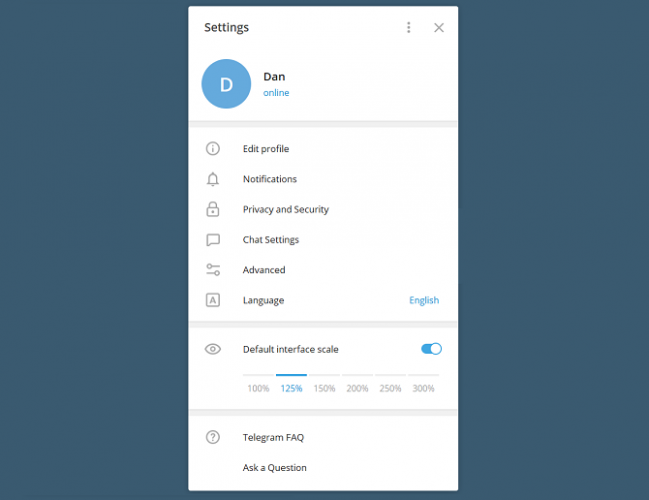
telegram desktop app

Windows users will be curious to know about the best messaging apps for PC. Out of all of the options, we think Telegram provides the best Windows client.

The app is extremely lightweight, fast, and packed with all the same features that you get on the mobile versions. And, unlike WhatsApp, you don’t need a QR code in order to log in—your phone number is sufficient. Uniquely, Telegram even offers a portable Windows app; you don’t need to install it on your PC and can use it on any Windows machine you’re working on.

Telegram has a macOS client, and apps for Android and iOS. It is also the first free chat app on our list to support Linux.

Some of the most useful Telegram features are its support for self-destructing messages, groups with up to 200,000 members, bot integration, and the ability to schedule messages for the future.

Download: Telegram (Free)

3. Facebook Messenger

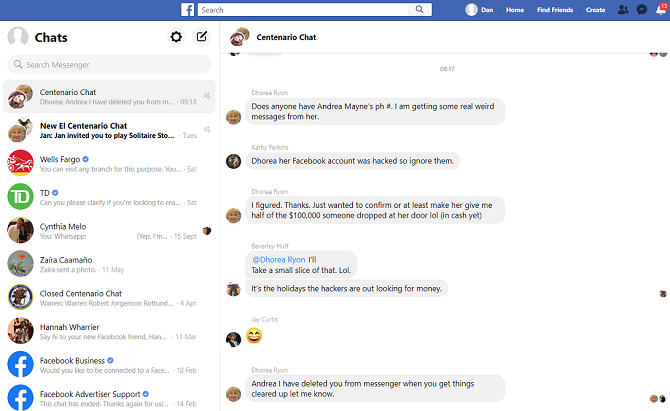
facebook messenger web app

Like WhatsApp, Facebook Messenger benefits from having a large userbase. After all, any instant messaging app is useless if the people you want to chat with most frequently don’t also have the app installed.

Facebook Messenger has standalone apps for Android and iOS. However, the only way to read your Facebook messages on a desktop/laptop is to use the web app. Facebook has not developed a standalone desktop Messenger app for either Windows or macOS.

Download: Facebook Messenger (Free)

4. Line

Line is one of the most popular communication apps in Asia. It is the market leader in Japan, Thailand, Indonesia, and Taiwan. If you have friends and relatives in those locales, Line is a must-have free chat app.

Thankfully, Line also boasts impressive cross-platform support. There are Line apps available for PC, macOS, Android, and iOS. You can also install the Line Chrome extension if you want to send instant messages directly from your web browser.

In addition to its chat functionality, Line doubles as a video messaging app and real-time location sharing service. You can even use it to follow other accounts, such as those of brands, celebrities, pop stars, sports teams, and more.

Download: Line (Free)

5. WeChat

WeChat is the third most popular messaging app in the world behind WhatsApp and Facebook Messenger. If you want a free chat app to talk to people in China, this is a good solution. It is the top instant messaging app in that country.

It is also another free chat apps with solid cross-platform support—you can find standalone WeChat versions on Android, iOS, and desktop. However, although WeChat offers messaging apps for Windows and macOS, there is no Linux version. If you are running a Linux distro, you will need to use the service’s web app to chat with your friends.

Some of the other top features on WeChat include video messaging, custom stickers, a “Moments” stream (akin to Instagram Stories), and real-time location sharing.

Download: WeChat (Free)

6. Skype

Another of the best messaging apps for PC is Skype. Almost all Windows users have an account, and it is tightly integrated with the operating system’s other apps like Mail and Calendar.

Skype, of course, is an instant messaging app and video messaging app all rolled into one. Depending on the package you choose, you can even use the app to receive voicemails, call landlines and mobiles, send SMS messages, and create group chats.

In addition to the Windows version of Skype in the Microsoft Store, it is also available on Mac, Linux, Android, and iOS. A web app also exists, but it is more limited in features than its desktop counterpart.

Download: Skype (Free)

7. Viber

The last app on our list of free chat apps is Viber. It’s often thought of as a direct competitor to WhatsApp. But while they do share some similar features (such as end-to-end encryption, voice and video calls, private group chats, and integration with Google Assistant and Siri), there are some key differences.

For example, Viber has a feature called Viber Out. It’s a VOIP facility that allows you to call mobiles and landlines around the world. You can also follow public accounts and chats, create hidden chats, and even play games within the Viber app.

Regardless of the differences, Viber remains a popular instant chat service. It has cross-platform support, with apps available on Windows, Mac, Android, and iOS. Like WhatsApp, there’s also a web app that requires a QR code to log in.

Download: Viber (Free)

Note: We previously covered reasons to ditch WhatsApp for Viber for a more detailed breakdown.

Are These the Best Free Chat Apps?

When you’re deciding on the best free chat app for your needs, there are two primary points you need to consider. First, can you use it on the hardware you own? Second, are the people you want to talk to also using the service?

If any of the above fit your needs then great. If not, please let us know your favorite alternative in the comments below. Even if it’s one of these online instant messaging services that let you chat to friends and family.

Read the full article: 7 Free Chat Apps for Messaging on Your Phone or Computer


Read Full Article

Smartphone maker Realme is taking India and other emerging markets by storm


As Xiaomi widens its smartphone lead over Samsung in India, a new competitor is increasingly posing a challenge.

Realme, a one-and-half-year-old smartphone vendor that spun out of Oppo, commanded 14.3% of the world’s second largest smartphone market in the quarter that ended in September, research firm IDC said on Monday.

While Xiaomi, with 27.1% of the local smartphone market share, still dominates the market, the volume of handsets that Realme has shipped in India rose at a staggering 401.3% since the same period last year, according to IDC.

Market share of smartphone vendors in India

What’s fascinating about Realme’s expansion in India is just how closely it is replicating Xiaomi’s playbook in the country. Like Xiaomi, Realme for a year sold phones only through an online channel to cut overhead costs. Last quarter, the company began selling phones in India through offline stores, which still account for more than two-thirds of all smartphone sales.

In terms of online-only shipment, the company’s market share has ballooned to 26.5% in Q3 2019 from 16.5% in Q2 this year, the research firm said.

Realme has launched more than a dozen aggressively priced smartphone models so far, all priced between $80 to $240 — the sweet spot in the local market. In fact, IDC says Realme’s C2, 3i and 3 models — priced between $80 and $110 — were the top-selling phones for the company.

Like Xiaomi’s handsets, Realme smartphones pack above the punch — sporting some of the highest-end hardware modules for their price range. The $80 Realme C2 features a six-inch HD+ display, 3+2 rear megapixel cameras, 4,000 mAh battery, 2GB of RAM and 16GB of expandable storage — and it supports 4G networks and has a facial unlock feature.

Other markets

Realme today operates in 18 countries, including its home market China, Indonesia, Malaysia, Pakistan, Vietnam and Egypt. In May this year, the company entered the European region.

In a report Counterpoint shared with its clients recently, the research firm said that based on the number of smartphones that Realme has shipped, the company’s rank went from 47th in Q3 2018 to 7th as of September this year. By shipping more than 10 million smartphones, the Chinese firm’s shipment grew by a whopping 808% during this period, the research firm said.

India and Indonesia accounted for more than 80% of smartphones that Realme has shipped to date, according to Counterpoint.

“We expect realme to become a serious contender in the market next year as growth will continue in emerging markets and online channels. The value for money proposition is also powerful in times of stagnant economic growth globally,” Counterpoint analysts wrote.

The aggressive growth of Realme hasn’t gone unnoticed with Xiaomi. The two companies have already exchanged testy words with one another and made allegations.

And you thought smartphone wars were over.


Read Full Article

Adidas backpedals on robotic shoe production with Speedfactory closures


An expensive experiment in global distribution has been abandoned by Adidas, which has announced that will close its robotic “Speedfactories” in Atlanta and Ansbach, Germany, within 6 months. The company sugar-coated the news with a promise to repurpose the technology used at its existing human-powered factories in Asia.

The factories were established in 2016 (Ansbach) and 2017 (Atlanta) as part of a strategy to decentralize its manufacturing processes. The existing model, like so many other industries, is to produce the product in eastern Asia, where labor and overhead is less expensive, then ship it as needed. But this is a slow and clumsy model for an industry that moves as quickly as fashion and athletics.

“Right now, most of our products are made out of Asia and we put them on a boat or on a plane so they end up on Fifth Avenue,” said Adidas CMO Eric Liedtke in an interview last year at Disrupt SF about new manufacturing techniques. The Speedfactories were intended to change that: “Instead of having some sort of micro-distribution center in Jersey, we can have a micro-factory in Jersey.”

Ultimately this seems to have proven more difficult than expected. As other industries have found in the rush to automation, it’s easy to overshoot the mark and overcommit when the technology just isn’t ready.

Robotic factories are a powerful tool but difficult to quickly reconfigure or repurpose, since it takes specialty knowledge to set up racks of robotic arms, computer vision systems, and so on. Robotics manufacturers are making advances in this field, but for now it’s a whole lot harder than training a human workforce to use standard tools on a different pattern.

In a press release, Adidas global operations head Martin Shankland explained that “The Speedfactories have been instrumental in furthering our manufacturing innovation and capabilities,” and that for a short time they even brought products to market in a hurry. “That was our goal from the start,” he says, though presumably things played out a bit differently in the pitch decks from 2016.

“We very much regret that our collaboration in Ansbach and Atlanta has come to an end,” Shankland said. Oechsler, the high-tech manufacturing partner that Adidas worked with, feels the same. “Whilst we understand adidas’ reasons for discontinuing Speedfactory production at Oechsler, we regret this decision,” said the company’s CEO, Claudius Kozlik, in the press release. The factories will shut down by April, presumably eliminating or shifting the 160 or so jobs they provided, but the two companies will continue to work together.

The release says that Adidas will “use its Speedfactory technologies to produce athletic footwear at two of its suppliers in Asia” starting next year. It’s not really clear what that means, and I’ve asked the company for further information.


Read Full Article

Transit of Mercury


Transit of Mercury

How India's local recyclers could solve plastic pollution | Mani Vajipey

How India's local recyclers could solve plastic pollution | Mani Vajipey

India has one of the world's highest rates of plastic recycling, thanks largely to an extensive network of informal recyclers known as "kabadiwalas." Entrepreneur Mani Vajipey discusses his work to organize their massive efforts into a collection system that could put India on the path to ending plastic pollution -- and show the rest of the world how to do it, too.

Click the above link to download the TED talk.

Google Chrome to identify and label slow websites


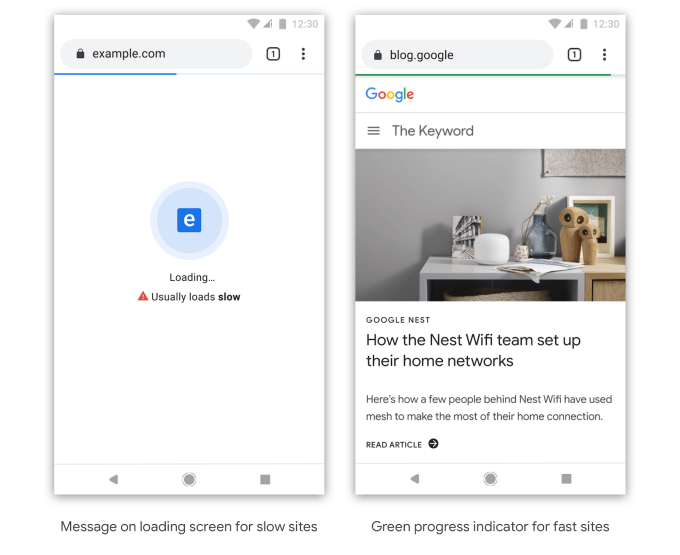
Is it the web page that’s slow or is it your network connection? In the future, Google’s Chrome web browser may have an answer for you. Google announced today a plan to identify and label websites that typically load slowly by way of clear badging. The company says it may later choose to identify sites that are likely to be slow based on the user’s device and current network conditions, as well.

Google hasn’t yet determined how exactly the slow websites will be labeled, but says it may experiment with different options to see which makes the most sense.

For example, a slow-loading website may show a “Loading…” page that includes a warning, like a caution icon and text that reads “usually loads slow.” Meanwhile, a fast website may display a green progress indicator bar at the top of the page instead of a blue one.

And for links, Chrome may use the context menu to help users know if the site will be slow so you can decide whether or not you want to click.

In the long-term, Chrome’s goal will be to identify and badge websites offering “high-quality” experiences which may include other factors beyond just the website’s speed. The company didn’t yet detail what those other factors may be, but says the identification process will include more stringent criteria that’s rolled out gradually over time. However, the goal will be to make these “good user experiences” something any web developer can achieve.

In the meantime, Google suggests web developers visit its resources focused on site performance, including its learning platform web.dev./fast; online tool for optimization suggestions, PageSpeed Insights; and personalized advice tool, Lighthouse.

A faster, more usable web benefits Google, as it helps the company better cater to its primarily mobile users. Since 2015, the majority of Google users start their searches from mobile devices. But that shift has required new ways of indexing and ranking pages and serving users whose connection speeds vary and who may not have powerful devices.

Google now uses a website’s mobile version when indexing its pages, and it offers fast AMP pages to help mobile users get to information more quickly. It makes sense that a next step would be to nudge site owners themselves to speed things up or risk getting labeled as a “slow” website.

This sort of feature would particularly help Google users in emerging markets, like India, where decent bandwidth is often lacking and low-end smartphones are prevalent.

“Speed has been one of Chrome’s core principles since the beginning – we’re constantly working to give users an experience that is instant as they browse the web,” a Chrome blog post explained. “That said, we have all visited web pages we thought would load fast, only to be met by an experience that could have been better. We think the web can do better…,” it read.

The plans were announced at the Chrome Developer Summit, alongside other developer-focused updates. This included a preview of “Web Bundles,” an API that lets developers distribute web content across any format, like email, FTP or even USB. Plus, Portals, a web experience previously announced at Google I/O, was demonstrated with early partner Fandango.


Read Full Article

Facebook finally lets you banish nav bar tabs & red dots


Are those red notification dots on your Facebook home screen driving you crazy? Sick of Facebook Marketplace wasting your screen space? Now you can control what appears in the Facebook app’s navigation bar thanks to a new option called Shortcuts Bar Settings.

Over the weekend TechCrunch spotted the option to remove certain tabs like Marketplace, Watch, Groups, Events, and Dating or just silence their notification dots. In response to our inquiry, Facebook confirms that Shortcut Bar Settings is now rolling out to everyone, with most iOS users already equipped and the rest of Android owners getting it in the next few weeks.

The move could save the sanity and improve the well-being of people who don’t want their Facebook cluttered with distractions. Users already get important alerts that they could actually control via their Notifications tab. Constant red notification counts on the homescreen are an insidious growth hack, trying to pull in people’s attention to random Group feeds, Event wall posts, and Marketplace.

“We are rolling out navigation bar controls to make it easier for people to connect with the things they like and control the notifications they get within the Facebook app” a Facebook spokesperson tells me.

Back in July 2018, Facebook said it would start personalizing the navigation bar based on what utilities you use most. But the navigation bar seemed more intent on promoting features Facebook wanted to be popular like its Craigslist competitor Marketplace, which I rarely use, rather than its long-standing Events feature I access daily.

To use the Shortcuts Bar Settings options, tap and hold on any of the shortcuts in your navigation bar that’s at the bottom of the Facebook homescreen on iOS and the top on Android. You’ll see a menu pop up letting you remove that tab entirely, or leave it but disable the red notification count overlays. That clears space in your nav bar for a more peaceful experience.

You’ll also now find in the three-line More tab -> Settings & Privacy -> Settings -> Shortcuts menu the ability to toggle any of the Marketplace, Groups, Events, and Pages tabs on or off. Eagle-eyed reverse engineering specialist Jane Manchun Wong spotted in June that Facebook was testing Notification Dots settings menu that’s now available too.

A Facebook spokesperson admits people should have the ability to take a break from notifications within the app. They tell me Facebook wanted to give users more control so they can have access to what’s relevant to them.

For all of Facebook’s talk about well-being, with it trying out hiding Like counts in its app and Instagram (this week starting in the US), there’s still plenty of low-hanging fruit. Better batching of Facebook notifications would be a great step, allowing users to get a daily digest of Groups or Events posts rather than a constant flurry. Its Time Well Spent dashboard that counts your minutes on Facebook should also say how many notifications you get of each type, how many you actually open, and let you disable the most common but useless ones right from there.

If Facebook wants to survive long-term, it can’t piss off users by trapping them in an anxiety-inducing hellscape of growth hacks that benefit the company. The app has become bloated and cramped with extra features over the last 15 years. Facebook could get away with more aggressive cross-promotion of some of these forgotten features as long as it empowers us to hide what we hate.


Read Full Article

Facebook finally lets you banish nav bar tabs & red dots


Are those red notification dots on your Facebook home screen driving you crazy? Sick of Facebook Marketplace wasting your screen space? Now you can control what appears in the Facebook app’s navigation bar thanks to a new option called Shortcuts Bar Settings.

Over the weekend TechCrunch spotted the option to remove certain tabs like Marketplace, Watch, Groups, Events, and Dating or just silence their notification dots. In response to our inquiry, Facebook confirms that Shortcut Bar Settings is now rolling out to everyone, with most iOS users already equipped and the rest of Android owners getting it in the next few weeks.

The move could save the sanity and improve the well-being of people who don’t want their Facebook cluttered with distractions. Users already get important alerts that they could actually control via their Notifications tab. Constant red notification counts on the homescreen are an insidious growth hack, trying to pull in people’s attention to random Group feeds, Event wall posts, and Marketplace.

“We are rolling out navigation bar controls to make it easier for people to connect with the things they like and control the notifications they get within the Facebook app” a Facebook spokesperson tells me.

Back in July 2018, Facebook said it would start personalizing the navigation bar based on what utilities you use most. But the navigation bar seemed more intent on promoting features Facebook wanted to be popular like its Craigslist competitor Marketplace, which I rarely use, rather than its long-standing Events feature I access daily.

To use the Shortcuts Bar Settings options, tap and hold on any of the shortcuts in your navigation bar that’s at the bottom of the Facebook homescreen on iOS and the top on Android. You’ll see a menu pop up letting you remove that tab entirely, or leave it but disable the red notification count overlays. That clears space in your nav bar for a more peaceful experience.

You’ll also now find in the three-line More tab -> Settings & Privacy -> Settings -> Shortcuts menu the ability to toggle any of the Marketplace, Groups, Events, and Pages tabs on or off. Eagle-eyed reverse engineering specialist Jane Manchun Wong spotted in June that Facebook was testing Notification Dots settings menu that’s now available too.

A Facebook spokesperson admits people should have the ability to take a break from notifications within the app. They tell me Facebook wanted to give users more control so they can have access to what’s relevant to them.

For all of Facebook’s talk about well-being, with it trying out hiding Like counts in its app and Instagram (this week starting in the US), there’s still plenty of low-hanging fruit. Better batching of Facebook notifications would be a great step, allowing users to get a daily digest of Groups or Events posts rather than a constant flurry. Its Time Well Spent dashboard that counts your minutes on Facebook should also say how many notifications you get of each type, how many you actually open, and let you disable the most common but useless ones right from there.

If Facebook wants to survive long-term, it can’t piss off users by trapping them in an anxiety-inducing hellscape of growth hacks that benefit the company. The app has become bloated and cramped with extra features over the last 15 years. Facebook could get away with more aggressive cross-promotion of some of these forgotten features as long as it empowers us to hide what we hate.


Read Full Article