07 November 2019

10 Great Gifts for Photographers You Can Give This Year


Choosing a gift for the photographer in your life can be tricky. Photographers are particular about their gear and tend to prefer what fits their workflow instead of the best or most expensive product.

Therefore, while picking up a gift, it’s wise to stick to handy accessories that are certain to make their job slightly easier.

Here are the best gifts for photographers you can buy today.

1. Peak Design Everyday Backpack

Peak Design Everyday Backpack Peak Design Everyday Backpack Buy Now On Amazon $237.50

A crucial part of being a photographer is lugging heavy cameras and accessories around to various locations. The Peak Design Everyday Backpack is the sleekest and the most convenient way to do that. This backpack is made for shutterbugs.

It has a range of special compartments for housing photography gear such as tripods, lenses, and bulky cameras. Plus, the bag features a clever design so that all those pockets are readily accessible. More importantly, it’s sturdy and keeps the expensive items safe from the constant movement. There are a handful colors to choose from too.

2. Moment Camera Lenses

Moment smartphone telephoto lens

The Moment Smartphone Camera Lenses are for times when your friend doesn’t feel like carrying their high-end equipment. These accessories augment a phone’s built-in camera hardware and attach to it through a dedicated case. There’s a bunch of focal lengths and lenses available.

You can pick the wide-angle lens for capturing more landscapes, the telephoto lens for close-ups, macro lenses for extremely minute shots, and anamorphic lenses for cinema-grade videography. Moment only supports a couple of high-end Android phones and iPhone, so be sure to check for compatibility before you buy.

3. Strata Camera Lens Coffee Mug

Strata Camera Lens Coffee Mug Strata Camera Lens Coffee Mug Buy Now On Amazon $14.95

The Strata Camera Lens Coffee Mug is just the kind of novelty gift your photographer friend will love. It’s made out of stainless steel, which means you can use it as a thermos too.

On top of that, Strata bundles two different lids; one for sealing the top completely and another with a retractable lid. The exterior is highly detailed and even features elements like a focus switch. Apart from a coffee mug, you can use it as a desk toy or stationary stand as well.

4. Altura Protective Pouch Set

Altura Protective Pouch Set Altura Protective Pouch Set Buy Now On Amazon $14.99

Camera lenses are one of the most costly items a photographer has in its arsenal. They’re also very sensitive, and even a tiny speck of dust is capable of ruining the resulting shots. The Altura Protective Pouch Set ensures that it doesn’t happen with a thick material that can withstand dust, water, and bumps.

The padded bottom keeps the lenses from damage when they’re in your bag. Each pouch has a belt loop and snap-and-swivel clips that let you easily carry them around. This set gets you four pouches of varying sizes, although you can individually purchase them if you know which lenses your friend owns.

5. Polaroid ZIP Wireless Mobile Photo Mini Printer

Polaroid ZIP Wireless Mobile Photo Mini Printer Polaroid ZIP Wireless Mobile Photo Mini Printer Buy Now On Amazon $159.99

Photographers have high-end cameras for professional work, but they still whip out their phones for capturing more intimate moments. The Polaroid ZIP Wireless Mobile Photo Mini Printer will let them print those right from a phone in a jiffy.

You can connect it wirelessly to your phone and print out photos on a 2×3-inch photo paper. You don’t have to buy Polaroid paper either, as it accepts all 2×3-inch photo paper. It comes in a bunch of color variants, meaning you can get it in your friend’s favorite. The Polaroid app has various customization tools too for adding decorations and creating photo grids.

The product linked above is the gift bundle, which in addition to the printer itself, includes extra photo paper, photo frames, decorative sticker sets, a carry pouch, and photo album. However, you can also opt to purchase the printer without these extras too.

6. Adobe Creative Cloud Subscription

make-sharper-photoshopWhile gear is usually a photographer’s most significant expense, there’s also software to consider, too. Tools like as Adobe Photoshop cost a recurring charge, often totalling hundreds of dollars. You can take some load off your photographer friend or family member by gifting them a year-long Adobe Creative Cloud Subscription.

Adobe offers a Photography Plan, which includes 12-month prepaid access to Lightroom and Photoshop. The subscription works across platforms and lets the user sync their edits between computer and mobile devices.

7. Lensball Pro

Lensball Pro Lensball Pro Buy Now On Amazon $33.00

The Lensball Pro is a quirky accessory that’s quickly becoming popular among photographers. It’s essentially a pocket-sized crystal ball and allows you to take unique shots.

You can place it in front of your camera, and the ball will mirror the whole scene making even the most standard pictures seem extraordinary. In addition, the package comes with a microfiber pouch and a hard storage box.

8. Fujifilm Instax Mini 90

Fujifilm Instax Mini 90 Fujifilm Instax Mini 90 Buy Now On Amazon $119.95

The Fujifilm Instax Mini 90 is an ideal present for someone who’s into retro photography and effects. On this compact camera, you can take old-school film photographs, and then print them on the spot.

What’s more, the Fujifilm Instax Mini 90 has a range of manual controls. You can adjust the shutter speed, exposure, and the flash intensity. It sports a classic look and comes in a leather-based case. Do note, though, that you will have to buy the film roll separately.

9. Adobe Photoshop Mac Keyboard Cover

Adobe Photoshop Mac Keyboard Cover Adobe Photoshop Mac Keyboard Cover Buy Now On Amazon $13.99

The Adobe Photoshop Mac Keyboard Cover is a handy gift for photographers that won’t cost you a bomb. It brings all the essential Photoshop shortcuts right to your fingertips, while also protecting the laptop’s keyboard against dust and crumbs.

The cover features a colorful theme letting you easily distinguish and locate various combinations. It is suitable for any pre-2015 MacBook, MacBook Air, and MacBook Pro.

10. Kiorafoto Memory Card Holder

Kiorafoto Memory Card Holder Kiorafoto Memory Card Holder Buy Now On Amazon $8.99

If your photographer friend struggles to keep track of all their various memory cards, then the Kiorafoto Memory Card Holder might be the perfect gift. It can hold 12 full-size SD cards and 12 microSD cards at once. The case is wrapped in a hard shell that’s both shock and water resistant.

Further, it employs a snap-on locking system that is easy to operate and prevents your cards from accidentally falling out. The Kiorafoto Memory Card Holder also ships with a hook you can attach in your travel backpack.

The Best Gifts for Photographers

Photography is a challenging hobby and profession to break into. It’s even more intimidating when you don’t have the right gear to get started. If your friend or family member is new to photography, try picking from these essential photography gear items for newbies.

Read the full article: 10 Great Gifts for Photographers You Can Give This Year


Read Full Article

How to Set Up a Wireless Home Network With a Mobile Phone


Not every home has a fast internet connection. If you’ve just moved into a new flat, or live in a rural area, you may be missing broadband internet. Until you can arrange for an engineer to visit, you’re stuck without internet.

Unless, of course, you can use your smartphone. Android and iPhone devices feature a built-in tool that lets you share your mobile internet connection. Here’s how to setup a home Wi-Fi network using your mobile.

What About USB and Bluetooth?

Just so we’re clear, using your phone as a Wi-Fi router means utilising the wireless hotspot feature. But this isn’t the only connectivity option.

All three platforms that we’re looking at support connecting your smartphone to a computer over USB or Bluetooth. However, this will limit what you can do. In short, while Bluetooth might support multiple devices, USB will limit you to just one.

The shortcoming with Bluetooth, however, is that it is slow. It’s best avoided except in emergencies.

So, if you’re only using your smartphone with just one device, you might prefer to tether using USB or Bluetooth.

Otherwise, for multiple connections, rely on Wi-Fi hotspot functionality for your smartphone home router.

Set Up Wi-Fi at Home Without a Router

Before you start using your smartphone like a wireless router, you’ll need to understand the advantages and disadvantages.

First, this really should be just a temporary measure until you have a fixed solution. Long-term use as a router isn’t healthy for a smartphone, not least because it will need to be permanently charging.

Of course, it doesn’t have to be your main phone you use as a router. Setting a phone up as a wireless router is one of several uses for an old smartphone.

Before you start configuring your smartphone as a home router, consider the following:

  • Signal strength: if you’re receiving speeds of 3G or less (EDGE, HSPA, etc.) this is only useful for email. You need 4G or 5G for the best results.
  • Platforms: most mobile platforms feature tools to share mobile internet. Below, we’ll look at Android, iOS, and even Windows 10 Mobile.
  • Data limits: Remember, your smartphone contract is most likely capped. You only have perhaps 5GB of data per month. Beyond that, you’ll be charged per GB, at quite a high cost.
  • Device bandwidth: in addition, the number of concurrent connections your phone can handle is limited.

With all these potential pitfalls in mind, let’s look at how to set up your phone as a wireless router.

How to Set Up Wireless Internet With a Mobile Phone

Most mobile platforms provide tools to set your phone up as a mobile hotspot. This lets you create a home Wi-Fi network. However old your device is you can configure a Wi-Fi network with Android, iPhone, and even a Windows 10 Mobile.

Just make sure mobile internet is enabled before proceeding.

Create a Wireless Network on Android

Setting up Android like a wireless router is straightforward.

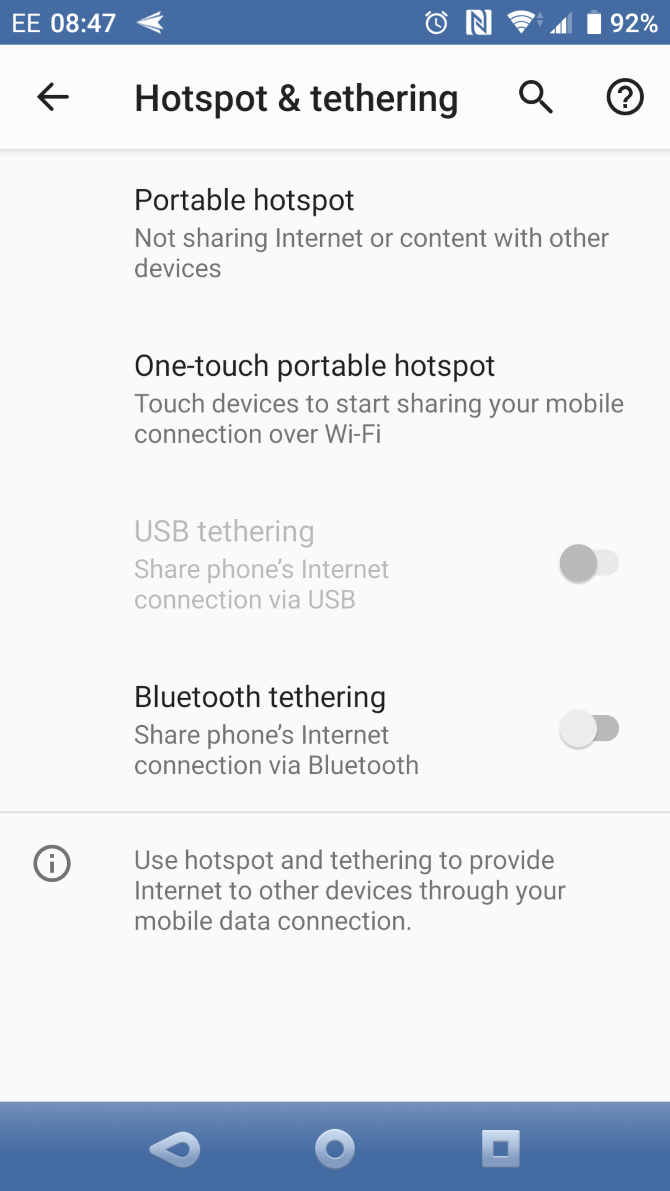
  • On Android, open Settings > Network & internet > Hotspot & tethering.
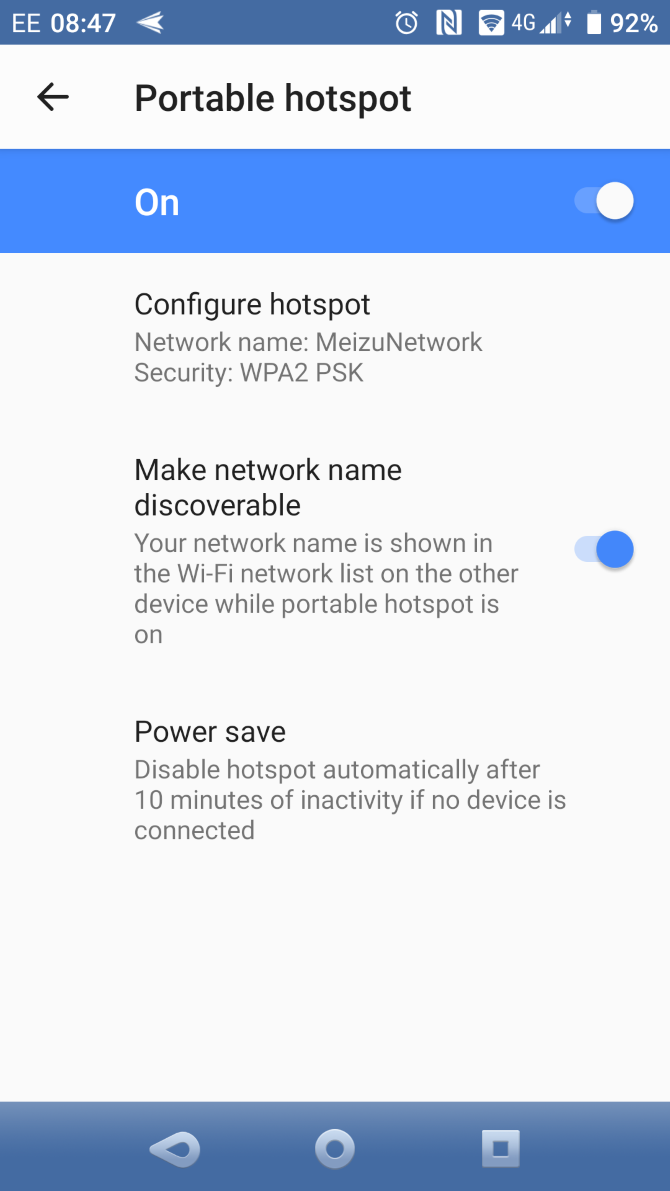
  • Next, select Portable hotspot.
  • Tap On then confirm the message regarding interruptions to existing connections.
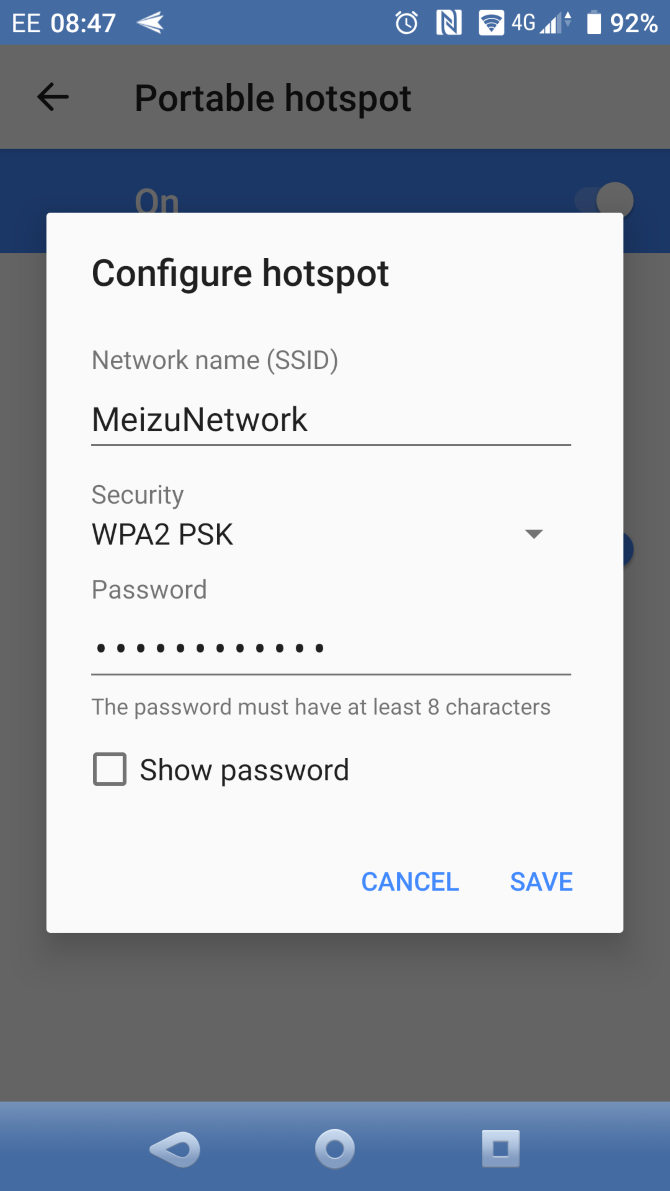
  • Click Configure hotspot.
  • Set a Network name (SSID)—this can be anything.
  • Choose the Security level—WPA2 PSK is the strongest.
  • Set a new Password.
  • When you’re done, tap Save.

With the hotspot enabled, you’ll be able to use your phone like a home wireless network.

Set Up Wireless Internet on iPhone or iPad

iPhone users can use their phone like a Wi-Fi router by using the hotspot feature.

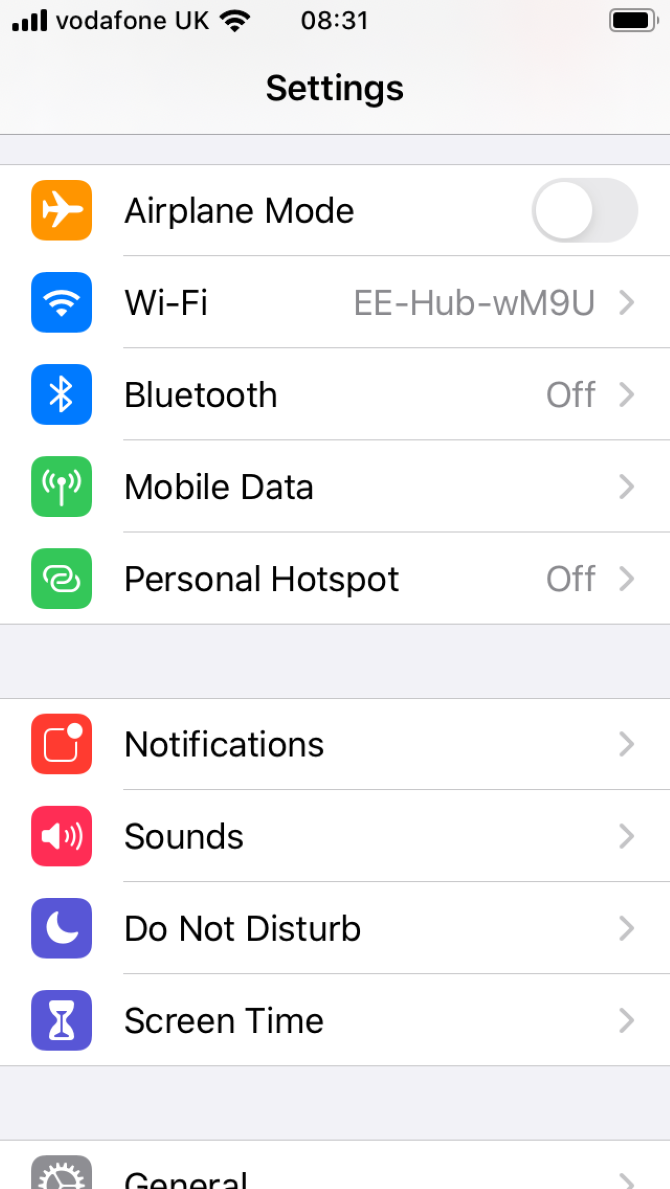
  • Open Settings.
  • Tap Personal Hotspot.
  • Enable Allow Others to Join.
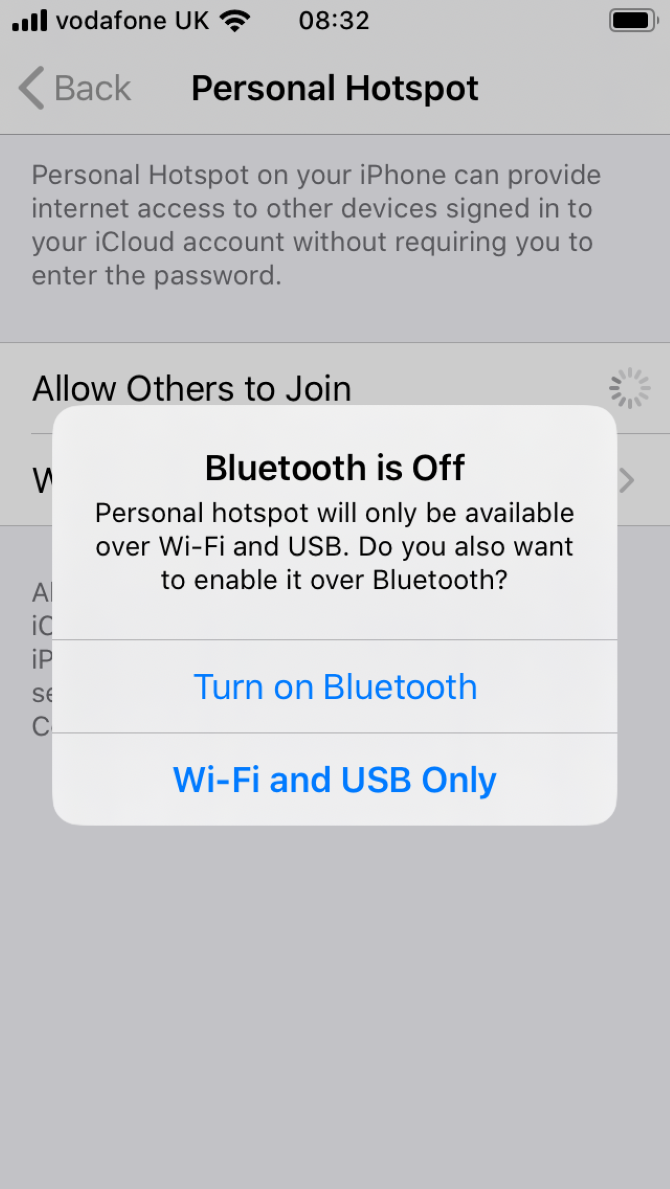
  • You’ll see a message labeled Bluetooth is Off.
  • Select Turn on Bluetooth or Wi-Fi and USB Only, as per your preference.
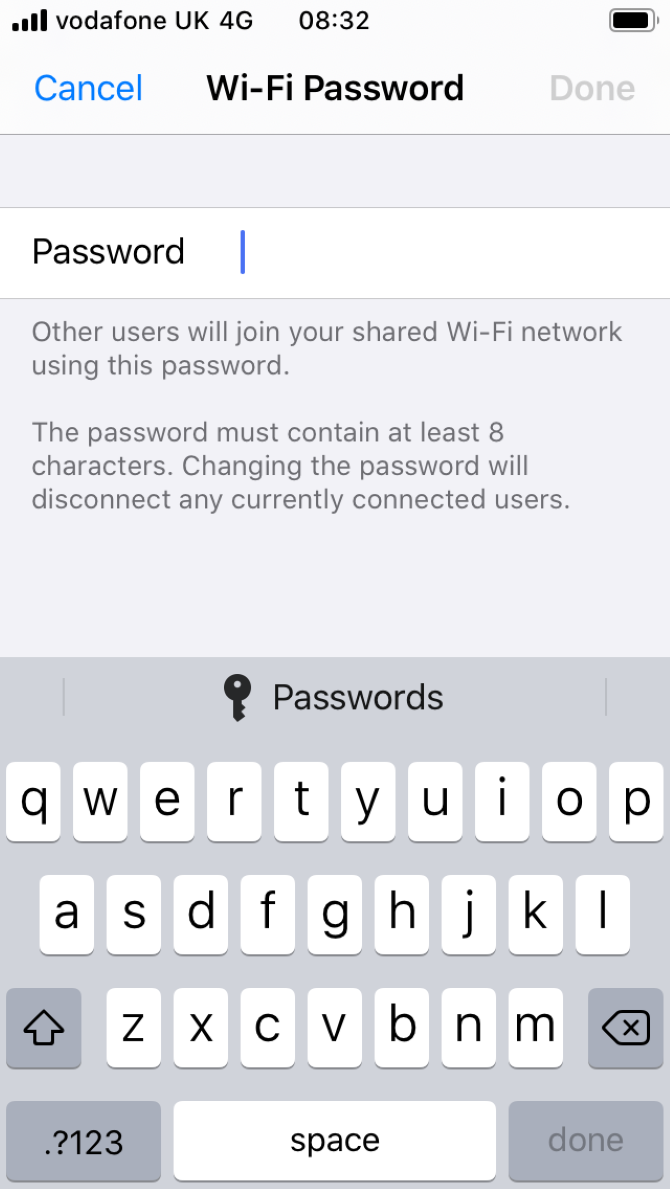
  • Tap Wi-Fi Password to set a new passkey.

With all options set, your iPhone will be running as a wireless hotspot—essentially, a mobile router for your home!

Use Windows 10 Mobile as a Wireless Router

If you have an old phone you plan to use as a wireless router, it might be a Windows 10 Mobile.

  • Swipe down from the top and long-tap Mobile hotspot.
  • Tap the Share my mobile data switch to On.
  • Ensure Share my mobile data connection is set to Wi-Fi.
  • Tap Edit to set a Network name and new password.
  • When you’re done, tap the Back

Windows 10 Mobile features an option to remotely enable the mobile hotspot feature over Bluetooth. To do this, enable Turn on remotely. If your second device (perhaps a remote control or headset) is connected to your device over Bluetooth, this will work.

Connect Devices to Your Home Mobile Wi-Fi Network

With your smartphone set up as a Wi-Fi router, you’ll be ready to start connecting devices. For the best results, keep this to as few devices as possible. A couple of tablets or laptops is a smart idea; a games console, less so.

To do so, simply connect them as you would to any other wireless router. The broadcast name (SSID) you specified will be displayed. Simply enable Wi-Fi on your device, find the SSID, and enter the password your specified.

It’s that simple!

Is a Smartphone the Best Home Network Setup?

Admittedly, a smartphone is a stopgap. Eventually, you’re going to have to upgrade to an internet connection with a standard router. If anything, it’s better for your phone this way. Leaving your phone plugged in to maintain the charge is not good for the battery.

Then there’s internet caps, which are in danger of being reached if your smartphone is your primary internet connection. So, what is the answer?

Well, if you cannot get cable internet, then a mobile internet package with a dedicated 4G or 5G router might be the answer. Your internet connection will be available over the air, as with mobile internet, but the subscription will be a domestic one.

Otherwise, just use a dedicated mobile hotspot. Our guide to the best portable mobile Wi-Fi hotspots will get you connected.

Read the full article: How to Set Up a Wireless Home Network With a Mobile Phone


Read Full Article

How to Use Your Smartphone as a Windows Microphone


smartphone-mic-windows

Whether you’re chatting with friends over Skype, talking tactics on a game, or laying down some tunes, a microphone can come in very handy for your computer. But what if you don’t have one?

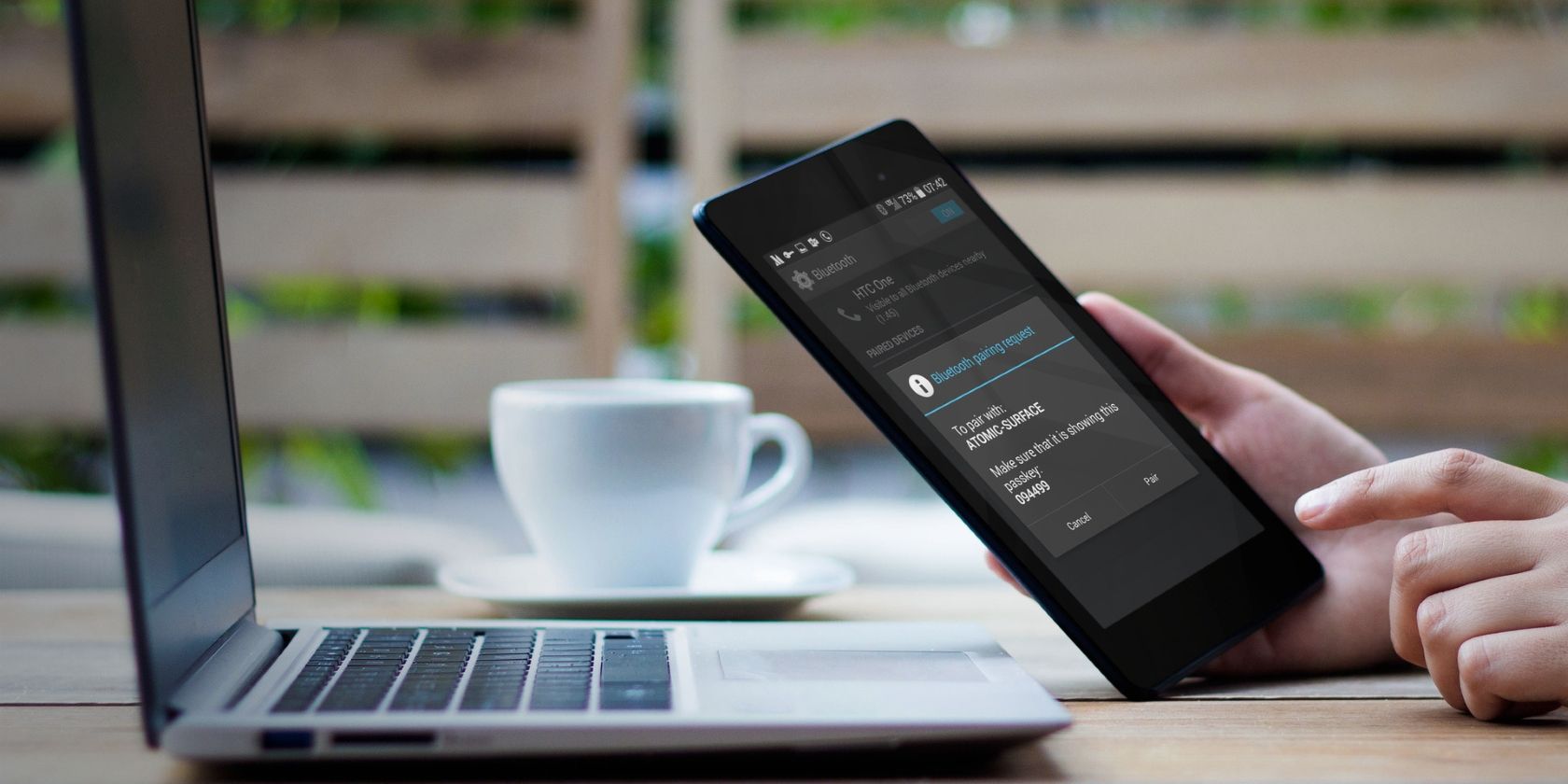
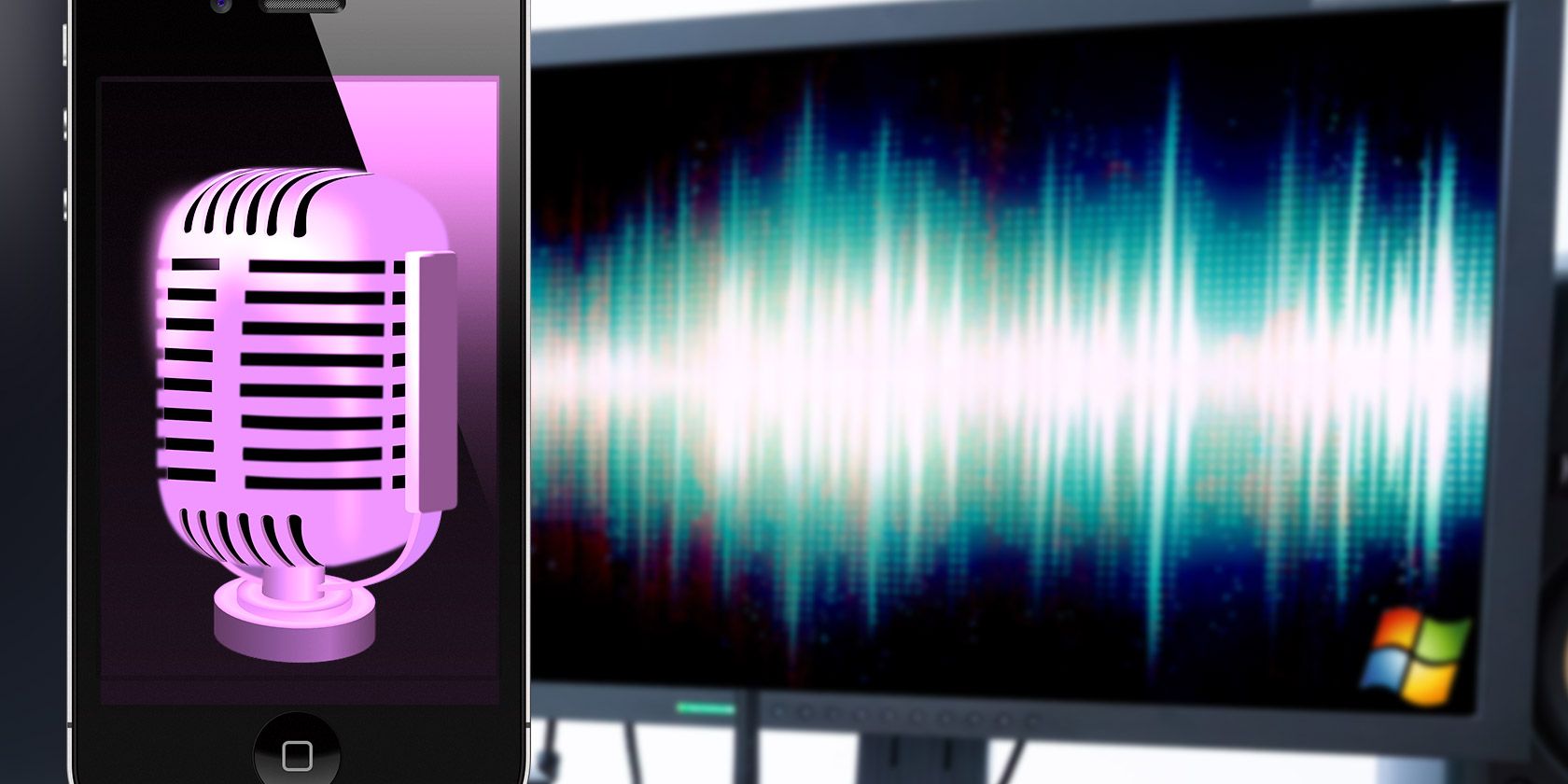
While you may not have a microphone for your computer, chances are that you have a smartphone. There’s the solution to your problem: you can use your smartphone as a PC microphone and it’s incredibly easy to set up.

We’ll show you different ways to use your phone as a microphone.

Use Your Phone as Microphone Using WO Mic

One of the best ways to achieve this is by using WO Mic. With this program, you can use USB, Bluetooth, or Wi-Fi to connect your smartphone’s microphone to your computer.

WO Mic Windows screenshot

It’s entirely free to use, has low latency, and will work in any application just like a standard microphone.

Head over to the WO Mic website and download the PC client and PC driver. Install them both. Then grab either the Android or iOS app.

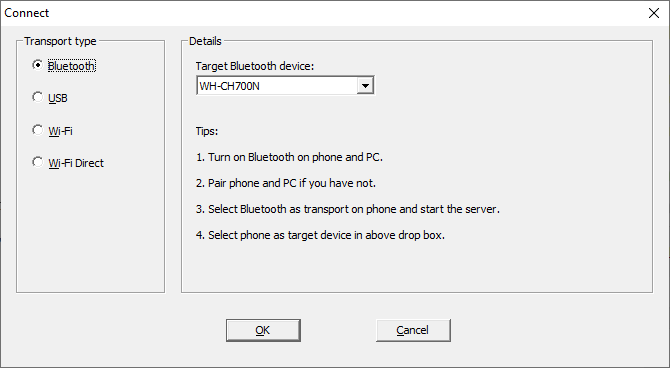
Launch the PC program. Go to Connection > Connect… and choose a Transport type.

We’ll detail the steps for all the different options below.

1. Connect via Bluetooth

setup-bluetooth-windows

First, enable Bluetooth on your computer. Press Windows key + I to open Settings and go to Devices > Bluetooth & other devices. Slide Bluetooth to On. Your computer will now be discoverable to other devices.

Next, enable Bluetooth on your phone. The exact location of this option will vary on a device, but it’s usually inside your Settings, perhaps beneath a Connections category.

Pair your phone to your computer. A notification should pop up on your computer to confirm the connection.

On the Windows WO Mic program, select Bluetooth as your Transport type and select your phone from the Target Bluetooth device dropdown. Click OK.

On the phone WO Mic app, tap the settings cog, tap Transport, and select Bluetooth. Go back a screen and tap the play icon to begin transmitting your voice.

2. Connect via USB

Connect phone to computer with USB
Image Credit: caluian.daniel/Depositphotos

This method only works for Android. Connect your phone to your computer using a USB cable. It’s the same one you use to charge the phone.

Windows may prompt you to install a driver, so follow that process through if so.

Next, enable USB debugging in the Developer options of your phone. Your phone should then be recognized by Windows as a device.

On the Windows WO Mic program, select USB as your Transport type. Click OK.

On the phone WO Mic app, tap the settings cog, tap Transport, and select USB. Go back a screen and tap the play icon to activate your phone’s microphone.

3. Connect via Wi-Fi

Connect with WiFi in Windows 10

For this method both your phone and computer need to be connected to the same Wi-Fi network.

To alter your Wi-Fi network on Windows, press Windows key + I to open Settings and to go Network & Internet > WiFi.

On the phone WO Mic app, tap the settings cog, tap Transport, and select Wi-Fi. Go back a screen and tap the play icon. A gray banner message should appear at the top with a number at the end. This is the IP address.

On the Windows WO Mic program, select Wi-Fi as your Transport type. Click OK. In the Server IP address field, input the IP address from the app. Click OK to begin using the microphone.

4. Connect via Wi-Fi Direct

This method requires you turn your phone into a Wi-Fi hotspot and use your network data. Use this as a last resort; if your computer doesn’t have its own internet connection, and the other methods above aren’t suitable.

First, create a mobile hotspot from your phone. The way to do this will vary on a device, but have a look in Settings and you can find it usually beneath a Connections or Tethering category.

Next, you need to link your computer to this hotspot. Press Windows key + I to open Settings, go to Network & Internet > WiFi and select the hotspot.

On the phone WO mic app, tap the settings cog, tap Transport, and select Wi-Fi Direct. Go back a screen and tap the play icon.

On the Windows WO Mic program, select Wi-Fi Direct as your Transport type. Leave the Soft AP IP address field at its default of 192.168.43.1. Click OK and you’re good to go.

Is Windows Not Detecting Your Voice?

You shouldn’t run into any problems, but if you follow the above instructions and Windows isn’t detecting the microphone, there’s an easy fix.

Press Windows key + I to open Settings. Go to System > Sound. Beneath Input, use the dropdown to select Microphone (WO Mic Device).

Change sound input on Windows 10

Speak into your smartphone and you should see the volume reflected on the Test your microphone bar.

Alternative Methods to WO Mic

There are alternatives to WO Mic, but these require the use of an audio connection jack. Megaphone Free for iOS, Microphone for Android, and Real Microphone for Windows Phone should do the trick.

Download these apps, hook your phone to your Windows computer using a male-to-male headphone jack and your phone will then function as a computer microphone.

A headphone

You can even plug in a pair of headphones to your computer’s microphone jack and use them. It might seem like an odd idea, but both make use of vibrations for different primary functions.

Simply put, headphones vibrate to create sound, while microphones monitor for vibrations. But you can still switch it and use the headphones as a microphone. However, bear in mind that the audio quality will leave a lot to be desired, so make this a last resort option.

Smartphone as Webcam

While using your smartphone as a Windows microphone might not be ideal for everyone, it’s a perfect solution for those who need to get talking quickly and don’t have a traditional microphone handy.

When you can get yourself chatting within minutes without spending a penny, it’s hard to complain. You’re being cost-effective and making use of the devices you already have.

On that note, you can also try using your smartphone as a webcam.

Read the full article: How to Use Your Smartphone as a Windows Microphone


Read Full Article

6 Google Tricks When You Don’t Know What to Search For


make-google-search-great-again

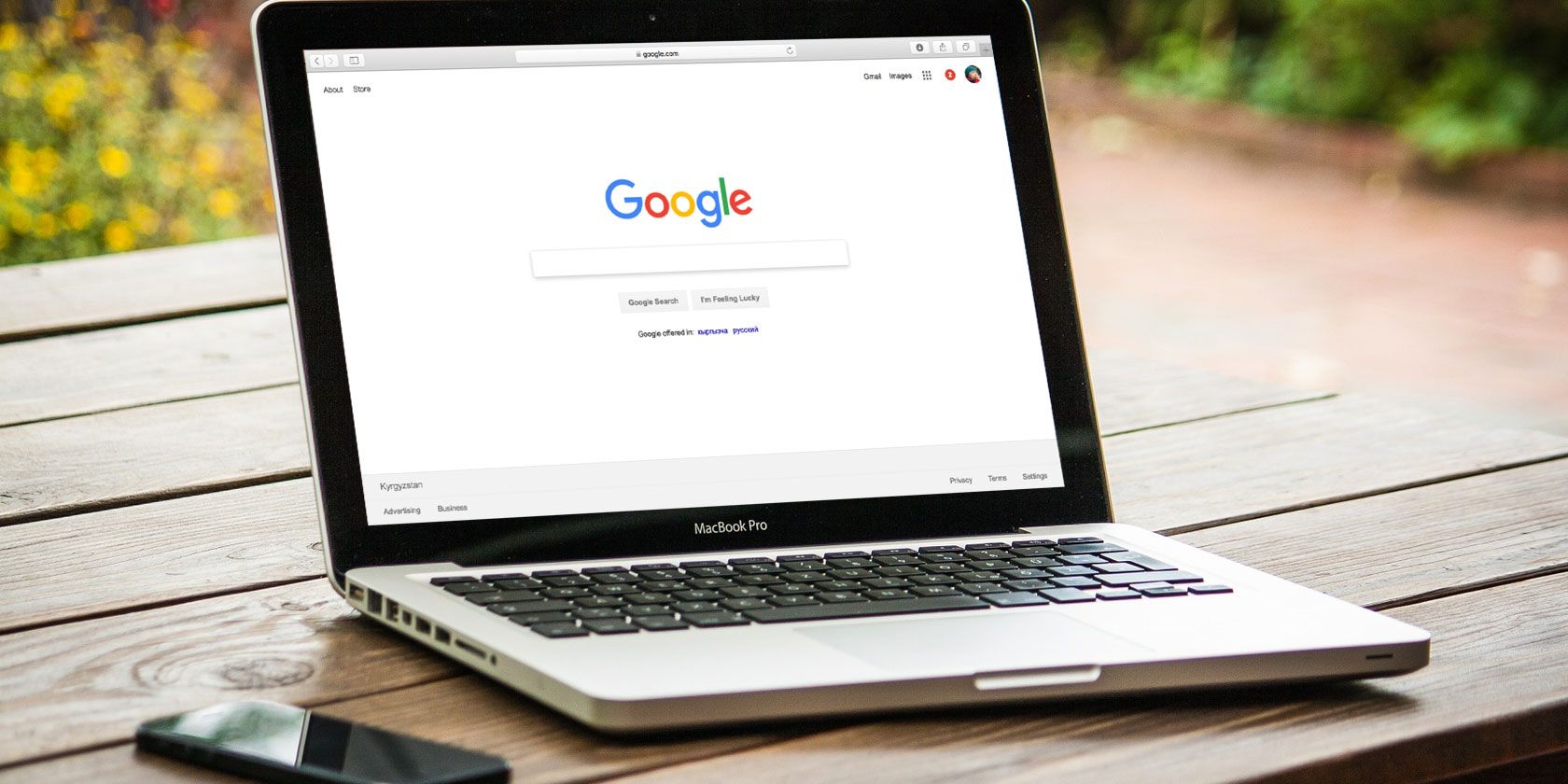
Despite spending millions of dollars on fancy algorithms, Google Search can sometimes be a fickle beast. You know that the information you’re looking for is out there, but no matter what search terms you enter, you can’t find a suitable result.

But don’t worry. If you don’t know what to search for in Google, there are a few tricks you can try that might prove useful.

So today, we’re going to look at a few different ways to help you search for something. Keep reading to learn more.

1. Wildcard Search Operator

google wildcard when you don't know what to search

Google’s wildcard search operator is useful if you…

  • Don’t know a particular word in a phrase you’re looking for.
  • Want to search for multiple results around a base phrase.

To use the wildcard search operator, just type an asterisk (*) in place of the world you’re not sure about.

For example, let’s suppose you’ve heard a great song on the radio, but you can’t make out a certain word. You could type “We all live on a * submarine.” The Google results would show you any results that match the phrase. You might see results like “We all live on a yellow submarine,” “We all live on a big submarine,” “We all live on an old submarine,” and so on.

Similarly, you could use the Google wildcard search operator to look for results around a theme. For instance, if you search for “reliable * provider,” search results might include “reliable internet provider,” “reliable web hosting provider,” “reliable VPN provider,” etc.

2. Find Related Sites

google related sites when you don't know what to search

The Related Sites tool lets you find any sites that are similar to the domain you enter into the search. The trick is especially useful if you’re researching a niche subject and want to find other sites that discuss the same topic, but you don’t know what to search for.

The tool primarily works by analyzing the backlinks pointing to a domain and listing sites that have similar sets of backlinks (for those who don’t know, “backlinks” is a fancy way of describing other sites that have linked to an external domain/page). Thematic relevance also plays a part; the thematic information is chiefly sourced from Google Ads data.

To use the Related Sites tool, just type related:[domain] (with no space). For example, if you enter related:makeuseof.com, you’ll get a list of other tech blogs that provide similar (but worse!) content to ours.

3. Exclude Words

exclude words to help google search

If you want to search for something but you keep getting a list of unrelated results, a great way to refine your query is to exclude particular words.

The ability to exclude words is useful if a list of search results is dominated by a particular person or company. You can exclude a word by typing a directly before the word. You can also add more than one excluded word.

For example, if you search for “Liverpool,” almost all the results on the first couple of pages show links for Liverpool FC, the English soccer club. To see results about the city rather than the team, you could type “Liverpool -football -soccer -fc” to force Google to omit any results about Jurgen Klopp’s side.

4. Find Results Within a Range of Numbers

google price range computer don't know what to search

You can add two periods (..) between search terms to find results within a specific range of numbers. The trick is perfect when you want to search for something in a specific price range or at a certain point in time, but you don’t know what to look up.

For example, let’s imagine you’re trying to research 19th-century American history. If you type “USA 1800..1900” into Google Search, you will get a list of results about the country that specifically relate to that period in history.

Similarly, you can use the trick to find items to buy that fit within your budget. Typing “computer $100..$200” would reveal any product listings and articles about machines in the $100 to $200 price range.

5. Multiple Missing Words

google around search tool

We’ve looked at how to use an asterisk as a wildcard operator, but what options do you have when there are multiple words that you’re unsure of? If you don’t know the majority of the phrase or query that you need to look up, is it possible to still find what you need?

Yes! The solution is to use the AROUND operator. Simply type AROUND followed by an estimated number of missing words in brackets, for example, AROUND(4).

So, let’s use the example of a paragraph in a book. Specifically, this phrase from To Kill a Mockingbird:

“Mockingbirds don’t do one thing except make music for us to enjoy. They don’t eat up people’s gardens, don’t nest in corn cribs, they don’t do one thing but sing their hearts out for us. That’s why it’s a sin to kill a mockingbird.”

To look for the phrase using the AROUND tool, you could type “Mockingbird AROUND(25) sing their hearts out” (note there are actually 28 missing words). Google would then be able to locate the quote.

6. Google Image Search

google image search

You’re walking along the street one day and see a great painting or photograph. But what is the subject matter? Who is the artist? How old is the image? It’s impossible to know what to search for if you don’t have the faintest idea about what you’re looking at in the first place.

Rather than typing an entirely unsatisfactory description into Google and hoping for the best, it makes much more sense to try and do a Google image search. You can perform an image search from both your computer and your mobile device. Just take a photo of the item in question and see if Google can match it to an image somewhere else on the web.

To perform an image search on mobile, you first need to open images.google.com and request the desktop version of the site using your browser’s settings menu. To begin the search process, tap on the Camera icon.

We’ve written about the best Google Image hacks if you’d like to read more.

Learn More About Using Google Search

The six tricks we’ve discussed in this article will all help when you don’t know what to look up. If you’ve got any other ideas for what to do when you don’t know what to search for, let us know in the comments below.

And if you’d like to learn more about using Google Search, make sure you read our other article on how to customize Google’s search results.

Read the full article: 6 Google Tricks When You Don’t Know What to Search For


Read Full Article

Apple AirPods vs. AirPods Pro: Which Is Right for You?


airpods-vs-airpods-pro

Apple’s hugely popular AirPods are going Pro. The AirPods Pro take what made the AirPods a hit and add in a few twists, most importantly active noise cancellation technology.

We’ll take a look at the major features of the AirPods Pro and see how they compare to the original AirPods so you can decide which one is right for you.

Customizable Sound on the AirPods Pro

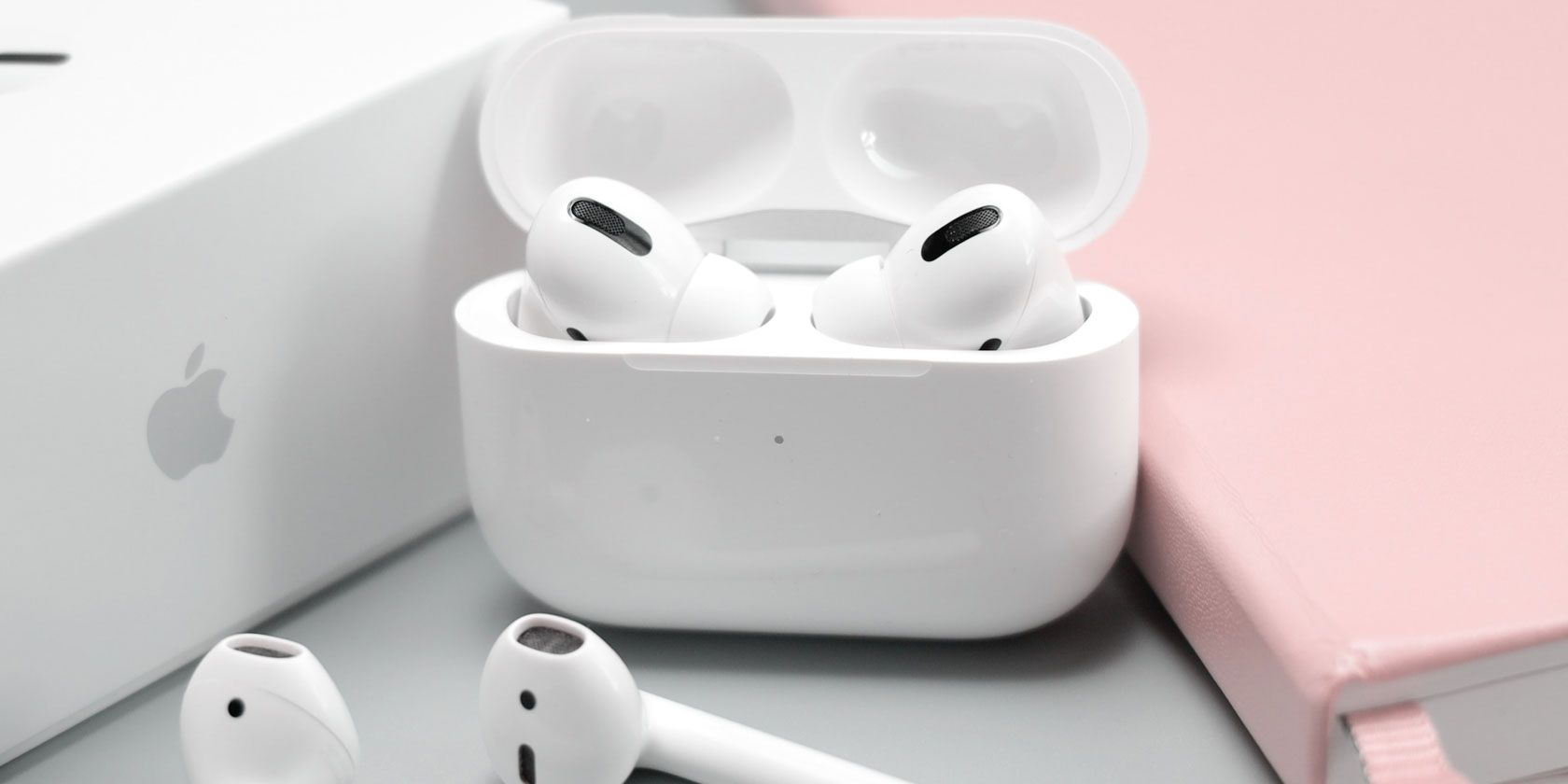
The Apple AirPods Pro look similar to the AirPods, but with some big differences. The most obvious is the silicone tip at the end of the earbud.

Apple AirPods Pro Apple AirPods Pro Buy Now On Amazon $234.99

For the most comfortable fit possible, and to help with the active noise cancellation feature, Apple includes three different sizes of ear tips—small, medium, and large.

AirPods Pro Tip Sizes

And there’s no need to guess the best size for your ear, thanks to the Ear Tip Fit Test. After the initial pairing with your iPhone, head to Settings > Bluetooth and select the name of your AirPods Pro. Scroll down and then select Ear Tip Fit Test. The test will begin after you place your AirPods Pro in both ears.

After a quick pause, you’ll see whether the ear tips are the right size and creating a good seal. If not, the test will recommend a different size until you find the perfect option for both ears.

A good fit in your ear is also a big part of providing active noise cancellation. Usually found in traditional headphones, active noise cancellation uses a microphone that listens to external noise and then cancels that out with an anti-noise wave. The AirPods Pro are the first earbuds on the market with the active noise cancellation technology.

Apple takes this even further with another microphone facing in toward the ear to listen for any more noise to cancel. The noise cancellation is adjusted 200 times per second.

Another big feature to better customize the music to your ear is Adaptive EQ. Apple says that it will automatically tune both low and mid frequencies to the shape of your ears.

AirPods Pro Transparency Mode

Unlike the AirPods, the AirPods Pro are water and sweat-resistant. That makes them a perfect choice for outdoor activities, including running.

Instead of only having the option to turn active noise cancellation on or off, the AirPods Pro also include a “Transparency” mode. This combines your connected audio with what’s happening around you.

There are multiple ways of switching between modes. Perhaps the easiest is with the force sensor on the stem of either AirPod Pro. Instead of using a tap like the AirPods, the force sensor requires a small squeeze.

With the sensor, you can also play, pause, or skip tracks while listening to music. In addition, this allows you to answer and hang up on phone calls without needing to interact with your iPhone.

On your iPhone or iPad, you can press on the volume slider in Control Center to switch between active noise cancellation and Transparency. You also have the option to turn both modes off.

AirPods Pro Control Center

Using an Apple Watch, just select the AirPlay icon to cycle between modes.

Thanks to the H1 chip in the AirPods Pro, you can switch modes by using the hands-free “Hey Siri” option. You can also talk to the virtual assistant to accomplish tasks like changing the volume, making calls, and more.

AirPods Pro Battery Life and Other Details

Even with the added active noise cancellation technology, the battery life of the AirPods Pro is almost identical to the AirPods. On a single charge, the AirPods Pro can provide up to 4.5 hours of playback with the active noise cancellation or Transparency mode active.

With both of those off, the headphones can go for up to five hours. And expect up to 3.5 hours of talk time on a single charge of the AirPods Pro.

The Wireless Charging Case with the AirPods Pro is shaped a bit differently the AirPods case. However, it can provide more than 24 hours of music and 18 hours of talk time before a recharge is needed.

AirPods Pro Charging Case

In a pinch, five minutes in the charging case provides around one hour of music playback or talk time.

Comparing the AirPods and AirPods Pro

When trying to decide between the AirPods and AirPods Pro, the best way to pick is determining how you plan to use wireless headphones. Both the AirPods and AirPods Pro offer the same easy pairing with Apple devices, great battery life, and a handy charging case.

If you’re looking for a simple pair of wireless earbuds, it’s hard to go wrong with the Apple AirPods.

Apple AirPods Apple AirPods Buy Now On Amazon $144.00

While the AirPods with Wireless Charging Case is a nice plus, the wireless case isn’t a must-have. The base AirPods case can still be charged with a regular Lightning cable.

Apple AirPods with Wireless Charging Case Apple AirPods with Wireless Charging Case Buy Now On Amazon $164.99

There are a couple of reasons to consider the AirPods Pro. While the AirPods are comfortable and fit well in the ear for most, there are a lot of people who would rather have a more customizable fit. And the AirPods Pro provide that.

Once you find the correct size of ear tip using the fit test, the AirPods Pro stay comfortably in your ear no matter what you’re doing.

The great fit, along with the water and sweat resistance of the AirPods Pro, also make those earbuds something any athlete or gym rat should take a look at. While the earbuds won’t survive a dunk in the pool, there’s no need to worry about a sudden rainstorm or heavy sweat from a workout ruining the electronics.

If you have a bit more money to spend, the active noise cancellation and Transparency modes should be music to your ears.

While the sound of the AirPods Pro isn’t better than the AirPods, the active noise cancellation technology is great. If you work in a busy office, or just want to tune out the world and focus on audio, that’s definitely worth the extra cash.

Picking the Best AirPods for You

It’s a great time to be a fan of wireless earbuds. Whether you pick Apple’s AirPods Pro or AirPods, enjoy rocking out to music, videos, and more. And if you select the classic AirPods, make sure to take a look at these great AirPods accessories that protect against damage.

Read the full article: Apple AirPods vs. AirPods Pro: Which Is Right for You?


Read Full Article

How to Clean a Computer Screen Safely and Easily


clean-computer-screen

Can you read this line? Or is there a splash from a sneeze, or a greasy fingermark in the way? Perhaps another portion of your screen is dirty. The chances are that you don’t clean your screen often enough. In fact, we’re willing to bet that you’ve been putting it off for a while…

Cleaning a computer screen isn’t as difficult as you might think it is. Here’s what you need to know about how to clean your display, what to use, and cleaning it safely.

It’s Time to Clean That Dirty Screen

Whether you’re using a desktop PC, laptop, or hybrid, it’s important to keep the display clean. The same goes for LCD and plasma TV screens, too.

How to clean a computer screen
Image Credit: Jemimus/Flickr

Splashes can obscure what you see on the screen. Smudges and greasy fingerprints accumulate over time to leave you with a dirty screen; dust gathers. The result is a viewing experience that is diminished by the presence of dirt.

It doesn’t have to be this way. Cleaning your computer or laptop display is remarkably simple. What’s more, it only takes a few minutes. When you’re done, you’ll have a shiny new display as good as the day you bought it.

Here’s What to Clean a Computer Screen With

You don’t need much to clean a computer screen. Just a bottle of suitable cleaning spray and a lint-free, microfiber cloth.

  • Cleaning solution
  • Microfiber cloth

These can often be bought as a bundle. This EcoMoist cleaning kit is a great example.

EcoMoist cleaning kit EcoMoist cleaning kit Buy Now On Amazon

Don’t have these things to hand? Don’t worry—you can also clean your computer screen with standard household products. Start off by making your own screen cleaner, using isopropyl (rubbing alcohol) or white vinegar, and distilled water.

You’ll also need a suitable microfiber cloth substitute. The idea here is to avoid anything likely to scratch your display. So, avoid paper towels, anything used for washing dishes, and facial wipes. Instead, opt for a cotton t-shirt, or handkerchief. A soft cotton tea towel is also a safe alternative.

Out regularly with your laptop? Carrying a bottle of spray isn’t practical, so instead pack some monitor wipes.

Monitor Wipes Monitor Wipes Buy Now On Amazon $12.99

While they’re good for a quick fix, monitor wipes don’t give the same results as a spray. So be sure to clean your screen at home between trips.

How to Clean a LCD Laptop or PC Screen

So, you’ve got your cleaning spray and a microfiber cloth. You’re ready to start cleaning—but stop right there!

Before proceeding, you need to turn off your device. If it’s a desktop PC, turn off the monitor. Laptop user? Shut it down.

Now, you were going to spray the cleaning fluid directly onto the display, weren’t you? Don’t do that. 

Drips from the fluid can run into the bezel of the display, causing problems with the electrics. On a laptop, the spray can end up in vents and the keyboard, as well as running into the bezel.

Instead, spray the fluid directly onto the cloth.

You will need a few applications, but this approach is far safer than risking the integrity of your computer’s display.

With the cloth in hand, clean the display making small circular motions, avoiding unnecessary pressure. Start in the top left corner, and work across, then start another row. If some dirt seems tough to shift, repeat the process, focusing on that area.

Wipe off any excess, then leave to dry naturally. Don’t use any heated dryers.

How to Clean an Old-Style CRT Monitor

Cathode Ray Tube (CRT) monitors are rare these days, but they can still be found in retro gaming systems. You might even own an arcade machine with a CRT display, or simply own an old CRT TV that you still use.

Need to clean a dirty CRT display? You’ll need:

  • Anti-static cloth
  • Lint-free cloth
  • Screen cleaning fluid (glass cleaner is okay here)

Start off with the anti-static cloth and cleaning fluid, quipping down the dusty case.

Next, spray the screen cleaning fluid onto the lint-free cloth, wiping the display in straight lines. Don’t worry if the cloth dries out—simply apply another few squirts of cleaning fluid.

How to Clean a Touchscreen Display

If you’re using a hybrid laptop that can be used as a tablet, cleaning the display is a little different.

These devices attract more grease and dust than static LCD displays. As such, you’ll need to clean them in a slightly different way. Hybrid device touchscreen displays are cleaned in much the same way as standard tablets and smartphones.

The main aim here is to remove the grease, then clean the screen of other dirt and detritus. Our guide to safely cleaning a tablet or smartphone display will help you here.

Computer Screen Clean? Don’t Stop There!

By this stage you should know everything you need to know about cleaning a dirty screen. Let’s recap:

  • Turn off your display
  • Start off with a microfiber cloth and screen cleaning fluid
  • Spray the cloth
  • Wipe the display clean in small circular motions

If you’re using a laptop, use the same steps, but keep some dedicated screen wipes in your bag. They’ll prove useful when you’re out.

Meanwhile, if you own a CRT, follow the same steps, but remember that you can use glass cleaner. The case and display should also be cleaned with an anti-static cloth.

Finally, if you use a hybrid or touchscreen laptop, you’ll need to be more aware of the problems with grease. Our dedicated tutorial, linked to above, will help you out here.

Once your greasy, dirty screen is cleaned up, you might feel ready to start using your computer again. But you shouldn’t stop there. It’s time to completely clean your computer. Using a notebook? Here’s how to clean your laptop and keyboard.

Meanwhile, try our spring cleaning checklist for your Windows PC.

Image Credit: Syda_Productions/Depositphotos

Read the full article: How to Clean a Computer Screen Safely and Easily


Read Full Article
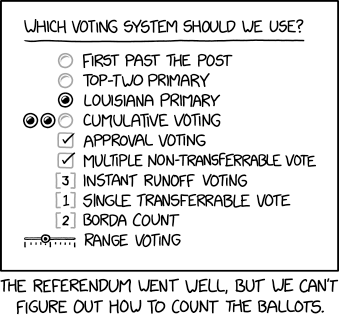
Voting Referendum


Voting Referendum

06 November 2019

Tinder’s interactive video series ‘Swipe Night’ is going international next year


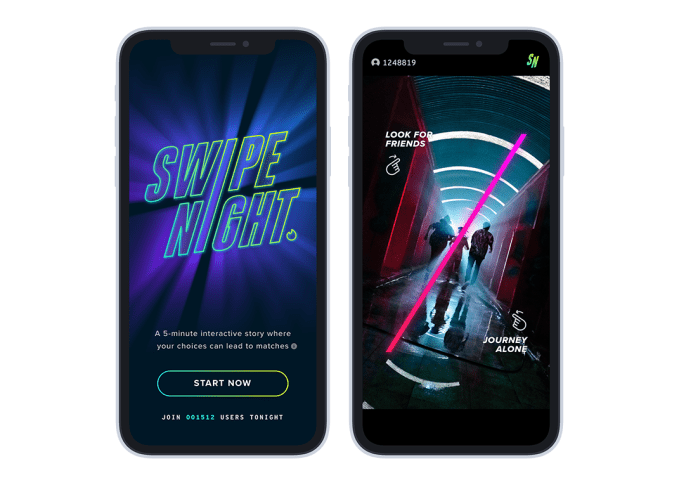
Tinder’s big experiment with interactive content — the recently launched in-app series called Swipe Night — was a success. According to Tinder parent company Match during its Q3 earnings this week, “millions” of Tinder users tuned into to watch the show’s episodes during its run in October, and this drove double-digit increases in both matches and messages. As a result, Match confirmed its plans to launch Tinder’s new show outside the U.S. in early 2020. 

Swipe Night’s launch was something of a departure for the dating app, whose primary focus has been on connecting users for dating and other more casual affairs.

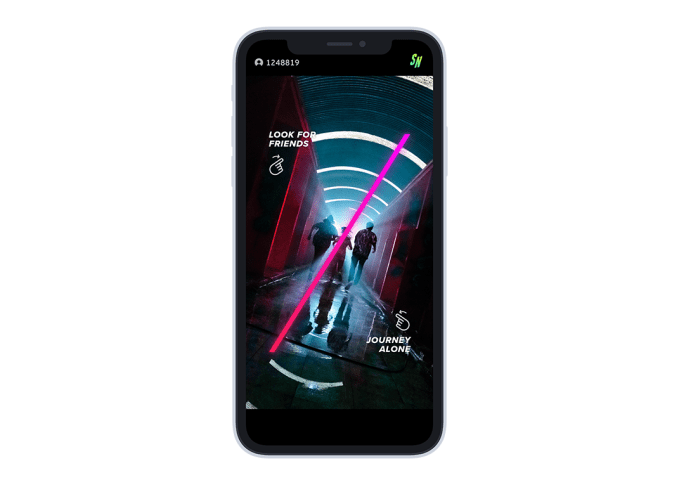
The new series presented users with something else to do in the Tinder app beyond just swiping on potential matches. Instead, you swiped on a story.

Presented in a “choose-your-own-adventure” style format that’s been popularized by Netflix, YouTube, and others, Swipe Night asked users to make decisions to advance a narrative that followed a group of friends in an “apocalyptic adventure.”

Swipe Night ChoiceThe moral and practical choices you made during Swipe Night would then be shown on your profile as a conversation starter, or as just another signal as to whether or not a match was right for you. After all, they say that the best relationships come from those who share common values, not necessarily common interests. And Swipe Night helped to uncover aspects to someone’s personality that a profile would not — like whether you’d cover for a friend who cheated, or tell your other friend who was the one being cheated on?

The 5-minute long episodes ran every Sunday night in October from 6 PM to midnight.

Though early reports on Tinder’s plans had somewhat dramatically described Swipe Night as Tinder’s launch into streaming video, it’s more accurate to call Swipe Night an engagement booster for an app that many people often find themselves needing a break from. Specifically, it could help Tinder to address issues around declines in open rates or sessions per user — metrics that often hide behind what otherwise looks like steady growth. (Tinder, for example, added another 437,000 subscribers in the quarter, leading to 5.7 million average subscribers in Q3).

Ahead of earnings, there were already signs that Swipe Night was succeeding in its efforts to boost engagement.

Tinder said in late October that matches on its app jumped 26% compared to a typical Sunday night, and messages increased 12%.

On Tinder’s earnings call with investors, Match presented some updated metrics. The company said Swipe Night led to a 20% to 25% increase in “likes” and a 30% increase in matches. And the elevated conversation levels that resulted from user participation continued for days after each episode aired. Also importantly, the series helped boost female engagement in the app.

“This really extended our appeal and resonated with Gen Z users,” said Match CEO Mandy Ginsberg. “This effort demonstrates the kind of creativity and team we have a tender and the kind of that we’re willing to make.”

Swipe Night

The company says it will make Season 1 of Swipe Night (a hint there’s more to come) available soon as an on-demand experience, and will roll out the product to international markets early next year.

Swipe Night isn’t the only video product Match Group has in the works. In other Match-owned dating apps, Plenty of Fish and Twoo, the company is starting to test live streaming broadcasts. But these are created by the app’s users, not as a polished, professional product from the company itself.

Match had reported better-than-expected earnings for the third quarter, with earnings of 51 cents per share — above analysts’ expectations for earnings of 42 cents per share. Match’s revenue was $541 million, in line with Wall St.’s expectations.

But its fourth-quarter guidance came in lower than expectations ($545M-$555M, below the projected $559.3M), sending the stock dropping. Match said it would have to take on about $10 million in expenses related to it being spun out from parent company IAC.


Read Full Article

Tinder’s interactive video series ‘Swipe Night’ is going international next year


Tinder’s big experiment with interactive content — the recently launched in-app series called Swipe Night — was a success. According to Tinder parent company Match during its Q3 earnings this week, “millions” of Tinder users tuned into to watch the show’s episodes during its run in October, and this drove double-digit increases in both matches and messages. As a result, Match confirmed its plans to launch Tinder’s new show outside the U.S. in early 2020. 

Swipe Night’s launch was something of a departure for the dating app, whose primary focus has been on connecting users for dating and other more casual affairs.

The new series presented users with something else to do in the Tinder app beyond just swiping on potential matches. Instead, you swiped on a story.

Presented in a “choose-your-own-adventure” style format that’s been popularized by Netflix, YouTube, and others, Swipe Night asked users to make decisions to advance a narrative that followed a group of friends in an “apocalyptic adventure.”

Swipe Night ChoiceThe moral and practical choices you made during Swipe Night would then be shown on your profile as a conversation starter, or as just another signal as to whether or not a match was right for you. After all, they say that the best relationships come from those who share common values, not necessarily common interests. And Swipe Night helped to uncover aspects to someone’s personality that a profile would not — like whether you’d cover for a friend who cheated, or tell your other friend who was the one being cheated on?

The 5-minute long episodes ran every Sunday night in October from 6 PM to midnight.

Though early reports on Tinder’s plans had somewhat dramatically described Swipe Night as Tinder’s launch into streaming video, it’s more accurate to call Swipe Night an engagement booster for an app that many people often find themselves needing a break from. Specifically, it could help Tinder to address issues around declines in open rates or sessions per user — metrics that often hide behind what otherwise looks like steady growth. (Tinder, for example, added another 437,000 subscribers in the quarter, leading to 5.7 million average subscribers in Q3).

Ahead of earnings, there were already signs that Swipe Night was succeeding in its efforts to boost engagement.

Tinder said in late October that matches on its app jumped 26% compared to a typical Sunday night, and messages increased 12%.

On Tinder’s earnings call with investors, Match presented some updated metrics. The company said Swipe Night led to a 20% to 25% increase in “likes” and a 30% increase in matches. And the elevated conversation levels that resulted from user participation continued for days after each episode aired. Also importantly, the series helped boost female engagement in the app.

“This really extended our appeal and resonated with Gen Z users,” said Match CEO Mandy Ginsberg. “This effort demonstrates the kind of creativity and team we have a tender and the kind of that we’re willing to make.”

Swipe Night

The company says it will make Season 1 of Swipe Night (a hint there’s more to come) available soon as an on-demand experience, and will roll out the product to international markets early next year.

Swipe Night isn’t the only video product Match Group has in the works. In other Match-owned dating apps, Plenty of Fish and Twoo, the company is starting to test live streaming broadcasts. But these are created by the app’s users, not as a polished, professional product from the company itself.

Match had reported better-than-expected earnings for the third quarter, with earnings of 51 cents per share — above analysts’ expectations for earnings of 42 cents per share. Match’s revenue was $541 million, in line with Wall St.’s expectations.

But its fourth-quarter guidance came in lower than expectations ($545M-$555M, below the projected $559.3M), sending the stock dropping. Match said it would have to take on about $10 million in expenses related to it being spun out from parent company IAC.


Read Full Article

Google enlists mobile security firms to rid Google Play of bad Android apps


Google has partnered with mobile security firms ESET, Lookout and Zimperium to combat the scourge of malicious Android apps that have snuck into the Google Play app store.

The announcement came Wednesday, with each company confirming their part in the newly created App Defense Alliance. Google said it’s working with the companies to “stop bad apps before they reach users’ devices.”

The search giant has struggled to fight against malicious apps in recent years. Although apps are screened for malware and other malicious components before apps are allowed into Google Play, the search and mobile giant has been accused of not doing enough to weed out malicious apps before they make it to users’ devices.

Google said earlier this year that just 0.04% of all Android apps downloaded from Google Play were considered potentially harmful apps — or about 30 million potentially malicious apps.

Yet, it remains an ongoing problem.

ESET, Lookout, and Zimperium have all contributed to the discovery — and eventual takedown — of hundreds of malicious apps on Google Play in recent years.

But each time Google takes down a suspicious or malicious app from Google Play, the thousands or millions of users with the app installed on their phone remain vulnerable. The apps are not removed from devices, continuing to put users at risk.

By integrating its Google Play Protect technology, which serves as Android’s built-in antimalware engine, with each of its partners’ scanning engines, the collective effort will help to better screen apps before they are approved for users to download.

Google said that knowledge sharing and industry collaboration are “important” to combat rising mobile app threats.


Read Full Article

Our immigration conversation is broken -- here's how to have a better one | Paul A. Kramer

Our immigration conversation is broken -- here's how to have a better one | Paul A. Kramer

How did the US immigration debate get to be so divisive? In this informative talk, historian and writer Paul A. Kramer shows how an "insider vs. outsider" framing has come to dominate the way people in the US talk about immigration -- and suggests a set of new questions that could reshape the conversation around whose life, rights and thriving matters.

Click the above link to download the TED talk.

How Do You Fix a Windows 10 Laptop With a Wrong Battery Percentage


windows10-battery-percentage

It’s not uncommon for a Windows 10 laptop to display the wrong battery information. This could be a fault with the battery hardware or the Windows software. We’ll show you how to fix it and get it to display the right battery charge level.

If you’ve ever found yourself with a laptop unexpectedly shutting down, even when you seemingly had enough battery left, this will help you fix the problem.

Laptop Batteries Don’t Last Forever

Not every laptop battery is created equal. A laptop battery has a set capacity, determined by the milliamp-hour (mAH). Simply put, the higher the mAH value, the more power the battery can hold. It’s common for more expensive laptops to have better batteries, but check your manufacturer’s specifications if you’re unsure.

laptop power management

The amount of time that your laptop will stay on without requiring more charge depends on how you use the laptop. Having the screen at full brightness, watching videos, and running lots of programs are all things that will drain the battery quicker.

There’s also debate around whether removing a laptop battery increases its life.

That said, no matter how lightly you use your laptop, the total capacity of the battery will always decrease over time. Every battery has a specific number of charge and recharge cycles. They also get affected by environmental factors like heat. Of course, no battery will last as long as it did when you bought the laptop. Typically, you’ll notice a reduction in battery run time after 18 to 24 months.

You can use battery health tools to get a better understanding of how your battery is fairing.

Battery Time Remaining Is a Prediction

Before you read the steps below to try to sort out the battery reading provided by Windows, you should understand how it’s calculated because it might not off the mark, to begin with.

The battery time estimate provided by Windows is an estimate. It’s based upon what your laptop is currently doing and assumes it will continue doing that.

If you are watching a video, or playing a game, or doing something intensive like that, Windows won’t estimate many hours remaining.

Laptop battery charge levels

However, if you stop playing the game, decrease screen brightness, and only open a Word document, the number of hours left on the battery will shoot up.

The figure can also change without you actively doing anything, like if a program is installing updates in the background.

So, if the remaining hour count jumps around a lot, that might be normal. But if your laptop suddenly turns off at 30 percent charge, there’s a problem.

Calibrate Your Laptop Battery

If your laptop battery meter is displaying an incorrect figure, the most likely way to solve it is by calibrating the battery. This is where you run the battery down from a full charge to empty and then back up again.

This process won’t give your battery more power or increase its life, but will instead allow Windows to provide an accurate reading.

1. Adjust Your Power Plan

Windows 10 Power Plans

  1. To start, right click the battery icon in the taskbar. Click Power Options, then click Change when the computer sleeps from the left menu.
  2. Take note of your existing settings here because you will need to put them back later. Change all the dropdowns to Never and click Save changes.
  3. Click Change advanced power settings. Expand Battery, then expand Critical battery level. Take note of the current percentage for later. Click the On battery percentage and set it as low as possible.
  4. Expand Critical battery action and ensure that On battery is set to Hibernate. If it isn’t, click to change it.
  5. Once done, click OK to save the changes.

2. Charge Your Laptop

Plug your laptop in and charge the battery to 100 percent. You can still use your laptop when doing this.

When it gets to 100 percent, stop using the laptop and wait a couple of hours. You want the battery to cool down. It’ll also account for any extra charging that might need to happen if the 100 percent reading is inaccurate.

3. Unplug Your Laptop

Take your laptop off charge and let the battery drain. Again, you can use your laptop during this time. You need to wait until the laptop completely runs out of power and turns off. When it has, let it rest for a couple of hours.

4. Charge Your Laptop Again

Plug the laptop back into power and charge the battery to 100 percent. Go back into the Windows power plan settings, following the previous instructions, and set everything back to how it was. (Or adjust them to something new, if you want.)

The battery percentage provided by Windows should now be accurate. If it isn’t, try the other steps below.

Reinstall Battery Drivers

Your battery drivers might be missing or corrupted and therefore causing an incorrect percentage reading. Let’s reinstall them.

Press Windows key + X and click Device Manager. Expand Batteries and you should see Microsoft AC Adapter and Microsoft ACPI-Compliant Control Method Battery.

Windows 10 Device Manager battery drivers

Right click on Microsoft ACPI-Compliant Control Method Battery and click Uninstall device. Wait for this to complete.

Once done, from the top menu, click Action > Scan for hardware changes. This will reinstall the driver. Restart your computer when it’s finished.

Update Windows

Check for updates in Windows 10

You should always keep Windows up to date to keep your system protected and to benefit from the latest features.

The issue with Windows being outdated is that the battery percentage that is displayed when you hover the taskbar icon, versus the percentage that shows when you click it, is one percent different.

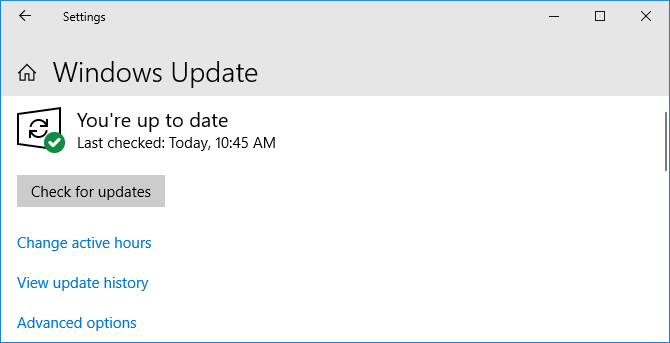
To ensure your laptop is running the latest version of Windows, press Windows key + I to open Settings, click Update & Security, and click Check for updates. Any available updates will automatically download and install.

Optimize Your Battery Life

Hopefully, this has helped you understand your Windows laptop battery reading and fix it if necessary.

If your laptop battery is getting old and not providing much juice, you should check out our guide on how to optimize Windows 10 for battery life.

Read the full article: How Do You Fix a Windows 10 Laptop With a Wrong Battery Percentage


Read Full Article