10 October 2019

The Best iPhone Music Apps and Alternative Music Managers for iOS


music-apps-ios

There are lots of iPhone music players that you can use to listen to your music. In fact, there are so many music apps for your phone that you should never feel stuck with Apple’s built-in Apple Music.

If you want an alternative way of transferring, storing, or playing back your files from your iOS music library, there are a lot options available. The same is true for finding alternative ways to listening to music through streaming.

Here are the best music apps for the iPhone currently on the market.

How Does Music Work on iOS?

How Music Works on iOS

Apple’s famous “walled garden” pushes a specific and sometimes outdated approach to media management. Assuming you’re using your own files, you’ll need to import music into your library. Then—when your iPhone is paired with the computer that holds your music—you’ll need to sync, either directly or through Wi-Fi.

The downside to this approach is that you can’t just point your browser at a file and download it. The upside to this centralized music library, however, is that the operating system handles media playback.

Want to learn more? Here’s how to transfer music from an old iPod to your computer or iPhone.

A Word on Apple Music
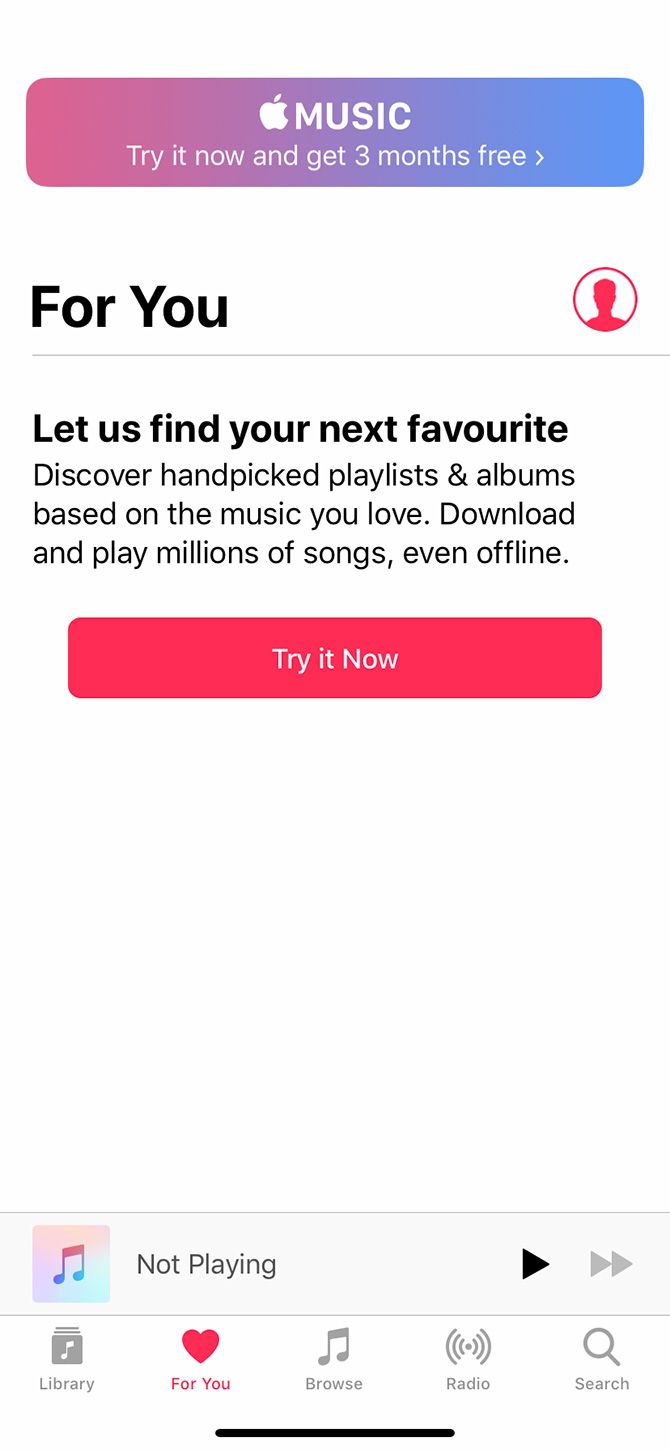
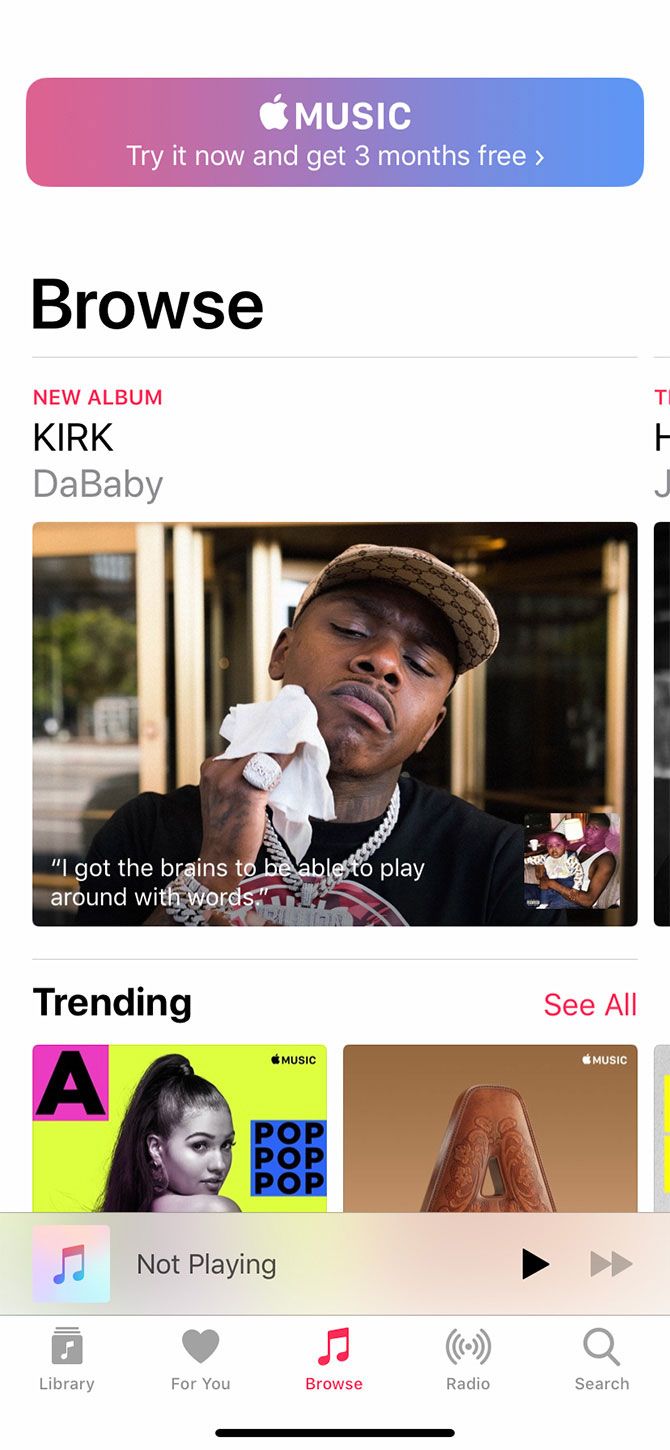
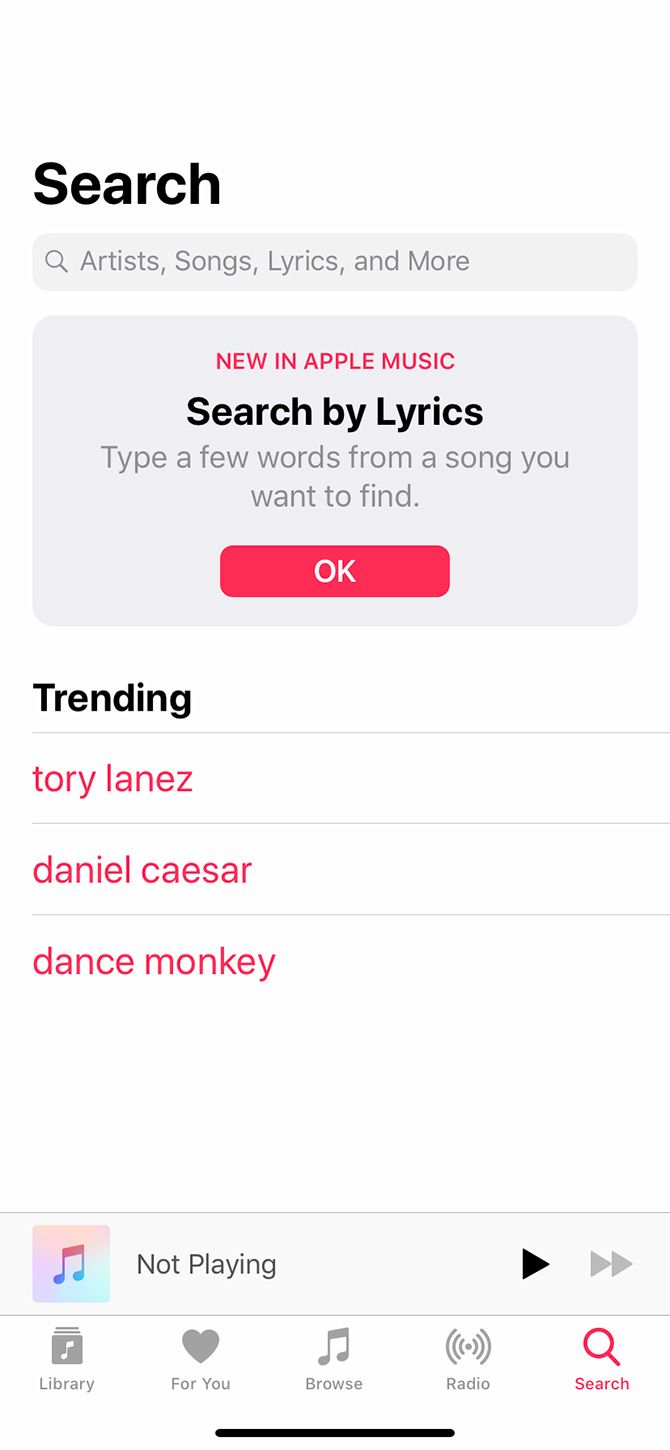
Apple Music launched a while back, so it’s definitely not the newest app on the market. However, most iOS music apps take Apple Music into account.

Because of this, we’ll focus on music players that integrate with Apple Music, at least in terms of playback.

Free Music Apps for iPhone

If you don’t want to pay, let’s first look at the best free music apps for iPhone.

1. SoundShare
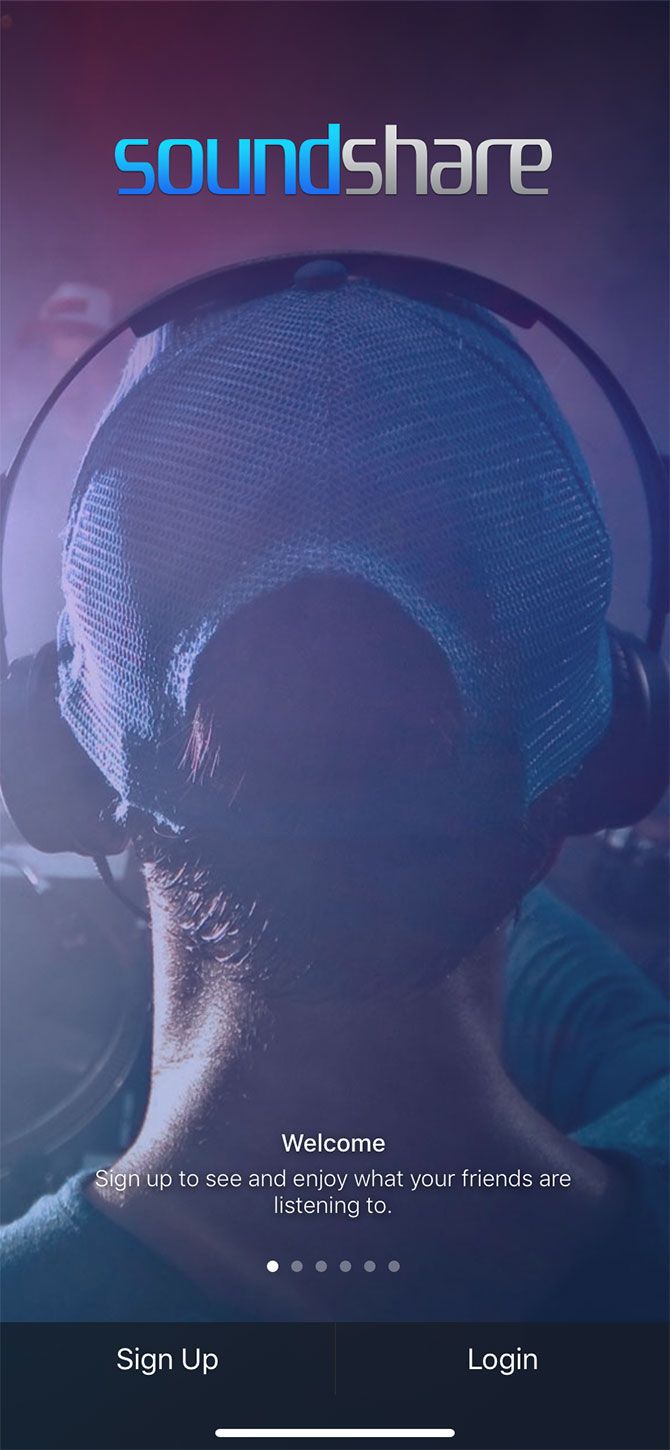
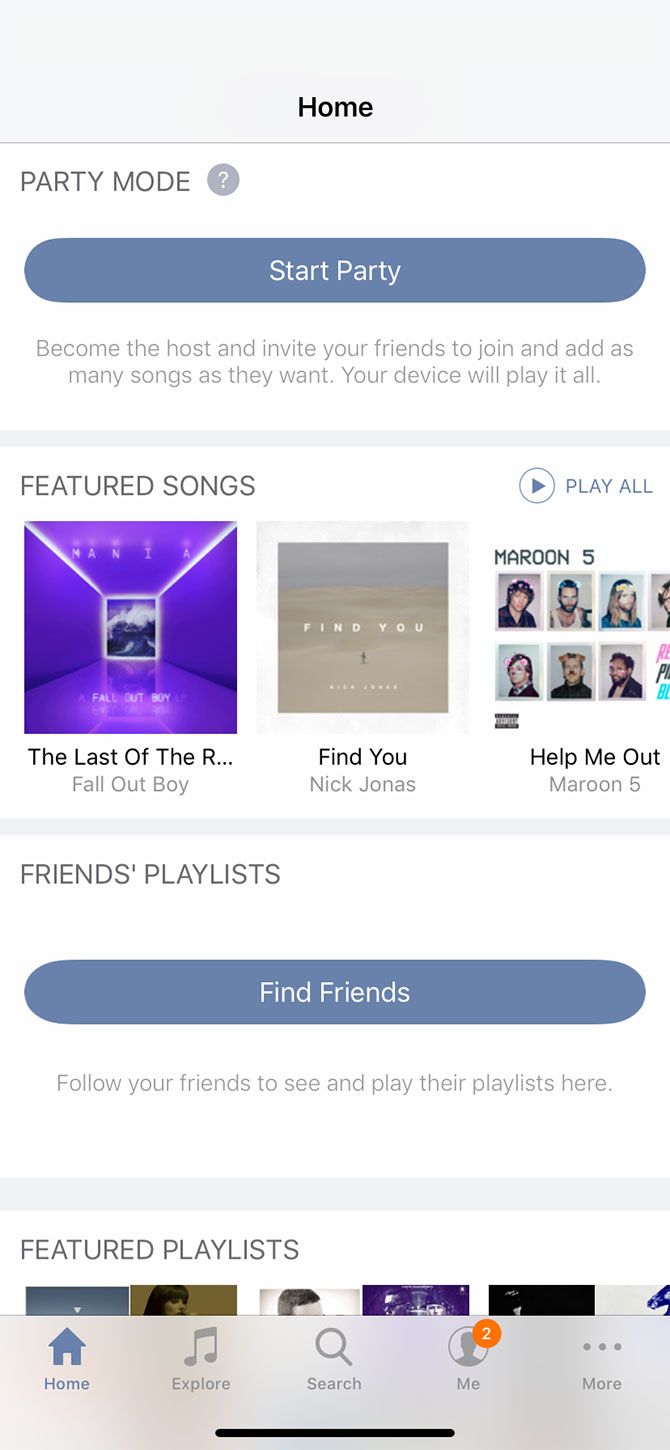
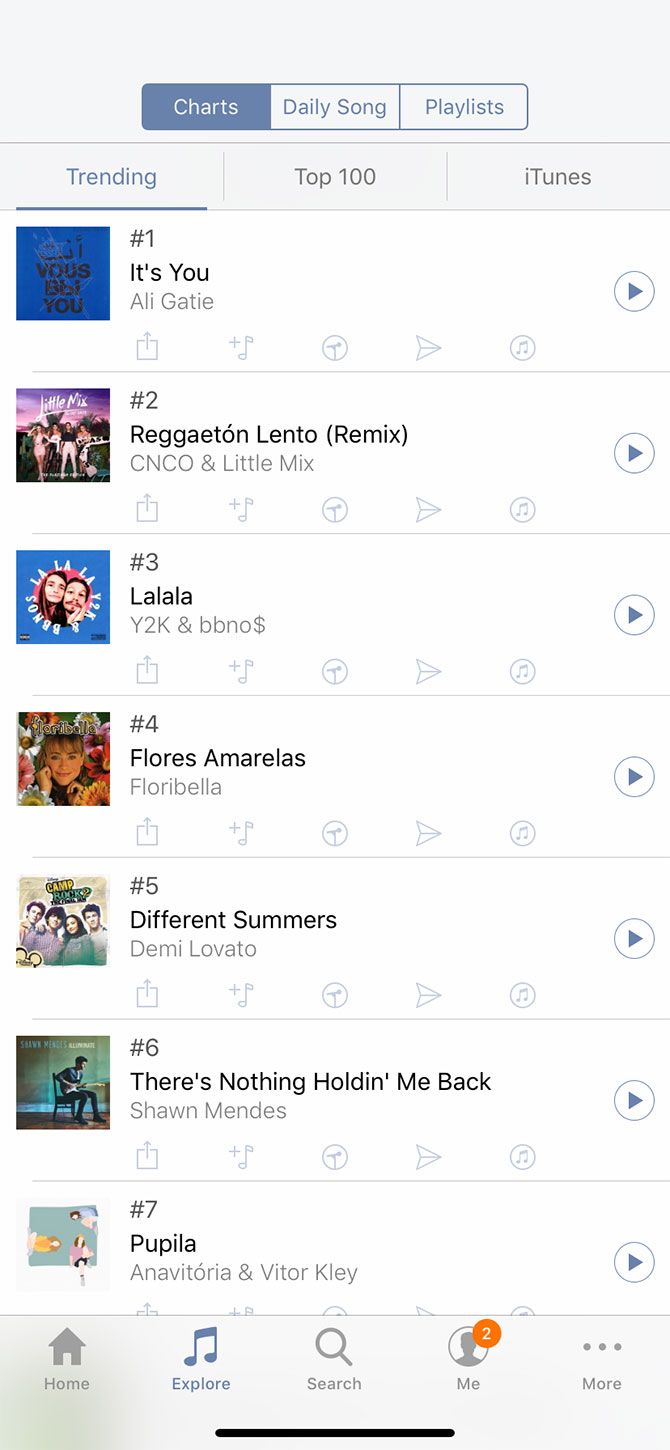
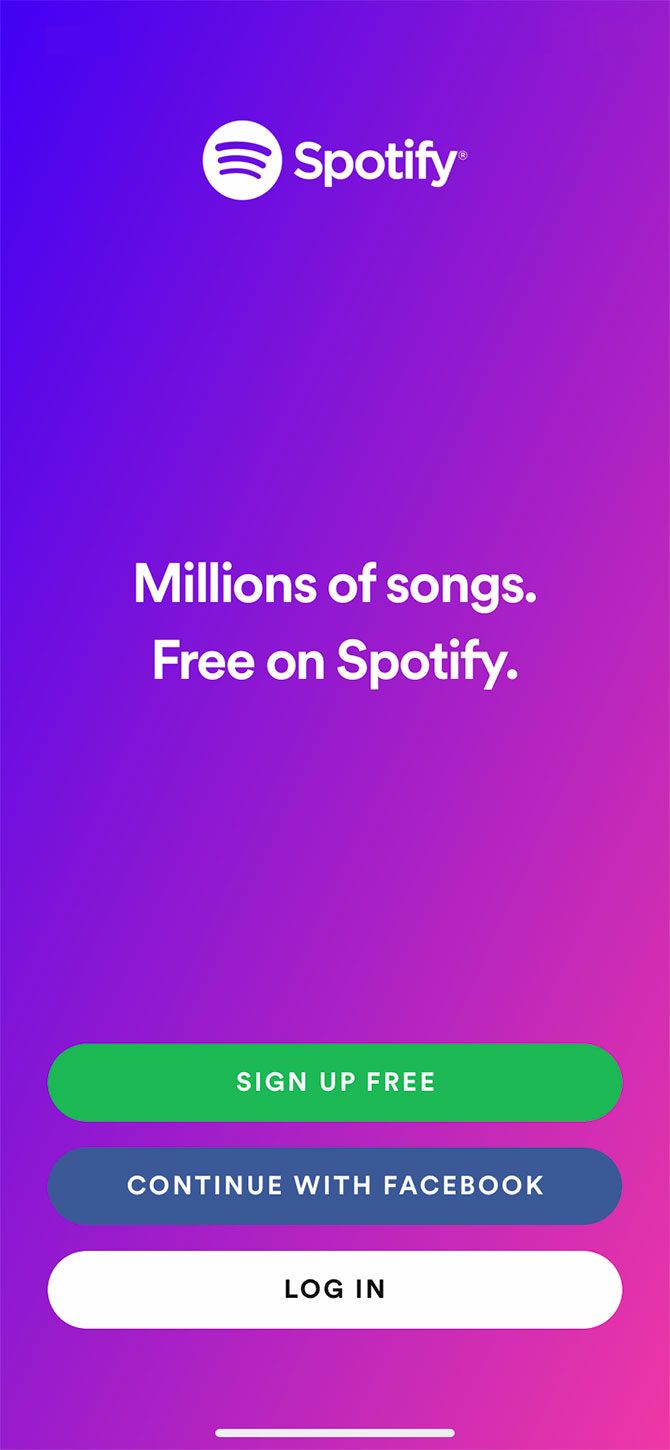
SoundShare is a collaborative app that connects many different services together, including Apple Music, Spotify, and Deezer. It’s a music social network you’ll need to sign up for. Anyone who wants to collaborate with you on playlists will have to do the same.

SoundShare is one of the best music apps for iPhone if you want to share your musical tastes. You can like, comment, and advertise your music recommendations, as well as build a playlist by working with other people.

Unfortunately, SoundShare is not much fun to use if you’re going alone. You’ll need to share with other users to get the most use out of it. Plus, you must have a paid subscription to Apple Music, Spotify, or Deezer in order to connect these services to SoundShare.

Download: SoundShare (Free)

2. VLC for Mobile
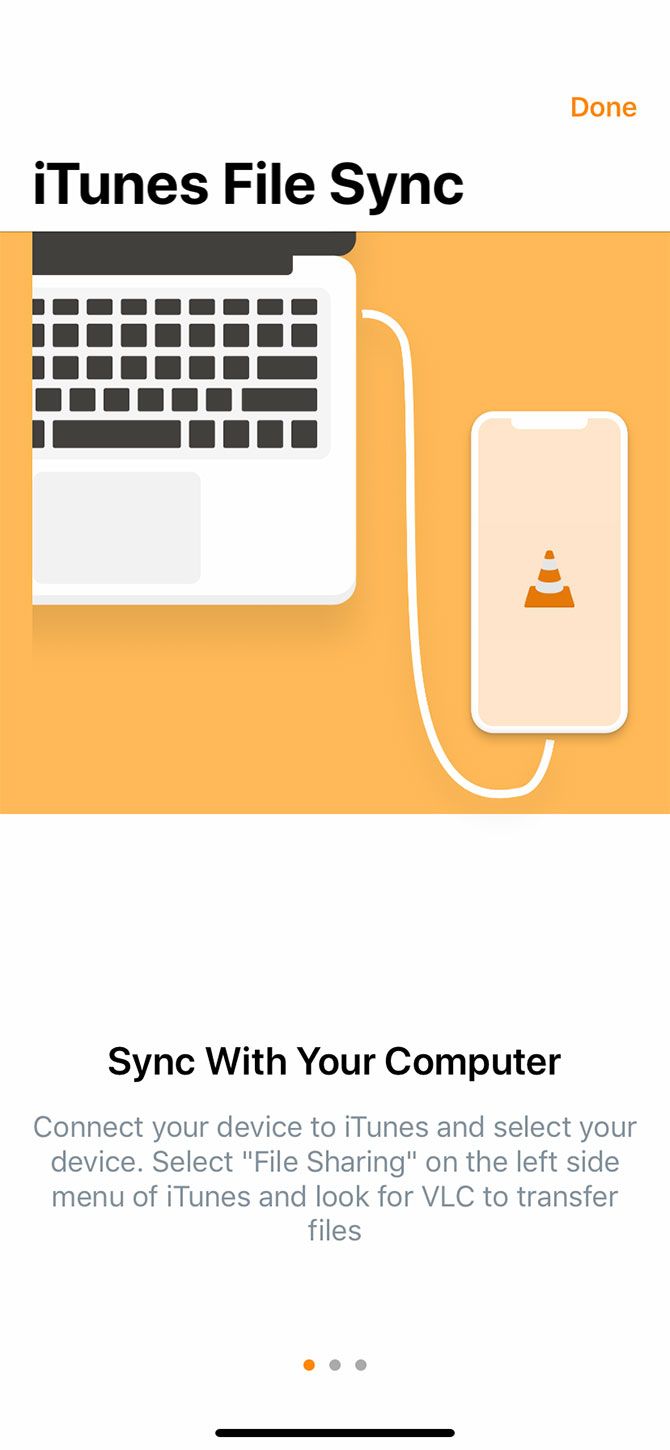
VLC is an old-school—and trusted—music player for the iPhone. It’s a good choice if you want to go standalone and plan to ditch Apple Music entirely. Not only does it play most music and video files (including otherwise unsupported formats like FLAC), it has support for multiple audio tracks, too.

Additional features available in VLC:

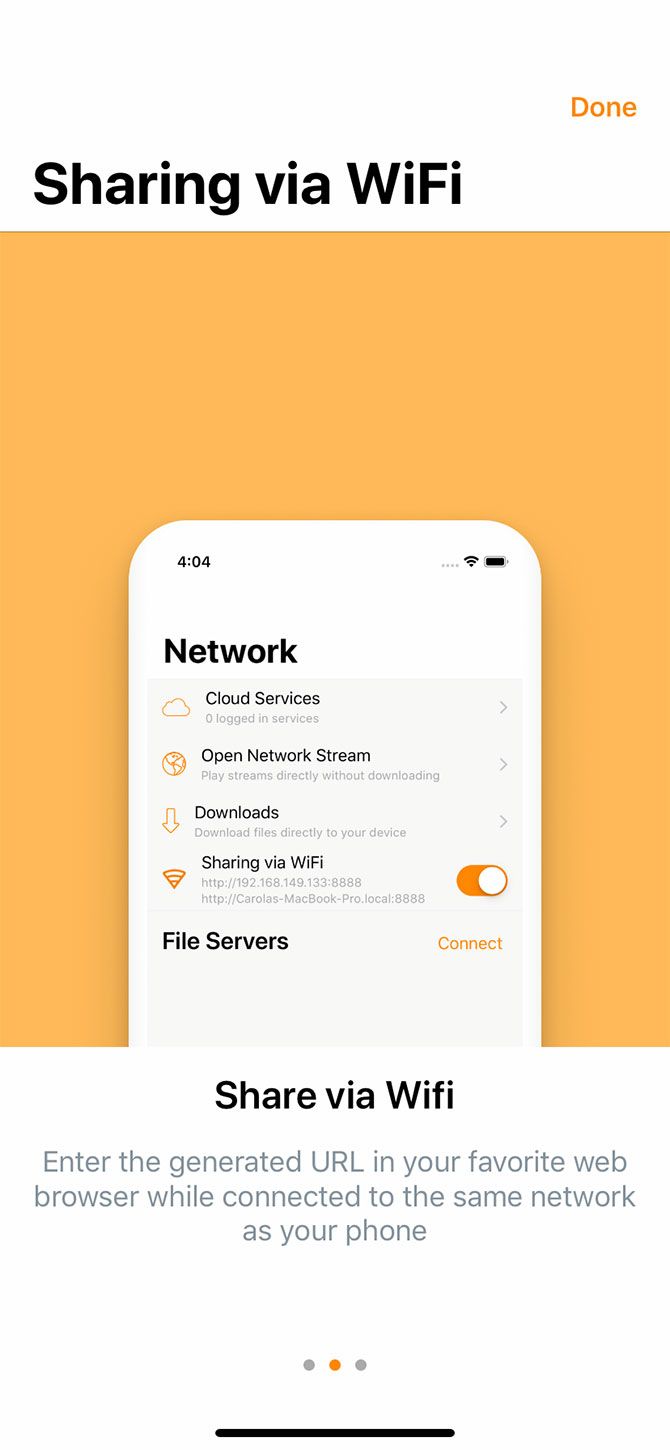
  • Transfer music through a browser via Wi-Fi, or use cloud services like Dropbox and Google Drive.
  • The app supports file sharing over SMB, FTP, and UPnP.
  • VLC for Mobile doesn’t need to be open to play media. This allows you to listen to music in the background while working in other apps.

VLC is a pretty extensive program that can handle a lot, so give it a try if you’re a fan of local media.

Download: VLC for Mobile (Free)

3. FLAC Player+
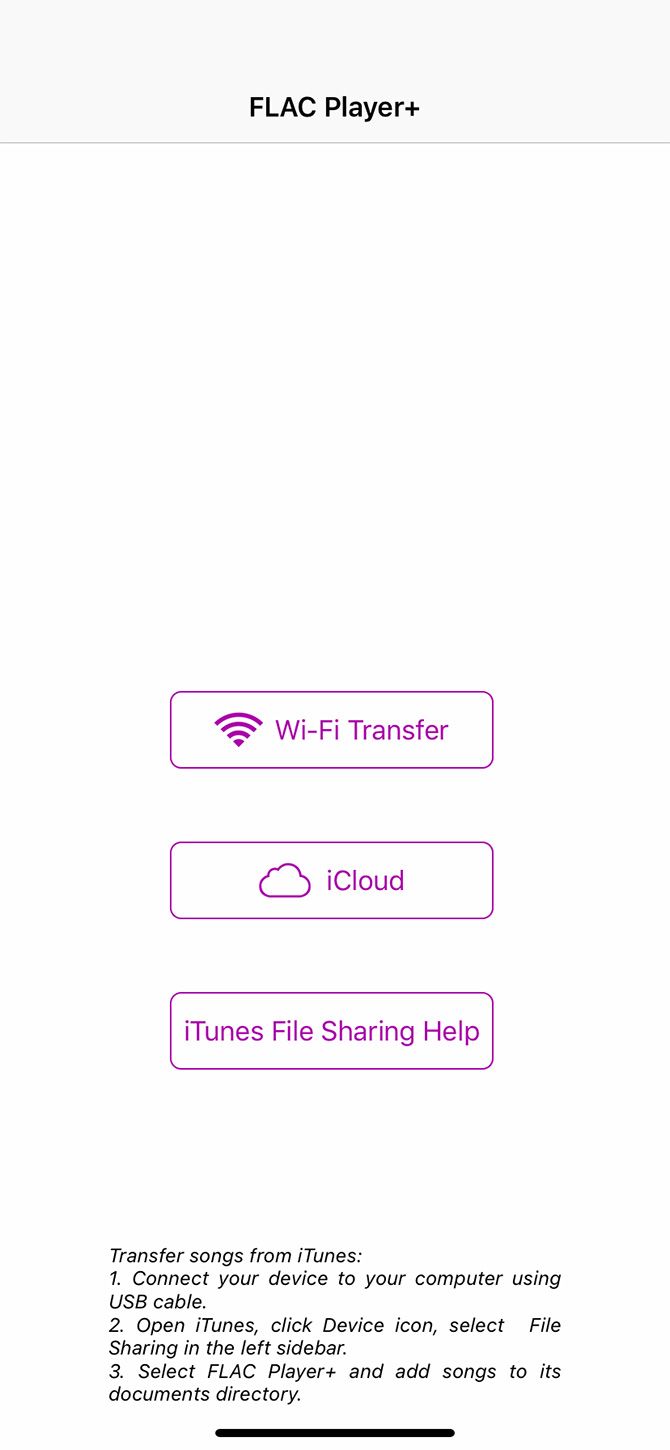
If VLC for Mobile isn’t cutting it, FLAC Player+ should do the trick.

FLAC Player+ is a good free music app for the iPhone if you’re looking for something dedicated to local media playback. It supports FLAC, MP3, AAC, WMA, and RealMedia formats.

The apps lets you group songs by playlist, album, and artist. Just like VLC, you can transfer music via Wi-Fi. However, FLAC Player+ is more of a “true” music player than VLC, so it doesn’t work with video.

The interface also needs a bit of work work, but it’s easy to use and free. You can remove the ads with a small in-app purchase.

Download: FLAC Player+ (Free)

The Best Music Apps for iPhone With Subscription Options

Moving on, let’s take a look at the best music apps for iPhone that offer a subscription for more features.

Note that due to Apple taking a 30% cut of all in-app purchases from iOS apps, many services increase the price of their subscriptions to compensate for this. For example, Spotify on iOS costs $13 per month for Premium instead of the usual $10 per month. As a result, you should avoid subscribing to any service through its iPhone app when possible.

1. Listen
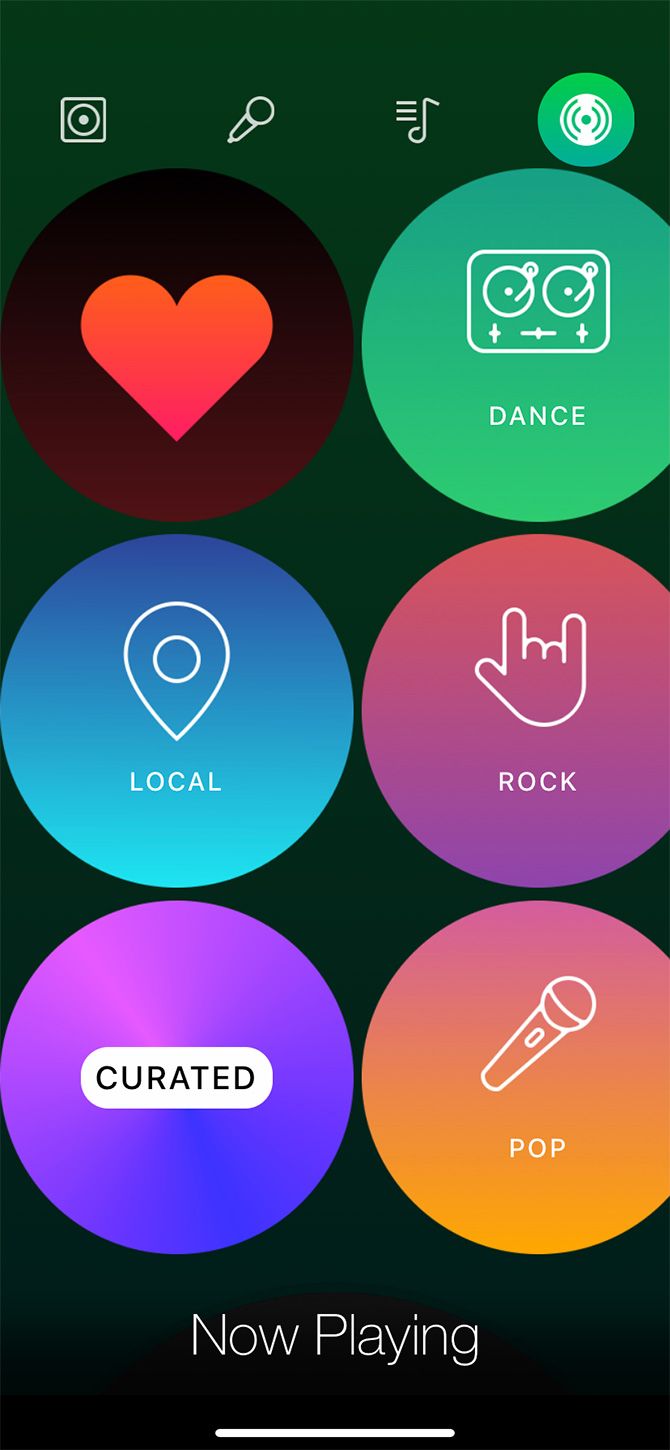
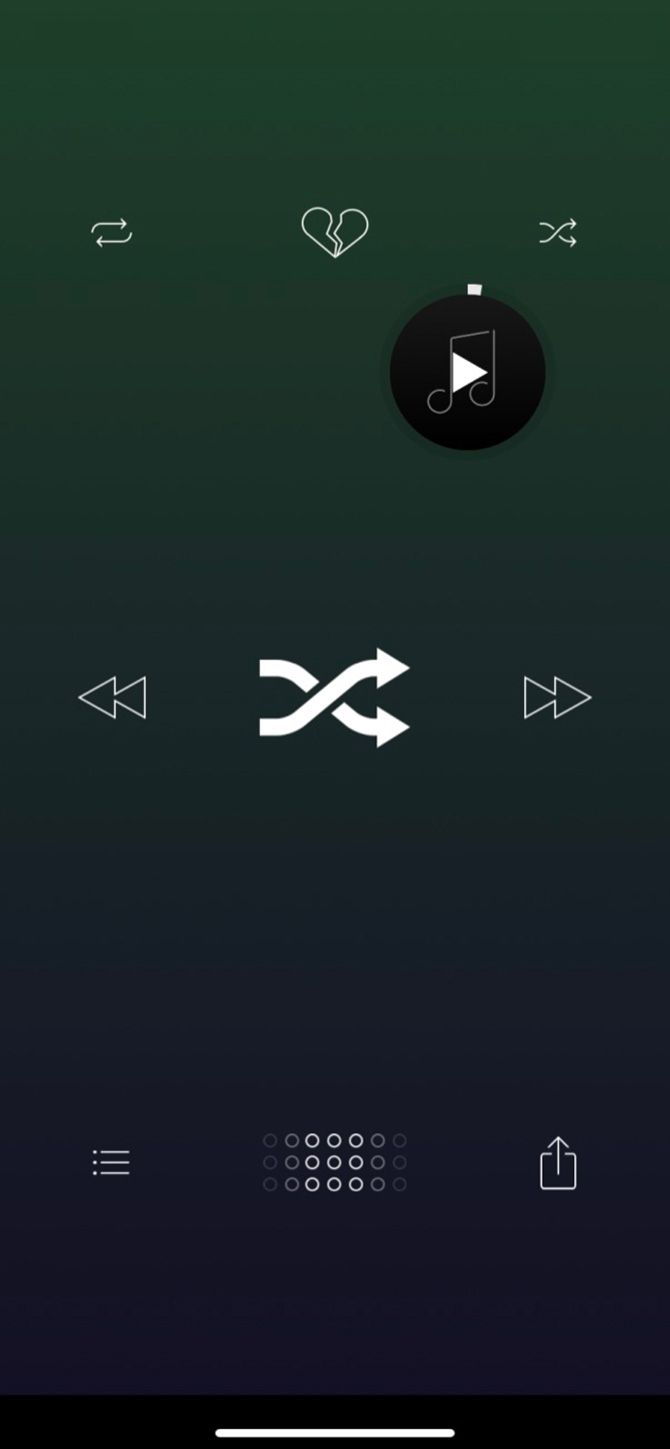
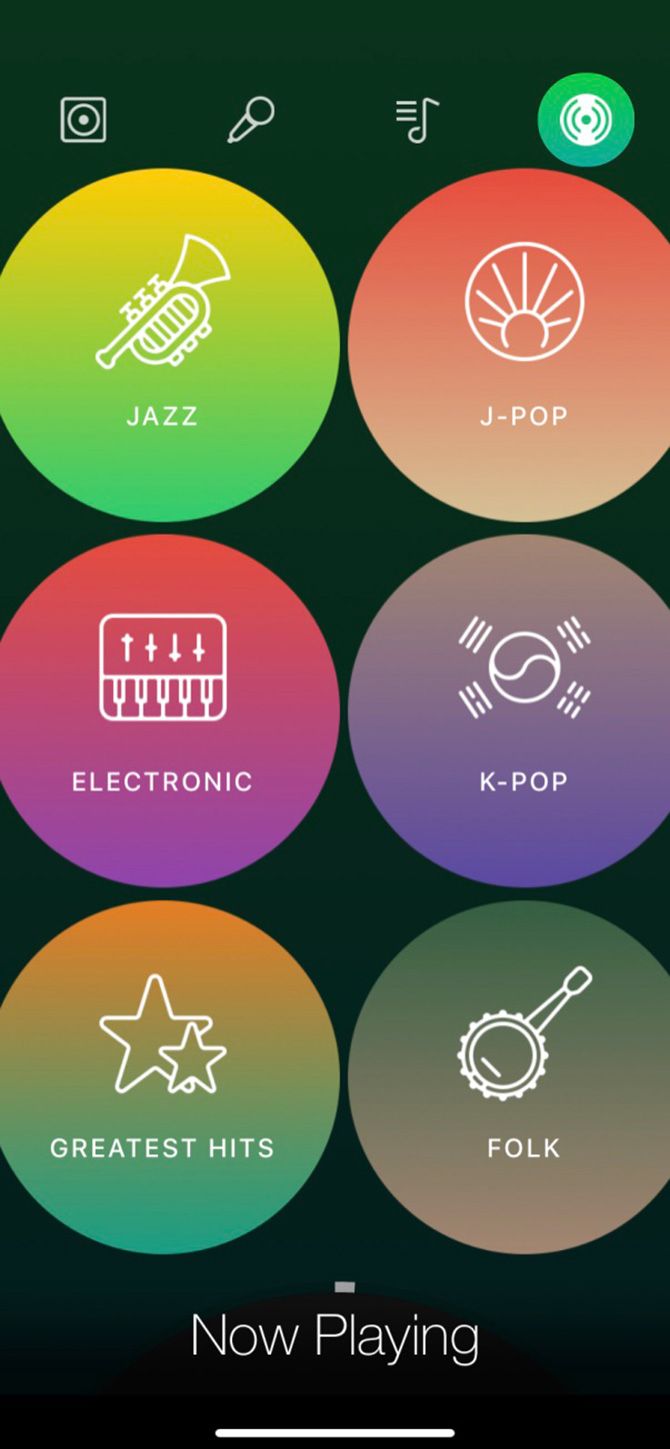
Listen is a good music app for the iPhone if you’re looking to navigate your music collection. The app uses gesture-based controls, and its basic functionality as a music player is completely free. If you want to access local and online radio stations, you’ll need to upgrade with a subscription at $2.99 per month.

Standout features:

  • Browse your music library by album, artist, playlist, and the aforementioned radio stations.
  • The Now Playing screen allows you to drag music artwork around your display, so you can skip tracks or return them to your collection.

Download: Listen (Free, subscription available)

2. Musixmatch
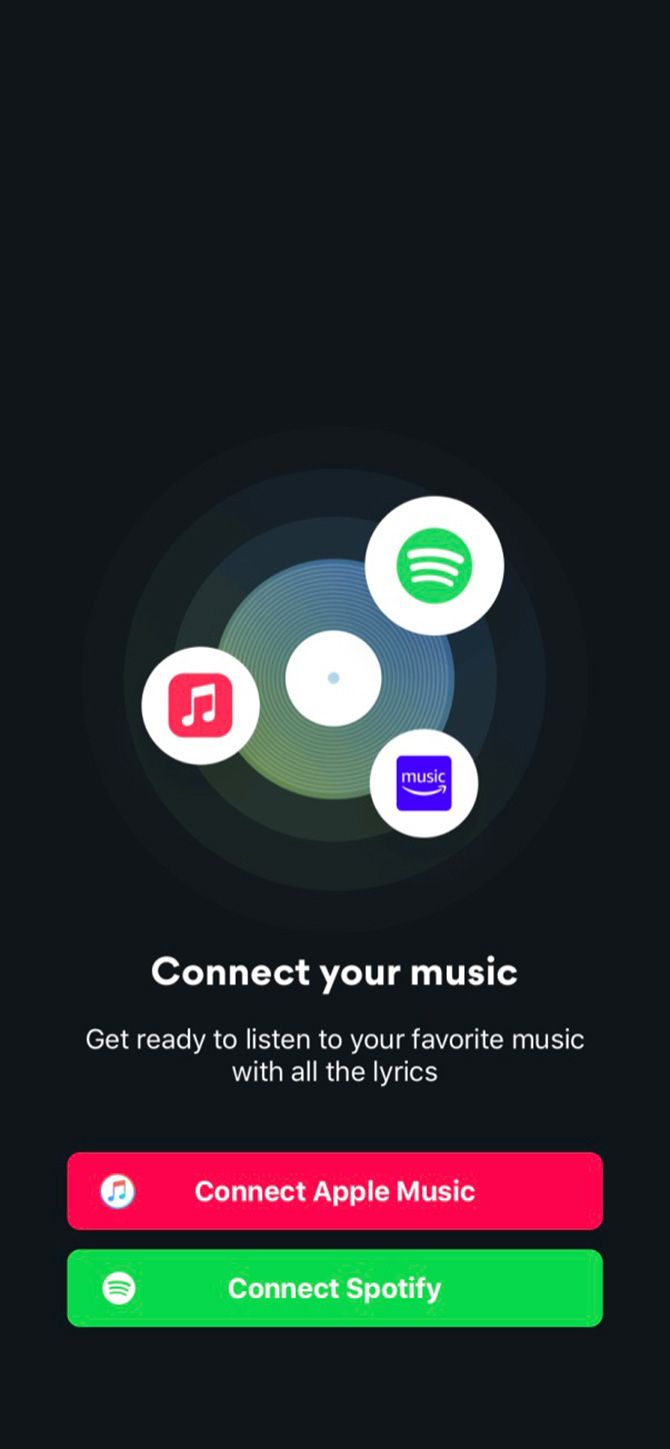
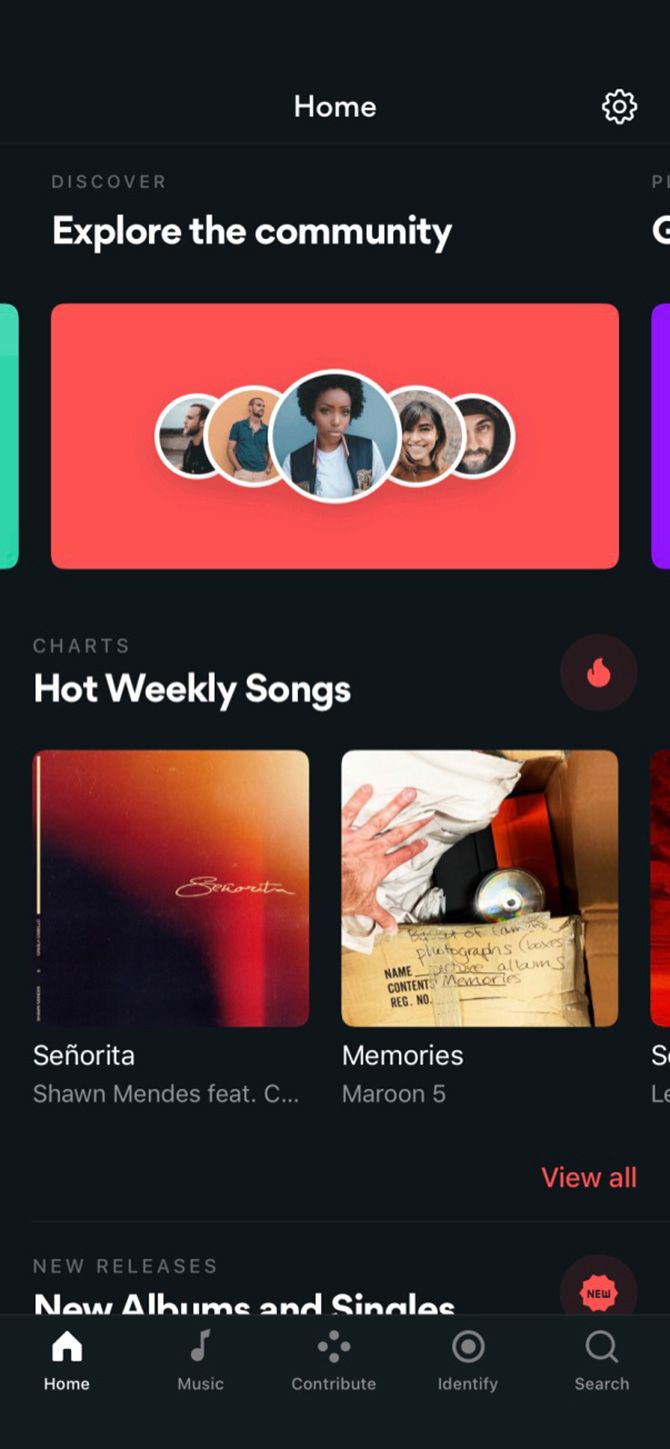
Musixmatch lyrics finder is an extremely popular music app for the iPhone. This is because it allows you to find the lyrics to songs already synced to your device. It also allows you to connect your Apple Music and Spotify profiles.

The Musixmatch app shows you the lyrics in time with the music, so you can dive deeper into your favorite tracks.

Other Musixmatch features to know:

  • Musixmatch can look up lyrics to songs even if they’re not in your library.
  • If you can’t remember the title of the song, you can search for individual phrases.
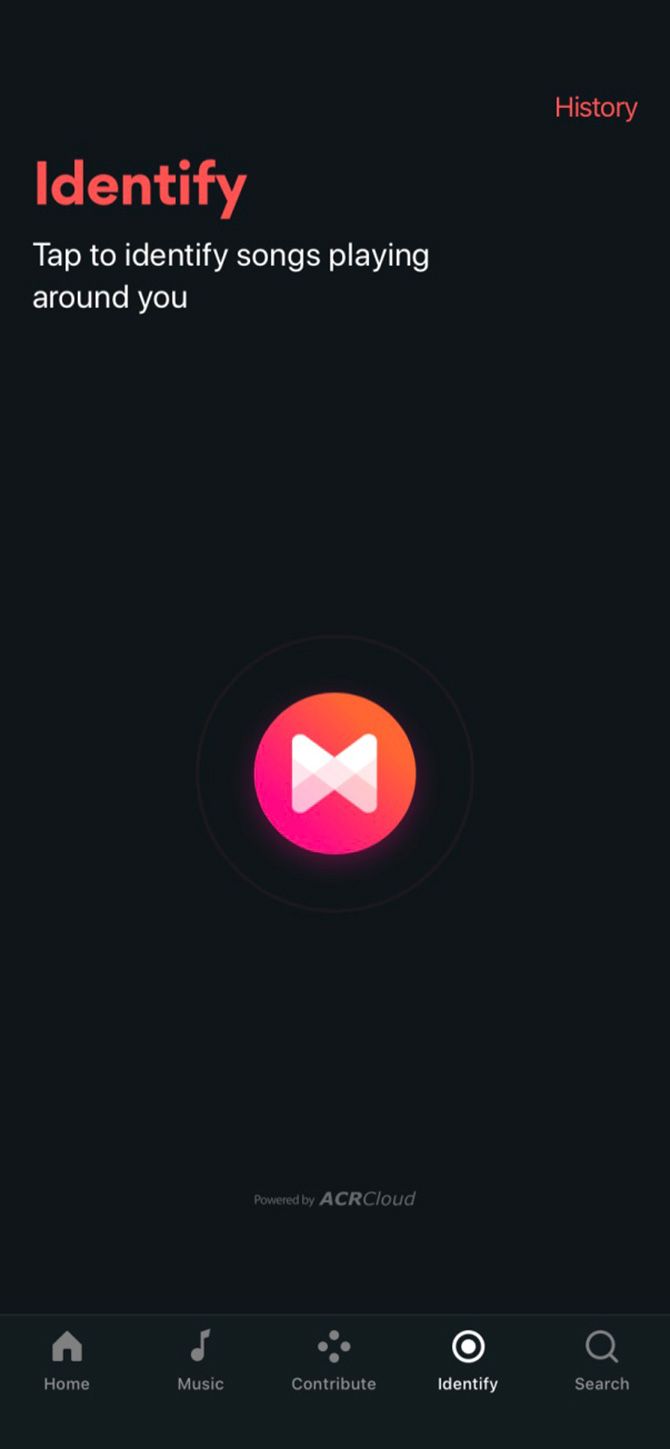
  • Built-in support for finding the lyrics to the songs playing around you. We’ve tested Musixmatch and other music ID apps, if you’re curious.

While Musixmatch is free, it offers subscription plans to remove ads and add a few extra features.

Download: Musixmatch (Free, subscription available)

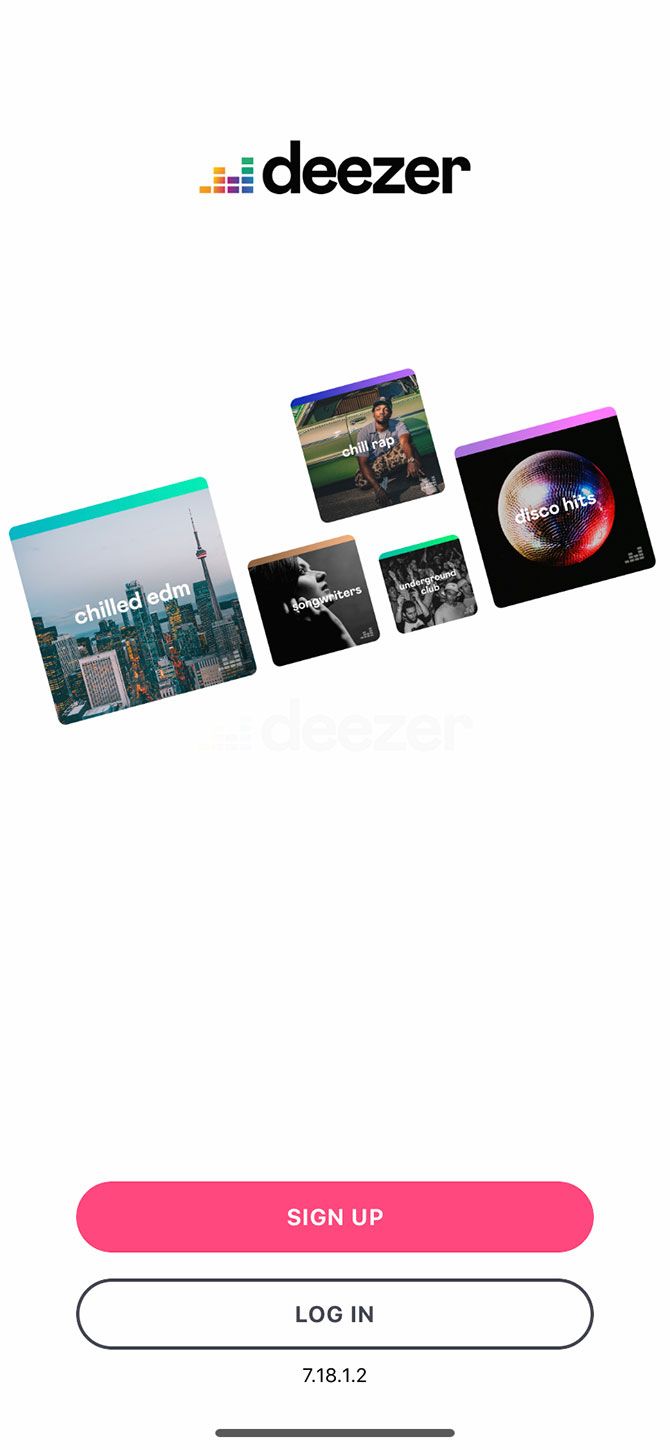
3. Apple Music | Spotify | Deezer
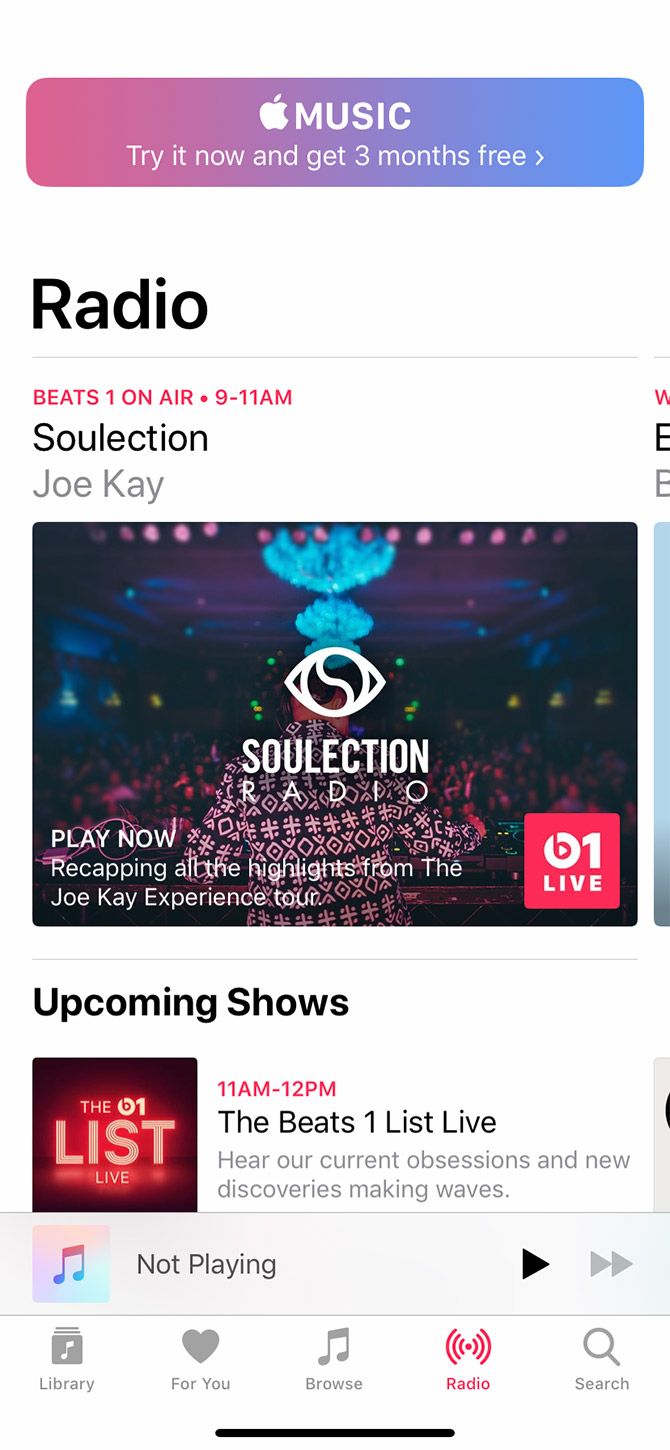
Subscription services like Spotify and Deezer—plus Apple Music itself—offer you another way of listening to music on-the-go. Unfortunately, these come with a drawback. Unless you’ve downloaded it offline, you’ll need to stream your music. This will require a generous data plan for when you’re not on Wi-Fi.

On the flip side, all three of these options are easy-to-use services that allow you to listen to music whenever you want. They’re some of the best music music apps for the iPhone you’ll find. Apple Music even gives you a three-month free trial before requiring a subscription.

Just be wary of the aforementioned data usage when you’re not on Wi-Fi, and these apps will fulfill your music needs.

Download: Apple Music (Free trial, subscription required)
Download: Spotify (Free, subscription available)
Download: Deezer (Free, subscription available)

4. SoundCloud
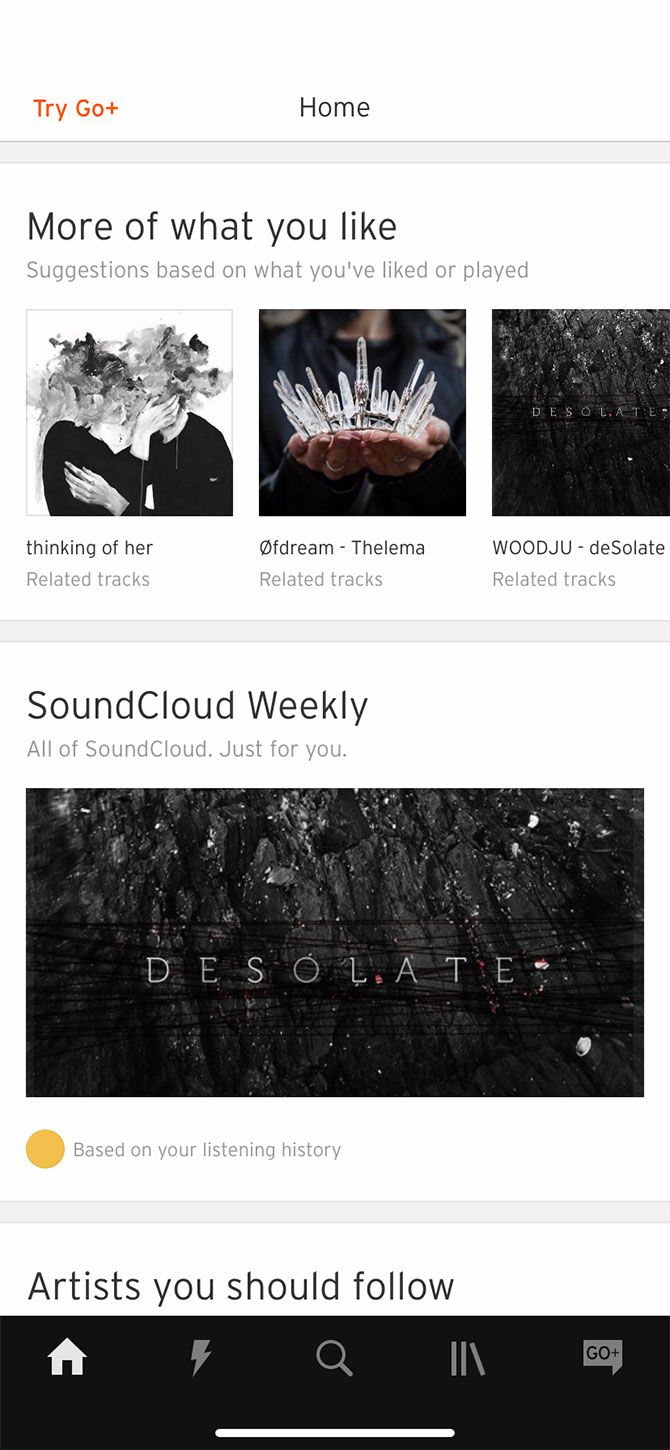
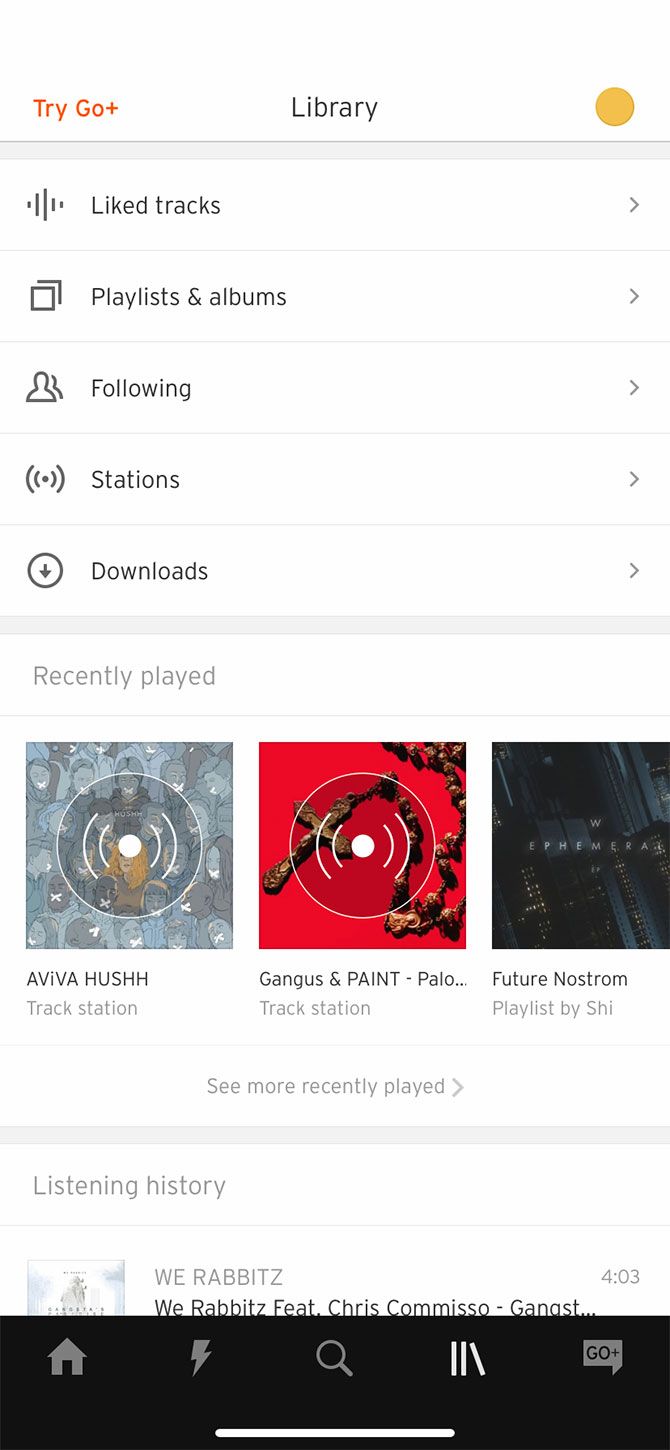
SoundCloud has always marched to the beat of its own drum compared to other music services. As one of the best free music apps for the iPhone, it offers a great place for anyone to upload their music, remixes, podcasts, or live sessions.

While SoundCloud has been hit by tough competition in recent years, it still provides a place for regular users and emerging artists to share their work.

If you’re willing to pay, SoundCloud Go is a premium plan that offers offline downloads and ad-free music for $5/month. Meanwhile, SoundCloud Go+ for $10/month adds an extended catalog that more closely resembles Spotify or Apple Music.

Download: SoundCloud (Free, subscription available)

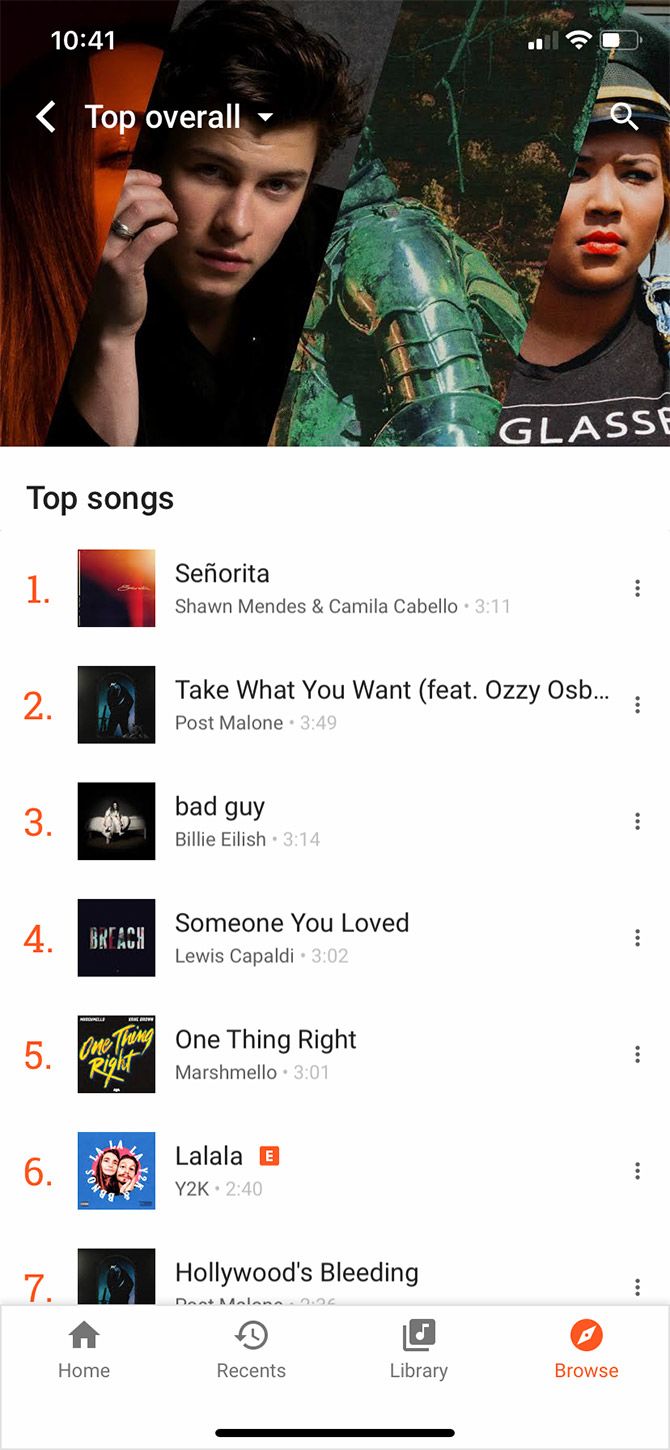
5. Google Play Music
Google Play Music allows you to sync 50,000 songs with your Google account for free. This convenience makes it one of the best music apps for the iPhone.

As you’d expect, it also features a uniquely “Google” interface with a few neat features. This includes suggestions for what to listen to and recommendations based upon your previous tastes.

Notes on Google Play Music:

  • The free version of Google Play Music uses an ad-based model, so you don’t get uninterrupted listening when streaming radio stations.
  • Like other services, if you’re a paid subscriber, you can access a much larger catalog of music.
  • You can download your own music for offline listening, but you must subscribe to download other music.

Google Play Music has been on Android for some time, where it has earned a reputation as a go-to music app. You may thus prefer another choice that’s built for iOS.

Download: Google Play Music (Free, subscription available)

Or Try a Paid Music App for iPhone

If none of these free apps work for you, we’ve rounded up a couple of paid music apps for iPhone, too.

1. Ecoute

Best Music Players for iPhone Ecoute Paid App

Ecoute is a paid music app for iPhone that takes play counts and last-played data into consideration. It features an enhanced shuffle tool that allows you to sort music by albums and last played dates to better serve up the tunes.

Download: Ecoute ($0.99)

2. Cs Music Player

Cs Music Player is another paid music app that’s great for anyone yearning for a classic music app experience. It provides a simple, easy-to-use interface that maintains compatibility with Apple Music and locally synced files.

Download: Cs Music Player ($2.99)

3. Stezza

Lastly, Stezza is a one-handed playback app that advertises itself as the best music player for the iPhone if you’re a driver or very active.

Download: Stezza ($2.99)

What’s Your Favorite Music App?

Apple Music is an obvious choice for iPhone owners, but it’s far from your only option. Whether you prefer to sync your own music or stream everything, there’s a music app on iOS for you. Try a few out and see which works best for your use.

If you’d like to create as well as consume, check out some iPhone apps that you can use to create music.

Read the full article: The Best iPhone Music Apps and Alternative Music Managers for iOS


Read Full Article

The Best watchOS Features to Try on Your Apple Watch


watchos-5-better

Just like iOS on your iPhone, Apple updates the software powering your Apple Watch each year around September. At the time of writing, the latest version of is watchOS 6, which offers many new features and a wide variety of improvements.

Let’s take a look at the best Apple Watch features. We’ll highlight what’s new in watchOS 6 first, with highlights from previous versions afterward.

How to Update Your Apple Watch

Apple Watch Update

To update watchOS on your Apple Watch, head to the companion Watch app on your iPhone, then select the My Watch tab. From here, choose General > Software Update and follow the prompts. To update, you’ll need to have your Apple Watch on its charger with more than 50 percent battery life remaining.

If you haven’t already updated to watchOS 6, it’s currently available for the Apple Watch Series 4 and Series 3. It will be available for the Series 2 and Series 1 models later in 2019. It’s not compatible with the original Series 0.

The Best New Features of watchOS 6

Let’s look at what the latest version of watchOS (as of this writing) has to offer.

Say Hello to the Apple Watch App Store

The biggest new addition in watchOS 6 is an App Store directly on your Apple Watch. Previously, downloading an app required heading to the companion Watch app on your iPhone. But that’s no longer the case.

Head to the App Store tab on your watch to begin. Even though it’s only on the small screen of the watch, the experience is full-featured. At the top, select Search to find a specific app using voice dictation or Scribble. It’s also possible to search for an app using Siri at any time.

App Store watchOS 6

Just like the App Store on your iPhone or iPad, there are many app selections curated by Apple’s own experts. Tap an app to read more information about it, see screenshots, and even read reviews from your wrist. It’s far from a watered-down experience.

Many apps can now also run independently from the iPhone. That means you can download an app from the App Store on your watch without needing to install the iPhone version.

And speaking of apps, Apple now includes a Calculator, Audiobooks, and Voice Memos app on the watch.

More Watch Faces to Customize Your Apple Watch

One of the most popular features of the Apple Watch is the wide variety of different watch faces that allow you to customize the screen. watchOS 6 doesn’t disappoint, adding seven new face options for all watches.

Meridian, California, and Gradient are all analog options with differing levels of complications. Numerals Duo is a minimalist digital option, while Numerals Mono shows an analog clock with the hour digitally.

Modular Compact can show the time on an analog face, along with three other complications.

The most visually pleasing new face is definitely Solar Dial. The main feature is a 24-hour circular dial that tracks the sun. A blue tint will change depending on the sun’s effect on the color of the sky. You can also turn the Digital Crown to see the sun’s arc across the day.

This face lets you view an analog or digital time. There is also room for four complications.

Solar Dial watchOS 6

Hearing Health and More

The software also introduces new health-tracking features. Thanks to a new Noise app, the watch constantly tracks the decibel levels around you every day. If the noise ever rises to a level that could affect your hearing, the app will provide a notification so you can step away to somewhere quieter.

You can view a real-time readout of noise levels using the app. There is also a Noise app complication to view decibel levels on a watch face.

Noise App watchOS 6

Women can use the new Cycle Tracking app to log information about their menstrual cycle, in order to predict their next period and fertile window.

Information from both the Noise and Cycle Tracking apps are available to view in iOS 13’s Health app.

Data from the Apple Watch is a big part of the Trends section of the iPhone Health app. Trends compares the last 90 days of activity to the past year. If any metric is suffering, the app will also provide custom advice on how to improve.

A Better Siri Experience

Siri on the Apple Watch is also taking a solid step up. Just like on an iPhone or iPad, the virtual assistant will now identify music using Shazam. Just ask “What song is this?”

You can also ask Siri to search for a topic, then view and see web pages with the results.

The Best Features of watchOS 5

In case your Apple Watch isn’t compatible with watchOS 6 or you’re wondering what came before, here’s a roundup of the top features in watchOS 5.

All About Activity

watchOS 5 Running Features

While there are a wide variety of third-party Apple Watch apps to track a workout, Apple’s own built-in tools have taken a big step up.

In the Workout app, you can now select from two new types of exercise—hiking and yoga. After selecting either one of those, the Apple Watch will track active calories and exercise minutes.

Speaking of workouts, watchOS 5 will now automatically detect a number of different popular workout types. You’ll see a notification on the Watch to confirm the workout and give correct credit.

And there’s no need to worry about forgetting to end a workout. After a short period when no activity is detected, a notification will allow you to end the workout or switch to another type.

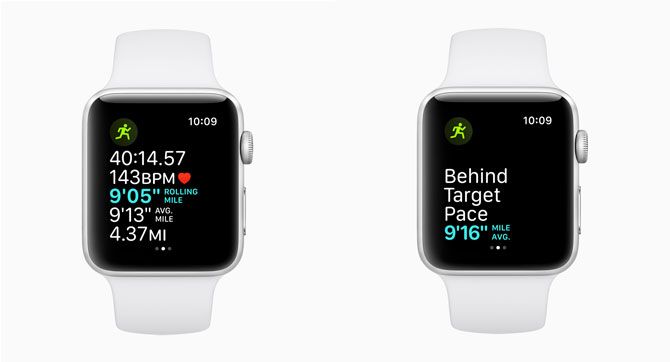
Runners will also be happy to take advantage of several new features. The steps per minute feature will work for indoor or outdoors walks and runs. When running outside, a vibrating pace alarm will let runners know if they are ahead or behind of their selected pace without needing to look down at the watch screen.

A rolling pace mile will also show runners the pace for the immediately preceding mile, along with the average or current pace. That will help give runners a better idea of how they are fairing.

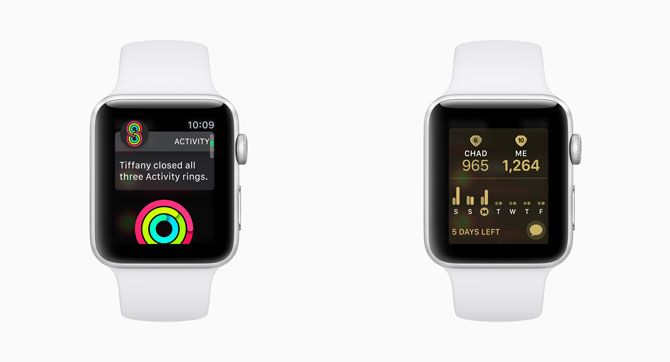
watchOS 5 Activity Competitions

You can also now do more than just share activity data with friends and family. Apple Watch wearers can invite another person to battle in a one-on-one activity competition. These last seven days and offer points for closing rings. Special notifications will also help motivate you to a victory.

A Walkie-Talkie and Podcasts App

watchOS 5 Walkie Talkie

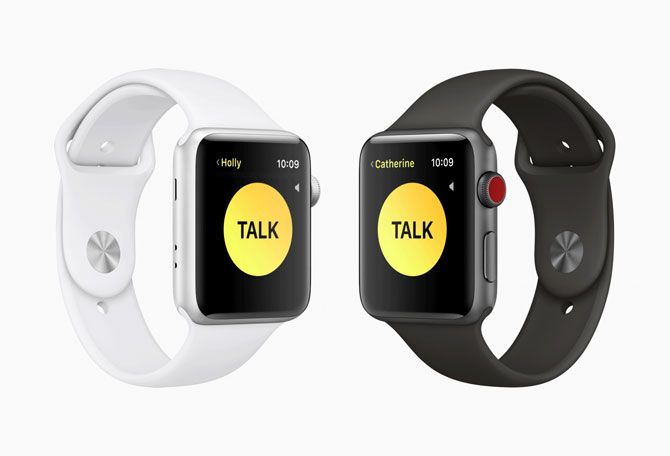
Apple Watch users are getting another way to communicate in watchOS 5 with the new Walkie-Talkie feature. Just like the old-school devices, you can talk with friends and family using Wi-Fi or any LTE-enabled Apple Watch.

On the Apple Watch, using the Walkie-Talkie app, you’ll add a specific contact to communicate with. When ready to talk, just select the contact and tap and hold the Talk button to speak. When you’re done, take your finger off of the screen.

You can also opt to turn off availability for Walkie-Talkie at any time through the app.

watchOS 5 Podcasts

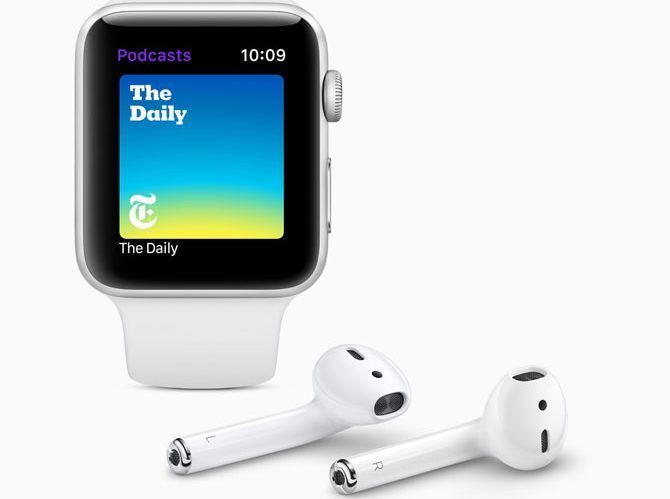
Apple is also bringing its great Podcasts app to the small screen of the Apple Watch. When starting Podcasts, it will show episodes that you’ve downloaded to the watch or those on your iPhone.

It’s easy to download a podcast episode to the Apple Watch or stream it with the LTE-enabled version. You can then listen with Apple’s AirPods or other Bluetooth headphones.

Using Siri on the Apple Watch, you can even subscribe to a podcast or start playback of an episode. As a nice touch, a new syncing feature allows you to partially listen to a podcast on the watch and then pick up where you left off on an iPhone or iPad.

A Better Siri Watch Face

watchOS 5 Siri Face
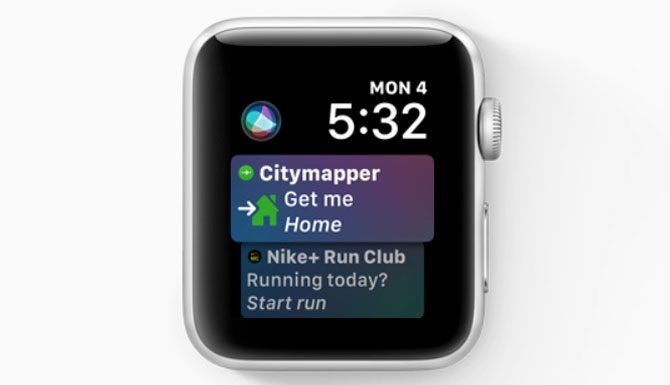
The Siri watch face continues to stand among the variety of watch faces available to customize your Apple Watch. And it’s getting even better in watchOS 5 thanks to a dose of machine learning.

Some of the new additions you’ll notice include heart rate information after a workout, commute times, and scores from favorite sports teams. Siri Shortcuts, a major new addition to iOS, will also appear at the correct time of the day.

Third-party apps can now also provide information for the face. Apple says apps like Nike+ Run Club, Glow Baby, and Mobike will support the face, and you can expect many other popular choices as well.

Other Notable watchOS 5 Improvements

We’ve covered the major upgrades in watchOS 5, but you’ll find plenty of little touches too:

  • Talking to Siri is now even easier. Instead of needing to say “Hey Siri,” just raise your wrist to talk with the virtual assistant. You can also change the volume of Siri using the Settings app.
  • The Control Center on your Apple Watch is now customizable. Swipe up from a watch face, then scroll down to the bottom and select Edit. From here you can move the icons in any order you like.
  • Instead of dealing with notifications one at a time, watchOS 5 groups information from the same app together. You can open or clear all notifications from one group with just a tap.
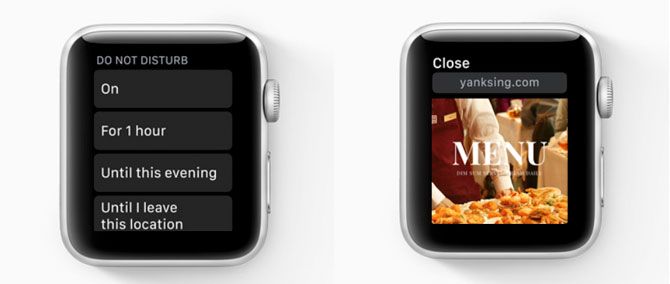
  • Selecting the Do Not Disturb icon in Control Center now brings up a number of options. Along with simply turning the mode on, you can enable it for an hour, until tomorrow morning, or until you leave the current location.

watchos5-more-features

  • When tapping on some links in Messages and Mail, you can now view web content on the Watch screen. The content shows in the best format for the small screen, and can utilize Reader Mode as well.
  • While there are definitely some better options available for the Apple Watch, the stock Weather app now shows wind direction, wind speed, air quality, and UV index.
  • Instead of needing to carry around a college ID, the Apple Watch can now step in and provide students quick access to places around the campus, pay for meals, and more.

Using Your Apple Watch Effectively

Now you know what the latest updates to the Apple Watch have brought to the table. Be sure to make good use of these features to get the most out of your wearable device.

If you’re looking to learn more about the Apple Watch, make sure to take a look at some cool uses for the Apple Watch and the best Apple Watch apps.

Read the full article: The Best watchOS Features to Try on Your Apple Watch


Read Full Article

How to Grab Someone’s Attention by Sending Full Screen Messages


Ever needed to send a message to someone online and really wanted to get your point across? They might ignore a simple direct message on Slack, and an email might sit in their inbox for days. You need another way.

If you’re looking for an alternative to get someone’s attention, why not try a full screen message? Through a simple service called BigAssMessage, you can easily make this a reality. Let’s take a look at it.

Introducing BigAssMessage

To create a big message on someone’s screen, head to BigAssMessage.com. Here you’ll find a simple interface that allows you to enter a message and pick from one of four styles. From there, you can preview the message and save it.

BigAssMessage Home

The possibilities on what message to send are endless. You might want to remind a coworker about something you’re waiting on them for. Perhaps you want to leave a big funny message on your screen for anyone who walks by. Or maybe you just want to joke around with friends and put something stupid. Your imagination is the only limit.

After entering your message, you’ll need to pick a style to display it in. You have four choices here.

Pick a BigAssMessage Style

First is Standard. This is a basic message with black text on a white background. It’s no-nonsense if you’re not looking for something flashy.

BigAssMessage Standard

Next is the Magic style. Choosing this gets you a message with a rapidly flashing background. It will certainly catch someone’s eye, but it’s probably best to avoid this unless you know the person well, due to epilepsy concerns. The flashing lights could be harmful to someone.

BigAssMessage Magic

Getting away from that craziness, the third style is called Heart. Despite the name, no hearts appear in the theme. The font looks like something from a typewriter, so it’s more of a vintage look. Use it when you want the feel of an official memo.

BigAssMessage Heart

Finally, the last available style is titled Yeezy. If you’re not aware, yeezy is a slang term referring to the rapper Kanye West. As West has his own line of shoes with Adidas, this style features an Adidas logo at the bottom. The font also matches that used in marketing for the shoes.

We’re not sure why this of all possible themes was used, but regardless, it’s one of your four options.

BigAssMessage Yeezy

In the past, the site offered other styles, such as Pepsi and Jeopardy. Pepsi replaced all “O” characters with the Pepsi logo and used a font similar to the company’s advertising for some time. Jeopardy, unsurprisingly, styled the message in the form of a clue from the classic game show.

Share Your BigAssMessage

To see how your message will work, just enter it and pick a style, then click Preview. When satisfied, click again to return to the main screen. Once you click Save, a URL will appear in the bottom bar. Click this to copy it, then you can send it to people or display it on your own computer.

It’s a perfect way to share passive-aggressive messages without much work. Leave one out for a roommate to discover after they upset you, or send them to a coworker to surprise them. Have fun with BigAssMessage.com!

For more like this, check out some web apps that let you play pranks on your friends.

Read the full article: How to Grab Someone’s Attention by Sending Full Screen Messages


Read Full Article

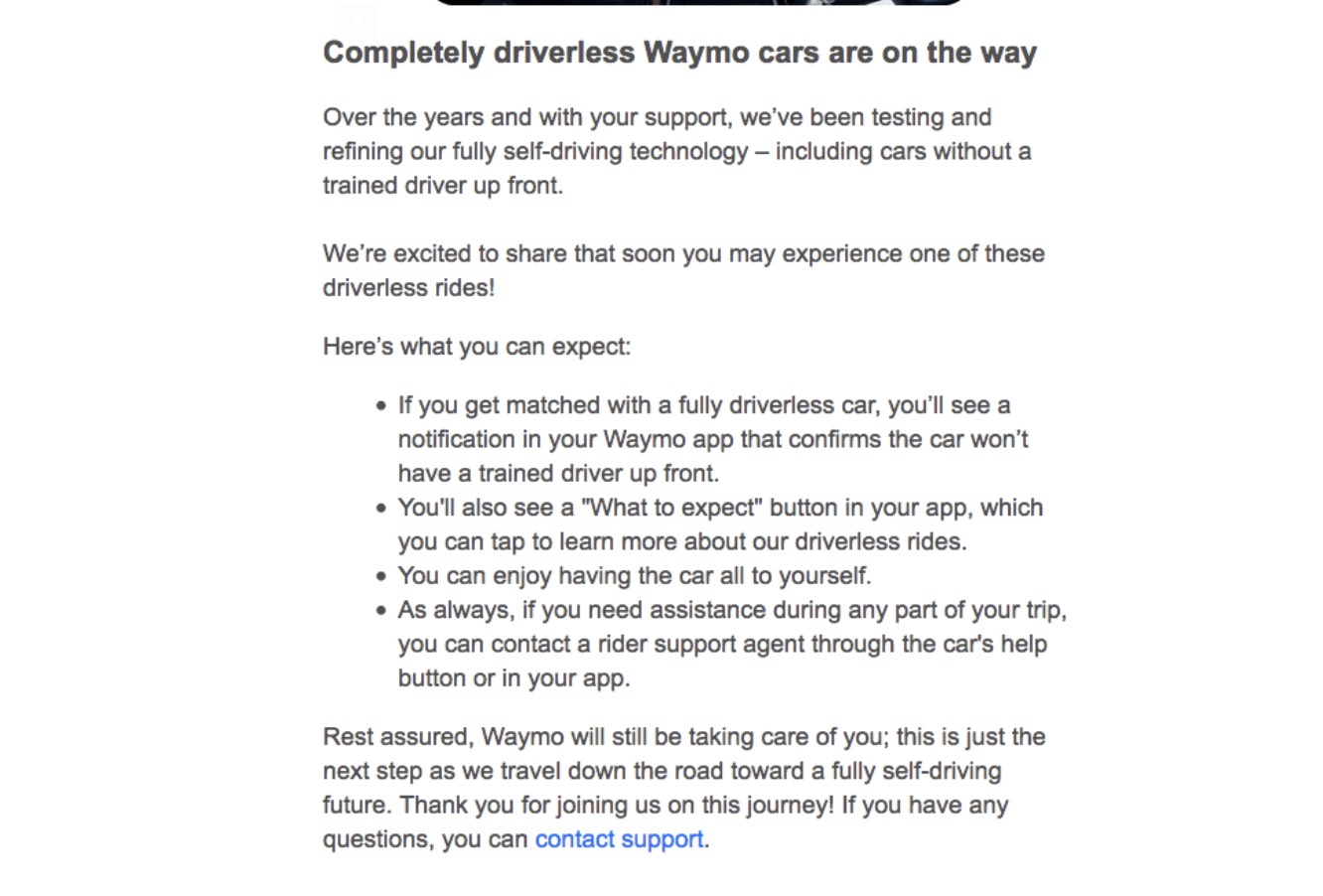
Waymo to customers: “Completely driverless Waymo cars are on the way”


Waymo, the autonomous vehicle business under Alphabet, sent an email to customers of its ride-hailing app that their next trip might not have a human safety driver behind the wheel, according to a copy of the email that was posted on Reddit.

The email entitled “Completely driverless Waymo cars are on the way” was sent to customers that use its ride-hailing app in the suburbs of Phoenix. It isn’t clear if the email was sent to members of its early rider program or its broader Waymo One service.

Both the early rider program and Waymo One service use self-driving Chrysler Pacifica minivans to shuttle Phoenix residents in a geofenced area that covers several suburbs including Chandler and Tempe. All of these “self-driving rides” have a human safety driver behind the wheel.

A driverless ride is what it sounds like. No safety driver behind the wheel, although a Waymo employee would likely be present in the vehicle initially.

Waymo could not be reached for comment. TechCrunch will update the article if the company responds. The email is posted below.

Screen Shot 2019 10 09 at 3.06.56 PM

Waymo, formerly known as the Google self-driving project, first began testing its technology in 2009 in and around its Mountain View, Calif., headquarters. It’s been a slow and steady roll ever since. The company has expanded its test area to other cities, spun out into its own business and iterated the vehicle design and the sensors around it,


Waymo opened a testing and operations center in Chandler, Arizona in 2016. Since then, the company has ramped up its testing in Chandler and other Phoenix suburbs, launched an early rider program and slowly crept toward commercial deployment. The early rider program, which required vetted applicants to sign non-disclosure agreements to participate, launched in April 2017.

In December, the company launched Waymo One, a commercial self-driving car service and accompanying app. Waymo One signaled that the company was starting to open up its service. Members of the early rider program were transferred to the Waymo One, which allowed them to bring guests and even talk publicly about their rides. More recently, Waymo opened another technical service center in the Phoenix area in preparation to double its capacity and grow its commercial fleet.

While driverless Waymo vehicles have been spotted periodically, they have never been used to shuttle the general public. The introduction of driverless vehicles would be milestone for the company.

And yet, there remains a number of questions. It’s unclear how many of these driverless rides there will be or the what constraints Waymo will place on them. It’s likely that these will operate in more simple, controlled environments for months before it expands to more complex situations.


Read Full Article

Facebook sure does love free $peech


Ensuring politicians in the 2020 election stay truthful is hard work, so Facebook has decided it’s going to sit this one out.

Joe Biden’s campaign team sent a letter to CEO Mark Zuckerberg, COO Sheryl Sandberg and global elections policy chief Katie Harbath that essentially called on the company to take down a Trump campaign ad that made debunked claims regarding the Biden family’s relationship with Ukraine. Facebook responded to that letter today with their own letter to Biden saying that the company’s policies prevented it from making judgment calls on the veracity of speech in political advertisements. The New York Times has a full run-down of the situation.

Facebook isn’t alone in this manner; Fox News is remaining fair and balanced on the issue as well. CNN refused to run the ad.

Political campaigns are messy, so America’s largest content company — with more content moderators than any publication in the country — is leaving it to the free press to debunk what it’s getting paid to broadcast. But it’s not that Facebook wants to keep raking in stupid amounts of advertising dollars, no, it’s that the company is grounded in a “fundamental belief in free expression,” they say.

Here’s a quote from the company’s letter to Biden’s team: “Our approach is grounded in Facebook’s fundamental belief in free expression, respect for the democratic process, and the belief that, in mature democracies with a free press, political speech is already arguably the most scrutinized speech there is.”

I’m sorry, what? Facebook’s “respect for the democratic process” should raise eyebrows given how its products have been used in some highly publicized scenarios, but how does a platform that’s been abused so much to the detriment of democratic processes feel like it deserves to rattle that phrase off as another PR talking point?

Here’s the rest of the letter:

If Facebook just wants to allow politicians to spout mistruths and conspiracy theories without fact checks on its platforms as status updates from their personal pages, then some of these claims could be taken more seriously, but Facebook is getting paid to push these messages to its users. It’s algorithmically deciding where these messages go based on parameters set by the campaigns via a system it designed.

Before you sound off, yeah, political advertising isn’t anything new. I am well aware that TV channels and newspapers have carried messy attack ads and hauled in the advertising revenues for decades, but Facebook is a platform designed around scale. Scale has allowed the company to tap massive revenue streams, but it’s also opened up the company to critiques. The company has learned to respect this scale after sizable amounts of external pressure were applied, but they’ve always defaulted to dated comparisons when it’s profitable to them.

Newspaper and TV political ads are painted with a wider brush and are subject to more stringent laws, but there’s a responsibility in Facebook’s precise ad-targeting that the company still doesn’t seem to respect. The company has the tools to push out judgment calls on content, and it could still do so on a case-by-case basis. Some truths are buried in more nuance than others, but by painting all political claims in its same bath of indifference to truth, Facebook is abusing its scale and creating a platform where a politician’s speech is exempt, as if political leaders aren’t the ultimate primary sources on politically contentious matters.

Political advertising legislation is going to take far too long to catch up to the current landscape of technology platforms — it would be nice if we could trust Facebook to stay at a moral forefront that isn’t legally mandated. Twitter and YouTube aren’t immune to this same criticism either, but Facebook is operating in broad daylight, believing that they can reverse engineer a free expression mission statement to prevent responsibility-free revenues from leaking out.


Read Full Article

09 October 2019

Silicon Valley’s competing philosophies on tech ethics with The New Yorker’s Andrew Marantz


“If Silicon Valley is going to keep telling itself the story that the only uses of their technology will be the most optimistic, the most hopeful, the most salubrious, the most prosocial,” New Yorker staff writer Andrew Marantz told me in Part 1 of this recent conversation for Extra Crunch, “you can try to rebut that logically, or you can just disprove it by showing a very glaring counterexample. If somebody is going around and saying, ‘all swans are white,’ you can argue against that logically, or you can just show them a black swan.”

Author Photo Andrew Marantz credit Luke Marantz fix

Image via Penguin Random House

Marantz, a brilliant and eclectic writer, has in recent years trained his attention on the tech world and its contribution to social unrest in the United States and beyond. He has just published a new book, “Antisocial: Online Extremists, Techno-Utopians, and the Hijacking of the American Conversation“, which, along with recent New Yorker essays expanding on the book’s themes, is sure to provoke debate.

In part 2 of our conversation below, we discuss the Alt-Right and White Nationalists in tech and politics; Silicon Valley spirituality today; competing philosophies of tech ethics; and more.

Greg Epstein: If you look at the alt-right later that year and in 2017, I myself spent a lot of time poring over these figures like Richard Spencer and Gavin McInnes, and their videos, and their writings, and whatever thinking, ‘These guys are really taking over our society right now.


Read Full Article