24 September 2019

How to Safely Clean an Infected Computer and Copy Your Files


safely-clean-infected-computer

There many different malware types. Some are easier to remove than others, understandably. Often, an antivirus suite can sweep a drive, removing malicious files. But that doesn’t always work.

At times, a full system wipe is the only option. Burn it down and start again. The potential for data loss is very high in that situation. You need a clean computer, but don’t want to lose your important documents.

So, here’s how you safely copy files from an infected computer, cleaning it up in the process.

How Do You Clean an Infected Drive?

There are two methods you can use to remove files from an infected drive. However, all of them involve cleaning the drive first before you begin copying files from the infection source onto a clean drive.

  1. Use an antivirus boot disk to scan and clean the drive before removing
  2. Remove the drive and attach to a second machine for cleaning and copying

You don’t want to start messing around with a malware infection, or worse, ransomware. You could, in theory, just start copying non-operating system files to a clean disk. However, as malware can attack and hide in a vast range of locations, why take the risk of reinfection after going through the effort of copying everything over?

1. Use an Antivirus Boot Disk to Clean Your Drive

An antivirus boot disk is a complete antivirus package that comes in the form of a Live CD/USB. A Live CD/USB is an environment you can boot into without using the host operating system. For instance, your infected machine might run Windows 10, but the antivirus boot disk doesn’t interact with Windows 10 in any way.

As the antivirus boot disk doesn’t interact with Windows or any other host operating system, it doesn’t trigger any malicious files. Whereas if you attempt to run an antivirus or antimalware suite from within the infected operating system, there is a chance the malware will fight back.

Download and Create Bitdefender Rescue

First up, you need to download and create the bootable antivirus disk on a known clean system. You cannot complete this process on the infected machine as it could corrupt the process. I’m using Bitdefender Rescue CD for this example.

Download: Bitdefender Rescue CD (ISO)

Next, you need to burn the rescue disc to a USB or CD. I’m going with a USB as that is what I have to hand, and I’ll use UNetbootin to burn the ISO to the USB.

Download: UNetbootin for Windows | macOS | Linux

Now:

  1. Fire up UNetbootin and insert the USB drive. Please note this process will completely wipe your USB flash drive, so back up any important data before proceeding.
  2. Select Diskimage, then browse to the Bitdefender Rescue ISO
  3. Select the USB flash drive you want to use, then press OK.
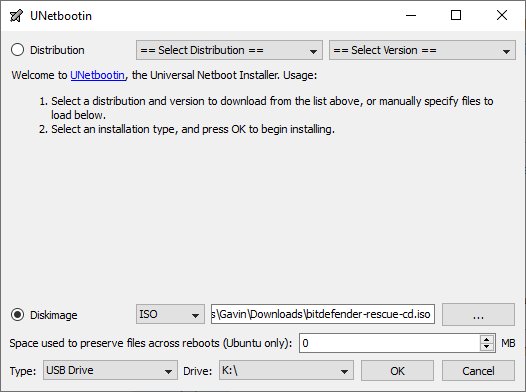
unetbootin select usb image

How to Scan and Clean Using Bitdefender Rescue

Once the process completes, insert the Bitdefender Rescue USB in the infected system. After you switch it on, press F11 or F12 to enter the boot menu. (The boot menu keys vary by machine.) Use the arrow key to select the USB drive and boot into the Bitdefender Rescue drive.

Select Start the Bitdefender Rescue CD in English and press Enter. You need to agree to the EULA. After agreeing, Bitdefender will automatically update, then begin scanning any local drives it finds. The Bitdefender scan automatically quarantines and removes malicious files.

At this point, I would run the scan again to make sure nothing flew under the radar.  After your scan confirms the drives you scan are clean, you can copy them onto another machine.

Other Linux Live Rescue Disks

A Linux Live USB/CD is very similar to the antivirus rescue disc. You are booting into an environment outside of your regular operating system, but you can still interact with your local files and folders. In this case, you can scan your local files before extracting them to a clean external system.

There are a huge number of them, many with competing or overlapping capabilities. If you want some more rescue disk options, check out the best rescue and recovery disks for a Windows system restore.

2. Remove the Drive for Cleaning

The second and less advisable option is to remove the drive from the infected system. Once removed, you can connect the drive to an alternative system to scan. In theory, so long as you have a strong antivirus or antimalware suite installed on the second machine and, most importantly, you don’t interact with or execute any file on the removed infected drive, you can scan it without causing an issue.

There are a few things you need to make this approach work.

Antivirus or Antimalware

The first is a strong, up to date antivirus or antimalware suite. If you don’t already have premium protection, I would strongly suggest Malwarebytes Premium. Wondering if the Premium version is worth the expense? Here are five reasons you should upgrade to Malwarebytes Premium. In short; it’s worth it.
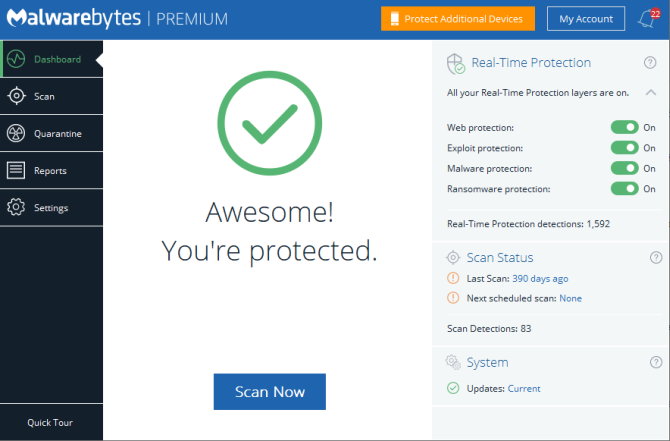
malwarebytes premium home

Sandbox

Next, I would also advise using a sandbox tool during the data transfer process. A sandbox creates a temporary environment within your operating system. If there is an issue with the data transfer, such as malware sparking into life, you can close the sandbox to remove everything inside. For that, Shadow Defender is an excellent option.

You can use Shadow Defender free for 30 days, which is ideal if you only have one system to transfer data from. Otherwise, a lifetime license will set you back around $35.

The idea with Shadow Defender is that you turn it on, creating a virtual restore point. From that moment, you can safely play with anything on your system because once you restart your system, Shadow Defender will wipe any system changes. In the event you trigger malware on the infected drive, the combination of antivirus/antimalware and reboot to restore sandbox tool will keep you safe.

There Shadow Defender alternatives available for both macOS and Linux:

Network Connection

The final thing to remember is to disconnect the clean machine from the internet before copying or scanning the malicious files. Any malware requiring a network connection will cease to function. However, before disconnecting from the internet, ensure you have up-to-date virus definitions, ready to capture any malicious activity.

Infected System Clean Checklist

So, to recap, you need to:

  1. Download, install and update an antimalware suite
  2. Download, install and update a sandbox tool
  3. Unplug your system from the network

Then you can plug in your potentially infected external drive, scan it, clean it, and hopefully free yourself from malware.

Keeping Your System Clean

The most difficult thing with a malware infection is understanding if the system is truly clean. You can scan a system with multiple antivirus and antimalware tools, and they still might miss something. I’m not trying to worry you. It is the truth of the matter.

Thankfully, most of us “only” run into common forms of malware. You should keep your eyes peeled for phishing attempts and other drive-by malware attacks, but these are all generic malware types. For the most part, only high-value targets need to worry about targeted malware attacks.

Want to know more about malware removal? Check out our guide to removing almost any type of malware.

Image Credit: dusanpetkovic/Depositphotos

Read the full article: How to Safely Clean an Infected Computer and Copy Your Files


Read Full Article

OneDrive vs. OneDrive for Business: A Comparison That Clears the Confusion


onedrive-business-comparison

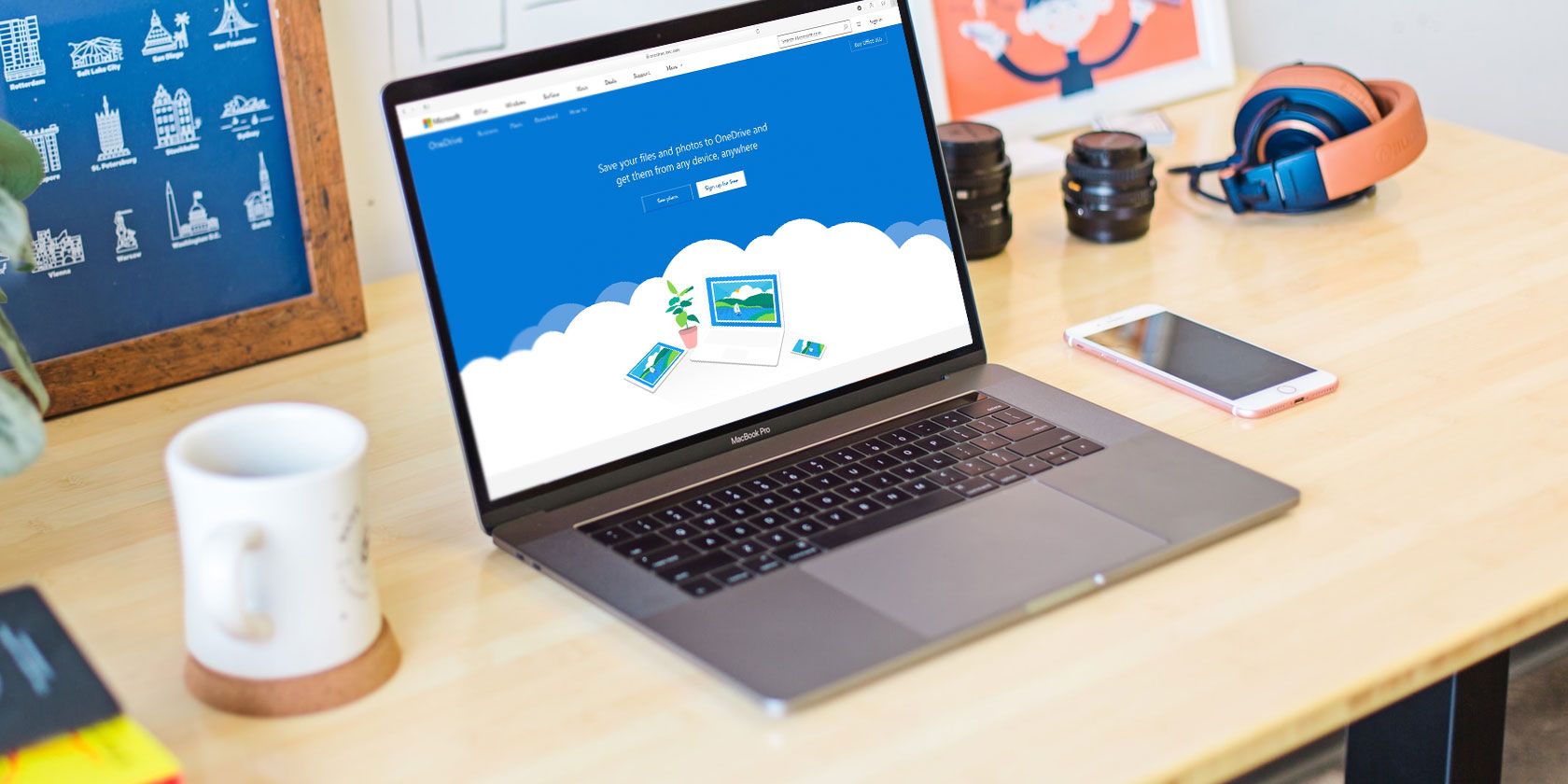
You’re probably familiar with Microsoft OneDrive, the company’s cloud storage tool. But Microsoft also offers a product called OneDrive for Business. Are these tools similar, and what are they used for?

Let’s find out. We’ll dig into what OneDrive and OneDrive for Business are each for, then look at the differences between them.

What Is Microsoft OneDrive?

If you have used Windows for any length of time, you’re probably familiar with OneDrive. This is Microsoft’s personal cloud storage and syncing service that allows you to access your files from any device.

OneDrive was originally known as SkyDrive and rolled out for testing in 2007. In 2013-2014, legal troubles led to Microsoft changing the name to OneDrive, which has stuck since.

Those familiar with other cloud syncing services like Dropbox will understand OneDrive well. After you log into OneDrive on your PC, you’ll see a special folder called OneDrive in your user directory. Anything you place there is synced to Microsoft’s servers.

Then, you can install the OneDrive app on other computers and mobile devices you use. If you’re signed in with the same account, you can access those files from anywhere.

Windows 10 OneDrive Site

Anyone who signs up for a free Microsoft account has access to OneDrive, with 5GB of storage for free. This includes those with @outlook.com email accounts, but you don’t need an Outlook email address to have a Microsoft account. If you have an Xbox, Skype, or Office login, then that can be your Microsoft account too.

What Is OneDrive for Business?

OneDrive for Business Home

At its core, OneDrive for Business is almost the same service as OneDrive. Microsoft’s overview page on OneDrive for Business says no matter which service you use, “it’s all OneDrive.”

Using the service with a personal Microsoft account grants access to the standard version of OneDrive, while logging in with your work or school account leads to OneDrive for Business. Of course, there are differences in what they offer.

One of the major differences of OneDrive for Business is that system administrators decide where to host the service. They can keep it in the Microsoft cloud, which is a lot like personal OneDrive. With this setup, each user gets at least 1TB of space.

However, business users can also host their OneDrive for Business library on a SharePoint server. This allows them to host everything on their own physical server instead of using Microsoft’s cloud. If they do so, the admins decide how much storage space each user gets.

See our guide to Windows Server for more on that OS and how companies use physical servers.

Usually, organizations have access to OneDrive for Business as part of a corporate Office 365 plan. Depending on the plan, they might have just OneDrive, or both OneDrive and SharePoint. This can affect how companies use OneDrive for Business.

OneDrive for Business and SharePoint

If you’re not familiar, SharePoint is a collaboration platform Microsoft offers for business use. As it’s highly customizable, different companies use it in various ways.

But in many cases, it works like an internal company website that stores, manages, and organizes documents, procedures, news, and similar shared knowledge. Compared to OneDrive, where files are private unless the user shares them, SharePoint allows companies to define exactly who can see what pages and access what files.

Years ago, Microsoft offered a tool called Microsoft SharePoint Workspace, which was known earlier as Microsoft Office Groove. This was a desktop app that allowed team members who weren’t always online or had different network clearances, to collaborate on SharePoint documents.

It synced the SharePoint files from the server library to your system to keep you up-to-date. When you worked offline, it would cache your changes and then update the library when you were back online. Starting with Office 2013, Microsoft discontinued this tool, with OneDrive for Business replacing it.

Thus, if an employee wants to sync company files from SharePoint to their local machine in this way, they must use OneDrive for Business.

OneDrive for Business Without SharePoint

Despite this functionality, you don’t have to use OneDrive for Business with SharePoint.

For example, looking at the Office 365 pricing page, the Office 365 Business plan doesn’t include SharePoint, but it does have OneDrive. This allows companies to use OneDrive as a central file storage tool without using it to sync SharePoint data.

Office 365 Business Plans Compared

In this usage, OneDrive for Business functions similarly to Dropbox Business. It’s familiar if you’ve used the consumer version, but includes additional controls and features for business use.

For instance, OneDrive for Business allows IT administrators to restrict what users can do. They can block certain sharing options, adjust syncing, and easily deactivate user accounts when an employee leaves the company.

OneDrive for Business also includes advanced retention policies, allowing businesses to recover documents even after they’ve been deleted.

In this way, OneDrive for Business is more advanced than the consumer version, even without SharePoint integration.

Using OneDrive Yourself

With all this talk about OneDrive and OneDrive for Business, you might be confused about what it means for you. Thankfully, it’s not too difficult for the end user.

Checking and Adding OneDrive Accounts on Your PC

If you’re using Windows 10, you can see how you have OneDrive set up, and add another account, through its System Tray icon shortcut.

To do this, right-click the blue or gray OneDrive cloud icon in the bottom-right corner of your screen and click Settings. You might have to click the arrow to show more icons. If OneDrive isn’t running, type OneDrive into the Start Menu to find and launch it.

OneDrive Open Settings

On the Account page, you’ll see the account you’re using OneDrive with. If it’s a personal account, it will most likely have a generic email address like @gmail or @yahoo. Business accounts will almost always have a custom domain, like @acme.com.

OneDrive Add NewAccount Windows

While you can’t link your OneDrive personal and business accounts, you can add more than one OneDrive account to your PC. Click Add an account here and sign in with your work or school credentials to add your OneDrive for Business account.

After doing this, you’ll have two OneDrive folders on your PC. You can then move files between them if needed. See our basic guide to using OneDrive for more info.

Using OneDrive on the Web

If you don’t want to use the desktop apps for some reason, you can always access OneDrive on the web. Simply log in with your personal Microsoft account or business account, then use the app switcher in the top-left corner to switch to OneDrive.

Here you’ll see all the files you have stored in the service. If you’ve signed into a business account that uses SharePoint, you can switch to SharePoint using the same switcher.

Office 365 Business Apps

Syncing SharePoint Files With OneDrive

Your IT admins will probably direct you on syncing a SharePoint library to your PC if necessary. This is as simple as navigating to the SharePoint library in question and clicking Sync on the menu bar.

Microsoft SharePoint Sync to OneDrive

You’ll then see a prompt to open OneDrive on your PC. If you’re already signed into OneDrive with your business account, it will start syncing. Else, you’ll need to sign in first.

OneDrive and OneDrive for Business, Demystified

Hopefully, now the difference between personal OneDrive and OneDrive for business is clear. If you’re still not sure, here’s a brief summary:

  • OneDrive is Microsoft’s cloud storage service that anyone can use to sync files across devices.
  • OneDrive for Business is essentially the same service, but for company use. It includes advanced administration tools.
  • In addition, OneDrive for Business can optionally be used to sync company SharePoint libraries to your local computer.

The account you use to log into OneDrive will determine which service you use. If you’re not sure or need more help, talk to your system administrators.

For more on Windows business tools, check out our overview of Windows domains.

Read the full article: OneDrive vs. OneDrive for Business: A Comparison That Clears the Confusion


Read Full Article

The Basics of Using iPadOS: Key Tips, Tricks, and Features to Know About


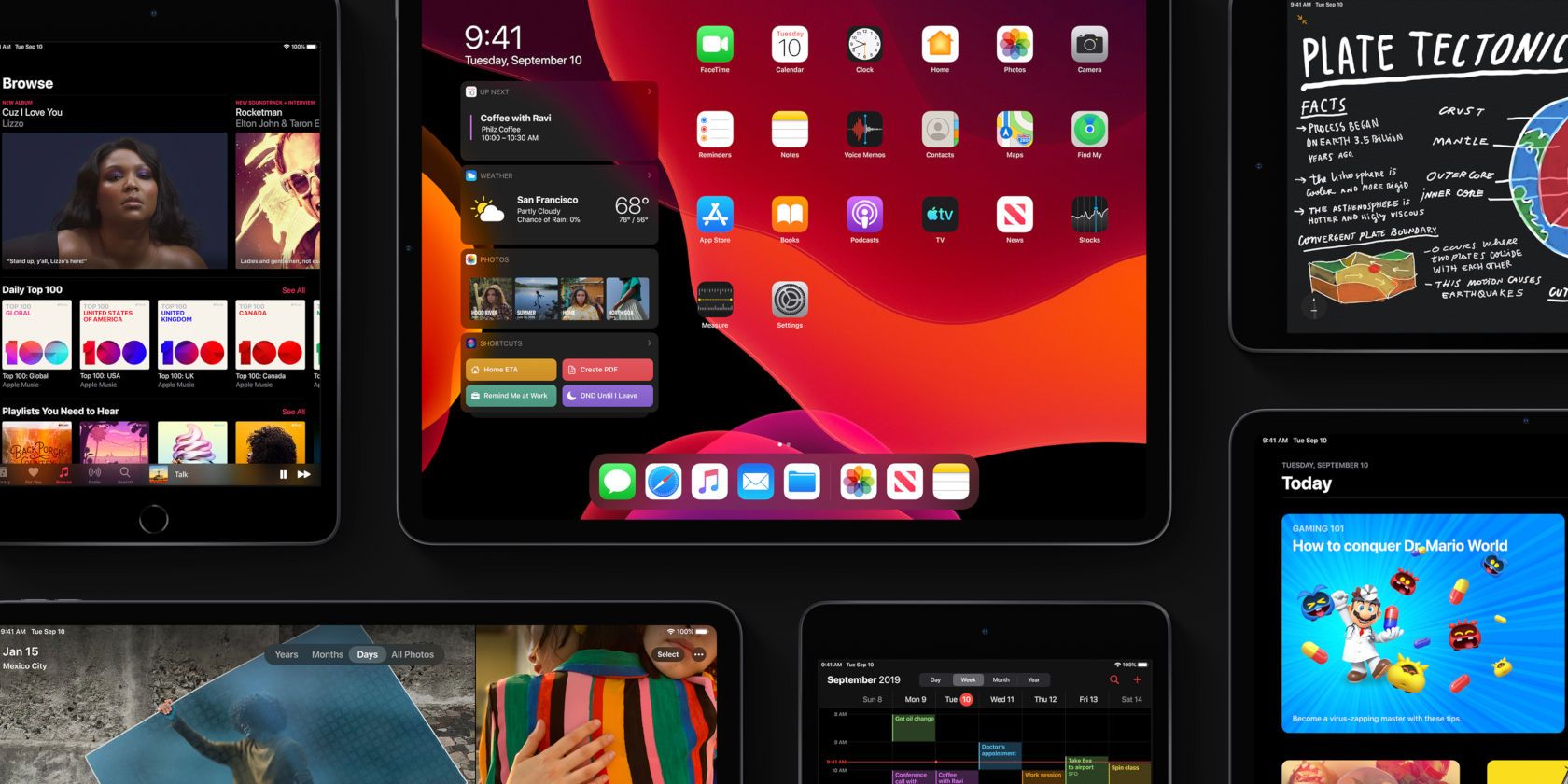
At the 2019 Apple Worldwide Developers Conference (WWDC) the company announced a whole new way to enjoy iPad with iPadOS. The revamped iPadOS is now its own entity for Apple’s tablets, providing the same features as iOS 13 for iPhone plus some awesome extras.

Whether you’re completely new to the iPad or are a longtime iPad user looking at iPadOS for the first time, here’s an introduction to the basics of what iPadOS has to offer.

The New iPad Home Screen

The Home screen on iPadOS gives you redesigned layout options and cool widgets that you can pin for easy access.

iPadOS New Home Screen Layout

Changing the Layout

When you look at iPadOS, you’ll notice right away that you can fit more apps on your screen. The grid for your apps is tighter, allowing you to see more of them at once. However, if you’re not a fan of this condensed view, you can change it.

  1. Open the Settings app and select Display & Brightness.
  2. Under Home Screen Layout, mark the button for Bigger.

Make iPadOS Home Screen Icons Bigger

Bigger will put the grid of 20 app icons back on your screen, whereas with the More layout, you get 30.

Today View

Another enhancement to the iPad Home screen is the Today View. Access this handy section by swiping from left to right. You then have a quick view of the date and time, along with widgets.

You can choose to keep the Today View on the Home screen or access it only by swiping. To keep it on the Home screen, follow these steps:

  1. Open the Settings app and select Display & Brightness.
  2. Under Home Screen Layout, turn on the toggle for Keep Today View on Home Screen.

Keep Today View on iPadOS Home Screen

You might also see a message at the top of Today View for Add to Home Screen; just tap that to add it. Alternatively, you can swipe to the bottom of Today View, tap Edit, and turn on the toggle on the next screen.

Note that if you decide to keep Today View on your Home screen, it will only remain there while in landscape view.

Pinned and Favorite Widgets

Today View on iPadOS Home Screen

The Today View described above is a useful spot for app widgets, similar to the Today Screen widgets on iPhone. So it’s perfect for those apps that you use daily or several times per day. Plus, the best widgets give you quick glances at information like the weather, tasks, news, or other details pertaining to the app.

To add, remove, and rearrange widgets, swipe to the bottom of Today View and tap Edit. You have two ways to handle the widgets in Today view: Pinned Favorites and Favorites.

Favorites are widgets that will appear in Today View, while Pinned Favorites are Favorites that will always appear in Today View. If you have Today View open and swipe down, the only widgets you’ll see are the Pinned Favorites. Then, just swipe up to see all Favorites.

Now that you know the difference in the widgets, you can set them up on that Edit screen. Tap the plus signs in green to add widgets to Favorites. To turn a Favorite into a Pinned Favorite, tap and drag it to that section at the top. And to rearrange widgets, just tap and drag them where you want them. Tap Done when you finish.

Today View Widgets for iPadOS Home Screen

Other Home Screen Changes

You might notice a couple of additional Home changes with iPadOS.

To rearrange apps, hold one as you used to. But now you’ll see a popup menu with shortcuts for the app and the option to Rearrange Apps. If you don’t make a selection from the shortcut menu and continue to hold an app icon, all apps will jiggle like they did on iOS 12 and earlier, so you can move or delete them.

You can now add folders to the Dock on iPad. Hold a folder, choose Rearrange Apps, and move it to the Dock. Alternatively, hold until the shortcut menu disappears, the folder jiggles, and then move it.

iPadOS Rearrange Apps and Folder in Dock

The iPad’s New Keyboard

You’ll be happy to see improvements to the keyboard (like QuickPath, which lets you swipe to type) in both iOS 13 and iPadOS. In addition, iPadOS gives you a floating keyboard.

iPadOS Enable Floating Keyboard

Floating Keyboard

The floating keyboard is one of the extras now available in iPadOS. With this new feature, you can shrink the keyboard and move it wherever you like on the screen. This gives you a larger view of what you’re typing without it getting cut off by a large keyboard.

Plus, the floating keyboard also uses QuickPath, so you have two new features in one with the iPadOS keyboard.

You can make your keyboard float using one of two convenient methods:

  • Tap and hold the keyboard button at the bottom-right and then slide your finger up to Floating.
  • Pinch two fingers inward to the center of the keyboard.

Once you see the keyboard shrink, you can put it anywhere on the screen by dragging at the line on the bottom of it. To put the keyboard back to its normal size, swipe two fingers outward from the center of the floating keyboard.

iPadOS Floating Keyboard

QuickPath

If you’re a fan of apps like SwiftKey or Gboard that let you swipe to create words instead of tapping each individual key, then QuickPath is for you.

Just slide your finger through each letter of a word without releasing until it’s time for the next word. This is a helpful feature for those who never improved their thumb-typing nimbleness. As mentioned, you can also access this on your iPhone with iOS 13.

iPadOS QuickPath on Floating Keyboard

If you prefer not to use QuickPath when you use the floating keyboard, you can disable it:

  1. Open the Settings app and select General.
  2. Tap Keyboard.
  3. At the bottom in the language area, turn off the toggle for Slide on Floating Keyboard to Type.

iPadOS Disable QuickPath on Floating Keyboard

A Fresh Dark Mode

While Dark Mode is a feature available on both iPadOS and iOS 13, it’s definitely worth mentioning for iPad users. This slick theme that we first saw on macOS Mojave is now on Apple’s mobile devices.

iPadOS Dark Mode in Mail

The setting helps to ease eyestrain and reduce the brightness of your screen for people around you. You can see the richness of Dark Mode in the built-in apps, system views, and some third-party apps. You’ll find lots of third-party iOS apps that support dark mode, too.

Enable Dark Mode

You can manually enable Dark Mode on iPad with a few simple taps:

  1. Open the Settings app and select Display & Brightness.
  2. Under Appearance, mark the button for Dark.

iPadOS Dark Mode Scheduled

You can also set a schedule for Dark Mode to turn on and off. This is a great way to enable the feature without having to open Settings each time and do it manually.

  1. Open the Settings app and select Display & Brightness.
  2. Under Appearance, turn on the toggle for Automatic.
  3. Tap Options and leave it as Sunset to Sunrise or pick Custom Schedule to set specific times for the light or dark mode to toggle.

Enjoy the New iPadOS

Apple making iPadOS its own system for iPad users was a bit of a surprise. But as you can see, it does offer additional options and features that you don’t get on your iPhone. Hopefully, this means that Apple will continue to give iPadOS its own unique features to make it even more useful for tablet users.

For more on iPad in general, take a look at how to use the Apple Pencil with an iPad or iPad Pro along with some terrific note-taking apps for your iPad.

Read the full article: The Basics of Using iPadOS: Key Tips, Tricks, and Features to Know About


Read Full Article
Enjoy Total Freedom and Privacy on the Web With Le VPN


Back in the early 2000s, the web was pretty open and safe. There were no paywalls or restrictions, meaning you could just enjoy surfing. Unfortunately, times have changed. Many sites will only allow you to access content if you are in specific countries. Worse still, you are tracked around the web. If you want to escape the restrictions, Le VPN can help. This highly-rated service offers fast connections, total privacy, and military-grade security on all your devices. You can get a one-year subscription now for $59.99 at MakeUseOf Deals.

Total Freedom

To escape the spider’s web of paywalls, geo-restrictions, and trackers, you need a VPN that has a worldwide presence. With over 800 servers in 120 countries, Le VPN definitely fits that description.

Available on all major desktop and mobile platforms, this highly-rated service masks your IP address and physical location. At the same time, all your traffic is protected by AES-256 encryption. This means that no-one can track you across the web or hack your connection on public Wi-Fi. Just as importantly, Le VPN keeps no logs.

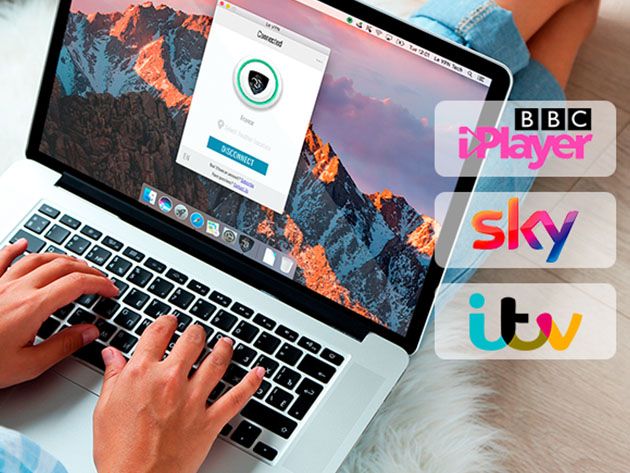
To help you stream content on sites such as iPlayer, Sky, and ITV, this VPN offers SmartDNS. This essentially masks your IP address without rerouting your traffic. As a result, you get a much faster connection — essential if you want to watch HD content.

One Year for $59.99

Order now for just $59.99 to get a one-year subscription, worth $119.40.

Read the full article: Enjoy Total Freedom and Privacy on the Web With Le VPN


Read Full Article

5 Ways to Boost Your Memory & Remember Names, Notes (and Everything Else)


Brain and memory

The human mind can’t stand up to the constant barrage of new information we get in the 21st century. It’s no wonder we can’t remember a lot of what we read, people we meet, sounds we hear. But these recall tools and brain hacks can help you level-up your memory.

Not many people know that memory relies on techniques. There is science behind how our brain handles new information, and if you learn the techniques, you can retain more of that information. Needless to say, none of these will magically change your mind in a day. But practice, and you’ll astound others about how well you can remember what happened.

1. FlipToMind (Web): Custom Flash Cards With Spaced Repetition

FlipToMind is a simple, free web app for flash cards

FlipToMind combines flash cards with the spaced repetition memory technique to revise and repeat what you need to remember. It supports a range of input like text, images, and also markdown, and works in any browser, desktop or mobile.

To create a card, you have to put a cue in one box and the answer in the other. You have to copy-paste full image URL links to add a picture to a card. Once you’ve created a stack, test yourself.

The app will cycle through your cues. Say the answer in your head and flip the card. Mark it as “knew it” or “failed” so that the app knows which cards you have trouble with. Using a smart algorithm, FlipToMind then figures out which cards you are likely to forget soon, and creates custom tests.

This is among the simplest flash card web apps based on spaced repetition. The free version of FlipToMind lets you create 25 cards. You can upgrade to unlimited cards for one dollar per month.

2. Mochi (Windows, macOS, Linux): Feature-Packed Flash Cards App

Mochi also uses the spaced repetition technique. But this isn’t a web app, so you can only access it on the desktop that you install the software on.

You can create new cards that support Markdown, text, and emojis too, but not images. Mochi has three features that distinguish it from regular flash cards.

First, you aren’t restricted to a single answer. In a physical flash card, you could only have the question on one side and the answer on the other. Mochi lets you add multiple answers, or hints, which cascade in steps. It’s a level-up for regular cards.

Second, Mochi allows you to hide words in the question you are setting up. The “Cloze” feature will simply blur words from a large chunk of text, asking you to fill in the blanks.

And finally, Mochi lets you add detailed notes for your studies. You can then link cards to the notes, or make cards from notes. It’s an effective system to remember what you needed to, and also learn more in case you forgot.

The app couple these two methods with an algorithm that tracks the cards and boosts retention with spaced repetition. You can add an unlimited number of decks and cards to Mochi but can’t access it on your phone or a different computer.

Download: Mochi for Windows | macOS | Linux (Free)

3. Art of Memory (Web): Learn to Build a Memory Palace

Art of Memory has guides for all types of memory techniques, with the best illustrated guide to Method of Loci method

If you want to learn how to build Sherlock Holmes’ “memory palace” depicted in one episode of the BBC series, then visit Art of Memory. This website is a repository of various memory tools, including the simplest free beginner’s guide to how a memory palace works.

The step-by-step Memory Technique wiki takes you through the fundamentals of the Method of Loci (i.e. the technique’s original name). Through a scene from a village, it illustrates how to remember the first 12 elements of the periodic table. Memory palaces are often recommended as a useful memory tool for students.

The main website has much more to offer than this one method alone. In fact, it covers pretty much every memory technique you’ll come across.

Register for the website to get a free 28-page beginner’s ebook for all major memory techniques, which also answers common questions. You also gain access to the forums, which has an active community of experts and amateurs willing to help in your journey.

4. Your Awesome Memory (Web): Free Video Course to Remember Anything

Bill Powell of Your Awesome Memory offers a free video course on essential memory tools

Memory expert Bill Powell’s website is full of articles and resources related to memory. Instead of focusing on one technique, Powell stresses on using different methods to remember different things. And he teaches you how.

The best way to start is with the free video course, for which you’ll have to sign up for the newsletter. These aren’t five-minute videos, each of the four-part video course is over half an hour in length. Powell touches upon the four essential memory tools, what purpose each serves, and how to use the tools to remember names.

Go through the course over a weekend and put the learnings into practice. If you have the time, Powell’s articles are worth reading too, especially on topics like why flash cards fail or how you can remember more of what you read.

5. Memory Health Check (Web): Free Memory Loss Tests

Memory Loss Test lets you check your short term memory and working memory

Now that you know how to improve your memory, it might be worthwhile to check just how good it is. Memory Health Check offers a few free tests to see if you suffer from any memory loss.

The website gives you two types of tests: short term memory tests and working memory tests. In the short term memory tests, you will be shown a series of pictures of nature or animals. You have to tap the picture or the spacebar key every time an image is repeated.

The working memory tests are of two types. The digit span test shows you a series of digits (up to 10) at different speeds, and then you need to type out the full number. The spatial memory test shows you an object in different squares of a 4×4 grid. Remember the sequence and replicate it.

Note: These are basic tests to check a regularly functioning mind. If you seek clinical tests or think you might have a mental issue, please seek the opinion of a professional medical practitioner.

Other Ways to Improve Your Memory

Memory and recall are often a function of physiological conditions. Studies have shown that your memory will automatically improve if you are eating healthy, exercising regularly, and getting enough sleep.

But even if you are doing those steps, apps can help. We are bombarded with so much data in this information age, why not let it also aid in recollection? Apart from the aforementioned websites and apps, these tools can improve memory and recall. In fact, there’s an app dedicated to helping you remember people’s names.

Read the full article: 5 Ways to Boost Your Memory & Remember Names, Notes (and Everything Else)


Read Full Article

Xiaomi’s 108MP Mi Mix Alpha has a display that wraps around the back


As Samsung and Huawei double down on their foldable smartphone lineups, and other handset vendors try to hide the notch, Chinese giant Xiaomi today chalked out a different path altogether. The company unveiled the Mi Mix Alpha, a smartphone with a front display that fully wraps around the back, save for a strip.

The Mi Mix Alpha’s body is made of a single piece of sapphire glass with ceramics and aerospace-grade titanium alloy. So what does the extra display gets you? Nothing much. The back display lights up and takes over the front screen’s duties when you flip the phone. Otherwise, it just sits there doing nothing.

Xiaomi says the Mix Alpha is a concept phone, so it is going to have a limited production run for the device. The smartphone will go on sale in China in December for 19,999 yuan (~$2,800).

The innards of the phone are no slouches either.

While the size of the display remains unknown, it boasts a 180.6% screen-to-body ratio, Xiaomi said at an event in China. The Mi Mix Alpha is powered by Qualcomm’s latest and greatest Snapdragon 855+, coupled with 12GB of RAM, and 512GB UFS 3.0 storage. And it supports 5G connectivity.

The handset is housing 4,050 mAh battery and supports 40W wired fast charging, the company said. The Mi Mix Alpha is running Android Pie-based MIUI 11 software.

Which brings us to the strip: The front side of the Mi Mix Alpha does not have any camera sensors. Instead the back side sports a three-camera system: 108MP primary sensor it developed in collaboration Samsung, 20MP wide-angle sensor, and 12MP telephoto sensor.

At the sidelines of today’s event, Xiaomi also launched the Mi 9 Pro, follow up to the Mi 9 handset that the company unveiled earlier this year. The Mi 9 Pro, priced at roughly $520, now features support for 5G connectivity, becoming one of the low-cost handsets to support the networking technology. It also supports 40W fast charging, the company said.


Read Full Article

Xiaomi’s 108MP Mi Mix Alpha has a display that wraps around the back


As Samsung and Huawei double down on their foldable smartphone lineups, and other handset vendors try to hide the notch, Chinese giant Xiaomi today chalked out a different path altogether. The company unveiled the Mi Mix Alpha, a smartphone with a front display that fully wraps around the back, save for a strip.

The Mi Mix Alpha’s body is made of a single piece of sapphire glass with ceramics and aerospace-grade titanium alloy. So what does the extra display gets you? Nothing much. The back display lights up and takes over the front screen’s duties when you flip the phone. Otherwise, it just sits there doing nothing.

Xiaomi says the Mix Alpha is a concept phone, so it is going to have a limited production run for the device. The smartphone will go on sale in China in December for 19,999 yuan (~$2,800).

The innards of the phone are no slouches either.

While the size of the display remains unknown, it boasts a 180.6% screen-to-body ratio, Xiaomi said at an event in China. The Mi Mix Alpha is powered by Qualcomm’s latest and greatest Snapdragon 855+, coupled with 12GB of RAM, and 512GB UFS 3.0 storage. And it supports 5G connectivity.

The handset is housing 4,050 mAh battery and supports 40W wired fast charging, the company said. The Mi Mix Alpha is running Android Pie-based MIUI 11 software.

Which brings us to the strip: The front side of the Mi Mix Alpha does not have any camera sensors. Instead the back side sports a three-camera system: 108MP primary sensor it developed in collaboration Samsung, 20MP wide-angle sensor, and 12MP telephoto sensor.

At the sidelines of today’s event, Xiaomi also launched the Mi 9 Pro, follow up to the Mi 9 handset that the company unveiled earlier this year. The Mi 9 Pro, priced at roughly $520, now features support for 5G connectivity, becoming one of the low-cost handsets to support the networking technology. It also supports 40W fast charging, the company said.


Read Full Article

Samsung Galaxy Fold take two


The Galaxy Fold comes in a nice box. It’s a thing I rarely, if ever, mention in product write-ups, because, if done right, shipping containers are generally the least interesting thing about a product. But Samsung, to its credit, has taken great care. That’s been one of the constants across this admittedly bungled product launch: presentation.

The first time I saw the device, it was well lit, in an elaborate display behind several layers of glass on the floor of Mobile World Congress. Samsung wasn’t letting anyone go past a literal velvet rope a few feet from the device.

When we finally got our hands on the Fold, Samsung had laid out several large boxes, which, when opened, had the effect of raising the device up, toward the viewer. It was a fun thing for a room full of journalists who had largely been engaging with the product through guarded curiosity, wondering aloud whether it would ever actually see the light of day.

Samsung Galaxy Fold

That skepticism was warranted, as it turned out. The Fold came back broken from several reviewers. After placing the blame at the feet of users, Samsung eventually changed tack, pushed back the April release date indefinitely and tried to get to the bottom of what was going on with the product.

This week, the Fold returns to North American store shelves — or, rather, it finally debuts, about five months after initially planned. And once again, Samsung’s delivering the device in a nice box. The purpose of this one, however, is as much about setting expectations as it is providing a splashy debut.

Really, it’s like the analog version of the “Caring for Your Fold” video the company debuted on YouTube last week. It was as flashy and well-produced as we’d expect from Samsung, right down to the dramatic piano music while instructing the viewer to “Just use a light touch.” That note arrived with its own (somewhat redundant) footnote: “Do not apply excessive pressure to it.”

Similarly, the Fold box comes with its fair share of paperwork. The first bit is an overview of Galaxy Fold “Premier Service,” the white-glove offering the company announced a while back. That was, it explained, the reason it canceled initial AT&T pre-orders. The 24/7 service comes free with the purchase of the $2,000 phone, offering users phone support, starting with setup. The company’s got a call center in North Carolina fielding the calls during U.S. business hours, and routes them abroad after that.

There are other elements to it, as well, including a $149 screen warranty. All of these pieces add up to a company confident enough to bring the product back to market, but not quite ready to ensure that the Fold’s screens might not crack under pressure for some. In fact, there’s a five-point warranty adhered to the screen that warns against:

  • Excessive pressure (It’s the terror of knowing what the world is about / Watching some good friends screaming / “Let me out!”)
  • Placing objects like keys on the screen before folding
  • Exposing the Fold to water or dust
  • Adding your own screen protector to the existing screen protector
  • Keeping the device next to easily deactivated objects like credit cards (or, in my experience, hotel key cards) and *gulp* implanted medical devices

Samsung Galaxy Fold

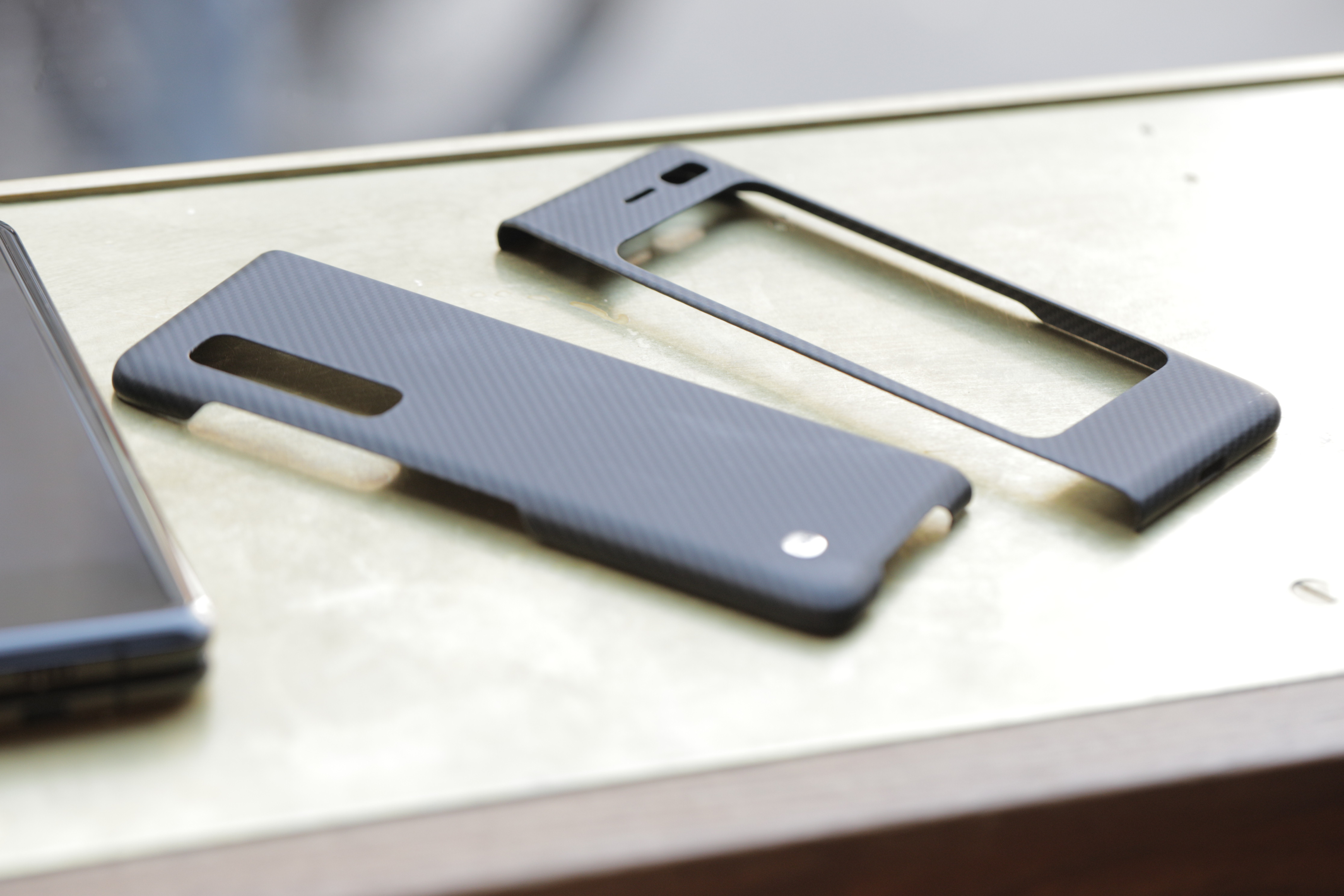
The product does, thankfully, ship with a case, which is a thin, two-piece snap-on covering. It won’t protect the front display from scratches, but it may help the product avoid dings if dropped. When closed, at least. I’m very much looking forward to someone purchasing the device for extensive drop testing while open.

Samsung does get some bonus points for also throwing in a pair of its very good Galaxy Buds Bluetooth earbuds for free. A nice gesture, to be sure.

As those who read the site with some regularity likely already know, we’ve actually spent a significant amount of time with the device. I was carrying the original version of the Fold around during our Robotics event back in April. Fitting, I suppose, that I’ll be sporting it next week at Disrupt. I do once again plan to hold onto the phone for a bit to get a better idea of day to day life with the foldable (though I likely won’t be doing daily dispatches this time).

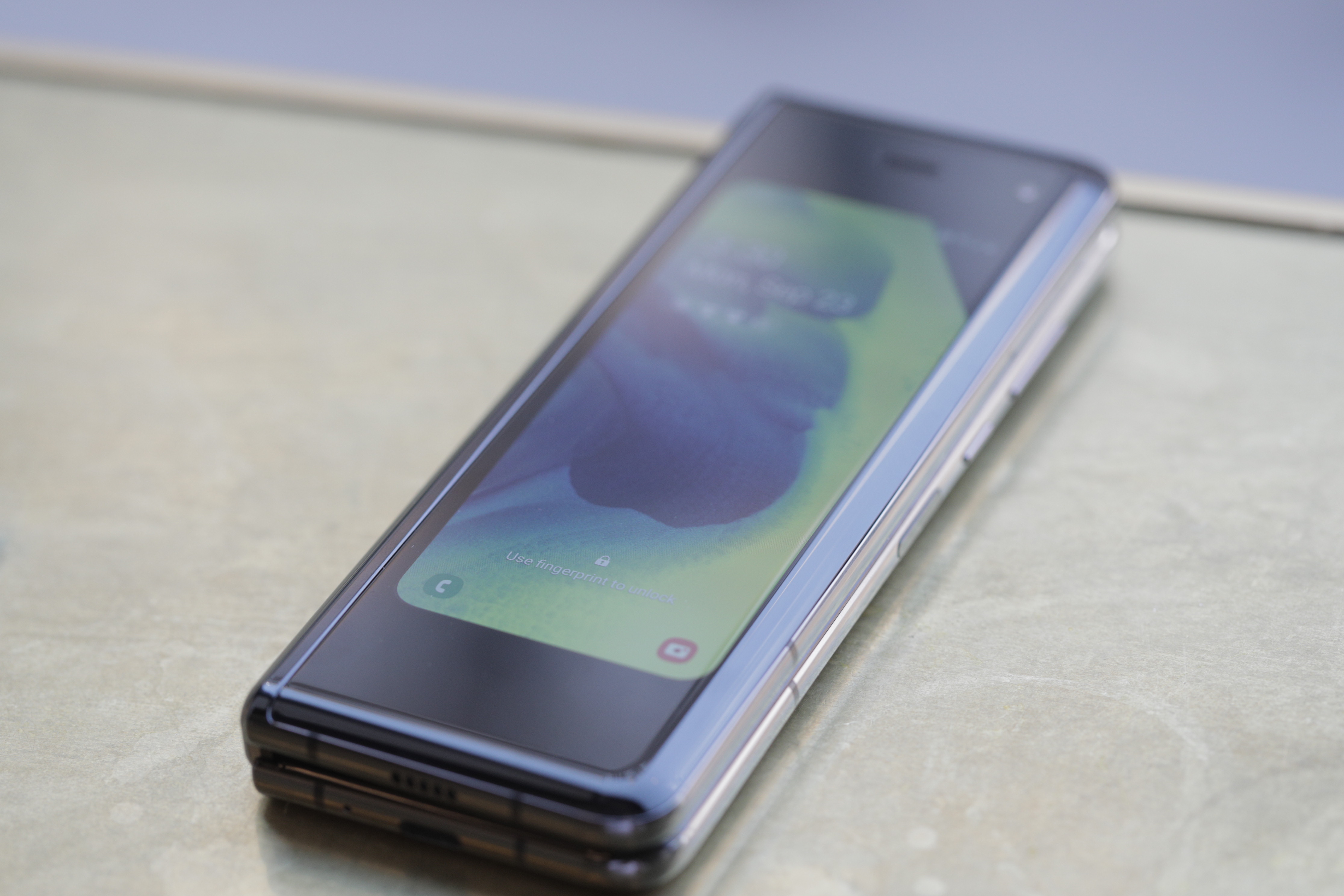
Full disclosure: Samsung just gave us the revised version of the product yesterday afternoon. Hardly enough time to give you anything conclusive, so I’m not going to pretend to do so here. I will say that aesthetically, very little has changed. For better and worse. The one immediate thing that leaps out is the lack of a visible screen protector.

If you’ll recall, that was a major source of the problems last time out. The edges of the built-in screen protector were visible and, yes, it looked an awful lot like the removable screen protectors other Galaxy products ship with. Did I peel it off? No. Was I tempted? You better believe it.

Samsung Galaxy Fold

This time out, the laminate has been extended to under the outer edges to avoid that temptation altogether. The other big fixes include plugging the gaps in the hinges that previously allowed debris to fall behind the screen, damaging it when pressure is applied. There’s also a new, unseen layer of metal under the display designed to reinforce the screen. This gives the device a slightly more rigid feel.

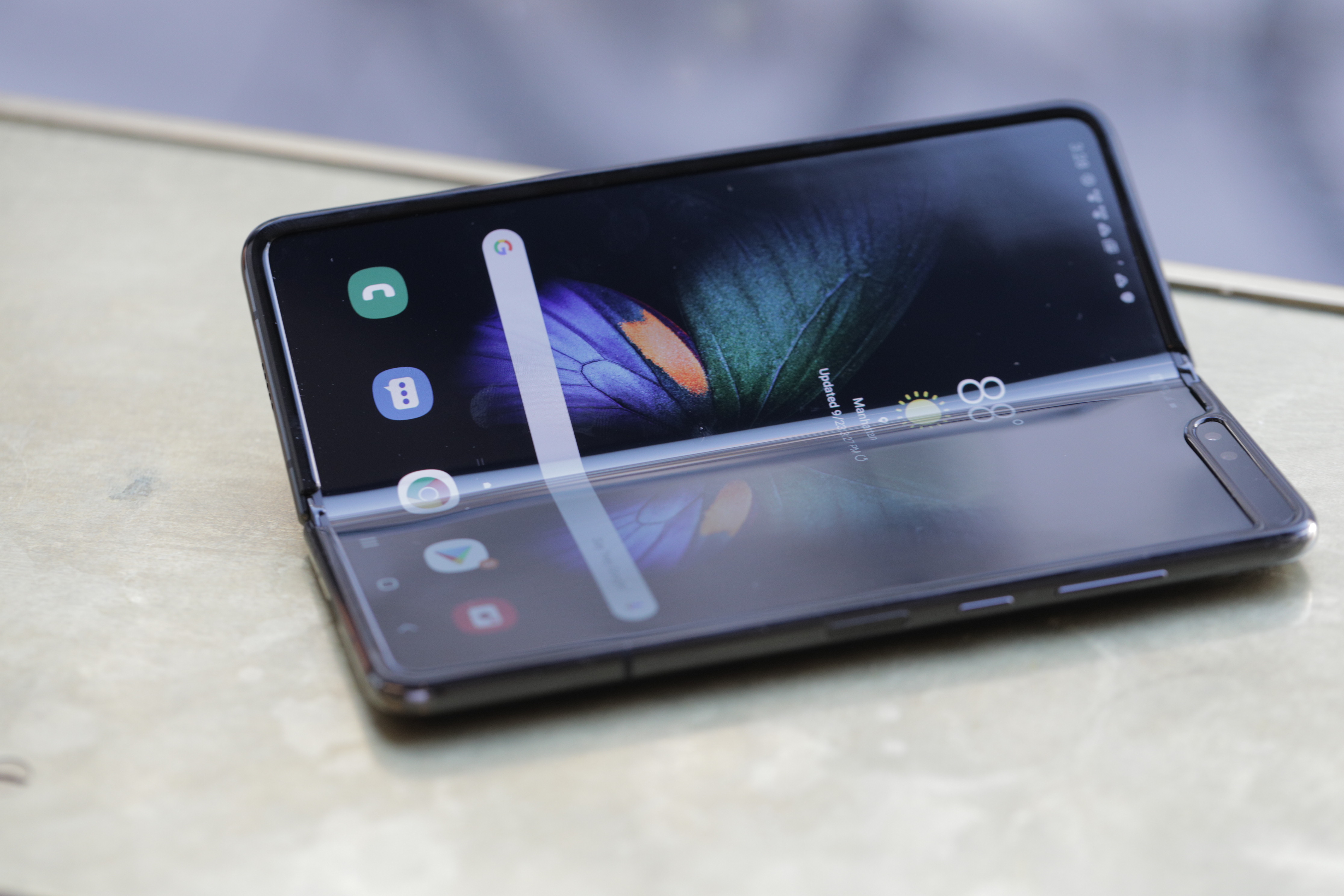
Otherwise, the hardware is largely unchanged, including the small 4.6-inch window display up front and the large 7.3-inch foldable screen inside, which still has a visible seam when the light reflects it at an angle.

There’s a tacit understanding that the Fold is an imperfect device. The product builds upon a decade of experience creating Galaxy flagship smartphones, along with all of Samsung’s prior electronics knowledge, but the foldable category is still very much a kind of uncharted territory. Companies are going to fail plenty before they succeed here, and at very least, Samsung deserves some kudos for being among the first to try the thing, tumbling a bit and getting back up and trying again.

[gallery ids="1885397,1885396,1885395,1885394,1885393,1885392,1885391,1885385,1885384,1885383,1885382,1885381,1885379,1885378"]

There remains the important question, however, of whether consumers are okay with what feels a little like an extended beta test — albeit one that costs $2,000 to join. Thankfully, Samsung got some of those unfortunate bungles out of the way before bringing the product to market. Along with a reinforced display, however, Samsung does appear to be girding itself for the possibility that consumers will find creative and new ways to mangle the display — accidentally and otherwise.

Suffice it to say, I’ve got a lot more thoughts on the matter, many of which I’ll be formulating over the coming days and weeks. So, stay tuned for those. Meantime, if you’d like to leap before you look, the Fold can be yours this Friday, starting at $1,980 U.S.


Read Full Article

Europe’s top court rules that ‘right to be forgotten’ only applies in Europe


The Court of Justice of the European Union has ruled that Google doesn’t have to de-reference results related to the so-called right to be forgotten at a global scale.

Europe’s top court also reminds Google and other search engines that it doesn’t change anything when it comes to the right to be forgotten in Europe. Google still has to de-reference results for all of the 28 Member States of the European Union.

“Thus, the Court concludes that, currently, there is no obligation under EU law, for a search engine operator who grants a request for de-referencing made by a data subject, as the case may be, following an injunction from a supervisory or judicial authority of a Member State, to carry out such a de-referencing on all the versions of its search engine,” the court said in its decision.

Google and other search engines started implementing the right to be forgotten in 2014. As a European citizen, if you can find sensitive information about you when you query your name, you can ask search engines to delist those results.

If a link gets delisted, you won’t be able to find it when you search for a name when you’re in Europe. Google de-references pages at a regional level and applies the right to be forgotten on local versions of its search engine — Google uses IP addresses and geo-blocking.

But the CNIL, France’s data protection agency, fined Google in 2016 saying that regional delisting wasn’t enough. According to the CNIL, Google should have removed those results at a global level to comply with the law.

Google first filed an appeal in France and the case ended up at the Court of Justice of the European Union. According to Google, global delistings had the potential to damage free speech and help authoritarian regimes de-reference sensitive stuff from the search results.

And Europe’s top court agrees to some degree. “In addition, the balance between the right to privacy and the protection of personal data, on the one hand, and the freedom of information of internet users, on the other, is likely to vary significantly around the world,” the court said.

Earlier this year, an advisor to Europe’s top court also said that the right to be forgotten should be limited to Europe.

European citizens living outside of the European Union or people living in the European Union who use a VPN server could potentially access delisted results.

That’s why Europe’s top court says that search engines should take measures to “prevent or, at the very least, seriously discourage an internet user conducting a search from one of the Member States on the basis of a data subject’s name from gaining access, via the list of results displayed following that search, through a version of that search engine outside the EU, to the links which are the subject of the request for de-referencing.”


Read Full Article

Tibetans hit by the same mobile malware targeting Uyghurs


A recently revealed mobile malware campaign targeting Uyghur Muslims also ensnared a number of senior Tibetan officials and activists, according to new research.

Security researchers at the University of Toronto’s Citizen Lab say some of the Tibetan targets were sent specifically tailored malicious web links over WhatsApp, which, when opened, stealthily gained full access to their phone, installed spyware and silently stole private and sensitive information.

The exploits shared “technical overlaps” with a recently disclosed campaign targeting Uyghur Muslims, an oppressed minority in China’s Xinjiang state. Google last month disclosed the details of the campaign, which targeted iPhone users, but did not say who was targeted or who was behind the attack. Sources told TechCrunch that Beijing was to blame. Apple, which patched the vulnerabilities, later confirmed the exploits targeted Uyghurs.

Although Citizen Lab would not specify who was behind the latest round of attacks, the researchers said the same group targeting both Uyghurs and Tibetans also utilized Android exploits. Those exploits, recently disclosed and detailed by security firm Volexity, were used to steal text messages, contact lists and call logs, as well as watch and listen through the device’s camera and microphone.

It’s the latest move in a marked escalation of attacks on ethnic minority groups under surveillance and subjection by Beijing. China has long claimed rights to Tibet, but many Tibetans hold allegiance to the country’s spiritual leader, the Dalai Lama. Rights groups say China continues to oppress the Tibetan people, just as it does with Uyghurs.

A spokesperson for the Chinese consulate in New York did not return an email requesting comment, but China has long denied state-backed hacking efforts, despite a consistent stream of evidence to the contrary. Although China has recognized it has taken action against Uyghurs on the mainland, it instead categorizes its mass forced detentions of more than a million Chinese citizens as “re-education” efforts, a claim widely refuted by the west.

The hacking group, which Citizen Lab calls “Poison Carp,” uses the same exploits, spyware and infrastructure to target Tibetans as well as Uyghurs, including officials in the Dalai Lama’s office, parliamentarians and human rights groups.

Bill Marczak, a research fellow at Citizen Lab, said the campaign was a “major escalation” in efforts to access and sabotage these Tibetans groups.

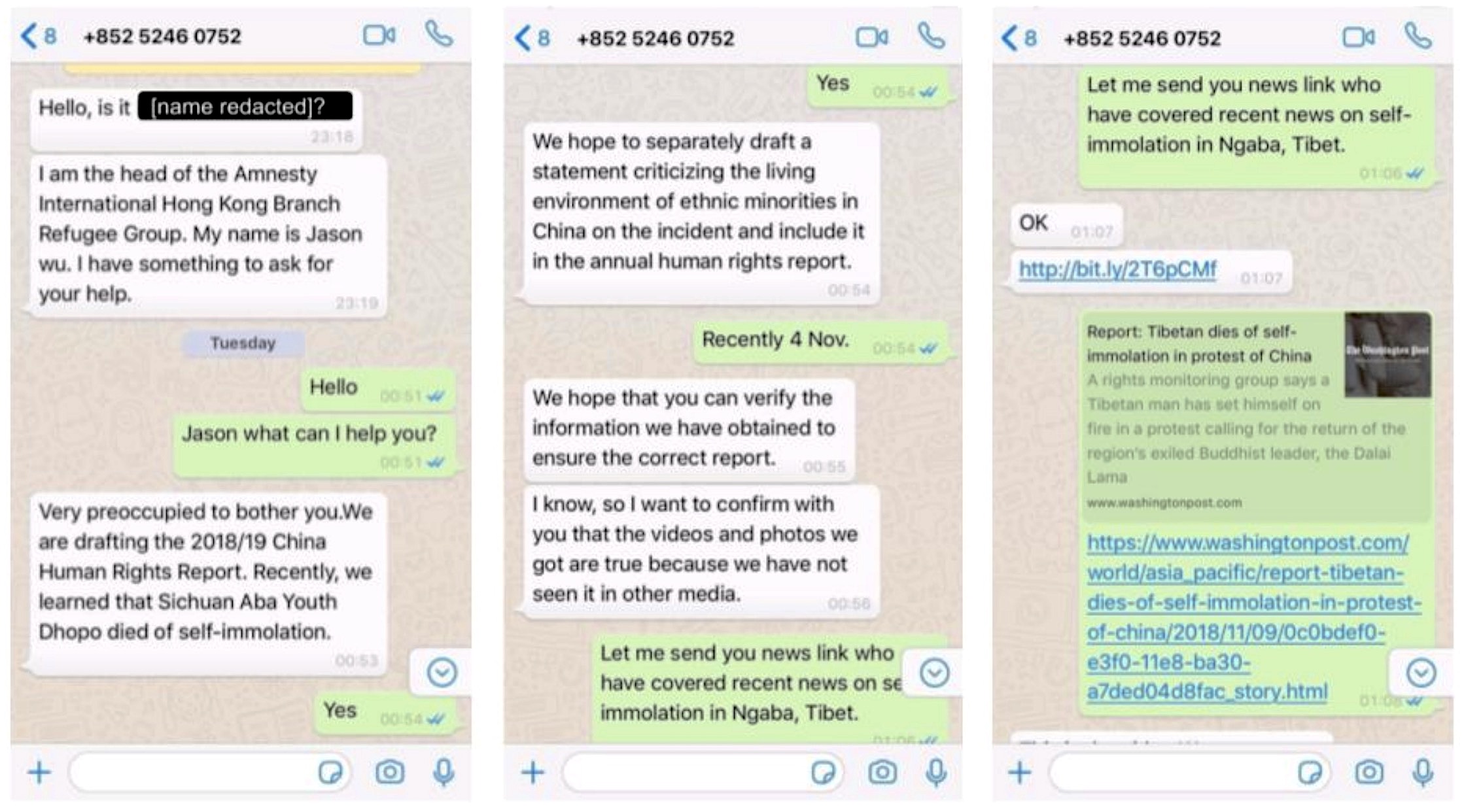
In its new research out Tuesday and shared with TechCrunch, Citizen Lab said a number of Tibetan victims were targeted with malicious links sent in WhatsApp messages by individuals purporting to work for Amnesty International and The New York Times. The researchers obtained some of those WhatsApp messages from TibCERT, a Tibetan coalition for sharing threat intelligence, and found each message was designed to trick each target into clicking the link containing the exploit. The links were disguised using a link-shortening service, allowing the attackers to mask the full web address but also gain insight into how many people clicked on a link and when.

“The ruse was persuasive,” the researchers wrote. During a week-long period in November 2018, the targeted victims opened more than half of the attempted infections. Not all were infected, however; all of the targets were running non-vulnerable iPhone software.

One of the specific social engineering messages, pretending to be an Amnesty International aid worker, targeting Tibetan officials (Image: Citizen Lab/supplied)

The researchers said tapping on a malicious link targeting iPhones would trigger a chain of exploits designed to target a number of vulnerabilities, one after the other, in order to gain access to the underlying, typically off-limits, iPhone software.

The chain “ultimately executed a spyware payload designed to steal data from a range of applications and services,” said the report.

Once the exploitation had been achieved, a spyware implant would be installed, allowing the attackers to collect and send data to the attackers’ command and control server, including locations, contacts, call history, text messages and more. The implant also would exfiltrate data, like messages and content, from a hardcoded list of apps — most of which are popular with Asian users, like QQMail and Viber.

Apple had fixed the vulnerabilities months earlier (in July 2018); they were later confirmed as the same flaws found by Google earlier this month.

“Our customers’ data security is one of Apple’s highest priorities and we greatly value our collaboration with security researchers like Citizen Lab,” an Apple spokesperson told TechCrunch. “The iOS issue detailed in the report had already been discovered and patched by the security team at Apple. We always encourage customers to download the latest version of iOS for the best and most current security enhancements.”

Meanwhile, the researchers found that the Android-based attacks would detect which version of Chrome was running on the device and would serve a matching exploit. Those exploits had been disclosed and were “obviously copied” from previously released proof-of-concept code published by their finders on bug trackers, said Marczak. A successful exploitation would trick the device into opening Facebook’s in-app Chrome browser, which gives the spyware implant access to device data by taking advantage of Facebook’s vast number of device permissions.

The researchers said the code suggests the implant could be installed in a similar way using Facebook Messenger, and messaging apps WeChat and QQ, but failed to work in the researchers’ testing.

Once installed, the implant downloads plugins from the attacker’s server in order to collect contacts, messages, locations and access to the device’s camera and microphone.

When reached, Google did not comment. Facebook, which received Citizen Lab’s report on the exploit activity in November 2018, did not comment at the time of publication.

“From an adversary perspective what makes mobile an attractive spying target is obvious,” the researchers wrote. “It’s on mobile devices that we consolidate our online lives and for civil society that also means organizing and mobilizing social movements that a government may view as threatening.”

“A view inside a phone can give a view inside these movements,” they said.

The researchers also found another wave of links trying to trick a Tibetan parliamentarian into allowing a malicious app access to their Gmail account.

Citizen Lab said the threat from the mobile malware campaign was a “game changer.”

“These campaigns are the first documented cases of iOS exploits and spyware being used against these communities,” the researchers wrote. But attacks like Poison Carp show mobile threats “are not expected by the community,” as shown by the high click rates on the exploit links.

Gyatso Sither, TibCERT’s secretary, said the highly targeted nature of these attacks presents a “huge challenge” for the security of Tibetans.

“The only way to mitigate these threats is through collaborative sharing and awareness,” he said.


Read Full Article

Tibetans hit by the same mobile malware targeting Uyghurs


A recently revealed mobile malware campaign targeting Uyghur Muslims also ensnared a number of senior Tibetan officials and activists, according to new research.

Security researchers at the University of Toronto’s Citizen Lab say some of the Tibetan targets were sent specifically tailored malicious web links over WhatsApp, which, when opened, stealthily gained full access to their phone, installed spyware and silently stole private and sensitive information.

The exploits shared “technical overlaps” with a recently disclosed campaign targeting Uyghur Muslims, an oppressed minority in China’s Xinjiang state. Google last month disclosed the details of the campaign, which targeted iPhone users, but did not say who was targeted or who was behind the attack. Sources told TechCrunch that Beijing was to blame. Apple, which patched the vulnerabilities, later confirmed the exploits targeted Uyghurs.

Although Citizen Lab would not specify who was behind the latest round of attacks, the researchers said the same group targeting both Uyghurs and Tibetans also utilized Android exploits. Those exploits, recently disclosed and detailed by security firm Volexity, were used to steal text messages, contact lists and call logs, as well as watch and listen through the device’s camera and microphone.

It’s the latest move in a marked escalation of attacks on ethnic minority groups under surveillance and subjection by Beijing. China has long claimed rights to Tibet, but many Tibetans hold allegiance to the country’s spiritual leader, the Dalai Lama. Rights groups say China continues to oppress the Tibetan people, just as it does with Uyghurs.

A spokesperson for the Chinese consulate in New York did not return an email requesting comment, but China has long denied state-backed hacking efforts, despite a consistent stream of evidence to the contrary. Although China has recognized it has taken action against Uyghurs on the mainland, it instead categorizes its mass forced detentions of more than a million Chinese citizens as “re-education” efforts, a claim widely refuted by the west.

The hacking group, which Citizen Lab calls “Poison Carp,” uses the same exploits, spyware and infrastructure to target Tibetans as well as Uyghurs, including officials in the Dalai Lama’s office, parliamentarians and human rights groups.

Bill Marczak, a research fellow at Citizen Lab, said the campaign was a “major escalation” in efforts to access and sabotage these Tibetans groups.

In its new research out Tuesday and shared with TechCrunch, Citizen Lab said a number of Tibetan victims were targeted with malicious links sent in WhatsApp messages by individuals purporting to work for Amnesty International and The New York Times. The researchers obtained some of those WhatsApp messages from TibCERT, a Tibetan coalition for sharing threat intelligence, and found each message was designed to trick each target into clicking the link containing the exploit. The links were disguised using a link-shortening service, allowing the attackers to mask the full web address but also gain insight into how many people clicked on a link and when.

“The ruse was persuasive,” the researchers wrote. During a week-long period in November 2018, the targeted victims opened more than half of the attempted infections. Not all were infected, however; all of the targets were running non-vulnerable iPhone software.

One of the specific social engineering messages, pretending to be an Amnesty International aid worker, targeting Tibetan officials (Image: Citizen Lab/supplied)

The researchers said tapping on a malicious link targeting iPhones would trigger a chain of exploits designed to target a number of vulnerabilities, one after the other, in order to gain access to the underlying, typically off-limits, iPhone software.

The chain “ultimately executed a spyware payload designed to steal data from a range of applications and services,” said the report.

Once the exploitation had been achieved, a spyware implant would be installed, allowing the attackers to collect and send data to the attackers’ command and control server, including locations, contacts, call history, text messages and more. The implant also would exfiltrate data, like messages and content, from a hardcoded list of apps — most of which are popular with Asian users, like QQMail and Viber.

Apple had fixed the vulnerabilities months earlier (in July 2018); they were later confirmed as the same flaws found by Google earlier this month.

“Our customers’ data security is one of Apple’s highest priorities and we greatly value our collaboration with security researchers like Citizen Lab,” an Apple spokesperson told TechCrunch. “The iOS issue detailed in the report had already been discovered and patched by the security team at Apple. We always encourage customers to download the latest version of iOS for the best and most current security enhancements.”

Meanwhile, the researchers found that the Android-based attacks would detect which version of Chrome was running on the device and would serve a matching exploit. Those exploits had been disclosed and were “obviously copied” from previously released proof-of-concept code published by their finders on bug trackers, said Marczak. A successful exploitation would trick the device into opening Facebook’s in-app Chrome browser, which gives the spyware implant access to device data by taking advantage of Facebook’s vast number of device permissions.

The researchers said the code suggests the implant could be installed in a similar way using Facebook Messenger, and messaging apps WeChat and QQ, but failed to work in the researchers’ testing.

Once installed, the implant downloads plugins from the attacker’s server in order to collect contacts, messages, locations and access to the device’s camera and microphone.

When reached, Google did not comment. Facebook, which received Citizen Lab’s report on the exploit activity in November 2018, did not comment at the time of publication.

“From an adversary perspective what makes mobile an attractive spying target is obvious,” the researchers wrote. “It’s on mobile devices that we consolidate our online lives and for civil society that also means organizing and mobilizing social movements that a government may view as threatening.”

“A view inside a phone can give a view inside these movements,” they said.

The researchers also found another wave of links trying to trick a Tibetan parliamentarian into allowing a malicious app access to their Gmail account.

Citizen Lab said the threat from the mobile malware campaign was a “game changer.”

“These campaigns are the first documented cases of iOS exploits and spyware being used against these communities,” the researchers wrote. But attacks like Poison Carp show mobile threats “are not expected by the community,” as shown by the high click rates on the exploit links.

Gyatso Sither, TibCERT’s secretary, said the highly targeted nature of these attacks presents a “huge challenge” for the security of Tibetans.

“The only way to mitigate these threats is through collaborative sharing and awareness,” he said.


Read Full Article

Facebook buys startup building neural monitoring armband


Facebook is buying CTRL-labs, a NY-based startup building an armband that translates movement and the wearer’s neural impulses into digital input signals, a company spokesperson tells TechCrunch.

CTRL-labs raised $67 million according to Crunchbase. The startup’s investors include GV, Lux Capital, Amazon’s Alexa Fund, Spark Capital and Founders Fund, among others. Facebook didn’t disclose how much they paid for the startup, but we’re digging around.

Update: Bloomberg pegs the deal between $500 million and $1 billion. A source close to the matter tells TechCrunch the same.

The acquisition, which has not yet closed, will bring the startup into the company’s Facebook Reality Labs division. CTRL-labs’ CEO and co-founder Thomas Reardon, a veteran technologist whose accolades include founding the team at Microsoft that built Internet Explorer, will be joining Facebook, while CTRL-labs’ employees will have the option to do the same, we are told.

Facebook has talked a lot about working on a non-invasive brain input device that can make things like text entry possible just by thinking. So far, most of the company’s progress on that project appears to be taking the form of university research that they’ve funded. With this acquisition, the company appears to be working more closely with technology that could one day be productized.

“We know there are more natural, intuitive ways to interact with devices and technology. And we want to build them,” Facebook AR/VR VP Andrew Bosworth wrote in a post announcing the deal. “It’s why we’ve agreed to acquire CTRL-labs. They will be joining our Facebook Reality Labs team where we hope to build this kind of technology, at scale, and get it into consumer products faster.”

CTRL-labs’ technology isn’t focused on text-entry as much as it is muscle movement, and hand movements specifically. The startup’s progress was most recently distilled in a developer kit that paired multiple types of sensors together to accurately determine the wearer’s hand position. The wrist-worn device offered developers an alternative to camera-based or glove-based hand-tracking solutions. The company has previously talked about AR and VR input as a clear use case for the kit. Facebook did not give details on what this acquisition means for developers currently using CTRL-labs’ kit.
This acquisition also brings to Facebook the armband patents of North (formerly Thalmic Labs). CTRL-labs purchased the patents related to the startup’s defunct Myo armband earlier this year for an undisclosed sum.

CTRL-labs’ acquisition brings more IP and talent under Facebook’s wings as competitors like Microsoft and Apple continue to build out augmented reality products. There is plenty of overlap between many of the technologies that Oculus is building for Facebook’s virtual reality products, like the Quest and Rift S, but CTRL-Labs’ tech can help the company build input devices that are less bulky, less conspicuous and more robust.

“There are some fundamental advantages that we have over really any camera-based technology — including Leap Motion or Kinect — because we’re directly on the body sensing the signal that’s going from the brain to the hand.” CTRL-labs’ head of R&D, Adam Berenzweig, told TechCrunch in an interview late last year. “There are no issues with collusion or field-of-view problems — it doesn’t matter where your hands are, whether they’re in a glove or a spacesuit.”

Facebook is holding its Oculus Connect 6 developer conference later this week, where the company will be delivering updates on its AR/VR efforts.


Read Full Article