23 September 2019

How to Create an Amazing Chart in Google Slides


create-chart-google-slides

Google Slides is an amazing presentation tool with the ability to create complex slideshows. Its easy-to-use interface and online sharing capabilities give it a leg up over other programs, and one of the many things you can create with Google Slides is a graph or chart.

To keep this simple, here’s how to create a chart in Google Slides, along with some basic graphic design tips to make sure you’re building the best data visualizations possible.

How to Create a Google Slides Chart

The first thing you’ll need to do is set up your slideshow, either by creating a brand new file or by opening a document that’s already in progress.

If you have already created a graph or chart outside of Google Slides, the process of including one is extremely simple. Just go Insert > Image, then place your image file in the presentation.

If you want to create a chart in Google Slides directly, there are a few more steps involved.

To create a graph or chart in Google Slides, click Insert > Chart, then choose the style of chart that you want to include. For this tutorial, we’re going to go with a very simple bar graph.

Insert a Chart Into Google Slides

Once you choose a chart style, Google Slides will populate a pre-made chart into your slideshow.

To tailor this Google Slides chart, click on the dropdown arrow in the top right-hand corner of this pre-made chart. Choose Open source. This will allow you to begin editing.

A Simple Bar Graph in Google Slides

Note: In this tutorial, we are not going to talk about collecting data, only how you can design a chart for Google Slides.

If you’re looking for ways to collect data for a chart, here’s the best guide to Google Forms you’ll need.

Step 1: Learn About Your Chart Editor

Once you click Open source, Google Slides will take you to a pre-made Google spreadsheet.

In this spreadsheet, you will see columns listing the data points in your chart, along with the number values attached to them. You’ll also see a miniature version of your chart just beneath that.

Add Data to a Chart in Google Slides

Double-click on this chart to open your Chart editor.

Open up Your Chart Editor in Google Slides

Your Chart editor will open on the far side of your spreadsheet, seen here in red. In it, you will find the two sections where you can customize a chart in Google Slides: Setup and Customize.

Setup allows you to control top-level design and data options for your chart, from Chart type, to Stacking, and Data range.

Customize is full of different dropdown menus where you can adjust Chart style, Chart & axis titles, Series, Legend, Horizontal axis, Vertical axis, and Gridlines.

Customize Your Google Slides Chart With the Chart Editor

Under Chart style specifically, you can adjust:

  • The Background color of your chart.
  • The Chart border color.
  • The default Font for this chart.

Under Chart & axis titles, you can adjust what your chart title says. You can also change the Title font, size, format, and color. It’s simple stuff, but always handy to know.

Chart and Axis Titles in Google Slides

After you finish with Chart & axis titles, you’ll find the dropdown menu Series. This is where you can format individual data points, which can come in handy when you want to have different colors on your chart to illustrate a point. We’ll get to that shortly.

Series Dropdown Menu in Google Slides

Next is Legend. This is where you can adjust the “explanation” of your data points and how to display them, including their position on the page.

Google Slides Chart Legend

Lastly, you’ll come to three sections:

Horizontal axis controls the way horizontal data points are displayed on your chart.

Google Slides Horizontal Axis

Vertical axis controls the way your vertical labels are displayed.

Gridlines control the way the lines in your chart are displayed.

Step 2: Delete a Column in a Google Slides Chart

Once you’re familiar with your Chart editor, you’ll need to know a few tips for customizing this chart.

We chose a default bar graph for our Google slideshow, but you might have noticed that each data point (i.e. Team 1) has two separate bars. What if you only need one bar per point?

To delete a bar, go to the data points in your Google spreadsheet above your chart. Right-click on the top of the column where it says “C,” to highlight the whole section that contains the data that you want to delete.

Click Delete column. This will automatically delete the entire column from your spreadsheet and update your previewed chart.

Delete a Column in a Google Slides Chart

Step 3: Update a Linked Chart in Google Slides

As we’ve worked on this chart in a linked Google spreadsheet, it’s important to note that your Google Slides presentation is still open in another browser window.

If you go back to that window and you want to see what this updated chart will look like, go to the top right-hand corner of your chart and click Update. Google will read the new changes on the spreadsheet and update your chart accordingly.

Update a Linked Chart in Google Slides

Go back to your Google spreadsheet to continue working.

Step 4: Change Data Point Names and Values

Another step that is useful is knowing how to change the names and values of the data points in your chart.

To change the names, go to the table in your Google spreadsheet above your chart. Double-click on the individual cells and start typing. Press Enter/Return once you’re done inputting.

Change Name of Data Points in Google Slides Chart

Step 5: Change the Color of Your Data Points

This simple bar graph has come a long way, but it’s still boring. One of the quickest and easiest ways that you can spruce it up is through color.

For this tutorial, we’ve decided to chart favorite colors based upon an individual number of responses, divided by categories. What if we changed each line on the bar graph to show the color itself?

You can switch this by going to Chart editor > Customize > Series, then clicking Add next to Format data point.

Format a Data Point in Your Google Slides Chart

When you click on Add, a window will pop up that says Select data point. Use the dropdown menu to pick an individual data point to format, then click OK.

For this tutorial, we’ve chosen “Red” as our data point to update. Once you select your data point, go back to the Series dropdown menu and choose a new color from the color palette.

Change Color of Data Points in Google Slides Chart

If you don’t like your data points having individual colors, just Delete each individual data point in the Series section. When you do, they will revert to their uniform color.

If you want to add more colors, just click Add again. Repeat the same process with another data point.

Step 6: Move Your Chart Legend

The last crucial step you’ll need to know is how to move your legend.

Regardless of how simple or complex your data is, you’ll want to make sure the data you’re presenting is clearly labeled and easy to understand. In this bar graph, for example, having our legend all the way off to the right doesn’t make much sense, especially with each bar a different color. It doesn’t tell us anything.

To move the legend around your graph, go to Chart editor > Customize > Legend.

Under the dropdown menu Position, choose where you want to place the legend on the page. Our own legend works best under the graph, so that’s where we’re putting it.

Move Your Legend in Your Google Slides Chart

After you’re done with your chart customization, go back to your Google slideshow and update the view.

Design Tips for Creating an Amazing Chart or Graph

Finished Chart for Google Slides

Now that you know how to create a chart in Google Sides—using Google Sheets as an additional tool—here are some tips to keep in mind when displaying your data. These tips can be applied to all the charts you create in Google Slides.

1. Make Sure You’re Using the Right Type of Chart

The type of data you’re displaying will affect the type of chart you use, as different charts serve different purposes:

  • Bar charts are good for data that is sorted by groups.
  • Line charts are good for data showing a trend over time.
  • Pie charts are discouraged by statisticians. They’re hard to read and often distort data. If you do need to use one, keep in mind that they’re used to display parts of a singular data point.

2. Remember Your Audience

Are you designing a chart for the general public who may have a hard time deciphering complex data? Best to keep your chart simple and cut back on complicated visualizations so they make the connections quicker.

3. Make Things Easy to See

Design your data in a way that is intuitive and easy to grasp. Don’t put too much information on your chart so it becomes difficult to read, and cut out unnecessary visual elements like extraneous border decorations to make your data cleaner.

4. The Importance of Color

Use strong colors between your different data points so they stand out. Don’t use too many colors either, or it can become confusing. Avoid red and green color combinations, as they are not accessible to readers with color blindness.

5. Be Wary of Flashy Effects

Avoid 3D graphs or flashy effects. They’re usually difficult to read because the 3D shape can often distort the data you’re presenting.

Make Your Google Slides Chart Stand Out

Now that you know how to create a chart or graph in Google Slides—and have some tips on how to design one—you can now buckle down and create something great.

Looking for other useful things you can do with Google Slides? Here are some key Google Slides tips and tricks.

Read the full article: How to Create an Amazing Chart in Google Slides


Read Full Article

7 Hidden Plex Settings You Should Be Using


hidden-plex-setting

Plex has several hidden settings available for users. However, they are not available via the main Plex Media Server app’s interface. Instead, you’ll need to delve into Plex’s own files and make the changes manually.

Although they are primarily aimed at advanced users, there are some hidden Plex settings that all users should use. So, let’s take a look at these hidden Plex settings and how to find them on Windows, Mac, and Linux.

A Word of Warning

Before you dive into the article, let us sound a note of caution. If you make an error while adjusting these settings, you could render Plex unusable.

The situation is fixable, but you’ll end up losing your regular settings and have to start from scratch. We’ll explain this in more detail at the end of the article, but you need to be aware before you start tweaking these hidden Plex settings.

How to Find Hidden Plex Settings on Windows

plex registry settings

On Windows, you will need to head to Plex’s entry in the registry. Follow the instructions below to learn how:

  1. Press Win + R.
  2. Type regedit and hit Enter.
  3. Go to HKEY_CURRENT_USER\Software\Plex, Inc.\Plex Media Server.
  4. Create a new String Value, Integer, or Boolean term as per the specific setting’s requirements.

(NB: Some values might already exist. If they do, you can merely edit the value to change the setting.)

How to Find Hidden Plex Settings on Mac

plex plist mac settings

If you run the Plex Media Server on a macOS machine, you need to head to the library preferences for the operating system’s user account.

The easiest way to access the library preferences is to open Finder and use the Go menu to navigate to ~/Library/Preferences/com.plexapp.plexmediaserver.plist.

Open the PLIST file in a text editor and either add new lines or amend existing values as required. You’ll need to reboot your machine before the new settings will take effect in the Plex Media Server app.

Experienced users can also achieve the same result from the Terminal by using one of these two commands:

  • defaults write com.plexapp.plexmediaserver [option name] [value]
  • defaults write com.plexapp.plexmediaserver [option name] -boolean [Value]

How to Find Hidden Plex Settings on Linux

Linux users can adjust the secret Plex settings by opening the app’s Preferences.xml file. In most Linux distros, you will find it at $PLEX_HOME/Library/Application Support/Plex Media Server/.

There are some exceptions, however. On Debian, Fedora, CentOS, and Ubuntu, it’s at /var/lib/plexmediaserver/Library/Application Support/Plex Media Server/. On FreeBSD is at /usr/local/plexdata/Plex Media Server/, FreeNAS is at ${JAIL_ROOT}/var/db/plexdata/Plex Media Server/, and on ASUSTOR NAS drives it’s at /volume1/Plex/Library.

The Best Hidden Plex Settings

Now that you know where to find the advanced Plex settings, here are our favorite hidden Plex settings that all users should know about.

1. Change the Default Album Sort Criteria

Option Name: AlbumSort
Value: String

Everyone has their own preferred way of listening to their music collection. If you’re the type of person who likes to enjoy full albums rather than picking and choosing single songs, this secret Plex setting is a lifesaver.

You can choose to sort by year, artist, name, or any other piece of metadata that’s attached to your album file by default. Make sure you choose both the sort option and whether you want the data in ascending or descending order (for example, artist:desc).

2. Remove Authentication for Specific Networks

Option Name: allowedNetworks
Value: String

You can allow users from some networks to access your Plex Media Server without authentication. Doing so will reduce the security of your server, but will allow people to access your media with far less hassle.

To add an allowed network, you need to know the IP address, netmask IP, and netmask. Format them with a slash in between each value ([IP]/[netmask IP]/[netmask]).

3. Change the Number of Log Files That Plex Keeps

Option Name: LogNumFiles
Value: Integer

Log files are a great way to monitor what other users are watching on your Plex server, as well as being a vital tool for identifying and fixing any errors.

By default, Plex retains five log files and deletes the oldest every time a new one is created. To keep more, simply enter your preferred number as a new integer.

4. Enable/Disable DLNA Access

Option Name: DlnaEnabled
Value: 1/0

DLNA is short for Digital Living Network Alliance. It’s a certification standard from 2003 that allows digital media to be shared across various devices.

Plex is DLNA-enabled, but you might not want your library popping up in your computer’s network locations or on your TV’s media page. If you don’t, set the value of the setting to 0. A value of 1 means the feature is enabled.

5. Adjust Transcoding Priorities

Option Name: BackgroundTranscodeLowPriority
Value: 1/0

Transcoding is the process whereby Plex changes the file format and resolution of a video file to suit the type of device that you’re watching on.

Unfortunately, the process eats through a lot of CPU power. If your Plex Media Server runs on a low-power machine, it makes sense to divert the power to real-time streaming over background transcodes. To do so, set the value of the setting to 1.

6. Change Library Scan Intervals

Option Name: ScheduledLibraryUpdateInterval
Value: Integer

You can make Plex scan your library for new content at specific intervals. However, in the server’s user interface, only seven options are available: every 15 minutes, every 30 minutes, hourly, every two hours, every six hours, every 12 hours, or daily.

If you want to set a customized amount of time, set the integer as the number of seconds you want to elapse between scans.

7. Ignore Words When Sorting Titles

Option Name: ArticleStrings
Value: String

You can get Plex to ignore specific words from movies, artists, song titles, and other media when sorting alphabetically. For example, you could get Plex to ignore “The” in the “The Beatles” so that the band would appear under the letter “B” rather than the letter “T.”

Just enter all of the words that you want Plex to overlook as a comma-separated list (for example, the, a, in, that, to, etc.).

How to Undo Changes to Plex’s Hidden Settings

As you’ve probably gathered from reading this article, the process for changing Plex’s secret settings can quickly become rather confusing. Due to the nature of the files you’re editing, a typo or misplaced option name could mean Plex no longer works as expected.

If you encounter issues, you can remedy the problem by either deleting the Plex preferences file (Mac and Linux) or removing all Plex entries in the registry (Windows).

When you reload Plex, it will create a new, blank preferences file. All your previous settings will be lost, and you’ll have to re-customize them, but at least the Plex Media Server will be functional again.

Learn More About Using Plex

Plex’s hidden settings are a great way to customize the app. But there are a lot of other things you can do to make Plex work the way you want.

If you’d like to learn even more about getting more out of Plex, be sure to read our articles detailing how to watch and record live TV with Plex and the best Plex plugins for power users.

Read the full article: 7 Hidden Plex Settings You Should Be Using


Read Full Article

Amazon’s Echo Show can now identify household pantry items held in front of its camera


Amazon is introducing a new feature to its Alexa Show device designed to help blind and other low-vision customers identify common household pantry items by holding them up in front of Alexa’s camera and asking what it is. The feature uses a combination of computer vision and machine learning techniques in order to recognize the objects the Echo Show sees.

The Echo Show is the version of the Alexa-powered smart speaker that tends to sit in customers’ kitchens because it helps them with other kitchen tasks, like setting timers, watching recipe videos, or enjoying a little music or TV while you cook.

But for blind users, the Show will now have a new duty: helping them better identify those household pantry items that are hard to distinguish by touch — like cans, boxed foods, or spices, for example. 

To use the feature, customers can just say things like “Alexa, what am I holding?” or “Alexa, what’s in my hand?” Alexa will also give verbal and audio cues to help the customers place the item in front of the device’s camera.

Amazon says the feature was developed in collaboration with blind Amazon employees, including its principal accessibility engineer Josh Miele, who gathered feedback from both blind and low-vision customers as part of the development process. The company also worked with the Vista Center for the Blind in Santa Cruz on early research, product development, and testing.

“We heard that product identification can be a challenge and something customers wanted Alexa’s help with,” explained Sarah Caplener, head of Amazon’s Alexa for Everyone team. “Whether a customer is sorting through a bag of groceries, or trying to determine what item was left out on the counter, we want to make those moments simpler by helping identify these items and giving customers the information they need in that moment,” she said.

Smart home devices and intelligent voice assistants like Alexa have made life easier for disabled individuals, as it allows them to do things like adjust the thermostats and lights, lock the doors, raise the blinds, and more. With “Show and Tell,” Amazon hopes to reach the wide market of blind and low-vision customers, as well. According to the World Health Organization, there are an estimated 1.3 billion with some sort of vision impairment, Amazon says.

That being said, Echo devices aren’t globally available — and even when they are offered in a particular country, the device may not support the local language. Plus, the feature itself is U.S.-only at launch.

Amazon isn’t alone in making accessibility a selling point for its smart speakers and screens. At Google’s I/O developer conference this year, it introduced a range of accessibility projects, including Live Caption which transcribes real-time audio; Live Relay for helping the deaf make phone calls; Project Diva, for helping those who don’t speak use smart assistants; and Project Euphonia that helps make voice recognition work for those with speech impairments.

Show and Tell is available now to Alexa users in the U.S. on first and second-generation Echo Show devices.


Read Full Article

Google Play Pass launches with 350+ premium apps and games, initially for $1.99 per month


Following the well-received launch of Apple Arcade, Google today is officially introducing its own take on subscription-based access to premium mobile games — or, Google’s case, premium mobile apps, too. The new Google Play Pass subscription, arriving this week, will offer over 350 apps and games that are completely unlocked, with no upfront fees, in-app purchases, or advertisements. And the initial price point is something of a no-brainer — it’s just $1.99 per month for the first year, Google says.

That price will increase to $4.99 per month after the first 12 months have passed, which is the same price as Apple Arcade at launch. This launch promotion is only available until October 10, 2019, however.

The two services are similar in concept, as both are providing a large library of premium content for a monthly subscription. But there are some differences between the two.

For starters, Apple Arcade is filled with exclusives — meaning its games will not be found on Andriod. The reverse is not true for Google Play Pass. Instead, the Play Pass catalog includes many cross-platform titles, including some that even found their fame first on iOS, like ustwo’s Monument Valley.

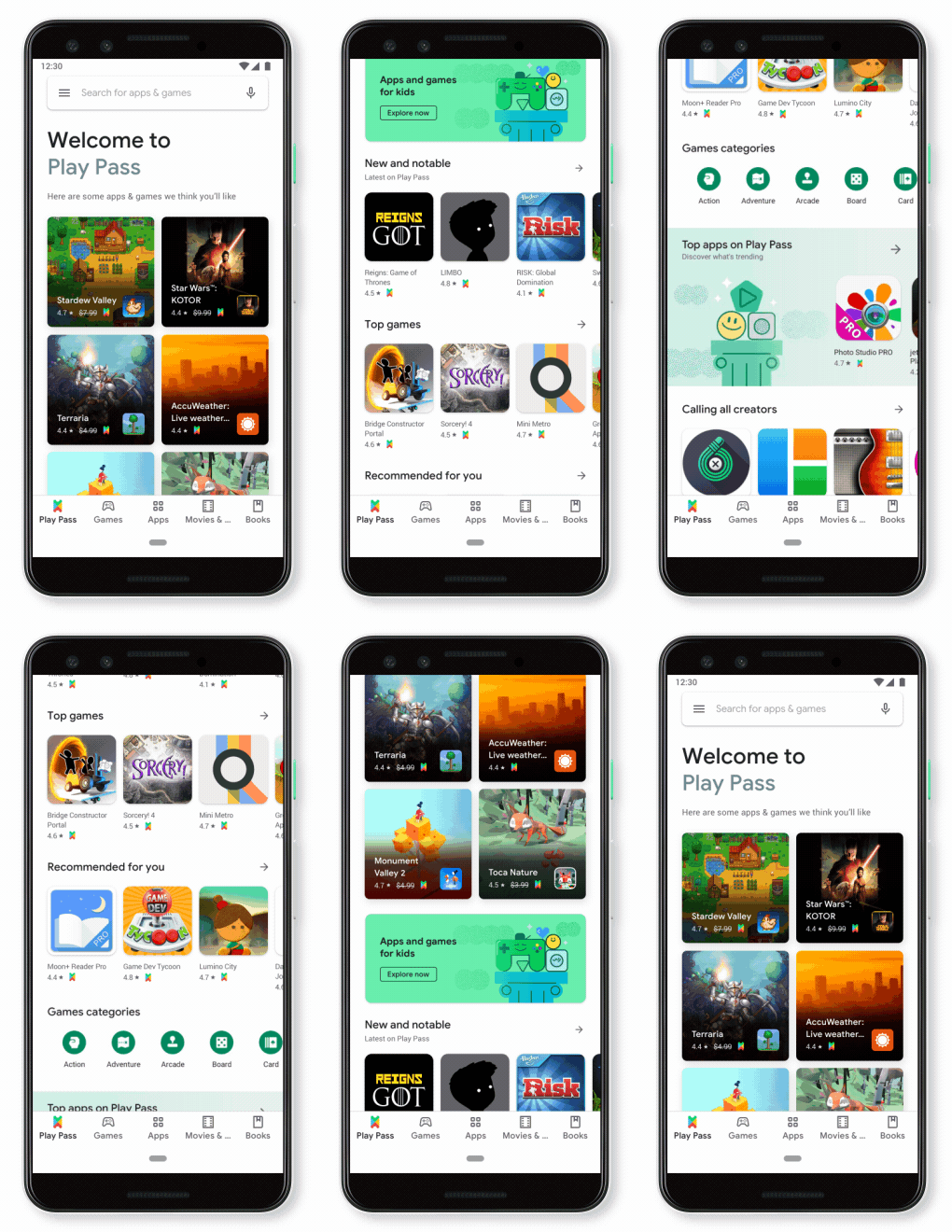
In addition, Play Pass’s launch titles aren’t all games. There are also ad-free versions of popular mobile apps, like AccuWeather, Facetune, and Pic Stitch, for example.

Notable launch titles include Stardew Valley, Risk, Terraria, Monument Valley, Star Wars: Knights of the Old Republic, Reigns: Game of Thrones, Titan Quest, and Wayward Souls. Some lesser-known additions include LIMBO, Lichtspeer, Mini Metro, and Old Man’s Journey. Others, like This War of Mine and Cytus, are coming soon. And for little kids, there are some preschooler-friendly titles like Toca Boca classics and the My Town series.

More titles are added on a monthly basis, Google says.

pph realistic

Because it’s not relying on exclusives, Google’s catalog is more than triple the size of Apple’s at launch. That being said, Apple’s Arcade library is filled with gorgeous, high-quality games while Play Pass is rounded out with a lot of more utilities, like weather apps and photo editors.

Play Pass ticket logoLike Apple Arcade, the new subscription gets its own tab in the Google Play app, where the games are organized by genre, popularity and other factors — just like a mini app store. However, unlike Apple Arcade, where games are only found in the Arcade tab or through search, Google Play Pass titles will appear directly in the Play Store. They’ll be designated with a Play Pass ticket badge, so you can easily identify them.

The Play Pass subscription also allows the games to be shared with the whole family. The family manager can share their Play Pass subscription with up to five other family members, who can each access the titles independently. This is comparable to Apple Arcade.

We already knew Google was working on an Apple Arcade competitor before today. The Play Pass subscription’s existence had been leaked, and Google later confirmed the service with a tweet. What we didn’t yet know was the launch date, lineup, or the official pricing.

Google Play Pass service is rolling out this week to Android devices in the U.S., with more countries coming soon. A 10-day subscription is available, before it converts to the $1.99 per month limited promotion, followed by the $4.99 per month price point when the promotion ends.

While neither Apple nor Google is discussing the terms of their deals with developers, Google says that the more people who download a Play Pass title, the more the revenue developers receive on a recurring basis. It also explained that Google itself is funding the initial launch offer, so developers can gain more subscriber interest without impacting their revenue.


Read Full Article

Google Play Pass launches with 350+ premium apps and games, initially for $1.99 per month


Following the well-received launch of Apple Arcade, Google today is officially introducing its own take on subscription-based access to premium mobile games — or, Google’s case, premium mobile apps, too. The new Google Play Pass subscription, arriving this week, will offer over 350 apps and games that are completely unlocked, with no upfront fees, in-app purchases, or advertisements. And the initial price point is something of a no-brainer — it’s just $1.99 per month for the first year, Google says.

That price will increase to $4.99 per month after the first 12 months have passed, which is the same price as Apple Arcade at launch. This launch promotion is only available until October 10, 2019, however.

The two services are similar in concept, as both are providing a large library of premium content for a monthly subscription. But there are some differences between the two.

For starters, Apple Arcade is filled with exclusives — meaning its games will not be found on Andriod. The reverse is not true for Google Play Pass. Instead, the Play Pass catalog includes many cross-platform titles, including some that even found their fame first on iOS, like ustwo’s Monument Valley.

In addition, Play Pass’s launch titles aren’t all games. There are also ad-free versions of popular mobile apps, like AccuWeather, Facetune, and Pic Stitch, for example.

Notable launch titles include Stardew Valley, Risk, Terraria, Monument Valley, Star Wars: Knights of the Old Republic, Reigns: Game of Thrones, Titan Quest, and Wayward Souls. Some lesser-known additions include LIMBO, Lichtspeer, Mini Metro, and Old Man’s Journey. Others, like This War of Mine and Cytus, are coming soon. And for little kids, there are some preschooler-friendly titles like Toca Boca classics and the My Town series.

More titles are added on a monthly basis, Google says.

pph realistic

Because it’s not relying on exclusives, Google’s catalog is more than triple the size of Apple’s at launch. That being said, Apple’s Arcade library is filled with gorgeous, high-quality games while Play Pass is rounded out with a lot of more utilities, like weather apps and photo editors.

Play Pass ticket logoLike Apple Arcade, the new subscription gets its own tab in the Google Play app, where the games are organized by genre, popularity and other factors — just like a mini app store. However, unlike Apple Arcade, where games are only found in the Arcade tab or through search, Google Play Pass titles will appear directly in the Play Store. They’ll be designated with a Play Pass ticket badge, so you can easily identify them.

The Play Pass subscription also allows the games to be shared with the whole family. The family manager can share their Play Pass subscription with up to five other family members, who can each access the titles independently. This is comparable to Apple Arcade.

We already knew Google was working on an Apple Arcade competitor before today. The Play Pass subscription’s existence had been leaked, and Google later confirmed the service with a tweet. What we didn’t yet know was the launch date, lineup, or the official pricing.

Google Play Pass service is rolling out this week to Android devices in the U.S., with more countries coming soon. A 10-day subscription is available, before it converts to the $1.99 per month limited promotion, followed by the $4.99 per month price point when the promotion ends.

While neither Apple nor Google is discussing the terms of their deals with developers, Google says that the more people who download a Play Pass title, the more the revenue developers receive on a recurring basis. It also explained that Google itself is funding the initial launch offer, so developers can gain more subscriber interest without impacting their revenue.


Read Full Article

Five months later, Samsung’s Galaxy Fold arrives this week


There’s fashionably late and then there’s the Galaxy Fold. Initially scheduled for an April 22 launch, the device was delayed after multiple reviews returned broken devices. Samsung was quick to blame users, only to ultimately go back to the drawing board.

A few months later, the company offered a broad September timeframe. Samsung hit the mark with time to spare in its native South Korea, launching the device a few weeks back. Now it’s time to do the same here in North America. The company’s first foldable (and, really, for that matter, the first “commercially viable” foldable) arrives this Friday, Sept 27.

The handset will be available as a carrier branded version through AT&T stores or unlocked through Best Buy and other retail locations. As noted, the company’s also offering a “Galaxy Fold Premier Service” — apparently part of the reason it canceled the original round of preorders. Basically the company wants to personally help users who buy the $2,000 deal with any specific problems.

Notably and somewhat humorously (albeit unintentionally so), the company recently issued a “Caring for your Galaxy Fold” video, which highlights how to not break the expensive new device. Samsung appears somewhat resigned to the fact that, which the device has been improved over the first attempt at going to market, the product is still more fragile than what we’ve come to expect from our smartphones.

To quote Samsung, “Just use a light touch.” That comes with the somewhat redundant “Do not apply excessive pressure” footnote. Not exactly the sort of thing that inspires confidence in a product’s durability. 


Read Full Article

A bold plan to empower 1.6 million out-of-school girls in India | Safeena Husain

A bold plan to empower 1.6 million out-of-school girls in India | Safeena Husain

"Girls' education is the closest thing we have to a silver bullet to help solve some of the world's most difficult problems," says social entrepreneur Safeena Husain. In a visionary talk, she shares her plan to enroll a staggering 1.6 million girls in school over the next five years -- combining advanced analytics with door-to-door community engagement to create new educational pathways for girls in India. (This ambitious plan is part of the Audacious Project, TED's initiative to inspire and fund global change.)

Click the above link to download the TED talk.

GoPro teases next-generation action camera announcement for October 1


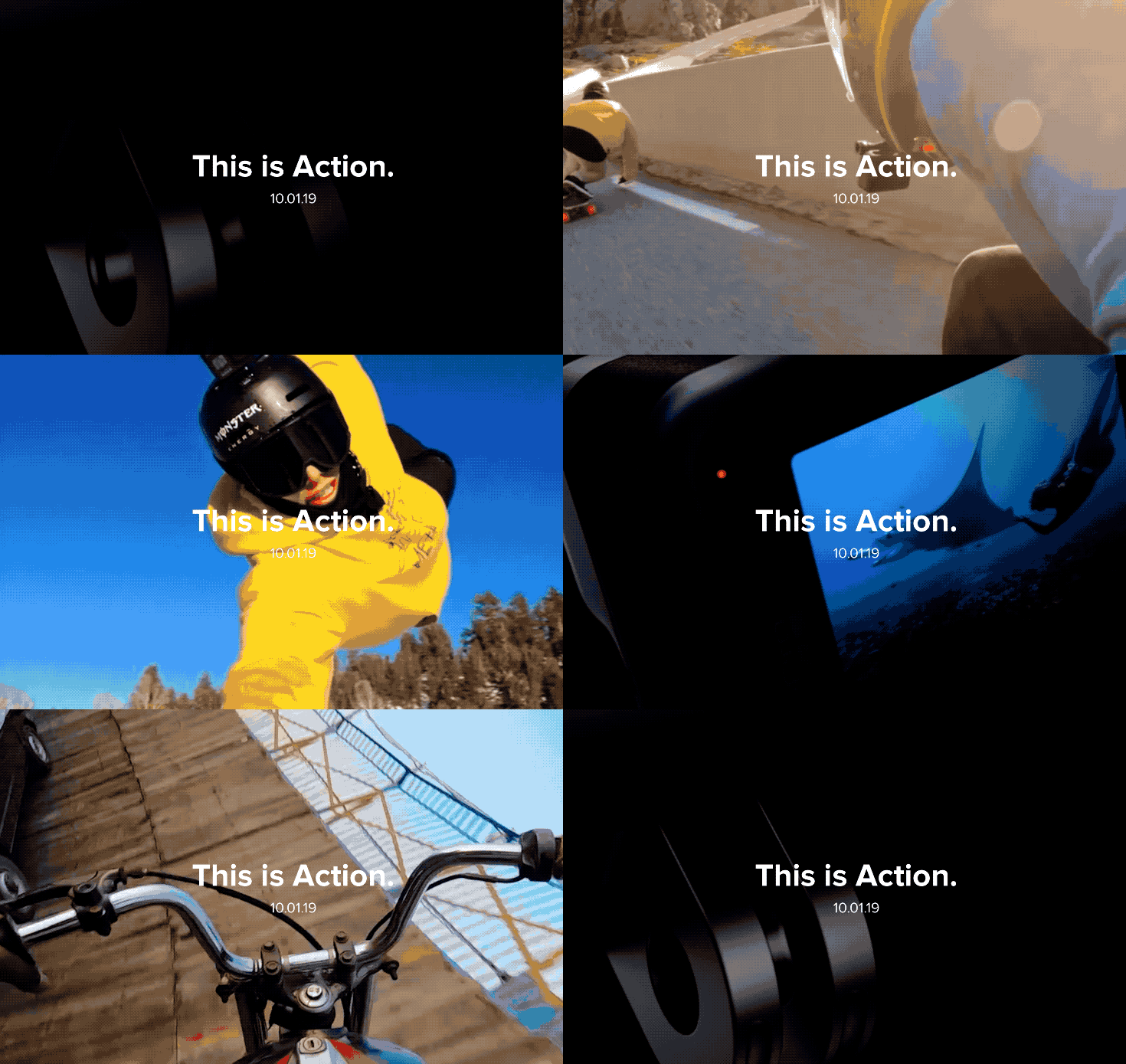
GoPro’s successor to the Hero 7 is likely coming on October 1, as the action camera maker has posted a teaser with the date to its official website. The tagline “This is Action” appears over a fast cut mash-up of variety of shots, including off-road racing, underwater diving and what looks like close-up footage of Frank Zapata (or someone else with a jetpack) flying around, along with the date.

The mostly shadowed image above is the closest we get to an official product shot, but we’ve seen leaks sourced from photo-focused rumor site Photo Rumors that suggest a redesign with added expandability options for advanced accessories including front-facing display monitors and external flash. These leaks also include some potential specs, like a new GP2 chip to help with on-board image stabilization, better lenses and image quality, and a new 12MP sensor, in addition to the new optional housing and accessories.

this is action gopro

GoPro’s Hero 7 introduced HyperSmooth stabilization, which provides gimbal-like results without the actual gimbal thanks to advanced digital stabilization technology that GoPro developed in-house. But the company also saw the introduction of its strongest-yet competitor in the market this year with the DJI Osmo Action, a GoPro-like action camera from drone and gimbal-maker DJI, which is at least on par with the Hero 7 in terms of stabilization and quality, with added features aimed at the vlogging market like a built-in front-facing display.

The slogan “This is Action.” could actually be interpreted as a dig against its newest rival, since Action is capitalized and the DJI camera is literally named the “Osmo Action.” Hopefully GoPro does indeed get a little spicy about its competitor, since it’s a market that could definitely stand to benefit from some genuine competition in the higher end of the category.


Read Full Article

The latest version of Yahoo Mail helps users find attachments and deals


Yahoo Mail is getting a mobile update, with new versions of the iOS and Android app launching today.

Many of you probably haven’t tried out Yahoo Mail in years, but Senior Director of Product Management Josh Jacobson noted that it’s one of the top productivity apps in the Apple App Store, where it has been rated 2.1 million times, with an average rating of 4.6 stars.

Jacobson also said that Yahoo Mail is trying to do something very different from the Superhumans of the world, because it’s not one of the many apps that “solve for essentially corporate use cases.” Instead, it’s “completely focused on the consumer email use case, solving the business of your life.”

For example, Jacobson said he joined Yahoo after the company acquired his previous employer, the smart inbox service Xobni. At the time, everyone assumed that when it came to helping users find things in email, “search is the way to go.” (Note: Yahoo, like TechCrunch, is owned by Verizon Media.)

Instead, he said it turns out “people just don’t know or want to have to figure out what to type into that imposing white box to find the thing that they’re looking for.”

Yahoo Mail

So Yahoo Mail now offers a number of different views that should help you find stuff without searching, by focusing on specific types of content from your inbox.

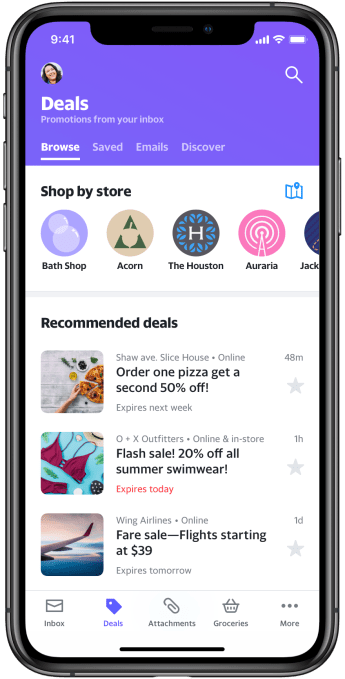
If you’re looking for a photo or a file that someone sent you, there’s a view that just brings up all your attachments. Or if you’re looking for deals, there are three different views that you use— the overall Deals View, the currently iOS-only Location View (which shows you nearby deals on a map) and Grocery View (which shows you grocery discounts based on your loyalty cards).

Director of Product Management Shiv Shankar noted that while the app is sorting and prioritizing these offers, the deals themselves come from your inbox, not from Yahoo.

The new Yahoo Mail also includes a view for checking all your email subscriptions, and a button that allows you to unsubscribe from any of them with a single tap. And there’s an additional view (also iOS-only for now) focusing “active updates,” namely pressing and time-sensitive emails, such as package tracking and travel updates.

The Yahoo Mail team has also refreshed the app’s overall look. That includes adding a navigation bar at the bottom of the screen, which Shankar said will make “single-hand usage” possible again despite the fact that phone screens are getting bigger. The navigation bar is customizable — each user can decide which views to include.

And by the way, if you’re a little leery of sending email from a Yahoo address, Jacobson pointed out that use the Yahoo Mail app to access non-Yahoo email accounts, including Gmail and Outlook.


Read Full Article

How Peloton made sweat addictive enough to IPO


It makes lazy people like me work out. That’s the genius of the Peloton bicycle. All you have to do is velcro on the shoes and you’re trapped. You’ve eliminated choice and you will exercise. Through a succession of savvy product design choice I’ll break down here, Peloton removes the friction to getting fit. It’s the leader in a movement I call “pushbutton health”. And this is why I think Peloton will be a big succes no matter what short-term investors do when it IPOs this week after raising $994 million in venture capital.

Peloton Bike Photo

The bike

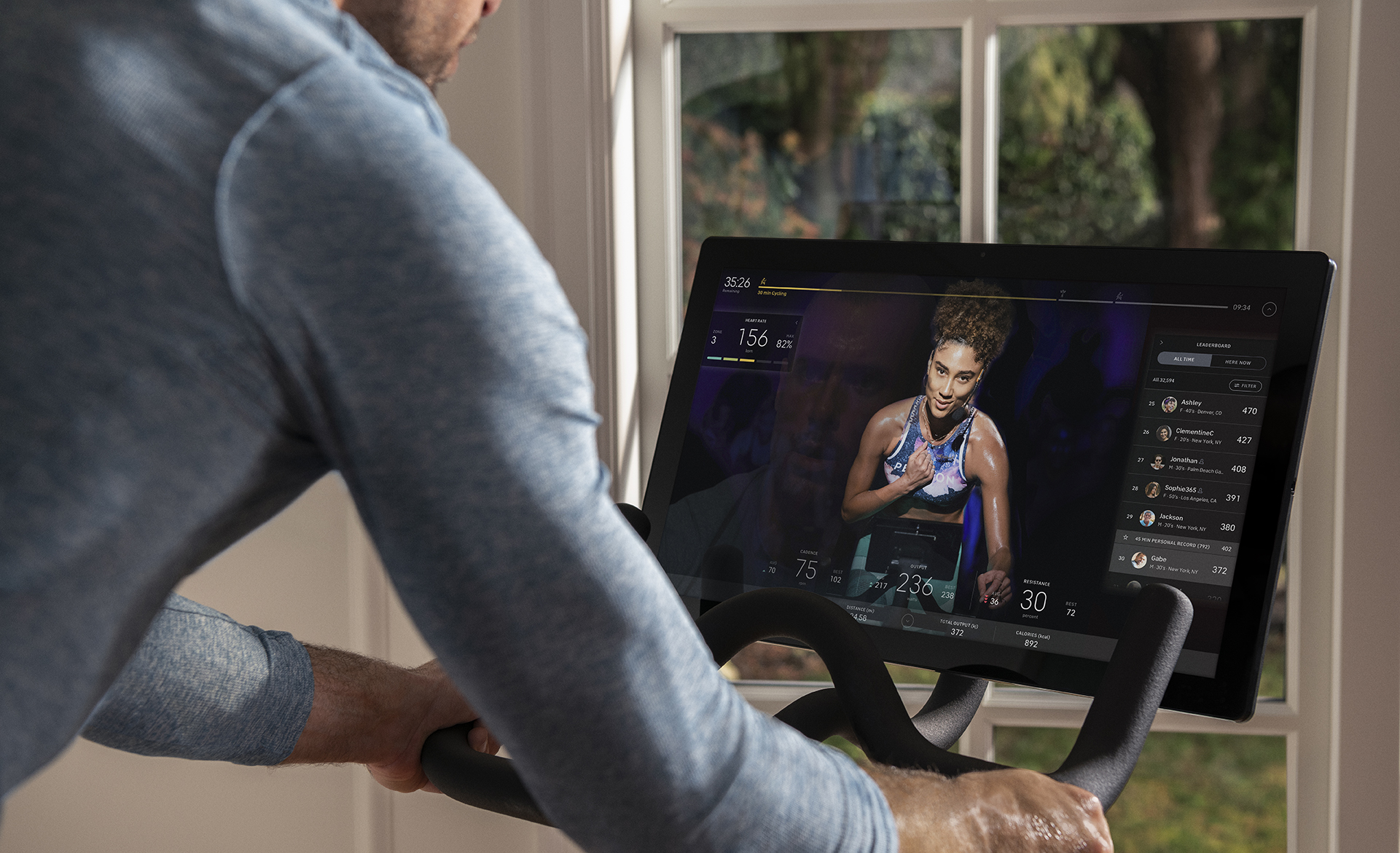
Basically, Peloton is a $2300 stationary bike with an iPad stuck to the front. The $40 per month subscription unlocks thousands of live and on-demand video cycling classes where instructors positively yell at you. When you think you’re tired already, they look into your eyes, tell you “you got this”, the soundtrack crescendos, you crank up the resistance, and you pedal harder at home. The resulting endorphin rush is addictive, and you find yourself persuading friends they need a Peloton too.

That viral loop which adds to its 500,000 subscribers is how Peloton plans to raise ~$1.16 billion going public this week at an ~$8 billion valuation. Its revenue doubled this year as it began to dominate the connected exercise equipment market, though losses quadrupled as it burned cash to become a household name. But after riding 110 of 150 days I’ve been home since buying its bike, I’m confident in the company. Whatever it invests now to build its lead will likely be paid back handsomely by its increasingly handsome customers who can’t bear to clip out. Here’s why.

Peloton Class

Peloton classes are recorded in front of a live studio audience of riders

The Brilliance Of This Bike

The Shoes – Usually the activation energy to start a workout requires dragging yourself to the gym or suiting up to face the elements outside. That can be daunting enough that you rarely do. But once you slip into the Peloton bike shoes, you can hardly walk normally which means you can hardly procrastinate. You’re home so you don’t even need clothes. Just a few velcro straps and you’re over the hump and resigned to exercise.

The Clips – Home gym equipments reduces the barrier to entry but also the barrier to exit. You can tell yourself you’ll keep doing push-up sets or squats jumping rope, but you can stop any time. Yet after you’re clipped into the Peloton bike, you’re almost assured to keep pedaling until the instructor gives you that end-of-ride congratulations.

Peloton Shoes

Just put the shoes on and you’ll exercise

The Schedule – You can get a sweat in just 10 or 20 minutes going hard on a Peloton. Combined with zero commute, that means you’ll practically always be able fit in a ride regardless of how busy you are. No more “I don’t have time to make it to the gym so I’ll just skip out”. When my calendar gets crunched or I dawdle a little before deciding to ride, classes as short as 5 minutes ensure there’s no weaseling out.

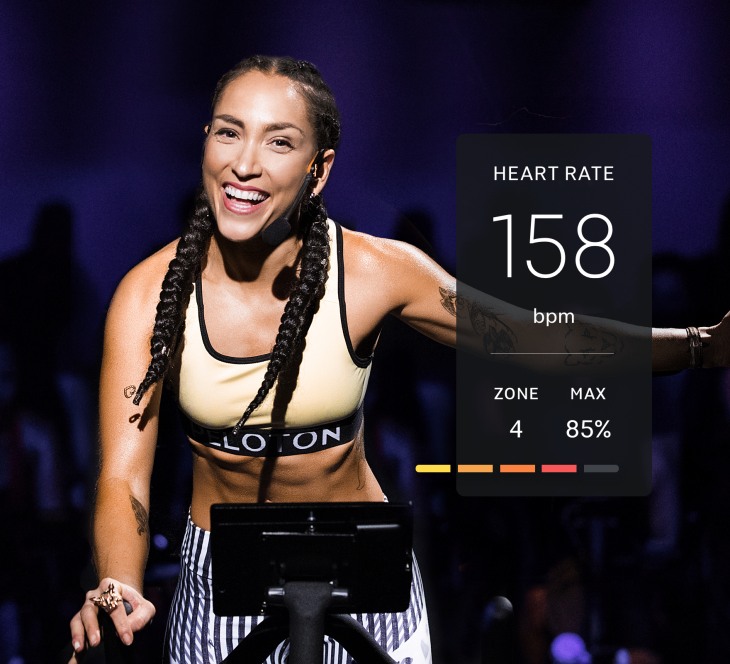
The Instructors – I wish I had these coaches to motivate me through sorting email. Peloton’s 20+ instructors range from hippie-dippie gurus to no-nonsense trainers that fit your personality type. You find yourself craving your favorite’s special brand of relentless positivity. I burn far more calories in a shorter time than exercising solo because they inspire me to push a little harder or they slow their countdown to add a couple all-out seconds to the end of a sprint. They’re even becoming celebrities, with bankers lining up for selfies during Peloton’s IPO road show. Sick of them? You can always Scenic Ride through video of some of the world’s prettiest bike paths.

Peloton Instructors

Peloton instructors (from left): Alex Toussaint, Emma Lovewell, Ben Alldis, and Leane Hainsby

The Intimacy – You’re eye-to-eye with those instructors as they stare into the camera and out of the giant screen bolted to your handlebars. That generates intimacy despite them broadcasting to thousands. Even in person, a SoulCycle coach across the room can feel further away. You’re mostly guided by audio cues, but their gaze compels you to perform. Peloton almost feels like FaceTime, and that’s a sense of connection many long for more of these days.

The Pavlovian Response – Your brain quickly begins to associate the sounds of Peloton with the glowing feeling of finishing a workout. The rip of the velcro shoe straps, the click of clipping into the bike, but most of all the instructor catch-phrases. You get hooked on hear the bubbling British accent of “I’mmmm Leeaannne Haaaaainsby” as she introduces herself, Ben Alldis’ infectious “You got 5, you got 4…” countdowns, or Emma Lovewell reminding you to “Live, learn, love well”. That final ‘namaste’ followed by wiping down the bike and jumping in a cold shower forms a ritual you’re inclined to repeat.

Peloton Class

Eye-contact with the instructors creates an intimate bond

The Soundtrack – Popular songs are more than just a pump-up accompaniment to Peloton classes. Your pedaling pace is often pegged to the tempo, with sprints starting when the beat drops. As your legs tire, you feel obliged to maintain your speed so you don’t fall behind the drums. You can even search classes by music genre and preview each’s playlist. Peloton has paid out $50 million in royalties for its music, and faces $300 million-plus in lawsuits for copyright infringement. But having the best tunes to bike to might end up worth the penalty since it helped Peloton race ahead in a lucrative market.

The Bike As Decor – Most home exercise equipment ends up in a closet or as a clothing rack. By designing its bicycles for beauty, Peloton coerces you to place them conspicuously in your home. You might have seen the hysterical Twitter thread parodying this practice, but it’s funny because it’s true. You’re a lot more likely to ride it if it’s central to your home (ours is between our bed and the doors to the veranda), and you’ll be embarassed if visitors ask about it and you haven’t hopped on recently.

Dx9pHXuUwAAixVa

“A good place for your Peloton bike is between your kitchen and your living room facing the cactus garden so you always remember virtual spin class” –ClueHeywood on Twitter

The Network Effect – Many of these smart product design moves could be copied by competitors. But by amassing a community of 1.4 million members to date, Peloton benefits from social features and economies of scale. You can ride together with pals over video chat, send each other digital high fives, or race and compare achievements. Each friend that joins Peloton is one more reason not to sign up for a competitor. The whole concept virtual personal training is being legitimized. And the cost of producing more classes gets spread wider as membership grows.

The Shared Accounts – Peloton has even built in a way to feel noble about your sanctimonious prosyletizing about how it “jumpstarted your metabolism”. Each $39 on-bike subscription allows unlimited accounts on up to three devices, so you can hook up some friends if you convince them to buy the big-budget gadget.

Peloton High Five

High-five fellow riders as you virtuall pass them

The Growth Hacks – Peloton streaks are for adults what Snapchat streaks are to kids: a clever way to reward consistent usage. But beyond the achievement badges displayed on your profile, you’ll get in-ride leaderboards full of people to proudly pass, progress bars to fill by pedaling, and kilojoule output high scores to beat. Peloton makes exercise a game you want to win.

The Shoutouts – Yet Peloton’s most explicit levering of our psychology comes from the in-class name-drop shoutouts instructors give. Whether mentioning the screen names of a few participants at the start of a session or congratulating users hitting their 50th, 200th, or 500th ride, the recognition pushes people to join the dozen live-streamed classes each day that add urgency to the on-demand catalog. Proof it works? People strategize to ensure their 100th ride is a long live class to maximize the chance of a shout-out.

Peloton Century Club Free Shirt

A free cult shirt after your 100th ride

The ‘Transcendence’ – Peloton minimizes the isolation from working out at home. In fact, its whole product enables people to feel ‘glamorous’ and ‘manifested’ yet nonchalant in ways going to a sweaty gym or using a personal trainer can’t. It’s like being able to buy a little piece of the smug satisfaction and in-group affiliation of going to Burning Man. That’s why the company even sends you a free “Century Club” t-shirt when you hit your 100th ride. You’re meant to feel cool sharing that you “Peloton”, using the startup’s name as a verb.

Peloton Conspicuous Self Actualization 2

Conspicuous Self-Actualization

Still, Peloton has plenty left to optimize. There’s room to expand use of its camera to offer premium one-on-one coaching, head-to-head racing, group video chat with friends, and augmented reality filters to make people feel comfortable on screen and take shareable selfies. A wider range of intense but short classes could appeal to overworked professionals who picked Peloton precisely because they don’t have an hour for the gym.

Novelty could come from celebrity guest instructors, or themed classes for pre-gaming for a night out, fans of a particular artist, or songs about a certain topic. And it should definitely have some iconic sounds like an om or singing bowl chime that play before each class to center you and after to release you.

Most excitingly, the Peloton screen has the potential to be a platform for exercise-controlled gaming and apps. Whether pedaling to escape zombies chasing you or piece together a puzzle, maintaining an output level to keep your cross-hairs locked on an enemy plane as you dogfight, or making a garden bloom by growing each flower during a different interval, Peloton could evolve riding to be much more interactive. Apps could offer training simulators for different sports focused on sprints for basketball or marathons for soccer. Or just put Netflix on it! By opening up to outside developers, Peloton could build a moat of extra experiences competitors can’t match.

With the strengths and opportunities of its core product, Peloton is poised to absorb more of your fitness time and money. It’s already branching out with yoga, meditation, lifting, bootcamp, and jazzercise classes you can do standing next to your bike or without one on its $19 per month app. Its second gadget is a $4300 treadmill.

From there it could break into more of the “pushbutton health” business. I categorize these as wellness products and services that rely on convenience instead of your will power. Think delivery health food instead calorie-counting apps that are a chore. My pushbutton regimen includes Peloton, six salads per week dropped off in batches by Thistle, monthly packages of Nomiku vacuum-sealed meals that RFID scan into its sous vide machine, and a Future remote personal trainer who nags me by text message.

Peloton Coaching

It’s easy to get hooked on the positivity

Peloton could easily dive into selling meal kits, personal training, or a wider range of workout clothes to compete with Lulu Lemon. If it’s the center of your fitness routine, the company could become a gateway to new health products it owns or partners with.

I’m bullish on Peloton because I’m betting people are going to stay busy, lazy, and competitive. It offers the effectiveness of a spin class but with scheduling flexibility. It removes every excuse for staying on the couch. And in an age of visual communication where many seek to share both the journey to and the destination of an Instagrammable body and the discipline to ge there, Peloton provides conspicuous self-actualization through consumerism. Plus, finishing a ride feels damn good.


Read Full Article

22 September 2019

iPhone 11 Pro teardown reveals smaller logic board, larger battery


iFixit has disassembled Apple’s new iPhone models, which tells us more about the differences with last year’s phones. iFixit shot a live-stream video of the iPhone 11 Pro teardown and wrote a guide for the iPhone 11 Pro Max.

The first major difference is that the batteries in the iPhone 11 Pro and iPhone 11 Pro Max are much larger than the batteries in the iPhone XS and iPhone XS Max.

On the iPhone 11 Pro Max, the device is .4 mm thicker and the screen is .25 mm thinner. As John Gruber expected, dropping 3D Touch from the iPhone lineup makes the screen slightly slimmer. 3D Touch required an additional layer under the display to register pressure on the screen.

That might feel like a tiny difference, but it frees up some space for the battery. The iPhone 11 Pro and iPhone XS have the same single-cell L-shaped design. But the Max version has been updated to use the came single-cell design instead of two cells.

The result is that the iPhone 11 Pro Max now has a 3,969 mAh battery compared to a 3,179 mAh battery in the iPhone XS Max. It represents a nearly 25% year-over-year improvement for the Max battery.

Those hardware refinements combined with a more efficient A13 system-on-a-chip create some significant battery life improvements for the user. Apple claims that the iPhone 11 Pro and iPhone 11 Pro Max last up to 4 hours and 5 hours longer respectively compared to the previous generation.

iphone 11 livestream featured 1350x900

(Photo credit: iFixit)

In other news, the camera module is much bigger in this year’s new device (as expected). Apple managed to put a third camera by reducing the size of the logic board.

The logic board has the same dual-layer design that was first introduced with the iPhone X. It’s like a club sandwich of chips. Even though Apple and Qualcomm has settled its multi-billion-dollar lawsuits, the modem in the iPhones 11 Pro is still manufactured by Intel.

When it comes to things that we don’t know yet, iFixit couldn’t figure out how much RAM there is — Steve Troughton-Smith believes there might be 2GB of RAM dedicated to the camera that you wouldn’t notice on benchmarks.

Similarly, there are now two battery connectors instead of one. It’s hard to say for sure that the second connector has been added for bilateral wireless charging — it could be there for many different reasons. Rumor has it that Apple wanted to add reverse wireless charging but canned the feature at the last minute.

Overall, iFixit gives a repairability score of 6 out 10. The iPhone XS models also got a 6 out of 10 rating.


Read Full Article

Facebook has acquired Servicefriend, which builds ‘hybrid’ chatbots, for Calibra customer service


As Facebook prepares to launch its new cryptocurrency Libra in 2020, it’s putting the pieces in place to help it run. In one of the latest developments, it has acquired Servicefriend, a startup that built bots — chat clients for messaging apps based on artificial intelligence — to help customer service teams, TechCrunch has confirmed.

The news was first reported in Israel, where Servicefriend is based, after one of its investors, Roberto Singler, alerted local publication The Marker about the deal. We reached out to Ido Arad, one of the co-founders of the company, who referred our questions to a team at Facebook. Facebook then confirmed the acquisition with an Apple-like non-specific statement:

“We acquire smaller tech companies from time to time. We don’t always discuss our plans,” a Facebook spokesperson said.

Several people, including Arad, his co-founder Shahar Ben Ami, and at least one other indicate that they now work at Facebook within the Calibra digital wallet group on their LinkedIn profiles. Their jobs at the social network started this month, meaning this acquisition closed in recent weeks. (Several others indicate that they are still at Servicefriend, meaning they too may have likely made the move as well.)

Although Facebook isn’t specifying what they will be working on, the most obvious area will be in building a bot — or more likely, a network of bots — for the customer service layer for the Calibra digital wallet that Facebook is developing.

Facebook’s plan is to build a range of financial services for people to use Calibra to pay out and receive Libra — for example, to send money to contacts, pay bills, top up their phones, buy things and more.

It remains to be seen just how much people will trust Facebook as a provider of all these. So that is where having “human” and accessible customer service experience will be essential.

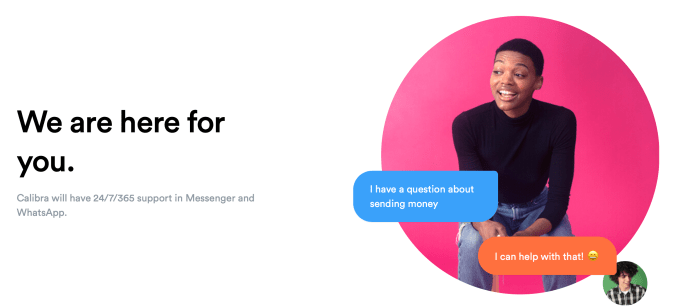
“We are here for you,” Calibra notes on its welcome page, where it promises 24-7 support in WhatsApp and Messenger for its users.

Screenshot 2019 09 21 at 23.25.18

Servicefriend has worked on Facebook’s platform in the past: specifically it built “hybrid” bots for Messenger for companies to use to complement teams of humans, to better scale their services on messaging platforms. In one Messenger bot that Servicefriend built for Globe Telecom in the Philippines, it noted that the hybrid bot was able to bring the “agent hours” down to under 20 hours for each 1,000 customer interactions.

Bots have been a relatively problematic area for Facebook. The company launched a personal assistant called M in 2015, and then bots that let users talk to businesses in 2016 on Messenger, with quite some fanfare, although the reality was that nothing really worked as well as promised, and in some cases worked significantly worse than whatever services they aimed to replace.

While AI-based assistants such as Alexa have become synonymous with how a computer can carry on a conversation and provide information to humans, the consensus around bots these days is that the most workable way forward is to build services that complement, rather than completely replace, teams.

For Facebook, getting its customer service on Calibra right can help it build and expand its credibility (note: another area where Servicefriend has build services is in using customer service as a marketing channel). Getting it wrong could mean issues not just with customers, but with partners and possibly regulators.


Read Full Article